From SimplyBook.me
Created page with "Імпорт списку клієнтів" |
Created page with "'''Як скористатися цією опцією:''' :1. Увімкніть спеціальну функцію «Імпортувати клієнтів» на сторінці «Спеціальні функції»: 1200px | center|link=https://help.simplybook.me/images/5/55/Import_clients_enable_path_redesigned.png <br><br>" |
||
| Line 14: | Line 14: | ||
[[File:Import clients enable path redesigned.png|1200px | center|link=https://help.simplybook.me/images/5/55/Import_clients_enable_path_redesigned.png]] | [[File:Import clients enable path redesigned.png|1200px | center|link=https://help.simplybook.me/images/5/55/Import_clients_enable_path_redesigned.png]] | ||
<br><br> | <br><br> | ||
:2. Підготуйте файл Excel. | |||
:2. | :- Над списком клієнтів не повинно бути тексту. | ||
:- | :- Переконайтеся, що всі комірки відображаються правильно. | ||
:- | :- Збережіть файл у форматі .csv з розділенням комами. | ||
:- | |||
<br><br> | <br><br> | ||
:3. | :3. Перейдіть до «Управління»//«Клієнти»//«Імпортувати з CSV» або просто натисніть «Налаштування» поруч із цією налаштованою функцією. | ||
[[ File:Import csv file path redesigned.png|1200px | center|link=https://help.simplybook.me/images/c/cb/Import_csv_file_path_redesigned.png]] | [[ File:Import csv file path redesigned.png|1200px | center|link=https://help.simplybook.me/images/c/cb/Import_csv_file_path_redesigned.png]] | ||
<br><br> | <br><br> | ||
<div lang="en" dir="ltr" class="mw-content-ltr"> | <div lang="en" dir="ltr" class="mw-content-ltr"> | ||
:4. Press "Choose file" and select the prepared file. | :4. Press "Choose file" and select the prepared file. | ||
Revision as of 12:14, 16 May 2025
Як імпортувати клієнтів
Безкоштовна спеціальна функція!
- Увага! Заборонено імпортувати список клієнтів з електронними адресами та інформацією про клієнтів, якщо клієнти не надали вам на це спеціального дозволу.
- Зверніть увагу, що ця функція доступна лише для підписок Standard та Premium (раніше Advanced, Gold та Platinum).
- За замовчуванням можна імпортувати лише 500 клієнтів. Якщо вам потрібно імпортувати більше, зверніться до служби підтримки для отримання детальної інформації.
Як скористатися цією опцією:
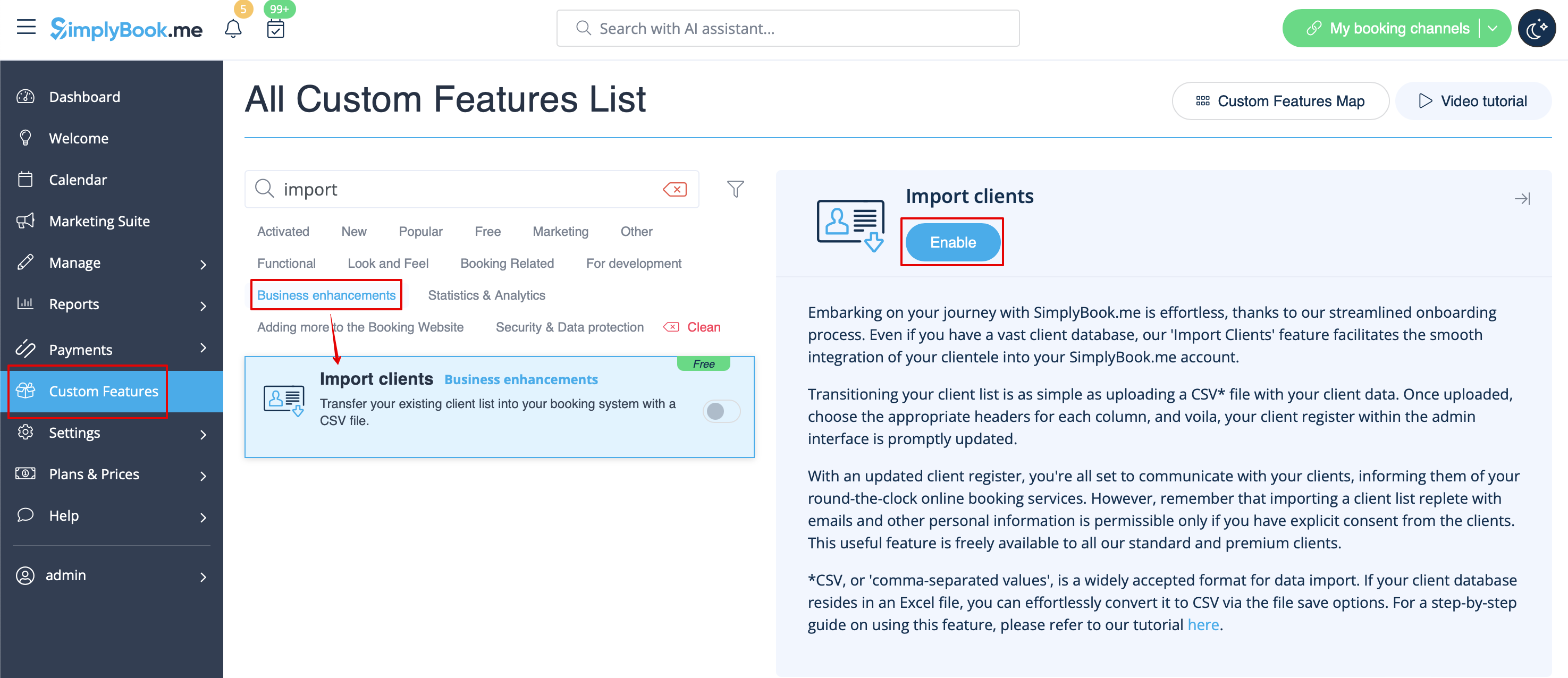
- 1. Увімкніть спеціальну функцію «Імпортувати клієнтів» на сторінці «Спеціальні функції»:
- 2. Підготуйте файл Excel.
- - Над списком клієнтів не повинно бути тексту.
- - Переконайтеся, що всі комірки відображаються правильно.
- - Збережіть файл у форматі .csv з розділенням комами.
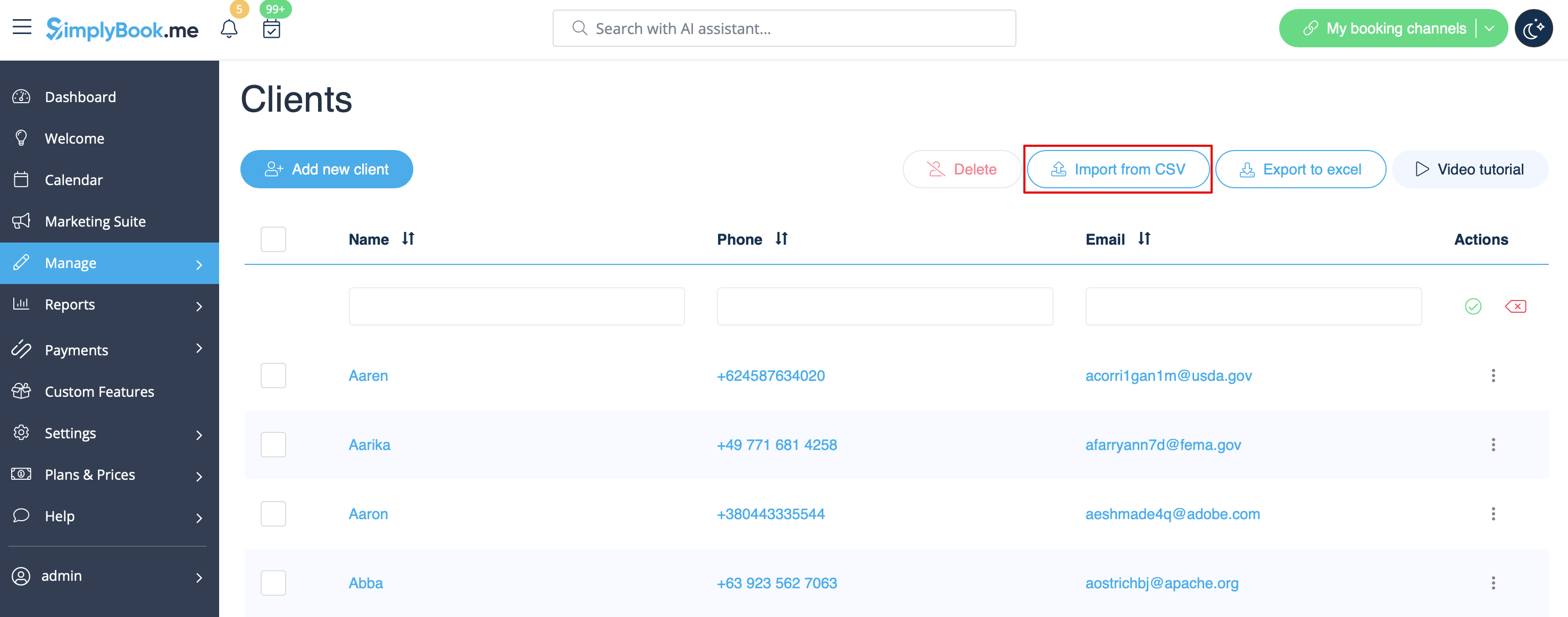
- 3. Перейдіть до «Управління»//«Клієнти»//«Імпортувати з CSV» або просто натисніть «Налаштування» поруч із цією налаштованою функцією.
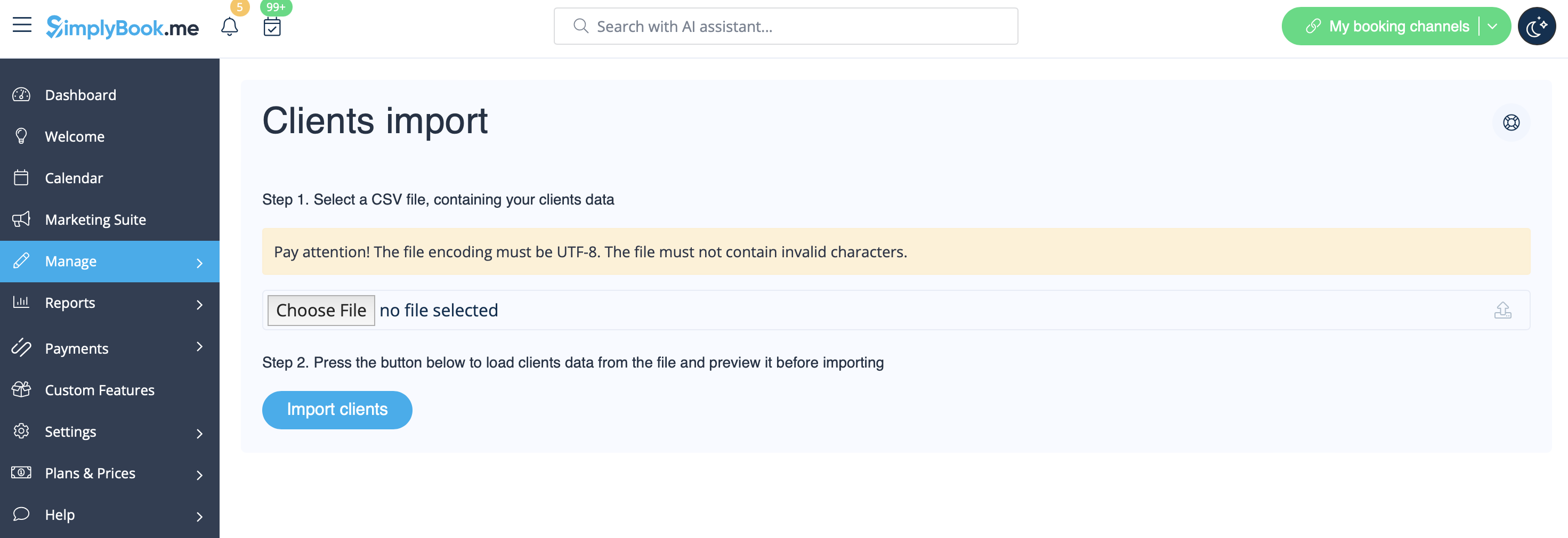
- 4. Press "Choose file" and select the prepared file.
- 5. Assign values to the columns from drop-down lists in the upper bar (above each column, marked with black arrows). Assign "name", "email" and "phone".
- (if you are using Client Fields Custom Feature you can also import some of the forms values)
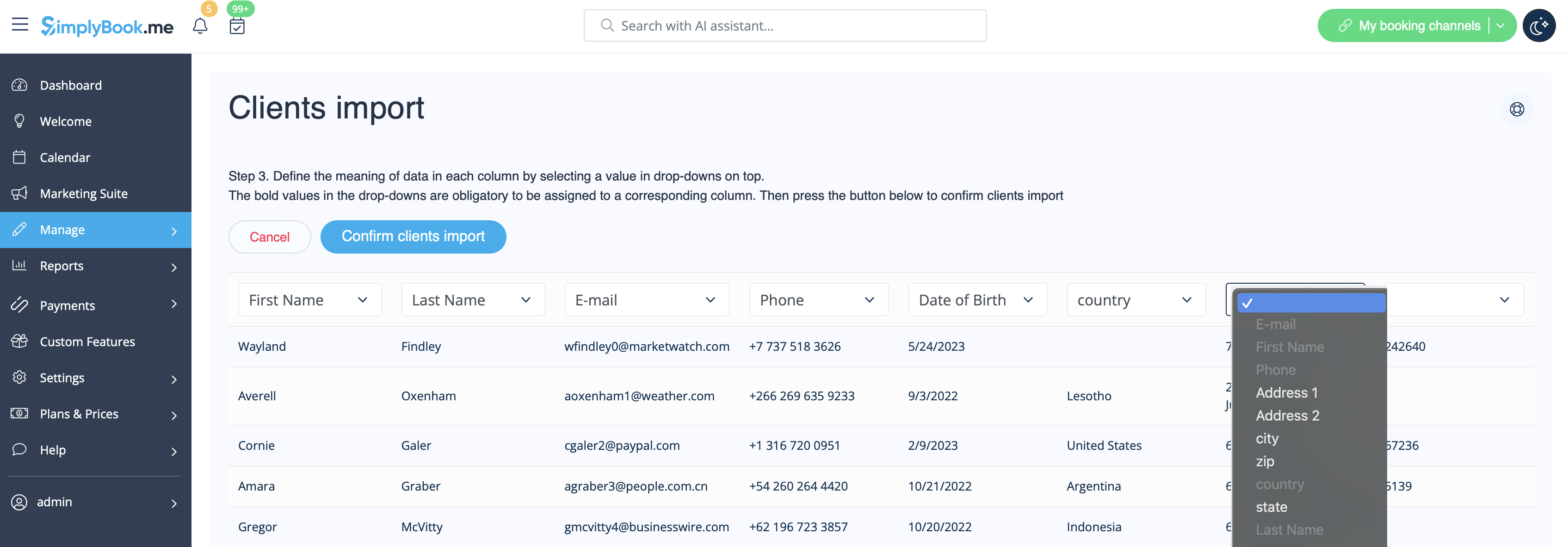
- 6. Press "Confirm clients import".
- Please note that only 10 clients will be shown in preview, but after you import, all clients will be shown.
- If you can't import clients, please check the possible reasons
- 1. Format of .csv file is incorrect. It should be saved in .csv with comma or tab separation.
- 2. There is some text above the data or unnecessary columns that prevent successful import. Please delete the text.
- 3. Values are not assigned. Use drop-down menus above the columns to assign values "name", "email", "phone", etc.

