From SimplyBook.me
Created page with ":2. Når alle typer er klar til brug, skal du navigere til siden <span style="background-color:#d4f8e5; padding:5px; border-radius:5px;">Kalender</span> ved hjælp af <span style="background-color:#d4f8e5; padding:5px; border-radius:5px;">menuen til venstre.</span> <br><br> :3. Skift til tilstanden <span style="background-color:#d4f8e5; padding:5px; border-radius:5px;">Tilføj note/Bloker tid</span> <span style="background-color:#d4f8e5; padding:5px; border-radius:5px;">..." Tags: Mobile edit Mobile web edit |
Created page with "{{#seo: |title=Kalendernoter – SimplyBook.me |description=Tilføj private noter til din kalender for bedre organisering. Hold nemt styr på vigtige detaljer. Lær, hvordan du bruger denne funktion! |titlemode=tilføj |keywords=faq, ofte stillede spørgsmål, reservationssoftware, spørgsmål om aftalesystem, onlineaftaler, kalendersoftware, reservationssystem, reservationskalender, planlægningssoftware, onlineaftaleplanlægning, onlineplanlægning, opsætning, hjælp..." |
||
| Line 15: | Line 15: | ||
[[File:Note mode calendar redesigned.png|1200px|border|center|link=https://help.simplybook.me/images/b/b7/Note_mode_calendar_redesigned.png]] | [[File:Note mode calendar redesigned.png|1200px|border|center|link=https://help.simplybook.me/images/b/b7/Note_mode_calendar_redesigned.png]] | ||
<br><br> | <br><br> | ||
:4. Klik på det <span style="background-color:#d4f8e5; padding:5px; border-radius:5px;">frie felt</span> i <span style="background-color:#d4f8e5; padding:5px; border-radius:5px;">kalendertabellen</span>, hvor du vil indsætte oplysningerne eller blokere tiden, for at få vist <span style="background-color:#d4f8e5; padding:5px; border-radius:5px;">pop op-vinduet med noter.</span> | |||
:4. | |||
<br><br> | <br><br> | ||
:5. | :5. Marker afkrydsningsfeltet " <span style="background-color:#d4f8e5; padding:5px; border-radius:5px;">Tid er blokeret</span> " for at lukke tilgængeligheden, hvis det er nødvendigt, tilføj detaljerne i <span style="background-color:#d4f8e5; padding:5px; border-radius:5px;">tekstfeltet</span>, og vælg den ansvarlige: du kan tilføje en note eller lukke tiden for <span style="background-color:#d4f8e5; padding:5px; border-radius:5px;">en bestemt udbyder,</span> <span style="background-color:#d4f8e5; padding:5px; border-radius:5px;">service</span> eller <span style="background-color:#d4f8e5; padding:5px; border-radius:5px;">alle.</span> | ||
[[File:Adding note to block time redesigned.png|1200px|border|center|link=https://help.simplybook.me/images/4/43/Adding_note_to_block_time_redesigned.png]] | [[File:Adding note to block time redesigned.png|1200px|border|center|link=https://help.simplybook.me/images/4/43/Adding_note_to_block_time_redesigned.png]] | ||
<br><br> | <br><br> | ||
<div lang="en" dir="ltr" class="mw-content-ltr"> | <div lang="en" dir="ltr" class="mw-content-ltr"> | ||
:6. To edit or delete the previously added note <span style="background-color:#d4f8e5; padding:5px; border-radius:5px;">click on it</span> to get the popup and use the needed function there. | :6. To edit or delete the previously added note <span style="background-color:#d4f8e5; padding:5px; border-radius:5px;">click on it</span> to get the popup and use the needed function there. | ||
Revision as of 09:16, 19 May 2025
Det kan være nødvendigt at tilføje vigtige oplysninger til kalendersiden, som vises sammen med bookinger, eller du skal hurtigt blokere et tidsrum og angive årsagen.
Derfor har vi lanceret en ny mulighed, Kalender-noter, med tidsblokeringsfunktion, der gør det muligt, og nu kan du have alle de nødvendige ting ved hånden.
- Sådan bruges det
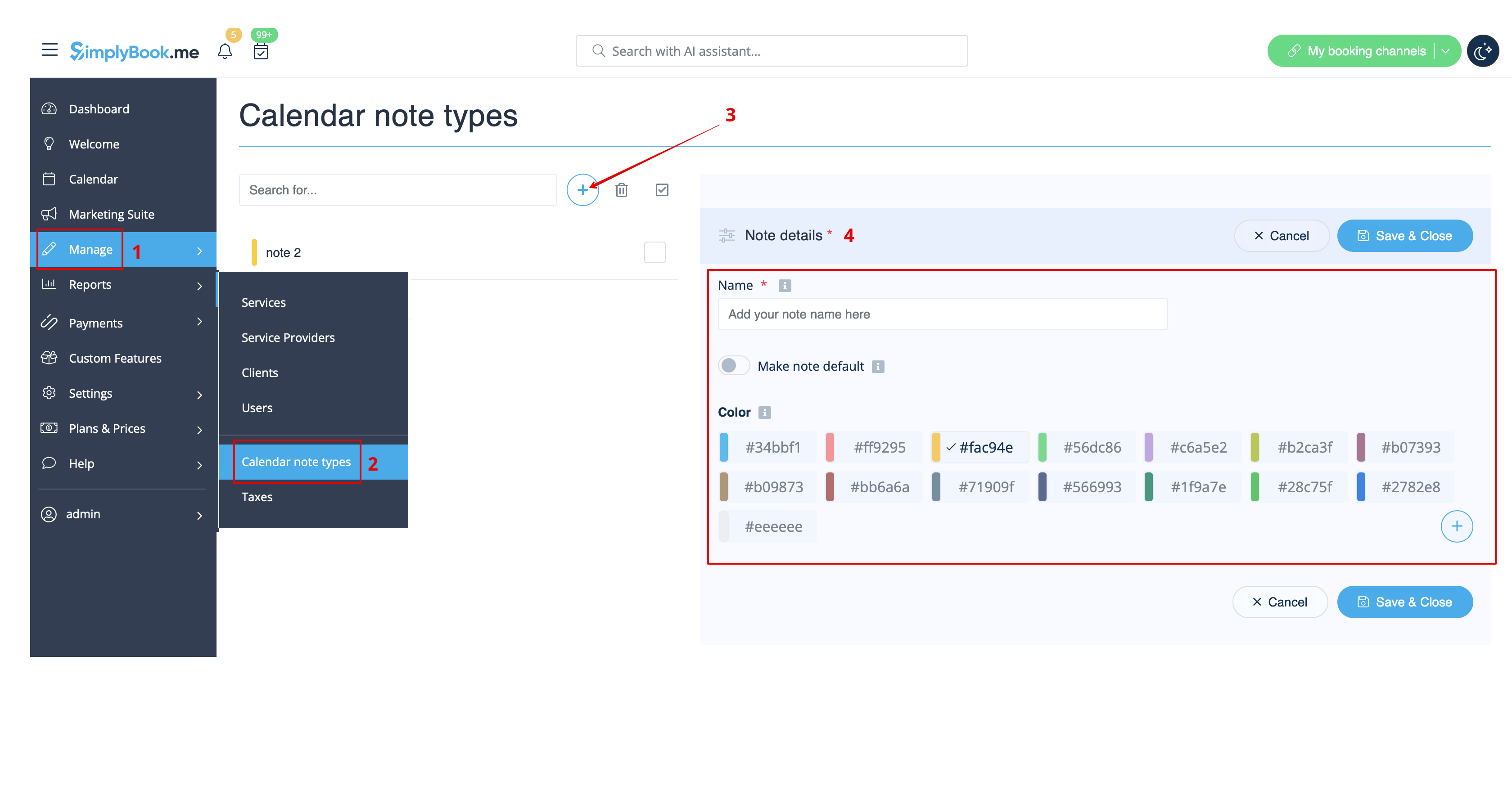
- 1. Som standard er der tilføjet én notetype til dig i systemet, men du kan gå til Administrer -> Kalendernotetyper for at tilføje nye notetyper og indstille de ønskede farver for dem.
- 2. Når alle typer er klar til brug, skal du navigere til siden Kalender ved hjælp af menuen til venstre.
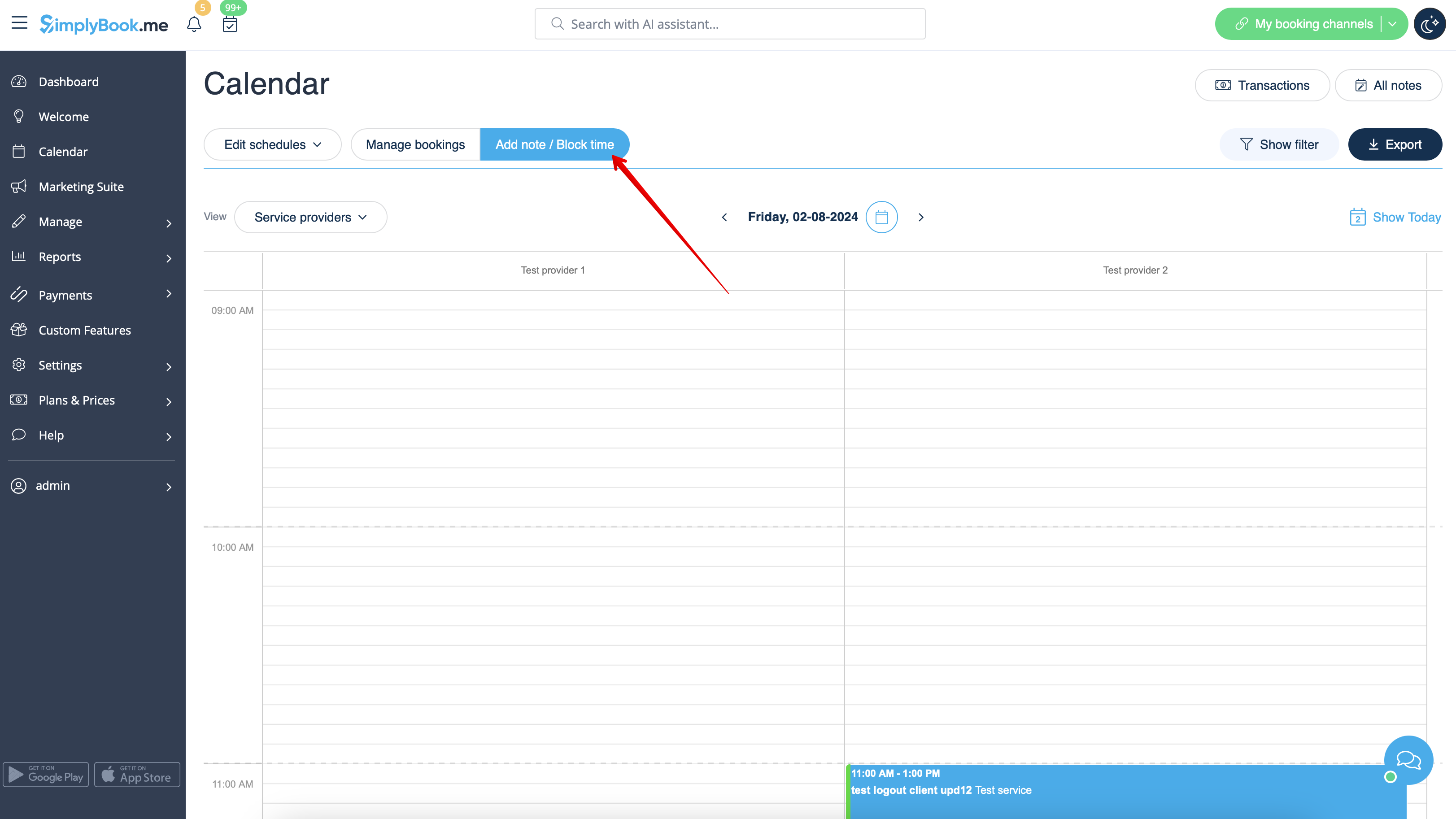
- 3. Skift til tilstanden Tilføj note/Bloker tid over kalenderen.
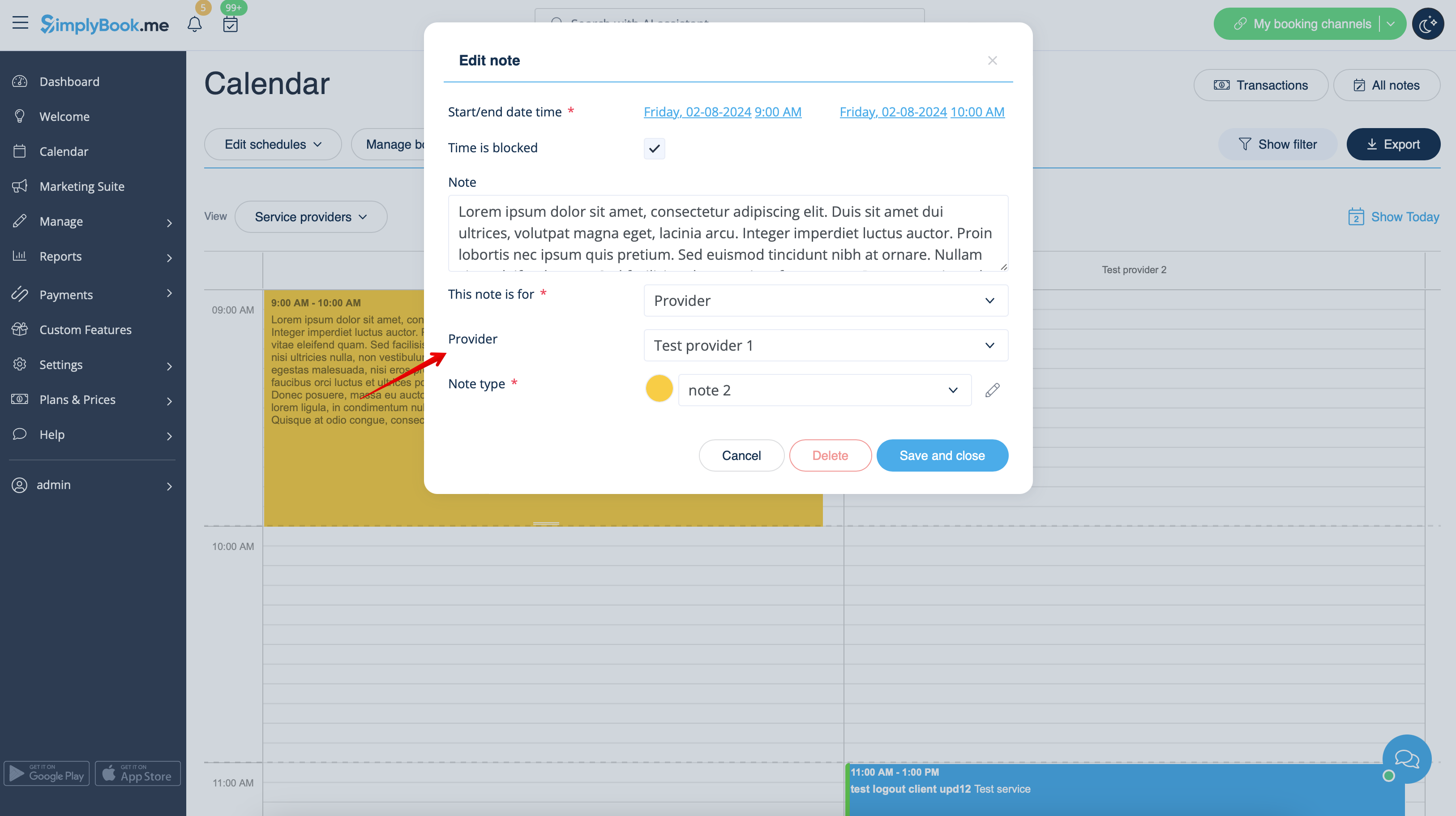
- 4. Klik på det frie felt i kalendertabellen, hvor du vil indsætte oplysningerne eller blokere tiden, for at få vist pop op-vinduet med noter.
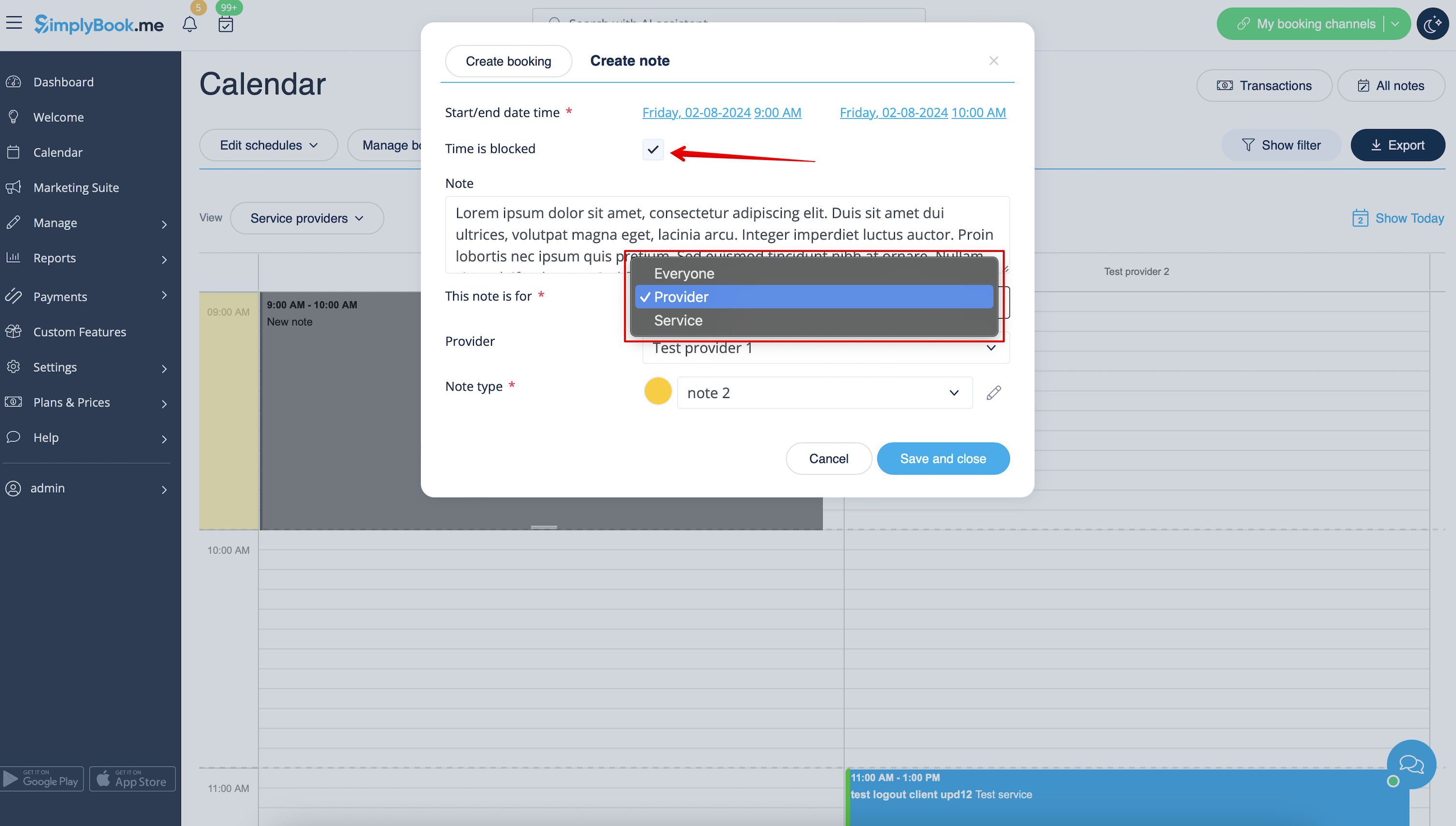
- 5. Marker afkrydsningsfeltet " Tid er blokeret " for at lukke tilgængeligheden, hvis det er nødvendigt, tilføj detaljerne i tekstfeltet, og vælg den ansvarlige: du kan tilføje en note eller lukke tiden for en bestemt udbyder, service eller alle.
- 6. To edit or delete the previously added note click on it to get the popup and use the needed function there.
- Notes overview options
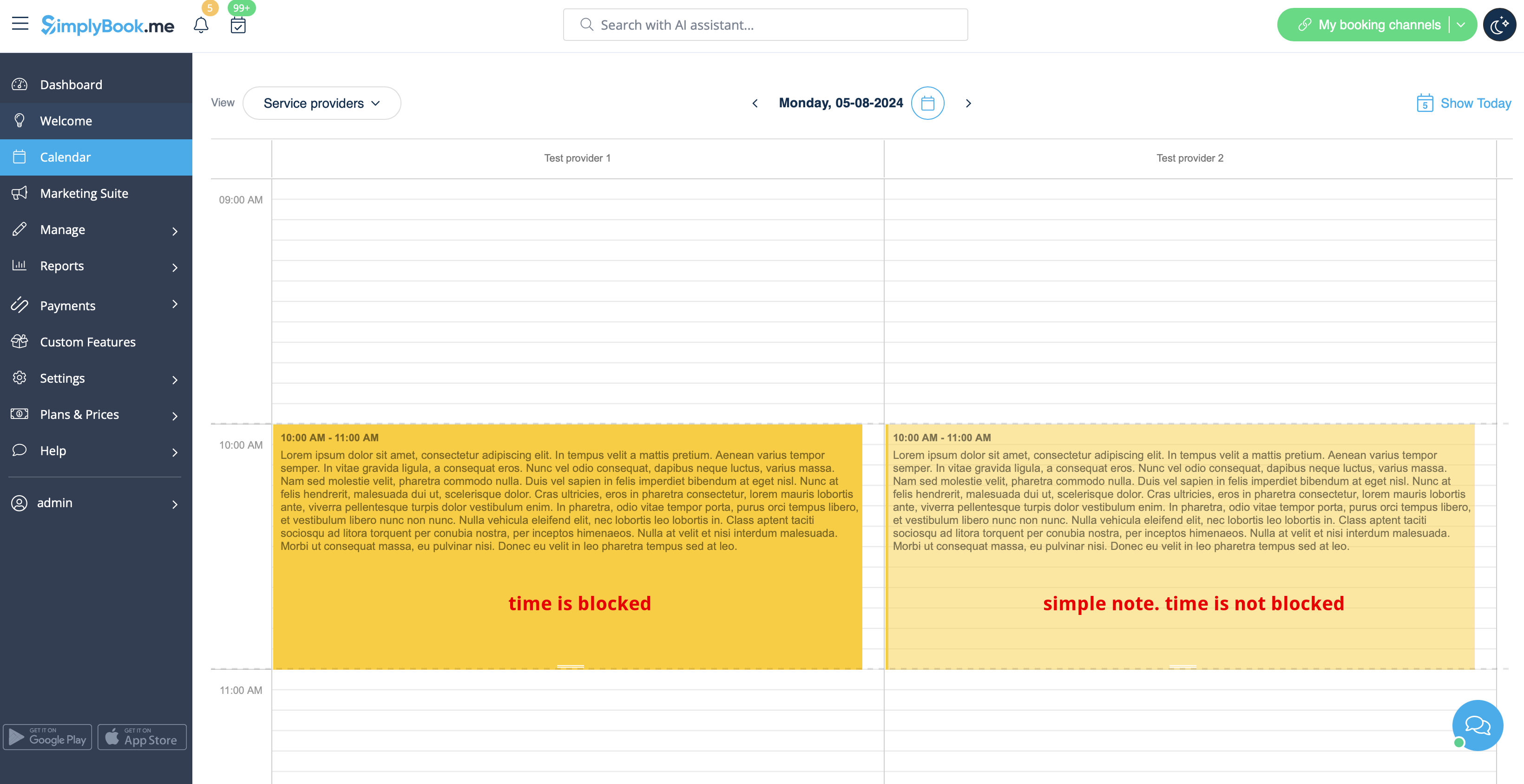
- If you have checked Time is blocked such notes will have a bit brighter color compared to simple text notes.
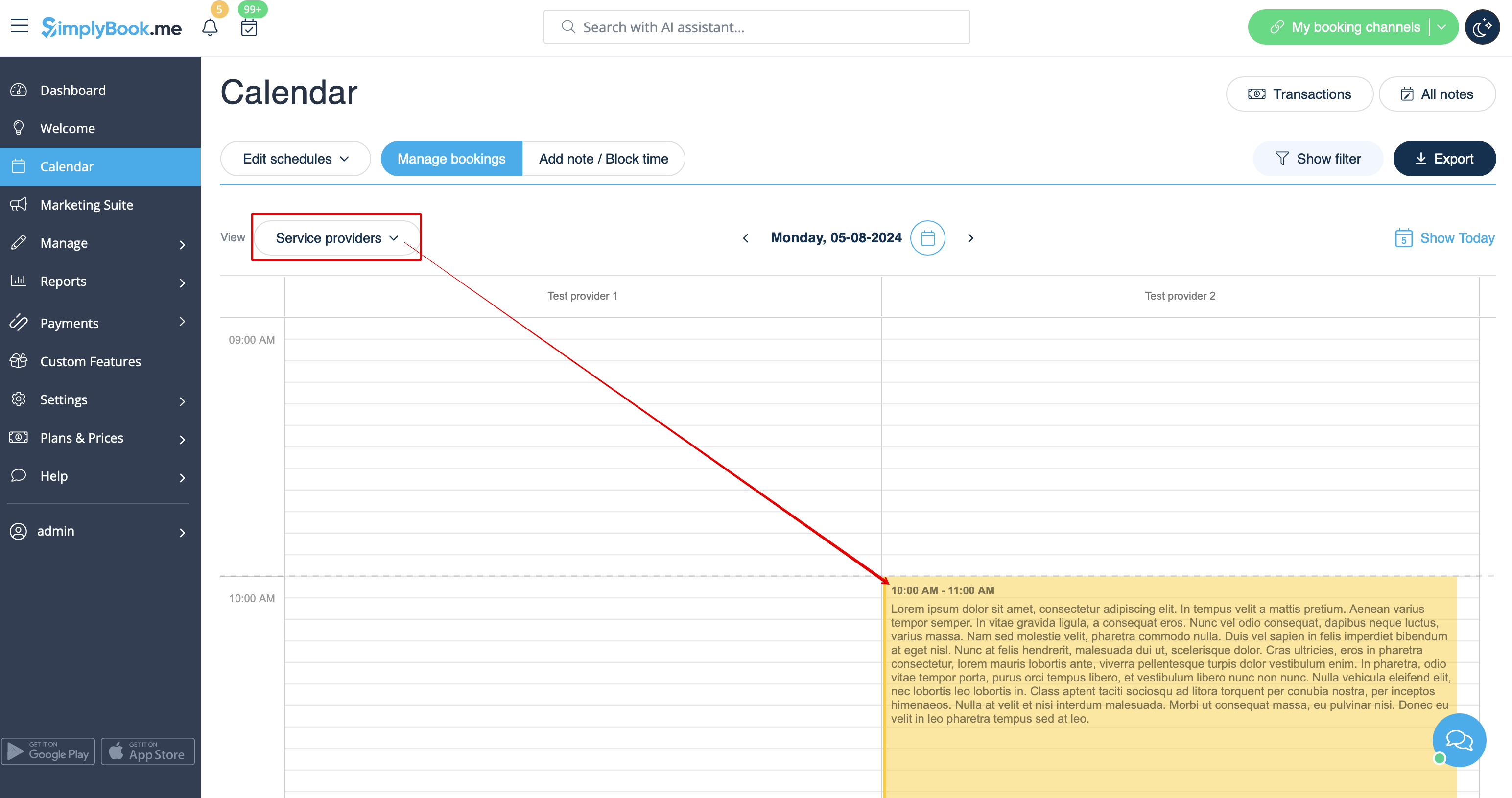
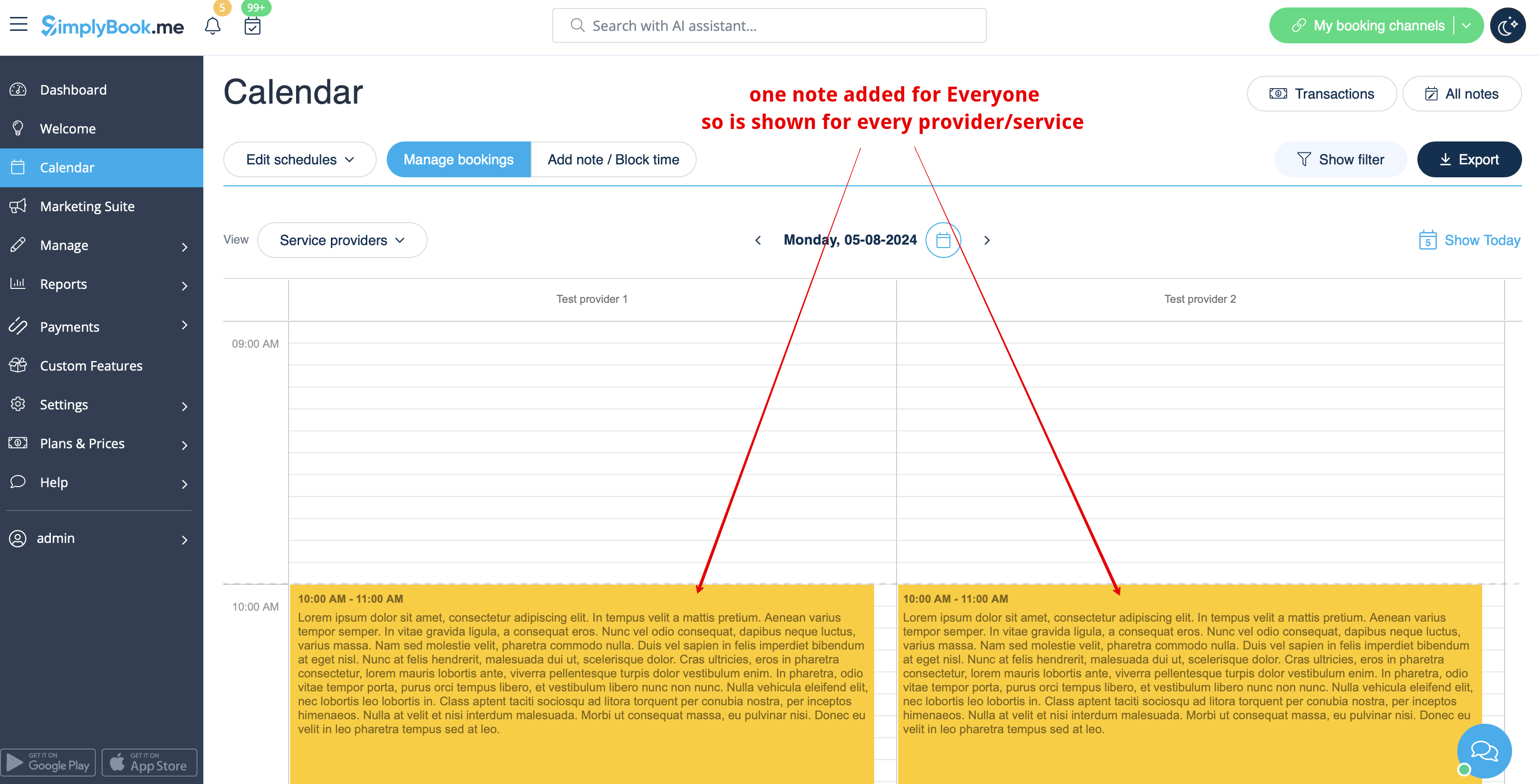
- If you have added a note per provider it will be shown in Service Provider, Timeline, Day, Week and Month views.
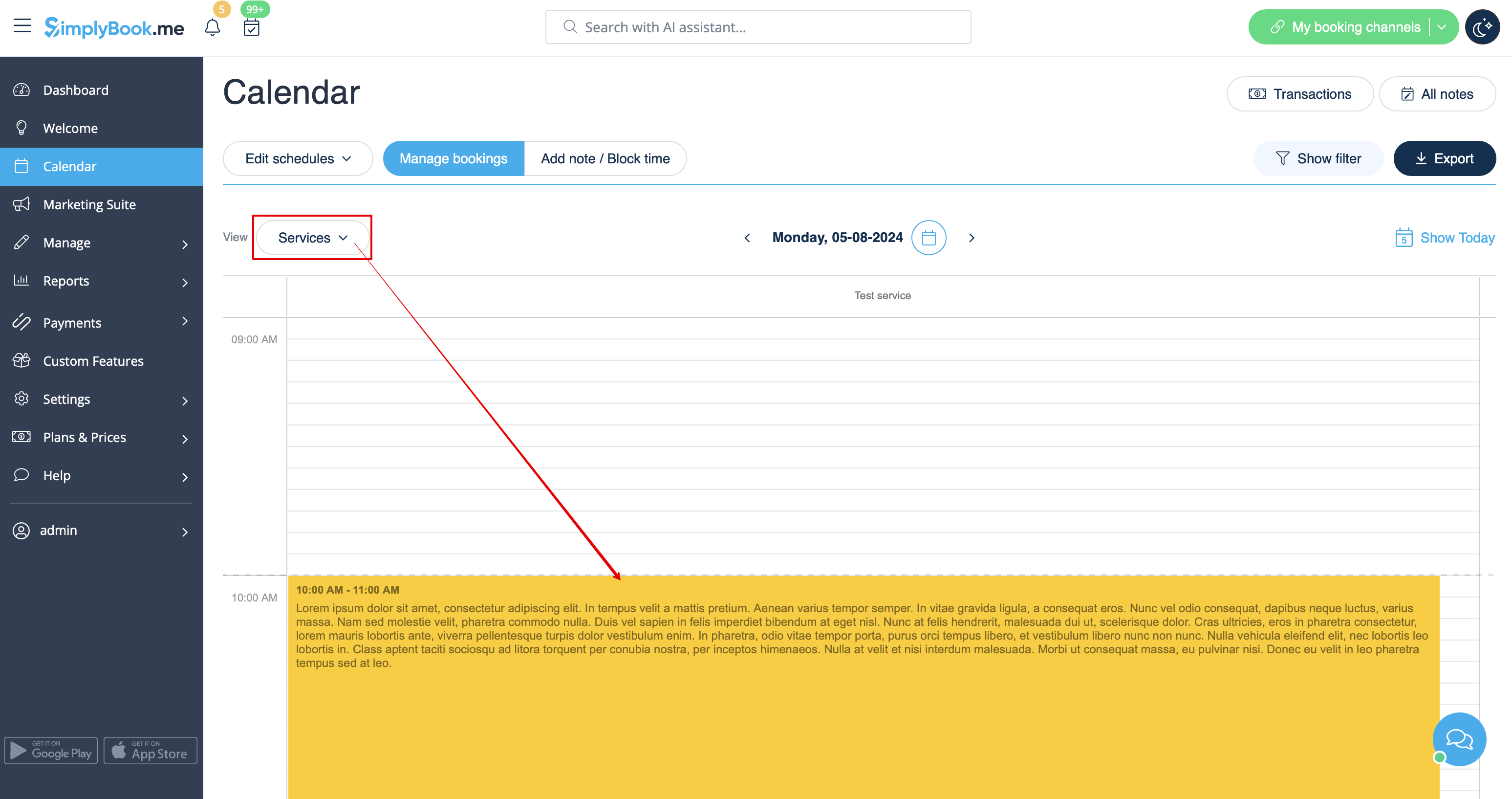
- If you have added a note per service you will be able to see it in Service, Day, Week and Month views.
- The notes for Everyone are displayed in all calendar views.
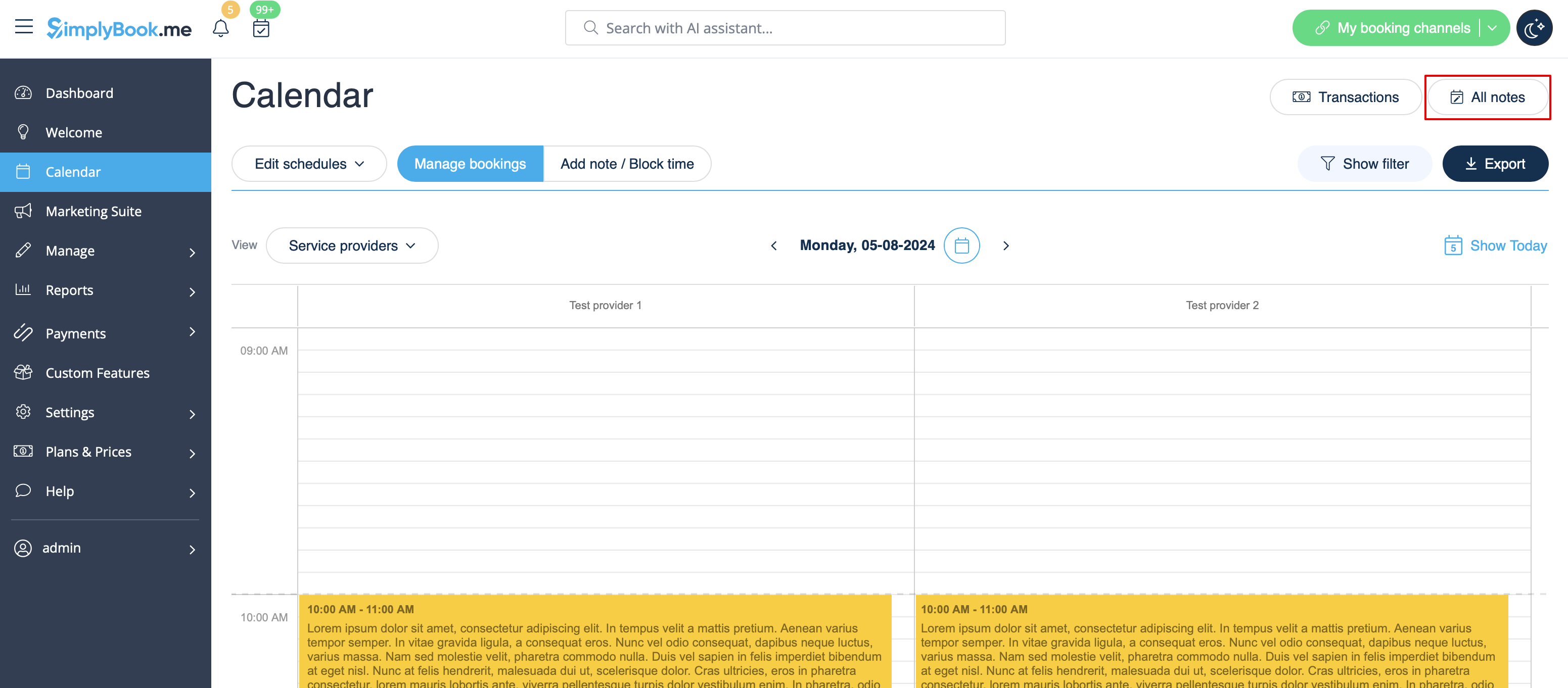
- As well you can access the list of all the notes added, use filters and export notes to excel in Calendar notes report by navigating either directly from Calendar page or from Reports section in left-side menu.