From SimplyBook.me
Importing a new version from external source |
Importing a new version from external source |
||
| Line 1: | Line 1: | ||
===Vaulted payments=== | ===Vaulted payments=== | ||
<span style="background-color:#ffe9e9; padding:5px; border-radius:5px;">'''Please note!'''</span> | <span style="background-color:#ffe9e9; padding:5px; border-radius:5px;">'''Please note!'''</span> | ||
*<span style="background-color:#ffe9e9; padding:5px; border-radius:5px;">It requires <span style="background-color:#cdeffc; padding:5px; border-radius:5px;">[[Client Login custom feature|Client login]]</span> custom feature to be enabled to use this functionality.</span> | *<span style="background-color:#ffe9e9; padding:5px; border-radius:5px;">It requires <span style="background-color:#cdeffc; padding:5px; border-radius:5px;">[[Special:MyLanguage/Client Login custom feature|Client login]]</span> custom feature to be enabled to use this functionality.</span> | ||
*<span style="background-color:#ffe9e9; padding:5px; border-radius:5px;">Not all the payment gateways support this feature. Please check the availability of such an option in the [[SBPay.me_integration#The_list_of_currently_supported_payment_processors:|table]] and/or by contacting your payment gateway support as it may require some adjustments on their side.</span> | *<span style="background-color:#ffe9e9; padding:5px; border-radius:5px;">Not all the payment gateways support this feature. Please check the availability of such an option in the [[Special:MyLanguage/SBPay.me_integration#The_list_of_currently_supported_payment_processors:|table]] and/or by contacting your payment gateway support as it may require some adjustments on their side.</span> | ||
<br> | <br> | ||
:1. Enable the option <span style="background-color:#d4f8e5; padding:5px; border-radius:5px;">Allow vaulted payments</span> on your <span style="background-color:#cdeffc; padding:5px; border-radius:5px;">Accept payments</span> settings page. | :1. Enable the option <span style="background-color:#d4f8e5; padding:5px; border-radius:5px;">Allow vaulted payments</span> on your <span style="background-color:#cdeffc; padding:5px; border-radius:5px;">Accept payments</span> settings page. | ||
Latest revision as of 08:30, 18 September 2025
Vaulted payments
Please note!
- It requires Client login custom feature to be enabled to use this functionality.
- Not all the payment gateways support this feature. Please check the availability of such an option in the table and/or by contacting your payment gateway support as it may require some adjustments on their side.
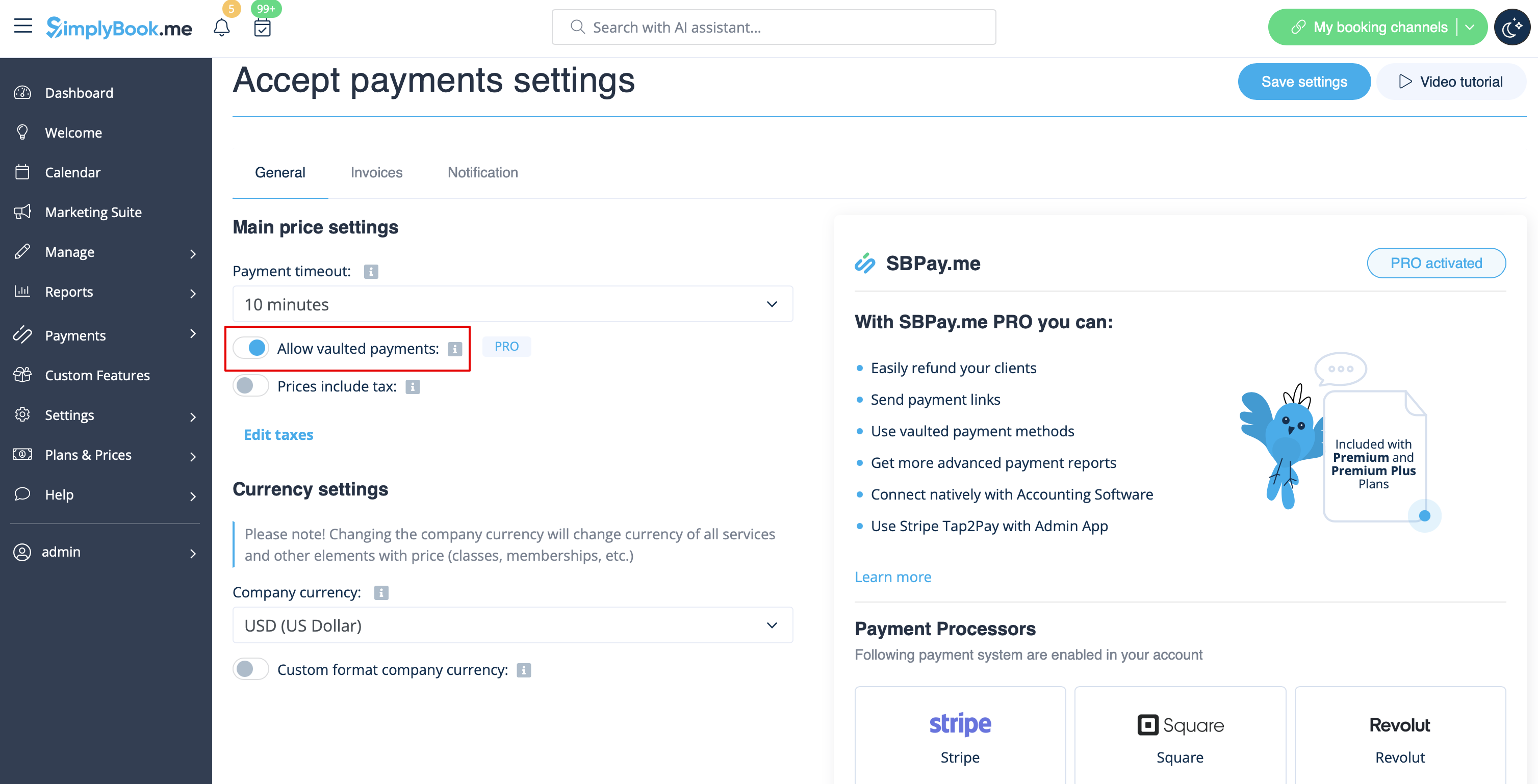
- 1. Enable the option Allow vaulted payments on your Accept payments settings page.
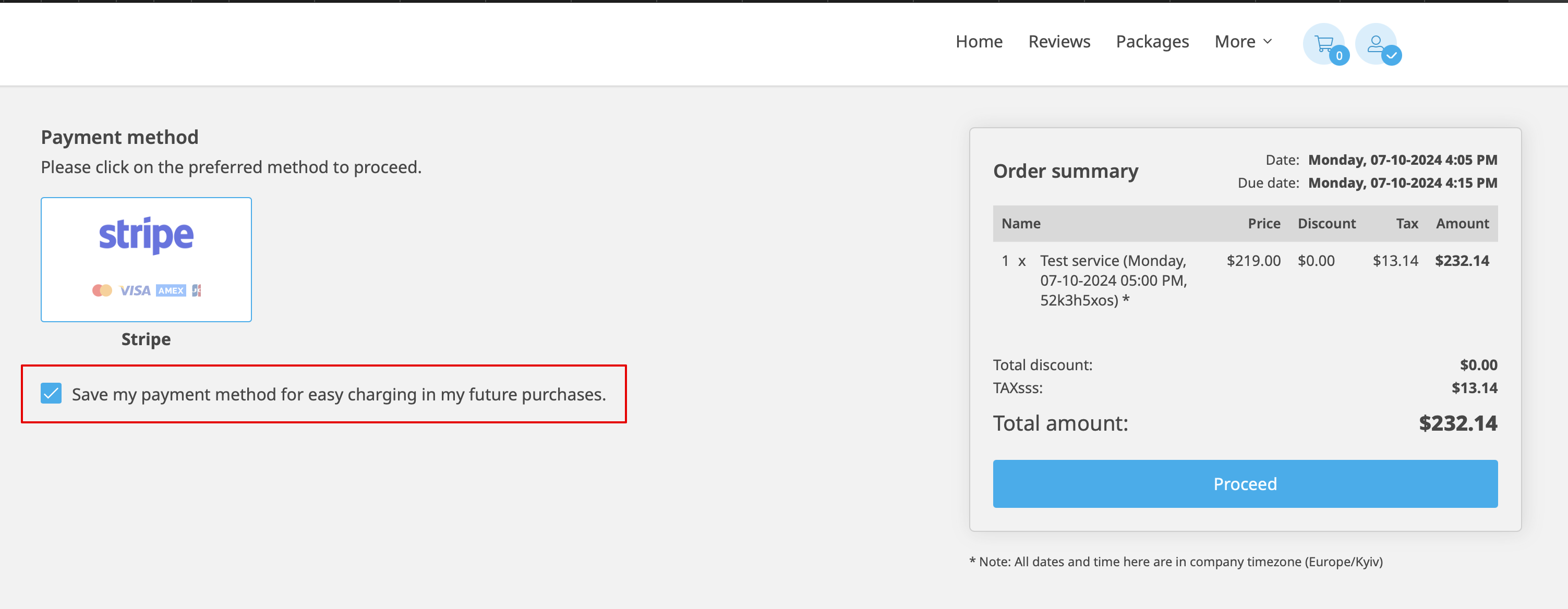
- 2. As the result the client will be able to tick the checkbox Save my payment method for easy charging in my future purchases at checkout on the booking website and his/her payment details will be attached to the client profile.
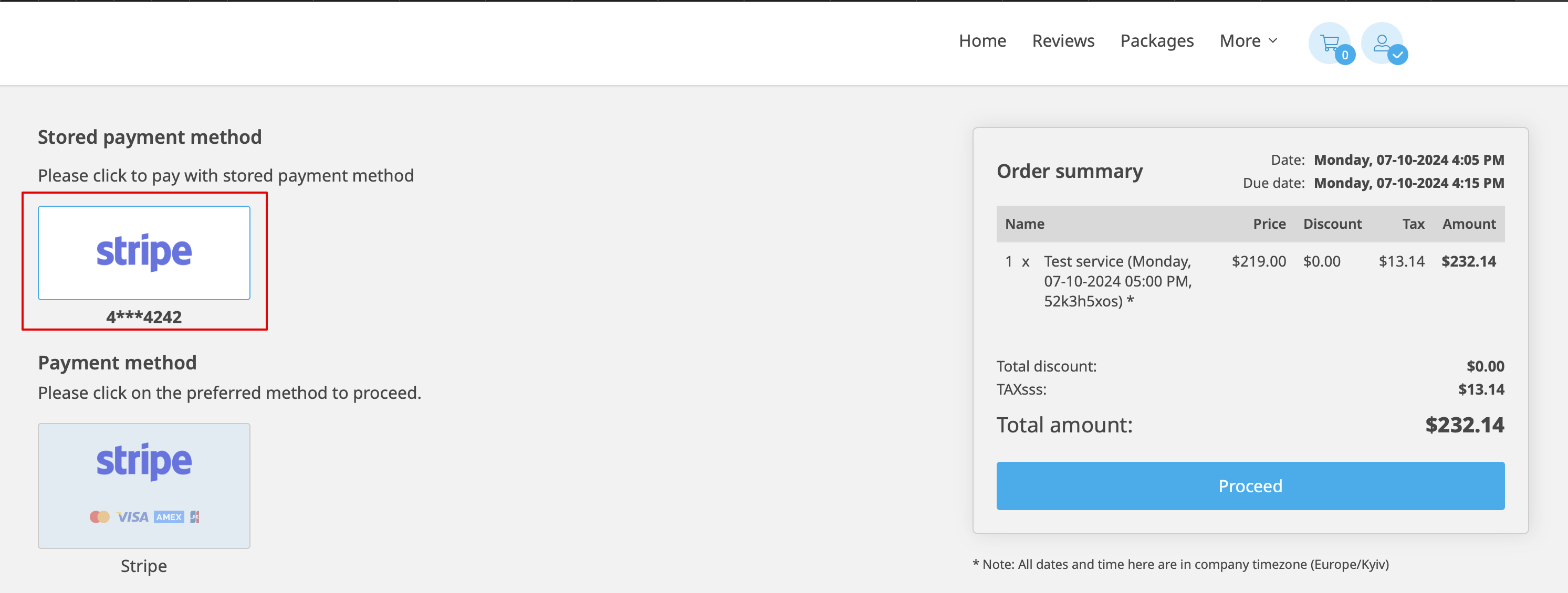
- 3. During the next purchase or booking on the client side he/she can decide whether to confirm the order with the already saved payment method or to choose the new option.
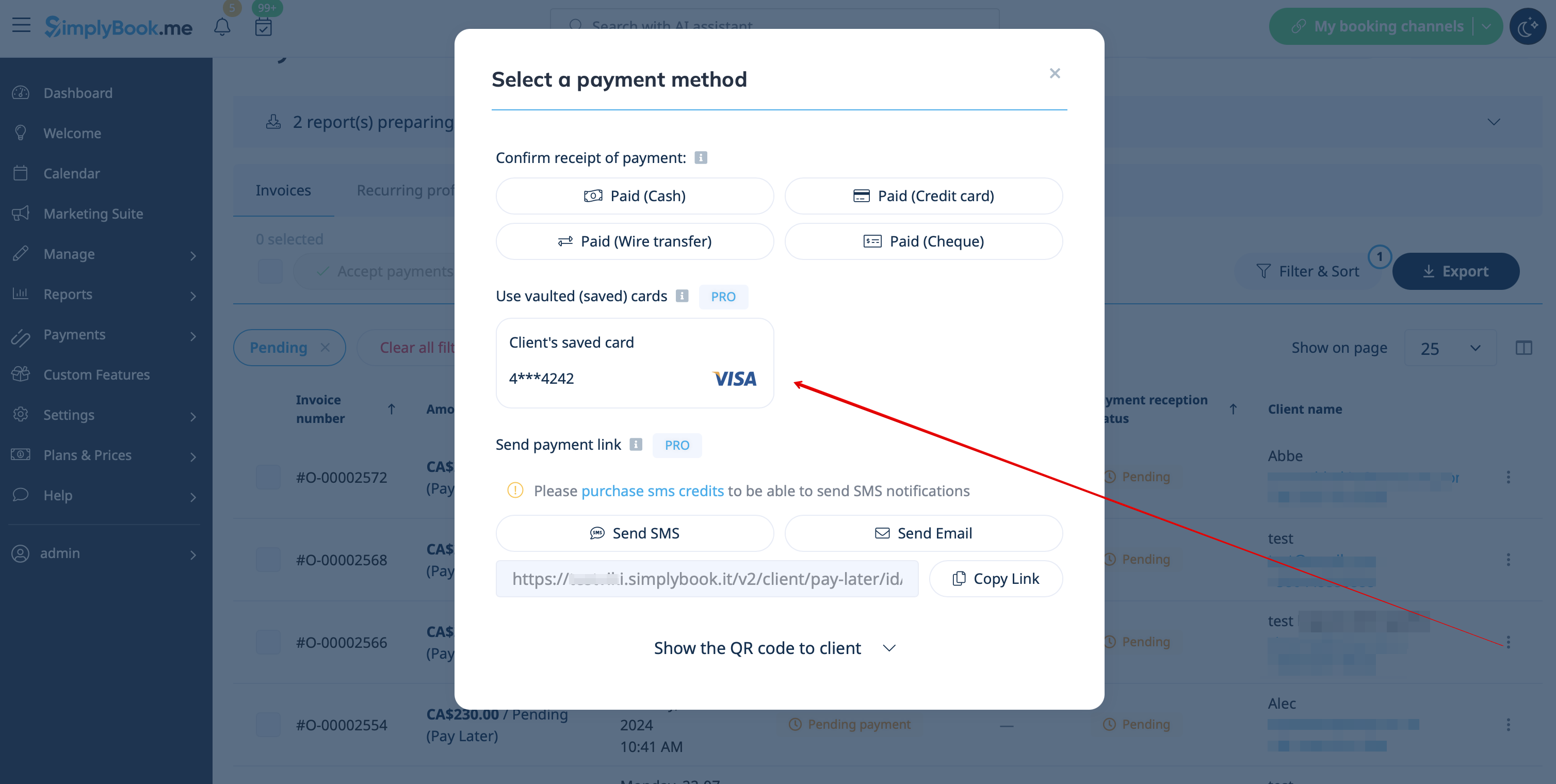
- 4. During the payment approval on the admin side Payment transactions report or sale management inside the POS interface you will also be able to use the client's saved payment method.