Created page with "'''Відеоурок доступний''' за посиланням link=https://www.youtube.com/watch?v=3GZJzUrm0cs <br><br> <br><br> <span style="background-color:#ffe9e9; padding:5px; border-radius:5px;">'''Зверніть увагу!'''</span><br> <span style="background-color:#ffe9e9; padding:5px; border-radius:5px;">Наразі доступні наступні шаблони електронних листів, які можна на..." |
Created page with "<br><br><br><br> left<br>Хочете надсилати своїм клієнтам та співробітникам привабливі повідомлення електронною поштою з власним налаштованим брендингом, посиланнями, кнопками та багатьма іншими опціями? Увімкнувши цю налаштовану функцію, ви отримаєт..." |
||
| Line 31: | Line 31: | ||
;Як користуватися | |||
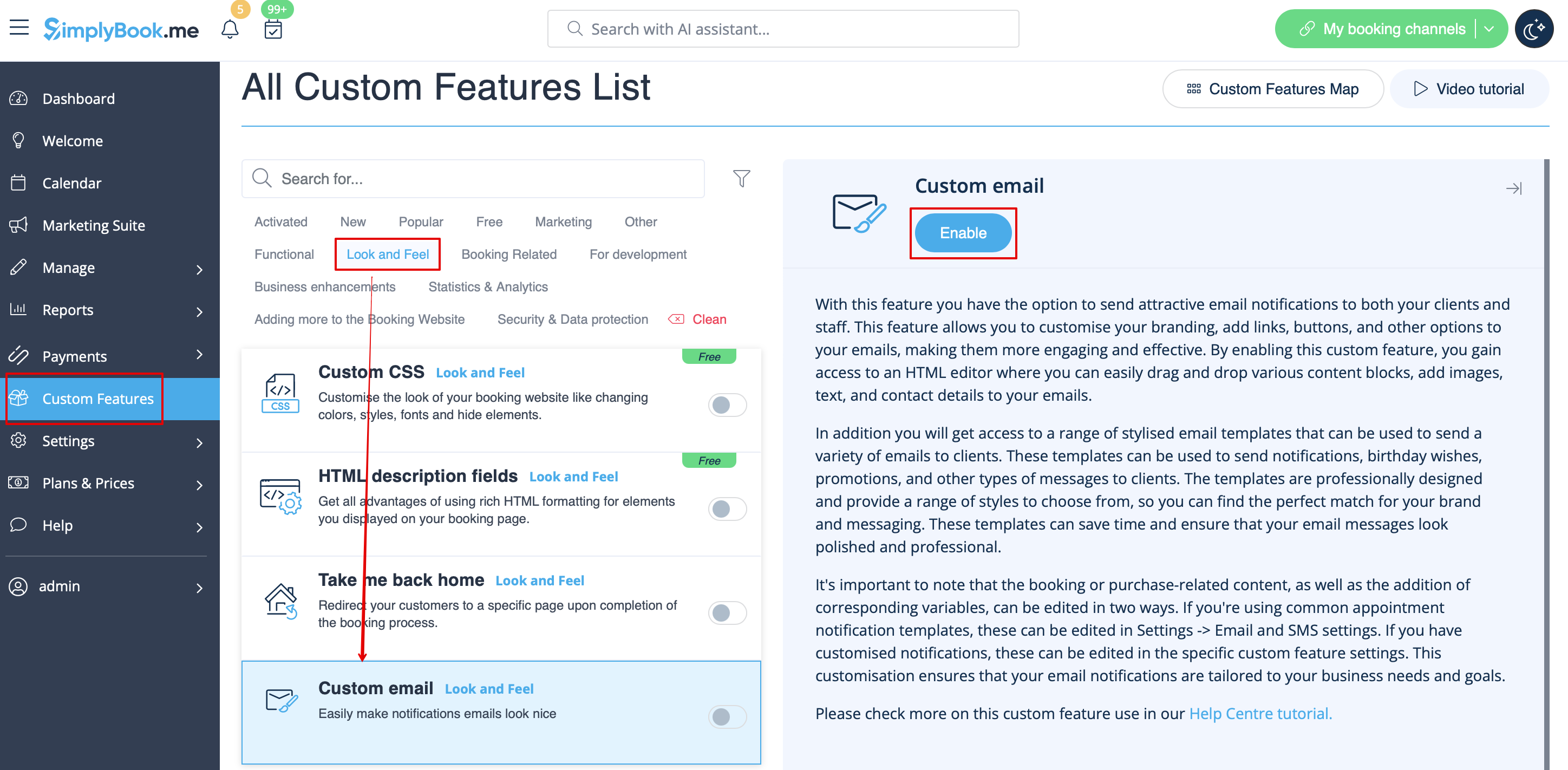
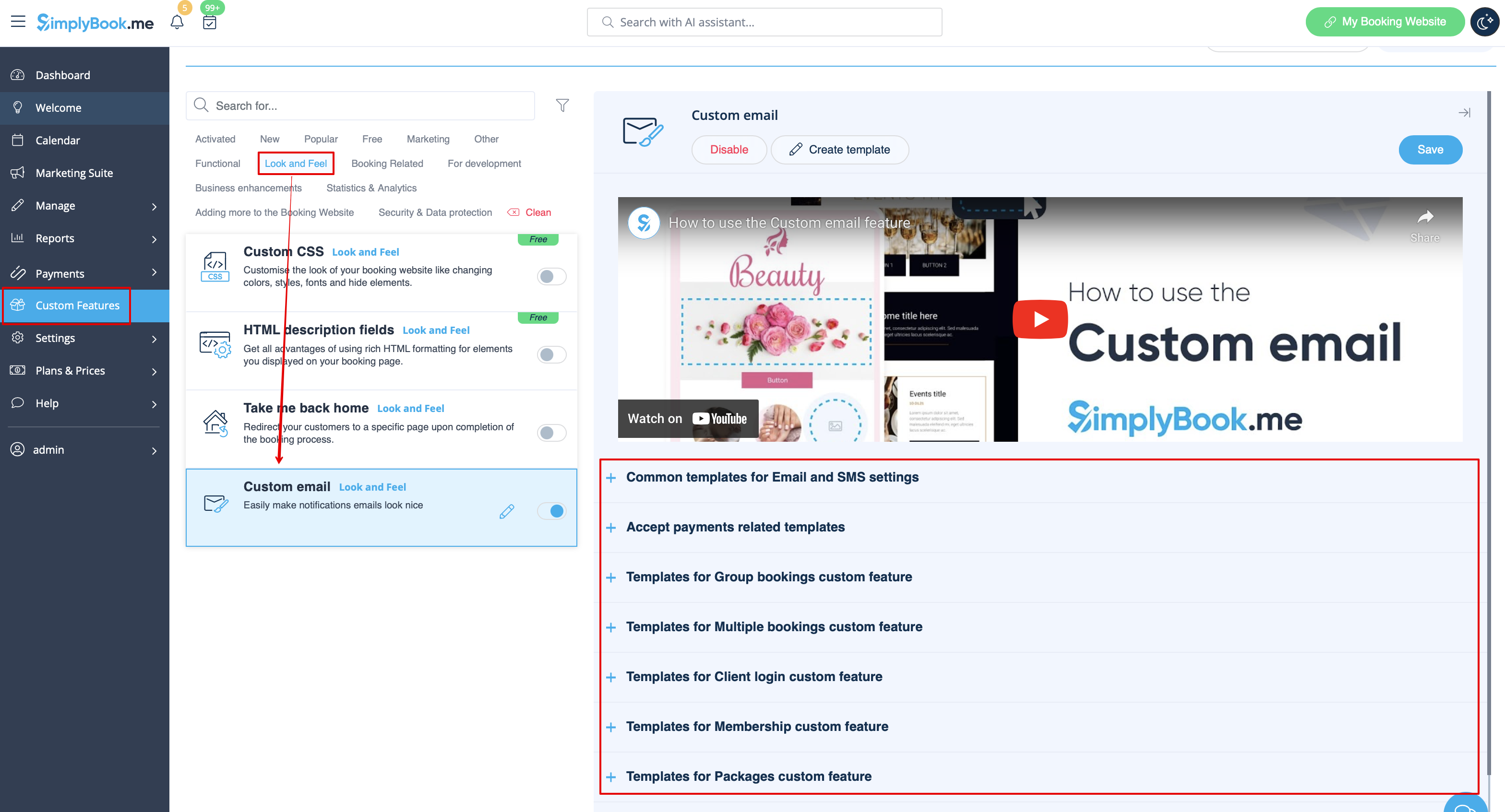
; | :1. Увімкніть функцію <span style="background-color:#d4f8e5; padding:5px; border-radius:5px;">«Налаштовані електронні листи»</span> на сторінці <span style="background-color:#d4f8e5; padding:5px; border-radius:5px;">«Налаштовані функції»</span> в розділі <span style="background-color:#d4f8e5; padding:5px; border-radius:5px;">«Зовнішній вигляд</span> ». | ||
:1. | |||
[[File:Custom email enable path redesigned.png|1200px|border|center|link=https://help.simplybook.me/images/4/40/Custom_email_enable_path_redesigned.png]] | [[File:Custom email enable path redesigned.png|1200px|border|center|link=https://help.simplybook.me/images/4/40/Custom_email_enable_path_redesigned.png]] | ||
<br><br> | <br><br> | ||
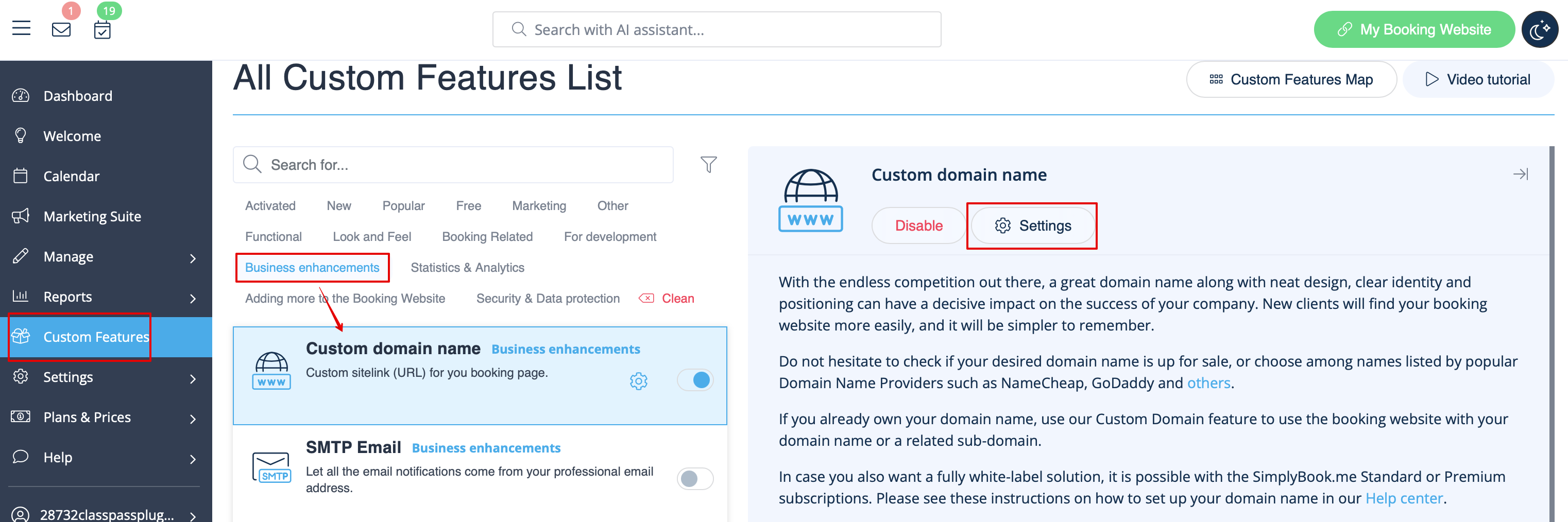
:2. | :2. Натисніть на посилання <span style="background-color:#d4f8e5; padding:5px; border-radius:5px;">«Створити шаблон»</span>, щоб перейти до редактора та налаштувати свій перший шаблон. | ||
[[File:Custom domain settings path redesigned.png|1200px|border|center|link=https://help.simplybook.me/images/e/ef/Custom_domain_settings_path_redesigned.png]] | [[File:Custom domain settings path redesigned.png|1200px|border|center|link=https://help.simplybook.me/images/e/ef/Custom_domain_settings_path_redesigned.png]] | ||
<br><br> | <br><br> | ||
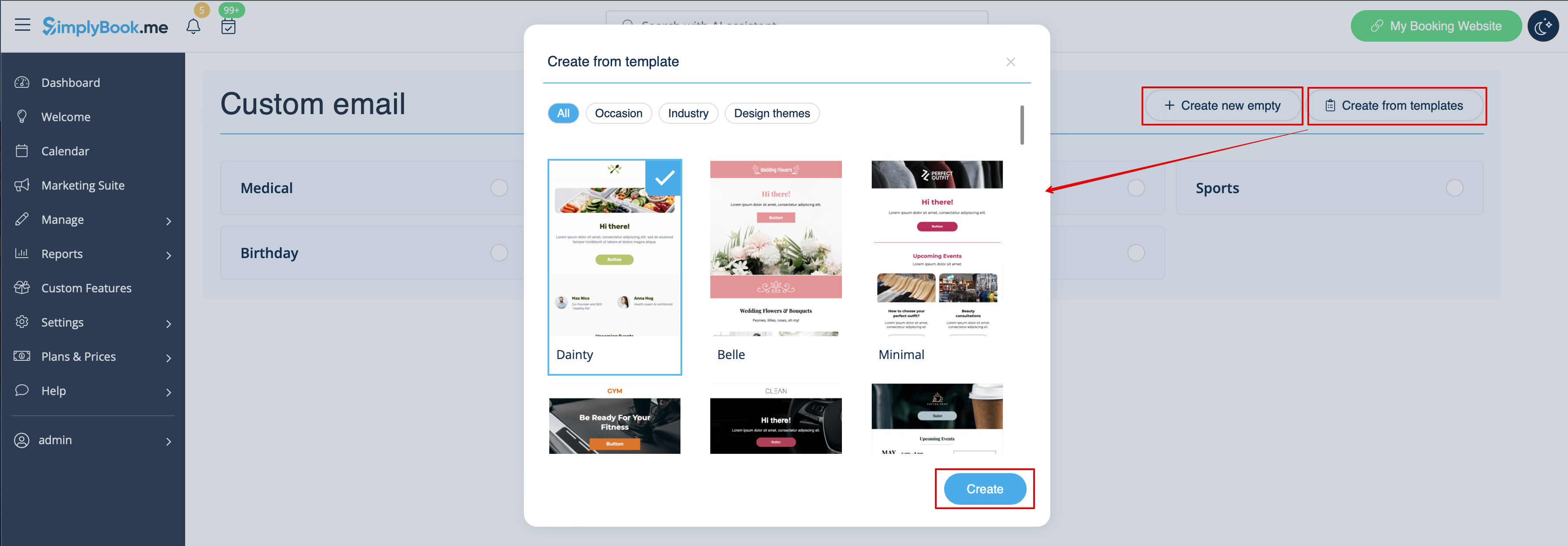
:3. | :3. Виберіть <span style="background-color:#d4f8e5; padding:5px; border-radius:5px;">«Створити з шаблонів»</span>, якщо хочете вибрати один із наших готових варіантів, або <span style="background-color:#d4f8e5; padding:5px; border-radius:5px;">«Створити новий порожній»</span>, щоб почати додавати всі елементи з нуля.<br> | ||
: | :Додайте назву шаблону для порожнього шаблону (готові шаблони можна перейменувати під час редагування) і натисніть кнопку <span style="background-color:#d4f8e5; padding:5px; border-radius:5px;">«Створити»</span>, щоб перейти до режиму редагування. | ||
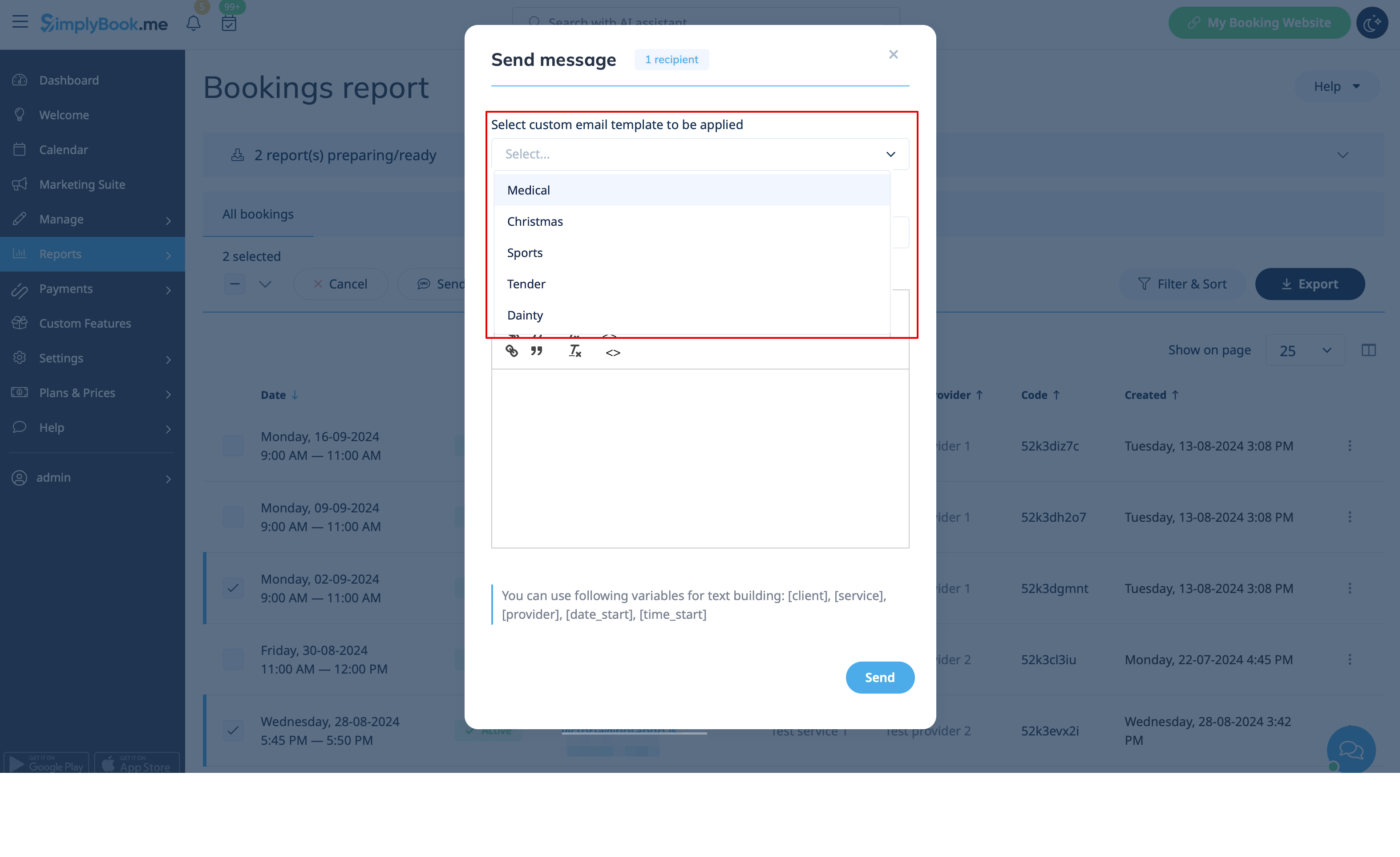
[[File:Create new custom email template path redesigned.png|1200px|border|center|link=https://help.simplybook.me/images/6/62/Create_new_custom_email_template_path_redesigned.png]] | [[File:Create new custom email template path redesigned.png|1200px|border|center|link=https://help.simplybook.me/images/6/62/Create_new_custom_email_template_path_redesigned.png]] | ||
<br><br> | <br><br> | ||
:4. | :4. Додавайте/редагуйте текстові блоки, додавайте зображення, посилання, меню, стовпці, завантажуйте логотип вашої компанії, використовуйте кольори бренду та багато іншого за допомогою вбудованого редактора.<br> | ||
: | :Використовуйте інструменти в правій частині сторінки та візуалізацію в центрі, перетягуйте та налаштовуйте потрібні елементи, щоб отримати необхідний вигляд. | ||
[[File:Using editor custom email redesigned.png|1200px|border|center|link=https://help.simplybook.me/images/1/15/Using_editor_custom_email_redesigned.png]] | [[File:Using editor custom email redesigned.png|1200px|border|center|link=https://help.simplybook.me/images/1/15/Using_editor_custom_email_redesigned.png]] | ||
[[File:Using editor blocks custom email empty template redesigned.png|1200px|border|center|link=https://help.simplybook.me/images/9/92/Using_editor_blocks_custom_email_empty_template_redesigned.png]] | [[File:Using editor blocks custom email empty template redesigned.png|1200px|border|center|link=https://help.simplybook.me/images/9/92/Using_editor_blocks_custom_email_empty_template_redesigned.png]] | ||
<br><br> | <br><br> | ||
:5. | :5. Ви також можете перейти в режим <span style="background-color:#d4f8e5; padding:5px; border-radius:5px;">«Мобільний»</span>, щоб налаштувати вигляд електронної пошти для мобільних телефонів. | ||
[[File:Mobile view custom email redesigned.png|1200px|border|center|link=https://help.simplybook.me/images/8/84/Mobile_view_custom_email_redesigned.png]] | [[File:Mobile view custom email redesigned.png|1200px|border|center|link=https://help.simplybook.me/images/8/84/Mobile_view_custom_email_redesigned.png]] | ||
<br><br> | <br><br> | ||
:6. | :6. Важливо <span style="background-color:#d4f8e5; padding:5px; border-radius:5px;">додати тег <nowiki>{{content}}</nowiki></span> у потрібне місце в шаблоні, оскільки в реальних електронних листах він буде замінений інформацією, пов'язаною з бронюванням/покупкою.<br> | ||
: | :Без цього тегу налаштування не буде застосовано до повідомлення, і воно буде надіслано у вигляді простого тексту. | ||
:<span style="background-color:#ffe9e9; padding:5px; border-radius:5px;">''' | :<span style="background-color:#ffe9e9; padding:5px; border-radius:5px;">'''Зверніть увагу!''' Усі змінні, пов'язані з даними про зустрічі або покупки, слід використовувати лише в <span style="background-color:#d4f8e5; padding:5px; border-radius:5px;">розділі «Налаштування»</span> -> <span style="background-color:#d4f8e5; padding:5px; border-radius:5px;">«Налаштування електронної пошти та SMS»</span> або у відповідних опціях <span style="background-color:#d4f8e5; padding:5px; border-radius:5px;">налаштування</span>.</span> | ||
[[File:Variables overview redesigned.png|1200px|border|center|link=https://help.simplybook.me/images/d/d3/Variables_overview_redesigned.png]] | [[File:Variables overview redesigned.png|1200px|border|center|link=https://help.simplybook.me/images/d/d3/Variables_overview_redesigned.png]] | ||
<br><br> | <br><br> | ||
:( | :(опціонально) Ви також можете використовувати <span style="background-color:#d4f8e5; padding:5px; border-radius:5px;"><nowiki>{{name}}</nowiki></span> та <span style="background-color:#d4f8e5; padding:5px; border-radius:5px;"><nowiki>{{email}}</nowiki></span> тут, якщо вам потрібно відобразити ім'я та/або електронну адресу одержувача окремо від основного змісту повідомлення. | ||
:<span style="background-color:#ffe9e9; padding:5px; border-radius:5px;">''' | :<span style="background-color:#ffe9e9; padding:5px; border-radius:5px;">'''Зверніть увагу!''' Шаблони регулярно автоматично зберігаються, тому вам не потрібно зберігати їх вручну.</span> | ||
[[File:Custom email tags path redesigned.png|1200px|border|center|link=https://help.simplybook.me/images/3/3b/Custom_email_tags_path_redesigned.png]] | [[File:Custom email tags path redesigned.png|1200px|border|center|link=https://help.simplybook.me/images/3/3b/Custom_email_tags_path_redesigned.png]] | ||
<br><br> | <br><br> | ||
:7. | :7. Використовуйте опцію <span style="background-color:#d4f8e5; padding:5px; border-radius:5px;">Перегляд</span> внизу, щоб перевірити вигляд. | ||
[[File:Preview option custom email redesigned.png|1200px|border|center|link=https://help.simplybook.me/images/f/ff/Preview_option_custom_email_redesigned.png]] | [[File:Preview option custom email redesigned.png|1200px|border|center|link=https://help.simplybook.me/images/f/ff/Preview_option_custom_email_redesigned.png]] | ||
<br><br> | <br><br> | ||
:8. ( | :8. (опціонально) Якщо вам потрібні схожі дизайни з невеликими змінами або з іншим вмістом, скористайтеся опцією <span style="background-color:#d4f8e5; padding:5px; border-radius:5px;">«Клонувати»</span>, щоб створити копію раніше збереженого шаблону. | ||
[[File:Custom email clone template path redesigned.png|1200px|border|center|link=https://help.simplybook.me/images/e/e1/Custom_email_clone_template_path_redesigned.png]] | [[File:Custom email clone template path redesigned.png|1200px|border|center|link=https://help.simplybook.me/images/e/e1/Custom_email_clone_template_path_redesigned.png]] <span style="background-color:#d4f8e5; padding:5px; border-radius:5px;">листа</span>[[File:Custom email clone template path redesigned.png|1200px|border|center|link=https://help.simplybook.me/images/e/e1/Custom_email_clone_template_path_redesigned.png]] | ||
<br><br> | <br><br> | ||
:9. | :9. Після того як всі необхідні шаблони готові, поверніться до <span style="background-color:#d4f8e5; padding:5px; border-radius:5px;">«Налаштовані функції»</span> -> <span style="background-color:#d4f8e5; padding:5px; border-radius:5px;">«Зовнішній вигляд»</span> -> <span style="background-color:#d4f8e5; padding:5px; border-radius:5px;">«Налаштований електронний лист».</span> | ||
<br><br> | <br><br> | ||
:10. | :10. <span style="background-color:#d4f8e5; padding:5px; border-radius:5px;">Виберіть шаблон</span> для кожного <span style="background-color:#d4f8e5; padding:5px; border-radius:5px;">типу повідомлення.</span> | ||
[[File:Select template per notification type custom email redesigned.png|1200px|border|center|link=https://help.simplybook.me/images/9/9a/Select_template_per_notification_type_custom_email_redesigned.png]] | [[File:Select template per notification type custom email redesigned.png|1200px|border|center|link=https://help.simplybook.me/images/9/9a/Select_template_per_notification_type_custom_email_redesigned.png]] | ||
<br><br> | <br><br> | ||
:11. | :11. Надішліть <span style="background-color:#d4f8e5; padding:5px; border-radius:5px;">тестові електронні листи</span>, щоб перевірити вигляд із зразком вмісту. | ||
[[File:Send test email option for custom email redesigned.png|1200px|border|center|link=https://help.simplybook.me/images/9/92/Send_test_email_option_for_custom_email_redesigned.png]] | [[File:Send test email option for custom email redesigned.png|1200px|border|center|link=https://help.simplybook.me/images/9/92/Send_test_email_option_for_custom_email_redesigned.png]] | ||
<br><br> | <br><br> | ||
:12. | :12. Якщо ви хочете встановити один і той самий шаблон для всіх типів повідомлень в одному блоці, скористайтеся <span style="background-color:#d4f8e5; padding:5px; border-radius:5px;">опціями випадаючого меню</span> праворуч <span style="background-color:#d4f8e5; padding:5px; border-radius:5px;">.</span> | ||
[[File:Set template for all notifications custom email redesigned.png|1200px|border|center|link=https://help.simplybook.me/images/5/56/Set_template_for_all_notifications_custom_email_redesigned.png]] | [[File:Set template for all notifications custom email redesigned.png|1200px|border|center|link=https://help.simplybook.me/images/5/56/Set_template_for_all_notifications_custom_email_redesigned.png]] | ||
<br><br> | <br><br> | ||
:13. | :13. Якщо ви маєте різні користувацькі функції з увімкненими власними типами повідомлень, ви зможете побачити відповідні <span style="background-color:#d4f8e5; padding:5px; border-radius:5px;">блоки</span> в налаштуваннях <span style="background-color:#d4f8e5; padding:5px; border-radius:5px;">користувацького електронного листа</span>.<br> | ||
: | :Відкрийте <span style="background-color:#d4f8e5; padding:5px; border-radius:5px;">кожен блок</span> і встановіть шаблони для повідомлень, яким ви хочете надати індивідуальний вигляд. | ||
: | :Збережіть налаштування після завершення. | ||
[[File:Custom email cf templates list redesigned.png|1200px|border|center|link=https://help.simplybook.me/images/3/3a/Custom_email_cf_templates_list_redesigned.png]] | [[File:Custom email cf templates list redesigned.png|1200px|border|center|link=https://help.simplybook.me/images/3/3a/Custom_email_cf_templates_list_redesigned.png]] | ||
<br><br> | <br><br> | ||
:14. | :14. Також можна використовувати індивідуальні електронні листи, коли потрібно вручну надіслати електронний лист з <span style="background-color:#d4f8e5; padding:5px; border-radius:5px;">розділу «Звіти»</span> -> <span style="background-color:#d4f8e5; padding:5px; border-radius:5px;">«Деталі бронювання»</span> або <span style="background-color:#d4f8e5; padding:5px; border-radius:5px;">«Звіти»</span> -> <span style="background-color:#d4f8e5; padding:5px; border-radius:5px;">«Клієнти».</span><br> | ||
: | :Просто встановіть потрібні прапорці, натисніть кнопку <span style="background-color:#d4f8e5; padding:5px; border-radius:5px;">«Надіслати електронний лист</span> » і <span style="background-color:#d4f8e5; padding:5px; border-radius:5px;">виберіть шаблон</span>, який потрібно застосувати, у першому спадному меню у спливаючому вікні. Додайте тему та вміст. Надішліть повідомлення. | ||
[[File:Apply custom email template from report redesigned.png|1200px|border|center|link=https://help.simplybook.me/images/2/22/Apply_custom_email_template_from_report_redesigned.png]] | [[File:Apply custom email template from report redesigned.png|1200px|border|center|link=https://help.simplybook.me/images/2/22/Apply_custom_email_template_from_report_redesigned.png]] | ||
<br><br><br><br> | <br><br><br><br> | ||
Revision as of 14:44, 19 May 2025

Хочете надсилати своїм клієнтам та співробітникам привабливі повідомлення електронною поштою з власним налаштованим брендингом, посиланнями, кнопками та багатьма іншими опціями? Увімкнувши цю налаштовану функцію, ви отримаєте доступ до HTML-редактора, де можна легко перетягувати різні блоки вмісту, додавати зображення, текст, контактні дані тощо. Зверніть увагу, що вміст, пов'язаний із бронюванням або покупкою, а також додавання відповідних змінних, потрібно редагувати в розділі «Налаштування» -> «Налаштування електронної пошти та SMS», якщо ви використовуєте загальні шаблони повідомлень про зустрічі, або в налаштуваннях конкретної налаштованої функції, якщо ви налаштували повідомлення.
Зверніть увагу! Ця спеціальна функція доступна тільки для платних підписок.
Відеоурок доступний за посиланням 
Зверніть увагу!
Наразі доступні наступні шаблони електронних листів, які можна налаштувати:
- Основні повідомлення, пов'язані з бронюванням, у розділі «Налаштування» -> «Налаштування електронної пошти та SMS»;
- Повідомлення про налаштуваннягрупових бронювань;
- Повідомлення про налаштуваннябагаторазових бронювань;
- Повідомленняпро налаштуваннявходу клієнта;
- Повідомлення про налаштуваннячленства;
- Повідомлення про налаштуванняпакетів;
- Повідомленняпро налаштування квитків;
- Повідомлення про налаштуваннякупонів та подарункових карток (як для покупки клієнтом на сторінці «Налаштування», так і для ручного випуску адміністратором у розділі «Управління купонами та подарунковими картками»);
- Повідомлення про налаштуваннямедичних тестів;
- Повідомленняпро налаштування функції «Забронювати скоро ».
- Як користуватися
- 1. Увімкніть функцію «Налаштовані електронні листи» на сторінці «Налаштовані функції» в розділі «Зовнішній вигляд ».
- 2. Натисніть на посилання «Створити шаблон», щоб перейти до редактора та налаштувати свій перший шаблон.
- 3. Виберіть «Створити з шаблонів», якщо хочете вибрати один із наших готових варіантів, або «Створити новий порожній», щоб почати додавати всі елементи з нуля.
- Додайте назву шаблону для порожнього шаблону (готові шаблони можна перейменувати під час редагування) і натисніть кнопку «Створити», щоб перейти до режиму редагування.
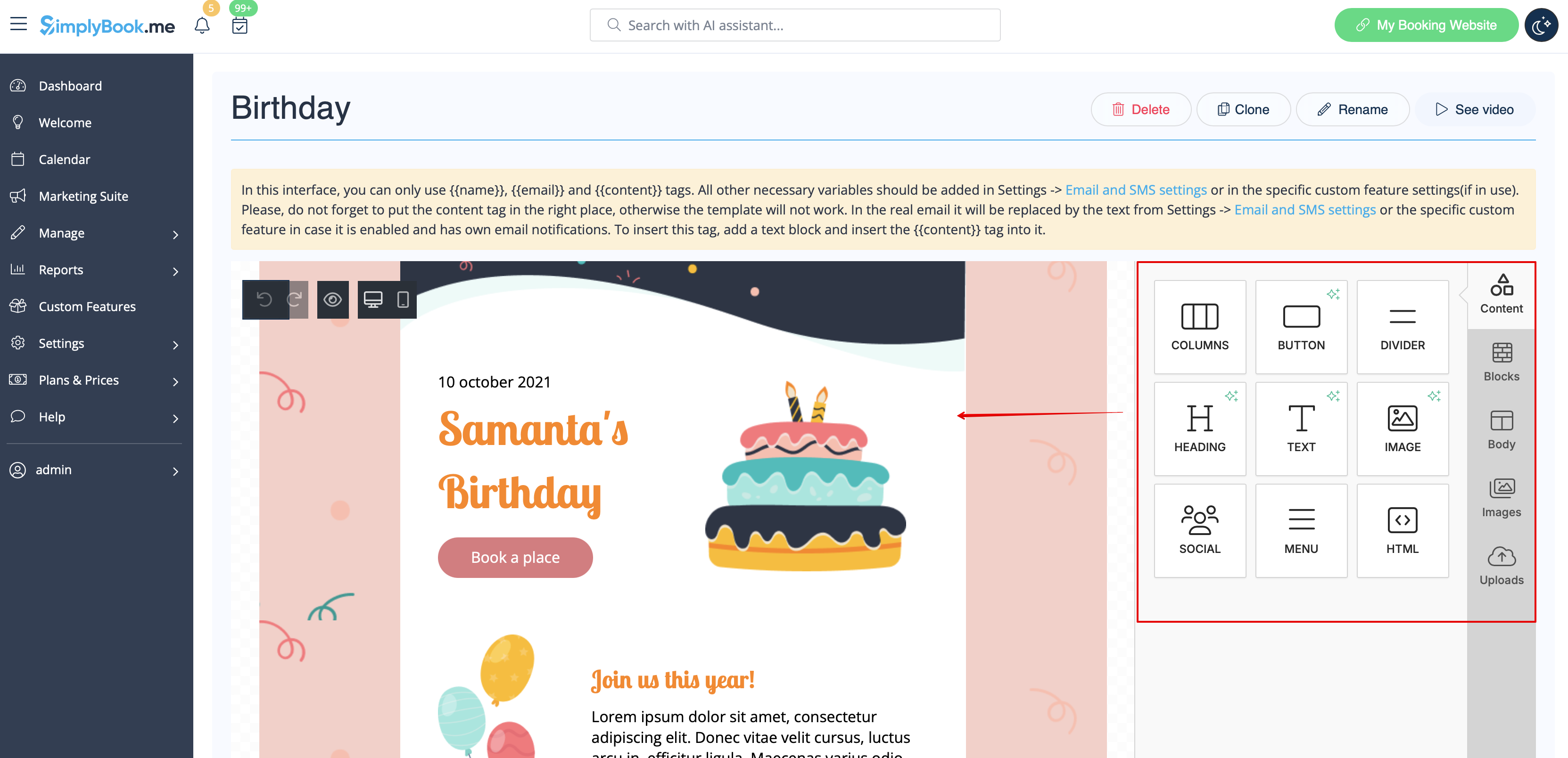
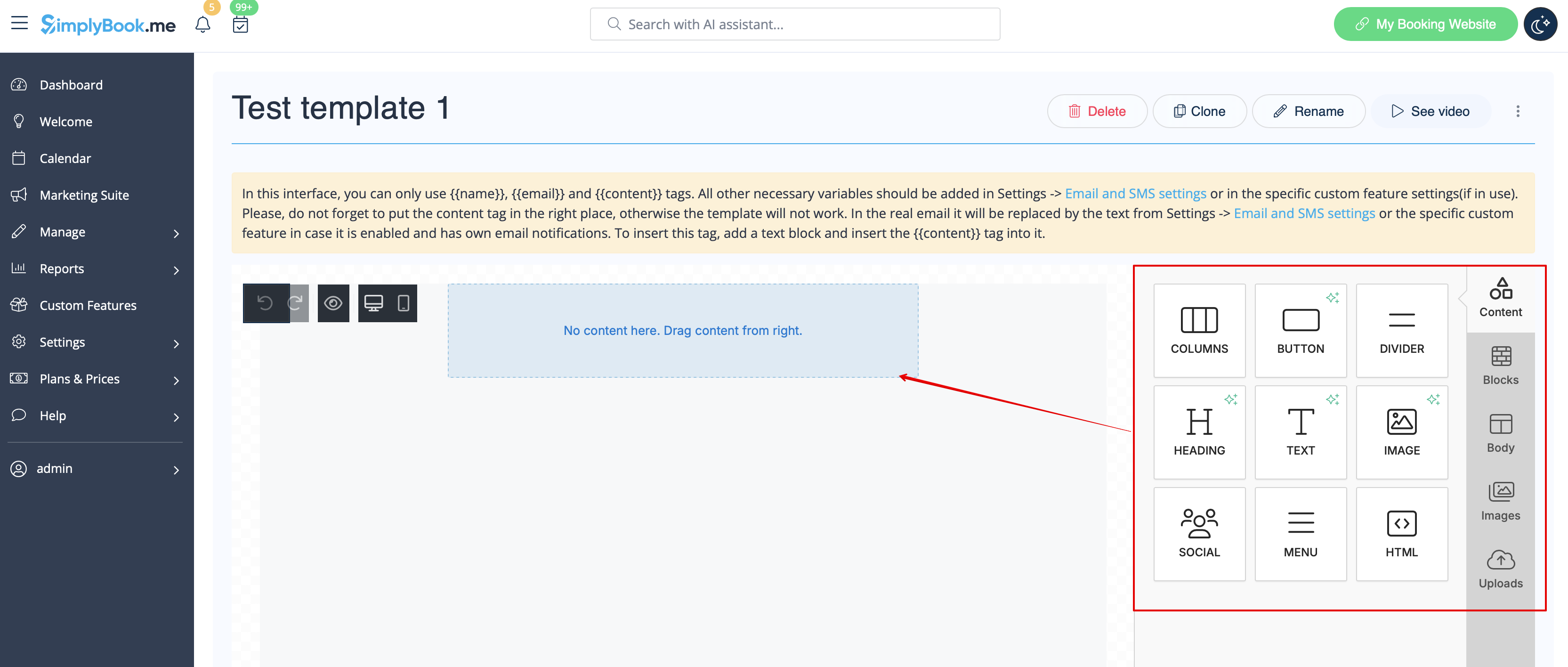
- 4. Додавайте/редагуйте текстові блоки, додавайте зображення, посилання, меню, стовпці, завантажуйте логотип вашої компанії, використовуйте кольори бренду та багато іншого за допомогою вбудованого редактора.
- Використовуйте інструменти в правій частині сторінки та візуалізацію в центрі, перетягуйте та налаштовуйте потрібні елементи, щоб отримати необхідний вигляд.
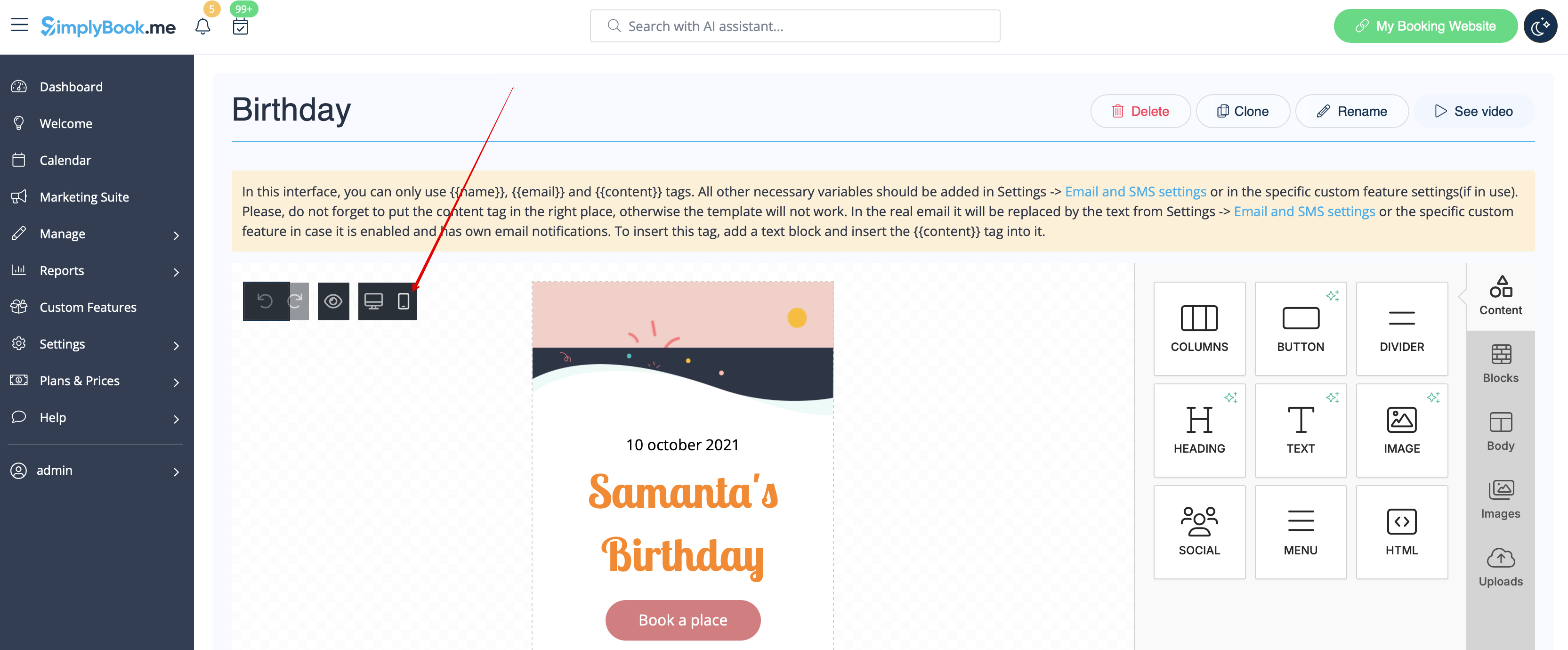
- 5. Ви також можете перейти в режим «Мобільний», щоб налаштувати вигляд електронної пошти для мобільних телефонів.
- 6. Важливо додати тег {{content}} у потрібне місце в шаблоні, оскільки в реальних електронних листах він буде замінений інформацією, пов'язаною з бронюванням/покупкою.
- Без цього тегу налаштування не буде застосовано до повідомлення, і воно буде надіслано у вигляді простого тексту.
- Зверніть увагу! Усі змінні, пов'язані з даними про зустрічі або покупки, слід використовувати лише в розділі «Налаштування» -> «Налаштування електронної пошти та SMS» або у відповідних опціях налаштування.
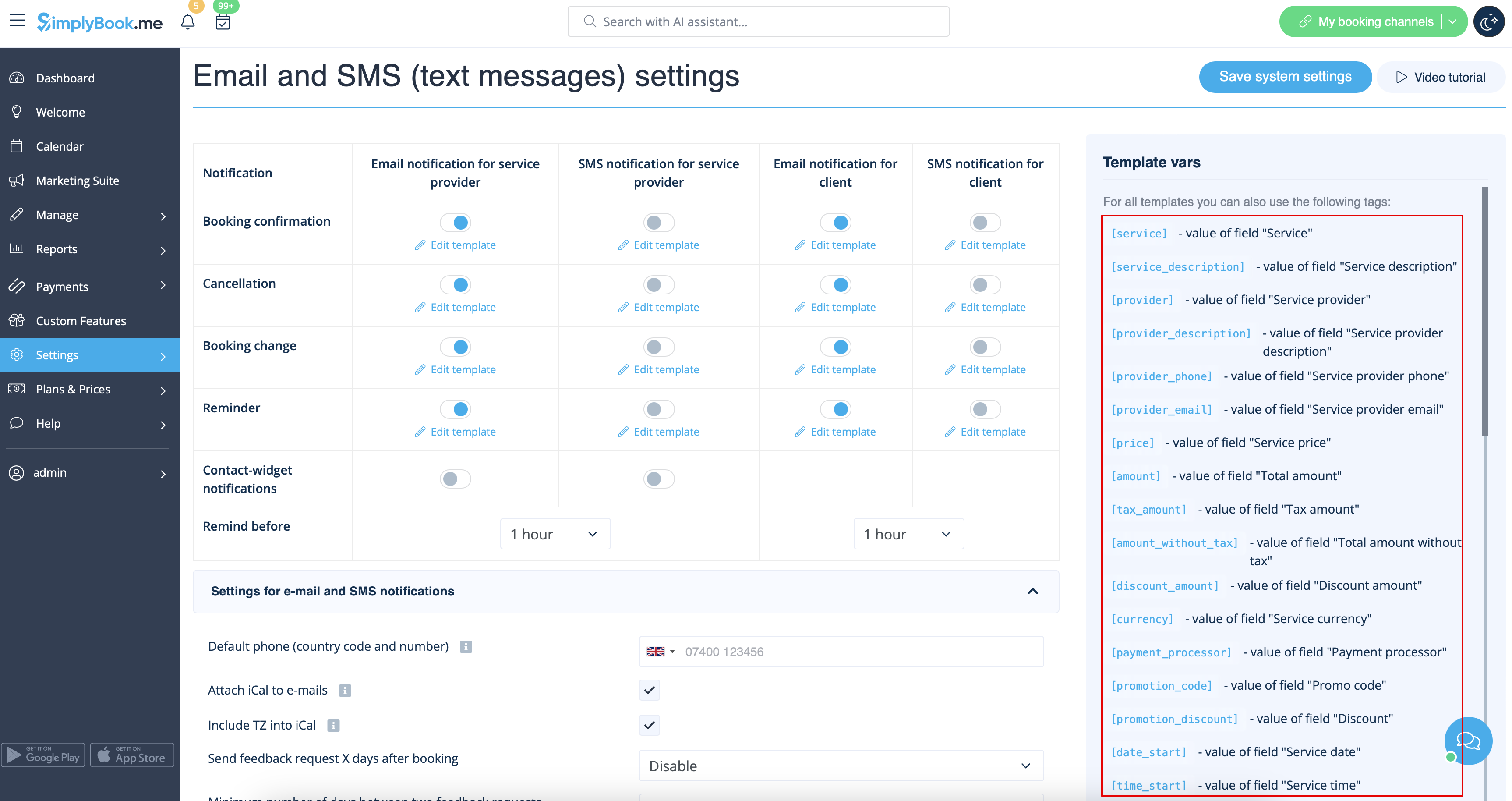
- (опціонально) Ви також можете використовувати {{name}} та {{email}} тут, якщо вам потрібно відобразити ім'я та/або електронну адресу одержувача окремо від основного змісту повідомлення.
- Зверніть увагу! Шаблони регулярно автоматично зберігаються, тому вам не потрібно зберігати їх вручну.

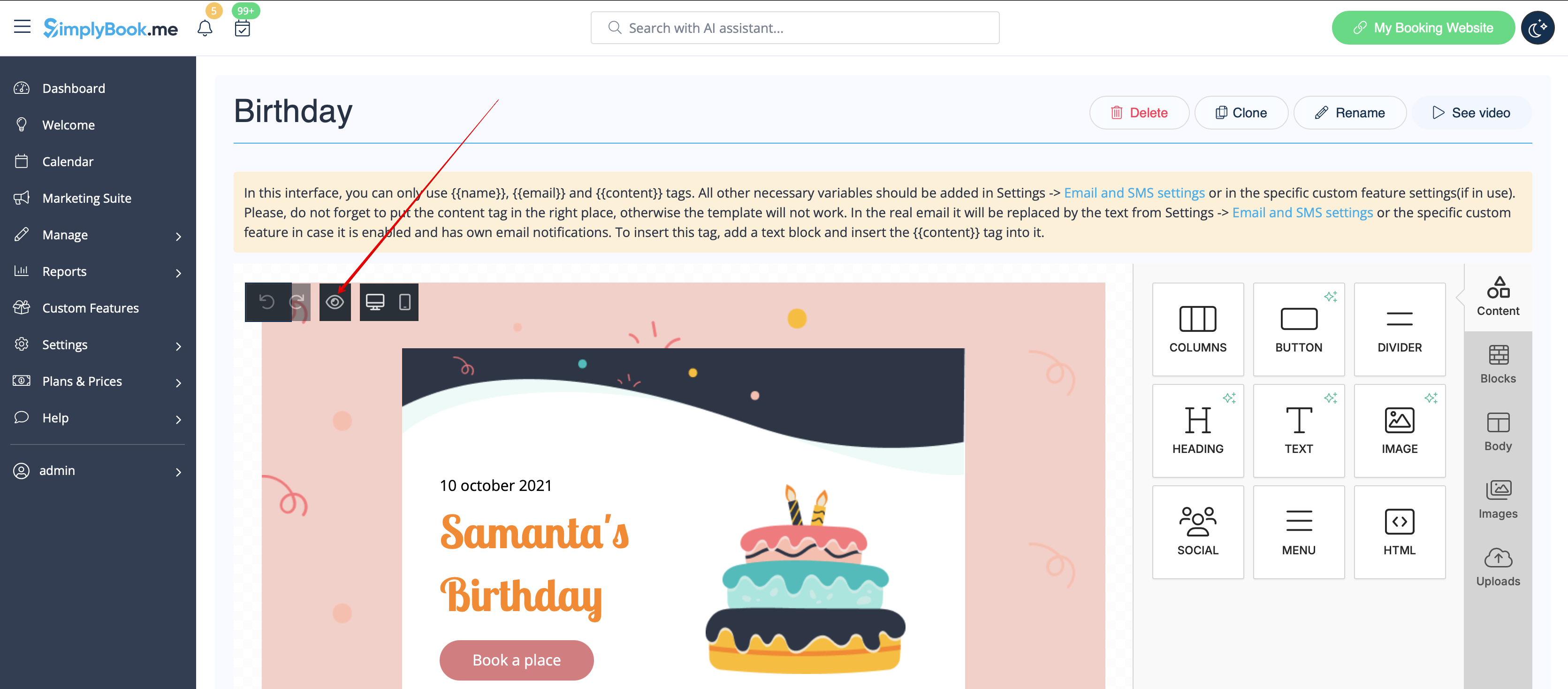
- 7. Використовуйте опцію Перегляд внизу, щоб перевірити вигляд.
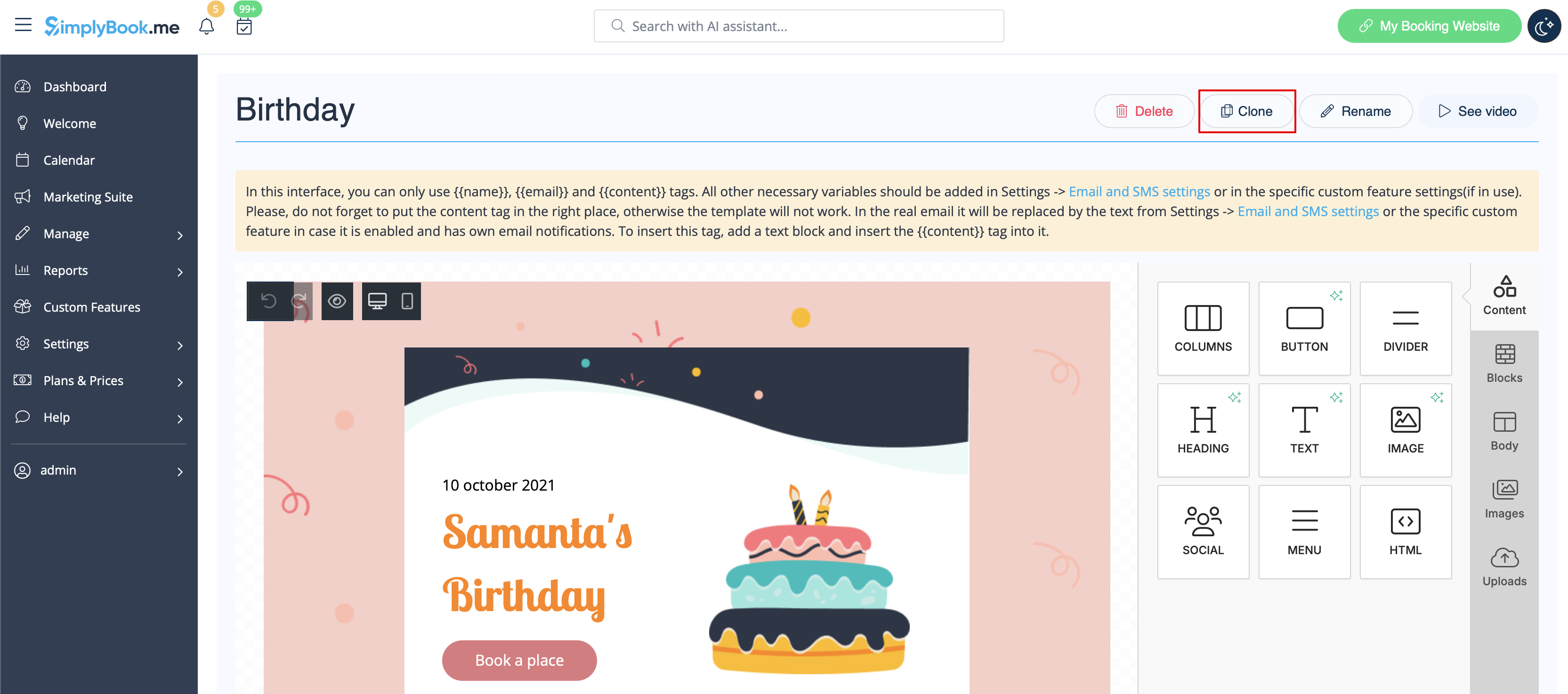
- 8. (опціонально) Якщо вам потрібні схожі дизайни з невеликими змінами або з іншим вмістом, скористайтеся опцією «Клонувати», щоб створити копію раніше збереженого шаблону.
листа
- 9. Після того як всі необхідні шаблони готові, поверніться до «Налаштовані функції» -> «Зовнішній вигляд» -> «Налаштований електронний лист».
- 10. Виберіть шаблон для кожного типу повідомлення.

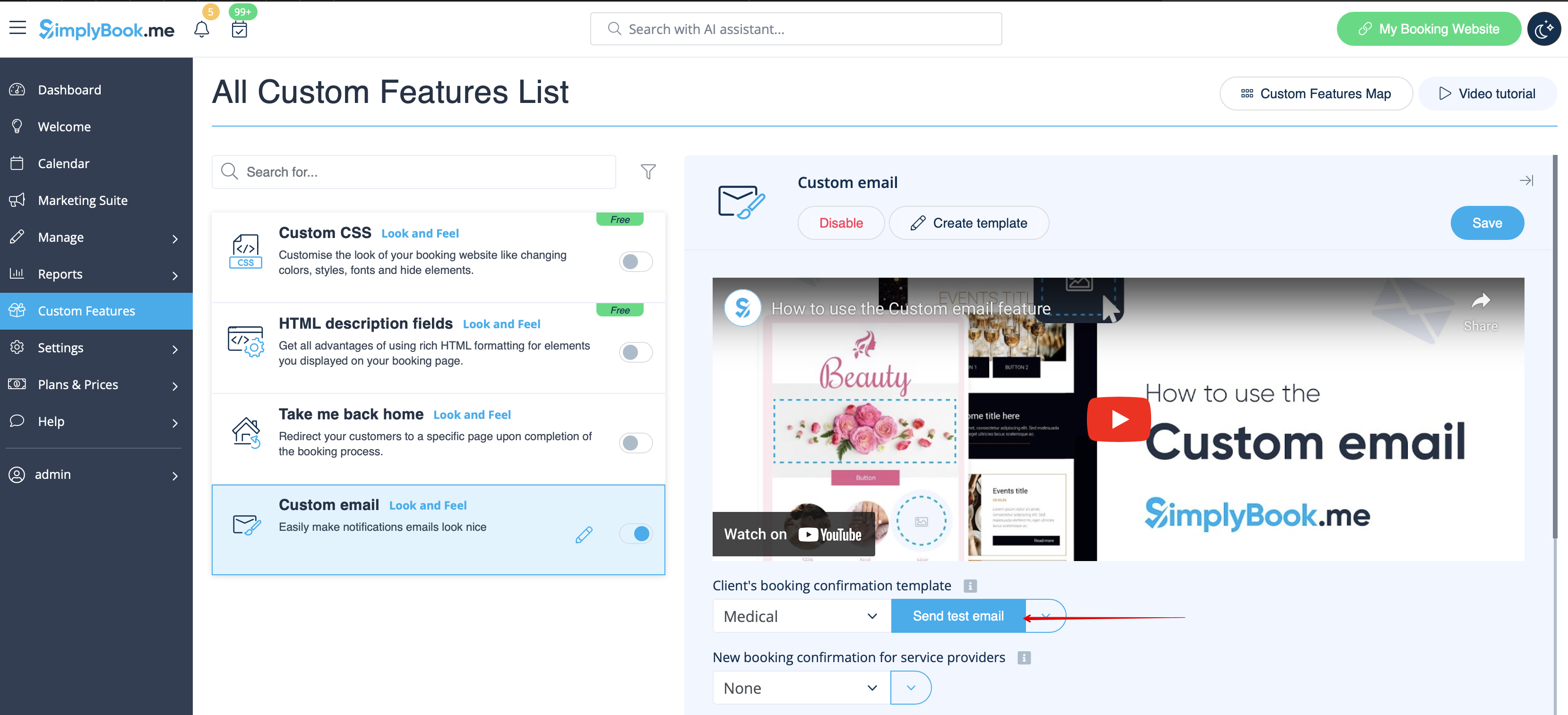
- 11. Надішліть тестові електронні листи, щоб перевірити вигляд із зразком вмісту.
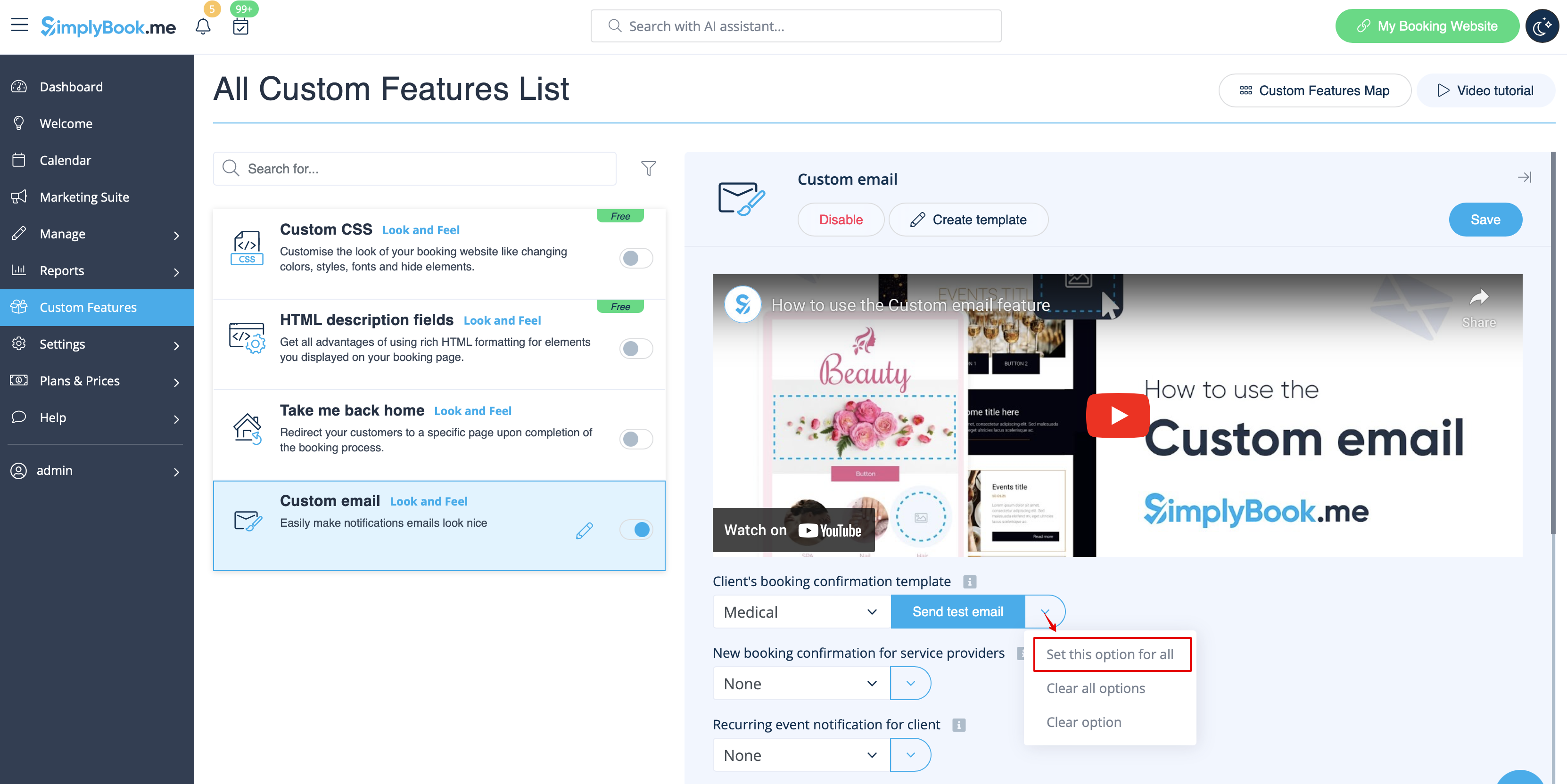
- 12. Якщо ви хочете встановити один і той самий шаблон для всіх типів повідомлень в одному блоці, скористайтеся опціями випадаючого меню праворуч .
- 13. Якщо ви маєте різні користувацькі функції з увімкненими власними типами повідомлень, ви зможете побачити відповідні блоки в налаштуваннях користувацького електронного листа.
- Відкрийте кожен блок і встановіть шаблони для повідомлень, яким ви хочете надати індивідуальний вигляд.
- Збережіть налаштування після завершення.
- 14. Також можна використовувати індивідуальні електронні листи, коли потрібно вручну надіслати електронний лист з розділу «Звіти» -> «Деталі бронювання» або «Звіти» -> «Клієнти».
- Просто встановіть потрібні прапорці, натисніть кнопку «Надіслати електронний лист » і виберіть шаблон, який потрібно застосувати, у першому спадному меню у спливаючому вікні. Додайте тему та вміст. Надішліть повідомлення.