From SimplyBook.me
Created page with "<span style="background-color: #26dd7d; padding:5px; border-radius:5px;">Gratis aangepaste functie!</span> <br><br> Video-tutorial link=https://youtu.be/ltT1F1jBfKk <br><br> = Google Business =" |
Created page with ";Gebruiksaanwijzing:" |
||
| Line 80: | Line 80: | ||
*<span style="background-color:#ffe9e9; padding:5px; border-radius:5px;">Als u de verouderde aangepaste functie Google Agenda-synchronisatie gebruikt, is het niet mogelijk om Reserve met Google te gebruiken.</span> | *<span style="background-color:#ffe9e9; padding:5px; border-radius:5px;">Als u de verouderde aangepaste functie Google Agenda-synchronisatie gebruikt, is het niet mogelijk om Reserve met Google te gebruiken.</span> | ||
<br><br> | <br><br> | ||
; | ;Gebruiksaanwijzing: | ||
:1. | :1. Voeg uw Google Business-locatie(s) toe en controleer deze via <span style="background-color:#d4f8e5; padding:5px; border-radius:5px;">het SimplyBook.me-platform (vorig deel van deze tutorial)</span> of via uw <span style="background-color:#d4f8e5; padding:5px; border-radius:5px;">Google Business-interface</span> en sla deze opnieuw op in <span style="background-color:#d4f8e5; padding:5px; border-radius:5px;">de aangepaste instellingen van Google Business.</span> | ||
[[File:Google business existing locations redesigned.png|1200px|border|center|link=https://help.simplybook.me/images/7/71/Google_business_existing_locations_redesigned.png]] | [[File:Google business existing locations redesigned.png|1200px|border|center|link=https://help.simplybook.me/images/7/71/Google_business_existing_locations_redesigned.png]] | ||
<br><br> | <br><br> | ||
:2. | :2. Ga naar het tabblad <span style="background-color:#d4f8e5; padding:5px; border-radius:5px;">'Reserveren op Google Maps'</span> en zet de schakelaar <span style="background-color:#d4f8e5; padding:5px; border-radius:5px;">'Synchronisatie met Reserveren met Google'</span> in de actieve stand. | ||
[[File:Reserve with google enable path redesigned.png|1200px|border|center|link=https://help.simplybook.me/images/8/80/Reserve_with_google_enable_path_redesigned.png]] | [[File:Reserve with google enable path redesigned.png|1200px|border|center|link=https://help.simplybook.me/images/8/80/Reserve_with_google_enable_path_redesigned.png]] | ||
<br><br> | <br><br> | ||
:3. ( | :3. (optioneel) Als u de aangepaste functie <span style="background-color:#cdeffc; padding:5px; border-radius:5px;">[[Special:MyLanguage/Custom_Features#Multiple_Locations|'Meerdere locaties']]</span> gebruikt, koppelt u uw <span style="background-color:#d4f8e5; padding:5px; border-radius:5px;">Google Bedrijven</span> aan <span style="background-color:#d4f8e5; padding:5px; border-radius:5px;">de</span> gewenste <span style="background-color:#d4f8e5; padding:5px; border-radius:5px;">SimplyBook.me-locaties.</span> | ||
:<span style="background-color:#ffe9e9; padding:5px; border-radius:5px;">''' | :<span style="background-color:#ffe9e9; padding:5px; border-radius:5px;">'''Let op!''' Het is mogelijk om één SimplyBook.me-locatie te koppelen aan één Google Bedrijven.</span> | ||
:<span style="background-color:#ffe9e9; padding:5px; border-radius:5px;"> | :<span style="background-color:#ffe9e9; padding:5px; border-radius:5px;">Als u geen gebruik maakt van <span style="background-color:#cdeffc; padding:5px; border-radius:5px;">[[Special:MyLanguage/Custom_Features#Multiple_Locations|meerdere locaties]]</span>, kan <span style="background-color:#cdeffc; padding:5px; border-radius:5px;">[[Special:MyLanguage/Custom_Features#Multiple_Locations|uw]]</span> hoofdlocatie worden gekoppeld aan één Google Bedrijven.</span> | ||
[[File:Reserve with google select location redesigned.png|1200px|border|center|link=https://help.simplybook.me/images/1/14/Reserve_with_google_select_location_redesigned.png]] | [[File:Reserve with google select location redesigned.png|1200px|border|center|link=https://help.simplybook.me/images/1/14/Reserve_with_google_select_location_redesigned.png]] | ||
<br><br> | <br><br> | ||
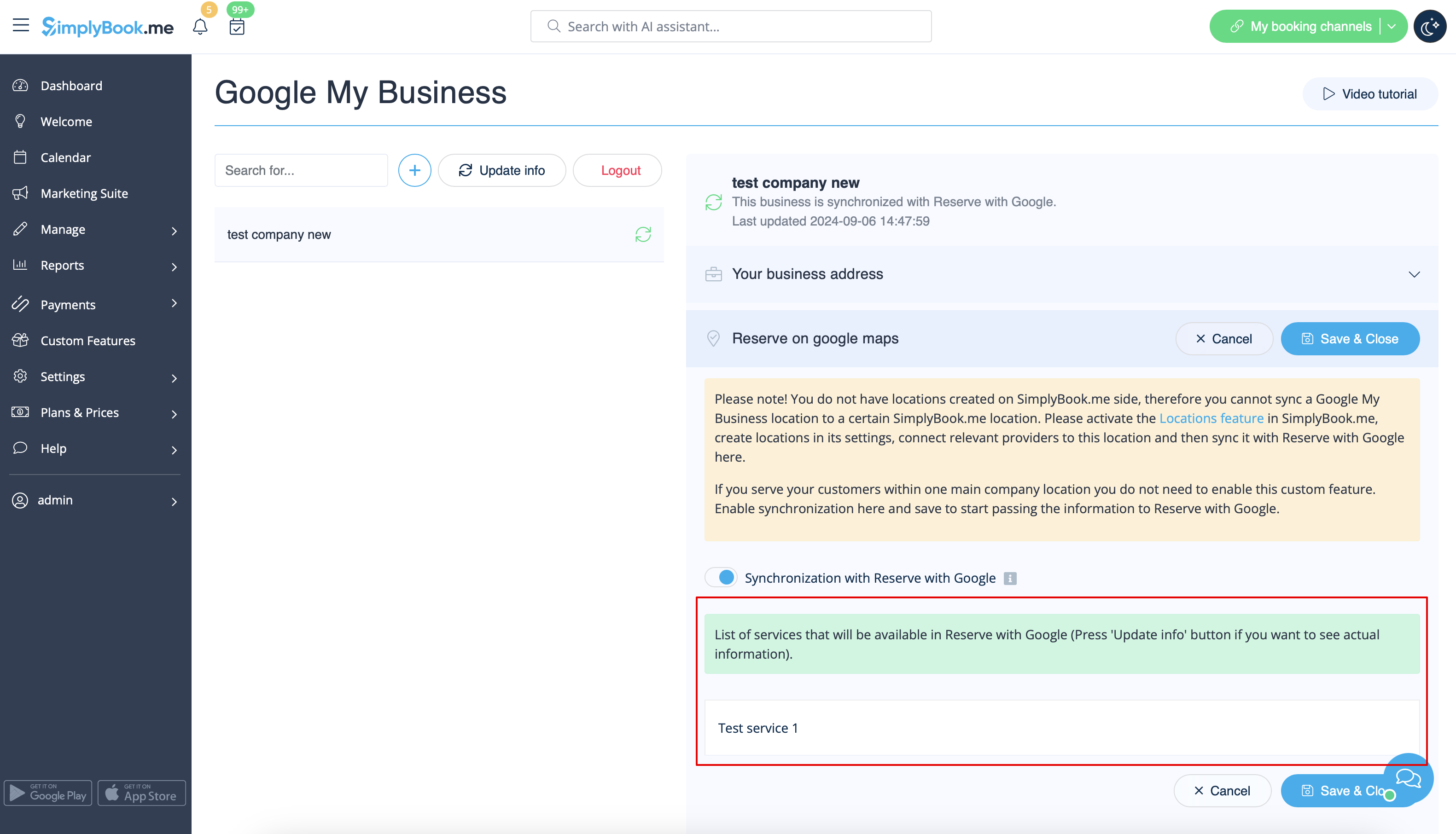
:4. <span style="background-color:#d4f8e5; padding:5px; border-radius:5px;"> | :4. <span style="background-color:#d4f8e5; padding:5px; border-radius:5px;">Sla de instellingen op</span>. Nu vindt de synchronisatie plaats en nadat u <span style="background-color:#d4f8e5; padding:5px; border-radius:5px;">de pagina opnieuw hebt geladen</span>, kunt u de lijst met diensten zien die worden doorgegeven aan Reserve met Google voor boekingen. | ||
: | :Standaard verzamelen we alle informatie en geven we de update één keer per dag door aan Google, maar u kunt de knop <span style="background-color:#d4f8e5; padding:5px; border-radius:5px;">Info bijwerken</span> gebruiken om de informatie handmatig voor te bereiden voor overdracht als er instellingen in uw account zijn gewijzigd (bijvoorbeeld als u een nieuwe dienst hebt aangemaakt). | ||
[[File:Reserve with google list of services redesigned.png|1200px|border|center|link=https://help.simplybook.me/images/d/dd/Reserve_with_google_list_of_services_redesigned.png]] | [[File:Reserve with google list of services redesigned.png|1200px|border|center|link=https://help.simplybook.me/images/d/dd/Reserve_with_google_list_of_services_redesigned.png]] | ||
<br><br> | <br><br> | ||
<br><br> | <br><br> | ||
Revision as of 15:05, 19 May 2025

png
Vergroot eenvoudig de zichtbaarheid van uw bedrijf op internet via de functie Google Mijn Bedrijf. Het kost niets, maar vergroot de zichtbaarheid in zoekresultaten en maakt uw bedrijf zichtbaar op Google Maps.
Gratis aangepaste functie!
Video-tutorial 
Google Business
- Gebruiksaanwijzing
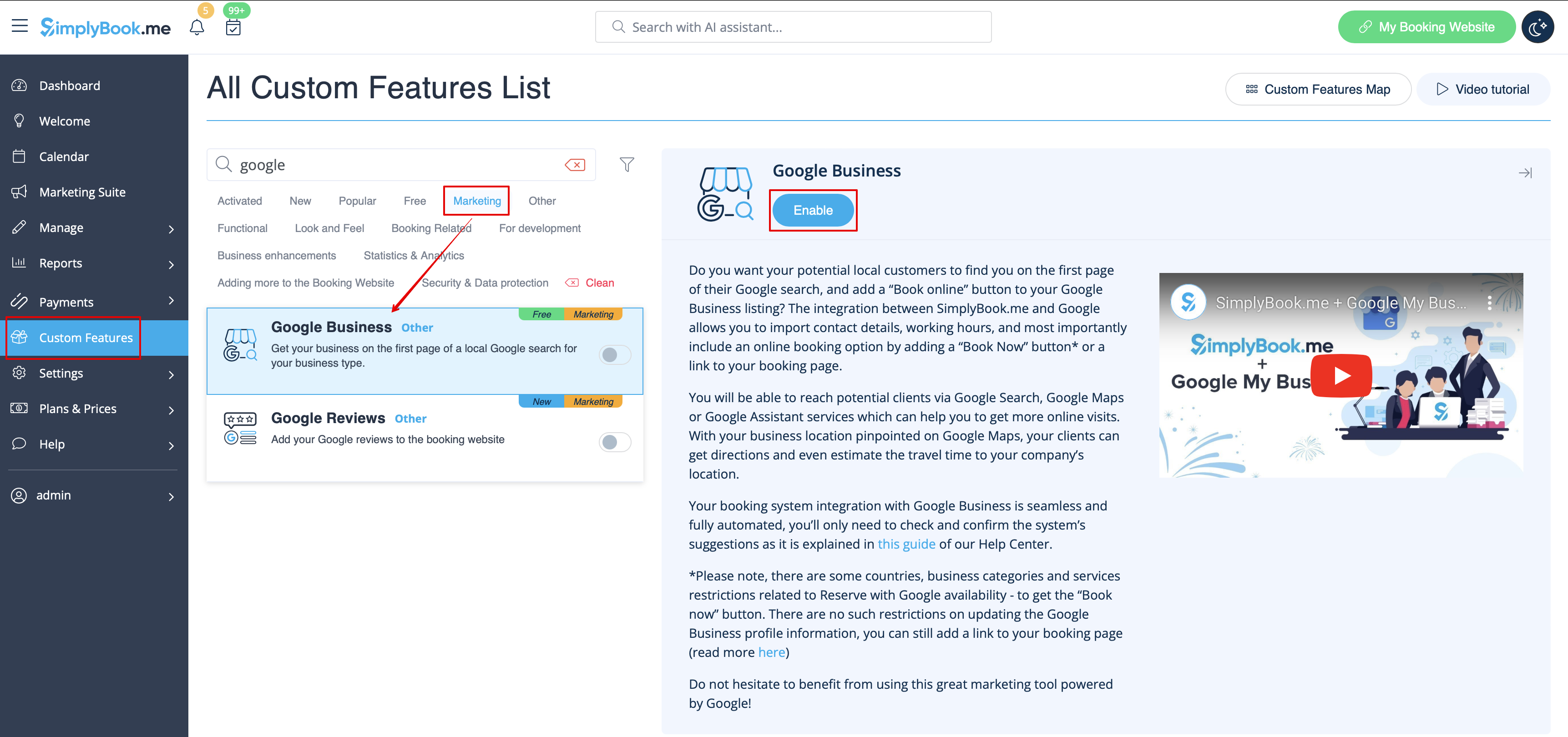
- 1. Schakel deze aangepaste functie in op uw pagina Aangepaste functies.
- 2. Ga naar Instellingen om een Google Business-account aan te maken als u er nog geen hebt, of koppel een bestaand Google Business-account.
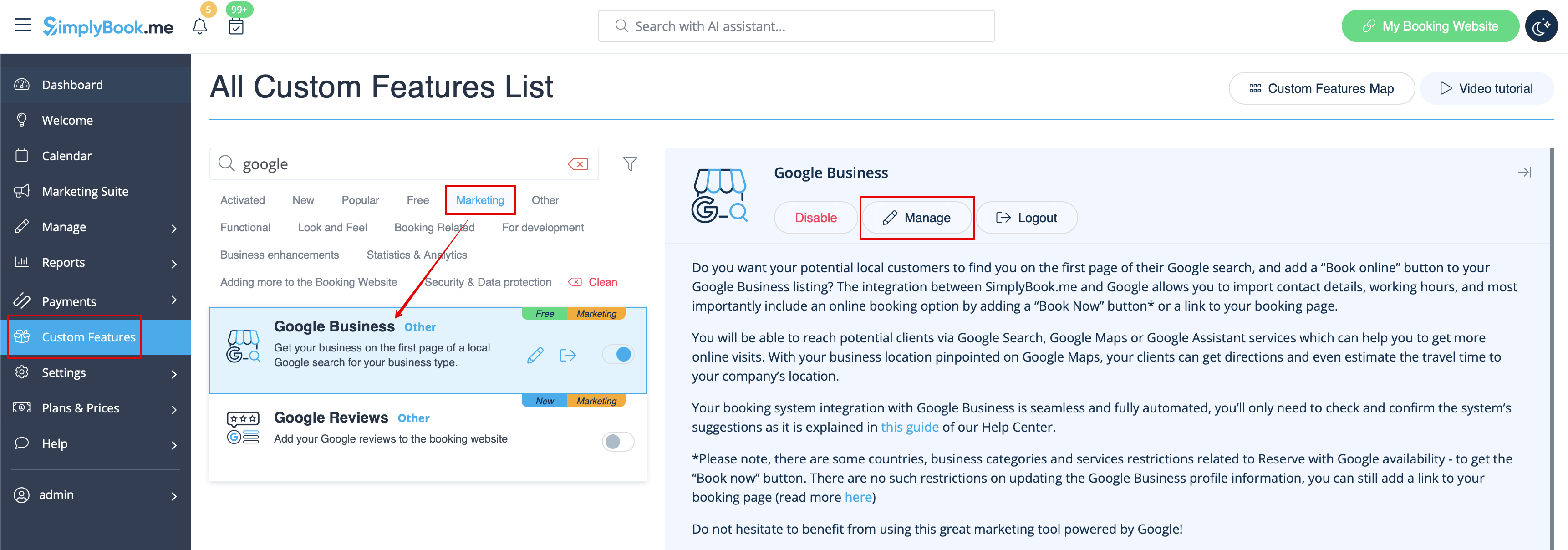

- 3. Verleen de nodige machtigingen zodat uw locatie(s) in SimplyBook.me kunnen worden bekeken en bewerkt.
- 4. Als u al locaties in Google Business hebt, kunt u deze aan de linkerkant van de pagina zien.
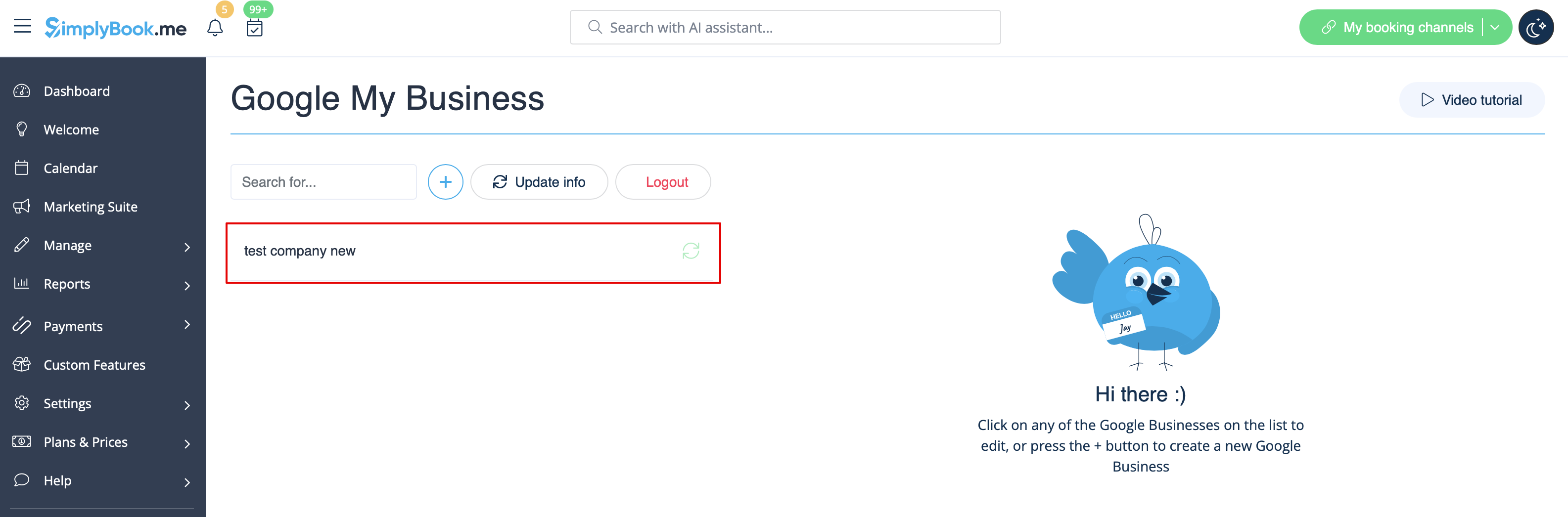
- 5. Klik op een van deze locaties als u wijzigingen wilt aanbrengen en schakel de optie Adres bijwerken in het profiel in, breng de nodige wijzigingen aan en sla de locatie opnieuw op, zodat de informatie op Google wordt bijgewerkt

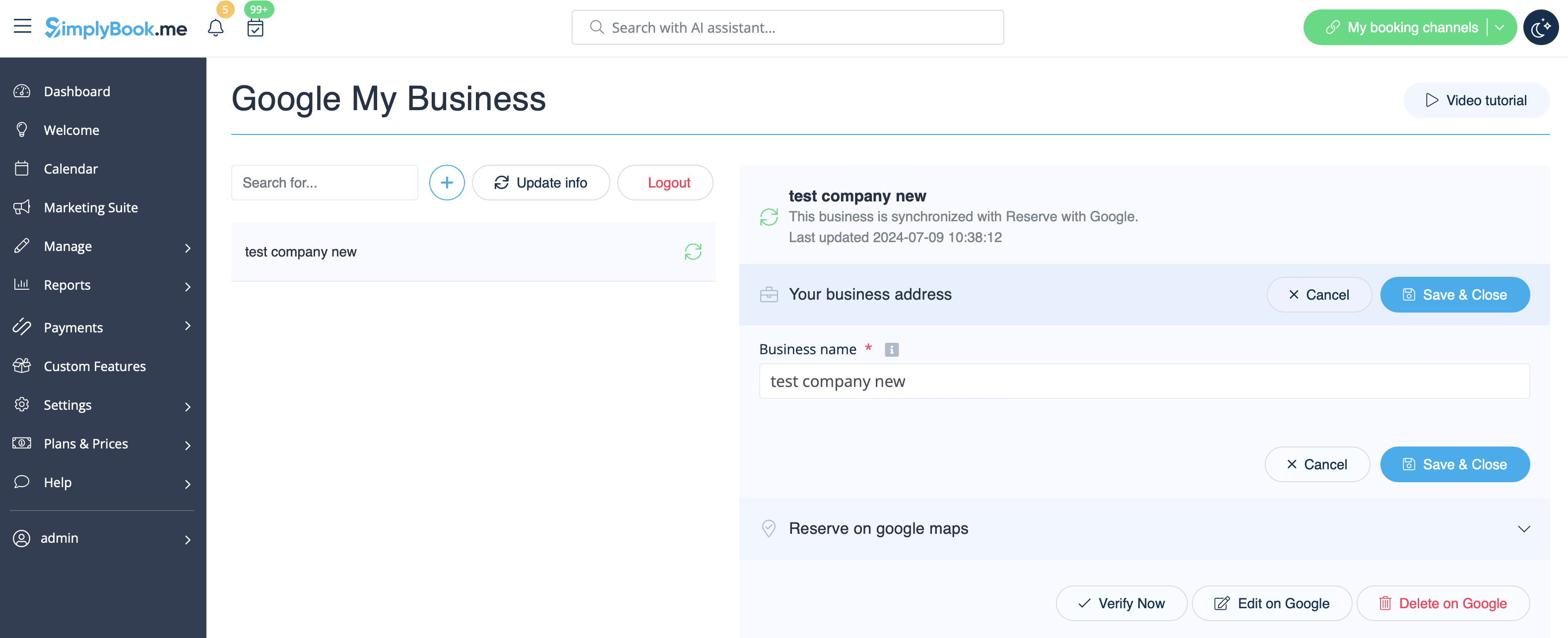
- of kies de optie + om een nieuw bedrijfsadres toe te voegen.
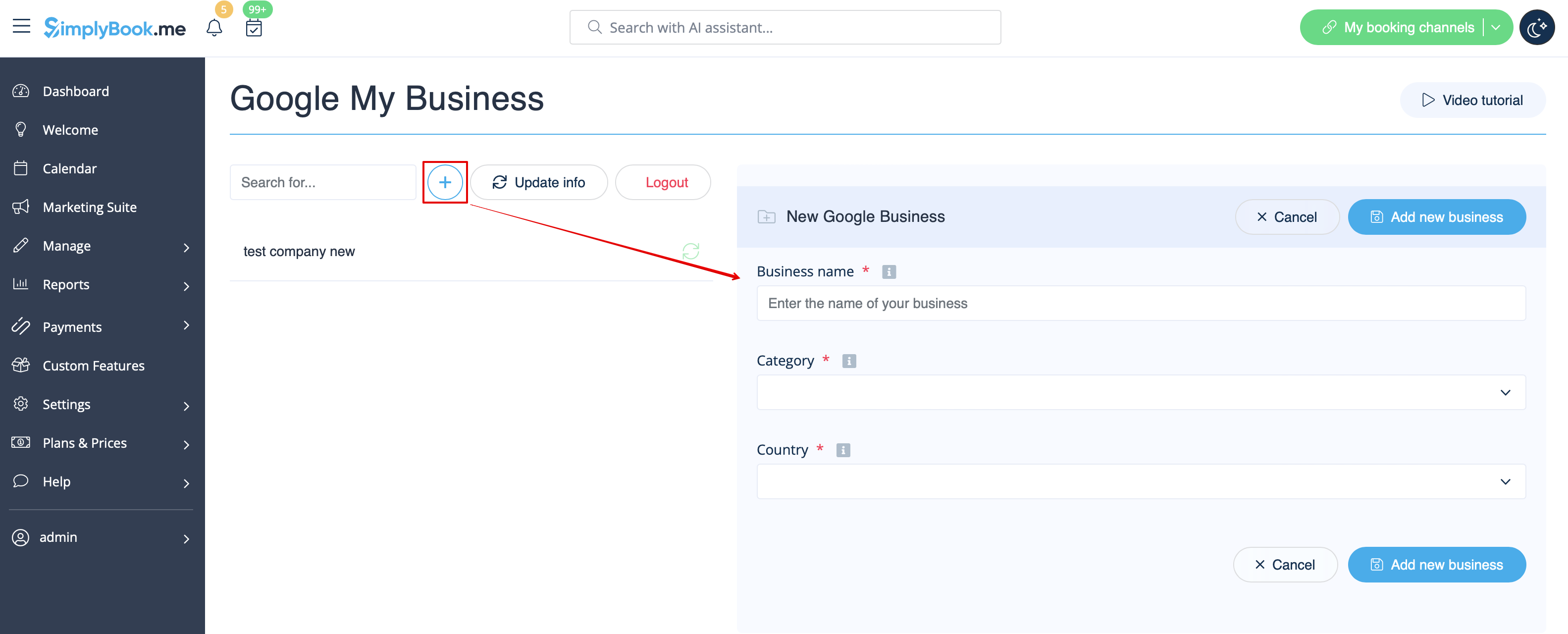
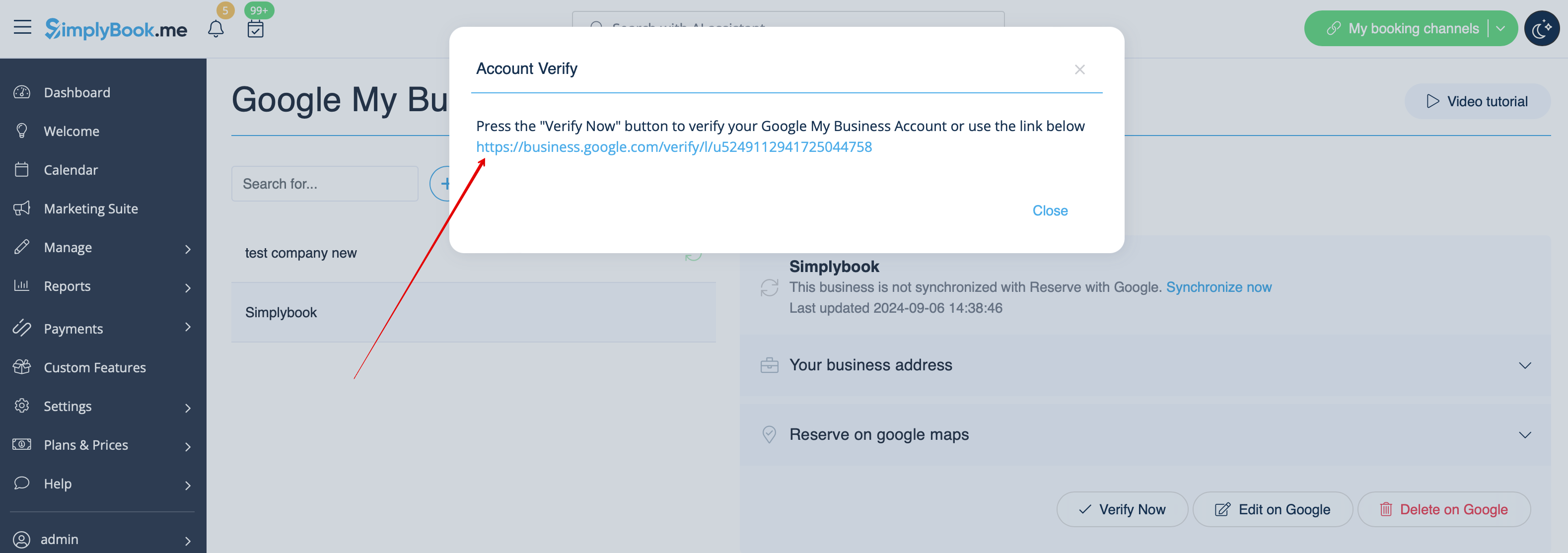
- 6. Nadat u het adres hebt toegevoegd, klikt u op Opslaan en sluiten. U kunt dan doorgaan met de verificatie van de bedrijfs locatie door Google (dit kan even duren).
- U kunt ook het pop-upvenster sluiten en later terugkeren naar de verificatiestap (er is een knop Nu verifiëren voor elke opgeslagen en gesynchroniseerde bedrijfsadres).
- Zodra uw locatie door Google is geverifieerd (u ziet de stappen van het verificatieproces terwijl u de instructies van Google volgt), verschijnt uw bedrijf in de zoekresultaten en op Google Maps.
- 7. Wanneer u de locatie opslaat, wordt de volgende informatie over uw bedrijf doorgegeven aan Google:
- naam van de bedrijfslocatie;
- openingstijden van het bedrijf;
- telefoonnummer van het bedrijf;
- link naar de boekingssite;
- bedrijfscategorie (aangezien de categorieën van Google verschillen, wordt de meest geschikte categorie gezocht).

- Let op: als u enkele van deze gegevens in uw SimplyBook.me-account hebt gewijzigd, moet u het bedrijfsadres opnieuw opslaan in de instellingen van Google Bedrijven om de gegevens bij te werken in Google.
- 8. U kunt uw bedrijfsadresgegevens indien nodig ook in Google bewerken. Klik gewoon op de knop Bewerken op GMB bovenaan (verschijnt voor opgeslagen en gesynchroniseerde locaties).
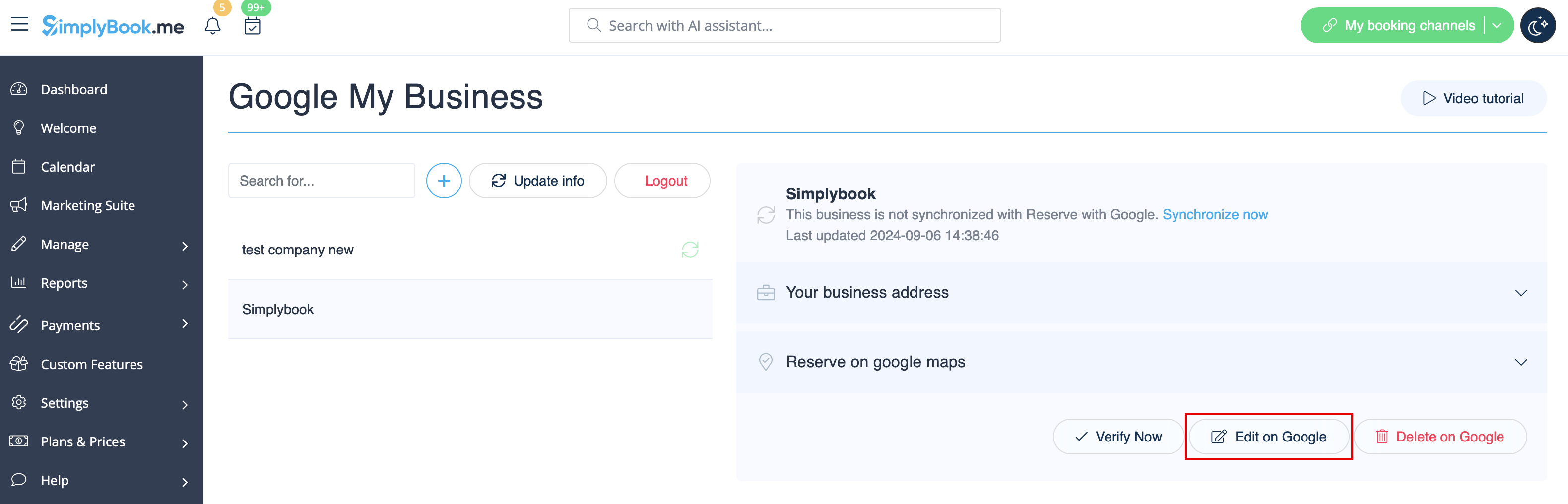
- 9. Als sommige locaties niet meer relevant zijn voor uw bedrijf, kunt u ze eenvoudig verwijderen in deze functie-instellingen. Klik gewoon op de optie Verwijderen op GMB.
Reserveren met Google
Voeg een knop 'Online boeken ' toe aan uw Google Bedrijfsvermelding. Zorg dat uw klanten u gemakkelijk kunnen vinden op Google en uw diensten direct kunnen boeken via Google Zoeken, Google Maps of Google Assistent, mogelijk gemaakt door het SimplyBook.me-boekingssysteem.
- Let op!:
- Reserve met Google is momenteel alleen beschikbaar voor ondersteunde landen die hier worden vermeld:
- Momenteel is het niet mogelijk om deze optie te gebruiken voor de volgende bedrijfscategorieën: medisch centrum, onderwijsinstelling, overheidsinstantie, ingenieur, medische kliniek, tandarts, medisch kantoor, onderwijscentrum, evenementenbureau, stadsbestuur, ambassade, algemeen advocaat, kinderopvang, universiteit, hogeschool, school, bibliotheek, financiële instelling.
- De aangepaste functie 'Betalingen accepteren' moet zijn ingeschakeld (de optie'Later betalen (uitstel van betaling toestaan)' moet altijd zijn ingeschakeld) en er moeten prijzen worden toegevoegd voor alle diensten/lessen die u wilt weergeven en boekbaar wilt maken via Google Maps;
- Alle diensten/lessen moeten een beschrijving hebben die op Google wordt weergegeven;
- Als u de functie 'Intakeformulieren' gebruikt, mogen er geen verplichte formulieren worden toegevoegd aan de diensten die u beschikbaar wilt maken voor boekingen;
- Als een dienst terugkerend is of gekoppeld is aan een lidmaatschap, wordt deze niet weergegeven in Reserve met Google;
- Als u de verouderde aangepaste functie Google Agenda-synchronisatie gebruikt, is het niet mogelijk om Reserve met Google te gebruiken.
- Gebruiksaanwijzing
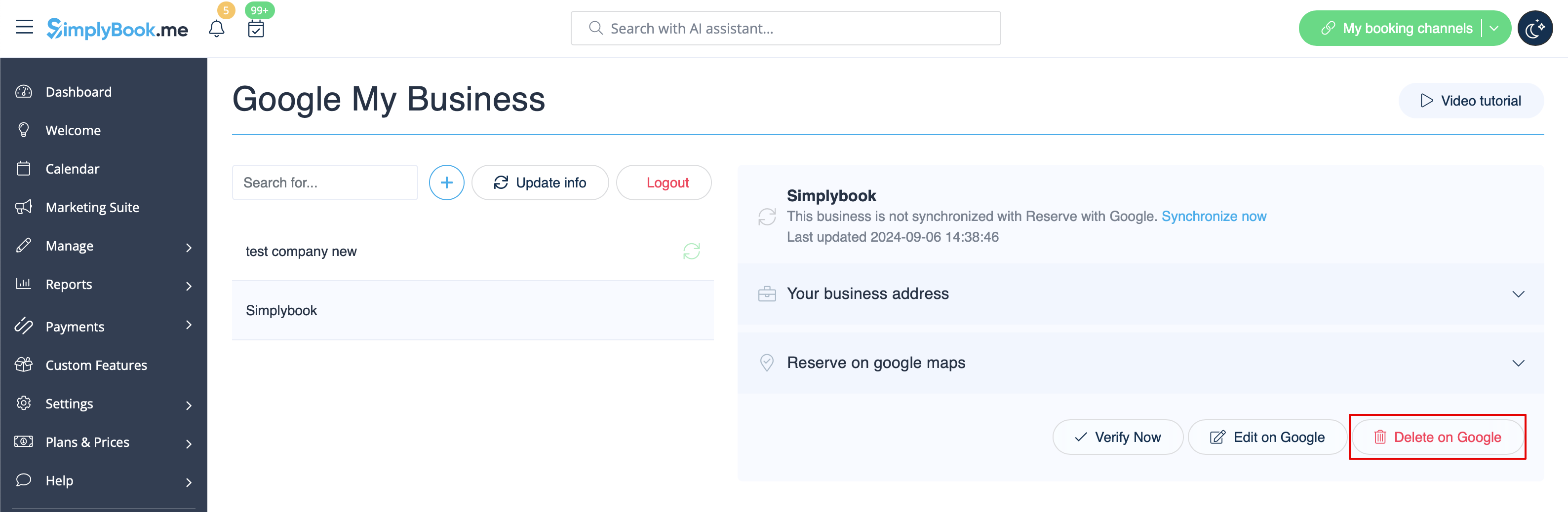
- 1. Voeg uw Google Business-locatie(s) toe en controleer deze via het SimplyBook.me-platform (vorig deel van deze tutorial) of via uw Google Business-interface en sla deze opnieuw op in de aangepaste instellingen van Google Business.
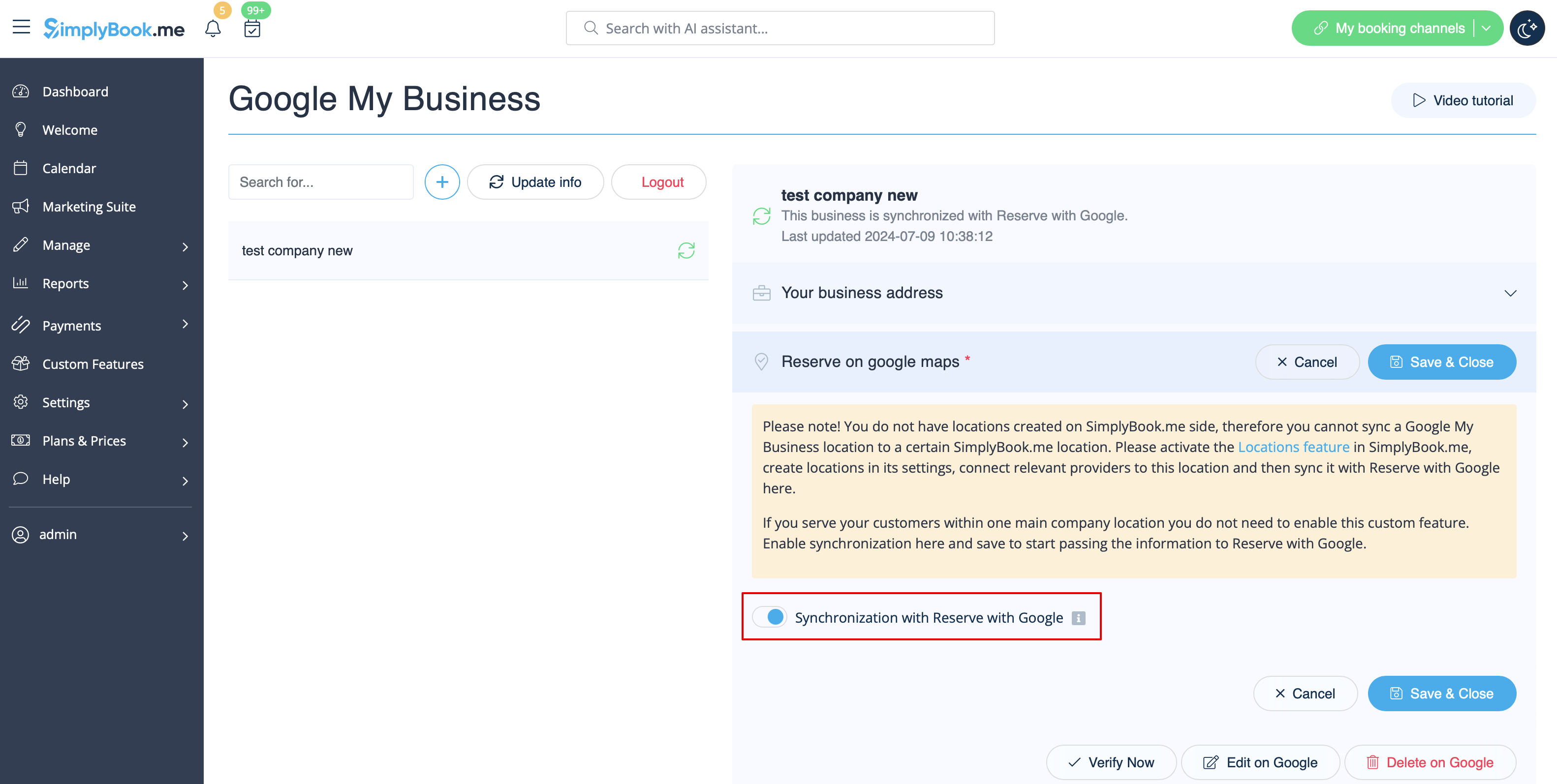
- 2. Ga naar het tabblad 'Reserveren op Google Maps' en zet de schakelaar 'Synchronisatie met Reserveren met Google' in de actieve stand.
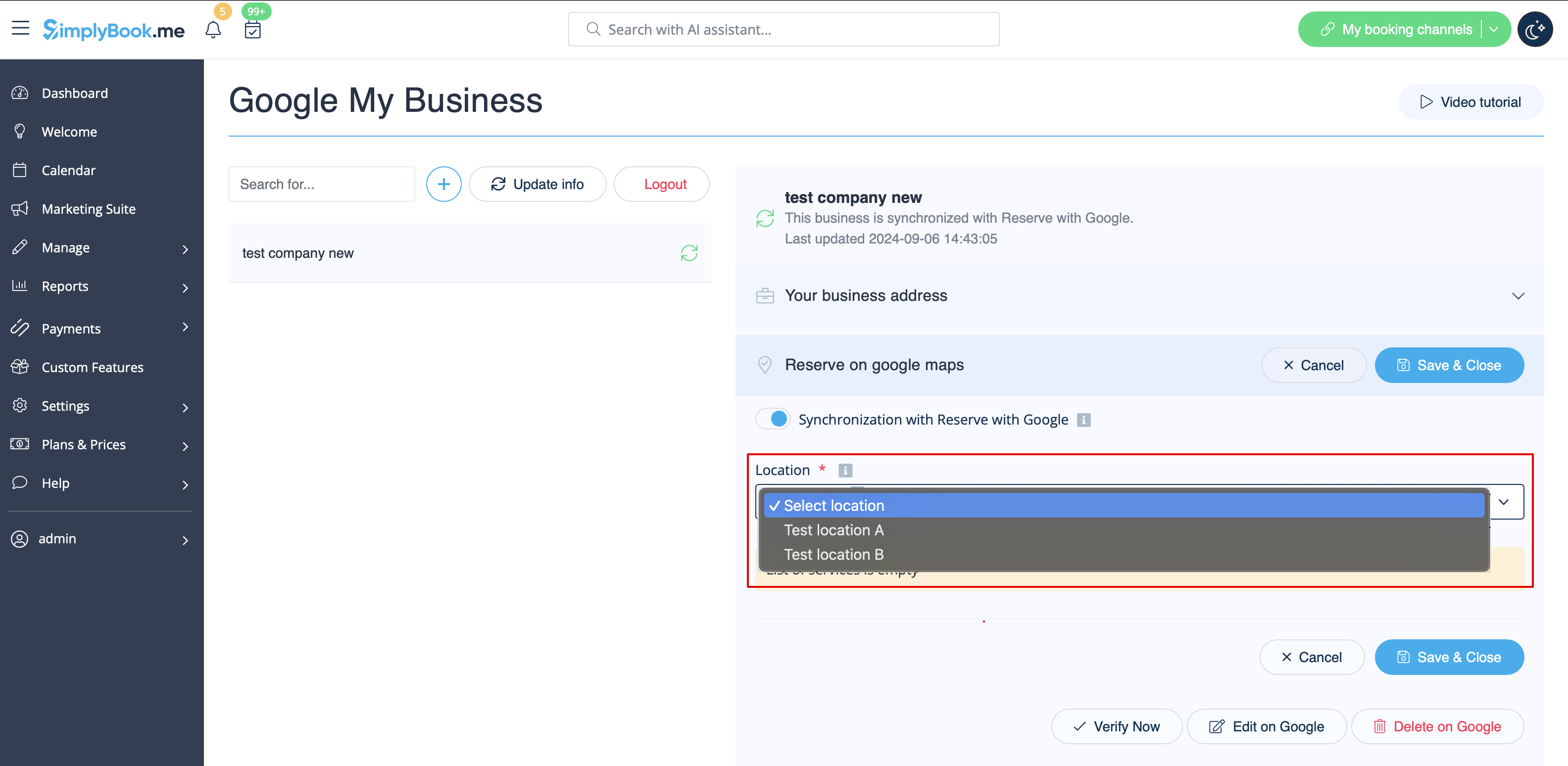
- 3. (optioneel) Als u de aangepaste functie 'Meerdere locaties' gebruikt, koppelt u uw Google Bedrijven aan de gewenste SimplyBook.me-locaties.
- Let op! Het is mogelijk om één SimplyBook.me-locatie te koppelen aan één Google Bedrijven.
- Als u geen gebruik maakt van meerdere locaties, kan uw hoofdlocatie worden gekoppeld aan één Google Bedrijven.
- 4. Sla de instellingen op. Nu vindt de synchronisatie plaats en nadat u de pagina opnieuw hebt geladen, kunt u de lijst met diensten zien die worden doorgegeven aan Reserve met Google voor boekingen.
- Standaard verzamelen we alle informatie en geven we de update één keer per dag door aan Google, maar u kunt de knop Info bijwerken gebruiken om de informatie handmatig voor te bereiden voor overdracht als er instellingen in uw account zijn gewijzigd (bijvoorbeeld als u een nieuwe dienst hebt aangemaakt).