From SimplyBook.me
No edit summary |
Marked this version for translation |
||
| Line 1: | Line 1: | ||
<languages/> | <languages/> | ||
<translate> | <translate> | ||
<!--T:1--> | |||
{{#seo: | {{#seo: | ||
|title=Custom Features - SimplyBook.me | |title=Custom Features - SimplyBook.me | ||
| Line 11: | Line 12: | ||
<!--T:2--> | |||
<br> | <br> | ||
[[File:Service category new icon.png | left]] | [[File:Service category new icon.png | left]] | ||
| Line 23: | Line 25: | ||
<!--T:3--> | |||
;How to use | ;How to use | ||
<!--T:4--> | |||
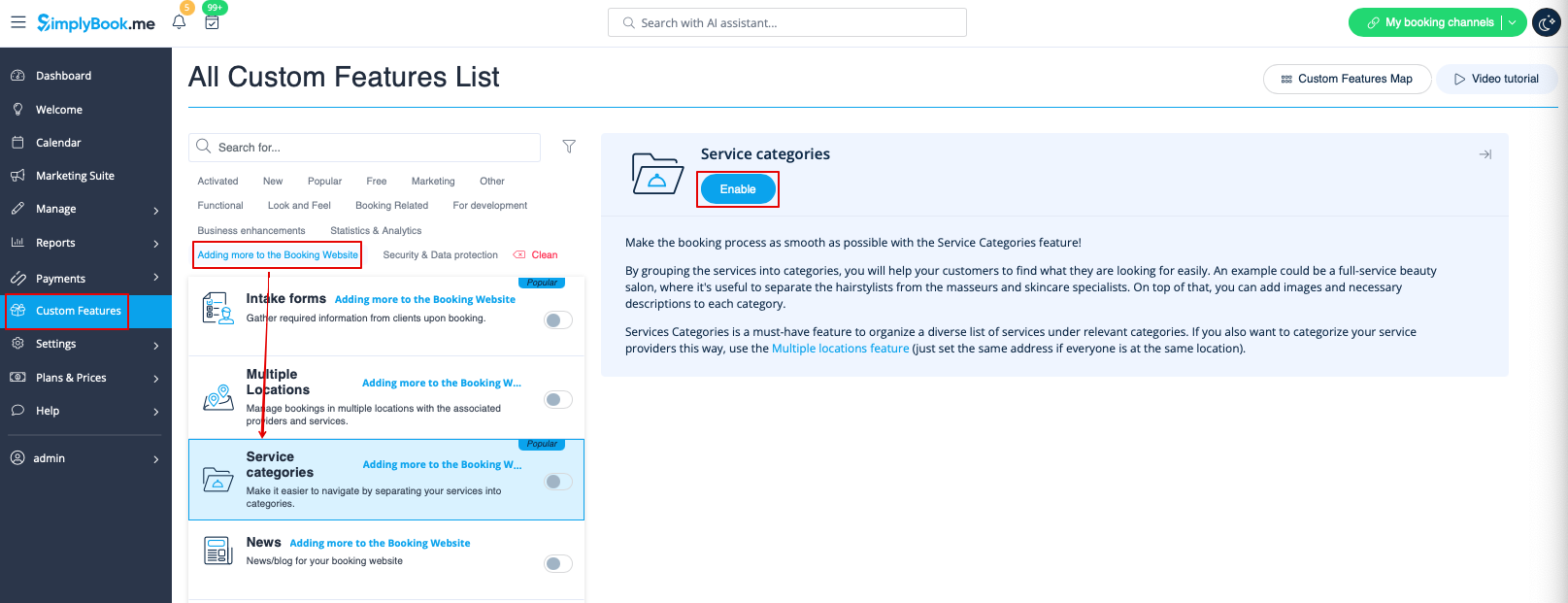
:1. Enable Service Categories custom feature in the Custom Feature section//Adding more to booking page. | :1. Enable Service Categories custom feature in the Custom Feature section//Adding more to booking page. | ||
[[File:Service categories enable path redesigned.png|1200px | center|link=https://help.simplybook.me/images/1/1b/Service_categories_enable_path_redesigned.png]] | [[File:Service categories enable path redesigned.png|1200px | center|link=https://help.simplybook.me/images/1/1b/Service_categories_enable_path_redesigned.png]] | ||
| Line 33: | Line 37: | ||
</translate> | </translate> | ||
<translate> | <translate> | ||
<!--T:5--> | |||
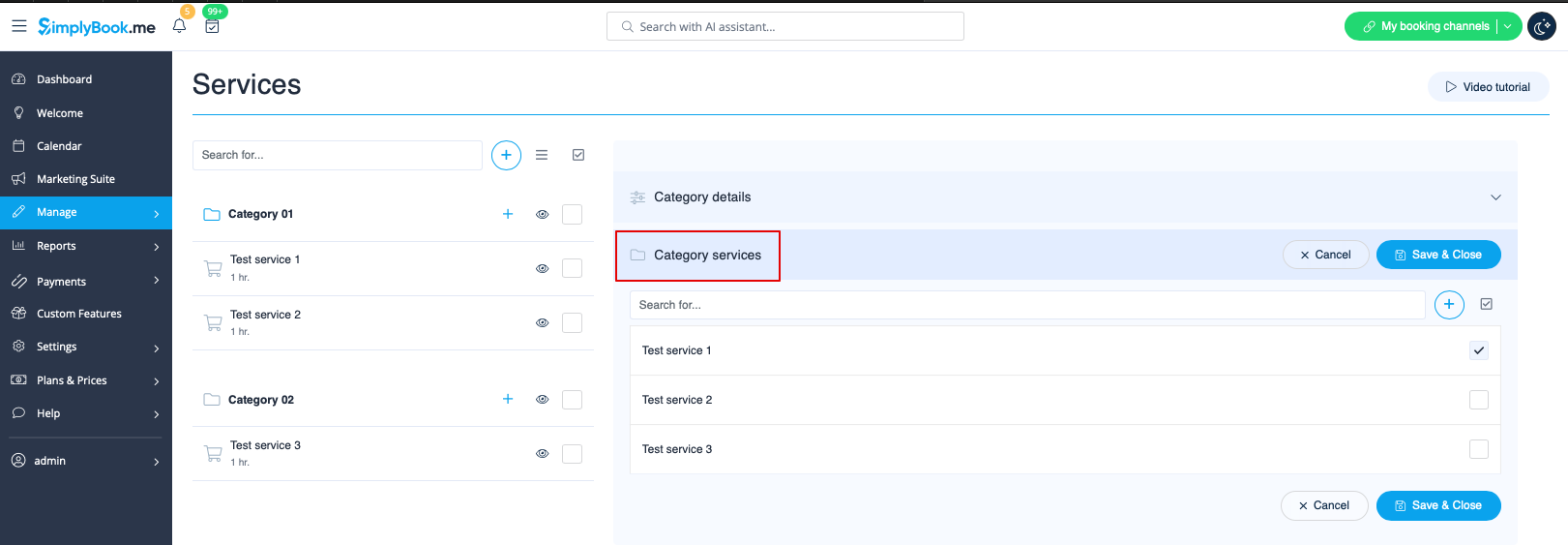
:3. Click on "Category details" tab of the category to edit any information. To connect services please choose "Category services" tab and check corresponding boxes. | :3. Click on "Category details" tab of the category to edit any information. To connect services please choose "Category services" tab and check corresponding boxes. | ||
[[File:Connect category to services redesinged.png|1200px | center|link=https://help.simplybook.me/images/9/96/Connect_category_to_services_redesinged.png]] | [[File:Connect category to services redesinged.png|1200px | center|link=https://help.simplybook.me/images/9/96/Connect_category_to_services_redesinged.png]] | ||
Revision as of 15:34, 19 May 2025

With the help of this Custom Feature you can create categories and group your services to make it easier and faster for your clients to find the necessary service.
- How to use
- 1. Enable Service Categories custom feature in the Custom Feature section//Adding more to booking page.
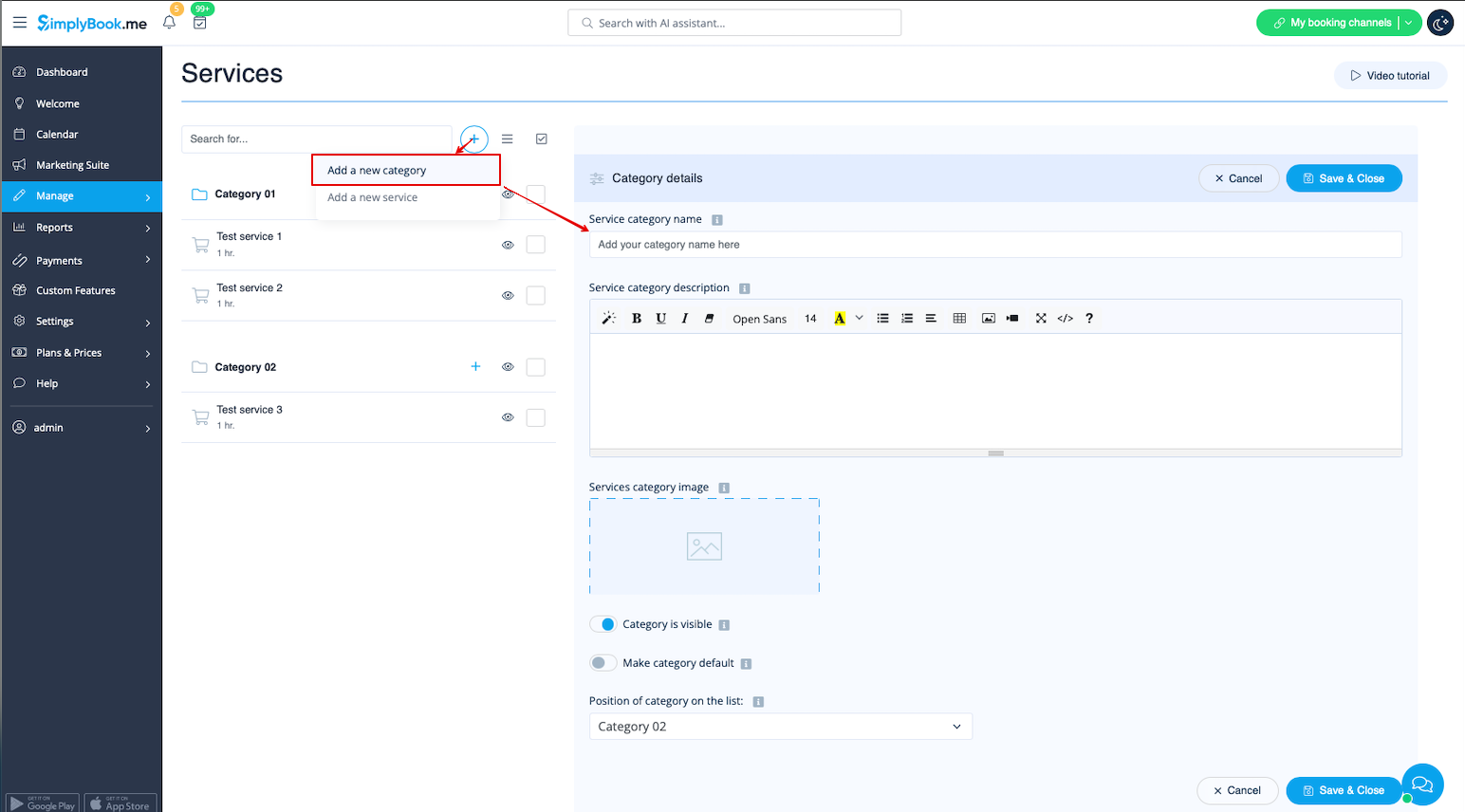
- 2. In Manage//Services click on "+" and choose "Add category" to create all necessary categories. Insert title, picture, description and assign services to category.
- 3. Click on "Category details" tab of the category to edit any information. To connect services please choose "Category services" tab and check corresponding boxes.
- 4. Here you can see how categories can look like on the booking page using one of the themes avilable.

