From SimplyBook.me
No edit summary |
Marked this version for translation |
||
| Line 1: | Line 1: | ||
<languages/> | <languages/> | ||
<translate> | <translate> | ||
<!--T:1--> | |||
{{#seo: | {{#seo: | ||
|title=SSO-SAML Custom Feature - SimplyBook.me | |title=SSO-SAML Custom Feature - SimplyBook.me | ||
| Line 10: | Line 11: | ||
<translate> | <translate> | ||
<!--T:2--> | |||
[[File:Saml icon.png| left]] <br>This custom feature allows to setup Single Sign-On process for you as the system admin and your account users thus enabling login to SimplyBook.me system from MS Azure or Okta applications panel. You can create users in MS Azure/Okta within the desired access level groups and the corresponding user types will be added in your SimplyBook.me system on the first login. | [[File:Saml icon.png| left]] <br>This custom feature allows to setup Single Sign-On process for you as the system admin and your account users thus enabling login to SimplyBook.me system from MS Azure or Okta applications panel. You can create users in MS Azure/Okta within the desired access level groups and the corresponding user types will be added in your SimplyBook.me system on the first login. | ||
<br><br> | <br><br> | ||
| Line 17: | Line 19: | ||
</translate> | </translate> | ||
<translate> | <translate> | ||
<!--T:3--> | |||
__FORCETOC__ | __FORCETOC__ | ||
<!--T:4--> | |||
==How to set & use Microsoft Azure== | ==How to set & use Microsoft Azure== | ||
<br> | <br> | ||
| Line 31: | Line 35: | ||
</translate> | </translate> | ||
<translate> | <translate> | ||
<!--T:5--> | |||
:4. Click on <span style="background-color:#d4f8e5; padding:5px; border-radius:5px;">Microsoft Azure Configuration</span> on the left and log in to your <span style="background-color:#d4f8e5; padding:5px; border-radius:5px;">MS Azure account</span> there to start connection setup. | :4. Click on <span style="background-color:#d4f8e5; padding:5px; border-radius:5px;">Microsoft Azure Configuration</span> on the left and log in to your <span style="background-color:#d4f8e5; padding:5px; border-radius:5px;">MS Azure account</span> there to start connection setup. | ||
:<span style="background-color:#ffe9e9; padding:5px; border-radius:5px;">'''Please note!''' You need to have administrator access in MS Azure as well to be able to connect applications.</span> | :<span style="background-color:#ffe9e9; padding:5px; border-radius:5px;">'''Please note!''' You need to have administrator access in MS Azure as well to be able to connect applications.</span> | ||
| Line 40: | Line 45: | ||
</translate> | </translate> | ||
<translate> | <translate> | ||
<!--T:6--> | |||
:6. In MS Azure please navigate to <span style="background-color:#d4f8e5; padding:5px; border-radius:5px;">Active Directory(Entra ID).</span> | :6. In MS Azure please navigate to <span style="background-color:#d4f8e5; padding:5px; border-radius:5px;">Active Directory(Entra ID).</span> | ||
[[File:Manage ms entra id new path.png|1200px|border|center|link=]] | [[File:Manage ms entra id new path.png|1200px|border|center|link=]] | ||
| Line 46: | Line 52: | ||
</translate> | </translate> | ||
<translate> | <translate> | ||
<!--T:7--> | |||
:(you may need paid MS Azure or Premium trial subscription there to add applications) | :(you may need paid MS Azure or Premium trial subscription there to add applications) | ||
[[File:Enterprise applications ms new.png|1200px|border|center|link=https://help.simplybook.me/images/8/8d/Enterprise_applications_ms_new.png]] | [[File:Enterprise applications ms new.png|1200px|border|center|link=https://help.simplybook.me/images/8/8d/Enterprise_applications_ms_new.png]] | ||
| Line 69: | Line 76: | ||
</translate> | </translate> | ||
<translate> | <translate> | ||
<!--T:8--> | |||
[[File:Base64 certificate paste new.png|1200px|border|center|link=https://help.simplybook.me/images/e/e6/Base64_certificate_paste_new.png]] | [[File:Base64 certificate paste new.png|1200px|border|center|link=https://help.simplybook.me/images/e/e6/Base64_certificate_paste_new.png]] | ||
<br><br> | <br><br> | ||
| Line 88: | Line 96: | ||
</translate> | </translate> | ||
<translate> | <translate> | ||
<!--T:9--> | |||
:17. Copy the claims titles to the corresponding boxes on <span style="background-color:#d4f8e5; padding:5px; border-radius:5px;">SimplyBook.me side.</span> | :17. Copy the claims titles to the corresponding boxes on <span style="background-color:#d4f8e5; padding:5px; border-radius:5px;">SimplyBook.me side.</span> | ||
[[File:Copy claims new.png|1200px|border|center|link=https://help.simplybook.me/images/9/9b/Copy_claims_new.png]] | [[File:Copy claims new.png|1200px|border|center|link=https://help.simplybook.me/images/9/9b/Copy_claims_new.png]] | ||
| Line 119: | Line 128: | ||
</translate> | </translate> | ||
<translate> | <translate> | ||
<!--T:10--> | |||
==How to set & use Okta== | ==How to set & use Okta== | ||
:1. Create account at [https://www.okta.com Okta]. | :1. Create account at [https://www.okta.com Okta]. | ||
Revision as of 15:38, 19 May 2025

This custom feature allows to setup Single Sign-On process for you as the system admin and your account users thus enabling login to SimplyBook.me system from MS Azure or Okta applications panel. You can create users in MS Azure/Okta within the desired access level groups and the corresponding user types will be added in your SimplyBook.me system on the first login.
Please note!
Currently SSO is available with Microsoft Azure(Microsoft Entra ID) & Okta SSO only.
How to set & use Microsoft Azure
- 1. Create account at Microsoft Azure if you do not have one yet.
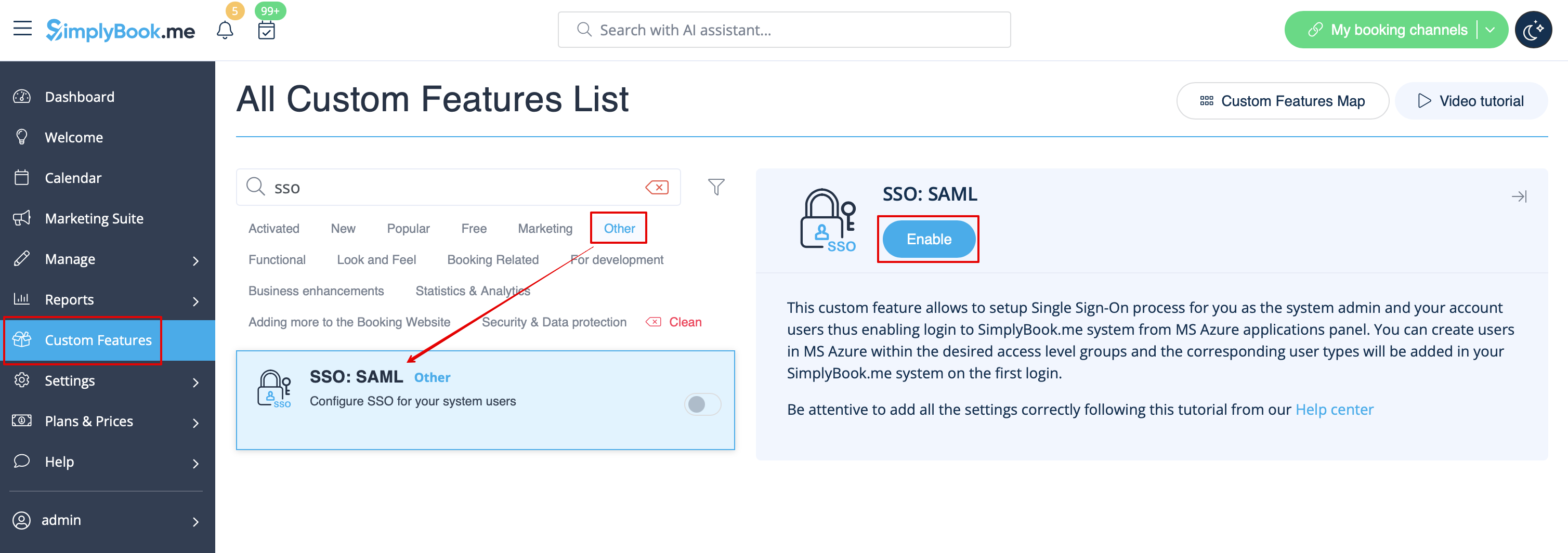
- 2. Enable SSO: SAML Custom feature on your Custom features page .
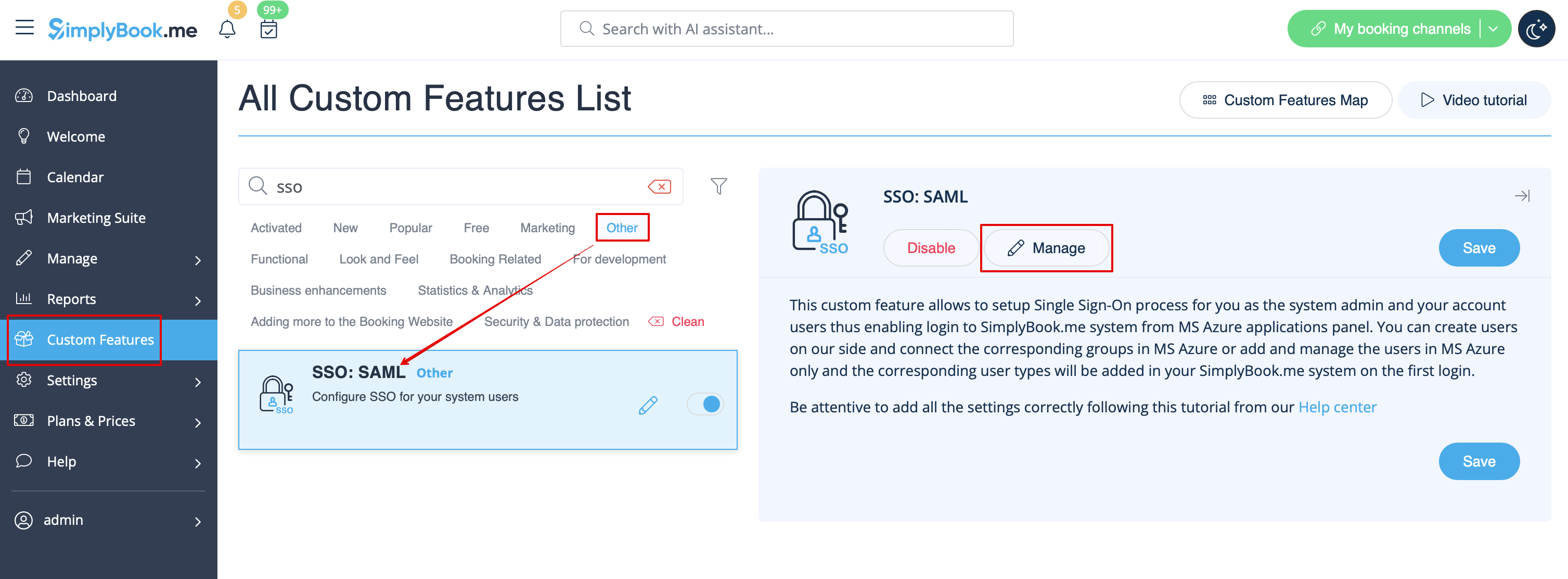
- 3. Navigate to Manage to edit the connection settings.
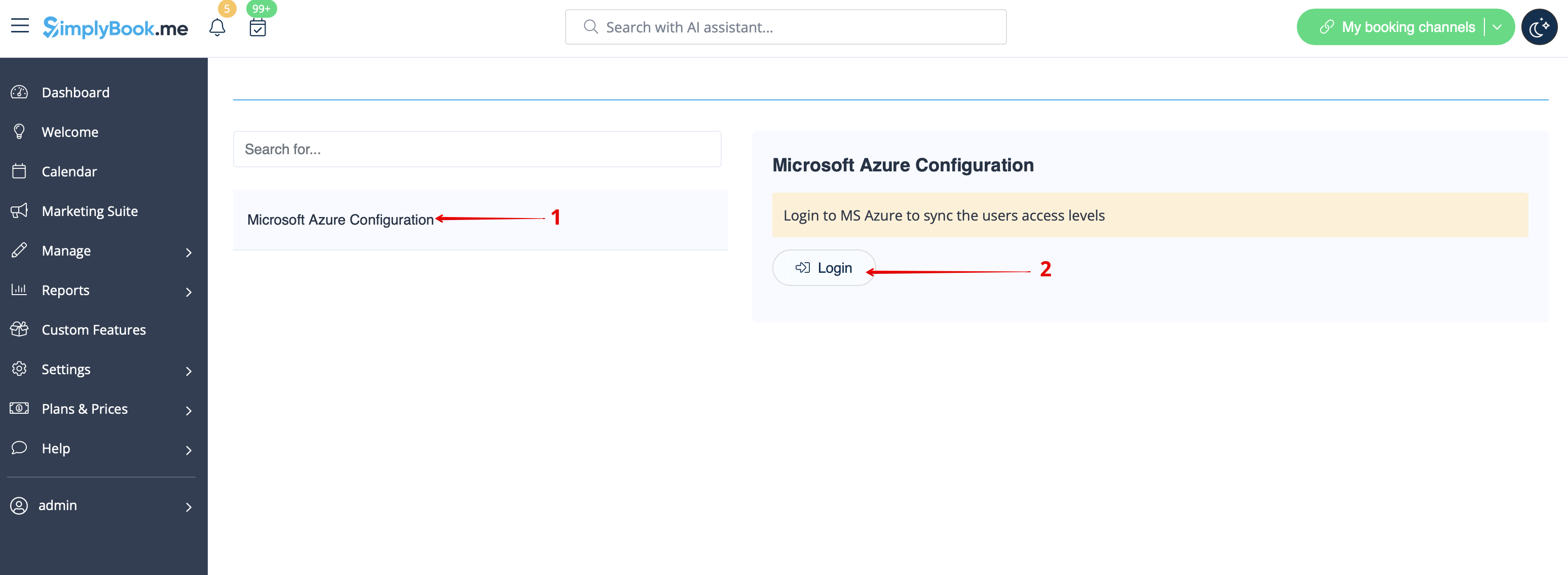
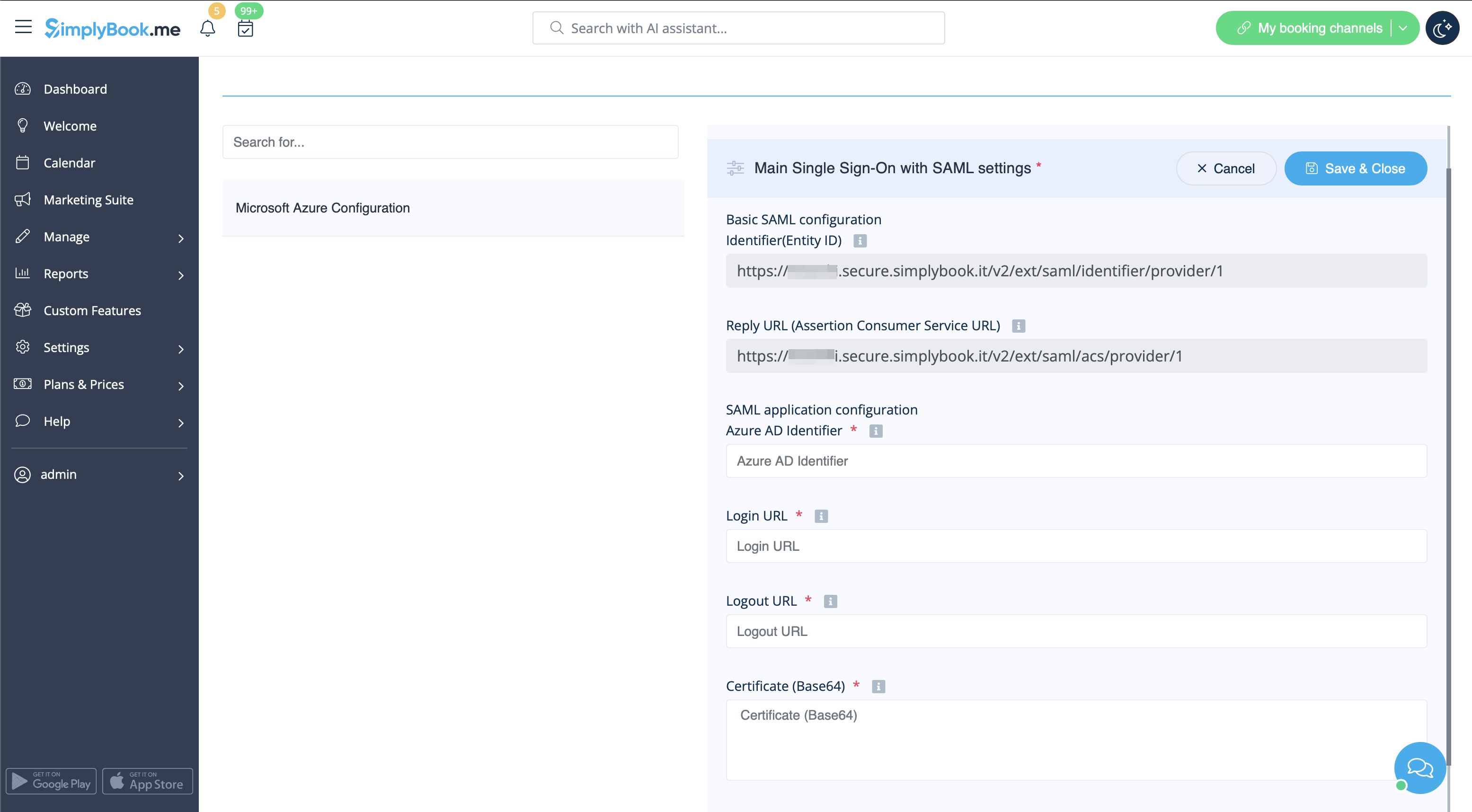
- 4. Click on Microsoft Azure Configuration on the left and log in to your MS Azure account there to start connection setup.
- Please note! You need to have administrator access in MS Azure as well to be able to connect applications.
- 5. After successful login you will see the first block with basic options on SimplyBook.me side.
- 6. In MS Azure please navigate to Active Directory(Entra ID).

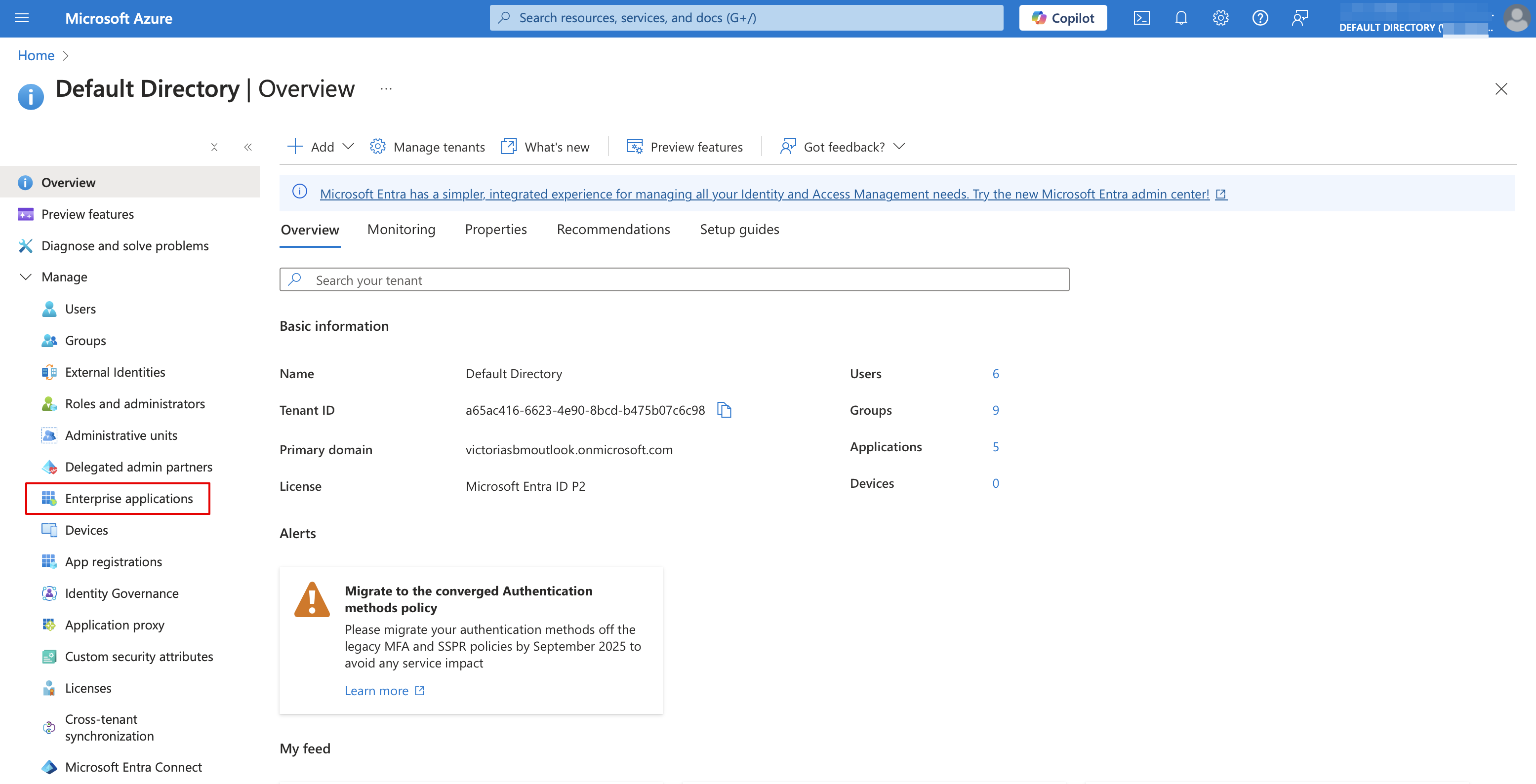
- 7. Select Enterprise applications in the left-side menu and add new application.
- (you may need paid MS Azure or Premium trial subscription there to add applications)
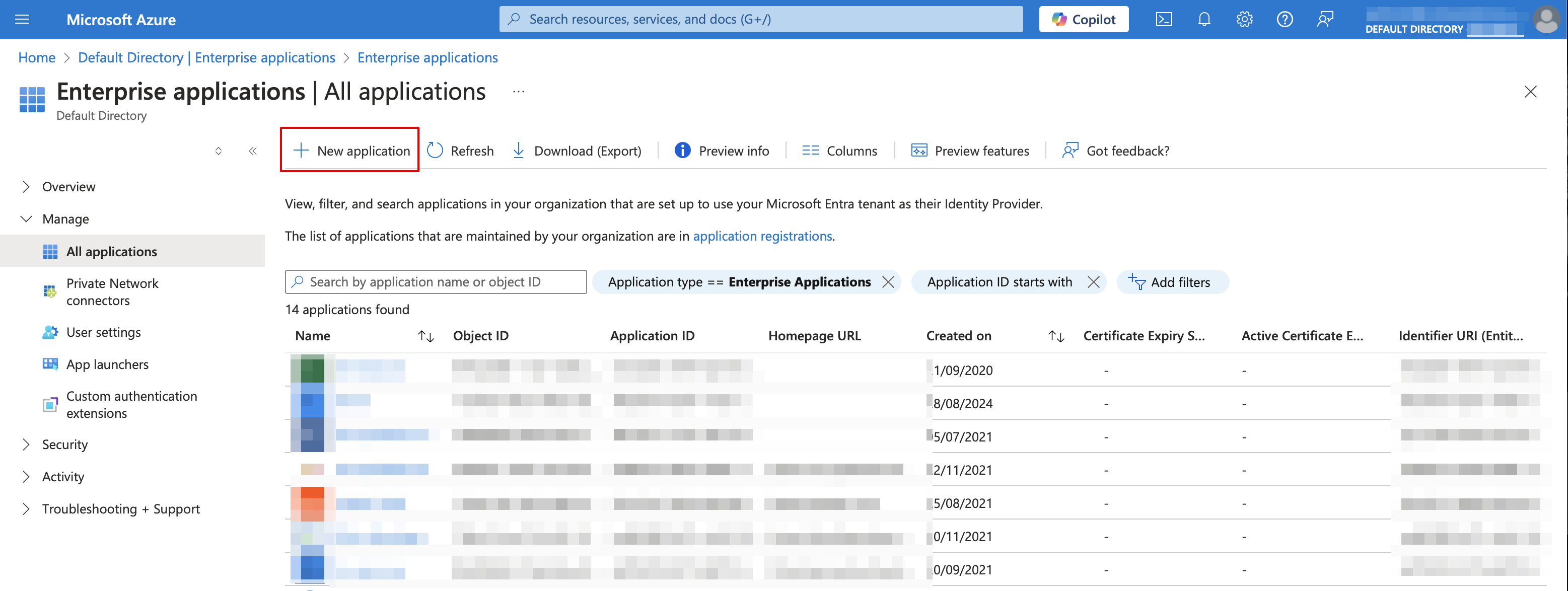
- 8. Choose non-gallery type. Add its name and save.
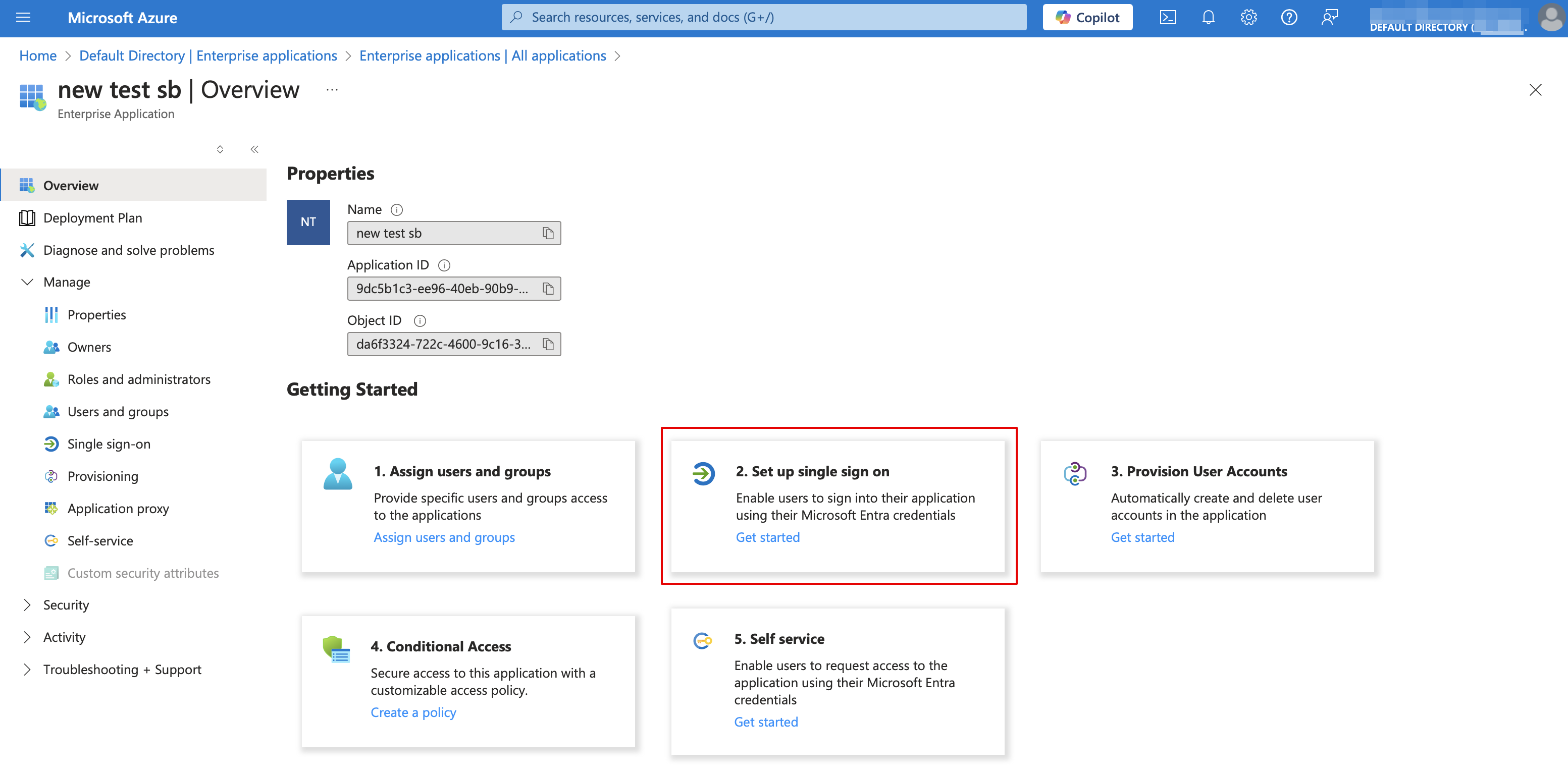
- 9. On the next page click on Set up single sign on and select SAML.

- 10. Use Pen icon in Basic SAML Configuration block to edit.

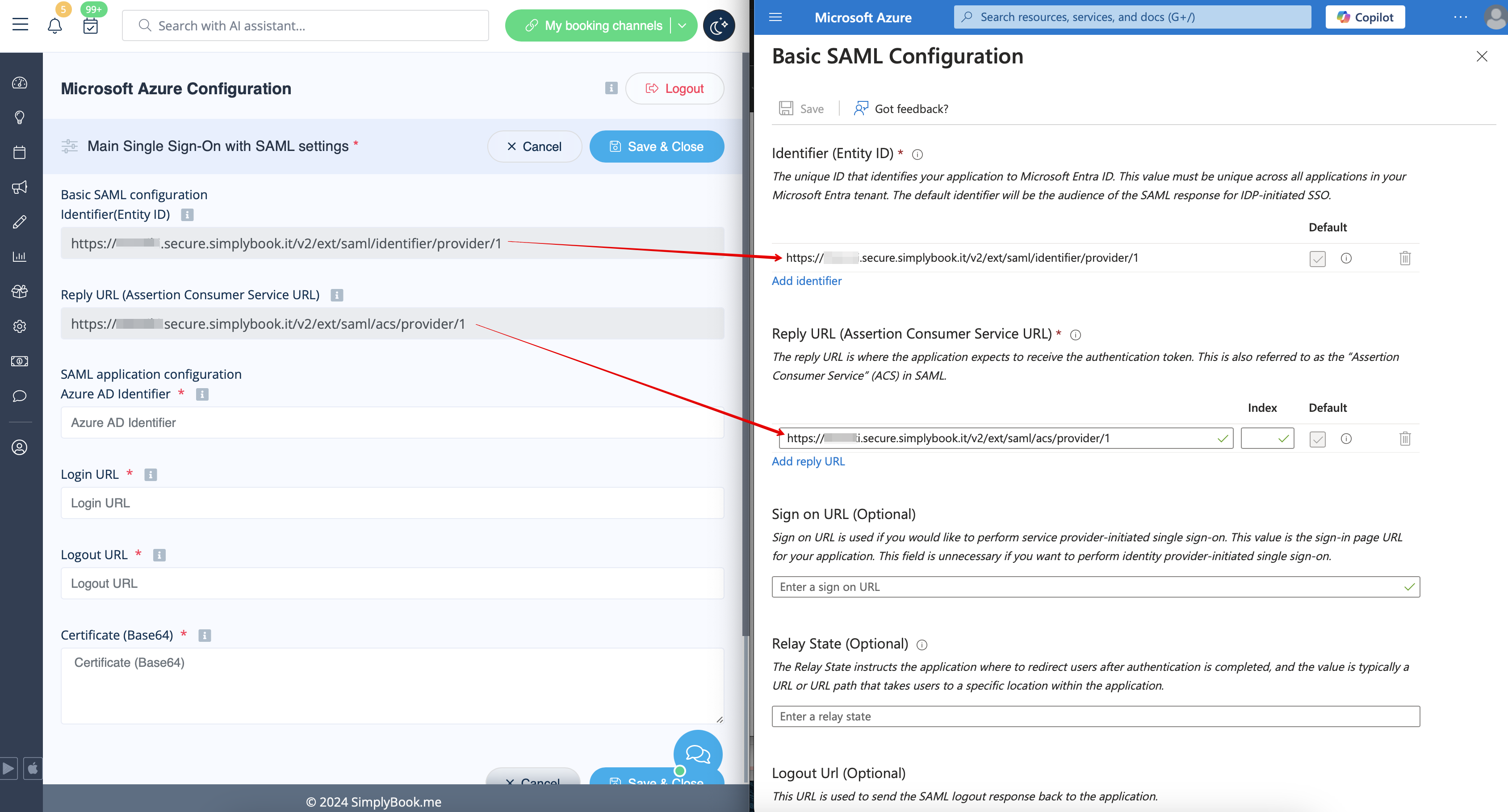
- 11. Copy the urls from SimplyBook.me SSO: SAML feature to the corresponding boxes on MS Azure side. Save.
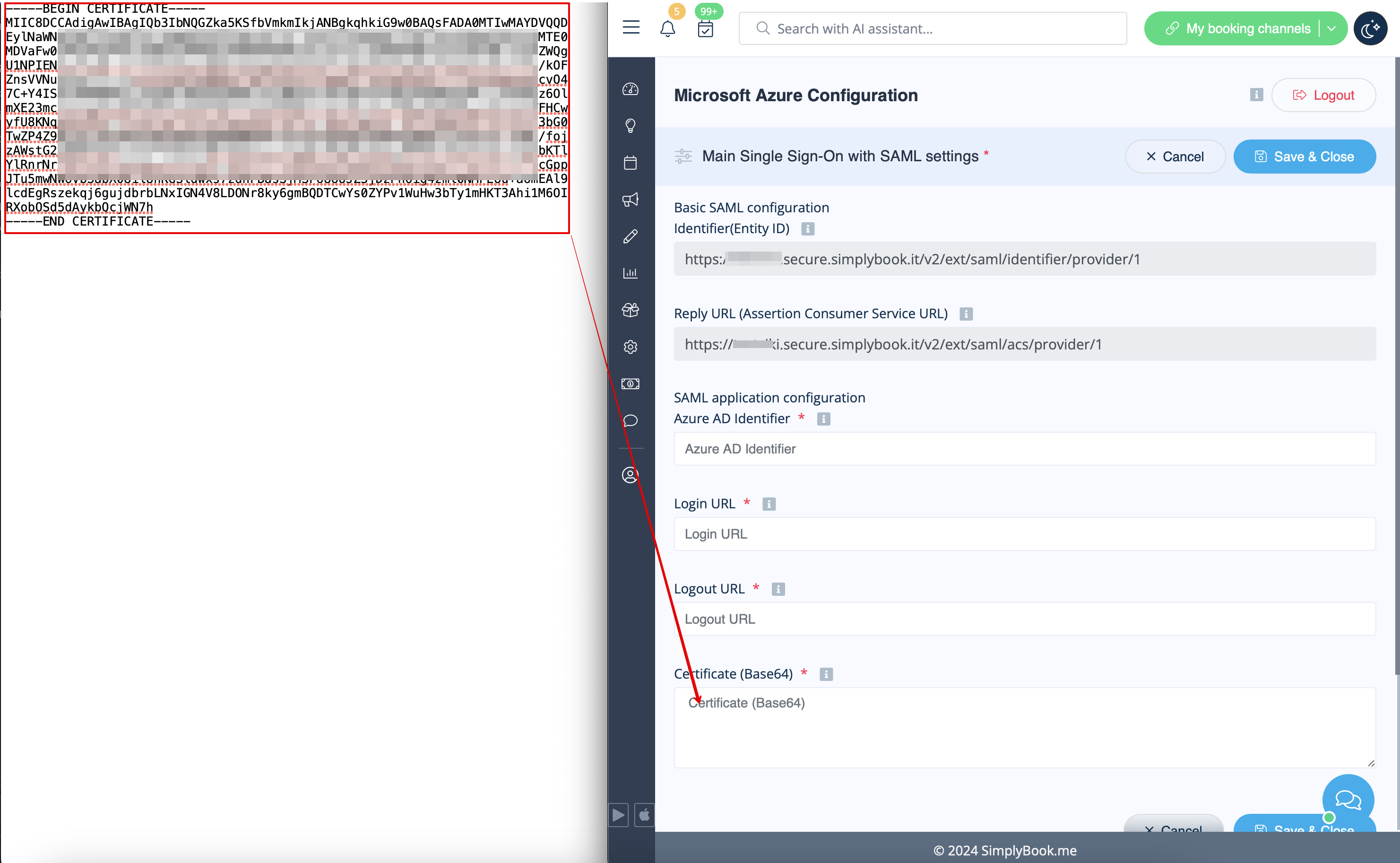
- 12. On MS Azure side scroll to SAML Signing Certificate part and download Certificate(Base64). Open it with notepad or similar text editor, copy the certificate code and paste it to the corresponding box into SSO: SAML Custom Feature.

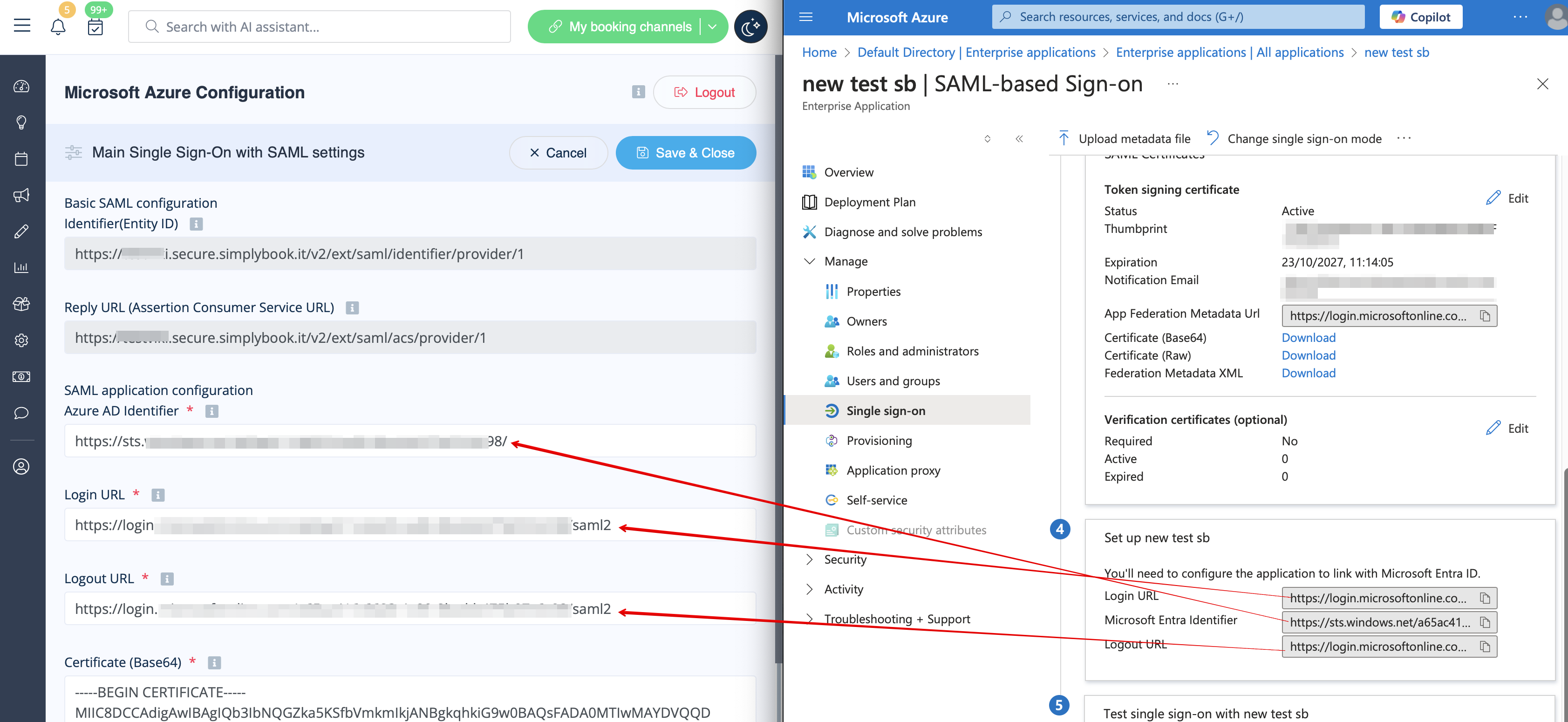
- 13. Scroll MS Azure side page to Set up block and find Login URL, Azure AD/Microsoft Entra Identifier and Logout URL options, Copy each of them and paste to the corresponding boxes on SimplyBook.me side.
- 14. Go to User attributes and claims block on MS Azure side and click on Pen icon to edit it.

- 15. For Unique User Identifier(click on it to edit) please set user.mail variable as Source Attribute. It is the parameter that will allow us to differentiate between different user logins.


- 16. For additional claims please add Groups option using Add group claim and Email and Name with Add new claim buttons correspondingly.
- You can also add phone and last name if you need. See claims setup example below.
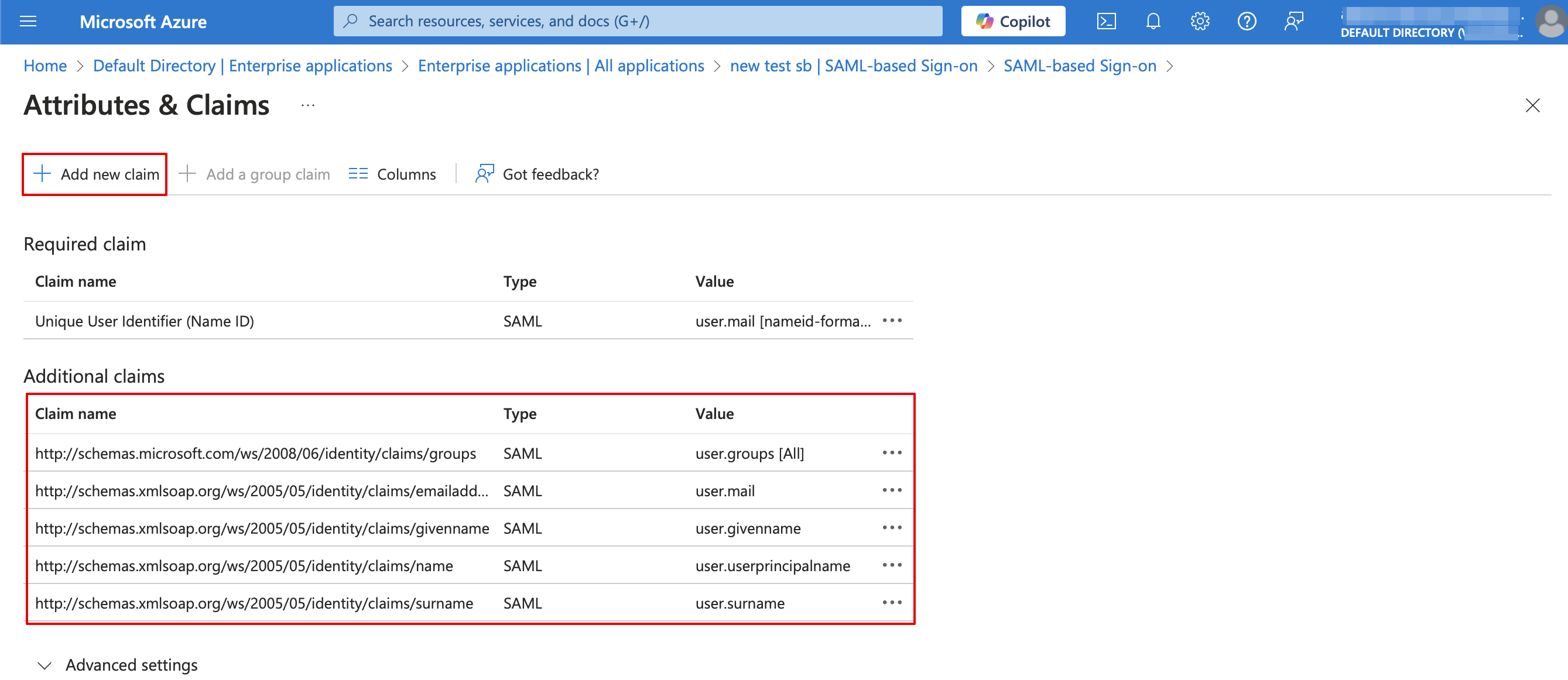
- 17. Copy the claims titles to the corresponding boxes on SimplyBook.me side.
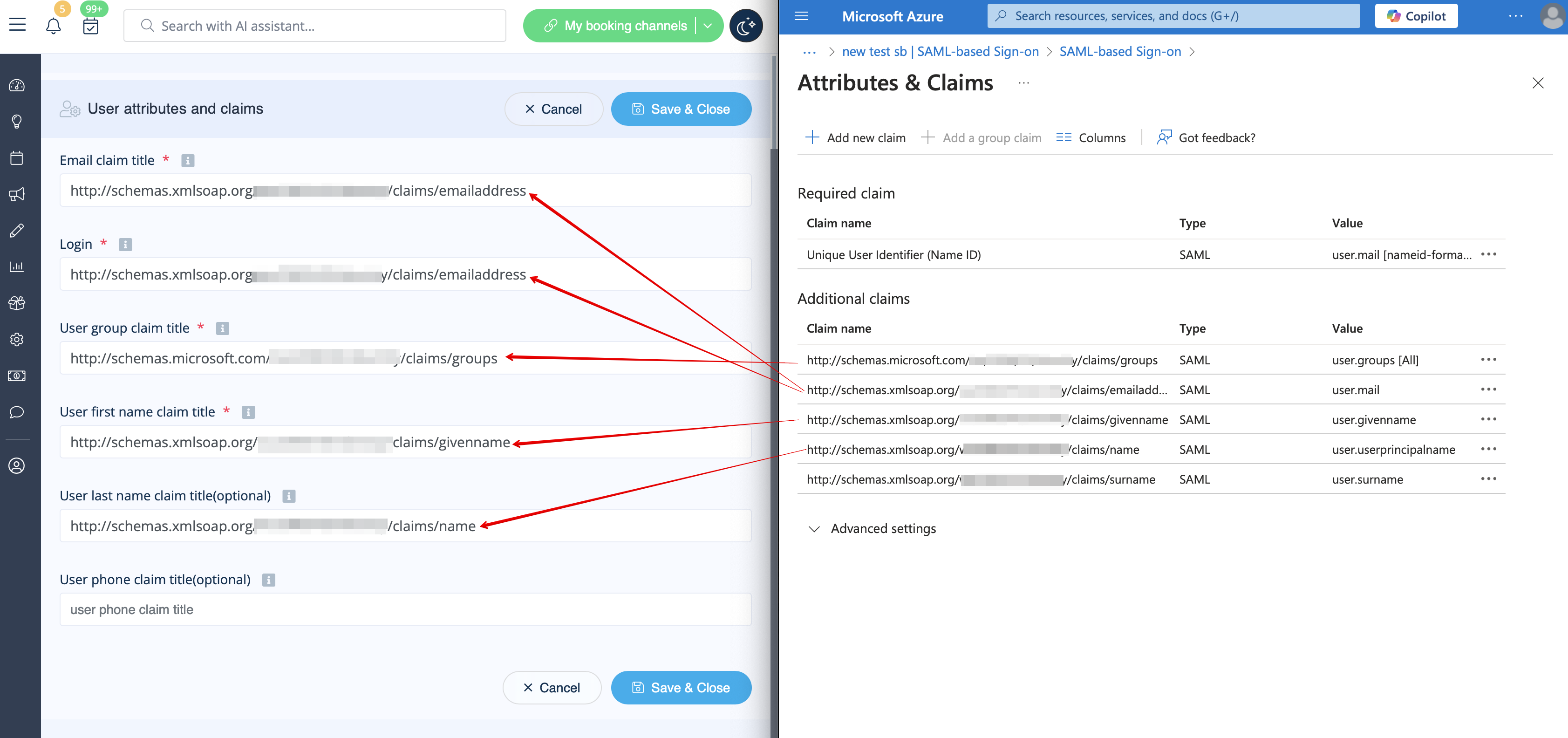
- 18. Navigate to Azure Active Directory/Entra ID homepage and go to Users section, create all users that you would like to access the system if they are not created yet.

- 19. In Groups create groups that will correspond to SimplyBook.me user types. For example, Admins for admin level users, Senior Employees for Senior Employee access, etc.
- You can create only one group if all your users have admin access, for example.

- 20. Add users to the corresponding groups.

- 21. Copy each group Object ID to the corresponding box in User Group matching settings on SimplyBook.me side.
- (If you have only one group for admins insert same object ID everywhere in that block). Save settings.
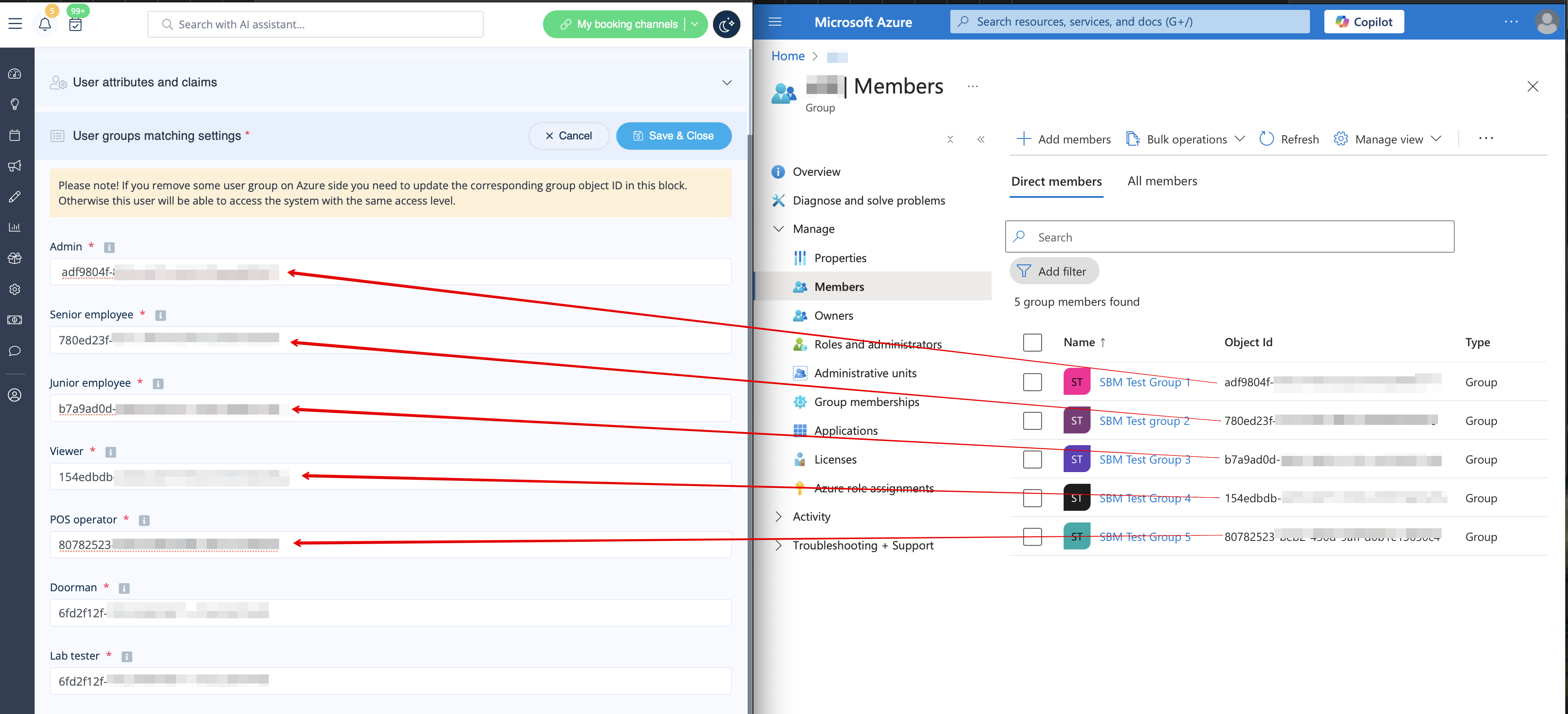
- 22. Once the users are given the access to Applications dashboard they can log in to SimplyBook.me with their access level by a click on the SimplyBook.me application icon.

- The corresponding user types will be added automatically to your SimplyBook.me account with the data passed according to your settings.
- Please note!
- It is not possible to connect existing SimplyBook.me side users to MS Azure users.
- For such users it is not possible to reset SimplyBook.me passwords, edit access level, username, access personal data report.
- They need to contact MS Azure administrator if they loose access to applications page or contact SimplyBook.me default admin to request personal data report.
- If you need to restrict access for such users you can remove or block them on MS Azure side.
- If you change the group the user is included to on MS Azure side or remove the user there the access level will be updated on SimplyBook.me side within several minutes or the user will be logged out.
How to set & use Okta
- 1. Create account at Okta.
- 2. Navigate to Applications in Okta admin panel and click to create a new app there.
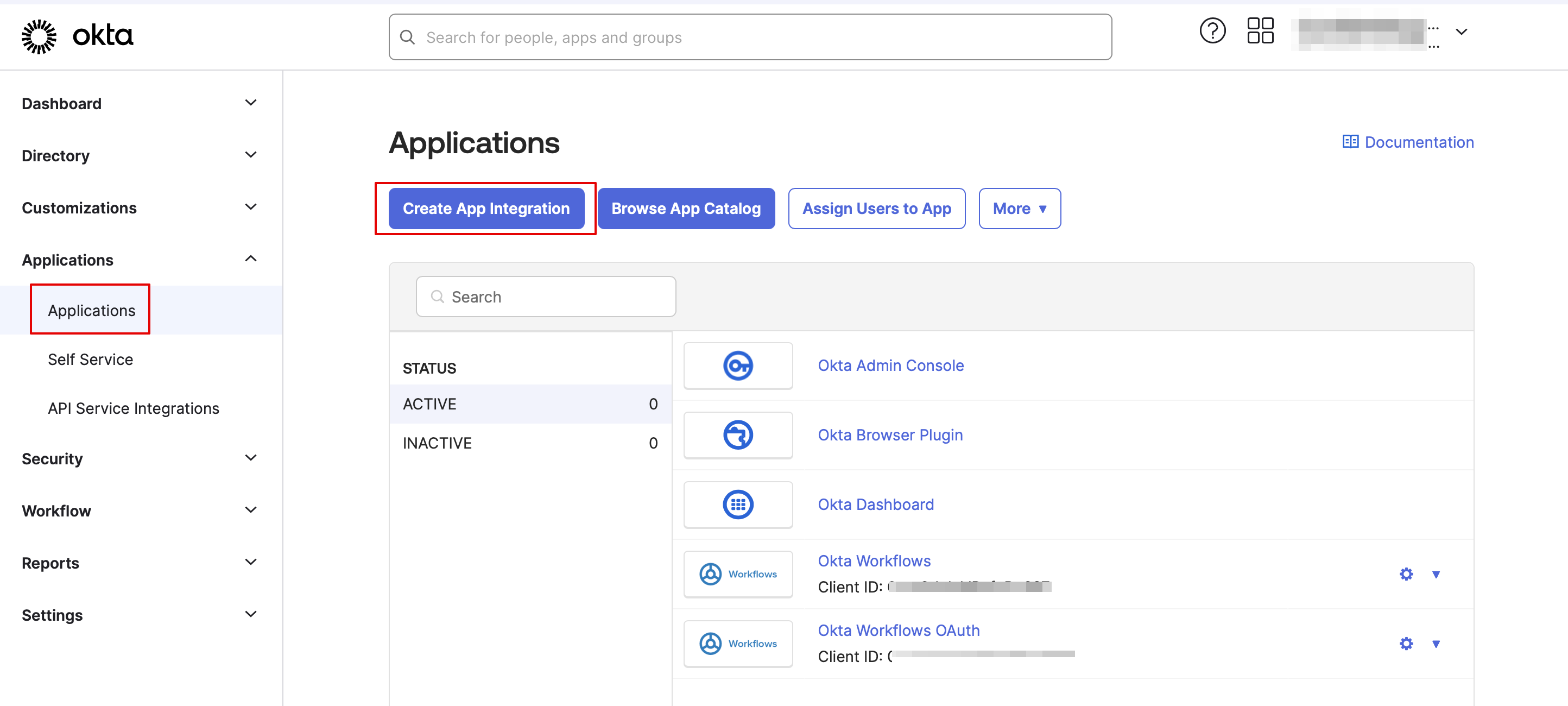
- 3. Add the desirable name and upload a logo.
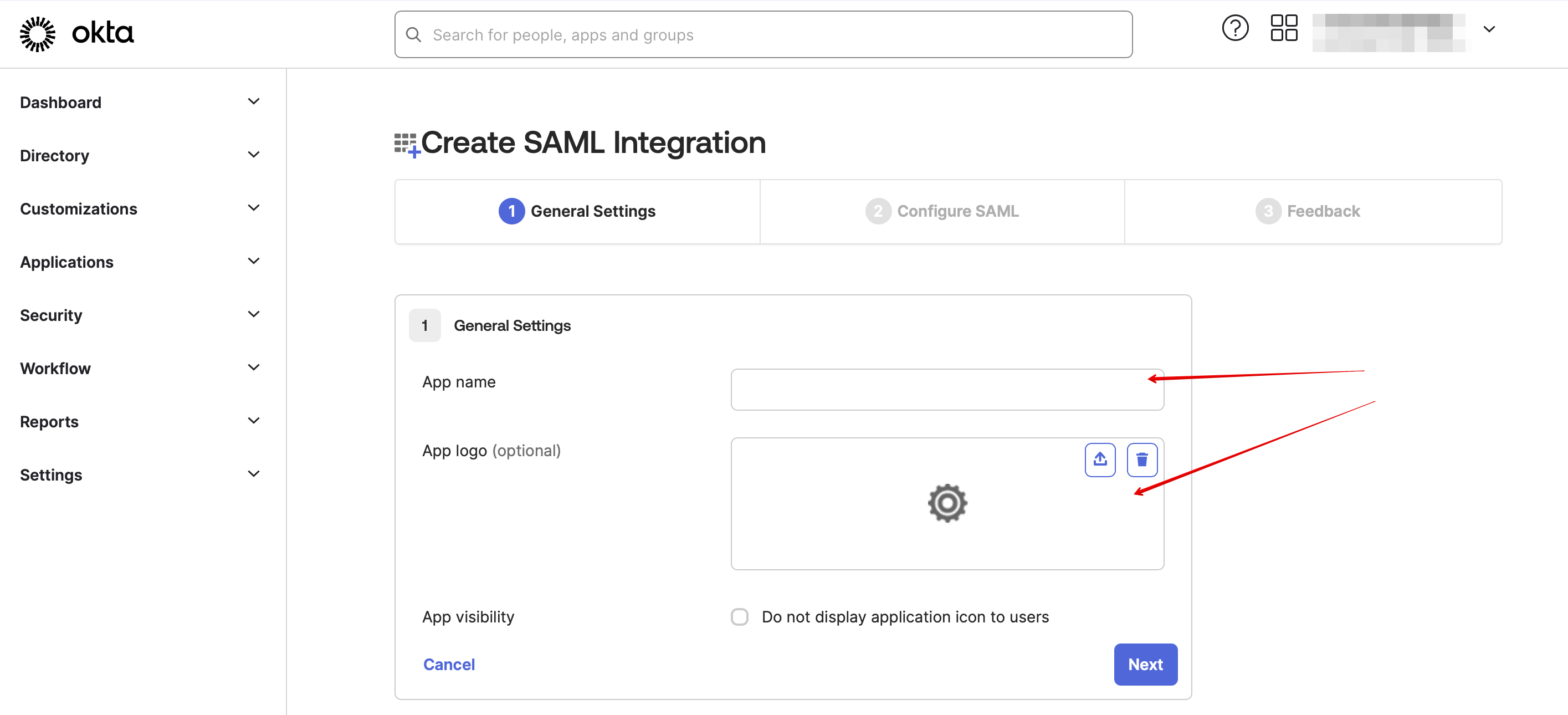
- 4. Select SAML method.

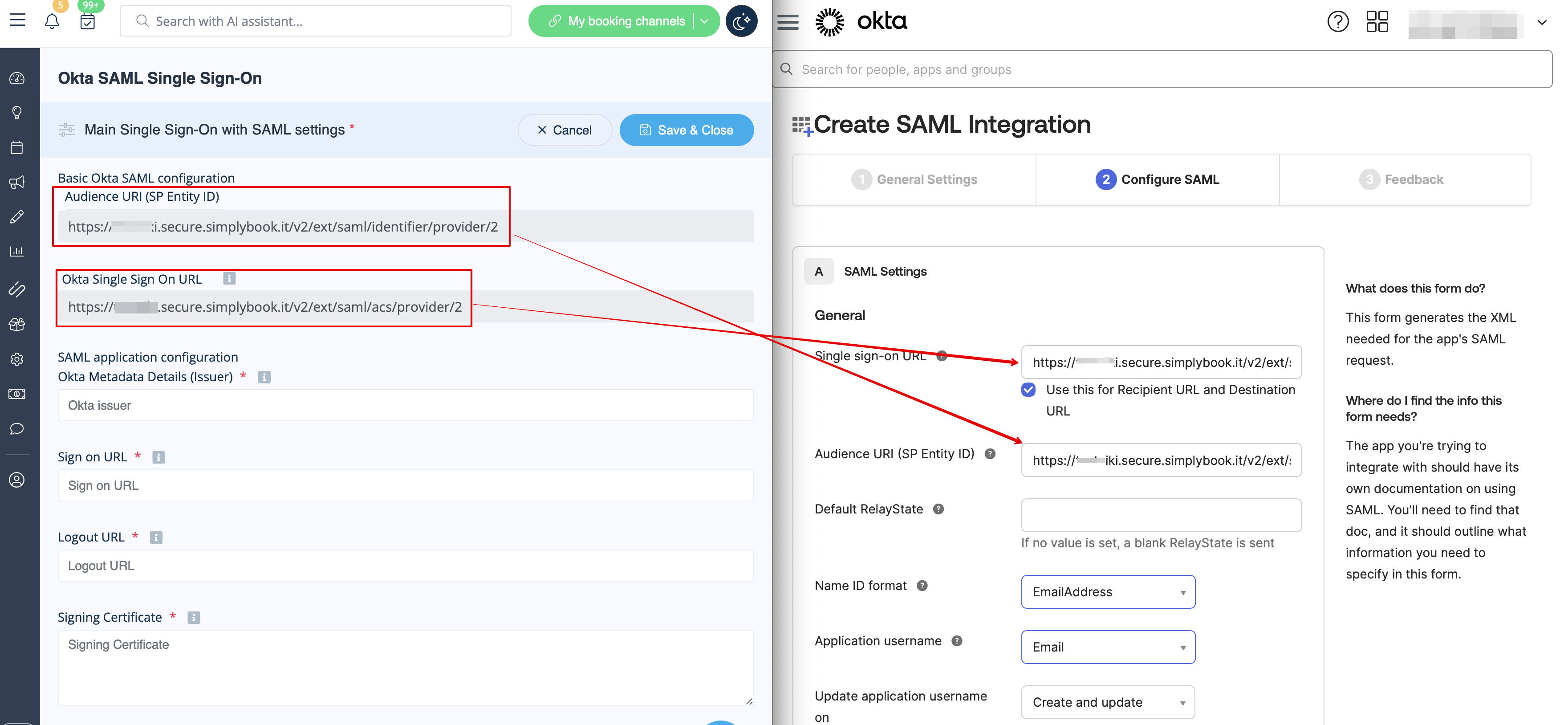
- 5. On the SAML settings step please copy the Audience URI and Okta Single Sign-On URL from SimplyBook.me SSO-SAML custom feature -> Manage -> Okta SAML Single Sign-On and paste to the corresponding fields on the Okta side.
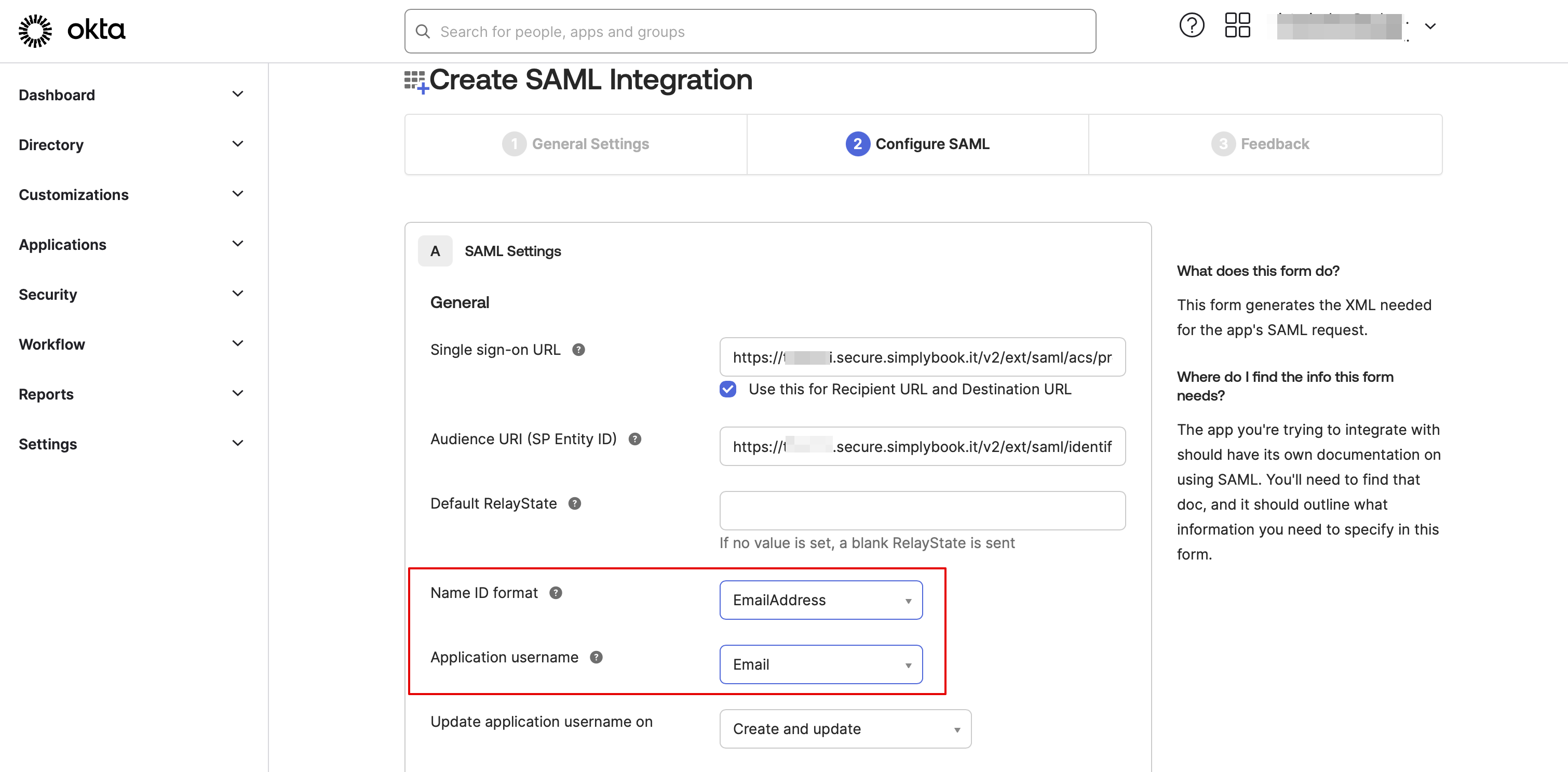
- 6. Set Name ID and Application username as in the image below.
- 7. Scroll the page to Attribute settings and add the attributes for name, email, id and firstname as in the example.
- And separately group attribute in the corresponding block.
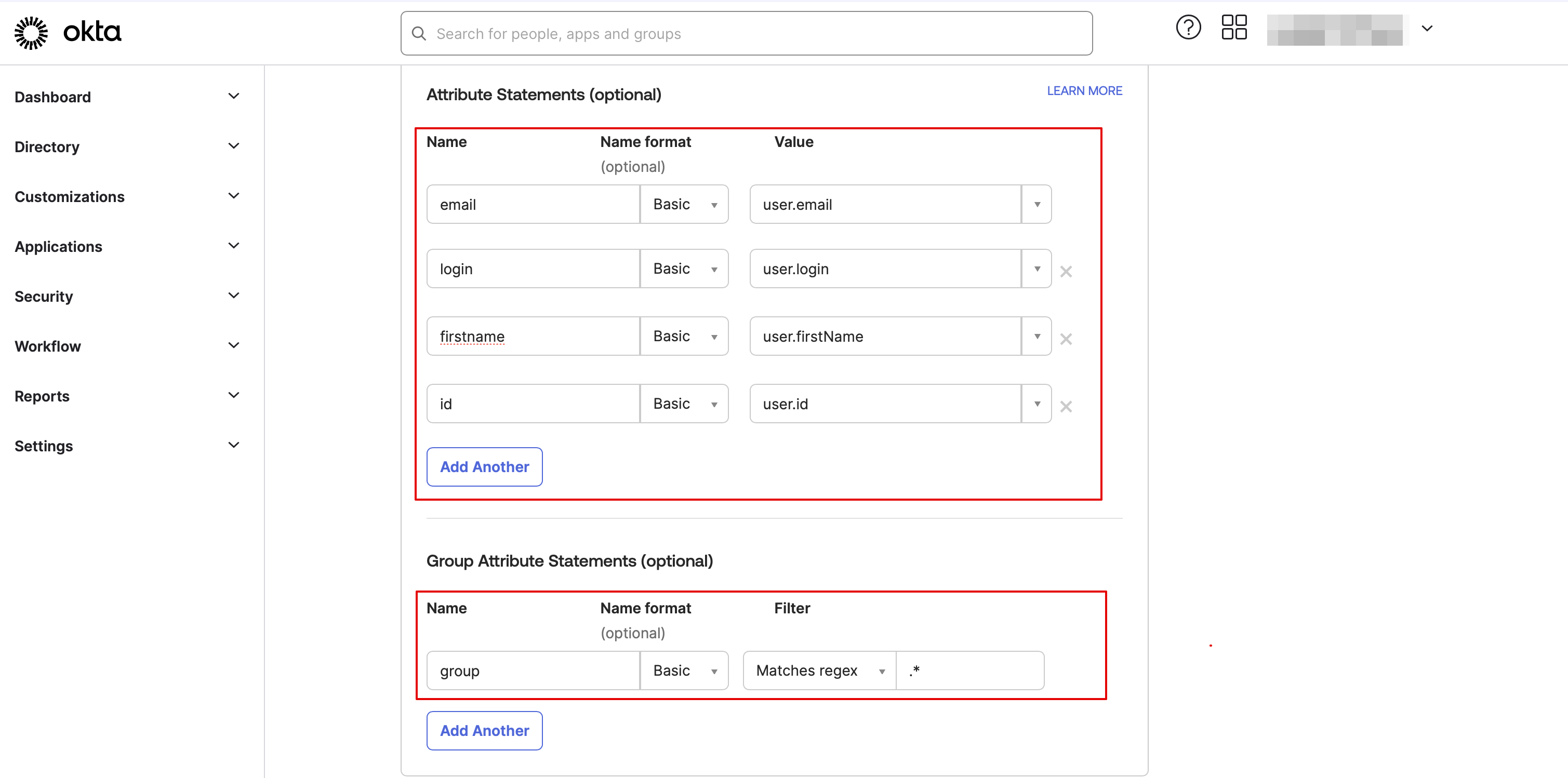
- On the SimplyBook.me side please make sure the same attributes are indicated in the User attributes and claims tab.
- 8. Proceed to the next step.

- 9. The app is now saved. Please open Sign on tab and click on on More details there.
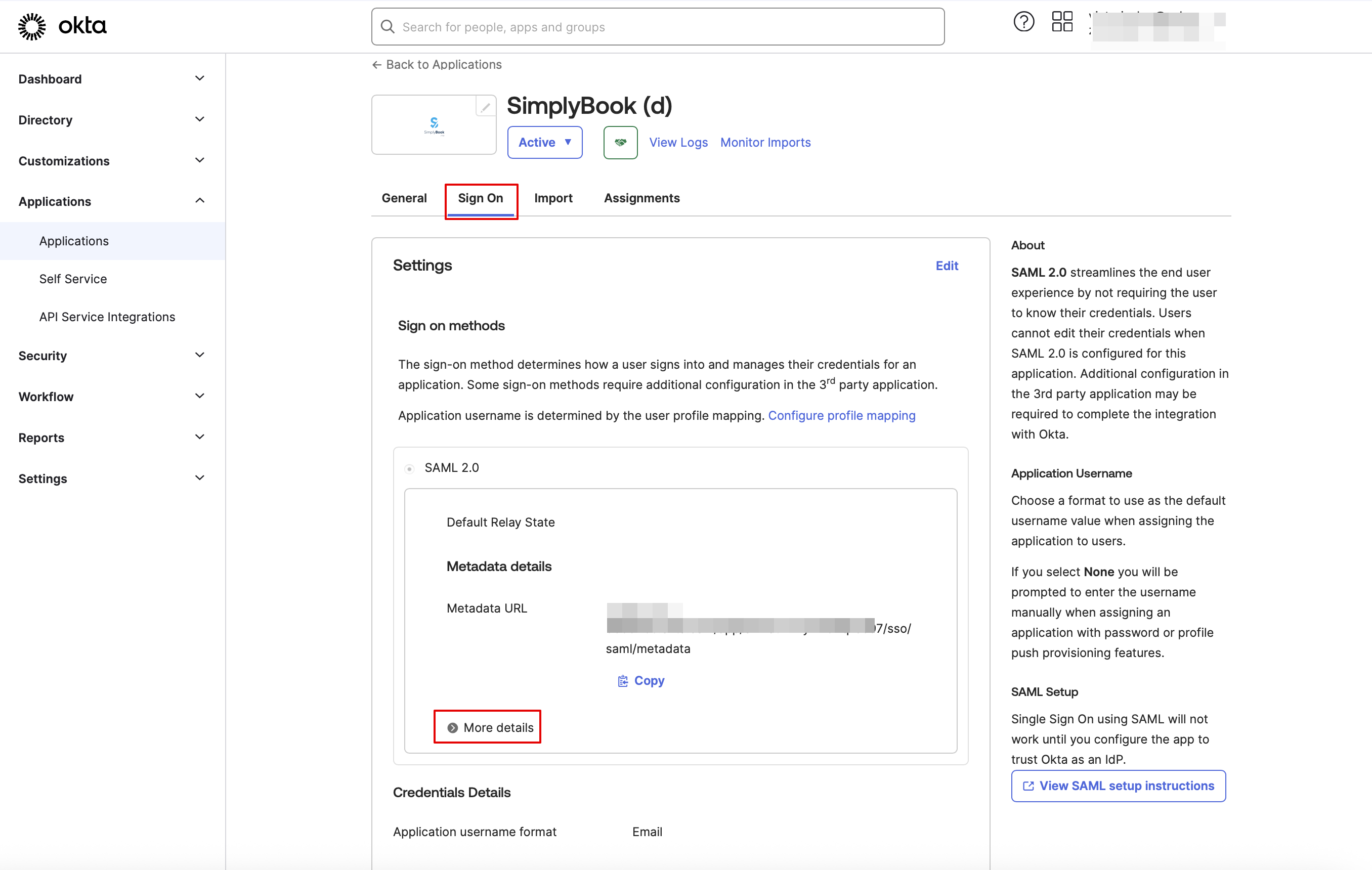
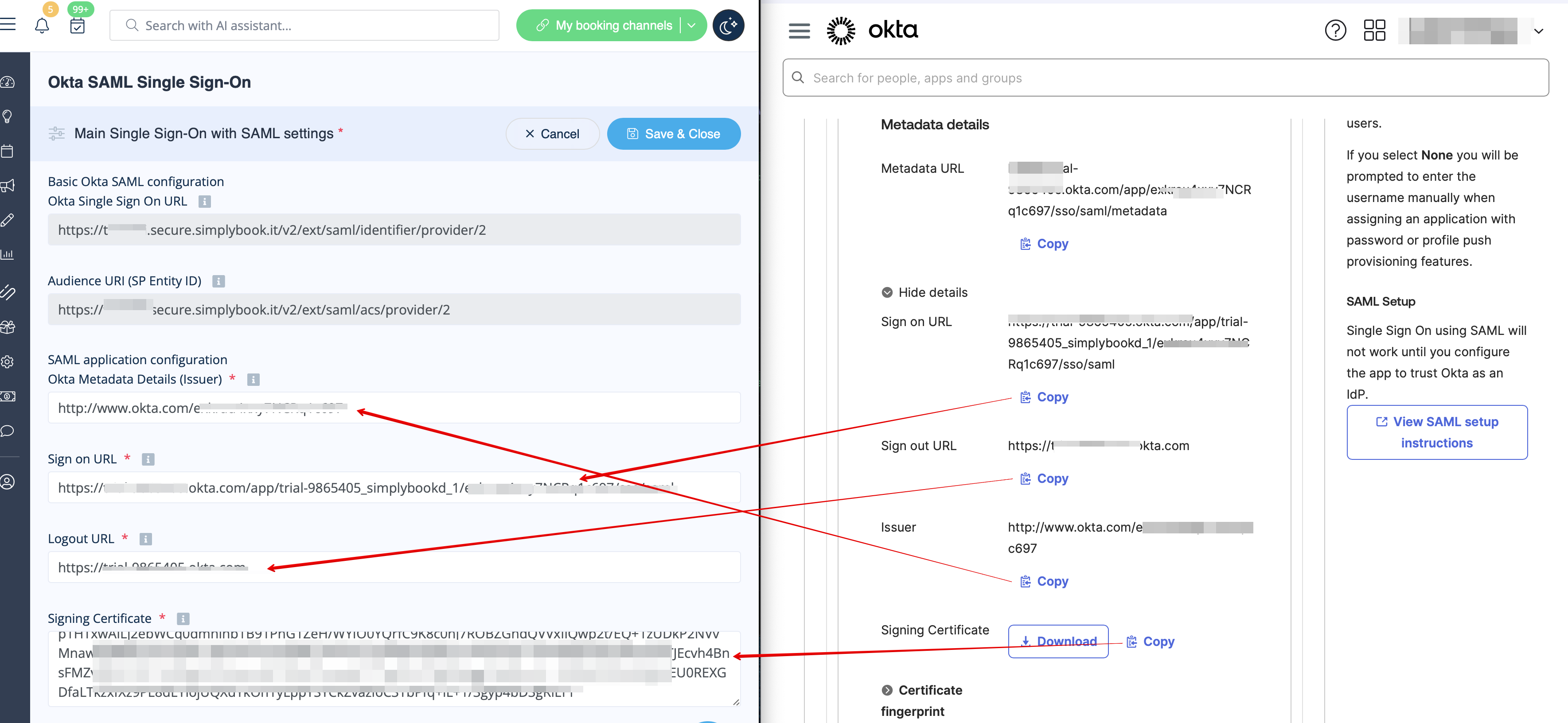
- 10. Copy Sign on URL, Sign out URL, Issuer and Signing certificate in Okta and paste them to the corresponding fields in SimplyBook.me SSO-SAML custom feature -> Manage -> Okta SAML Single Sign-On
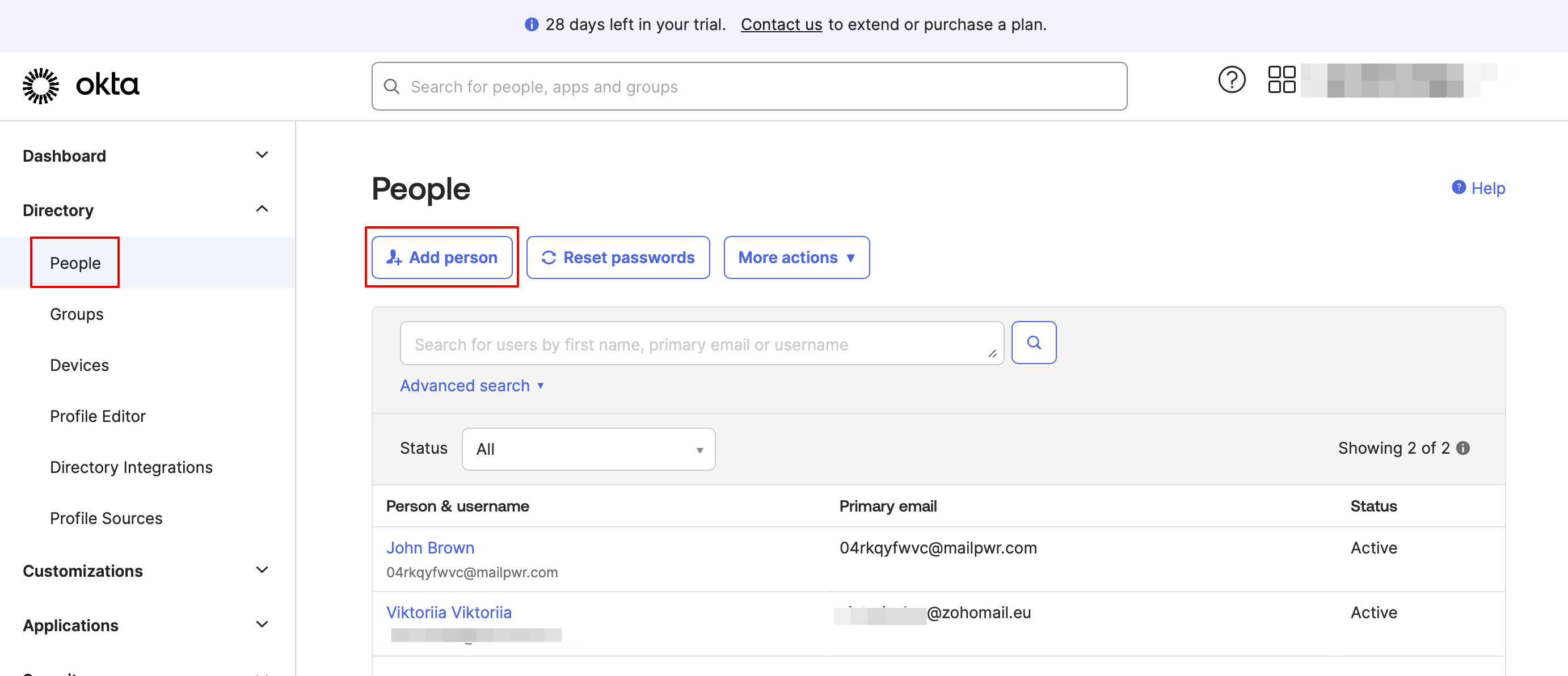
- 11. Now in Okta interface make sure all necessary employees are added to the system in People tab.
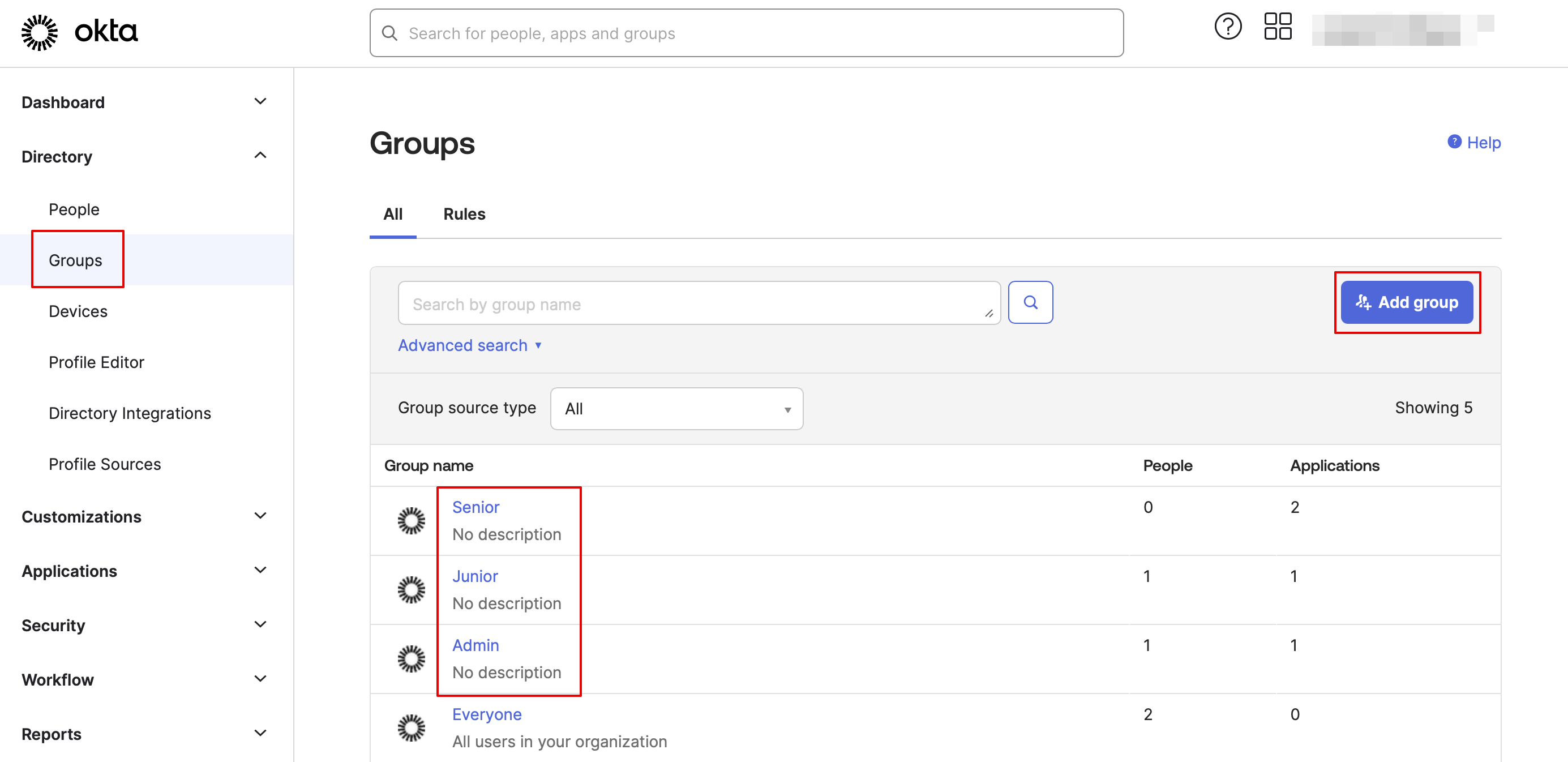
- 12. In Groups tab - create the groups matching the SimplyBook.me access levels. Assign the employees to these groups.

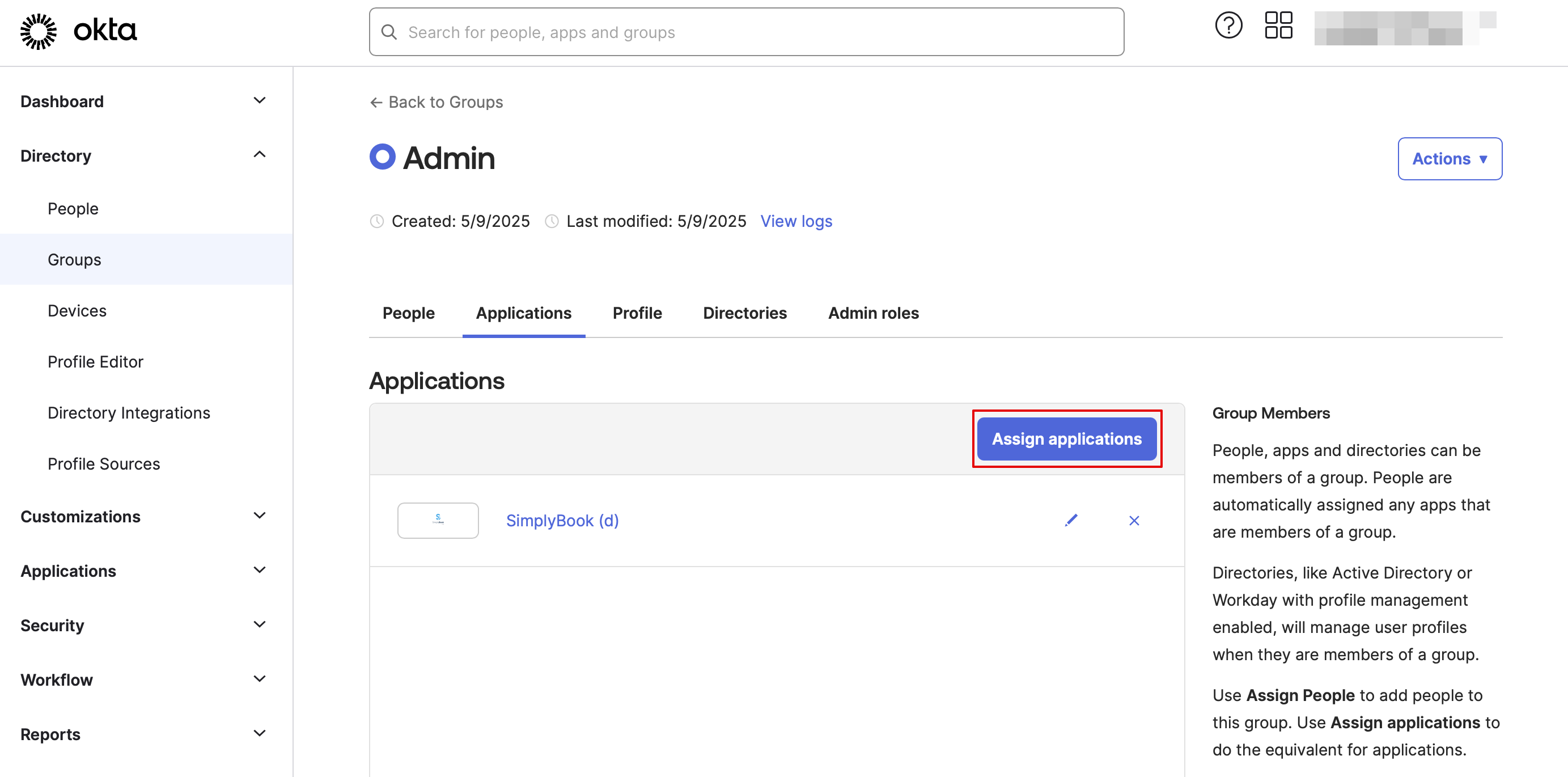
- 13. Assign the groups and people to the application that you've created.
- 14. In the SimplyBook.me side please indicate the groups names in the User groups matching settings tab. Save settings.
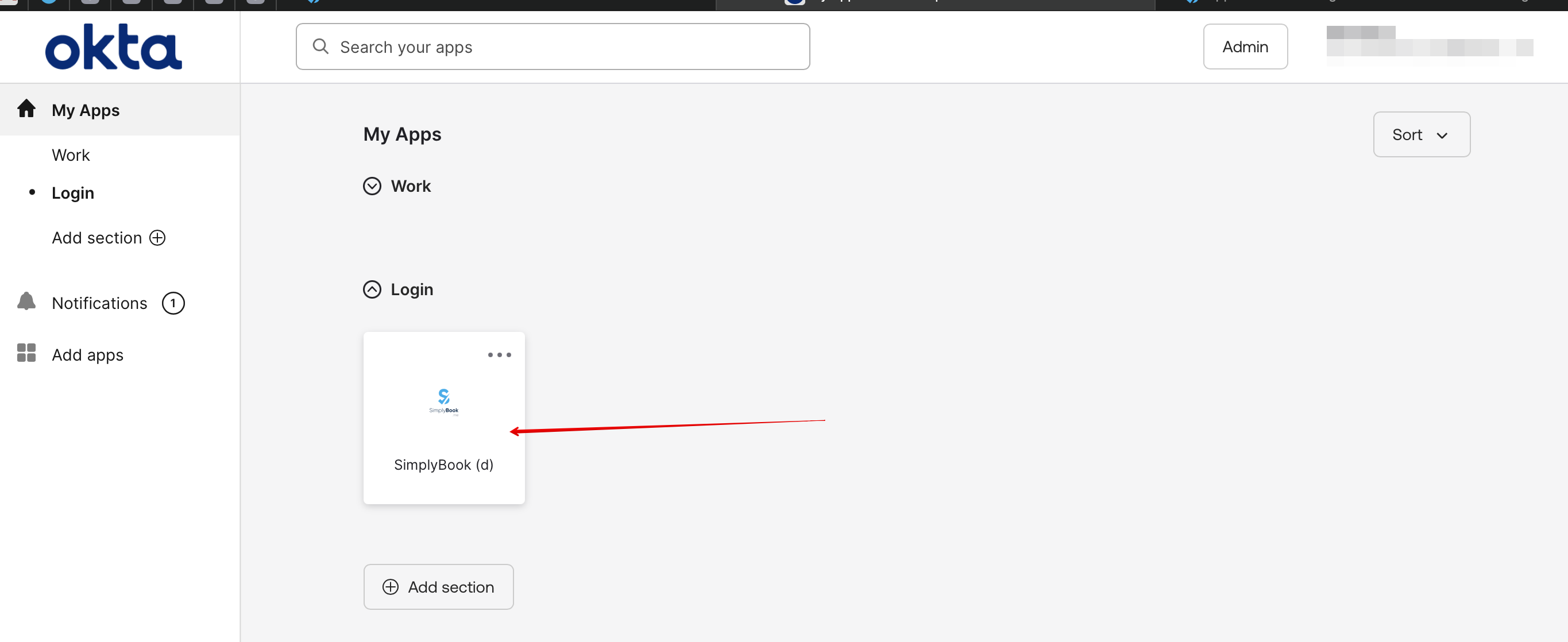
- 15. Everything is ready now. Your employees an now log in to your company account at SimplyBook.me with one single click on the Okta panel (the user in SimplyBook.me will be automatically create on the first login with the corresponding rights)