Translations:WordPress integration/6/da: Difference between revisions

From SimplyBook.me
No edit summary
Marked translation unit as no longer outdated with no changes
 
(No difference)

Latest revision as of 12:59, 17 October 2025

Information about message (contribute)
This message has no documentation. If you know where or how this message is used, you can help other translators by adding documentation to this message.
Message definition (WordPress integration)
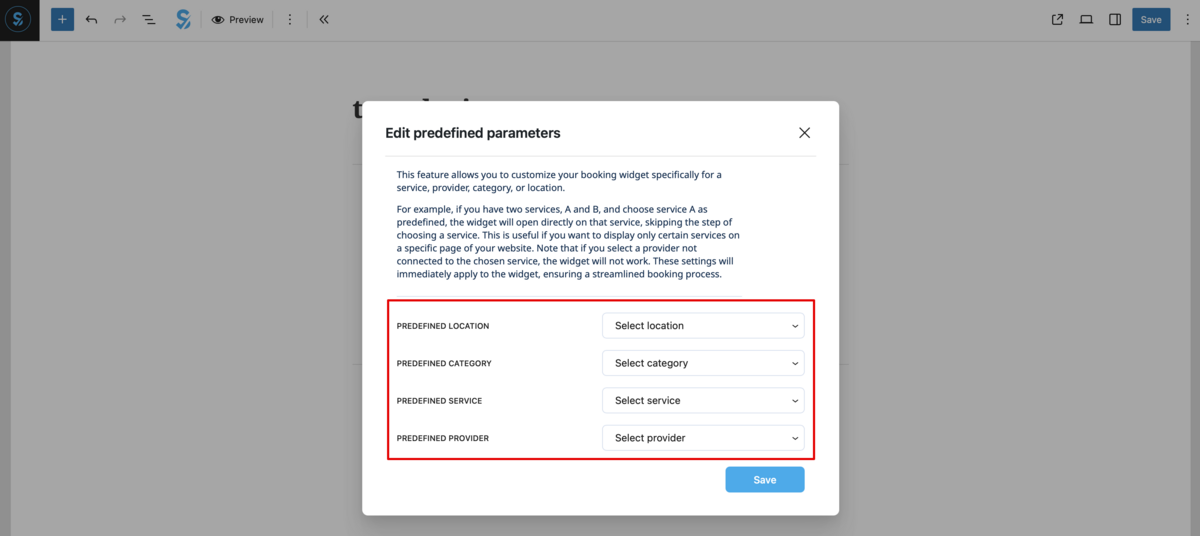
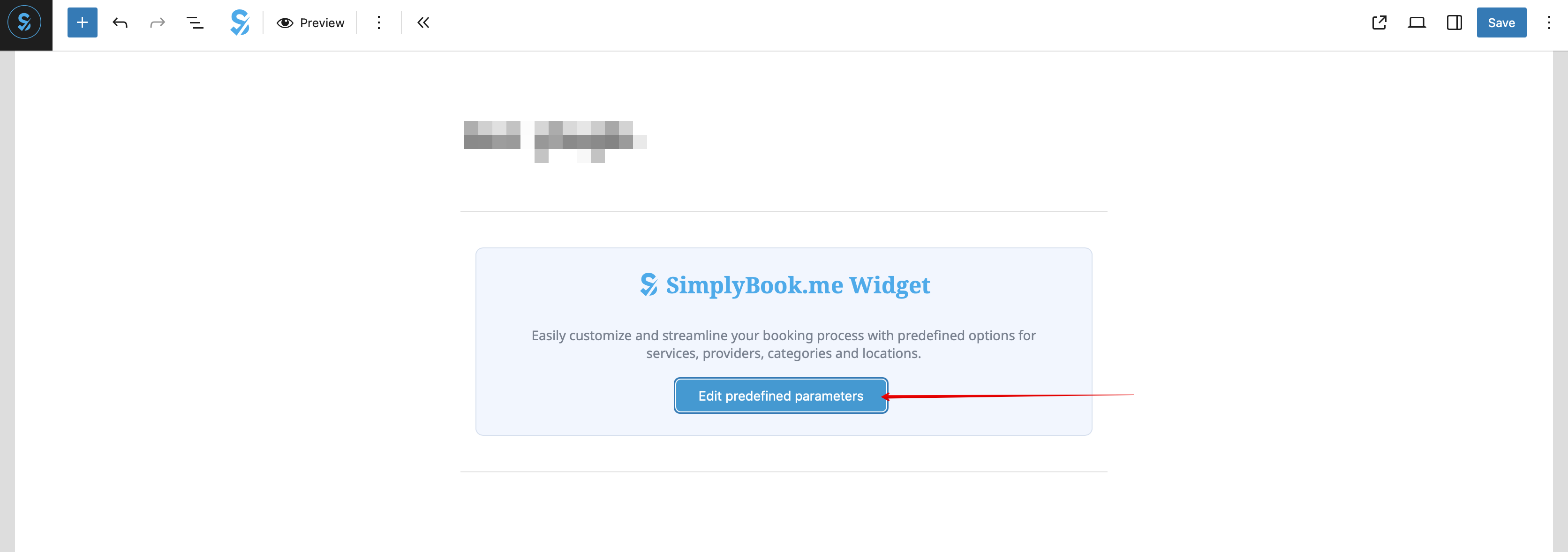
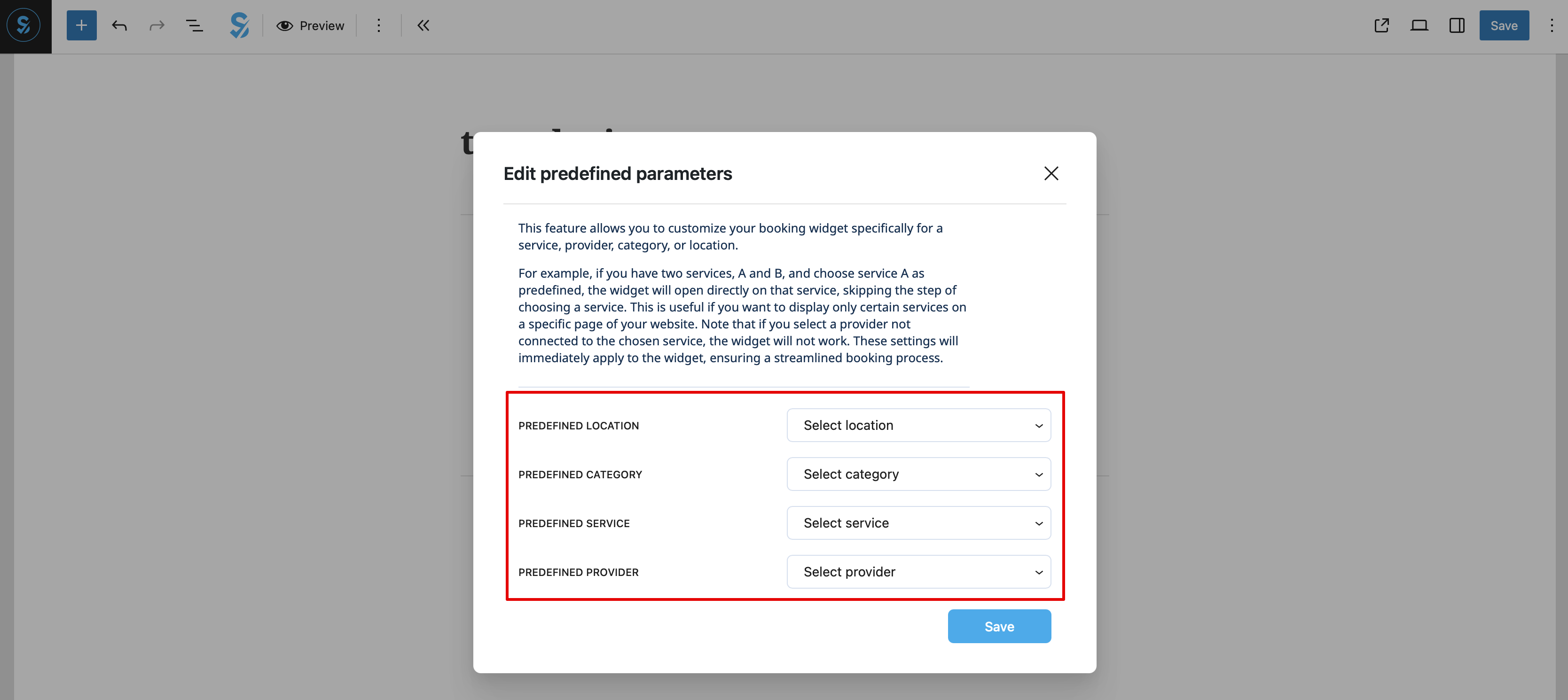
:8. (optional) If you need to have the booking functionality only for some service/provider/location/category you can use <span style="background-color:#d4f8e5; padding:5px; border-radius:5px;">Edit predefined parameters</span> option there.
[[File:Wp edit predefined path.png|1200px|center|link=https://help.simplybook.me/images/d/d7/Wp_edit_predefined_path.png]]
<br><br>
:And select the necessary one(s) in the popup that appears.
[[File:Wp new predefined options.png|1200px|center|link=https://help.simplybook.me/images/7/70/Wp_new_predefined_options.png]]
<br><br>
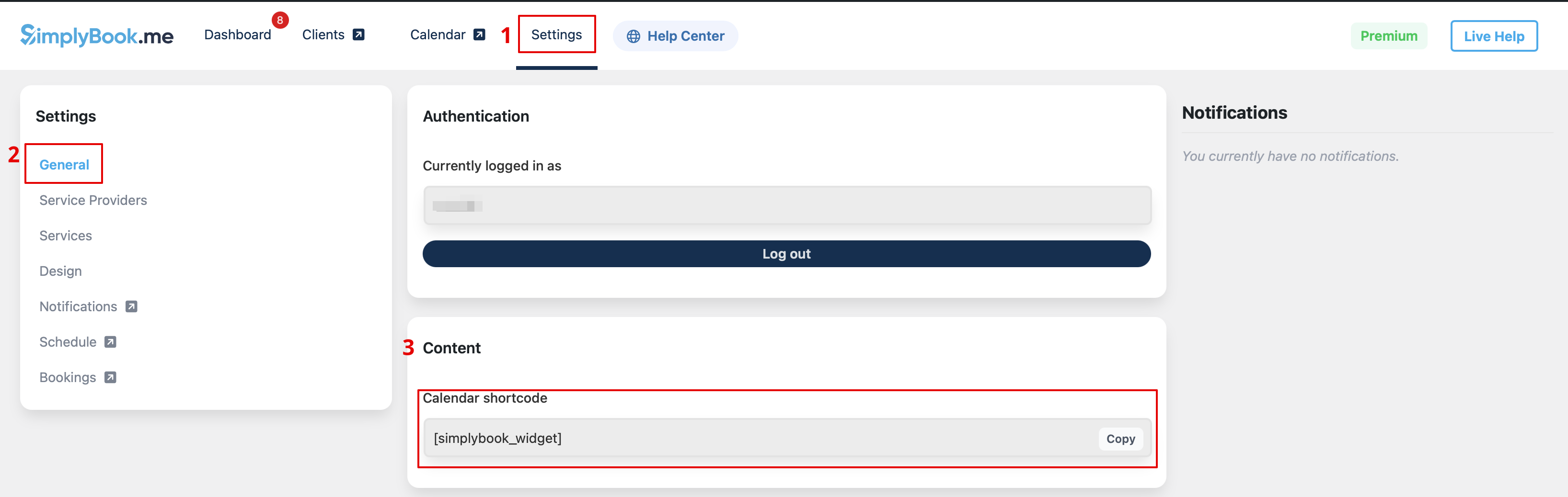
:9. As alternative way to add the functionality to the page you can use the shortcode.
:Copy the calendar shortcode from the plugin <span style="background-color:#d4f8e5; padding:5px; border-radius:5px;">Settings</span> page.
[[File:Wp new shortcode for widget.png|1200px|center|link=https://help.simplybook.me/images/e/e5/Wp_new_shortcode_for_widget.png]]
<br><br>
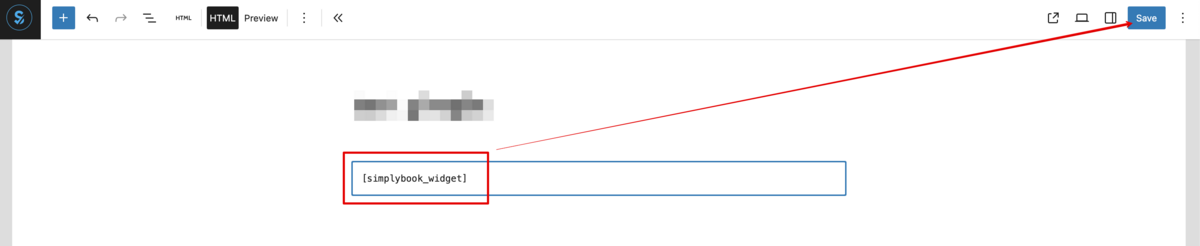
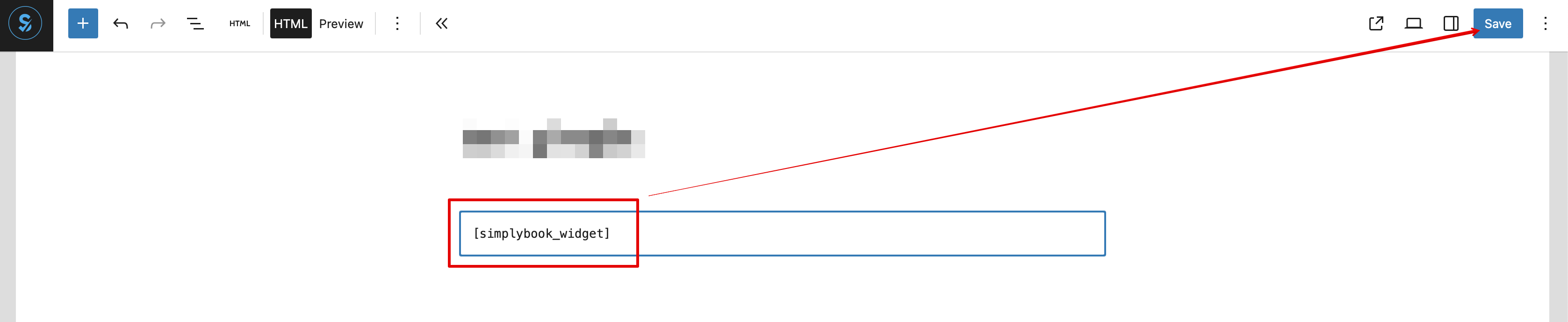
:And simply paste it to the HTML part on the desired page
[[File:Wp new paste shortcode.png|1200px|center|link=https://help.simplybook.me/images/0/0a/Wp_new_paste_shortcode.png]]
<br><br>
8. (valgfrit) Hvis du kun ønsker at tilbyde booking for en bestemt tjeneste/udbyder/lokation/kategori, kan du bruge valgmuligheden Rediger foruddefinerede parametre.


:Og vælg de nødvendige parametre i pop op-vinduet, der vises.


9. Som alternativ metode til at tilføje funktionaliteten til siden kan du bruge en shortcode. :Kopiér kalender-shortcoden fra pluginets Indstillinger-side.


Og indsæt den blot i HTML-delen af den ønskede side