Created page with "= Hoe een categorie toevoegen = <br/> Categorieën zijn bedoeld om diensten te groeperen. Ze kunnen worden toegevoegd met behulp van de aangepaste functie Servicecategorieën. ;Toevoegen: :Schakel de aangepaste functie Servicecategorieën in. Ga vervolgens naar Beheer // Se..." |
Created page with "= Hoe locatie toevoegen = <br/> Locaties zijn bedoeld om aanbieders te groeperen. Ze kunnen worden toegevoegd met behulp van de aangepaste functie 'Meerdere locaties'. ;Toevoegen: :Schakel de aangepaste functie'Meerdere locaties' in en voeg locaties toe in de instellingen van de aangepaste functie of in Beheer // Dienstverleners // '+' om een nieuwe loc..." |
||
| Line 9: | Line 9: | ||
<br/> | <br/> | ||
= Hoe locatie toevoegen = | |||
<br/> | <br/> | ||
[[Custom_Features#Multiple_Locations| | [[Custom_Features#Multiple_Locations| Locaties zijn]] bedoeld om aanbieders te groeperen. Ze kunnen worden toegevoegd met behulp van [[Custom_Features#Multiple_Locations| de aangepaste functie 'Meerdere locaties'.]] | ||
; | ;Toevoegen: | ||
: | :Schakel de aangepaste functie[[Custom_Features#Multiple_Locations |'Meerdere locaties']] in en voeg locaties toe in de instellingen van de aangepaste functie of in Beheer // Dienstverleners // '+' om een nieuwe locatie toe te voegen. Klik op het tabblad 'Locatieaanbieders' voor de betreffende locatie en vink de vakjes aan bij de dienstverleners die u aan de locatie wilt koppelen.<br/> | ||
[[File:Create new location redesigned.png|1200px | center|link=https://help.simplybook.me/images/1/15/Create_new_location_redesigned.png]] | [[File:Create new location redesigned.png|1200px | center|link=https://help.simplybook.me/images/1/15/Create_new_location_redesigned.png]] | ||
<br/> | <br/> | ||
<br/> | <br/> | ||
<div lang="en" dir="ltr" class="mw-content-ltr"> | <div lang="en" dir="ltr" class="mw-content-ltr"> | ||
Revision as of 08:48, 18 June 2025
Hoe een categorie toevoegen
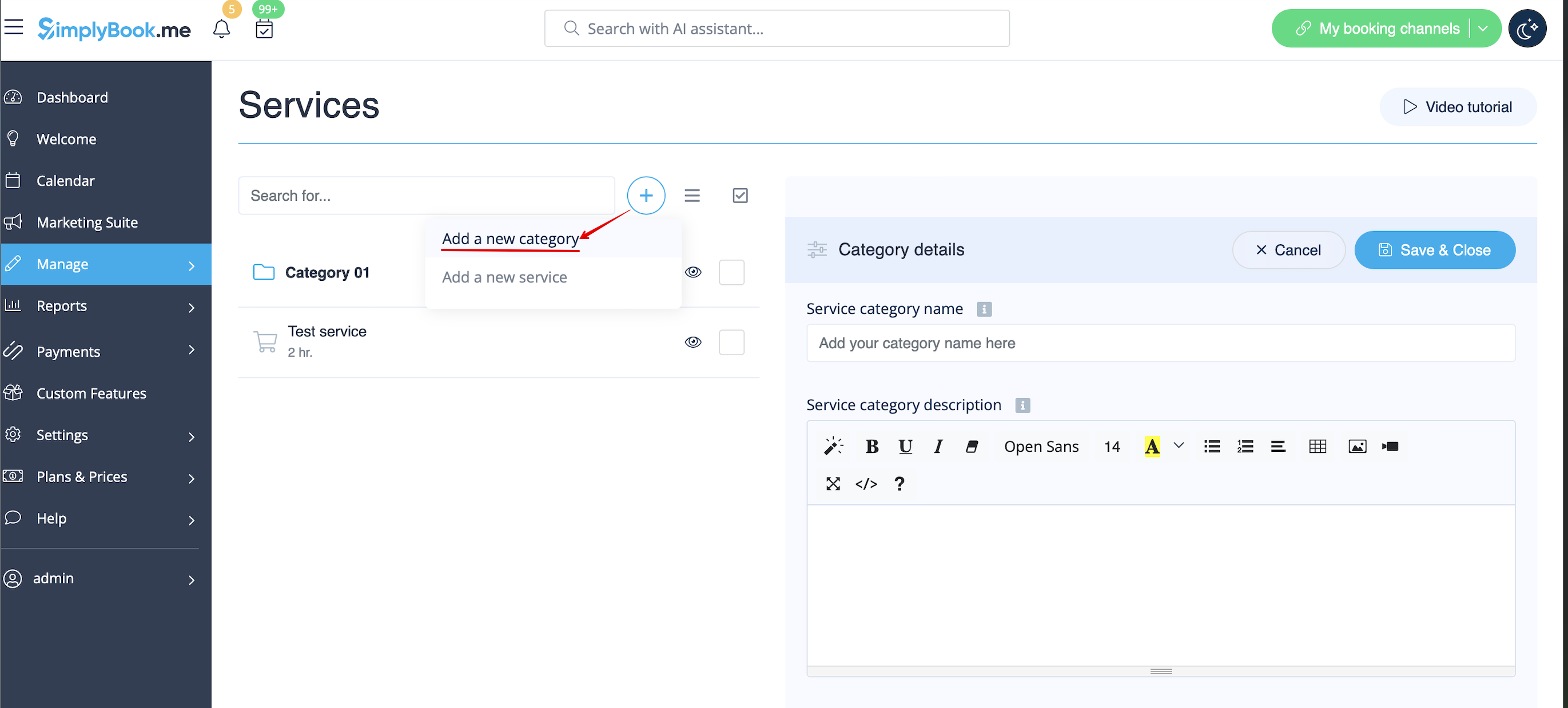
Categorieën zijn bedoeld om diensten te groeperen. Ze kunnen worden toegevoegd met behulp van de aangepaste functie Servicecategorieën.
- Toevoegen
- Schakel de aangepaste functie Servicecategorieën in. Ga vervolgens naar Beheer // Services // "+" en maak alle benodigde categorieën aan. Klik op het tabblad "Categorieën voor services" voor de betreffende categorie en vink de vakjes aan bij de services die u aan de categorie wilt koppelen.
Hoe locatie toevoegen
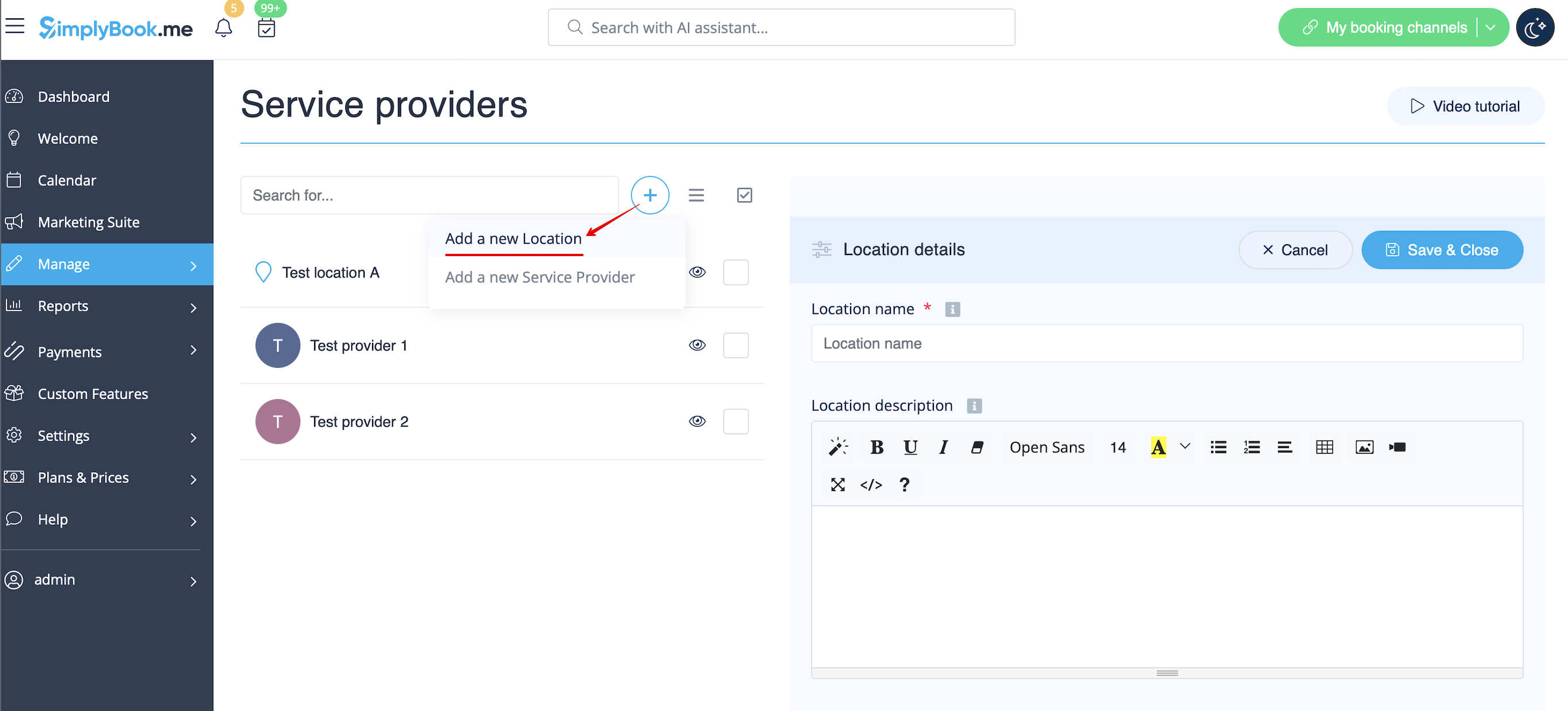
Locaties zijn bedoeld om aanbieders te groeperen. Ze kunnen worden toegevoegd met behulp van de aangepaste functie 'Meerdere locaties'.
- Toevoegen
- Schakel de aangepaste functie'Meerdere locaties' in en voeg locaties toe in de instellingen van de aangepaste functie of in Beheer // Dienstverleners // '+' om een nieuwe locatie toe te voegen. Klik op het tabblad 'Locatieaanbieders' voor de betreffende locatie en vink de vakjes aan bij de dienstverleners die u aan de locatie wilt koppelen.
How to connect location with service
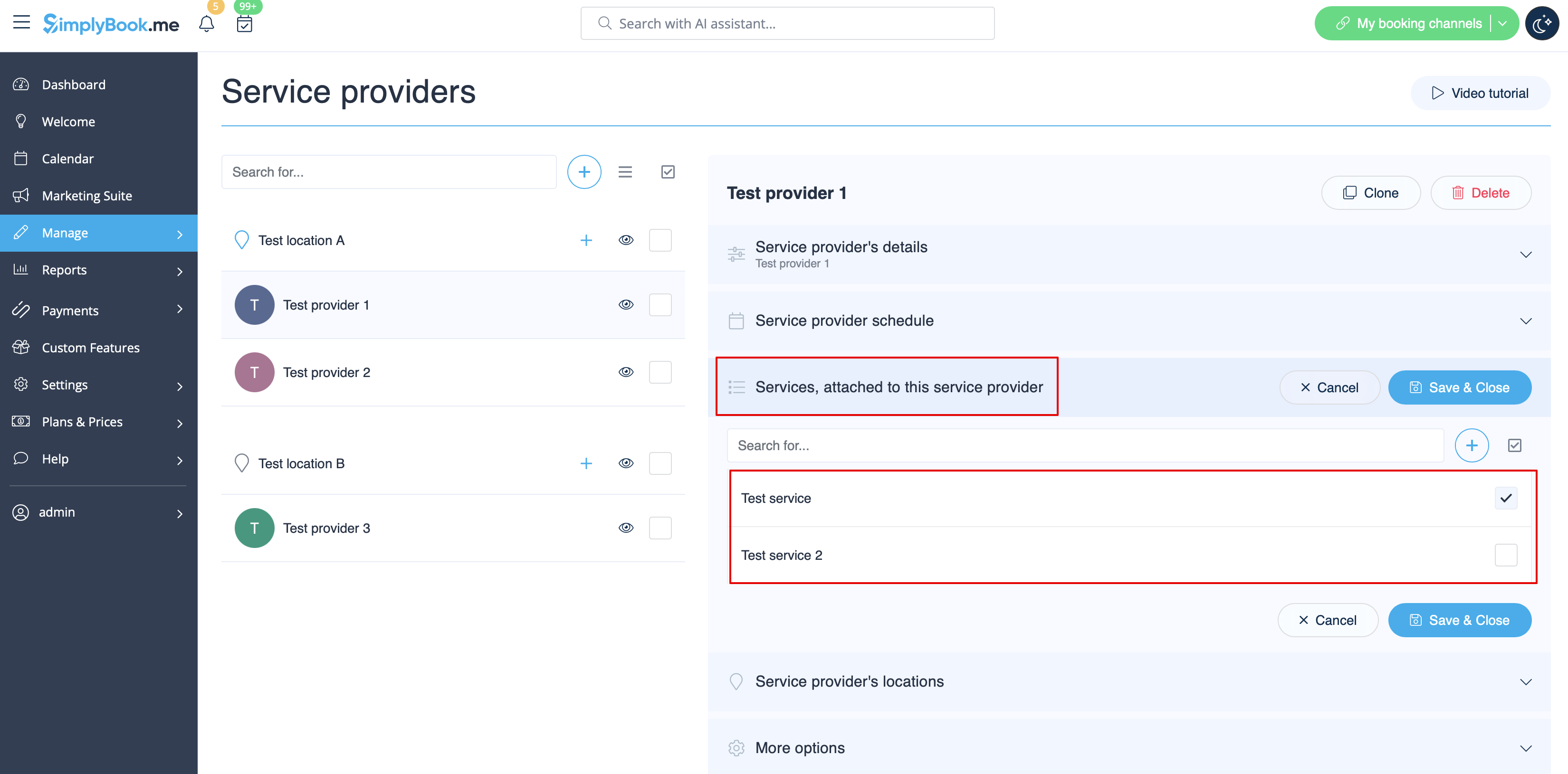
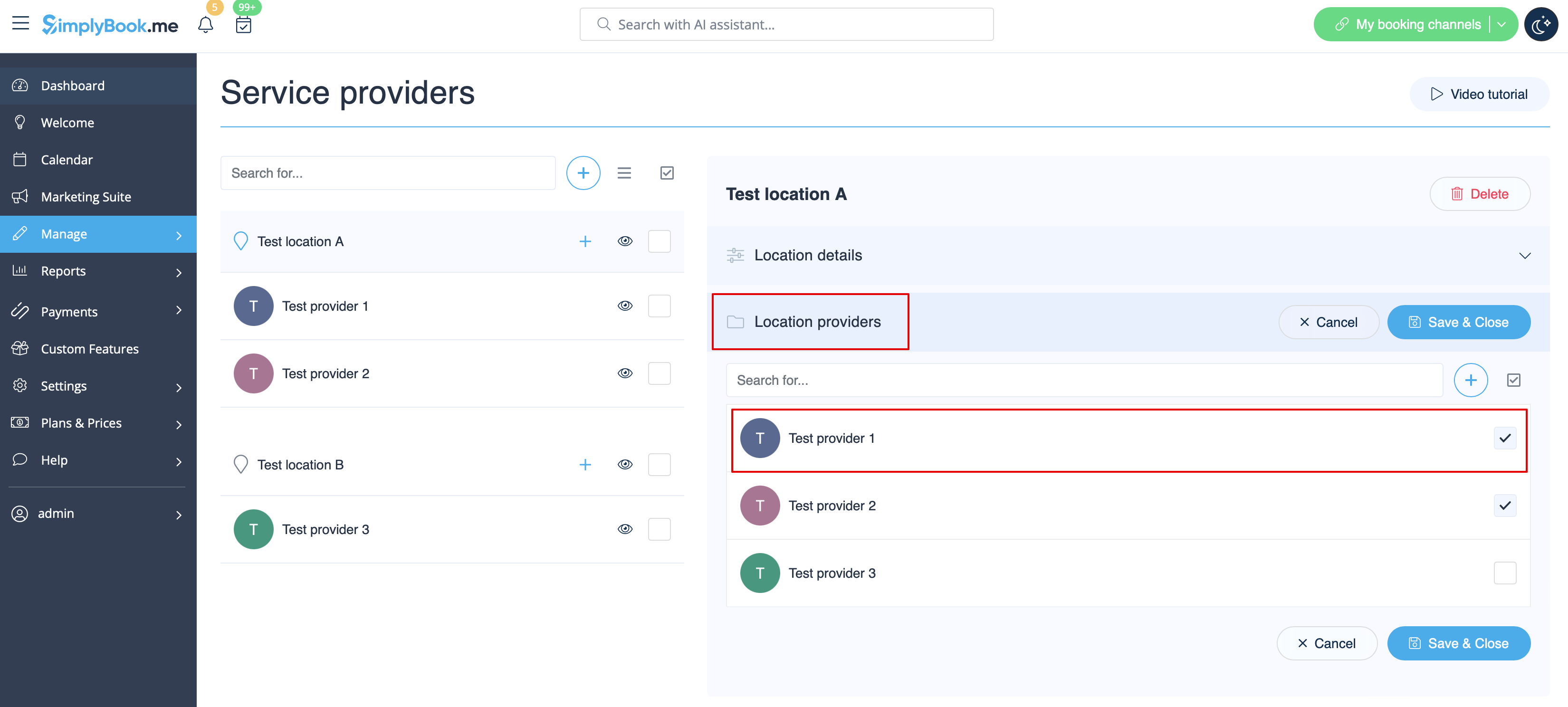
Locations can be related only to service providers, thus if you need to relate service to particular location, you need initially to relate service to service provider:
- 1. In Manage//Service Providers switch to “Services, attached to this service provider” tab for the selected provider and check the boxes with services this provider will perform.
Save settings.
- 2. In Manage//Providers choose location and switch to “Location providers” tab to attach providers to this location by checking the corresponding boxes.
Save settings.
How to set schedule for location
You can set individual schedule for the provider and then relate provider to the location. Thus working hours of the provider related to location will automatically apply to location.
- 1. To set individual schedule for provider please go to Manage//Service Providers, choose necessary provider on the left and switch to “Service provider schedule” tab.
For example, if you work Monday-Friday 9a.m - 5p.m you simply set schedule for those dates by moving the sliders to make time available (bright blue)/not available (light blue).
To make day of the week working/off use switchers near weekday names.
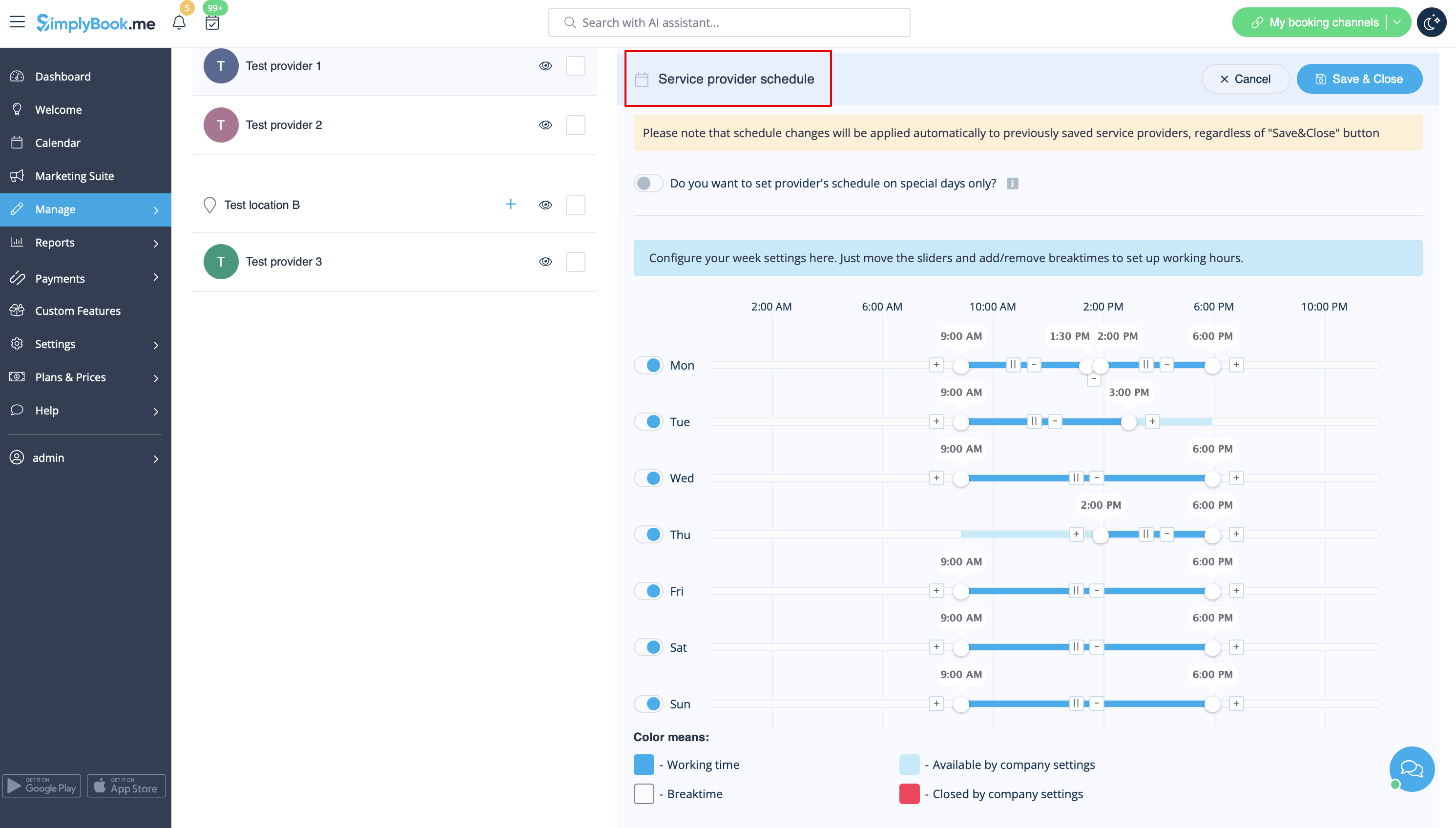
- 2. In Manage//Service Providers choose location and switch to “Location providers” tab to attach provider to location by checking corresponding boxes. Save settings.
How to add location variables to emails
In Settings // Email and SMS settings insert the following variables into your email templates:
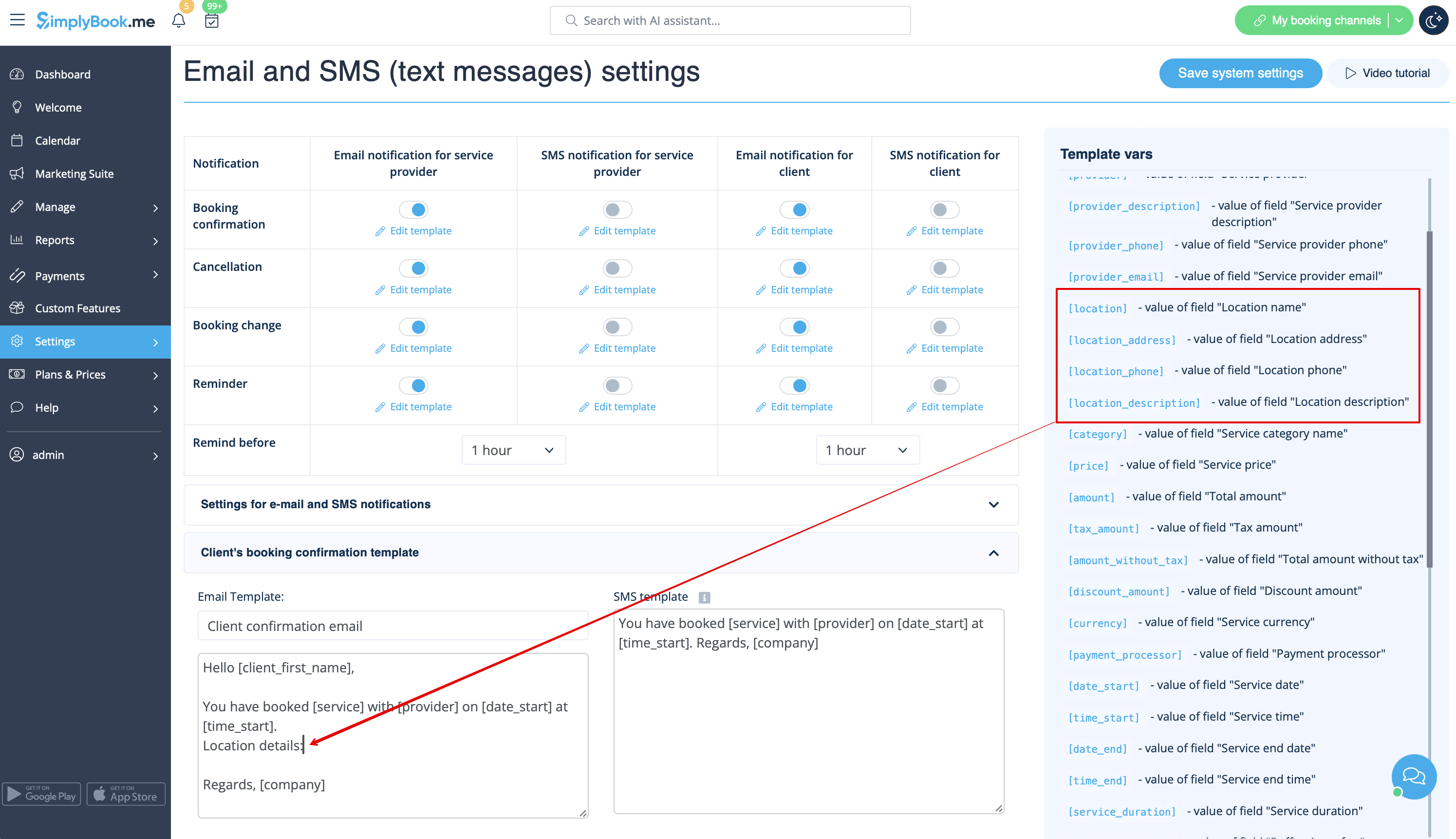
- [location] - value of field "Location name"
- [location_address] - value of field "Location address"
- [location_phone] - value of field "Location phone"
- [location_description] - value of field "Location description"
