Prepared the page for translation |
No edit summary |
||
| Line 1: | Line 1: | ||
<languages/> | <languages/> | ||
<translate> | |||
<!--T:1--> | |||
{{#seo: | {{#seo: | ||
|title=Duda integration - SimplyBook.me | |title=Duda integration - SimplyBook.me | ||
| Line 5: | Line 7: | ||
|keywords=faq, frequently asked questions, booking software, appointment system questions, appointments online, calendar software, booking system, booking calendar, scheduling software, online appointment scheduling, online scheduling, setup, setup help, support, help content | |keywords=faq, frequently asked questions, booking software, appointment system questions, appointments online, calendar software, booking system, booking calendar, scheduling software, online appointment scheduling, online scheduling, setup, setup help, support, help content | ||
}} | }} | ||
[[File:DudaOneLogo.png| | </translate> | ||
< | [[File:DudaOneLogo.png|left]] | ||
<translate> | |||
<!--T:1--> | |||
If you're building your website on Duda and want to offer a sleek, professional appointment booking experience, SimplyBook.me is the perfect solution. With just a few simple steps, you can embed your booking widget directly into your Duda site. All services, pricing, availability, and settings are managed in your SimplyBook.me admin, while the widget is fully customizable to match your website’s look and feel. Let’s get started! | |||
</translate> | |||
<br><br> | <br><br> | ||
<translate> | |||
;How to set | ;How to set | ||
1. Log into your [https://my.duda.co/ Duda dashboard].<br> | 1. Log into your [https://my.duda.co/ Duda dashboard].<br> | ||
| Line 13: | Line 20: | ||
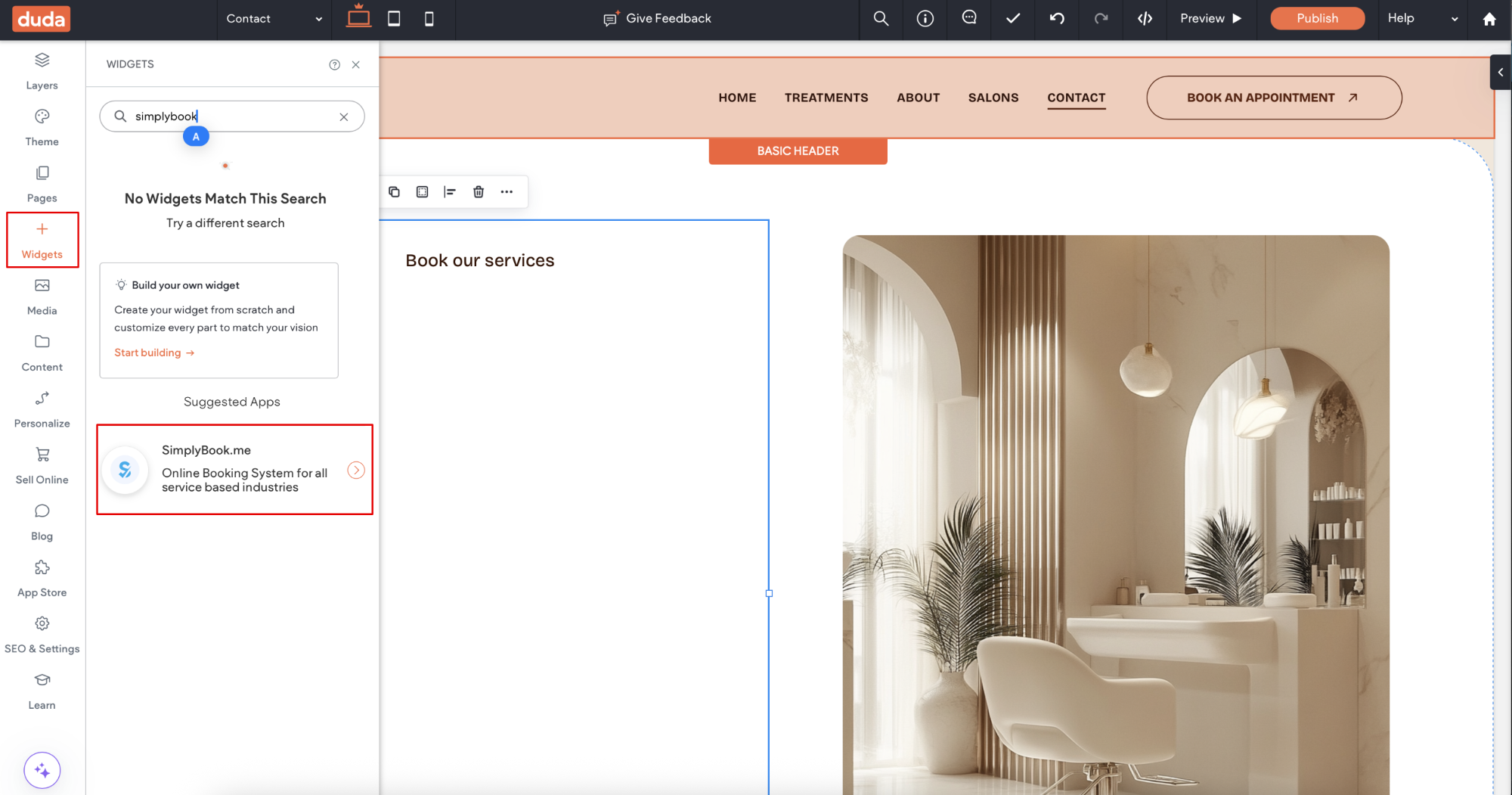
3. Click on '''Widgets''' in the left-side menu.<br> | 3. Click on '''Widgets''' in the left-side menu.<br> | ||
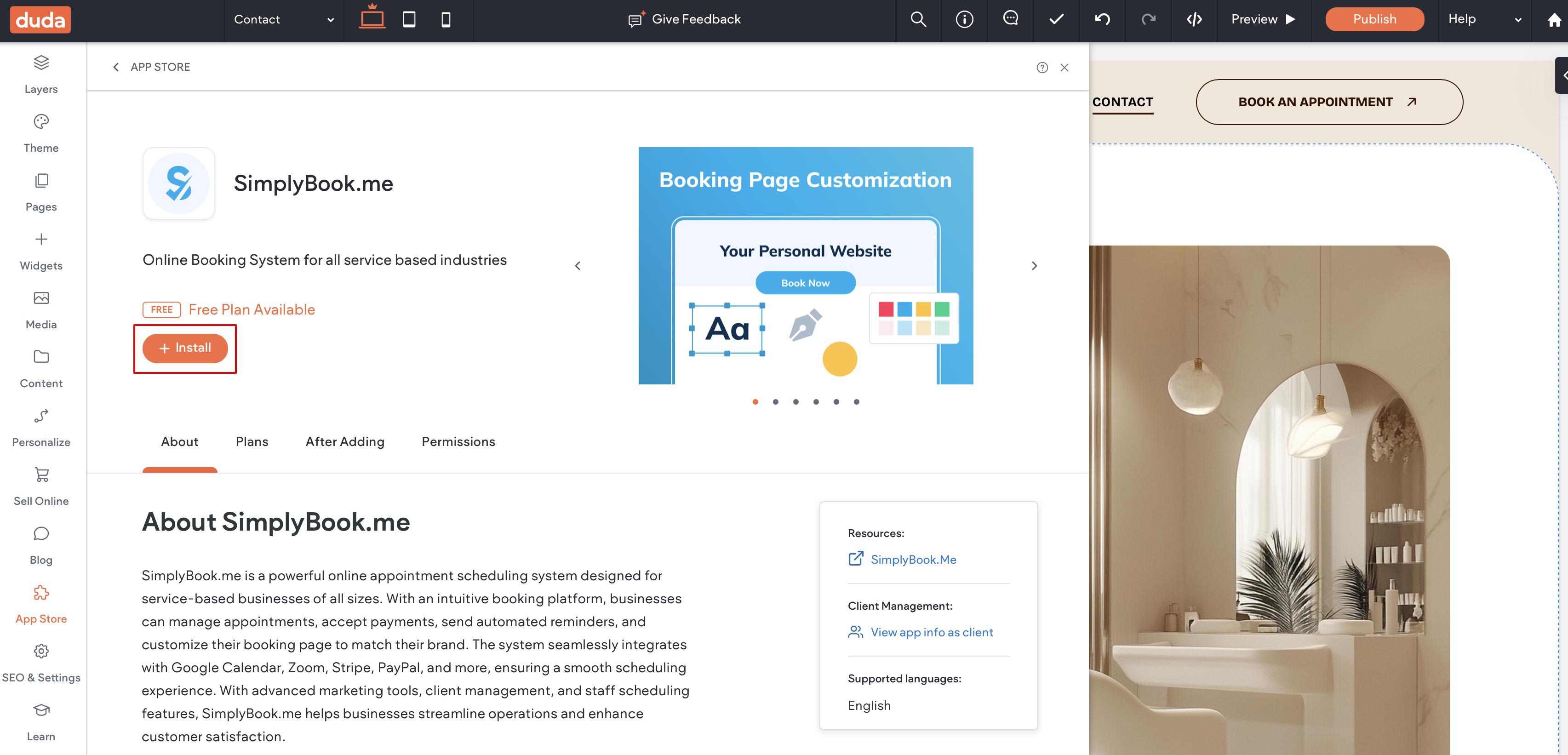
4. Search for ''''SimplyBook''' and install it. | 4. Search for ''''SimplyBook''' and install it. | ||
[[File:Duda widget sb path.png|1200px|center|link=https://help.simplybook.me/images/5/57/Duda_widget_sb_path.png]] | |||
[[File:Duda widget sb path.png|1200px|center| | [[File:Duda sb widget install.png|1200px|center|link=https://help.simplybook.me/images/9/9c/Duda_sb_widget_install.png]] | ||
[[File:Duda sb widget install.png|1200px|center| | |||
<br><br> | <br><br> | ||
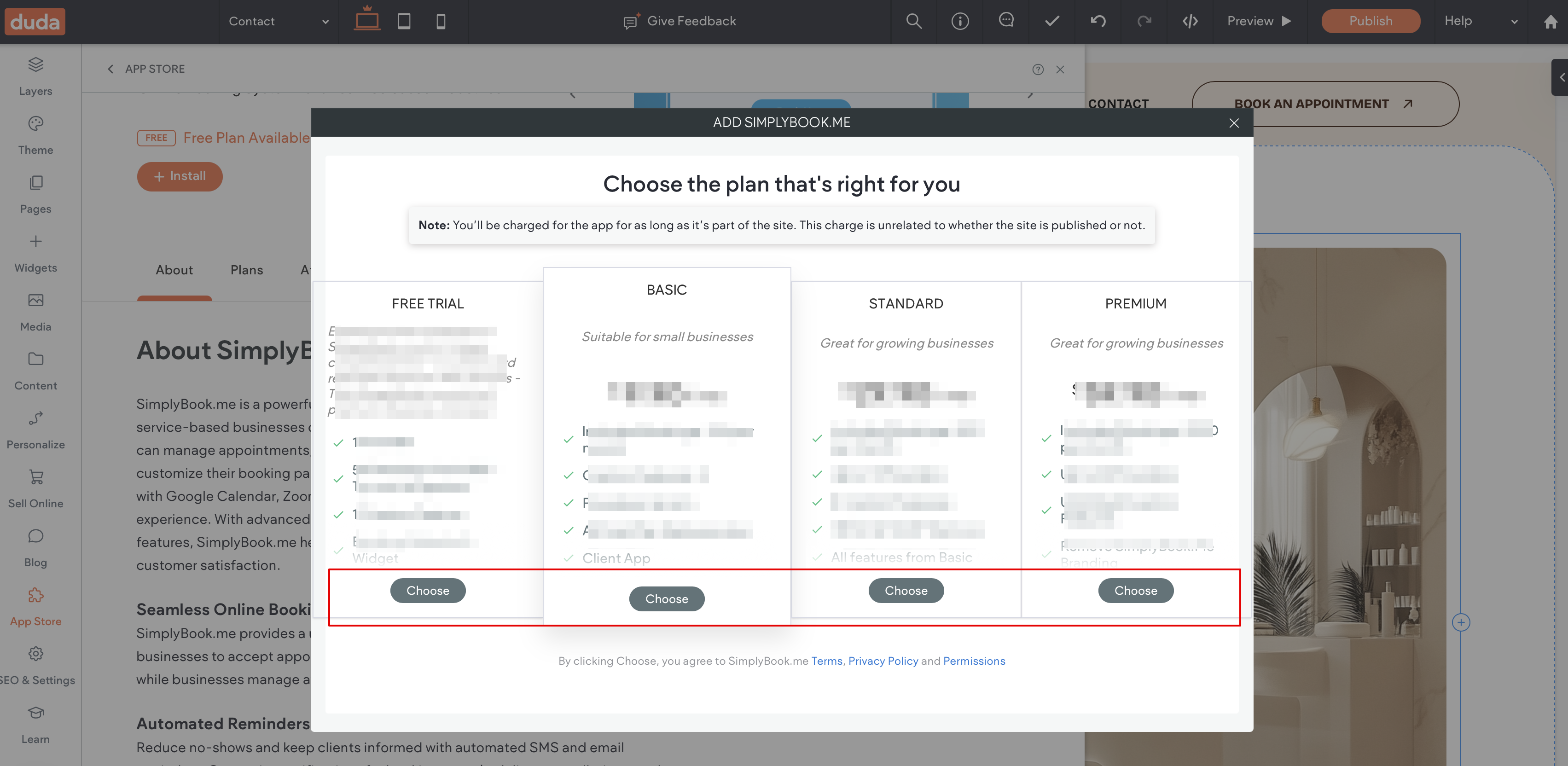
5. Choose the applicable subscription to be applied to your system. | 5. Choose the applicable subscription to be applied to your system. | ||
[[File:Duda sb widget select the plan.png|1200px|center|link=https://help.simplybook.me/images/6/6e/Duda_sb_widget_select_the_plan.png]] | |||
[[File:Duda sb widget select the plan.png|1200px|center| | |||
<br><br> | <br><br> | ||
6. Choose a place on the page where the booking tool should appear.<br> | 6. Choose a place on the page where the booking tool should appear.<br> | ||
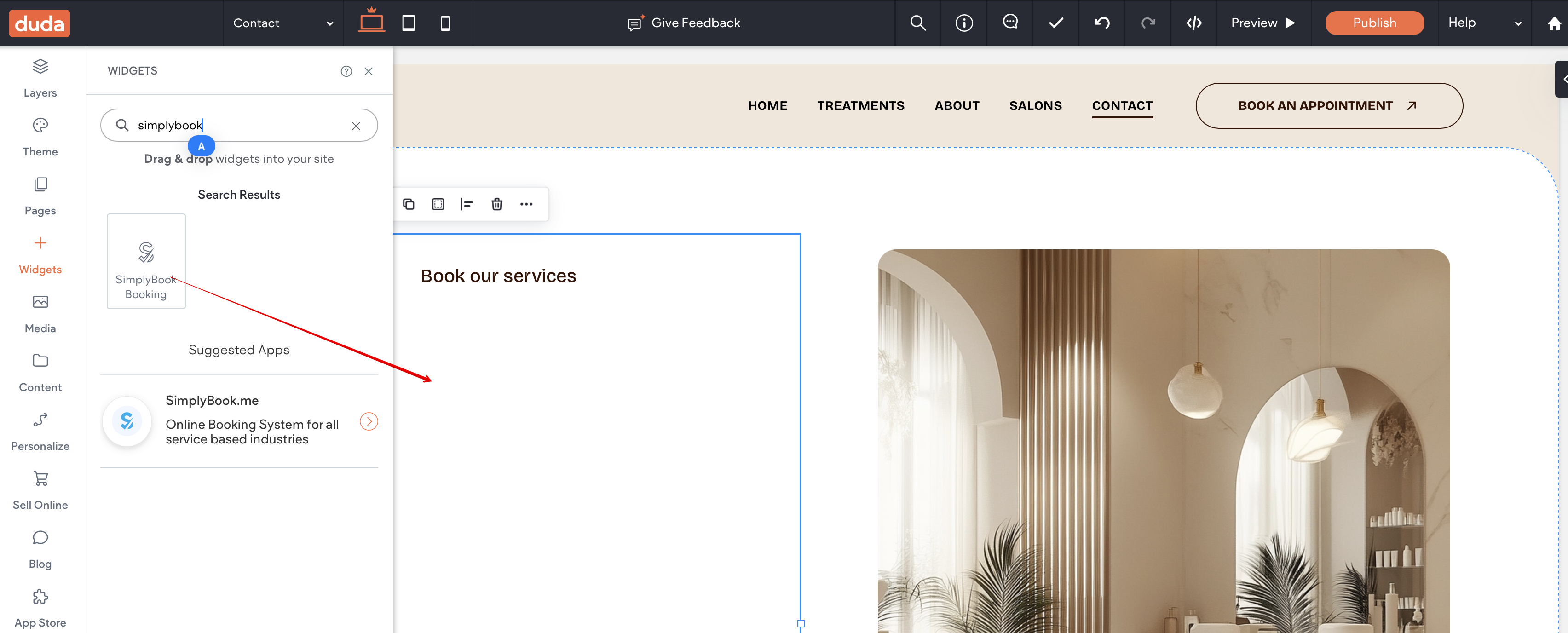
7. Click on '''Widgets''' again and select the ''''Simplybook booking''' to drag it to the page.<br> | 7. Click on '''Widgets''' again and select the ''''Simplybook booking''' to drag it to the page.<br> | ||
That's it, the widget is added. | That's it, the widget is added. | ||
[[File:Duda sb add widget to page.png|1200px|center|link=https://help.simplybook.me/images/5/50/Duda_sb_add_widget_to_page.png]] | |||
[[File:Duda sb add widget to page.png|1200px|center| | |||
<br><br> | <br><br> | ||
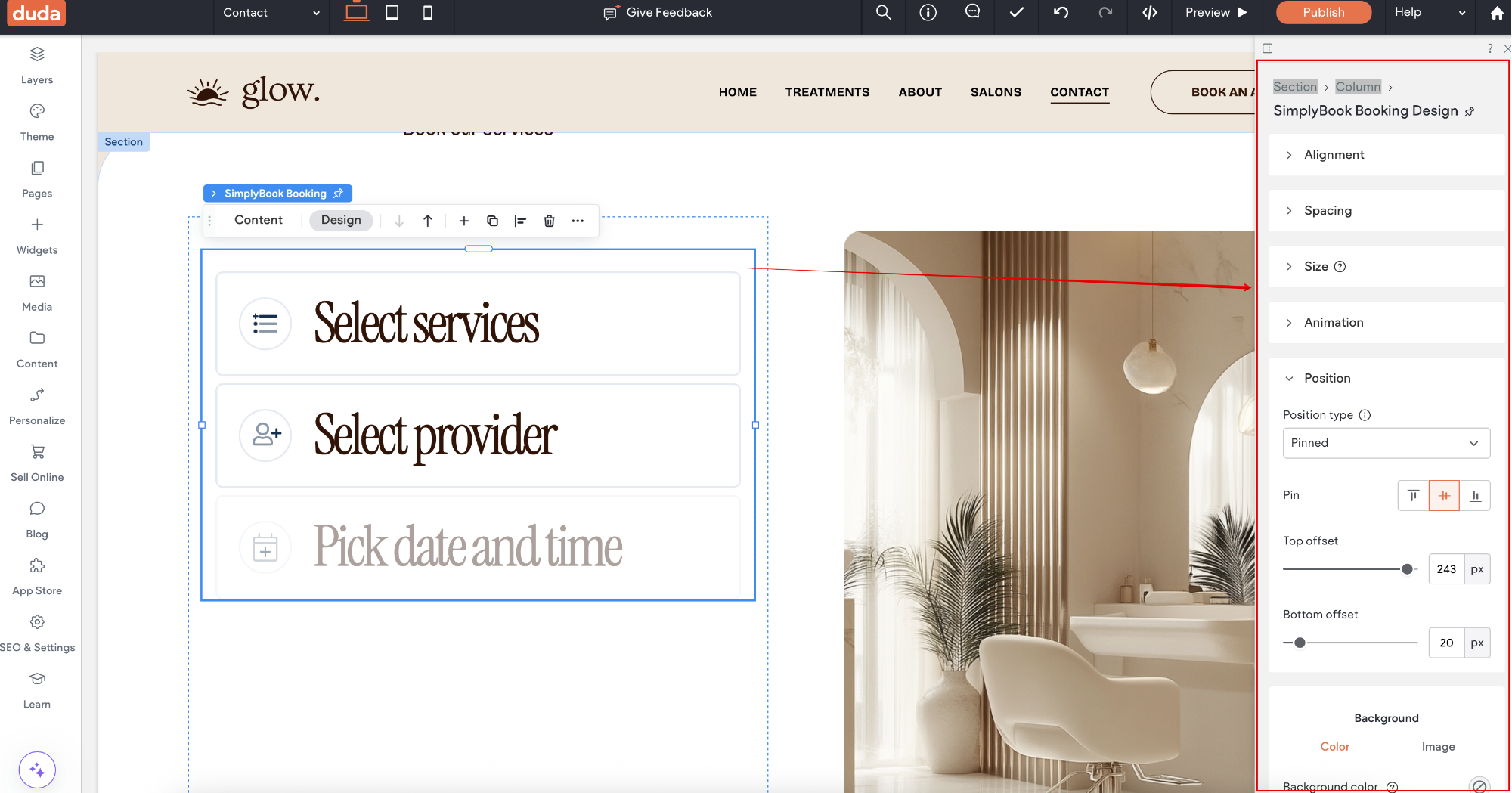
8. To adjust the design please use the built-in editing options, the widget will adjust to your website styles. | 8. To adjust the design please use the built-in editing options, the widget will adjust to your website styles. | ||
[[File:Duda widget sb adjust design.png|1200px|center| | [[File:Duda widget sb adjust design.png|1200px|center|link=https://help.simplybook.me/images/5/55/Duda_widget_sb_adjust_design.png]] | ||
<br><br> | <br><br> | ||
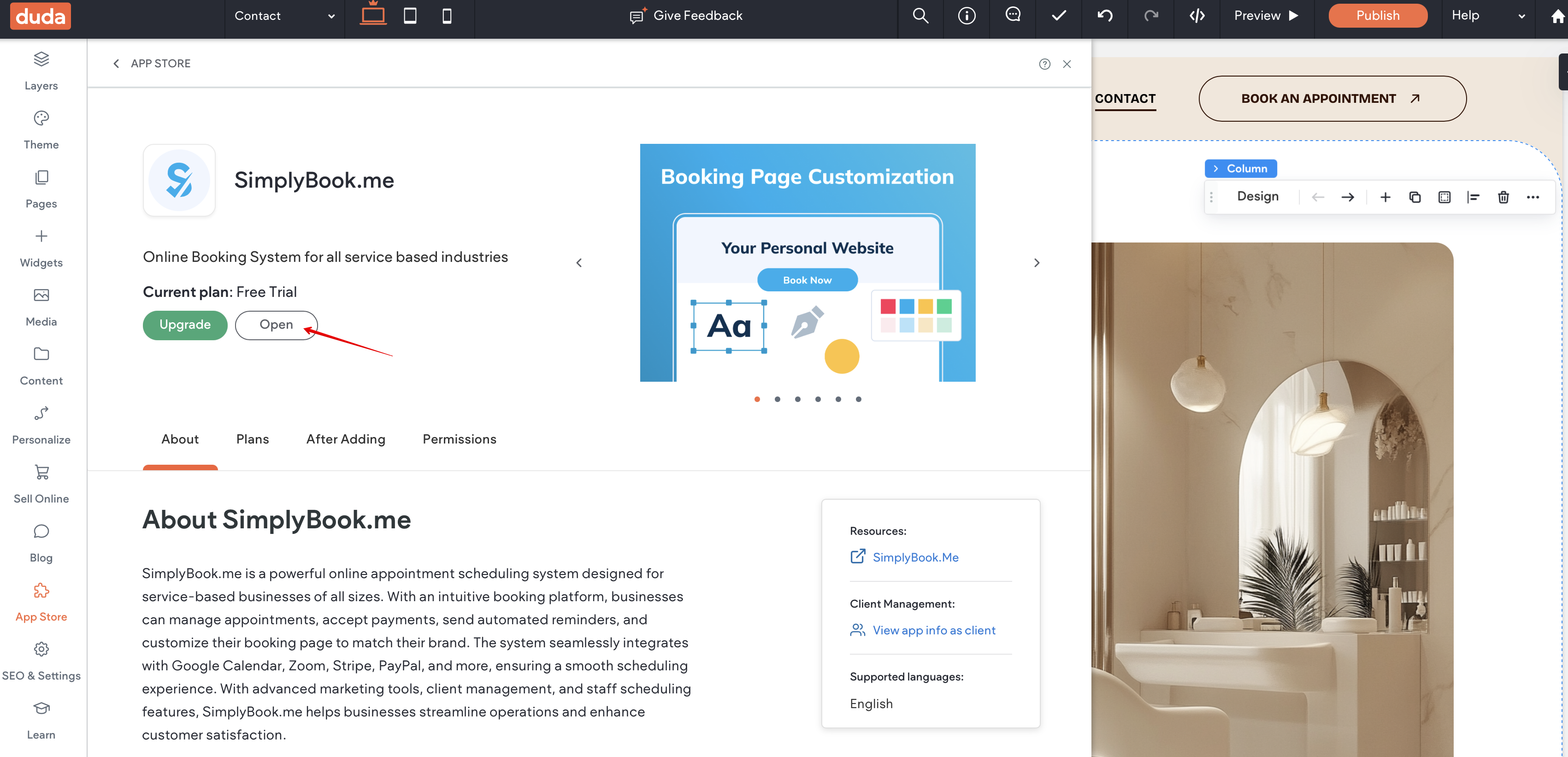
9. To add or edit your services, set prices, etc. please navigate to SimplyBook.me admin interface by clicking on '''Open''' button in the installed app. | 9. To add or edit your services, set prices, etc. please navigate to SimplyBook.me admin interface by clicking on '''Open''' button in the installed app. | ||
[[File:Duda sb widget open admin side.png|1200px|center|link=https://help.simplybook.me/images/2/21/Duda_sb_widget_open_admin_side.png]] | |||
[[File:Duda sb widget open admin side.png|1200px|center| | |||
<br><br> | <br><br> | ||
Revision as of 14:05, 16 July 2025

If you're building your website on Duda and want to offer a sleek, professional appointment booking experience, SimplyBook.me is the perfect solution. With just a few simple steps, you can embed your booking widget directly into your Duda site. All services, pricing, availability, and settings are managed in your SimplyBook.me admin, while the widget is fully customizable to match your website’s look and feel. Let’s get started!
- How to set
1. Log into your Duda dashboard.
2. Create a new website or open the existing one where you want to embed the booking widget.
3. Click on Widgets in the left-side menu.
4. Search for 'SimplyBook and install it.
5. Choose the applicable subscription to be applied to your system.
6. Choose a place on the page where the booking tool should appear.
7. Click on Widgets again and select the 'Simplybook booking to drag it to the page.
That's it, the widget is added.
8. To adjust the design please use the built-in editing options, the widget will adjust to your website styles.
9. To add or edit your services, set prices, etc. please navigate to SimplyBook.me admin interface by clicking on Open button in the installed app.
You might also need
