Updating to match new version of source page |
Updating to match new version of source page Tags: Mobile edit Mobile web edit |
||
| Line 2: | Line 2: | ||
{{#seo: | {{#seo: | ||
|title=Book days - SimplyBook.me | |title=Book days - SimplyBook.me | ||
|description=Set | |description=Set up day-based rentals instead of hourly bookings. Configure services spanning multiple days. Ideal for equipment rentals, vacation properties, extended re... | ||
|titlemode=append | |titlemode=append | ||
|keywords=faq, frequently asked questions, booking software, appointment system questions, appointments online, calendar software, booking system, booking calendar, scheduling software, online appointment scheduling, online scheduling, setup, setup help, support, help content | |keywords=faq, frequently asked questions, booking software, appointment system questions, appointments online, calendar software, booking system, booking calendar, scheduling software, online appointment scheduling, online scheduling, setup, setup help, support, help content | ||
Latest revision as of 19:32, 2 February 2026
SimplyBook.me has no option of booking days, however, there is a workaround, please check if these options are suitable for your business.
Multiple services
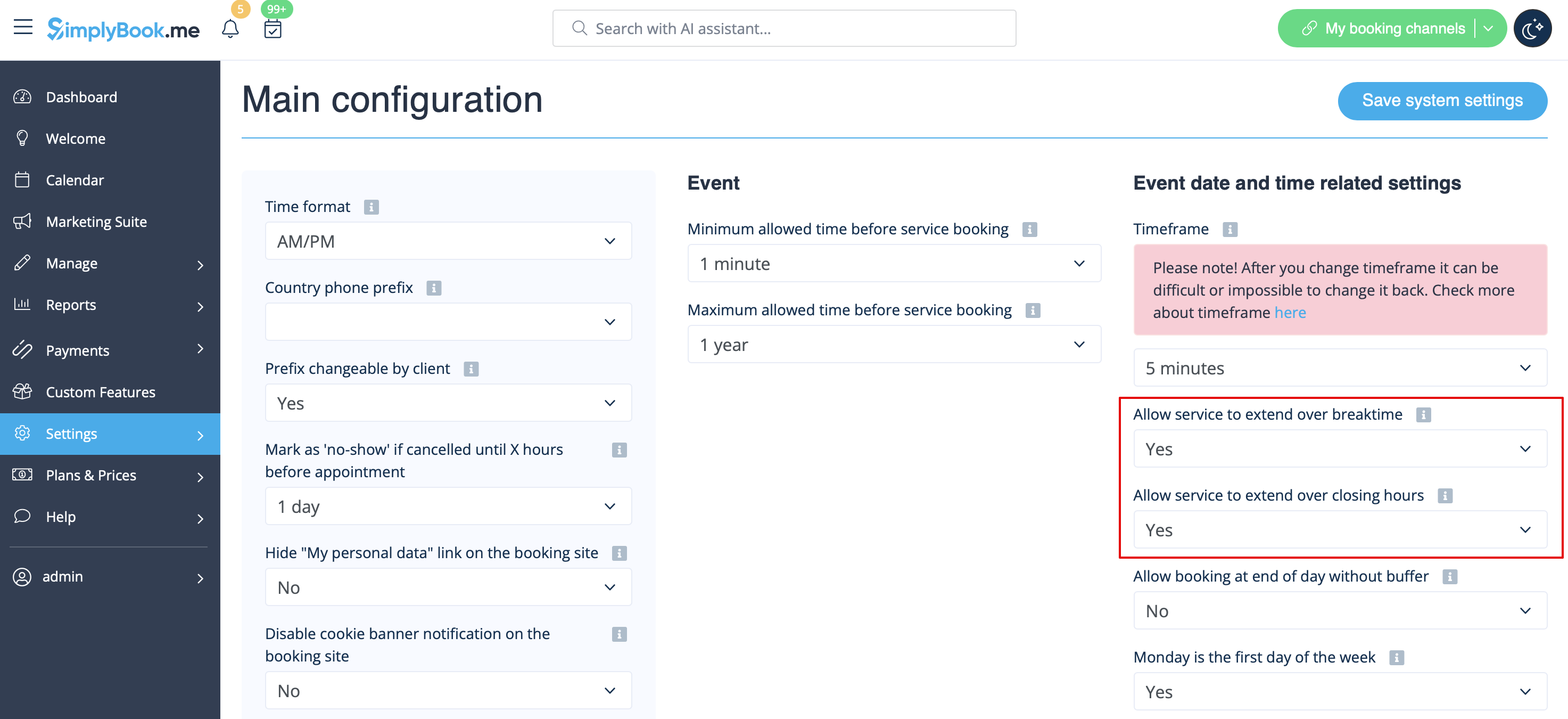
1. In Settings -> Main configuration -> set both Allow service to extend over breaktime and Allow service to extend over closing hours. to Yes and save.
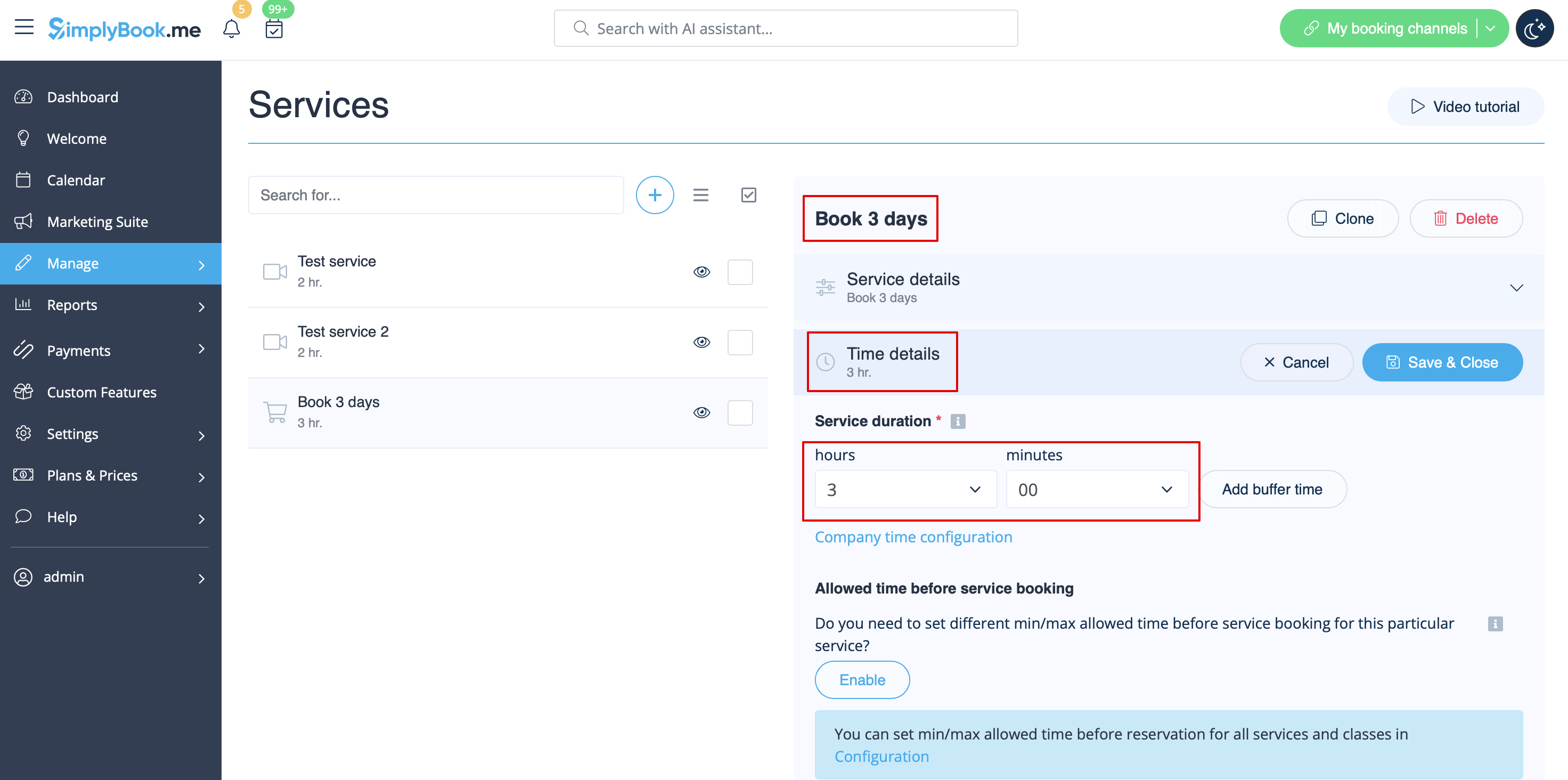
2. In Manage -> Services -> + button create service with the duration corresponding to the amount of days your service will be offered for (3 days=3 hours, 7 days=7 hours).
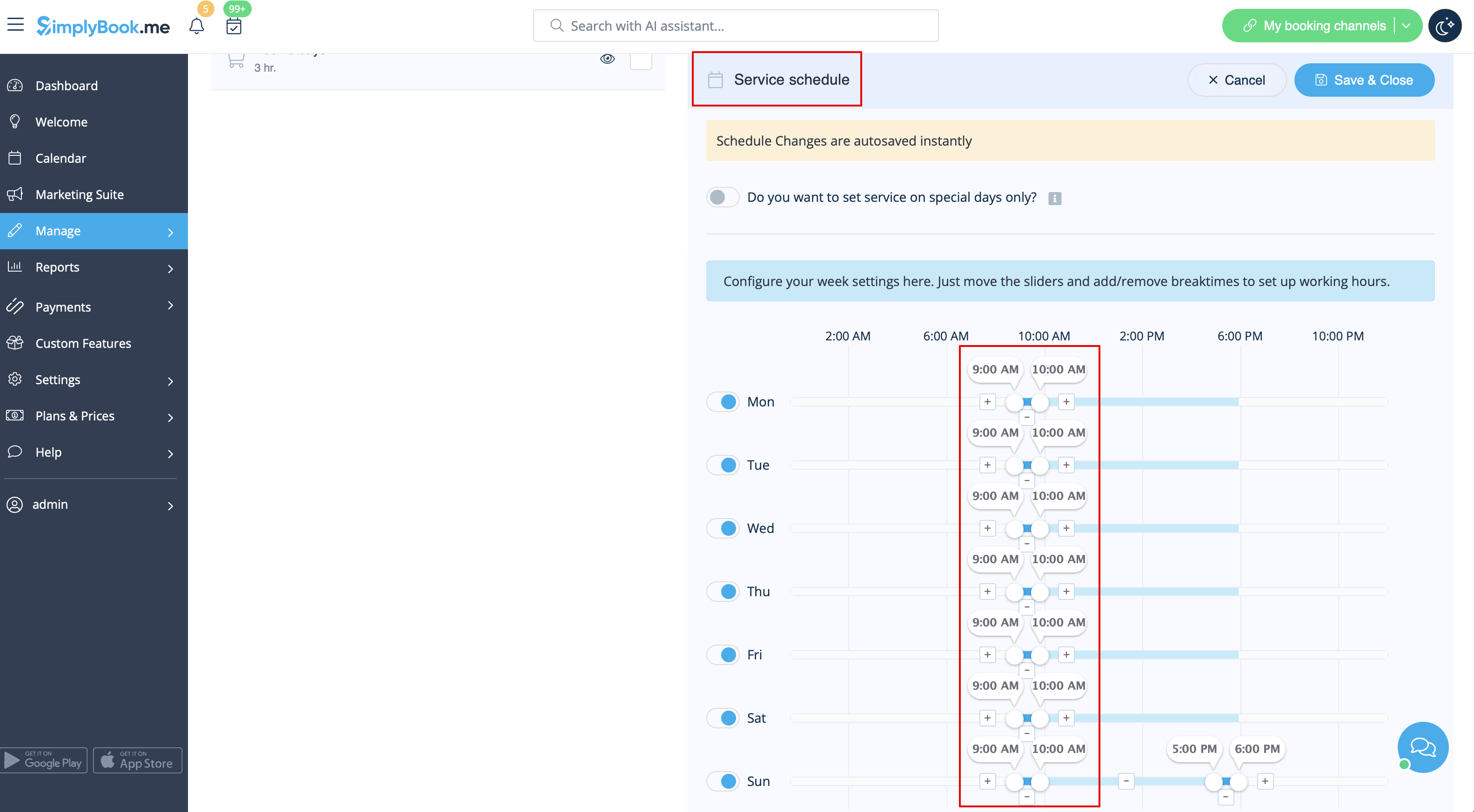
3. In the Settings -> Company opening hours (when you have only 1 service) or in the working hours of this service (Settings -> Services schedule or Manage -> Services -> select the service -> Services schedule) open only 1 hour each day.
4. The system will then book the number of hours indicated in service duration as the number of days.
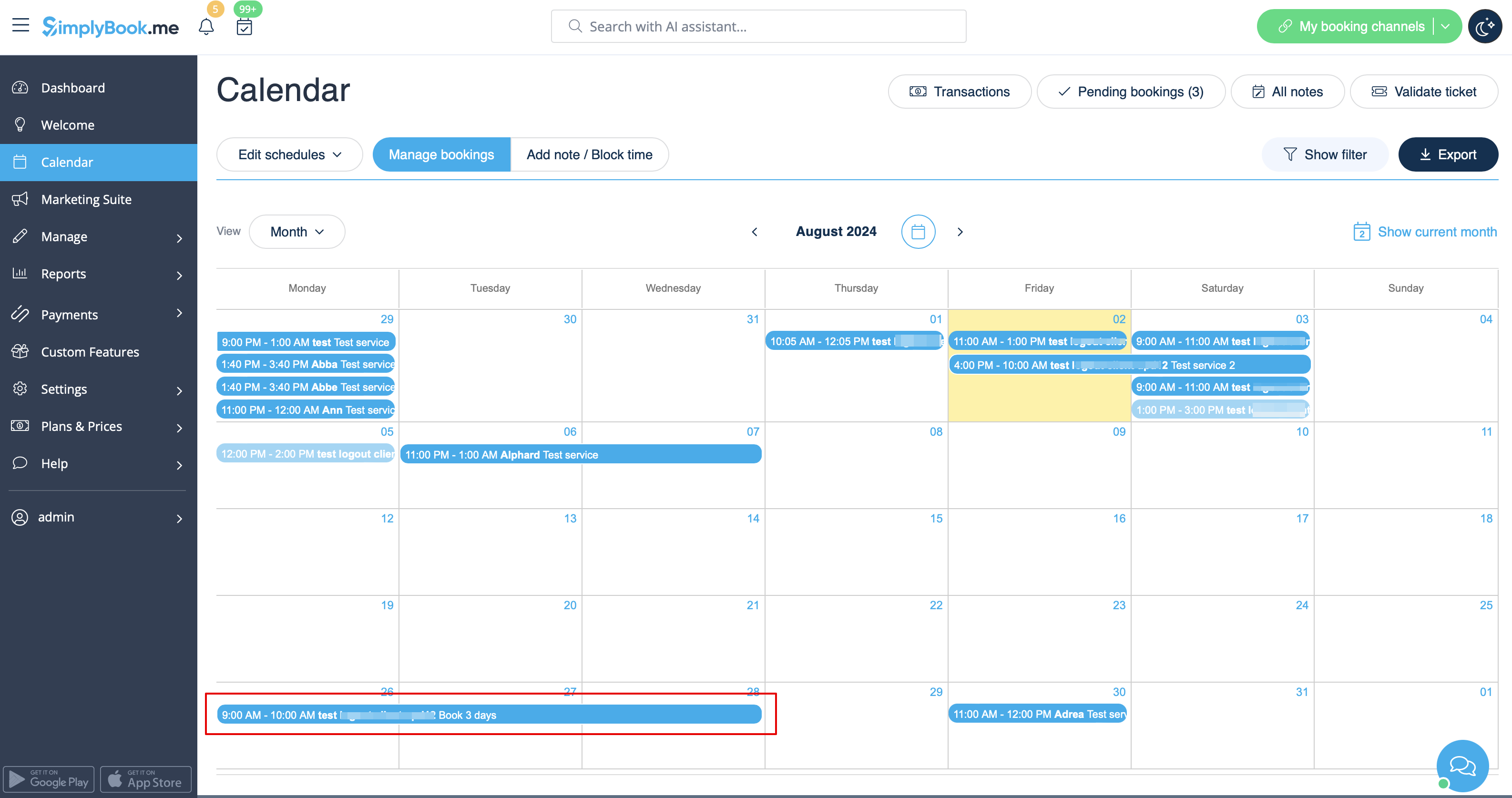
5. For your clients this setup will look in the following way:

Single service with the use of Add-ons
1. In Settings -> Main configuration -> set both Allow service to extend over breaktime and Allow service to extend over closing hours. to Yes and save.
2. In Manage -> Services -> + button create service with the duration corresponding to the amount of days your service will initially be offered for (3 days=3 hours, 7 days=7 hours).
3. Enable Service add-ons custom feature inside the tab on the Services page or in Custom features section.
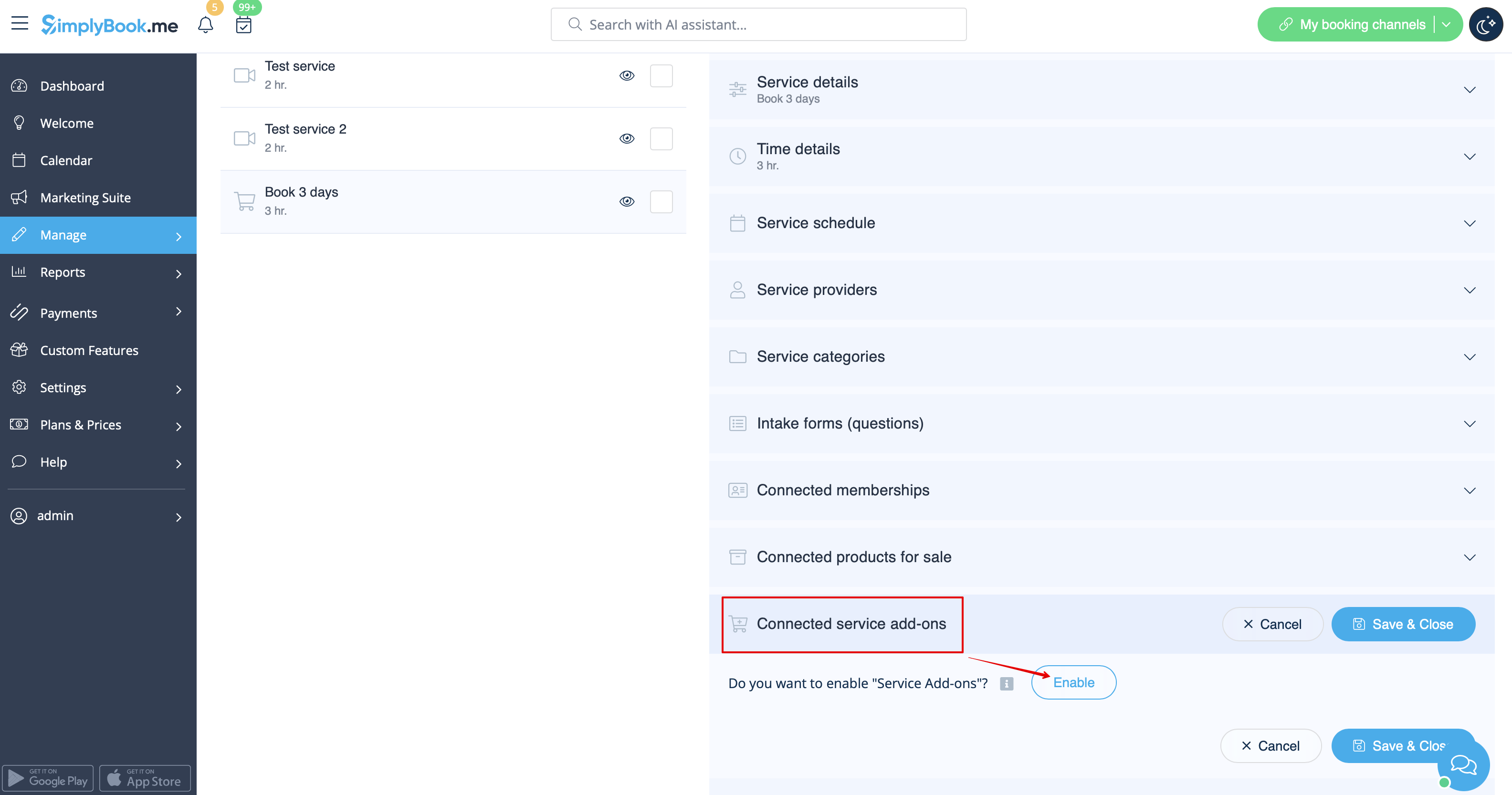
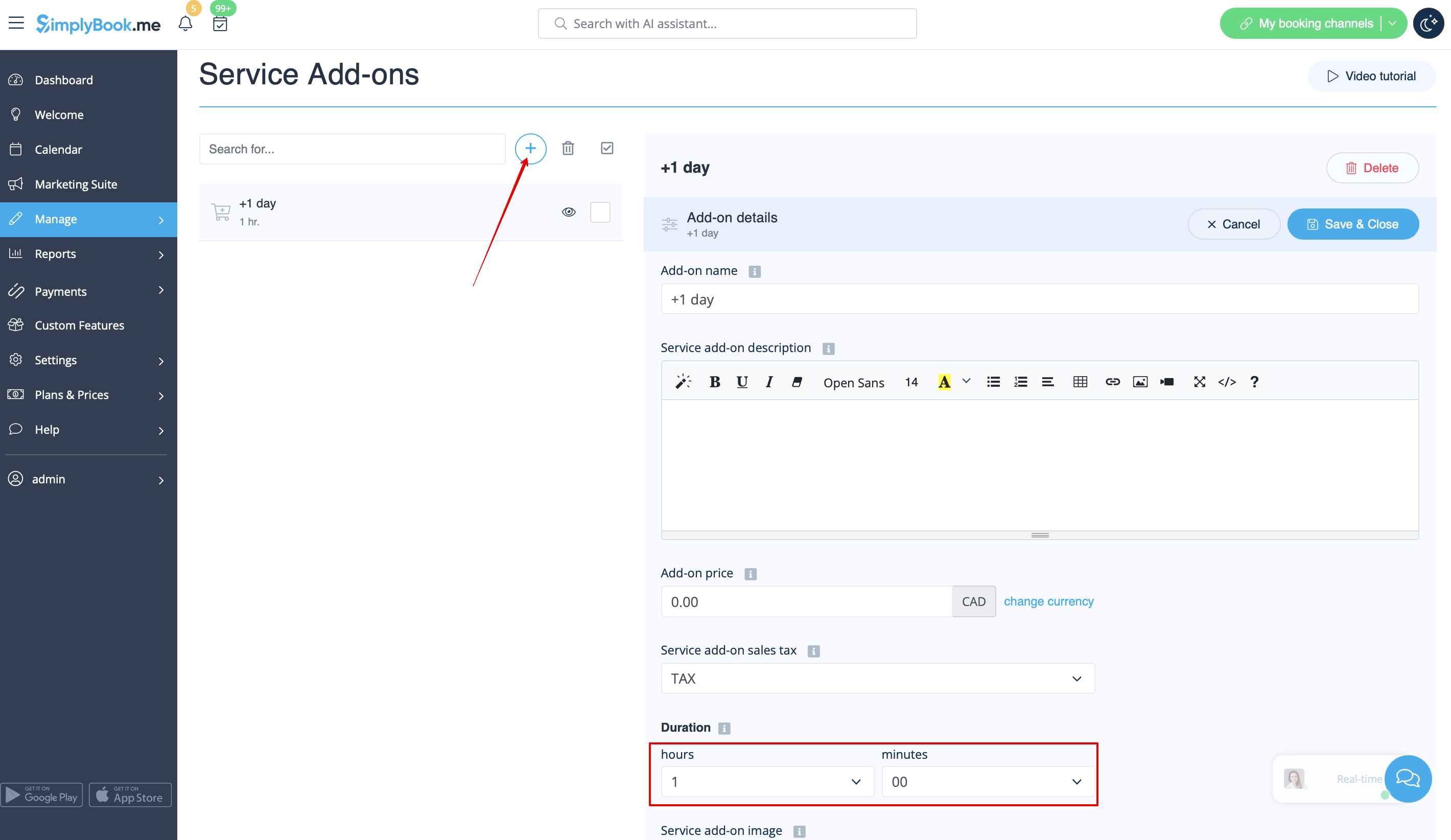
4. In Manage -> Service add-ons create all the desired additional duration options.
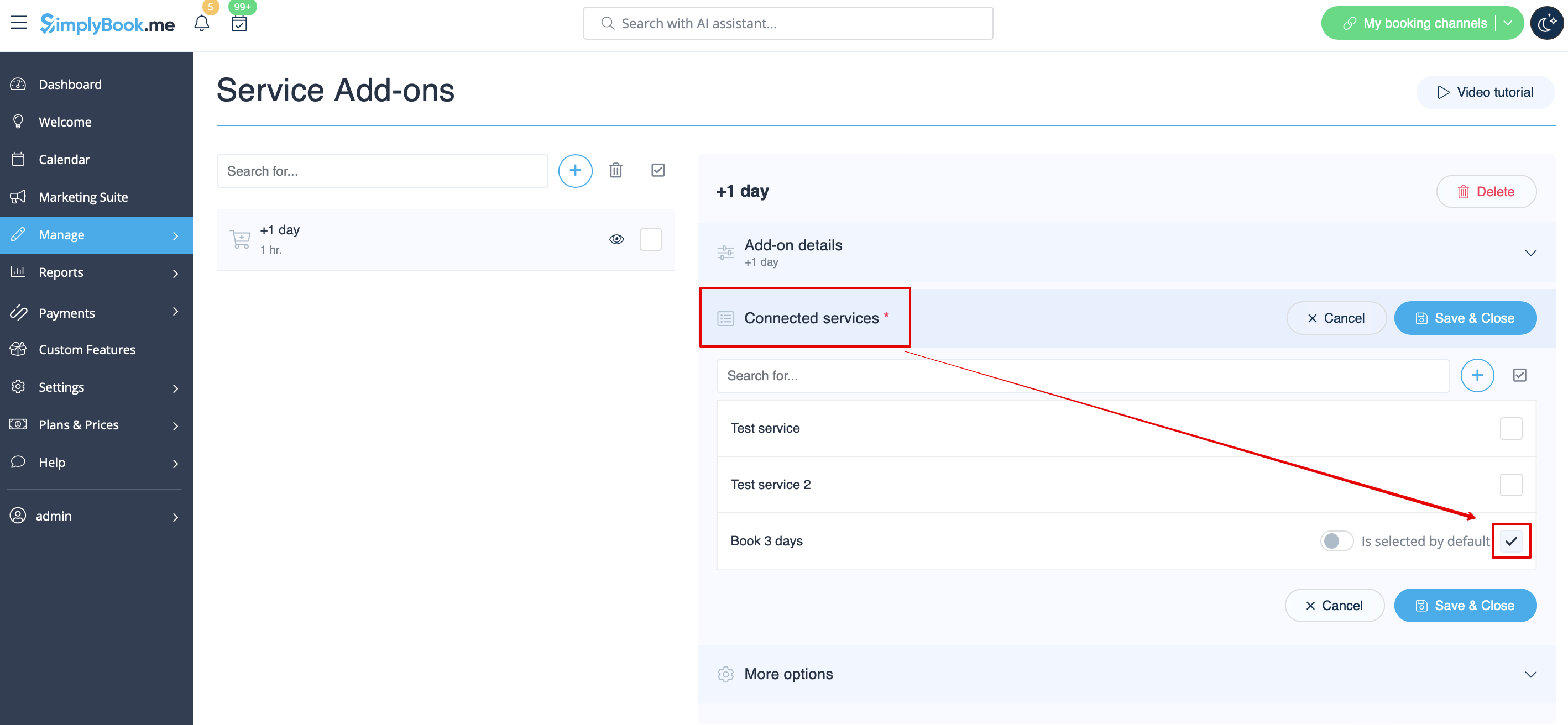
5. (optional) Relate the Add-ons to the desired services if necessary and you have some specific additional duration options per service.
6. In Settings -> Company opening hours (when you have only 1 service) or in the working hours of this service (Settings -> Services schedule or Manage -> Services -> select the service -> Services schedule) open only 1 hour each day.
7. Here you can see how this way will look like on the client side
(they will select the main service first and then choose the additional duration if they need to):

