From SimplyBook.me
No edit summary |
No edit summary |
||
| Line 22: | Line 22: | ||
*<span style="background-color:#ffe9e9; padding:5px; border-radius:5px;"><span style="background-color:#cdeffc; padding:5px; border-radius:5px;">[[Special:MyLanguage/Intake_Forms_custom_feature|Intake Forms]]</span> custom feature will be enabled together with this one.</span> | *<span style="background-color:#ffe9e9; padding:5px; border-radius:5px;"><span style="background-color:#cdeffc; padding:5px; border-radius:5px;">[[Special:MyLanguage/Intake_Forms_custom_feature|Intake Forms]]</span> custom feature will be enabled together with this one.</span> | ||
;How it works<br> | |||
When a client submits a booking, SimplyBook.me sends the booking details to your external URL as a JSON POST request. Your script inspects the data and returns a JSON response. If validation passes, the booking is saved. If it fails, the client sees an error message without the booking being confirmed. | |||
<!--T:3--> | <!--T:3--> | ||
Revision as of 15:27, 5 April 2026

You can validate bookings through the use of an external script. The script can check variables from the booking, and only if conditions fulfilled, the booking is processed. Additionally the validation script can bring back information that can be injected into intake form variables.
Please note!
- Development skills are needed for this feature use.
- Intake Forms custom feature will be enabled together with this one.
- How it works
When a client submits a booking, SimplyBook.me sends the booking details to your external URL as a JSON POST request. Your script inspects the data and returns a JSON response. If validation passes, the booking is saved. If it fails, the client sees an error message without the booking being confirmed.
- How to use
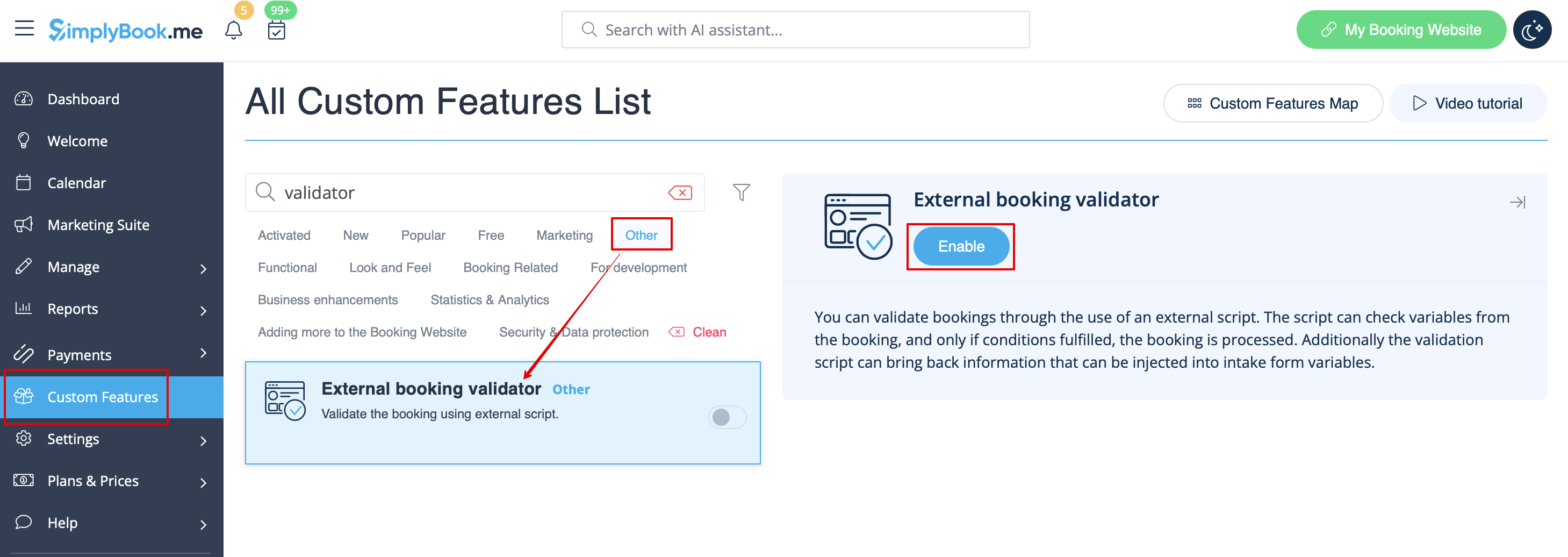
- 1. Enable External Booking Validator custom feature on your Custom Features page, Other section.
- 2. Create your own validation script with your own desired conditions.
- For example, you may require certain client answers to one or several intake forms for the booking to be submitted to your system.
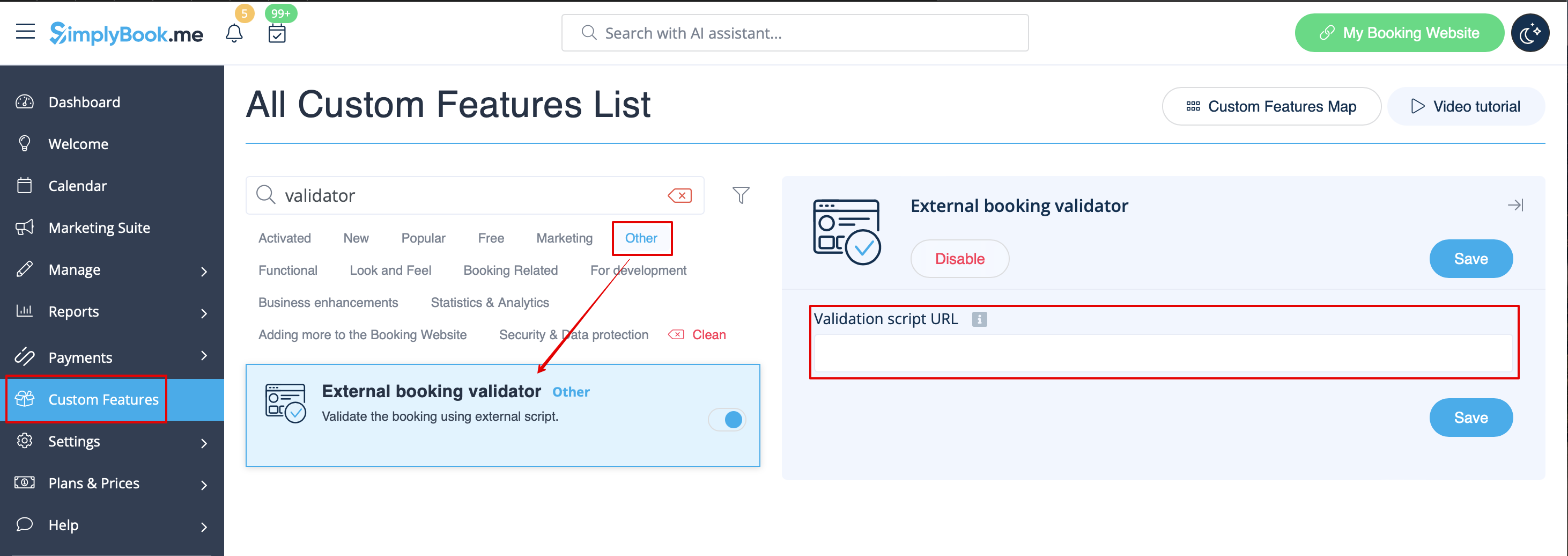
- 3. Insert your script to this feature settings on the Custom Features page and save.
- Script example is available here.
