No edit summary |
Updating to match new version of source page |
||
| Line 32: | Line 32: | ||
• ''Nouvelle facture'' – déclenchée lorsqu’une facture est créée et payée (fonctionnalité d’acceptation des paiements activée). | • ''Nouvelle facture'' – déclenchée lorsqu’une facture est créée et payée (fonctionnalité d’acceptation des paiements activée). | ||
<div class="mw-translate-fuzzy"> | |||
<br><br> | <br><br> | ||
</div> | |||
<div class="mw-translate-fuzzy"> | |||
;'''Données disponibles :''' | ;'''Données disponibles :''' | ||
<span style="background-color:#fef3de; padding:5px; border-radius:5px;">Pour les déclencheurs liés aux réservations (Nouvelle réservation, Modification, Annulation) :</span><br> | <span style="background-color:#fef3de; padding:5px; border-radius:5px;">Pour les déclencheurs liés aux réservations (Nouvelle réservation, Modification, Annulation) :</span><br> | ||
| Line 71: | Line 74: | ||
* Méthode de paiement (différé, espèces, carte, virement) ; | * Méthode de paiement (différé, espèces, carte, virement) ; | ||
* Statut du paiement (payé, en attente) et si le paiement a été reçu. | * Statut du paiement (payé, en attente) et si le paiement a été reçu. | ||
</div> | |||
<div class="mw-translate-fuzzy"> | |||
<br><br> | <br><br> | ||
;Comment l'utiliser : | ;Comment l'utiliser : | ||
| Line 102: | Line 107: | ||
[[File:Zapier redesigned enable zap.png|1200px|border | center|link=https://help.simplybook.me/images/9/9b/Zapier_redesigned_enable_zap.png]] | [[File:Zapier redesigned enable zap.png|1200px|border | center|link=https://help.simplybook.me/images/9/9b/Zapier_redesigned_enable_zap.png]] | ||
<br><br> | <br><br> | ||
</div> | |||
<div lang="en" dir="ltr" class="mw-content-ltr"> | |||
:2. Connect to your Zapier account using the ‘’’Quick connect’’’ option | |||
[[File:Quick connect zapier.png|1200px|border | center|link=https://help.simplybook.me/images/8/84/Quick_connect_zapier.png]] | |||
<br><br> | |||
:3. Or you can choose a manual connection by credentials. | |||
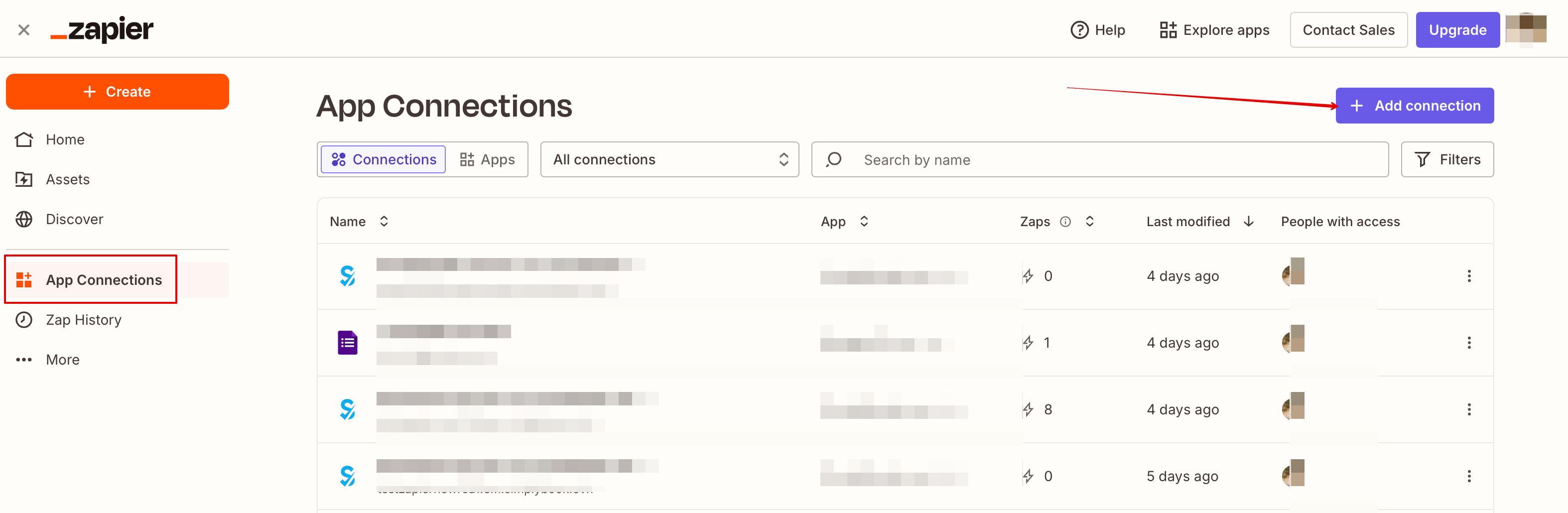
- Go to Zapier.com -> App connections page and click on “Add connection” button<br> | |||
[[File:Add connection zapeir side.png|1200px|border | center|link=https://help.simplybook.me/images/c/c2/Add_connection_zapeir_side.png]] | |||
<br><br> | |||
- Select SimplyBook.me<br> | |||
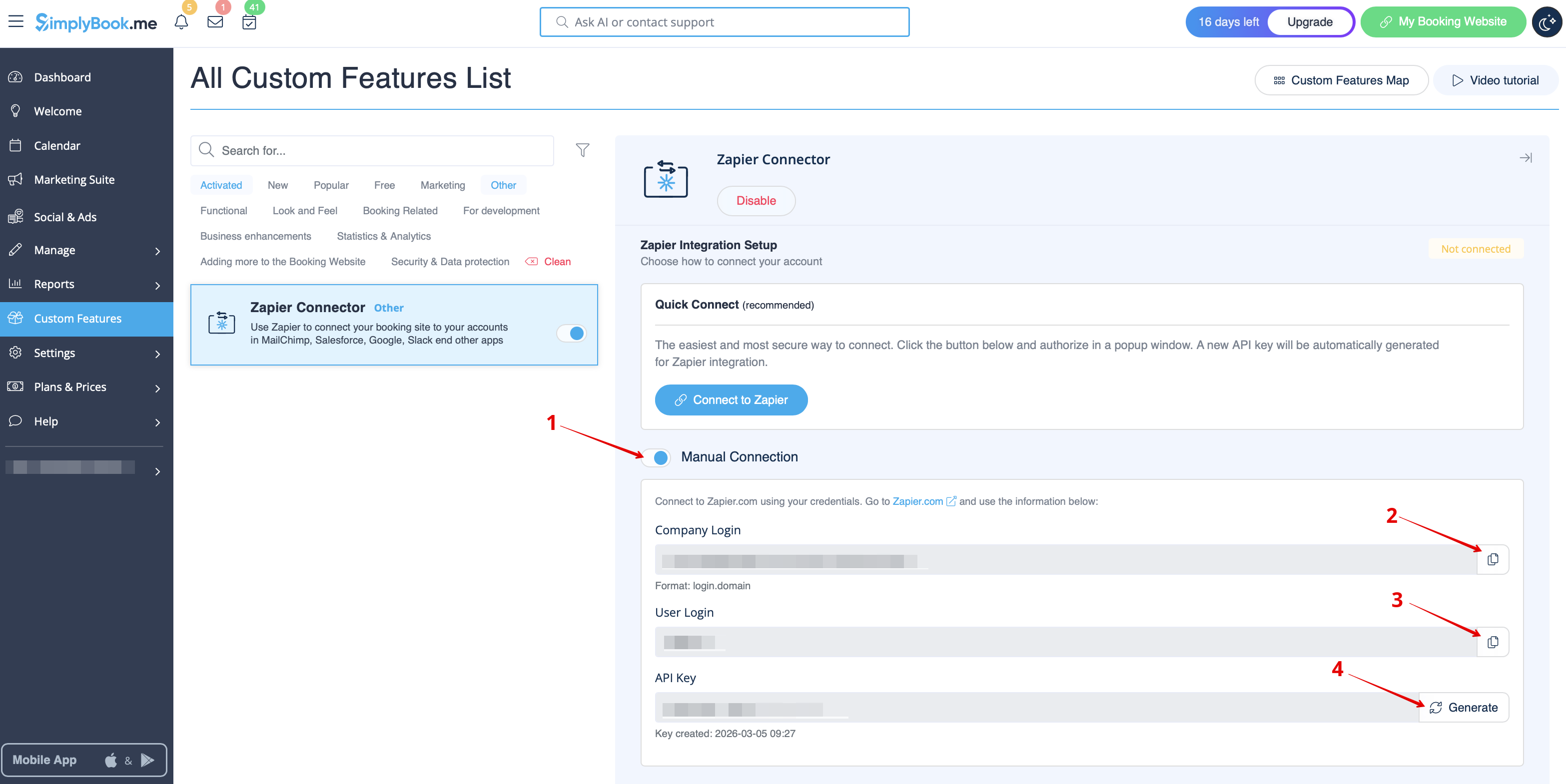
- Copy company login, user login, generate and copy API key from your SimpyBook.me account<br> | |||
[[File:Zapier manual connection new.png|1200px|border | center|link=https://help.simplybook.me/images/c/c3/Zapier_manual_connection_new.png]] | |||
<br><br> | |||
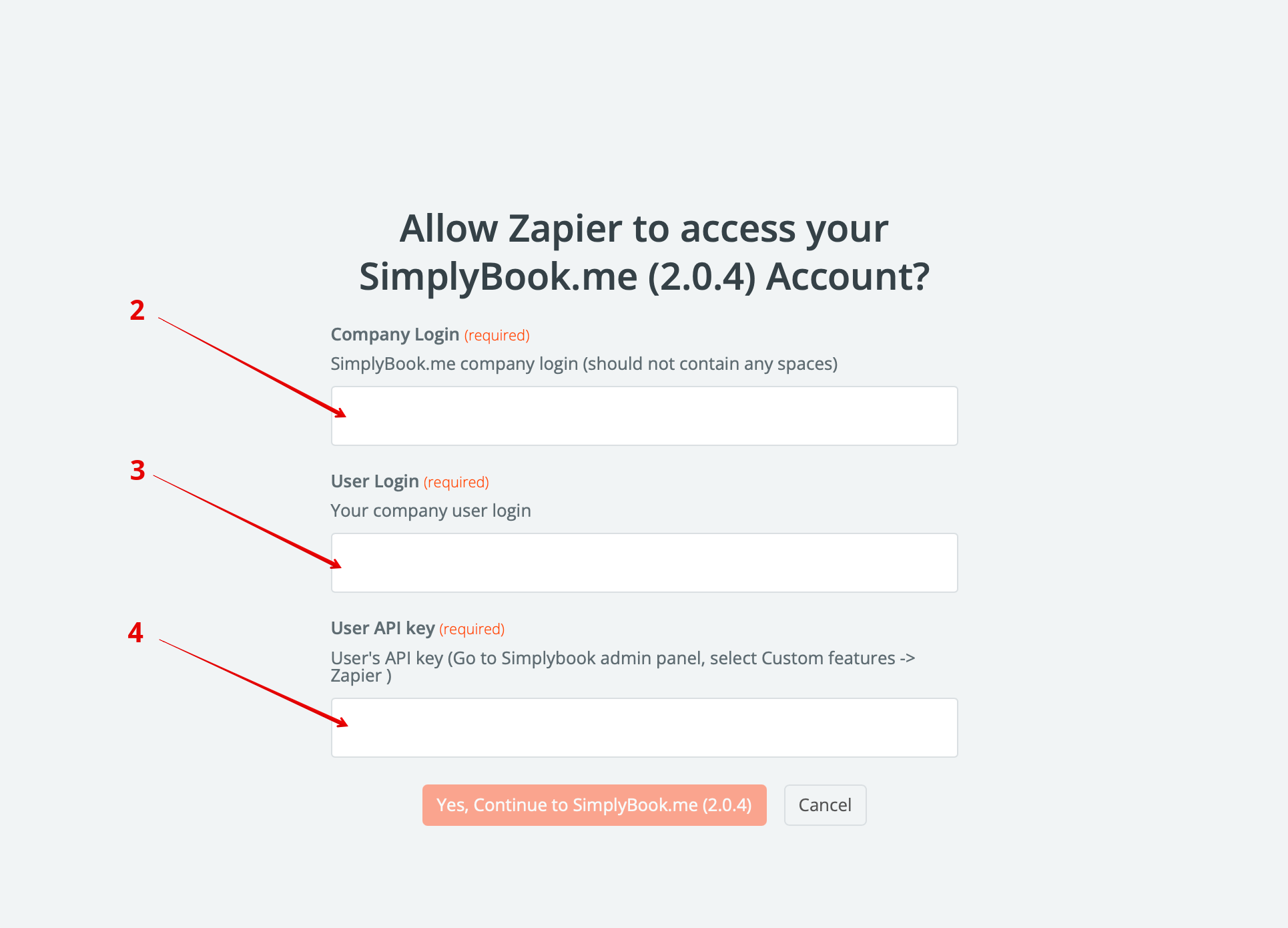
- Paste them to the corresponding fields on Zapier.com side and click on “Continue” option there. The account gets connected. | |||
[[File:Credentials on zapier side new.png|1200px|border | center|link=https://help.simplybook.me/images/e/e9/Credentials_on_zapier_side_new.png]] | |||
<br><br> | |||
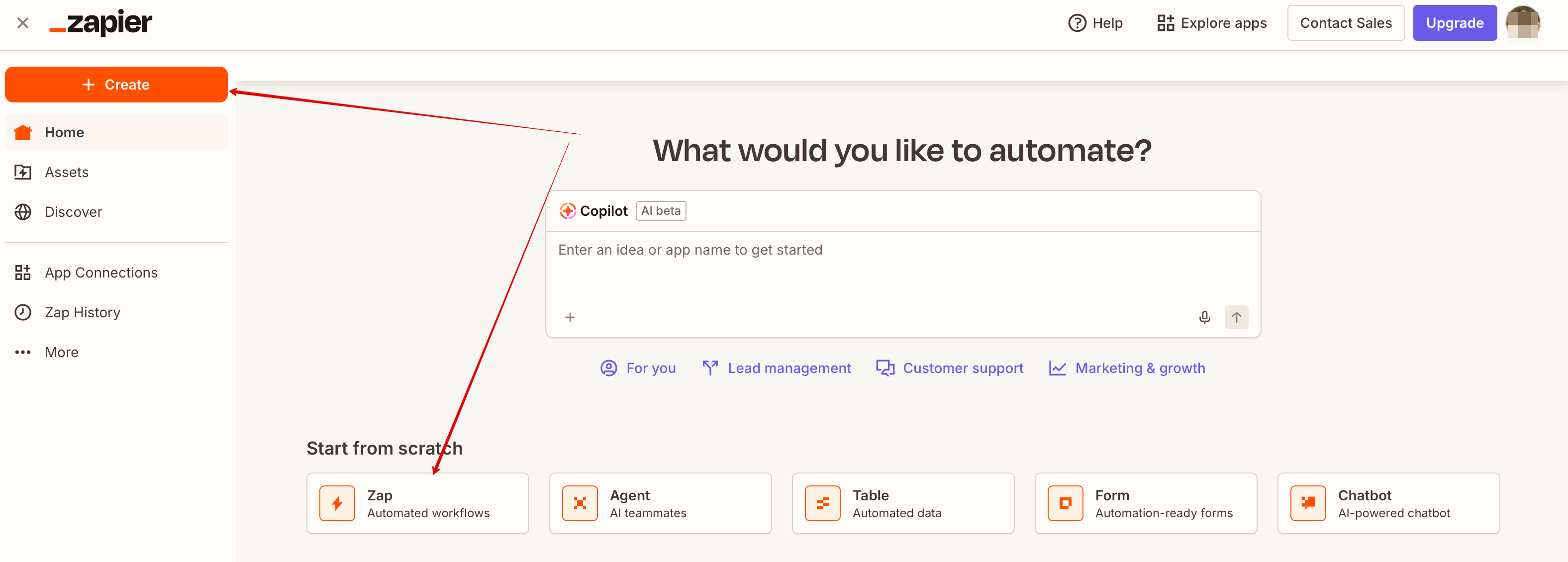
:4. Now you can create a new Zap by clicking on <span style="background-color:#d4f8e5; padding:5px; border-radius:5px;">Create</span> button in Zapier interface. | |||
[[File:Create new zap updated.png|1200px|border| center|link=https://help.simplybook.me/images/6/60/Create_new_zap_updated.png]] | |||
<br><br> | |||
:5. Look for Simplybook in <span style="background-color:#d4f8e5; padding:5px; border-radius:5px;">Trigger step.</span> | |||
[[File:Zapier redesigned select trigger app.png|1200px|border | center|link=https://help.simplybook.me/images/c/c1/Zapier_redesigned_select_trigger_app.png]] | |||
<br><br> | |||
:6. Select the desirable trigger. | |||
[[File:Zapier redesigned choose trigger event.png|1200px|border | center|link=https://help.simplybook.me/images/9/94/Zapier_redesigned_choose_trigger_event.png]] | |||
<br><br> | |||
:7. Connect SimplyBook.me account. | |||
[[File:Zapier redesigned connect simplybook account.png|1200px|border | center|link=https://help.simplybook.me/images/2/24/Zapier_redesigned_connect_simplybook_account.png]] | |||
<br><br> | |||
:8. Click <span style="background-color:#d4f8e5; padding:5px; border-radius:5px;">Continue</span> to test this step. | |||
[[File:Zapier redesigned continue to test trigger step.png|1200px|border | center|link=https://help.simplybook.me/images/b/be/Zapier_redesigned_continue_to_test_trigger_step.png]] | |||
<br><br> | |||
:9. Proceed to adding the Action step and search for the app you wish to connect SimplyBook.me to. | |||
[[File:Zapier redesigned search for the action app.png|1200px|border | center|link=https://help.simplybook.me/images/9/95/Zapier_redesigned_search_for_the_action_app.png]] | |||
<br><br> | |||
:10. Connect this application account and setup the template using the available data mentioned above. | |||
<br><br> | |||
:11. You can test this step operation as well if necessary or skip it. | |||
<br><br> | |||
:12. Finish the setup, add Zap name and turn it on. | |||
[[File:Zapier redesigned enable zap.png|1200px|border | center|link=https://help.simplybook.me/images/9/9b/Zapier_redesigned_enable_zap.png]] | |||
<br><br> | |||
</div> | |||
Revision as of 08:56, 16 March 2026

Connectez SimplyBook.me à des centaines d'autres solutions grâce à cette fonctionnalité. Elle contient une variété de déclencheurs qui peuvent être utilisés pour envoyer des informations à d'autres solutions en utilisant simplement l'un des zaps disponibles ou en créant un nouveau zap. Zapier permet d'intégrer deux ou plusieurs applications web via leurs API grâce à des « déclencheurs » et des « actions ». SimplyBook.me est disponible dans Zapier en tant qu'application déclencheur, ce qui signifie que seules les informations provenant de SimplyBook.me sont envoyées à Zapier (intégration unidirectionnelle) et via Zapier à toute application disposant d'actions.
Remarque importante :
- Les données disponibles dépendent des fonctionnalités personnalisées activées ;
- Ne fonctionne pas si l’authentification à deux facteurs est activée (HIPAA ou Google Authenticator) ;
- Le déclencheur « Nouveau client » ne fonctionne pas avec la fonctionnalité Importer des clients, mais fonctionne correctement lorsqu’un client est ajouté manuellement dans l’interface d’administration ;
- Les informations liées aux abonnements, promotions, forfaits, ou produits ne sont pas envoyées car elles concernent la facture et non la réservation ;
- Les modifications de commentaires ne déclenchent aucune action ;
- Pour utiliser les déclencheurs de modification ou d’annulation de réservation et mettre à jour les données dans l’application Action, un compte payant Zapier est requis (vérifiez leurs tarifs et si les zaps multi-étapes sont inclus), car une étape de recherche est nécessaire ;
- Si des éléments sont ajoutés dans l’interface admin après la création du zap, cliquez sur « Get more samples » à l’étape Trigger -> « Test this step » dans Zapier pour obtenir les nouveaux champs disponibles (le modèle de zap devra être modifié) ;
- Les données de facturation peuvent être envoyées avec le déclencheur « Nouvelle facture » ;
- Les données SOAP ne sont pas transmises ;
- Les informations fiscales (TVA) ne sont pas envoyées ; le prix du service est indiqué sans taxes ;
- Cela ne fonctionne pas si les fonctionnalités Accepter les paiements et Approuver les réservations sont activées et que des réservations groupées sont partiellement approuvées.
6 déclencheurs sont disponibles :
• Nouvelle réservation – déclenchée lorsqu’une nouvelle réservation est créée ;
• Modification de réservation – déclenchée lorsqu’une réservation est modifiée (date/heure/service/fournisseur/statut/formulaires) ;
• Annulation de réservation – déclenchée lorsqu’une réservation est annulée ;
• Nouveau client – déclenchée lorsqu’un nouveau client est ajouté, via une réservation ou manuellement par l’administrateur ;
• Nouvelle offre – déclenchée lorsqu’une offre est créée (nécessite que la fonctionnalité Accepter les paiements soit activée) ;
• Nouvelle facture – déclenchée lorsqu’une facture est créée et payée (fonctionnalité d’acceptation des paiements activée).
- Données disponibles :
Pour les déclencheurs liés aux réservations (Nouvelle réservation, Modification, Annulation) :
Fonctionnalité de base (sans modules personnalisés) :
- Entreprise (identifiant, nom, email, téléphone),
- Service (nom, description, durée, temps tampon),
- Fournisseur (nom, description, email, téléphone),
- Informations client (nom, email, téléphone, adresse, fuseau horaire),
- Code de réservation (si confirmé, date/heure de début et de fin).
Données issues des fonctionnalités personnalisées :
- Accepter les paiements (prix du service, devise) ;
- Statut (nom, description, couleur) ;
- Approuver les réservations (statut d’approbation : approuvé ou annulé) ;
- Multi-sites (nom de l’emplacement, adresse (avec coordonnées), téléphone, description) ;
- Catégories de services (nom, description) ;
- Compléments de service (nom, prix) ;
- Formulaires personnalisés (réponses).
Pour le déclencheur "Nouveau client" :
- ID client ;
- Nom ;
- Email ;
- Téléphone ;
- Adresse ;
- Si le client est bloqué (si la fonctionnalité Connexion client est activée) ;
- Date d’enregistrement.
Pour les déclencheurs "Nouvelle offre" / "Nouvelle facture" :
- ID de commande ;
- Nom / email / téléphone du client ;
- Description de l’offre / facture (liste des articles, informations de réduction : carte cadeau / coupon / forfait utilisé) ;
- Montant de la commande et devise ;
- Montant de la réduction ;
- Date et heure de la commande ;
- Numéro de l’offre ou de la facture dans SimplyBook.me (O-XXXXXX ou I-XXXXXX) ;
- Méthode de paiement (différé, espèces, carte, virement) ;
- Statut du paiement (payé, en attente) et si le paiement a été reçu.
- Comment l'utiliser
- 1. Activez la fonctionnalité personnalisée Connecteur Zapier sur la page Fonctionnalités personnalisées de SimplyBook.me.

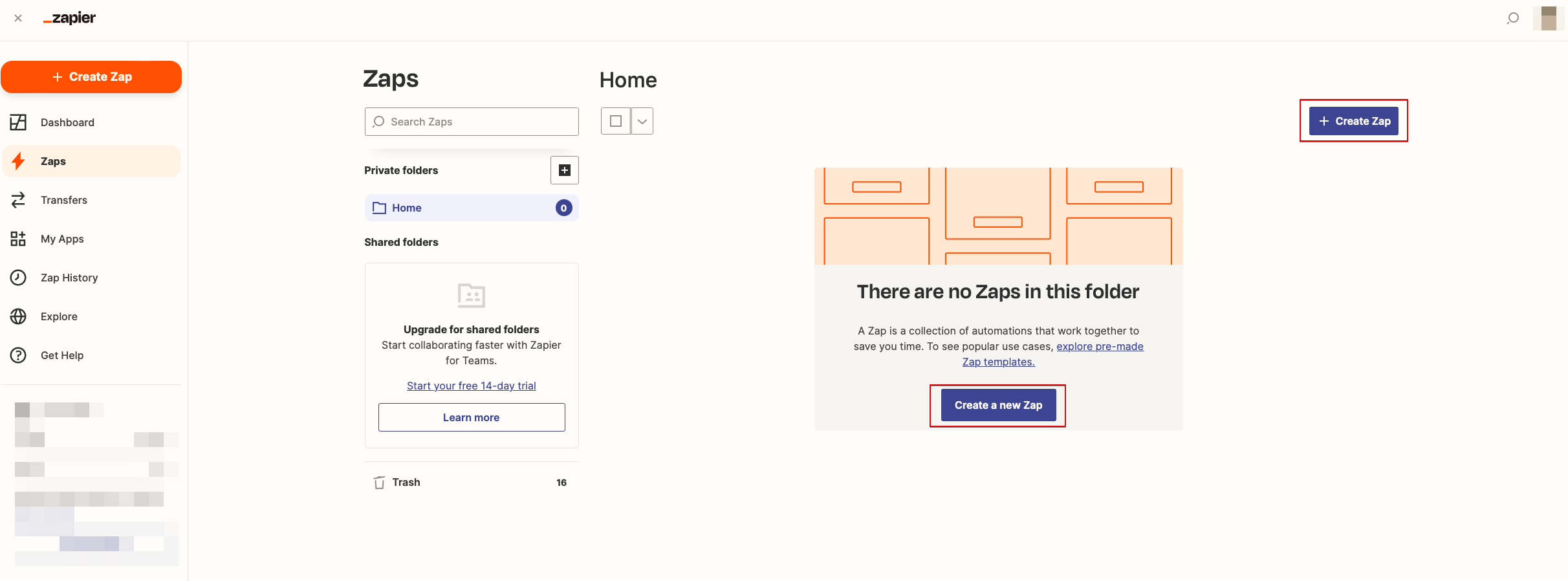
- 2. Créez un nouveau Zap en cliquant sur le bouton Make a Zap dans Zapier.
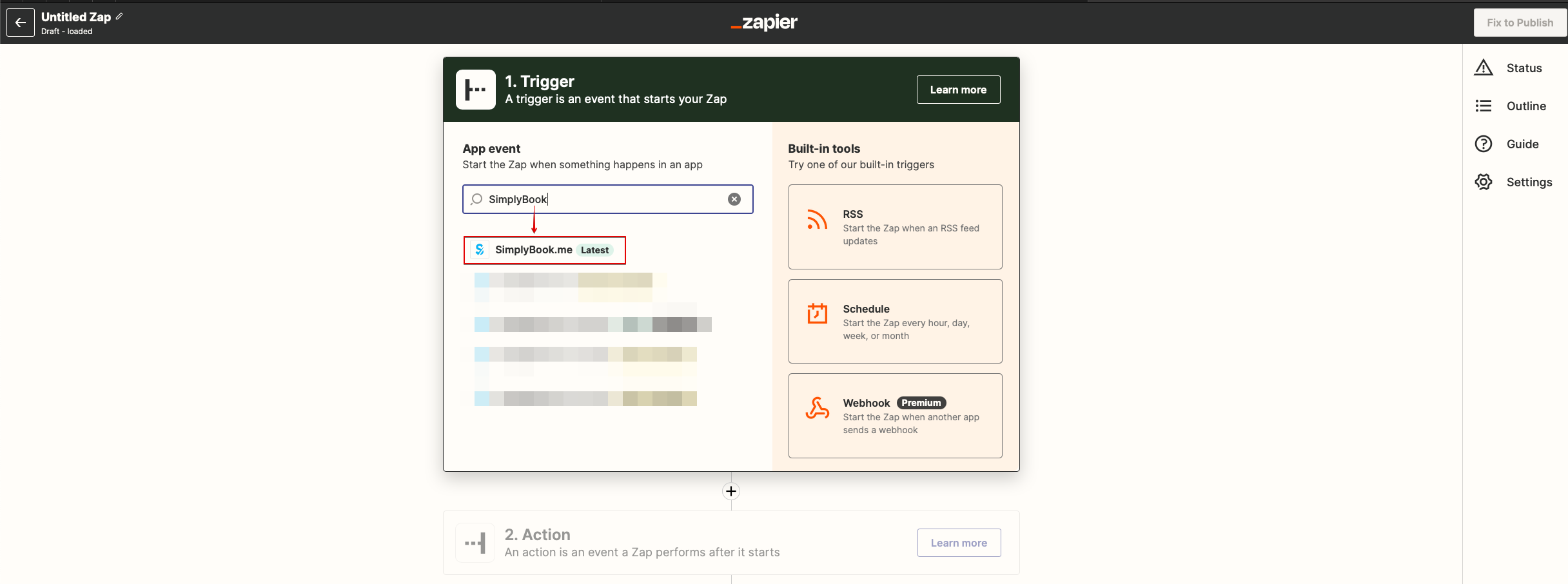
- 3. Recherchez SimplyBook dans l’étape Trigger.
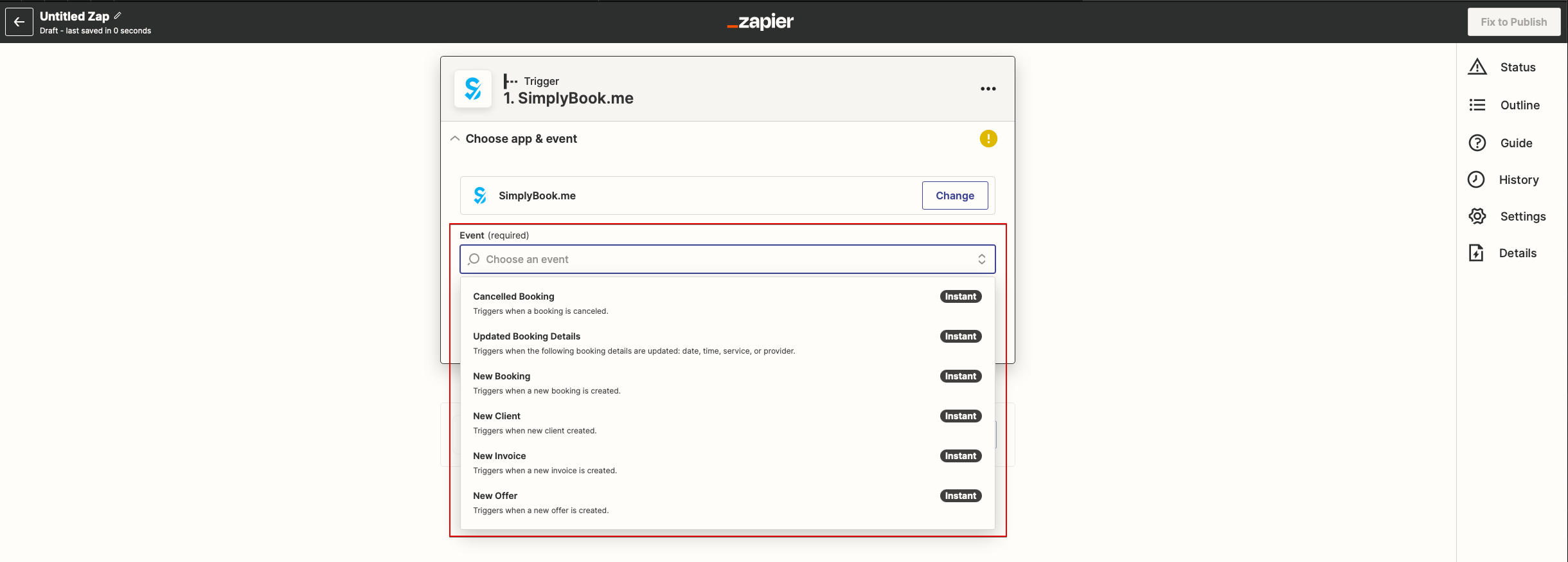
- 4. Sélectionnez le déclencheur souhaité.
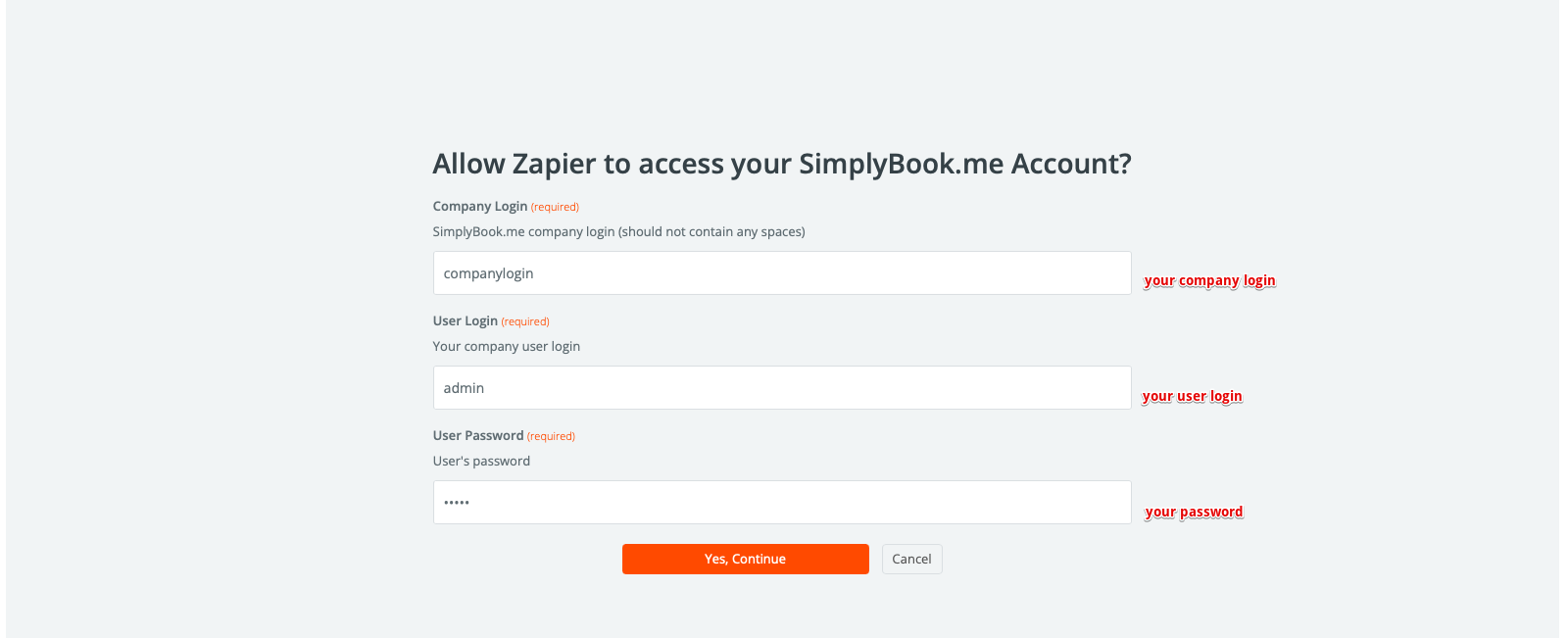
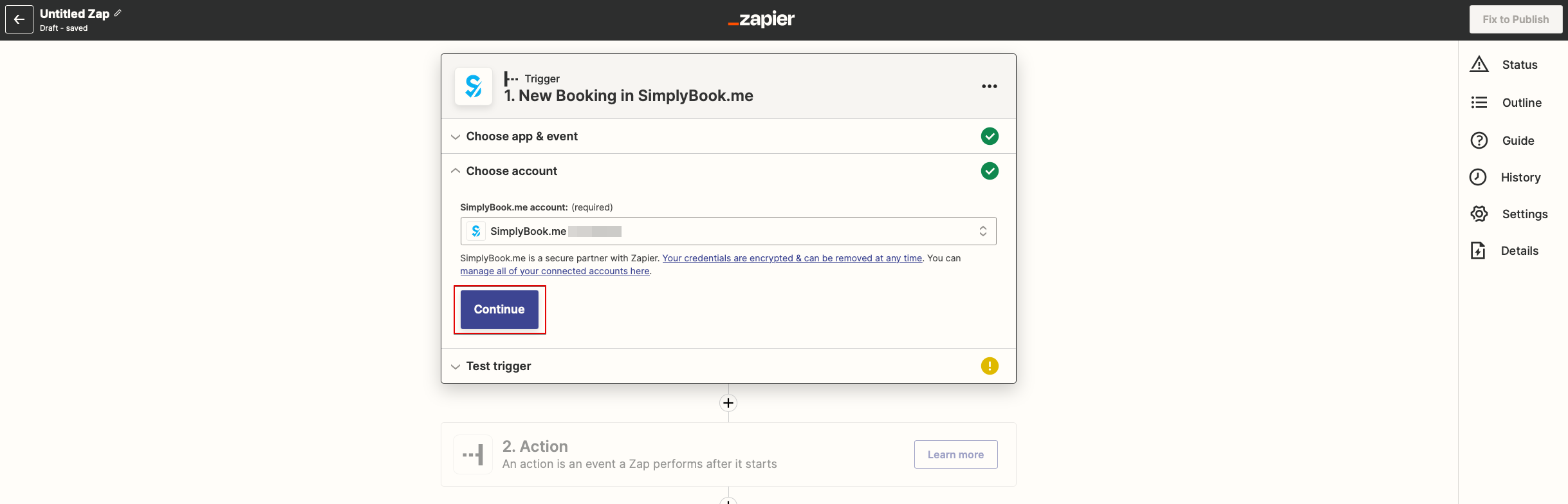
- 5. Connectez votre compte SimplyBook.me.
- 6. Cliquez sur Continuer pour tester cette étape.
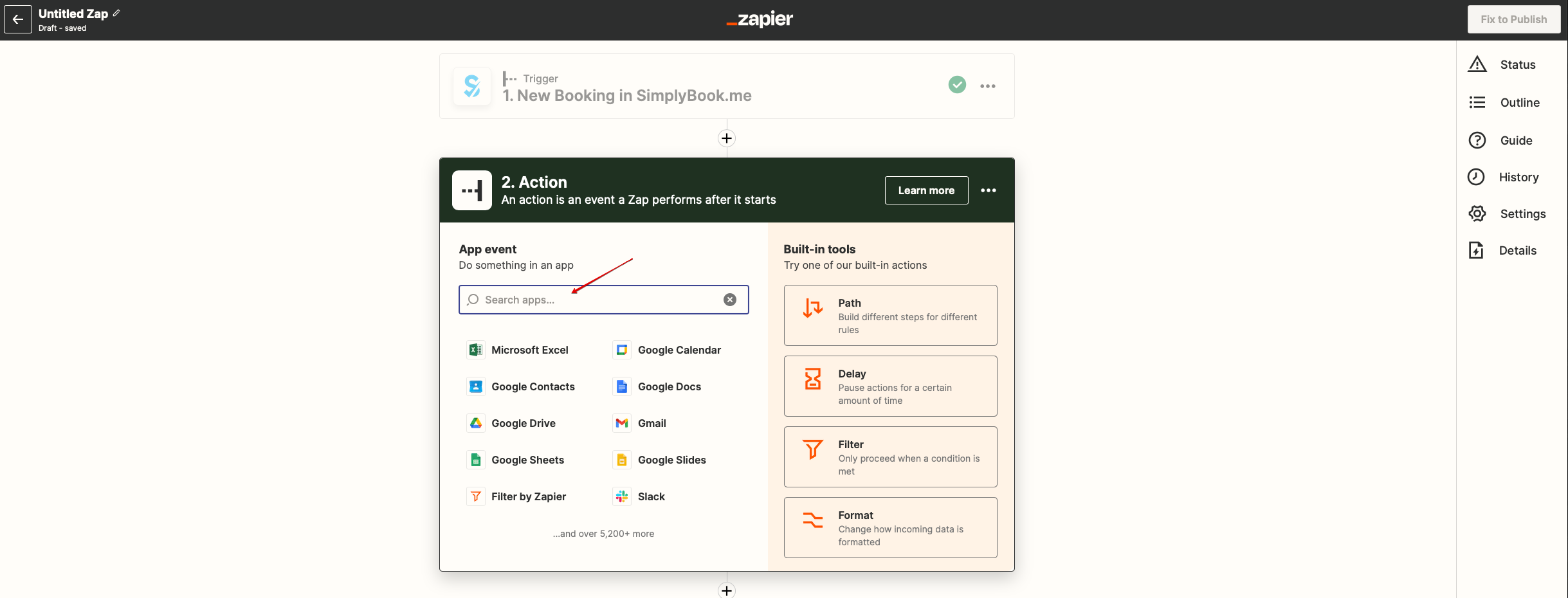
- 7. Ajoutez l’étape d’action et recherchez l’application à connecter.
- 8. Connectez le compte de cette application et configurez le modèle à l’aide des données disponibles mentionnées ci-dessus.
- 9. Testez cette étape si nécessaire ou passez-la.
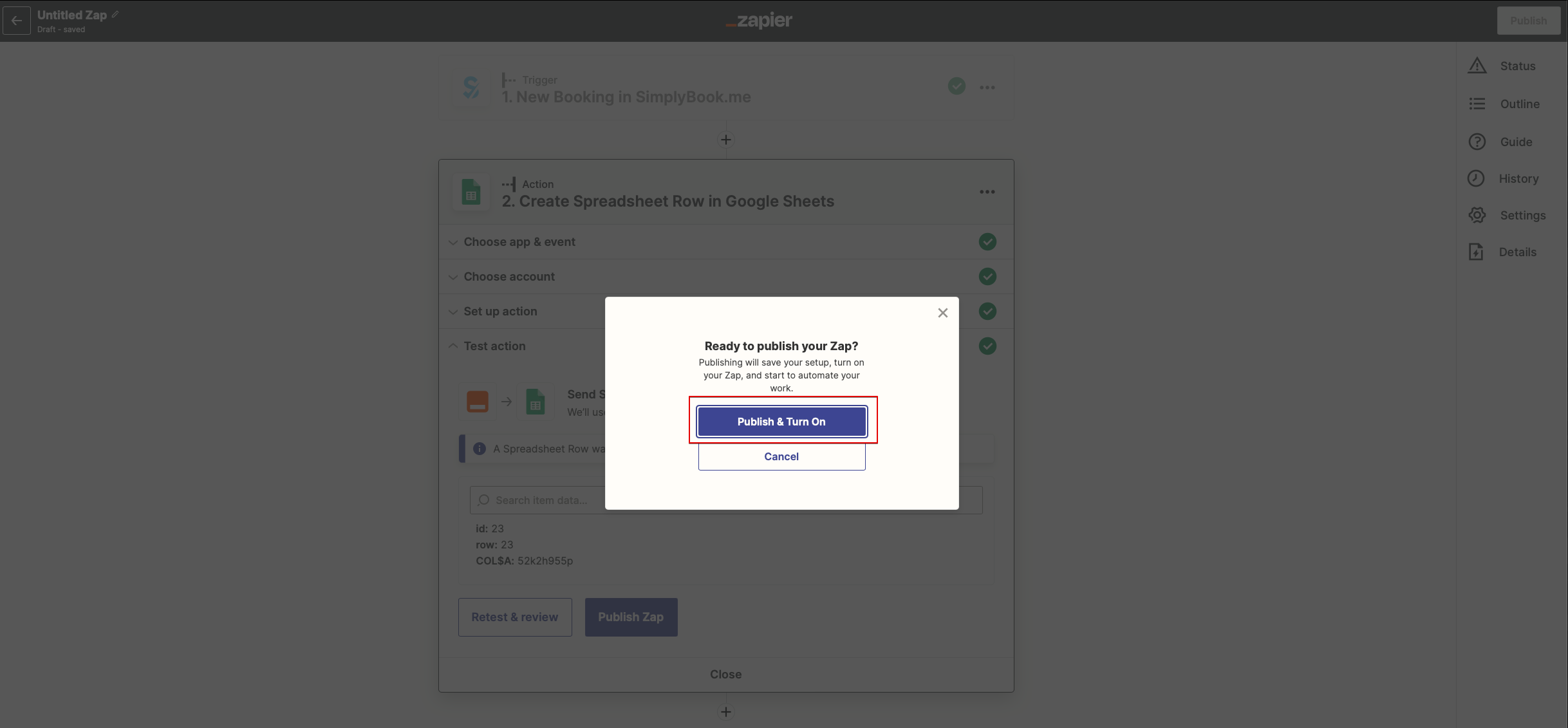
- 10. Finalisez la configuration, nommez votre Zap et activez-le.
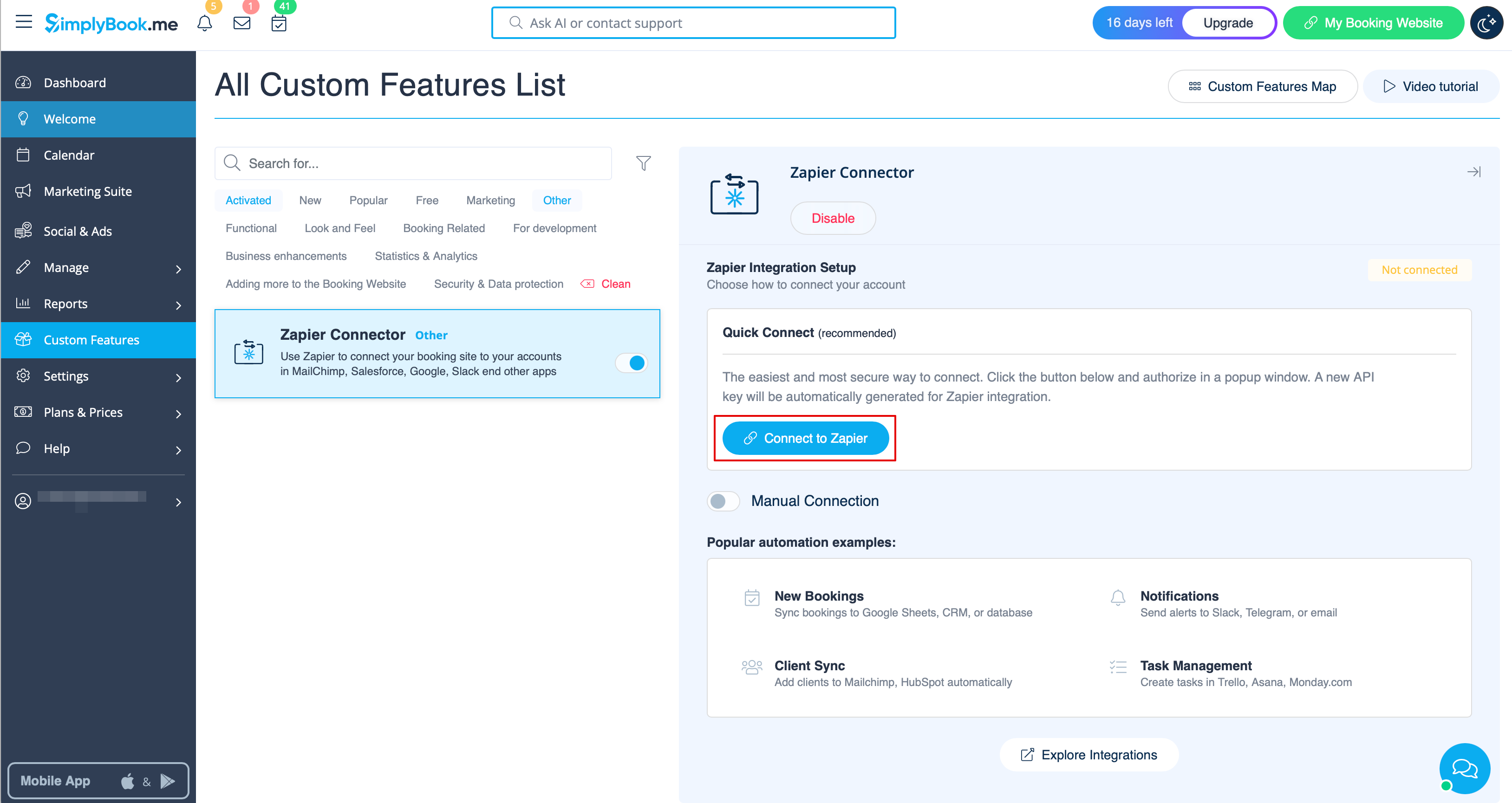
- 2. Connect to your Zapier account using the ‘’’Quick connect’’’ option
- 3. Or you can choose a manual connection by credentials.
- Go to Zapier.com -> App connections page and click on “Add connection” button
- Select SimplyBook.me
- Copy company login, user login, generate and copy API key from your SimpyBook.me account
- Paste them to the corresponding fields on Zapier.com side and click on “Continue” option there. The account gets connected.
- 4. Now you can create a new Zap by clicking on Create button in Zapier interface.
- 5. Look for Simplybook in Trigger step.
- 6. Select the desirable trigger.
- 7. Connect SimplyBook.me account.
- 8. Click Continue to test this step.
- 9. Proceed to adding the Action step and search for the app you wish to connect SimplyBook.me to.
- 10. Connect this application account and setup the template using the available data mentioned above.
- 11. You can test this step operation as well if necessary or skip it.
- 12. Finish the setup, add Zap name and turn it on.
