No edit summary |
No edit summary |
||
| Line 48: | Line 48: | ||
<!--T:5--> | <!--T:5--> | ||
<br><br> | <br><br> | ||
‘’’6 actions’’’ can now be used: | ‘’’6 actions’’’ can now be used:<br> | ||
- ‘’Get booking’’ - allows to get booking details by id | - ‘’Get booking’’ - allows to get booking details by id<br> | ||
- ‘’Get client’’ - allows to get client details by id | - ‘’Get client’’ - allows to get client details by id<br> | ||
- ‘’Create booking’’ - allows to create a new booking record | - ‘’Create booking’’ - allows to create a new booking record<br> | ||
- ‘’Create client’’ - allows to create a new client record | - ‘’Create client’’ - allows to create a new client record<br> | ||
- ‘’Cancel booking’’ - allows to cancel booking by id | - ‘’Cancel booking’’ - allows to cancel booking by id<br> | ||
<!--T:6--> | <!--T:6--> | ||
| Line 106: | Line 106: | ||
<br><br> | <br><br> | ||
:3. Or you can choose a manual connection by credentials. | :3. Or you can choose a manual connection by credentials. | ||
- Go to Zapier.com -> App connections page and click on “Add connection” button | - Go to Zapier.com -> App connections page and click on “Add connection” button<br> | ||
[[File:Add connection zapeir side.png|1200px|border | center|link=https://help.simplybook.me/images/c/c2/Add_connection_zapeir_side.png]] | [[File:Add connection zapeir side.png|1200px|border | center|link=https://help.simplybook.me/images/c/c2/Add_connection_zapeir_side.png]] | ||
<br><br> | <br><br> | ||
- Select SimplyBook.me | - Select SimplyBook.me<br> | ||
- Copy company login, user login, generate and copy API key from your SimpyBook.me account | - Copy company login, user login, generate and copy API key from your SimpyBook.me account<br> | ||
[[File:Zapier manual connection new.png|1200px|border | center|link=https://help.simplybook.me/images/c/c3/Zapier_manual_connection_new.png]] | [[File:Zapier manual connection new.png|1200px|border | center|link=https://help.simplybook.me/images/c/c3/Zapier_manual_connection_new.png]] | ||
<br><br> | <br><br> | ||
- Paste them to the corresponding fields on Zapier.com side and click on “Continue” option there. | - Paste them to the corresponding fields on Zapier.com side and click on “Continue” option there. The account gets connected. | ||
[[File:Credentials on zapier side new.png|1200px|border | center|link=https://help.simplybook.me/images/e/e9/Credentials_on_zapier_side_new.png]] | [[File:Credentials on zapier side new.png|1200px|border | center|link=https://help.simplybook.me/images/e/e9/Credentials_on_zapier_side_new.png]] | ||
<br><br> | <br><br> | ||
Revision as of 11:28, 10 March 2026

Connect SimplyBook.me with hundreds of other solutions using this feature. It contains a variety of triggers that can be used to send information to other solutions by simply using one of the available zaps or by creating a new zap. Zapier allows to integrate 2 or more web-applications via their APIs through “triggers” and “actions”. SimplyBook.me is available in Zapier as Trigger app, it means only information from SimplyBook.me is sent to Zapier (1-way integration) and via Zapier to any app that has actions.
Please note!
- Available data depends on custom features enabled;
- It doesn't work if 2-step authentication is enabled (HIPAA or Google Authenticator);
- New client trigger doesn't work with Import clients feature, but works correctly if 1 client is added manually in admin interface;
- Information about membership/promotion/package/product used is not included as it relates to invoice and not to booking;
- Comment change doesn't launch any trigger;
- To be able to use Booking change/Booking cancellation triggers in order to change existing records in Action app you need to use paid Zapier account(please check current pricing with them and if it includes multi-step zaps), as Search step is needed to find the record in action app;
- If more items are added to admin interface after ZAP was created, you need to press "Get more samples" button at "Trigger step" -> "Test this step" in Zapier to fetch new available fields and data (zap template should be changed);
- Invoice data can be sent with New Invoice trigger;
- SOAP data is not sent;
- Tax information is not sent, service price is shown without taxes added;
- It doesn't work if both Accept payments and Approve bookings are enabled, and batch bookings are partially approved.
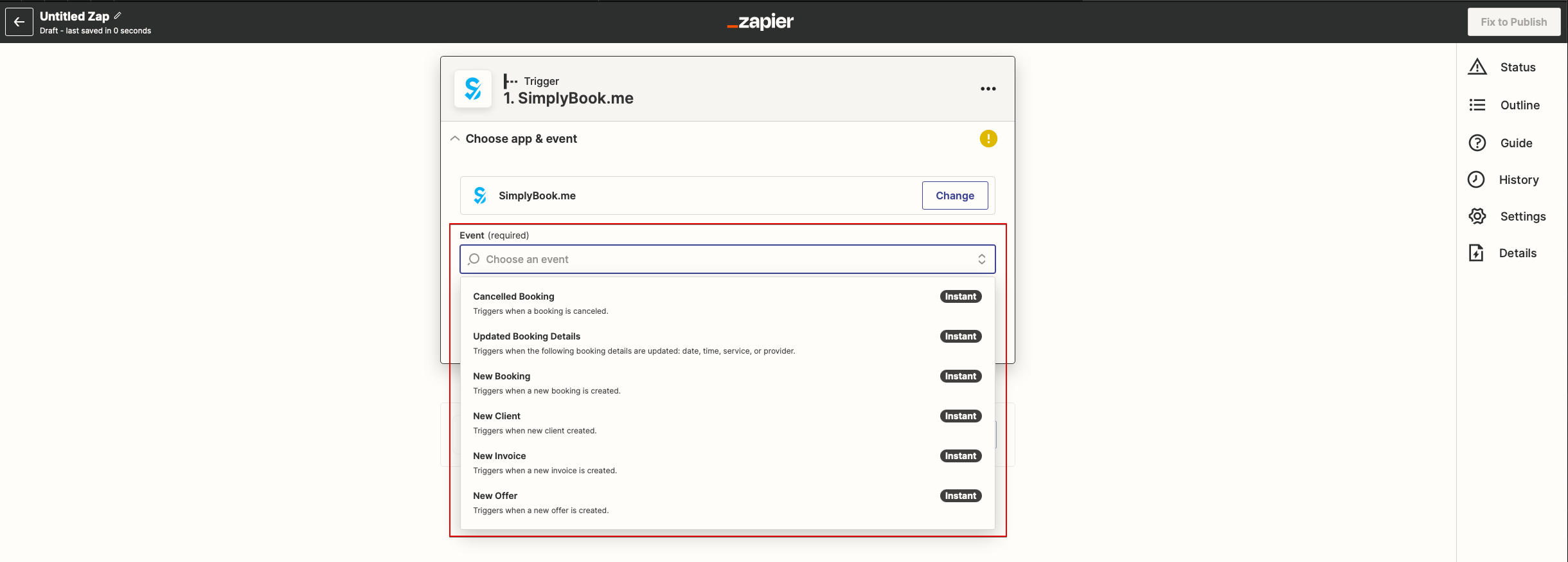
6 triggers are now available:
• New booking - launches when new booking is created in SimplyBook.me account;
• Booking change - launches when booking is changed (change of date/time/service/provider/status/intake forms answers);
• Booking cancellation - launches upon booking cancellation;
• New client - launches when new client is added, either upon a new booking, or when admin manually adds client in SimplyBook.me admin interface.
• New Offer - launches when any new offer is created on SimplyBook.me side (can be used when Accept payments custom feature is enabled).
• New Invoice - launches when new invoice is created and paid on SimplyBook.me side (can be used when Accept payments custom feature is enabled).
‘’’6 actions’’’ can now be used:
- ‘’Get booking’’ - allows to get booking details by id
- ‘’Get client’’ - allows to get client details by id
- ‘’Create booking’’ - allows to create a new booking record
- ‘’Create client’’ - allows to create a new client record
- ‘’Cancel booking’’ - allows to cancel booking by id
- Available data:
For booking-related triggers(New booking, Booking change, Booking cancellation):
Basic functionality (no custom features enabled):
- Company (login, name, email, phone),
- Service (name, description, duration, buffer time),
- Provider (name, description, email, phone),
- Client information (name, email, phone, address, timezone),
- Booking code (if booking is confirmed, start/end date/time).
Custom features related data:
- Accept payments (service price, currency);
- Status (name, description, color);
- Approve bookings (approval status: approved, canceled);
- Multiple Locations (location name, location address (with coordinates), location phone, location description);
- Service Categories (category name, category description);
- Service Add-ons (add-on name, add-on price);
- Intake Forms (answers).
For New client trigger:
- Client ID;
- Client name;
- Client email;
- Client phone;
- Client address;
- If client is blocked to login (if Client login custom feature is enabled);
- Client registration date.
For New Offer/Invoice triggers:
- Order ID;
- Client name / email / phone;
- Offer/Invoice description (list of items ordered, information about discount: gift card/coupon/package used);
- Order amount and currency;
- Discount amount;
- Order date and time;
- Offer/Invoice number in SimplyBook.me system (O-XXXXXX or I-XXXXXX);
- Payment processor (delay, cash, credit card, wire transfer);
- Payment status (paid, pending) and if payment is received.
- How to use
- 1. Enable Zapier connector custom feature on your Custom features page on SimplyBook.me side.

- 2. Connect to your Zapier account using the ‘’’Quick connect’’’ option
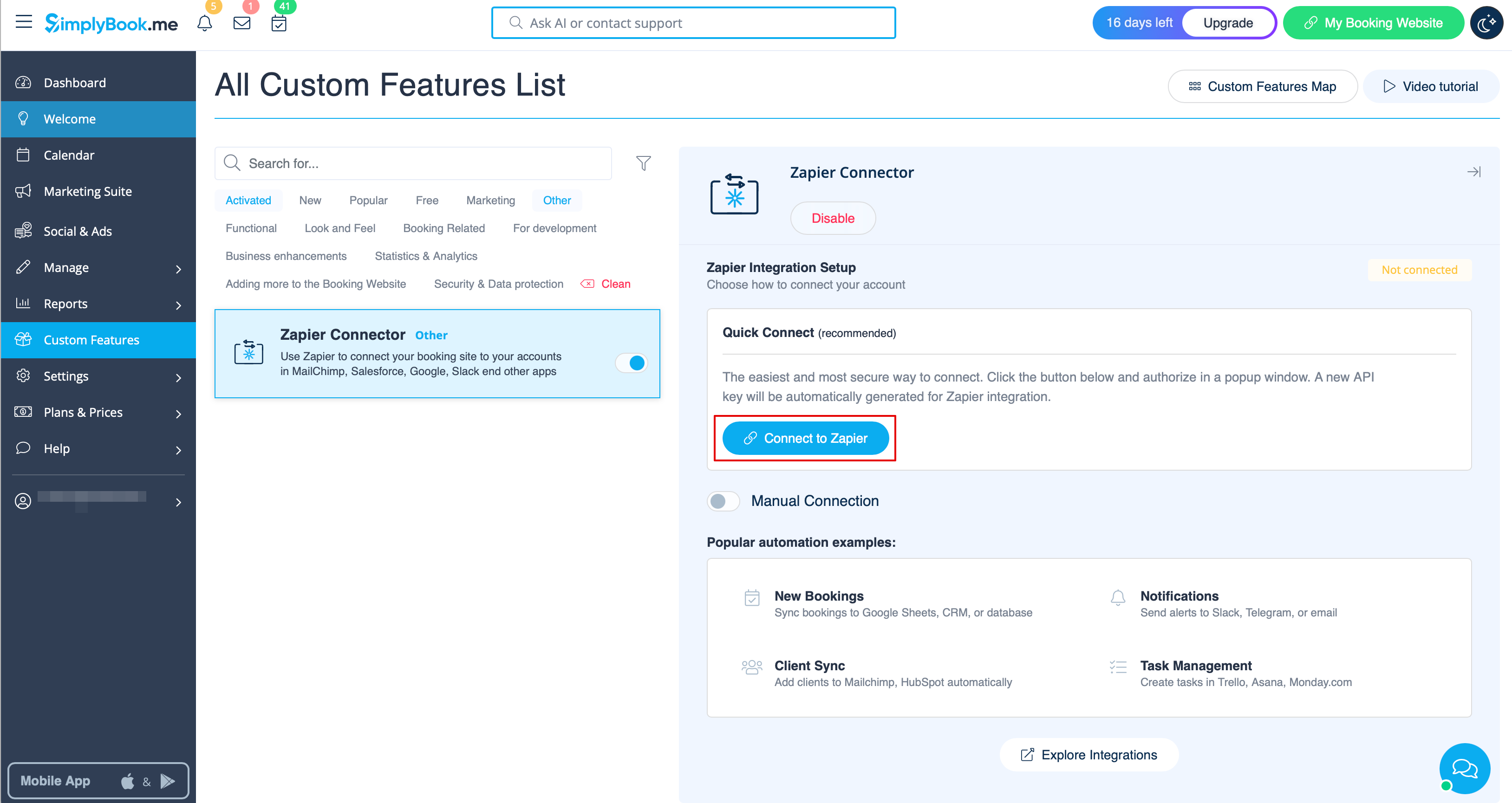
- 3. Or you can choose a manual connection by credentials.
- Go to Zapier.com -> App connections page and click on “Add connection” button
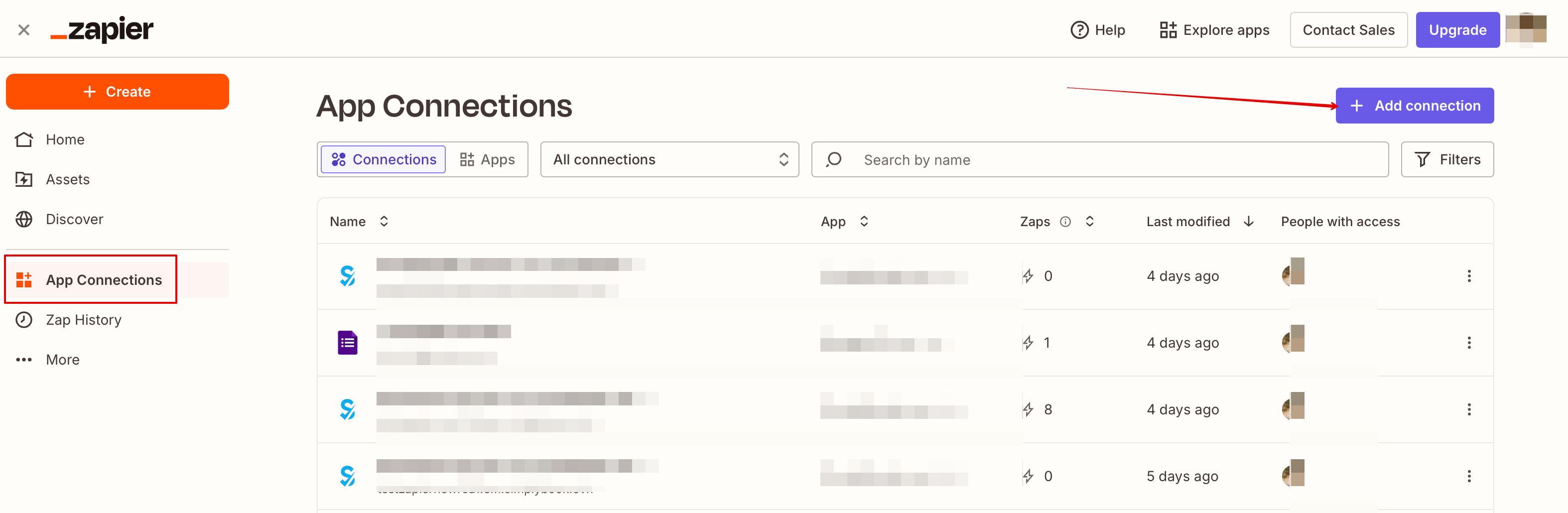
- Select SimplyBook.me
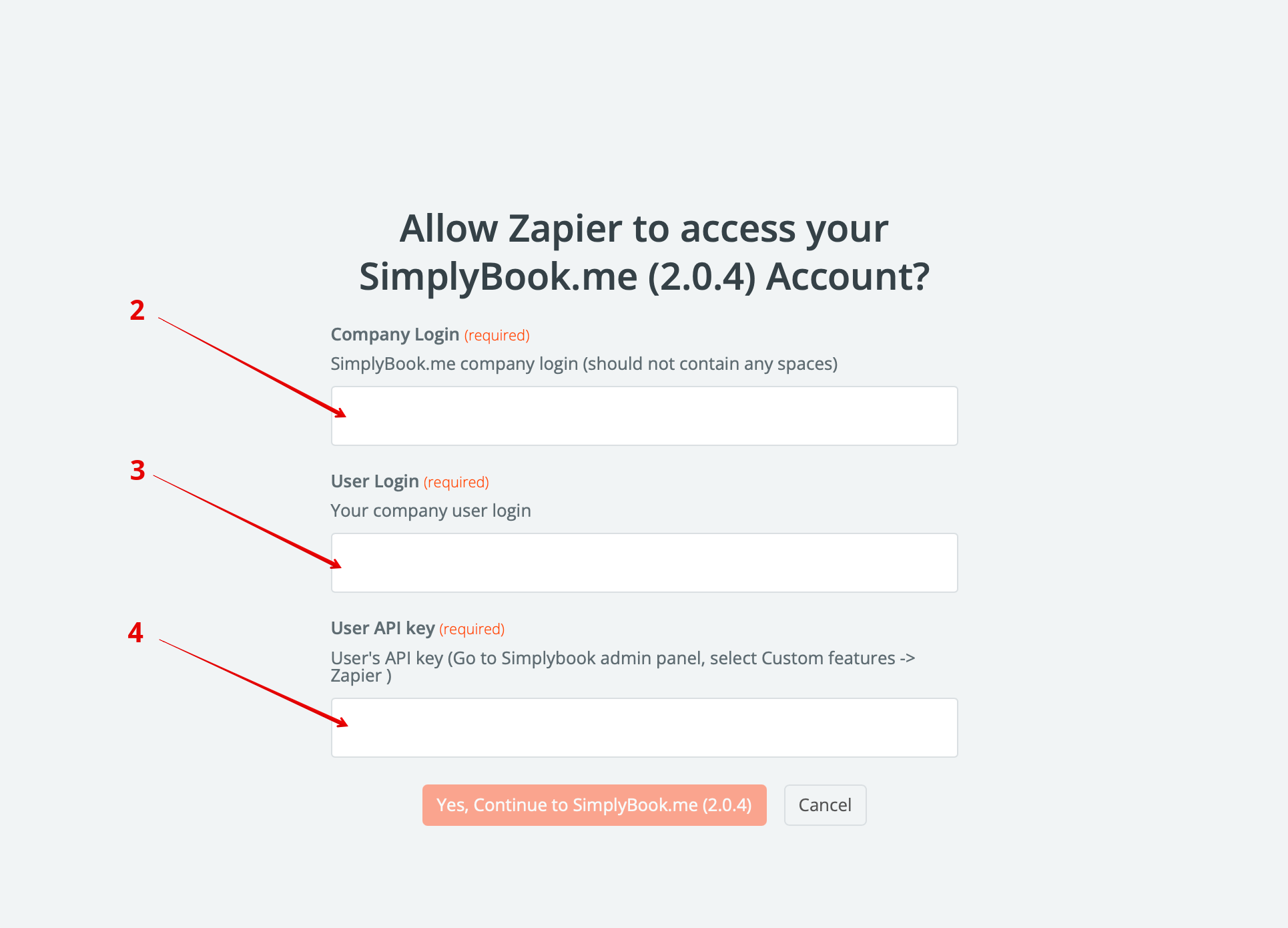
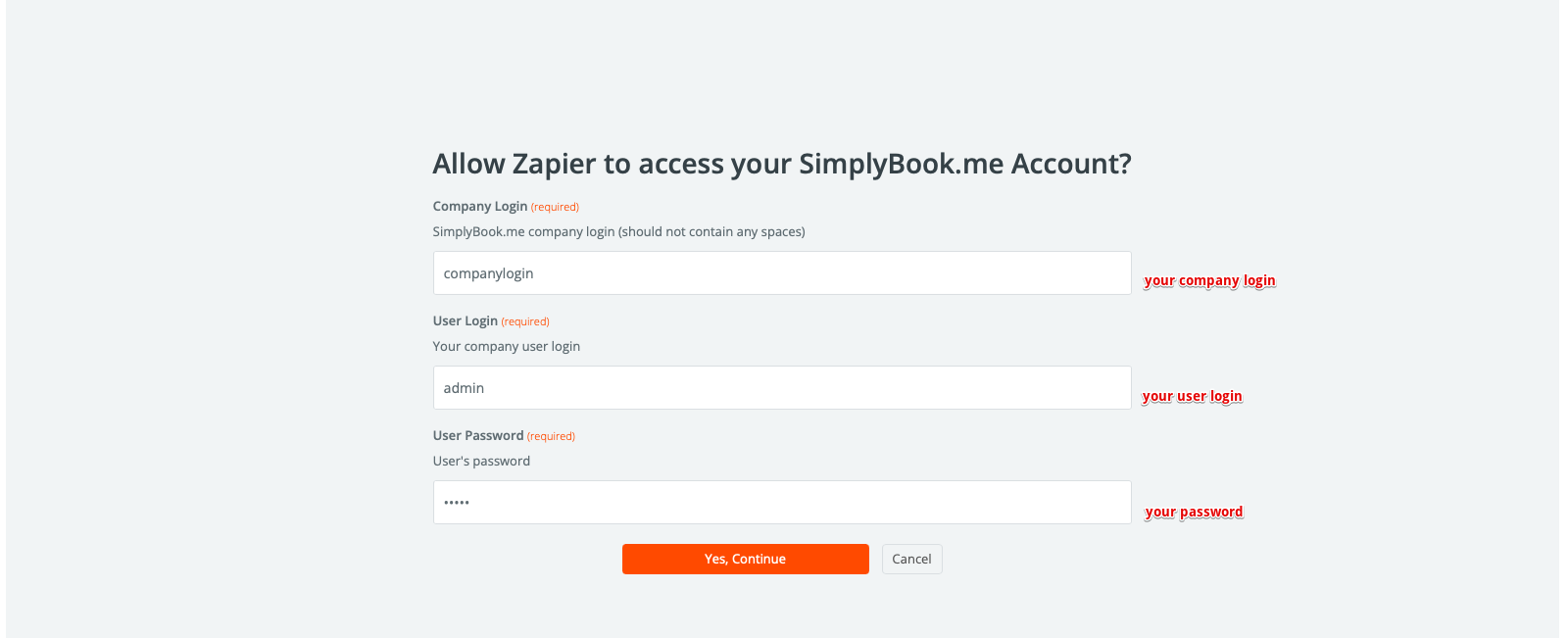
- Copy company login, user login, generate and copy API key from your SimpyBook.me account
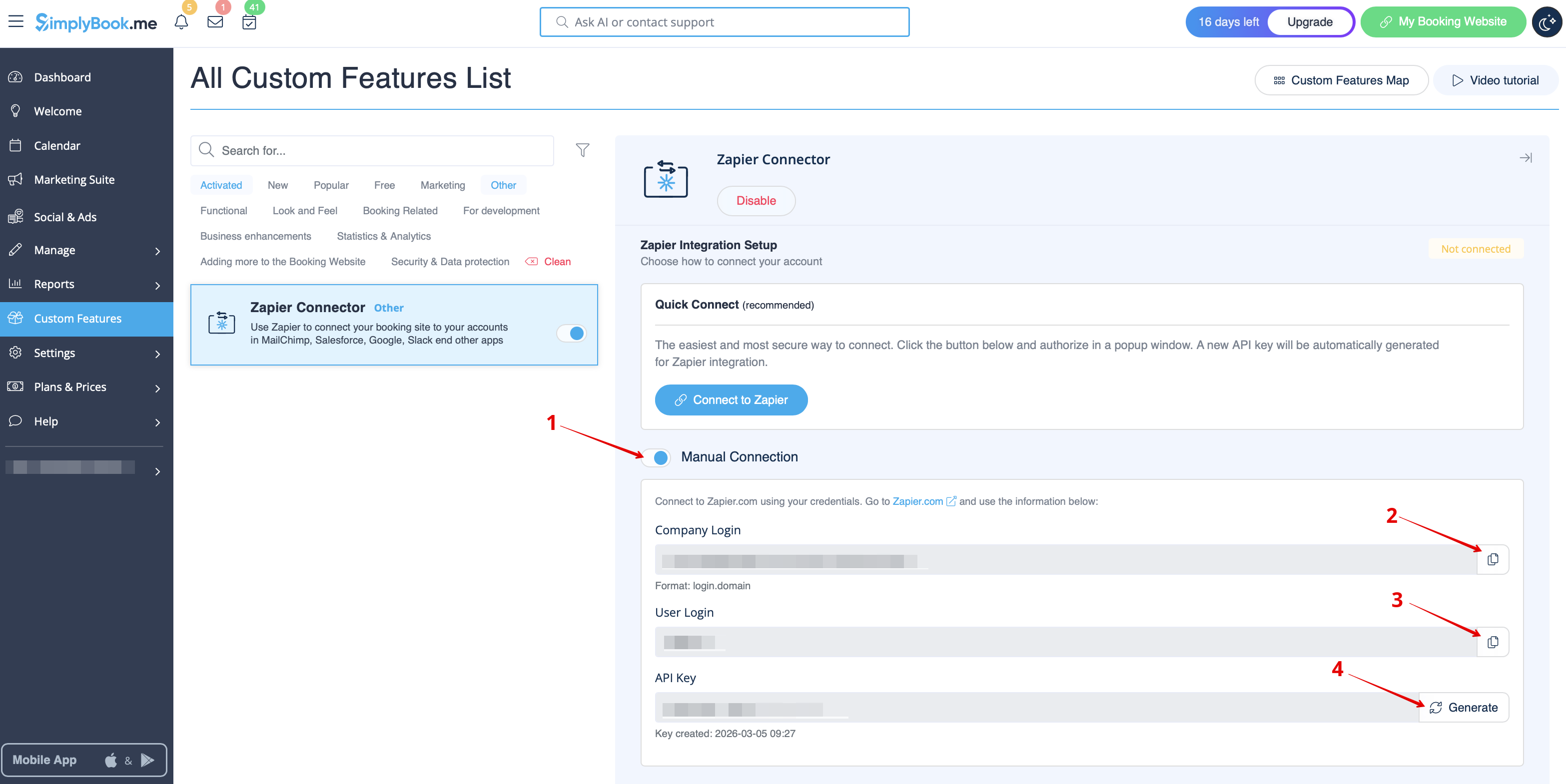
- Paste them to the corresponding fields on Zapier.com side and click on “Continue” option there. The account gets connected.
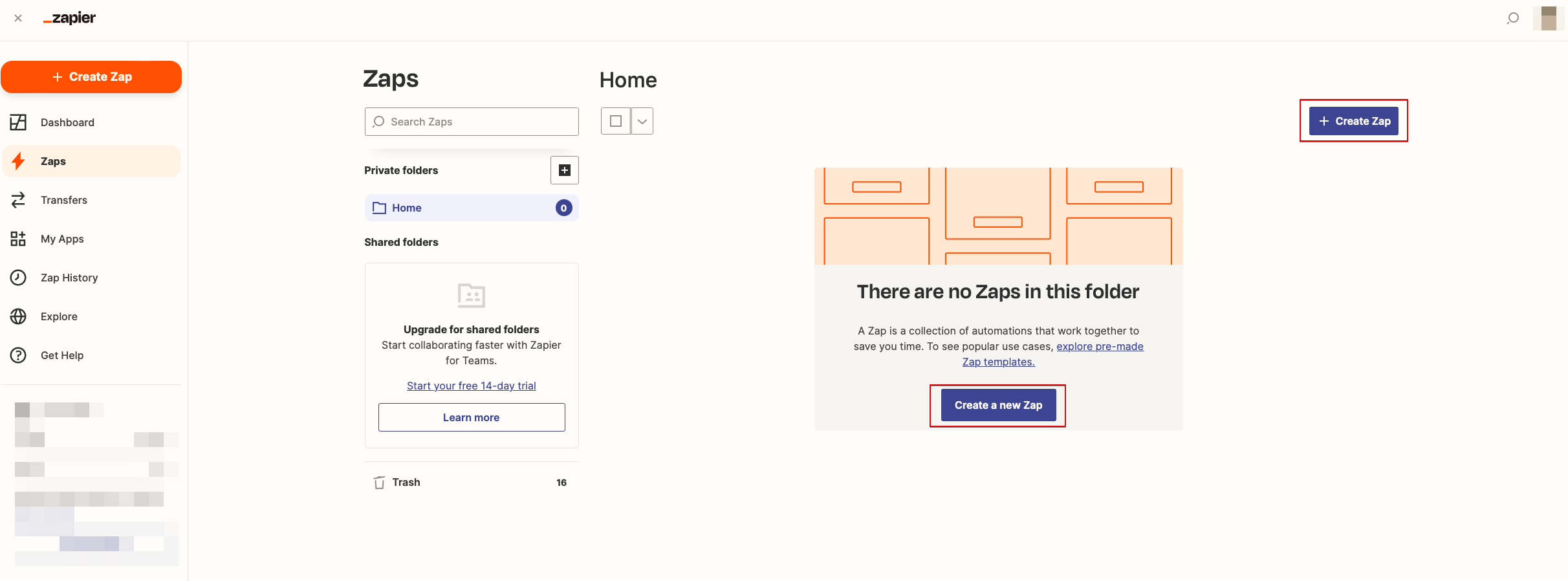
- 4. Now you can create a new Zap by clicking on Make a Zap button in Zapier interface.
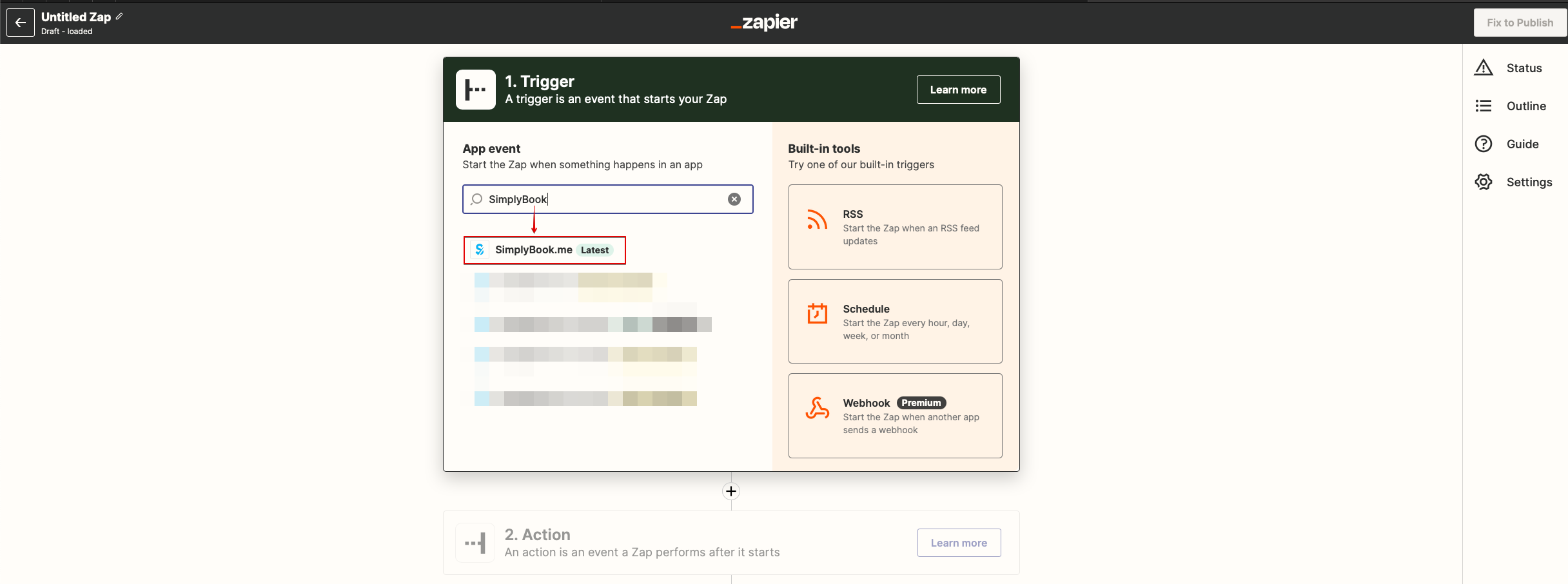
- 5. Look for Simplybook in Trigger step.
- 6. Select the desirable trigger.
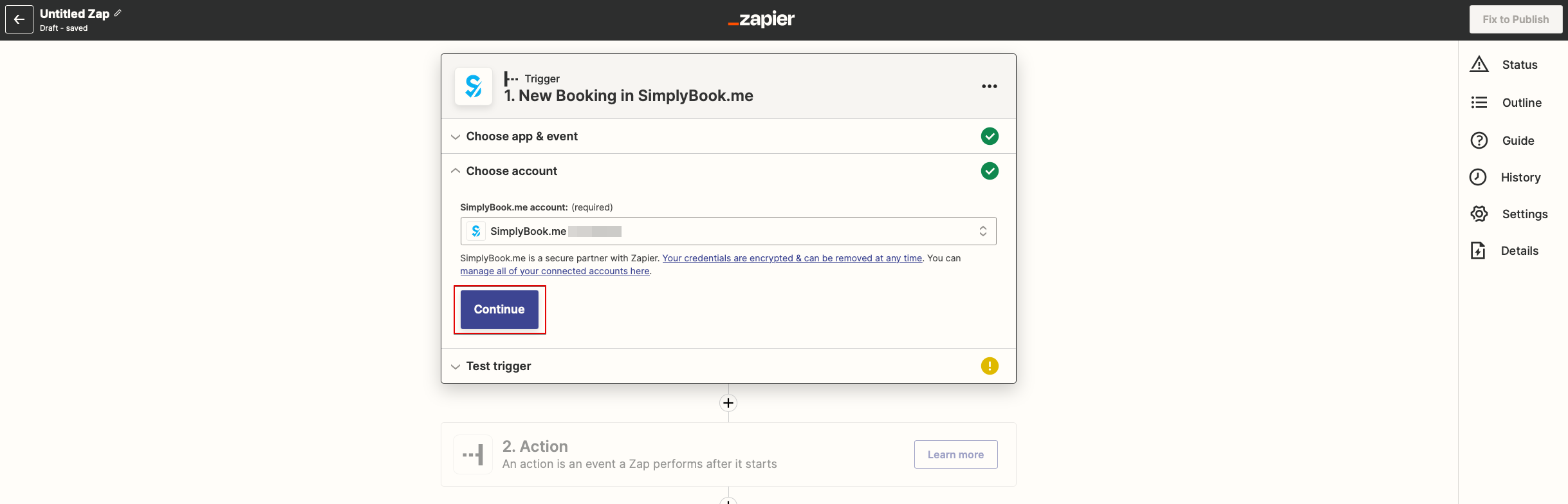
- 7. Connect SimplyBook.me account.
- 8. Click Continue to test this step.
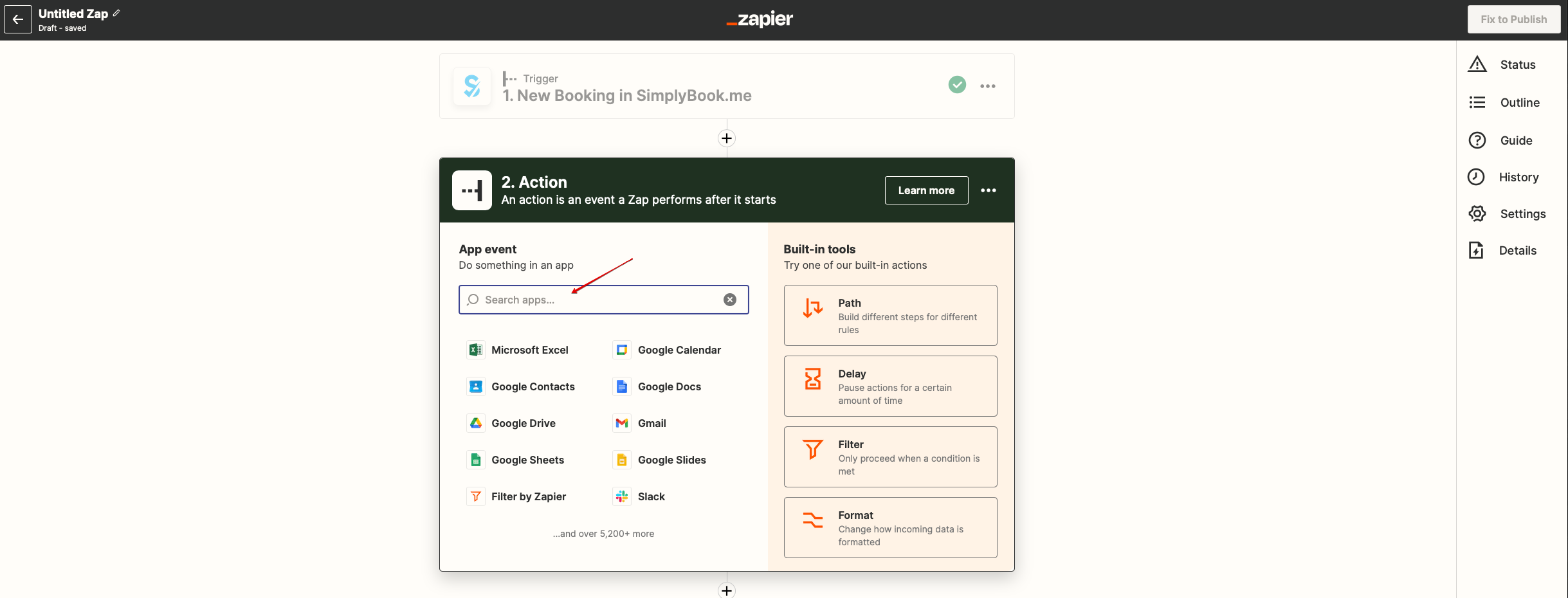
- 9. Proceed to adding the Action step and search for the app you wish to connect SimplyBook.me to.
- 10. Connect this application account and setup the template using the available data mentioned above.
- 11. You can test this step operation as well if necessary or skip it.
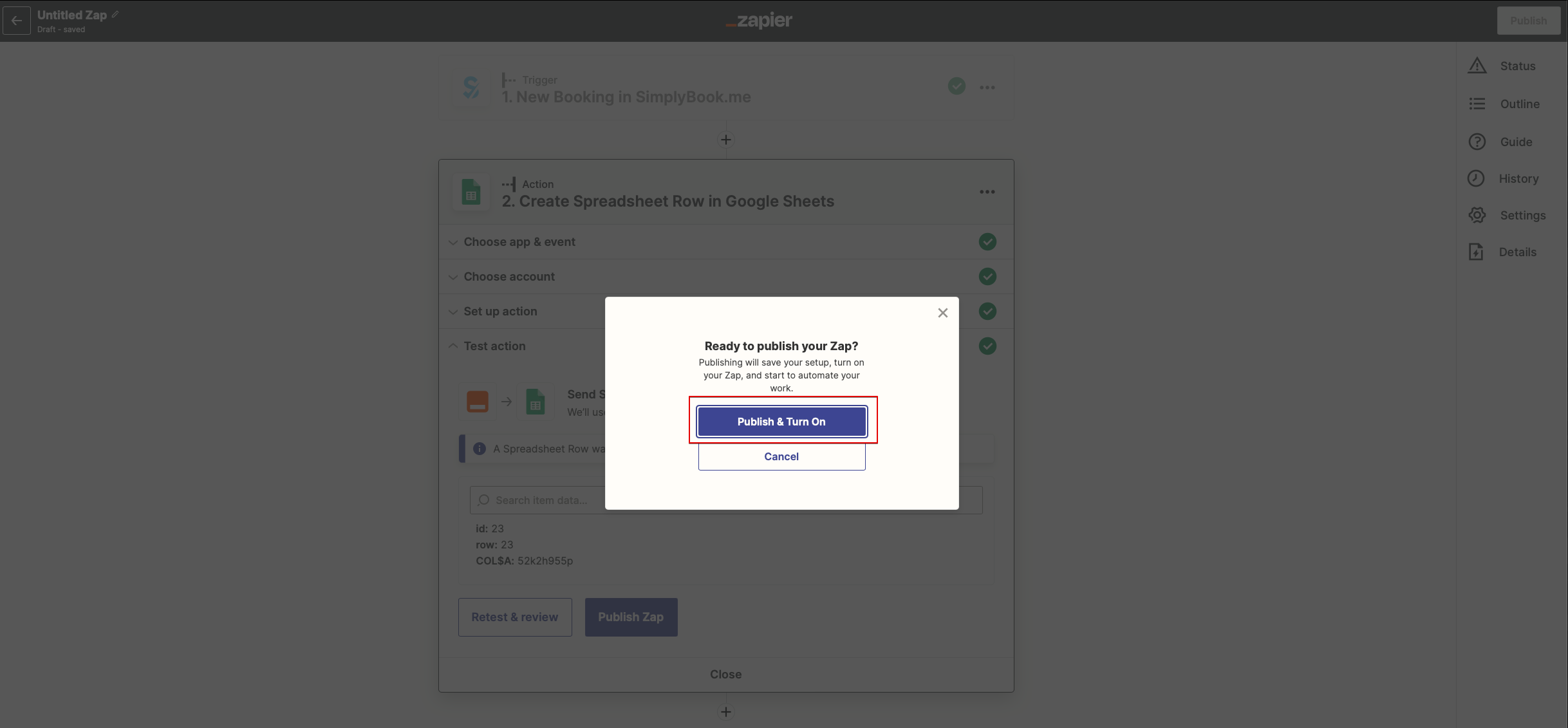
- 12. Finish the setup, add Zap name and turn it on.