Created page with ":2. Verbinden Sie sich mit Ihrem Zapier-Konto über die Option '''Quick connect''' 1200px|border | center|link=https://help.simplybook.me/images/8/84/Quick_connect_zapier.png <br><br> :3. Oder Sie können eine manuelle Verbindung über Zugangsdaten wählen. - Gehen Sie zu Zapier.com → Seite „App connections“ und klicken Sie auf die Schaltfläche „Add connection“<br> File:Add connection zapeir side.png|1200px|border | center|l..." Tags: Mobile edit Mobile web edit |
Updating to match new version of source page |
||
| Line 78: | Line 78: | ||
* Zahlungsstatus (paid, pending) und ob die Zahlung eingegangen ist. | * Zahlungsstatus (paid, pending) und ob die Zahlung eingegangen ist. | ||
<div class="mw-translate-fuzzy"> | |||
<br><br> | <br><br> | ||
;'''So verwenden Sie die Funktion:''' | ;'''So verwenden Sie die Funktion:''' | ||
| Line 83: | Line 84: | ||
[[File:Zapier enable path redesigned.png|1200px|border | center|link=https://help.simplybook.me/images/b/b9/Zapier_enable_path_redesigned.png]] | [[File:Zapier enable path redesigned.png|1200px|border | center|link=https://help.simplybook.me/images/b/b9/Zapier_enable_path_redesigned.png]] | ||
<br><br> | <br><br> | ||
</div> | |||
<div class="mw-translate-fuzzy"> | |||
:2. Verbinden Sie sich mit Ihrem Zapier-Konto über die Option '''Quick connect''' | :2. Verbinden Sie sich mit Ihrem Zapier-Konto über die Option '''Quick connect''' | ||
[[File:Quick connect zapier.png|1200px|border | center|link=https://help.simplybook.me/images/8/84/Quick_connect_zapier.png]] | [[File:Quick connect zapier.png|1200px|border | center|link=https://help.simplybook.me/images/8/84/Quick_connect_zapier.png]] | ||
| Line 123: | Line 126: | ||
[[File:Zapier redesigned enable zap.png|1200px|border | center|link=https://help.simplybook.me/images/9/9b/Zapier_redesigned_enable_zap.png]] | [[File:Zapier redesigned enable zap.png|1200px|border | center|link=https://help.simplybook.me/images/9/9b/Zapier_redesigned_enable_zap.png]] | ||
<br><br> | <br><br> | ||
</div> | |||
<div lang="en" dir="ltr" class="mw-content-ltr"> | |||
==Ho to use manual connection== | |||
:1. You can choose a manual connection by credentials. But in this case the option to manage the Zaps inside SimplyBook.me interface will not be available. | |||
:2. Go to Zapier.com -> App connections page and click on “Add connection” button<br> | |||
[[File:Add connection zapeir side.png|1200px|border | center|link=https://help.simplybook.me/images/c/c2/Add_connection_zapeir_side.png]] | |||
<br><br> | |||
:3. Select SimplyBook.me<br> | |||
:4. Copy company login, user login, generate and copy API key from your SimpyBook.me account<br> | |||
[[File:Zapier manual connection new.png|1200px|border | center|link=https://help.simplybook.me/images/c/c3/Zapier_manual_connection_new.png]] | |||
<br><br> | |||
:5. Paste them to the corresponding fields on Zapier.com side and click on “Continue” option there. The account gets connected. | |||
[[File:Credentials on zapier side new.png|1200px|border | center|link=https://help.simplybook.me/images/e/e9/Credentials_on_zapier_side_new.png]] | |||
<br><br> | |||
:6. Now you can create a new Zap by clicking on <span style="background-color:#d4f8e5; padding:5px; border-radius:5px;">Create</span> button in Zapier interface. | |||
[[File:Create new zap updated.png|1200px|border| center|link=https://help.simplybook.me/images/6/60/Create_new_zap_updated.png]] | |||
<br><br> | |||
:7. Look for Simplybook in <span style="background-color:#d4f8e5; padding:5px; border-radius:5px;">Trigger step.</span> | |||
[[File:Zapier redesigned select trigger app.png|1200px|border | center|link=https://help.simplybook.me/images/c/c1/Zapier_redesigned_select_trigger_app.png]] | |||
<br><br> | |||
:8. Select the desirable trigger. | |||
[[File:Zapier redesigned choose trigger event.png|1200px|border | center|link=https://help.simplybook.me/images/9/94/Zapier_redesigned_choose_trigger_event.png]] | |||
<br><br> | |||
:9. Select SimplyBook.me account you've connected before. | |||
<br><br> | |||
:10. Click <span style="background-color:#d4f8e5; padding:5px; border-radius:5px;">Continue</span> to test this step. | |||
[[File:Zapier redesigned continue to test trigger step.png|1200px|border | center|link=https://help.simplybook.me/images/b/be/Zapier_redesigned_continue_to_test_trigger_step.png]] | |||
<br><br> | |||
:11. Proceed to adding the Action step and search for the app you wish to connect SimplyBook.me to. | |||
[[File:Zapier redesigned search for the action app.png|1200px|border | center|link=https://help.simplybook.me/images/9/95/Zapier_redesigned_search_for_the_action_app.png]] | |||
<br><br> | |||
:12. Connect this application account and setup the template using the available data mentioned above. | |||
<br><br> | |||
:13. You can test this step operation as well if necessary or skip it. | |||
<br><br> | |||
:14. Finish the setup, add Zap name and turn it on. | |||
[[File:Zapier redesigned enable zap.png|1200px|border | center|link=https://help.simplybook.me/images/9/9b/Zapier_redesigned_enable_zap.png]] | |||
<br><br> | |||
</div> | |||
Revision as of 13:12, 15 April 2026

Verbinden Sie SimplyBook.me mit Hunderten von anderen Lösungen mithilfe dieser Funktion. Sie enthält eine Vielzahl von Triggern, mit denen Sie Informationen an andere Lösungen senden können, indem Sie einfach einen der verfügbaren Zaps verwenden oder einen neuen Zap erstellen. Zapier ermöglicht die Integration von zwei oder mehr Webanwendungen über deren APIs mithilfe von "Triggern" und "Aktionen". SimplyBook.me ist in Zapier als Trigger-App verfügbar, d. h., es werden nur Informationen von SimplyBook.me an Zapier (1-Wege-Integration) und über Zapier an jede App gesendet, die über Aktionen verfügt.
Bitte beachten Sie!
- Verfügbare Daten hängen von den aktivierten Benutzerdefinierten Features ab;
- Funktioniert nicht, wenn Zwei-Faktor-Authentifizierung aktiviert ist (HIPAA oder Google Authenticator);
- Der Trigger "Neuer Kunde" funktioniert nicht mit der Funktion Kunden importieren, funktioniert jedoch korrekt, wenn ein Kunde manuell über die Admin-Oberfläche hinzugefügt wird;
- Informationen über verwendete Mitgliedschaft/Promotion/Paket/Produkt sind nicht enthalten, da sie sich auf Rechnungen und nicht auf Buchungen beziehen;
- Kommentaränderungen lösen keinen Trigger aus;
- Um Buchungsänderungs- und Buchungsstornierungs-Trigger zu verwenden, um Datensätze in der Aktions-App zu ändern, benötigen Sie ein kostenpflichtiges Zapier-Konto (bitte aktuelle Preise prüfen, ob Multi-Step-Zaps enthalten sind), da ein Suchschritt erforderlich ist, um den Datensatz zu finden;
- Wenn nach der Erstellung eines Zaps neue Elemente in der Admin-Oberfläche hinzugefügt werden, klicken Sie in Zapier bei „Trigger step“ -> „Test this step“ auf „Get more samples“, um neue Felder und Daten abzurufen (Zap-Vorlage sollte ggf. angepasst werden);
- Rechnungsdaten können mit dem Trigger „Neue Rechnung“ gesendet werden;
- SOAP-Daten werden nicht gesendet;
- Steuer-Informationen werden nicht gesendet, Servicepreis wird ohne Steuern angezeigt;
- Funktioniert nicht, wenn sowohl Zahlungen akzeptieren als auch Buchungen genehmigen aktiviert sind und Gruppenbuchungen nur teilweise genehmigt wurden.
6 Trigger sind derzeit verfügbar:
• Neue Buchung – wird ausgelöst, wenn eine neue Buchung im SimplyBook.me-Konto erstellt wird;
• Buchungsänderung – wird ausgelöst, wenn eine Buchung geändert wird (Datum/Uhrzeit/Service/Anbieter/Status/Antworten auf Intake-Formulare);
• Buchungsstornierung – wird bei Stornierung einer Buchung ausgelöst;
• Neuer Kunde – wird ausgelöst, wenn ein neuer Kunde hinzugefügt wird, entweder durch eine neue Buchung oder durch manuelle Eingabe durch den Admin in der Admin-Oberfläche von SimplyBook.me.
• Neues Angebot – wird ausgelöst, wenn ein neues Angebot auf der SimplyBook.me-Seite erstellt wird (kann verwendet werden, wenn das Zahlungen akzeptieren-Feature aktiviert ist).
• Neue Rechnung – wird ausgelöst, wenn eine neue Rechnung auf der SimplyBook.me-Seite erstellt und bezahlt wird (kann ebenfalls verwendet werden, wenn das Zahlungen akzeptieren-Feature aktiviert ist).
6 Aktionen können derzeit verwendet werden:
- Get booking – ermöglicht das Abrufen von Buchungsdetails anhand der ID
- Get client – ermöglicht das Abrufen von Kundendetails anhand der ID
- Create booking – ermöglicht das Erstellen eines neuen Buchungseintrags
- Create client – ermöglicht das Erstellen eines neuen Kundeneintrags
- Cancel booking – ermöglicht das Stornieren einer Buchung anhand der ID
- Verfügbare Daten:
Für buchungsbezogene Trigger (New booking, Booking change, Booking cancellation):
Basisfunktionalität (keine Custom Features aktiviert):
- Unternehmen (Login, Name, E-Mail, Telefon),
- Service (Name, Beschreibung, Dauer, Pufferzeit),
- Anbieter (Name, Beschreibung, E-Mail, Telefon),
- Kundeninformationen (Name, E-Mail, Telefon, Adresse, Zeitzone),
- Buchungscode (wenn die Buchung bestätigt ist, Start-/Enddatum und Uhrzeit).
Daten aus Custom Features:
- Accept payments (Servicepreis, Währung);
- Status (Name, Beschreibung, Farbe);
- Approve bookings (Genehmigungsstatus: approved, canceled);
- Multiple Locations (Standortname, Standortadresse (mit Koordinaten), Standorttelefon, Standortbeschreibung);
- Service Categories (Kategoriename, Kategorienbeschreibung);
- Service Add-ons (Add-on-Name, Add-on-Preis);
- Intake Forms (Antworten).
Für den Trigger „New client“:
- Kunden-ID;
- Kundenname;
- Kunden-E-Mail;
- Kundentelefon;
- Kundenadresse;
- Ob der Kunde für den Login gesperrt ist (wenn das Custom Feature Client login aktiviert ist);
- Registrierungsdatum des Kunden.
Für New Offer/New Invoice Trigger:
- Bestell-ID;
- Kundenname / E-Mail / Telefon;
- Angebots-/Rechnungsbeschreibung (Liste der bestellten Artikel, Informationen über Rabatt: verwendete Geschenkkarte/Gutschein/Paket);
- Bestellbetrag und Währung;
- Rabattbetrag;
- Bestelldatum und Uhrzeit;
- Angebots-/Rechnungsnummer im SimplyBook.me-System (O-XXXXXX oder I-XXXXXX);
- Zahlungsanbieter (delay, cash, credit card, wire transfer);
- Zahlungsstatus (paid, pending) und ob die Zahlung eingegangen ist.
- So verwenden Sie die Funktion:
- 1. Aktivieren Sie das Custom Feature Zapier connector auf Ihrer Custom features-Seite auf der SimplyBook.me-Seite.

- 2. Verbinden Sie sich mit Ihrem Zapier-Konto über die Option Quick connect
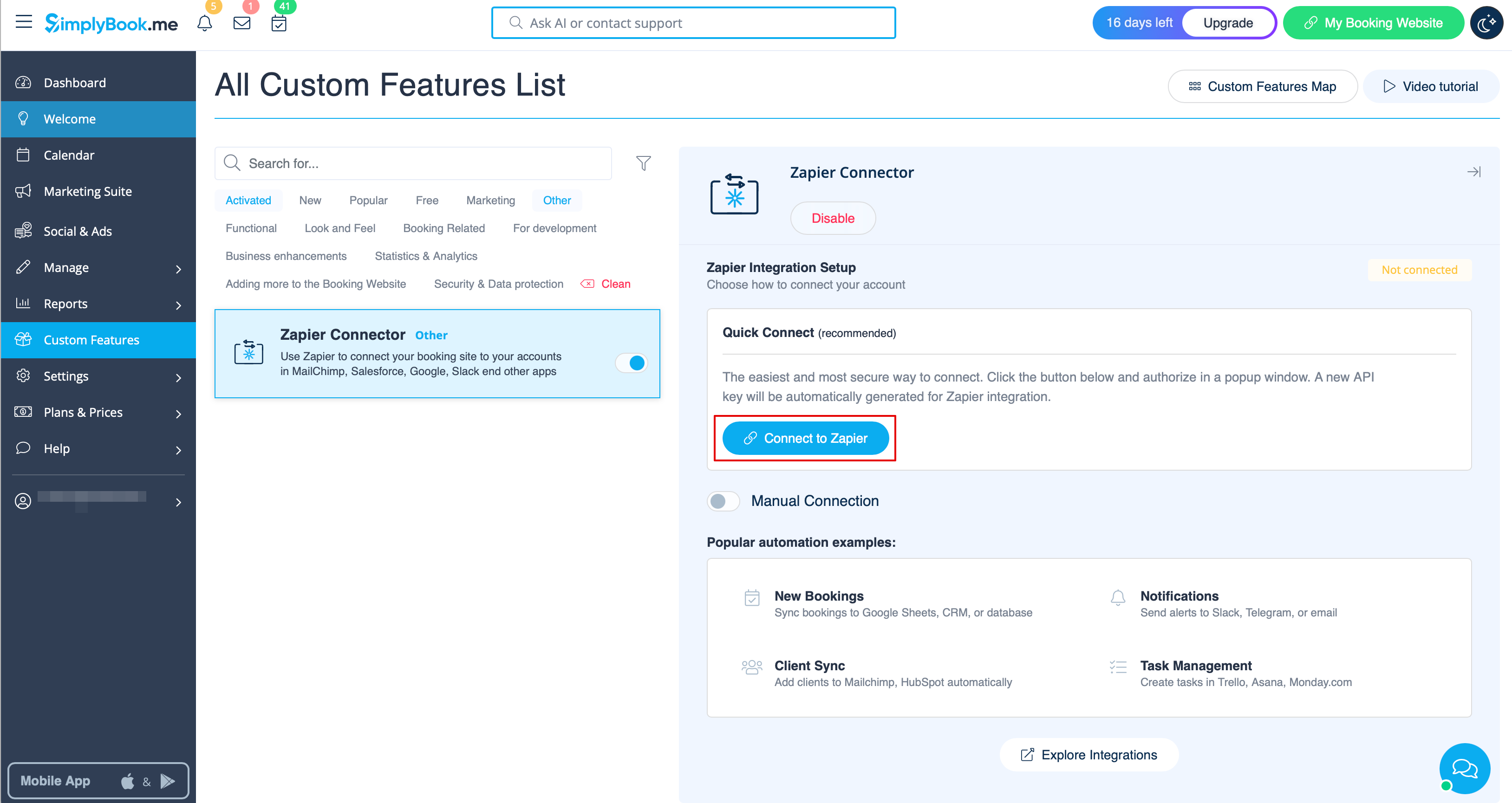
- 3. Oder Sie können eine manuelle Verbindung über Zugangsdaten wählen.
- Gehen Sie zu Zapier.com → Seite „App connections“ und klicken Sie auf die Schaltfläche „Add connection“
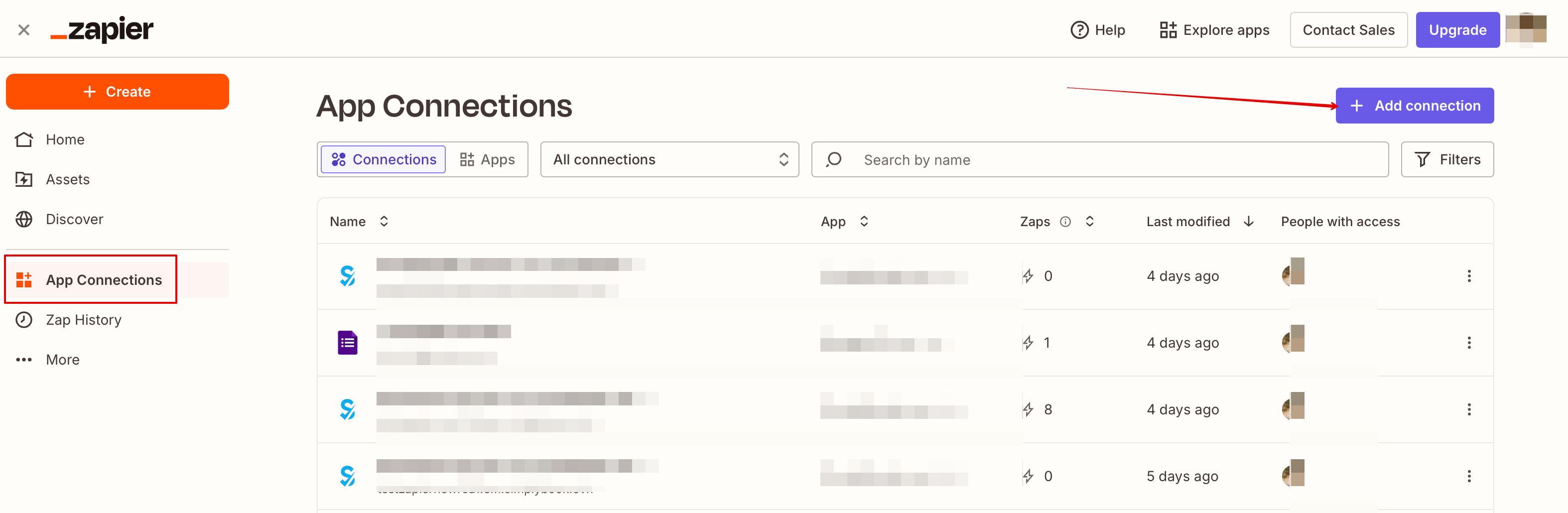
- Wählen Sie SimplyBook.me aus
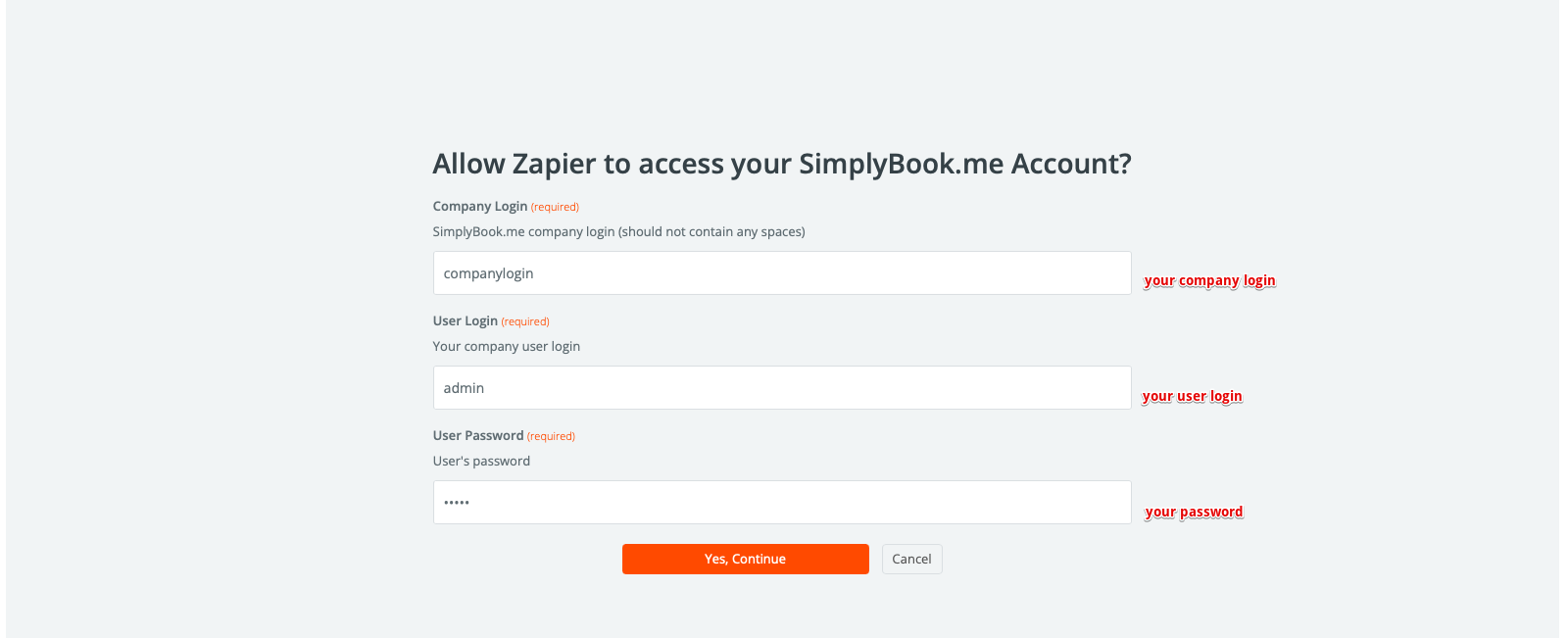
- Kopieren Sie den Firmen-Login, den Benutzer-Login und generieren sowie kopieren Sie den API-Schlüssel aus Ihrem SimplyBook.me-Konto
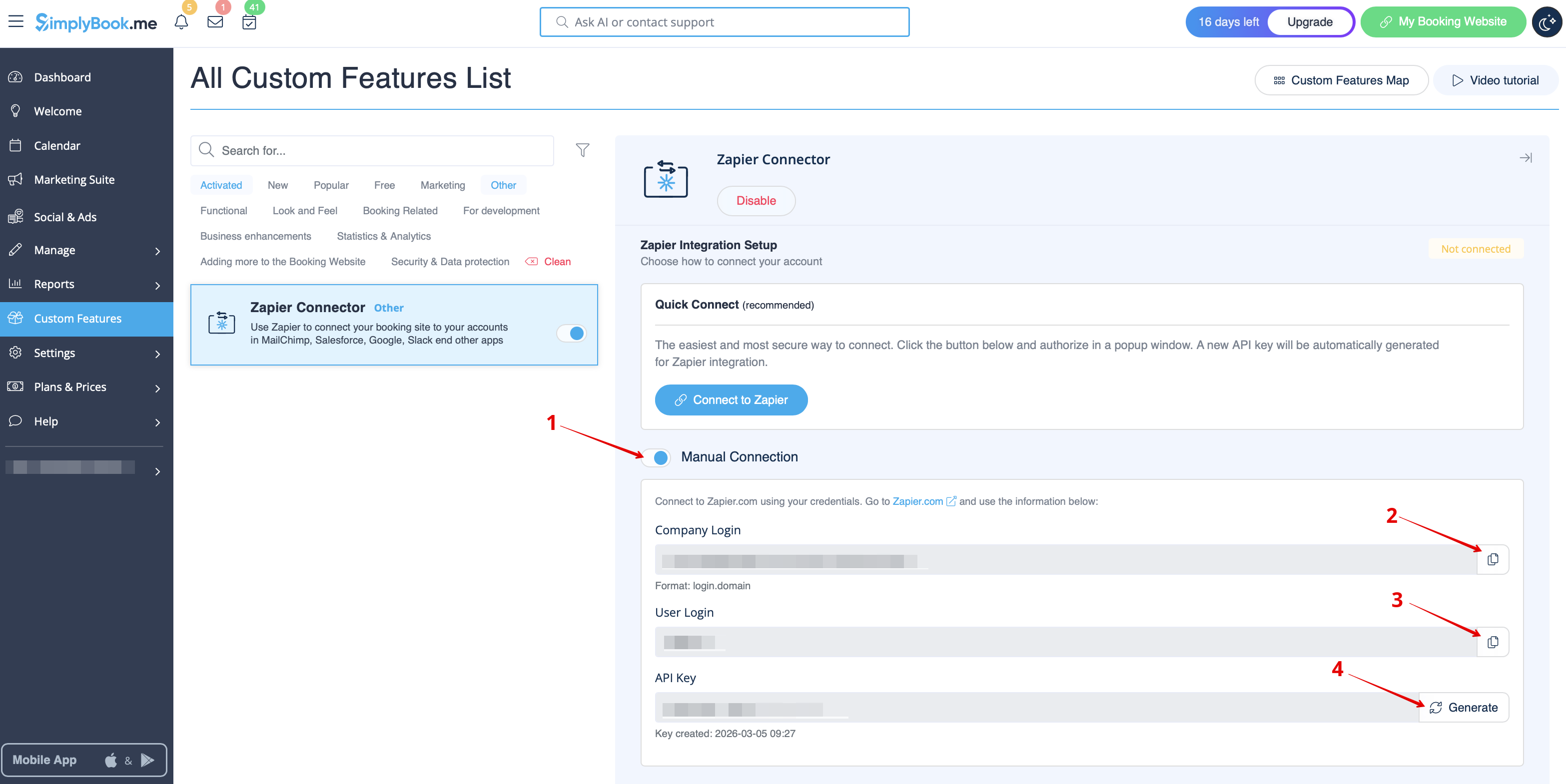
- Fügen Sie diese in die entsprechenden Felder auf der Zapier.com-Seite ein und klicken Sie dort auf „Continue“. Das Konto wird verbunden.
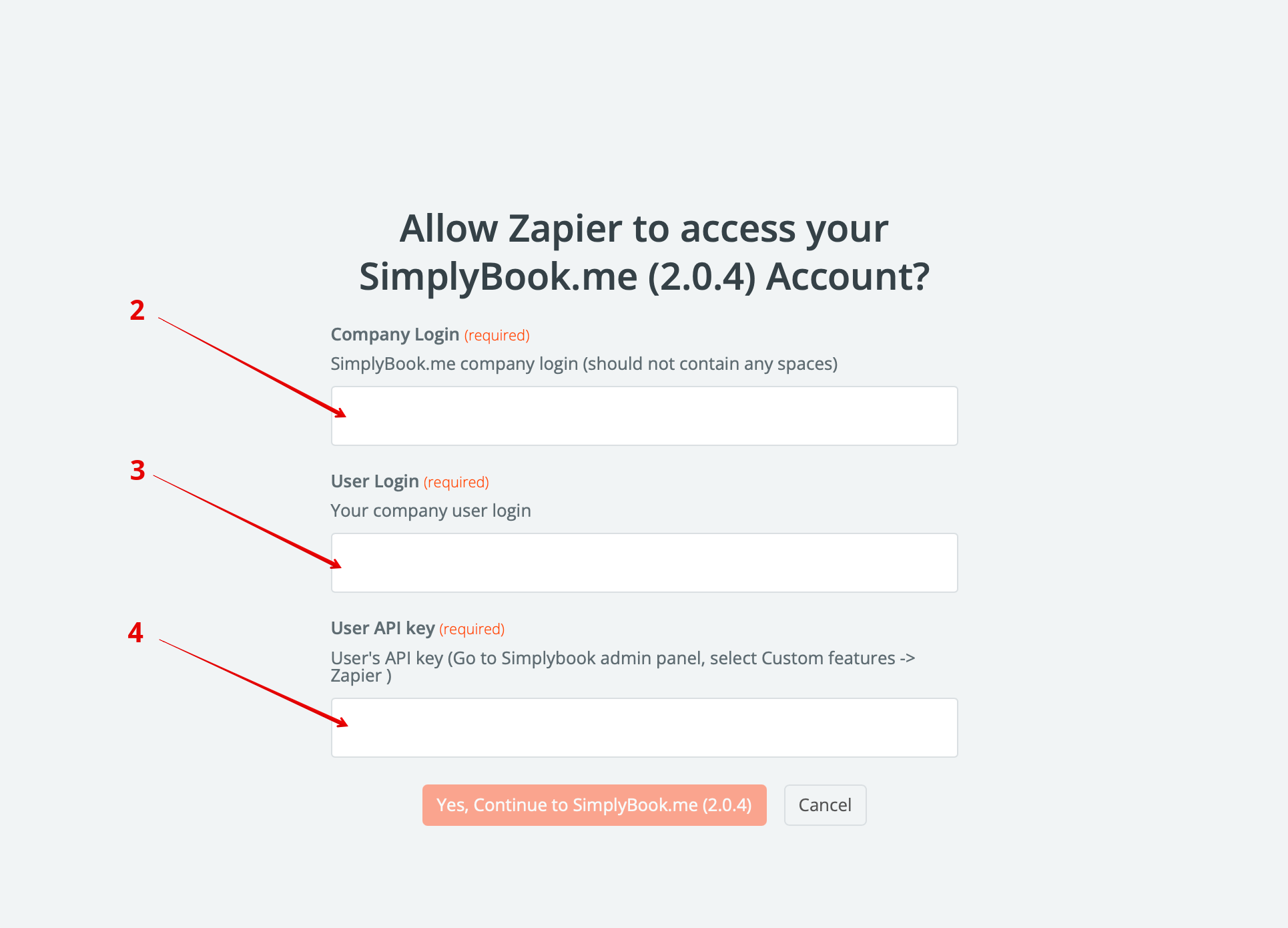
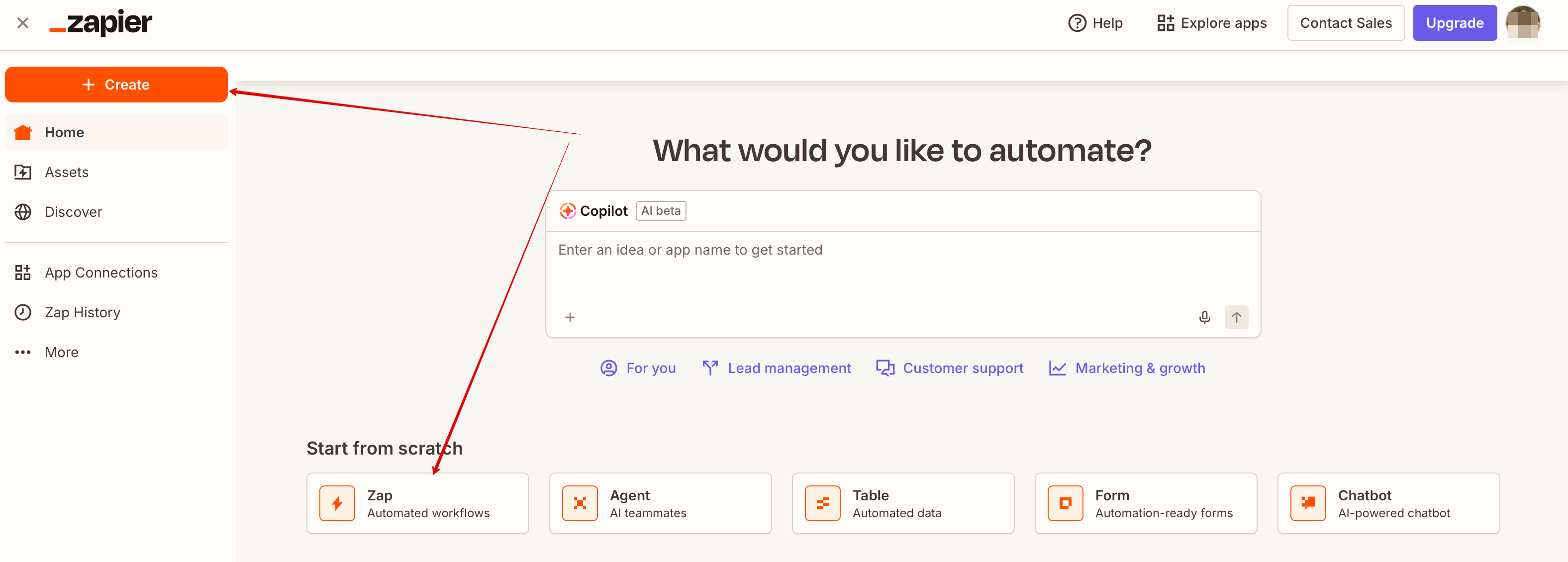
- 4. Nun können Sie einen neuen Zap erstellen, indem Sie in der Zapier-Oberfläche auf die Schaltfläche Create klicken.
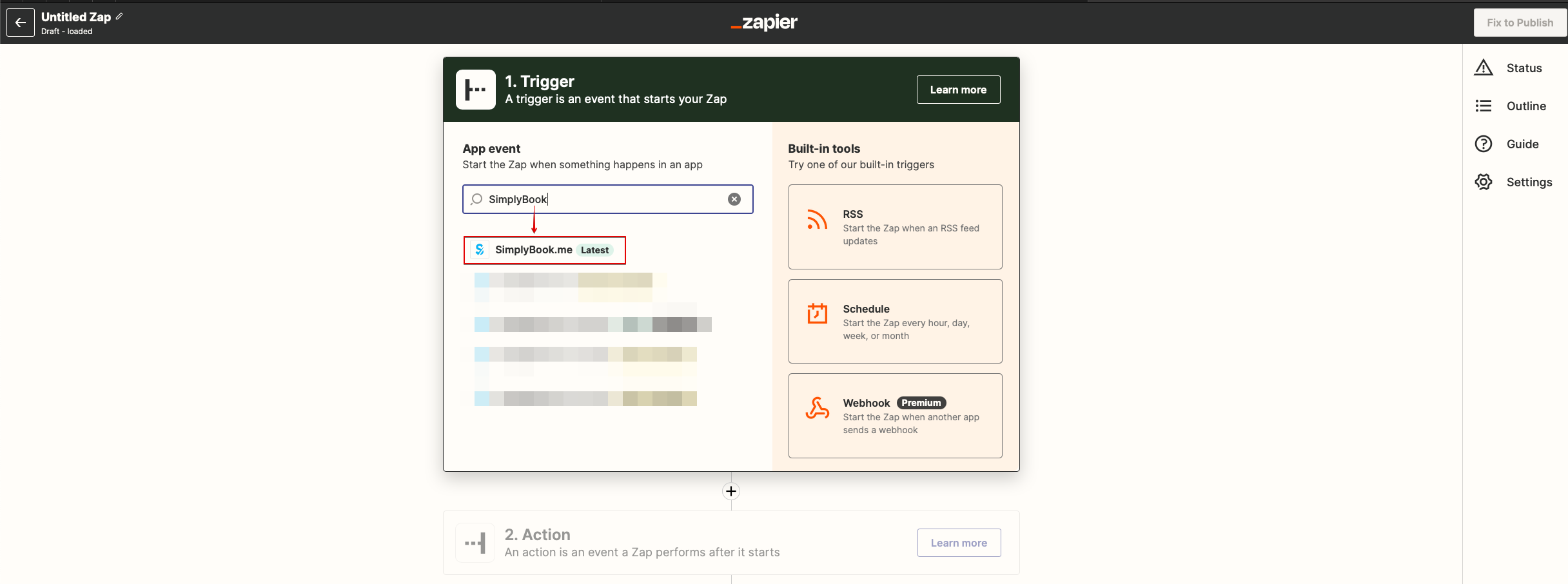
- 5. Suchen Sie nach SimplyBook im Trigger step.
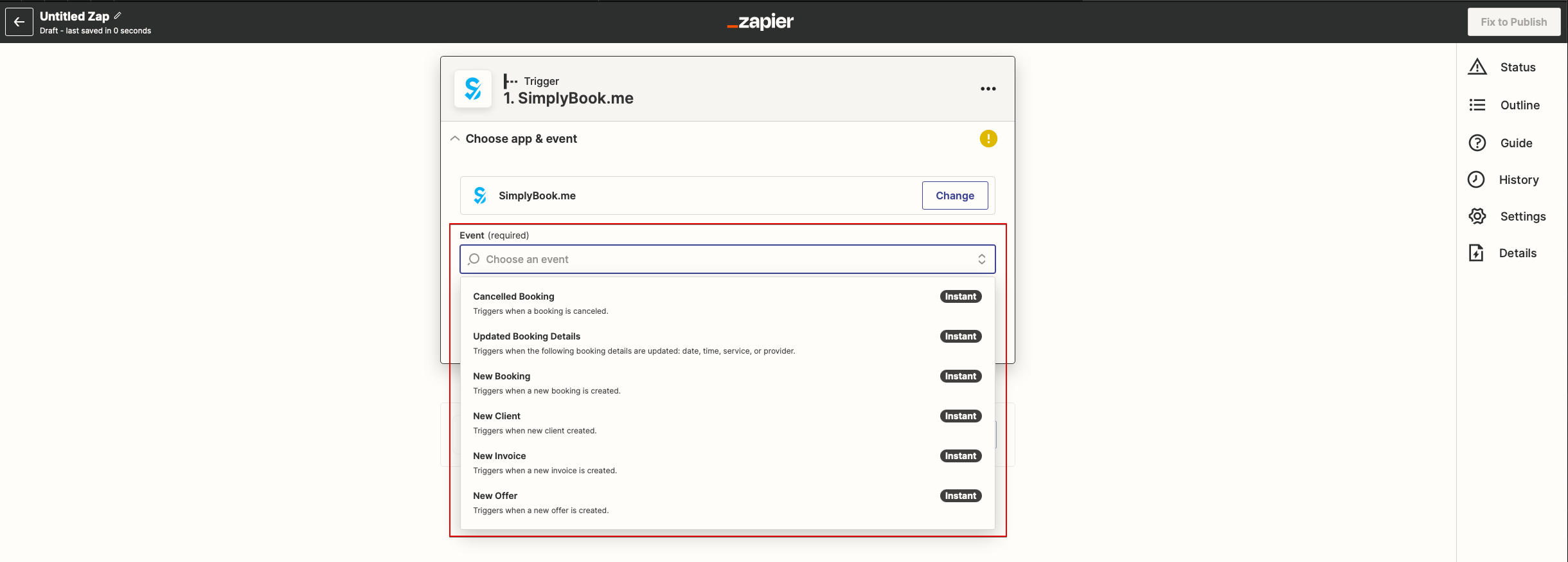
- 6. Wählen Sie den gewünschten Trigger aus.
- 7. Verbinden Sie Ihr SimplyBook.me-Konto.
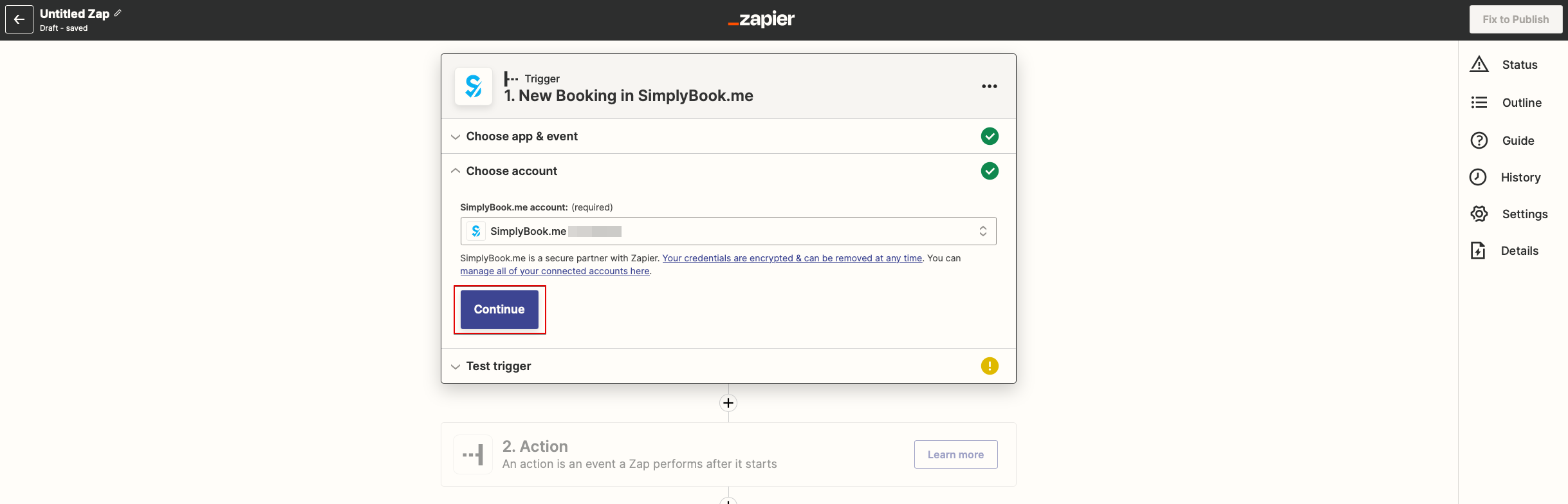
- 8. Klicken Sie auf Continue, um diesen Schritt zu testen.
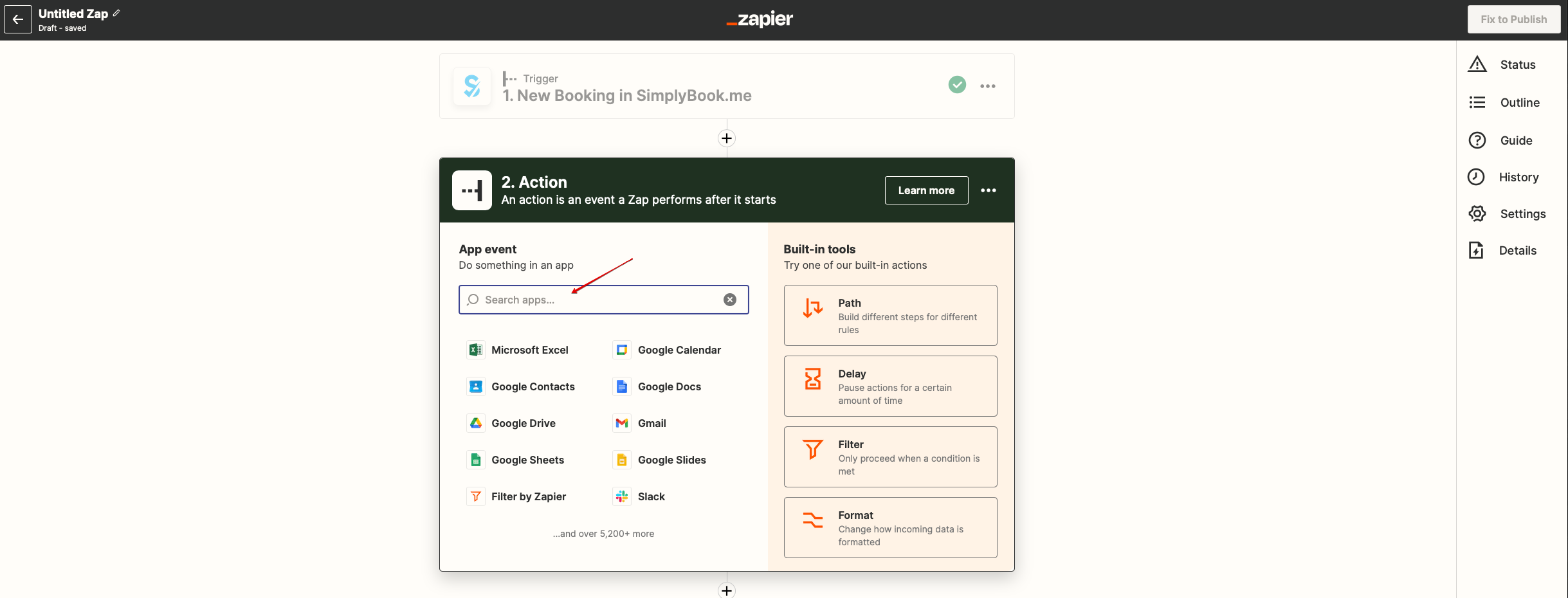
- 9. Fahren Sie mit dem Hinzufügen des Action-Schritts fort und suchen Sie nach der App, mit der Sie SimplyBook.me verbinden möchten.
- 10. Verbinden Sie dieses Anwendungskonto und richten Sie die Vorlage mithilfe der oben genannten verfügbaren Daten ein.
- 11. Sie können diesen Schritt ebenfalls testen, falls erforderlich, oder ihn überspringen.
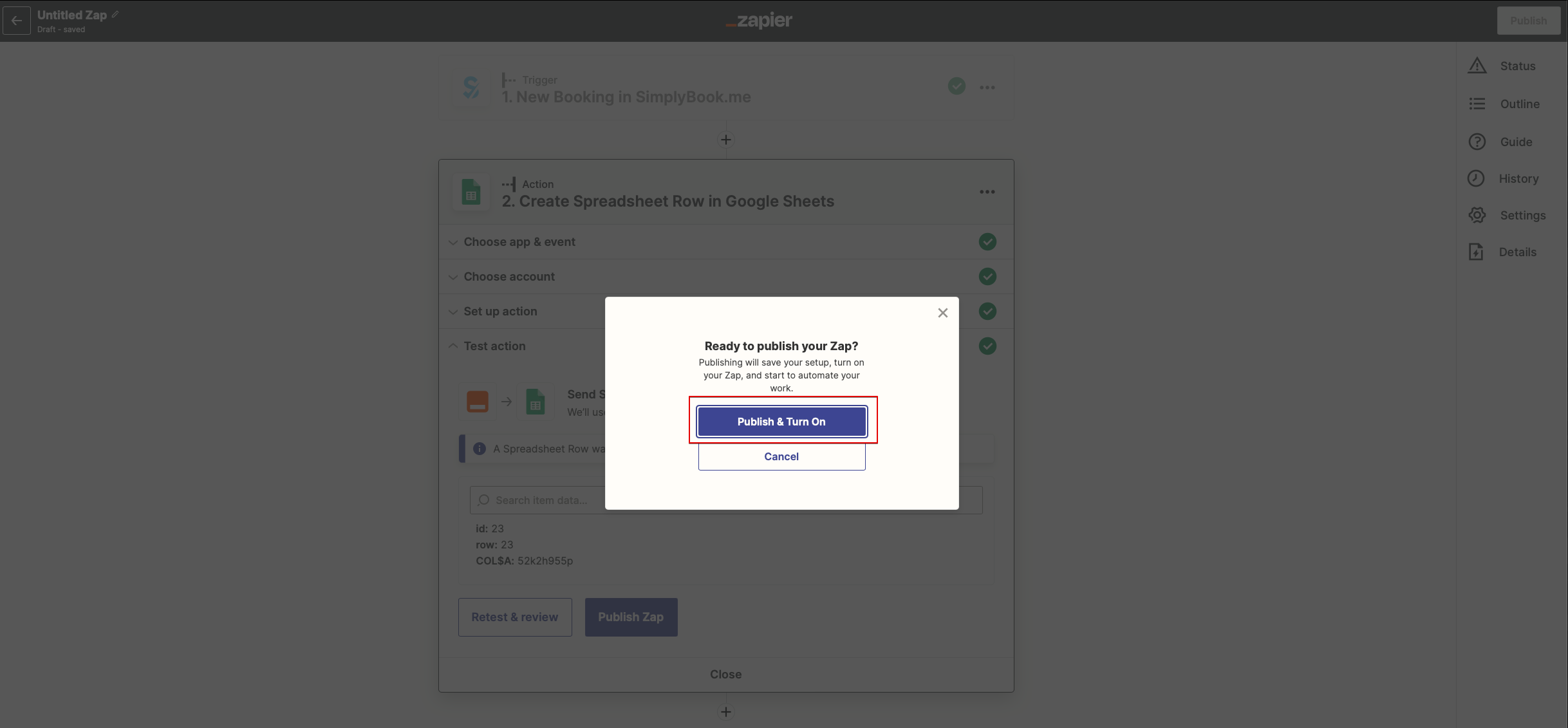
- 12. Schließen Sie die Einrichtung ab, fügen Sie einen Zap-Namen hinzu und aktivieren Sie ihn.
Ho to use manual connection
- 1. You can choose a manual connection by credentials. But in this case the option to manage the Zaps inside SimplyBook.me interface will not be available.
- 2. Go to Zapier.com -> App connections page and click on “Add connection” button
- 3. Select SimplyBook.me
- 4. Copy company login, user login, generate and copy API key from your SimpyBook.me account
- 5. Paste them to the corresponding fields on Zapier.com side and click on “Continue” option there. The account gets connected.
- 6. Now you can create a new Zap by clicking on Create button in Zapier interface.
- 7. Look for Simplybook in Trigger step.
- 8. Select the desirable trigger.
- 9. Select SimplyBook.me account you've connected before.
- 10. Click Continue to test this step.
- 11. Proceed to adding the Action step and search for the app you wish to connect SimplyBook.me to.
- 12. Connect this application account and setup the template using the available data mentioned above.
- 13. You can test this step operation as well if necessary or skip it.
- 14. Finish the setup, add Zap name and turn it on.

