Created page with ":2. Підключіться до вашого облікового запису Zapier за допомогою опції '''Quick connect''' 1200px|border | center|link=https://help.simplybook.me/images/8/84/Quick_connect_zapier.png <br><br> :3. Або оберіть ручне підключення за допомогою облікових даних. - Перейдіть на Zapier.com → сторінка App connections і на..." |
Updating to match new version of source page |
||
| Line 79: | Line 79: | ||
* Статус оплати (paid, pending) та чи отримано оплату. | * Статус оплати (paid, pending) та чи отримано оплату. | ||
<div class="mw-translate-fuzzy"> | |||
;'''Як користуватися:''' | ;'''Як користуватися:''' | ||
:1. Увімкніть кастомну функцію <span style="background-color:#d4f8e5; padding:5px; border-radius:5px;">Zapier connector</span> на сторінці <span style="background-color:#d4f8e5; padding:5px; border-radius:5px;">Custom features</span> у SimplyBook.me. | :1. Увімкніть кастомну функцію <span style="background-color:#d4f8e5; padding:5px; border-radius:5px;">Zapier connector</span> на сторінці <span style="background-color:#d4f8e5; padding:5px; border-radius:5px;">Custom features</span> у SimplyBook.me. | ||
[[File:Zapier enable path redesigned.png|1200px|border | center|link=https://help.simplybook.me/images/b/b9/Zapier_enable_path_redesigned.png]] | [[File:Zapier enable path redesigned.png|1200px|border | center|link=https://help.simplybook.me/images/b/b9/Zapier_enable_path_redesigned.png]] | ||
<br><br> | <br><br> | ||
</div> | |||
<div class="mw-translate-fuzzy"> | |||
:2. Підключіться до вашого облікового запису Zapier за допомогою опції '''Quick connect''' | :2. Підключіться до вашого облікового запису Zapier за допомогою опції '''Quick connect''' | ||
[[File:Quick connect zapier.png|1200px|border | center|link=https://help.simplybook.me/images/8/84/Quick_connect_zapier.png]] | [[File:Quick connect zapier.png|1200px|border | center|link=https://help.simplybook.me/images/8/84/Quick_connect_zapier.png]] | ||
| Line 123: | Line 126: | ||
[[File:Zapier redesigned enable zap.png|1200px|border | center|link=https://help.simplybook.me/images/9/9b/Zapier_redesigned_enable_zap.png]] | [[File:Zapier redesigned enable zap.png|1200px|border | center|link=https://help.simplybook.me/images/9/9b/Zapier_redesigned_enable_zap.png]] | ||
<br><br> | <br><br> | ||
</div> | |||
<div lang="en" dir="ltr" class="mw-content-ltr"> | |||
==Ho to use manual connection== | |||
:1. You can choose a manual connection by credentials. But in this case the option to manage the Zaps inside SimplyBook.me interface will not be available. | |||
:2. Go to Zapier.com -> App connections page and click on “Add connection” button<br> | |||
[[File:Add connection zapeir side.png|1200px|border | center|link=https://help.simplybook.me/images/c/c2/Add_connection_zapeir_side.png]] | |||
<br><br> | |||
:3. Select SimplyBook.me<br> | |||
:4. Copy company login, user login, generate and copy API key from your SimpyBook.me account<br> | |||
[[File:Zapier manual connection new.png|1200px|border | center|link=https://help.simplybook.me/images/c/c3/Zapier_manual_connection_new.png]] | |||
<br><br> | |||
:5. Paste them to the corresponding fields on Zapier.com side and click on “Continue” option there. The account gets connected. | |||
[[File:Credentials on zapier side new.png|1200px|border | center|link=https://help.simplybook.me/images/e/e9/Credentials_on_zapier_side_new.png]] | |||
<br><br> | |||
:6. Now you can create a new Zap by clicking on <span style="background-color:#d4f8e5; padding:5px; border-radius:5px;">Create</span> button in Zapier interface. | |||
[[File:Create new zap updated.png|1200px|border| center|link=https://help.simplybook.me/images/6/60/Create_new_zap_updated.png]] | |||
<br><br> | |||
:7. Look for Simplybook in <span style="background-color:#d4f8e5; padding:5px; border-radius:5px;">Trigger step.</span> | |||
[[File:Zapier redesigned select trigger app.png|1200px|border | center|link=https://help.simplybook.me/images/c/c1/Zapier_redesigned_select_trigger_app.png]] | |||
<br><br> | |||
:8. Select the desirable trigger. | |||
[[File:Zapier redesigned choose trigger event.png|1200px|border | center|link=https://help.simplybook.me/images/9/94/Zapier_redesigned_choose_trigger_event.png]] | |||
<br><br> | |||
:9. Select SimplyBook.me account you've connected before. | |||
<br><br> | |||
:10. Click <span style="background-color:#d4f8e5; padding:5px; border-radius:5px;">Continue</span> to test this step. | |||
[[File:Zapier redesigned continue to test trigger step.png|1200px|border | center|link=https://help.simplybook.me/images/b/be/Zapier_redesigned_continue_to_test_trigger_step.png]] | |||
<br><br> | |||
:11. Proceed to adding the Action step and search for the app you wish to connect SimplyBook.me to. | |||
[[File:Zapier redesigned search for the action app.png|1200px|border | center|link=https://help.simplybook.me/images/9/95/Zapier_redesigned_search_for_the_action_app.png]] | |||
<br><br> | |||
:12. Connect this application account and setup the template using the available data mentioned above. | |||
<br><br> | |||
:13. You can test this step operation as well if necessary or skip it. | |||
<br><br> | |||
:14. Finish the setup, add Zap name and turn it on. | |||
[[File:Zapier redesigned enable zap.png|1200px|border | center|link=https://help.simplybook.me/images/9/9b/Zapier_redesigned_enable_zap.png]] | |||
<br><br> | |||
</div> | |||
Revision as of 13:12, 15 April 2026

Підключіть SimplyBook.me до сотень інших рішень за допомогою цієї функції. Вона містить різноманітні тригери, які можна використовувати для надсилання інформації до інших рішень, просто використовуючи один із доступних zap або створивши новий zap. Zapier дозволяє інтегрувати 2 або більше веб-додатків через їх API за допомогою «тригерів» і «дій». SimplyBook.me доступний в Zapier як додаток-тригер, це означає, що тільки інформація з SimplyBook.me надсилається до Zapier (одностороння інтеграція) і через Zapier до будь-якого додатка, який має дії.
Увага!
- Доступні дані залежать від активованих функцій;
- Не працює, якщо увімкнена двоетапна автентифікація (HIPAA або Google Authenticator);
- Тригер "Новий клієнт" не працює з функцією Імпорт клієнтів, але працює, якщо клієнта додано вручну через адмін-панель;
- Дані про абонементи, промоакції, пакети та товари не надсилаються, оскільки вони стосуються рахунку, а не бронювання;
- Зміна коментаря не запускає тригер;
- Щоб використовувати тригери зміни/скасування бронювання для оновлення записів у додатку дій, потрібен платний акаунт Zapier (перевірте їхню поточну ціну та підтримку багатокрокових zaps), оскільки необхідний крок пошуку;
- Якщо після створення zap ви додаєте нові елементи в адмін-панелі, натисніть "Get more samples" в Zapier на кроці тригера → "Test this step", щоб завантажити нові поля (потрібно оновити шаблон zap);
- Дані рахунку можна передавати з тригером "Новий рахунок";
- Дані SOAP не надсилаються;
- Податки Accept Payments не передаються, ціна послуги надсилається без урахування податків;
- Не працює, якщо увімкнені Прийом платежів і Підтвердження бронювань, а групове бронювання частково підтверджене.
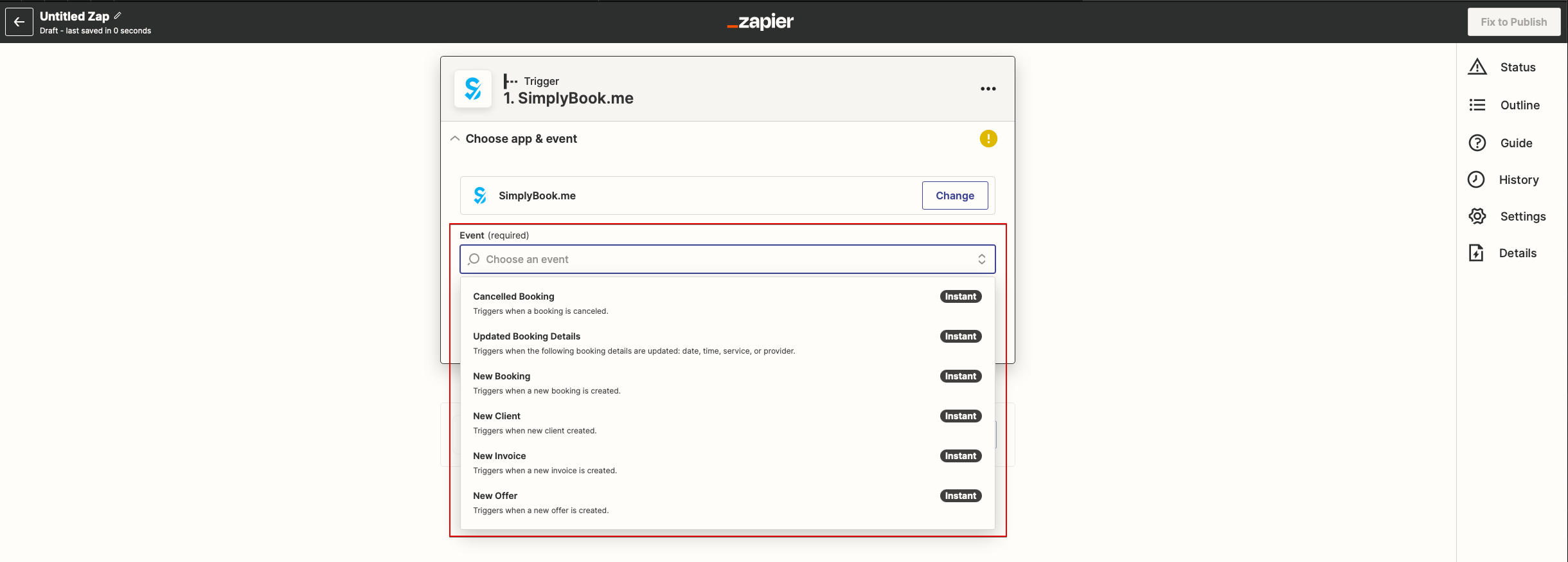
Доступно 6 тригерів:
• Нове бронювання – запускається при створенні нового бронювання;
• Зміна бронювання – запускається при зміні бронювання (дата/час/послуга/спеціаліст/статус/форми);
• Скасування бронювання – запускається при скасуванні бронювання;
• Новий клієнт – запускається, коли додано нового клієнта (через бронювання або вручну);
• Нова пропозиція – запускається при створенні нової пропозиції (потрібно активувати Прийом платежів);
• Новий рахунок – запускається при створенні та оплаті рахунку (також потребує Прийом платежів).
Доступні 6 дій:
- Get booking – отримати деталі бронювання за id
- Get client – отримати деталі клієнта за id
- Create booking – створити новий запис бронювання
- Create client – створити новий запис клієнта
- Cancel booking – скасувати бронювання за id
- Доступні дані:
Для тригерів, пов’язаних із бронюваннями (New booking, Booking change, Booking cancellation):
Базова функціональність (без увімкнених кастомних функцій):
- Компанія (login, назва, email, телефон),
- Послуга (назва, опис, тривалість, буферний час),
- Постачальник (ім’я, опис, email, телефон),
- Інформація про клієнта (ім’я, email, телефон, адреса, часовий пояс),
- Код бронювання (якщо бронювання підтверджене, дата/час початку і кінця).
Дані, пов’язані з кастомними функціями:
- Accept payments (ціна послуги, валюта);
- Status (назва, опис, колір);
- Approve bookings (статус підтвердження: approved, canceled);
- Multiple Locations (назва локації, адреса (з координатами), телефон, опис);
- Service Categories (назва категорії, опис категорії);
- Service Add-ons (назва додаткової послуги, ціна);
- Intake Forms (відповіді).
Для тригера New client:
- ID клієнта;
- Ім’я клієнта;
- Email клієнта;
- Телефон клієнта;
- Адреса клієнта;
- Чи заблокований клієнт для входу (якщо увімкнено кастомну функцію Client login);
- Дата реєстрації клієнта.
Для тригерів New Offer/Invoice:
- ID замовлення;
- Ім’я / email / телефон клієнта;
- Опис пропозиції/рахунку (список замовлених товарів, інформація про знижку: подарунковий сертифікат/купон/пакет);
- Сума замовлення та валюта;
- Сума знижки;
- Дата та час замовлення;
- Номер пропозиції/рахунку в системі SimplyBook.me (O-XXXXXX або I-XXXXXX);
- Платіжний процесор (delay, cash, credit card, wire transfer);
- Статус оплати (paid, pending) та чи отримано оплату.
- Як користуватися:
- 1. Увімкніть кастомну функцію Zapier connector на сторінці Custom features у SimplyBook.me.

- 2. Підключіться до вашого облікового запису Zapier за допомогою опції Quick connect
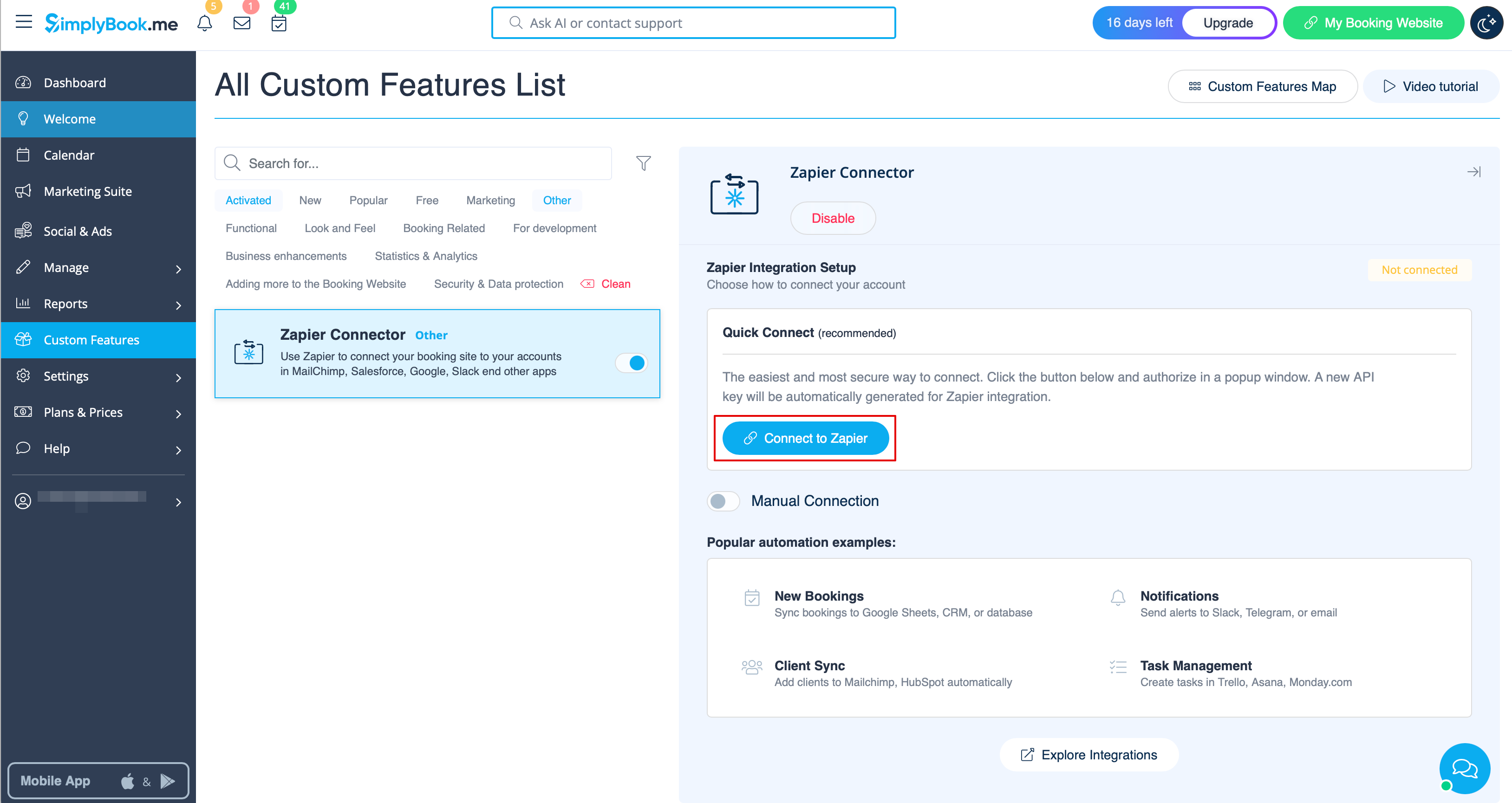
- 3. Або оберіть ручне підключення за допомогою облікових даних.
- Перейдіть на Zapier.com → сторінка App connections і натисніть кнопку “Add connection”
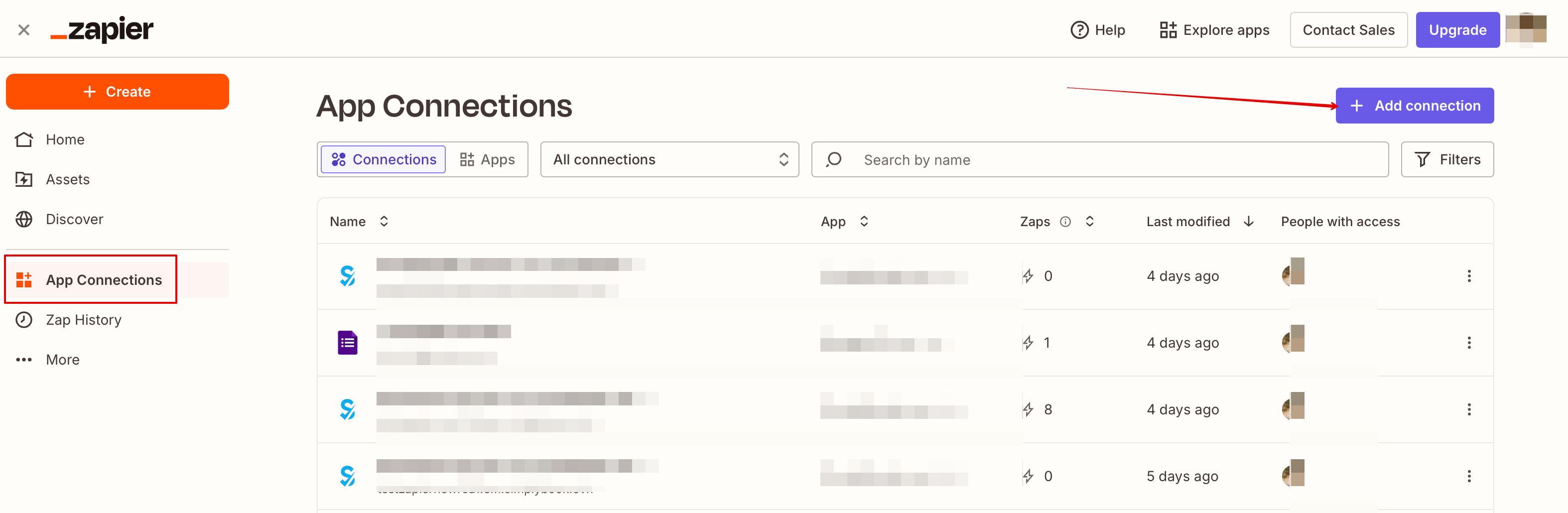
- Оберіть SimplyBook.me
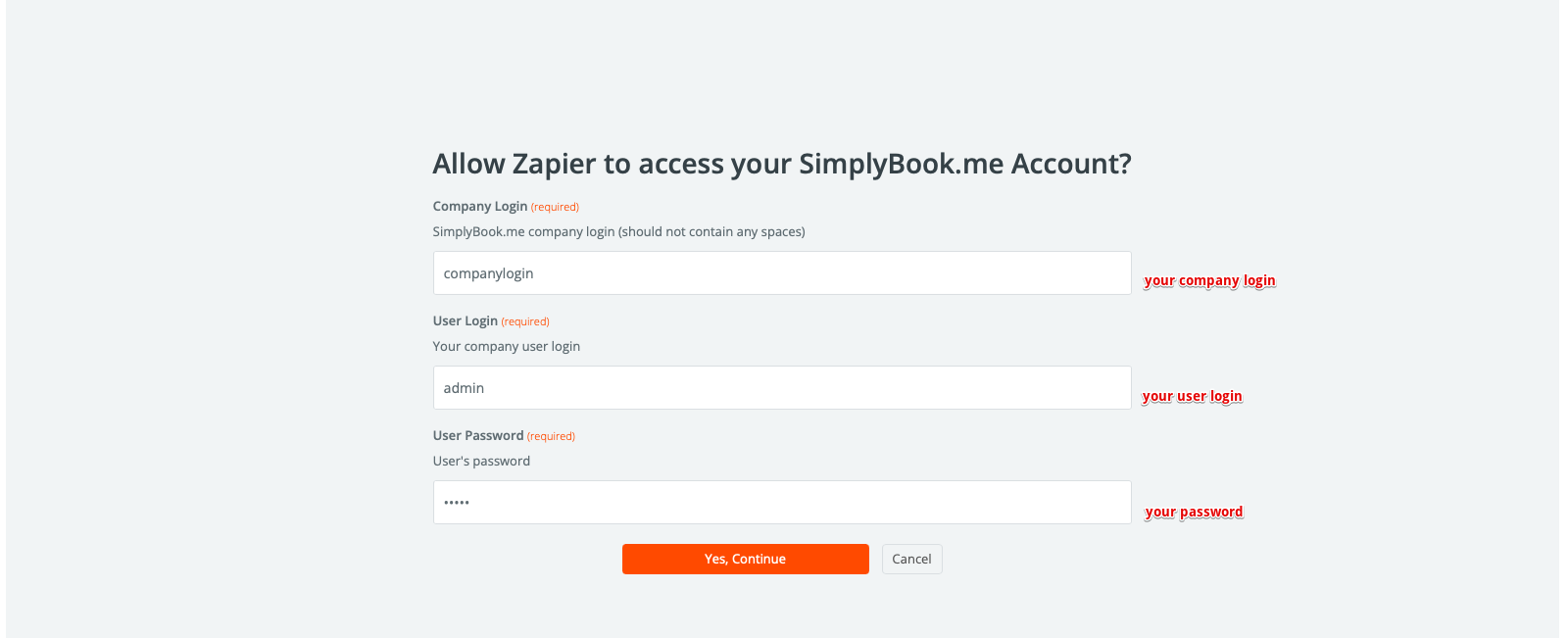
- Скопіюйте company login, user login та згенеруйте і скопіюйте API-ключ зі свого акаунту SimplyBook.me
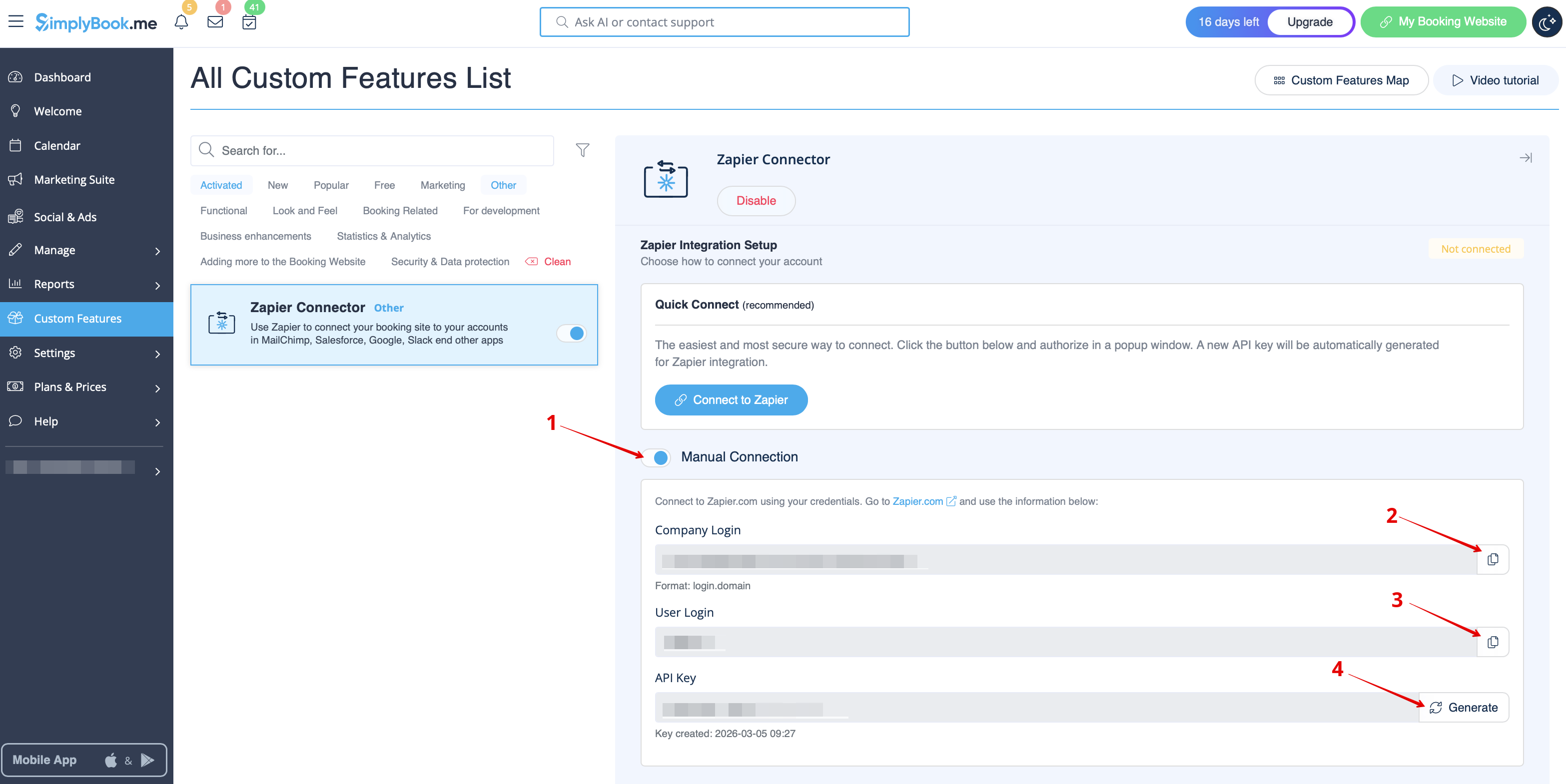
- Вставте їх у відповідні поля на Zapier.com і натисніть “Continue”. Акаунт буде підключено.
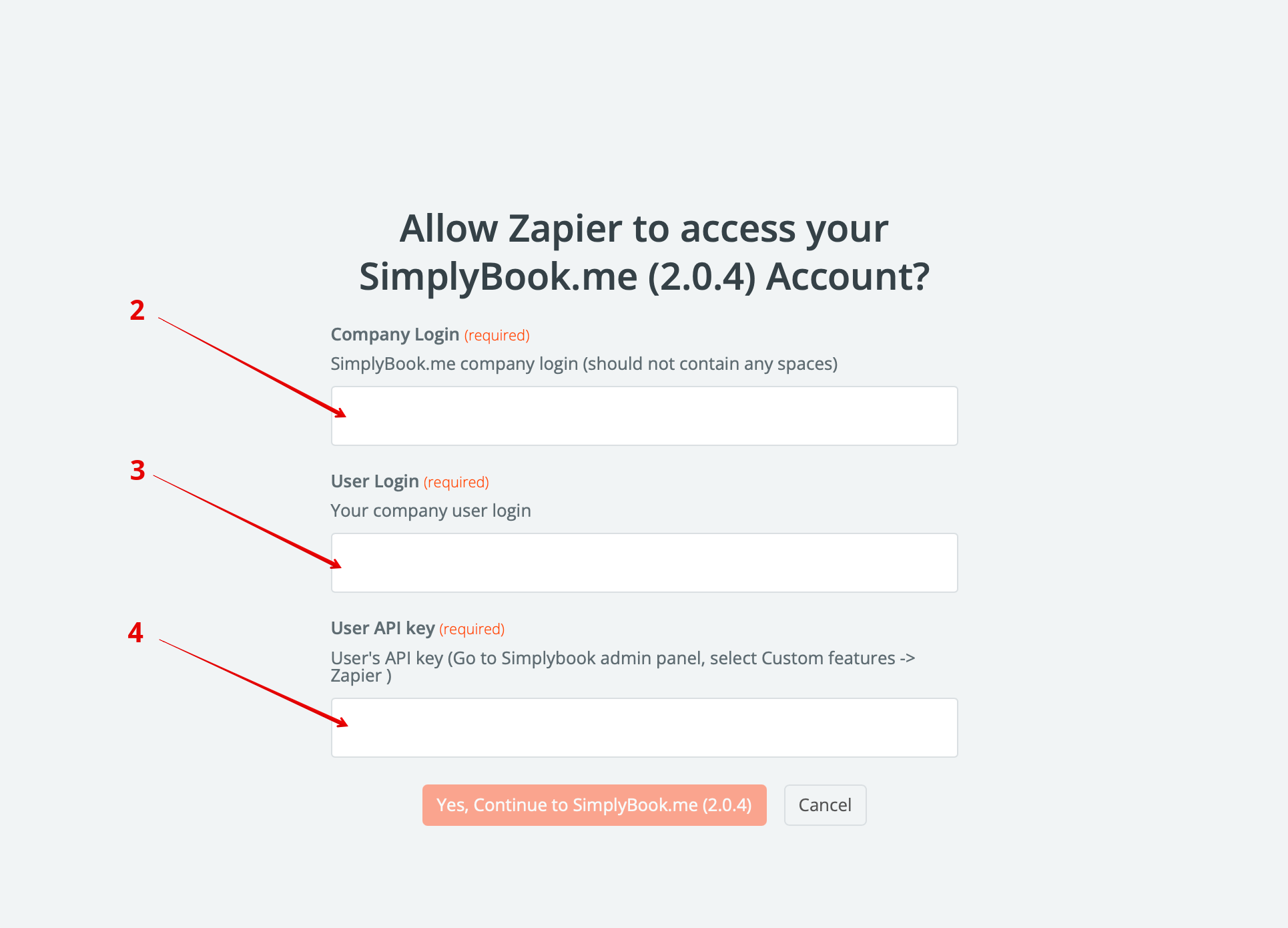
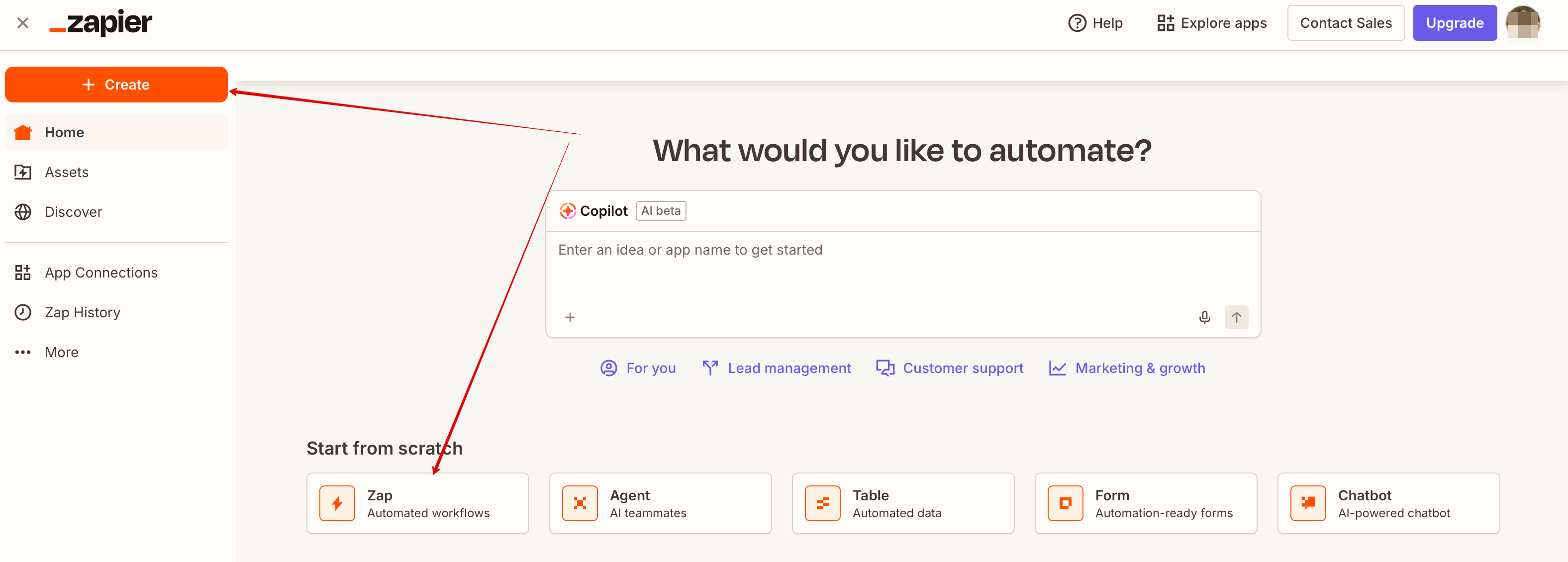
- 4. Тепер можна створити новий Zap, натиснувши кнопку Create в інтерфейсі Zapier.
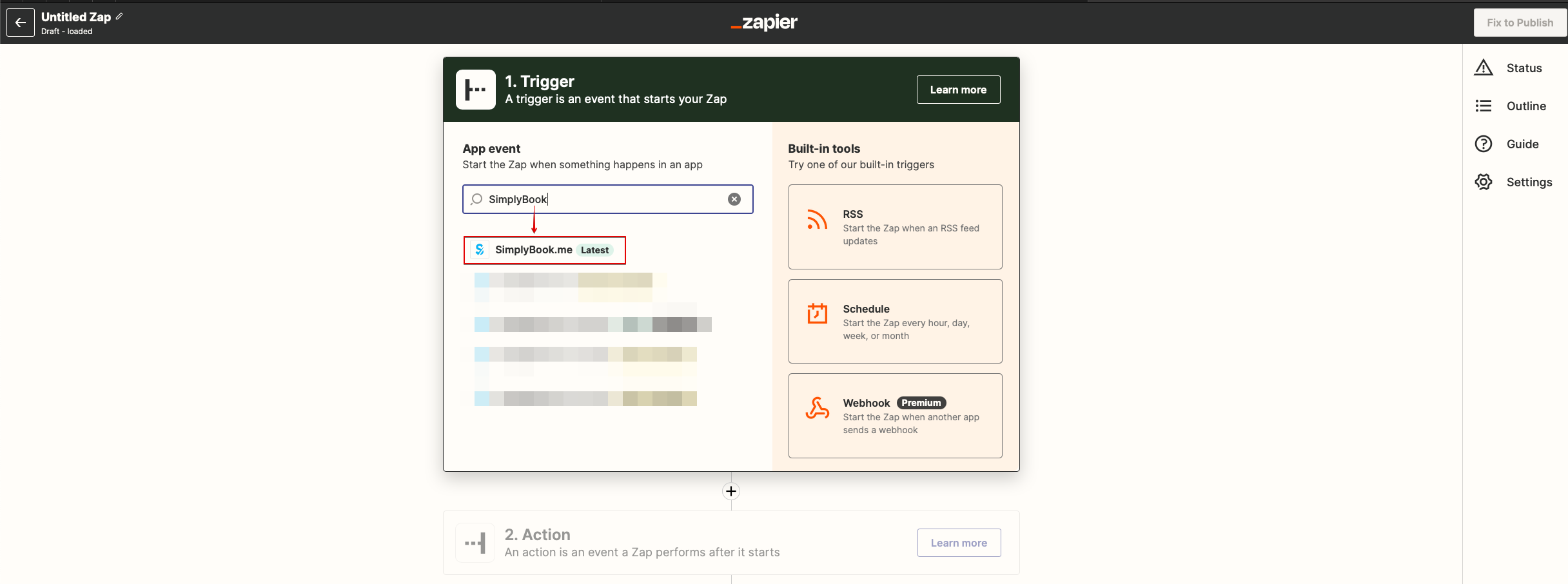
- 5. Знайдіть SimplyBook у Trigger step.
- 6. Оберіть потрібний тригер.
- 7. Підключіть акаунт SimplyBook.me.
- 8. Натисніть Continue для тестування цього кроку.
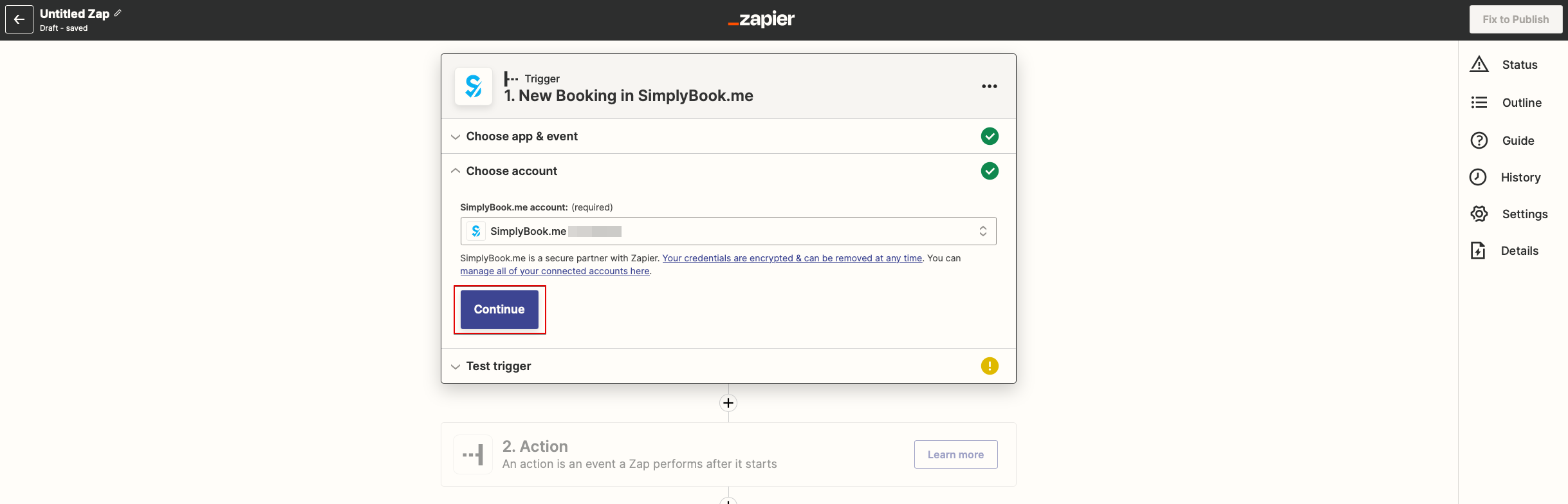
- 9. Перейдіть до додавання Action-step і знайдіть додаток, який потрібно підключити до SimplyBook.me.
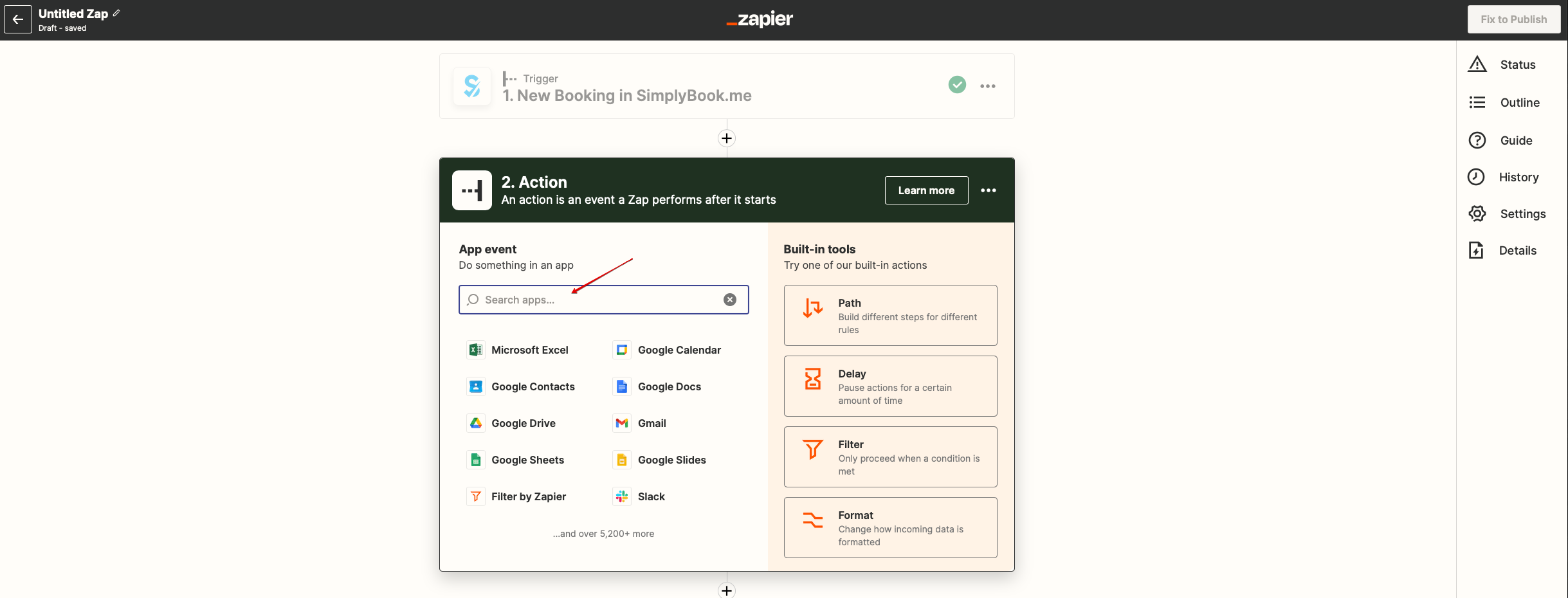
- 10. Підключіть акаунт цього додатка та налаштуйте шаблон, використовуючи дані, вказані вище.
- 11. За потреби можна протестувати цей крок або пропустити його.
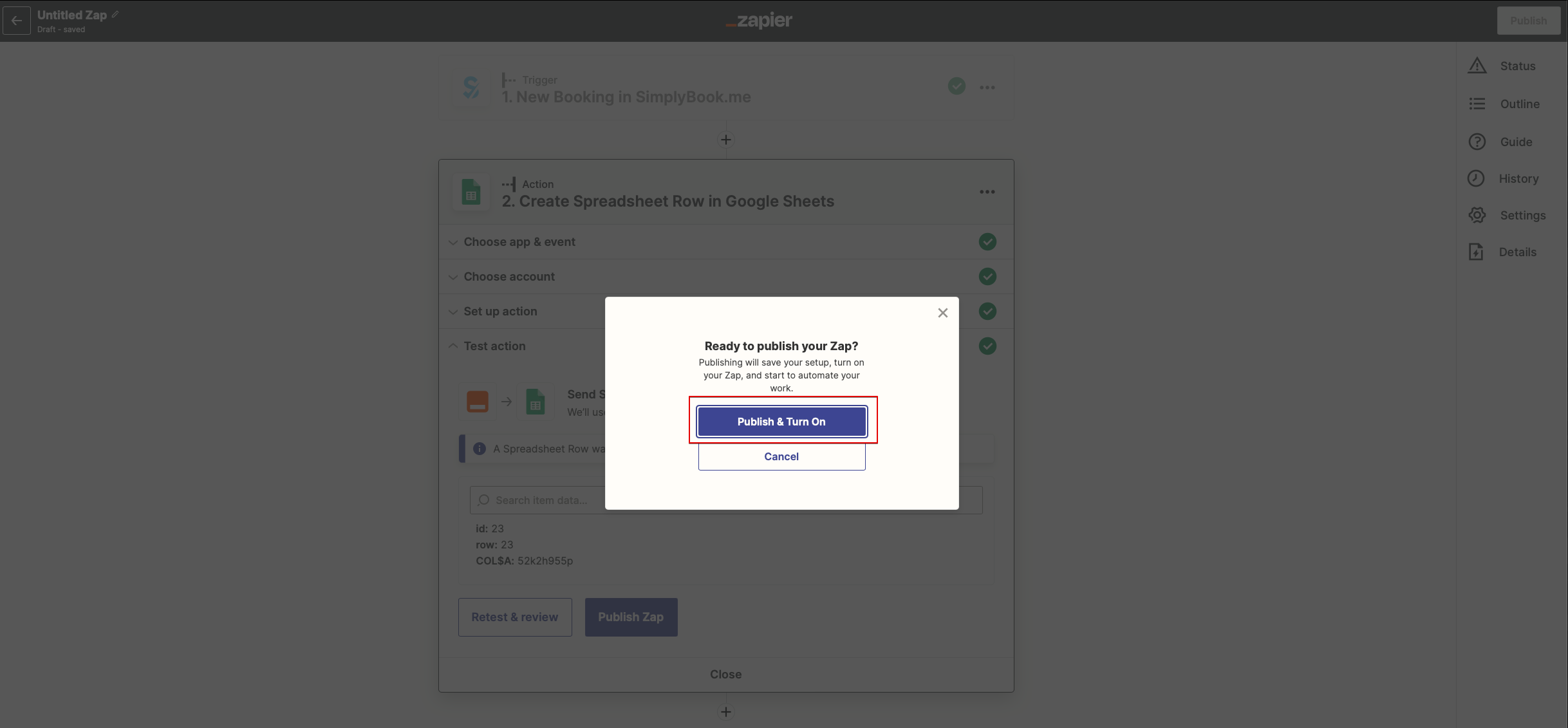
- 12. Завершіть налаштування, додайте назву Zap і активуйте його.
Ho to use manual connection
- 1. You can choose a manual connection by credentials. But in this case the option to manage the Zaps inside SimplyBook.me interface will not be available.
- 2. Go to Zapier.com -> App connections page and click on “Add connection” button
- 3. Select SimplyBook.me
- 4. Copy company login, user login, generate and copy API key from your SimpyBook.me account
- 5. Paste them to the corresponding fields on Zapier.com side and click on “Continue” option there. The account gets connected.
- 6. Now you can create a new Zap by clicking on Create button in Zapier interface.
- 7. Look for Simplybook in Trigger step.
- 8. Select the desirable trigger.
- 9. Select SimplyBook.me account you've connected before.
- 10. Click Continue to test this step.
- 11. Proceed to adding the Action step and search for the app you wish to connect SimplyBook.me to.
- 12. Connect this application account and setup the template using the available data mentioned above.
- 13. You can test this step operation as well if necessary or skip it.
- 14. Finish the setup, add Zap name and turn it on.

