From SimplyBook.me
No edit summary |
No edit summary |
||
| Line 1: | Line 1: | ||
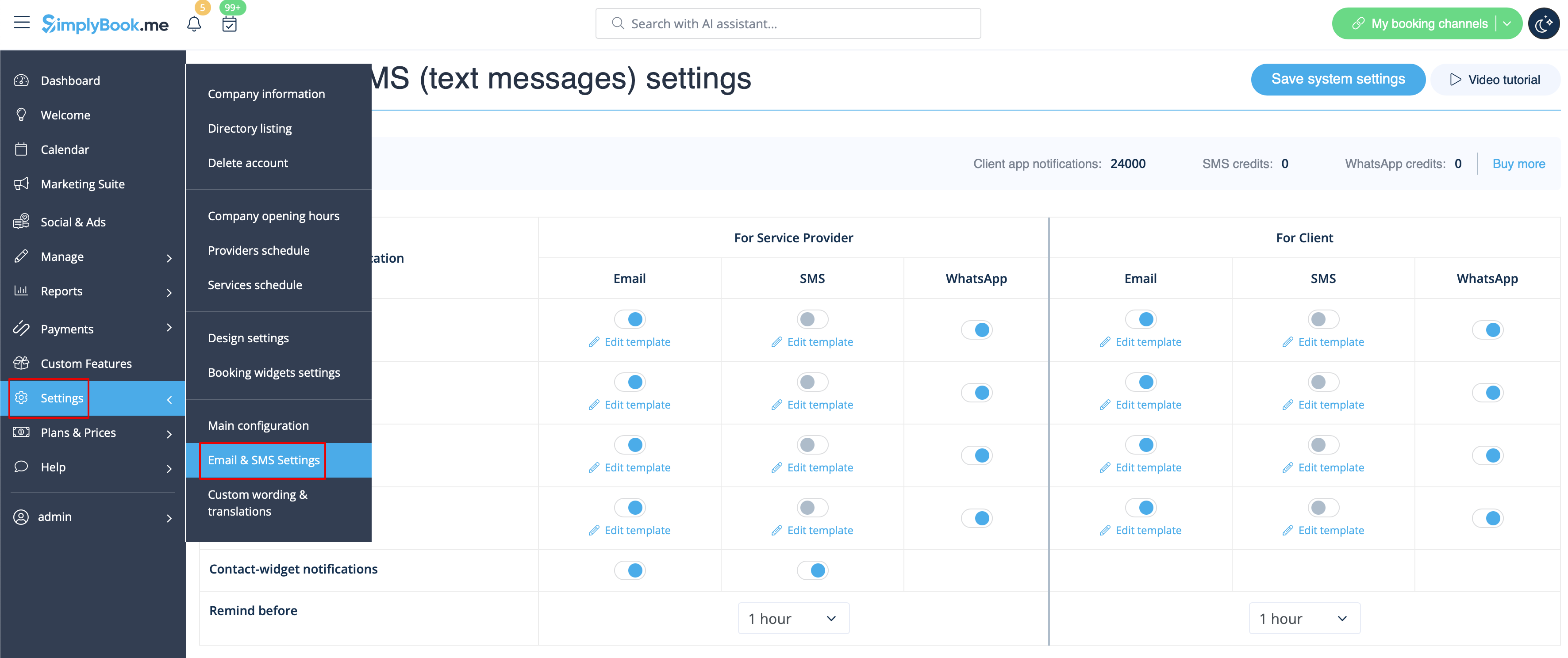
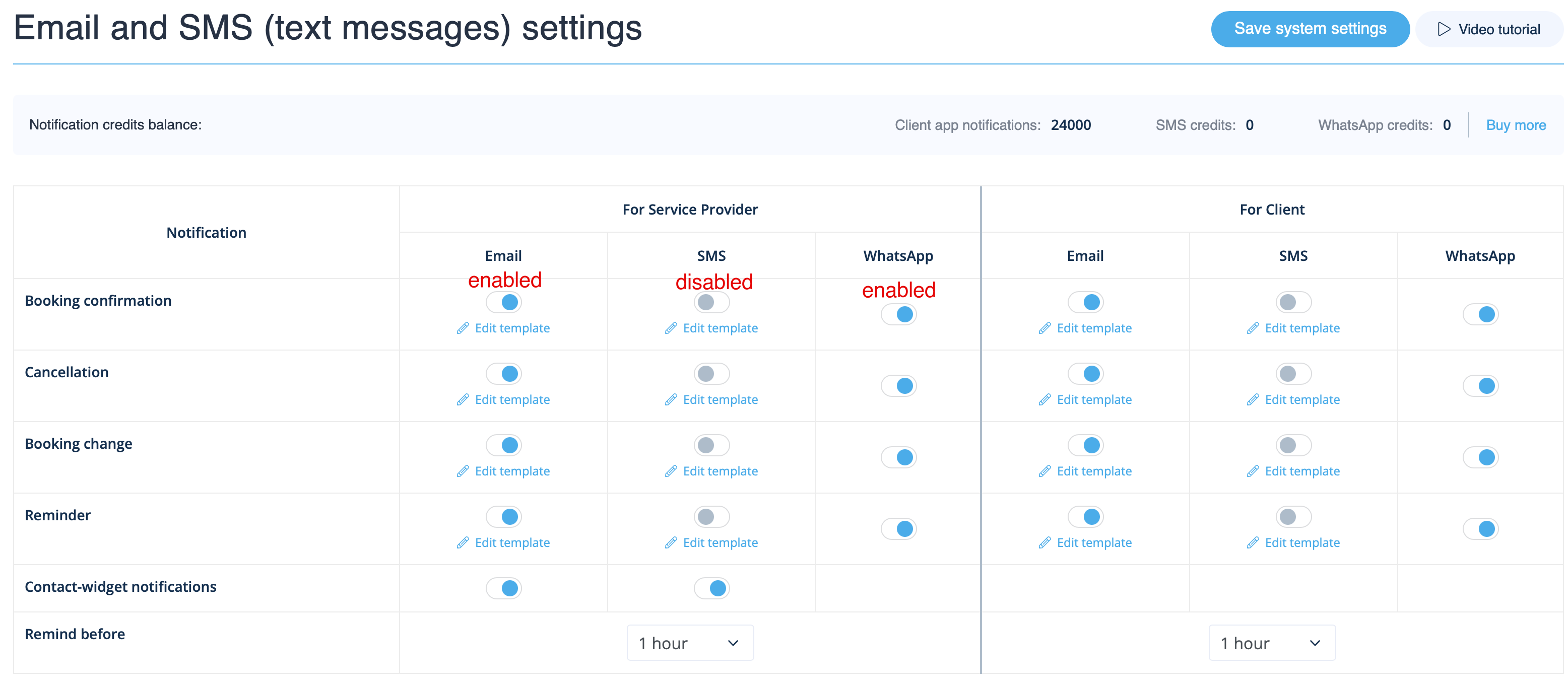
Ga naar <span style="background-color:#d4f8e5; padding:5px; border-radius:5px;">Instellingen</span> - | Ga naar <span style="background-color:#d4f8e5; padding:5px; border-radius:5px;">Instellingen</span> -> <span style="background-color:#d4f8e5; padding:5px; border-radius:5px;">E-mail- en sms-instellingen</span> en <span style="background-color:#d4f8e5; padding:5px; border-radius:5px;">vink de bijbehorende vakjes aan of uit</span> om meldingen wel of niet te verzenden. Je kunt de teksten van meldingen aanpassen om beter aan je behoeften te voldoen door te klikken op <span style="background-color:#d4f8e5; padding:5px; border-radius:5px;">sjabloon bewerken,</span> de wijzigingen aan te brengen en de systeeminstellingen op te slaan.<br> | ||
[[File: | Daarnaast kun je tot drie herinneringen instellen voor zowel je cliënten als je medewerkers – stel gewoon de timing in en het systeem zal ze automatisch verzenden volgens de sjabloonteksten die zijn ingesteld voor het type herinneringsmelding. | ||
[[File:Notifications options with multiple reminders.png|1200px|border| center|link=https://help.simplybook.me/images/a/a4/Email_and_sms_settings_path_redesigned_upd.png]] | |||
<br><br> | <br><br> | ||
[[File:Notifications statuses upd.png|1200px| center|link=https://help.simplybook.me/images/e/e2/Notifications_statuses_upd.png]] | [[File:Notifications statuses upd.png|1200px| center|link=https://help.simplybook.me/images/e/e2/Notifications_statuses_upd.png]] | ||
<br><br> | <br><br> | ||
Latest revision as of 13:07, 16 March 2026
Ga naar Instellingen -> E-mail- en sms-instellingen en vink de bijbehorende vakjes aan of uit om meldingen wel of niet te verzenden. Je kunt de teksten van meldingen aanpassen om beter aan je behoeften te voldoen door te klikken op sjabloon bewerken, de wijzigingen aan te brengen en de systeeminstellingen op te slaan.
Daarnaast kun je tot drie herinneringen instellen voor zowel je cliënten als je medewerkers – stel gewoon de timing in en het systeem zal ze automatisch verzenden volgens de sjabloonteksten die zijn ingesteld voor het type herinneringsmelding.