From SimplyBook.me
No edit summary |
No edit summary |
||
| Line 11: | Line 11: | ||
;How to set | ;How to set | ||
:1. Enable <span style="background-color:#d4f8e5; padding:5px; border-radius:5px;">[[Calendar_Sync_custom_feature|Calendar sync]]</span> custom feature on your <span style="background-color:#d4f8e5; padding:5px; border-radius:5px;">Custom Features</span> page, <span style="background-color:#d4f8e5; padding:5px; border-radius:5px;">Functional</span> section. | :1. Enable <span style="background-color:#d4f8e5; padding:5px; border-radius:5px;">[[Calendar_Sync_custom_feature|Calendar sync]]</span> custom feature on your <span style="background-color:#d4f8e5; padding:5px; border-radius:5px;">Custom Features</span> page, <span style="background-color:#d4f8e5; padding:5px; border-radius:5px;">Functional</span> section. | ||
[[File:Calendar sync enable path | [[File:Calendar sync enable path redesigned.png|1200px|border|center|link=https://help.simplybook.me/images/8/8a/Calendar_sync_enable_path_redesigned.png]] | ||
<br><br> | <br><br> | ||
:2. Connect <span style="background-color:#d4f8e5; padding:5px; border-radius:5px;">Google calendar,</span> and then <span style="background-color:#d4f8e5; padding:5px; border-radius:5px;">attach the desired provider(s)</span> to it in this feature settings. | :2. Connect <span style="background-color:#d4f8e5; padding:5px; border-radius:5px;">Google calendar,</span> and then <span style="background-color:#d4f8e5; padding:5px; border-radius:5px;">attach the desired provider(s)</span> to it in this feature settings. | ||
[[File: | [[File:Connect external calendar path redesigned.png|1200px|border|center|link=https://help.simplybook.me/images/5/57/Connect_external_calendar_path_redesigned.png]] | ||
<br><br> | <br><br> | ||
:3. Check the box <span style="background-color:#d4f8e5; padding:5px; border-radius:5px;">create google meet link</span> and <span style="background-color:#d4f8e5; padding:5px; border-radius:5px;">save</span> settings. | :3. Check the box <span style="background-color:#d4f8e5; padding:5px; border-radius:5px;">create google meet link</span> and <span style="background-color:#d4f8e5; padding:5px; border-radius:5px;">save</span> settings. | ||
[[File: | [[File:Create google meet link redesigned.png|1200px|border|center|link=https://help.simplybook.me/images/a/a7/Create_google_meet_link_redesigned.png]] | ||
Revision as of 11:17, 9 September 2024
- Now we have the option for you to handle online meetings via Google Meet.
- Just three simple steps and you are ready.
- How to set
- 1. Enable Calendar sync custom feature on your Custom Features page, Functional section.
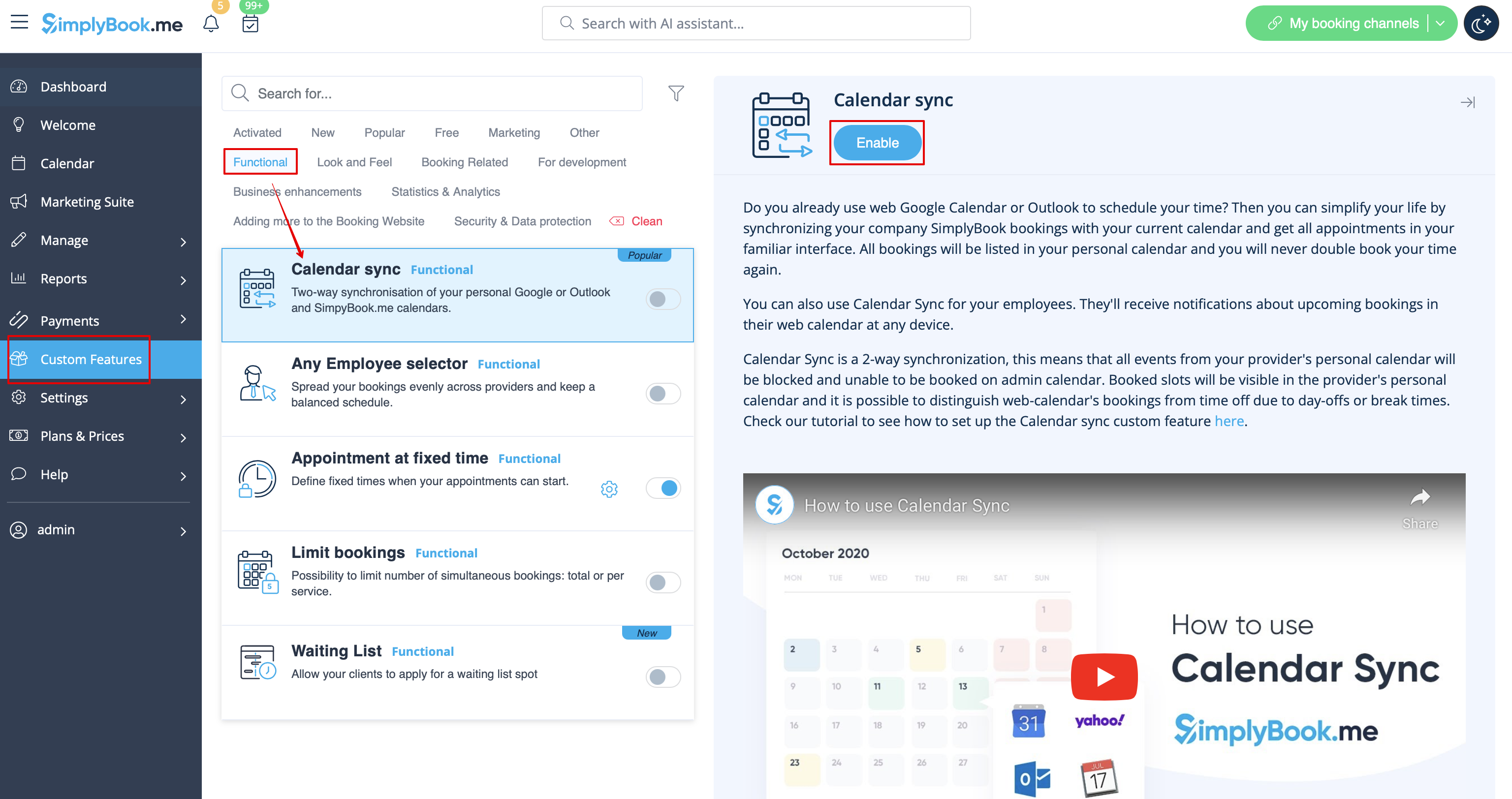
- 2. Connect Google calendar, and then attach the desired provider(s) to it in this feature settings.
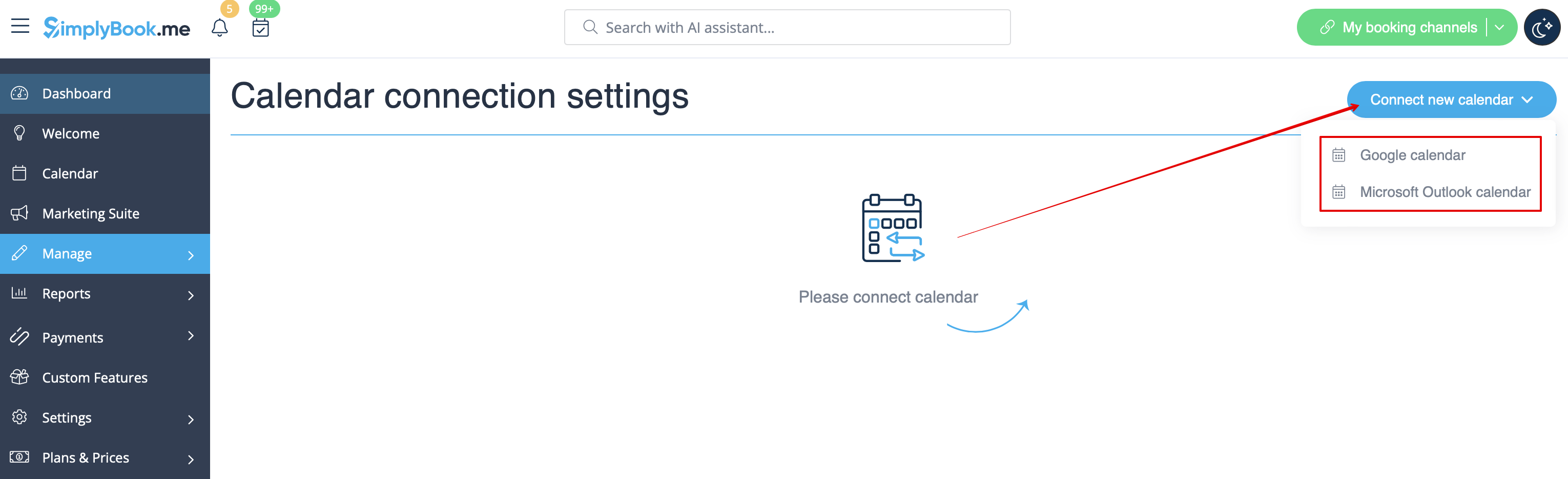
- 3. Check the box create google meet link and save settings.
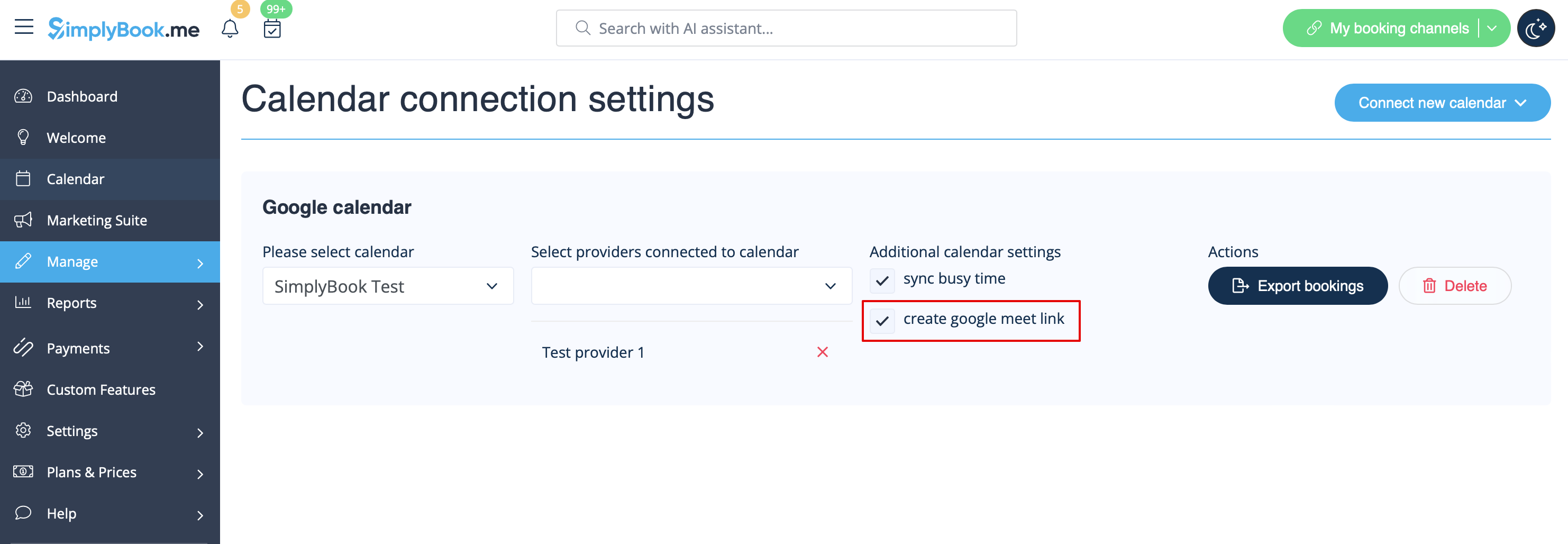
- How it works
- 1. In addition to usual appointment confirmation the client will get an invite to Google event to accept and add to own calendar.

- 2. For provider the event will be added to hir/her Google calendar, that is connected to the system with the help of Calendar sync feature and will contain meeting link to follow when the meeting time comes.

- 3. In case you are using Group bookings custom feature and the client books several participants the meeting link will be generated for the first appointment from the batch and one invite will be sent to client.
- That is why please be careful with rescheduling or cancellation of the appointments related to such batches to not influence the one with the meeting link if it is not planned.
- 4. If the booking was created before you checked the box create google meet link, but you have been using Calendar sync as such, you will need to manually add meeting link and send the invite to client on the Google calendar side.
