| Line 136: | Line 136: | ||
:1. First of all, as you plan to work with online payment, you need to have Accept Payments custom feature enabled in your SimplyBook.me account. | :1. First of all, as you plan to work with online payment, you need to have <span style="background-color:#cdeffc; padding:5px; border-radius:5px;">[[Accept payments custom feature|Accept Payments]]</span> custom feature enabled in your SimplyBook.me account. | ||
[[File:Accept payments enabled.png|1200px|center|link=https://help.simplybook.me/images/d/d8/Accept_payments_enabled.png]] | |||
:2. Click on "Activate SBPay.me | <br><br> | ||
:2. Click on <span style="background-color:#d4f8e5; padding:5px; border-radius:5px;">Activate SBPay.me</span> button on the <span style="background-color:#d4f8e5; padding:5px; border-radius:5px;">custom features page</span> or inside the <span style="background-color:#cdeffc; padding:5px; border-radius:5px;">[[Accept payments custom feature|Accept Payments]]</span> feature settings. | |||
:3. Adjust your company information in the registration form if necessary. (It will be autocompleted with the company details that you already have in your system), | [[File:Activate sbpayme cf page.png|1200px|center|link=https://help.simplybook.me/images/3/37/Activate_sbpayme_cf_page.png]] | ||
and click on "Activate SBPay.me | <br><br> | ||
[[File:Activate sbpayme accept payments settings.png|1200px|center|link=https://help.simplybook.me/images/3/3a/Activate_sbpayme_accept_payments_settings.png]] | |||
:4. Navigate to the "Payment system settings" | <br><br> | ||
:If you had some payment system details before enabling SBPay.me integration it may have been copied to SBPay.me side, but there may be some changes in the payment flow so you will need to check if all the settings are added there for the smooth online payments operation. | :3. Adjust your <span style="background-color:#d4f8e5; padding:5px; border-radius:5px;">company information</span> in the registration form if necessary. | ||
:(It will be autocompleted with the company details that you already have in your system), and click on <span style="background-color:#d4f8e5; padding:5px; border-radius:5px;">Activate SBPay.me</span> button below.<br> | |||
:Congratulations! Your SBPay.me account is created! | |||
[[File:Sbpayme registration form.png|1200px|center|link=https://help.simplybook.me/images/0/0e/Sbpayme_registration_form.png]] | |||
<br><br> | |||
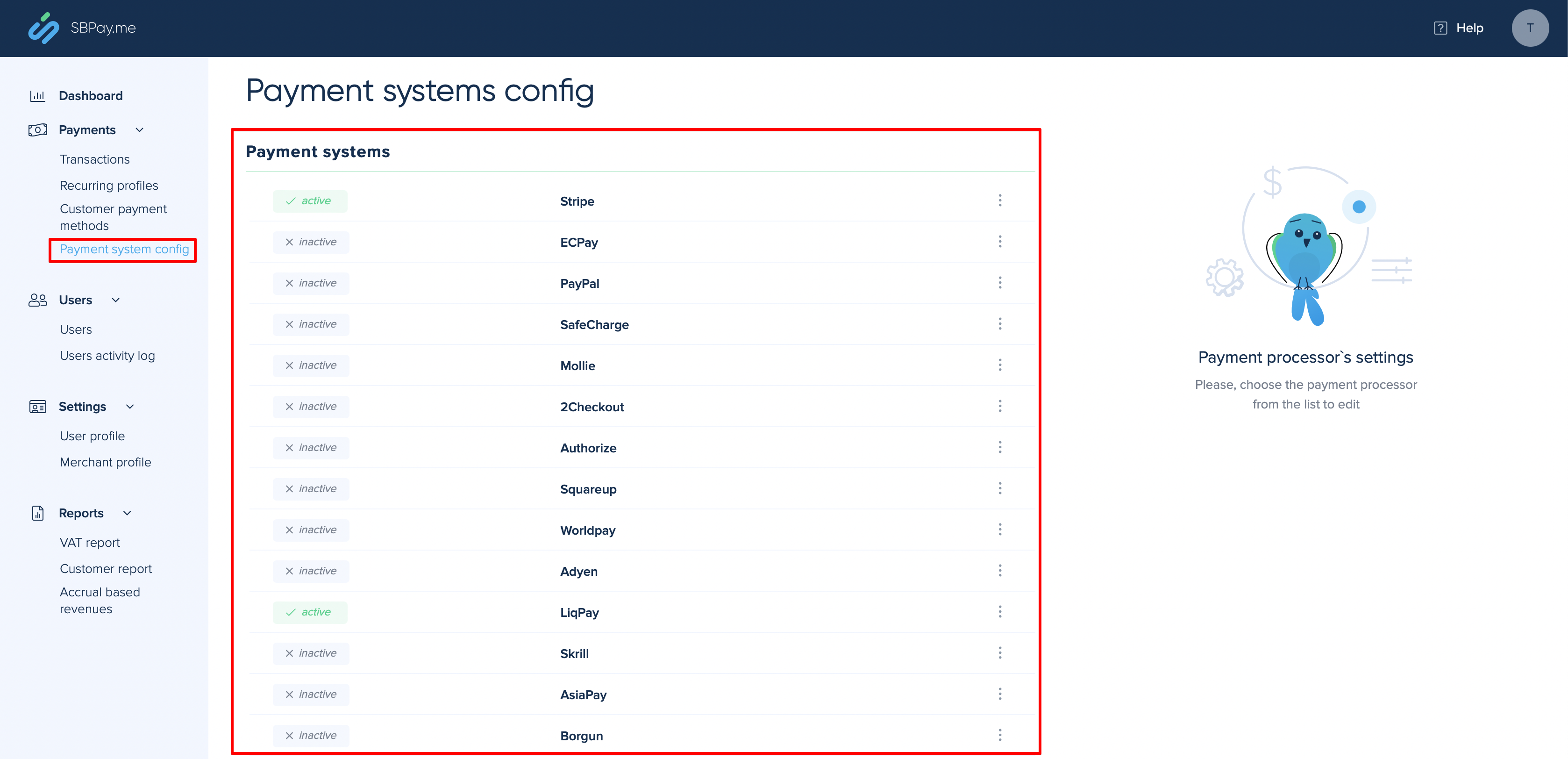
:4. Navigate to the <span style="background-color:#d4f8e5; padding:5px; border-radius:5px;">Payment system settings</span> and <span style="background-color:#d4f8e5; padding:5px; border-radius:5px;">add the credentials</span> of the payment gateway that you plan to use for online payments.<br> | |||
:If you had some payment system details before enabling SBPay.me integration it may have been copied to SBPay.me side, but there may be some changes in the payment flow so you will need to <span style="background-color:#d4f8e5; padding:5px; border-radius:5px;">check if all the settings are added</span> there for the smooth online payments operation. | |||
[[File:Sbpayme payment systems page.png|1200px|center|link=https://help.simplybook.me/images/0/07/Sbpayme_payment_systems_page.png]] | |||
<br><br> | |||
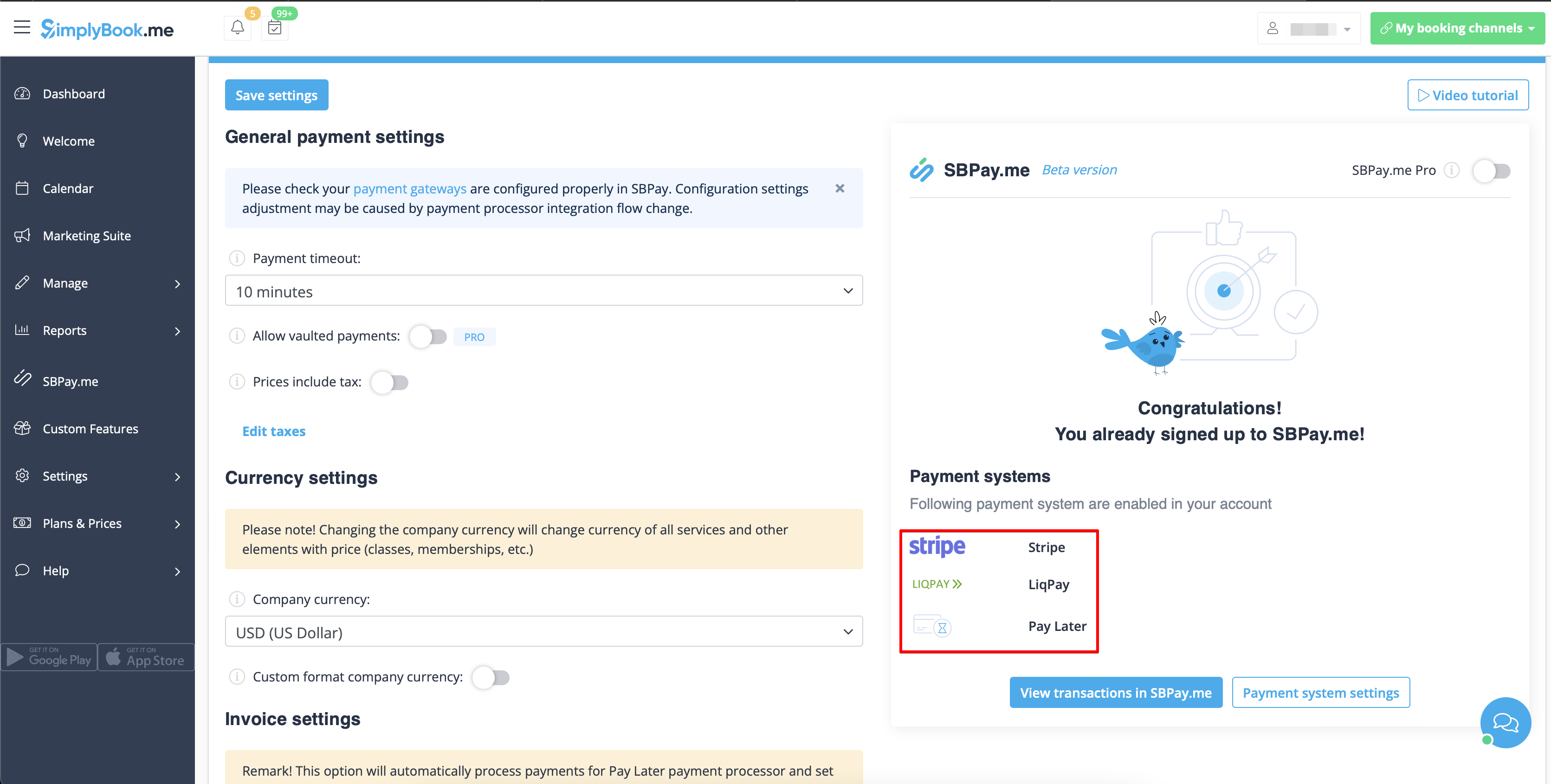
:5. Once you have set the payment processors up you will be able to see the active ones on the SimplyBook.me side as well. | :5. Once you have set the payment processors up you will be able to see the active ones on the SimplyBook.me side as well. | ||
[[File:Sbpayme activeted payment systems .png|1200px|center|link=https://help.simplybook.me/images/b/b1/Sbpayme_activeted_payment_systems_.png]] | |||
:6. Set the prices for your services, classes, packages, memberships, gift cards, products or service add-ons in your SimplyBook.me account and you are ready to get payments online. | <br><br> | ||
:6. Set the prices for your services, <span style="background-color:#cdeffc; padding:5px; border-radius:5px;">[[Classes custom feature|classes]]</span>, <span style="background-color:#cdeffc; padding:5px; border-radius:5px;">[[Packages custom feature|packages]]</span>, <span style="background-color:#cdeffc; padding:5px; border-radius:5px;">[[Membership custom feature|memberships]]</span>, <span style="background-color:#cdeffc; padding:5px; border-radius:5px;">[[Coupons and Gift Cards custom feature|gift cards]]</span>, <span style="background-color:#cdeffc; padding:5px; border-radius:5px;">[[Products for Sale custom feature|products]]</span> or <span style="background-color:#cdeffc; padding:5px; border-radius:5px;">[[Service Add-Ons custom feature|service add-ons]]</span> in your SimplyBook.me account and you are ready to get payments online. | |||
<br><br><br><br> | |||
==Using PRO version features== | ==Using PRO version features== | ||
Revision as of 10:41, 5 July 2022
SBPay.me is the payment management feature by SimplyBook.me that lets you accept and manage payments via multiple payment providers, whilst simplifying online and offline payments, sending payment links, charging saved cards and making refunds.
The list of currently supported payment processors:
| Supported payment system | Recurring | Rebilling |
|---|---|---|
| Stripe(SCA) | ✔ |
− |
| ECPay | − |
− |
| PayPal | ✔ |
✔ |
| SafeCharge | ✔ |
✔ |
| 2Checkout | − |
− |
| Mollie | ✔ |
✔ |
| Authorize | ✔ |
✔ |
| Squareup (Square) | ✔ |
✔ |
| Worldpay | ✔ |
✔ |
| Adyen | ✔ |
✔ |
| LiqPay | ✔ |
✔ |
| Skrill | ✔ |
✔ |
| Asiapay | ✔ |
✔ |
| Borgun | ✔ |
✔ |
| Paytabs | ✔ |
✔ |
| Rapyd | ✔ |
✔ |
| Payfast | ✔ |
✔ |
| PayULatam | − |
− |
| Paymentasia | − |
− |
| Newebpay | − |
− |
| PinPayments | ✔ |
✔ |
| Swish | − |
− |
| Braintree | ✔ |
✔ |
| TapPay | ✔ |
✔ |
| Line Pay | ✔ |
✔ |
| TwoCheckout [Verifone] | − |
− |
| CCAvenue | − |
− |
| Revolut | ✔ |
✔ |
How to set and use it with SimplyBook.me
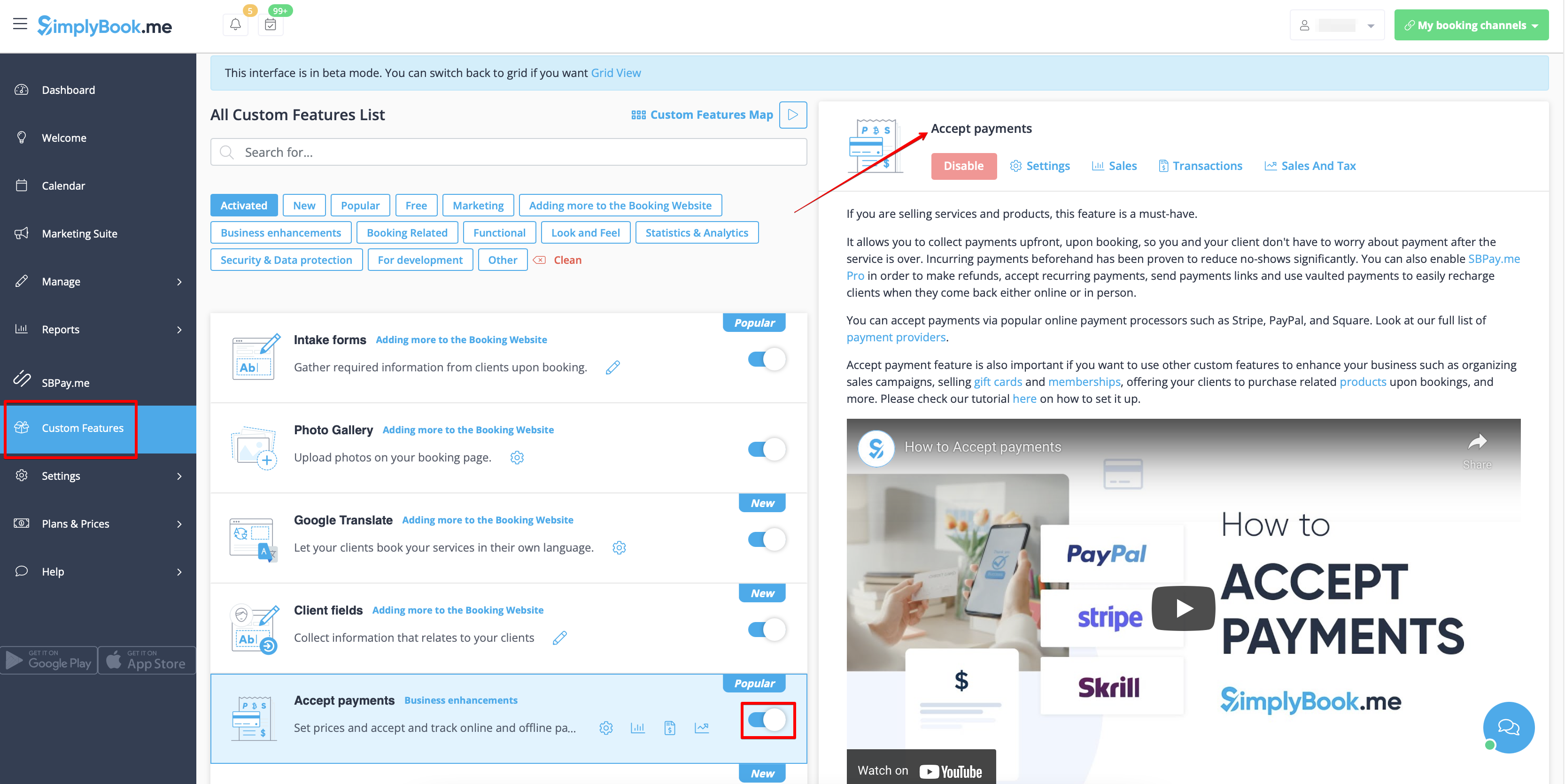
- 1. First of all, as you plan to work with online payment, you need to have Accept Payments custom feature enabled in your SimplyBook.me account.
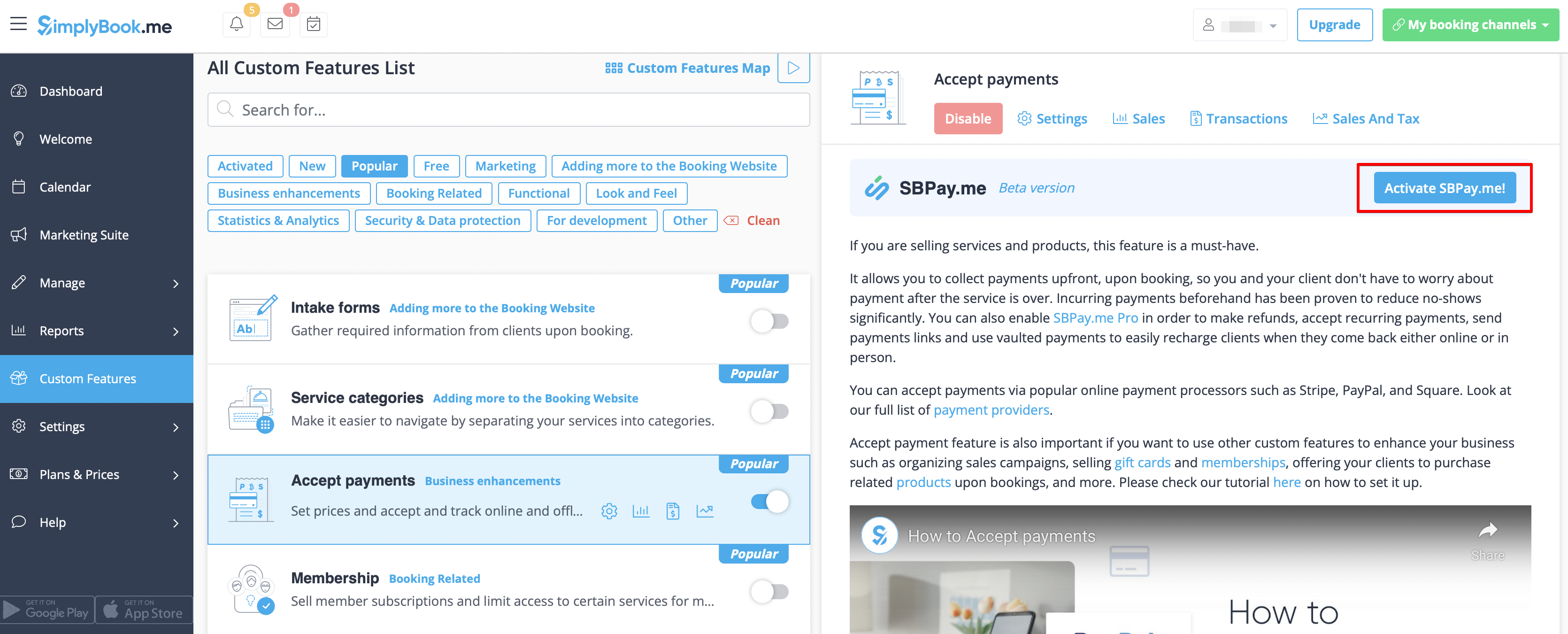
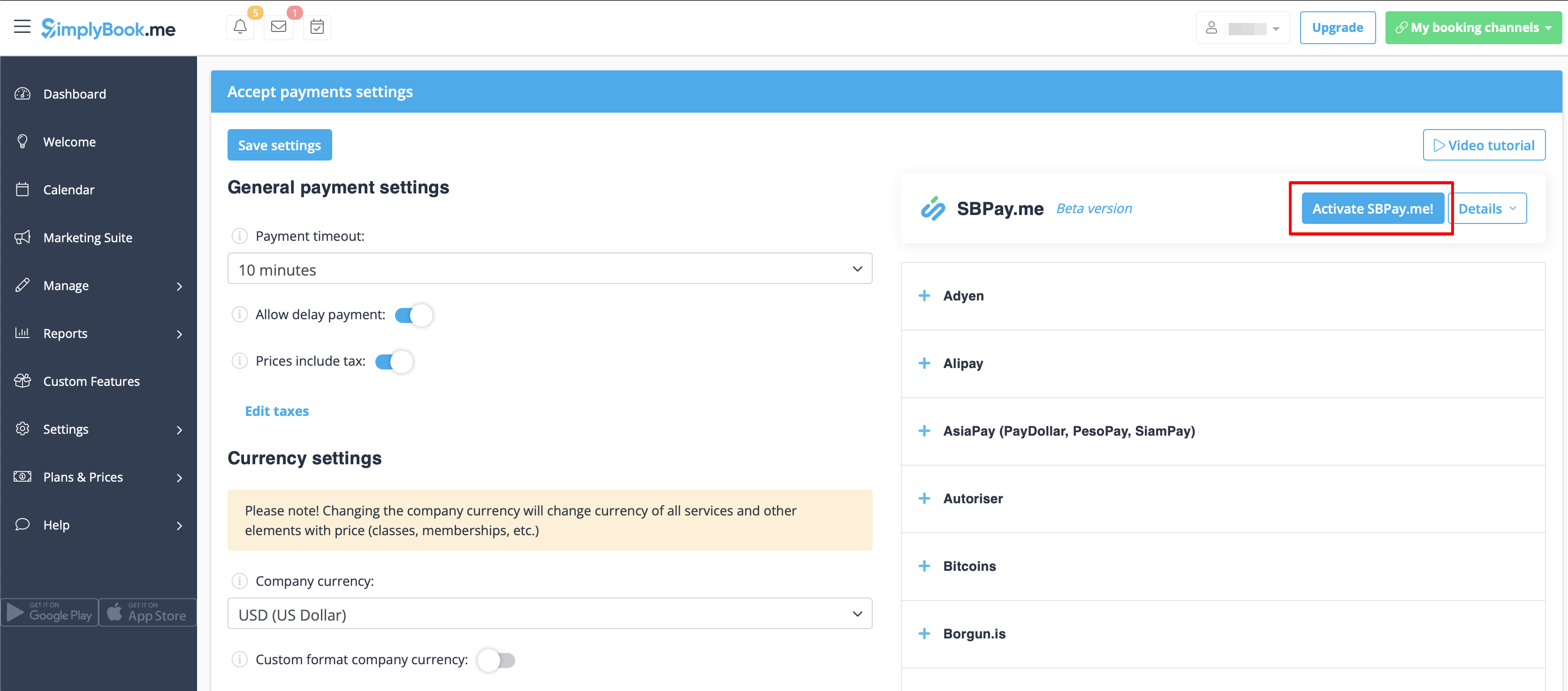
- 2. Click on Activate SBPay.me button on the custom features page or inside the Accept Payments feature settings.
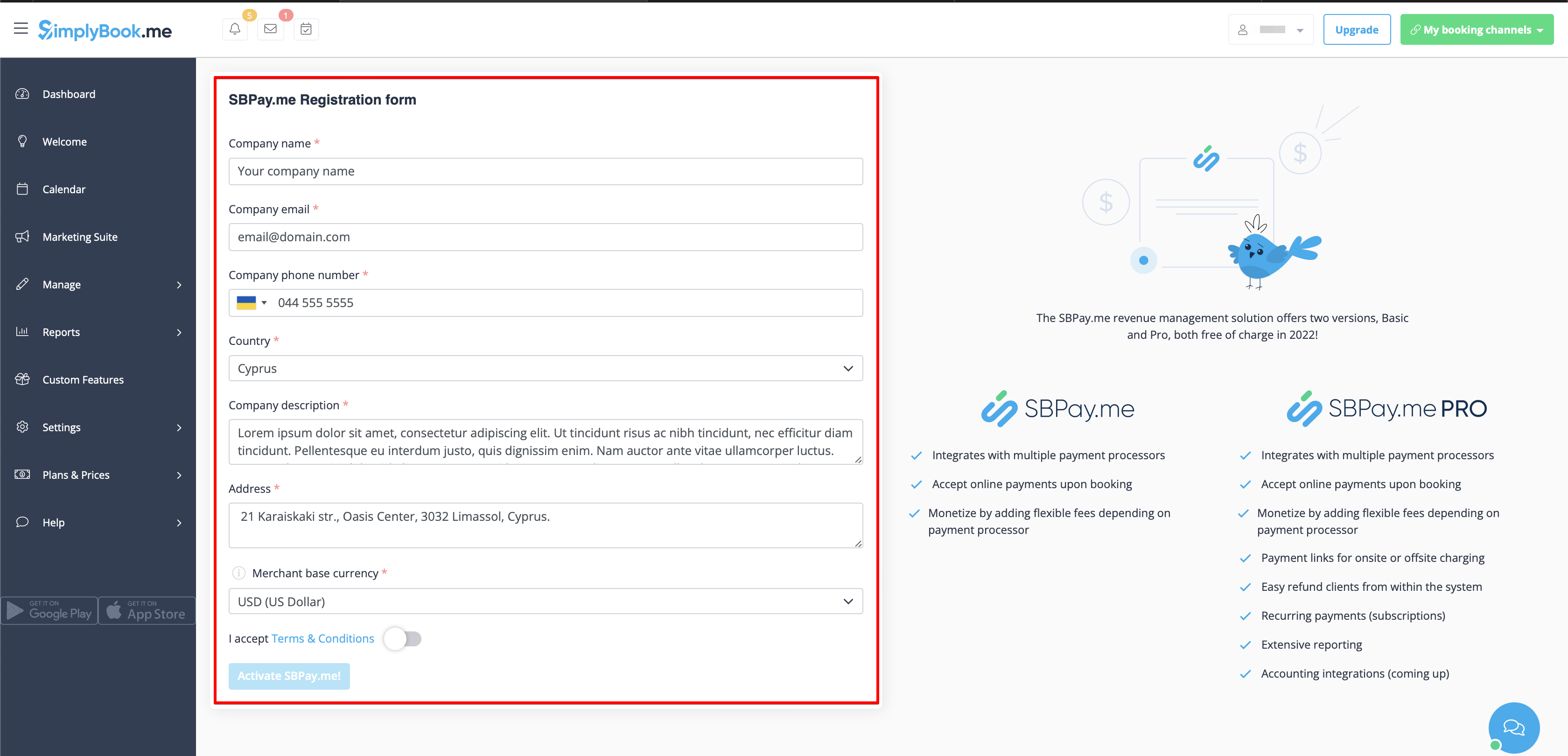
- 3. Adjust your company information in the registration form if necessary.
- (It will be autocompleted with the company details that you already have in your system), and click on Activate SBPay.me button below.
- Congratulations! Your SBPay.me account is created!
- 4. Navigate to the Payment system settings and add the credentials of the payment gateway that you plan to use for online payments.
- If you had some payment system details before enabling SBPay.me integration it may have been copied to SBPay.me side, but there may be some changes in the payment flow so you will need to check if all the settings are added there for the smooth online payments operation.
- 5. Once you have set the payment processors up you will be able to see the active ones on the SimplyBook.me side as well.
- 6. Set the prices for your services, classes, packages, memberships, gift cards, products or service add-ons in your SimplyBook.me account and you are ready to get payments online.
Using PRO version features
The Pro version is completely free of charge in 2022 for all users. In the beginning of 2023 users can decide to use either the standard version for free or the Pro version for a small fee.
Please check if "PRO" version or SBPay.me is enabled on Accept payments settings page to get access to the list of additional options like vaulted payments, refunds and payment links.
In case you do not plan to use the additional options listed below you can easily disable the "PRO" version by turning the switch off.
Vaulted payments
Please note!
- It also required Client login custom feature to be enabled to be able to use this functionality.
- Not all the payment gateways support this feature. Please check the availability of such an option in the table or by contacting your payment gateway support as it may require some adjustments on their side.
- 1. Enable the option "Allow vaulted payments" on your Accept payments custom feature page.
- 2. The client will be able to tick the checkbox "Save my payment method for easy charging in my future purchases" at checkout on the booking website and his/her details will be attached to the client profile.
- 3. During the next purchase or booking on the client side he/she can decide whether to confirm the order with the already saved payment method or to choose the new option.
- 4. During the payment approval on the admin side or sale management inside the POS interface you will also be able to use the client's saved payment method.
Payment links
- 1. Enable "Send payment link on Delay payment method" in the settings of Accept payments custom feature, inside the "Email template settings" block and adjust the template to your needs.
- Please do not forget to use [payment_link] variable for the client to easily navigate to the payment.
- 2. After you create the order from admin side or from POS interface with "Pay later" selected as the payment method, or if the client selects "Pay later" at the checkout step on the booking website, the system will automatically send the email/SMS with the link to pay for the sale (saved payment methods can also be used in this case).
- 3. You can also trigger sending payment link from Payment transactions report or POS interface or simply copy the payment link per the specific order there and send it to your client using own communication channels.
Refunds
It may happen that you need to return the money back to your customer and now it is possible to easily manage such cases with SBPay.me PRO integration.
- 1. After you activate SBPay.me integration in your SimplyBook.me account you can simply navigate to Reports -> Payment transactions -> find the necessary invoice -> click on "Actions" and select "Refund" from the drop down menu. Confirm the action and the refund will be automatically made to the corresponding client's account.
- 2. Or you can go directly to the SBPay.me interface -> Transactions -> open the necessary record and select "Refund".
- 3. In the Accept payments custom feature settings you can also enable "Send refund confirmation" option and adjust the templates to automatically notify your clients via email and/or sms about the refunds.
SBPay.me Reports
SBPay.me is just starting but already has several useful reports that you can use to track your payments:
- 1. Dashboard - contains currencies, payment systems and tags charts.
- 2. Transactions - allows to view, confirm or refund orders.
- 3. Recurring profiles - contains the information on memberships recurring profiles. You can easily view, prolong or cancel profiles on that page.
- 4. Customers payment methods - allows you to view the list of saved payment methods of your clients, check the list of related payments and disable the profiles if necessary.
- 5. VAT report - allows to view the taxes related information.
- 6. Customer report - contains the information about your clients who have been making payments after you have enabled the integration and the related statistics.
More features coming!
