No edit summary |
|||
| Line 23: | Line 23: | ||
<br> | <br> | ||
Please follow the next steps to cancel your recurring payment:<br> | Please follow the next steps to cancel your recurring payment:<br> | ||
:1. Navigate to <span style="background-color:#d4f8e5; padding:5px; border-radius:5px;">Plans & Prices</span> -> <span style="background-color:#d4f8e5; padding:5px; border-radius:5px;"> | :1. Navigate to <span style="background-color:#d4f8e5; padding:5px; border-radius:5px;">Plans & Prices</span> -> <span style="background-color:#d4f8e5; padding:5px; border-radius:5px;">Subscriptions</span> page in your account. | ||
:2. In the <span style="background-color:#d4f8e5; padding:5px; border-radius:5px;"> | :2. In the <span style="background-color:#d4f8e5; padding:5px; border-radius:5px;">top block with the subscription details</span> please click on <span style="background-color:#d4f8e5; padding:5px; border-radius:5px;">three dots</span> actions menu. | ||
:3. Select <span style="background-color:#d4f8e5; padding:5px; border-radius:5px;">Cancel recurring</span> and confirm the action. | :3. Select <span style="background-color:#d4f8e5; padding:5px; border-radius:5px;">Cancel recurring</span> and confirm the action. | ||
| Line 31: | Line 31: | ||
:4. As a result there will be no further charges. You will be able to use all the options till the current period expires.<br> | :4. As a result there will be no further charges. You will be able to use all the options till the current period expires.<br> | ||
:You will be able to buy the desired plan in <span style="background-color:#d4f8e5; padding:5px; border-radius:5px;">Plans & Prices</span> -> <span style="background-color:#d4f8e5; padding:5px; border-radius:5px;">Subscriptions</span> at any time and set a new recurring profile for a seamless system use. | :You will be able to buy the desired plan in <span style="background-color:#d4f8e5; padding:5px; border-radius:5px;">Plans & Prices</span> -> <span style="background-color:#d4f8e5; padding:5px; border-radius:5px;">Subscriptions</span> at any time and set a new recurring profile for a seamless system use. | ||
[[File:Cancel recurring payment redesigned.png|1200px|center|link=https://help.simplybook.me/images/ | [[File:Cancel recurring payment path redesigned.png|1200px|center|link=https://help.simplybook.me/images/b/b8/Cancel_recurring_payment_path_redesigned.png]] | ||
<br><br> | <br><br> | ||
==How to downgrade the subscription== | ==How to downgrade the subscription== | ||
'''Please note!''' It is not possible to downgrade to a free plan. | '''Please note!''' It is not possible to downgrade to a free plan. | ||
:1. Navigate to <span style="background-color:#d4f8e5; padding:5px; border-radius:5px;">Plans & Prices</span> -> <span style="background-color:#d4f8e5; padding:5px; border-radius:5px;"> | :1. Navigate to <span style="background-color:#d4f8e5; padding:5px; border-radius:5px;">Plans & Prices</span> -> <span style="background-color:#d4f8e5; padding:5px; border-radius:5px;">Subscriptions</span> page in your account. | ||
:2. In the <span style="background-color:#d4f8e5; padding:5px; border-radius:5px;"> | :2. In the <span style="background-color:#d4f8e5; padding:5px; border-radius:5px;">plans options block</span> please click on the <span style="background-color:#d4f8e5; padding:5px; border-radius:5px;">Downgrade</span> under the desired plan. | ||
(Please note! It is possible to downgrade if the lower plan can fit all the items activated in your account) | |||
[[File:Downgrade plan path redesigned.png|1200px|center|link=https://help.simplybook.me/images/f/f4/Downgrade_plan_path_redesigned.png]] | |||
[[File: | |||
<br><br> | <br><br> | ||
: | :3. Check the company details on the left side of the page (they will be used for the invoice) and choose the payment method. | ||
[[File: | [[File:Confirm subscription update redesigned.png|1200px|center|link=https://help.simplybook.me/images/e/e3/Confirm_subscription_update_redesigned.png]] | ||
<br><br> | <br><br> | ||
: | :4. After you make the payment and it is successfully received by the system, the the new plan will come into action. | ||
<br><br> | <br><br> | ||
| Line 72: | Line 67: | ||
:2. Select the reason for deletion, confirm your agreement for data deletion, and proceed with the action. | :2. Select the reason for deletion, confirm your agreement for data deletion, and proceed with the action. | ||
[[File:Delete account path | [[File:Delete account path redesigned.png|1200px|center|link=https://help.simplybook.me/images/f/f7/Delete_account_path_redesigned.png]] | ||
Once completed, your account will be deleted. For a certain period, you'll have the option to restore it. If not, it will be permanently removed from our databases. | Once completed, your account will be deleted. For a certain period, you'll have the option to restore it. If not, it will be permanently removed from our databases. | ||
<br><br> | <br><br> | ||
Revision as of 10:52, 9 September 2024
As your business evolves, your subscription plan may no longer meet your requirements. Not to worry! You have the freedom to:
- Easily cancel your recurring subscription payment profile.
- Choose a different plan that better suits your needs.
- Keep your account on hold until you need it again.
- Get a more simplified booking solution SimplyMeet.me if SimplyBook.me is too extensive for your needs
We're here to provide a seamless and flexible experience. If you have any questions or need assistance, our support team is ready to help.
How to cancel the paid subscription
If you have purchased a paid plan at least once, the account will not be automatically deleted after the subscription cancellation even if you do not use it for some period of time.
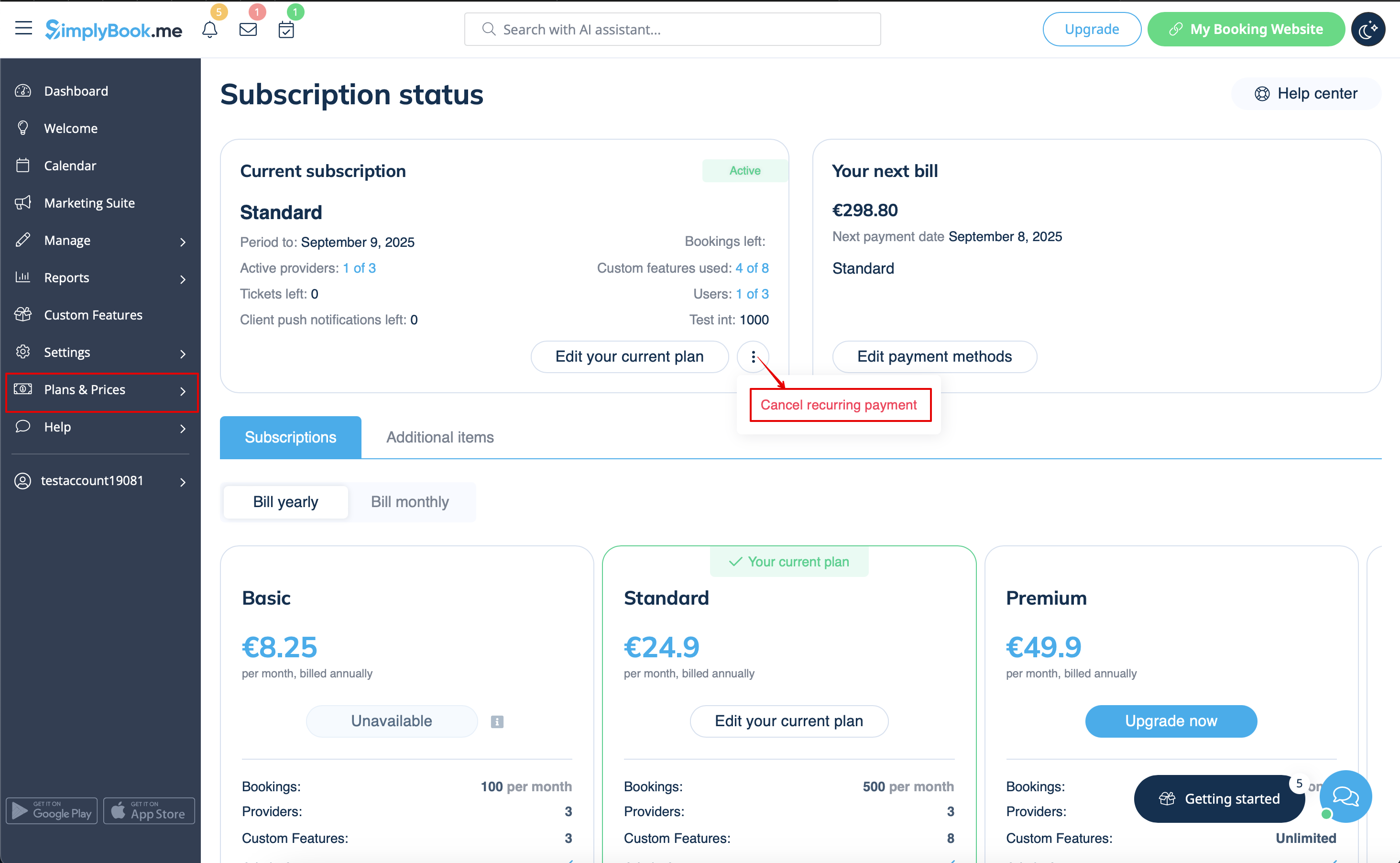
Please follow the next steps to cancel your recurring payment:
- 1. Navigate to Plans & Prices -> Subscriptions page in your account.
- 2. In the top block with the subscription details please click on three dots actions menu.
- 3. Select Cancel recurring and confirm the action.
- 4. As a result there will be no further charges. You will be able to use all the options till the current period expires.
- You will be able to buy the desired plan in Plans & Prices -> Subscriptions at any time and set a new recurring profile for a seamless system use.
How to downgrade the subscription
Please note! It is not possible to downgrade to a free plan.
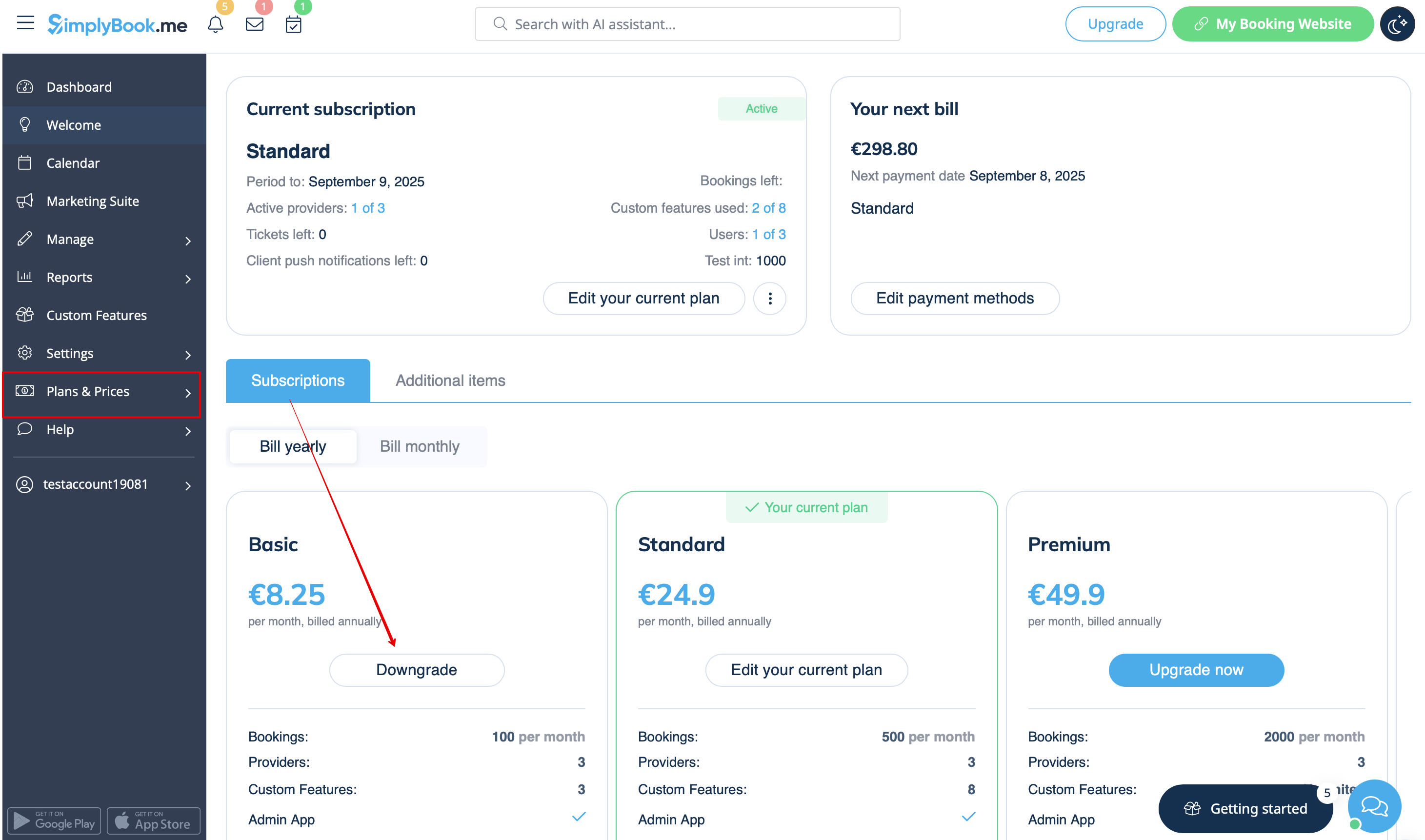
- 1. Navigate to Plans & Prices -> Subscriptions page in your account.
- 2. In the plans options block please click on the Downgrade under the desired plan.
(Please note! It is possible to downgrade if the lower plan can fit all the items activated in your account)
- 3. Check the company details on the left side of the page (they will be used for the invoice) and choose the payment method.
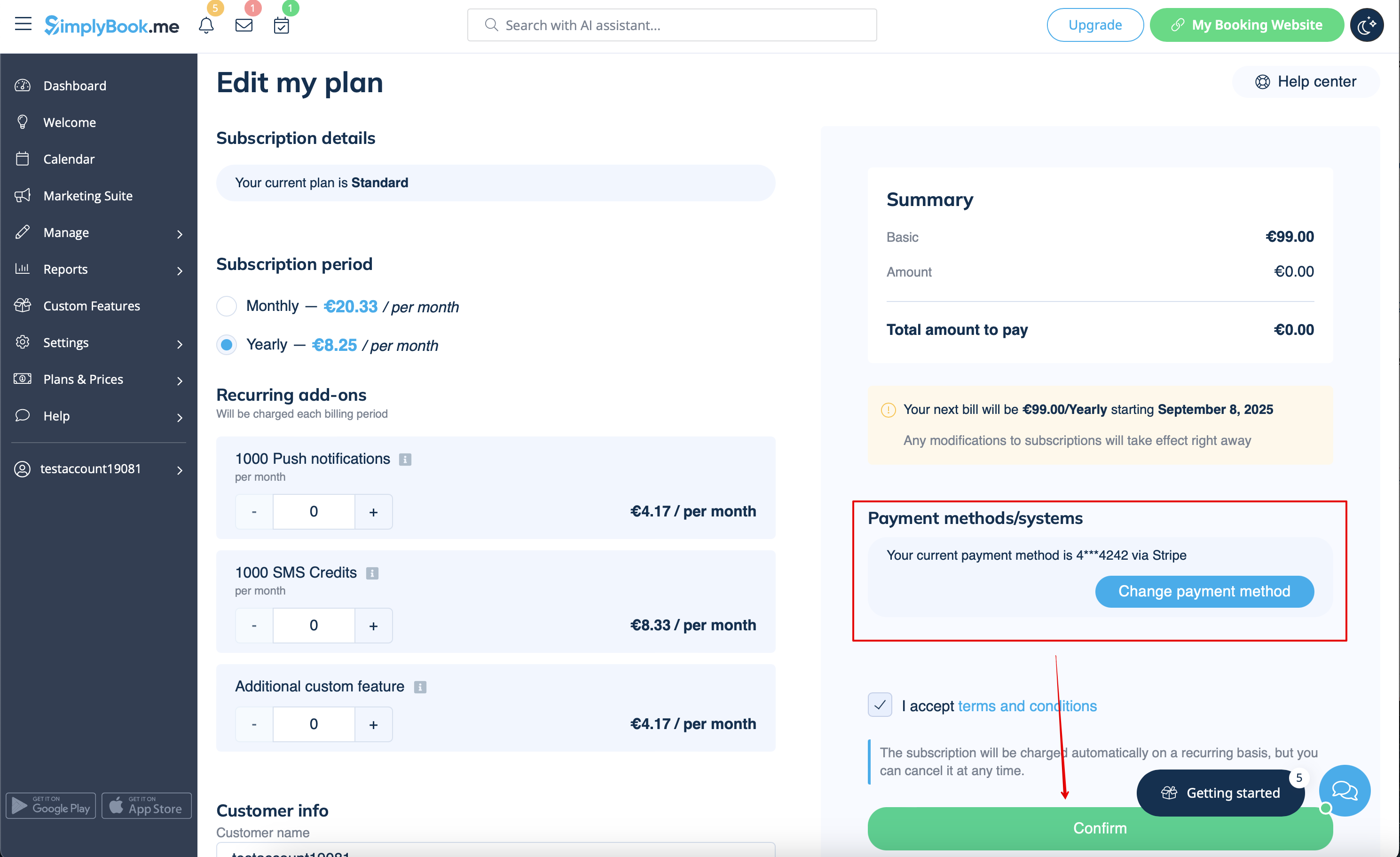
- 4. After you make the payment and it is successfully received by the system, the the new plan will come into action.
Need a simpler solution?
Please contact our support either in LiveChat directly from your account or send an email to support@simplybook.me and we will be happy to help you to choose the best matching plan for your business.
You can also check our SimplyMeet.me solution, a simple meeting scheduling tool with easy setup and a variety of tools at your disposal.
How to delete the account
Before the account removal you may also consider canceling the subscription to not be charged if you have a pause in your business or have a seasonal occupation instead of deleting it.
If that's the case please check the steps for recurring payment cancellation.
Or, if the subscription does not currently fit your needs, you can buy another one according to this.
Of course you can always contact our support for assistance with selecting a new subscription plan to match your current business needs in the best way.
If you are sure that you want to delete the account please follow these simple steps:
- 1. Go to Settings and click on Delete account.
- 2. Select the reason for deletion, confirm your agreement for data deletion, and proceed with the action.
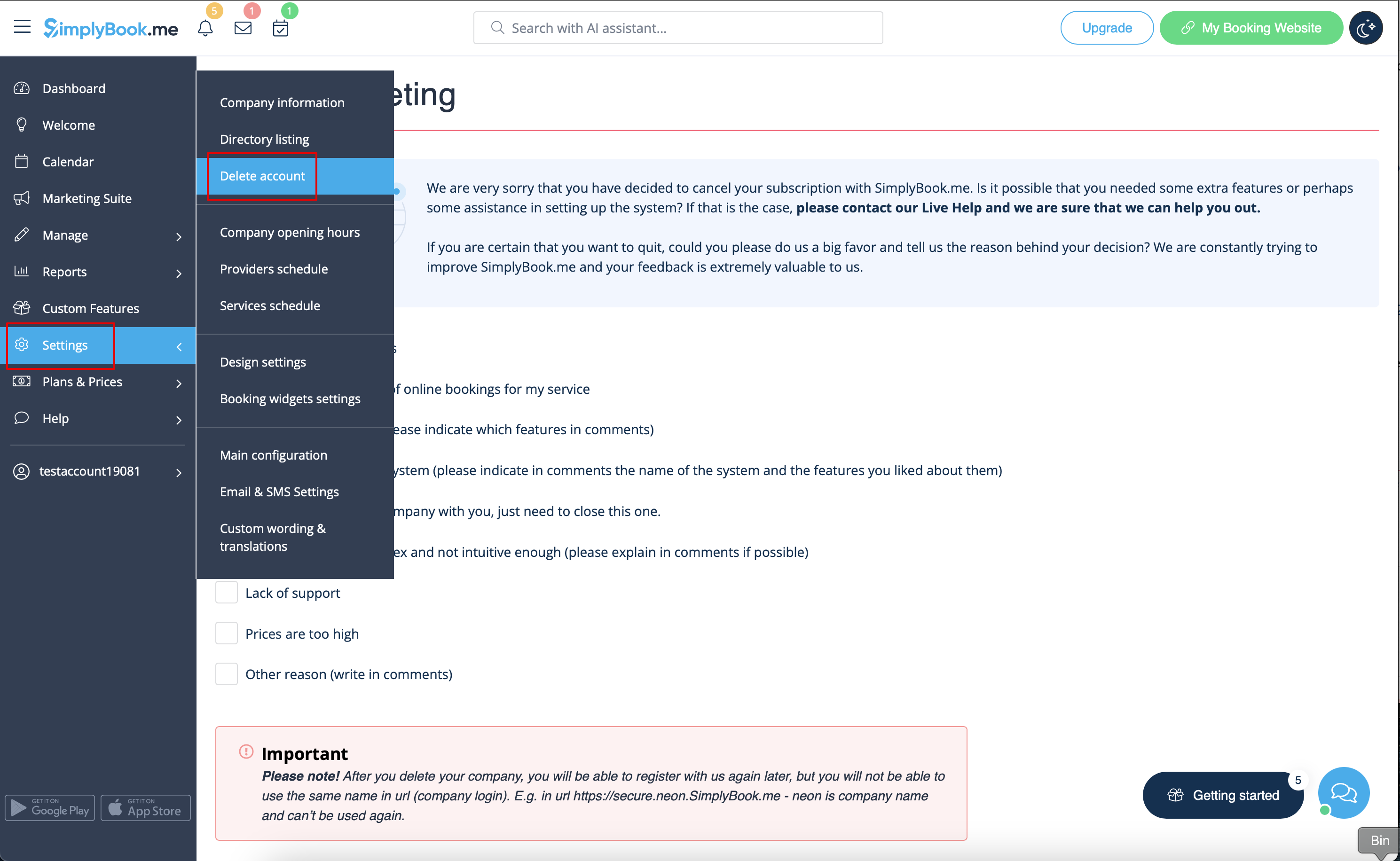
Once completed, your account will be deleted. For a certain period, you'll have the option to restore it. If not, it will be permanently removed from our databases.
