From SimplyBook.me
Marked this version for translation |
No edit summary |
||
| Line 21: | Line 21: | ||
;How to use | ;How to use | ||
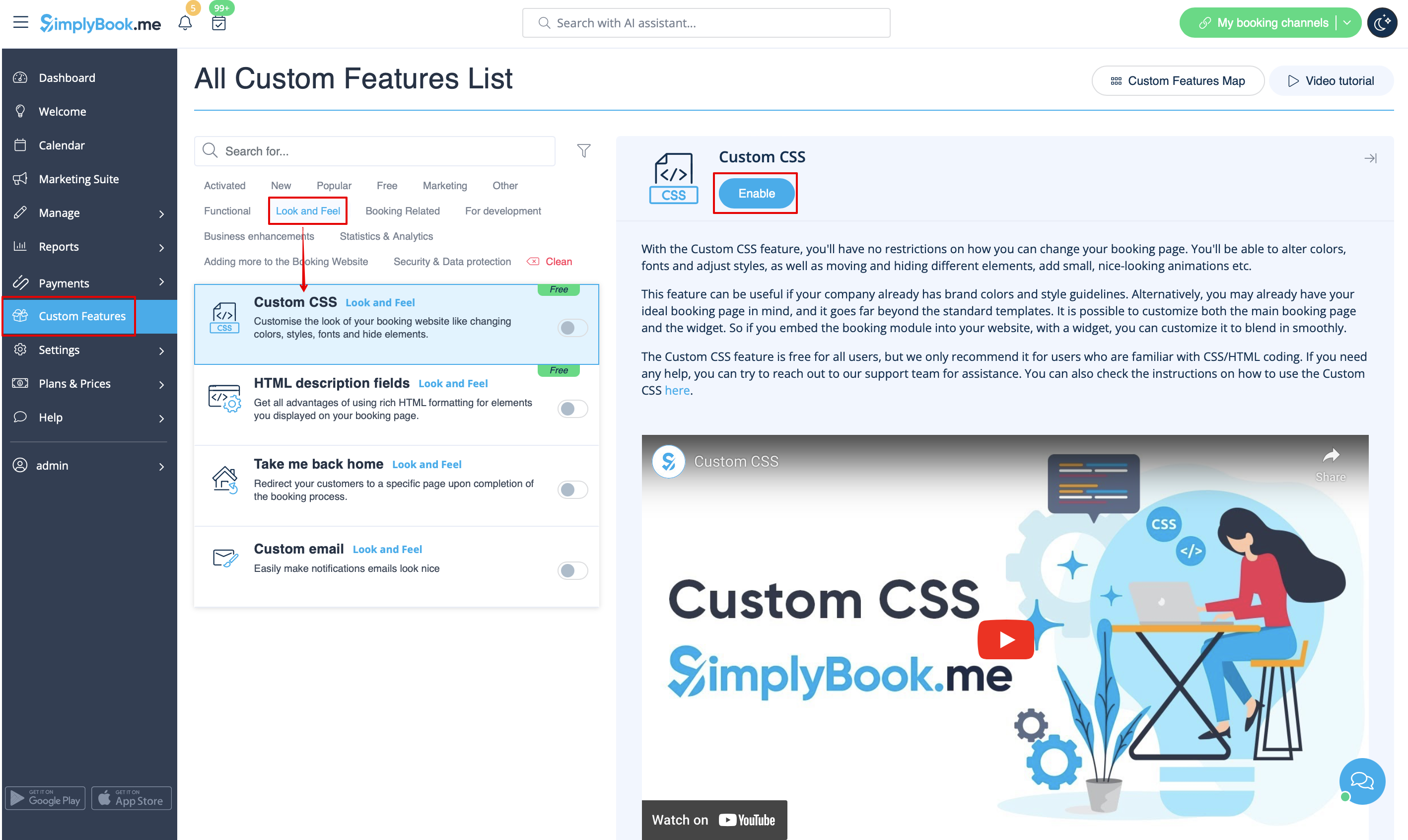
:1. Enable this option on your Custom Features page. | :1. Enable this option on your Custom Features page. | ||
[[File:Custom css enable path | [[File:Custom css enable path redesigned.png|1200px| center|link=https://help.simplybook.me/images/9/93/Custom_css_enable_path_redesigned.png]] | ||
<br><br> | <br><br> | ||
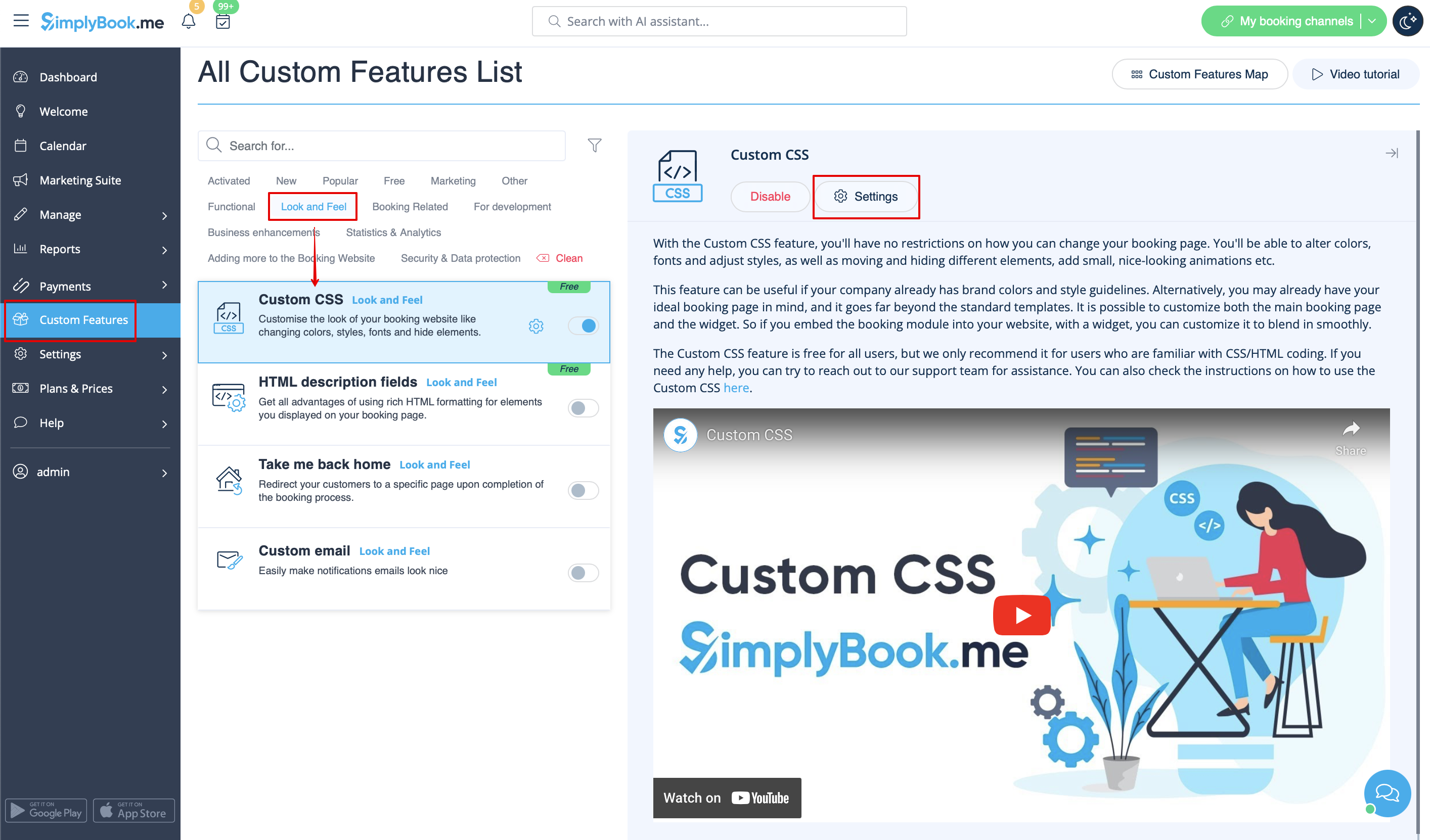
:2. Click on "Settings" for this feature. | :2. Click on "Settings" for this feature. | ||
[[File:Custom css settings path | [[File:Custom css settings path redesigned.png|1200px | center|link=https://help.simplybook.me/images/3/35/Custom_css_settings_path_redesigned.png]] | ||
<br><br> | <br><br> | ||
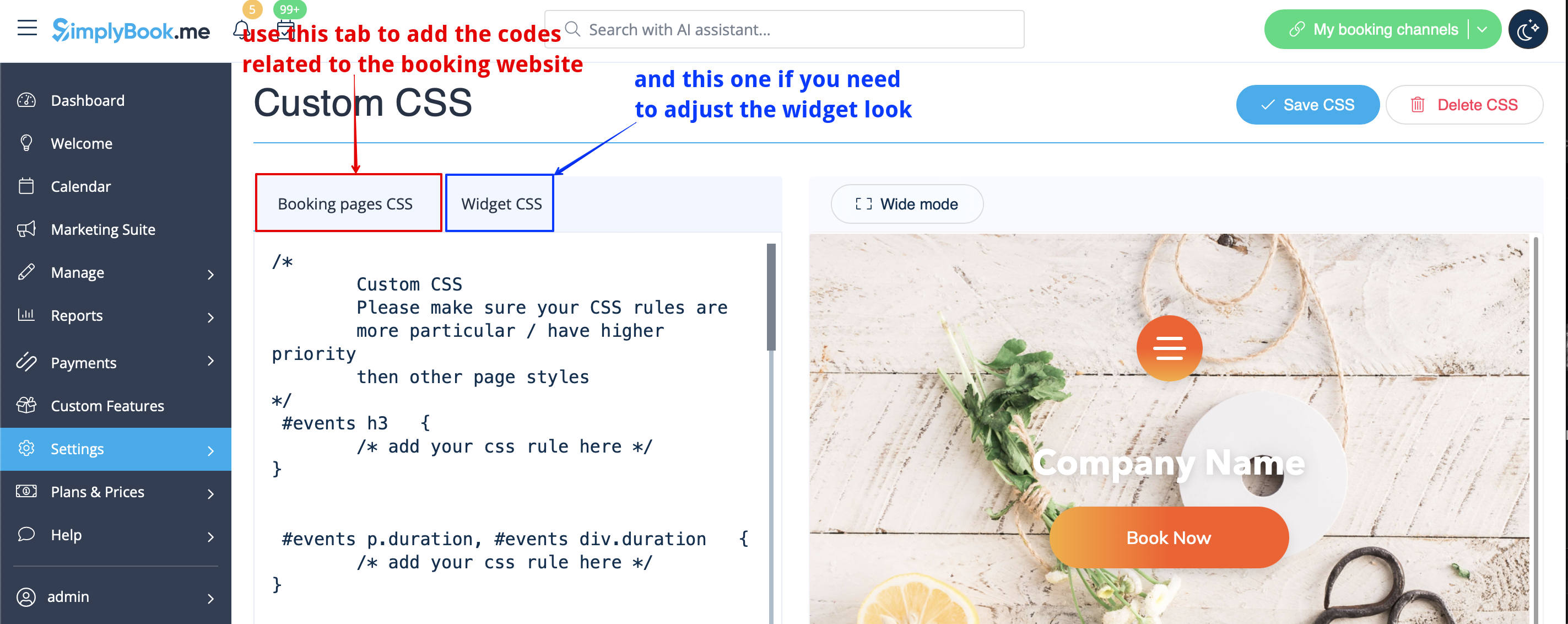
:3. Add the code(s) to adjust the styles to "Booking pages CSS" tab if you wish to edit the booking page<br> | :3. Add the code(s) to adjust the styles to "Booking pages CSS" tab if you wish to edit the booking page<br> | ||
:or "Widget CSS" if you are editing widget on your website. | :or "Widget CSS" if you are editing widget on your website. | ||
[[File:Custom css | [[File:Custom css tabs redesigned.png|1200px| center|link=https://help.simplybook.me/images/1/1c/Custom_css_tabs_redesigned.png]] | ||
<br><br> | <br><br> | ||
'''[[Special:MyLanguage/Remove_Elements_from_booking_page#Removing_with_Custom_CSS| See most common requests how to remove elements with CSS here (phone, email fields, social tabs, our time, etc)]]''' | '''[[Special:MyLanguage/Remove_Elements_from_booking_page#Removing_with_Custom_CSS| See most common requests how to remove elements with CSS here (phone, email fields, social tabs, our time, etc)]]''' | ||
<br><br> | <br><br> | ||
</translate> | </translate> | ||
Revision as of 10:25, 29 August 2024

Make your own booking interface with this CSS Custom Feature. It allows to change the styles of different elements, hide them, change fonts, colors, font-sizes, etc. If you know CSS coding, please use tools of browser to find identifiers of elements and write rules in the settings of Custom Feature, if you have no deep knowledge of CSS, please contact support and they will try to find the best solution for you.
Free custom feature!
- How to use
- 1. Enable this option on your Custom Features page.
- 2. Click on "Settings" for this feature.
- 3. Add the code(s) to adjust the styles to "Booking pages CSS" tab if you wish to edit the booking page
- or "Widget CSS" if you are editing widget on your website.