| Line 178: | Line 178: | ||
:1. First of all, as you plan to work with online payment, you need to have <span style="background-color:#cdeffc; padding:5px; border-radius:5px;">[[Accept payments custom feature|Accept Payments]]</span> custom feature enabled in your [https://simplybook.me/ SimplyBook.me] account. | :1. First of all, as you plan to work with online payment, you need to have <span style="background-color:#cdeffc; padding:5px; border-radius:5px;">[[Accept payments custom feature|Accept Payments]]</span> custom feature enabled in your [https://simplybook.me/ SimplyBook.me] account. | ||
[[File:Accept payments | [[File:Accept payments enable path redesigned.png|1200px|center|link=https://help.simplybook.me/images/9/9e/Accept_payments_enable_path_redesigned.png]] | ||
<br><br> | <br><br> | ||
:2. Click on <span style="background-color:#d4f8e5; padding:5px; border-radius:5px;">Settings</span> button on the <span style="background-color:#d4f8e5; padding:5px; border-radius:5px;">custom features page</span> next to the <span style="background-color:#cdeffc; padding:5px; border-radius:5px;">[[Accept payments custom feature|Accept Payments]]</span> feature. | :2. Click on <span style="background-color:#d4f8e5; padding:5px; border-radius:5px;">Settings</span> button on the <span style="background-color:#d4f8e5; padding:5px; border-radius:5px;">custom features page</span> next to the <span style="background-color:#cdeffc; padding:5px; border-radius:5px;">[[Accept payments custom feature|Accept Payments]]</span> feature. | ||
[[File:Accept payments settings path | [[File:Accept payments settings path redesigned.png|1200px|border | center|link=https://help.simplybook.me/images/3/37/Accept_payments_settings_path_redesigned.png]] | ||
<br><br> | <br><br> | ||
:3. Adjust your <span style="background-color:#d4f8e5; padding:5px; border-radius:5px;">company information</span> in the registration form if necessary. | :3. Adjust your <span style="background-color:#d4f8e5; padding:5px; border-radius:5px;">company information</span> in the registration form if necessary. | ||
| Line 187: | Line 187: | ||
:Click on <span style="background-color:#d4f8e5; padding:5px; border-radius:5px;">Activate SBPay.me</span> button below.<br> | :Click on <span style="background-color:#d4f8e5; padding:5px; border-radius:5px;">Activate SBPay.me</span> button below.<br> | ||
:Congratulations! Your SBPay.me account is created! | :Congratulations! Your SBPay.me account is created! | ||
[[File: | [[File:Sbpay registration form redesigned.png|1200px|center|link=https://help.simplybook.me/images/d/dd/Sbpay_registration_form_redesigned.png]] | ||
<br><br> | <br><br> | ||
:4. Navigate to the <span style="background-color:#d4f8e5; padding:5px; border-radius:5px;">Payment system settings</span> and <span style="background-color:#d4f8e5; padding:5px; border-radius:5px;">add the credentials</span> of the payment gateway that you plan to use for online payments.<br> | :4. Navigate to the <span style="background-color:#d4f8e5; padding:5px; border-radius:5px;">Payment system settings</span> and <span style="background-color:#d4f8e5; padding:5px; border-radius:5px;">add the credentials</span> of the payment gateway that you plan to use for online payments.<br> | ||
| Line 194: | Line 194: | ||
<br><br> | <br><br> | ||
:5. Once you have set the payment processors up you will be able to see the active ones on the SimplyBook.me side as well. | :5. Once you have set the payment processors up you will be able to see the active ones on the SimplyBook.me side as well. | ||
[[File: | [[File:Active payment processors redesigned.png|1200px|center|link=https://help.simplybook.me/images/0/03/Active_payment_processors_redesigned.png]] | ||
<br><br> | <br><br> | ||
:6. Set the prices for your services, <span style="background-color:#cdeffc; padding:5px; border-radius:5px;">[[Classes custom feature|classes]]</span>, <span style="background-color:#cdeffc; padding:5px; border-radius:5px;">[[Packages custom feature|packages]]</span>, <span style="background-color:#cdeffc; padding:5px; border-radius:5px;">[[Membership custom feature|memberships]]</span>, <span style="background-color:#cdeffc; padding:5px; border-radius:5px;">[[Coupons and Gift Cards custom feature|gift cards]]</span>, <span style="background-color:#cdeffc; padding:5px; border-radius:5px;">[[Products for Sale custom feature|products]]</span> or <span style="background-color:#cdeffc; padding:5px; border-radius:5px;">[[Service Add-Ons custom feature|service add-ons]]</span> in your [https://simplybook.me/ SimplyBook.me] account and you are ready to get payments online. | :6. Set the prices for your services, <span style="background-color:#cdeffc; padding:5px; border-radius:5px;">[[Classes custom feature|classes]]</span>, <span style="background-color:#cdeffc; padding:5px; border-radius:5px;">[[Packages custom feature|packages]]</span>, <span style="background-color:#cdeffc; padding:5px; border-radius:5px;">[[Membership custom feature|memberships]]</span>, <span style="background-color:#cdeffc; padding:5px; border-radius:5px;">[[Coupons and Gift Cards custom feature|gift cards]]</span>, <span style="background-color:#cdeffc; padding:5px; border-radius:5px;">[[Products for Sale custom feature|products]]</span> or <span style="background-color:#cdeffc; padding:5px; border-radius:5px;">[[Service Add-Ons custom feature|service add-ons]]</span> in your [https://simplybook.me/ SimplyBook.me] account and you are ready to get payments online. | ||
Revision as of 13:53, 7 October 2024
SBPay.me is the payment management feature by SimplyBook.me that lets you accept and manage payments via multiple payment providers, whilst simplifying online and offline payments, sending payment links, charging saved cards and making refunds.
See video tutorial 
The list of currently supported payment processors:
| Supported payment system | Recurring | Rebilling |
|---|---|---|
| Stripe(SCA) | ✔ |
✔ |
| ECPay | − |
− |
| PayPal | ✔ |
✔ |
| SafeCharge | ✔ |
✔ |
| 2Checkout | − |
− |
| Mollie | ✔ |
✔ |
| Authorize | ✔ |
✔ |
| Squareup (Square) | ✔ |
✔ |
| Worldpay | ✔ |
✔ |
| Adyen | ✔ |
✔ |
| LiqPay | ✔ |
✔ |
| Skrill | ✔ |
✔ |
| Asiapay | ✔ |
✔ |
| Borgun | ✔ |
✔ |
| Paytabs | ✔ |
✔ |
| Rapyd | ✔ |
✔ |
| Payfast | ✔ |
✔ |
| PayULatam | − |
− |
| Paymentasia | − |
− |
| Newebpay | − |
− |
| PinPayments | ✔ |
✔ |
| Swish | − |
− |
| Braintree | ✔ |
✔ |
| TapPay | ✔ |
✔ |
| Line Pay | ✔ |
✔ |
| TwoCheckout [Verifone] | − |
− |
| CCAvenue | − |
− |
| Revolut | ✔ |
✔ |
| Sumup | − |
− |
| Payrexx | − |
− |
| JCC | ✔ |
✔ |
| Pagar.me | − |
− |
| PayPal Checkout | − |
− |
| Monobank | − |
− |
| Moneris | − |
− |
| Mercado Pago | − |
− |
How to set specific payment processors
Video tutorial
How to set and use it with SimplyBook.me
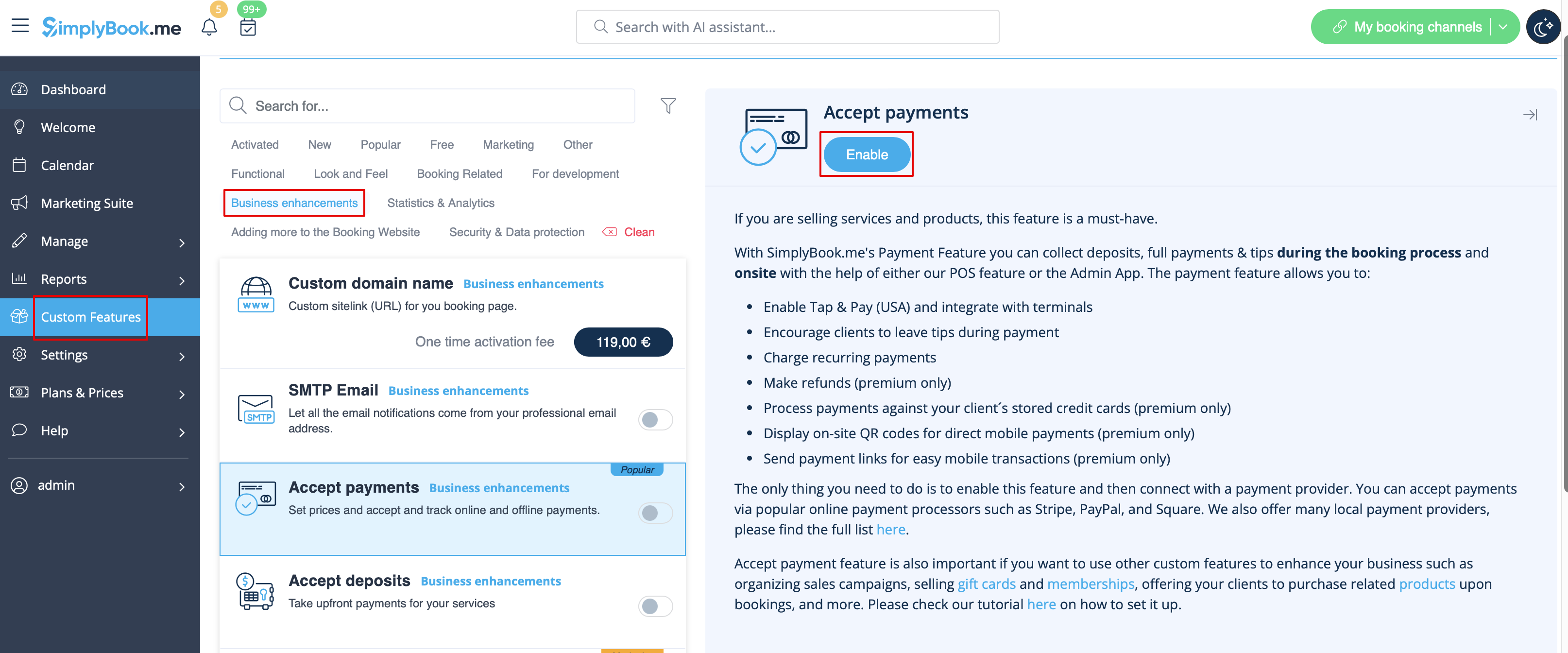
- 1. First of all, as you plan to work with online payment, you need to have Accept Payments custom feature enabled in your SimplyBook.me account.
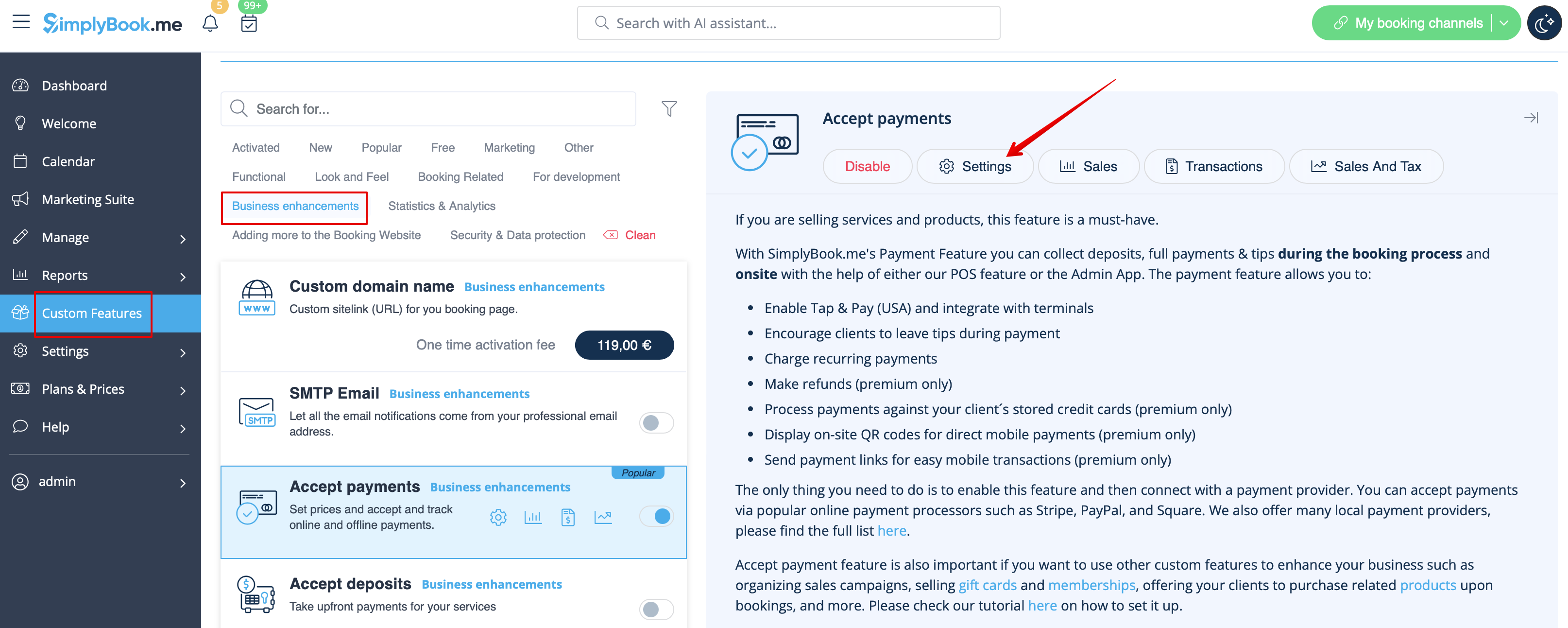
- 2. Click on Settings button on the custom features page next to the Accept Payments feature.
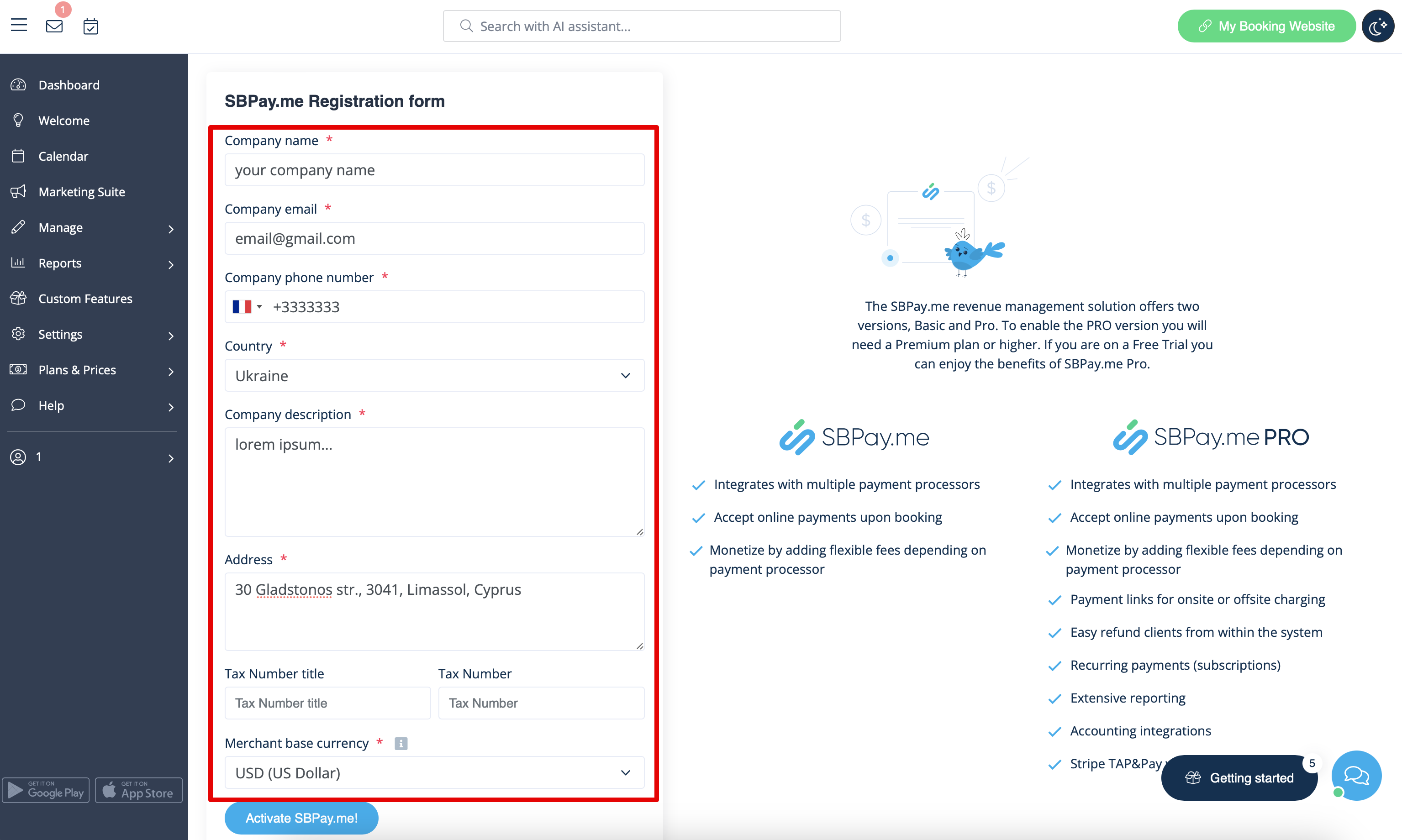
- 3. Adjust your company information in the registration form if necessary.
- (It will be autocompleted with the company details that you already have in your system).
- Click on Activate SBPay.me button below.
- Congratulations! Your SBPay.me account is created!
- 4. Navigate to the Payment system settings and add the credentials of the payment gateway that you plan to use for online payments.
- If you had some payment system details before enabling SBPay.me integration it may have been copied to SBPay.me side, but there may be some changes in the payment flow so you will need to check if all the settings are added there for the smooth online payments operation.
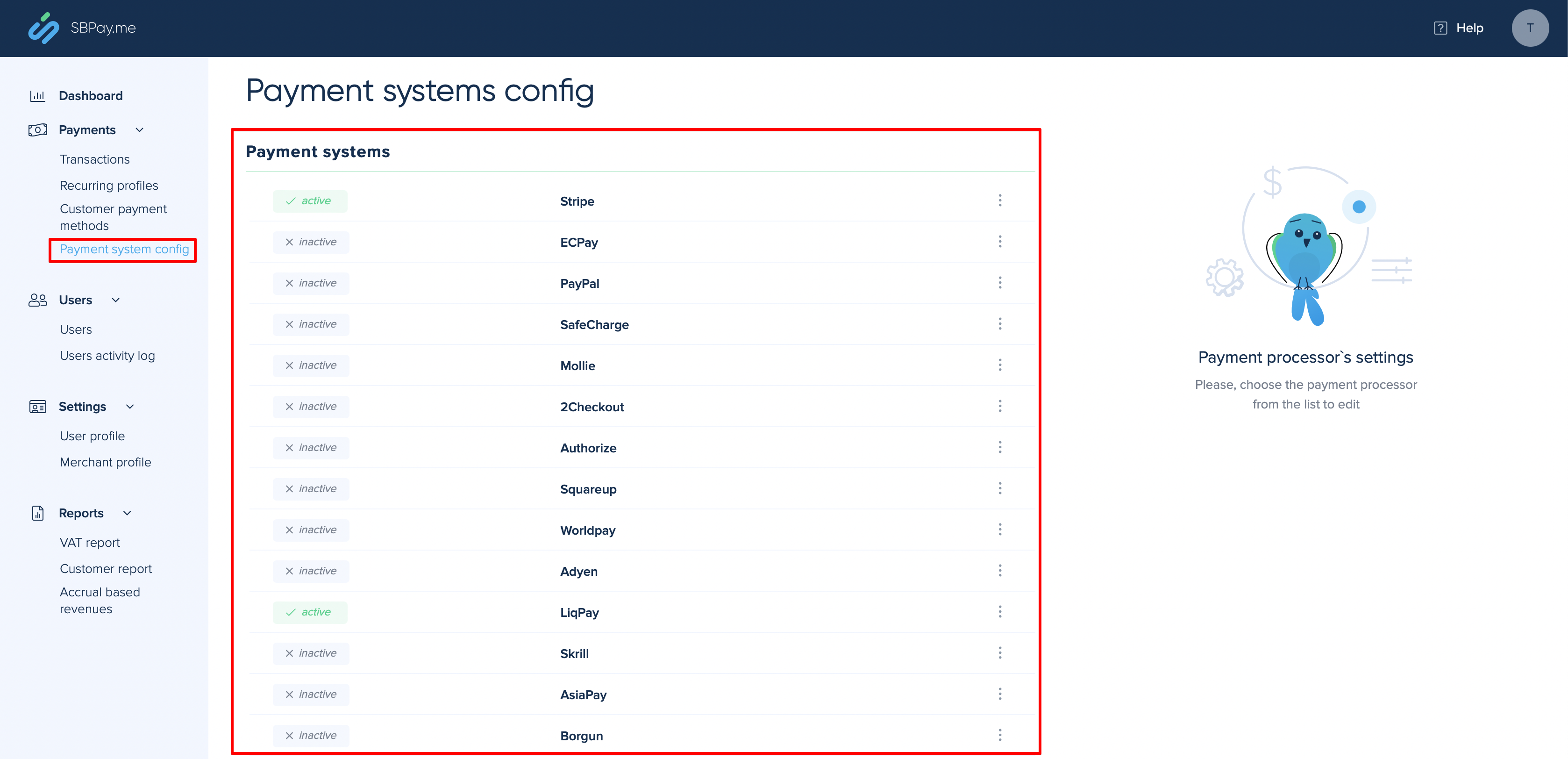
- 5. Once you have set the payment processors up you will be able to see the active ones on the SimplyBook.me side as well.
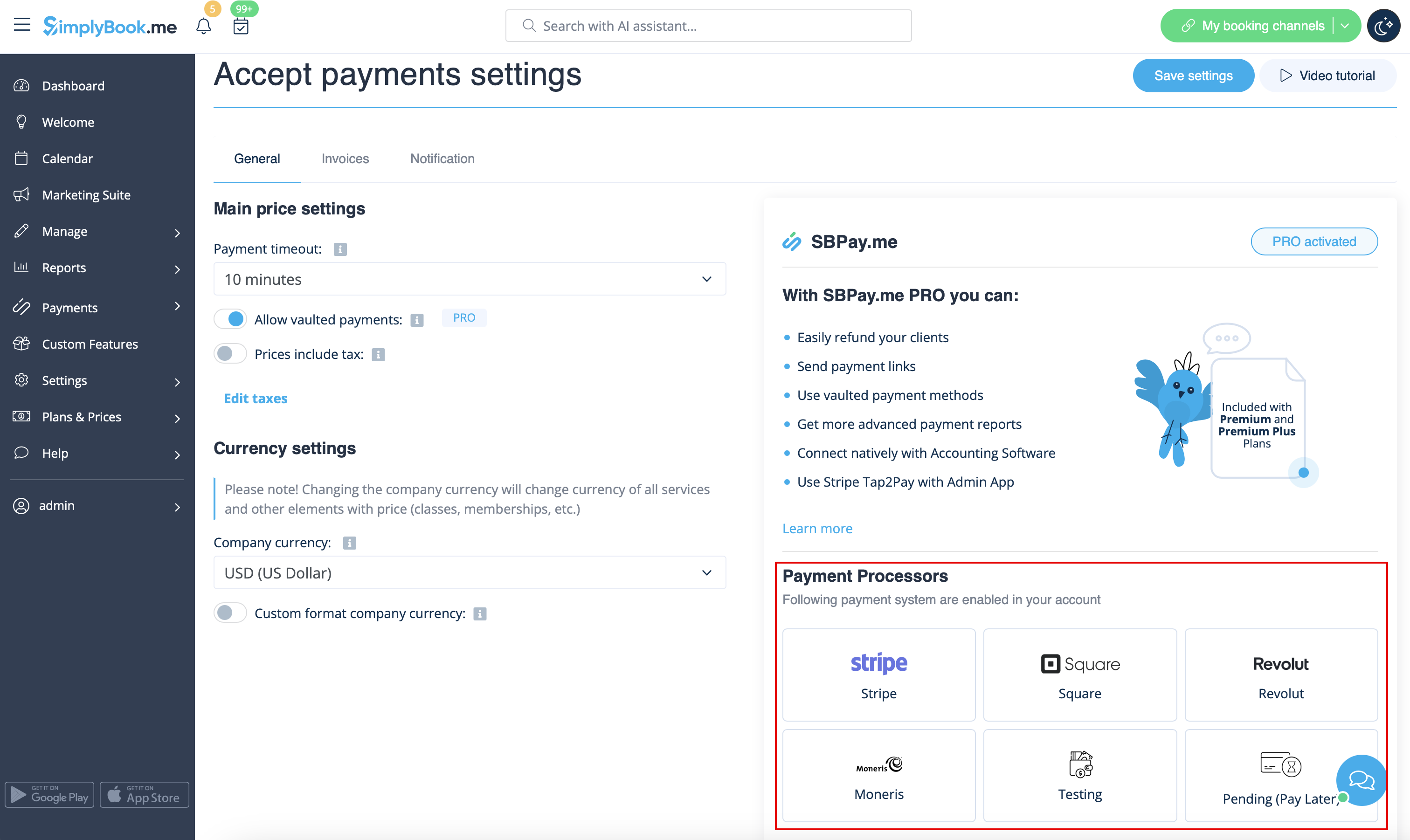
- 6. Set the prices for your services, classes, packages, memberships, gift cards, products or service add-ons in your SimplyBook.me account and you are ready to get payments online.
Using PRO version features
Please check if PRO version(available for Premium SimplyBook.me subscriptions) of SBPay.me is enabled on Accept payments settings page to get access to the list of additional options like vaulted payments, refunds and payment links.
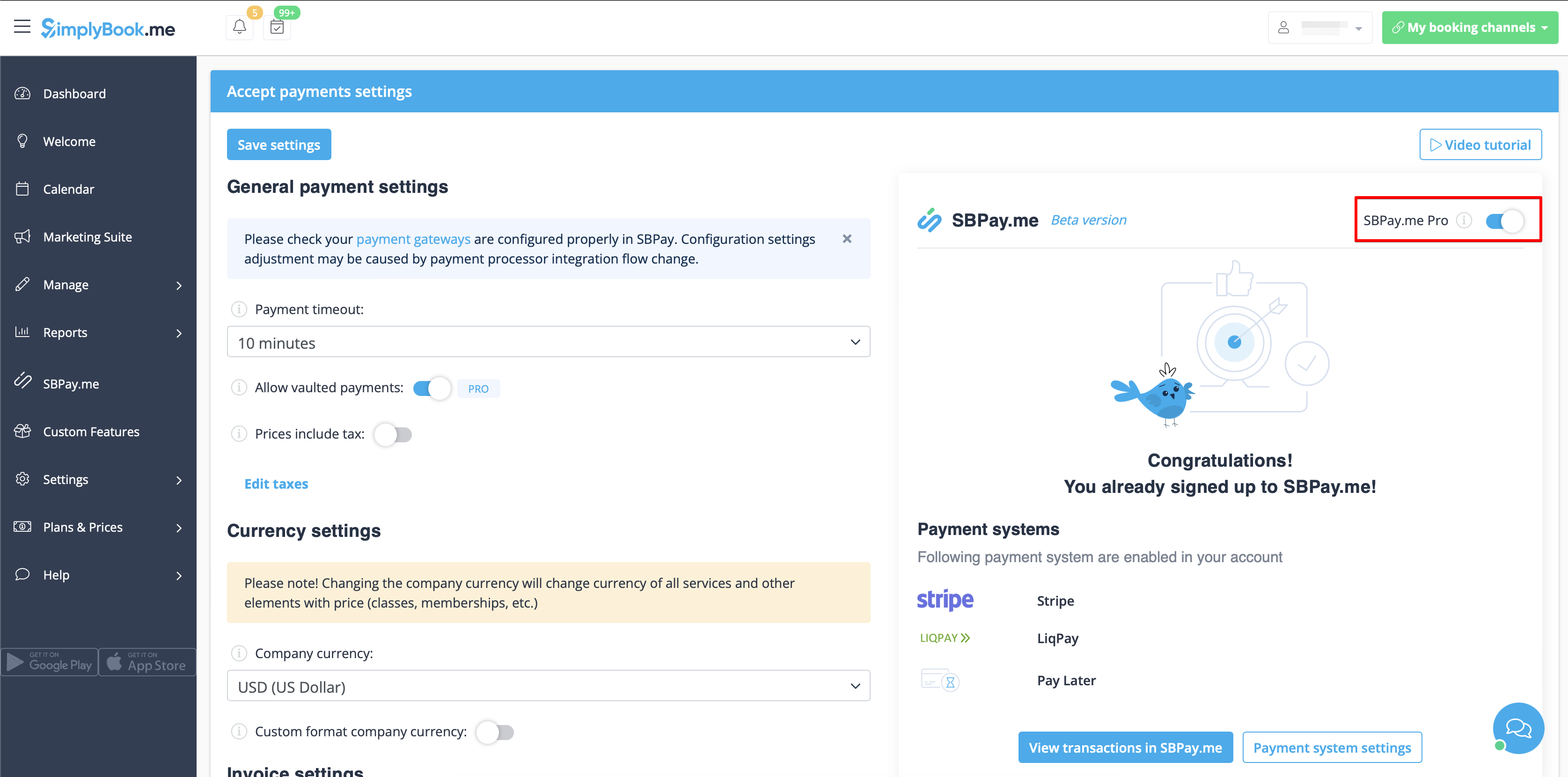
In case you do not plan to use the additional options listed below you can easily disable the "PRO" version by turning the switch off.
Vaulted payments
Please note!
- It requires Client login custom feature to be enabled to use this functionality.
- Not all the payment gateways support this feature. Please check the availability of such an option in the table and/or by contacting your payment gateway support as it may require some adjustments on their side.
- 1. Enable the option Allow vaulted payments on your Accept payments settings page.
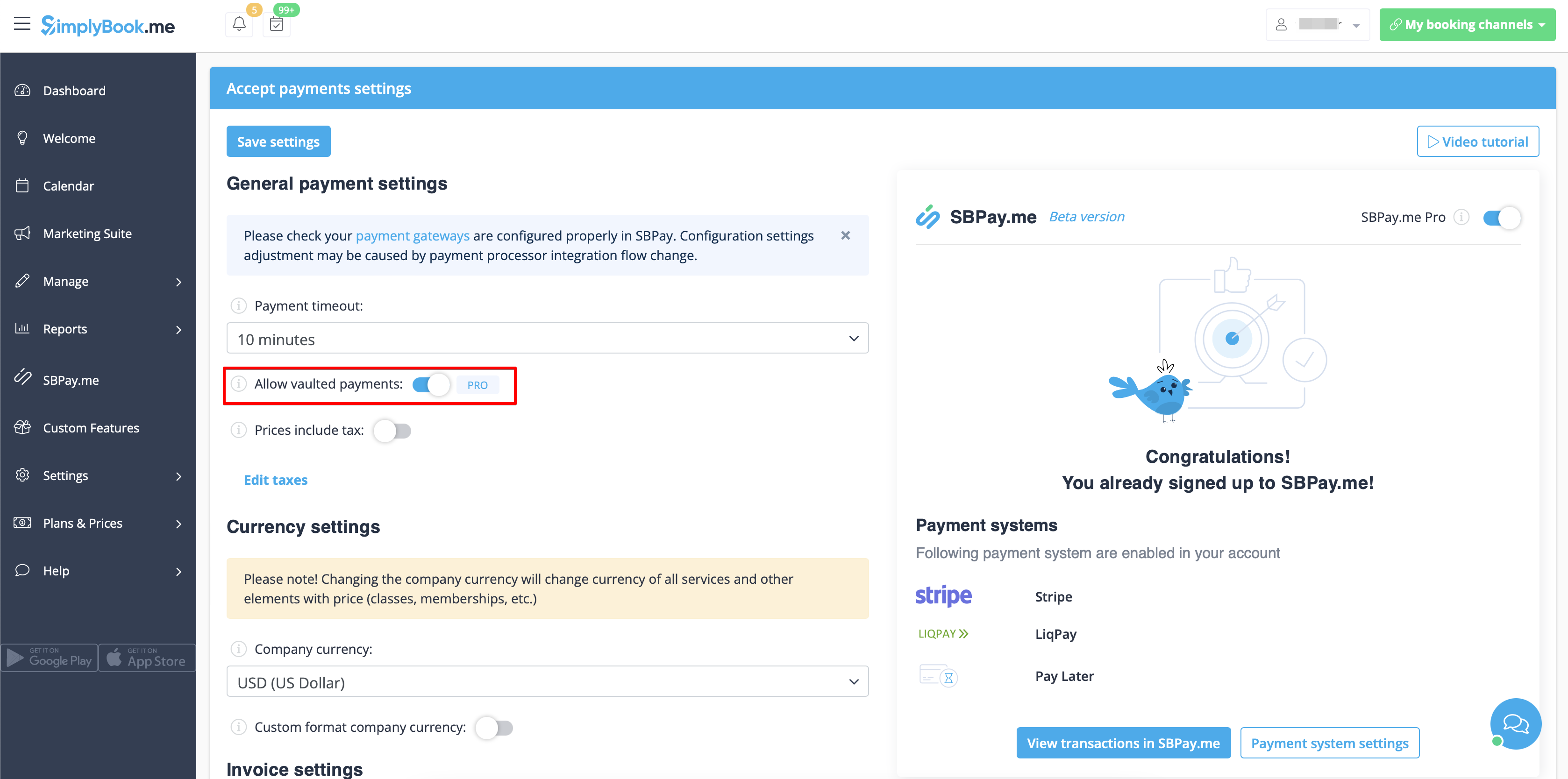
- 2. As the result the client will be able to tick the checkbox Save my payment method for easy charging in my future purchases at checkout on the booking website and his/her payment details will be attached to the client profile.
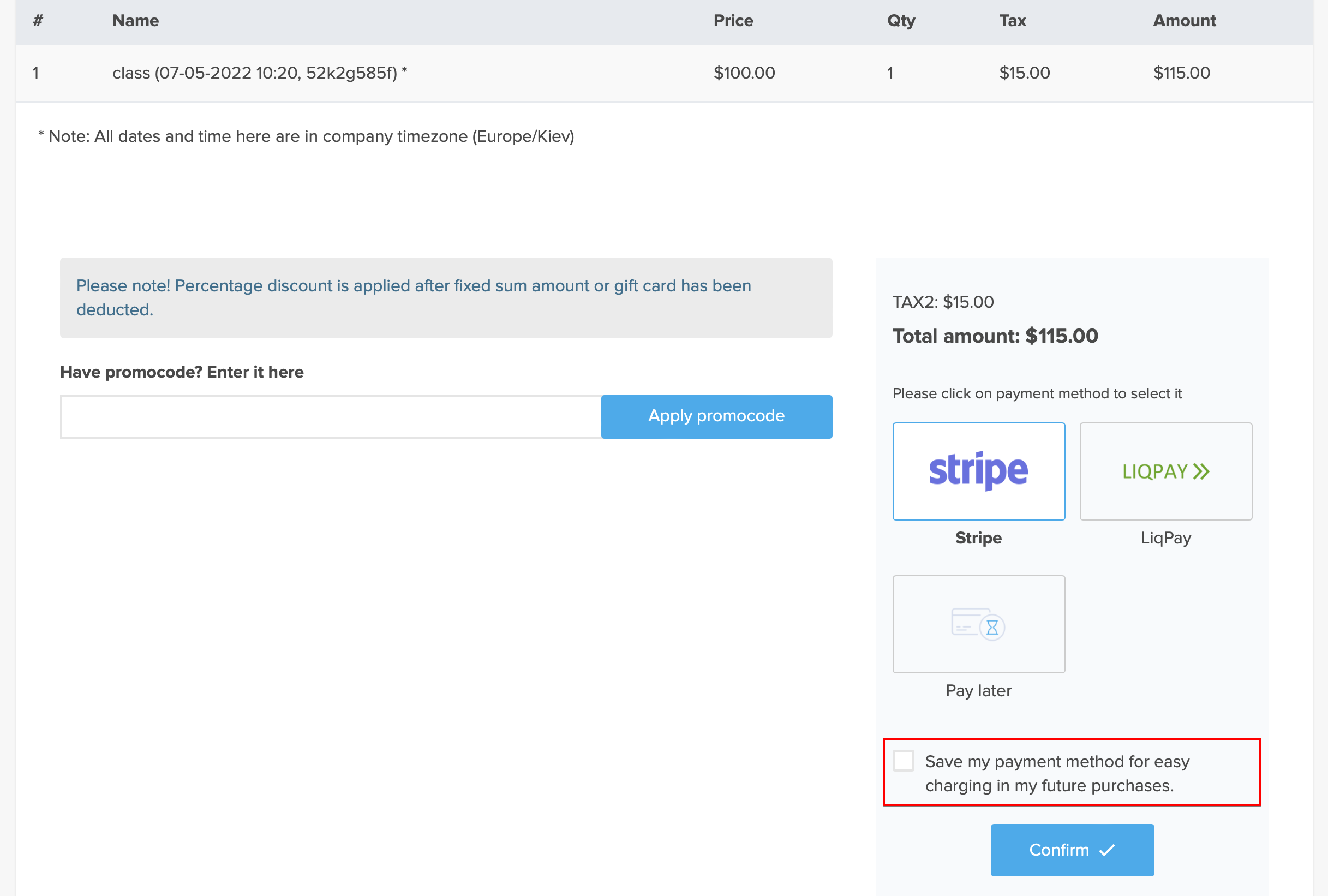
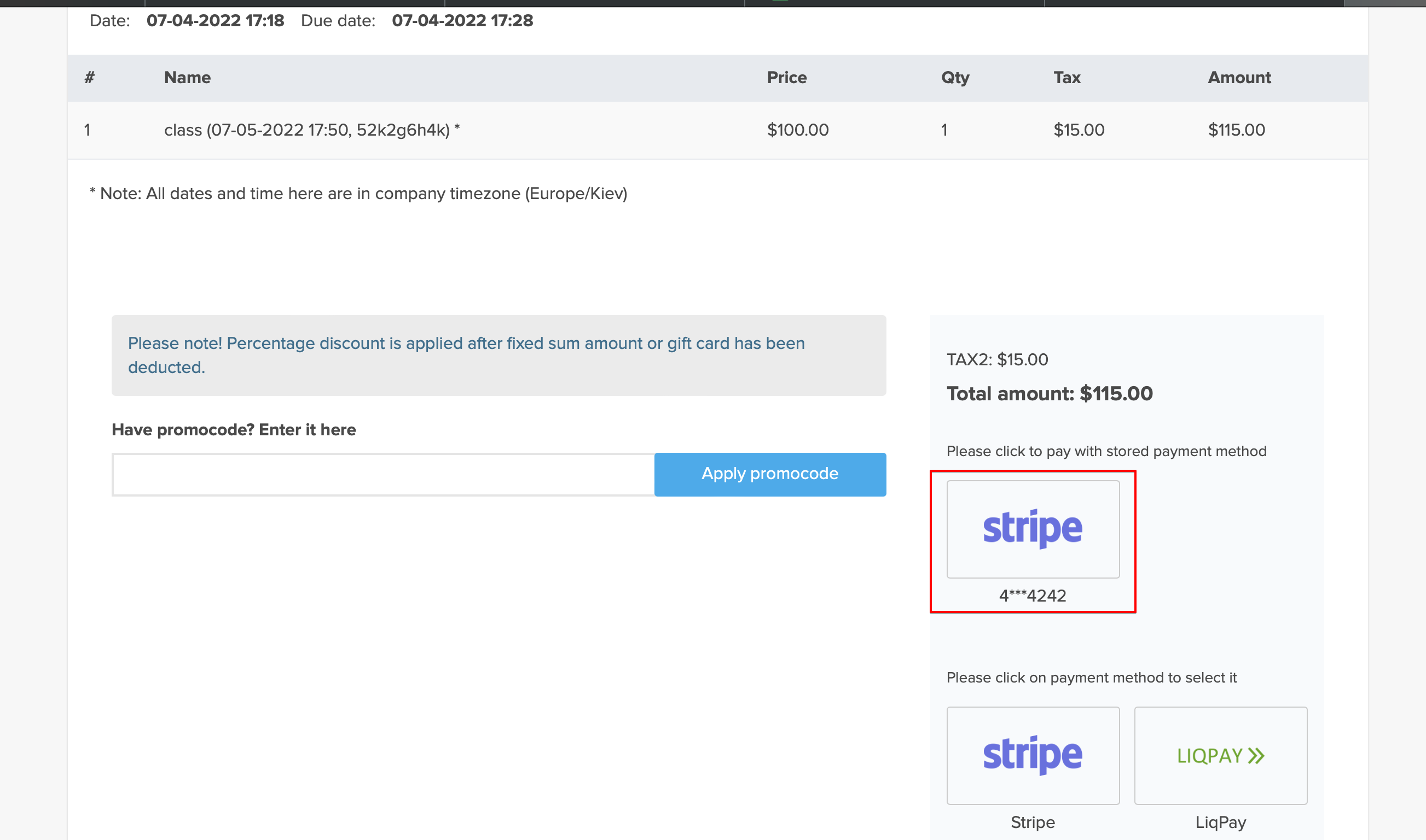
- 3. During the next purchase or booking on the client side he/she can decide whether to confirm the order with the already saved payment method or to choose the new option.
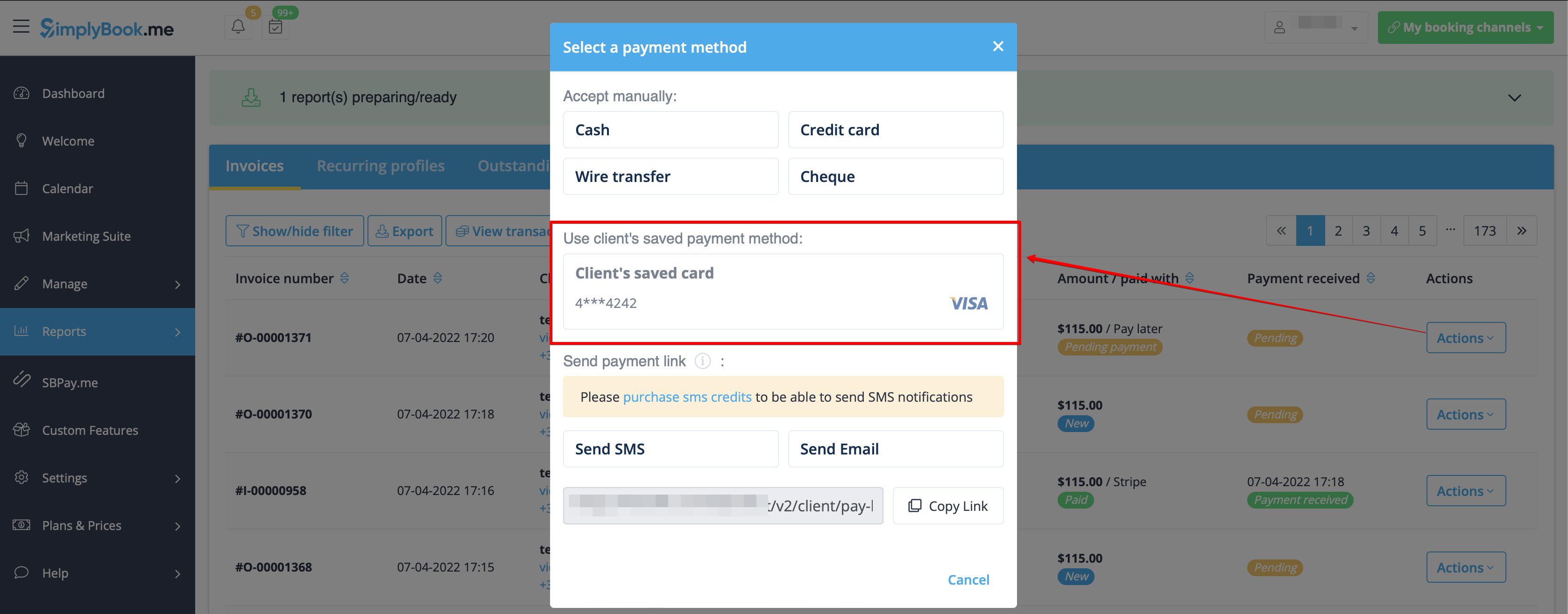
- 4. During the payment approval on the admin side Payment transactions report or sale management inside the POS interface you will also be able to use the client's saved payment method.

Payment links
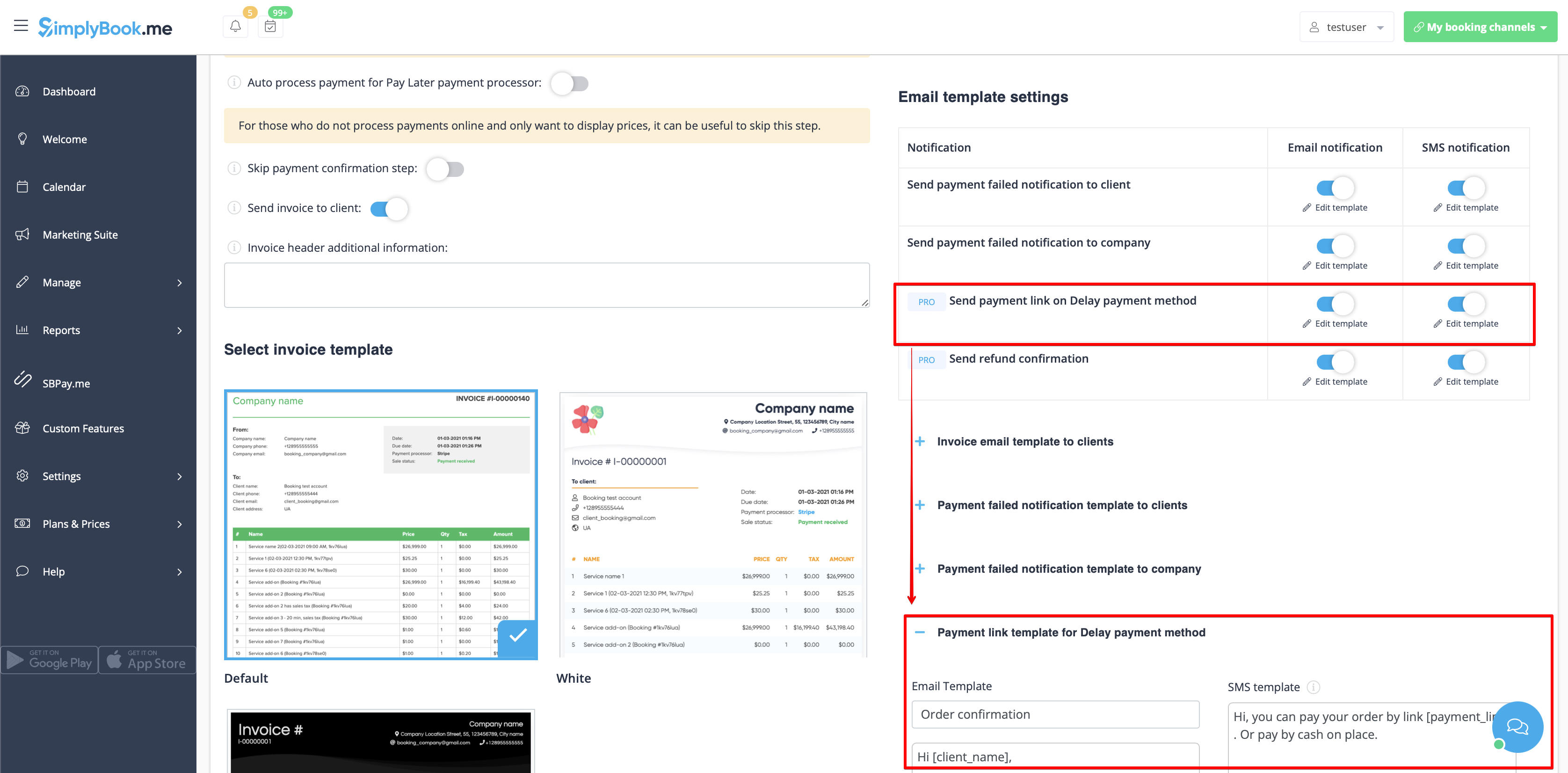
- 1. Enable Send payment link on Delay payment method in the settings of Accept payments custom feature, inside the Email template settings block and adjust the template to your needs.
- Please do not forget to add [payment_link] variable for the client to easily navigate to the payment.
- 2. After you create the order from admin side or from POS interface with Pay later selected as the payment method, or if the client selects Pay later at the checkout step on the booking website, the system will automatically send the email/SMS with the link to pay for the sale (saved payment methods can also be used in this case).
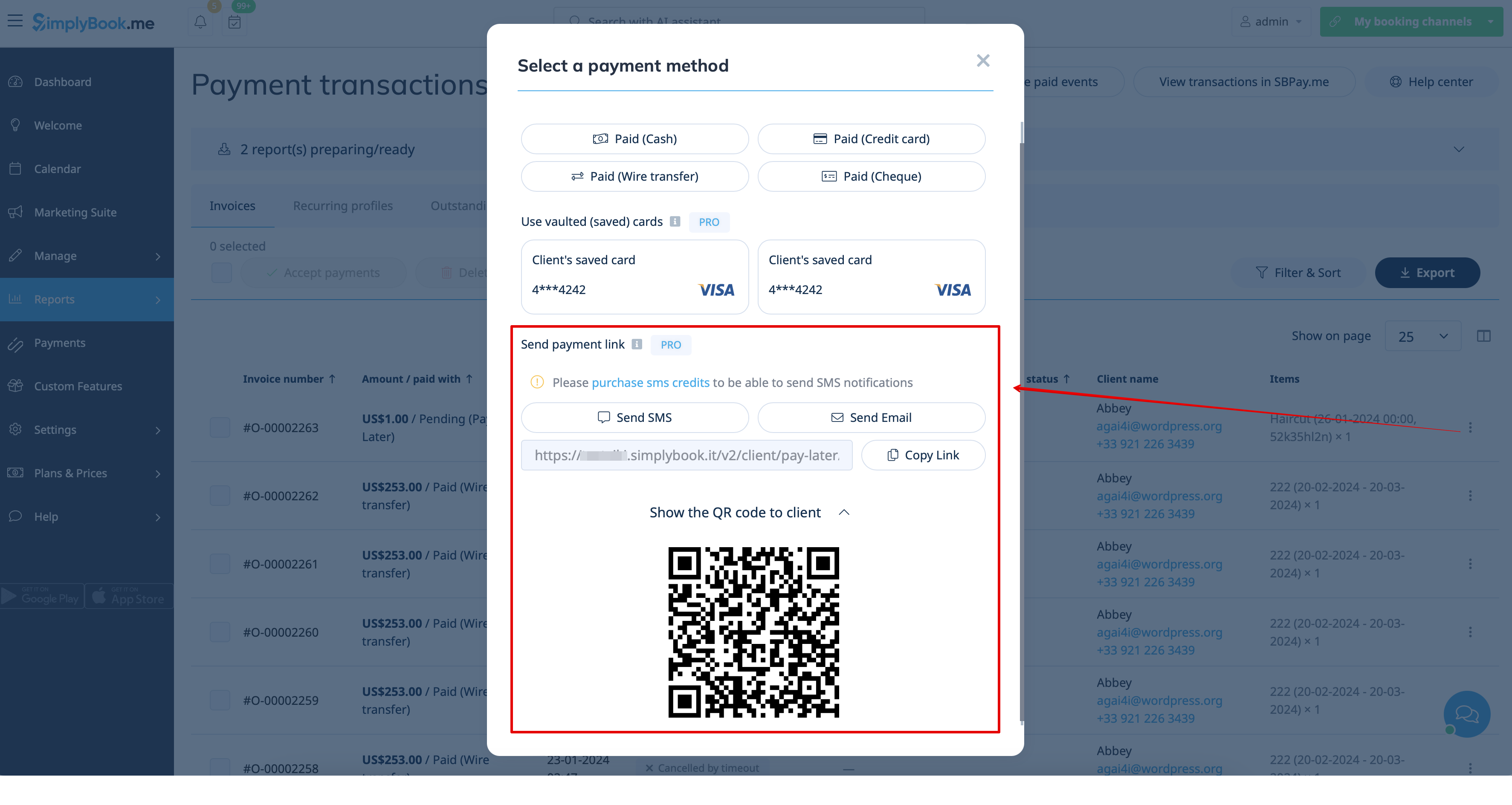
- 3. You can also trigger sending payment link from Payment transactions report or POS interface or simply copy the payment link per the specific order there and send it to your client using own communication channels.
- As well, if the client is at your place, you can show him/her the QR code to scan with his/her phone camera and be redirected to the payment page to complete the order. It can be found in Reports -> Payment transactions -> Receive payment.
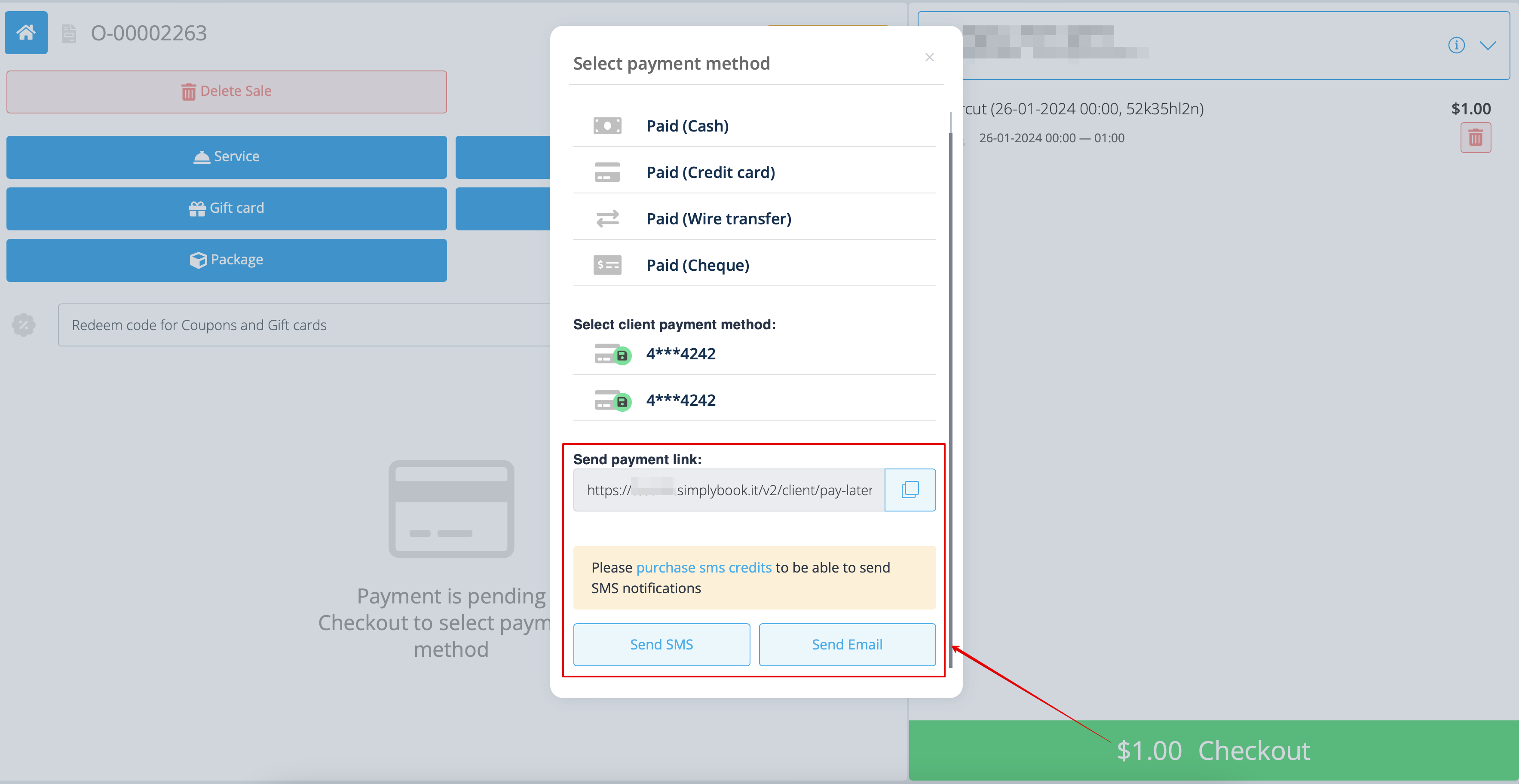
Easy mobile payments from the app: video tutorial
Refunds
It may happen that you need to return the money back to your customer due to some reason and now it is possible to easily manage such cases with SBPay.me PRO integration.
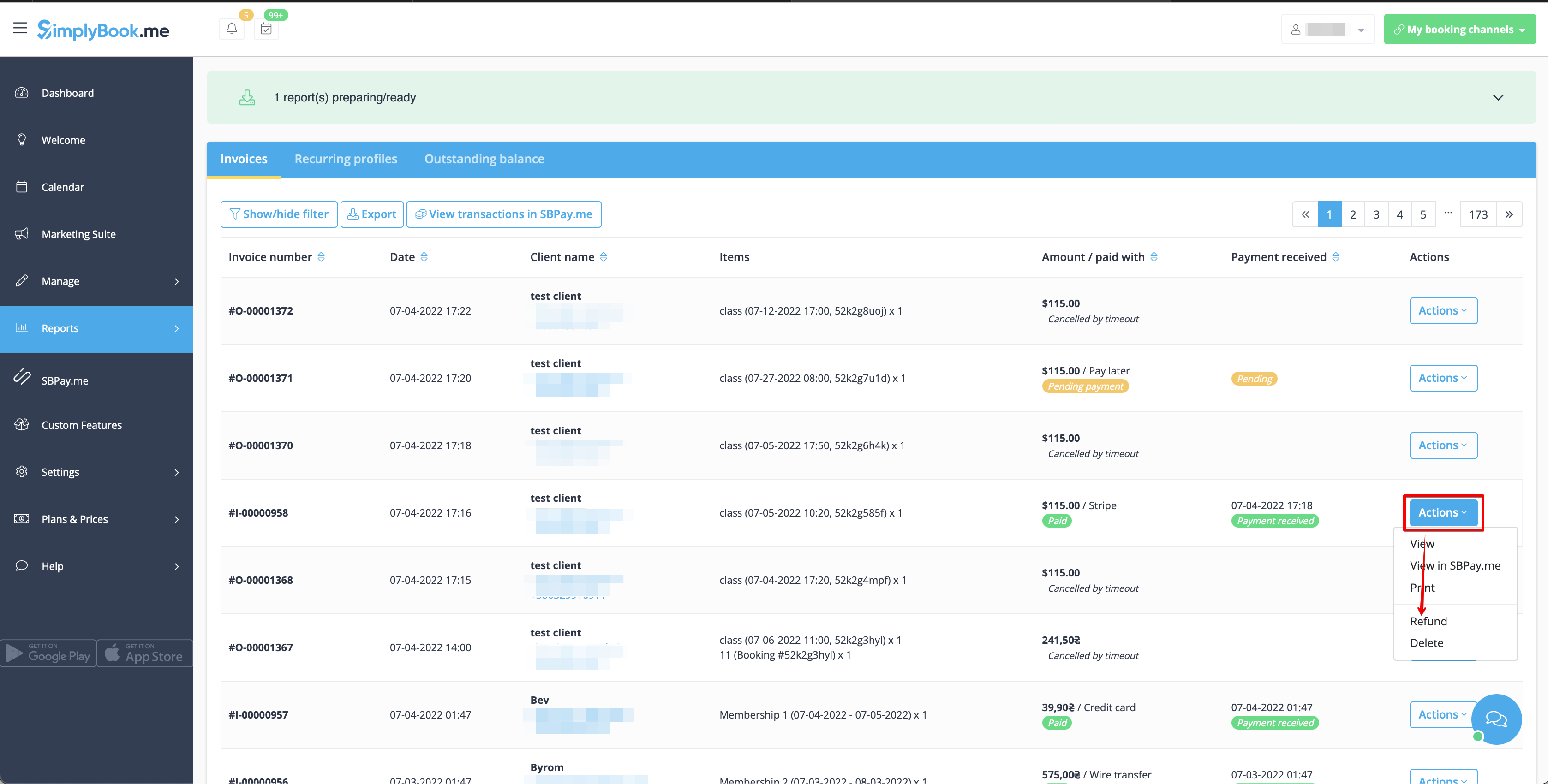
- 1. After you activate SBPay.me integration in your SimplyBook.me account you can simply navigate to Reports -> Payment transactions -> find the necessary invoice -> click on Actions and select Refund from the drop down menu. Confirm the action and the refund will be automatically made to the corresponding client's account.
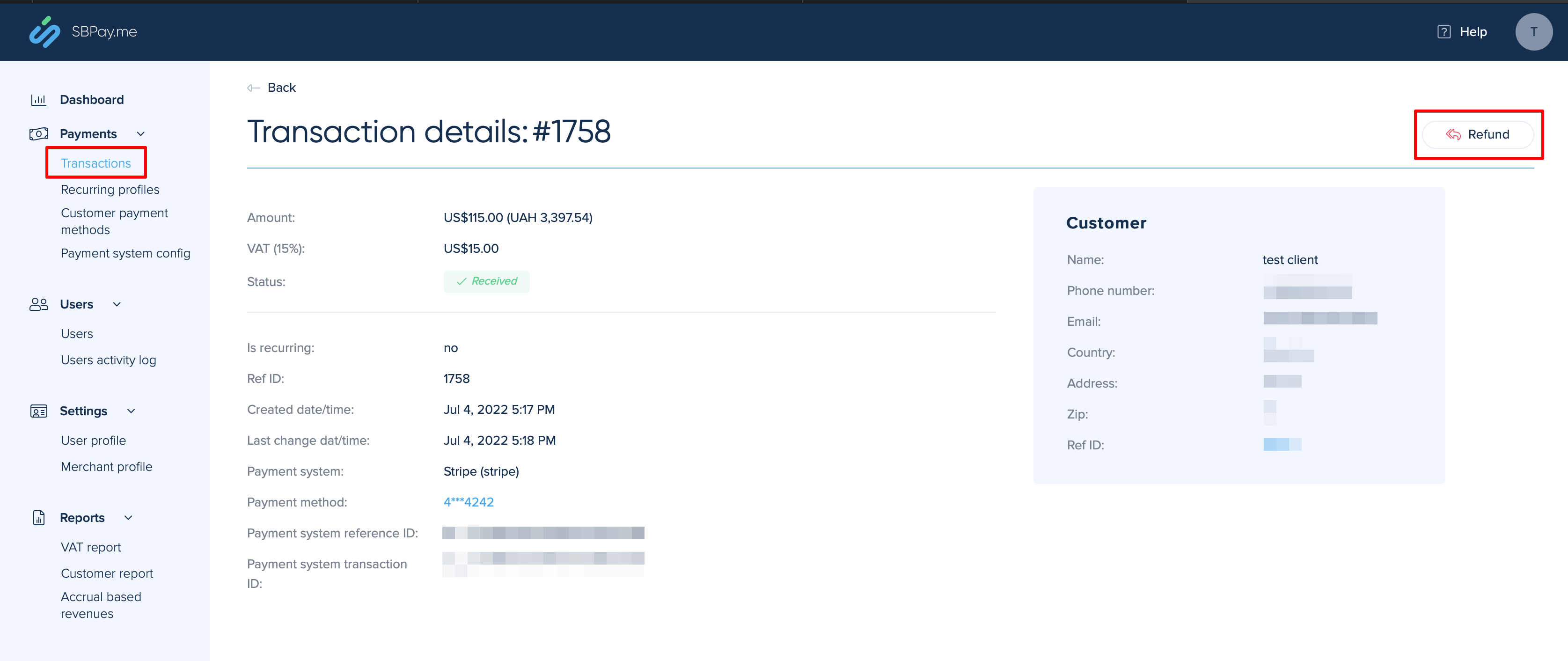
- 2. Or you can go directly to the SBPay.me interface -> Transactions -> open the necessary record and select Refund.
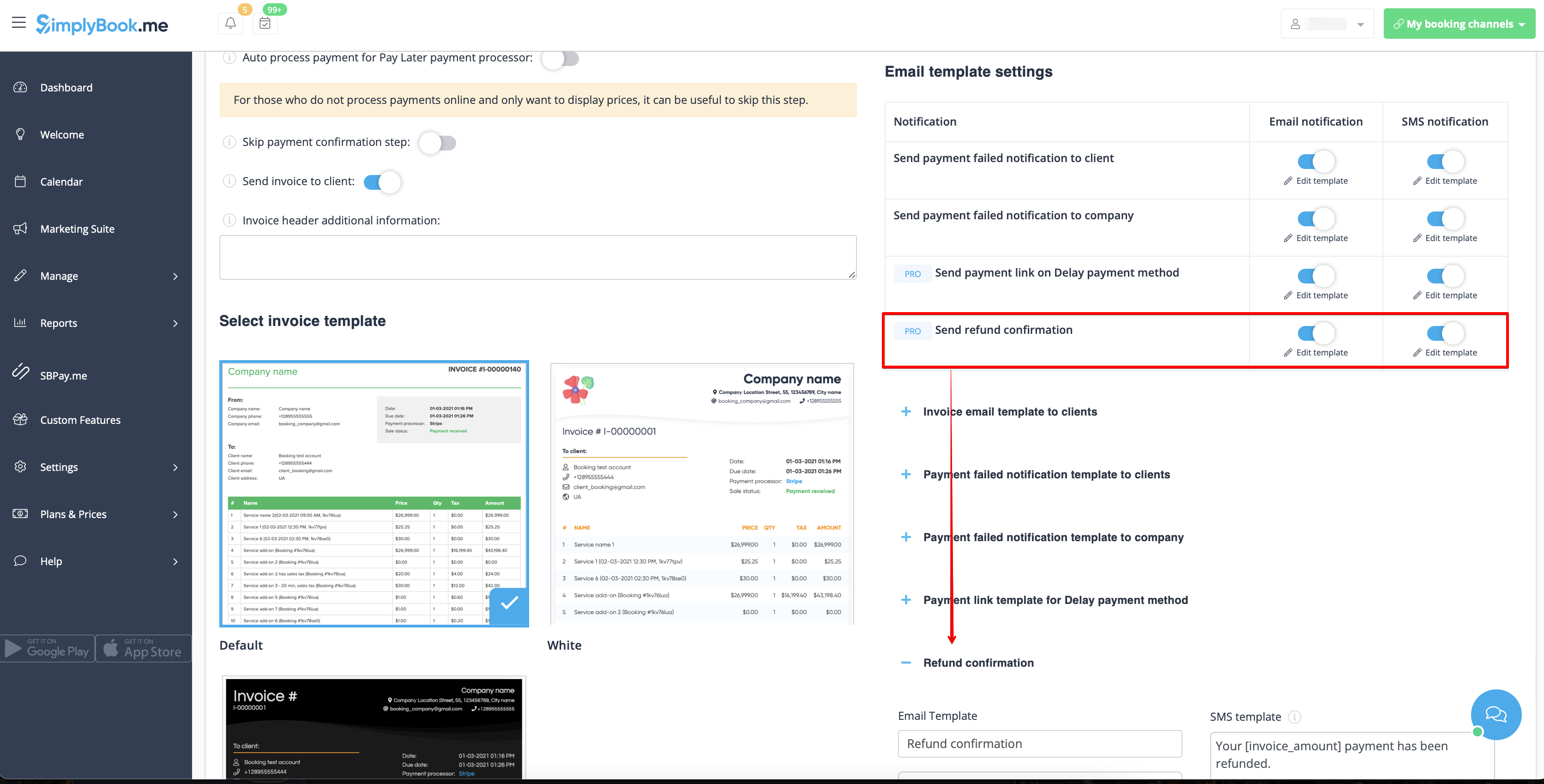
- 3. In the Accept payments custom feature settings you can also enable Send refund confirmation option and adjust the templates to automatically notify your clients via email and/or sms about the refunds.
SBPay.me Invoices
You can now easily adjust the invoices settings to your needs and send them to your customers after any purchase.
- How to use
- 1. Enable the corresponding option on your "Custom features" page.
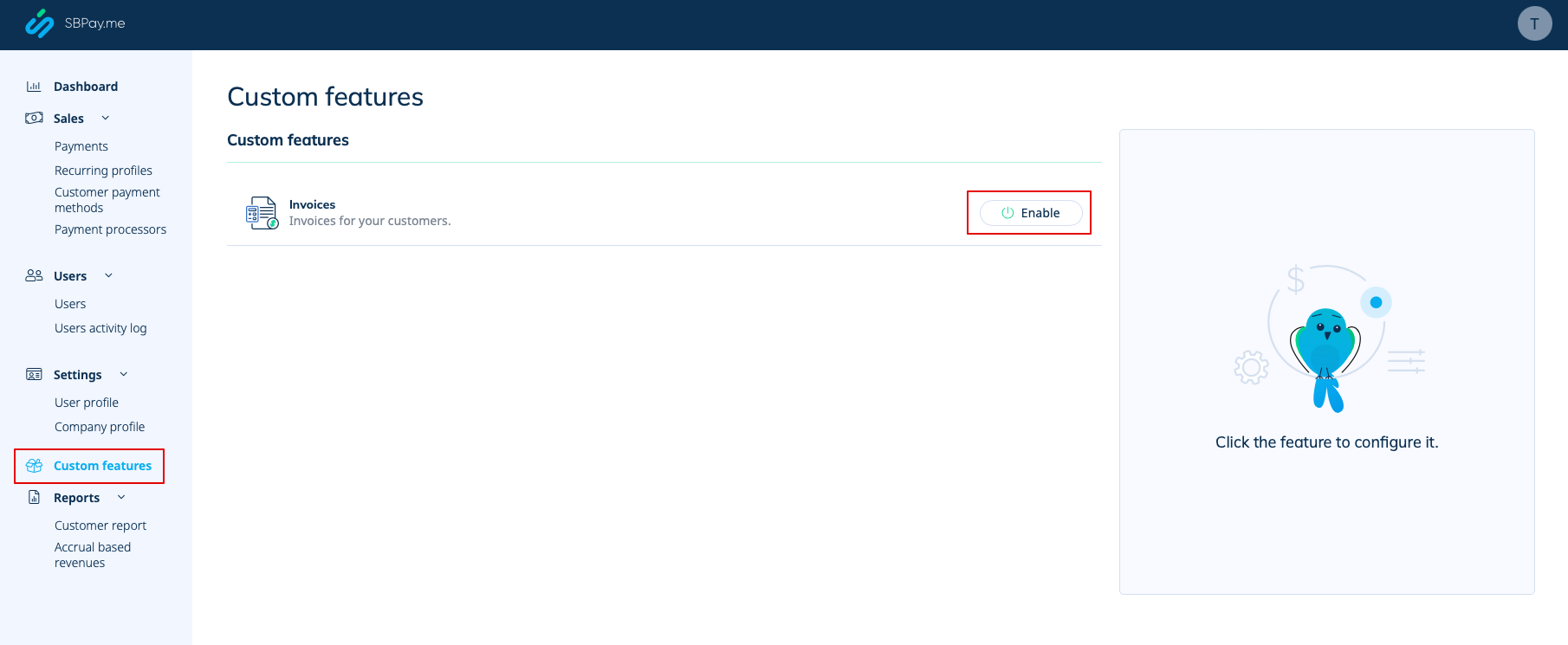
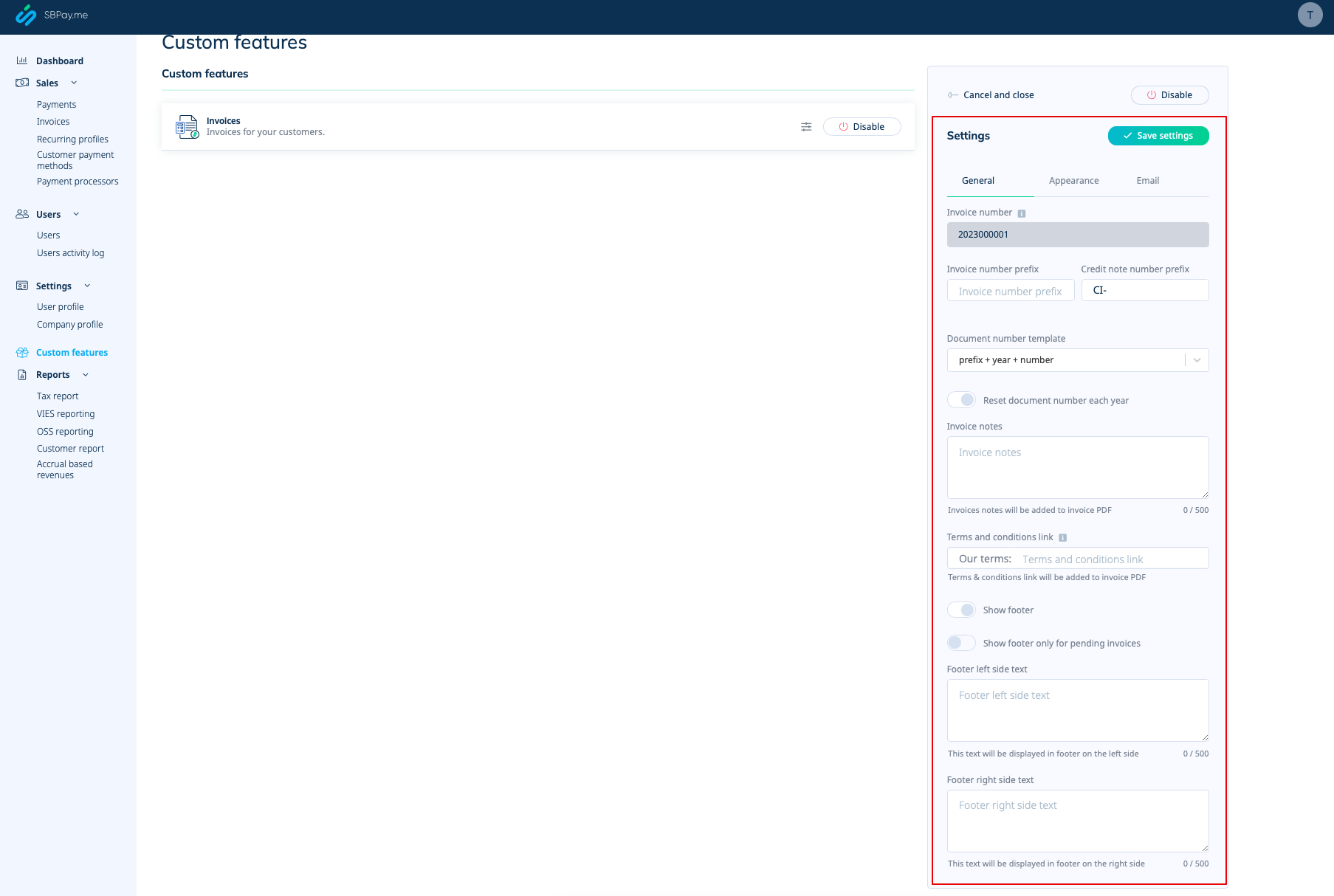
- 2. Adjust the general settings to your needs: the invoice and credit note numbering format, add notes, link to your Terms and Conditions and footer information if necessary.
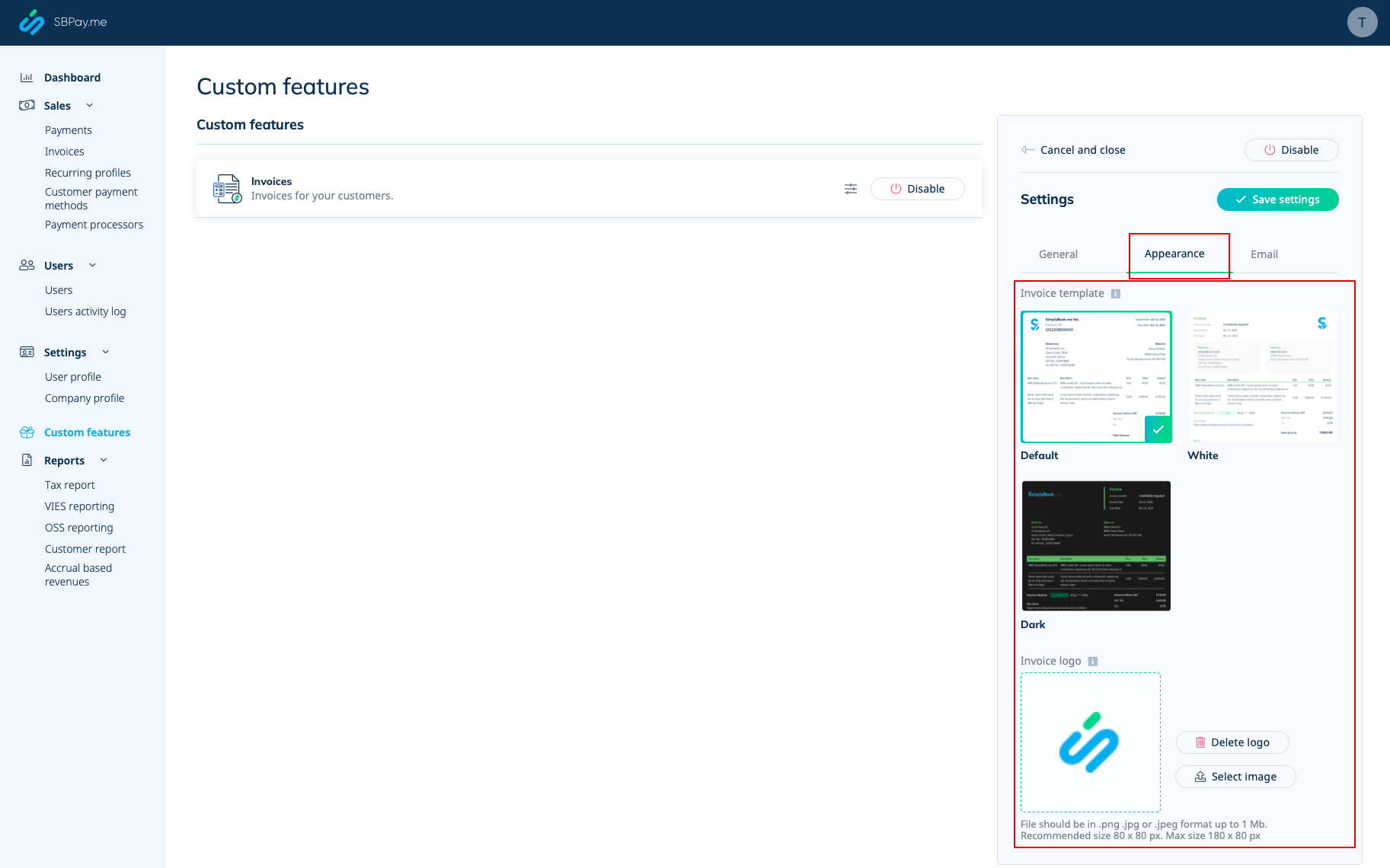
- 3. Set the desired look in "Appearance" tab, upload your company logo.
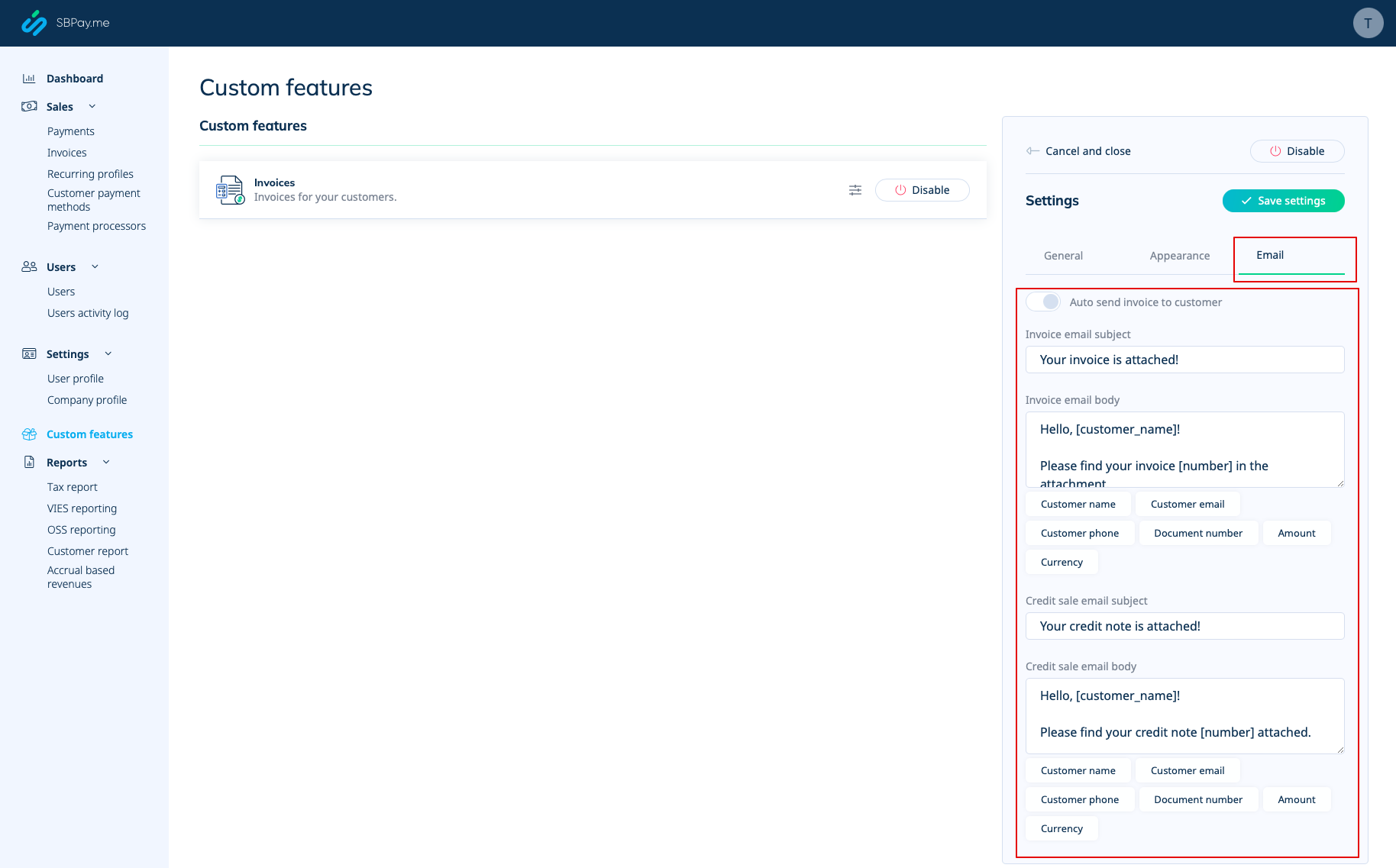
- 4. Switch to the third, "Email", tab and set the notifications templates. You can use several variables mentioned below the form. save your settings.
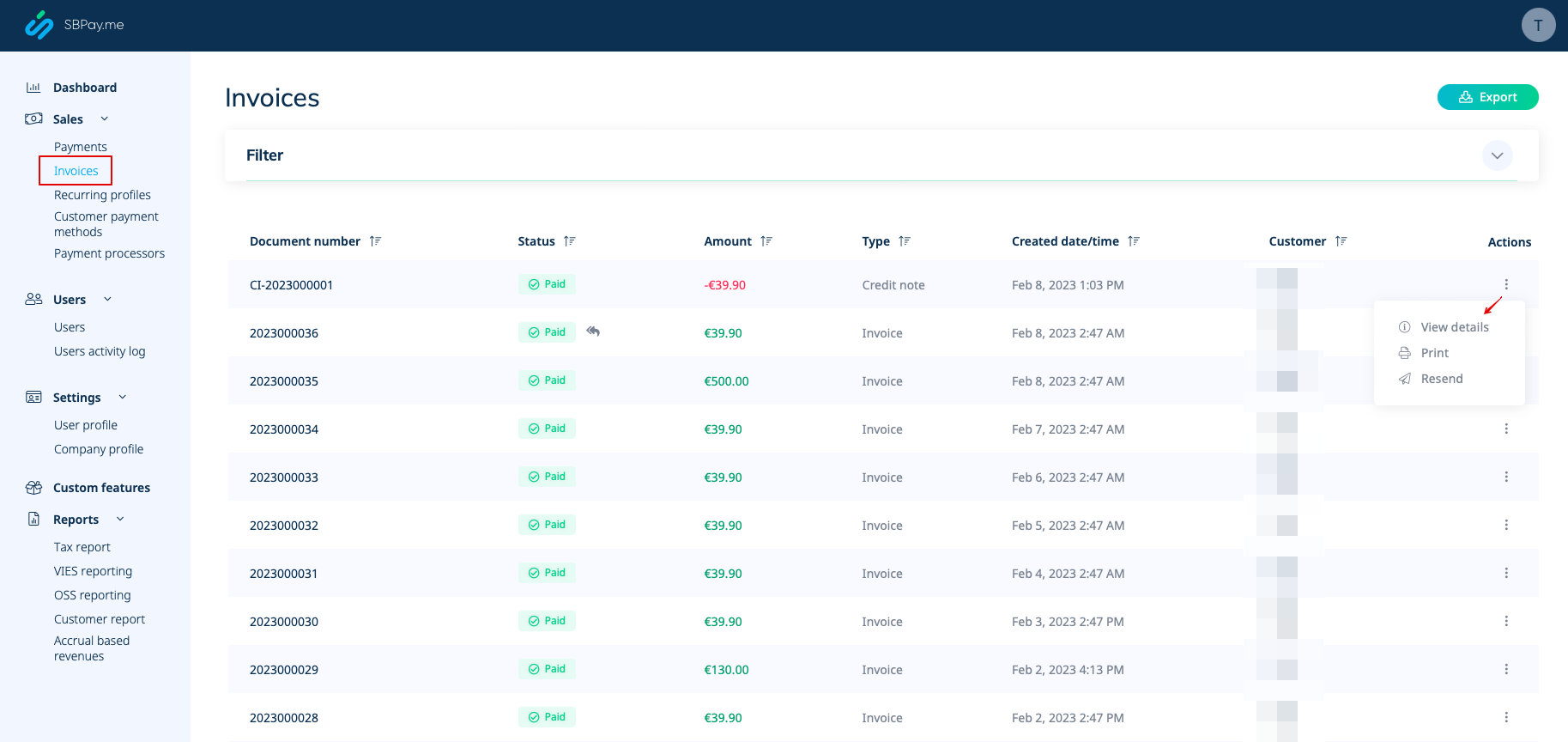
- 5. In the Sales -> Invoices you can see the list of created invoices and credits notes. You can resend them to the clients when needed, issue credit notes, print or simply view the details.
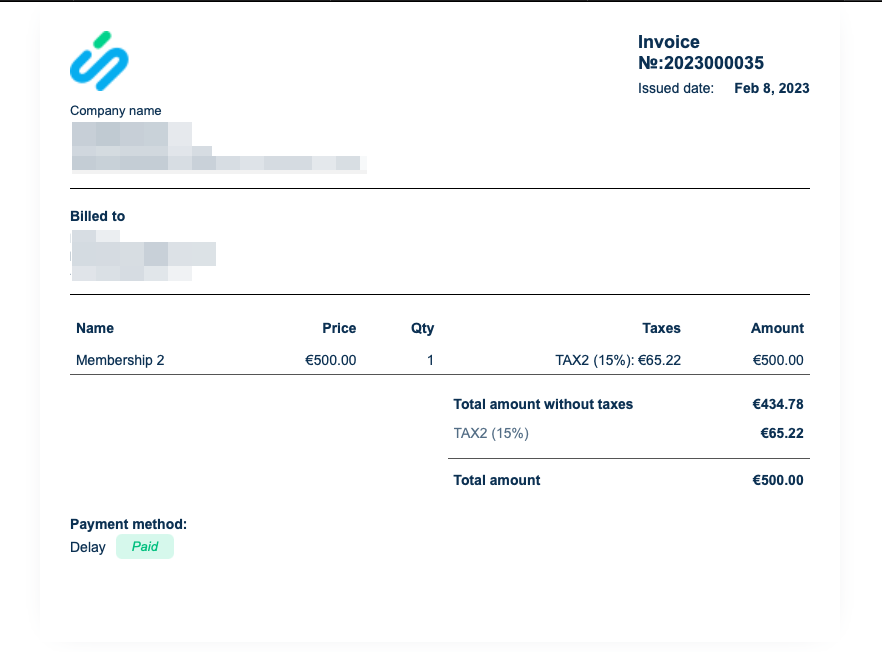
- 6. Here is the example of how print invoice version can look like.
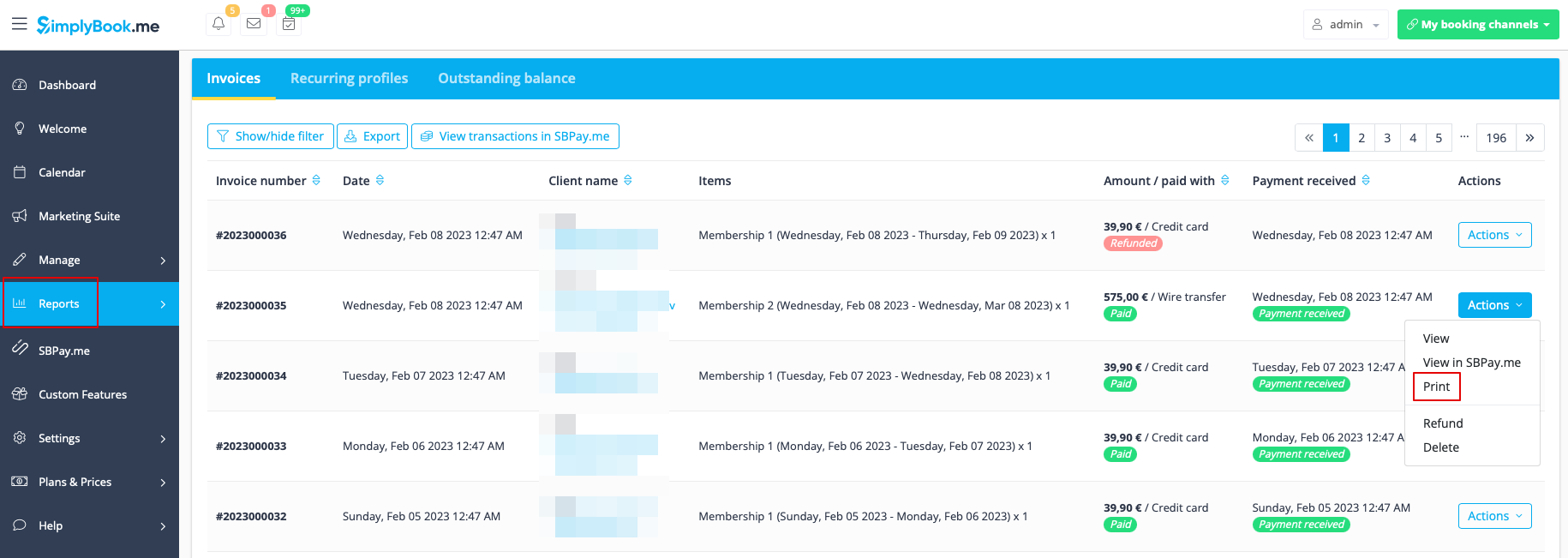
- 7. You can also print the invoices directly from the SimplyBook.me system, Reports -> Payment transactions, by selecting the corresponding action per record.
Please note! Importing invoices from external platforms directly into the system is not supported. However, SimplyBook.me offers integration options with various accounting software, including Xero, QuickBooks, and FreshBooks. You can efficiently manage your invoices within your preferred accounting system.
SBPay.me Reports
SBPay.me is just starting but already has several useful reports that you can use to track your payments:
- 1. Dashboard - contains currencies, revenues, payment systems and tags charts.
- 2. Payments - allows to view, confirm or refund orders.
- 3. Invoices - appears when the corresponding custom feature is enabled and allows to view, resend invoices, issue credit notes.
- 4. Recurring profiles - contains the information on memberships recurring profiles. You can easily view, prolong or cancel profiles on that page.
- 5. Customers payment methods - allows you to view the list of saved payment methods of your clients, check the list of related payments and disable the profiles if necessary.
- 6. Tax report - allows to view the taxes related information.
- 7. VIES report - displays how much is sold to another EU company.
- 8. OSS report - shows the local VAT collected from your sales in each EU country
- 9. Customer report - contains the information about your clients who have been making payments after you have enabled the integration and the related statistics.
- 10. Accrual based revenue - is related to the revenue earned/recognized by a business for which the invoice is yet to be billed to the customer.
Create payment requests
Video tutorial
With just a few clicks, users can easily generate payment links that can be shared with their clients via email, sending the direct link or QR code. This feature enables business owners and individuals to easily collect payments for their goods or services, without the need for a website or an online store.
In addition, it allows users to set up recurring payments, so that they can automatically charge their clients on a regular basis. This is a useful feature for businesses that offer subscription-based services or recurring billing.
Users can also choose from a wide selection of payment processors to be used for payments or to choose previously saved payment method, making it easy for returning customers to pay for their purchases quickly and securely.
For businesses that need to keep track of their payments, SBPay.me offers the ability to list detailed descriptions of sale items, including any additional taxes or discounts. This feature ensures that users can easily monitor their sales and keep accurate records.
Finally, SBPay.me allows users to tag payments so that they can group them when creating reports. This feature provides an organized way to manage payment data and generate comprehensive reports. Overall, SBPay.me is a powerful payment system that provides a simple, yet effective way to manage payments and increase revenue.
More features coming!
