From SimplyBook.me
Updating to match new version of source page Tags: Mobile edit Mobile web edit |
Updating to match new version of source page |
||
| Line 1: | Line 1: | ||
<languages/> | <languages/> | ||
{{#seo: | {{#seo: | ||
|title=Coupons and Gift Cards custom feature - SimplyBook.me | |title=Coupons and Gift Cards custom feature - SimplyBook.me | ||
|description=Offer coupons and gift cards to attract and retain clients. Increase bookings and loyalty. Enable this feature today! | |||
|titlemode=append | |titlemode=append | ||
|keywords=faq, frequently asked questions, booking software, appointment system questions, appointments online, calendar software, booking system, booking calendar, scheduling software, online appointment scheduling, online scheduling, plugins, custom features, discount, gift cards, coupon, promotion | |keywords=faq, frequently asked questions, booking software, appointment system questions, appointments online, calendar software, booking system, booking calendar, scheduling software, online appointment scheduling, online scheduling, plugins, custom features, discount, gift cards, coupon, promotion | ||
| Line 27: | Line 27: | ||
;How to use | ;How to use | ||
:1. Enable this custom feature in Business Enhancements section of your Custom Features page. | :1. Enable this custom feature in Business Enhancements section of your Custom Features page. | ||
[[File:Coupons | [[File:Coupons and gift cards enable path redesigned.png|1200px| center|link=https://help.simplybook.me/images/6/65/Coupons_and_gift_cards_enable_path_redesigned.png]] | ||
<br><br> | <br><br> | ||
:2. Navigate to "Manage" on the right or go to Manage//Coupons and Gift Cards. | :2. Navigate to "Manage" on the right or go to Manage//Coupons and Gift Cards. | ||
[[File:Coupons | [[File:Coupons and gift cards settings path redesigned.png|1200px | center|link=https://help.simplybook.me/images/9/90/Coupons_and_gift_cards_settings_path_redesigned.png]] | ||
<br><br> | <br><br> | ||
:3. Click on "+" icon to create a promotion or a gift card. | :3. Click on "+" icon to create a promotion or a gift card. | ||
[[File:Create | [[File:Create promotion path redesigned.png|1200px | center|link=https://help.simplybook.me/images/8/84/Create_promotion_path_redesigned.png]] | ||
<br><br> | <br><br> | ||
:4. Fill in main details in the menu that appears on the right side. | :4. Fill in main details in the menu that appears on the right side. | ||
[[File: | [[File:Gift card main details redesigned.png|1200px| center|link=https://help.simplybook.me/images/c/c4/Gift_card_main_details_redesigned.png]] | ||
<br><br> | <br><br> | ||
:5. Add details that your clients will see. | :5. Add details that your clients will see. | ||
[[File:Promotion | [[File:Promotion settings for client side redesigned.png|1200px| center|link=https://help.simplybook.me/images/7/70/Promotion_settings_for_client_side_redesigned.png]] | ||
<br><br> | <br><br> | ||
:6. Set the period when promotion or gift card will be valid. | :6. (optional) Set the period when promotion or gift card will be valid. | ||
[[File: | [[File:Campaign period settings redesigned.png|1200px | center|link=https://help.simplybook.me/images/f/f6/Campaign_period_settings_redesigned.png]] | ||
<br><br> | <br><br> | ||
:7. As well you can connect your promotion/gift card to specific service(s), membership(s), product(s) for sale and/or service add-on(s). | :7. As well you can connect your promotion/gift card to specific service(s), membership(s), product(s) for sale and/or service add-on(s).<br> | ||
[[File: | :(By default, it will be connected to all services/classes you have) | ||
[[File:Connect promotion to items redesigned.png|1200px| center|link=https://help.simplybook.me/images/1/16/Connect_promotion_to_items_redesigned.png]] | |||
<br><br> | <br><br> | ||
:8. Save your settings. If necessary you can now issue the gift cards and/or send promotion messages to your existing customers by clicking on the "Issue gift card"/"Send coupon message" button near the desired item.<br> | :8. Save your settings. If necessary you can now issue the gift cards and/or send promotion messages to your existing customers by clicking on the "Issue gift card"/"Send coupon message" button near the desired item.<br> | ||
:Or create a batch of non-personalized gift cards there.<br> | :Or create a batch of non-personalized gift cards there.<br> | ||
[[File: | [[File:Send promotion to customers redesigned.png|1200px | center|link=https://help.simplybook.me/images/f/f1/Send_promotion_to_customers_redesigned.png]] | ||
<br><br> | <br><br> | ||
:9. You can also set templates for clients to receive email and/or SMS notifications when they purchase a gift-card themselves on the booking site. | :9. You can also set templates for clients to receive email and/or SMS notifications when they purchase a gift-card themselves on the booking site. | ||
:To do that please navigate to Custom features//Coupons and Gift Cards, right side of the page. | :To do that please navigate to Custom features//Coupons and Gift Cards, right side of the page. | ||
[[File: | [[File:Gift cards notifications settings redesigned.png|1200px | center|link=https://help.simplybook.me/images/8/86/Gift_cards_notifications_settings_redesigned.png]] | ||
<br><br> | <br><br> | ||
Revision as of 15:13, 15 January 2025

Create and sell gift cards, and send coupons to your clients with the Coupons & Gift Cards custom feature! You can make % and fixed amount discounts and sell gift certificates. Use this amazing feature to promote your business. Customize your promotions with defined dates, messages and codes.
- Please check our video tutorial on how to use this feature here.
Please note!
- This Custom feature cannot be used together with Clean History.
- When you enable this feature Accept Payments will be enabled as well.
- Fixed amount discounts can be used for several purchases till the full discount amount is used.
- The clients should be subscribed to your marketing materials to be able to receive such notifications.
- If you are using this feature with Multiple Bookings, Group Bookings or recurring services the discount will be applied to the whole purchase(all the sessions selected).
- It is not possible to reschedule bookings with Client rescheduling feature if a gift card was applied to it.
- How to use
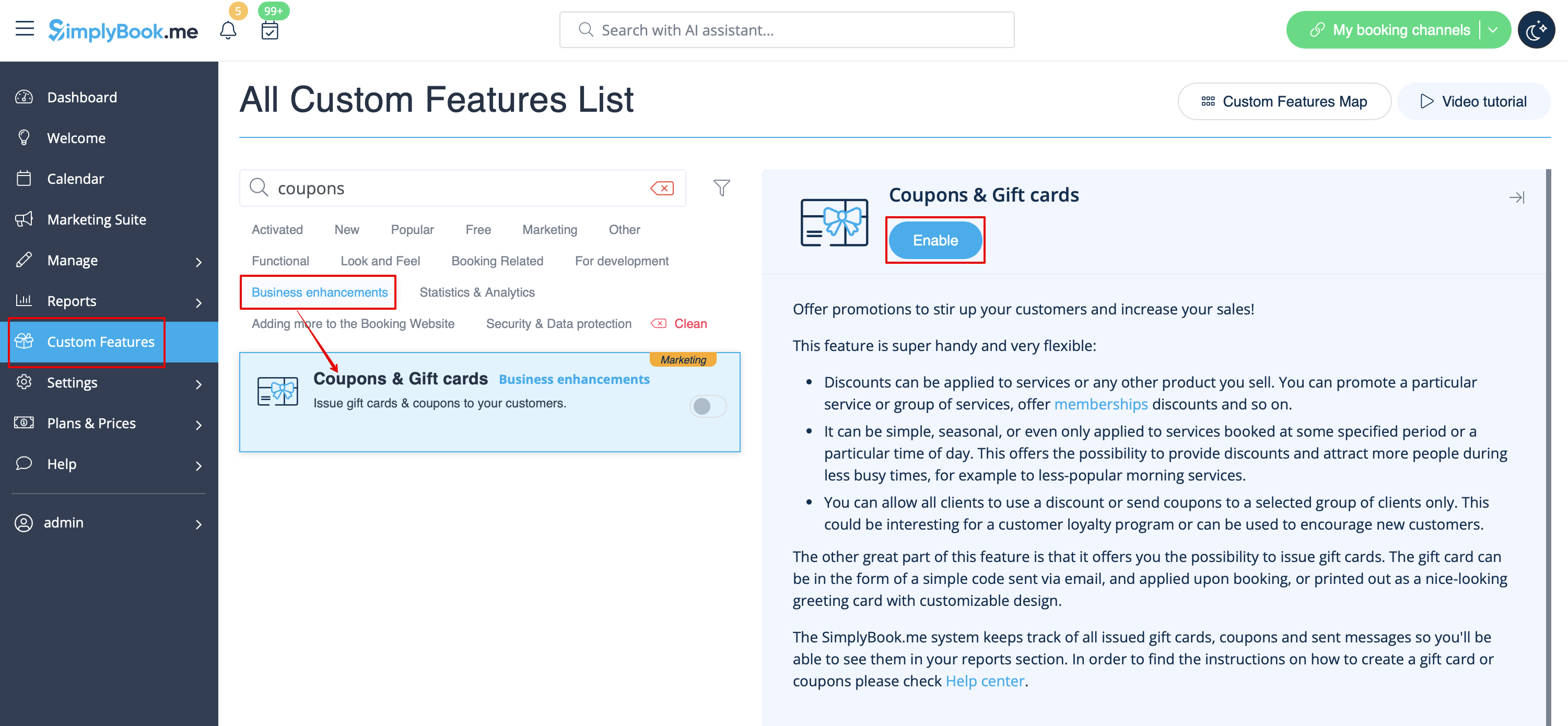
- 1. Enable this custom feature in Business Enhancements section of your Custom Features page.
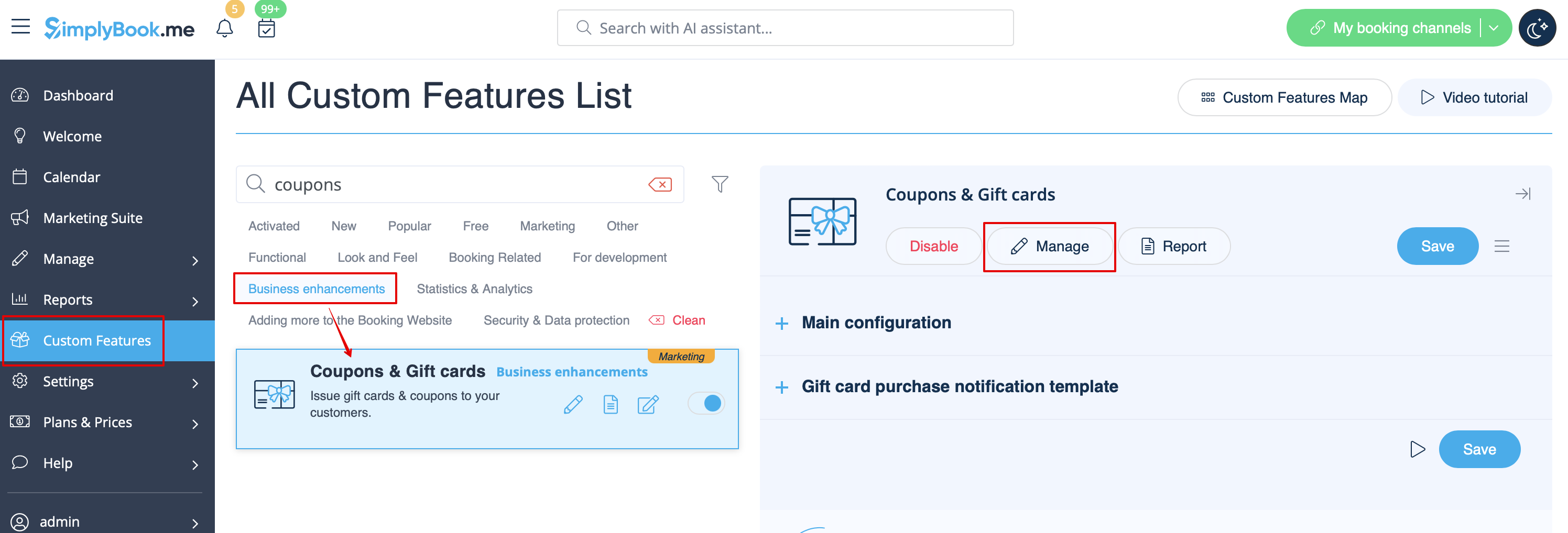
- 2. Navigate to "Manage" on the right or go to Manage//Coupons and Gift Cards.
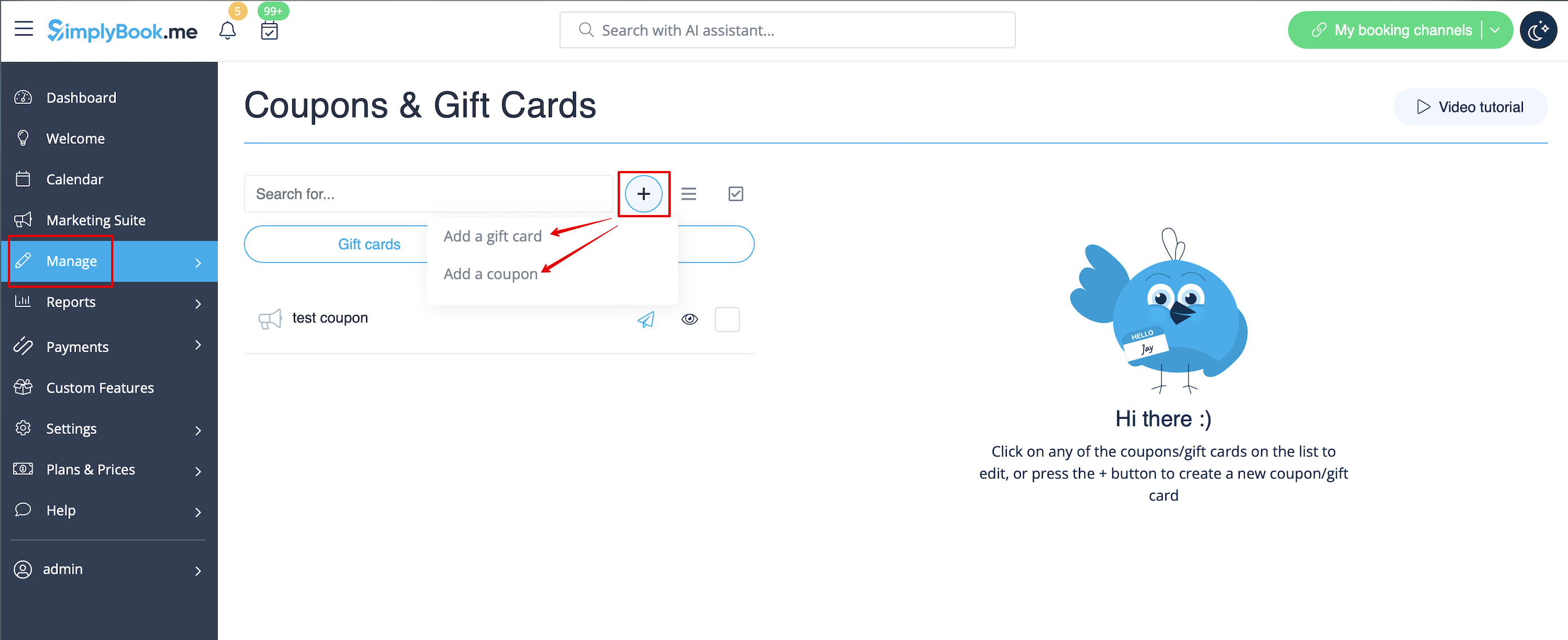
- 3. Click on "+" icon to create a promotion or a gift card.
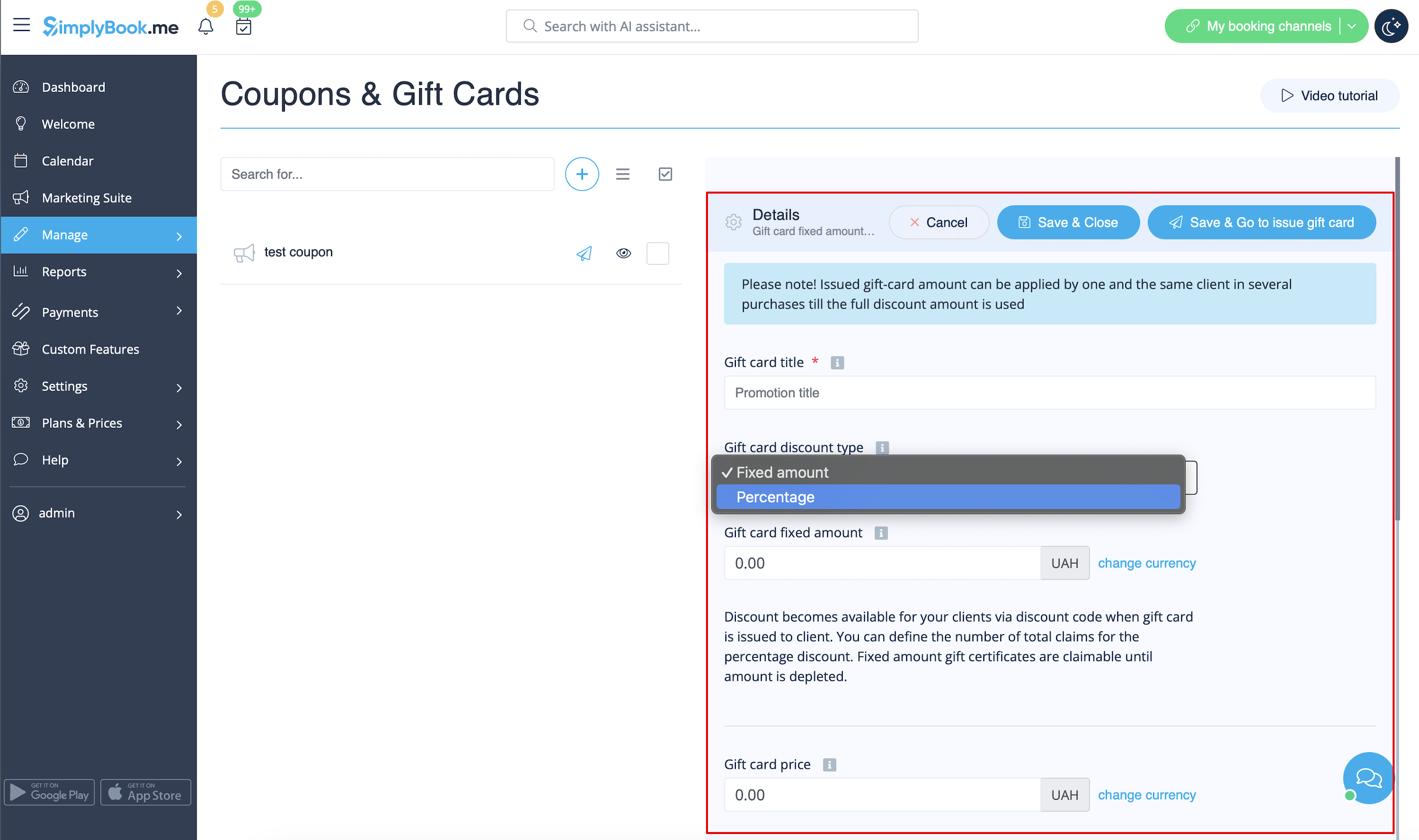
- 4. Fill in main details in the menu that appears on the right side.
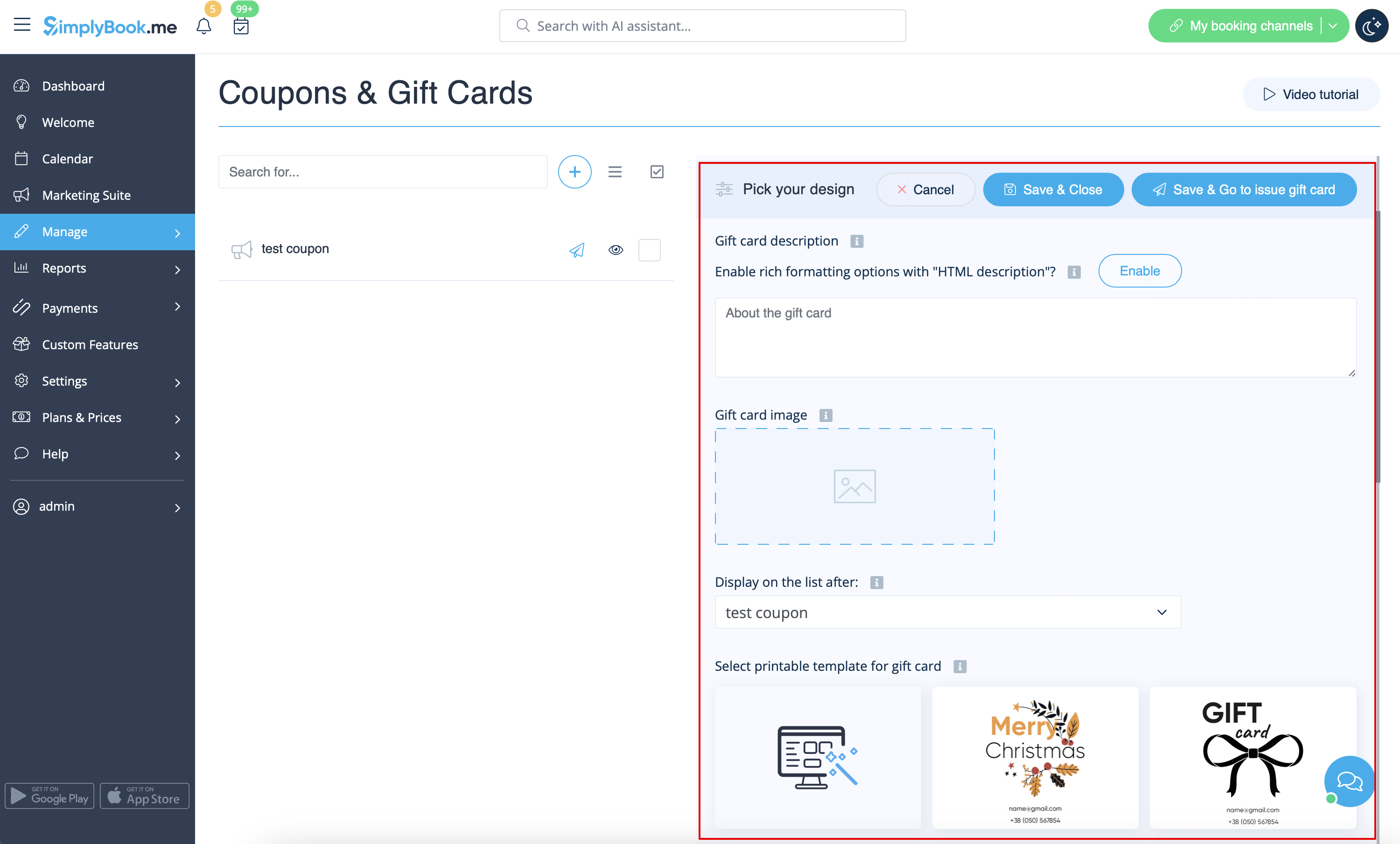
- 5. Add details that your clients will see.
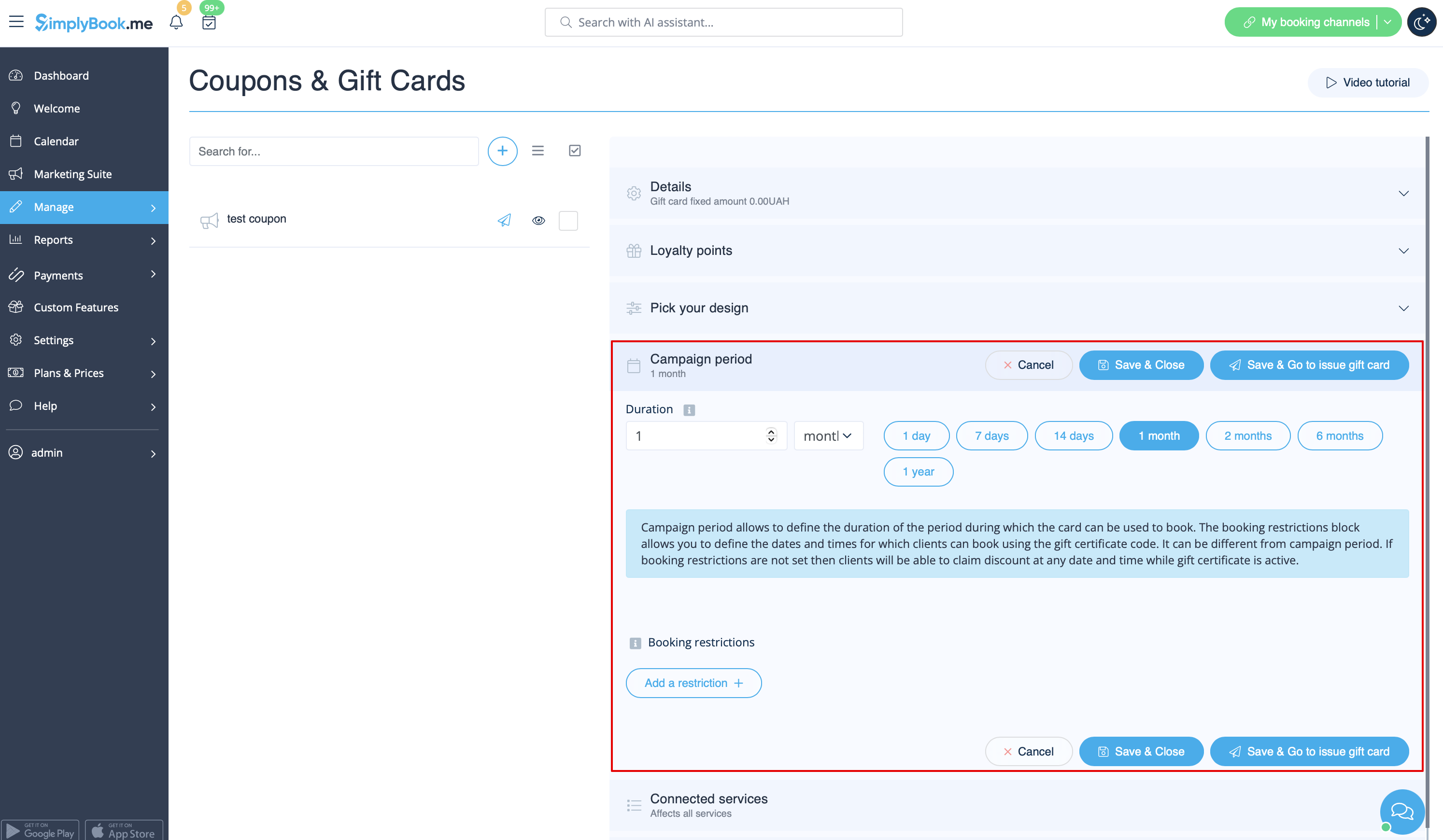
- 6. (optional) Set the period when promotion or gift card will be valid.
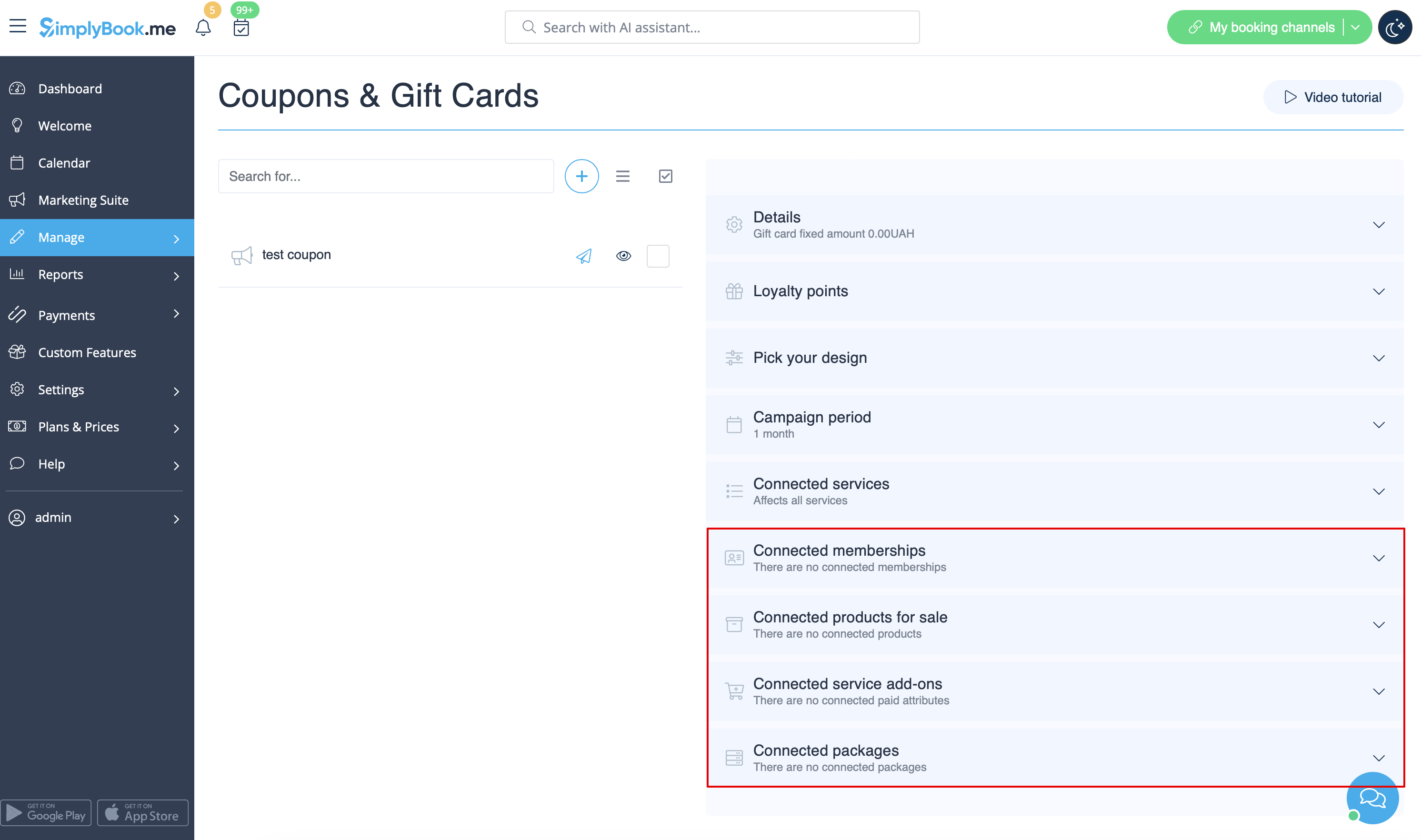
- 7. As well you can connect your promotion/gift card to specific service(s), membership(s), product(s) for sale and/or service add-on(s).
- (By default, it will be connected to all services/classes you have)
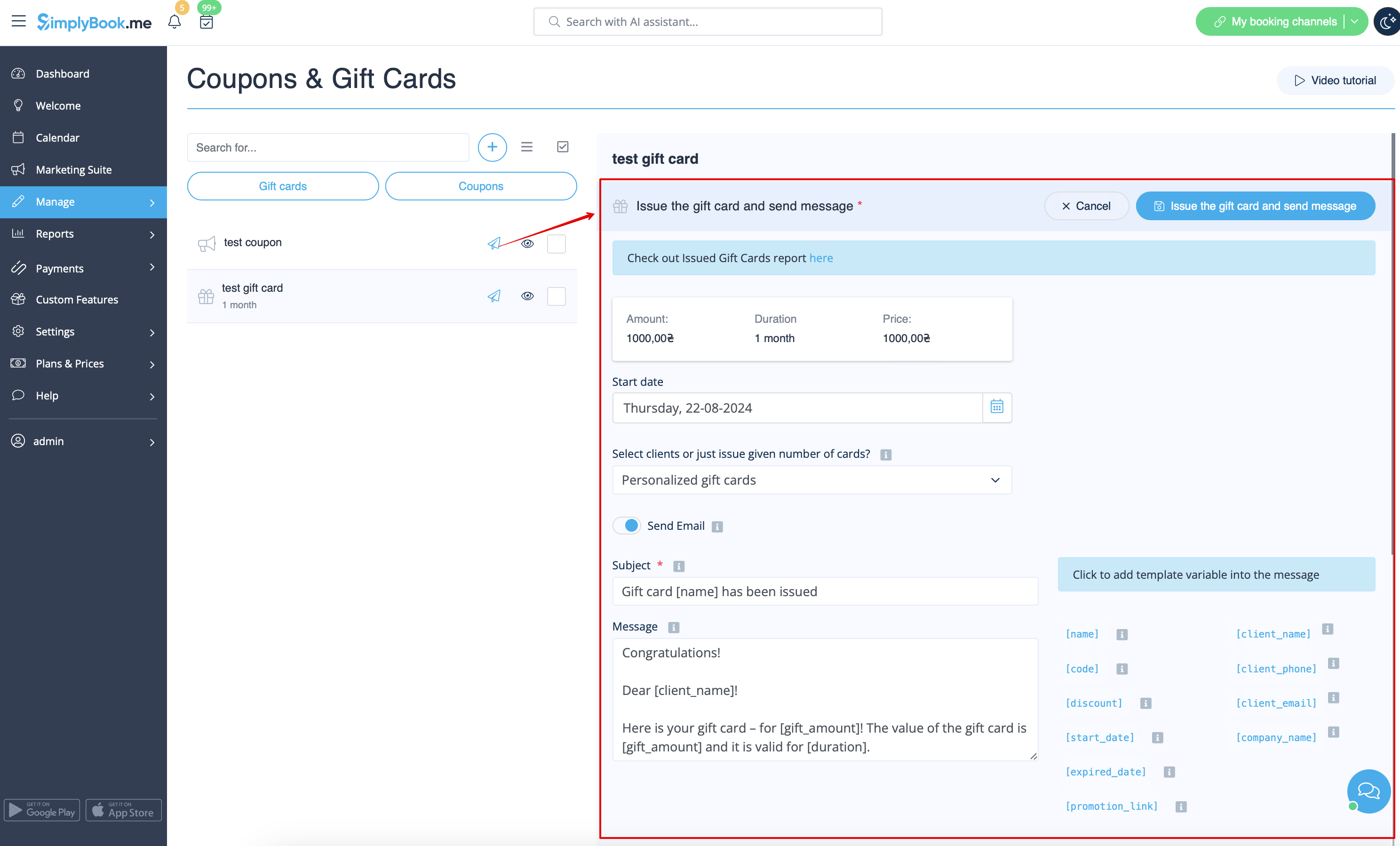
- 8. Save your settings. If necessary you can now issue the gift cards and/or send promotion messages to your existing customers by clicking on the "Issue gift card"/"Send coupon message" button near the desired item.
- Or create a batch of non-personalized gift cards there.
- 9. You can also set templates for clients to receive email and/or SMS notifications when they purchase a gift-card themselves on the booking site.
- To do that please navigate to Custom features//Coupons and Gift Cards, right side of the page.

