From SimplyBook.me
Updating to match new version of source page |
Updating to match new version of source page |
||
| Line 1: | Line 1: | ||
<languages/> | <languages/> | ||
{{#seo: | {{#seo: | ||
|title= | |title=Client Rescheduling using SimplyBook.me | ||
|description=Allow clients to reschedule appointments with ease. Provide flexibility while saving time. Activate this feature now! | |||
|titlemode=append | |titlemode=append | ||
|keywords=faq, frequently asked questions, booking software, appointment system questions, appointments online, calendar software, booking system, booking calendar, scheduling software, online appointment scheduling, online scheduling, plugins, custom features, additional functionality, client rescheduling, edit booking, edit appointment, reschedule by client, reschedule | |keywords=faq, frequently asked questions, booking software, appointment system questions, appointments online, calendar software, booking system, booking calendar, scheduling software, online appointment scheduling, online scheduling, plugins, custom features, additional functionality, client rescheduling, edit booking, edit appointment, reschedule by client, reschedule | ||
| Line 21: | Line 21: | ||
;How to use | ;How to use | ||
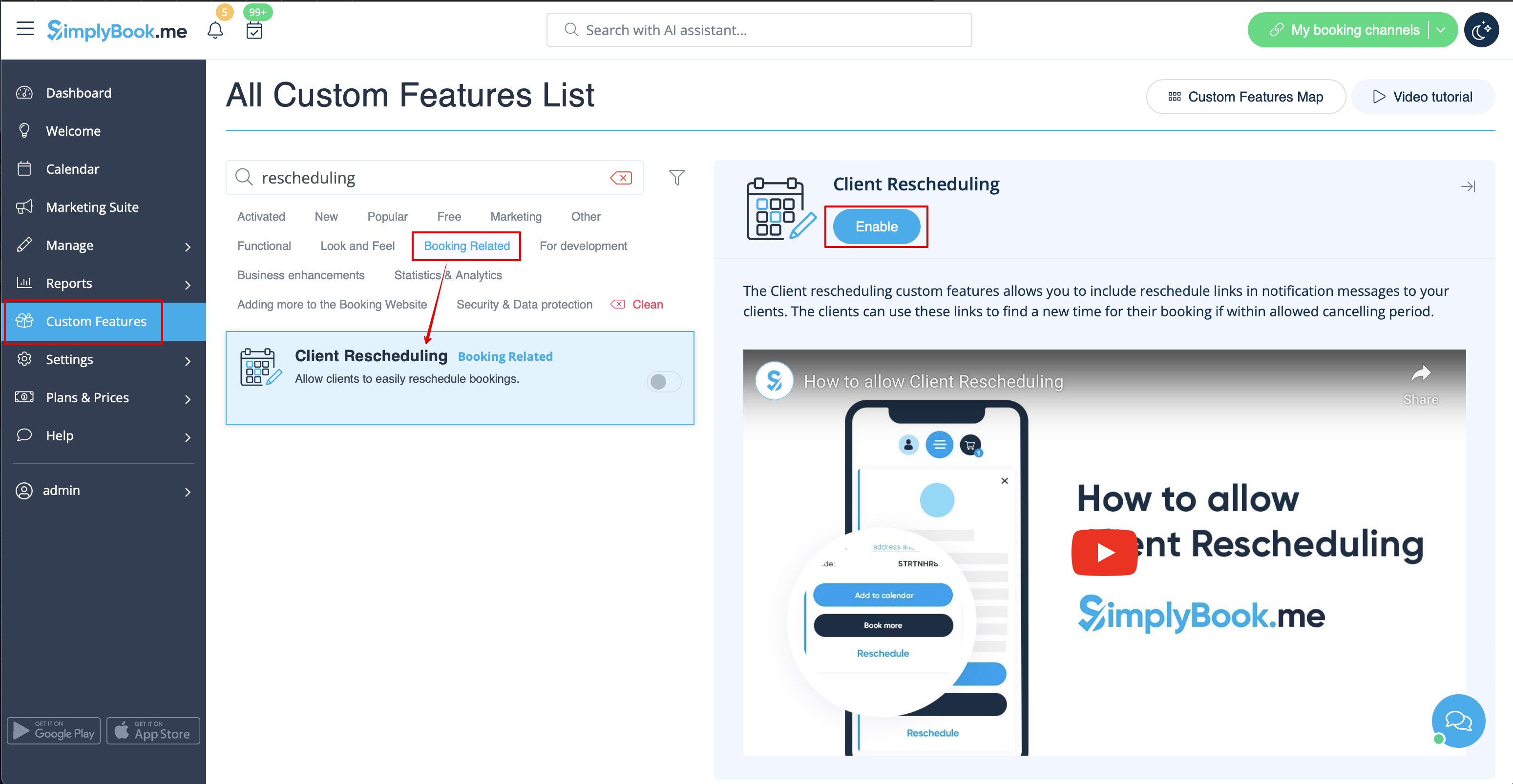
:1. Enable <span style="background-color:#d4f8e5; padding:5px; border-radius:5px;">Client Rescheduling</span> on your <span style="background-color:#d4f8e5; padding:5px; border-radius:5px;">Custom Features</span> page. | :1. Enable <span style="background-color:#d4f8e5; padding:5px; border-radius:5px;">Client Rescheduling</span> on your <span style="background-color:#d4f8e5; padding:5px; border-radius:5px;">Custom Features</span> page. | ||
[[File: | [[File:Client rescheduling path redesigned.png|1200px|center|border|link=https://help.simplybook.me/images/0/0e/Client_rescheduling_path_redesigned.png]] | ||
<br><br> | <br><br> | ||
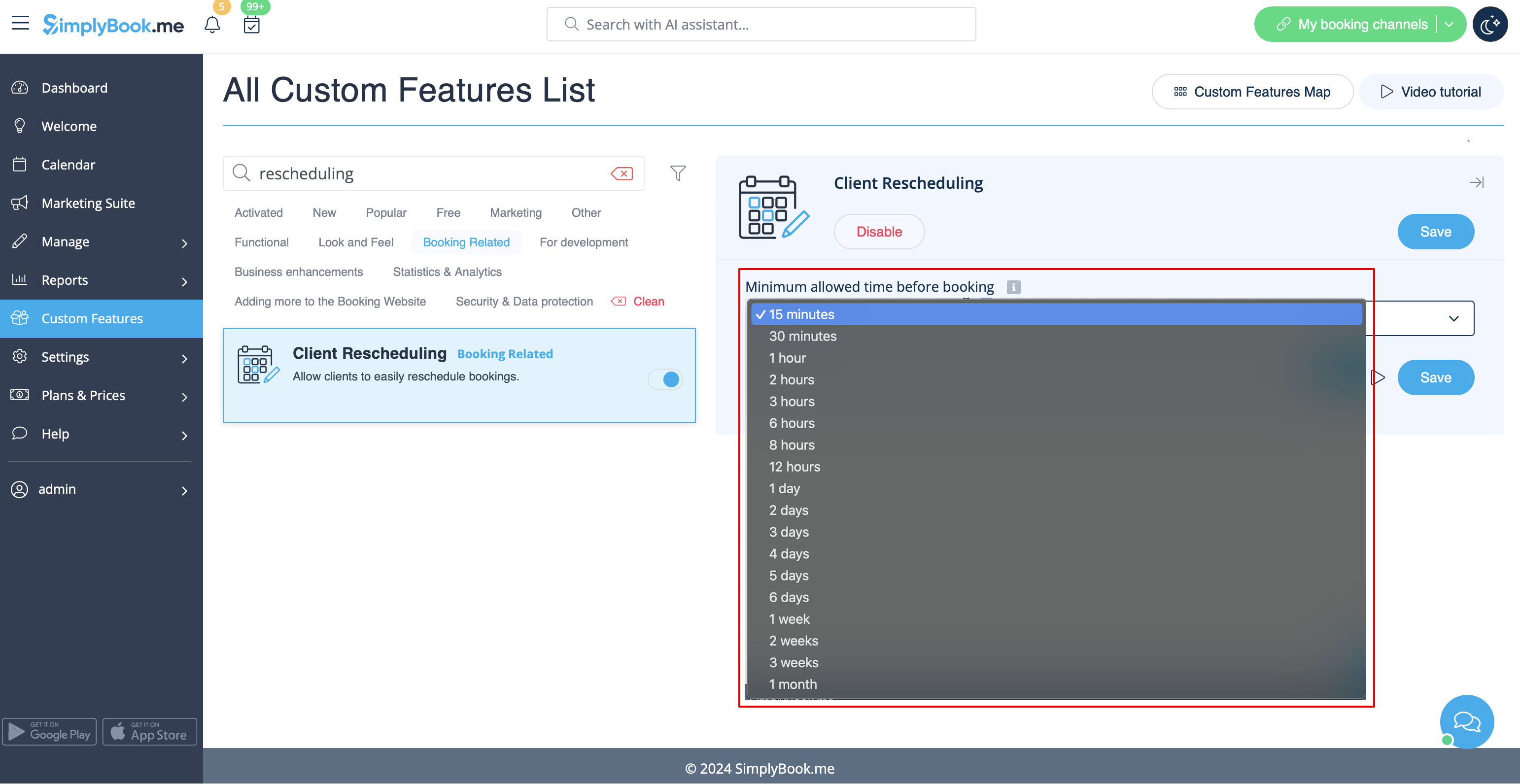
:2. Select the preferred <span style="background-color:#d4f8e5; padding:5px; border-radius:5px;">rescheduling restriction period</span> in its settings. | :2. Select the preferred <span style="background-color:#d4f8e5; padding:5px; border-radius:5px;">rescheduling restriction period</span> in its settings. | ||
[[File: | [[File:Client rescheduling settings redesigned2.png|1200px |border|center|link=https://help.simplybook.me/images/9/97/Client_rescheduling_settings_redesigned2.png]] | ||
<br><br> | <br><br> | ||
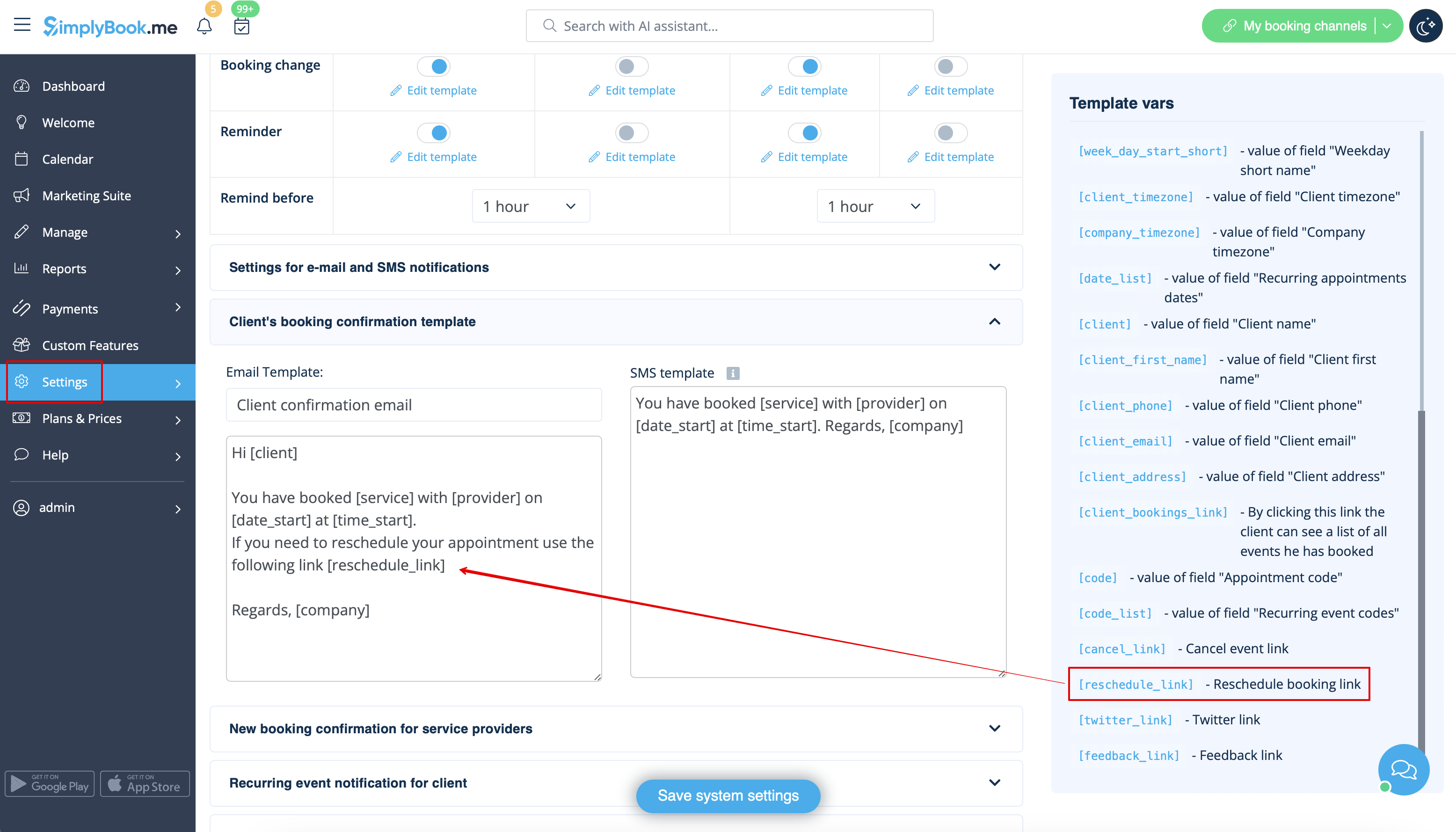
:3. (optional) Add <span style="background-color:#d4f8e5; padding:5px; border-radius:5px;">[reschedule_link]</span> variable to client notifications in <span style="background-color:#d4f8e5; padding:5px; border-radius:5px;">Settings</span> -> <span style="background-color:#d4f8e5; padding:5px; border-radius:5px;">Email and SMS Settings</span>(or <span style="background-color:#cdeffc; padding:5px; border-radius:5px;">[[Special:MyLanguage/Flexible_Notifications_custom_feature|Flexible Notifications]]</span> settings if you have custom templates per service/provider). | :3. (optional) Add <span style="background-color:#d4f8e5; padding:5px; border-radius:5px;">[reschedule_link]</span> variable to client notifications in <span style="background-color:#d4f8e5; padding:5px; border-radius:5px;">Settings</span> -> <span style="background-color:#d4f8e5; padding:5px; border-radius:5px;">Email and SMS Settings</span>(or <span style="background-color:#cdeffc; padding:5px; border-radius:5px;">[[Special:MyLanguage/Flexible_Notifications_custom_feature|Flexible Notifications]]</span> settings if you have custom templates per service/provider). | ||
[[File: | [[File:Add rescheduling link to notifications redesigned.png|1200px|border|center|link=https://help.simplybook.me/images/0/0a/Add_rescheduling_link_to_notifications_redesigned.png]] | ||
<br><br> | <br><br> | ||
:4. As the result the clients will be able to use <span style="background-color:#d4f8e5; padding:5px; border-radius:5px;">Reschedule</span> button on the booking site <span style="background-color:#d4f8e5; padding:5px; border-radius:5px;">My Bookings</span> page or using the link from email notifications. | :4. As the result the clients will be able to use <span style="background-color:#d4f8e5; padding:5px; border-radius:5px;">Reschedule</span> button on the booking site <span style="background-color:#d4f8e5; padding:5px; border-radius:5px;">My Bookings</span> page or using the link from email notifications. | ||
Revision as of 15:57, 8 January 2025

The Client rescheduling custom feature allows you to include reschedule links in notification messages to your clients and rescheduling button to the booking site. The clients can use these options to find a new time for their booking if within allowed rescheduling period.
- Please note!:
- The clients can only change date and/or time of the appointment;
- In case you have enabled Any Employee custom feature and it was used during the booking process, the provider will not be changed during the rescheduling from the client side. If the provider change(or random selection) is needed please ask the clients to cancel and re-book.
- This feature is not compatible with Approve Bookings custom feature;
- It is not possible to reschedule recurring and group batch appointments;
- If gift card, coupon or membership were applied during initial booking process it is not possible to reschedule by client;
- Some calendar layouts change on rescheduling page (flexible provider becomes flexible; modern provider becomes modern; weekly classes becomes slots weekly; daily classes is replaced by modern).
- How to use
- 1. Enable Client Rescheduling on your Custom Features page.
- 2. Select the preferred rescheduling restriction period in its settings.
- 3. (optional) Add [reschedule_link] variable to client notifications in Settings -> Email and SMS Settings(or Flexible Notifications settings if you have custom templates per service/provider).
- 4. As the result the clients will be able to use Reschedule button on the booking site My Bookings page or using the link from email notifications.


