From SimplyBook.me
No edit summary |
|||
| Line 67: | Line 67: | ||
=Call-to-action button for Facebook fan page= | =Call-to-action button for Facebook fan page= | ||
<br><br> | <br><br> | ||
:1. Go to your | :1. Go to your Facebook business page cover photo, click on three dots below the cover image and select <span style="background-color:#d4f8e5; padding:5px; border-radius:5px;">Add action button</span> | ||
<br> | <br> | ||
[[File:Fb new add action button.png|1200px|center]] | |||
<br><br> | <br><br> | ||
:2. | :2. You can choose "Book now" or "Reserve" options as a call-to-action and then choose [https://simplybook.me/en/ SimplyBook.me]. That way you will enable [[Facebook and Instagram Bookings]] custom feature | ||
<br> | [[File:Fb action button new book.png|1200px|center|link=https://help.simplybook.me/images/6/64/Fb_action_button_new_book.png]] | ||
[[File: | <br><br> | ||
:3. If you need to have a button leading to your booking website you can select "Contact us" or "Learn more" in that popup | |||
[[File:Fb new contact us action.png|1200px|center|link=https://help.simplybook.me/images/4/49/Fb_new_contact_us_action.png]] | |||
<br><br> | |||
:3. Paste your booking website link to the corresponding field and save settings. | |||
[[File:Add link to fb button.png|1200px|center|link=https://help.simplybook.me/images/0/03/Add_link_to_fb_button.png]] | |||
<br><br> | |||
:4. As the result you will have the action button with the text "Contact us" or "Learn more" that will lead to your booking website. | |||
[[File:Image.png|1200px|center|link=https://help.simplybook.me/images/3/34/Image.png]] | |||
<br><br> | <br><br> | ||
=How to add a Facebook Messenger chat to your booking page= | =How to add a Facebook Messenger chat to your booking page= | ||
:'''Video tutorial available '''[[File:Youtube-Logo.png|link=https://www.youtube.com/watch?v=PuFFtCOksc8]] | :'''Video tutorial available '''[[File:Youtube-Logo.png|link=https://www.youtube.com/watch?v=PuFFtCOksc8]] | ||
<br><br> | <br><br> | ||
Revision as of 13:00, 9 July 2024
Facebook and Instagram Bookings Custom Feature
Please note!
- It is possible to connect booking option to Facebook Business and Instagram Business pages. This functionality cannot be added to a personal page.
- The booking option is not shown on desktop Instagram version and can be used via mobile apps only.
- Bookingtroll theme is used for the booking widget by default. If you wish to change the styling please upgrade to Premium to select the desired theme and be able to use Custom CSS adjustments.
- The widget look may differ depending on Facebook preferences for different devices and applications
- Video tutorial available

How to add and use booking option to Facebook/Instagram business page
- 1. Enable Facebook & Instagram Bookings custom feature on your Custom Features page.

- 2. Login to your Facebook/Instagram business account(s) in another browser tab.
- 3. Go back to SimplyBook.me interface and click on Settings near Facebook & Instagram Bookings.

- 4. Click on Connect with Facebook button on the page you see.

- 5. You will be redirected to Facebook interface to manage the permissions and connection to SimplyBook.me.
- Please follow the steps 1-5 displayed below.
- (If you have Instagram business profile connected to your Facebook business page you will be able to connect it there as well
- and Book button will automatically appear there)

- 6. Now you will have your services shown on your Facebook page with Book buttons next to them or Book now button under the page banner that will redirect your clients to your booking site.
- (the representation options depend on your Facebook business page)

- 7. You can also add booking option to your Facebook page posts so that the customers will be able to quickly book your services.

How to remove Book button from Facebook/Instagram pages
- 1. Navigate to Custom Features -> Facebook & Instagram Bookings -> Settings on SimplyBook.me side.
- 2. Click on Logout at the top of the page.

How to add and use booking option on Instagram only
- 1. Open your Instagram mobile application and login to your business page.
- 2. Navigate to your profile and select to edit it.
- 3. Follow the steps 1-8 below to add Book button that will lead the customers to your booking site:

How to remove Book option from Instagram business page
- 1. Open your Instagram mobile application and navigate to editing your profile.
- Follow the steps 1-5 below to remove Book button:

Call-to-action button for Facebook fan page
- 1. Go to your Facebook business page cover photo, click on three dots below the cover image and select Add action button

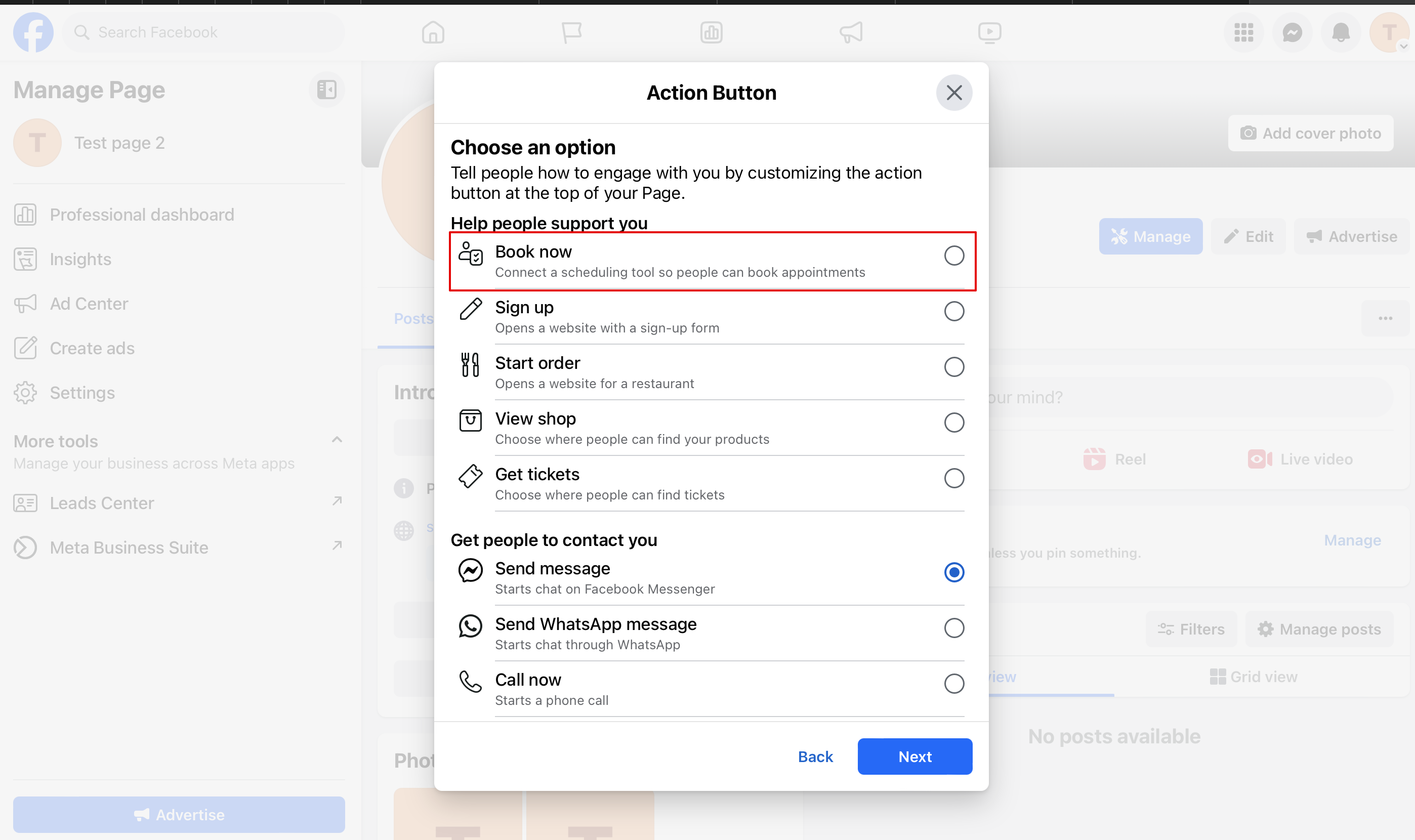
- 2. You can choose "Book now" or "Reserve" options as a call-to-action and then choose SimplyBook.me. That way you will enable Facebook and Instagram Bookings custom feature
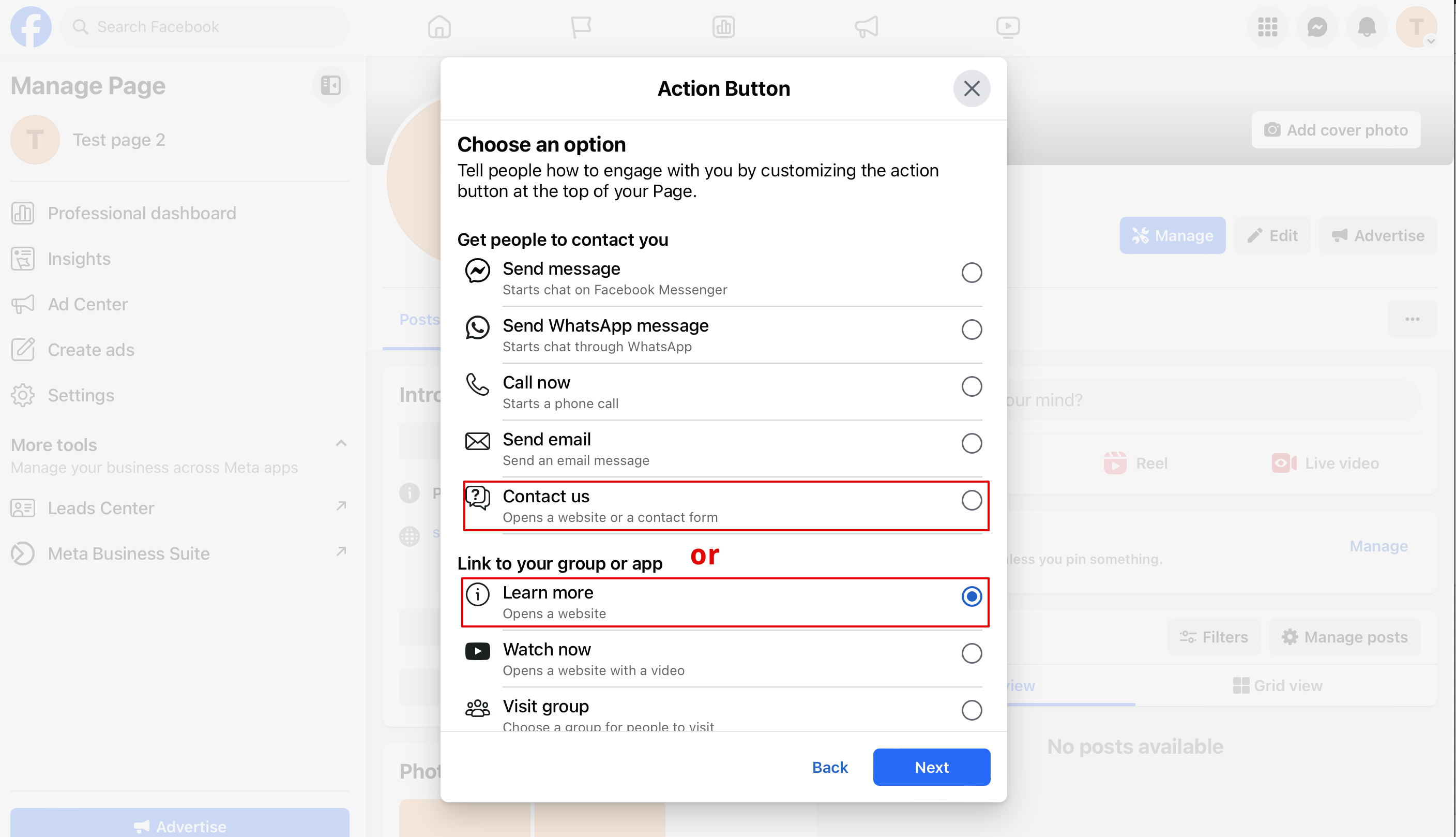
- 3. If you need to have a button leading to your booking website you can select "Contact us" or "Learn more" in that popup
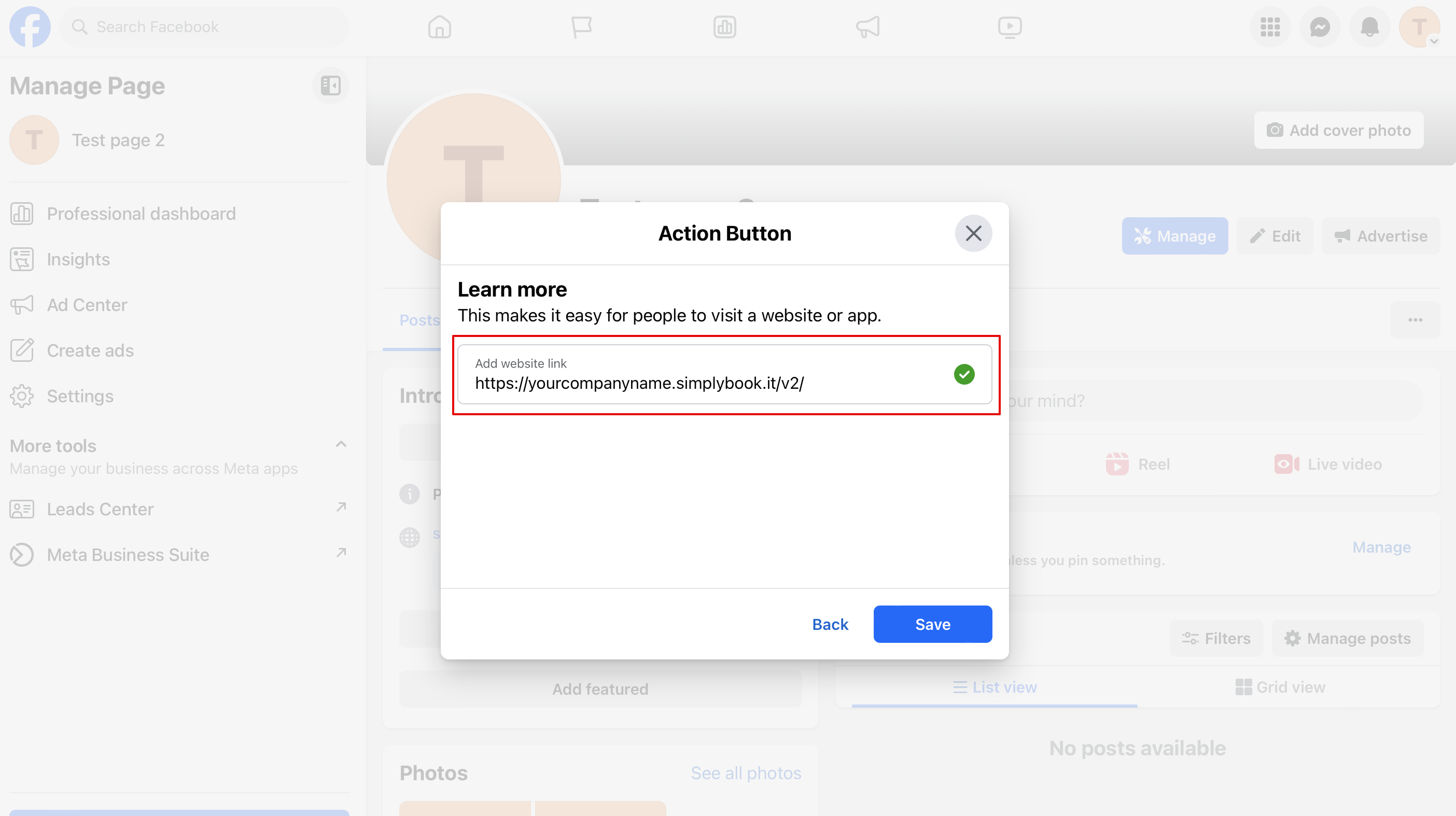
- 3. Paste your booking website link to the corresponding field and save settings.
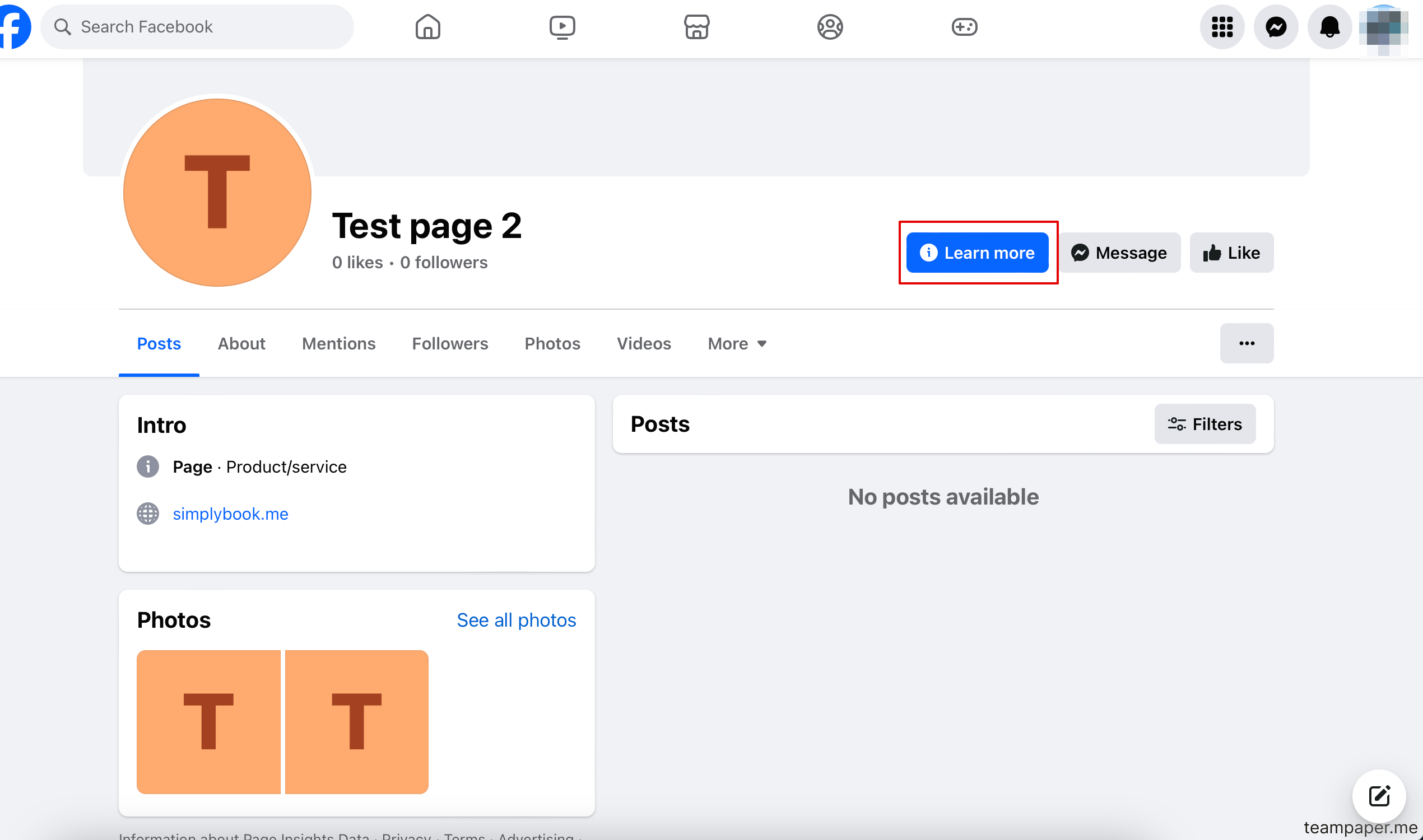
- 4. As the result you will have the action button with the text "Contact us" or "Learn more" that will lead to your booking website.
How to add a Facebook Messenger chat to your booking page
- Video tutorial available
