From SimplyBook.me
Marked this version for translation |
No edit summary |
||
| Line 22: | Line 22: | ||
;How to use | ;How to use | ||
:1. Open Custom features page in your account and click on "Enable" near Appointment at fixed time option. | :1. Open Custom features page in your account and click on "Enable" near Appointment at fixed time option. | ||
[[File:Appointment at fixed time enable path | [[File:Appointment at fixed time enable path redesigned.png|1200px | center|link=https://help.simplybook.me/images/3/3e/Appointment_at_fixed_time_enable_path_redesigned.png]] | ||
<br><br> | <br><br> | ||
:2. To set times go to "Settings" next to it. | :2. To set times go to "Settings" next to it. | ||
[[File:Appointment at fixed time settings path | [[File:Appointment at fixed time settings path redesigned.png|1200px | center|link=https://help.simplybook.me/images/9/92/Appointment_at_fixed_time_settings_path_redesigned.png]] | ||
<br><br> | <br><br> | ||
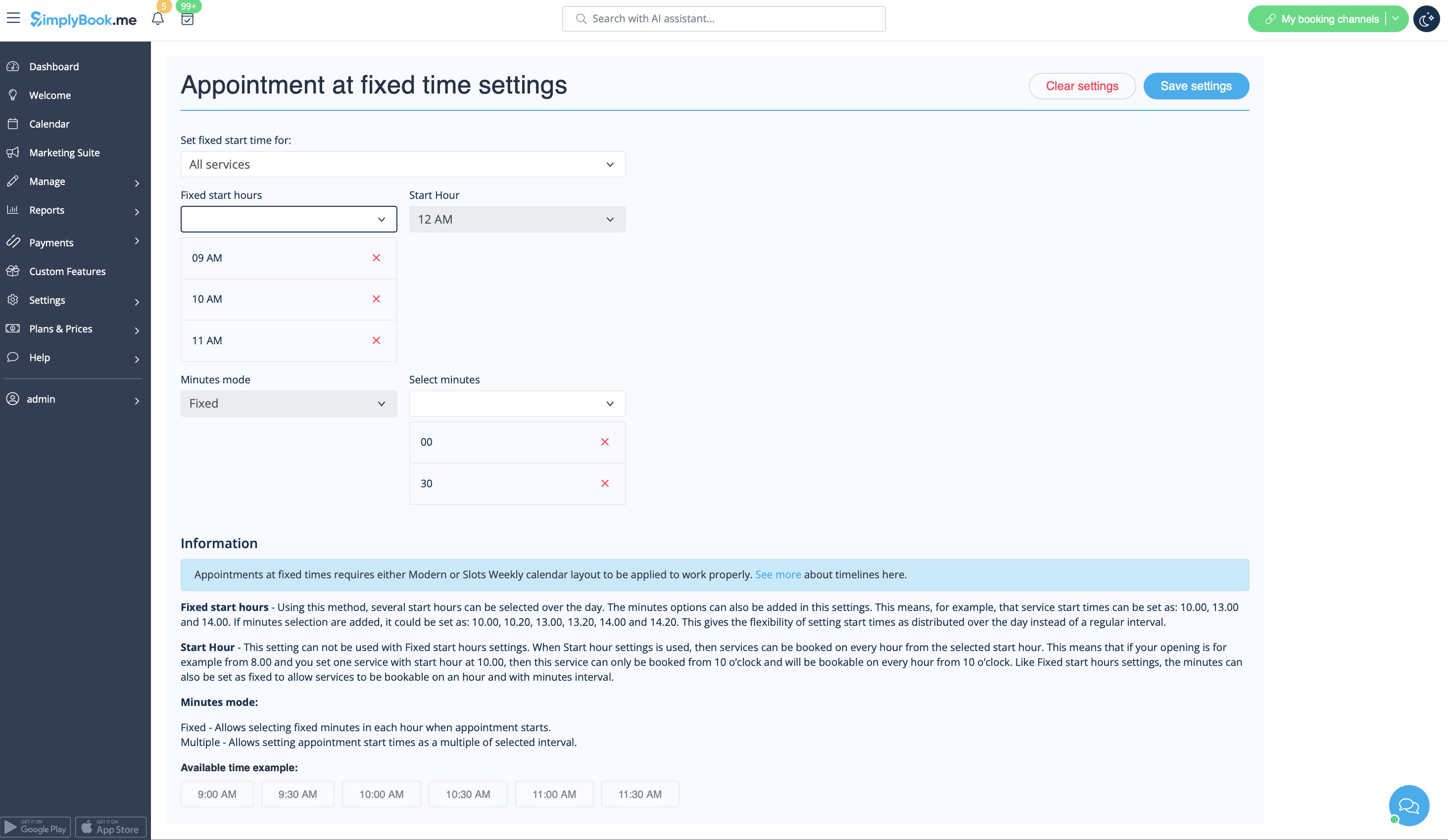
:3. On the page you see please select the service you wish to edit start times for or select "All services" if all times will be the same. | :3. On the page you see please select the service you wish to edit start times for or select "All services" if all times will be the same. | ||
:And choose the desired times using the corresponding boxes. | :And choose the desired times using the corresponding boxes. | ||
[[File: Appointment at fixed time | [[File:Appointment at fixed time options redesigned.png|1200px | center|link=https://help.simplybook.me/images/7/71/Appointment_at_fixed_time_options_redesigned.png]] | ||
<br><br> | <br><br> | ||
</translate> | </translate> | ||
Revision as of 10:35, 2 August 2024

This Custom Feature allows advanced flexibility to your appointment start times for all services at once or per each service. Custom Feature can be used to define exact hour and/or minutes in an hour where your services are available (e.g. 10.00, 14.30, 16.25). It can be used to set the start hour and then choose fixed or multiple interval in minutes when your services are available (e.g. multiple of 15 min 10.00, 10.15, 10.30, 10.45).
- Please note! This feature works with "slots" timelines: slots weekly or modern; and does not work with any flexible timeline type.
- How to use
- 1. Open Custom features page in your account and click on "Enable" near Appointment at fixed time option.
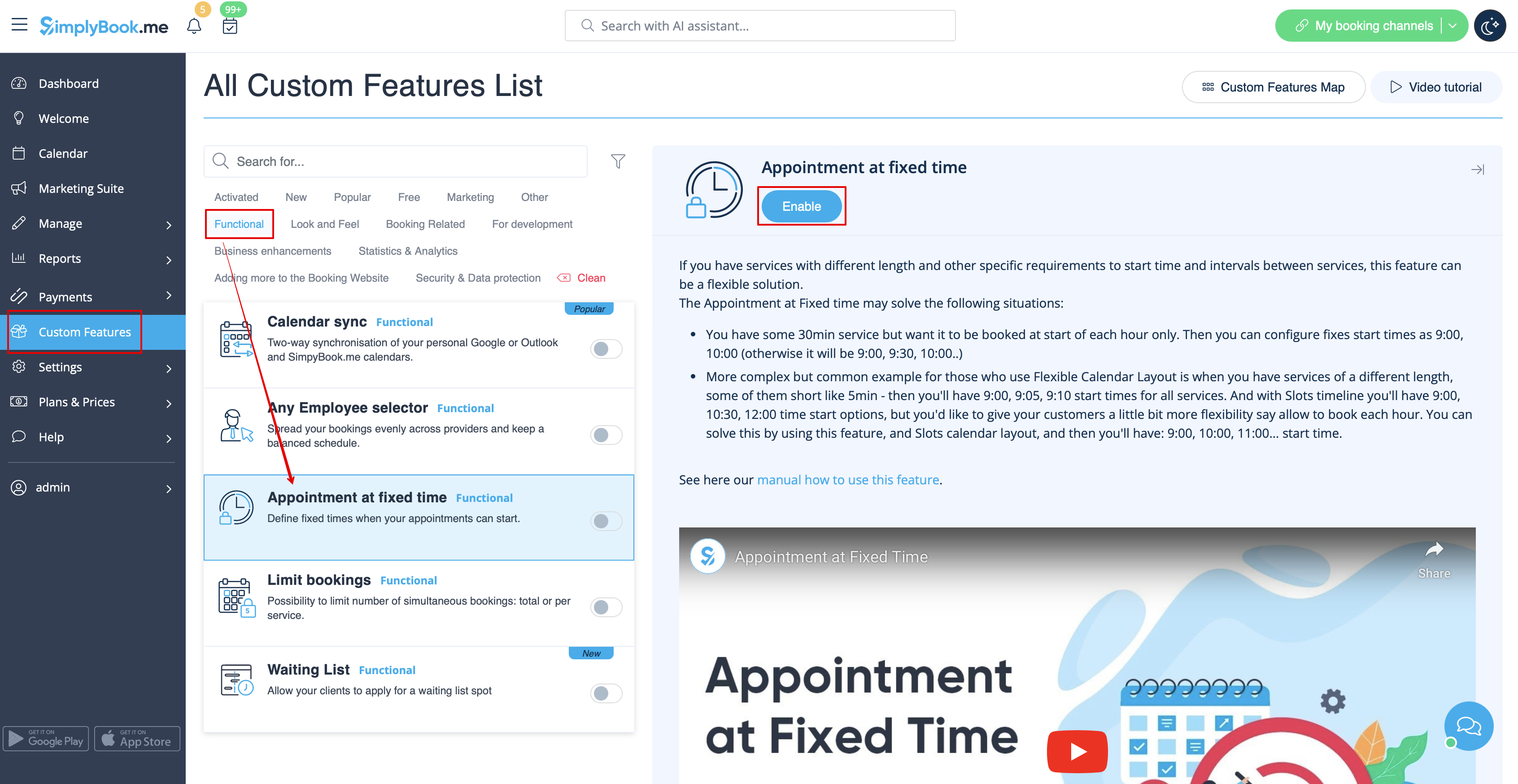
- 2. To set times go to "Settings" next to it.
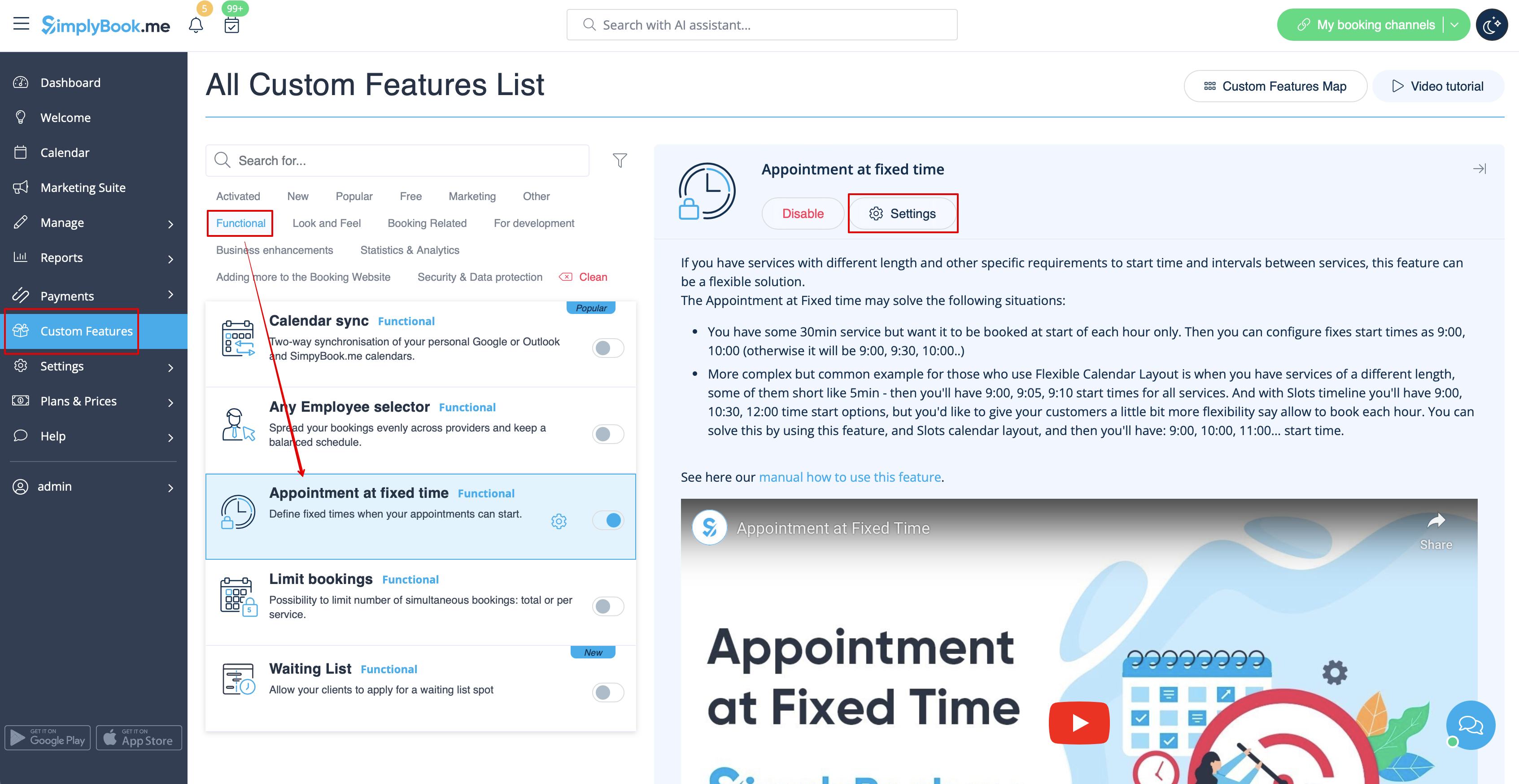
- 3. On the page you see please select the service you wish to edit start times for or select "All services" if all times will be the same.
- And choose the desired times using the corresponding boxes.