No edit summary |
|||
| Line 24: | Line 24: | ||
=How to use= <!--T:1--> | =How to use= <!--T:1--> | ||
:1. Enable Calendar Sync feature in the Custom Feature section. | :1. Enable Calendar Sync feature in the Custom Feature section. | ||
[[File:Calendar sync enable path | [[File:Calendar sync enable path redesigned.png|1200px | center|link=https://help.simplybook.me/images/8/8a/Calendar_sync_enable_path_redesigned.png]] | ||
<br><br> | <br><br> | ||
:2. Go to "Settings" near this option. | :2. Go to "Settings" near this option. | ||
[[File:Calendar sync settings path | [[File:Calendar sync settings path redesigned.png|1200px| center|link=https://help.simplybook.me/images/e/e6/Calendar_sync_settings_path_redesigned.png]] | ||
<br><br> | <br><br> | ||
:3. Click on "Connect new calendar" and connect Google or Outlook account. | :3. Click on "Connect new calendar" and connect Google or Outlook account. | ||
<br> | <br> | ||
[[File: | [[File:Connect external calendar path redesigned.png|1200px | center|link=https://help.simplybook.me/images/5/57/Connect_external_calendar_path_redesigned.png]] | ||
<br><br> | <br><br> | ||
:4. Select the desired calendar and connect necessary providers to it. | :4. Select the desired calendar and connect necessary providers to it. | ||
| Line 37: | Line 37: | ||
:6. Check the box "sync busy time" if you want to block times in the [https://simplybook.me/ simplybook] dashboard occupied by Google/Outlook Calendar events.<br> | :6. Check the box "sync busy time" if you want to block times in the [https://simplybook.me/ simplybook] dashboard occupied by Google/Outlook Calendar events.<br> | ||
:(Google calendar only) Enable "create google meet link" if you wish the system to generate Google Meet conferencing for appointments and send invitations to your clients. | :(Google calendar only) Enable "create google meet link" if you wish the system to generate Google Meet conferencing for appointments and send invitations to your clients. | ||
[[File: | [[File:Connected calendar options redesigned.png|1200px|border| center|link=https://help.simplybook.me/images/8/82/Connected_calendar_options_redesigned.png]] | ||
<br> | <br> | ||
<br> | <br> | ||
| Line 48: | Line 48: | ||
:7. You will be able to see Google/Outlook calendar events that block time in SimplyBook only in '''Service Provider view''' in calendar (because you connect calendar to provider). Nothing will be visible in Day and Week view because those views are for all providers (if you have several providers, it would be impossible to show all Google/Outlook events in 1 calendar). | :7. You will be able to see Google/Outlook calendar events that block time in SimplyBook only in '''Service Provider view''' in calendar (because you connect calendar to provider). Nothing will be visible in Day and Week view because those views are for all providers (if you have several providers, it would be impossible to show all Google/Outlook events in 1 calendar). | ||
<br> | <br> | ||
[[File: | [[File:Externat event blocking time on calendar redesigned.png|1200px| center|link=https://help.simplybook.me/images/3/30/Externat_event_blocking_time_on_calendar_redesigned.png]] | ||
<br><br> | <br><br> | ||
'''''Please note''''' During sync process no events details are imported from your external calendar. The events are represented by blue blocks on Calendar page only. | '''''Please note''''' During sync process no events details are imported from your external calendar. The events are represented by blue blocks on Calendar page only. | ||
Revision as of 12:31, 5 August 2024

Calendar Sync Custom Feature is used for 2-way synchronization with Google and Outlook calendars. You can export bookings from SimplyBook to Google or Outlook calendars and also block times occupied by Google/Outlook Calendar event in your SimplyBook dashboard.
Please note
- this feature works with web calendars only - it may not work with Microsoft Exchange calendars.
- if Display remaining spaces custom feature is enabled, the time blocked by Calendar sync does not influence the number of timeslots displayed.
- Video tutorial available

How to use
- 1. Enable Calendar Sync feature in the Custom Feature section.
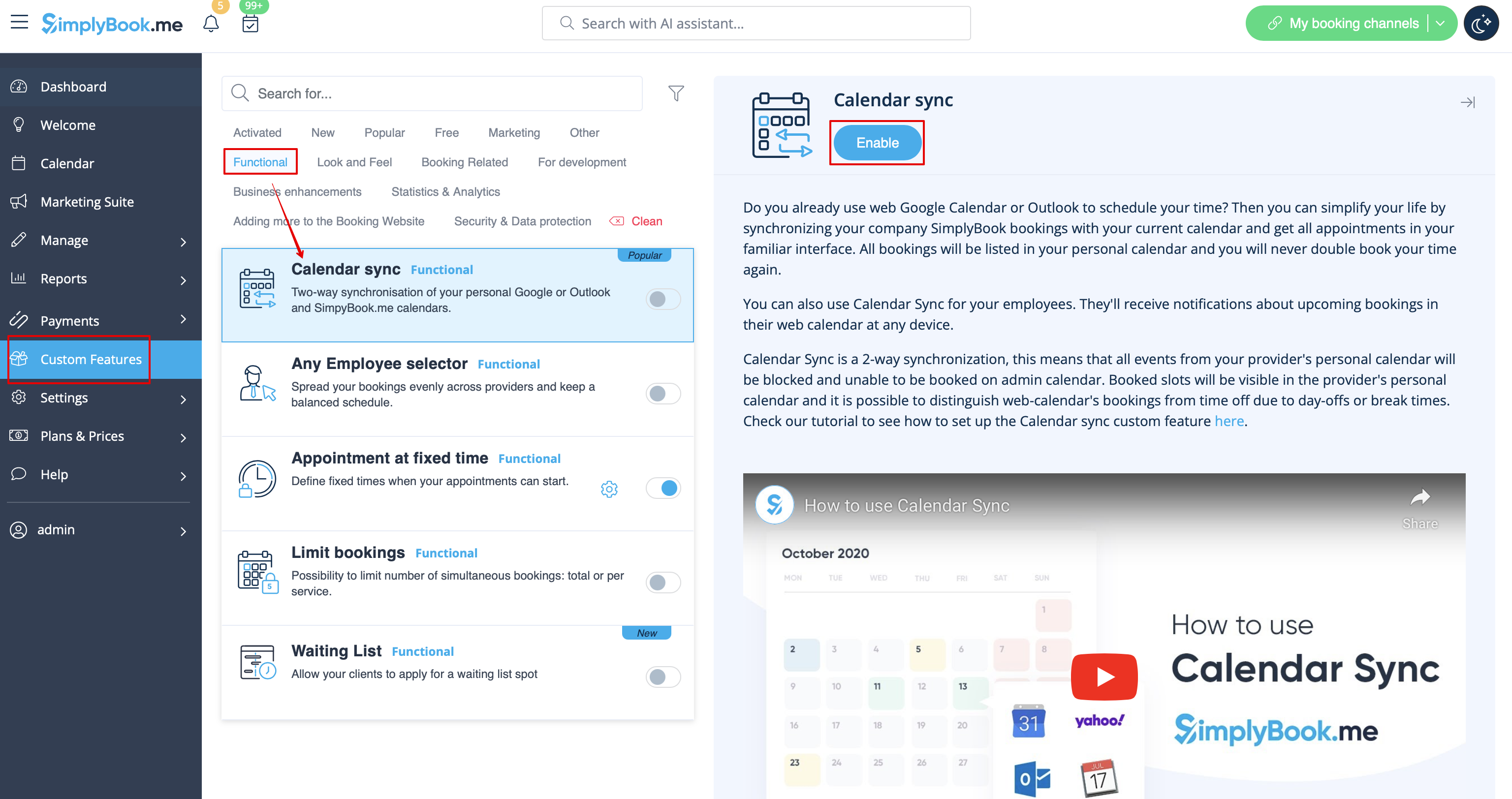
- 2. Go to "Settings" near this option.
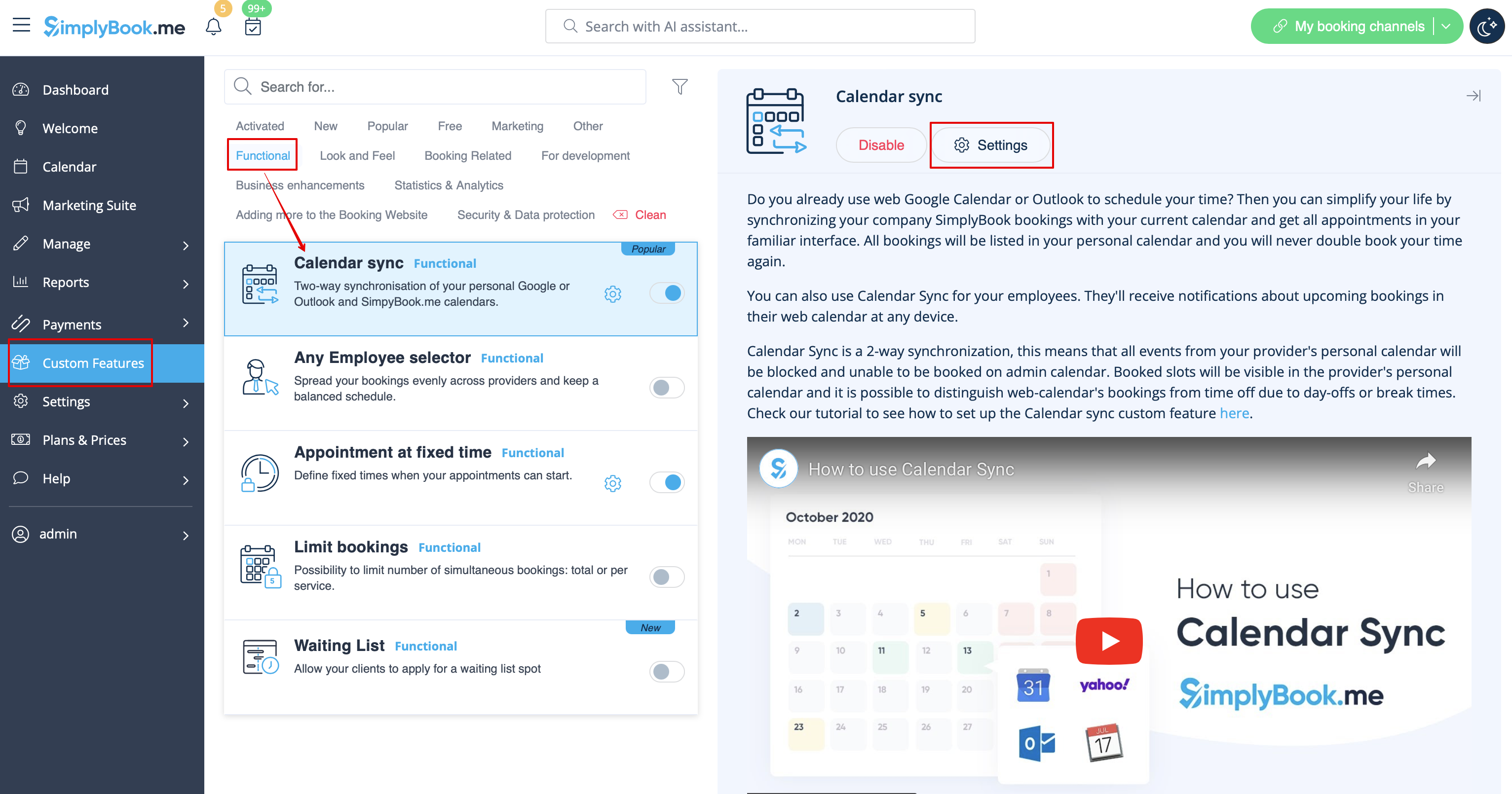
- 3. Click on "Connect new calendar" and connect Google or Outlook account.
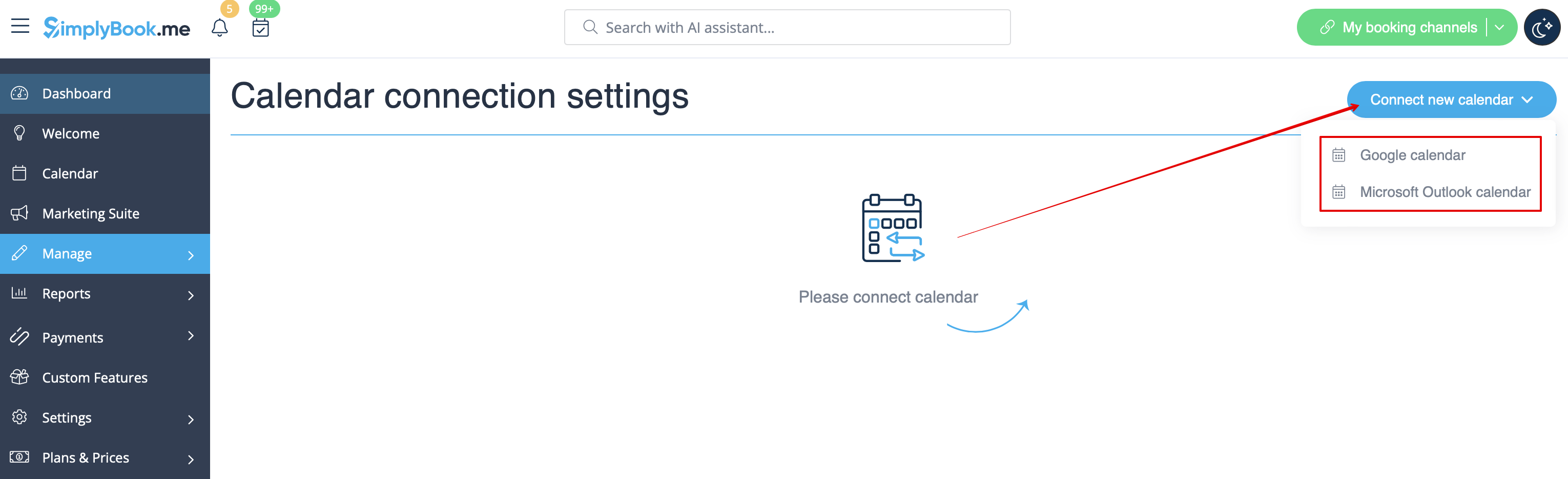
- 4. Select the desired calendar and connect necessary providers to it.
- 5. Press "export" to export your old bookings to Google or Outlook calendar for sync process to start.
- 6. Check the box "sync busy time" if you want to block times in the simplybook dashboard occupied by Google/Outlook Calendar events.
- (Google calendar only) Enable "create google meet link" if you wish the system to generate Google Meet conferencing for appointments and send invitations to your clients.
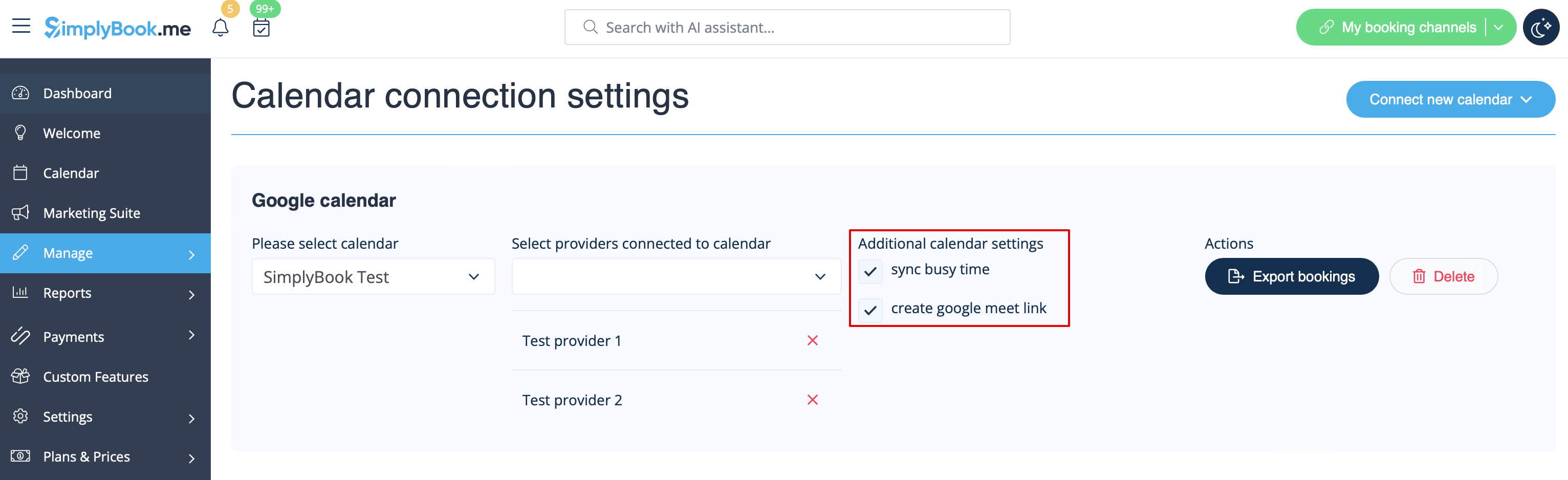
Please note that if "sync busy time" is checked and you have set your provider to accept more than 1 client at a time it will not be possible to make more than 1 booking as the booking will be exported to Google/Oultook as "busy time" and will block that time from booking.
If you need to accept more than one booking at a time for your provider please uncheck "sync busy time" box.
- 7. You will be able to see Google/Outlook calendar events that block time in SimplyBook only in Service Provider view in calendar (because you connect calendar to provider). Nothing will be visible in Day and Week view because those views are for all providers (if you have several providers, it would be impossible to show all Google/Outlook events in 1 calendar).
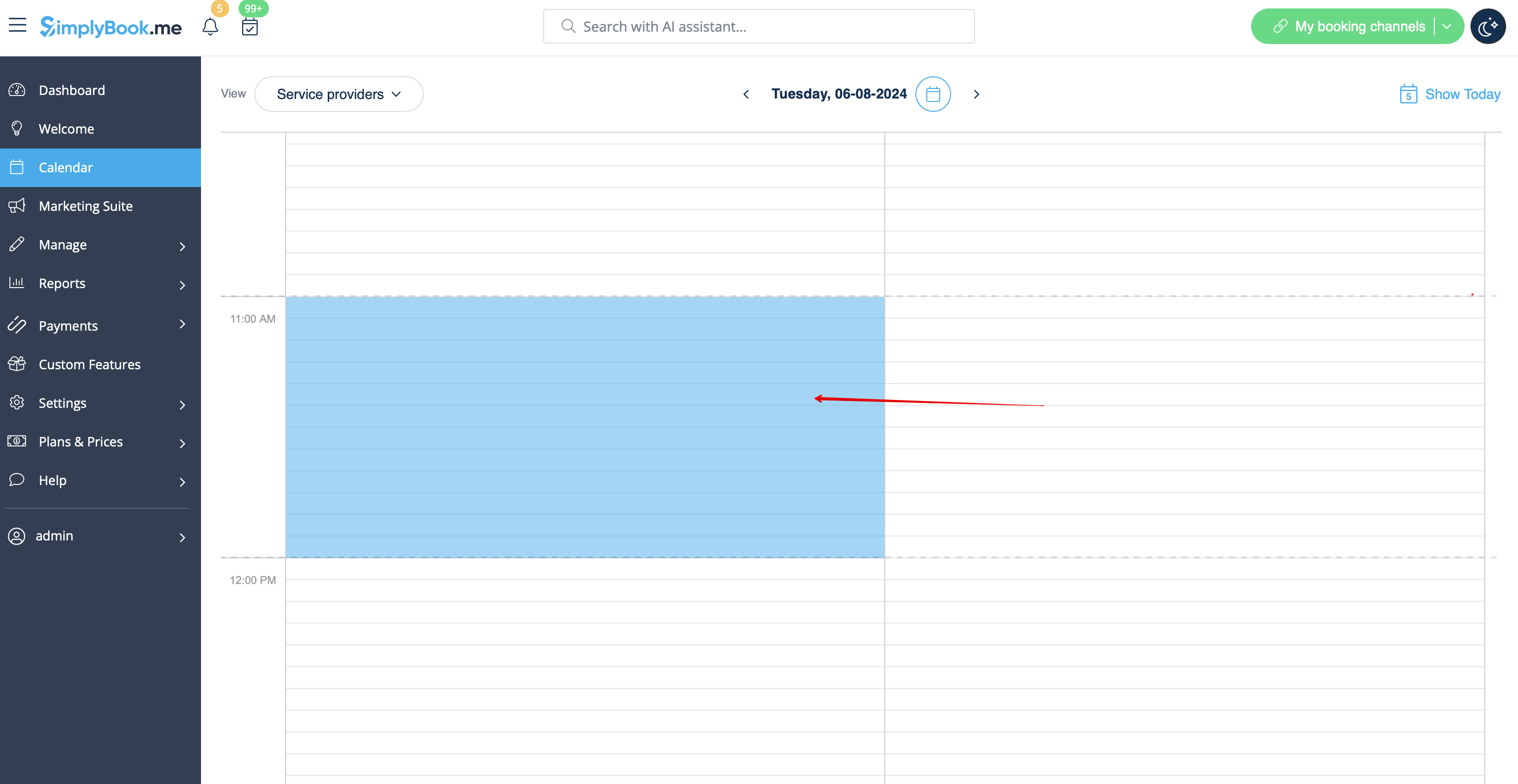
Please note During sync process no events details are imported from your external calendar. The events are represented by blue blocks on Calendar page only.
Simplybook doesn’t sync with Google/Outlook calendar
Possible reasons:
- 1. please, note that synchronization can take up to 10 mins;
- 2. if Google/Outlook updates calendar app, press “Export” button again to sync;
- 3. wrong calendar was chosen (in Custom Features//Calendar Sync//Settings//Please select calendar) or you are using Microsoft Exchange server calendar;
- 4. timezones in your Google/Outlook calendar and SimplyBook.me account do not coincide.
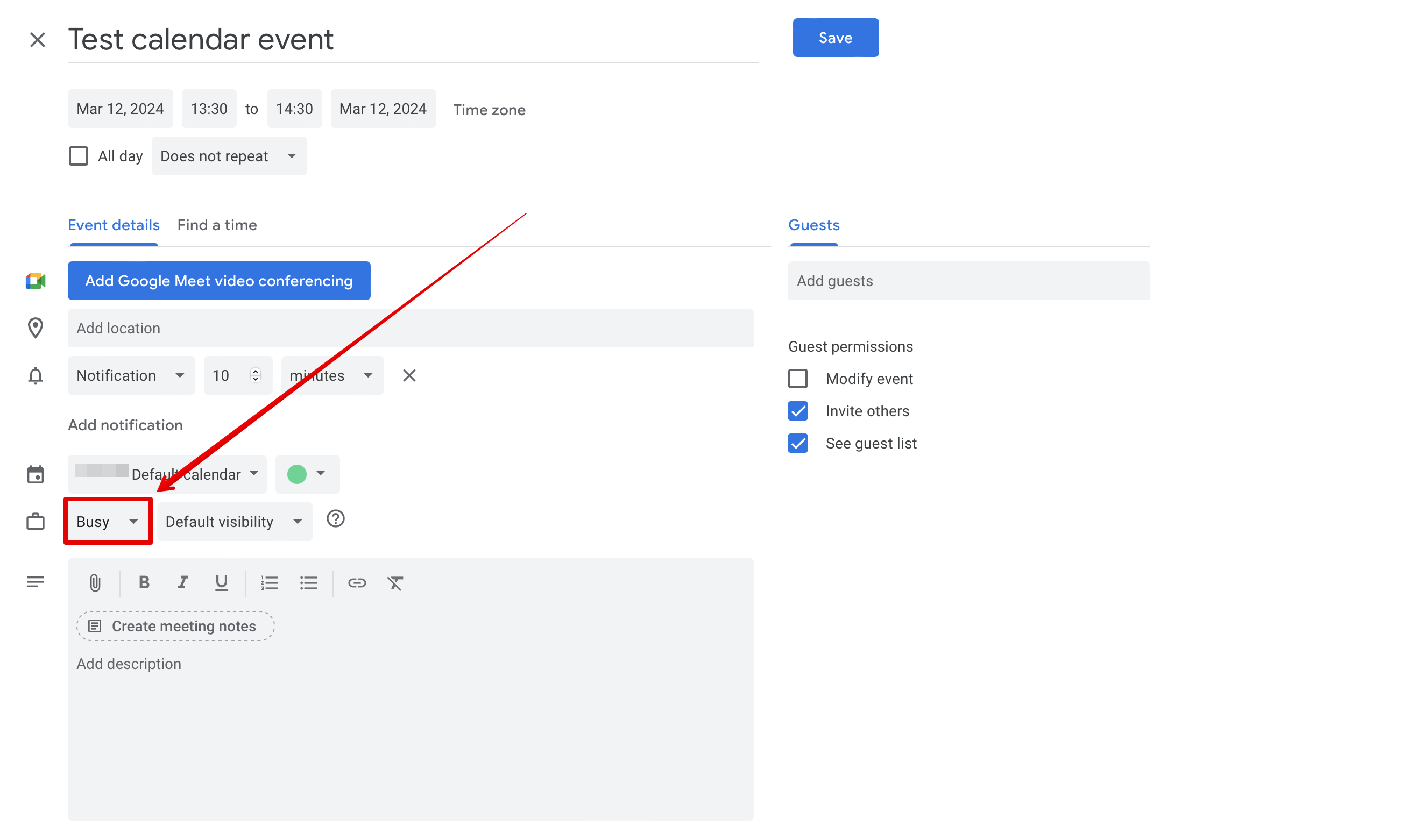
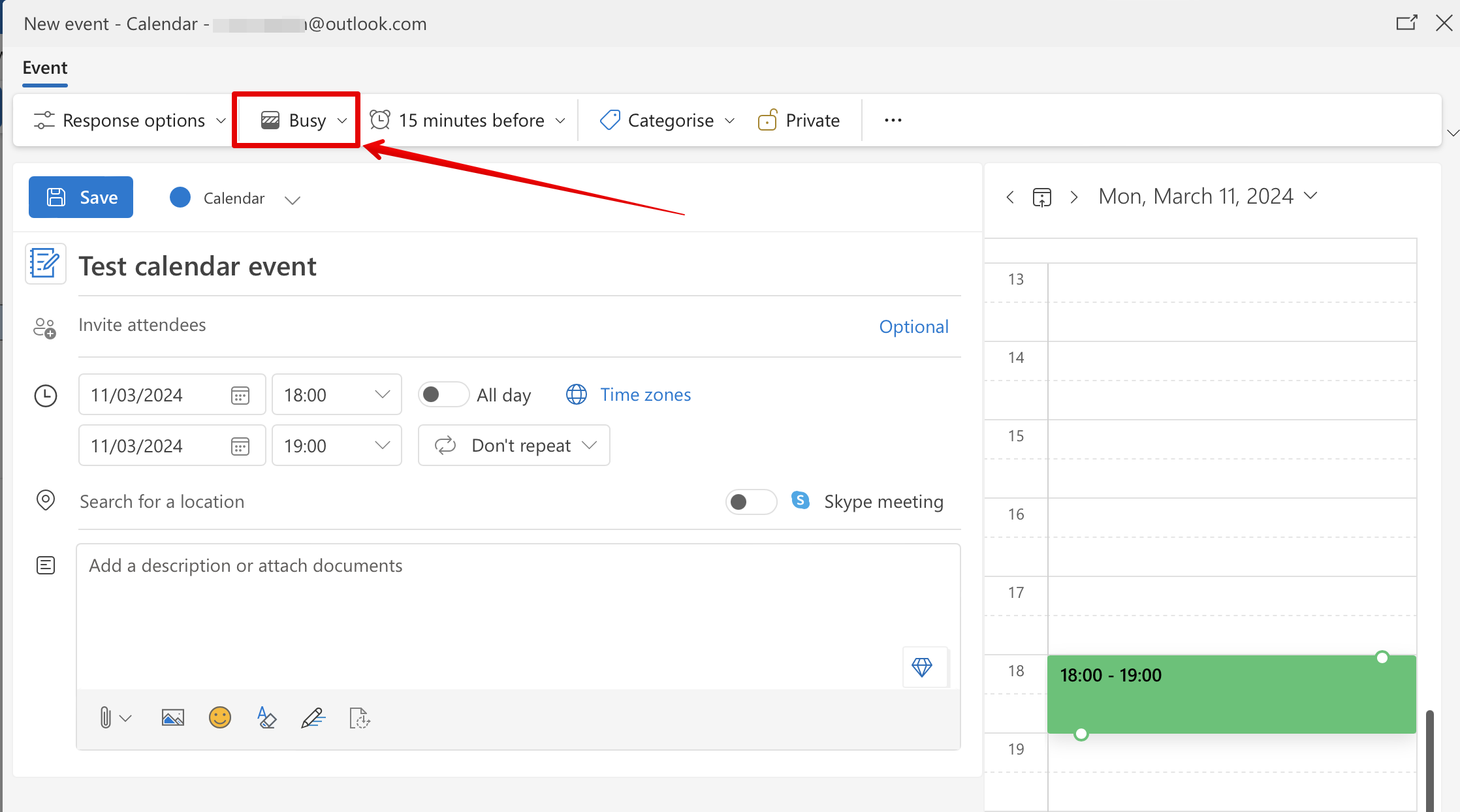
- 5. Google calendar events should be marked as “busy” for 2-way synchronization, Outlook calendar events should not be marked as "free" to block times on the booking page.
Example from Google calendar:
Example from Outlook calendar:
SimplyBook.me event is listed twice in Google calendar
It can be because of the Google calendar setting to automatically add events from your emails. Therefore, if you receive confirmation emails with booking details, Google automatically adds them to your calendar. To turn off this option: click Settings icon in the top right corner of Google calendar//Settings and uncheck the box near "Automatically add events from Gmail to my calendar" option.
