No edit summary |
No edit summary |
||
| Line 2: | Line 2: | ||
;*For admin or user | ;*For admin or user | ||
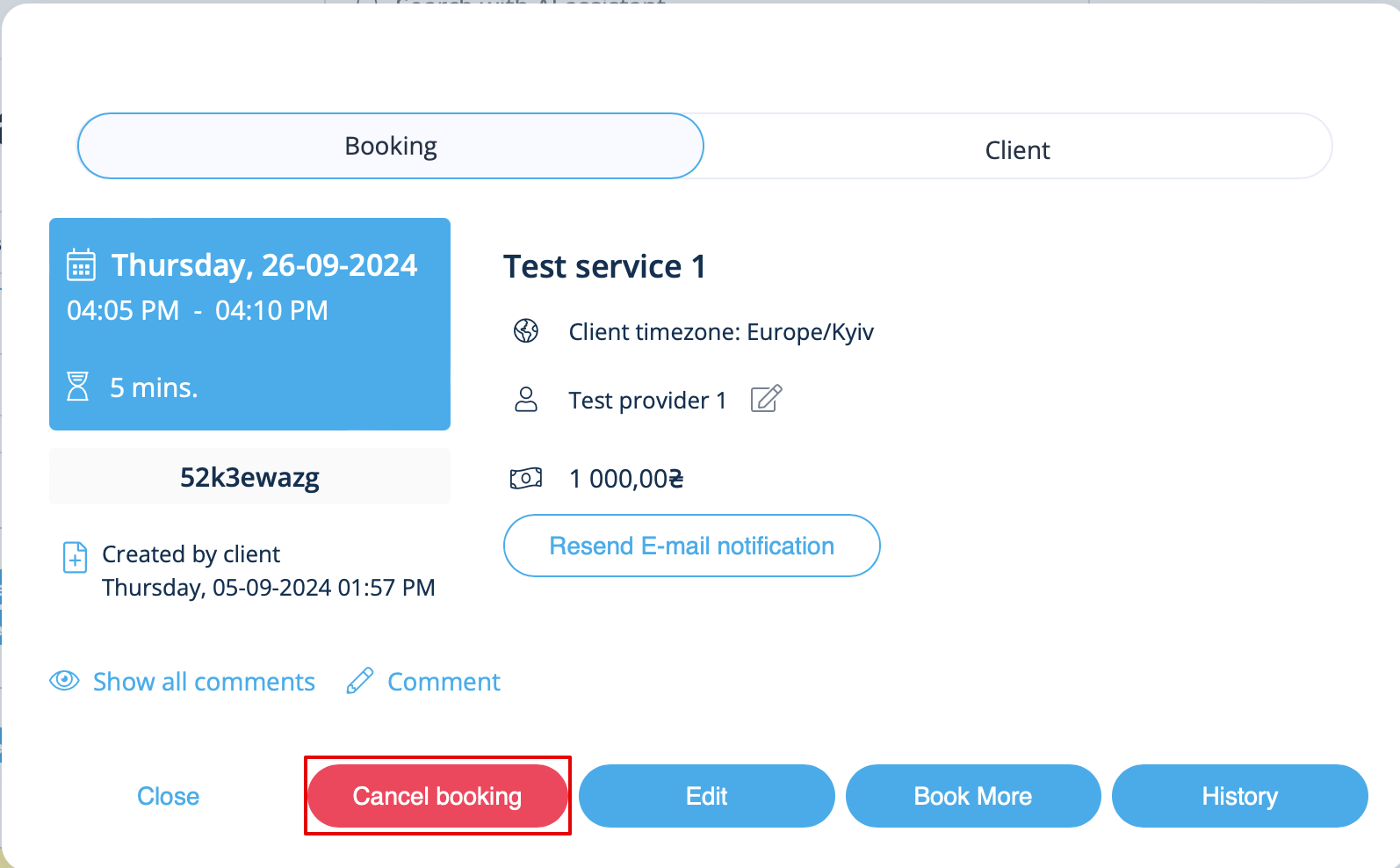
In <span style="background-color:#d4f8e5; padding:5px; border-radius:5px;">Calendar</span> (left-side menu) or in in <span style="background-color:#d4f8e5; padding:5px; border-radius:5px;">Reports</span> -> <span style="background-color:#d4f8e5; padding:5px; border-radius:5px;">Booking details.</span> Click on the booking to open the details or use <span style="background-color:#d4f8e5; padding:5px; border-radius:5px;">View</span> option if in <span style="background-color:#d4f8e5; padding:5px; border-radius:5px;">Reports</span> and then press <span style="background-color:#d4f8e5; padding:5px; border-radius:5px;">Cancel booking</span> button. <br/> | In <span style="background-color:#d4f8e5; padding:5px; border-radius:5px;">Calendar</span> (left-side menu) or in in <span style="background-color:#d4f8e5; padding:5px; border-radius:5px;">Reports</span> -> <span style="background-color:#d4f8e5; padding:5px; border-radius:5px;">Booking details.</span> Click on the booking to open the details or use <span style="background-color:#d4f8e5; padding:5px; border-radius:5px;">View</span> option if in <span style="background-color:#d4f8e5; padding:5px; border-radius:5px;">Reports</span> and then press <span style="background-color:#d4f8e5; padding:5px; border-radius:5px;">Cancel booking</span> button. <br/> | ||
[[File:Cancel booking | [[File:Cancel booking in the booking info form.png|600px| center |link=https://help.simplybook.me/images/9/95/Cancel_booking_in_the_booking_info_form.png]] | ||
<br/><br/> | <br/><br/> | ||
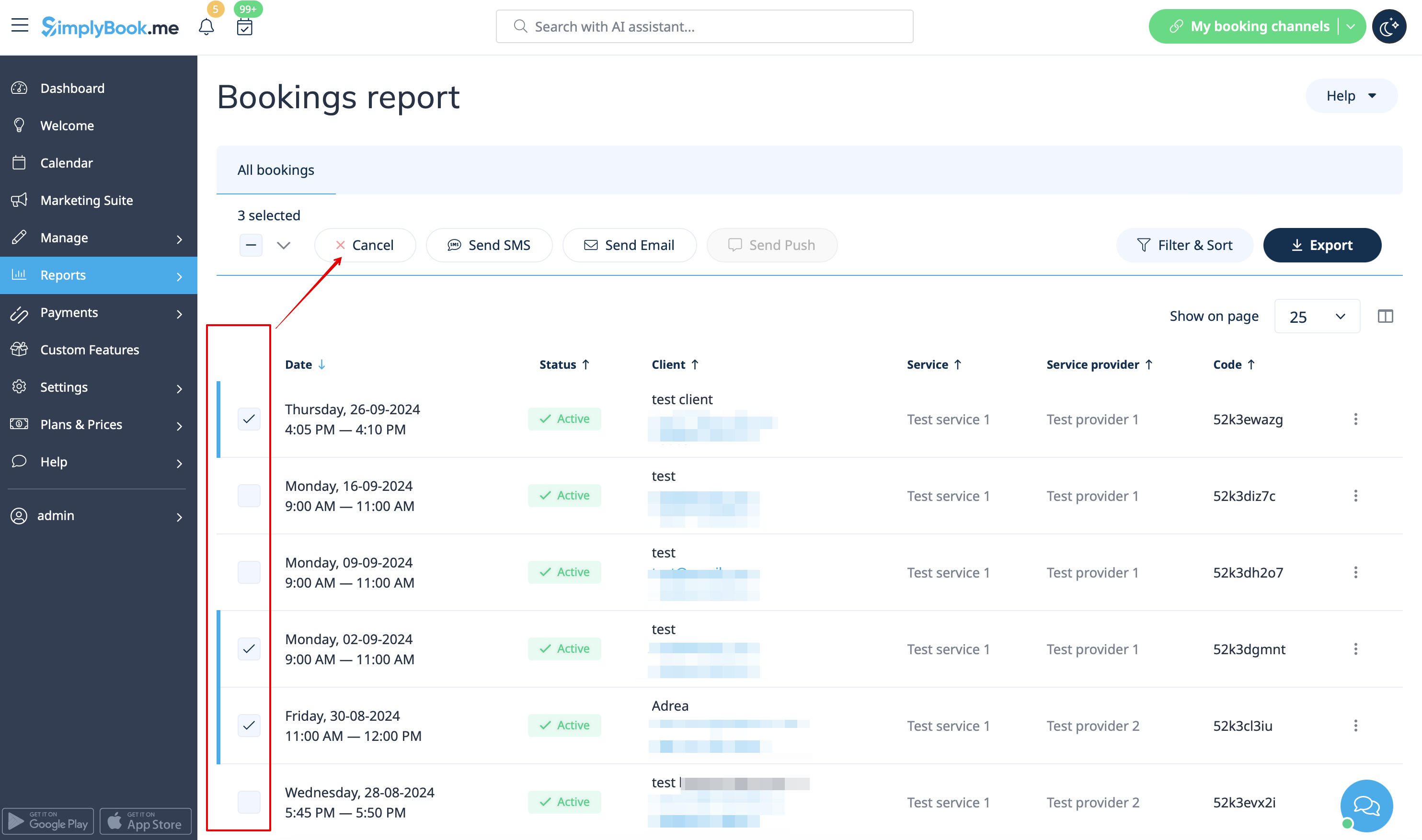
In case you need to cancel many bookings at once you can do that in <span style="background-color:#d4f8e5; padding:5px; border-radius:5px;">Reports</span> -> <span style="background-color:#d4f8e5; padding:5px; border-radius:5px;">Booking details.</span><br> | In case you need to cancel many bookings at once you can do that in <span style="background-color:#d4f8e5; padding:5px; border-radius:5px;">Reports</span> -> <span style="background-color:#d4f8e5; padding:5px; border-radius:5px;">Booking details.</span><br> | ||
You can use the <span style="background-color:#d4f8e5; padding:5px; border-radius:5px;">filter</span> if necessary, <span style="background-color:#d4f8e5; padding:5px; border-radius:5px;">check the boxes</span> with the bookings to cancel and click on <span style="background-color:#d4f8e5; padding:5px; border-radius:5px;">Cancel selected</span> button at the top.<br> | You can use the <span style="background-color:#d4f8e5; padding:5px; border-radius:5px;">filter</span> if necessary, <span style="background-color:#d4f8e5; padding:5px; border-radius:5px;">check the boxes</span> with the bookings to cancel and click on <span style="background-color:#d4f8e5; padding:5px; border-radius:5px;">Cancel selected</span> button at the top.<br> | ||
<span style="background-color:#ffe9e9; padding:5px; border-radius:5px;">'''Please note!''' It is possible to cancel the appointments from one report page at a time.</span> | <span style="background-color:#ffe9e9; padding:5px; border-radius:5px;">'''Please note!''' It is possible to cancel the appointments from one report page at a time.</span> | ||
[[File: | [[File:Cancel several bookings from report redesigned.png|1200px|border|center|link=https://help.simplybook.me/images/a/ac/Cancel_several_bookings_from_report_redesigned.png]] | ||
<br/><br/> | <br/><br/> | ||
;*For client | ;*For client | ||
Revision as of 11:31, 9 September 2024
- For admin or user
In Calendar (left-side menu) or in in Reports -> Booking details. Click on the booking to open the details or use View option if in Reports and then press Cancel booking button.
In case you need to cancel many bookings at once you can do that in Reports -> Booking details.
You can use the filter if necessary, check the boxes with the bookings to cancel and click on Cancel selected button at the top.
Please note! It is possible to cancel the appointments from one report page at a time.
- For client
To cancel their bookings, clients can click cancel link in their confirmation emails.

Or use Cancel button on the booking website, My bookings tab.
(If you want to prohibit clients from cancelling the appointments, you may need Cancellation Policy Custom Feature.)
