From SimplyBook.me
No edit summary |
No edit summary |
||
| Line 30: | Line 30: | ||
:1. To enable this feature please go to <span style="background-color:#d4f8e5; padding:5px; border-radius:5px;">Custom Features</span> section using left-side menu of your admin interface, find <span style="background-color:#d4f8e5; padding:5px; border-radius:5px;">Membership</span> and click on <span style="background-color:#d4f8e5; padding:5px; border-radius:5px;">Enable</span> button or use the <span style="background-color:#d4f8e5; padding:5px; border-radius:5px;">switcher.</span> | :1. To enable this feature please go to <span style="background-color:#d4f8e5; padding:5px; border-radius:5px;">Custom Features</span> section using left-side menu of your admin interface, find <span style="background-color:#d4f8e5; padding:5px; border-radius:5px;">Membership</span> and click on <span style="background-color:#d4f8e5; padding:5px; border-radius:5px;">Enable</span> button or use the <span style="background-color:#d4f8e5; padding:5px; border-radius:5px;">switcher.</span> | ||
<br> | <br> | ||
[[File:Membership | [[File:Membership enable path redesigned.png|1200px|border|center|link=https://help.simplybook.me/images/f/f2/Membership_enable_path_redesigned.png]] | ||
<br><br> | <br><br> | ||
:2. Navigate to <span style="background-color:#d4f8e5; padding:5px; border-radius:5px;">Manage</span> -> <span style="background-color:#d4f8e5; padding:5px; border-radius:5px;">Memberships</span> or use <span style="background-color:#d4f8e5; padding:5px; border-radius:5px;">Manage</span> button on <span style="background-color:#d4f8e5; padding:5px; border-radius:5px;">Custom features</span> page near this feature to add new Membership to your system.<br> | :2. Navigate to <span style="background-color:#d4f8e5; padding:5px; border-radius:5px;">Manage</span> -> <span style="background-color:#d4f8e5; padding:5px; border-radius:5px;">Memberships</span> or use <span style="background-color:#d4f8e5; padding:5px; border-radius:5px;">Manage</span> button on <span style="background-color:#d4f8e5; padding:5px; border-radius:5px;">Custom features</span> page near this feature to add new Membership to your system.<br> | ||
| Line 40: | Line 40: | ||
:*If you would like to allow the membership to repeat please enable <span style="background-color:#d4f8e5; padding:5px; border-radius:5px;">Is recurring</span> option there and set the recurring price (it can be the same or different from the first price).<br> | :*If you would like to allow the membership to repeat please enable <span style="background-color:#d4f8e5; padding:5px; border-radius:5px;">Is recurring</span> option there and set the recurring price (it can be the same or different from the first price).<br> | ||
:<span style="background-color:#ffe9e9; padding:5px; border-radius:5px;">'''Please note!''' Automatic membership renewal may work from client side via certain payment processors only.</span> | :<span style="background-color:#ffe9e9; padding:5px; border-radius:5px;">'''Please note!''' Automatic membership renewal may work from client side via certain payment processors only.</span> | ||
[[File: | [[File:Create new membership form redesigned.png|1200px|border|center|link=https://help.simplybook.me/images/1/1b/Create_new_membership_form_redesigned.png]] | ||
<br><br> | <br><br> | ||
:3. Don't forget to <span style="background-color:#d4f8e5; padding:5px; border-radius:5px;">attach the membership to services/classes</span> to restrict booking to the members only. | :3. Don't forget to <span style="background-color:#d4f8e5; padding:5px; border-radius:5px;">attach the membership to services/classes</span> to restrict booking to the members only. | ||
[[File: | [[File:Connect membership to service redesigned.png|1200px|border|center|link=https://help.simplybook.me/images/f/f8/Connect_membership_to_service_redesigned.png]] | ||
<br><br> | <br><br> | ||
:4. For sure, you will need to notify your clients about the membership purchase or send the information related to its renewal.<br> | :4. For sure, you will need to notify your clients about the membership purchase or send the information related to its renewal.<br> | ||
:To adjust your templates please navigate to <span style="background-color:#d4f8e5; padding:5px; border-radius:5px;">Custom features</span> -> <span style="background-color:#d4f8e5; padding:5px; border-radius:5px;">Membership</span> -> <span style="background-color:#d4f8e5; padding:5px; border-radius:5px;">click on its name</span> on the left to open right-side options and see the list of available notifications: | :To adjust your templates please navigate to <span style="background-color:#d4f8e5; padding:5px; border-radius:5px;">Custom features</span> -> <span style="background-color:#d4f8e5; padding:5px; border-radius:5px;">Membership</span> -> <span style="background-color:#d4f8e5; padding:5px; border-radius:5px;">click on its name</span> on the left to open right-side options and see the list of available notifications: | ||
[[File:Membership | [[File:Membership notification types redesigned.png|1200px|border|center|link=https://help.simplybook.me/images/3/39/Membership_notification_types_redesigned.png]] | ||
<br><br> | <br><br> | ||
:You can use the <span style="background-color:#d4f8e5; padding:5px; border-radius:5px;">variables</span> to automatically add the corresponding information to each email/SMS notification. | :You can use the <span style="background-color:#d4f8e5; padding:5px; border-radius:5px;">variables</span> to automatically add the corresponding information to each email/SMS notification. | ||
[[File:Membership | [[File:Membership variables redesigned.png|1200px|border|center|link=https://help.simplybook.me/images/4/46/Membership_variables_redesigned.png] | ||
<br><br> | <br><br> | ||
:5. (optional) You may need to issue membership to some clients from admin side if they have already paid or you have given them some free period.<br> | :5. (optional) You may need to issue membership to some clients from admin side if they have already paid or you have given them some free period.<br> | ||
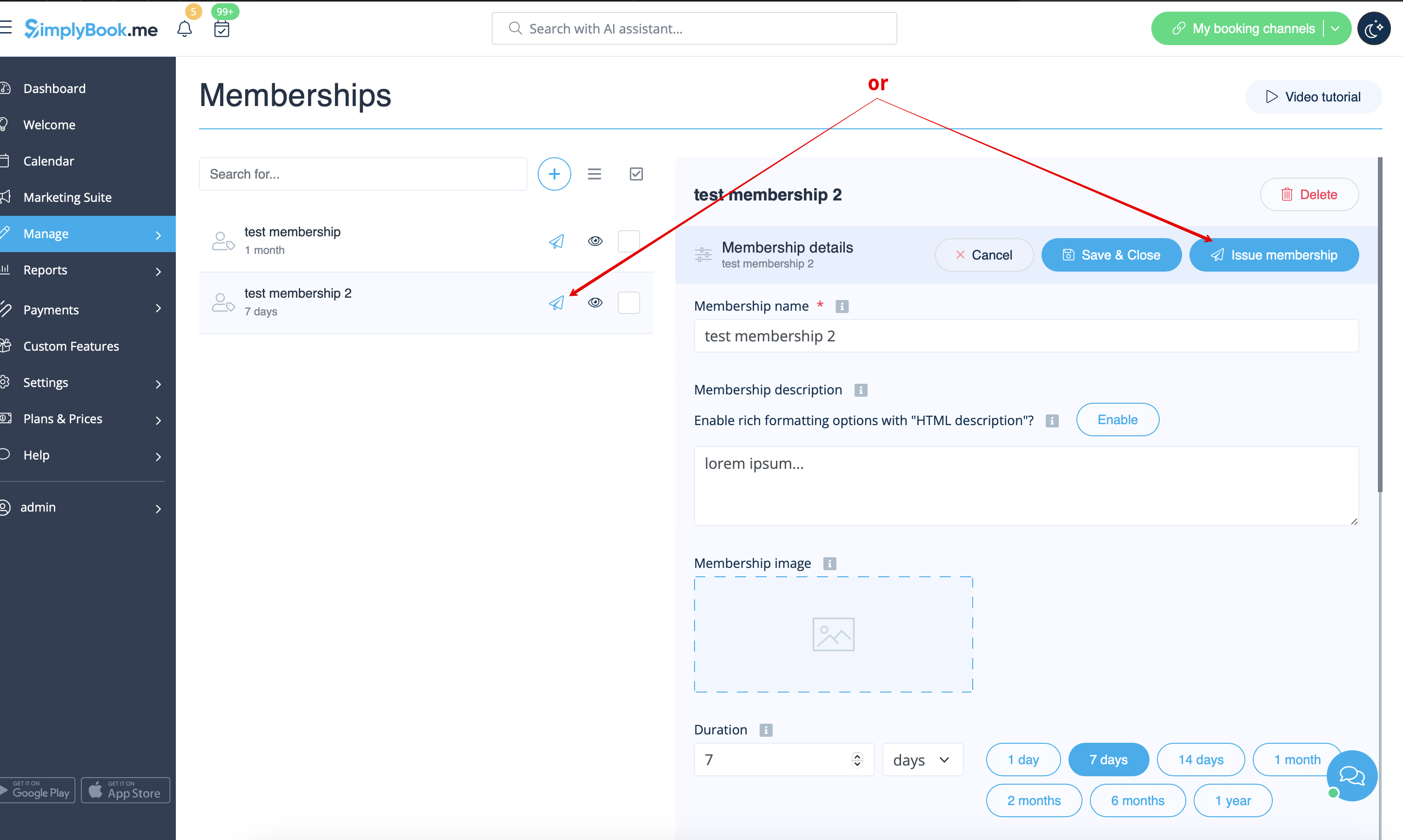
:You can do that from the same <span style="background-color:#d4f8e5; padding:5px; border-radius:5px;">Manage</span> -> <span style="background-color:#d4f8e5; padding:5px; border-radius:5px;">Memberships</span> page by clicking on <span style="background-color:#d4f8e5; padding:5px; border-radius:5px;">Issue membership</span> button either near the membership name or in the top right corner of membership editing window. | :You can do that from the same <span style="background-color:#d4f8e5; padding:5px; border-radius:5px;">Manage</span> -> <span style="background-color:#d4f8e5; padding:5px; border-radius:5px;">Memberships</span> page by clicking on <span style="background-color:#d4f8e5; padding:5px; border-radius:5px;">Issue membership</span> button either near the membership name or in the top right corner of membership editing window. | ||
[[File: | [[File:Issue membership path redesigned.png|1200px|border|center|link=https://help.simplybook.me/images/2/20/Issue_membership_path_redesigned.png]] | ||
<br><br> | <br><br> | ||
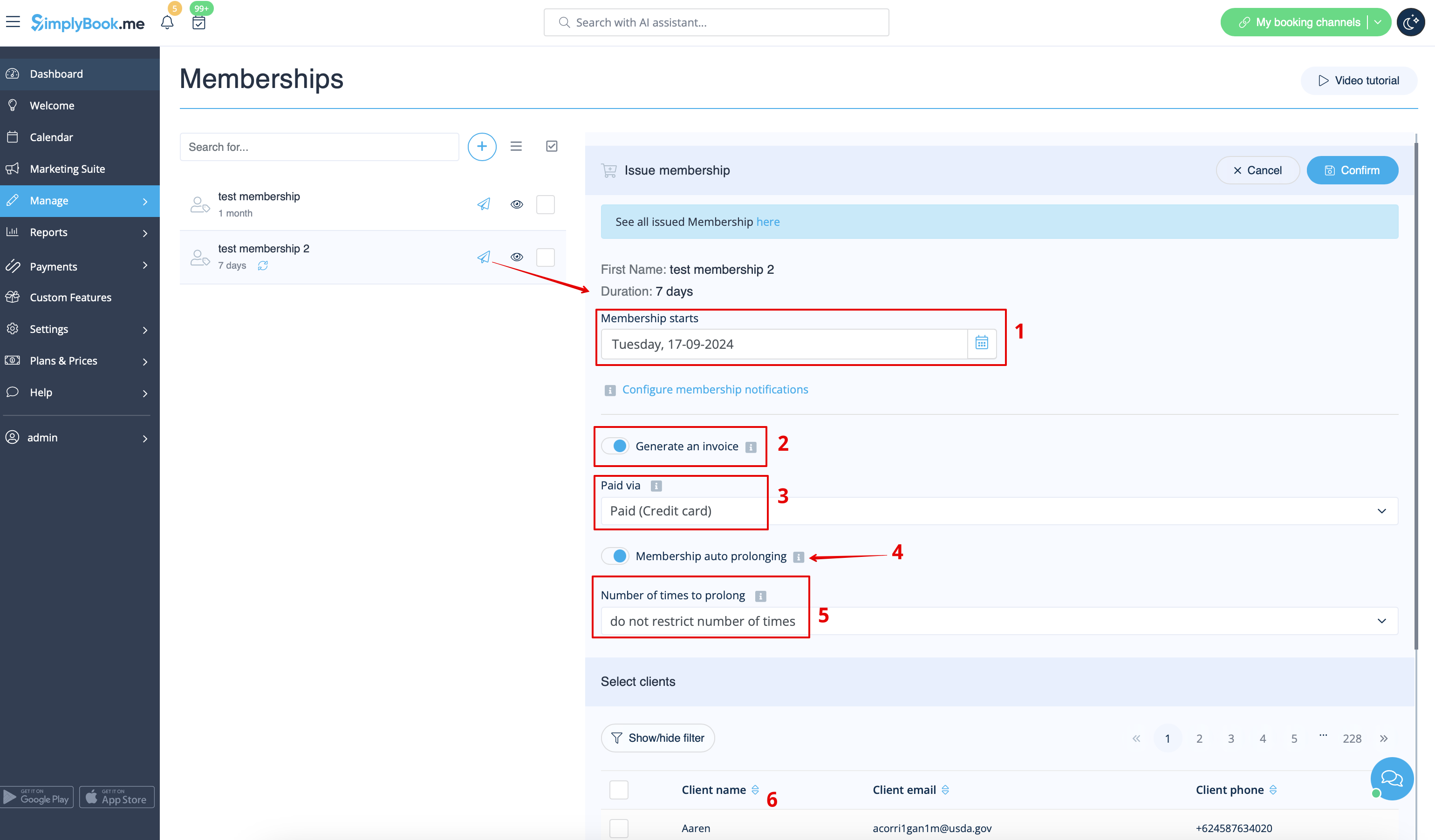
:6. (optional) There are several issuing options to choose from: | :6. (optional) There are several issuing options to choose from: | ||
| Line 66: | Line 66: | ||
:<span style="background-color:#ffe9e9; padding:5px; border-radius:5px;">If you need to charge your clients please do it on your payment processor side.</span><br> | :<span style="background-color:#ffe9e9; padding:5px; border-radius:5px;">If you need to charge your clients please do it on your payment processor side.</span><br> | ||
:- as well you can choose several clients at once to issue the membership to. | :- as well you can choose several clients at once to issue the membership to. | ||
[[File: | [[File:Issue membership with invoice steps redesigned.png|1200px|border|center|link=https://help.simplybook.me/images/3/3a/Issue_membership_with_invoice_steps_redesigned.png]] | ||
<br><br> | <br><br> | ||
:7. When the memberships are purchased or issued there are several places to check the information related: | :7. When the memberships are purchased or issued there are several places to check the information related: | ||
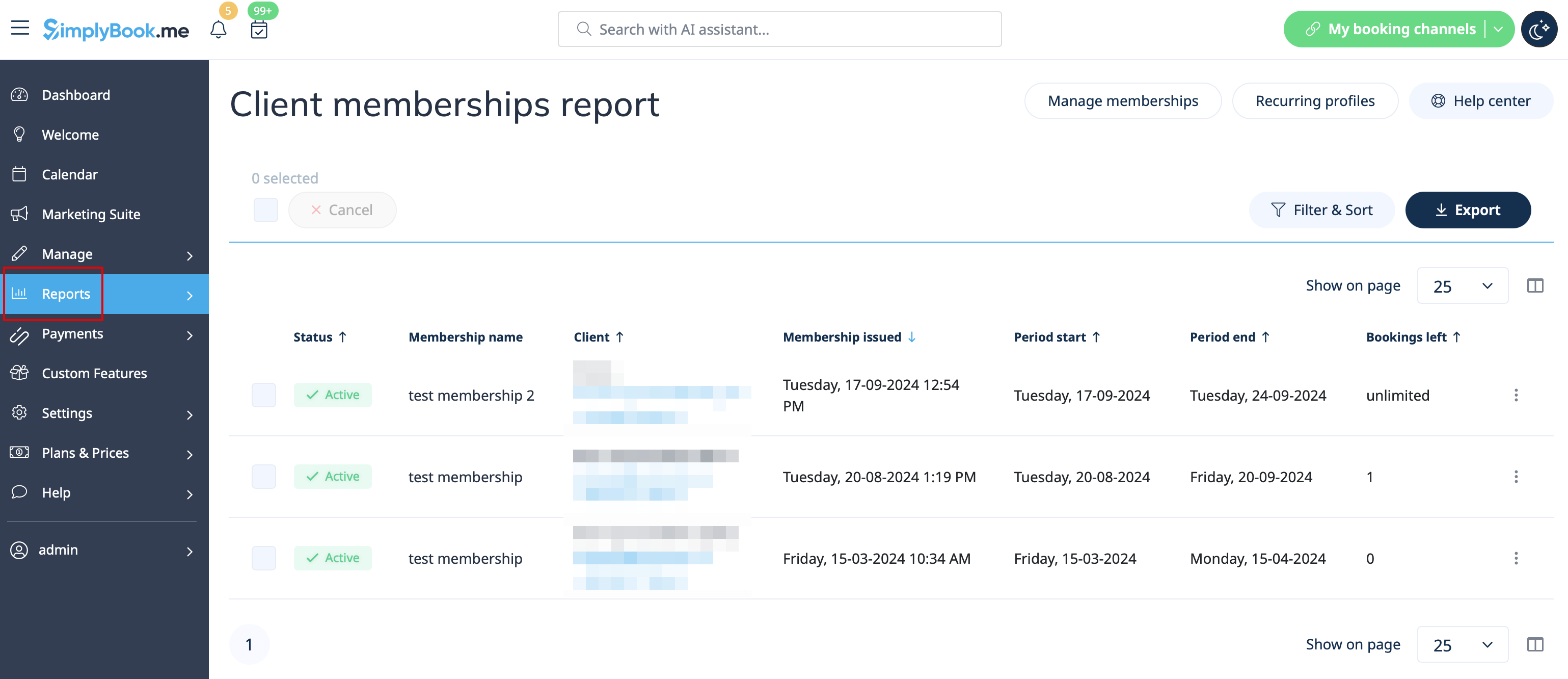
:- <span style="background-color:#d4f8e5; padding:5px; border-radius:5px;">Reports</span> -> <span style="background-color:#d4f8e5; padding:5px; border-radius:5px;">Membership payments</span> - contains the information of each membership period present in the system(each recurring period will be displayed as a separate row).<br> | :- <span style="background-color:#d4f8e5; padding:5px; border-radius:5px;">Reports</span> -> <span style="background-color:#d4f8e5; padding:5px; border-radius:5px;">Membership payments</span> - contains the information of each membership period present in the system(each recurring period will be displayed as a separate row).<br> | ||
:You can cancel the specific client's membership here if necessary. | :You can cancel the specific client's membership here if necessary. | ||
[[File: | [[File:Client memberships report redesigned.png|1200px|border|center|link=https://help.simplybook.me/images/1/14/Client_memberships_report_redesigned.png]] | ||
<br><br> | <br><br> | ||
:- <span style="background-color:#d4f8e5; padding:5px; border-radius:5px;">Reports</span> -> <span style="background-color:#d4f8e5; padding:5px; border-radius:5px;">Payment transactions</span> -> <span style="background-color:#d4f8e5; padding:5px; border-radius:5px;">Invoices</span> - contains all the invoices present in the system, memberships included. | :- <span style="background-color:#d4f8e5; padding:5px; border-radius:5px;">Reports</span> -> <span style="background-color:#d4f8e5; padding:5px; border-radius:5px;">Payment transactions</span> -> <span style="background-color:#d4f8e5; padding:5px; border-radius:5px;">Invoices</span> - contains all the invoices present in the system, memberships included. | ||
| Line 79: | Line 79: | ||
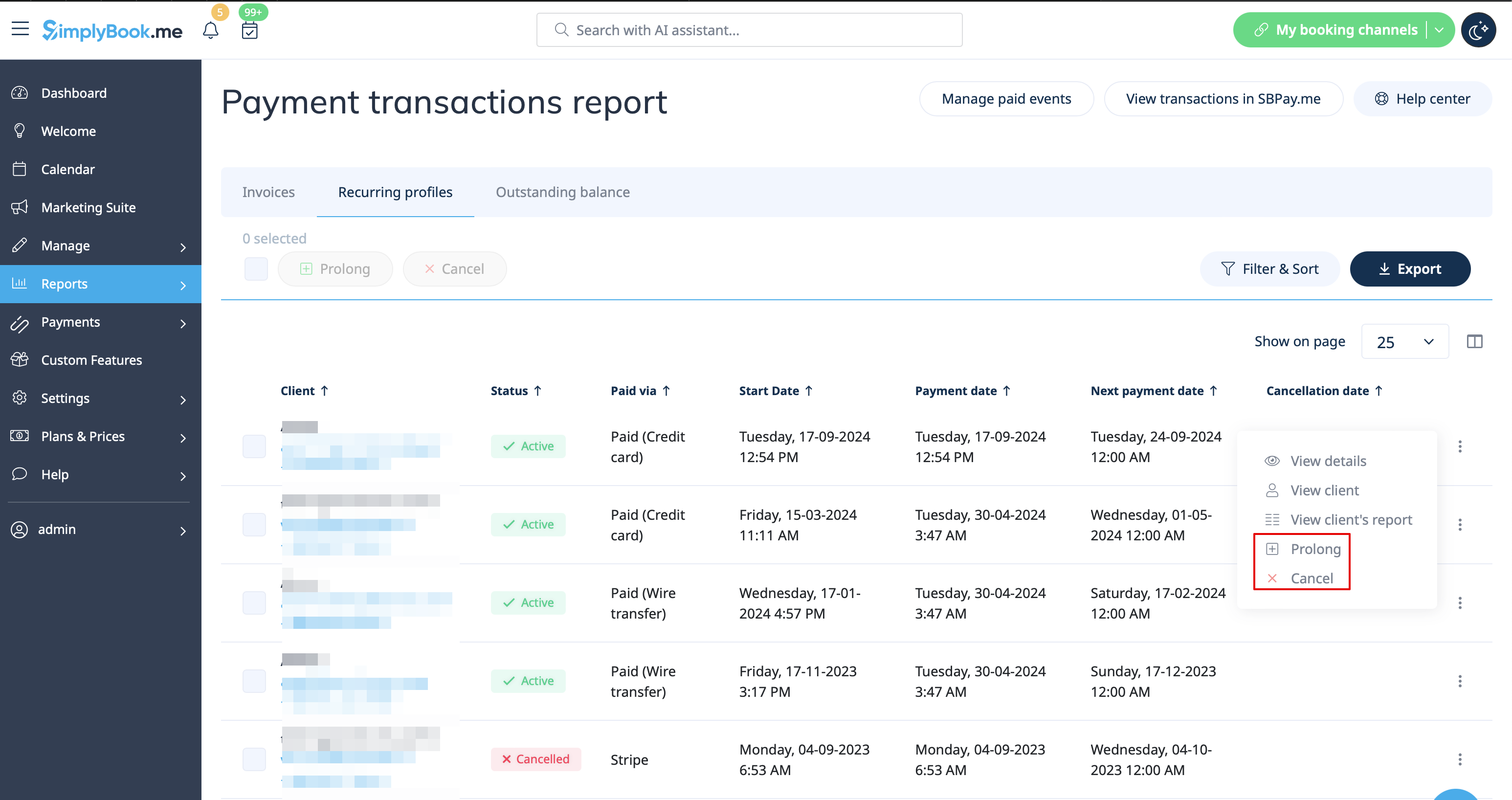
:<span style="background-color:#ffe9e9; padding:5px; border-radius:5px;">'''Please note!''' If one and the same client already has the recurring profile for some membership it is not possible to create new recurring profile for the same membership for this client.</span><br> | :<span style="background-color:#ffe9e9; padding:5px; border-radius:5px;">'''Please note!''' If one and the same client already has the recurring profile for some membership it is not possible to create new recurring profile for the same membership for this client.</span><br> | ||
:<span style="background-color:#ffe9e9; padding:5px; border-radius:5px;">You can either cancel current recurring profile and create a new one or issue another membership to this client.</span> | :<span style="background-color:#ffe9e9; padding:5px; border-radius:5px;">You can either cancel current recurring profile and create a new one or issue another membership to this client.</span> | ||
[[File: | [[File:Prolong or cancel recurring profile redesigned.png|1200px|border|center|link=https://help.simplybook.me/images/2/23/Prolong_or_cancel_recurring_profile_redesigned.png]] | ||
[[File: | [[File:Recurring profile details redesigned.png|1200px|border|center|link=https://help.simplybook.me/images/4/40/Recurring_profile_details_redesigned.png]] | ||
<br><br> | <br><br> | ||
:8. From the client side the clients will see memberships tab on the booking site<br> | :8. From the client side the clients will see memberships tab on the booking site<br> | ||
Revision as of 10:24, 17 September 2024

This Custom feature allows you to have services that only members can book provided they have an active paid membership. This can be applied to a selection or all services, only classes or similar.
Here you can check more cases when Membership can be useful.
Check video  tutorial how to set it up.
Demo page with Membership-related classes is available here.
Please note!
- This feature is not compatible with Clean History.
- Client login and Accept payments custom features will be automatically enabled as well.
- If a service/class is included into a membership, clients cannot book it without purchasing the membership. In case you want to allow clients to book the service separately from a membership, you will need to create a duplicate service not included in the membership.
- It is not possible to reschedule bookings related to memberships from the client side with Client rescheduling feature.
- How to use
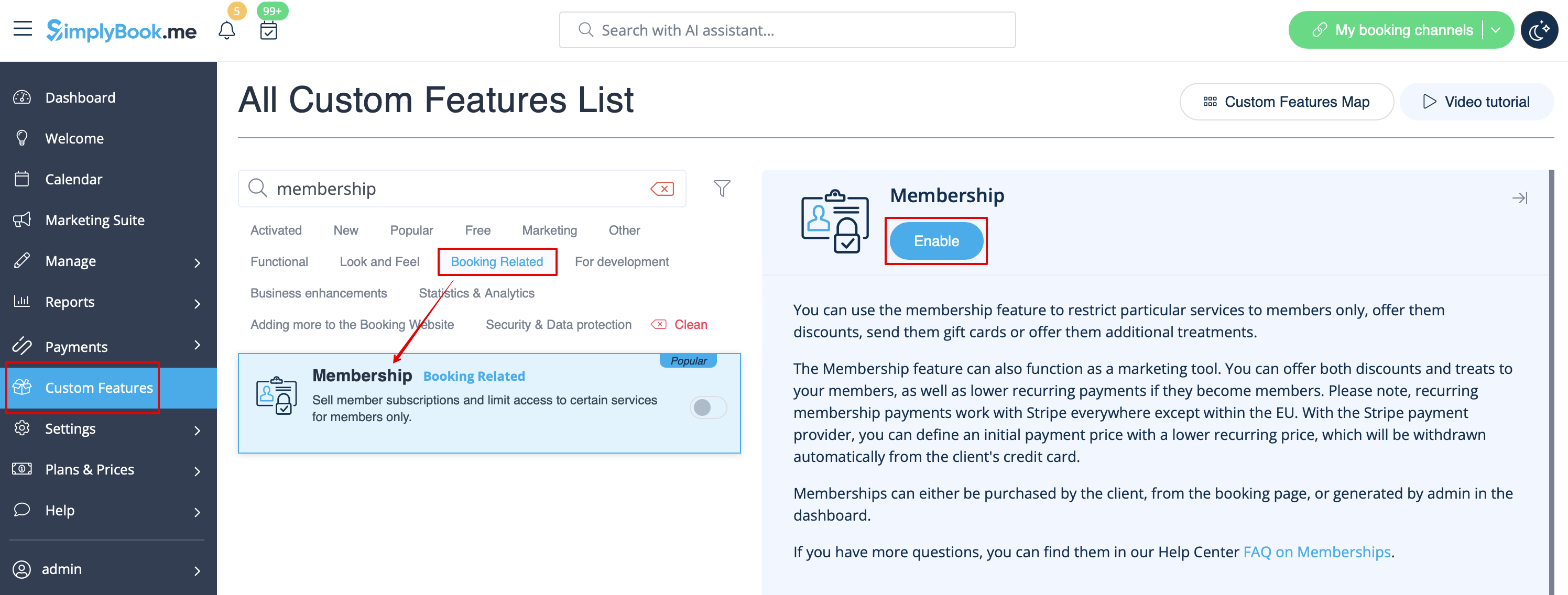
- 1. To enable this feature please go to Custom Features section using left-side menu of your admin interface, find Membership and click on Enable button or use the switcher.
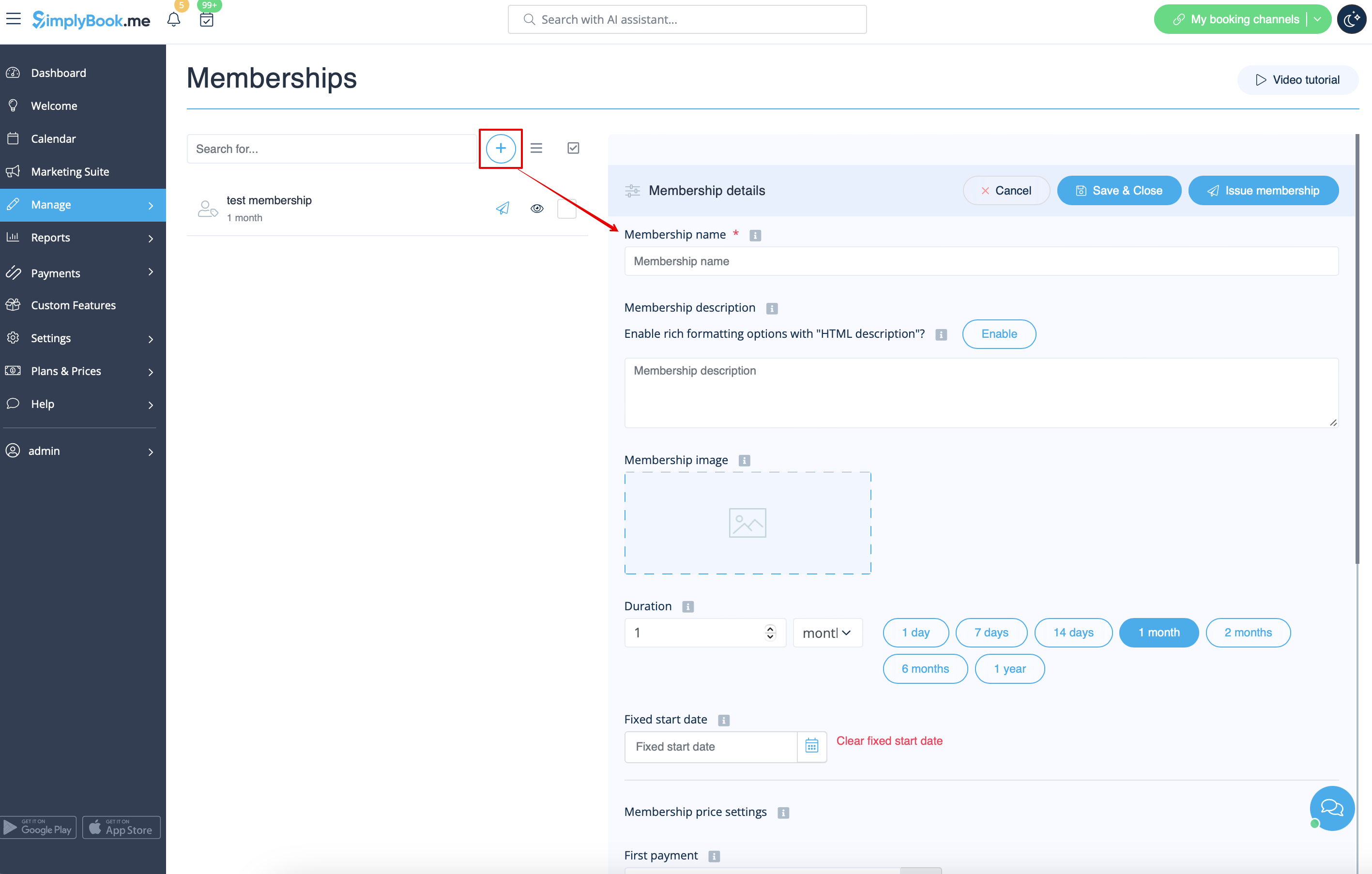
- 2. Navigate to Manage -> Memberships or use Manage button on Custom features page near this feature to add new Membership to your system.
- Click on + on the page you see.
- Add membership title, set description, upload an image, select the desired duration and decide on the sessions limit included.
- If necessary define the fixed date when the membership should start, otherwise it either will begin at the day the client makes the purchase(default) or it will also be possible to select the start date from the client side.
- Restrict how many future bookings can the client make within the membership to reduce the risk that same client books all the slots if you wish.
- Set the membership price if needed.
- If you would like to allow the membership to repeat please enable Is recurring option there and set the recurring price (it can be the same or different from the first price).
- If necessary define the fixed date when the membership should start, otherwise it either will begin at the day the client makes the purchase(default) or it will also be possible to select the start date from the client side.
- Please note! Automatic membership renewal may work from client side via certain payment processors only.
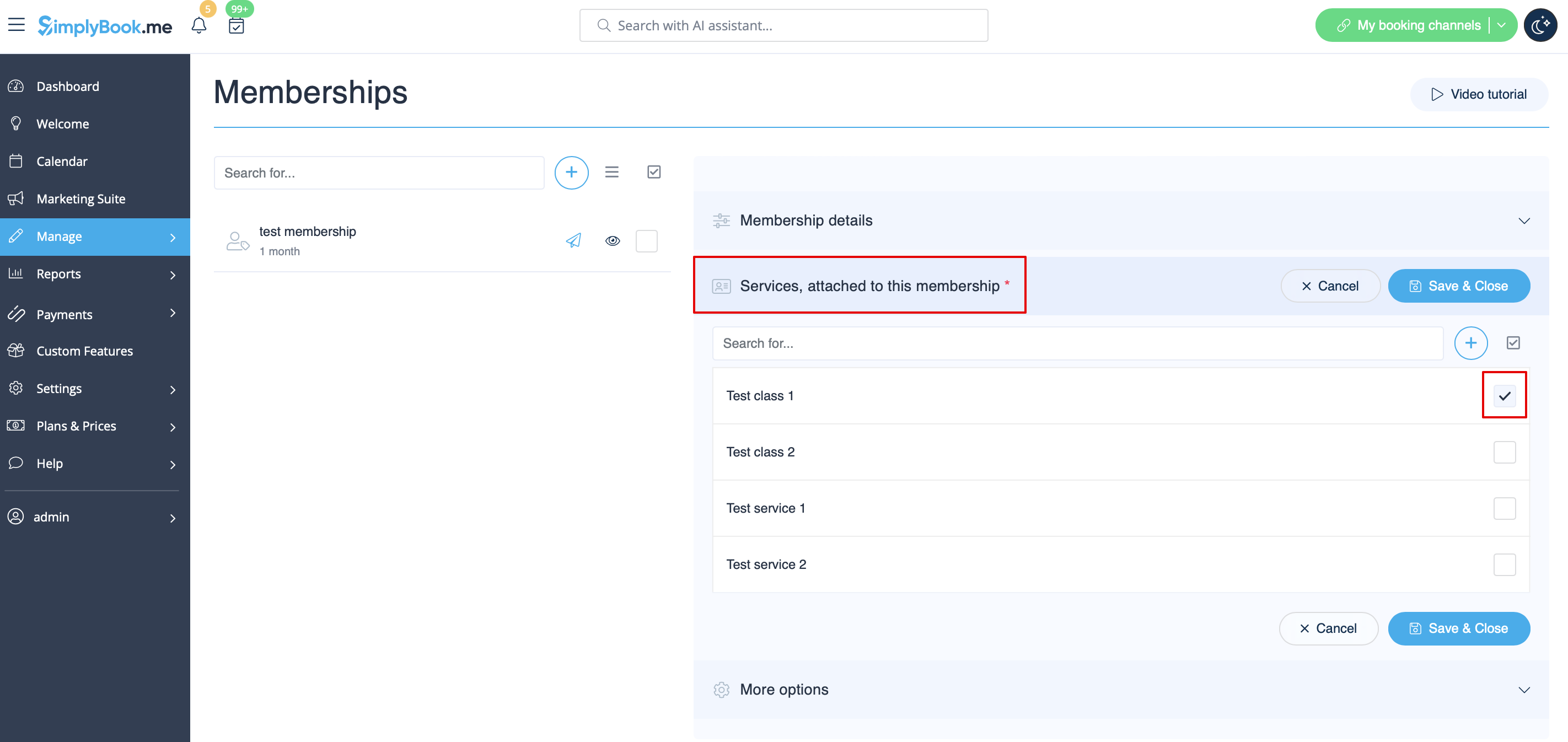
- 3. Don't forget to attach the membership to services/classes to restrict booking to the members only.
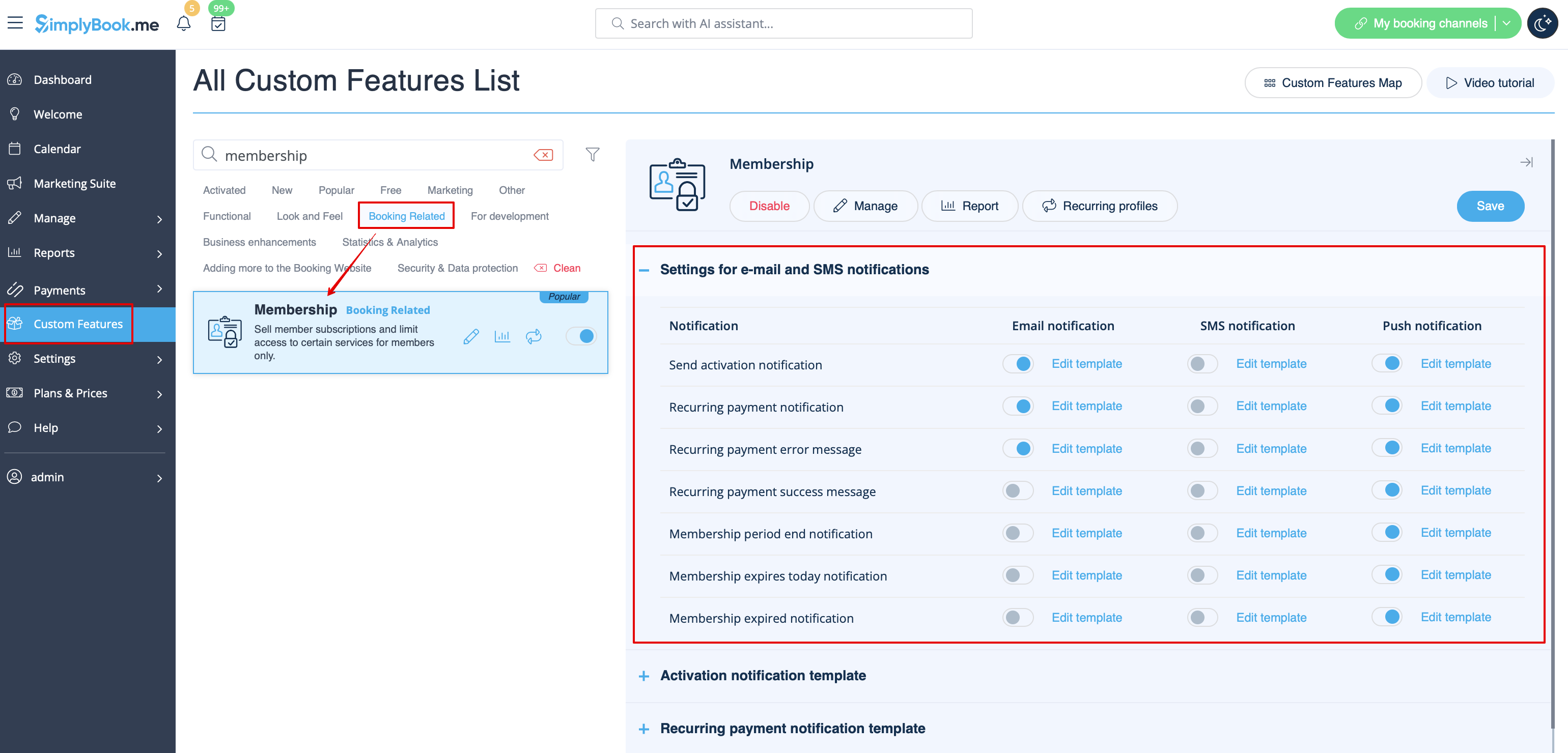
- 4. For sure, you will need to notify your clients about the membership purchase or send the information related to its renewal.
- To adjust your templates please navigate to Custom features -> Membership -> click on its name on the left to open right-side options and see the list of available notifications:
- You can use the variables to automatically add the corresponding information to each email/SMS notification.
[[File:Membership variables redesigned.png|1200px|border|center|link=https://help.simplybook.me/images/4/46/Membership_variables_redesigned.png]
- 5. (optional) You may need to issue membership to some clients from admin side if they have already paid or you have given them some free period.
- You can do that from the same Manage -> Memberships page by clicking on Issue membership button either near the membership name or in the top right corner of membership editing window.
- 6. (optional) There are several issuing options to choose from:
- - you can set membership start date(current date is set by default);
- - you can generate an invoice if you need it for accounting purposes;
- - you can issue membership without an invoice;
- - if you select issuing with the invoice and the membership is recurring it is possible to set manual or automatic recurring mode and set the number of times to repeat for the automatic one,
- so that the new invoice will be generated each time the membership is prolonged if auto-prolonging is enabled.
- Otherwise, an offer will be created in Reports//Payment transactions and the membership will be prolonged when you approve it or you can prolong it manually in Reports//Payment transactions//Recurring profiles.;
- Please note! There will be no charges made by us in relation to your clients' accounts, this option only prolongs the clients' memberships for the new periods.
- If you need to charge your clients please do it on your payment processor side.
- - as well you can choose several clients at once to issue the membership to.
- 7. When the memberships are purchased or issued there are several places to check the information related:
- - Reports -> Membership payments - contains the information of each membership period present in the system(each recurring period will be displayed as a separate row).
- You can cancel the specific client's membership here if necessary.
- - Reports -> Payment transactions -> Invoices - contains all the invoices present in the system, memberships included.
- Please note! If you delete the invoice related to some membership purchase the corresponding membership will be canceled.
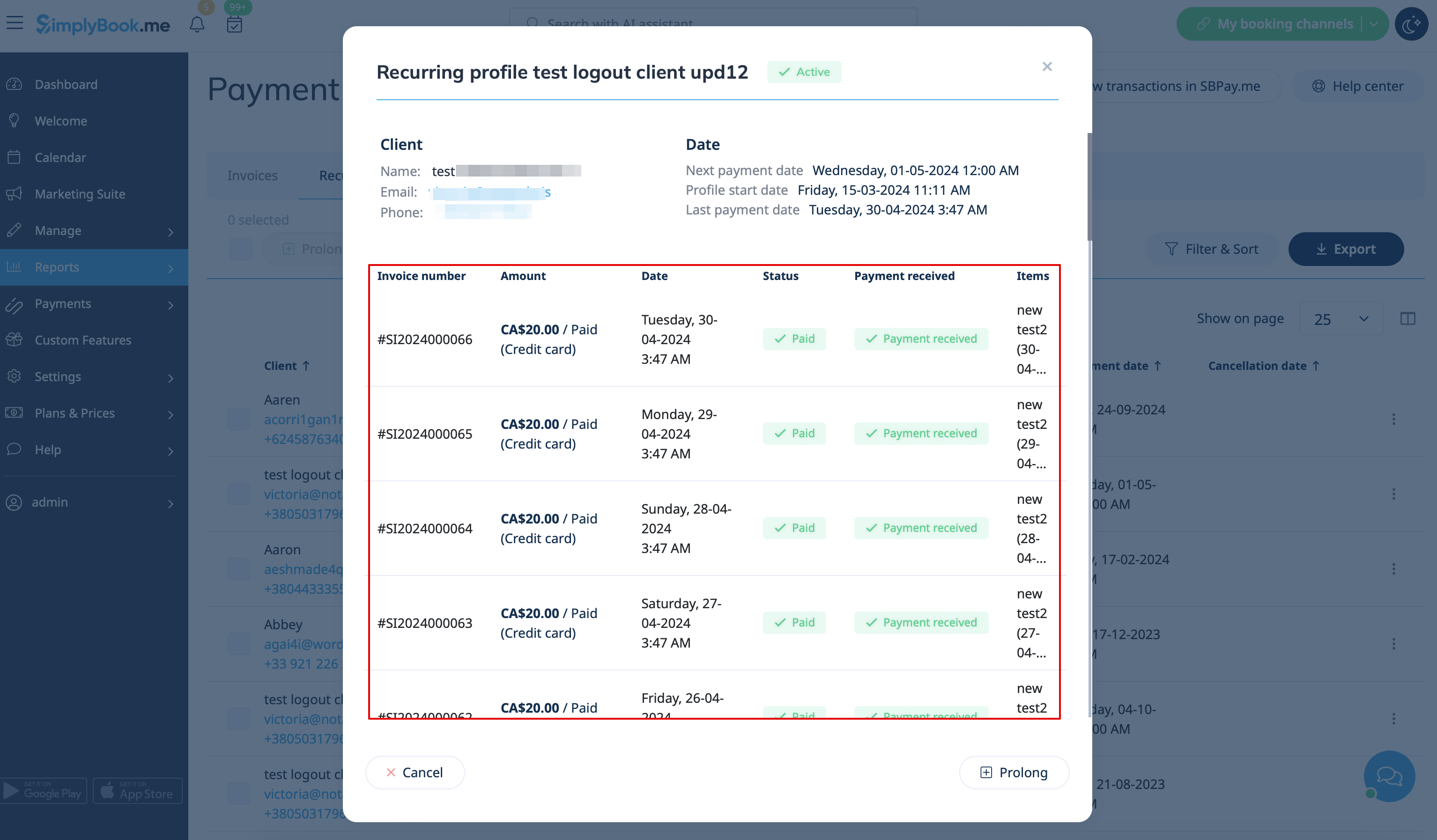
- - Reports -> Payment transactions -> Recurring profiles - shows all membership recurring profiles created either by clients or from admin side.
- It allows to cancel recurring profiles(both made by clients and admin) or prolong the recurring memberships issued from admin side only.
- Please note! If one and the same client already has the recurring profile for some membership it is not possible to create new recurring profile for the same membership for this client.
- You can either cancel current recurring profile and create a new one or issue another membership to this client.
- 8. From the client side the clients will see memberships tab on the booking site
- with the list of all options you have set as available and the services related will have clickable "Subscription required" labels
- that lead to the corresponding membership purchase.

- 9. (optional) As well you can add custom membership widget to your website if necessary following these instructions.
