From SimplyBook.me
No edit summary |
No edit summary |
||
| Line 28: | Line 28: | ||
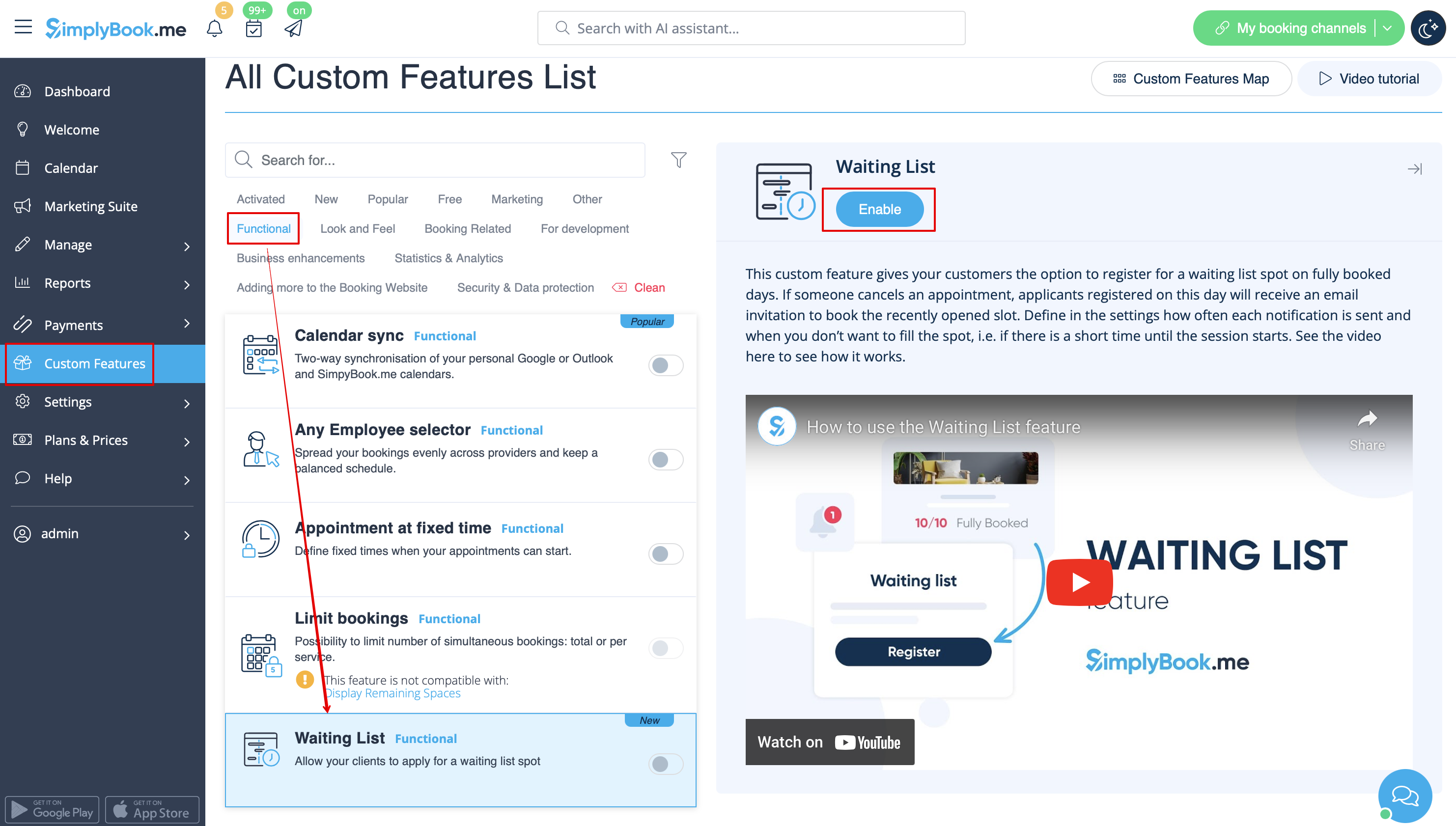
:1. Enable "Waiting list" custom feature on your "Custom features" page, "Functional" section. | :1. Enable "Waiting list" custom feature on your "Custom features" page, "Functional" section. | ||
<br> | [[File:Waiting list enable path redesigned.png|1200px|center|link=https://help.simplybook.me/images/d/dd/Waiting_list_enable_path_redesigned.png]] | ||
<br><br> | |||
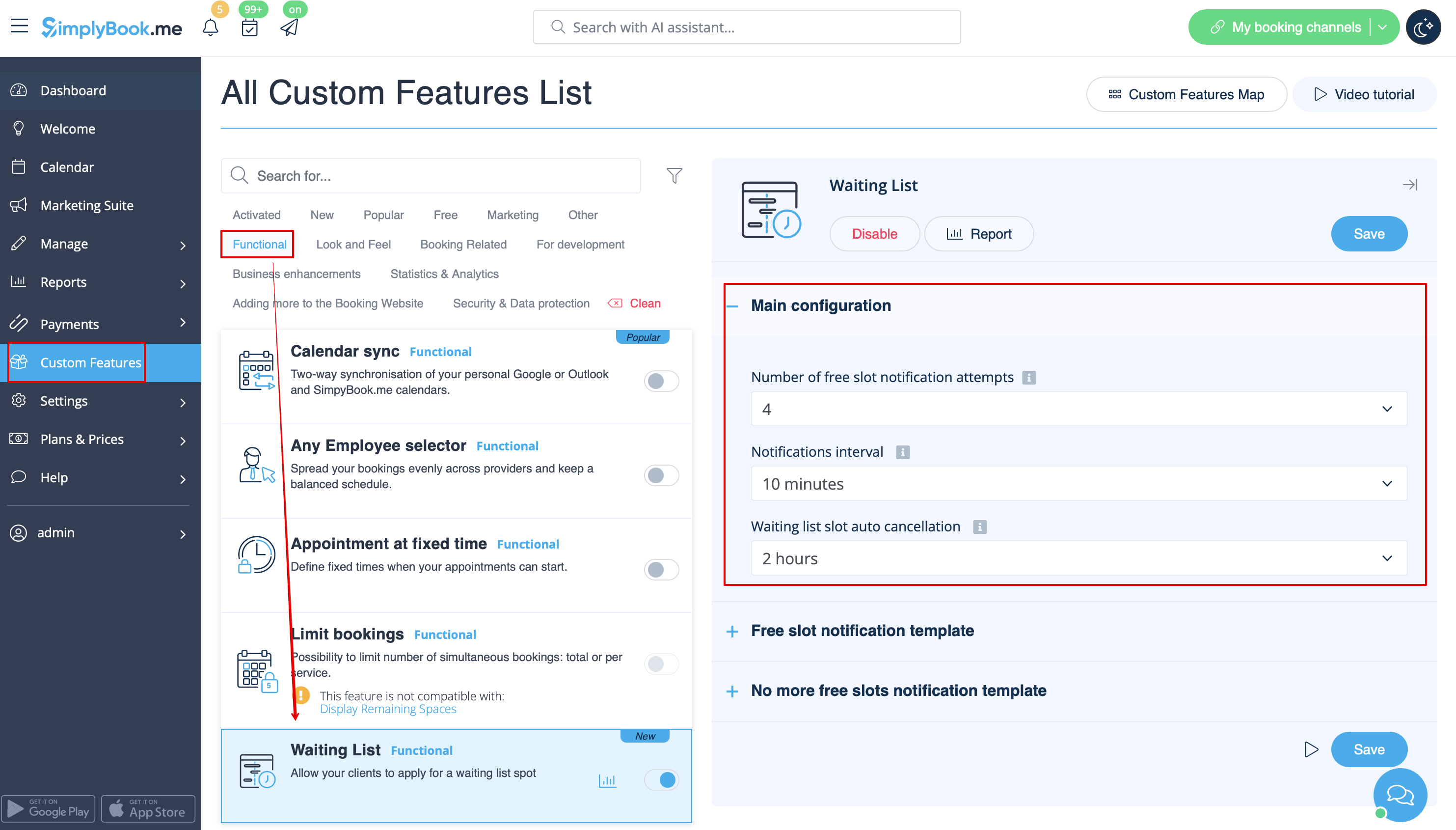
:2. In its settings on the right side of the page, "Main configuration" block, please select the number of email notification attempts about the free time slot appearance.<br> | :2. In its settings on the right side of the page, "Main configuration" block, please select the number of email notification attempts about the free time slot appearance.<br> | ||
:Choose the desired time interval between these attempts in "Notifications interval". | :Choose the desired time interval between these attempts in "Notifications interval". | ||
:Set the time period when the waiting list bookings should be automatically cancelled in case the free spaces do not appear using "Waiting list slot auto cancellation" setting. | :Set the time period when the waiting list bookings should be automatically cancelled in case the free spaces do not appear using "Waiting list slot auto cancellation" setting. | ||
<br> | [[File:Waiting list main configurations redesigned.png|1200px|center|link=https://help.simplybook.me/images/0/05/Waiting_list_main_configurations_redesigned.png]] | ||
<br><br> | |||
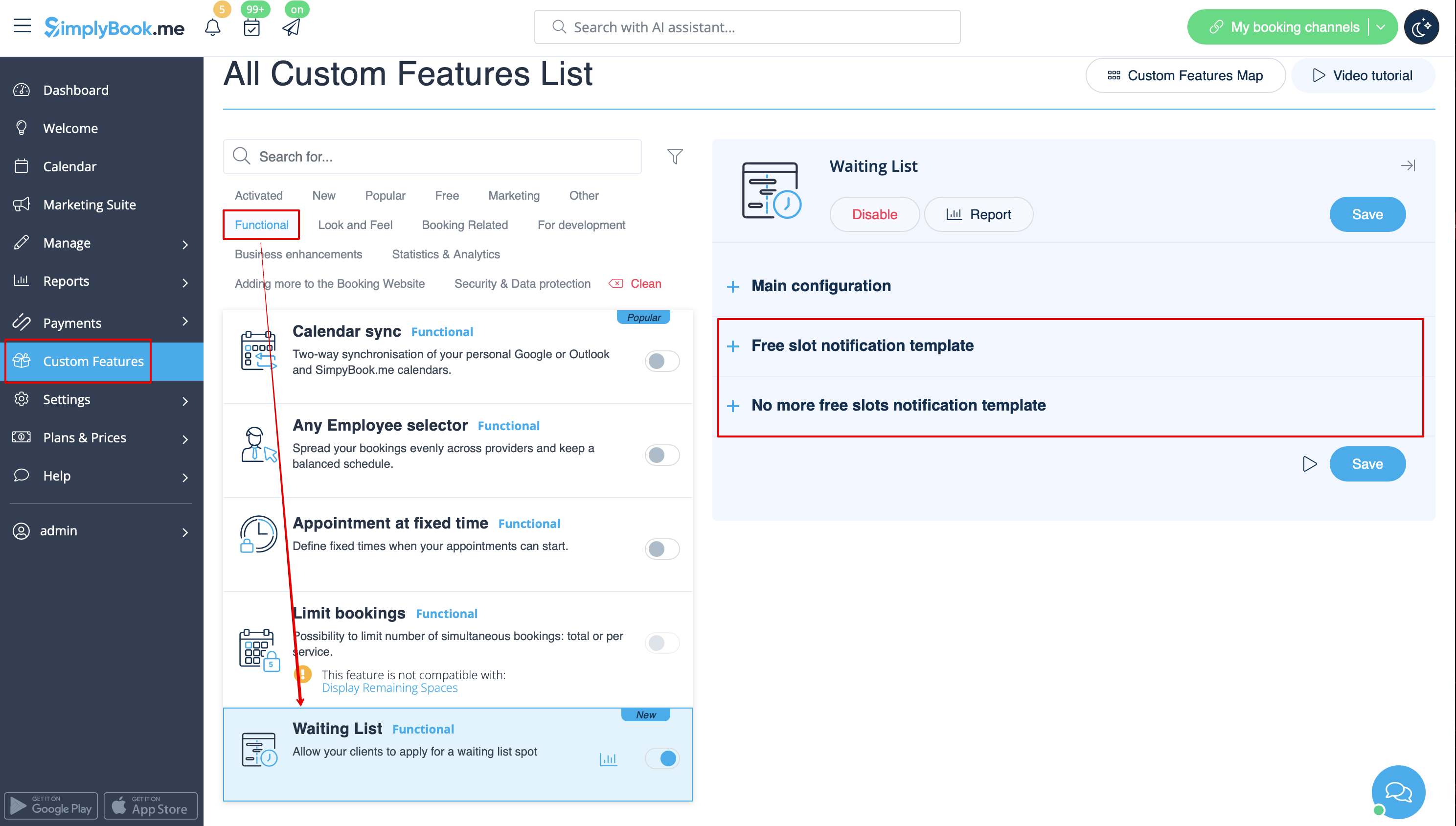
:3. Adjust the email templates for the free slot notification and no free slots email to your needs. Use the variables if needed.<br> | :3. Adjust the email templates for the free slot notification and no free slots email to your needs. Use the variables if needed.<br> | ||
:Save settings. | :Save settings. | ||
[[File:Waiting list templates redesigned.png|1200px|center|link=https://help.simplybook.me/images/7/7b/Waiting_list_templates_redesigned.png]] | |||
<br> | <br> | ||
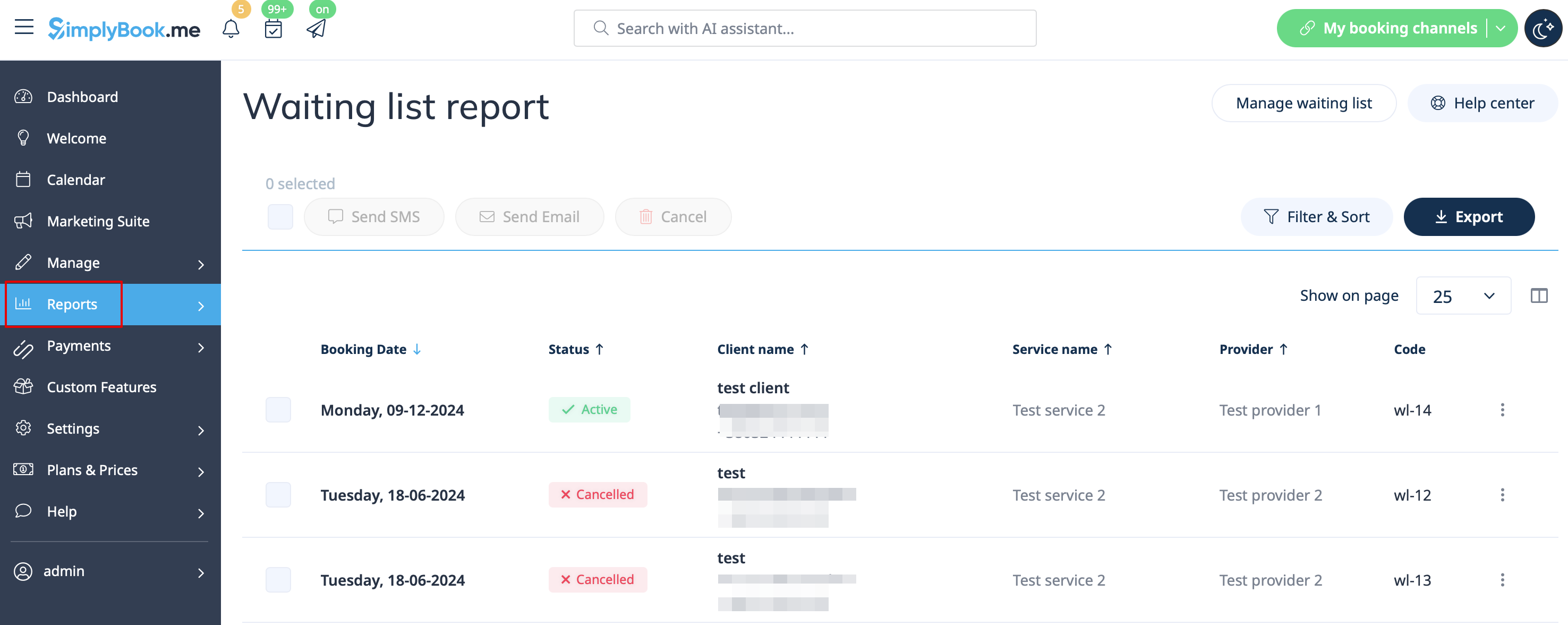
:4. You will be able to see all the waiting list applications in the corresponding report.<br> | :4. You will be able to see all the waiting list applications in the corresponding report.<br> | ||
:You can use the link near this custom feature to access it or navigate to Reports // Waiting list report using the left-side menu.<br> | :You can use the link near this custom feature to access it or navigate to Reports // Waiting list report using the left-side menu.<br> | ||
:It is possible to filter the booking and manually cancel if necessary. | :It is possible to filter the booking and manually cancel if necessary. | ||
[[File:Waiting list report redesigned.png|1200px|center|link=https://help.simplybook.me/images/5/5d/Waiting_list_report_redesigned.png]] | |||
<br> | <br> | ||
:5. The clients can see own waiting list appointments in the specific tab on the booking website and can also cancel them there if they wish to. | :5. The clients can see own waiting list appointments in the specific tab on the booking website and can also cancel them there if they wish to. | ||
<br><br> | <br><br> | ||
Revision as of 10:20, 9 December 2024

This custom feature empowers your customers to join a waiting list when all available appointments for a day are booked. It ensures that even when the schedule seems full, customers can express their interest in an appointment if a slot becomes available due to cancellation.
If someone cancels an appointment, applicants registered on this day will receive an email invitation to book the recently opened slot. Define in the settings how often each notification is sent and when you don’t want to fill the spot, i.e. if there is a short time until the session starts.
- Video tutorial available

Please note!
- Only the following calendar layout types are supported: modern, slots weekly, flexible weekly, flexible, flexible provider, weekly classes and daily classes.
- If you have a non-supported one set it will be automatically changed when this custom feature is enabled.
- The Waiting List is activated when an entire day is fully booked and isn't dependent on individual time slots.
- When some timeslot becomes available all the client who have applied for this date waiting list receive the email notification and the one who is the first will be able to occupy the spot.
- Client can have only one active waiting list booking for the specific service and provider for the specific date.
- During the process of the applying to the waiting list the clients fill in only the basic information or register/log in. All the rest(payments, products purchase, etc. will be provided when the usual booking will be made)
- This feature cannot be enabled together with Multiple bookings
- Waiting List feature does not work for recurring services/classes booking.
- If you block time slots using calendar notes from the admin side, please be aware that this action will not affect the waiting list functionality. The waiting list's operation hinges on whether all available slots have been reserved or not.
- How to set
- 1. Enable "Waiting list" custom feature on your "Custom features" page, "Functional" section.
- 2. In its settings on the right side of the page, "Main configuration" block, please select the number of email notification attempts about the free time slot appearance.
- Choose the desired time interval between these attempts in "Notifications interval".
- Set the time period when the waiting list bookings should be automatically cancelled in case the free spaces do not appear using "Waiting list slot auto cancellation" setting.
- 3. Adjust the email templates for the free slot notification and no free slots email to your needs. Use the variables if needed.
- Save settings.
- 4. You will be able to see all the waiting list applications in the corresponding report.
- You can use the link near this custom feature to access it or navigate to Reports // Waiting list report using the left-side menu.
- It is possible to filter the booking and manually cancel if necessary.
- 5. The clients can see own waiting list appointments in the specific tab on the booking website and can also cancel them there if they wish to.
