Updating to match new version of source page |
Updating to match new version of source page |
||
| Line 3: | Line 3: | ||
{{#seo: | {{#seo: | ||
|title=Anti-Fraud/Spam Protection Custom Feature - SimplyBook.me | |title=Anti-Fraud/Spam Protection Custom Feature - SimplyBook.me | ||
|description=Protect your bookings from fraud and spam. Enable this feature for added security. Click to activate it now! | |||
|titlemode=append | |titlemode=append | ||
|keywords=faq, frequently asked questions, booking software, appointment system questions, appointments online, calendar software, booking system, booking calendar, scheduling software, online appointment scheduling, online scheduling, plugins, custom features, additional functionality, anti-spam, anti-fraud, booking limit | |keywords=faq, frequently asked questions, booking software, appointment system questions, appointments online, calendar software, booking system, booking calendar, scheduling software, online appointment scheduling, online scheduling, plugins, custom features, additional functionality, anti-spam, anti-fraud, booking limit | ||
| Line 19: | Line 20: | ||
1. Enable <span style="background-color:#d4f8e5; padding:5px; border-radius:5px;">Anti-Fraud/Spam Protection</span> on your <span style="background-color:#d4f8e5; padding:5px; border-radius:5px;">Custom features</span> page -> <span style="background-color:#d4f8e5; padding:5px; border-radius:5px;">Security & Data protection</span> section. | 1. Enable <span style="background-color:#d4f8e5; padding:5px; border-radius:5px;">Anti-Fraud/Spam Protection</span> on your <span style="background-color:#d4f8e5; padding:5px; border-radius:5px;">Custom features</span> page -> <span style="background-color:#d4f8e5; padding:5px; border-radius:5px;">Security & Data protection</span> section. | ||
[[File: | [[File:Antispam enable path redesigned.png|1200px|border|center|link=https://help.simplybook.me/images/d/d7/Antispam_enable_path_redesigned.png]] | ||
<br><br> | <br><br> | ||
2. In the first <span style="background-color:#d4f8e5; padding:5px; border-radius:5px;">Main configuration</span> section you can decide on the error message text that will be shown on the client side if the limit is reached, enable <span style="background-color:#d4f8e5; padding:5px; border-radius:5px;">Disallow disposable emails</span> option if you would like to prohibit the use of such emails, add IP addresses</span> that should be always allowed to book from(in case you plan to use limits by IP). | 2. In the first <span style="background-color:#d4f8e5; padding:5px; border-radius:5px;">Main configuration</span> section you can decide on the error message text that will be shown on the client side if the limit is reached, enable <span style="background-color:#d4f8e5; padding:5px; border-radius:5px;">Disallow disposable emails</span> option if you would like to prohibit the use of such emails, add IP addresses</span> that should be always allowed to book from(in case you plan to use limits by IP). | ||
[[File: | [[File:Antispam settings main path redesigned.png|1200px|border|center|link=https://help.simplybook.me/images/0/03/Antispam_settings_main_path_redesigned.png]] | ||
<br><br> | <br><br> | ||
3. The next section <span style="background-color:#d4f8e5; padding:5px; border-radius:5px;">Limits</span> allows you to set the specific limits by <span style="background-color:#d4f8e5; padding:5px; border-radius:5px;">client</span>(available with <span style="background-color:#cdeffc; padding:5px; border-radius:5px;">[[Special:MyLanguage/Client_Login_custom_feature|Client Login]]</span> custom feature enabled only), by <span style="background-color:#d4f8e5; padding:5px; border-radius:5px;">IP address</span>, by <span style="background-color:#d4f8e5; padding:5px; border-radius:5px;">email address</span> or <span style="background-color:#d4f8e5; padding:5px; border-radius:5px;">phone number.</span> You can use any option or several of them at the same time.<br> | 3. The next section <span style="background-color:#d4f8e5; padding:5px; border-radius:5px;">Limits</span> allows you to set the specific limits by <span style="background-color:#d4f8e5; padding:5px; border-radius:5px;">client</span>(available with <span style="background-color:#cdeffc; padding:5px; border-radius:5px;">[[Special:MyLanguage/Client_Login_custom_feature|Client Login]]</span> custom feature enabled only), by <span style="background-color:#d4f8e5; padding:5px; border-radius:5px;">IP address</span>, by <span style="background-color:#d4f8e5; padding:5px; border-radius:5px;">email address</span> or <span style="background-color:#d4f8e5; padding:5px; border-radius:5px;">phone number.</span> You can use any option or several of them at the same time.<br> | ||
<span style="background-color:#ffe9e9; padding:5px; border-radius:5px;">'''Please note!''' If you have some IP addresses as whitelisted, the other limitations(by email, phone or client if they are set) will still apply for such client.</span> | <span style="background-color:#ffe9e9; padding:5px; border-radius:5px;">'''Please note!''' If you have some IP addresses as whitelisted, the other limitations(by email, phone or client if they are set) will still apply for such client.</span> | ||
[[File: | [[File:Antispam limits settings redesigned.png|1200px|border|center|link=https://help.simplybook.me/images/f/f6/Antispam_limits_settings_redesigned.png]] | ||
<br><br> | <br><br> | ||
4. When the limit is reached there will be the error message shown on the client side. | 4. When the limit is reached there will be the error message shown on the client side. | ||
Revision as of 15:47, 8 January 2025

This is an Anti-Fraud/Spam Protection feature. It enables administrators to limit the number of bookings that can be made from the same email, phone, and IP address. The feature provides various options, such as setting the maximum number of bookings, defining the time period in which these bookings can be made, and the ability to block or flag suspected fraudulent activities. This feature helps to prevent fraudulent or spammy bookings and protects the system's integrity, ensuring a smooth and trustworthy booking experience for legitimate customers.
- How to use
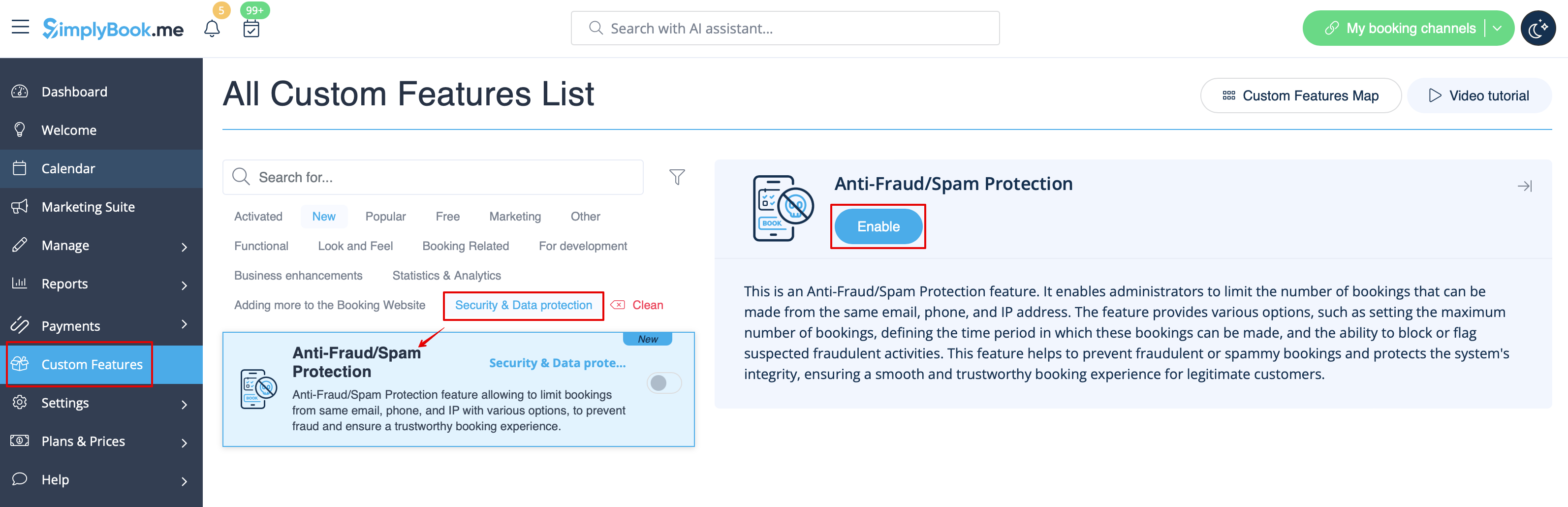
1. Enable Anti-Fraud/Spam Protection on your Custom features page -> Security & Data protection section.
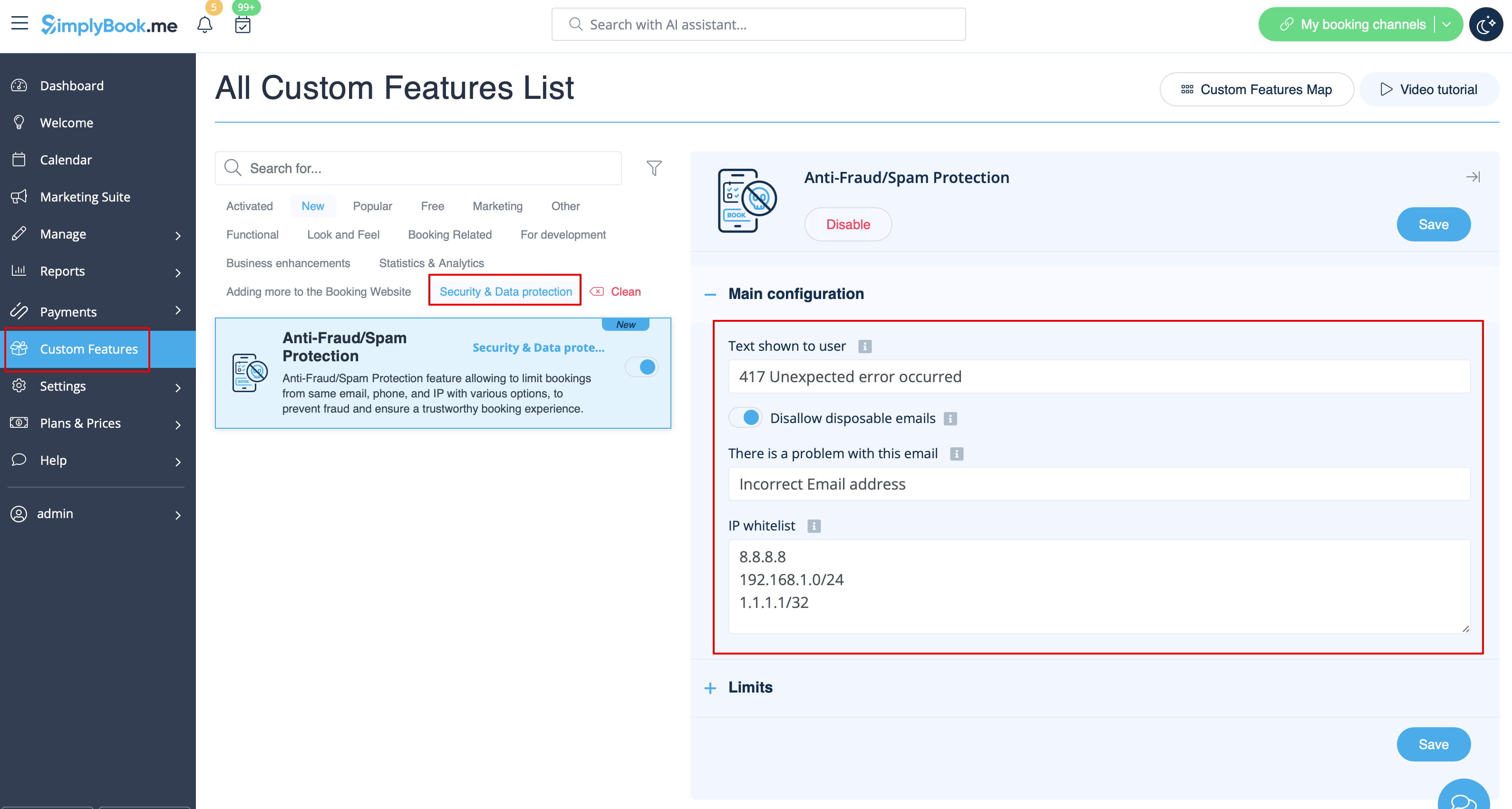
2. In the first Main configuration section you can decide on the error message text that will be shown on the client side if the limit is reached, enable Disallow disposable emails option if you would like to prohibit the use of such emails, add IP addresses that should be always allowed to book from(in case you plan to use limits by IP).
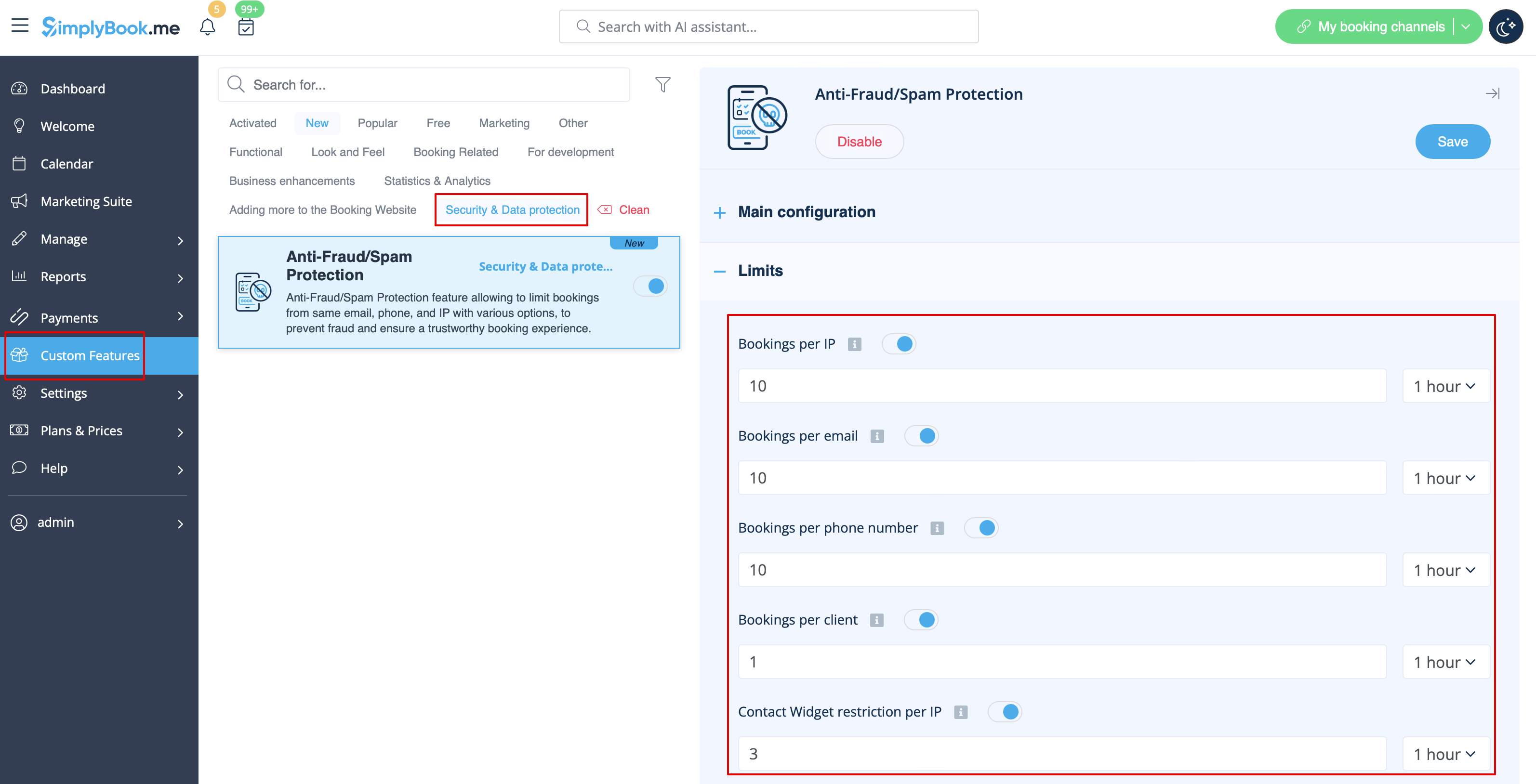
3. The next section Limits allows you to set the specific limits by client(available with Client Login custom feature enabled only), by IP address, by email address or phone number. You can use any option or several of them at the same time.
Please note! If you have some IP addresses as whitelisted, the other limitations(by email, phone or client if they are set) will still apply for such client.
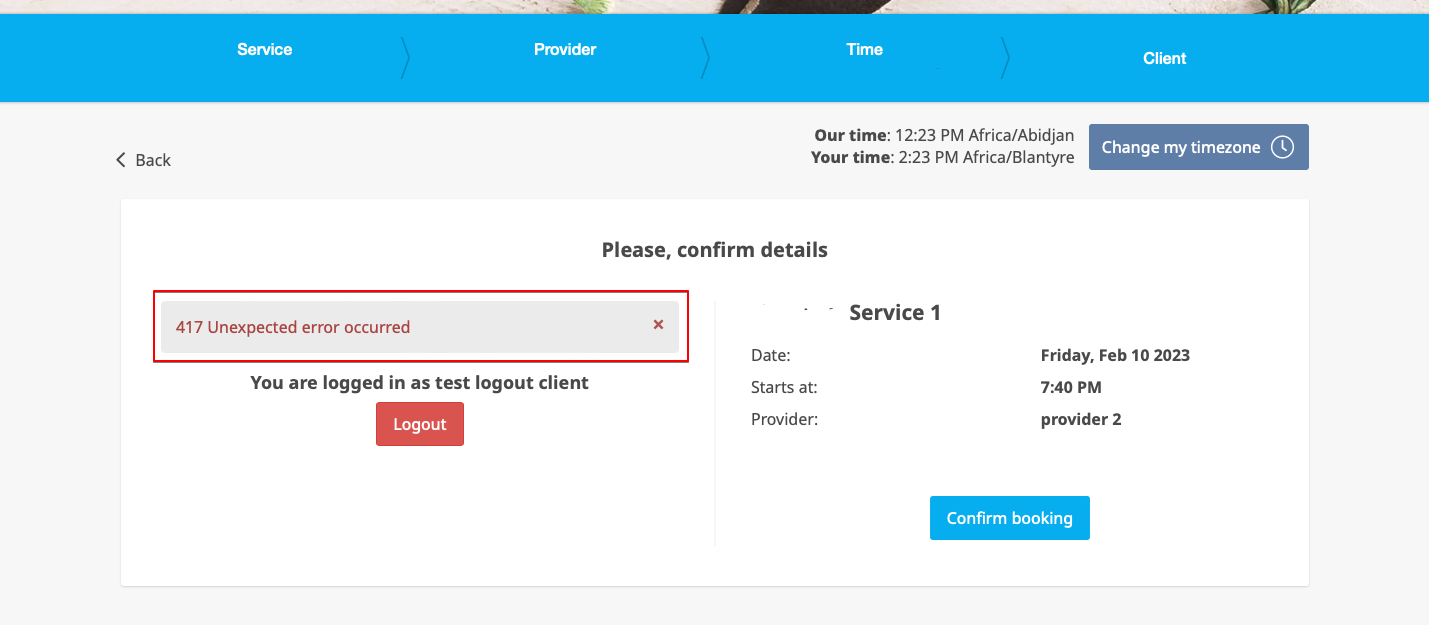
4. When the limit is reached there will be the error message shown on the client side.
(default text used in the example below)