No edit summary |
|||
| Line 27: | Line 27: | ||
If you need to change the language for all the interfaces, including the notifications templates: | If you need to change the language for all the interfaces, including the notifications templates: | ||
* Please navigate to <span style="background-color:#d4f8e5; padding:5px; border-radius:5px;">Settings</span> -> <span style="background-color:#d4f8e5; padding:5px; border-radius:5px;">Main Configuration</span> -> <span style="background-color:#d4f8e5; padding:5px; border-radius:5px;">Language.</span> | * Please navigate to <span style="background-color:#d4f8e5; padding:5px; border-radius:5px;">Settings</span> -> <span style="background-color:#d4f8e5; padding:5px; border-radius:5px;">Main Configuration</span> -> <span style="background-color:#d4f8e5; padding:5px; border-radius:5px;">Language.</span> | ||
[[File:Change sysytem language new.png|1200px|center|link=https://help.simplybook.me/images/2/2c/Change_sysytem_language_new.png]] | |||
<br><br> | |||
* Select the desired language from the drop-down menu. | * Select the desired language from the drop-down menu. | ||
* Confirm the selections (and whether you also need to change the language for the notifications templates) | * Confirm the selections (and whether you also need to change the language for the notifications templates) | ||
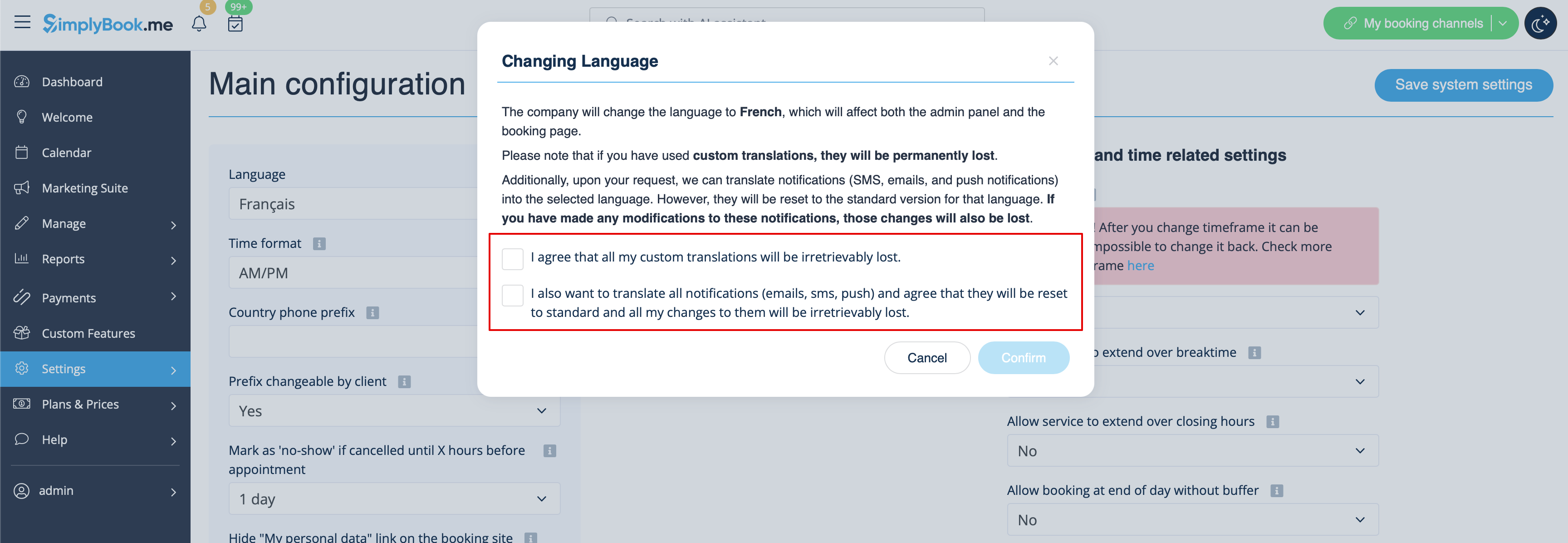
'''Please note!''' If you have used custom translations/custom emails/sms templates texts, they will be permanently lost. You will need to add custom wording in Settings -> Custom translations after the new language has been applied | '''Please note!''' If you have used custom translations/custom emails/sms templates texts, they will be permanently lost. You will need to add custom wording in Settings -> Custom translations after the new language has been applied. | ||
[[File:Language chnage confirmation popup.png|1200px|center|link=https://help.simplybook.me/images/7/73/Language_chnage_confirmation_popup.png]] | |||
<br><br><br><br> | <br><br><br><br> | ||
Revision as of 10:12, 18 March 2025
Changing texts for client side only
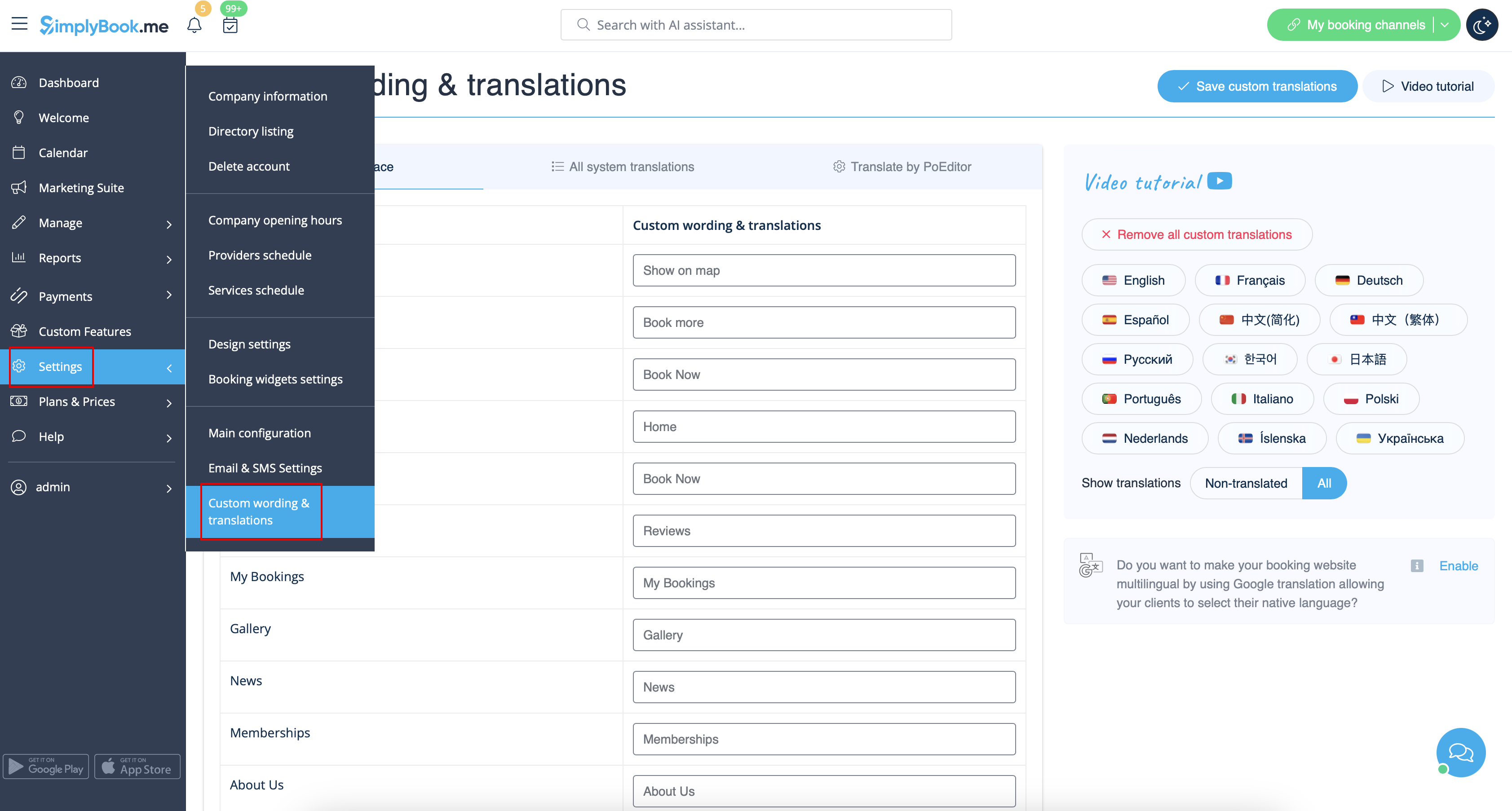
If you need to adjust any texts on your booking page (for example change Employee to Therapist, Coach or Room), you can do it in Settings -> Custom wording & translations.
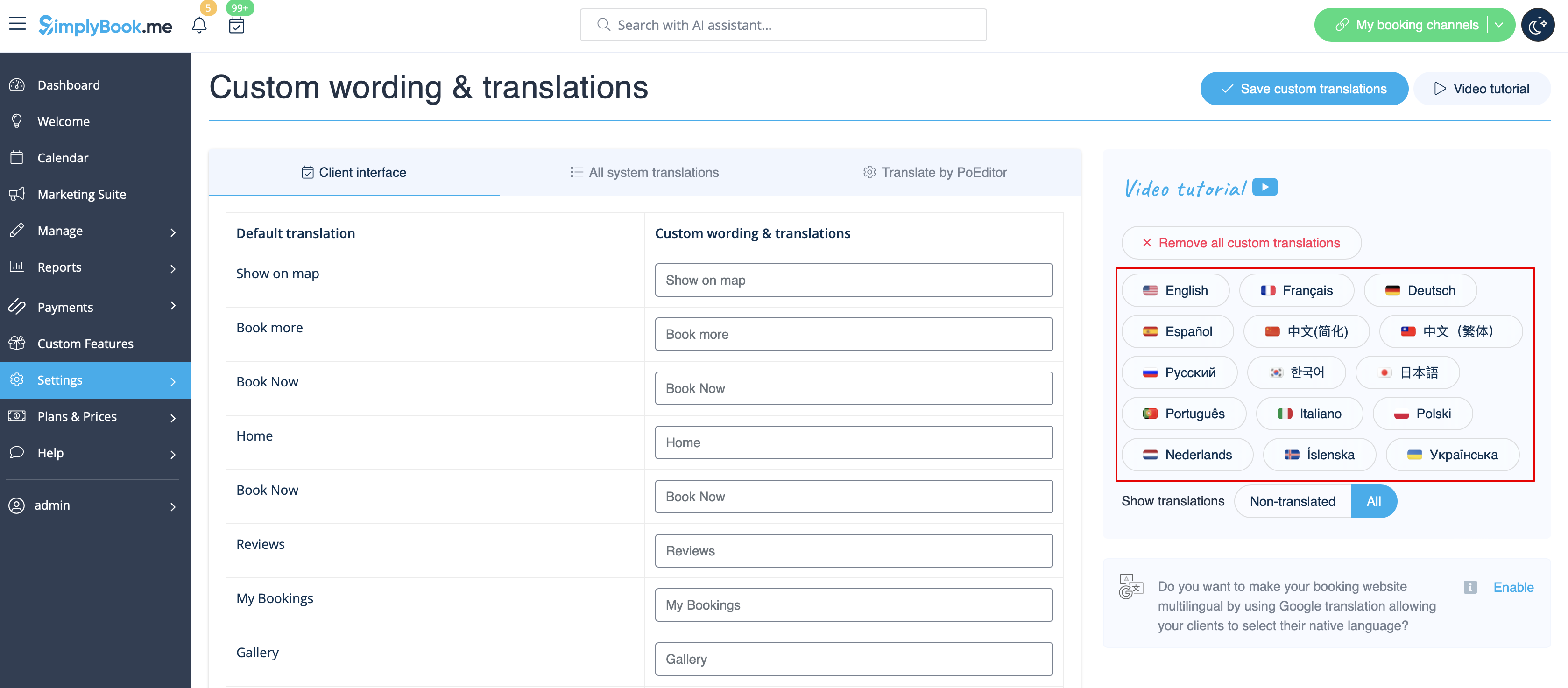
There, you can also change the language of your booking page by clicking on the corresponding button on the right side and pressing Save custom translations. If your language is not in the list you can translate the system yourself.
If you need to show the booking site in several languages you can use Google Translate custom feature.
Changing language/wording for the whole system (without notifications templates)
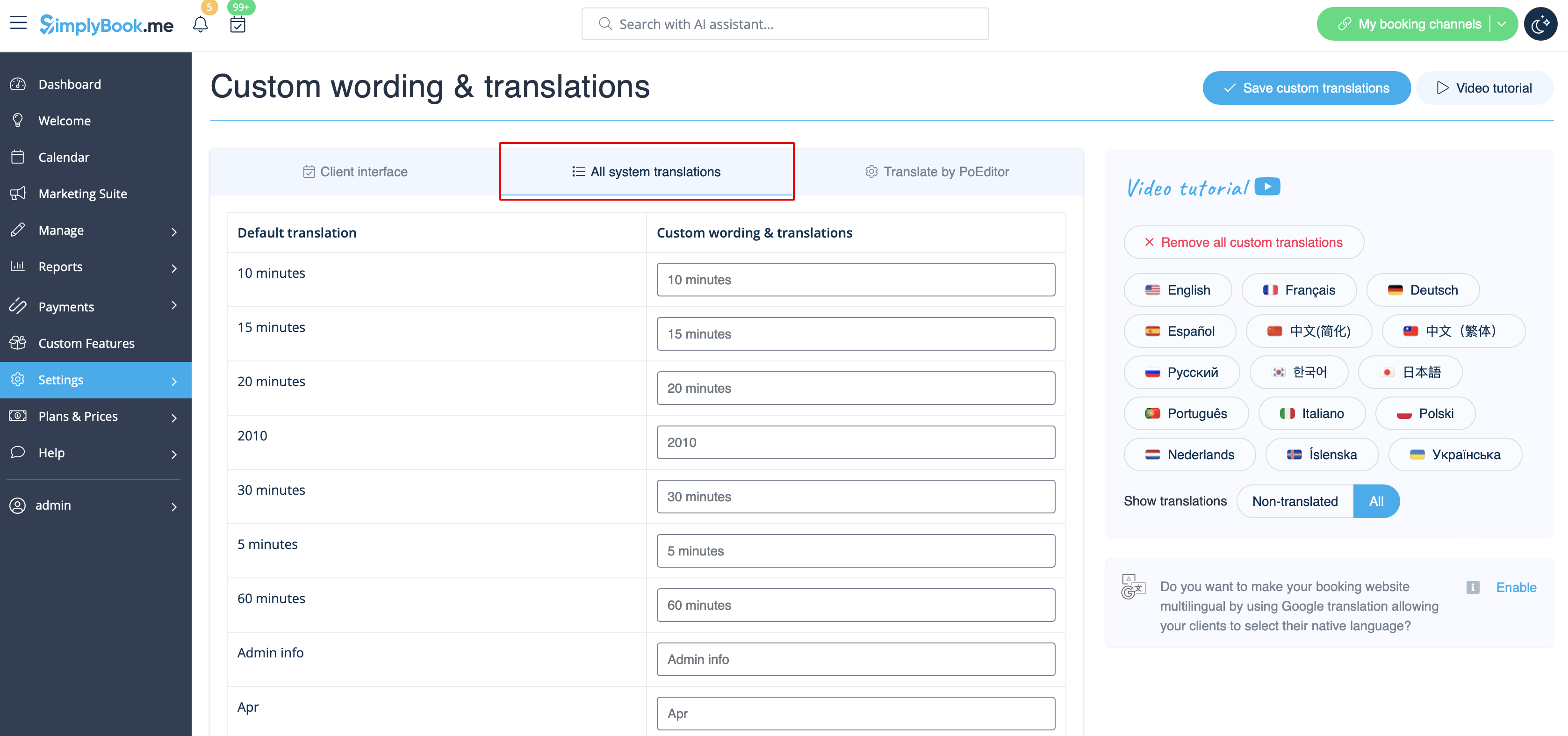
Settings -> Custom wording & translations also allows you to adjust the language of the whole system. Please select All system translations tab to change all system wording.
Please note! It is not possible to have fully separate languages for admin and client sides as some of the texts are used for both sides. So you may have client side fully translated to one language and have admin side in a different one, but with some words form the client side language.
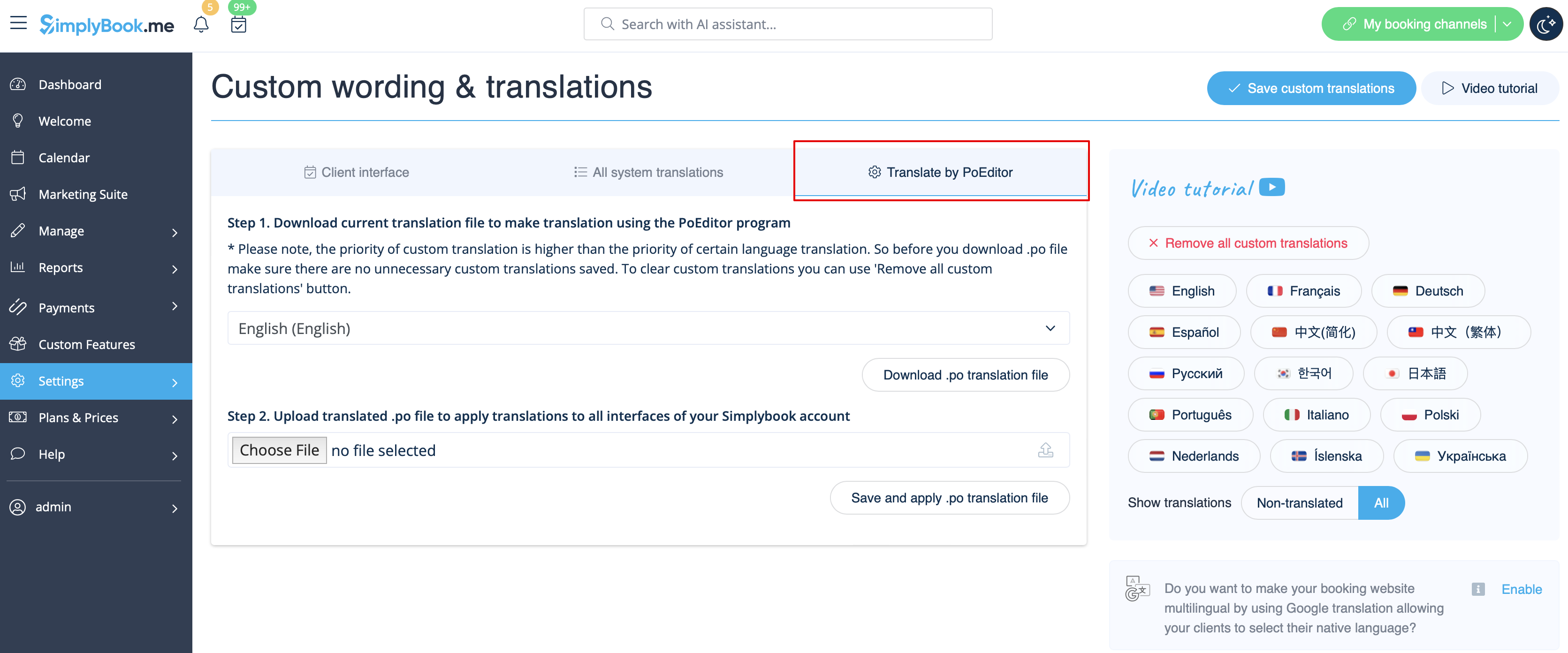
The system as well allows to download .po file, translate it with PoEditor software, upload the texts and apply to your system.
Changing language/wording for the whole system (with notifications templates)
If you need to change the language for all the interfaces, including the notifications templates:
- Please navigate to Settings -> Main Configuration -> Language.
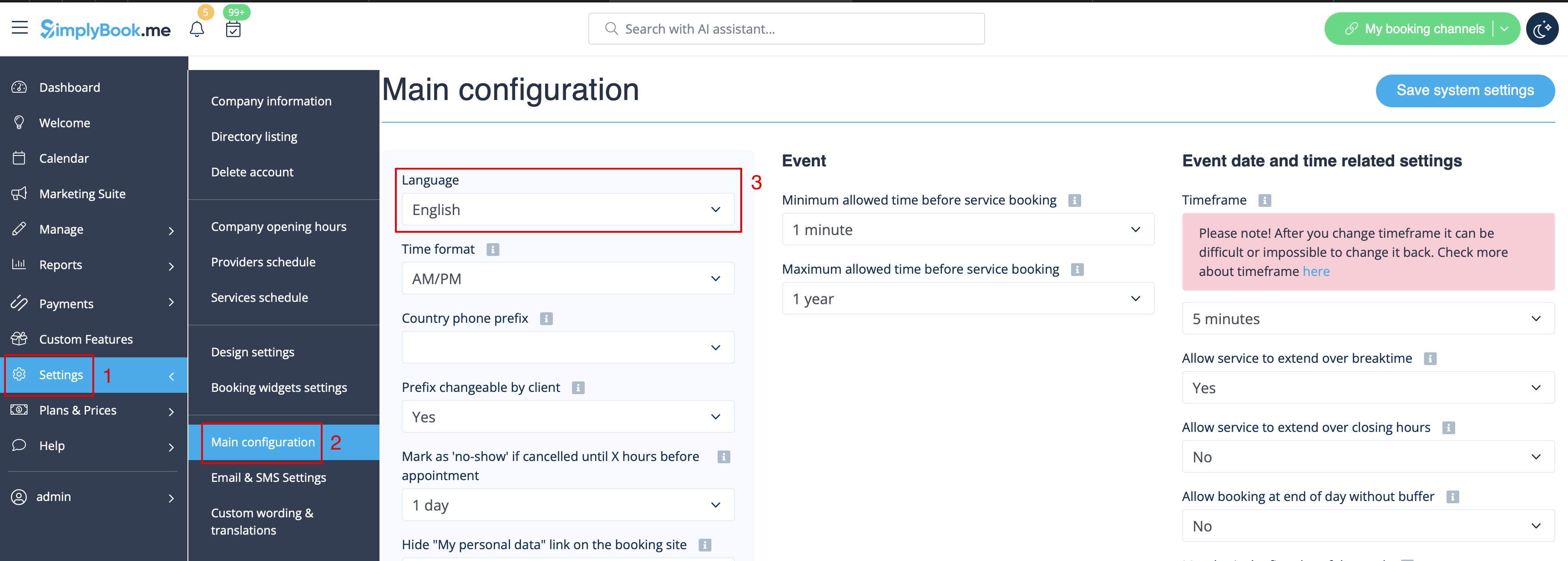
- Select the desired language from the drop-down menu.
- Confirm the selections (and whether you also need to change the language for the notifications templates)
Please note! If you have used custom translations/custom emails/sms templates texts, they will be permanently lost. You will need to add custom wording in Settings -> Custom translations after the new language has been applied.