Created page with "= Adresse électronique de l'entreprise = Dans <span style="background-color:#d4f8e5; padding:5px; border-radius:5px;">Settings</span> -> <span style="background-color:#d4f8e5; padding:5px; border-radius:5px;">Company Information</span> -> <span style="background-color:#d4f8e5; padding:5px; border-radius:5px;">Don't show email on booking page</span> checkbox.<br/> HideFile:Hide company email redesigned.png|1200px | center|link=https://help.simplybook.me/images/3..." |
Created page with "= Critiques = Vous pouvez consulter tous vos avis dans l'onglet <span style="background-color:#d4f8e5; padding:5px; border-radius:5px;">Avis du</span> menu de gauche, sous <span style="background-color:#d4f8e5; padding:5px; border-radius:5px;">Rapports.</span> Vous pouvez également y supprimer des commentaires si nécessaire. Si vous souhaitez supprimer l'option de laisser un avis sur votre site de réservation et ne pas envoyer de demande d'avis, dans <span style="back..." |
||
| Line 53: | Line 53: | ||
= Conditions générales de SimplyBook.me = | |||
=SimplyBook.me | :<span style="background-color:#ffe9e9; padding:5px; border-radius:5px;">'''Veuillez noter que''' vous devez confirmer que vous avez ajouté des informations sur SimplyBook.me Ltd. en tant que fournisseur à vos conditions générales.</span> | ||
:<span style="background-color:#ffe9e9; padding:5px; border-radius:5px;">''' | Pour supprimer la case à cocher, vous devez avoir activé et configuré correctement toutes les options mentionnées :<br><br> | ||
Soit : <br> | |||
1. <span style="background-color:#cdeffc; padding:5px; border-radius:5px;">[[Custom_Features#SMTP | SMTP]]</span> + <span style="background-color:#cdeffc; padding:5px; border-radius:5px;">[[Custom_Features#Custom_Domain | Domaine personnalisé]]</span> + <span style="background-color:#cdeffc; padding:5px; border-radius:5px;">[[Custom_Features#Terms_and_Conditions | Conditions générales]]</span> + <span style="background-color:#cdeffc; padding:5px; border-radius:5px;">[https://help.simplybook.me/index.php/Design Thème]</span> différent du blanc. <br> | |||
1. <span style="background-color:#cdeffc; padding:5px; border-radius:5px;">[[Custom_Features#SMTP | SMTP]]</span> + <span style="background-color:#cdeffc; padding:5px; border-radius:5px;">[[Custom_Features#Custom_Domain | | Soit : 1. SMTP + Domaine personnalisé + Conditions générales + thème différent de vide : <br> | ||
2. <span style="background-color:#cdeffc; padding:5px; border-radius:5px;">[[Custom_Features#SMTP | SMTP]]</span> + <span style="background-color:#cdeffc; padding:5px; border-radius:5px;">[[Custom_Features#Terms_and_Conditions | Conditions générales]]</span> + <span style="background-color:#cdeffc; padding:5px; border-radius:5px;"> [https://help.simplybook.me/index.php/Design thème] vierge</span> + <span style="background-color:#cdeffc; padding:5px; border-radius:5px;">[https://help.simplybook.me/index.php/Widgets_for_your_own_website Widget]</span> sur votre site web. | |||
2. <span style="background-color:#cdeffc; padding:5px; border-radius:5px;">[[Custom_Features#SMTP | SMTP]]</span> + <span style="background-color:#cdeffc; padding:5px; border-radius:5px;">[[Custom_Features#Terms_and_Conditions | | |||
<br><br> | <br><br> | ||
Après cela, vous pourrez activer l'option <span style="background-color:#d4f8e5; padding:5px; border-radius:5px;">Je confirme que j'ai ajouté des informations sur SimplyBook.me Ltd. en tant que fournisseur à mes conditions générales</span> dans <span style="background-color:#d4f8e5; padding:5px; border-radius:5px;">Caractéristiques personnalisées</span> -> <span style="background-color:#d4f8e5; padding:5px; border-radius:5px;">Conditions générales et</span> après avoir sauvegardé les paramètres, la case à cocher des conditions générales de SimplyBook.me sera supprimée du site de réservation. | |||
[[File:Terma and conditions consent redesigned.png|1200px | center|link=https://help.simplybook.me/index.php/File:Terma_and_conditions_consent_redesigned.png]] | [[File:Terma and conditions consent redesigned.png|1200px | center|link=https://help.simplybook.me/index.php/File:Terma_and_conditions_consent_redesigned.png]] | ||
<br><br> | <br><br> | ||
= Lien vers mes données personnelles = | |||
= | Allez dans <span style="background-color:#d4f8e5; padding:5px; border-radius:5px;">Paramètres</span> -> <span style="background-color:#d4f8e5; padding:5px; border-radius:5px;">Configuration principale</span> et sélectionnez <span style="background-color:#d4f8e5; padding:5px; border-radius:5px;">Oui</span> dans <span style="background-color:#d4f8e5; padding:5px; border-radius:5px;">Masquer le lien "Mes données personnelles" sur le site de réservation.</span> Sauvegardez les paramètres. | ||
Hide[[File:Hide personal data link redesigned.png|1200px|border|center|link=https://help.simplybook.me/images/8/80/Hide_personal_data_link_redesigned.png]] | |||
[[File:Hide personal data link redesigned.png|1200px|border|center|link=https://help.simplybook.me/images/8/80/Hide_personal_data_link_redesigned.png]] | |||
<br><br> | <br><br> | ||
= Créneaux horaires non disponibles = | |||
Veuillez sélectionner un calendrier <span style="background-color:#d4f8e5; padding:5px; border-radius:5px;">moderne,</span> <span style="background-color:#d4f8e5; padding:5px; border-radius:5px;">moderne fournisseur,</span> <span style="background-color:#d4f8e5; padding:5px; border-radius:5px;">quotidien (disponible si [[Classes_custom_feature|la fonction Classes]] est activée)</span> ou <span style="background-color:#d4f8e5; padding:5px; border-radius:5px;">hebdomadaire pour les classes</span> dans le menu déroulant <span style="background-color:#d4f8e5; padding:5px; border-radius:5px;">Paramètres</span> -> <span style="background-color:#d4f8e5; padding:5px; border-radius:5px;">Paramètres de conception</span> -> <span style="background-color:#d4f8e5; padding:5px; border-radius:5px;">Disposition du calendrier -> Disposition</span> <span style="background-color:#d4f8e5; padding:5px; border-radius:5px;">du calendrier</span> -> <span style="background-color:#d4f8e5; padding:5px; border-radius:5px;">Disposition</span> <span style="background-color:#d4f8e5; padding:5px; border-radius:5px;">du</span> <span style="background-color:#d4f8e5; padding:5px; border-radius:5px;">calendrier</span>. | |||
[[File:Calendar layout settings redesigned.png|1200px |border|center|link=https://help.simplybook.me/images/4/4d/Calendar_layout_settings_redesigned.png]]<br/><br/> | [[File:Calendar layout settings redesigned.png|1200px |border|center|link=https://help.simplybook.me/images/4/4d/Calendar_layout_settings_redesigned.png]]<br/><br/> | ||
Revision as of 10:09, 15 May 2025
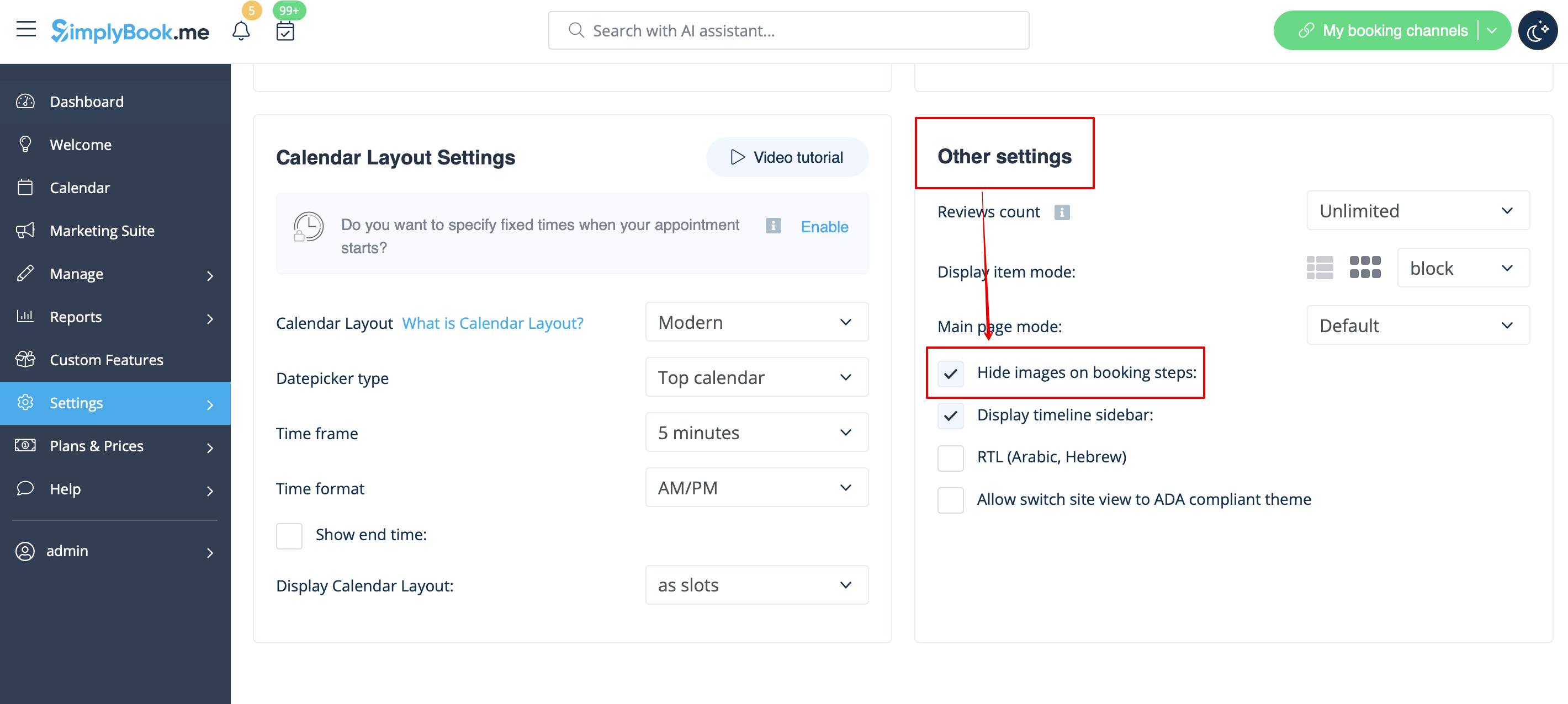
Images pour les étapes Service, Prestataire de services, Catégorie et Lieu
Allez dans Paramètres -> Paramètres de conception -> Autres paramètres et cochez la case Masquer les images sur les étapes de réservation. Enregistrez les paramètres.
Hide
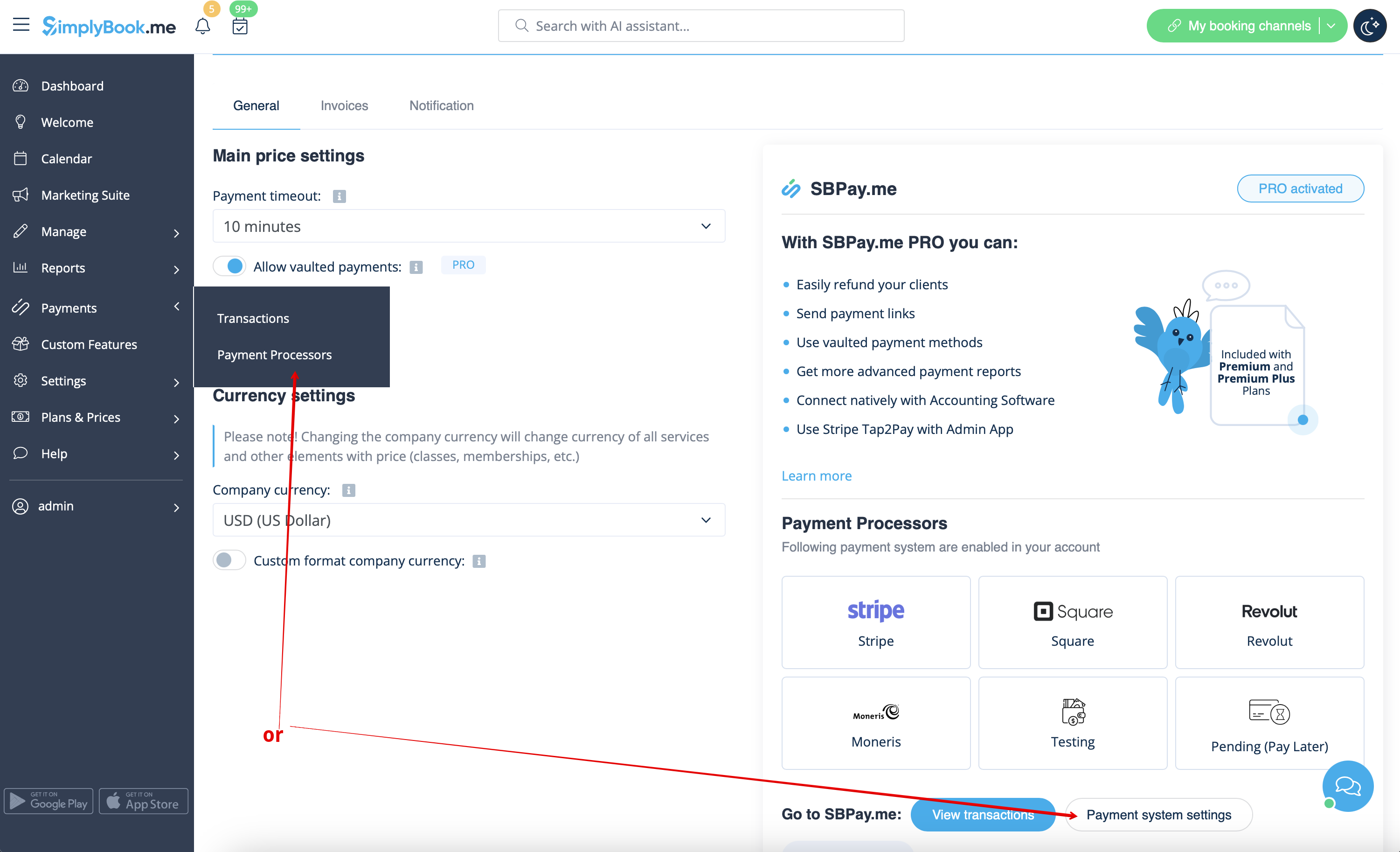
Possibilité de payer plus tard
Veuillez naviguer vers Payments -> Payment Processors ou Custom Features -> Accept payments -> Settings -> Payment system settings pour accéder à l'interface SBPay.me et y désactiver l'option Pay later.
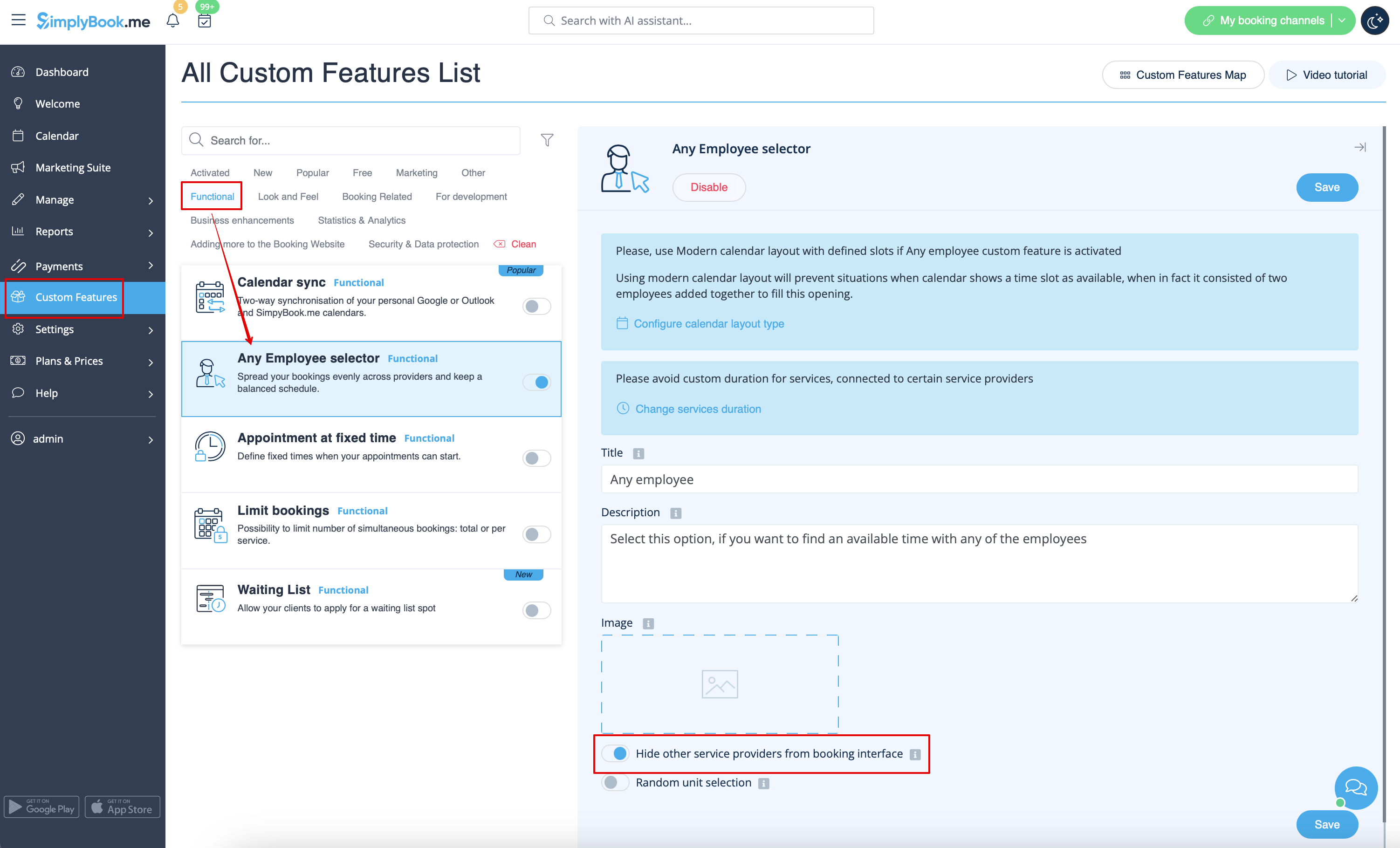
Étape de l'employé
Activez le sélecteur de tout employé dans la section des fonctions personnalisées et dans ses paramètres, sur le côté droit de la page, activez l'option Masquer les autres prestataires de services dans l'interface de réservation
Carte
Dans Settings -> Company Information -> Don't use address checkbox.
Hide

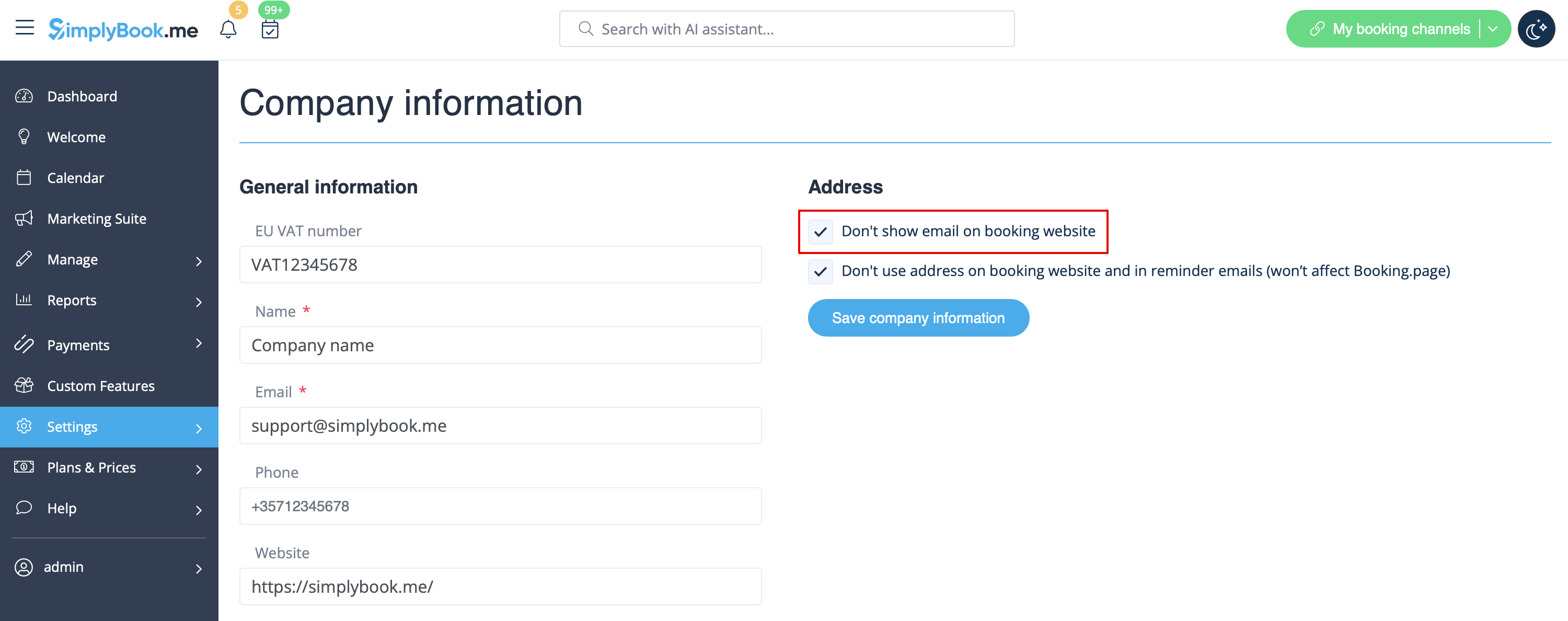
Adresse électronique de l'entreprise
Dans Settings -> Company Information -> Don't show email on booking page checkbox.
Hide
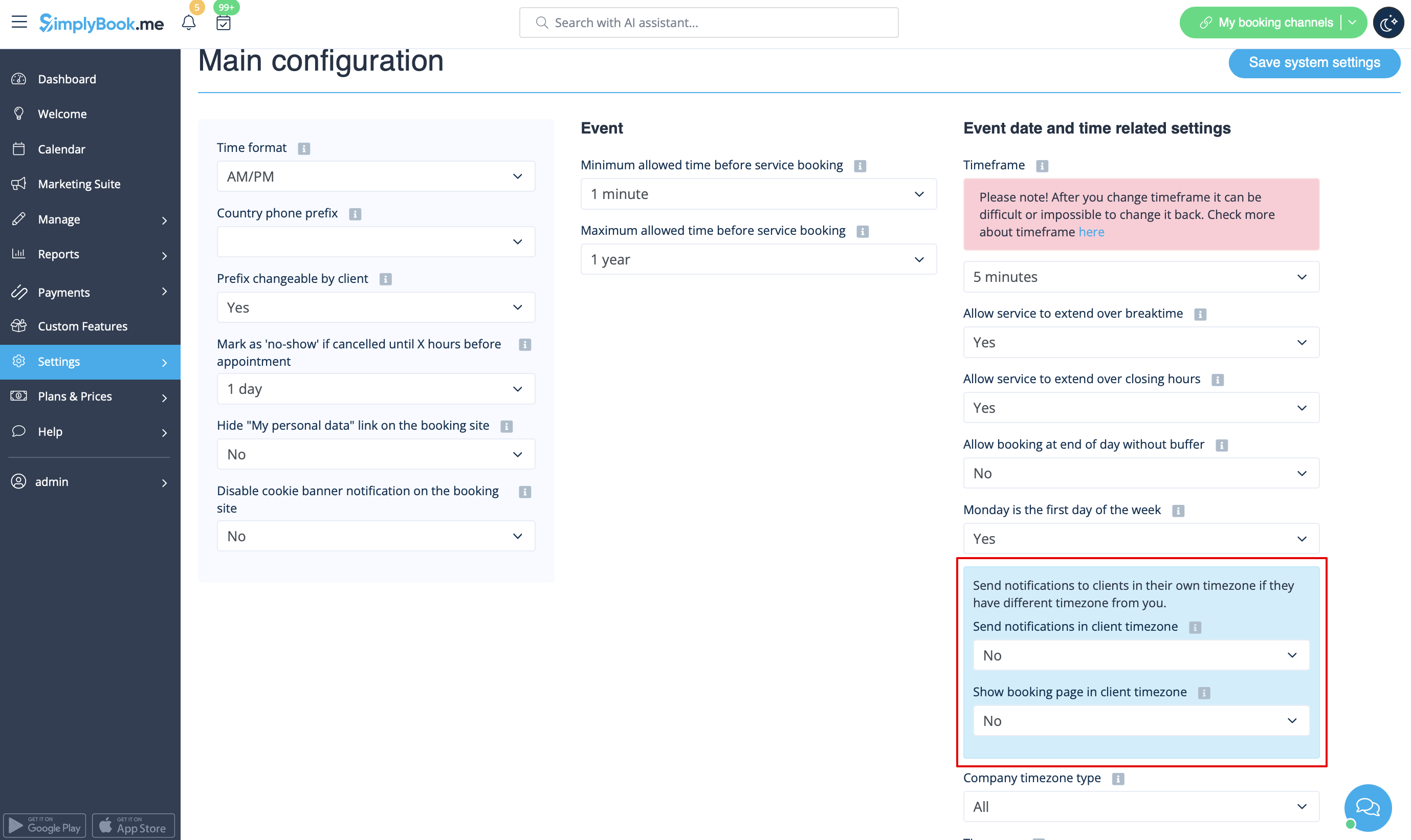
"Option "Modifier mon fuseau horaire
Dans Paramètres -> Configuration principale, réglez les options Afficher la page de réservation dans le fuseau horaire du client et Envoyer des notifications dans le fuseau horaire du client sur Non et enregistrez les paramètres.
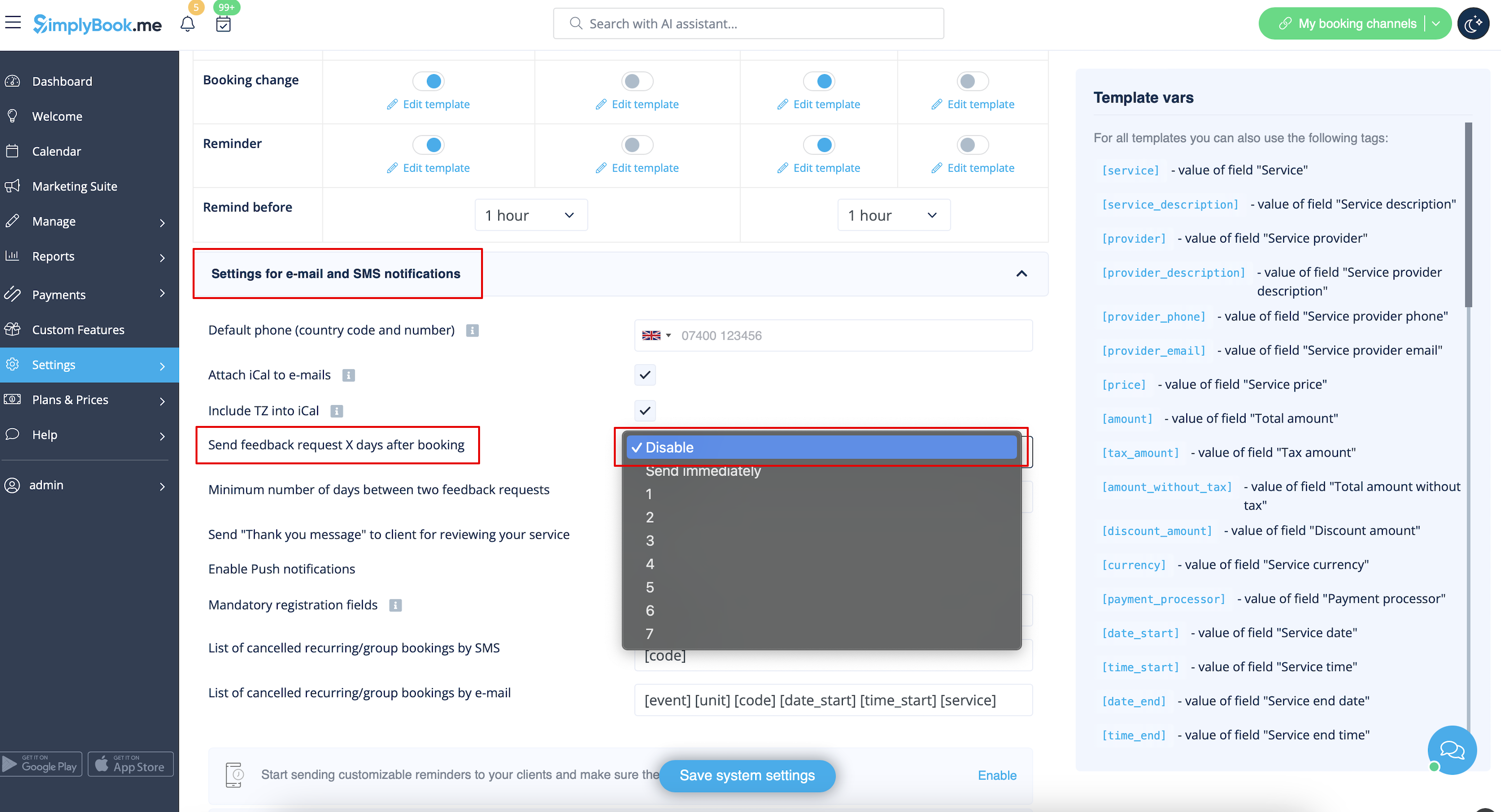
Critiques
Vous pouvez consulter tous vos avis dans l'onglet Avis du menu de gauche, sous Rapports. Vous pouvez également y supprimer des commentaires si nécessaire. Si vous souhaitez supprimer l'option de laisser un avis sur votre site de réservation et ne pas envoyer de demande d'avis, dans Paramètres -> Paramètres d'e-mail et de SMS -> Paramètres pour les notifications par e-mail et par SMS -> réglez Envoyer une demande d'avis X jours après la réservation sur Désactiver
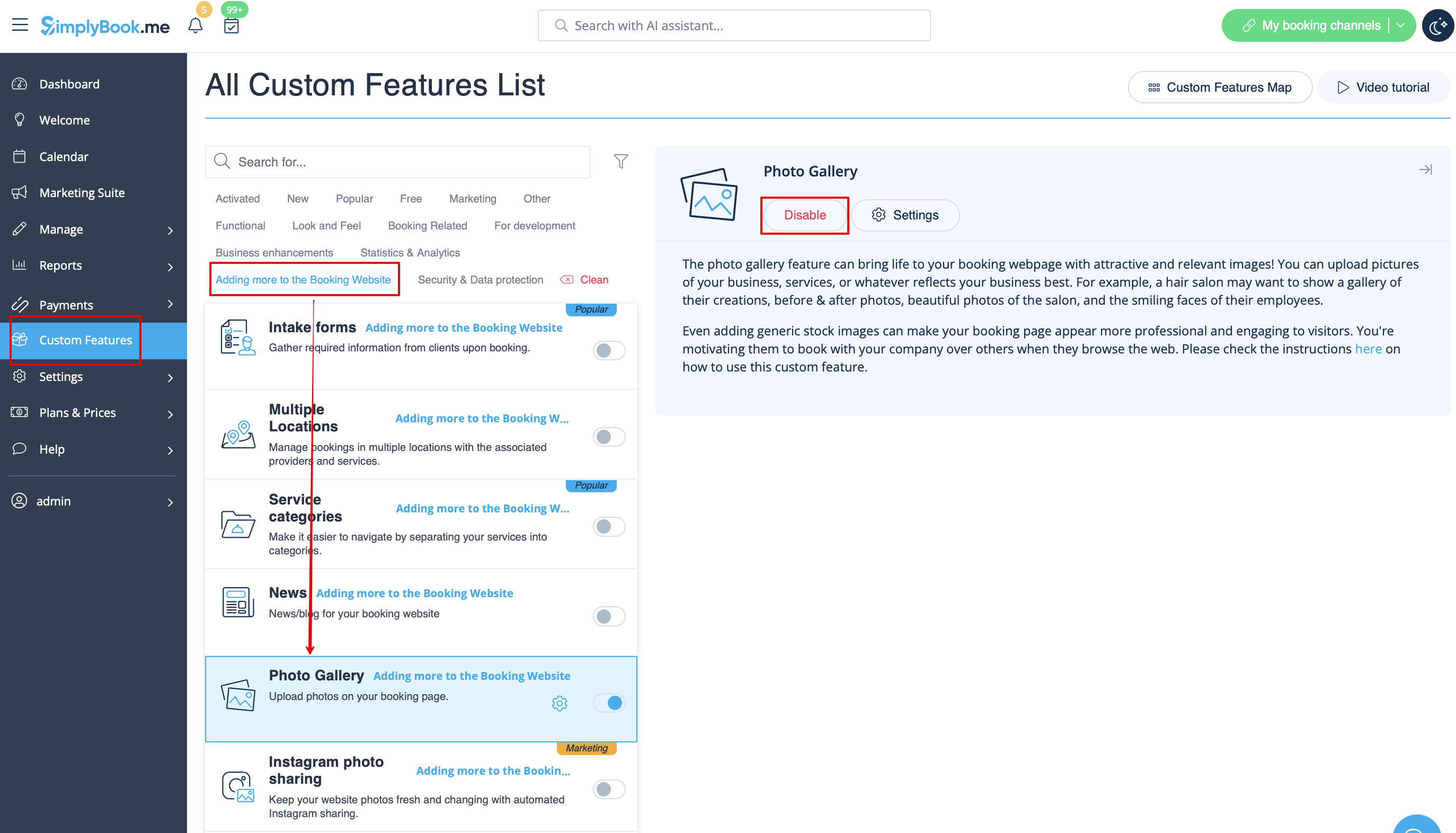
Galerie
Dans la section des fonctions personnalisées, désactivez la galerie de photos.
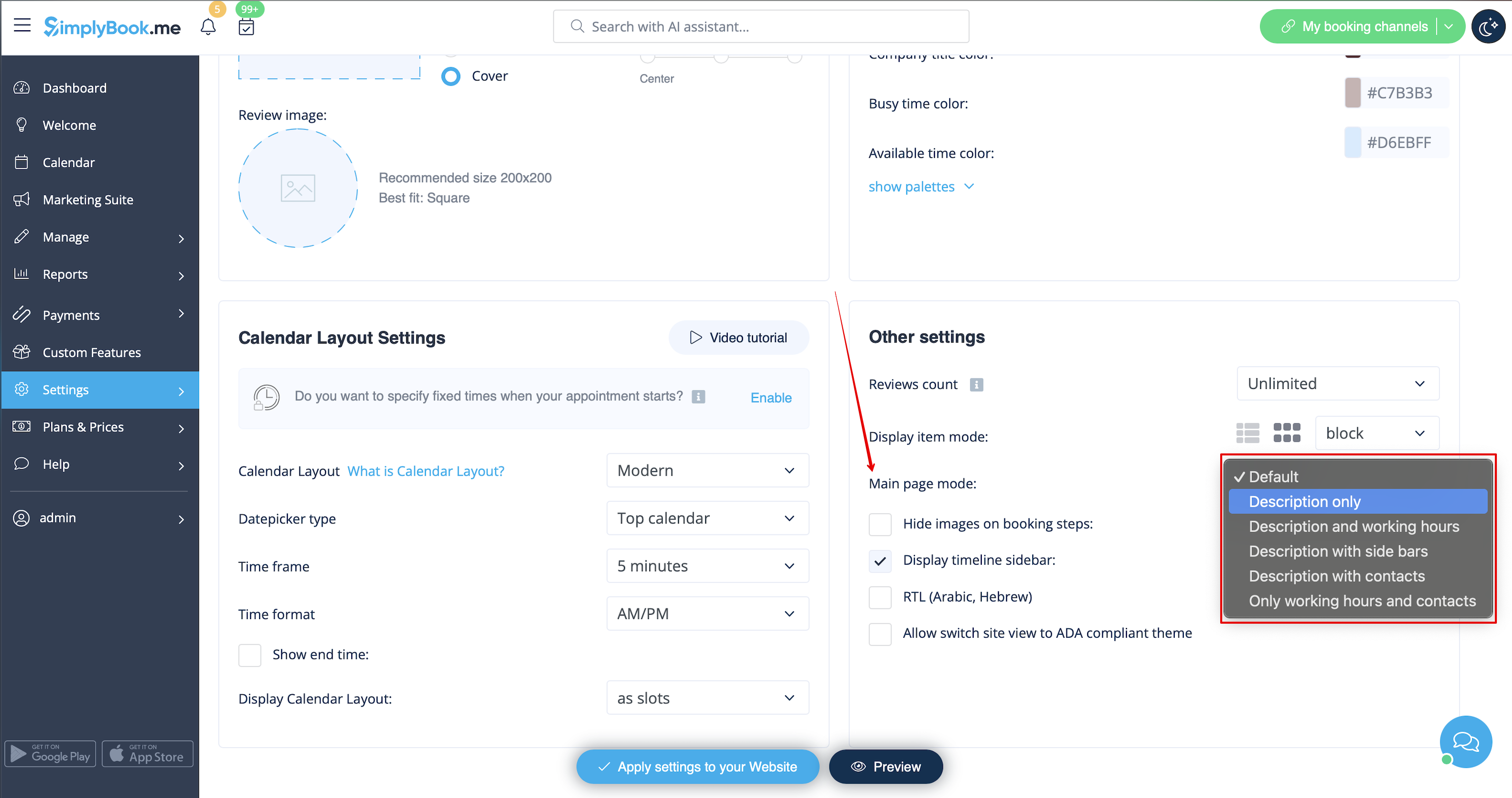
Heures de travail
Si vous souhaitez supprimer cette section pour les nouveaux thèmes, allez dans Paramètres -> Paramètres de conception -> Autres paramètres -> Mode de la page principale et choisissez le mode sans heures de travail.
Conditions générales de SimplyBook.me
- Veuillez noter que vous devez confirmer que vous avez ajouté des informations sur SimplyBook.me Ltd. en tant que fournisseur à vos conditions générales.
Pour supprimer la case à cocher, vous devez avoir activé et configuré correctement toutes les options mentionnées :
Soit :
1. SMTP + Domaine personnalisé + Conditions générales + Thème différent du blanc.
Soit : 1. SMTP + Domaine personnalisé + Conditions générales + thème différent de vide :
2. SMTP + Conditions générales + thème vierge + Widget sur votre site web.
Après cela, vous pourrez activer l'option Je confirme que j'ai ajouté des informations sur SimplyBook.me Ltd. en tant que fournisseur à mes conditions générales dans Caractéristiques personnalisées -> Conditions générales et après avoir sauvegardé les paramètres, la case à cocher des conditions générales de SimplyBook.me sera supprimée du site de réservation.

Lien vers mes données personnelles
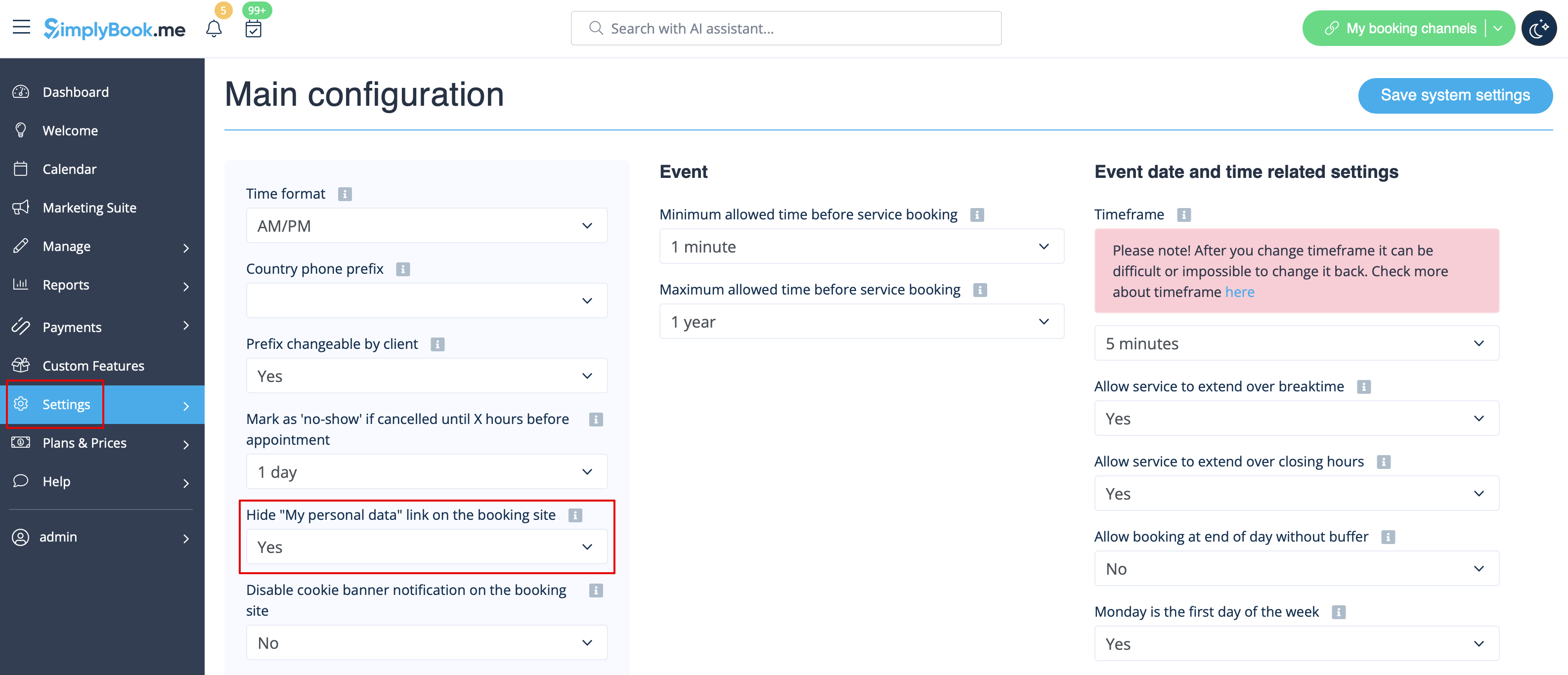
Allez dans Paramètres -> Configuration principale et sélectionnez Oui dans Masquer le lien "Mes données personnelles" sur le site de réservation. Sauvegardez les paramètres.
Hide
Créneaux horaires non disponibles
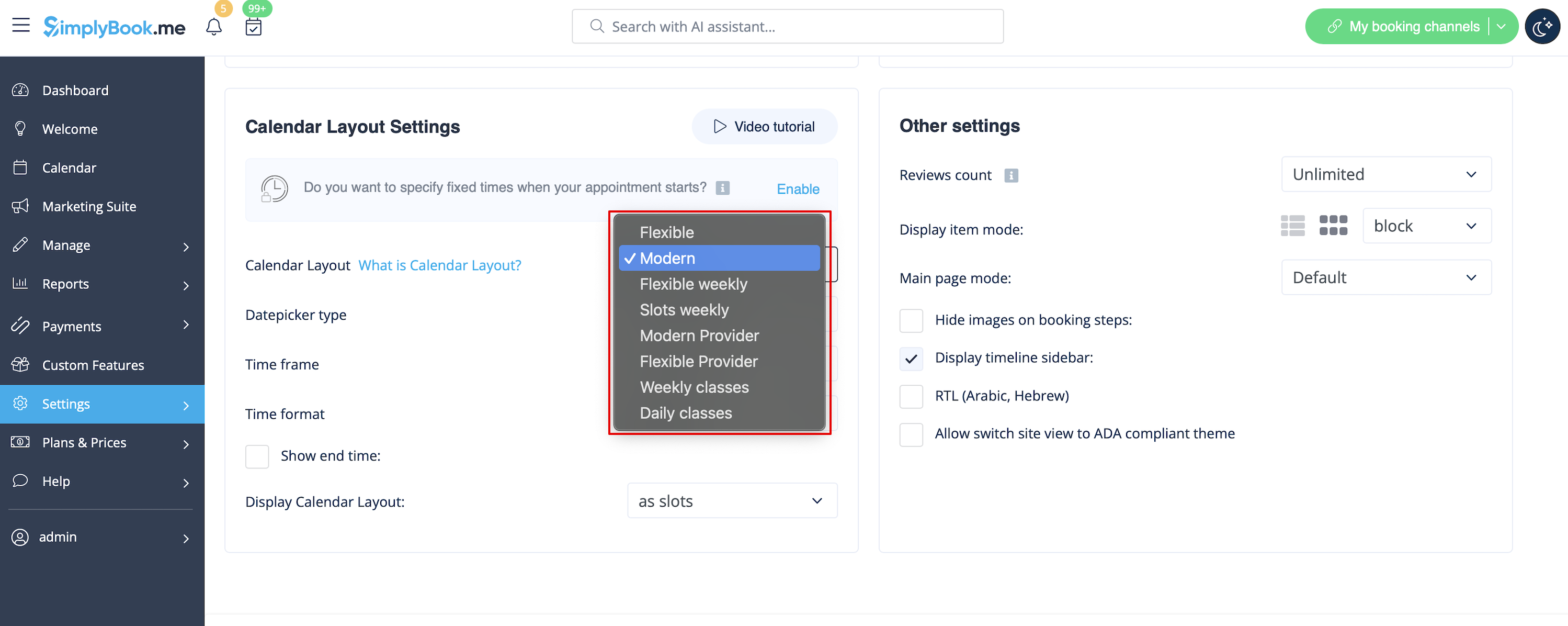
Veuillez sélectionner un calendrier moderne, moderne fournisseur, quotidien (disponible si la fonction Classes est activée) ou hebdomadaire pour les classes dans le menu déroulant Paramètres -> Paramètres de conception -> Disposition du calendrier -> Disposition du calendrier -> Disposition du calendrier.
Disable booking page(available for paid accounts only)
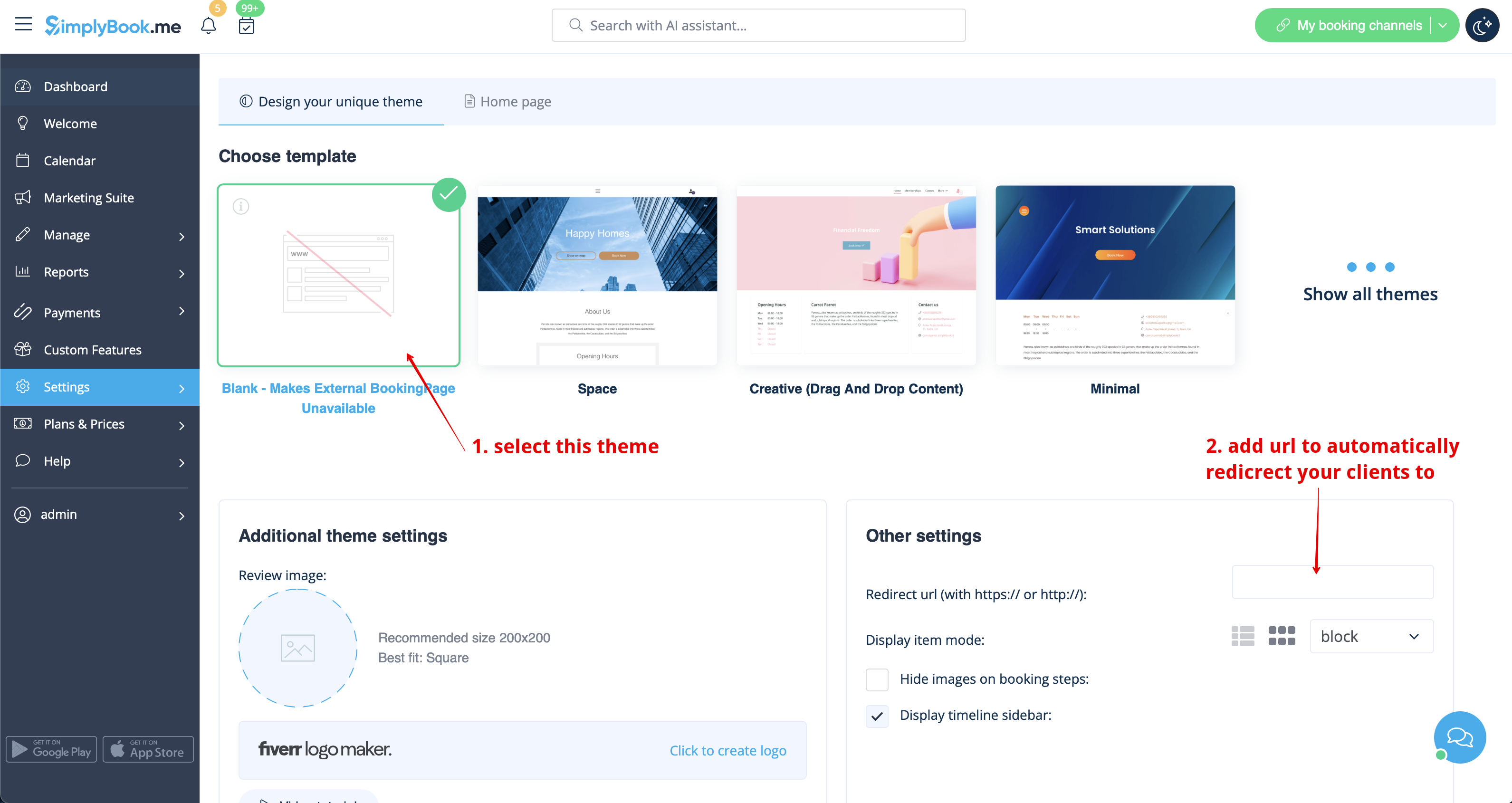
In order not to show any info on your booking page (make it blank), you can put blank theme on your booking page in Settings -> Design settings.
Please select to show all themes and choose the last one without image, add the link to the page your clients should be redirected to in case they open your booking page and save settings.
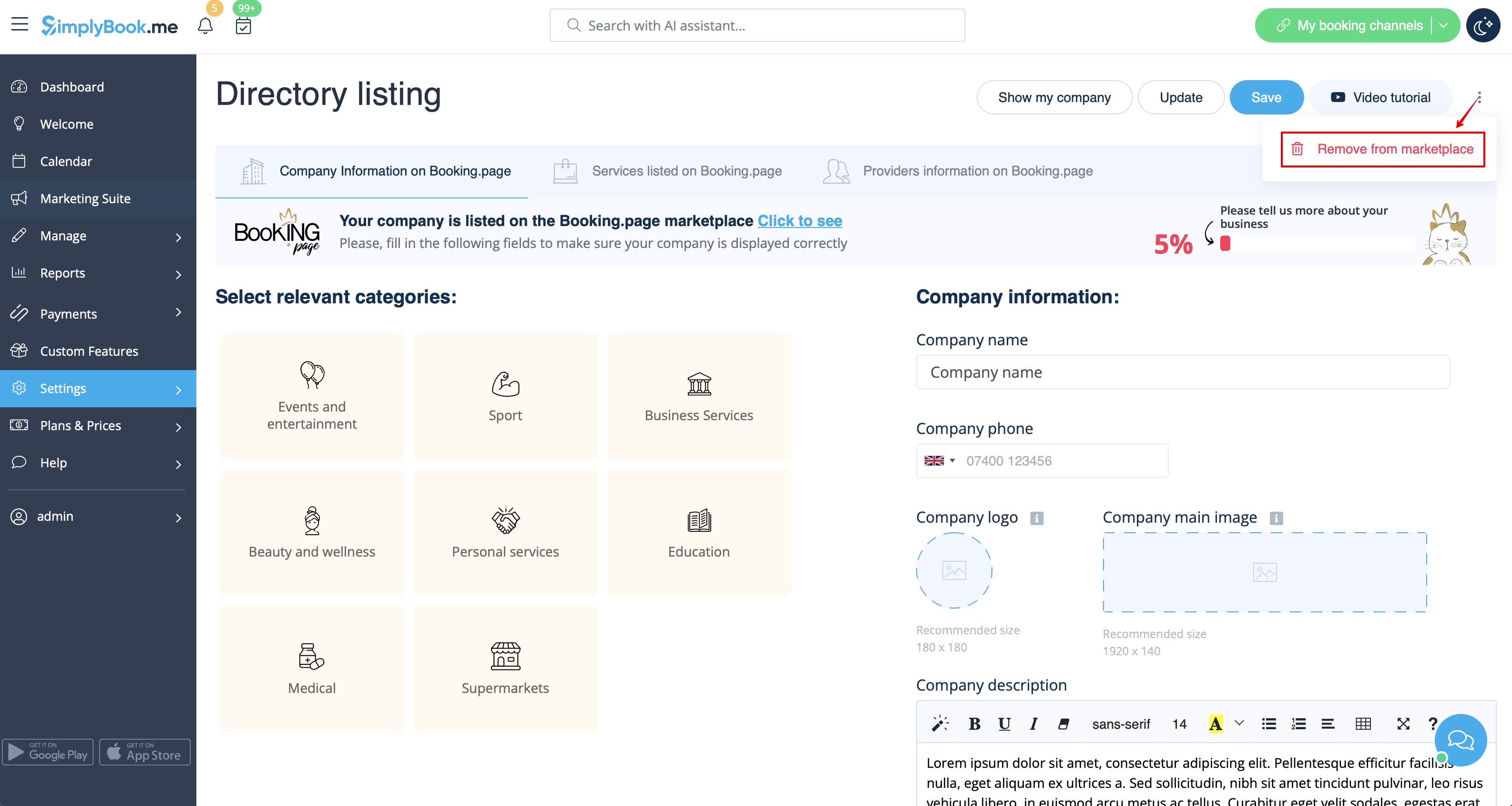
Please note! Even with blank theme your booking page will appear in Google and information will be shown in Booking.Page directory. To remove your company from directory, please click on Remove from marketplace button Settings -> Directory listing.
Removing with Custom CSS
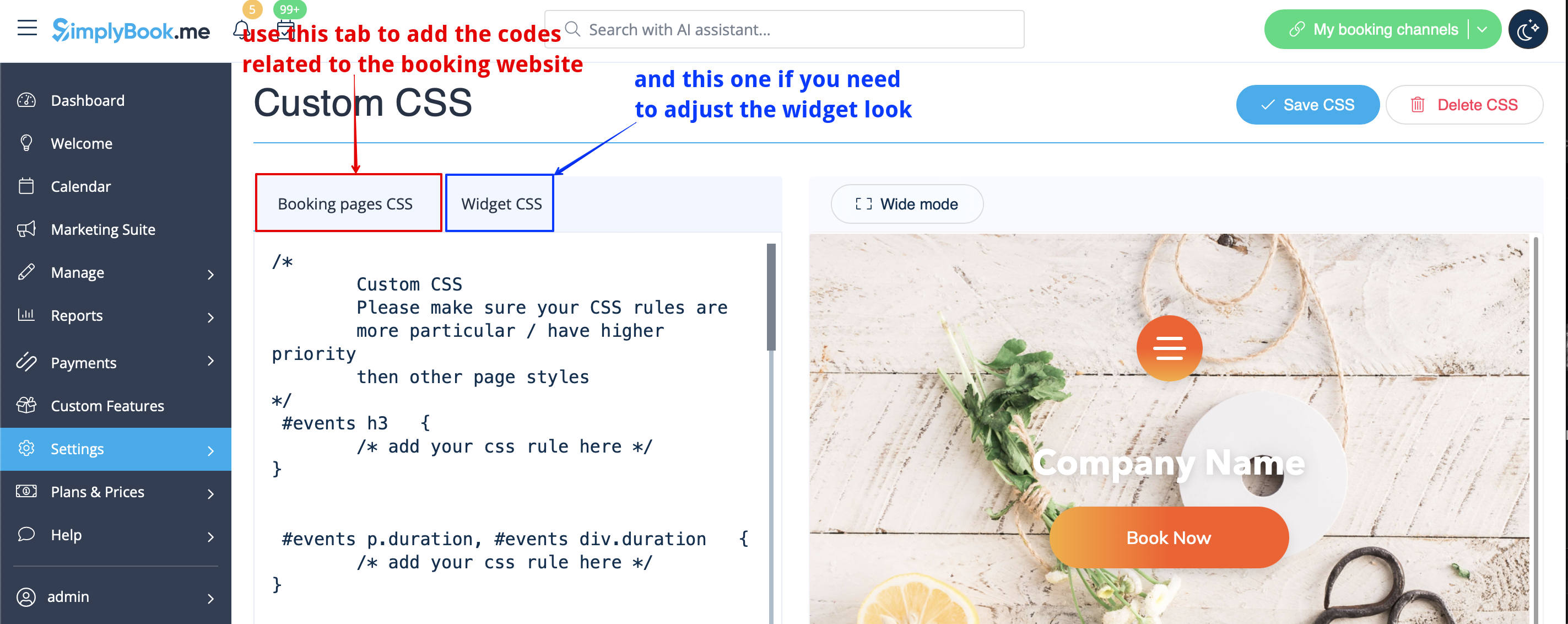
- Please note! Add the code(s) to adjust the styles to "Booking pages CSS" tab if you wish to edit the booking website
- or "Widget CSS" if you are editing widget on your website.
Phone field
(Client login feature is disabled)
- 1. Go to Settings -> Email and SMS settings -> Settings for email and SMS notifications -> Mandatory registration fields -> Email (to make phone not mandatory).
- 2. Please go to Custom Features -> Custom Features and enable Custom CSS feature. Then in this feature Settings or in Custom Features -> Custom CSS paste to Booking pages CSS window at the very top the following code:
.form-group.form-client-phone{
    display: none;
}
Email field
(Client login feature is disabled)
- 1. Go to Settings -> Email and SMS settings -> Settings for email and SMS notifications -> Mandatory registration fields -> Phone (to make email not mandatory).
- 2. Please go to Custom Features -> Custom Features and enable Custom CSS feature. Then in this feature Settings or in Custom Features -> Custom CSS paste to Booking pages CSS window at the very top the following code:
.form-group.form-client-email{
    display: none;
}
Our time
Please go to Custom Features -> Custom Features and enable Custom CSS feature. Then in this feature Settings or in Custom Features -> Custom CSS paste to Booking page CSS window at the very top the following code:
div#sb_booking_company_time {
    display: none;
}
May we send you promotions and relevant information
Please go to Custom Features -> Custom Features and enable Custom CSS feature. Then in this feature Settings or in Custom Features -> Custom CSS paste to Booking page CSS window at the very top the following code:
- Client login feature enabled:
#main #client-login .custom-form #sb_terms_and_conditions .promotions-letter-flag label[role=button]{
    display: none;
}
- Client login feature disabled:
#sb-main-container #main #sb-timeline #steps #details .detail-step-wrap .detail-step .license-links-container .promotions-letter-flag label[role=button]{
    display: none;
}
Filter by Services on Membership page
Please go to Custom Features -> Custom Features and enable Custom CSS feature. Then in this feature Settings or in Custom Features -> Custom CSS paste to Booking page CSS window at the very top the following code:
#membership-view #membership-filters {
   display: none;
}
Remove banner image
- Please note! "Book now" and other buttons that are displayed on top of banner will be hidden as well. The code may not work with some themes.
Please go to Custom Features -> Custom Features and enable Custom CSS feature. Then in this feature Settings or in Custom Features -> Custom CSS paste to Booking page CSS window at the very top the following code:
#main-buttons {
    display: none;
}
Remove some specific element
If you need to remove a specific element from your booking page, you will need to use Custom CSS feature and the corresponding code. If you don't know CSS, please contact support and they will create a request to check whether such change is possible.
Please note, that big requests may be done on a paid basis.
