From SimplyBook.me
Created page with "Ім'я та прізвище" |
Created page with "{{#seo: |title=Ім'я та прізвище - SimplyBook.me |description=Переконайтеся, що ім'я та прізвище правильно відображаються в даних клієнта. Легко налаштуйте параметри. Дізнайтеся більше тут! |titlemode=додати |keywords=fAQ, поширені запитання, програмне забезпечення для бронювання, запитанн..." |
||
| Line 1: | Line 1: | ||
<languages/> | <languages/> | ||
{{#seo: |title=Ім'я та прізвище - SimplyBook.me |description=Переконайтеся, що ім'я та прізвище правильно відображаються в даних клієнта. Легко налаштуйте параметри. Дізнайтеся більше тут! |titlemode=додати |keywords=fAQ, поширені запитання, програмне забезпечення для бронювання, запитання щодо системи бронювання, онлайн-бронювання, програмне забезпечення для календаря, система бронювання, календар бронювання, програмне забезпечення для планування, онлайн-планування зустрічей, онлайн-планування, плагіни, спеціальні функції, додаткові функції, реєстрація клієнтів, дані клієнтів, реєстрація клієнтів, реєстрація, додаткова інформація, форма реєстрації клієнтів }} | |||
{{#seo: | |||
|title= | |||
|description= | |||
|titlemode= | |||
|keywords= | |||
}} | |||
Revision as of 12:11, 15 May 2025
- It may happen that you need to have separate fields for clients' first and last names during registration process.
- Now it is possible with our Client Fields feature and new reordering functionality.
- Please note! This setup is available with Client login feature enabled.
- How to use
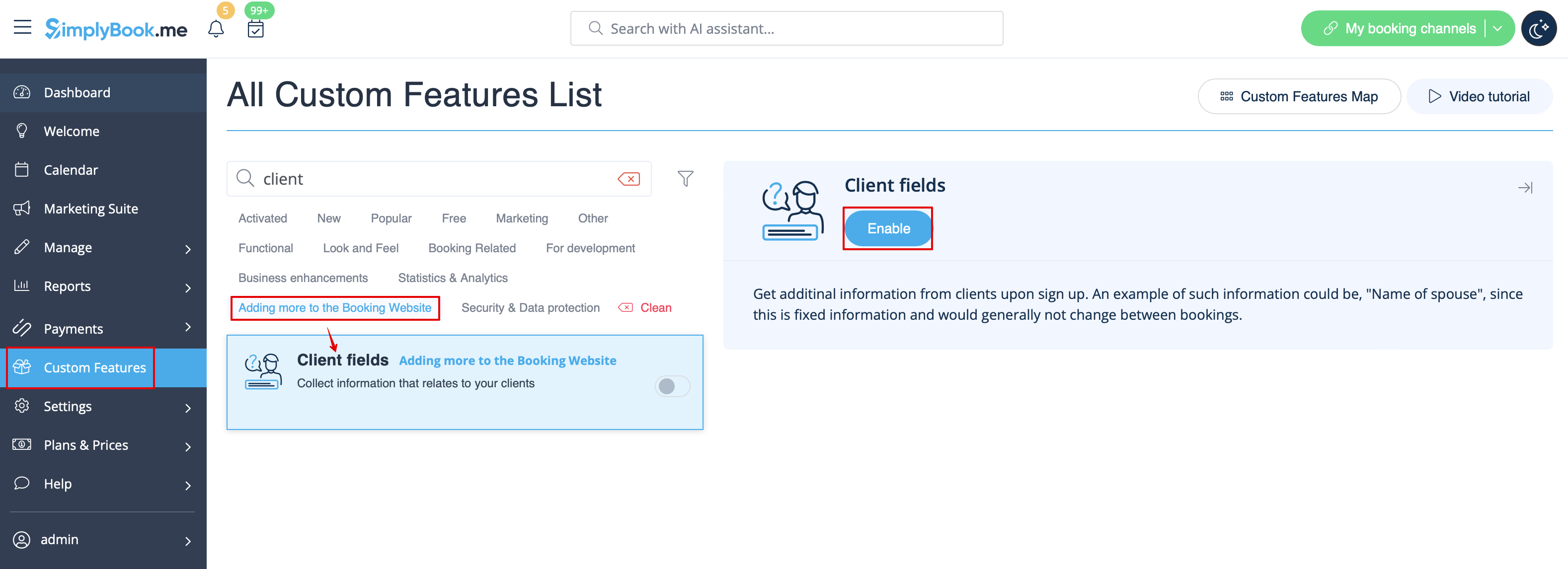
- 1. Enable Client Fields custom feature on the Custom Features page.
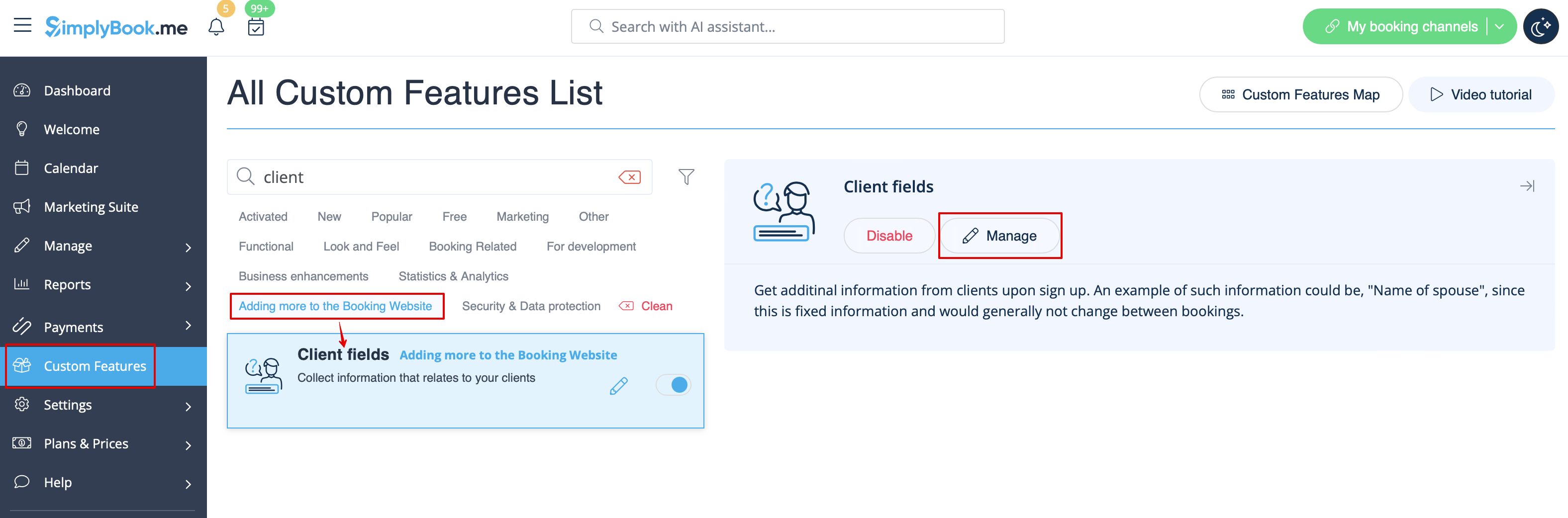
- 2. Go to its settings by clicking on Manage link.
- Or navigate to Manage -> Client fields in the left-side menu.
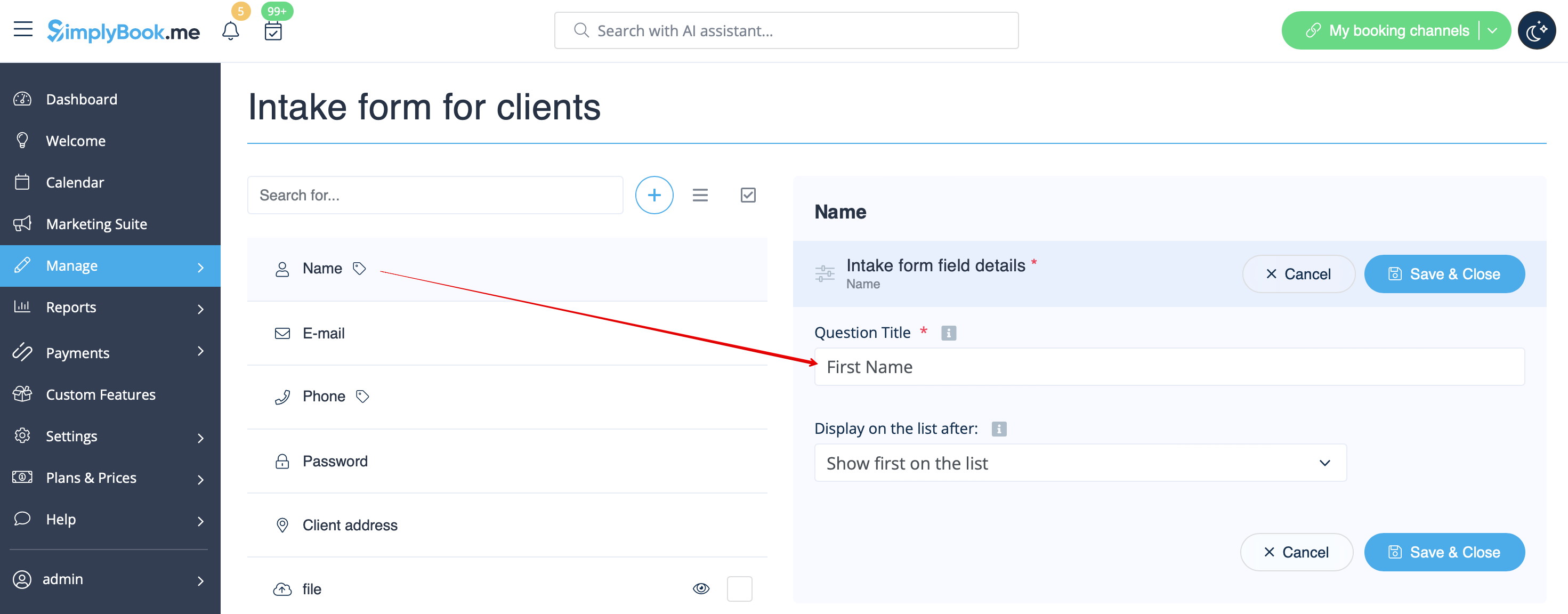
- 3. You will see default registration fields there. Select the first one called Name and rename it to First Name. Save.
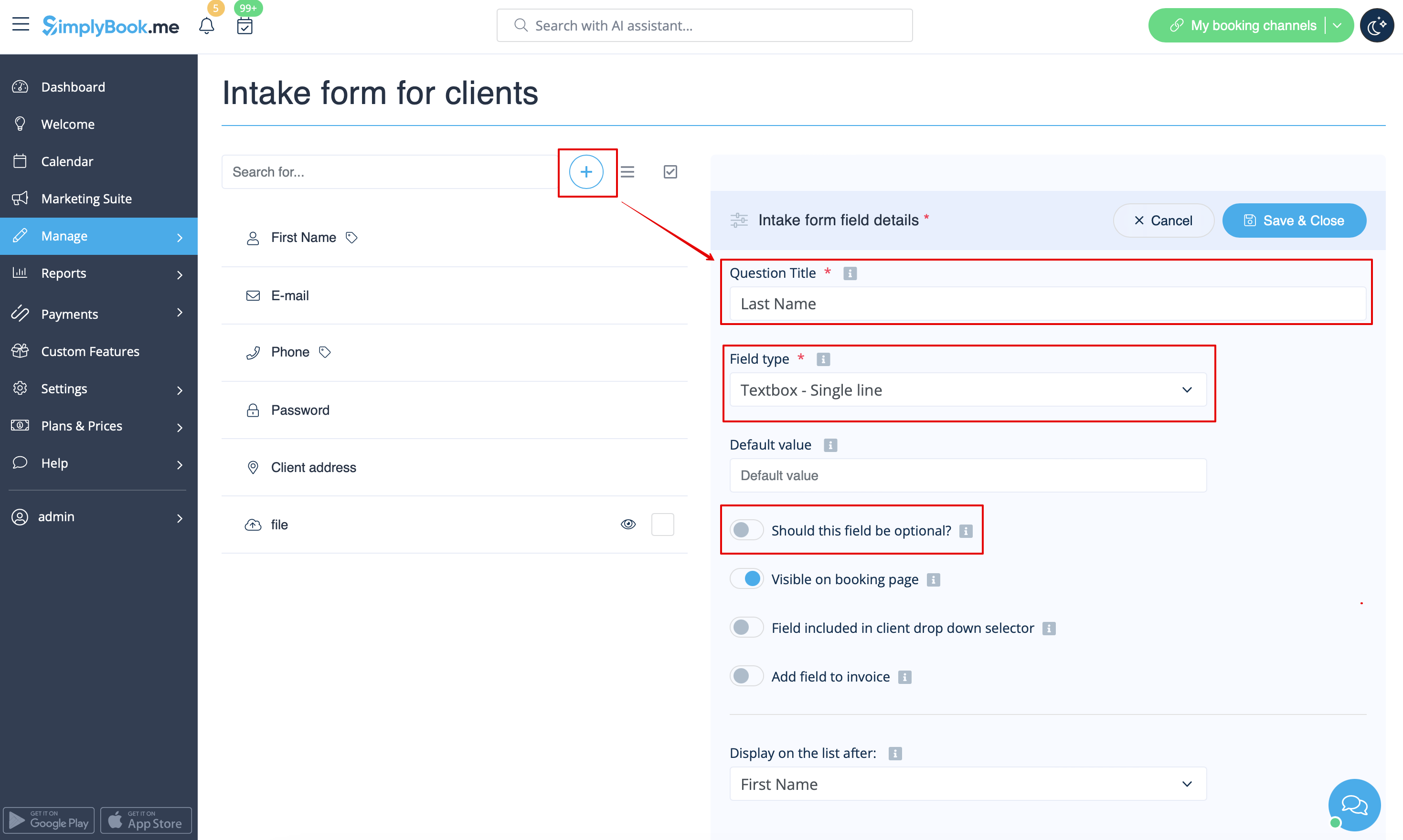
- 4. Click on + at the top to create new client field, add Last Name as a Question title and select Textbox - Single line type.
- By default the field is set to be obligatory to fill in by clients but if you need to make it non-mandatory please use the corresponding switcher.
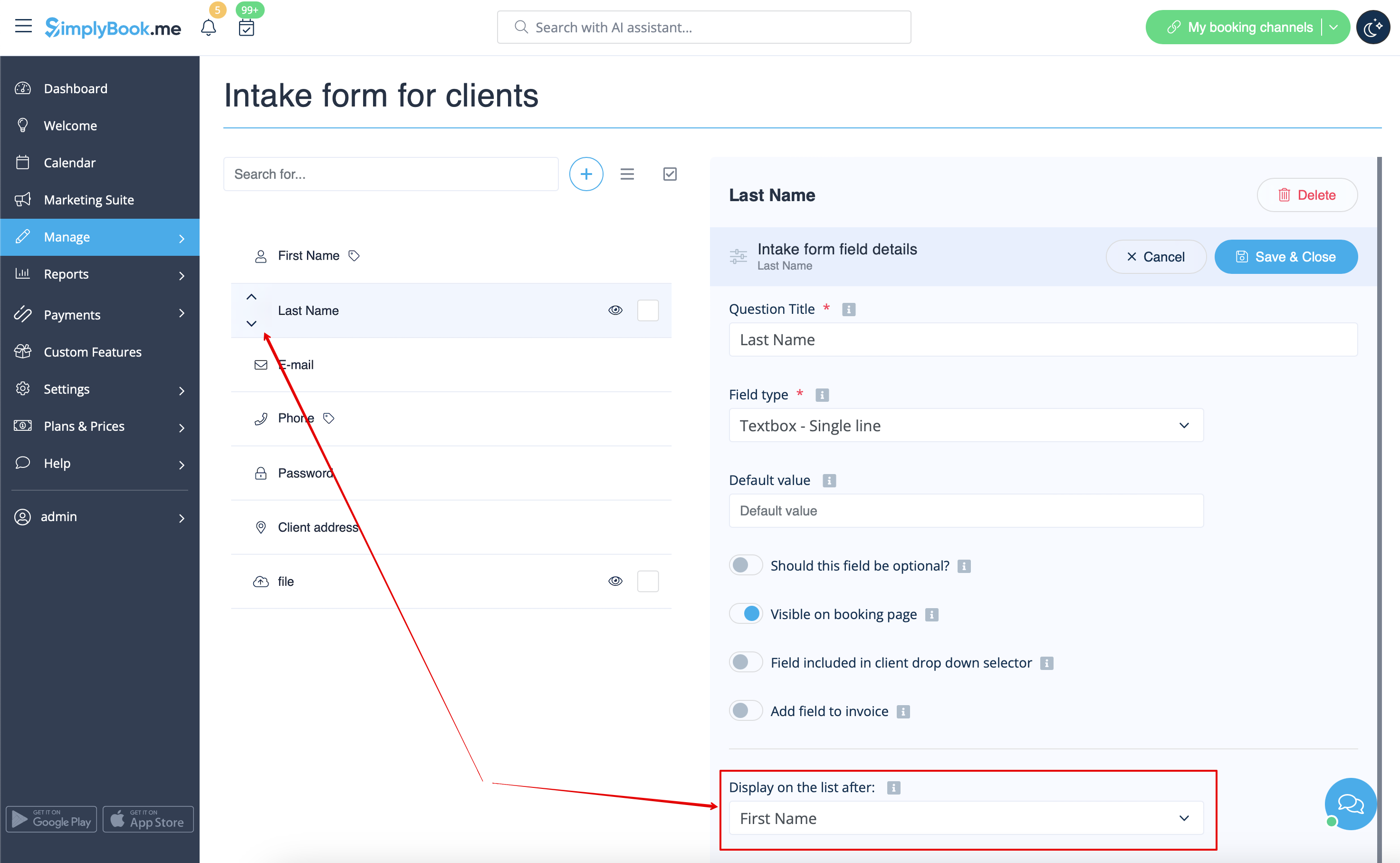
- 5. Select its position to be after First Name and save.
- Or if you have already saved the field use the arrows to re-order.
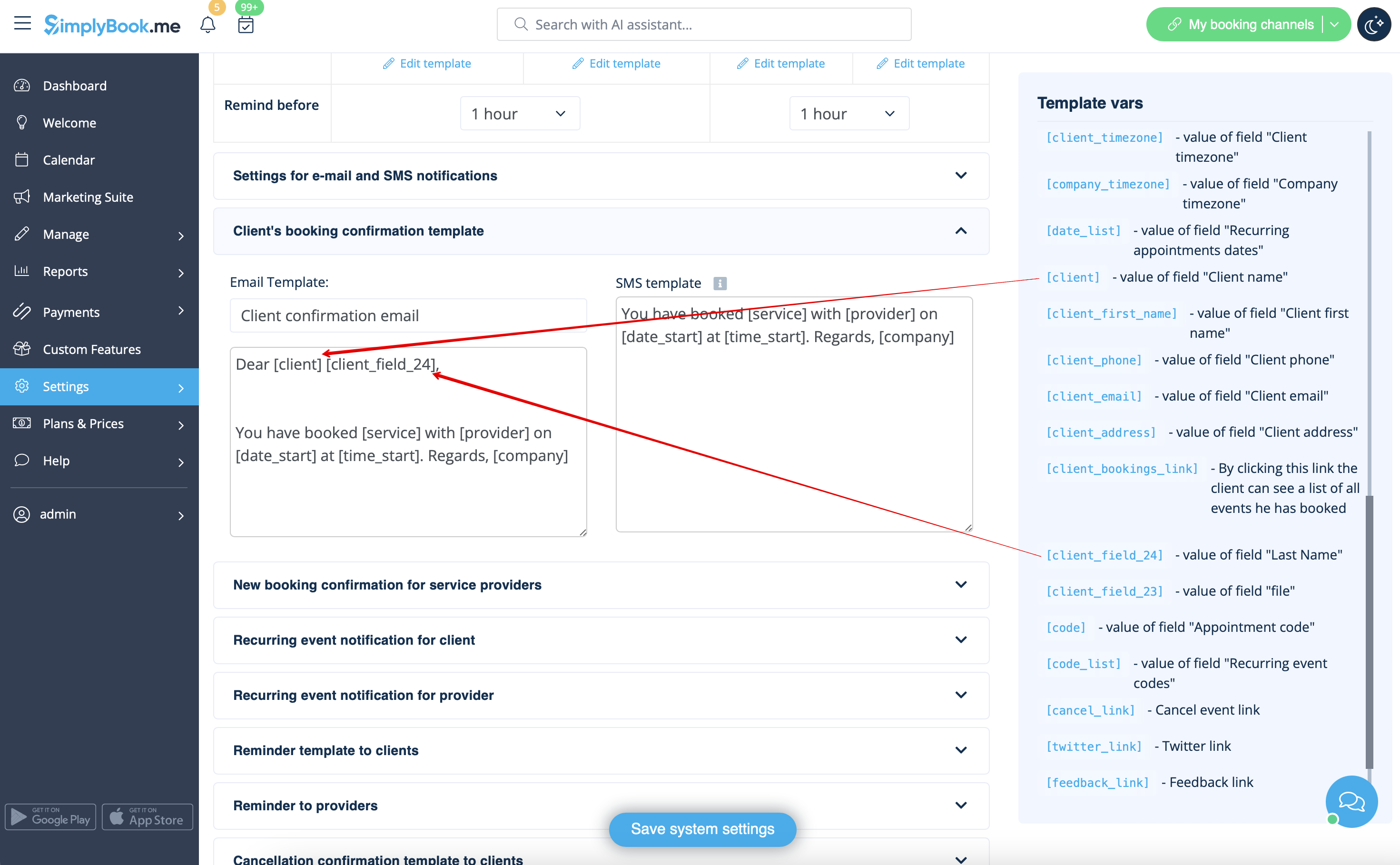
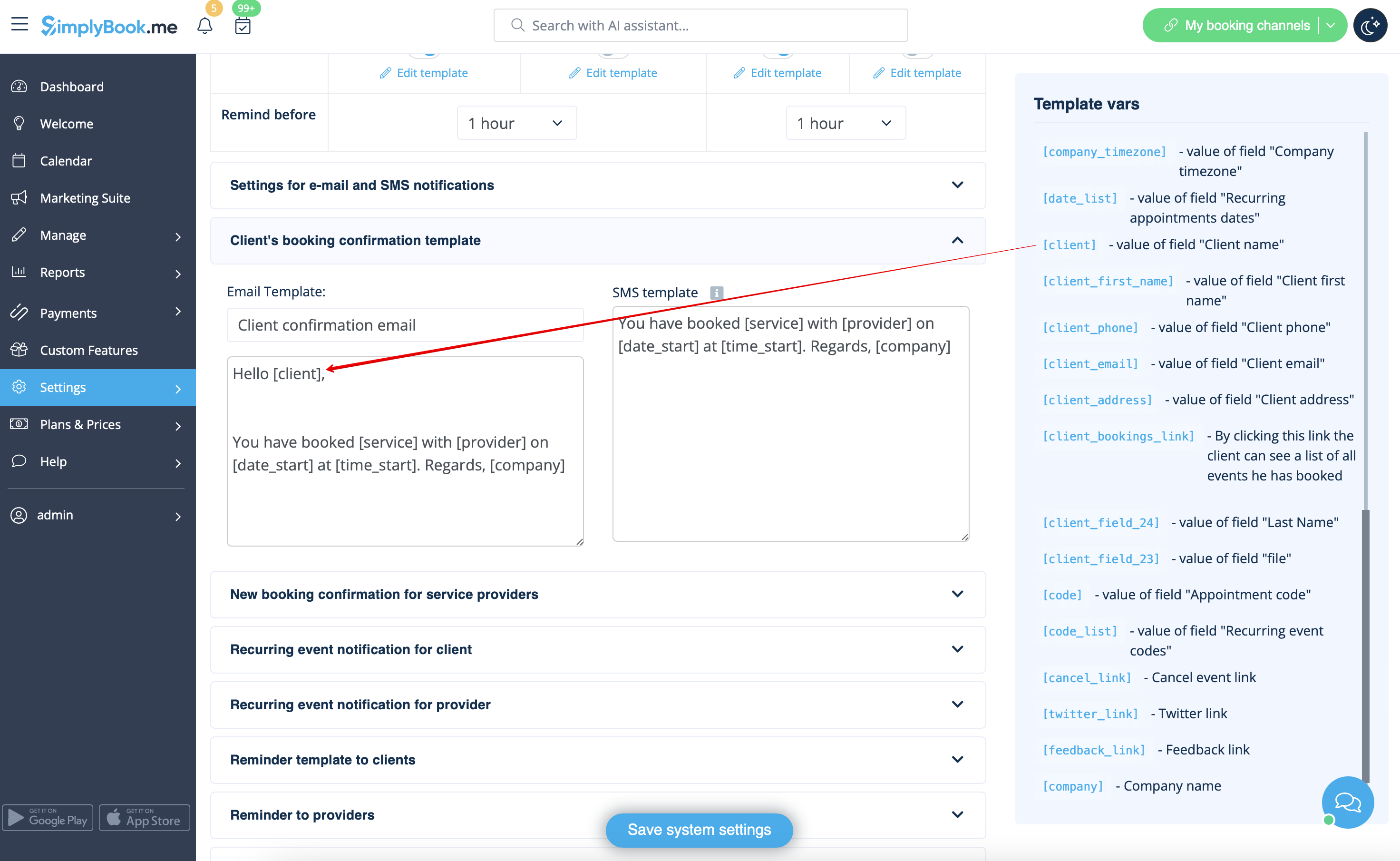
- 6. (optional) Add the desired variables to the notifications templates in Settings -> Email and SMS settings (or Flexible notifications feature if you have customized them per service/provider).
- For example, you can make booking related more personal by using only first name in the greeting.
- (here we are using default [client] variable as we have simply renamed the default field in step #3)
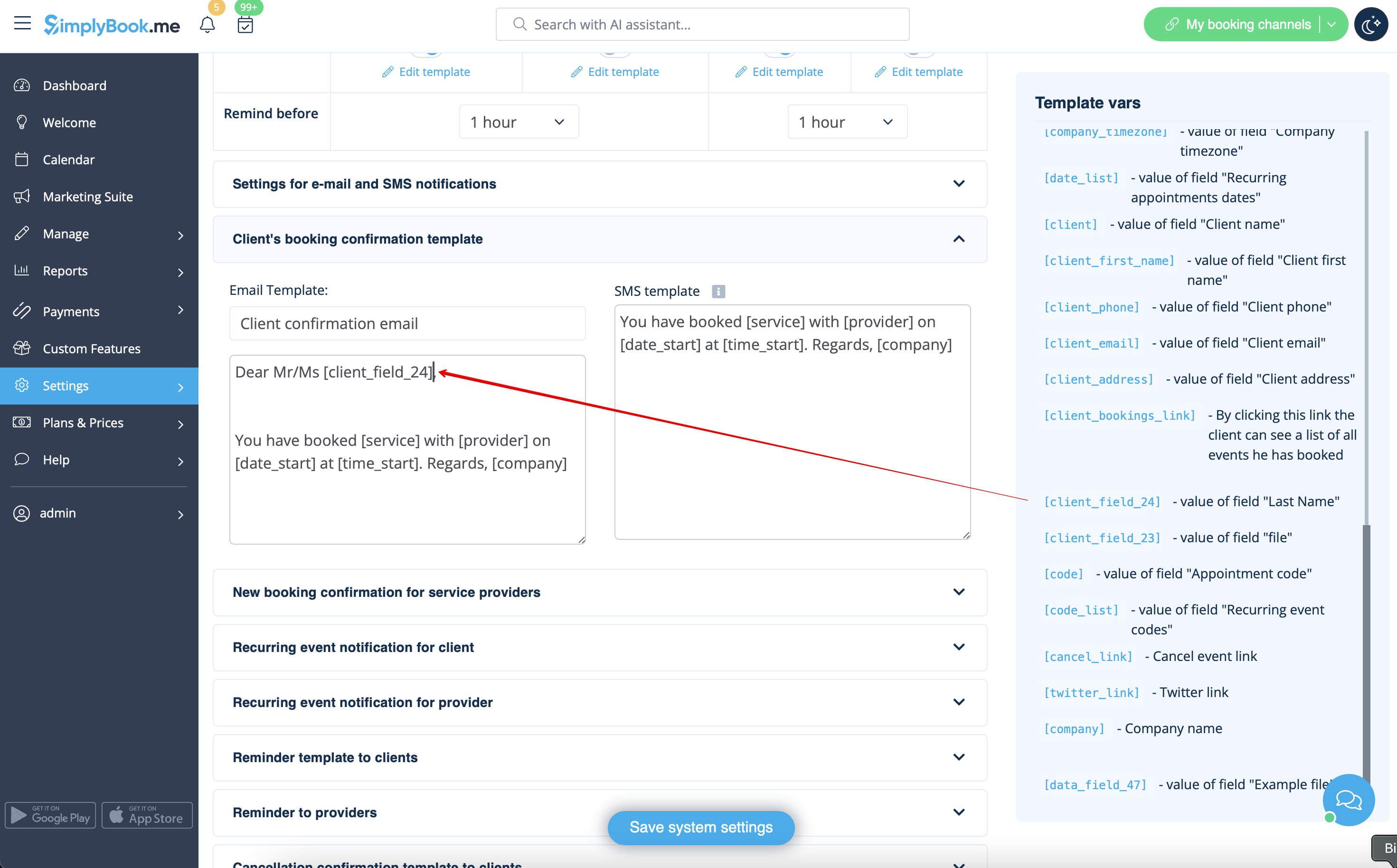
- Or sound more official with only last name use.
- (client field is used here, taken from step #4)
- Or even use both if you like.
- (default variable and client form combined)