Created page with "{{#seo: |title=Часті запитання про програмне забезпечення для управління доходами та білінгу |description=Інтегруйте FreshBooks для зручного управління рахунками та платежами. Синхронізуйте фінансові дані для безперебійного відстеження. Почніть зараз! |titlemode=додати |keywords=faq,..." |
Created page with "Інтеграція FreshBooks" Tags: Mobile edit Mobile web edit |
||
| Line 9: | Line 9: | ||
Відеоурок [[File:Youtube-Logo.png|link=https://www.youtube.com/watch?v=Cr-OPRJFviw]] | Відеоурок [[File:Youtube-Logo.png|link=https://www.youtube.com/watch?v=Cr-OPRJFviw]] | ||
<span style="background-color:#ffe9e9; padding:5px; border-radius:5px;">'''Зверніть увагу!'''</span> | |||
<span style="background-color:#ffe9e9; padding:5px; border-radius:5px;">''' | *<span style="background-color:#ffe9e9; padding:5px; border-radius:5px;">У рахунках-фактурах, створених за допомогою інтеграції FreshBooks, буде вказана лише загальна сума без деталей про податки та знижки. З іншого боку, рахунки-фактури SBpay.me міститимуть вичерпну інформацію, таку як ціни товарів, будь-які застосовні податки або знижки та загальну суму.</span> | ||
* <span style="background-color:#ffe9e9; padding:5px; border-radius:5px;"> | *<span style="background-color:#ffe9e9; padding:5px; border-radius:5px;">Неможливо автоматично створити запис «Квитанція про повернення коштів» у FreshBooks, коли повернення коштів обробляється на стороні SBPay.me.</span> | ||
* <span style="background-color:#ffe9e9; padding:5px; border-radius:5px;"> | |||
| Line 20: | Line 18: | ||
</div> | </div> | ||
1. Перейдіть на сторінку <span style="background-color:#d4f8e5; padding:5px; border-radius:5px;">«Custom Features» (</span> Налаштування) в інтерфейсі SBPay.me і натисніть кнопку <span style="background-color:#d4f8e5; padding:5px; border-radius:5px;">«Enable» (У</span> вімкнути) поруч із Freshbooks. | |||
1. | |||
[[File:Freshbooks enable path.png|1200px|center|link=https://help.simplybook.me/images/d/d4/Freshbooks_enable_path.png]] | [[File:Freshbooks enable path.png|1200px|center|link=https://help.simplybook.me/images/d/d4/Freshbooks_enable_path.png]] | ||
2. Після увімкнення натисніть кнопку <span style="background-color:#d4f8e5; padding:5px; border-radius:5px;">«Підключити»</span>, щоб продовжити налаштування. | |||
2. | |||
[[File:Freshbooks connect path.png|1200px|center|link=https://help.simplybook.me/images/7/70/Freshbooks_connect_path.png]] | [[File:Freshbooks connect path.png|1200px|center|link=https://help.simplybook.me/images/7/70/Freshbooks_connect_path.png]] | ||
<div lang="en" dir="ltr" class="mw-content-ltr"> | <div lang="en" dir="ltr" class="mw-content-ltr"> | ||
Revision as of 17:39, 15 May 2025

Інтеграція SBPay.me та FreshBooks спрощує процес виставлення рахунків, автоматично створюючи рахунки або інші платежі за доходи в FreshBooks для кожного виконаного замовлення. Це допоможе вам оптимізувати фінансові робочі процеси та забезпечити точний облік ваших замовлень.
Відеоурок 
Зверніть увагу!
- У рахунках-фактурах, створених за допомогою інтеграції FreshBooks, буде вказана лише загальна сума без деталей про податки та знижки. З іншого боку, рахунки-фактури SBpay.me міститимуть вичерпну інформацію, таку як ціни товарів, будь-які застосовні податки або знижки та загальну суму.
- Неможливо автоматично створити запис «Квитанція про повернення коштів» у FreshBooks, коли повернення коштів обробляється на стороні SBPay.me.
- How to set and use
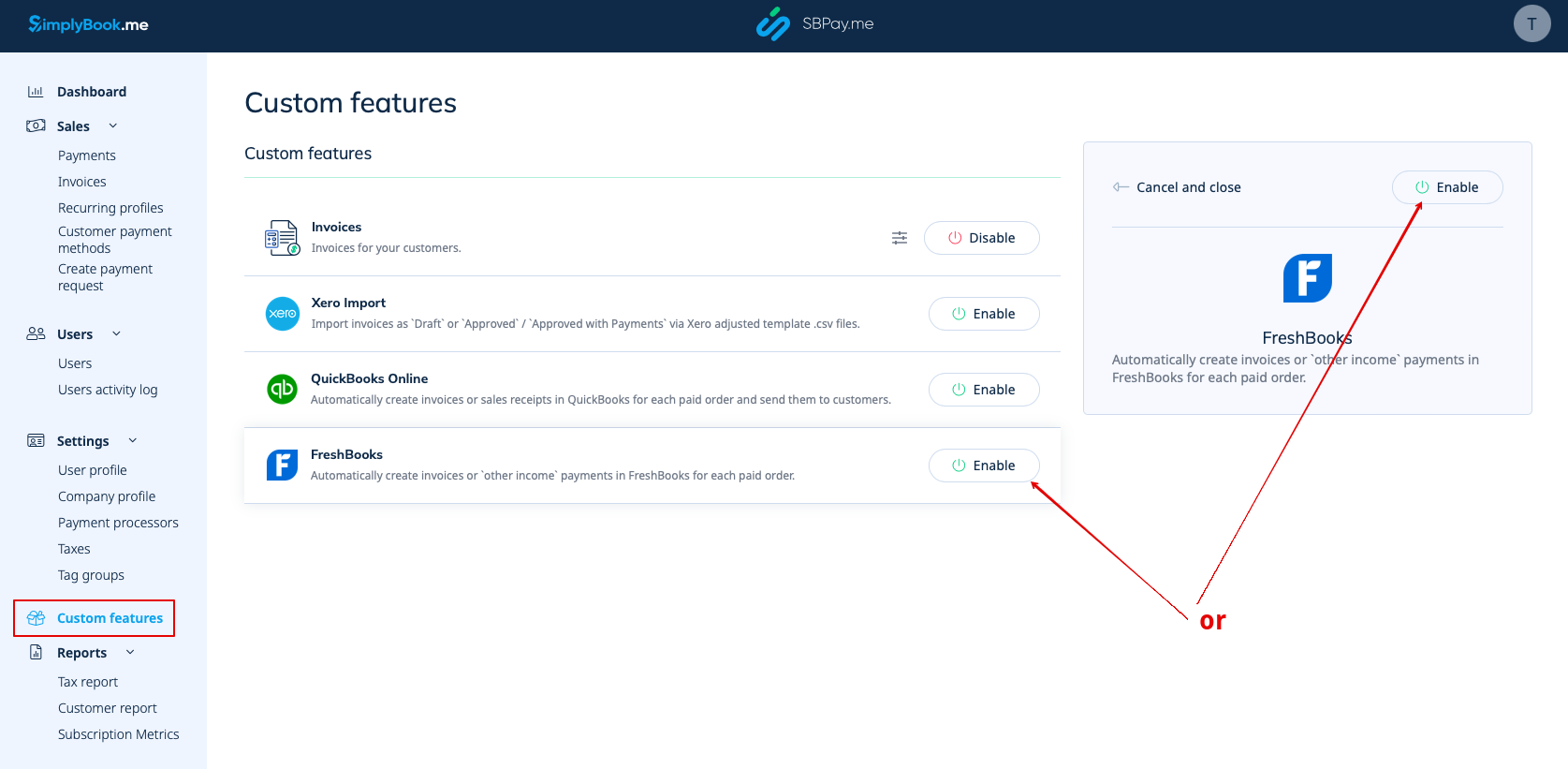
1. Перейдіть на сторінку «Custom Features» ( Налаштування) в інтерфейсі SBPay.me і натисніть кнопку «Enable» (У вімкнути) поруч із Freshbooks.
2. Після увімкнення натисніть кнопку «Підключити», щоб продовжити налаштування.
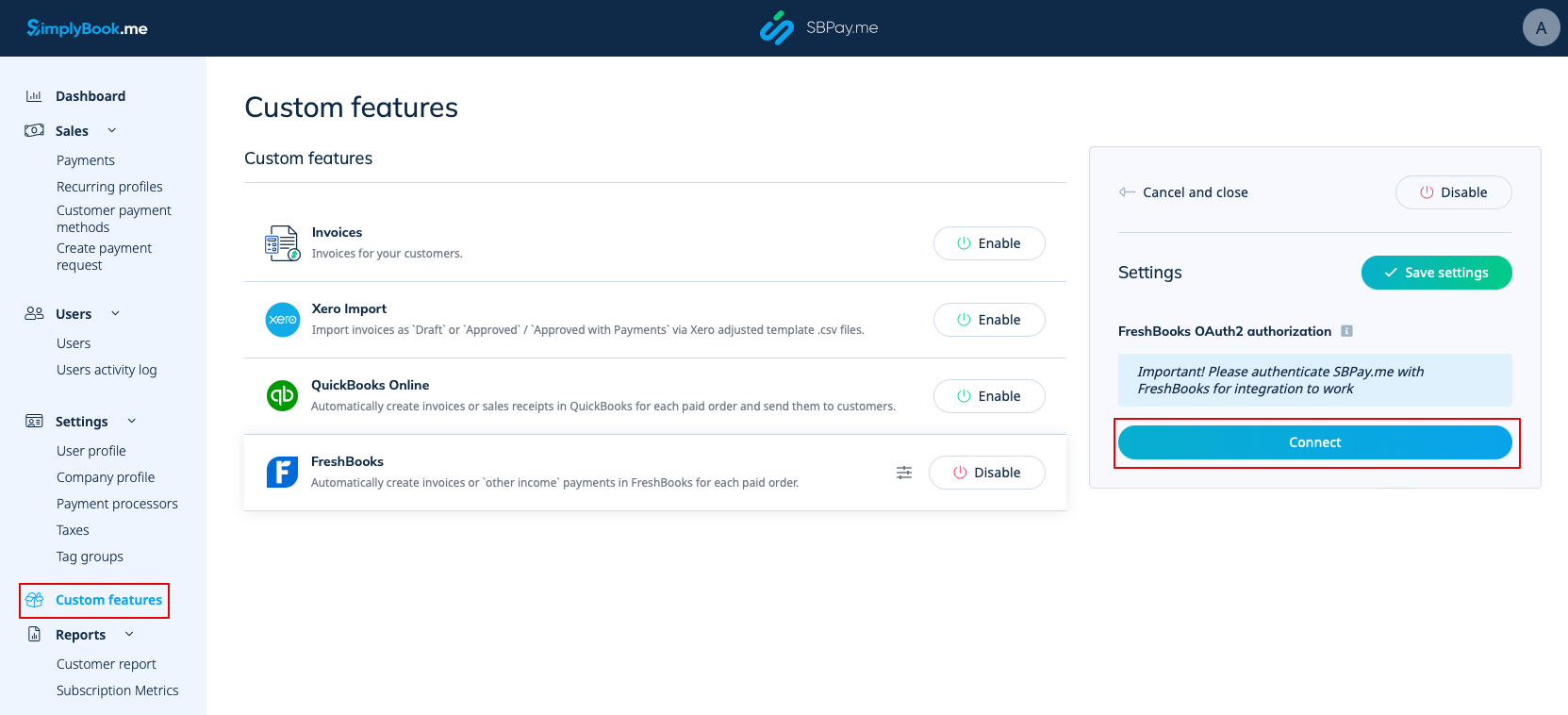
3. You'll be prompted to log in to your FreshBooks account to establish the connection. If you're already logged in to FreshBooks in the same browser, the connection will be automatic once you click on the Allow button.
If needed, you will find SBPay.me in the FreshBooks Apps -> Connected Apps section.
4. Once the systems are linked, you'll gain access to the integration settings within the SBPay.me interface.
5. Select the operation type. There are two options: Invoice and Payments: Other Income.
If you choose Invoice, each paid order will generate both an invoice and the associated payment in FreshBooks. Alternatively, selecting "Payments: Other Income" will only create an "Other Income" entry on the FreshBooks side once the order is paid.
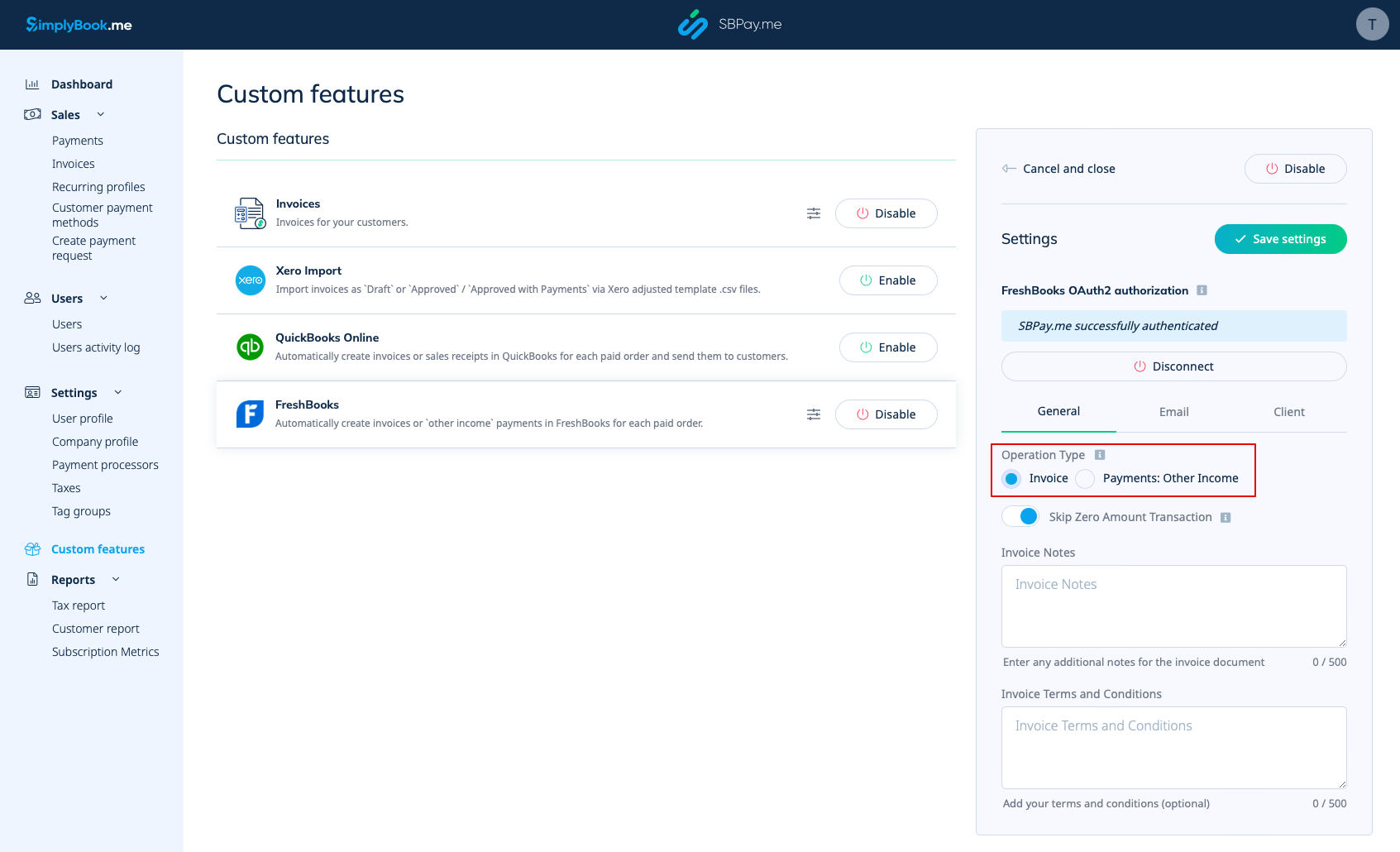
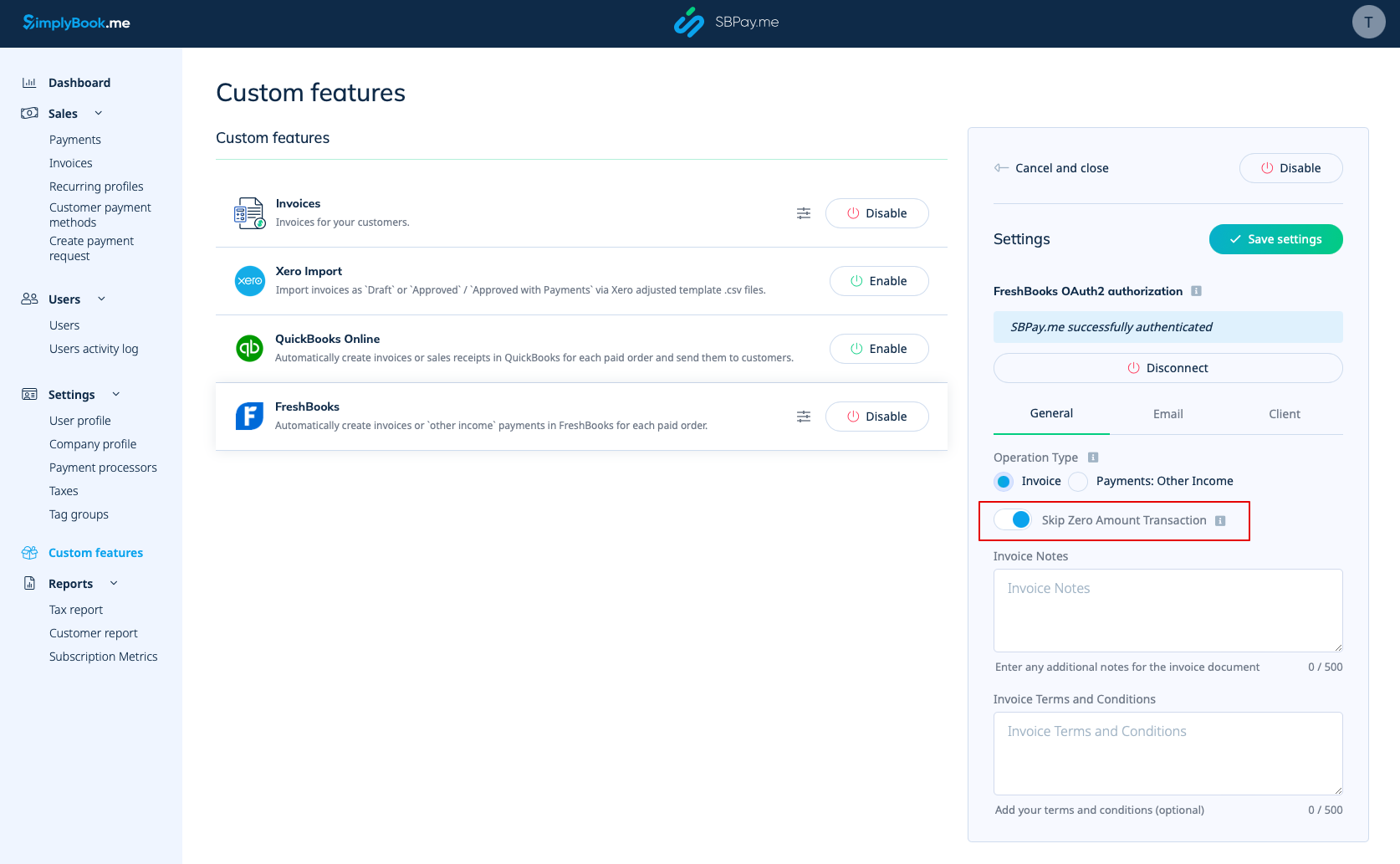
6. By default, the system is set to skip zero amount transactions so that they are not being sent to FreshBooks. For example, the transactions where a discount was applied and the resulting total is 0. You can maintain this setting if you don't require these records in FreshBooks. However, if it's crucial for your bookkeeping, you can disable this feature to include such transactions.
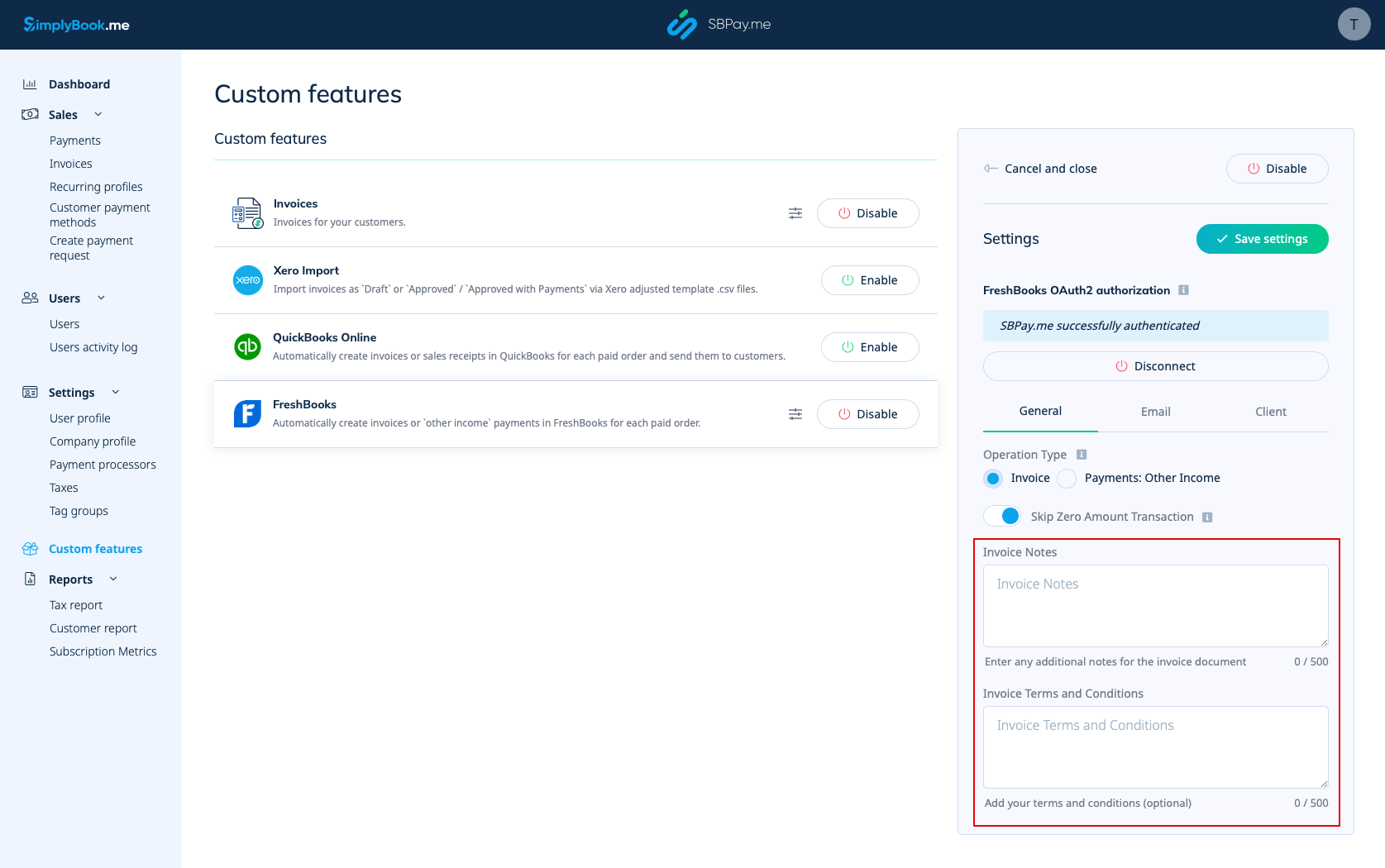
7. You can also include the Invoice Notes and the Invoice Terms and Conditions in the invoice document.
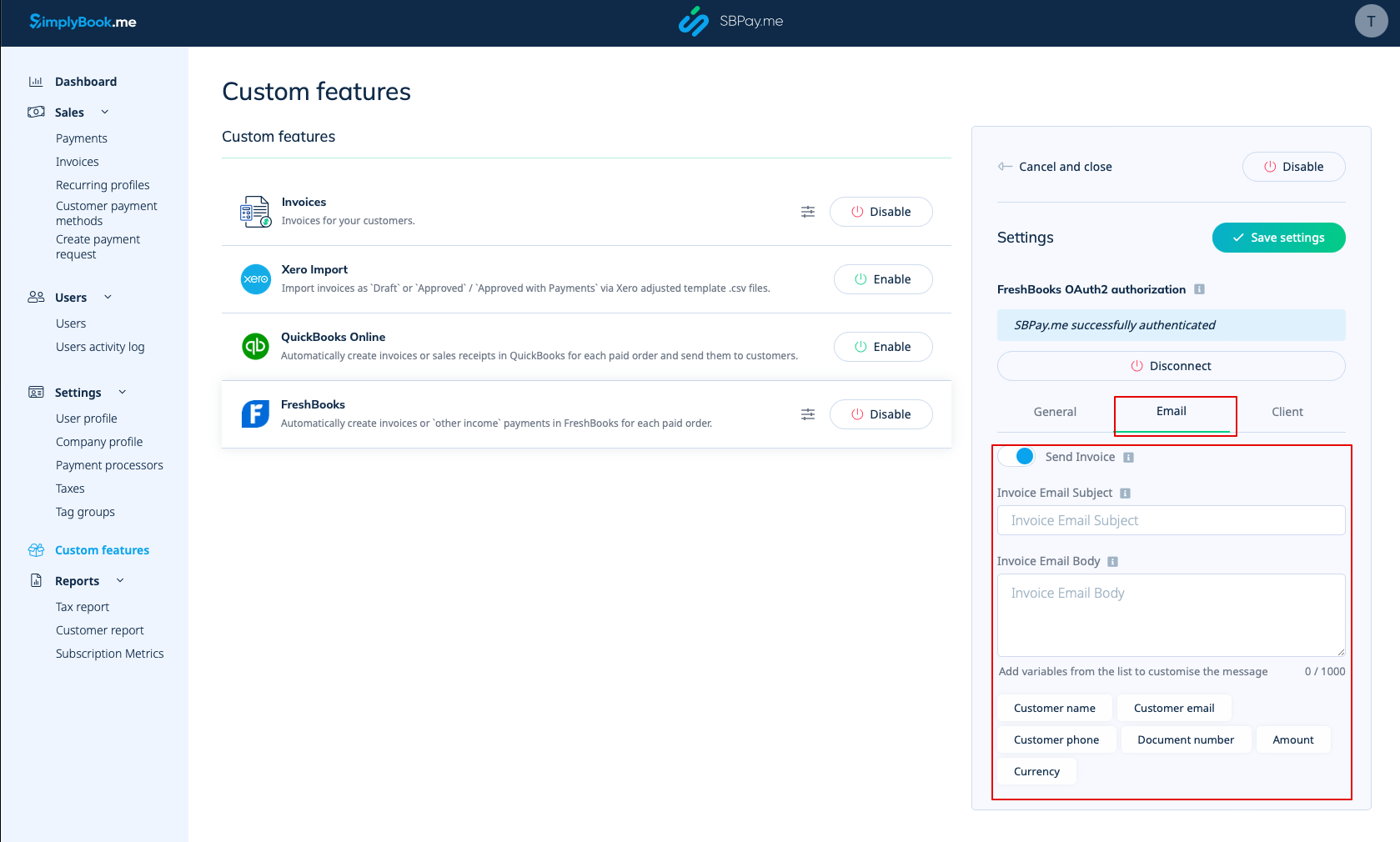
8. In the Email section you can disable or leave the Send Invoice option On. If enabled, you can specify the Invoice Email Subject as well as the Invoice Email Body. It is possible to add the supported variables to the email body which will be replaced with the actual information when being sent to the clients. If the email subject or body is not specified, the default FreshBooks template will be used.
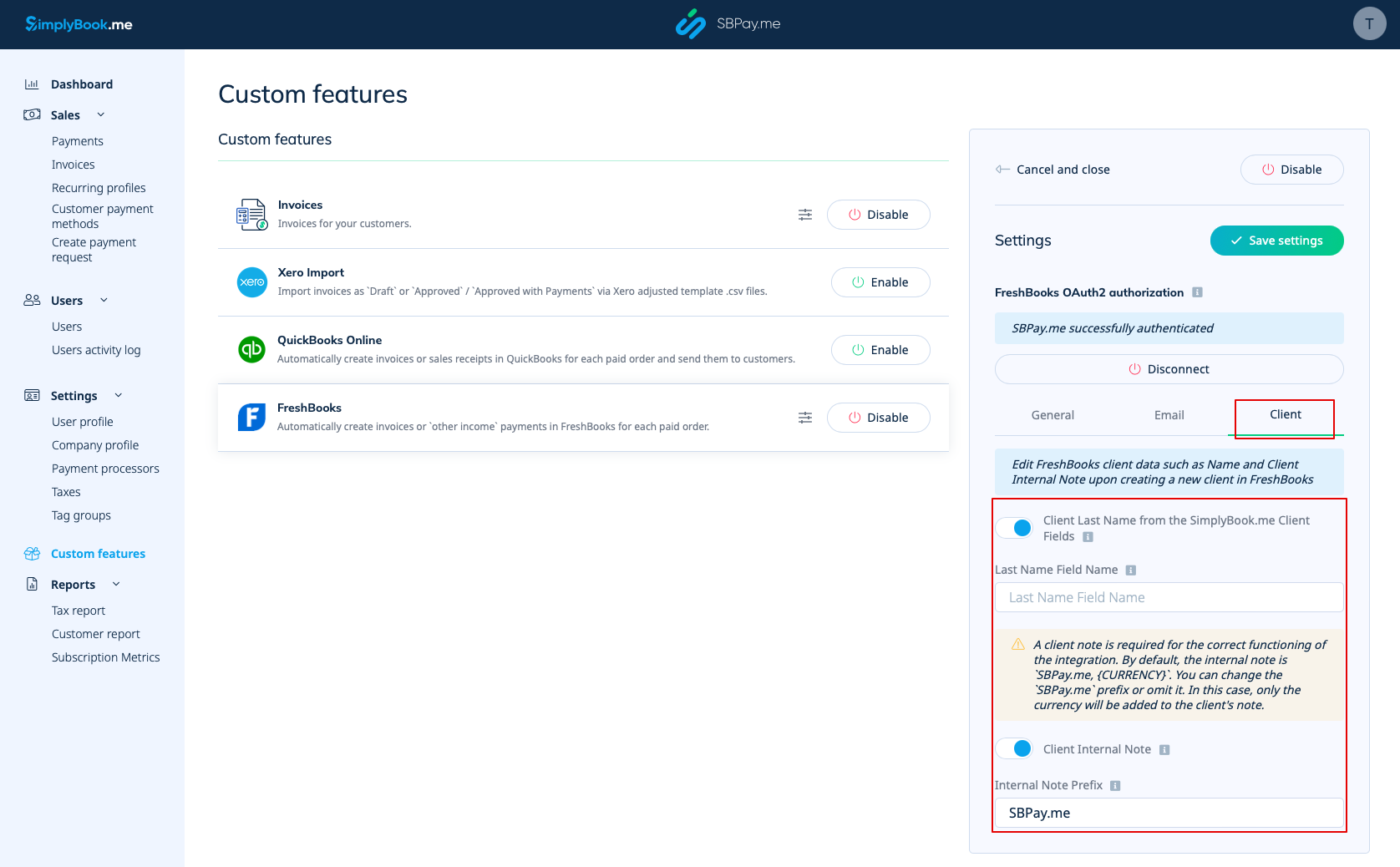
9. In the Client section you can adjust client information such as Last Name and Client Internal Note upon the creation of a new client entry in FreshBooks.
- - You have the option to activate the Client Last Name from SimplyBook.me Client Fields. This feature is useful if you have the corresponding custom feature enabled in the SimplyBook.me's account and set it for obtaining the last name of your clients.
- Ensure that you input the precise field name matching the one used in SimplyBook.me's Client Fields Custom Feature for the last name.
- - Client Internal Note option allows the addition of a personalized prefix to a client's internal note in FreshBooks. It's important to note that modifying the prefix won't affect existing FreshBooks clients. Only the new clients will be created in FreshBooks with the updated note. A client note is essential for the integration to work correctly. By default, the internal note includes SBPay.me, {CURRENCY}.
- You have the flexibility to change the SBPay.me prefix or exclude it. If omitted, only the currency will be appended to the client's note.