From SimplyBook.me
Created page with "Evenementen (diensten op bepaalde data)" Tags: Mobile edit Mobile web edit |
Created page with "<br><br> :'''Videotutorial over evenementen en speciale dagen beschikbaar ''' link=https://youtu.be/m0A540MpJew <br><br> __FORCETOC__ <br>" Tags: Mobile edit Mobile web edit |
||
| Line 1: | Line 1: | ||
<languages/> | <languages/> | ||
{{#seo: |title=Evenementen (diensten op bepaalde data) - SimplyBook.me |description=Stel evenementen of diensten in die op specifieke data beschikbaar zijn. Beheer schema's en trek klanten aan met tijdgebonden aanbiedingen! |titlemode=toevoegen |keywords=faq, veelgestelde vragen, boekingssoftware, vragen over het afspraken systeem, online afspraken, kalendersoftware, boekingssysteem, boekingskalender, planningssoftware, online afspraken plannen, online planning, plug-ins, aangepaste functies, aangepaste boekingspagina link, domeinnaam, aangepaste domeinnaam, aangepaste url }} | |||
{{#seo: | |||
|title= | |||
|description= | |||
|titlemode= | |||
|keywords=faq, | |||
}} | |||
<br><br> | <br><br> | ||
:''' | :'''Videotutorial over evenementen en speciale dagen beschikbaar ''' [[File:Youtube-Logo.png|link=https://youtu.be/m0A540MpJew]] | ||
<br><br> | <br><br> | ||
__FORCETOC__ | __FORCETOC__ | ||
<br> | <br> | ||
== Optie 1 (als dienst met eigen planning) == | |||
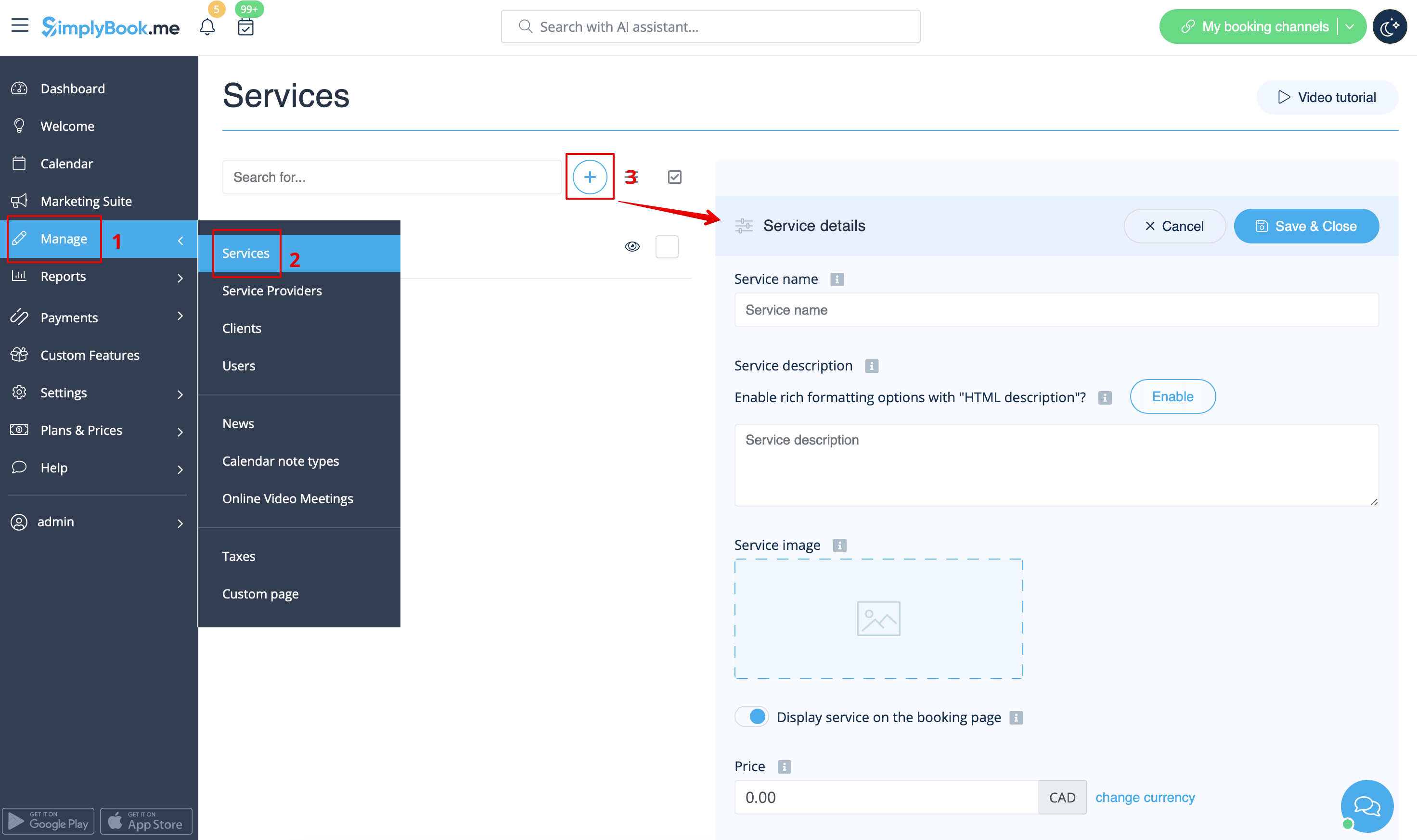
:1. Klik in Beheer//Diensten op het pictogram "+" om een nieuwe dienst aan te maken. | |||
== | |||
:1. | |||
<br> | <br> | ||
[[File:Create new service redesigned.png|1200px| center|link=https://help.simplybook.me/images/2/2d/Create_new_service_redesigned.png ]] | [[File:Create new service redesigned.png|1200px| center|link=https://help.simplybook.me/images/2/2d/Create_new_service_redesigned.png]] | ||
<br> | <br> | ||
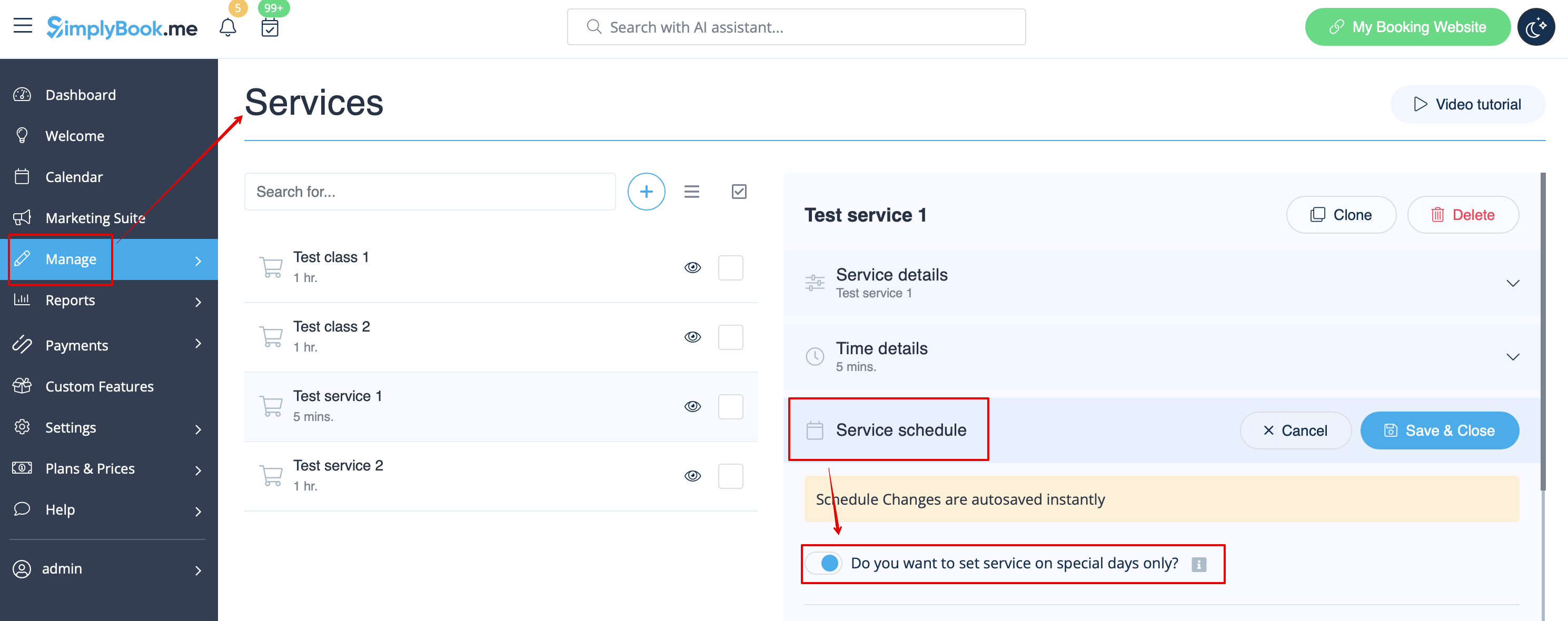
:2. Kies in Beheer//Diensten het tabblad "Dienstrooster" op de nieuw aangemaakte dienst en schakel de optie "Wilt u de dienst alleen op speciale dagen instellen?" in. | |||
:2. | |||
<br> | <br> | ||
[[File:Service special days only redesigned.png|1200px | center|link=https://help.simplybook.me/images/f/f2/Service_special_days_only_redesigned.png]] | [[File:Service special days only redesigned.png|1200px | center|link=https://help.simplybook.me/images/f/f2/Service_special_days_only_redesigned.png]] | ||
<br><br> | <br><br> | ||
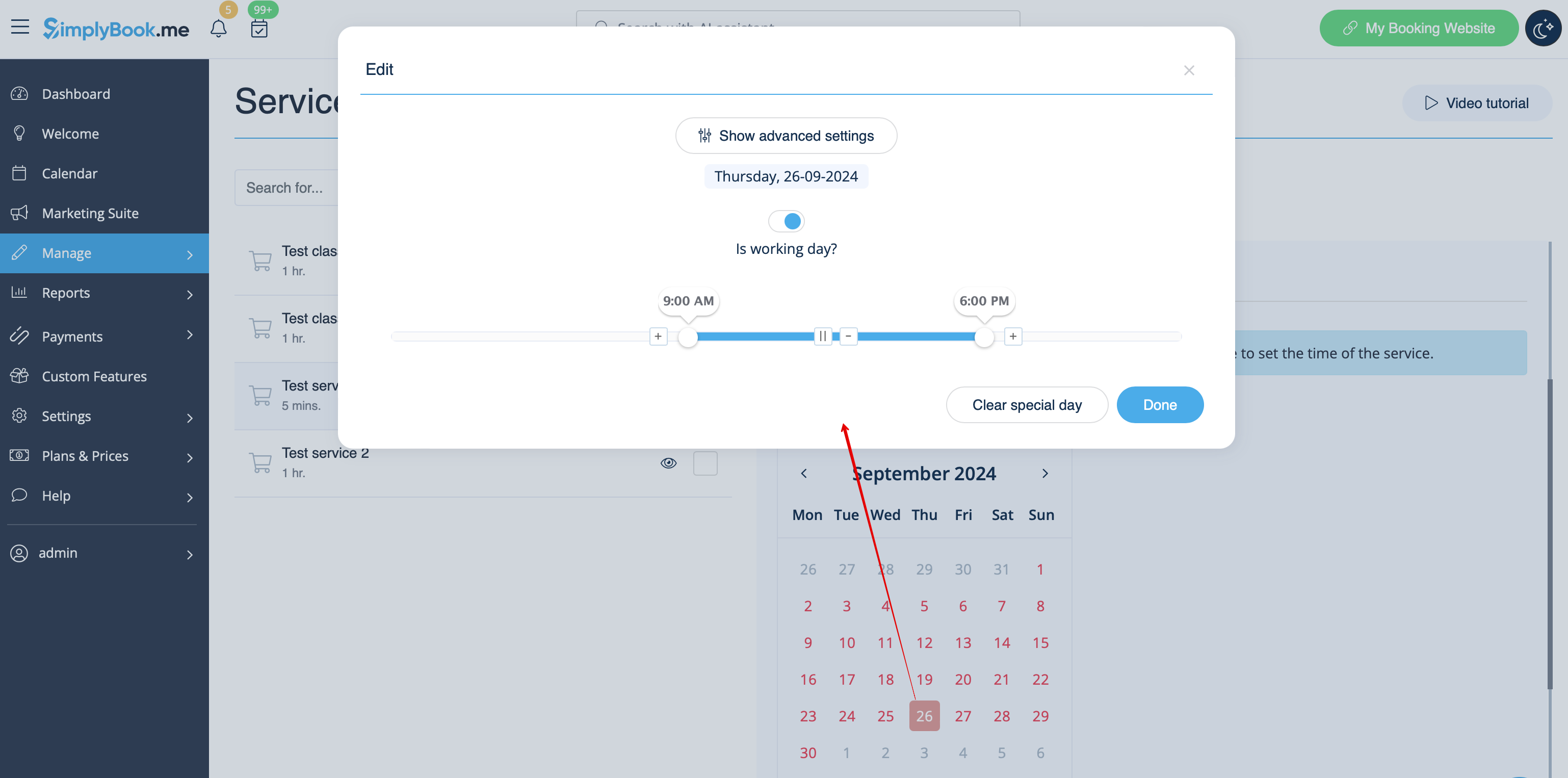
:3. Gebruik vervolgens de kalender, klik op de datums die u wilt openen en stel het schema voor deze datums in door de schuifregelaars te verplaatsen (de felblauwe zone is de beschikbare tijd). | |||
:3. | |||
<br> | <br> | ||
[[File:Events set schedule by date redesigned.png|1200px | center|link=https://help.simplybook.me/images/c/c6/Events_set_schedule_by_date_redesigned.png]] | [[File:Events set schedule by date redesigned.png|1200px | center|link=https://help.simplybook.me/images/c/c6/Events_set_schedule_by_date_redesigned.png]] | ||
<br><br> | <br><br> | ||
<div lang="en" dir="ltr" class="mw-content-ltr"> | <div lang="en" dir="ltr" class="mw-content-ltr"> | ||
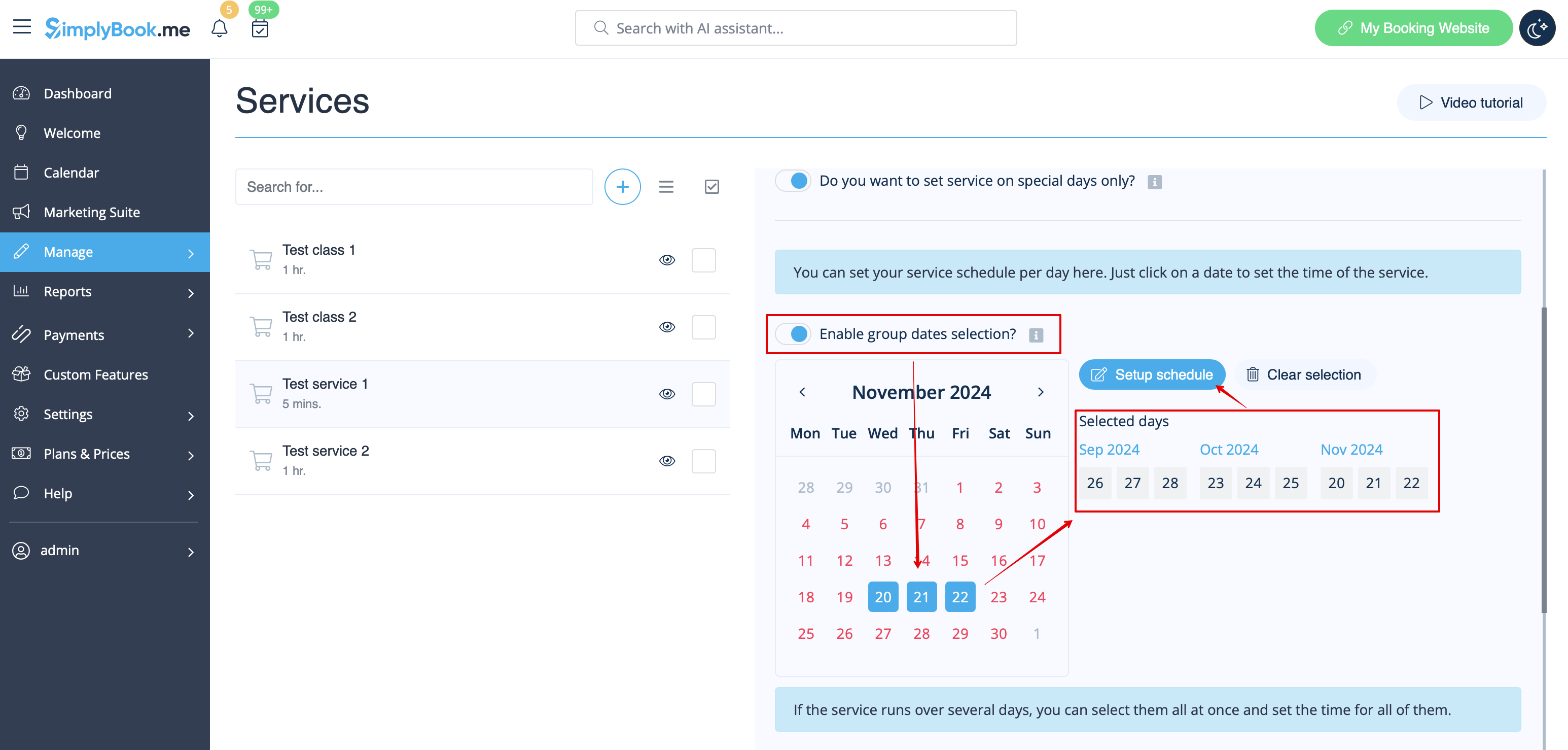
:If you need to select several dates at once please switch on "Enable group dates selection?", choose the dates to edit and click on "Setup schedule" to set the times. | :If you need to select several dates at once please switch on "Enable group dates selection?", choose the dates to edit and click on "Setup schedule" to set the times. | ||
Revision as of 09:30, 16 May 2025
- Videotutorial over evenementen en speciale dagen beschikbaar

Optie 1 (als dienst met eigen planning)
- 1. Klik in Beheer//Diensten op het pictogram "+" om een nieuwe dienst aan te maken.
- 2. Kies in Beheer//Diensten het tabblad "Dienstrooster" op de nieuw aangemaakte dienst en schakel de optie "Wilt u de dienst alleen op speciale dagen instellen?" in.
- 3. Gebruik vervolgens de kalender, klik op de datums die u wilt openen en stel het schema voor deze datums in door de schuifregelaars te verplaatsen (de felblauwe zone is de beschikbare tijd).
- If you need to select several dates at once please switch on "Enable group dates selection?", choose the dates to edit and click on "Setup schedule" to set the times.
- 4. Connect service to necessary provider in "Service providers" tab.
Option 2 (as Event with the help of Classes custom feature)
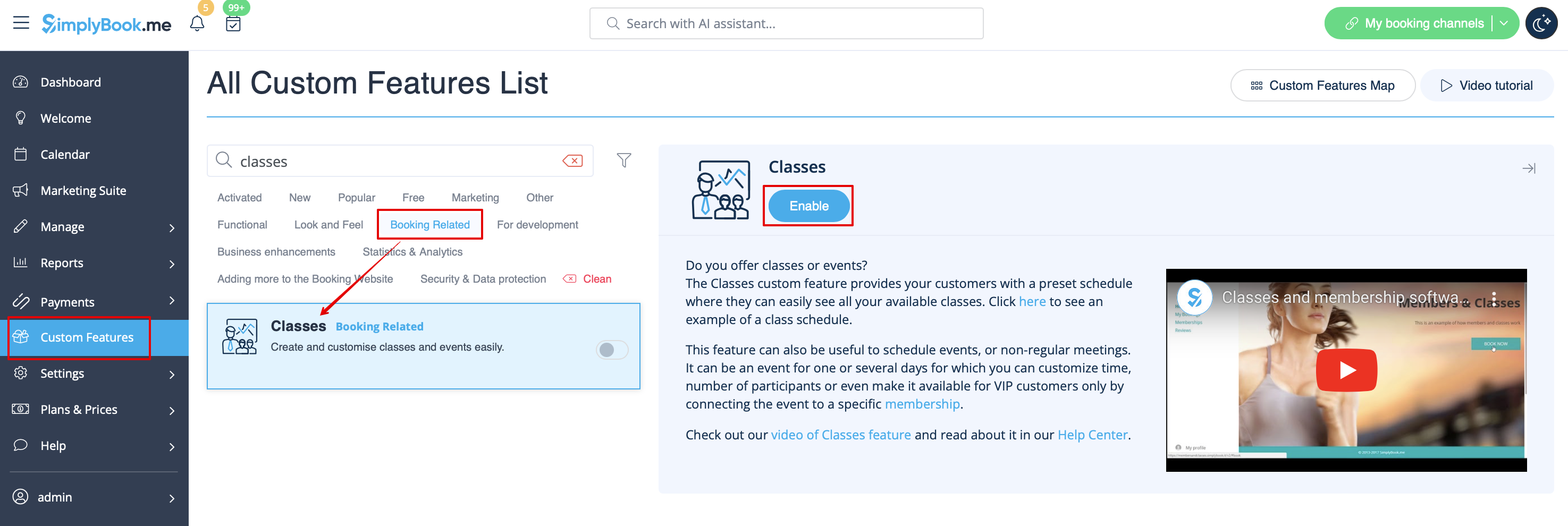
- 1. Enable Classes custom feature on your Custom features page.
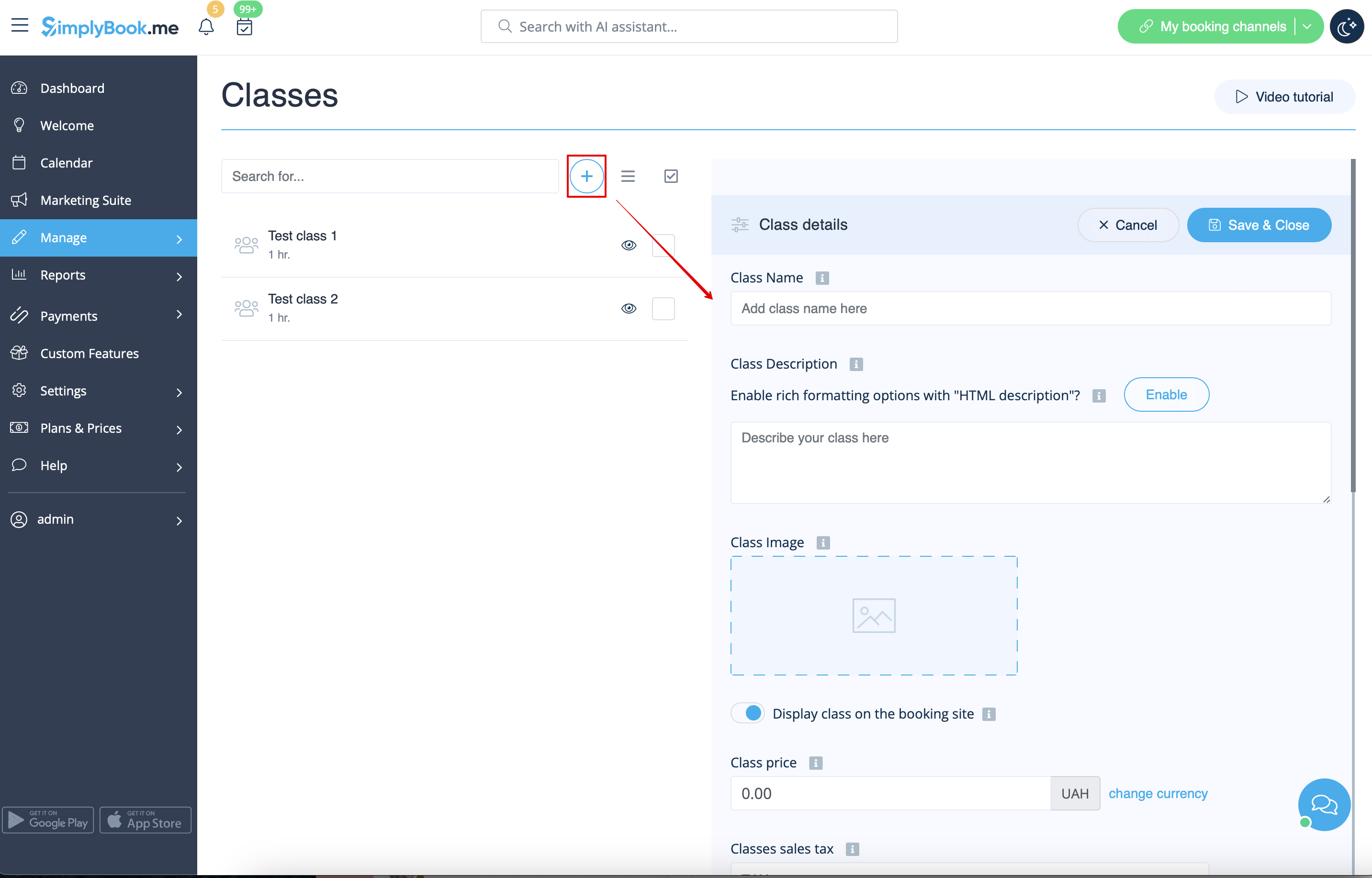
- 2. Navigate to Manage//Classes page and create a new class.
- 3. Choose "Class schedule" tab on the newly created class and switch on the option "Do you want to set service on special days only?"
- 4. Then use the calendar, click on the dates that you want to open and set the schedule for these dates by moving the sliders(bright blue zone is open time).
- How events(classes) work
The general logic of event(class) is creating Service + Provider related to it with dates selected in the settings of the event(class) as special days. When you use Classes custom feature the event creates service+provider related to it with identical name. In order to preserve proper functioning of the event on the dates needed, you should not delete provider with identical name related to event (but you can easily change his/her name) and should not disconnect provider from the event.

Events only
Video available
If you plan to have 1 event or several events without regular services you should do the following:
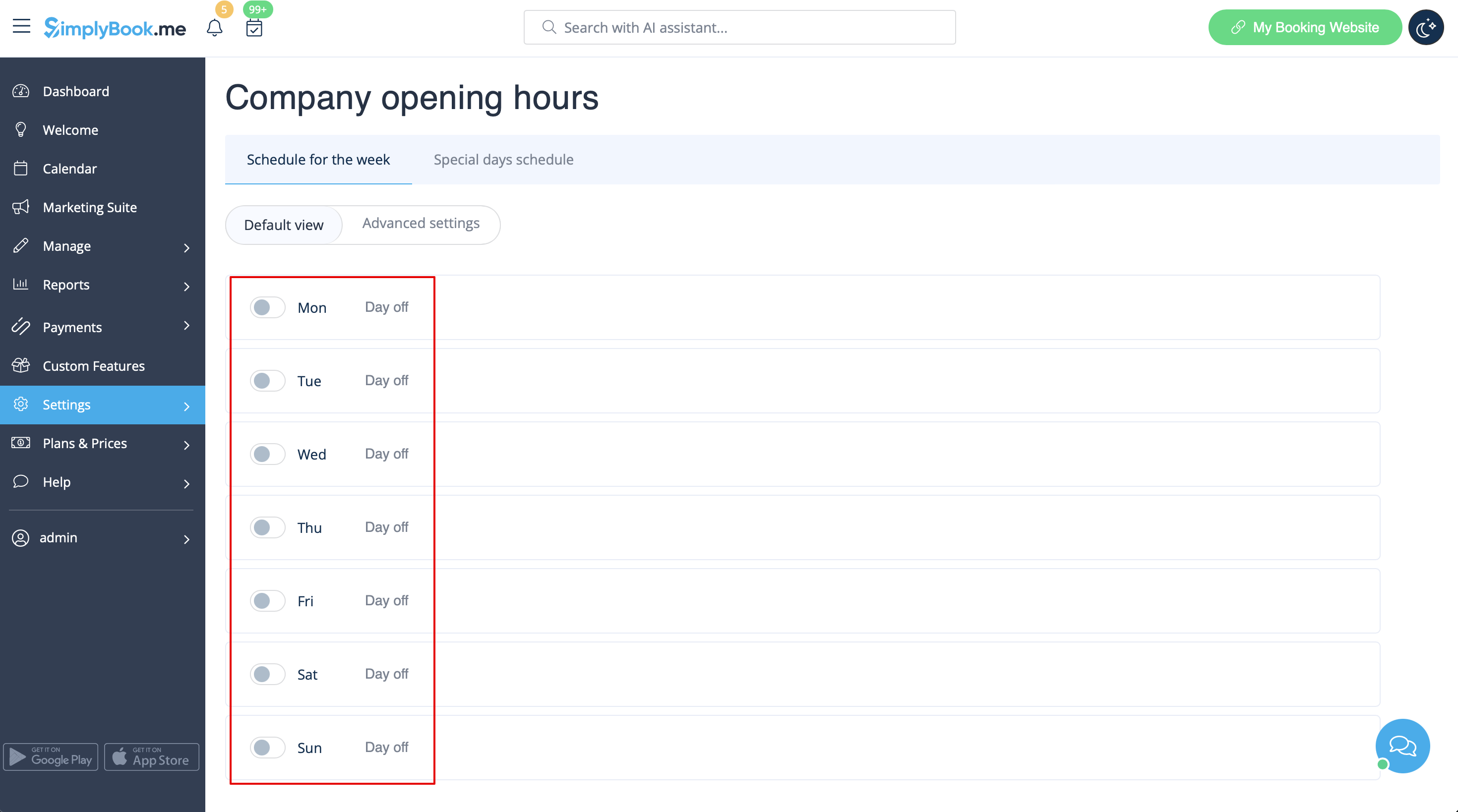
- 1. Close all company opening hours in Settings // Company opening hours - use switcher to set it to off position
- 2. Create events you need in Manage // Services // "+". See detailed tutorial about services here.

