Created page with "__FORCETOC__ <br><br> = Où trouver toutes mes réservations = 1. Dans <span style="background-color:#d4f8e5; padding:5px; border-radius:5px;">le calendrier</span> (élément du menu de gauche).<br/> (vous pouvez choisir l'affichage qui vous convient le mieux) 1200px | center|link=https://help.simplybook.me/images/c/cf/Calendar_overview_redesigned.png <br/><br/> 2. Dans <span style="background-color:#d4f8e5; padding:5px; border-r..." |
Created page with "Si vous devez annuler plusieurs réservations à la fois, vous pouvez le faire dans <span style="background-color:#d4f8e5; padding:5px; border-radius:5px;">Rapports</span> -> <span style="background-color:#d4f8e5; padding:5px; border-radius:5px;">Détails de la réservation.</span><br> Vous pouvez utiliser le <span style="background-color:#d4f8e5; padding:5px; border-radius:5px;">filtre</span> si nécessaire, <span style="background-color:#d4f8e5; padding:5px; border-..." |
||
| Line 33: | Line 33: | ||
[[File:Edit booking path redesigned.png|1200px | center|link=https://help.simplybook.me/images/7/7b/Edit_booking_path_redesigned.png]] | [[File:Edit booking path redesigned.png|1200px | center|link=https://help.simplybook.me/images/7/7b/Edit_booking_path_redesigned.png]] | ||
<br/><br/> | <br/><br/> | ||
2. Dans <span style="background-color:#d4f8e5; padding:5px; border-radius:5px;">Rapports</span> -> <span style="background-color:#d4f8e5; padding:5px; border-radius:5px;">Détails de la réservation.</span> Cliquez sur le bouton <span style="background-color:#d4f8e5; padding:5px; border-radius:5px;">Afficher</span> pour la réservation souhaitée afin d'ouvrir les détails, puis appuyez sur <span style="background-color:#d4f8e5; padding:5px; border-radius:5px;">Modifier</span> pour modifier les informations relatives à la réservation. | |||
2. | Vous pouvez utiliser des filtres pour trouver facilement vos réservations pour un service, un prestataire, un client ou une plage de dates spécifiques.<br/> | ||
[[File:Edit booking from report redesigned.png|1200px| center|link=https://help.simplybook.me/images/b/b0/Edit_booking_from_report_redesigned.png]] | [[File:Edit booking from report redesigned.png|1200px| center|link=https://help.simplybook.me/images/b/b0/Edit_booking_from_report_redesigned.png]] | ||
<br><br> | <br><br> | ||
<span style="background-color:#ffe9e9; padding:5px; border-radius:5px;">'''Remarque importante :''' il n'est pas possible de modifier une réservation qui a déjà été annulée.</span> | |||
<span style="background-color:#ffe9e9; padding:5px; border-radius:5px;">''' | |||
<br><br> | <br><br> | ||
Si vous souhaitez permettre à vos clients de modifier eux-mêmes la date et/ou l'heure d'un rendez-vous, veuillez utiliser la fonctionnalité personnalisée « <span style="background-color:#cdeffc; padding:5px; border-radius:5px;">[[Client_Rescheduling_custom_feature|Client Rescheduling]]</span> » (Modification de rendez-vous par le client). | |||
<br><br> | <br><br> | ||
< | <span id="How_to_cancel_bookings"></span> | ||
= | = Comment annuler des réservations = | ||
1. Pour l'administrateur ou l' | |||
1. | utilisateur Dans <span style="background-color:#d4f8e5; padding:5px; border-radius:5px;">le calendrier</span> (menu de gauche) ou dans dans <span style="background-color:#d4f8e5; padding:5px; border-radius:5px;">Rapports</span> -> <span style="background-color:#d4f8e5; padding:5px; border-radius:5px;">Détails de la réservation.</span> Cliquez sur la réservation pour ouvrir les détails ou utilisez l'option <span style="background-color:#d4f8e5; padding:5px; border-radius:5px;">Afficher</span> si vous êtes dans <span style="background-color:#d4f8e5; padding:5px; border-radius:5px;">Rapports</span>, puis appuyez sur le bouton <span style="background-color:#d4f8e5; padding:5px; border-radius:5px;">Annuler la réservation</span>. <br/> | ||
[[File:Cancel booking in the booking info form.png|800px| center|link=https://help.simplybook.me/images/9/95/Cancel_booking_in_the_booking_info_form.png]] | |||
[[File:Cancel booking in the booking info form.png|800px| center|link=https://help.simplybook.me/images/9/95/Cancel_booking_in_the_booking_info_form.png ]] | |||
<br/><br/> | <br/><br/> | ||
Si vous devez annuler plusieurs réservations à la fois, vous pouvez le faire dans <span style="background-color:#d4f8e5; padding:5px; border-radius:5px;">Rapports</span> -> <span style="background-color:#d4f8e5; padding:5px; border-radius:5px;">Détails de la réservation.</span><br> | |||
Vous pouvez utiliser le <span style="background-color:#d4f8e5; padding:5px; border-radius:5px;">filtre</span> si nécessaire, <span style="background-color:#d4f8e5; padding:5px; border-radius:5px;">cocher les cases</span> correspondant aux réservations à annuler et cliquer sur le bouton <span style="background-color:#d4f8e5; padding:5px; border-radius:5px;">Annuler la sélection</span> en haut.<br> | |||
<span style="background-color:#ffe9e9; padding:5px; border-radius:5px;">'''Remarque :''' il est possible d'annuler les rendez-vous à partir d'une seule page de rapport à la fois.</span> | |||
<span style="background-color:#ffe9e9; padding:5px; border-radius:5px;">''' | |||
[[File:Cancel several bookings from report redesigned.png|1200px|border|center|link=https://help.simplybook.me/images/a/ac/Cancel_several_bookings_from_report_redesigned.png]] | [[File:Cancel several bookings from report redesigned.png|1200px|border|center|link=https://help.simplybook.me/images/a/ac/Cancel_several_bookings_from_report_redesigned.png]] | ||
<br/><br/> | <br/><br/> | ||
2. Pour l' | |||
client Pour annuler leurs réservations, les clients peuvent cliquer sur <span style="background-color:#d4f8e5; padding:5px; border-radius:5px;">le lien « Annuler</span> » dans leurs e-mails de confirmation. | |||
2. | [[File:CancelBookingLink750.png|center]] | ||
[[File:CancelBookingLink750.png | center ]] | |||
<br/><br/> | <br/><br/> | ||
Ou utiliser le bouton « <span style="background-color:#d4f8e5; padding:5px; border-radius:5px;">Annuler</span> » sur le site web de réservation, dans l'onglet « <span style="background-color:#d4f8e5; padding:5px; border-radius:5px;">Mes réservations</span> ».<br> | |||
( | (Si vous souhaitez empêcher les clients d'annuler leurs rendez-vous, vous aurez peut-être besoin de <span style="background-color:#d4f8e5; padding:5px; border-radius:5px;">[[Custom_Features#Cancellation_Policy| la fonctionnalité personnalisée « Politique d'annulation]]</span> ».</span>) | ||
<br><br> | <br><br> | ||
<br><br> | <br><br> | ||
Revision as of 09:49, 16 May 2025
Où trouver toutes mes réservations
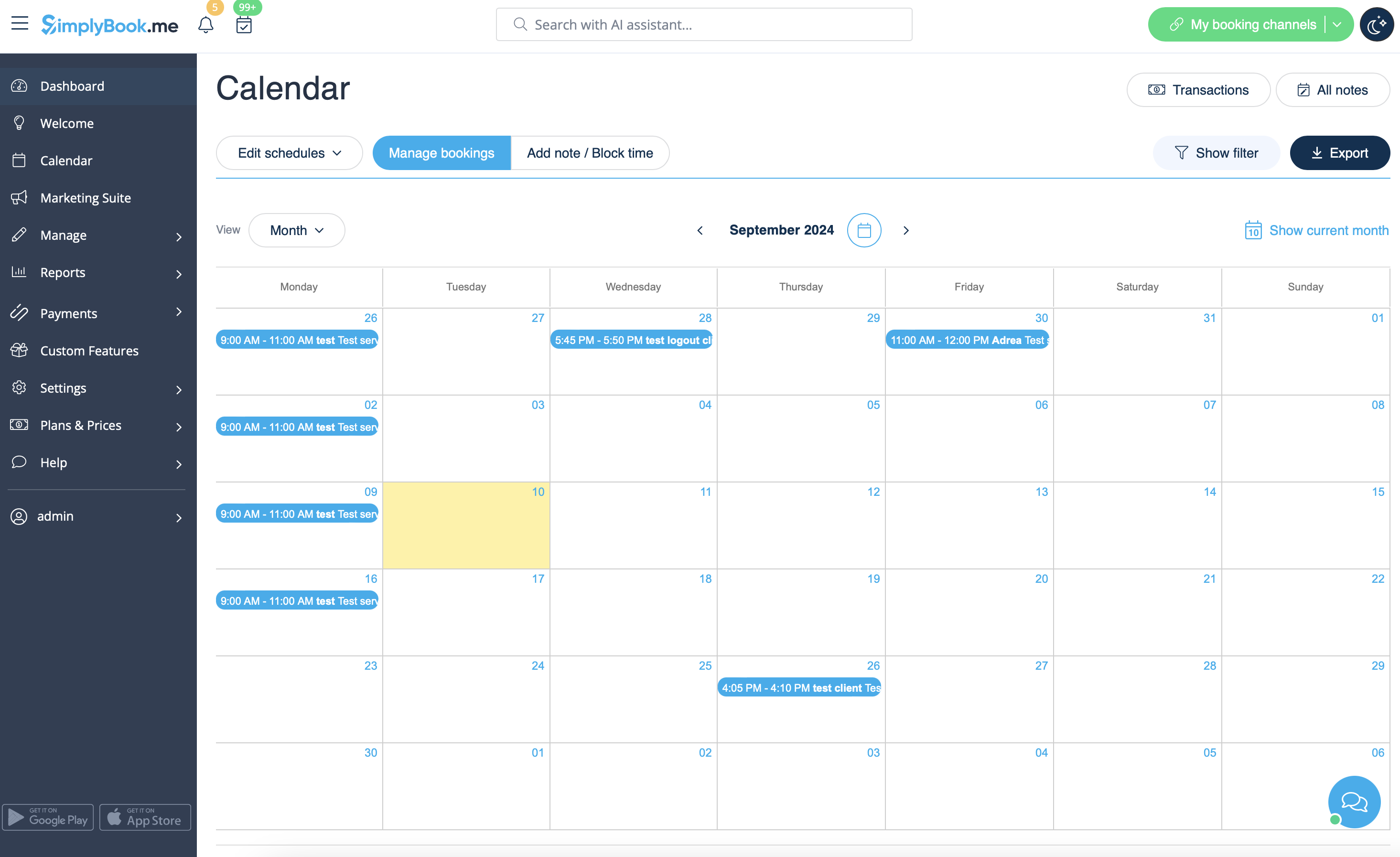
1. Dans le calendrier (élément du menu de gauche).
(vous pouvez choisir l'affichage qui vous convient le mieux)
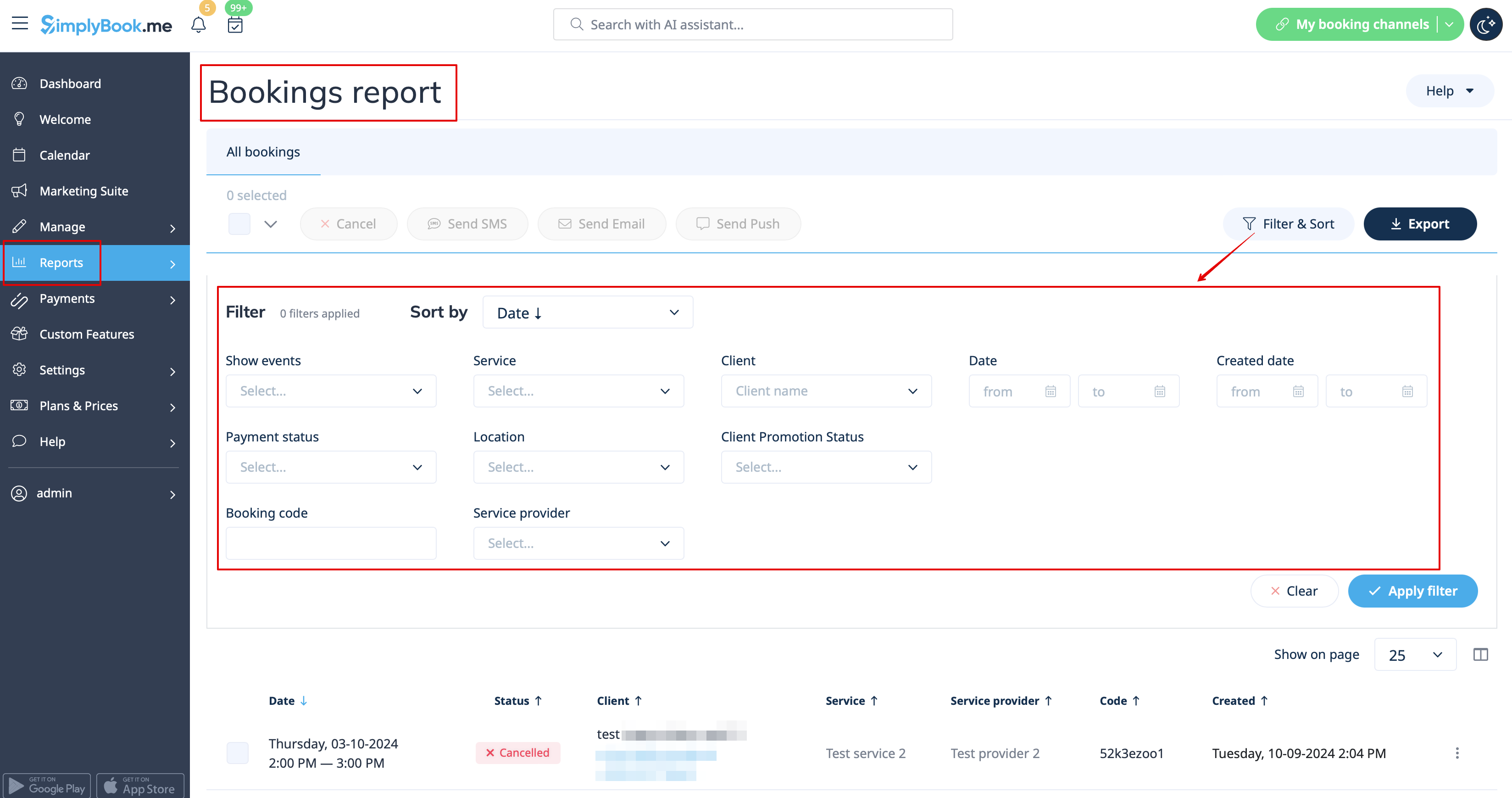
2. Dans Rapports -> Détails de la réservation.
Vous pouvez utiliser des filtres pour trouver facilement vos réservations pour un service, un prestataire, un client ou une période spécifique.
Comment réserver à partir du calendrier de l'administrateur
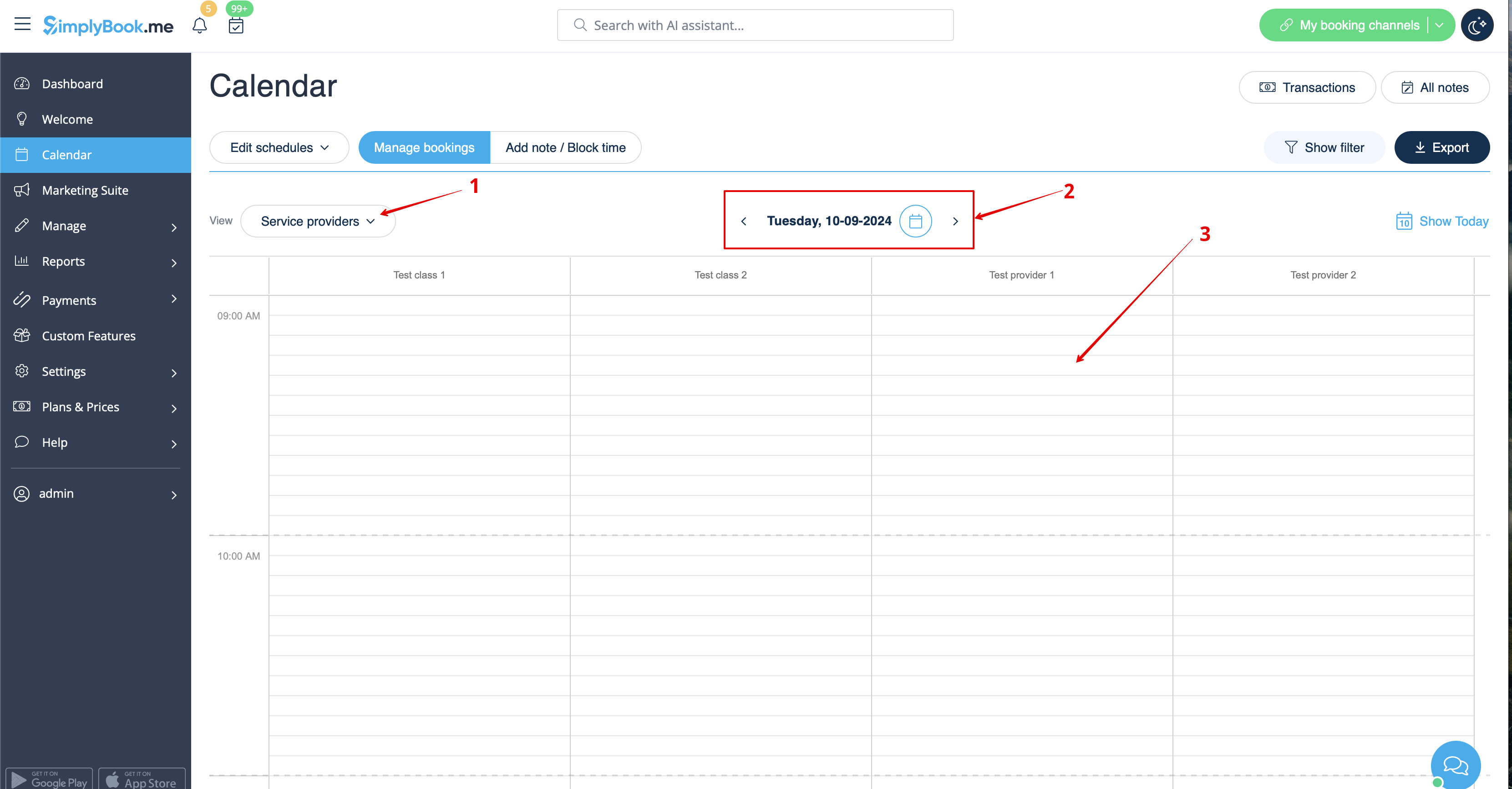
1. Dans le calendrier (élément du menu de gauche), sélectionnez la vue souhaitée, la date à laquelle vous souhaitez ajouter la réservation (vous pouvez également utiliser les filtres en haut pour plus de commodité) et cliquez simplement sur un espace libre ou sélectionnez la période souhaitée en la faisant glisser.
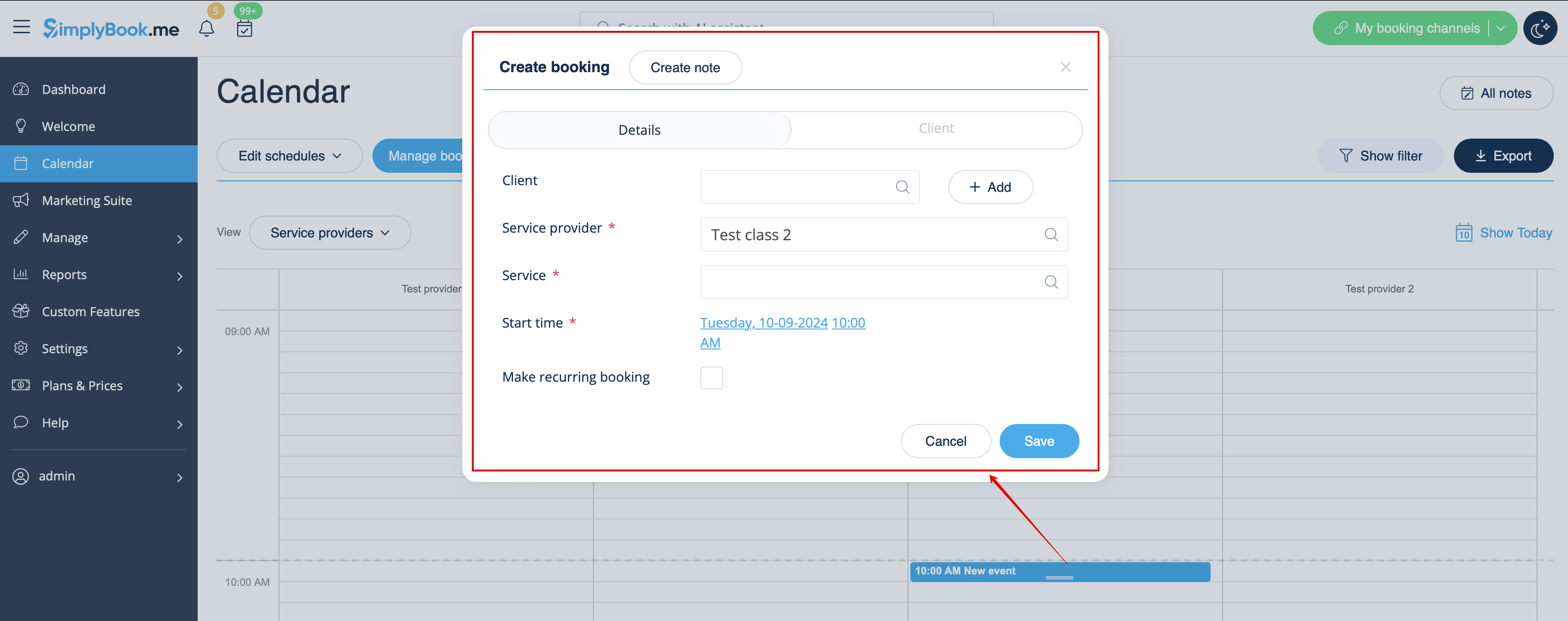
2. Remplissez le formulaire contextuel qui s'affiche : sélectionnez ou ajoutez le client, choisissez le prestataire et le service/la classe, définissez les dates et heures de début et de fin. Il est possible de réserver pour une période différente de la durée du service et multiple de la période sélectionnée.
(Il peut être nécessaire de remplir d'autres champs dans le formulaire contextuel si vous utilisez des fonctionnalités personnalisées supplémentaires .
Par exemple, si vous utilisez l'option « Accepter les paiements » et que vous souhaitez que la facture soit générée lorsque la réservation est ajoutée depuis l'interface d'administration, vous devez cocher la case « Recevoir le paiement » et sélectionner le mode de paiement souhaité avant d'enregistrer la réservation.
Remarque : cette option ne peut être sélectionnée que lors de la création d'une nouvelle réservation. Si la réservation a été créée sans génération de facture mais que vous avez besoin que la facture soit jointe, vous pouvez annuler cette réservation et en créer une nouvelle en sélectionnant l'option « Recevoir le paiement »).
Comment modifier les réservations
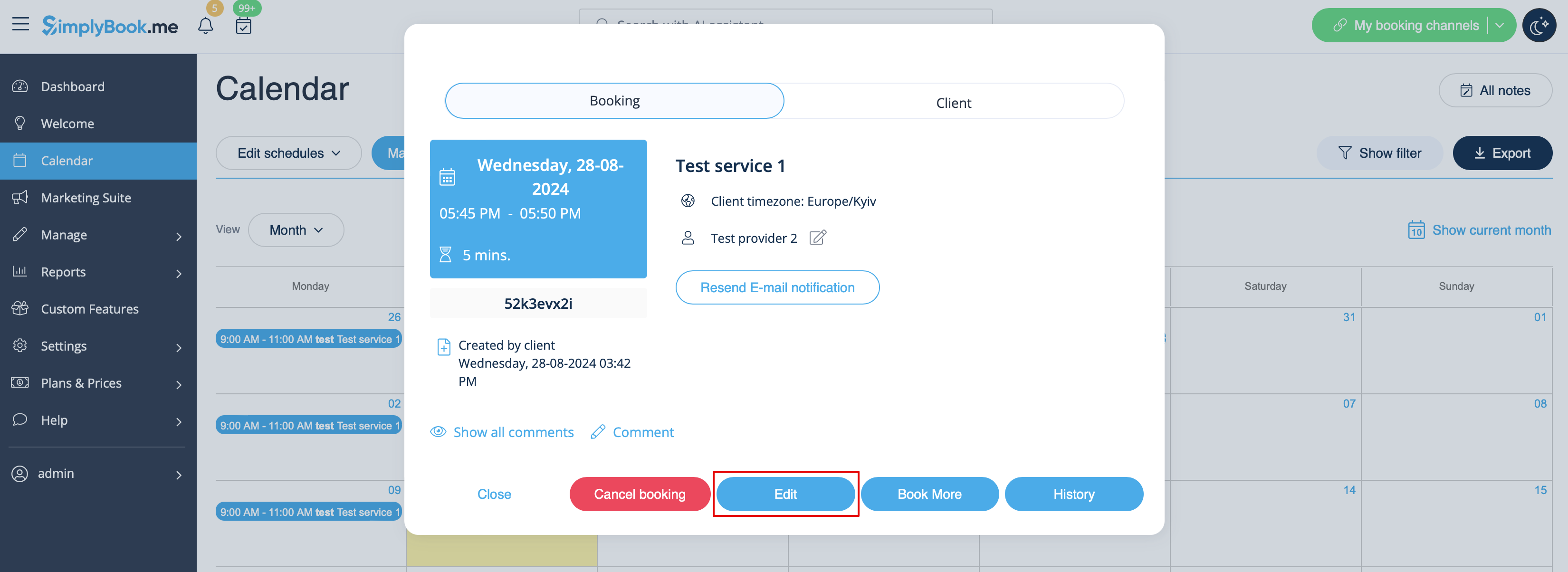
1. Dans le calendrier (élément du menu de gauche), cliquez sur la réservation pour ouvrir les détails, puis appuyez sur Modifier pour modifier les informations relatives à la réservation. Pour modifier l'heure du rendez-vous, il suffit de glisser-déposer la réservation à l'heure qui vous convient. Vous pouvez facilement ajouter un commentaire au rendez-vous ou consulter les autres réservations de ce client en appuyant sur le bouton Clients
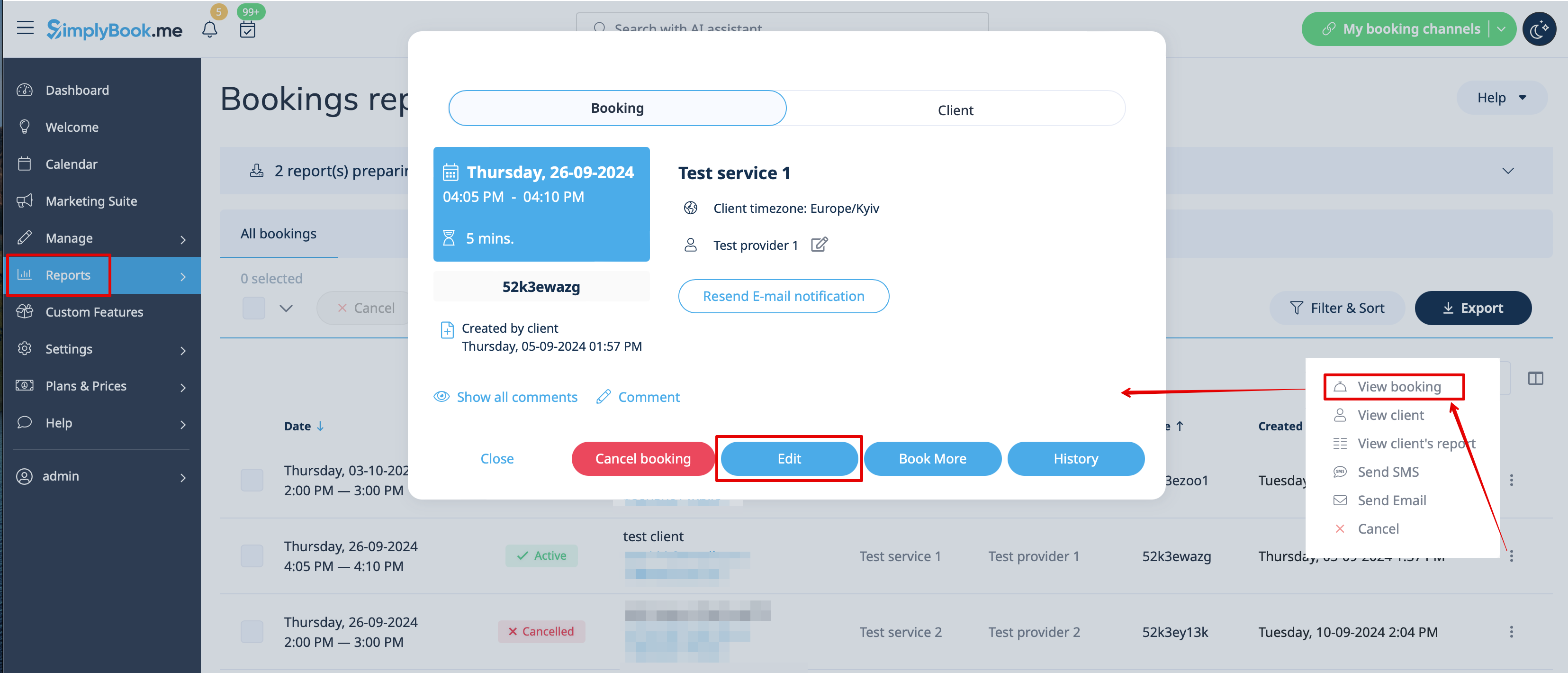
2. Dans Rapports -> Détails de la réservation. Cliquez sur le bouton Afficher pour la réservation souhaitée afin d'ouvrir les détails, puis appuyez sur Modifier pour modifier les informations relatives à la réservation.
Vous pouvez utiliser des filtres pour trouver facilement vos réservations pour un service, un prestataire, un client ou une plage de dates spécifiques.
Remarque importante : il n'est pas possible de modifier une réservation qui a déjà été annulée.
Si vous souhaitez permettre à vos clients de modifier eux-mêmes la date et/ou l'heure d'un rendez-vous, veuillez utiliser la fonctionnalité personnalisée « Client Rescheduling » (Modification de rendez-vous par le client).
Comment annuler des réservations
1. Pour l'administrateur ou l'
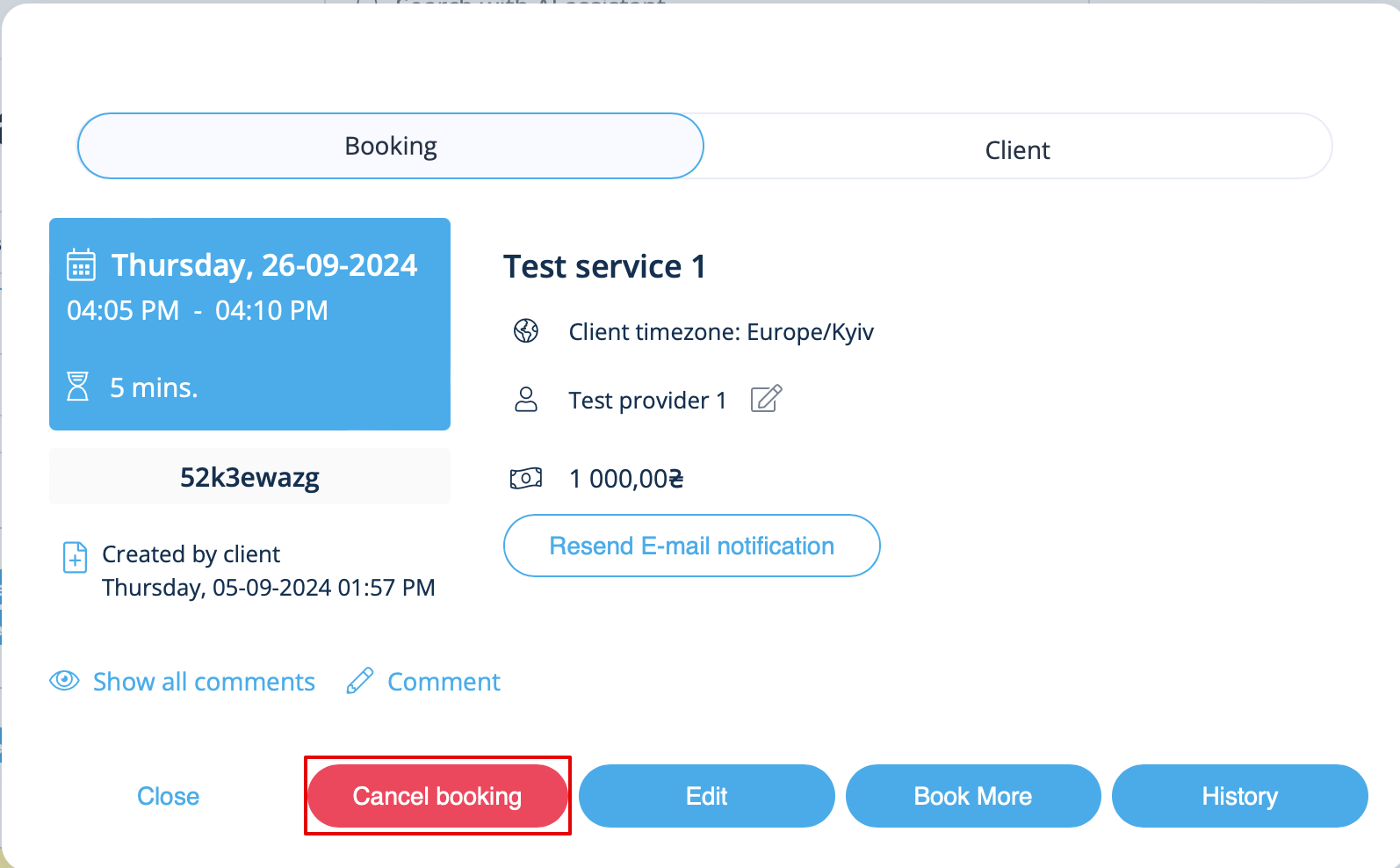
utilisateur Dans le calendrier (menu de gauche) ou dans dans Rapports -> Détails de la réservation. Cliquez sur la réservation pour ouvrir les détails ou utilisez l'option Afficher si vous êtes dans Rapports, puis appuyez sur le bouton Annuler la réservation.
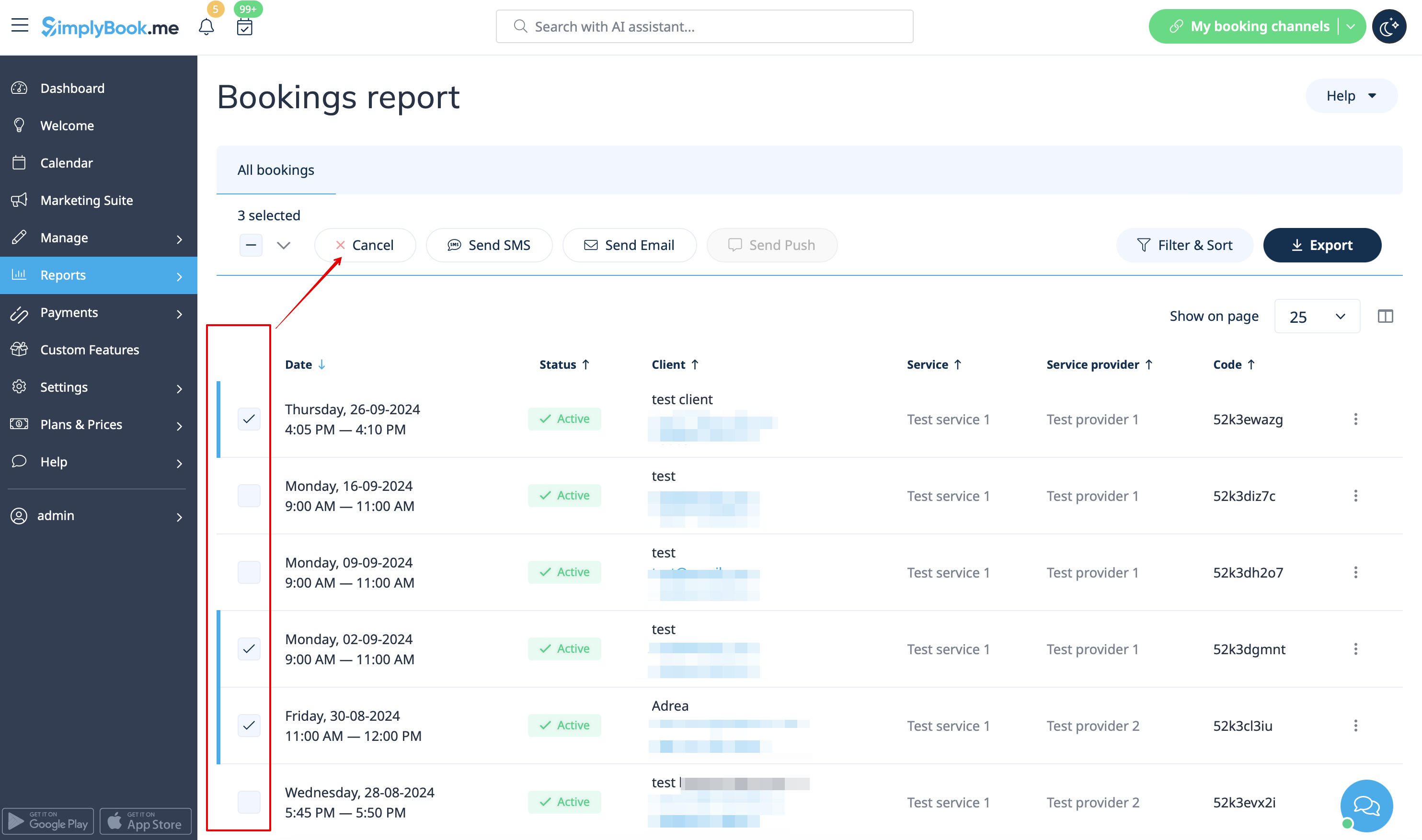
Si vous devez annuler plusieurs réservations à la fois, vous pouvez le faire dans Rapports -> Détails de la réservation.
Vous pouvez utiliser le filtre si nécessaire, cocher les cases correspondant aux réservations à annuler et cliquer sur le bouton Annuler la sélection en haut.
Remarque : il est possible d'annuler les rendez-vous à partir d'une seule page de rapport à la fois.
2. Pour l'
client Pour annuler leurs réservations, les clients peuvent cliquer sur le lien « Annuler » dans leurs e-mails de confirmation.

Ou utiliser le bouton « Annuler » sur le site web de réservation, dans l'onglet « Mes réservations ».
(Si vous souhaitez empêcher les clients d'annuler leurs rendez-vous, vous aurez peut-être besoin de la fonctionnalité personnalisée « Politique d'annulation ».)

