No edit summary |
Marked this version for translation |
||
| Line 1: | Line 1: | ||
<languages/> | <languages/> | ||
<translate> | <translate> | ||
<!--T:1--> | |||
{{#seo: | {{#seo: | ||
|title=Adjusting notifications - SimplyBook.me | |title=Adjusting notifications - SimplyBook.me | ||
| Line 10: | Line 11: | ||
<translate> | <translate> | ||
<!--T:2--> | |||
<br><br> | <br><br> | ||
<p><youtube>https://youtu.be/IZ8h3OmXTjQ</p></youtube> | <p><youtube>https://youtu.be/IZ8h3OmXTjQ</p></youtube> | ||
<!--T:3--> | |||
<br><br> | <br><br> | ||
=How to enable/disable bookings notifications and adjust your templates= | =How to enable/disable bookings notifications and adjust your templates= | ||
| Line 19: | Line 22: | ||
<translate> | <translate> | ||
<!--T:4--> | |||
Go to <span style="background-color:#d4f8e5; padding:5px; border-radius:5px;">Settings</span> -> <span style="background-color:#d4f8e5; padding:5px; border-radius:5px;">Email and SMS settings</span> and <span style="background-color:#d4f8e5; padding:5px; border-radius:5px;">check/uncheck</span> the corresponding boxes to send/not send notifications. You can change the texts of notifications to better suit your needs by clicking <span style="background-color:#d4f8e5; padding:5px; border-radius:5px;">edit template,</span> making changes and saving system settings. | Go to <span style="background-color:#d4f8e5; padding:5px; border-radius:5px;">Settings</span> -> <span style="background-color:#d4f8e5; padding:5px; border-radius:5px;">Email and SMS settings</span> and <span style="background-color:#d4f8e5; padding:5px; border-radius:5px;">check/uncheck</span> the corresponding boxes to send/not send notifications. You can change the texts of notifications to better suit your needs by clicking <span style="background-color:#d4f8e5; padding:5px; border-radius:5px;">edit template,</span> making changes and saving system settings. | ||
[[File:Email and sms settings path redesigned upd.png|1200px|border| center|link=https://help.simplybook.me/images/a/a4/Email_and_sms_settings_path_redesigned_upd.png]] | [[File:Email and sms settings path redesigned upd.png|1200px|border| center|link=https://help.simplybook.me/images/a/a4/Email_and_sms_settings_path_redesigned_upd.png]] | ||
| Line 27: | Line 31: | ||
</translate> | </translate> | ||
<translate> | <translate> | ||
<!--T:5--> | |||
==What'sApp Notifications== | ==What'sApp Notifications== | ||
If you and your clients are actively using WhatsApp messenger you can get bookings-related notifications there. | If you and your clients are actively using WhatsApp messenger you can get bookings-related notifications there. | ||
| Line 41: | Line 46: | ||
</translate> | </translate> | ||
<translate> | <translate> | ||
<!--T:6--> | |||
==Admin mobile app== | ==Admin mobile app== | ||
If you are using admin mobile application you can receive booking related notifications such as booking confirmations, reminders, booking change and cancellation notifications.<br> | If you are using admin mobile application you can receive booking related notifications such as booking confirmations, reminders, booking change and cancellation notifications.<br> | ||
| Line 48: | Line 54: | ||
<translate> | <translate> | ||
<!--T:7--> | |||
=How to disable Feedbacks= | =How to disable Feedbacks= | ||
You can view all your reviews in the <span style="background-color:#d4f8e5; padding:5px; border-radius:5px;">Reports</span> -> <span style="background-color:#d4f8e5; padding:5px; border-radius:5px;">Reviews</span> tab in left-side menu, delete or reply to them. If you wish to remove the option to leave a review and do not send feedback request in <span style="background-color:#d4f8e5; padding:5px; border-radius:5px;">Settings</span> -> <span style="background-color:#d4f8e5; padding:5px; border-radius:5px;">Email and SMS settings</span> -> <span style="background-color:#d4f8e5; padding:5px; border-radius:5px;">Settings for e-mail and SMS notifications</span> -> set <span style="background-color:#d4f8e5; padding:5px; border-radius:5px;">Number of days until feedback request is sent to client</span> to <span style="background-color:#d4f8e5; padding:5px; border-radius:5px;">Disable.</span><br/> | You can view all your reviews in the <span style="background-color:#d4f8e5; padding:5px; border-radius:5px;">Reports</span> -> <span style="background-color:#d4f8e5; padding:5px; border-radius:5px;">Reviews</span> tab in left-side menu, delete or reply to them. If you wish to remove the option to leave a review and do not send feedback request in <span style="background-color:#d4f8e5; padding:5px; border-radius:5px;">Settings</span> -> <span style="background-color:#d4f8e5; padding:5px; border-radius:5px;">Email and SMS settings</span> -> <span style="background-color:#d4f8e5; padding:5px; border-radius:5px;">Settings for e-mail and SMS notifications</span> -> set <span style="background-color:#d4f8e5; padding:5px; border-radius:5px;">Number of days until feedback request is sent to client</span> to <span style="background-color:#d4f8e5; padding:5px; border-radius:5px;">Disable.</span><br/> | ||
| Line 55: | Line 62: | ||
<translate> | <translate> | ||
<!--T:8--> | |||
=[[Custom_Features|Custom features]] related notifications= | =[[Custom_Features|Custom features]] related notifications= | ||
The following custom features have either own notification types or can influence the messages sent by the system: | The following custom features have either own notification types or can influence the messages sent by the system: | ||
| Line 71: | Line 79: | ||
<translate> | <translate> | ||
<!--T:9--> | |||
==[[Multiple_Bookings_custom_feature|Multiple bookings]]== | ==[[Multiple_Bookings_custom_feature|Multiple bookings]]== | ||
Has own templates for: | Has own templates for: | ||
| Line 84: | Line 93: | ||
<translate> | <translate> | ||
<!--T:10--> | |||
==[[Group_Bookings_custom_feature|Group bookings]]== | ==[[Group_Bookings_custom_feature|Group bookings]]== | ||
Has special templates for the following types: | Has special templates for the following types: | ||
| Line 99: | Line 109: | ||
<translate> | <translate> | ||
<!--T:11--> | |||
==[[Book_Soon_Notification_System_custom_feature|Book Soon notification system]]== | ==[[Book_Soon_Notification_System_custom_feature|Book Soon notification system]]== | ||
Allows to send reminders to come again to the clients who have booked before.<br> | Allows to send reminders to come again to the clients who have booked before.<br> | ||
| Line 110: | Line 121: | ||
<translate> | <translate> | ||
<!--T:12--> | |||
==[[Coupons_and_Gift_Cards_custom_feature|Coupons & Gift cards]]== | ==[[Coupons_and_Gift_Cards_custom_feature|Coupons & Gift cards]]== | ||
Can send specific notifications for the following cases when you are using this custom feature: | Can send specific notifications for the following cases when you are using this custom feature: | ||
| Line 123: | Line 135: | ||
<translate> | <translate> | ||
<!--T:13--> | |||
==[[Client_mobile_app|Client mobile app]]== | ==[[Client_mobile_app|Client mobile app]]== | ||
In case this feature is enabled and the client has allowed notifications, the mobile application will send booking-related push notifications.<br> | In case this feature is enabled and the client has allowed notifications, the mobile application will send booking-related push notifications.<br> | ||
| Line 135: | Line 148: | ||
<translate> | <translate> | ||
<!--T:14--> | |||
==[[Client_Login_custom_feature|Client login]]== | ==[[Client_Login_custom_feature|Client login]]== | ||
If you require the clients to sign in/sign up to be able to book the appointments or make purchases on your booking website and have Client login custom feature enabled,<br> | If you require the clients to sign in/sign up to be able to book the appointments or make purchases on your booking website and have Client login custom feature enabled,<br> | ||
| Line 149: | Line 163: | ||
<translate> | <translate> | ||
<!--T:15--> | |||
==[[Membership_custom_feature|Membership]]== | ==[[Membership_custom_feature|Membership]]== | ||
When you sell memberships on the booking website you may also need to notify your clients about the different points.<br> | When you sell memberships on the booking website you may also need to notify your clients about the different points.<br> | ||
| Line 167: | Line 182: | ||
<translate> | <translate> | ||
<!--T:16--> | |||
==[[Flexible_Notifications_custom_feature|Flexible notifications]]== | ==[[Flexible_Notifications_custom_feature|Flexible notifications]]== | ||
This custom feature allows to customize the booking related notification per certain service/provider or both.<br> | This custom feature allows to customize the booking related notification per certain service/provider or both.<br> | ||
| Line 199: | Line 215: | ||
<translate> | <translate> | ||
<!--T:17--> | |||
==[[Packages_custom_feature|Packages]]== | ==[[Packages_custom_feature|Packages]]== | ||
When you sell the packages of services/classes/products/service add-ons or issue the packages from admin side it is also possible to automatically send the clients the package activation notification(Email and/or SMS).<br> | When you sell the packages of services/classes/products/service add-ons or issue the packages from admin side it is also possible to automatically send the clients the package activation notification(Email and/or SMS).<br> | ||
| Line 209: | Line 226: | ||
<translate> | <translate> | ||
<!--T:18--> | |||
==[[Tickets_custom_feature|Tickets]]== | ==[[Tickets_custom_feature|Tickets]]== | ||
By default the ticket is automatically sent to client email together with the corresponding service confirmation email.<br> | By default the ticket is automatically sent to client email together with the corresponding service confirmation email.<br> | ||
| Line 222: | Line 240: | ||
<translate> | <translate> | ||
<!--T:19--> | |||
==[[Custom_Email_custom_feature|Custom email]]== | ==[[Custom_Email_custom_feature|Custom email]]== | ||
Allows to customize the design of the email notifications to match your branding and taste.<br> | Allows to customize the design of the email notifications to match your branding and taste.<br> | ||
| Line 248: | Line 267: | ||
<translate> | <translate> | ||
<!--T:20--> | |||
==[[SMTP_custom_feature|SMTP]]== | ==[[SMTP_custom_feature|SMTP]]== | ||
This feature allows you to use your own SMTP server for sending the emails.<br> | This feature allows you to use your own SMTP server for sending the emails.<br> | ||
| Line 259: | Line 279: | ||
<translate> | <translate> | ||
<!--T:21--> | |||
==[[Daily_Report_custom_feature|Daily report]]== | ==[[Daily_Report_custom_feature|Daily report]]== | ||
When you enable and set this custom feature it will automatically send the email report about new, upcoming and cancelled appointments to your company email address.<br> | When you enable and set this custom feature it will automatically send the email report about new, upcoming and cancelled appointments to your company email address.<br> | ||
| Line 269: | Line 290: | ||
<translate> | <translate> | ||
<!--T:22--> | |||
==[[HIPAA_custom_feature|HIPAA]]== | ==[[HIPAA_custom_feature|HIPAA]]== | ||
This is security-related custom feature and allows to send email notifications when somebody logs in to your system.<br> | This is security-related custom feature and allows to send email notifications when somebody logs in to your system.<br> | ||
| Line 279: | Line 301: | ||
<translate> | <translate> | ||
<!--T:23--> | |||
==[[Contact_Widget_custom_feature|Contact widget]]== | ==[[Contact_Widget_custom_feature|Contact widget]]== | ||
As this custom feature allows to add a contact form to your booking website or create the contact button widget, there is also the email/SMS notification to company that is sent when somebody leaves a message on the booking site or widget so that you will be able to respond right away. | As this custom feature allows to add a contact form to your booking website or create the contact button widget, there is also the email/SMS notification to company that is sent when somebody leaves a message on the booking site or widget so that you will be able to respond right away. | ||
| Line 289: | Line 312: | ||
<translate> | <translate> | ||
<!--T:24--> | |||
==[[Medical_test_custom_feature|Medical test]]== | ==[[Medical_test_custom_feature|Medical test]]== | ||
When you are using this custom feature you definitely need to send the test results to patients' emails.<br> | When you are using this custom feature you definitely need to send the test results to patients' emails.<br> | ||
| Line 303: | Line 327: | ||
<translate> | <translate> | ||
=What are variables= | =What are variables= <!--T:25--> | ||
<!--T:26--> | |||
Variables are elements that can be inserted in email and sms templates (<span style="background-color:#d4f8e5; padding:5px; border-radius:5px;">Settings</span> -> <span style="background-color:#d4f8e5; padding:5px; border-radius:5px;">Email and SMS settings</span>). These variables will denote the chosen item after the booking is made. For example you have 2 providers: Mary and John. In email template you insert text "You have booked a service with [provider]". If the client chose on the booking page provider Mary, they would receive the following text "You have booked a service with Mary", if they chose John, they would receive the text "You have booked a service with John."<br> | Variables are elements that can be inserted in email and sms templates (<span style="background-color:#d4f8e5; padding:5px; border-radius:5px;">Settings</span> -> <span style="background-color:#d4f8e5; padding:5px; border-radius:5px;">Email and SMS settings</span>). These variables will denote the chosen item after the booking is made. For example you have 2 providers: Mary and John. In email template you insert text "You have booked a service with [provider]". If the client chose on the booking page provider Mary, they would receive the following text "You have booked a service with Mary", if they chose John, they would receive the text "You have booked a service with John."<br> | ||
You can always find the variables that can be used with the certain notification type near the template either on the right side of the page or in the popup that can be access by click on "Variables" button. | You can always find the variables that can be used with the certain notification type near the template either on the right side of the page or in the popup that can be access by click on "Variables" button. | ||
| Line 312: | Line 337: | ||
<translate> | <translate> | ||
=iCals and how to use them= | =iCals and how to use them= <!--T:27--> | ||
<!--T:28--> | |||
In <span style="background-color:#d4f8e5; padding:5px; border-radius:5px;">Settings</span> -> <span style="background-color:#d4f8e5; padding:5px; border-radius:5px;">Email and SMS settings</span> you can check the box <span style="background-color:#d4f8e5; padding:5px; border-radius:5px;">Attach iCal to e-mails</span> and then emails will contain file of .isc format. After clicking that file, it will open in one of your calendars (Google calendar, iCalendar,etc) | In <span style="background-color:#d4f8e5; padding:5px; border-radius:5px;">Settings</span> -> <span style="background-color:#d4f8e5; padding:5px; border-radius:5px;">Email and SMS settings</span> you can check the box <span style="background-color:#d4f8e5; padding:5px; border-radius:5px;">Attach iCal to e-mails</span> and then emails will contain file of .isc format. After clicking that file, it will open in one of your calendars (Google calendar, iCalendar,etc) | ||
<!--T:29--> | |||
[[File:Ics files options redesigned.png|1200px | center|link=https://help.simplybook.me/images/2/23/Ics_files_options_redesigned.png]] | [[File:Ics files options redesigned.png|1200px | center|link=https://help.simplybook.me/images/2/23/Ics_files_options_redesigned.png]] | ||
<br><br> | <br><br> | ||
| Line 323: | Line 350: | ||
<translate> | <translate> | ||
=Clients/Providers do not receive notifications= | =Clients/Providers do not receive notifications= <!--T:30--> | ||
<!--T:31--> | |||
;Possible reasons | ;Possible reasons | ||
:1. Corresponding boxes in <span style="background-color:#d4f8e5; padding:5px; border-radius:5px;">Settings</span> -> <span style="background-color:#d4f8e5; padding:5px; border-radius:5px;">Email and SMS settings</span> are not checked. | :1. Corresponding boxes in <span style="background-color:#d4f8e5; padding:5px; border-radius:5px;">Settings</span> -> <span style="background-color:#d4f8e5; padding:5px; border-radius:5px;">Email and SMS settings</span> are not checked. | ||
<!--T:32--> | |||
:2. Client/provider entered wrong email or phone. | :2. Client/provider entered wrong email or phone. | ||
<!--T:33--> | |||
:3. Email went to junk (Spam) folder or to Social tab. Please check Whitelisting instructions [[Email_whitelisting_instructions| here]]. | :3. Email went to junk (Spam) folder or to Social tab. Please check Whitelisting instructions [[Email_whitelisting_instructions| here]]. | ||
<!--T:34--> | |||
:4. [[Custom_Features#SMTP | SMTP]] custom feature is not set correctly. | :4. [[Custom_Features#SMTP | SMTP]] custom feature is not set correctly. | ||
<!--T:35--> | |||
:5. If sms are not coming, check your sms balance in <span style="background-color:#d4f8e5; padding:5px; border-radius:5px;">Plans&Prices</span> -> <span style="background-color:#d4f8e5; padding:5px; border-radius:5px;">Subscriptions</span> at the bottom of the page. | :5. If sms are not coming, check your sms balance in <span style="background-color:#d4f8e5; padding:5px; border-radius:5px;">Plans&Prices</span> -> <span style="background-color:#d4f8e5; padding:5px; border-radius:5px;">Subscriptions</span> at the bottom of the page. | ||
<br><br> | <br><br> | ||
| Line 339: | Line 371: | ||
<translate> | <translate> | ||
=Clients/Providers receive wrong notifications= | =Clients/Providers receive wrong notifications= <!--T:36--> | ||
<!--T:37--> | |||
:1. Please check if you have [[Custom_Features#Multiple_Bookings| '''Multiple Bookings''']] or [[Custom_Features#Group_Bookings| '''Group Bookings''']] Custom Feature enabled. These Custom Features have their own templates. | :1. Please check if you have [[Custom_Features#Multiple_Bookings| '''Multiple Bookings''']] or [[Custom_Features#Group_Bookings| '''Group Bookings''']] Custom Feature enabled. These Custom Features have their own templates. | ||
<!--T:38--> | |||
:'''Multiple bookings template''' (<span style="background-color:#d4f8e5; padding:5px; border-radius:5px;">Custom Features</span> -> <span style="background-color:#d4f8e5; padding:5px; border-radius:5px;">Multiple bookings</span> -> <span style="background-color:#d4f8e5; padding:5px; border-radius:5px;">on the right side</span> of the page) | :'''Multiple bookings template''' (<span style="background-color:#d4f8e5; padding:5px; border-radius:5px;">Custom Features</span> -> <span style="background-color:#d4f8e5; padding:5px; border-radius:5px;">Multiple bookings</span> -> <span style="background-color:#d4f8e5; padding:5px; border-radius:5px;">on the right side</span> of the page) | ||
<!--T:39--> | |||
[[File:Multiple bookings notifications path redesigned.png|1200px|border | center|link=https://help.simplybook.me/images/f/fc/Multiple_bookings_notifications_path_redesigned.png]] | [[File:Multiple bookings notifications path redesigned.png|1200px|border | center|link=https://help.simplybook.me/images/f/fc/Multiple_bookings_notifications_path_redesigned.png]] | ||
<br><br> | <br><br> | ||
:'''Group bookings template''' (<span style="background-color:#d4f8e5; padding:5px; border-radius:5px;">Custom Features</span> -> <span style="background-color:#d4f8e5; padding:5px; border-radius:5px;">Group bookings</span> -> <span style="background-color:#d4f8e5; padding:5px; border-radius:5px;">on the right side</span> of the page) | :'''Group bookings template''' (<span style="background-color:#d4f8e5; padding:5px; border-radius:5px;">Custom Features</span> -> <span style="background-color:#d4f8e5; padding:5px; border-radius:5px;">Group bookings</span> -> <span style="background-color:#d4f8e5; padding:5px; border-radius:5px;">on the right side</span> of the page) | ||
<!--T:40--> | |||
[[File:Group bookings notifications path.png|1200px|border| center|link=https://help.simplybook.me/images/6/66/Group_bookings_notifications_path.png]] | [[File:Group bookings notifications path.png|1200px|border| center|link=https://help.simplybook.me/images/6/66/Group_bookings_notifications_path.png]] | ||
<br><br> | <br><br> | ||
:2. Check if you have Time Zone settings on in <span style="background-color:#d4f8e5; padding:5px; border-radius:5px;">Settings</span> -> <span style="background-color:#d4f8e5; padding:5px; border-radius:5px;">Main configuration,</span> in this case client may have selected wrong time zone and received notification in wrong time zone too. | :2. Check if you have Time Zone settings on in <span style="background-color:#d4f8e5; padding:5px; border-radius:5px;">Settings</span> -> <span style="background-color:#d4f8e5; padding:5px; border-radius:5px;">Main configuration,</span> in this case client may have selected wrong time zone and received notification in wrong time zone too. | ||
<!--T:41--> | |||
[[File:Timezone settings redesigned.png|1200px | center|link=https://help.simplybook.me/images/3/35/Timezone_settings_redesigned.png]] | [[File:Timezone settings redesigned.png|1200px | center|link=https://help.simplybook.me/images/3/35/Timezone_settings_redesigned.png]] | ||
<br><br> | <br><br> | ||
| Line 358: | Line 395: | ||
<translate> | <translate> | ||
<!--T:42--> | |||
=Email whitelisting instructions= | =Email whitelisting instructions= | ||
So here are a few things that you can do to make sure you get those all important emails from the team here at SimplyBook.me. | So here are a few things that you can do to make sure you get those all important emails from the team here at SimplyBook.me. | ||
<!--T:43--> | |||
You can expect system notifications such as when your subscription is up for renewal, notices about bookings, and helpful information on various things such as how to get the most out of your [https://simplybook.me/ SimplyBook.me] service. | You can expect system notifications such as when your subscription is up for renewal, notices about bookings, and helpful information on various things such as how to get the most out of your [https://simplybook.me/ SimplyBook.me] service. | ||
<!--T:44--> | |||
As great as technology is, it isn’t perfect, and sometimes email systems and internet service providers mistake legitimate email for spam. To ensure that you don’t miss important communication from us, please take the following steps: | As great as technology is, it isn’t perfect, and sometimes email systems and internet service providers mistake legitimate email for spam. To ensure that you don’t miss important communication from us, please take the following steps: | ||
<!--T:45--> | |||
Please whitelist any emails that come from the '''@simplybook.me''' domain. | Please whitelist any emails that come from the '''@simplybook.me''' domain. | ||
<!--T:46--> | |||
'''Why?''' Because that tells your email service or program that you actually want emails from this domain, so that they can then make sure you get them. | '''Why?''' Because that tells your email service or program that you actually want emails from this domain, so that they can then make sure you get them. | ||
<!--T:47--> | |||
'''How?''' Well, this differs between email services and programs but below you can see information about some of the main ones. If you aren’t using one of these, please refer to the help section for yourservice for information. | '''How?''' Well, this differs between email services and programs but below you can see information about some of the main ones. If you aren’t using one of these, please refer to the help section for yourservice for information. | ||
| Line 374: | Line 417: | ||
<translate> | <translate> | ||
==Using Gmail or Gsuite== | ==Using Gmail or Gsuite== <!--T:48--> | ||
<!--T:49--> | |||
Filter messages from '''@simplybook.me''' and tell the system to never send it to spam: | Filter messages from '''@simplybook.me''' and tell the system to never send it to spam: | ||
<!--T:50--> | |||
:1. Go to <span style="background-color:#d4f8e5; padding:5px; border-radius:5px;">Settings</span> (click the <span style="background-color:#d4f8e5; padding:5px; border-radius:5px;">gear</span> icon at the top to the right) | :1. Go to <span style="background-color:#d4f8e5; padding:5px; border-radius:5px;">Settings</span> (click the <span style="background-color:#d4f8e5; padding:5px; border-radius:5px;">gear</span> icon at the top to the right) | ||
<!--T:51--> | |||
[[File:Click settings.png| center]] | [[File:Click settings.png| center]] | ||
<!--T:52--> | |||
:2. Select the <span style="background-color:#d4f8e5; padding:5px; border-radius:5px;">Filters and Blocked Addresses</span> tab | :2. Select the <span style="background-color:#d4f8e5; padding:5px; border-radius:5px;">Filters and Blocked Addresses</span> tab | ||
<!--T:53--> | |||
[[File:Select filters and blocked addresses.png| center]] | [[File:Select filters and blocked addresses.png| center]] | ||
<!--T:54--> | |||
:3. Towards the bottom of the tab, click the <span style="background-color:#d4f8e5; padding:5px; border-radius:5px;">Create a new filter</span> link | :3. Towards the bottom of the tab, click the <span style="background-color:#d4f8e5; padding:5px; border-radius:5px;">Create a new filter</span> link | ||
| Line 397: | Line 446: | ||
<translate> | <translate> | ||
<!--T:55--> | |||
[[File:Gmail create a new filter.png| center]] | [[File:Gmail create a new filter.png| center]] | ||
<!--T:56--> | |||
:4. In the <span style="background-color:#d4f8e5; padding:5px; border-radius:5px;">From</span> field write '''@simplybook.me''' | :4. In the <span style="background-color:#d4f8e5; padding:5px; border-radius:5px;">From</span> field write '''@simplybook.me''' | ||
:5. Click <span style="background-color:#d4f8e5; padding:5px; border-radius:5px;">Create filter with this search</span> to the bottom right of the window | :5. Click <span style="background-color:#d4f8e5; padding:5px; border-radius:5px;">Create filter with this search</span> to the bottom right of the window | ||
<!--T:57--> | |||
[[File:Gmail create filter with this search.png| center]] | [[File:Gmail create filter with this search.png| center]] | ||
<!--T:58--> | |||
:6. Tick the box next to <span style="background-color:#d4f8e5; padding:5px; border-radius:5px;">Never send it to Spam</span> | :6. Tick the box next to <span style="background-color:#d4f8e5; padding:5px; border-radius:5px;">Never send it to Spam</span> | ||
:7. Click the blue button that says <span style="background-color:#d4f8e5; padding:5px; border-radius:5px;">Create filter</span> | :7. Click the blue button that says <span style="background-color:#d4f8e5; padding:5px; border-radius:5px;">Create filter</span> | ||
<!--T:59--> | |||
[[File:Gmail never send it to spam.png| center]] | [[File:Gmail never send it to spam.png| center]] | ||
<!--T:60--> | |||
Great! Now you won’t miss anything from us! | Great! Now you won’t miss anything from us! | ||
<!--T:61--> | |||
'''And to ensure that our emails don’t get lost in that Updates or Promotions tab:''' | '''And to ensure that our emails don’t get lost in that Updates or Promotions tab:''' | ||
| Line 424: | Line 480: | ||
<translate> | <translate> | ||
<!--T:62--> | |||
:1. Find an email from SimplyBook.me in your inbox | :1. Find an email from SimplyBook.me in your inbox | ||
<!--T:63--> | |||
:2. Click and drag it to the <span style="background-color:#d4f8e5; padding:5px; border-radius:5px;">Primary</span> tab in your inbox | :2. Click and drag it to the <span style="background-color:#d4f8e5; padding:5px; border-radius:5px;">Primary</span> tab in your inbox | ||
<!--T:64--> | |||
[[File:Gmail move to primary tab.png| center]] | [[File:Gmail move to primary tab.png| center]] | ||
<br><br> | <br><br> | ||
:3. You’ll be asked whether you want to do this for future emails, so tell them <span style="background-color:#d4f8e5; padding:5px; border-radius:5px;">yes</span> | :3. You’ll be asked whether you want to do this for future emails, so tell them <span style="background-color:#d4f8e5; padding:5px; border-radius:5px;">yes</span> | ||
<!--T:65--> | |||
[[File:Gmail do this with future emails from SimplyBook.me.png| center]] | [[File:Gmail do this with future emails from SimplyBook.me.png| center]] | ||
<br><br> | <br><br> | ||
</translate> | </translate> | ||
<translate> | <translate> | ||
==Using Yahoo! mail== | ==Using Yahoo! mail== <!--T:66--> | ||
<!--T:67--> | |||
:1. When you open an email message, hover your mouse on the Sender's name. | :1. When you open an email message, hover your mouse on the Sender's name. | ||
<!--T:68--> | |||
:2. Click the the three dots in the Sender's info window that appears and click <span style="background-color:#d4f8e5; padding:5px; border-radius:5px;">Add to contacts.</span> | :2. Click the the three dots in the Sender's info window that appears and click <span style="background-color:#d4f8e5; padding:5px; border-radius:5px;">Add to contacts.</span> | ||
<!--T:69--> | |||
[[File:Add to contacts yahoo.png| center]] | [[File:Add to contacts yahoo.png| center]] | ||
<br><br> | <br><br> | ||
:3. When <span style="background-color:#d4f8e5; padding:5px; border-radius:5px;">Add Contact</span> form comes up, click <span style="background-color:#d4f8e5; padding:5px; border-radius:5px;">Save.</span> | :3. When <span style="background-color:#d4f8e5; padding:5px; border-radius:5px;">Add Contact</span> form comes up, click <span style="background-color:#d4f8e5; padding:5px; border-radius:5px;">Save.</span> | ||
<!--T:70--> | |||
[[File:Add contact yahoo form.PNG| center]] | [[File:Add contact yahoo form.PNG| center]] | ||
<br><br> | <br><br> | ||
</translate> | </translate> | ||
<translate> | <translate> | ||
==Using Mac Mail== | ==Using Mac Mail== <!--T:71--> | ||
<!--T:72--> | |||
:1. From the top menu select <span style="background-color:#d4f8e5; padding:5px; border-radius:5px;">Mail</span> -> <span style="background-color:#d4f8e5; padding:5px; border-radius:5px;">Preferences</span> | :1. From the top menu select <span style="background-color:#d4f8e5; padding:5px; border-radius:5px;">Mail</span> -> <span style="background-color:#d4f8e5; padding:5px; border-radius:5px;">Preferences</span> | ||
<!--T:73--> | |||
[[File:Step 1 - open Mail preferences.jpg| center]] | [[File:Step 1 - open Mail preferences.jpg| center]] | ||
<br><br> | <br><br> | ||
:2. Then select the <span style="background-color:#d4f8e5; padding:5px; border-radius:5px;">Rules</span> icon, click <span style="background-color:#d4f8e5; padding:5px; border-radius:5px;">Add Rule</span> and type a name for the rule in the description field. Use the following settings: | :2. Then select the <span style="background-color:#d4f8e5; padding:5px; border-radius:5px;">Rules</span> icon, click <span style="background-color:#d4f8e5; padding:5px; border-radius:5px;">Add Rule</span> and type a name for the rule in the description field. Use the following settings: | ||
<!--T:74--> | |||
[[File:Step 2 - open Rules configuration.jpg| center]] | [[File:Step 2 - open Rules configuration.jpg| center]] | ||
<br><br> | <br><br> | ||
:3. “If any of the following conditions are met: From Contains”. In the text field besides <span style="background-color:#d4f8e5; padding:5px; border-radius:5px;">Contains</span> type '''@simplybook.me''' | :3. “If any of the following conditions are met: From Contains”. In the text field besides <span style="background-color:#d4f8e5; padding:5px; border-radius:5px;">Contains</span> type '''@simplybook.me''' | ||
<!--T:75--> | |||
[[File:Step 3 - add a rule for SimplyBook.me mails.jpg| center]] | [[File:Step 3 - add a rule for SimplyBook.me mails.jpg| center]] | ||
<!--T:76--> | |||
:4. Select <span style="background-color:#d4f8e5; padding:5px; border-radius:5px;">Move Message</span> and <span style="background-color:#d4f8e5; padding:5px; border-radius:5px;">Inbox</span> from the drop down menus and then click <span style="background-color:#d4f8e5; padding:5px; border-radius:5px;">OK</span> to save the rule. | :4. Select <span style="background-color:#d4f8e5; padding:5px; border-radius:5px;">Move Message</span> and <span style="background-color:#d4f8e5; padding:5px; border-radius:5px;">Inbox</span> from the drop down menus and then click <span style="background-color:#d4f8e5; padding:5px; border-radius:5px;">OK</span> to save the rule. | ||
<br><br> | <br><br> | ||
</translate> | </translate> | ||
<translate> | <translate> | ||
==Using Outlook== | ==Using Outlook== <!--T:77--> | ||
<!--T:78--> | |||
:1. Right-click on the message in your inbox. | :1. Right-click on the message in your inbox. | ||
<!--T:79--> | |||
:2. Select <span style="background-color:#d4f8e5; padding:5px; border-radius:5px;">Junk E-mail</span> from the menu. | :2. Select <span style="background-color:#d4f8e5; padding:5px; border-radius:5px;">Junk E-mail</span> from the menu. | ||
<!--T:80--> | |||
:3. Click <span style="background-color:#d4f8e5; padding:5px; border-radius:5px;">Never Block Sender</span> or <span style="background-color:#d4f8e5; padding:5px; border-radius:5px;">Never Block Sender's Domain (@example.com).</span> | :3. Click <span style="background-color:#d4f8e5; padding:5px; border-radius:5px;">Never Block Sender</span> or <span style="background-color:#d4f8e5; padding:5px; border-radius:5px;">Never Block Sender's Domain (@example.com).</span> | ||
<!--T:81--> | |||
[[File:Outlook not junk.jpg| center]] | [[File:Outlook not junk.jpg| center]] | ||
<br><br> | <br><br> | ||
Revision as of 09:55, 16 May 2025
How to enable/disable bookings notifications and adjust your templates
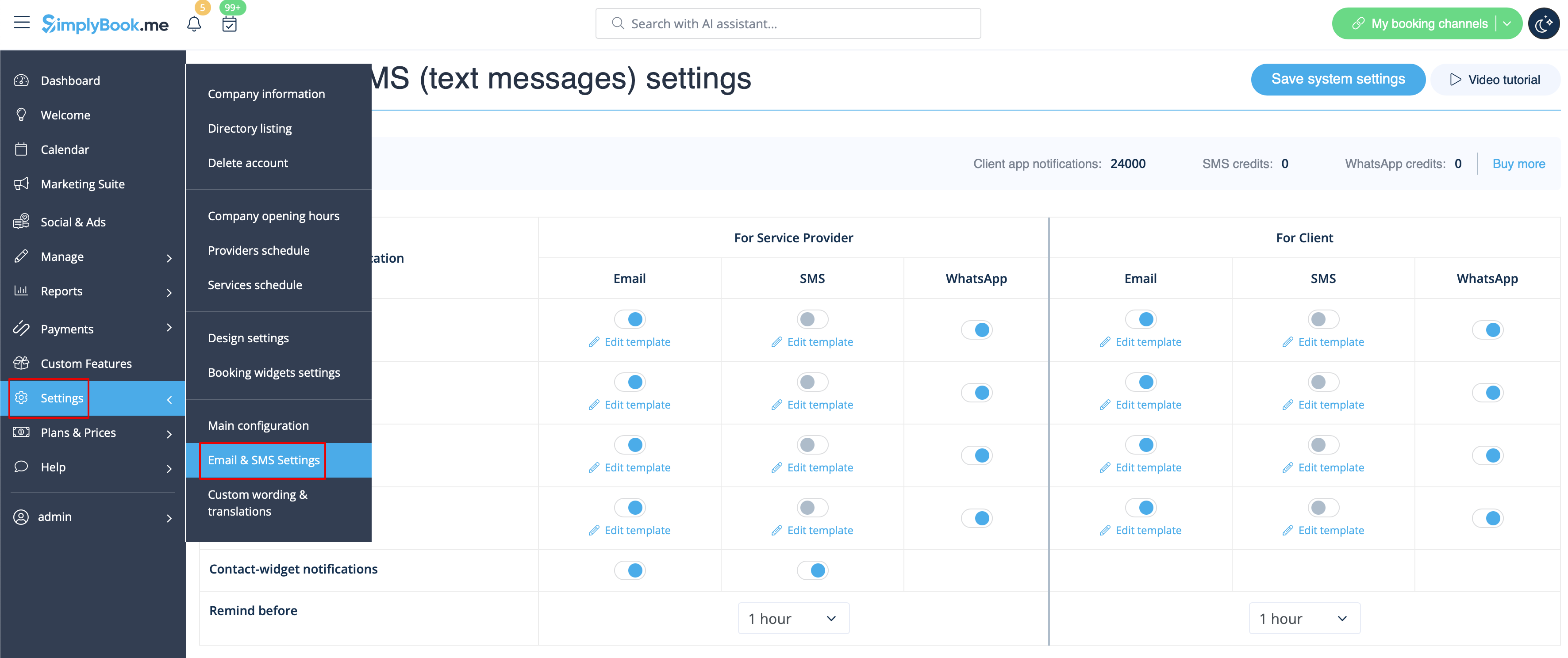
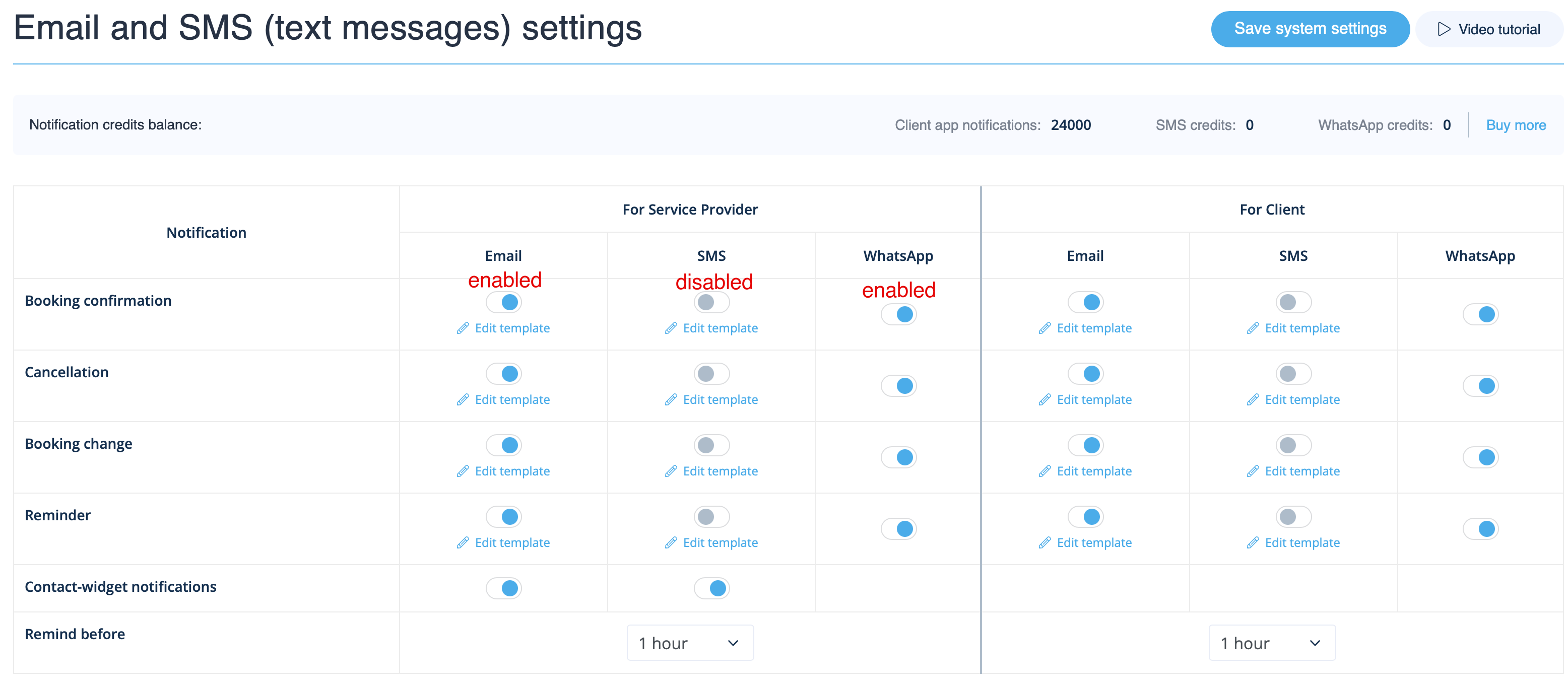
Go to Settings -> Email and SMS settings and check/uncheck the corresponding boxes to send/not send notifications. You can change the texts of notifications to better suit your needs by clicking edit template, making changes and saving system settings.
What'sApp Notifications
If you and your clients are actively using WhatsApp messenger you can get bookings-related notifications there.
- How to use
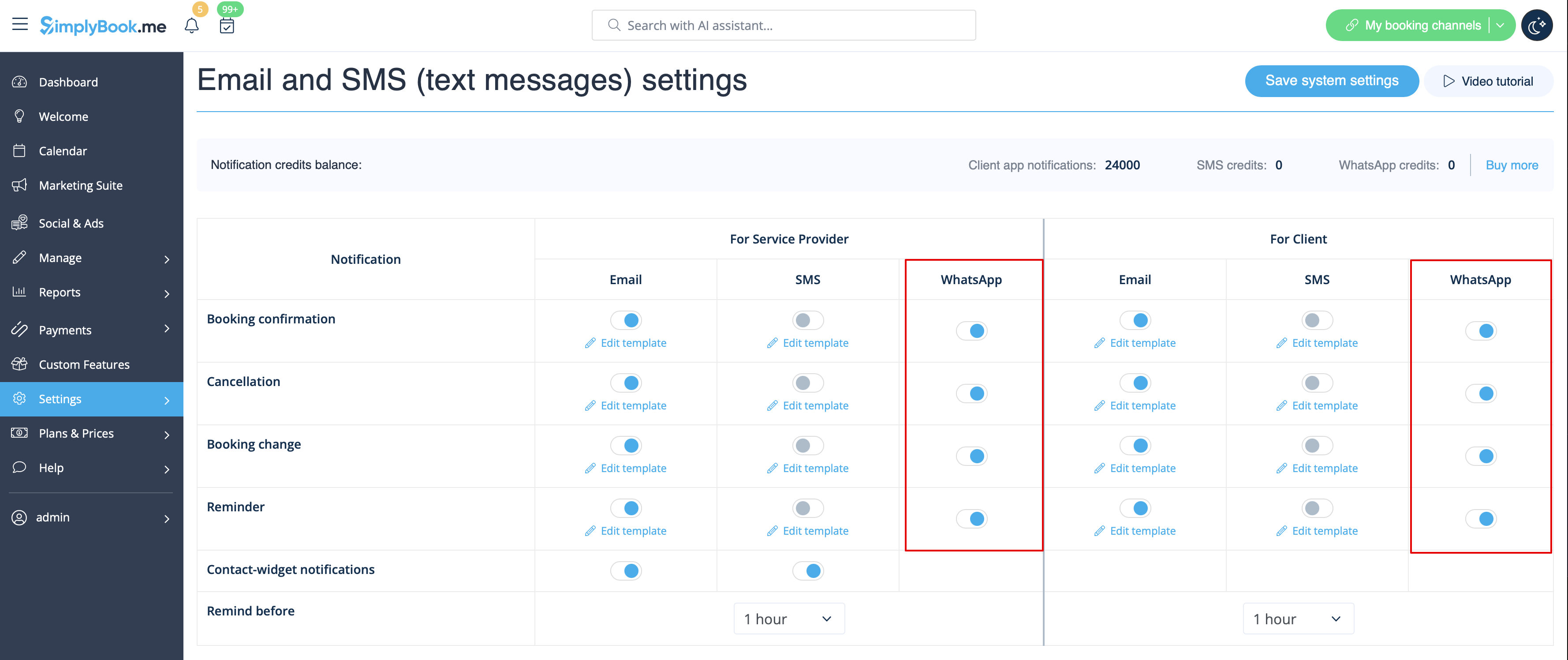
1. Enable the desired types for WhatsApp Notifications in Settings -> Email and SMS settings
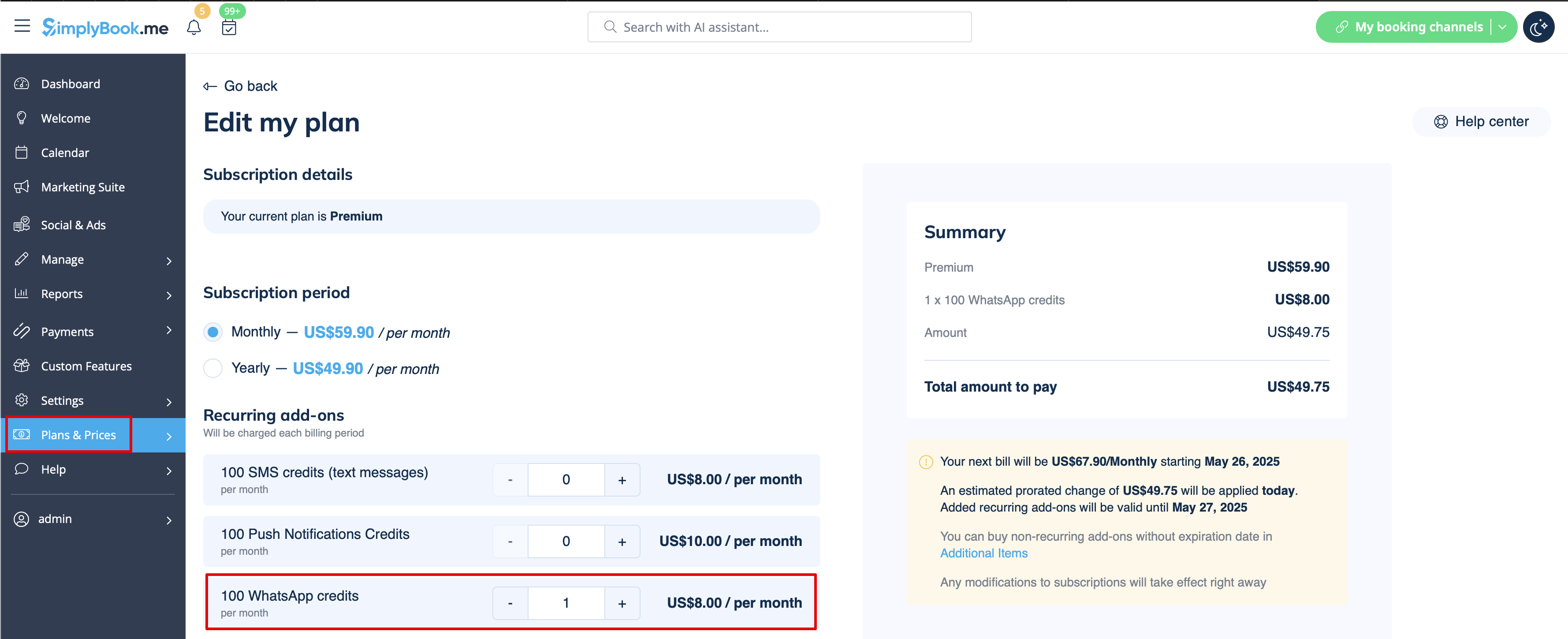
2. Purchase WhatsApp Credits in Plans & Prices -> Subscriptions or Additional items depending on whether you would like the credits to automatically renew with your subscription or you prefer one-time purchase.
(You will also be able to view the messages that were sent from the system as well as the number of credits used in Reports -> SMS (txt messages) -> WhatsApp notifications)
Please note! To comply with WhatsApp policies, messages use pre-approved templates and cannot be customized. These templates cover essential information clearly and professionally.
Admin mobile app
If you are using admin mobile application you can receive booking related notifications such as booking confirmations, reminders, booking change and cancellation notifications.
To enable/disable these notifications please navigate to Settings tab -> Manage notifications in the admin mobile application.
How to disable Feedbacks
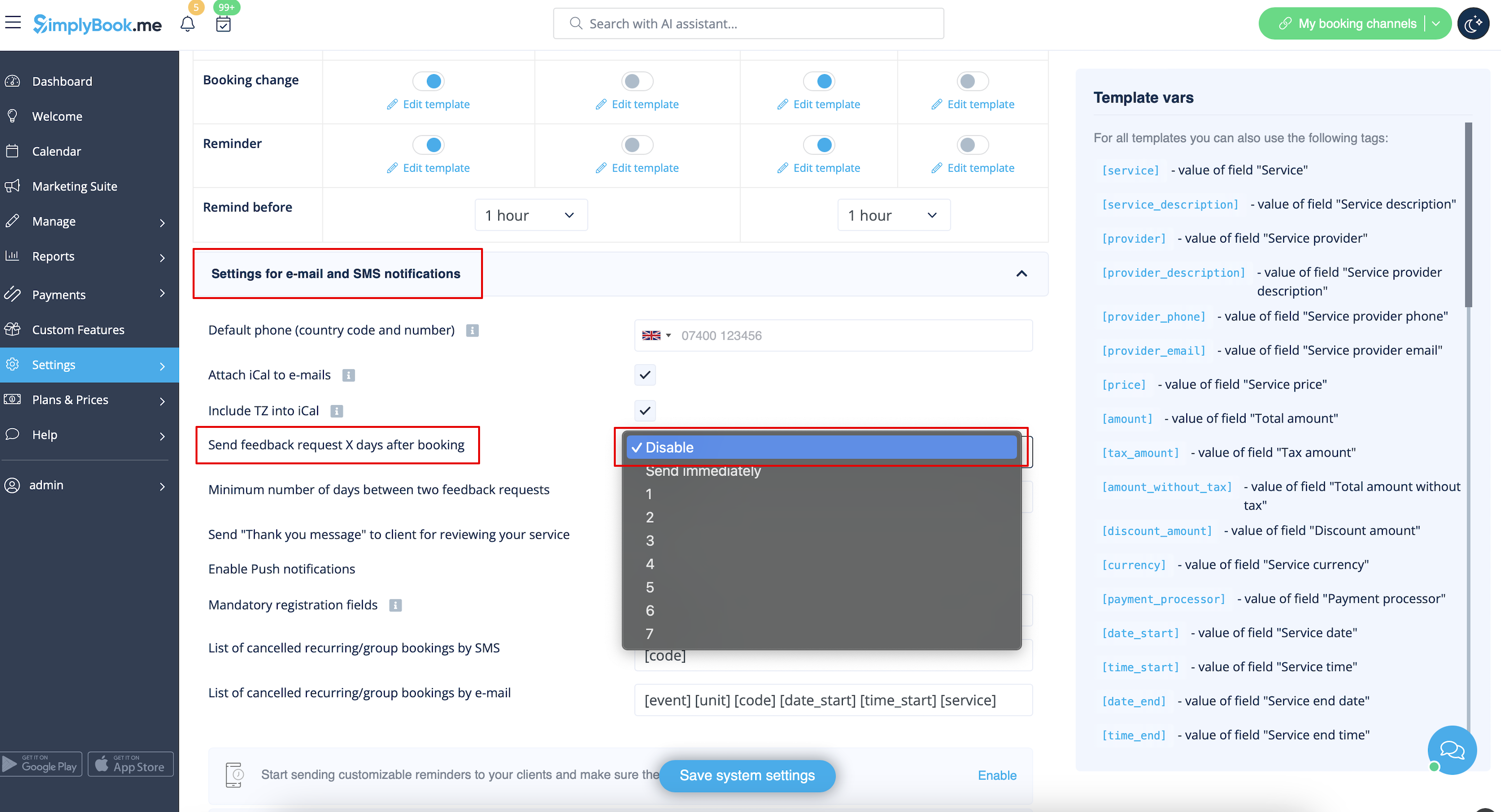
You can view all your reviews in the Reports -> Reviews tab in left-side menu, delete or reply to them. If you wish to remove the option to leave a review and do not send feedback request in Settings -> Email and SMS settings -> Settings for e-mail and SMS notifications -> set Number of days until feedback request is sent to client to Disable.
The following custom features have either own notification types or can influence the messages sent by the system:
Accept payments
Allows to send:
- Invoices to clients(email template)
- Notifications about unsuccessful payments to client(Email template)
- Notifications about unsuccessful payments to company(Email template)
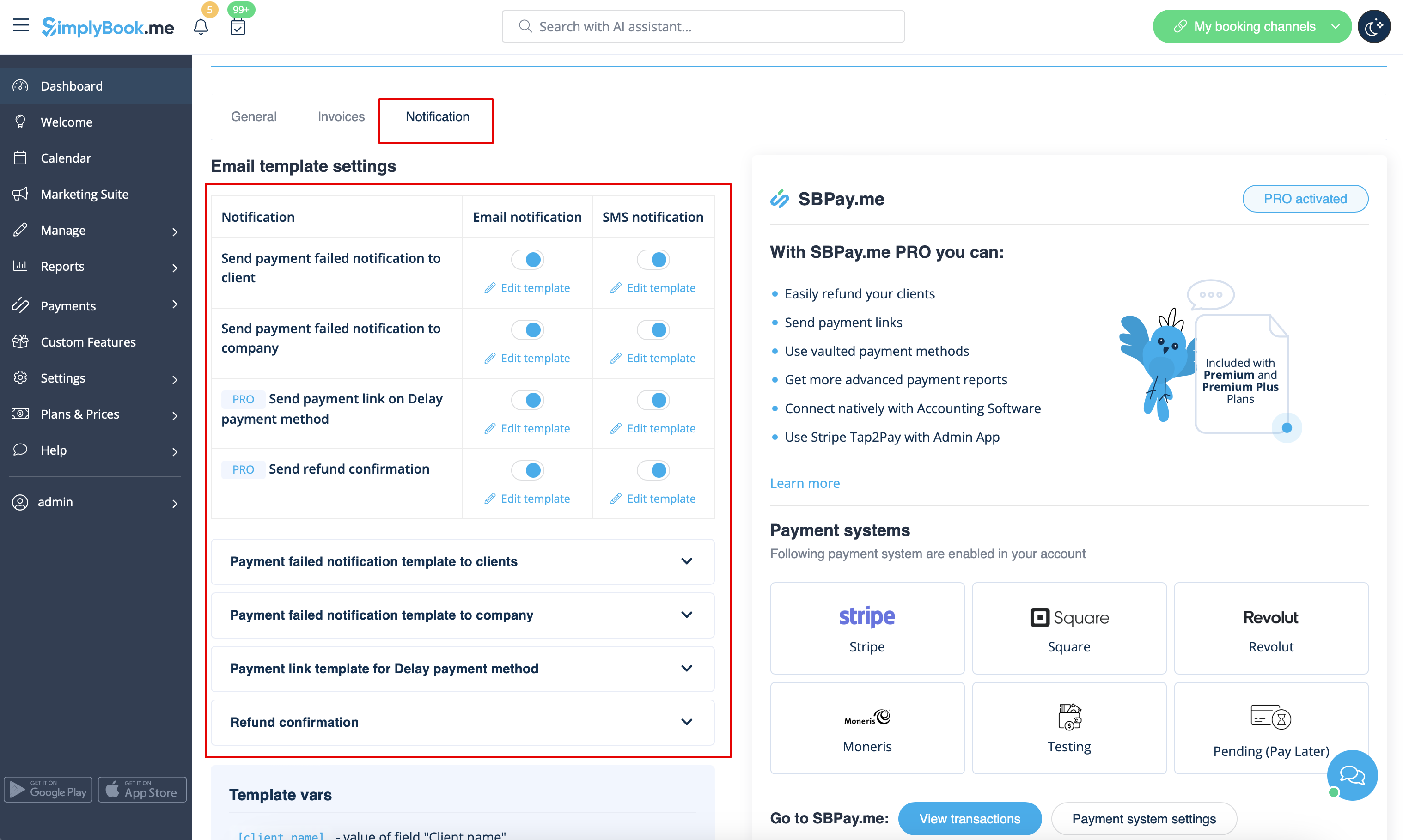
All these templates can be edited in Custom features -> Accept payments -> Settings -> Email template settings.
- Read more about his custom feature use.
Multiple bookings
Has own templates for:
- Booking confirmation notification to client(Email and SMS templates)
- Booking reminder notification to client(Email and SMS templates)
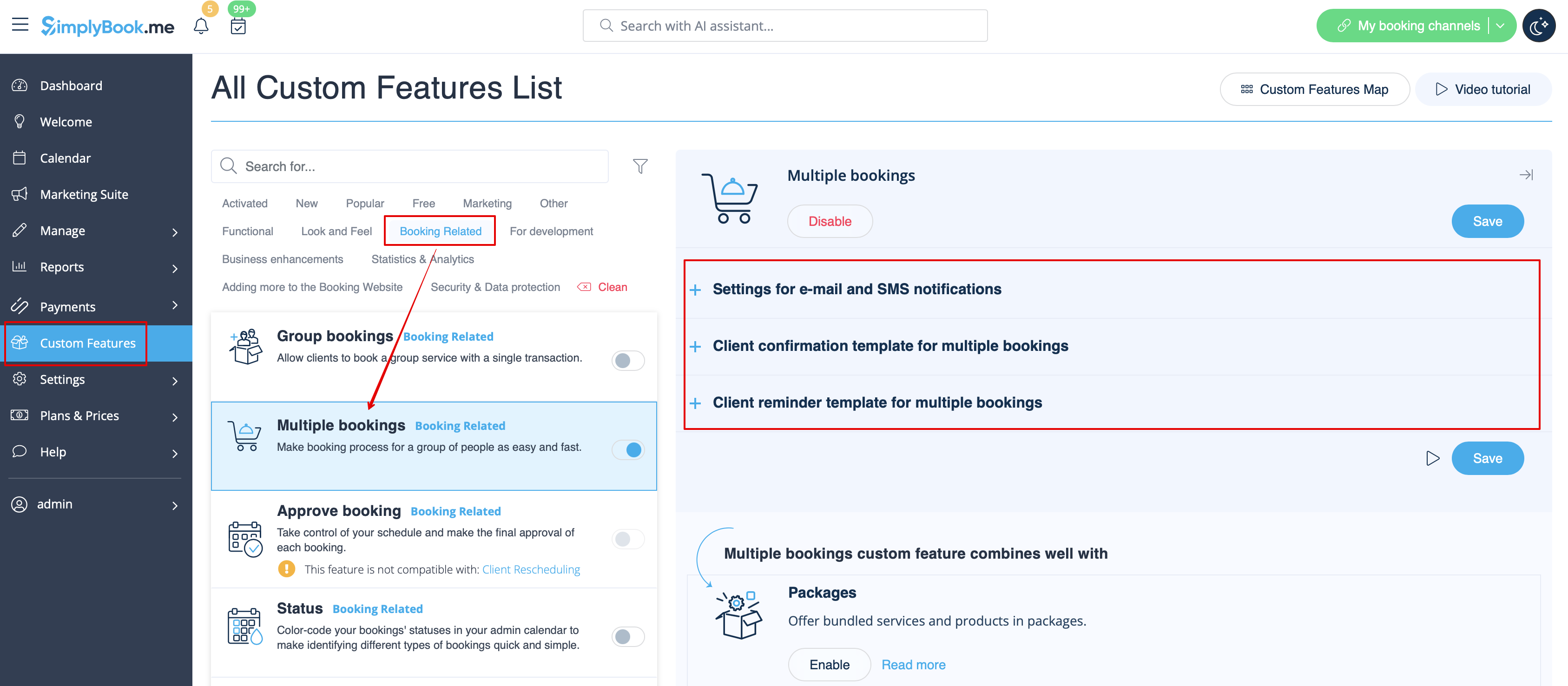
Both types are automatically applied when this custom feature is enabled and the clients makes a batch of appointments at once using Add another service button at checkout. The templates texts can be adjusted in Custom features -> Multiple bookings -> on the right side of the page.
- Read more about his custom feature use.
Group bookings
Has special templates for the following types:
- Booking confirmation notification to client(Email and SMS templates)
- Booking reminder notification to client(Email and SMS templates)
- Booking confirmation notification to provider(Email and SMS templates)
- Booking reminder notification to provider(Email and SMS templates)
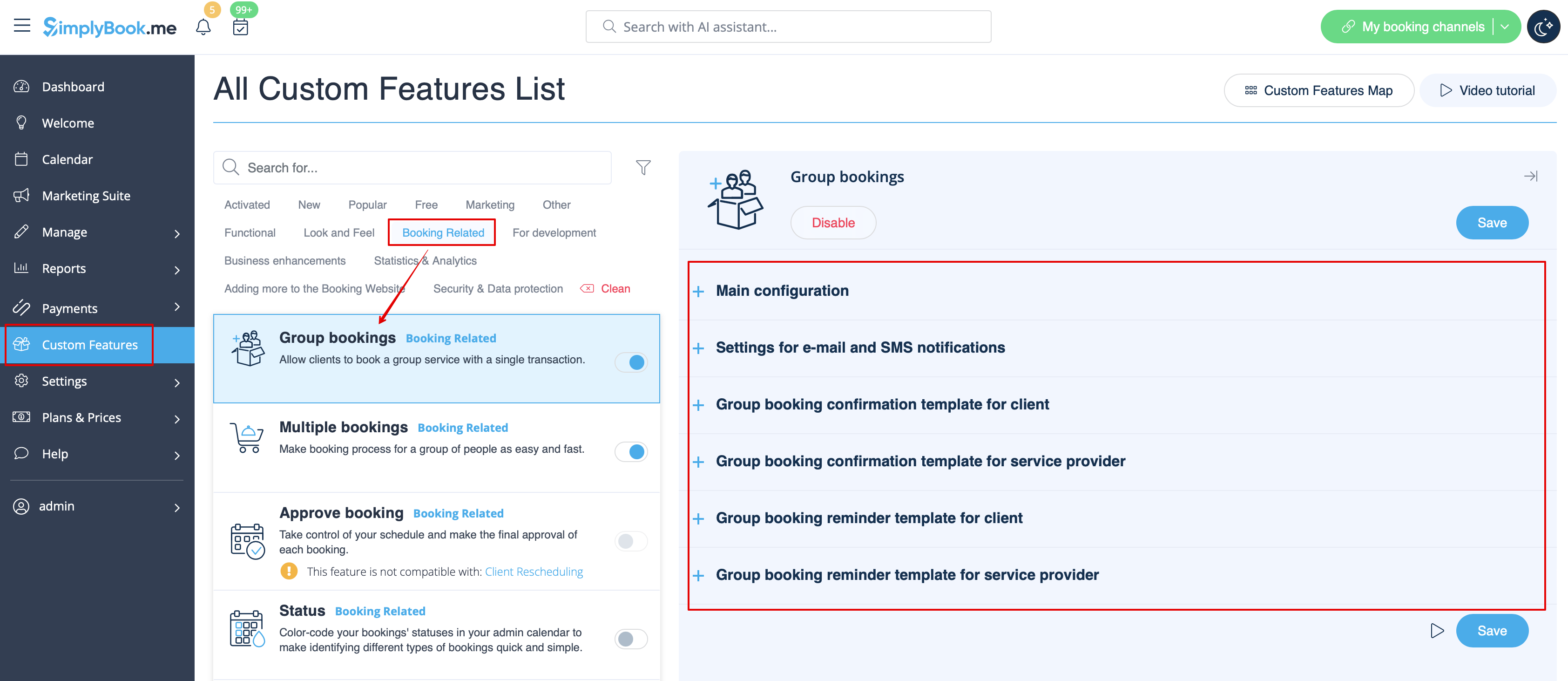
They will be automatically applied when this custom feature is enabled and the client books an appointment selecting several participants on the service step of the booking process. All the templates can be adjusted in Custom features -> Group bookings -> on the right side of the page.
- Read more about his custom feature use.
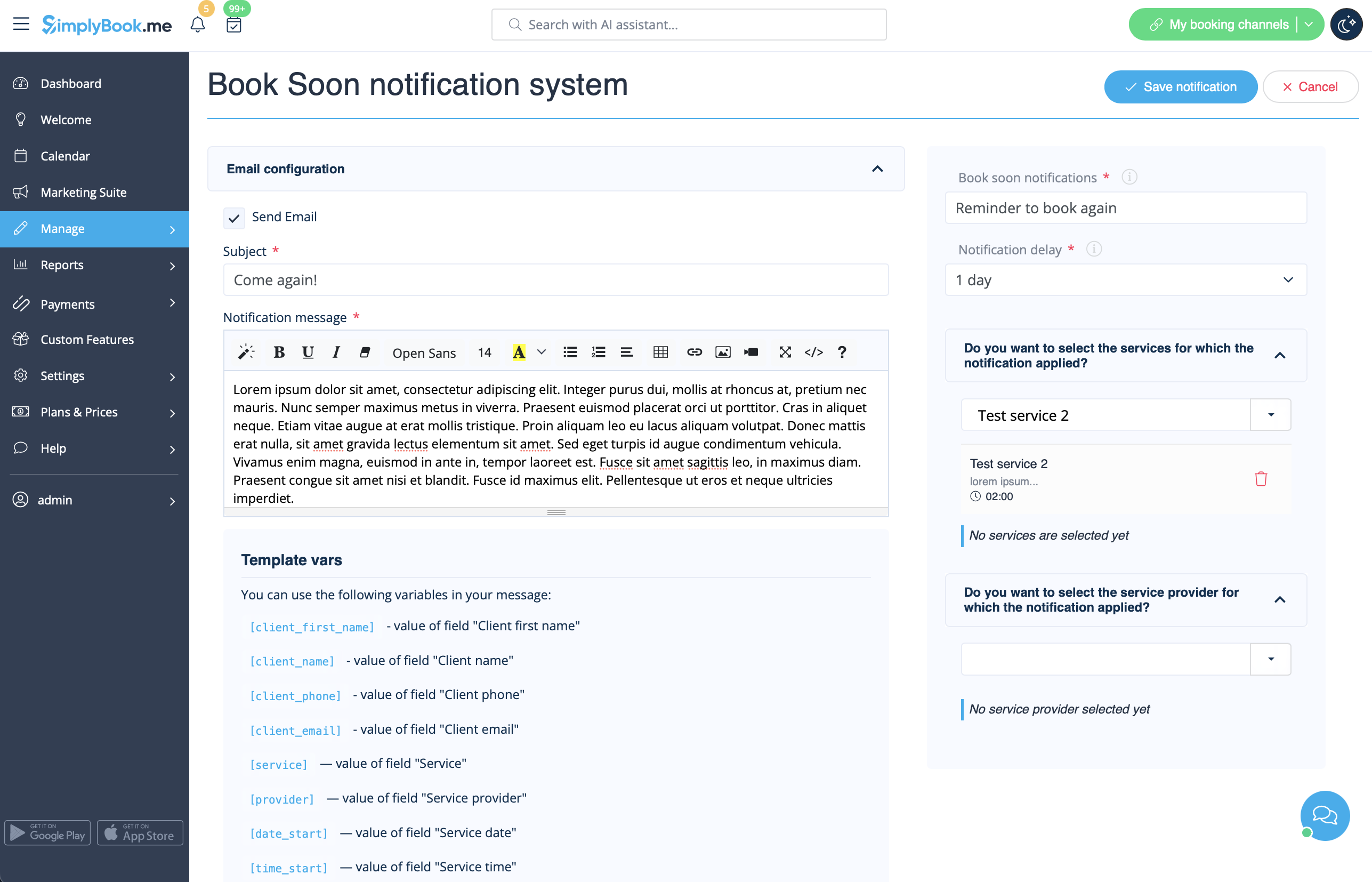
Book Soon notification system
Allows to send reminders to come again to the clients who have booked before.
The templates can be set in Custom features -> Book Soon notification system -> Settings -> Add new to create a new template(Email and SMS).
You can create numerous specific templates for certain service(s)/provider(s) and they will be sent when the indicated time has passed from the client appointment.
- Read more about his custom feature use.
Coupons & Gift cards
Can send specific notifications for the following cases when you are using this custom feature:
- the client purchases a gift card on the booking website(Email and SMS templates)
This notification template can be enabled/disable and edited in Custom features -> Coupons & Gift cards -> on the right side of the page.
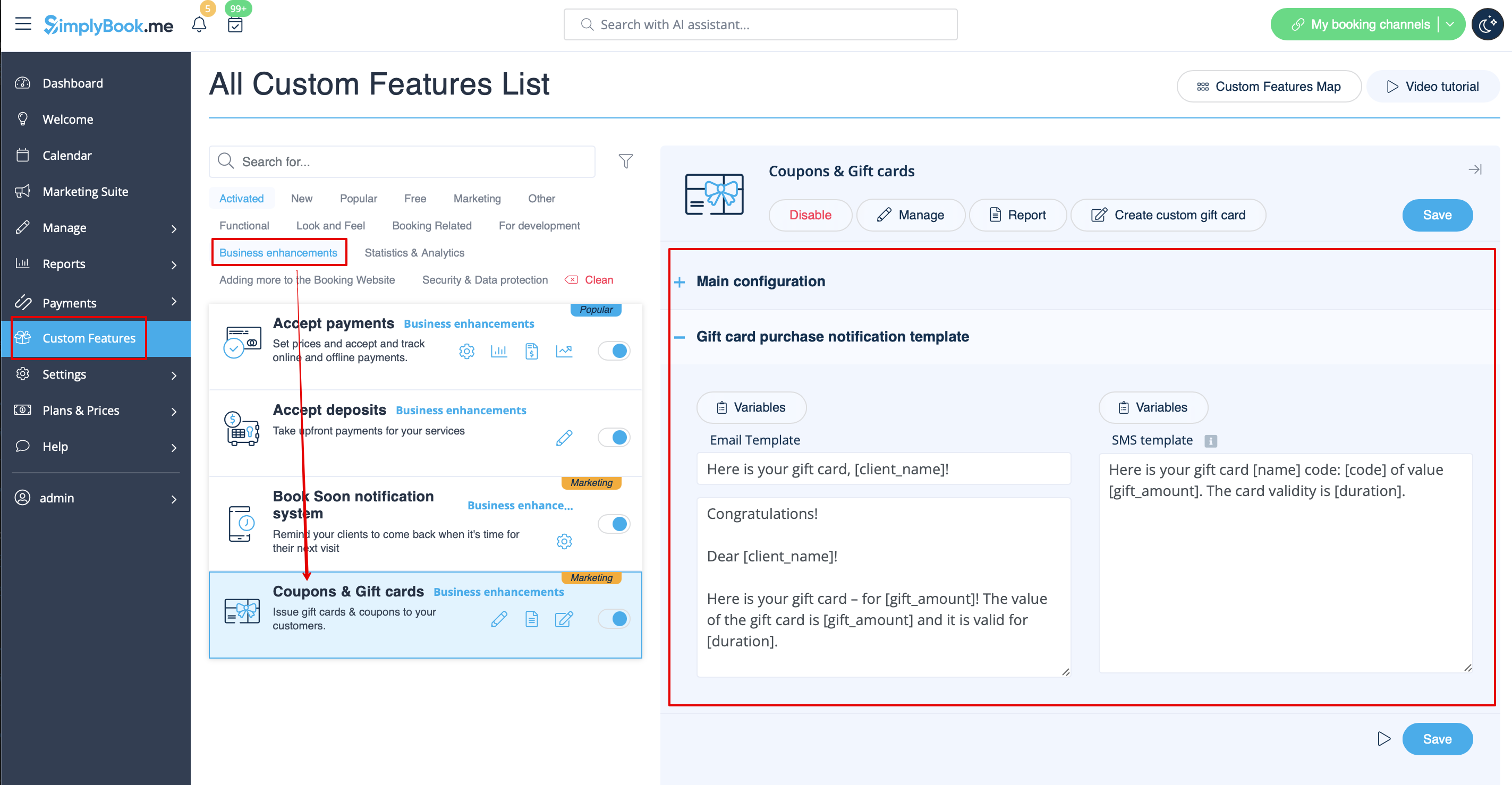
As well if you manually issue gift card or coupon to your client(s) the template that will be used in this case can be access in Manage -> Coupons&Gift Cards -> Issue the gift card / Send coupon message for the desired gift-card/coupon -> Send Email/Send SMS.
- Read more about his custom feature use.
Client mobile app
In case this feature is enabled and the client has allowed notifications, the mobile application will send booking-related push notifications.
There is no place to edit the template, but you can view the notifications report in Reports -> Push notifications report.
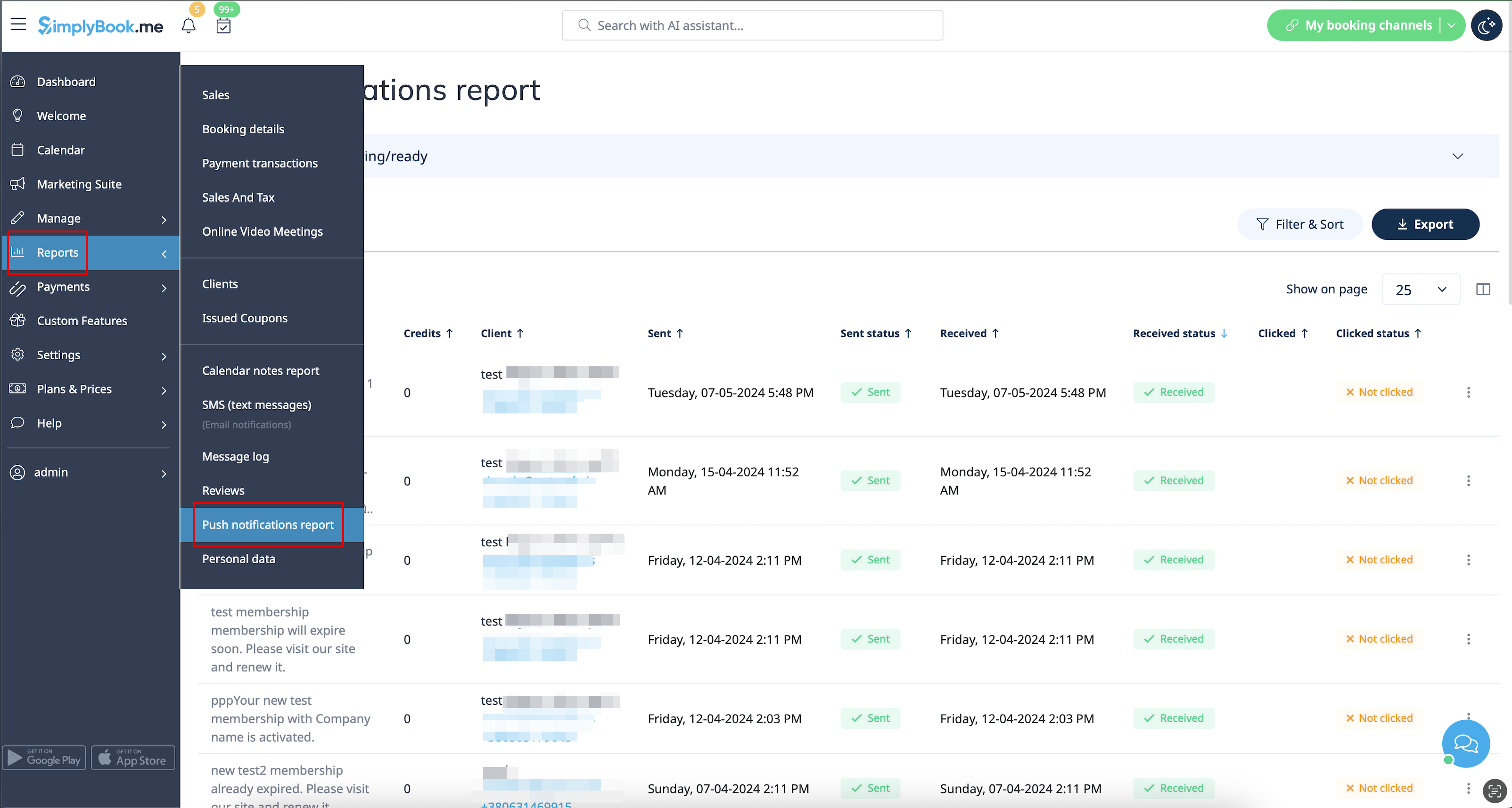
Please note! You need to have enough push notifications credits to be able to send such notifications to clients
- Read more about his custom feature use.
Client login
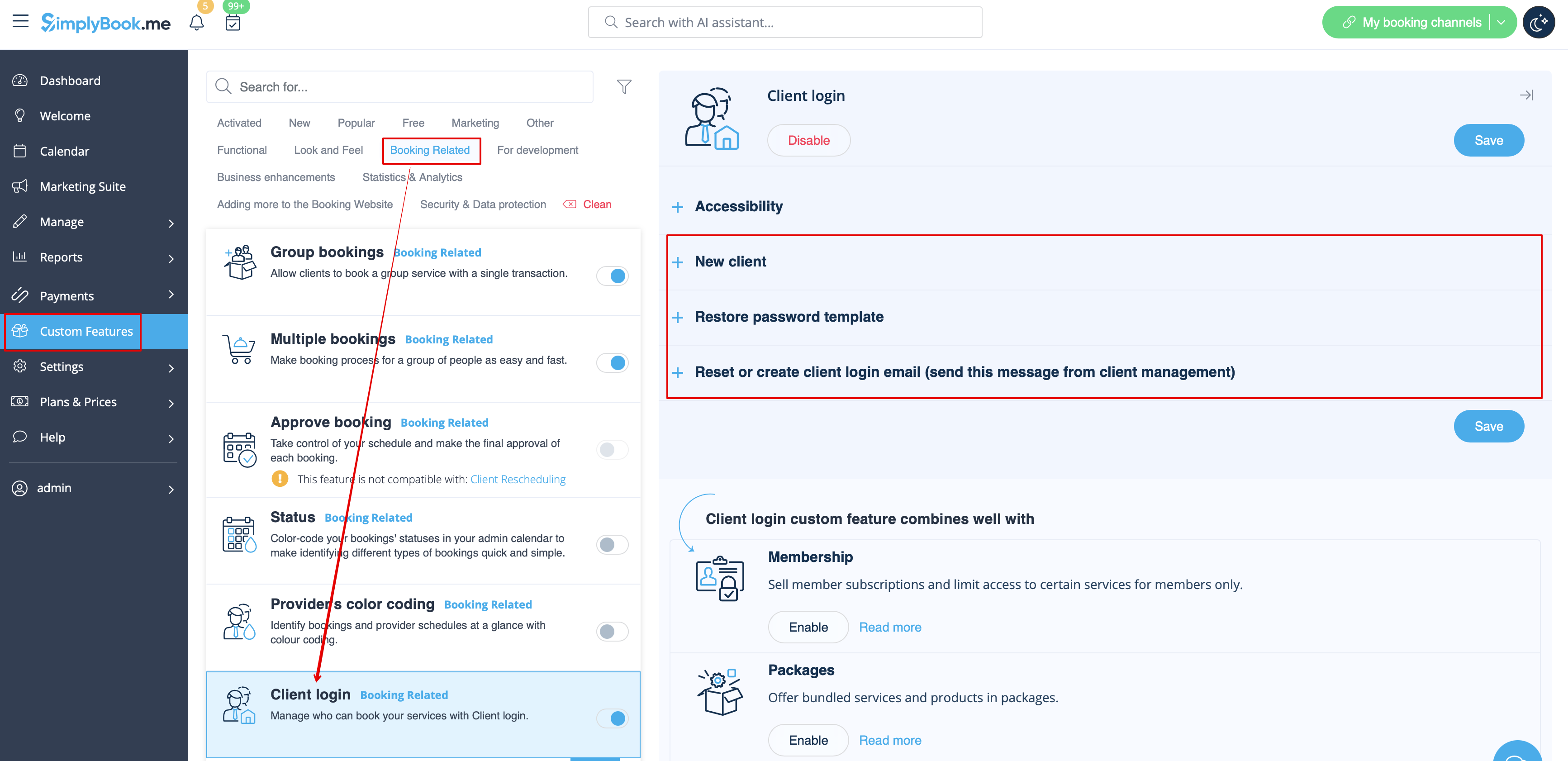
If you require the clients to sign in/sign up to be able to book the appointments or make purchases on your booking website and have Client login custom feature enabled,
there are three notification types that can be sent to your clients(they cannot be disabled):
- new client registration(Email)
- restore password(Email)
- reset password or create client from admin interface(Email)
You can edit the templates in Custom features -> Client login -> on the right side of the page.
- Read more about his custom feature use.
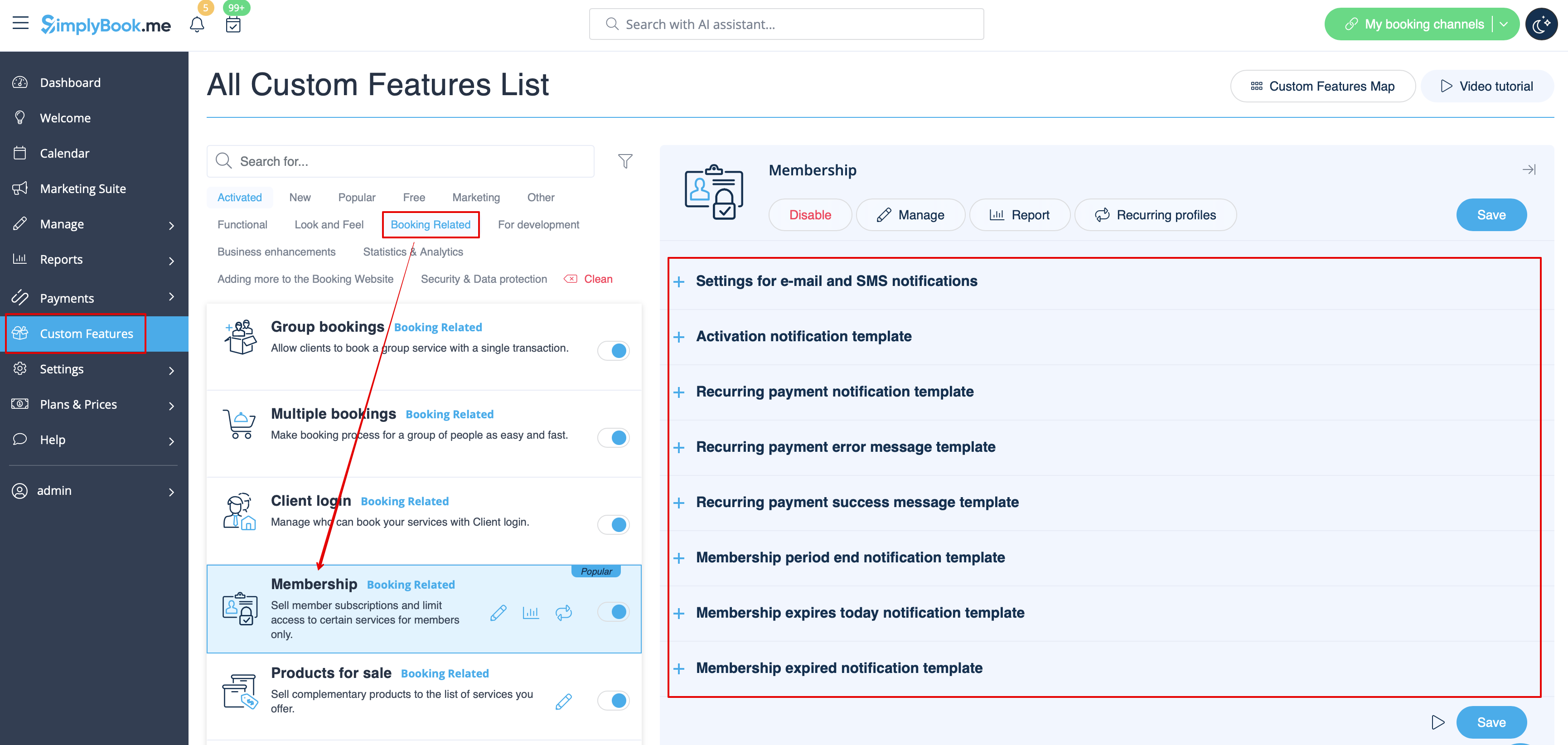
Membership
When you sell memberships on the booking website you may also need to notify your clients about the different points.
This custom feature allows to send:
- membership activation notification(Email and SMS templates)
- recurring payment notification(Email and SMS templates)
- recurring payment error(Email and SMS templates)
- recurring payment success(Email and SMS templates)
- membership period end(Email and SMS templates)
- membership expires today(Email and SMS templates)
- membership expired notification(Email and SMS templates)
You can edit the templates, as well as enable/disable certain notification types in Custom features -> Membership -> on the right side of the page.
- Read more about his custom feature use.
Flexible notifications
This custom feature allows to customize the booking related notification per certain service/provider or both.
The following types can be used:
- booking confirmation to client(Email and SMS templates)
- booking confirmation to provider(Email and SMS templates)
- reminder to client(Email and SMS templates)
- reminder to provider(Email and SMS templates)
- cancellation notification to client(Email and SMS templates)
- cancellation notification for provider(Email and SMS templates)
- booking change notification to client(Email and SMS templates)
- booking change notification to provider(Email and SMS templates)
- recurring event confirmation to client(Email and SMS templates)
- recurring event confirmation to provider(Email and SMS templates)
- batch cancellation notification to client(Email and SMS templates)
- batch cancellation notification to provider(Email and SMS templates)
- multiple bookings batch booking confirmation to client(Email and SMS templates)
- multiple bookings event reminder to client(Email and SMS templates)
- group bookings batch booking confirmation to client(Email and SMS templates)
- group bookings batch booking confirmation to provider(Email and SMS templates)
- group bookings reminder to client(Email and SMS templates)
- group bookings reminder to provider(Email and SMS templates)
You can create all the desired templates in Custom features -> Flexible notifications -> Manage.
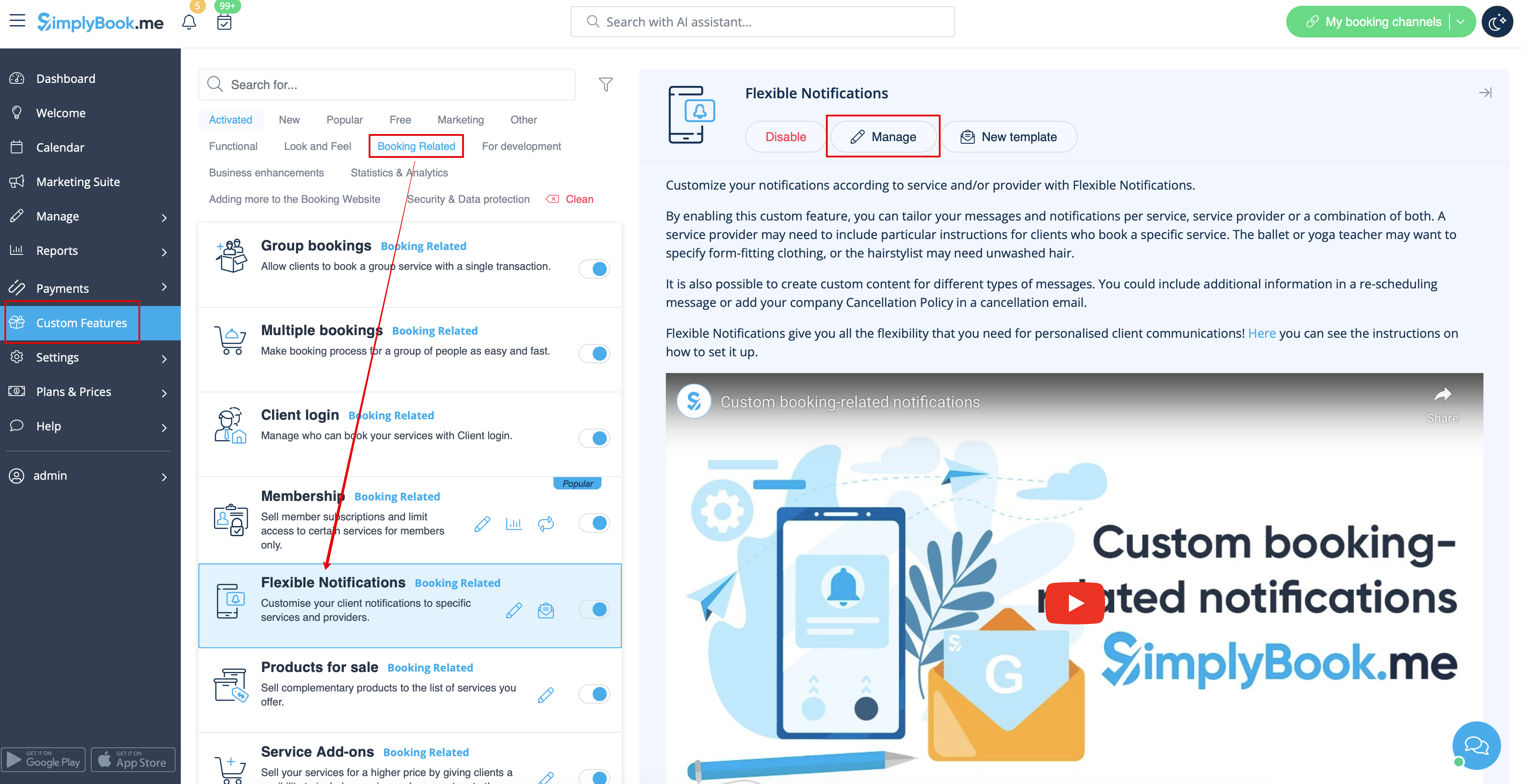
In case you need to enable/disable some of these notification types please navigate to Settings -> Email and SMS settings -> and use the table at the top of the page.
Please note! These are general booking notifications settings so if you turn some of them off it will also influence similar types related to other features(i.e. if you disable booking confirmations to providers there then common confirmations, as well as group, recurring batches confirmation notifications will become off)
- Read more about his custom feature use.
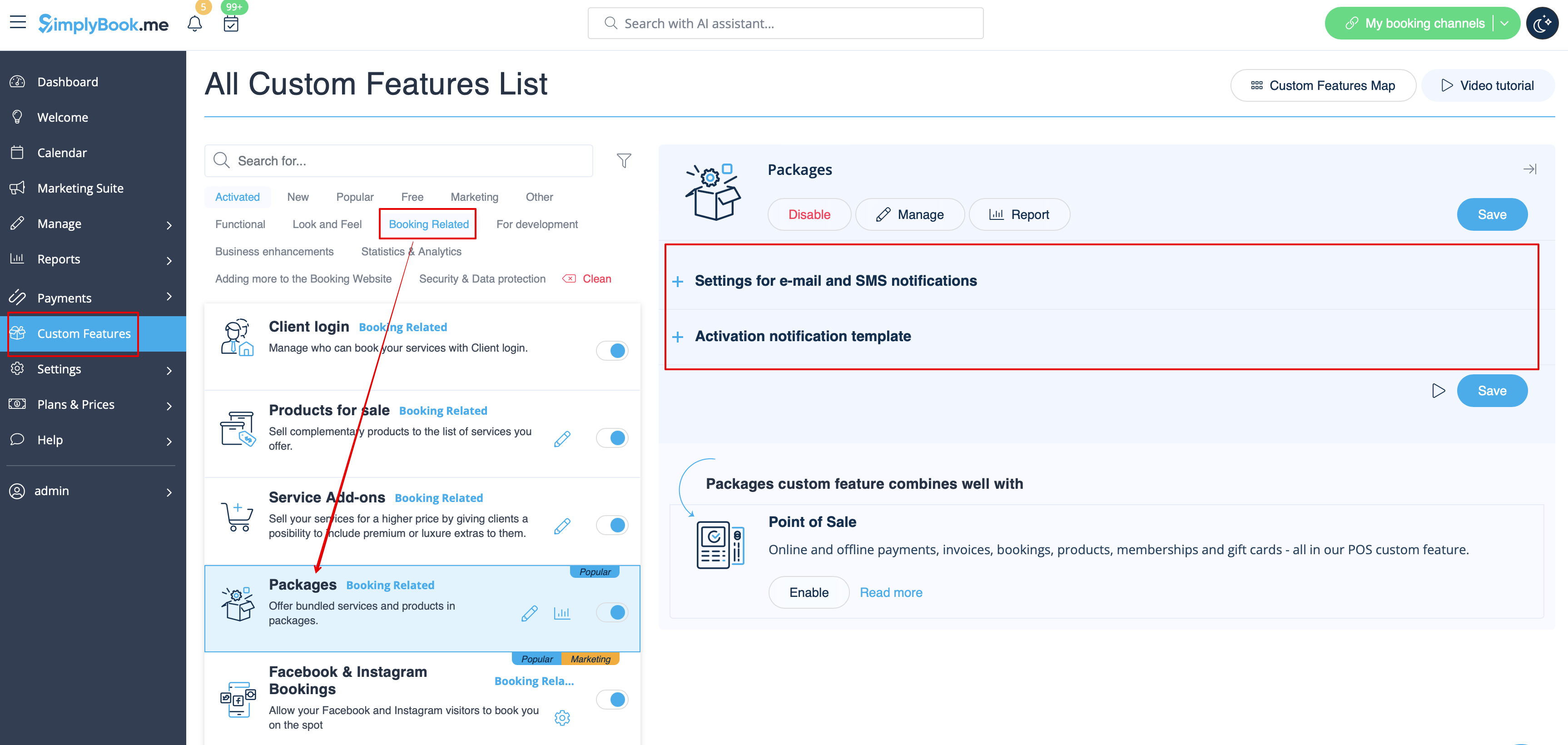
Packages
When you sell the packages of services/classes/products/service add-ons or issue the packages from admin side it is also possible to automatically send the clients the package activation notification(Email and/or SMS).
To edit the template text or enable/disable the notifications please navigate to Custom features -> Packages -> right side of the page.
- Read more about his custom feature use.
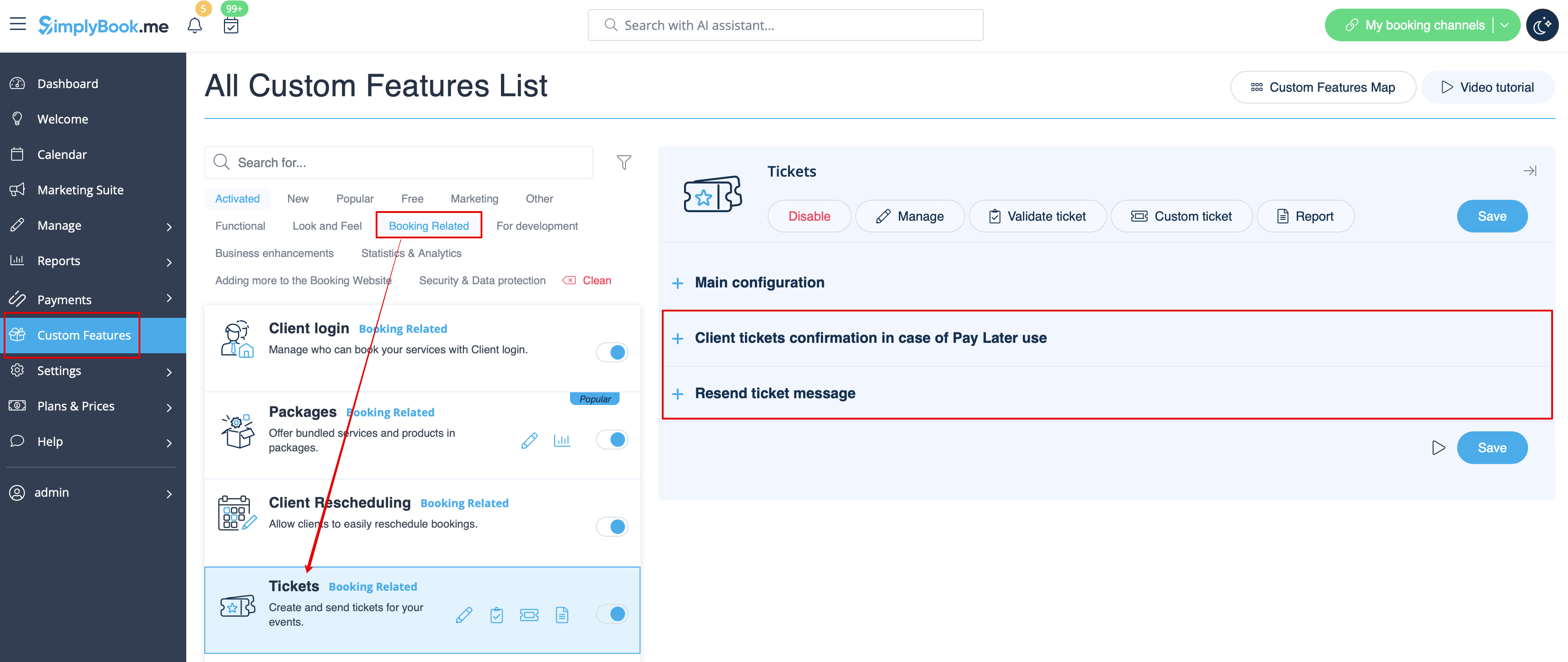
Tickets
By default the ticket is automatically sent to client email together with the corresponding service confirmation email.
But in case you are using online payments and allow to choose pay later option on the booking website and the client select it,
in this case the ticket will be sent with the separate email.
As well you may wish to re-send the ticket to the client in certain cases(it is possible in Reports -> Tickets report).
Both notification templates case be edited in Custom features -> Tickets -> on the right side or the page. There are Email types available only.
- Read more about his custom feature use.
Custom email
Allows to customize the design of the email notifications to match your branding and taste.
To create your designs please go to Custom features -> Custom email -> Create template.
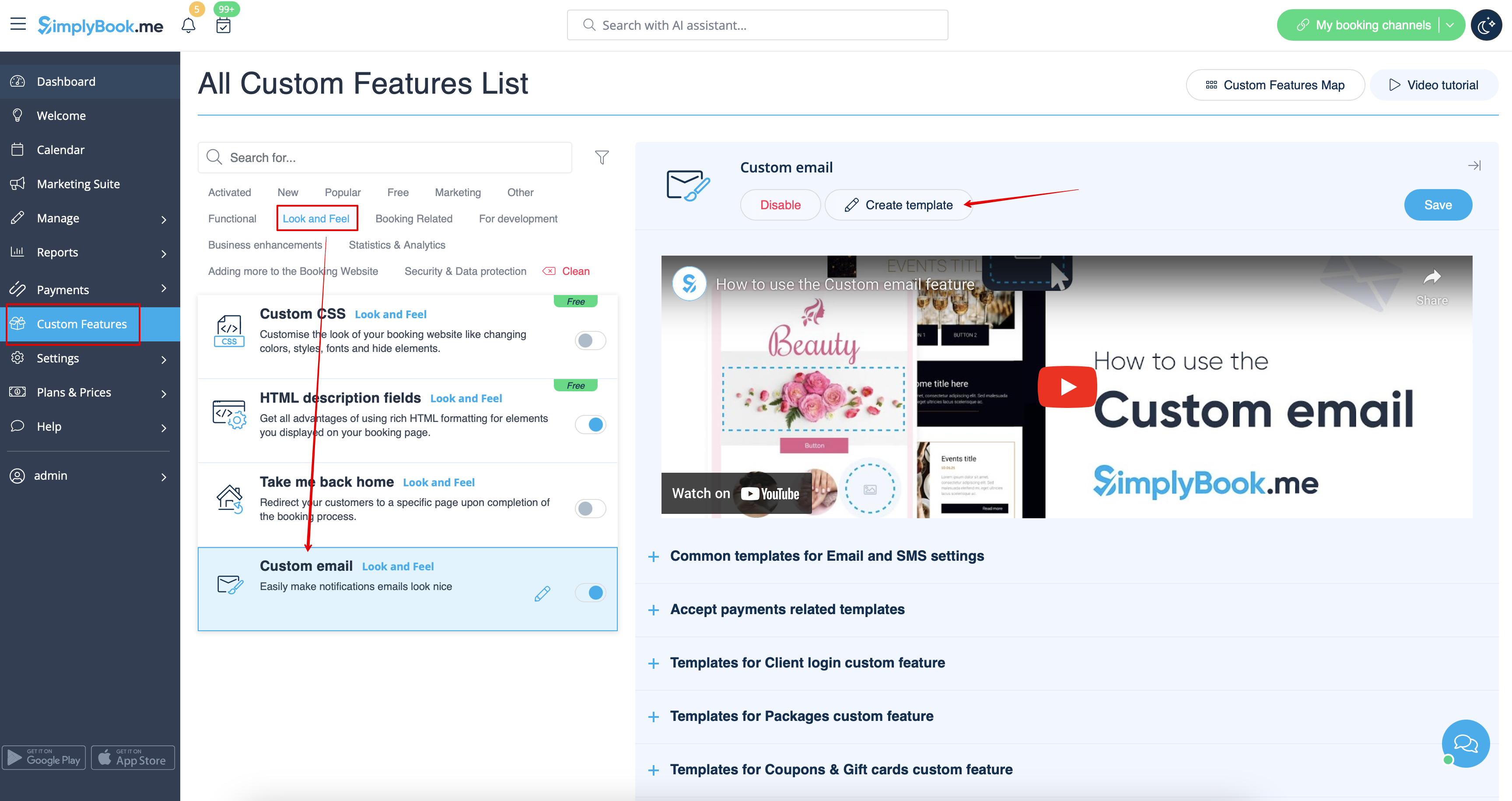
With the help of this custom feature you can influence the look of the following notification types:
- common booking related notifications from Settings -> Email and SMS Settings;
- invoices emails from accept payments custom feature;
- group bookings custom feature notifications;
- multiple bookings custom feature notifications;
- client login custom feature notifications;
- membership custom feature notifications;
- packages custom feature notifications;
- tickets custom feature notifications;
- coupons & gift cards custom feature notifications
- medical test custom feature notifications;
- book soon notification system custom feature notifications.
This feature allows to test each notification type with the pre-created design.
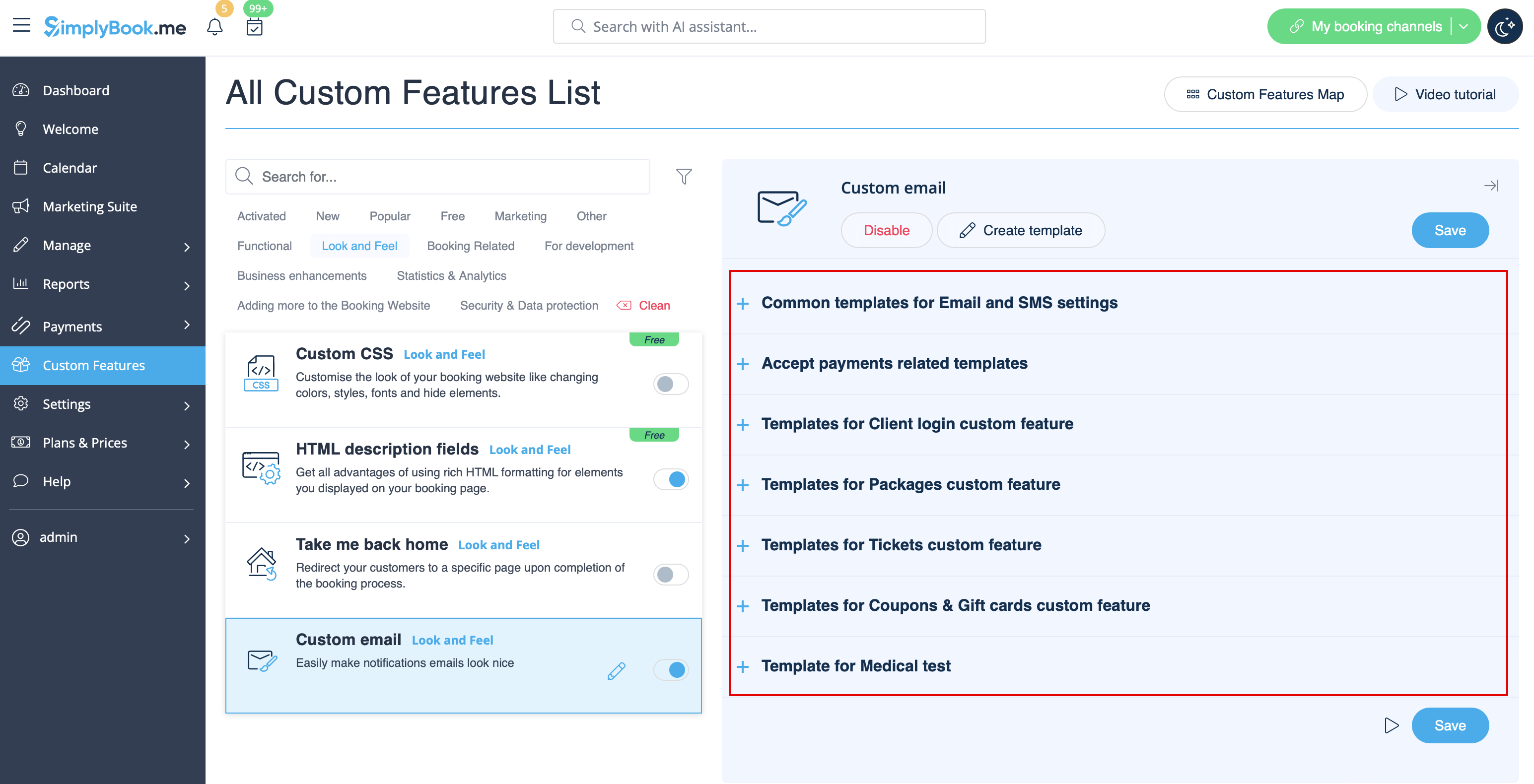
The {{content}} tag that contains the booking/purchase information can be edited in the corresponding feature settings.
- Read more about his custom feature use.
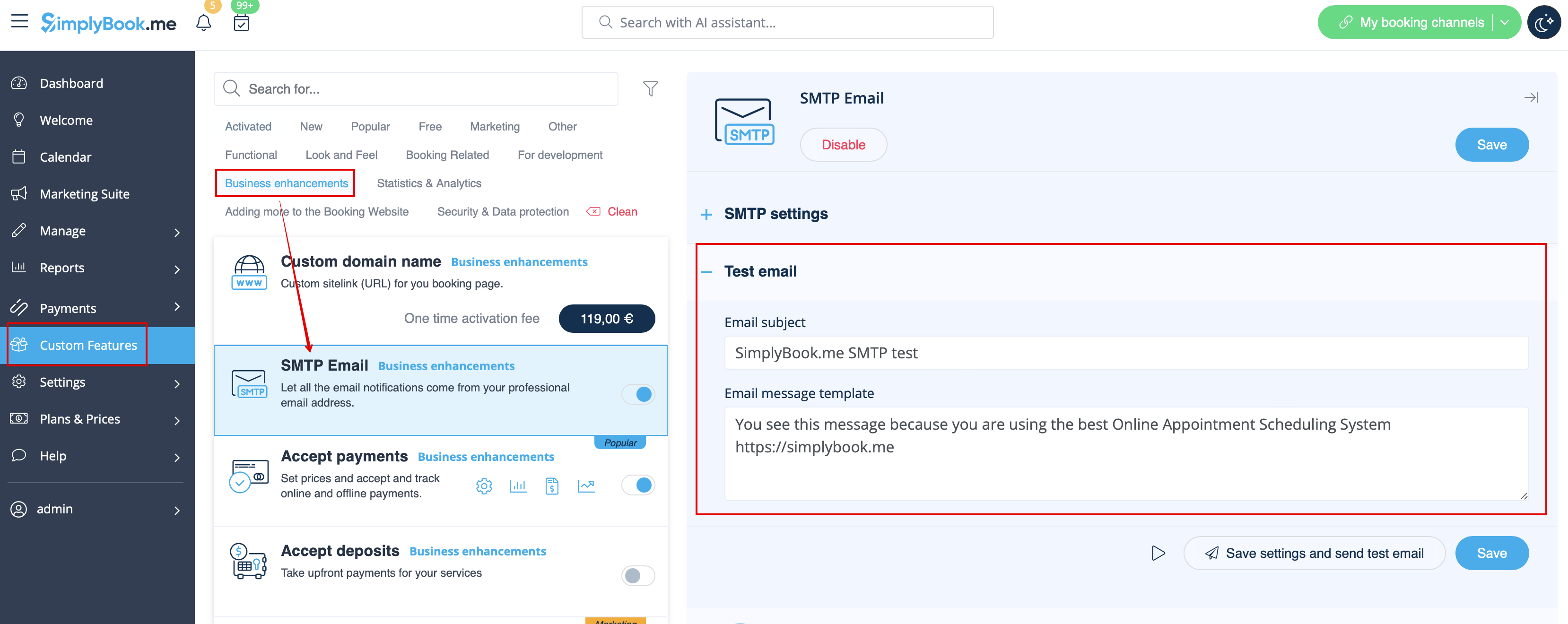
SMTP
This feature allows you to use your own SMTP server for sending the emails.
It has only one template for testing this feature after you have entered the settings.
You can edit and use the test email template in Custom features -> SMTP -> on the right side of the page.
- Read more about his custom feature use.
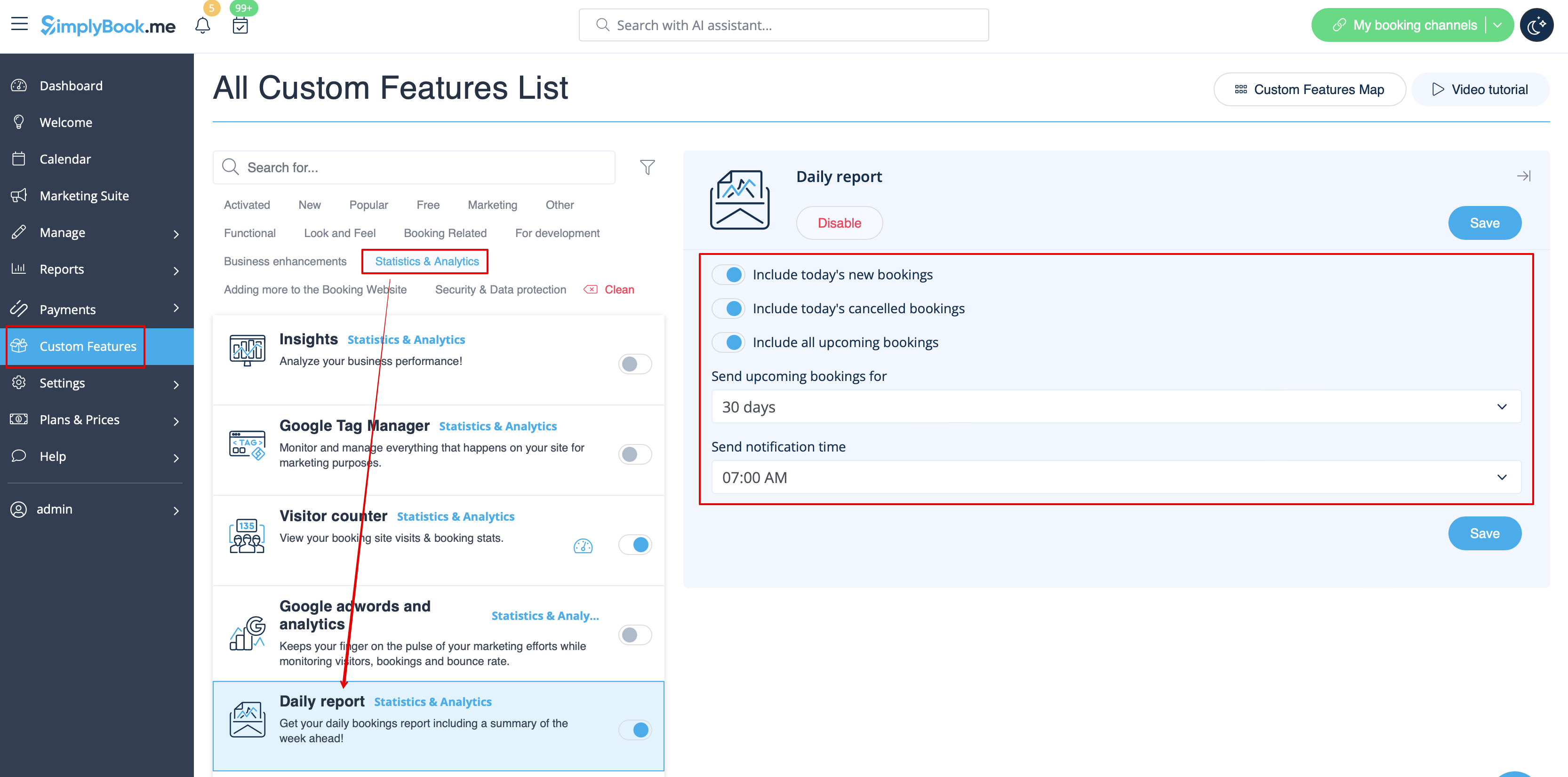
Daily report
When you enable and set this custom feature it will automatically send the email report about new, upcoming and cancelled appointments to your company email address.
There is not template to edit as such, but you can adjust the items included in Custom features -> Daily report -> on the right side of the page.
- Read more about his custom feature use.
HIPAA
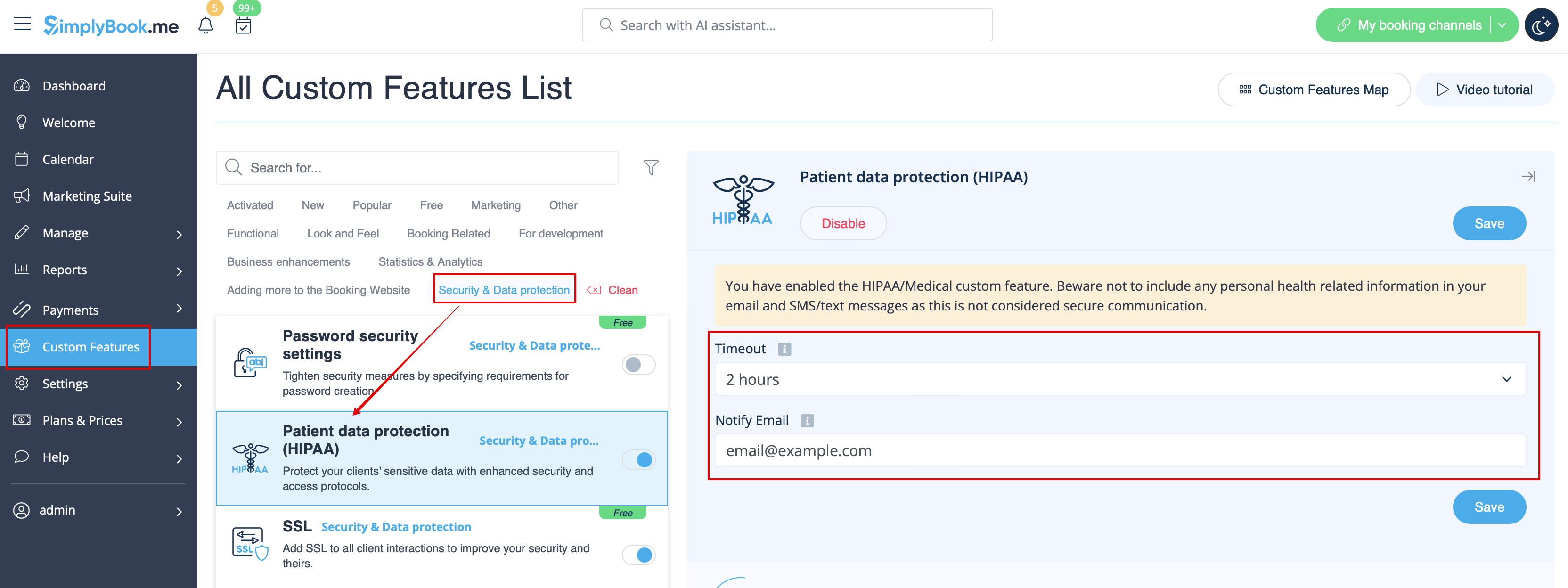
This is security-related custom feature and allows to send email notifications when somebody logs in to your system.
It does not contain any email template to be edited and can be enabled/disabled by adding/removing the email address in Custom features -> HIPAA -> right side of the page -> Notify email.
- Read more about his custom feature use.
Contact widget
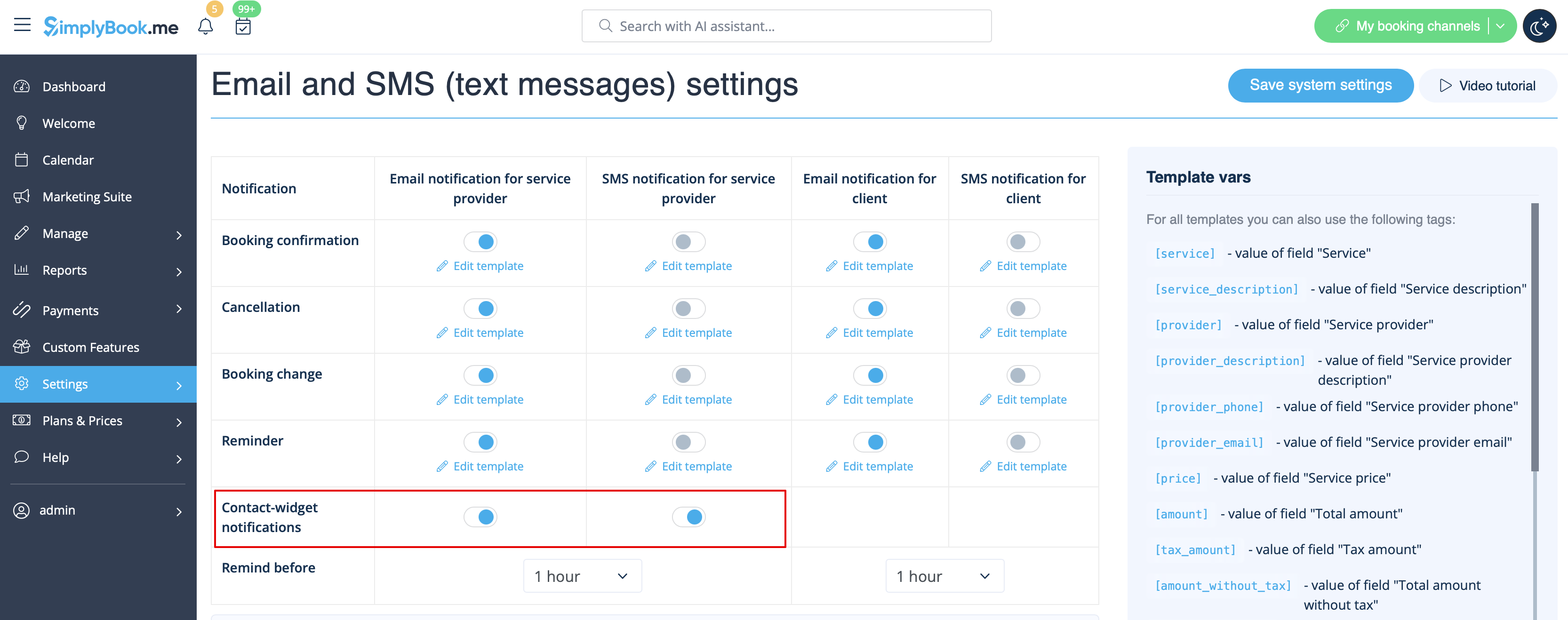
As this custom feature allows to add a contact form to your booking website or create the contact button widget, there is also the email/SMS notification to company that is sent when somebody leaves a message on the booking site or widget so that you will be able to respond right away. There is no template to edit but you can disable such notifications in Settings -> Email and SMS settings -> Contact widget notifications.
- Read more about his custom feature use.
Medical test
When you are using this custom feature you definitely need to send the test results to patients' emails.
In Custom features -> Medical test -> on the right side of the page you can enable/disable or edit the following templates:
- positive results(Email and SMS templates);
- negative results(Email and SMS templates);
- inconclusive results(Email and SMS templates).
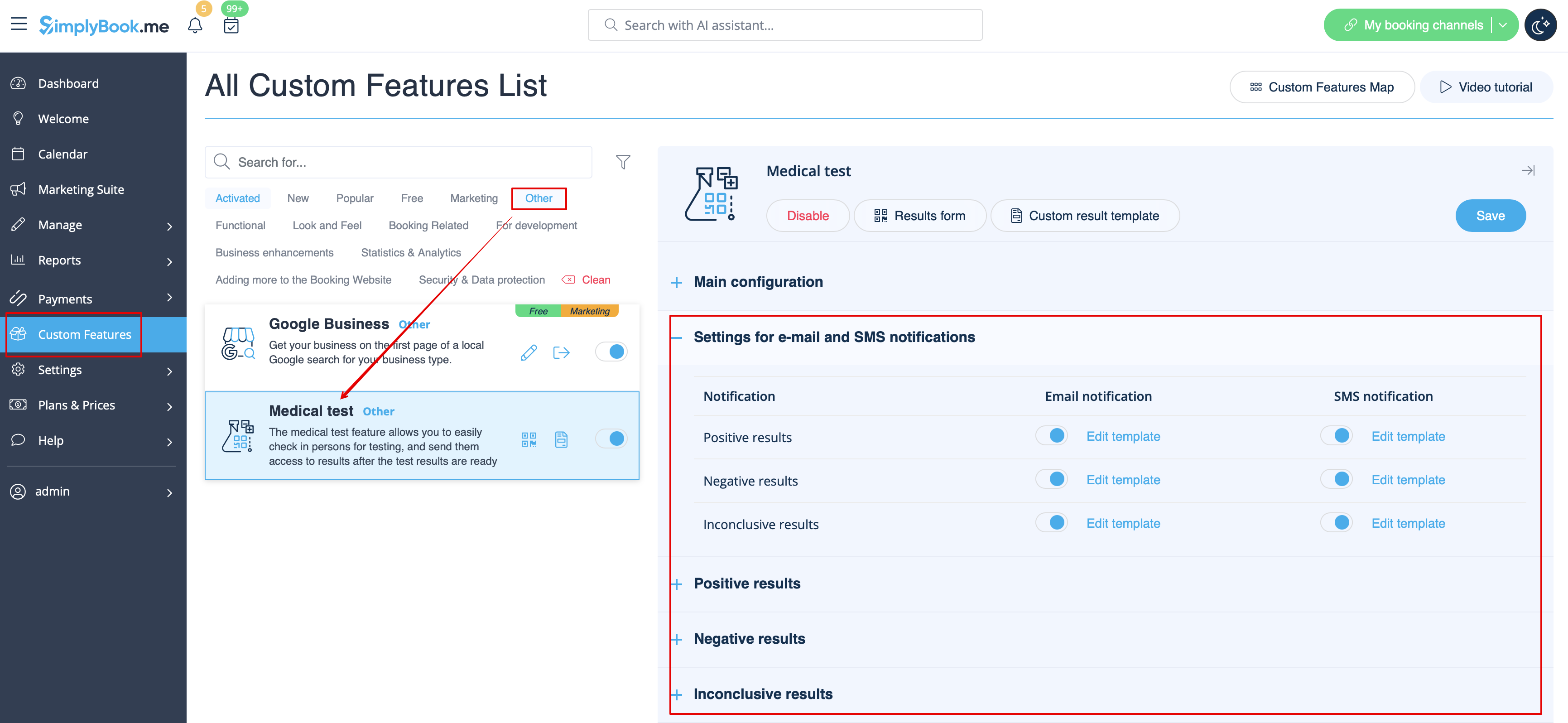
In case you need to adjust the test result template please use Custom result template option above the templates.
- Read more about his custom feature use.
What are variables
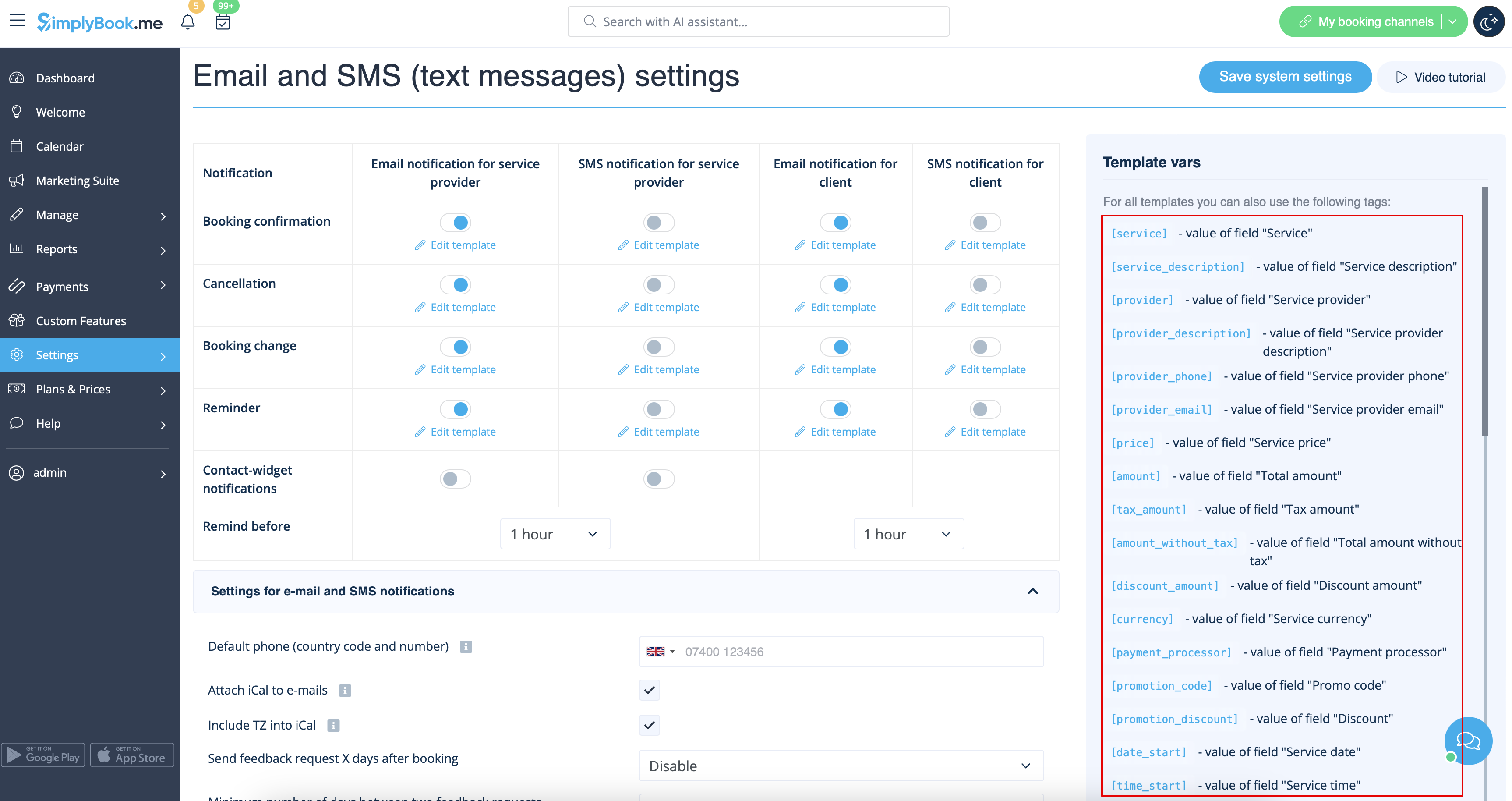
Variables are elements that can be inserted in email and sms templates (Settings -> Email and SMS settings). These variables will denote the chosen item after the booking is made. For example you have 2 providers: Mary and John. In email template you insert text "You have booked a service with [provider]". If the client chose on the booking page provider Mary, they would receive the following text "You have booked a service with Mary", if they chose John, they would receive the text "You have booked a service with John."
You can always find the variables that can be used with the certain notification type near the template either on the right side of the page or in the popup that can be access by click on "Variables" button.
iCals and how to use them
In Settings -> Email and SMS settings you can check the box Attach iCal to e-mails and then emails will contain file of .isc format. After clicking that file, it will open in one of your calendars (Google calendar, iCalendar,etc)
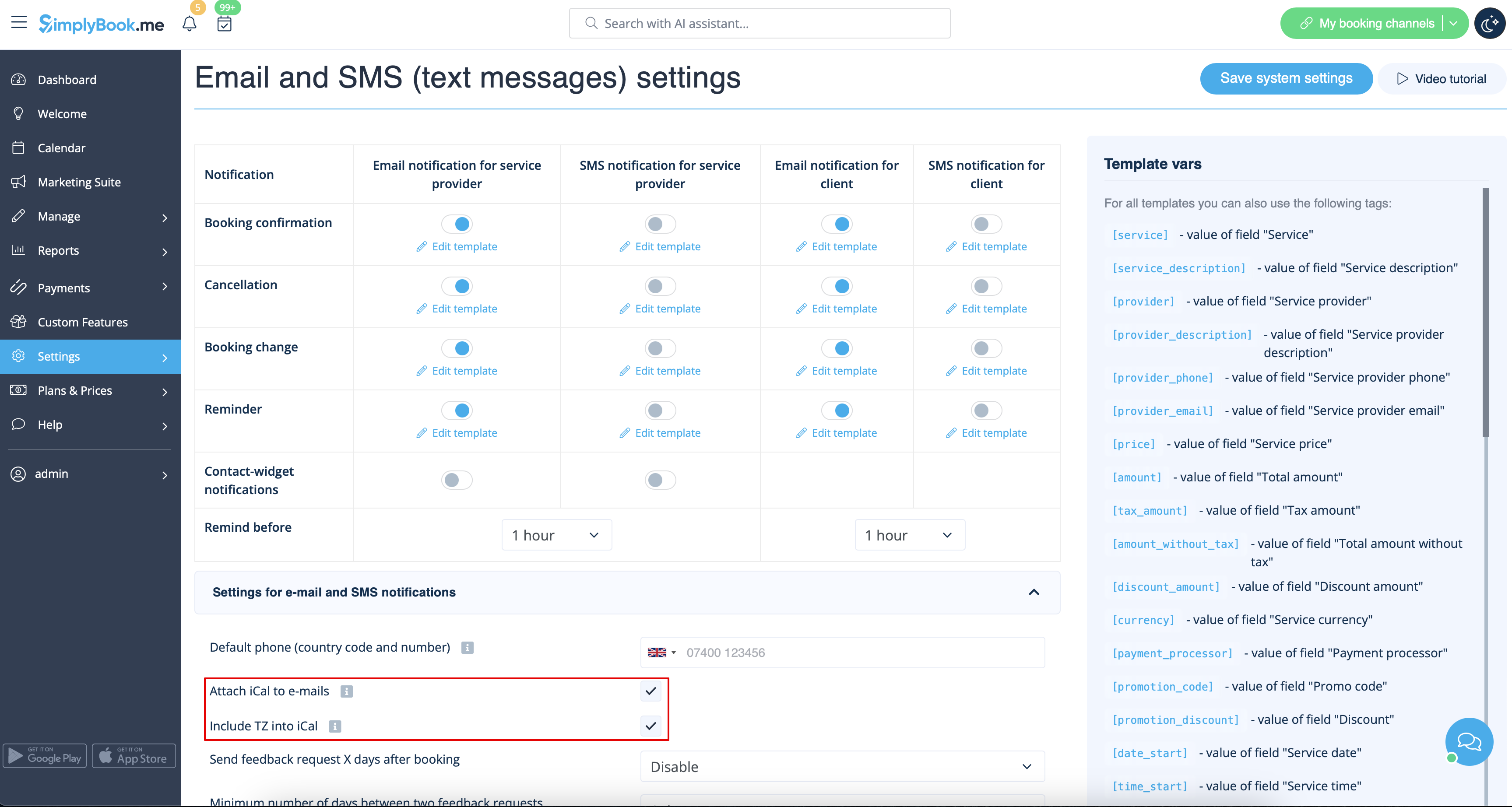
- Please note, that iCal files do not have set timezone so the time in that file will be displayed according to the IP address/device settings.
Clients/Providers do not receive notifications
- Possible reasons
- 1. Corresponding boxes in Settings -> Email and SMS settings are not checked.
- 2. Client/provider entered wrong email or phone.
- 3. Email went to junk (Spam) folder or to Social tab. Please check Whitelisting instructions here.
- 4. SMTP custom feature is not set correctly.
- 5. If sms are not coming, check your sms balance in Plans&Prices -> Subscriptions at the bottom of the page.
Clients/Providers receive wrong notifications
- 1. Please check if you have Multiple Bookings or Group Bookings Custom Feature enabled. These Custom Features have their own templates.
- Multiple bookings template (Custom Features -> Multiple bookings -> on the right side of the page)
- Group bookings template (Custom Features -> Group bookings -> on the right side of the page)
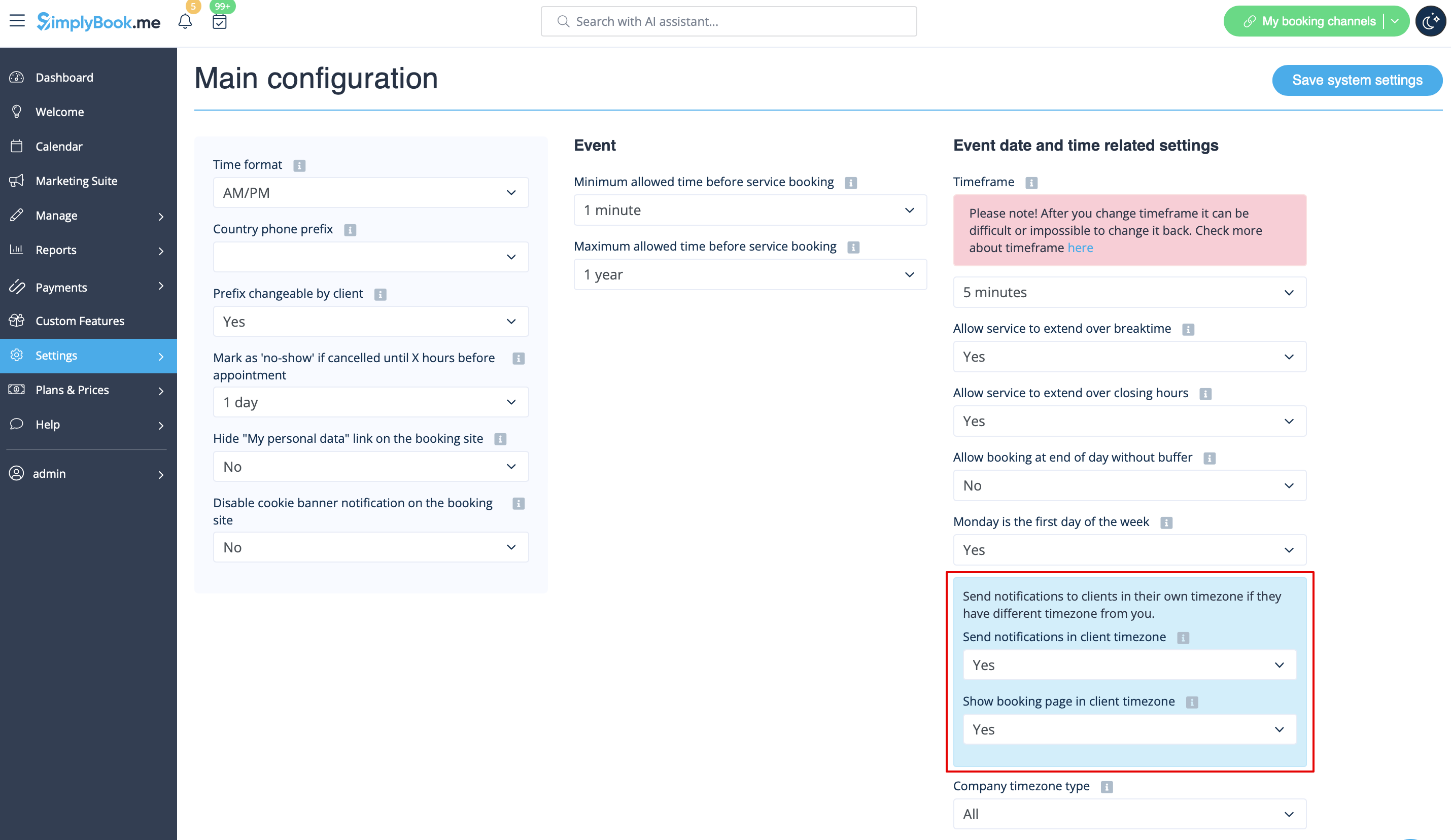
- 2. Check if you have Time Zone settings on in Settings -> Main configuration, in this case client may have selected wrong time zone and received notification in wrong time zone too.
Email whitelisting instructions
So here are a few things that you can do to make sure you get those all important emails from the team here at SimplyBook.me.
You can expect system notifications such as when your subscription is up for renewal, notices about bookings, and helpful information on various things such as how to get the most out of your SimplyBook.me service.
As great as technology is, it isn’t perfect, and sometimes email systems and internet service providers mistake legitimate email for spam. To ensure that you don’t miss important communication from us, please take the following steps:
Please whitelist any emails that come from the @simplybook.me domain.
Why? Because that tells your email service or program that you actually want emails from this domain, so that they can then make sure you get them.
How? Well, this differs between email services and programs but below you can see information about some of the main ones. If you aren’t using one of these, please refer to the help section for yourservice for information.
Using Gmail or Gsuite
Filter messages from @simplybook.me and tell the system to never send it to spam:
- 1. Go to Settings (click the gear icon at the top to the right)

- 2. Select the Filters and Blocked Addresses tab

- 3. Towards the bottom of the tab, click the Create a new filter link

- 4. In the From field write @simplybook.me
- 5. Click Create filter with this search to the bottom right of the window

- 6. Tick the box next to Never send it to Spam
- 7. Click the blue button that says Create filter

Great! Now you won’t miss anything from us!
And to ensure that our emails don’t get lost in that Updates or Promotions tab:
- 1. Find an email from SimplyBook.me in your inbox
- 2. Click and drag it to the Primary tab in your inbox

- 3. You’ll be asked whether you want to do this for future emails, so tell them yes

Using Yahoo! mail
- 1. When you open an email message, hover your mouse on the Sender's name.
- 2. Click the the three dots in the Sender's info window that appears and click Add to contacts.

- 3. When Add Contact form comes up, click Save.

Using Mac Mail
- 1. From the top menu select Mail -> Preferences

- 2. Then select the Rules icon, click Add Rule and type a name for the rule in the description field. Use the following settings:

- 3. “If any of the following conditions are met: From Contains”. In the text field besides Contains type @simplybook.me

- 4. Select Move Message and Inbox from the drop down menus and then click OK to save the rule.
Using Outlook
- 1. Right-click on the message in your inbox.
- 2. Select Junk E-mail from the menu.
- 3. Click Never Block Sender or Never Block Sender's Domain (@example.com).

Great, you’re all set! We look forward to being in touch and seeing your business blossom!
