Created page with "== Mobiele app voor beheerders == Als u de mobiele app voor beheerders gebruikt, kunt u meldingen ontvangen met betrekking tot boekingen, zoals boekingsbevestigingen, herinneringen, wijzigingen in boekingen en annuleringen.<br> Om deze meldingen in of uit te schakelen, gaat u naar het tabblad <span style="background-color:#d4f8e5; padding:5px; border-radius:5px;">Instellingen</span> -> <span style="background-color:#d4f8e5; padding:5px; border-radius:5px;">Meldingen b..." |
Created page with "= Meldingen met betrekking totaangepaste functies = De volgende aangepaste functies hebben hun eigen meldingstypen of kunnen de berichten die door het systeem worden verzonden beïnvloeden: -------- == Betalingen accepteren == Hiermee kunt u het volgende verzenden: *Facturen naar klanten (e-mailsjabloon) *Meldingen over mislukte betalingen aan klanten (e-mailsjabloon) *Meldingen over mislukte betalingen aan het bedr..." |
||
| Line 84: | Line 84: | ||
-------- | -------- | ||
== [[Coupons_and_Gift_Cards_custom_feature|Coupons en cadeaubonnen]] == | |||
==[[Coupons_and_Gift_Cards_custom_feature|Coupons | U kunt specifieke meldingen versturen voor de volgende gevallen wanneer u deze aangepaste functie gebruikt: | ||
*de klant koopt een cadeaubon op de boekingswebsite (e-mail- en sms-sjablonen) | |||
* | Dit meldingssjabloon kan worden in- en uitgeschakeld en bewerkt in <span style="background-color:#d4f8e5; padding:5px; border-radius:5px;">Aangepaste functies</span> -> [[Coupons_and_Gift_Cards_custom_feature|Coupons & cadeaubonnen]] -> aan de <span style="background-color:#d4f8e5; padding:5px; border-radius:5px;">rechterkant</span> van de pagina. | ||
[[File:Coupons & gift cards notifications redesigned.png|1200px|border|center|link=https://help.simplybook.me/images/7/79/Coupons_%26_gift_cards_notifications_redesigned.png]] | [[File:Coupons & gift cards notifications redesigned.png|1200px|border|center|link=https://help.simplybook.me/images/7/79/Coupons_%26_gift_cards_notifications_redesigned.png]] | ||
<br><br> | <br><br> | ||
Als u handmatig een cadeaubon of coupon aan uw klant(en) uitgeeft, kunt u het sjabloon dat in dit geval wordt gebruikt, openen via <span style="background-color:#d4f8e5; padding:5px; border-radius:5px;">Beheer</span> -> <span style="background-color:#d4f8e5; padding:5px; border-radius:5px;">Coupons & cadeaubonnen</span> -> <span style="background-color:#d4f8e5; padding:5px; border-radius:5px;">De cadeaubon uitgeven</span> / <span style="background-color:#d4f8e5; padding:5px; border-radius:5px;">Couponbericht verzenden</span> voor de gewenste cadeaubon/coupon -> <span style="background-color:#d4f8e5; padding:5px; border-radius:5px;">E-mail verzenden/SMS verzenden.</span> | |||
<br><br> | <br><br> | ||
:''[[Coupons_and_Gift_Cards_custom_feature| | :''[[Coupons_and_Gift_Cards_custom_feature|Lees meer]] over het gebruik van deze aangepaste functie.'' | ||
-------- | -------- | ||
<div lang="en" dir="ltr" class="mw-content-ltr"> | <div lang="en" dir="ltr" class="mw-content-ltr"> | ||
Revision as of 10:00, 16 May 2025
Hoe u boekingsmeldingen kunt in- of uitschakelen en uw sjablonen kunt aanpassen
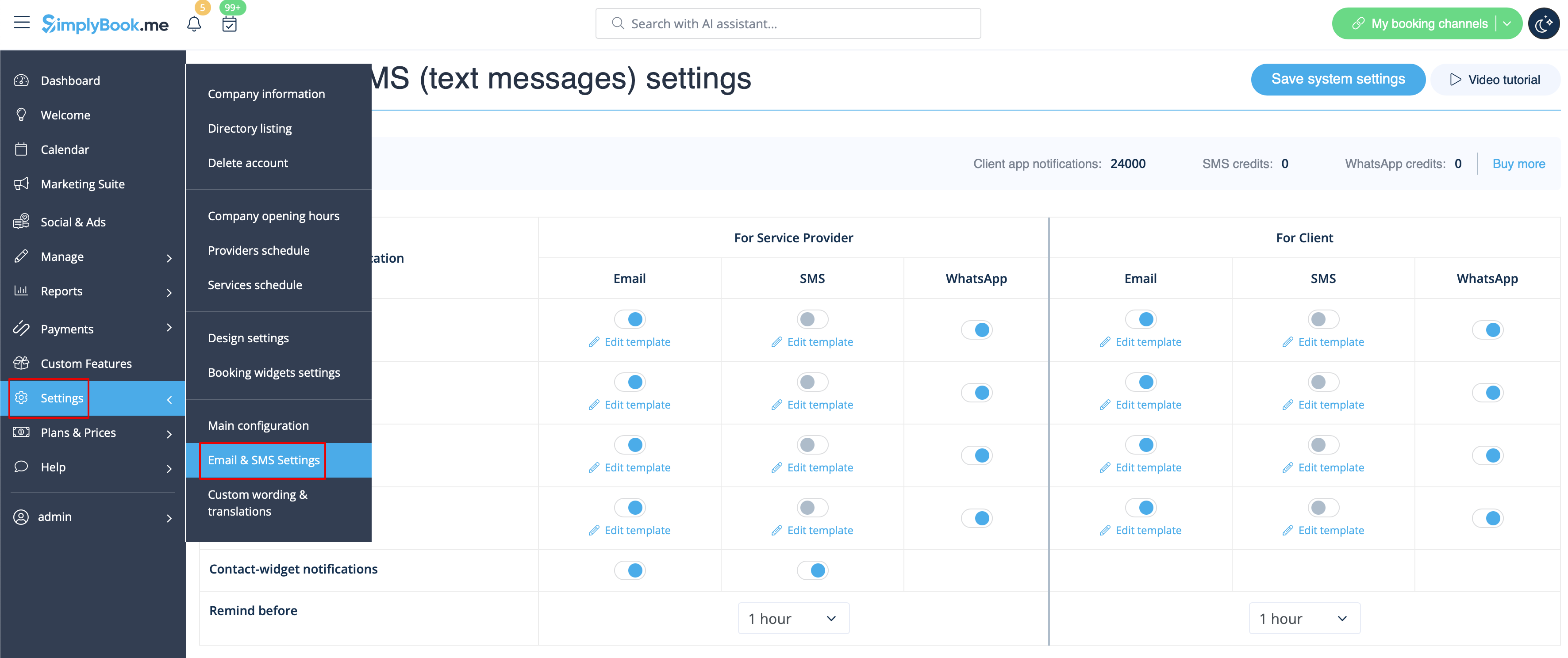
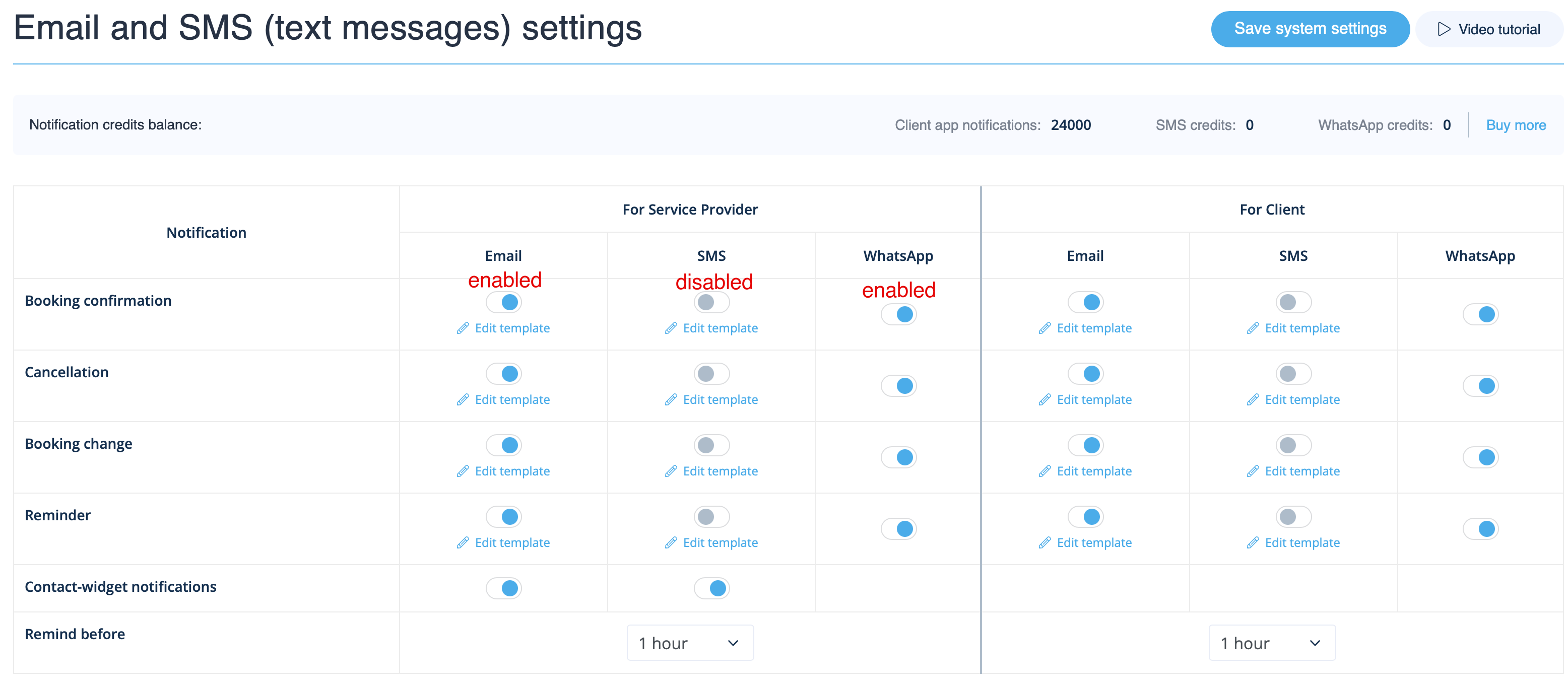
Ga naar Instellingen -> E-mail- en sms-instellingen en vink de betreffende vakjes aan/uit om meldingen te verzenden/niet te verzenden. U kunt de tekst van de meldingen aanpassen aan uw behoeften door op sjabloon bewerken te klikken , wijzigingen aan te brengen en de systeeminstellingen op te slaan.
WhatsApp-meldingen
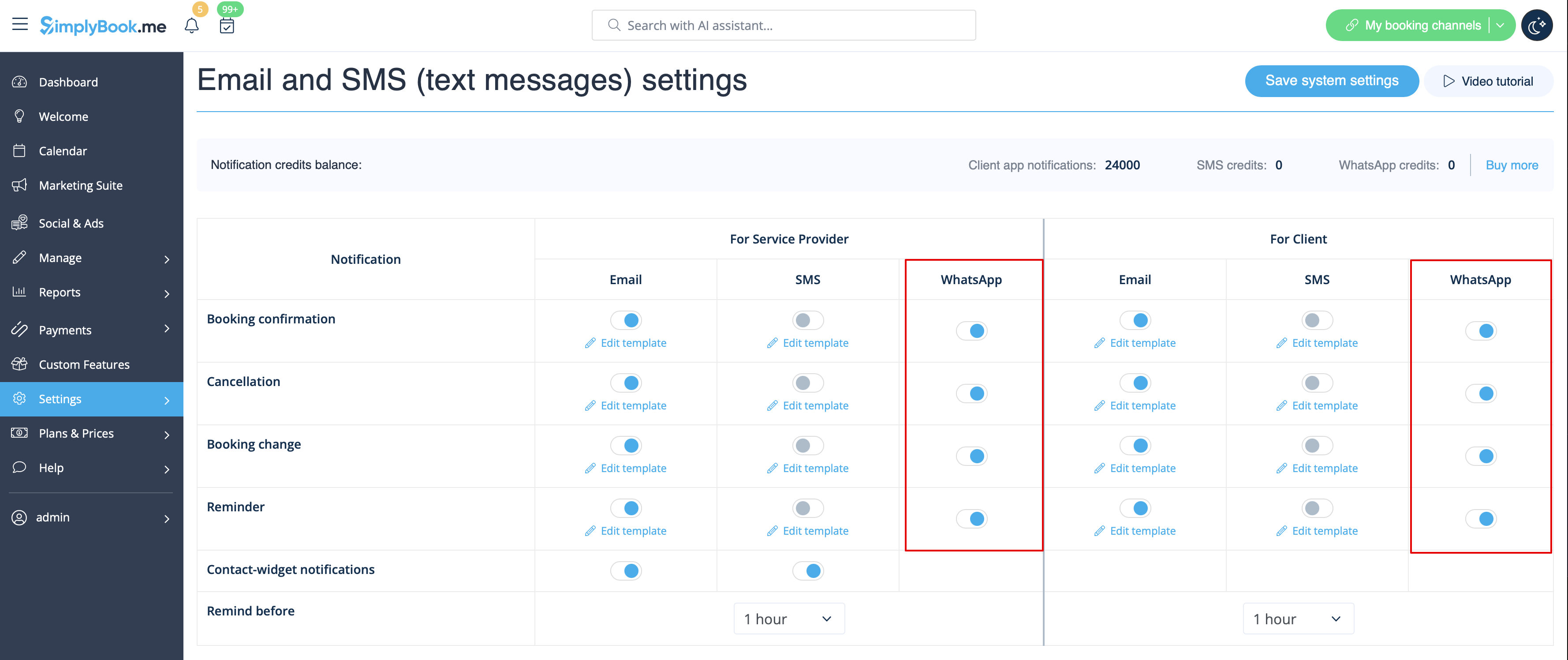
Als u en uw klanten actief gebruikmaken van WhatsApp Messenger, kunt u daar meldingen over boekingen ontvangen.
- Hoe gebruikt u
1. Schakel de gewenste typen WhatsApp-meldingen in via Instellingen -> E-mail- en sms-instellingen
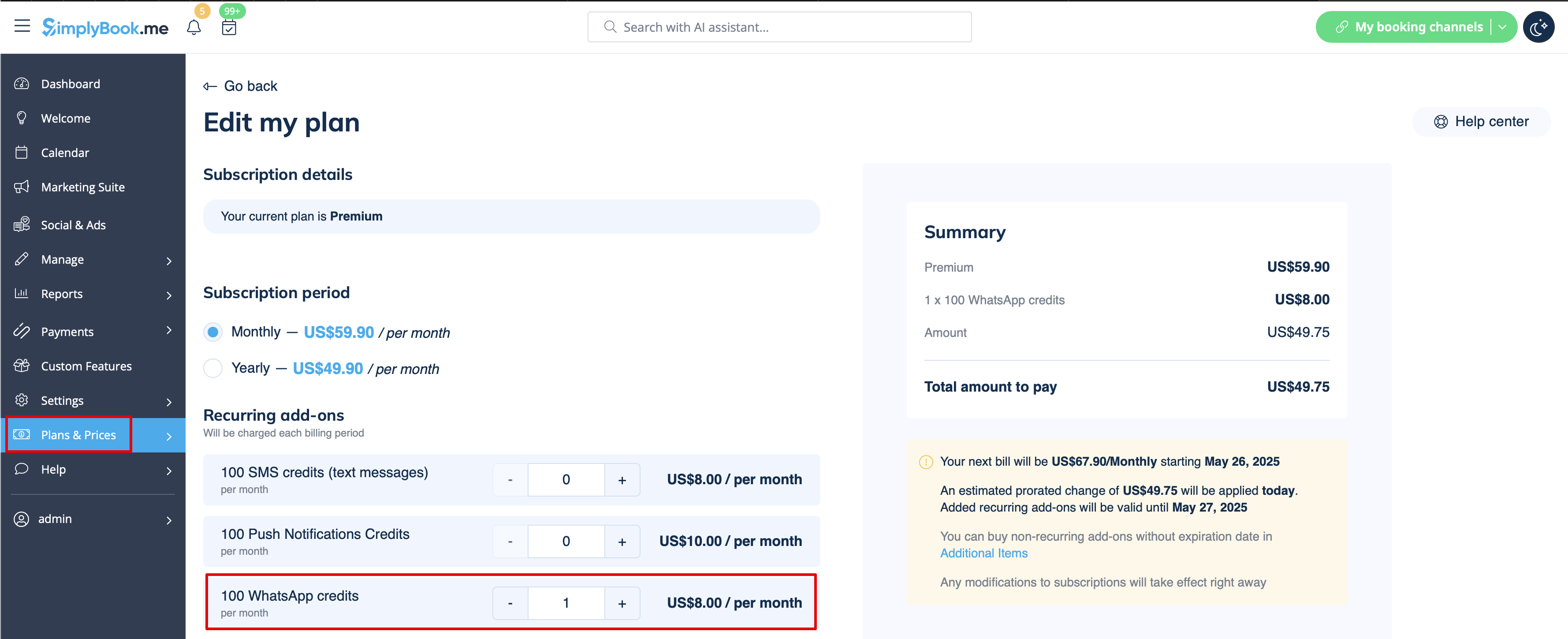
2. Koop WhatsApp-tegoed in Abonnementen en prijzen -> Abonnementen of Extra items, afhankelijk van of u het tegoed automatisch wilt verlengen met uw abonnement of liever een eenmalige aankoop doet.
(U kunt ook de berichten bekijken die vanuit het systeem zijn verzonden, evenals het aantal gebruikte credits in Rapporten -> SMS (txt-berichten) -> WhatsApp-meldingen)
Let op! Om te voldoen aan het beleid van WhatsApp, worden voor berichten vooraf goedgekeurde sjablonen gebruikt die niet kunnen worden aangepast. Deze sjablonen bevatten essentiële informatie op een duidelijke en professionele manier.
Mobiele app voor beheerders
Als u de mobiele app voor beheerders gebruikt, kunt u meldingen ontvangen met betrekking tot boekingen, zoals boekingsbevestigingen, herinneringen, wijzigingen in boekingen en annuleringen.
Om deze meldingen in of uit te schakelen, gaat u naar het tabblad Instellingen -> Meldingen beheren in de mobiele app voor beheerders.
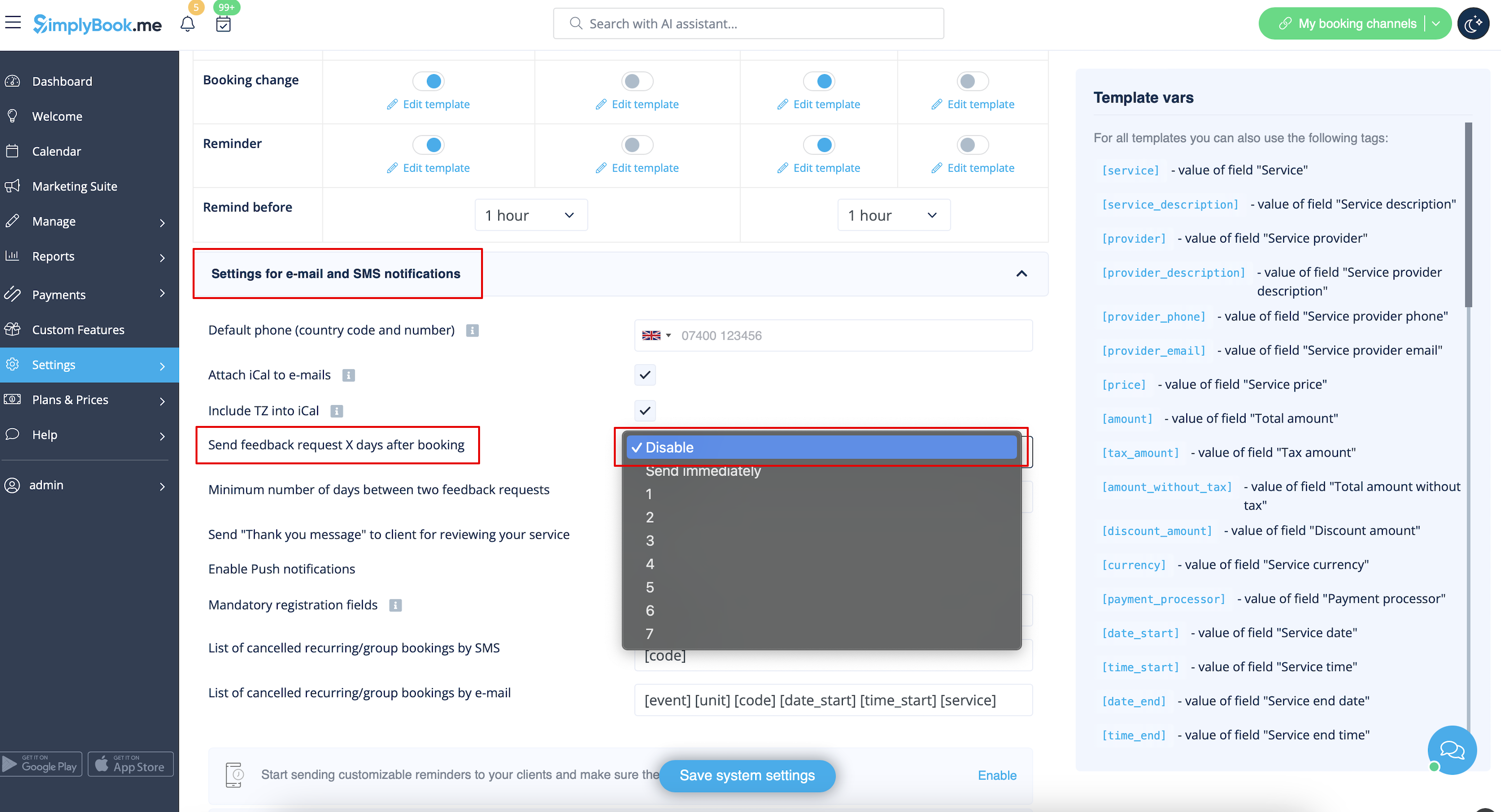
Feedback uitschakelen
U kunt al uw beoordelingen bekijken in het tabblad Rapporten -> Beoordelingen in het menu aan de linkerkant, ze verwijderen of erop reageren. Als u de optie om een beoordeling achter te laten wilt verwijderen en geen feedbackverzoek wilt verzenden, gaat u naar Instellingen -> E-mail- en sms-instellingen -> Instellingen voor e-mail- en sms-meldingen -> stel het aantal dagen totdat het feedbackverzoek naar de klant wordt verzonden in op Uitschakelen.
Meldingen met betrekking totaangepaste functies
De volgende aangepaste functies hebben hun eigen meldingstypen of kunnen de berichten die door het systeem worden verzonden beïnvloeden:
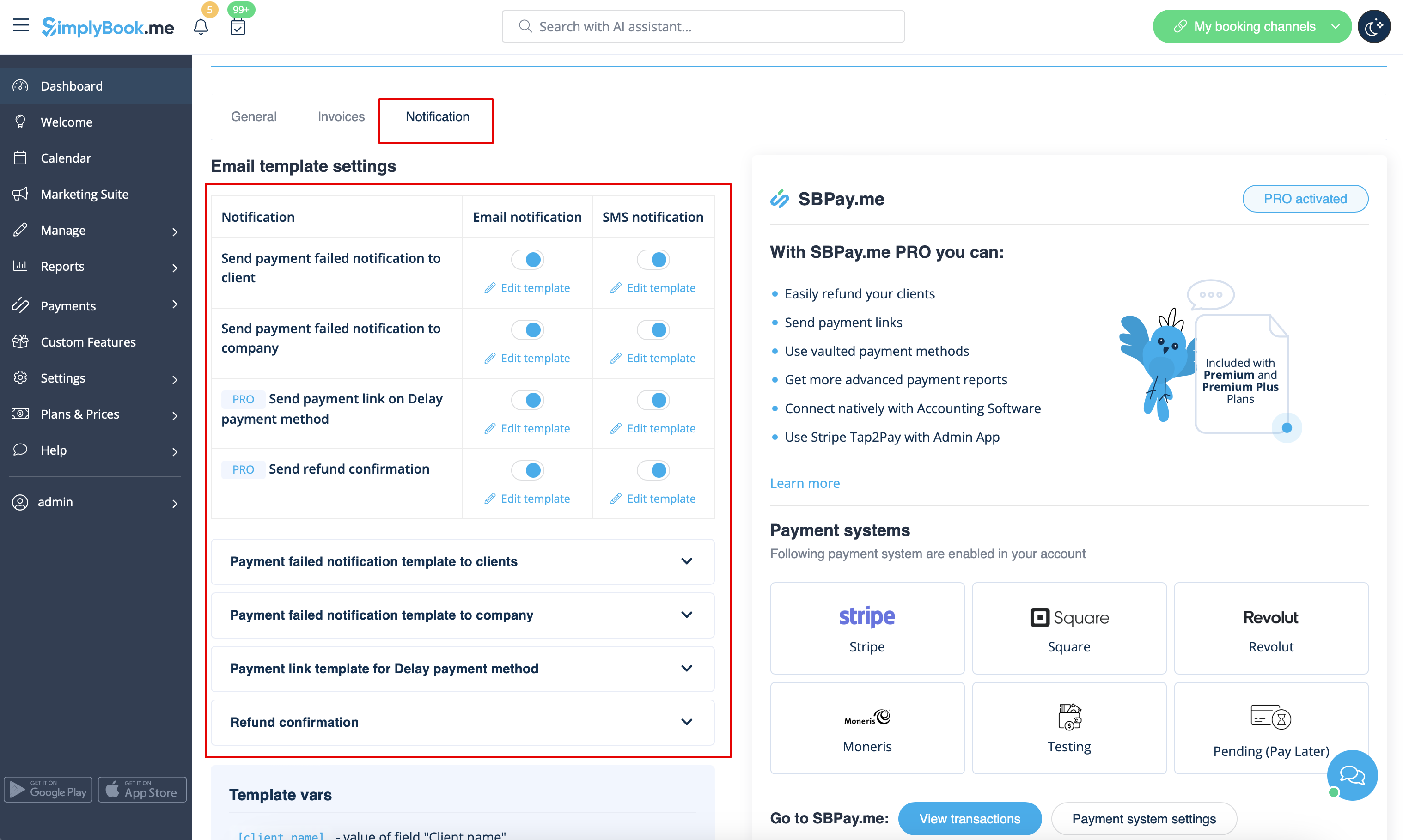
Betalingen accepteren
Hiermee kunt u het volgende verzenden:
- Facturen naar klanten (e-mailsjabloon)
- Meldingen over mislukte betalingen aan klanten (e-mailsjabloon)
- Meldingen over mislukte betalingen aan het bedrijf (e-mailsjabloon)
Al deze sjablonen kunnen worden bewerkt in Aangepaste functies -> Betalingen accepteren -> Instellingen -> E-mailsjablooninstellingen.
- Lees meer over het gebruik van deze aangepaste functie.
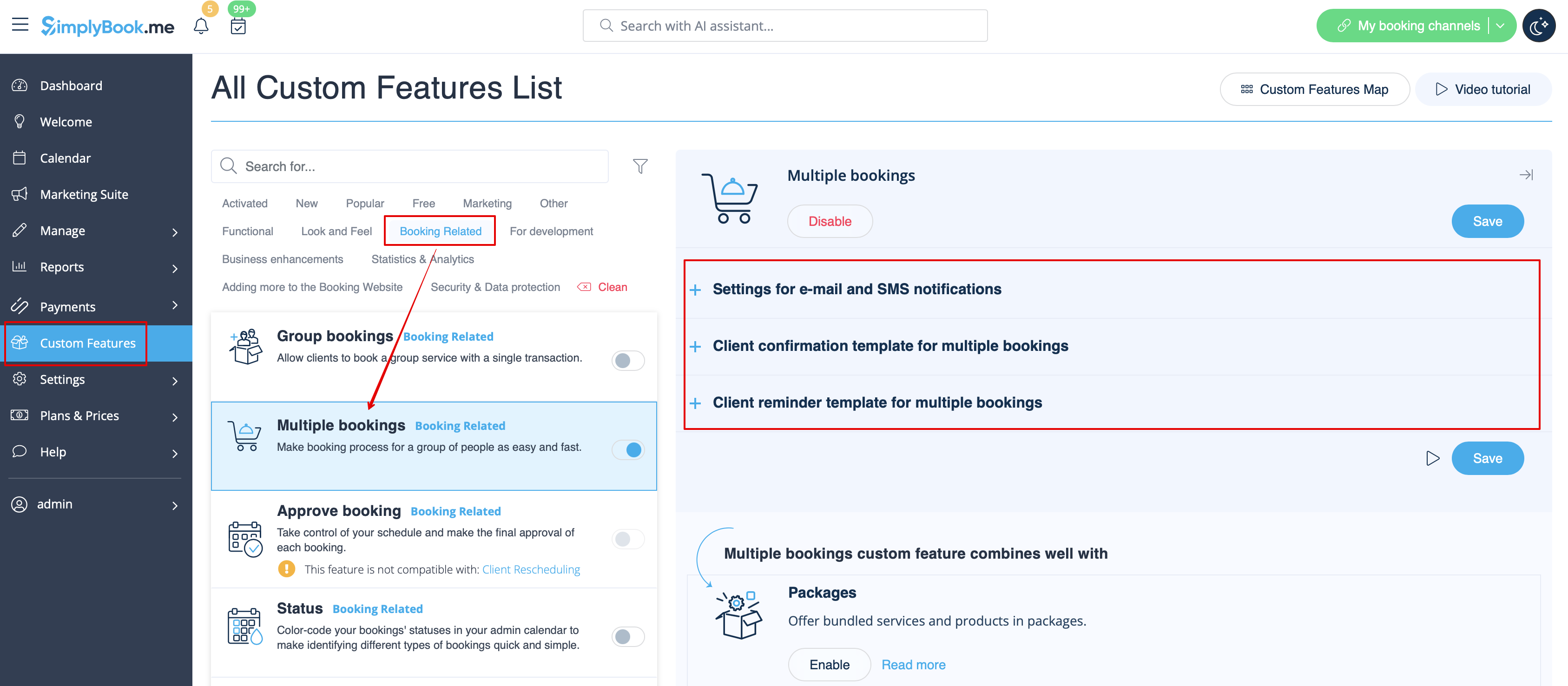
Meerdere boekingen
Heeft eigen sjablonen voor:
- Bevestigingsbericht van de boeking aan de klant (e-mail- en sms-sjablonen)
- Herinneringsbericht van de boeking aan de klant (e-mail- en sms-sjablonen)
Beide soorten worden automatisch toegepast wanneer deze aangepaste functie is ingeschakeld en de klanten meerdere afspraken tegelijk maken met de knop Nog een dienst toevoegen bij het afrekenen. De sjabloonteksten kunnen worden aangepast in Aangepaste functies -> Meerdere boekingen -> aan de rechterkant van de pagina.
- Lees meer over het gebruik van deze aangepaste functie.
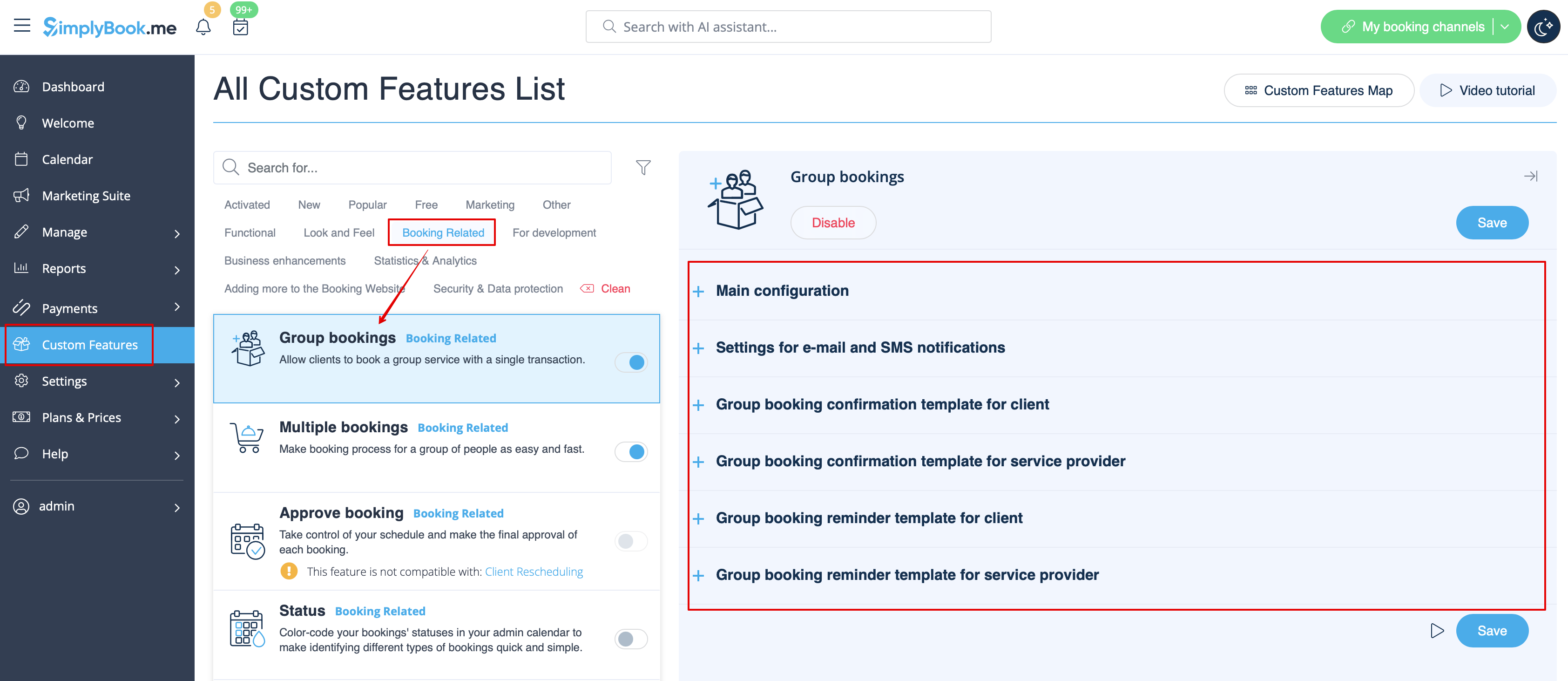
Groepsboekingen
Er zijn speciale sjablonen voor de volgende typen:
- Bevestiging van de boeking aan de klant (e-mail- en sms-sjablonen)
- Herinnering van de boeking aan de klant (e-mail- en sms-sjablonen)
- Bevestiging van de boeking aan de aanbieder (e-mail- en sms-sjablonen)
- Herinnering van de boeking aan de aanbieder (e-mail- en sms-sjablonen)
Deze worden automatisch toegepast wanneer deze aangepaste functie is ingeschakeld en de klant een afspraak boekt door meerdere deelnemers te selecteren in de servicestap van het boekingsproces. Alle sjablonen kunnen worden aangepast in Aangepaste functies -> Groepsboekingen -> aan de rechterkant van de pagina.
- Lees meer over het gebruik van deze aangepaste functie.
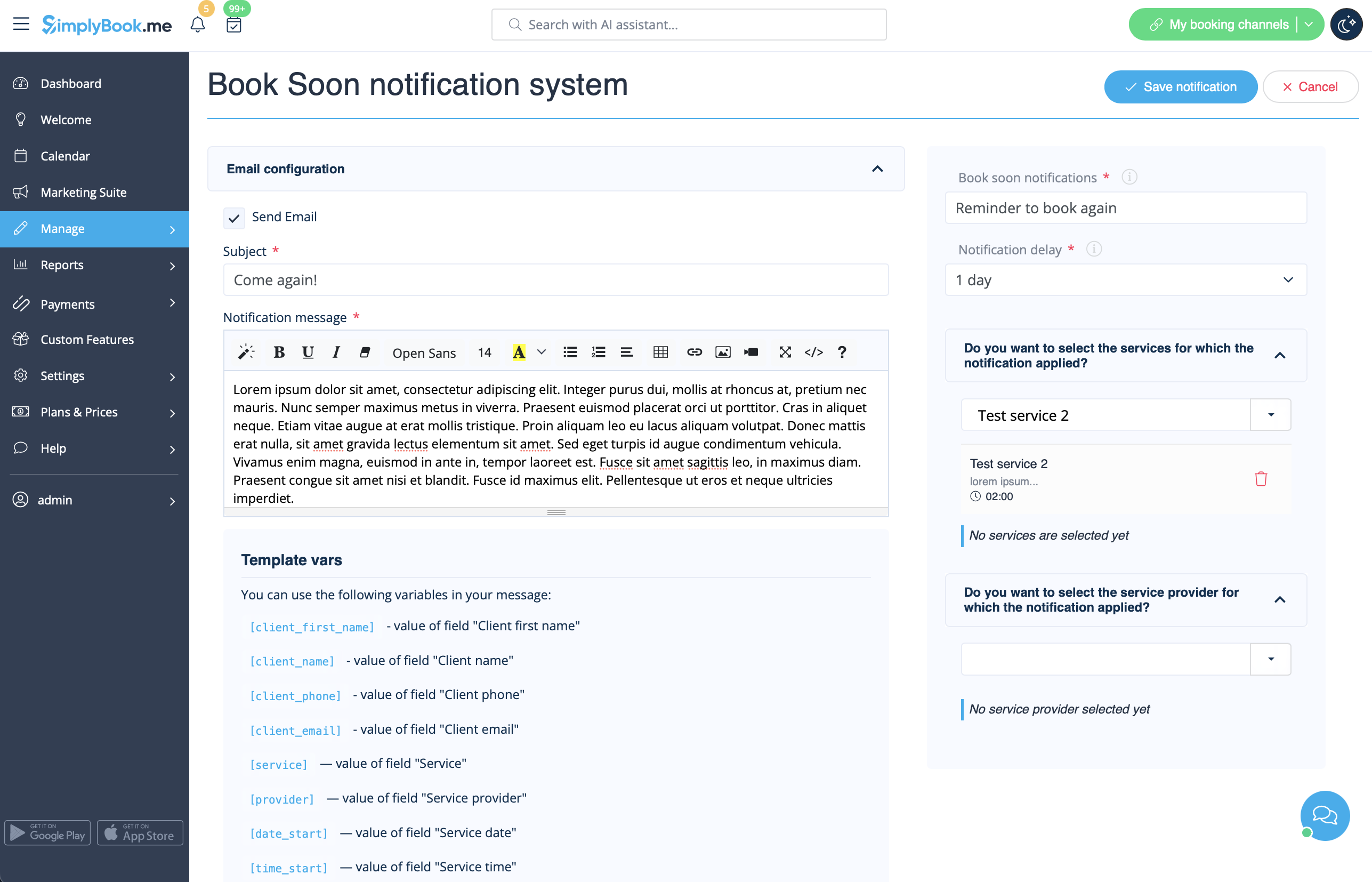
Book Soon-meldingssysteem
Hiermee kunt u herinneringen sturen naar klanten die eerder hebben geboekt om terug te komen.
De sjablonen kunnen worden ingesteld in Aangepaste functies -> Book Soon-meldingssysteem -> Instellingen -> Nieuw toevoegen om een nieuw sjabloon (e-mail en sms) aan te maken.
U kunt tal van specifieke sjablonen voor bepaalde diensten/aanbieders aanmaken, die worden verzonden wanneer de aangegeven tijd sinds de afspraak van de klant is verstreken.
- Lees meer over het gebruik van deze aangepaste functie.
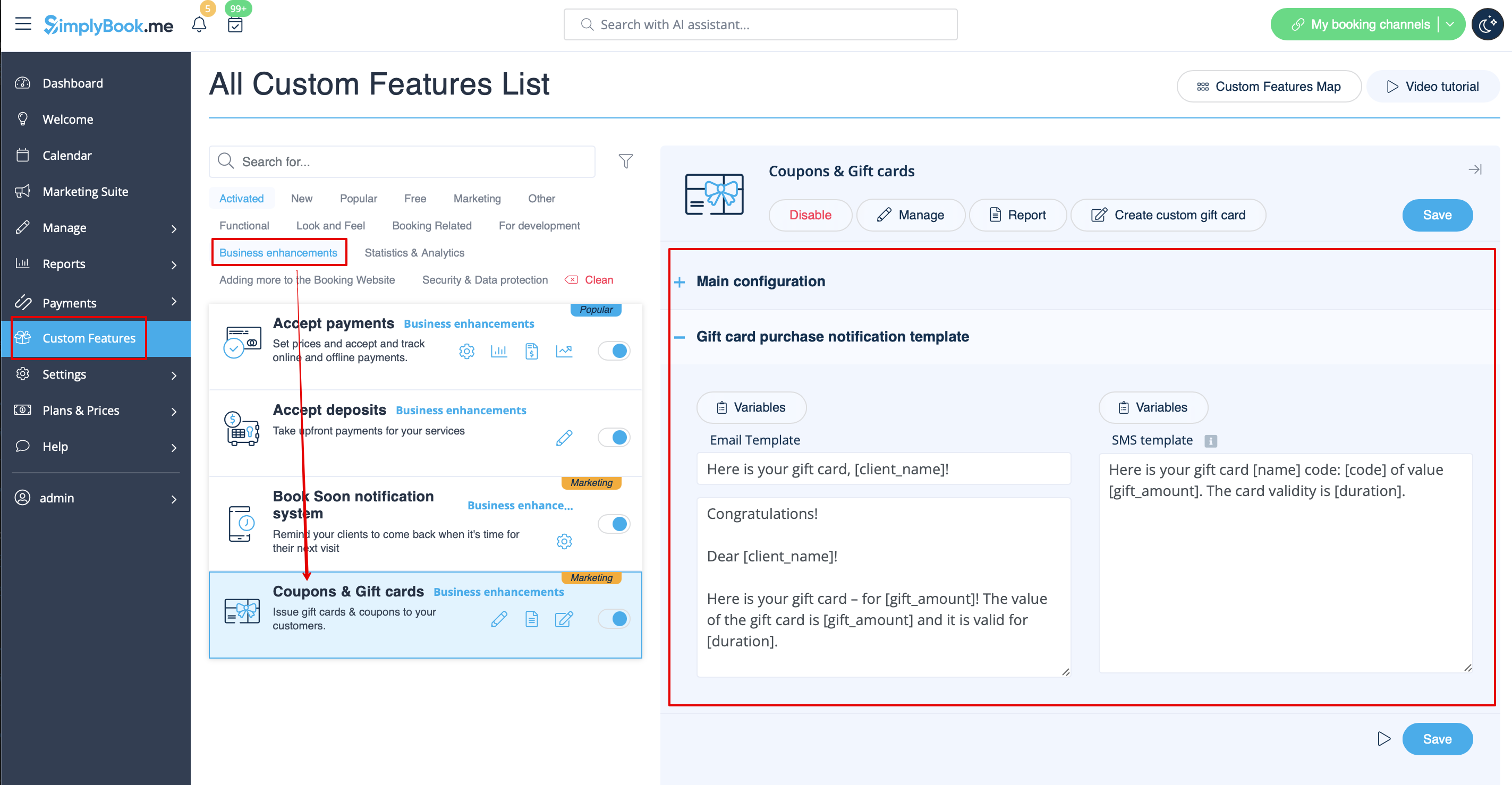
Coupons en cadeaubonnen
U kunt specifieke meldingen versturen voor de volgende gevallen wanneer u deze aangepaste functie gebruikt:
- de klant koopt een cadeaubon op de boekingswebsite (e-mail- en sms-sjablonen)
Dit meldingssjabloon kan worden in- en uitgeschakeld en bewerkt in Aangepaste functies -> Coupons & cadeaubonnen -> aan de rechterkant van de pagina.
Als u handmatig een cadeaubon of coupon aan uw klant(en) uitgeeft, kunt u het sjabloon dat in dit geval wordt gebruikt, openen via Beheer -> Coupons & cadeaubonnen -> De cadeaubon uitgeven / Couponbericht verzenden voor de gewenste cadeaubon/coupon -> E-mail verzenden/SMS verzenden.
- Lees meer over het gebruik van deze aangepaste functie.
Client mobile app
In case this feature is enabled and the client has allowed notifications, the mobile application will send booking-related push notifications.
There is no place to edit the template, but you can view the notifications report in Reports -> Push notifications report.
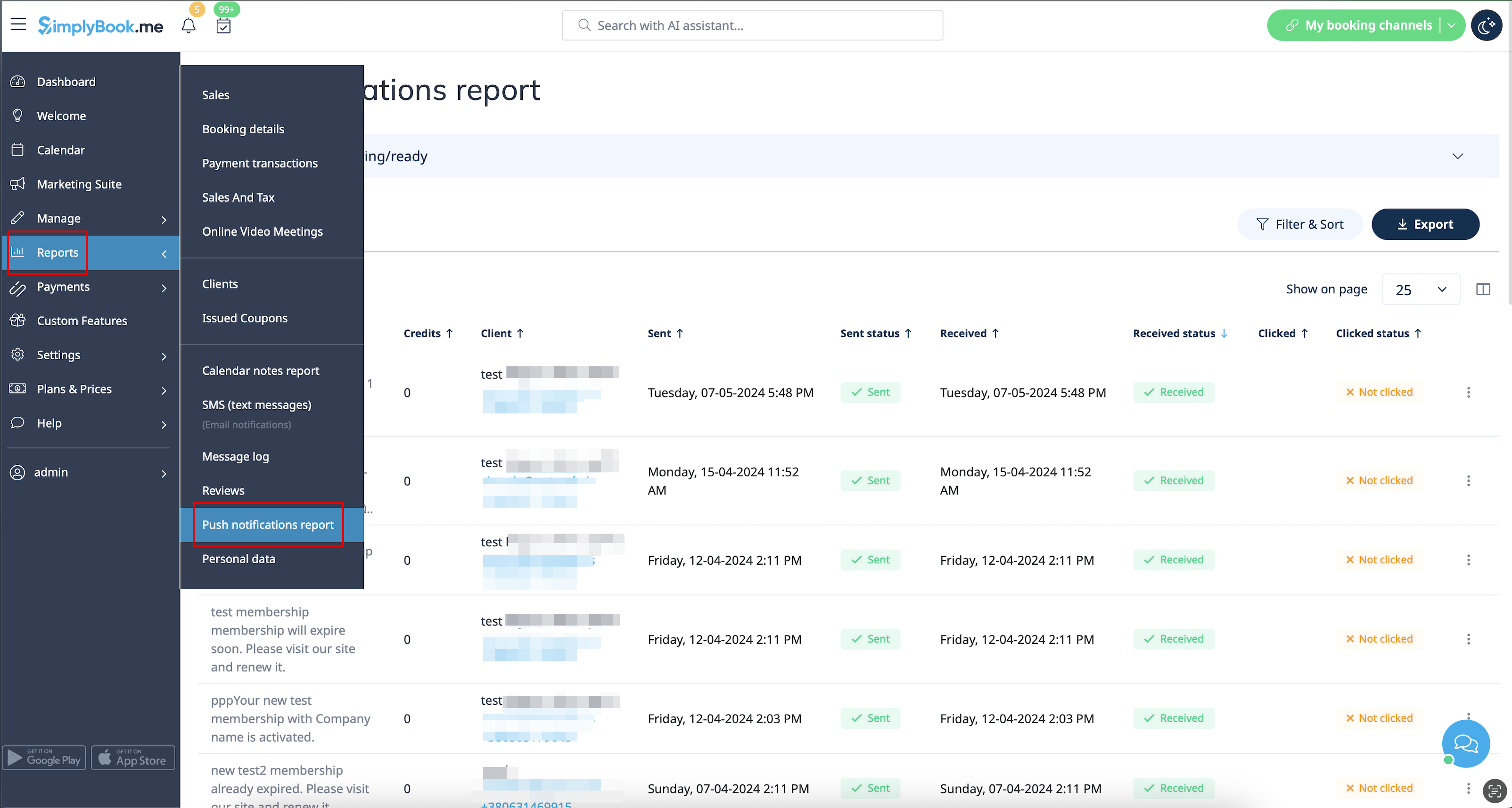
Please note! You need to have enough push notifications credits to be able to send such notifications to clients
- Read more about his custom feature use.
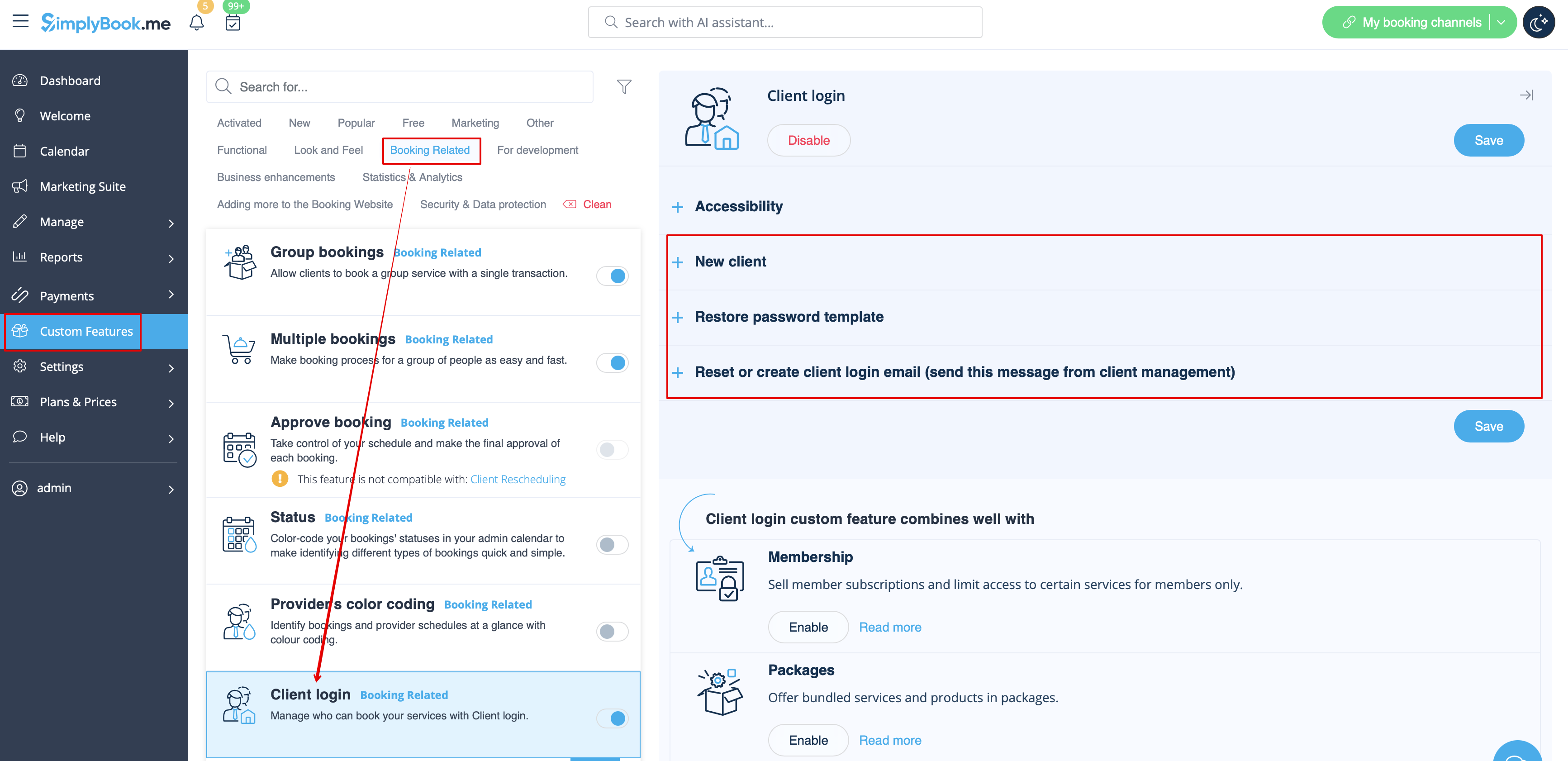
Client login
If you require the clients to sign in/sign up to be able to book the appointments or make purchases on your booking website and have Client login custom feature enabled,
there are three notification types that can be sent to your clients(they cannot be disabled):
- new client registration(Email)
- restore password(Email)
- reset password or create client from admin interface(Email)
You can edit the templates in Custom features -> Client login -> on the right side of the page.
- Read more about his custom feature use.
Membership
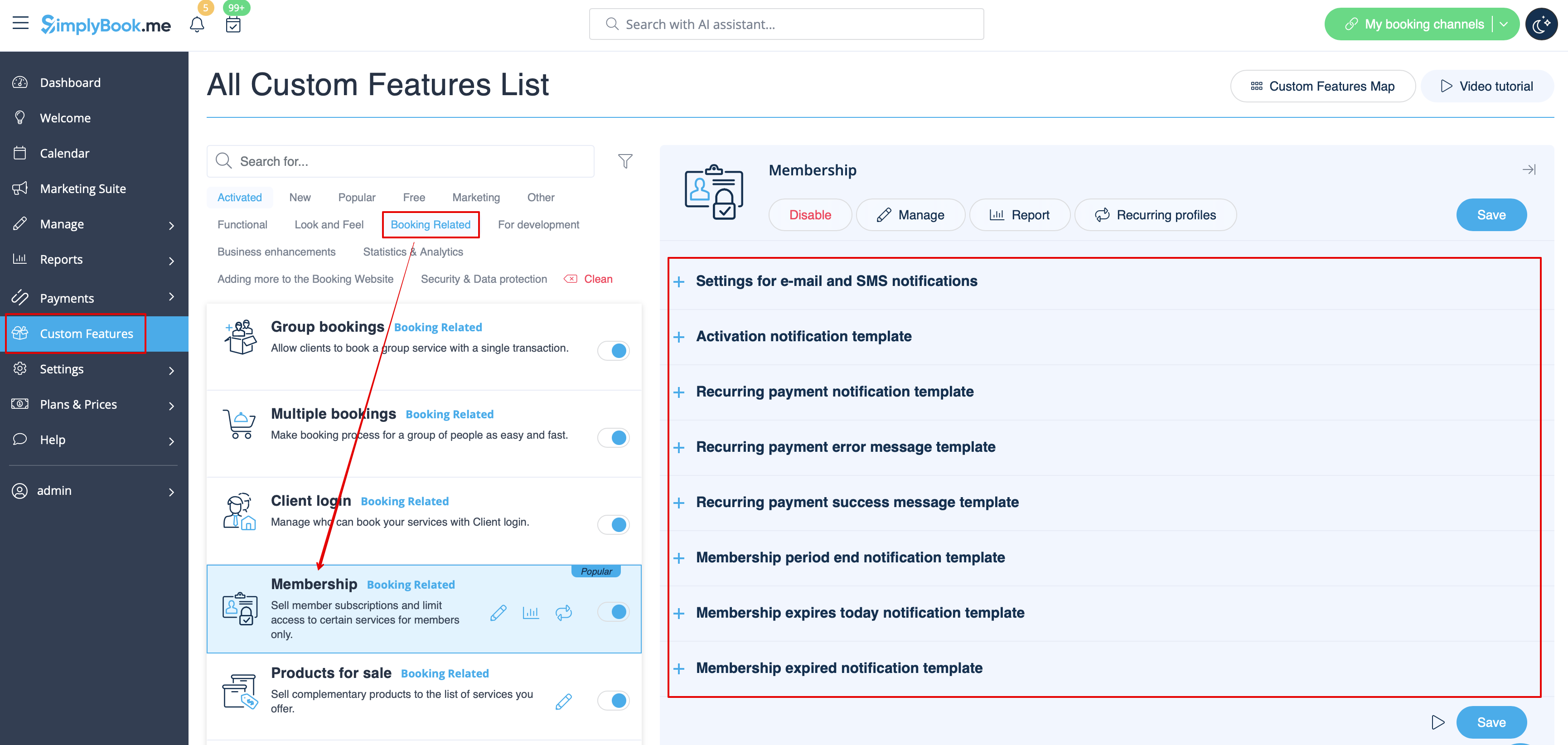
When you sell memberships on the booking website you may also need to notify your clients about the different points.
This custom feature allows to send:
- membership activation notification(Email and SMS templates)
- recurring payment notification(Email and SMS templates)
- recurring payment error(Email and SMS templates)
- recurring payment success(Email and SMS templates)
- membership period end(Email and SMS templates)
- membership expires today(Email and SMS templates)
- membership expired notification(Email and SMS templates)
You can edit the templates, as well as enable/disable certain notification types in Custom features -> Membership -> on the right side of the page.
- Read more about his custom feature use.
Flexible notifications
This custom feature allows to customize the booking related notification per certain service/provider or both.
The following types can be used:
- booking confirmation to client(Email and SMS templates)
- booking confirmation to provider(Email and SMS templates)
- reminder to client(Email and SMS templates)
- reminder to provider(Email and SMS templates)
- cancellation notification to client(Email and SMS templates)
- cancellation notification for provider(Email and SMS templates)
- booking change notification to client(Email and SMS templates)
- booking change notification to provider(Email and SMS templates)
- recurring event confirmation to client(Email and SMS templates)
- recurring event confirmation to provider(Email and SMS templates)
- batch cancellation notification to client(Email and SMS templates)
- batch cancellation notification to provider(Email and SMS templates)
- multiple bookings batch booking confirmation to client(Email and SMS templates)
- multiple bookings event reminder to client(Email and SMS templates)
- group bookings batch booking confirmation to client(Email and SMS templates)
- group bookings batch booking confirmation to provider(Email and SMS templates)
- group bookings reminder to client(Email and SMS templates)
- group bookings reminder to provider(Email and SMS templates)
You can create all the desired templates in Custom features -> Flexible notifications -> Manage.
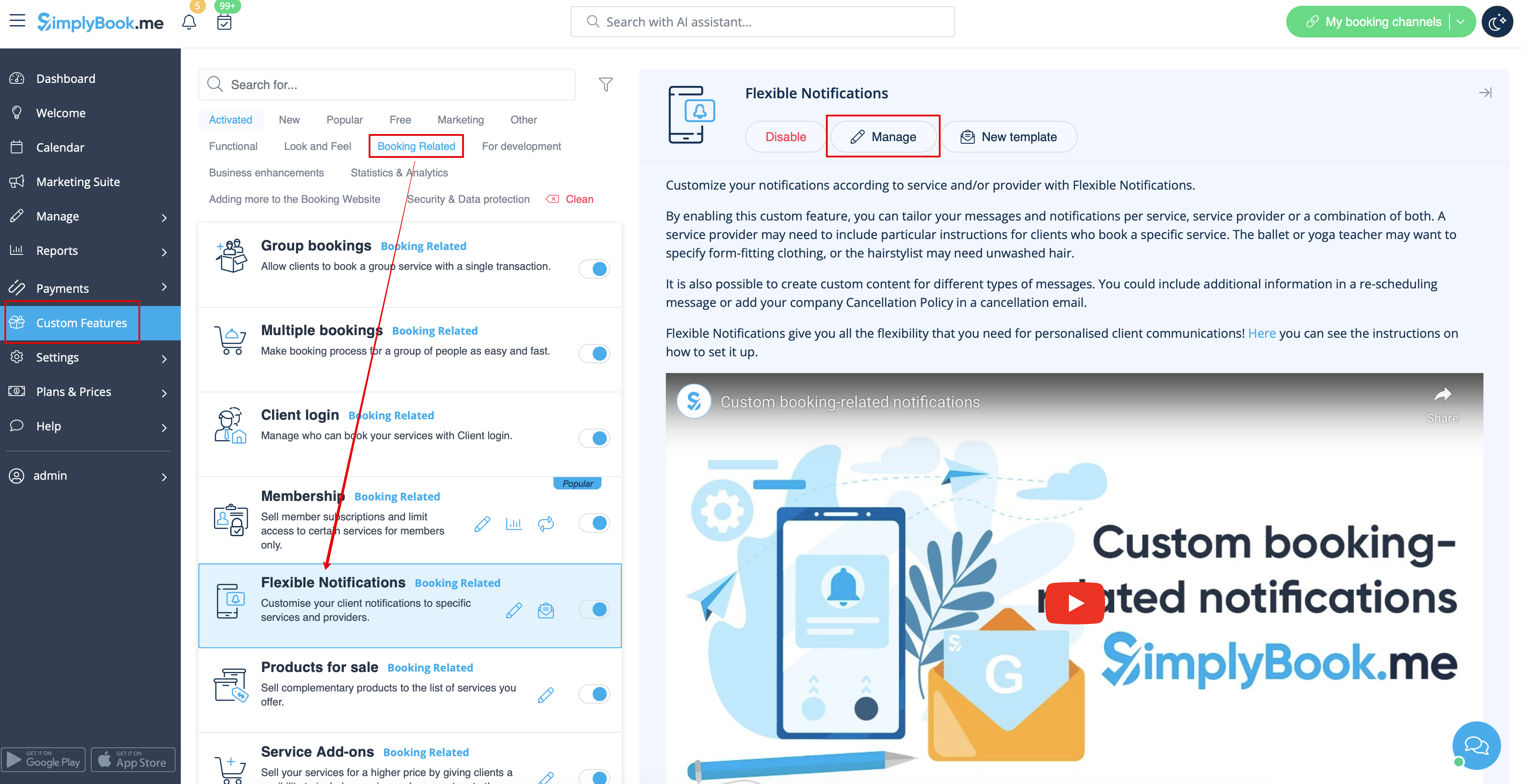
In case you need to enable/disable some of these notification types please navigate to Settings -> Email and SMS settings -> and use the table at the top of the page.
Please note! These are general booking notifications settings so if you turn some of them off it will also influence similar types related to other features(i.e. if you disable booking confirmations to providers there then common confirmations, as well as group, recurring batches confirmation notifications will become off)
- Read more about his custom feature use.
Packages
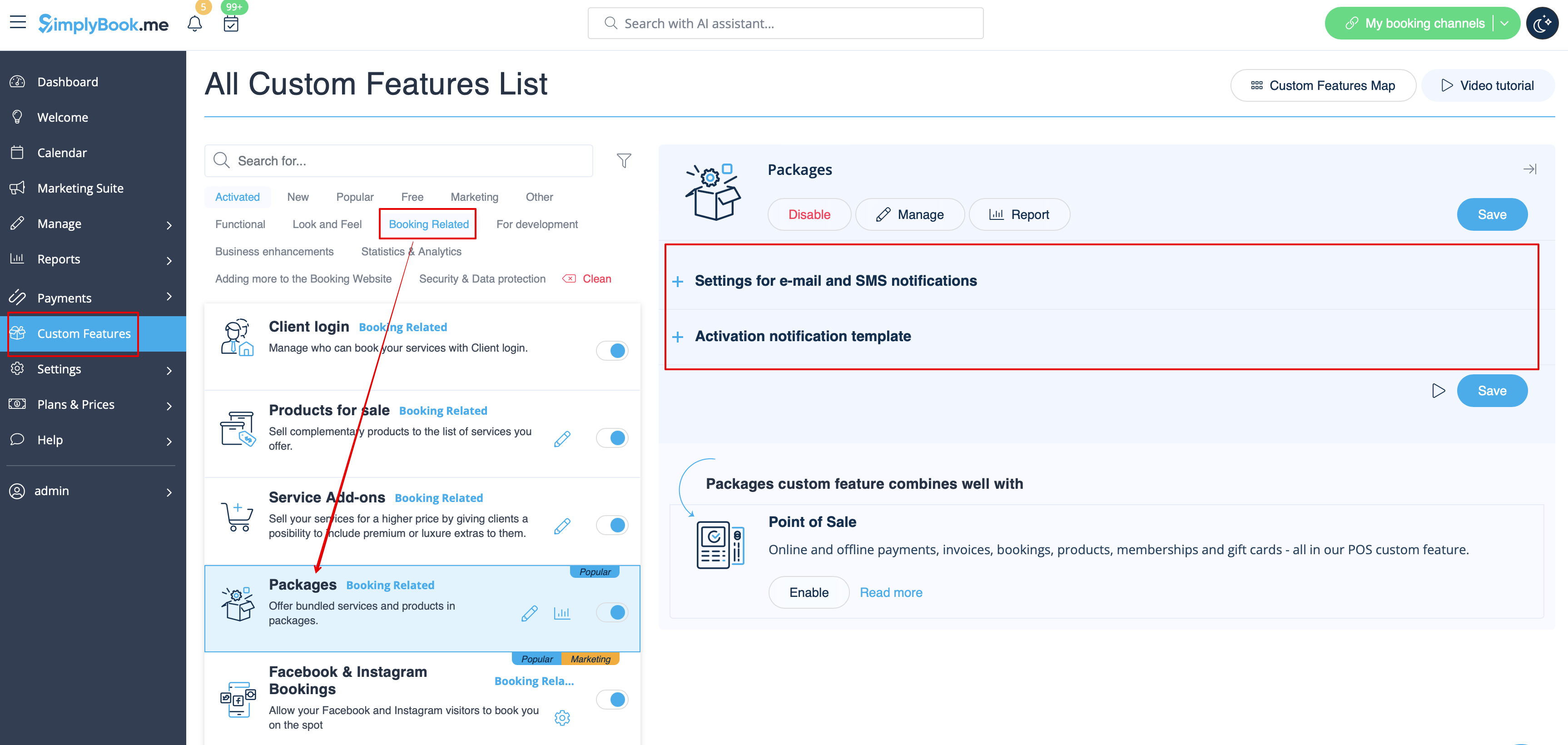
When you sell the packages of services/classes/products/service add-ons or issue the packages from admin side it is also possible to automatically send the clients the package activation notification(Email and/or SMS).
To edit the template text or enable/disable the notifications please navigate to Custom features -> Packages -> right side of the page.
- Read more about his custom feature use.
Tickets
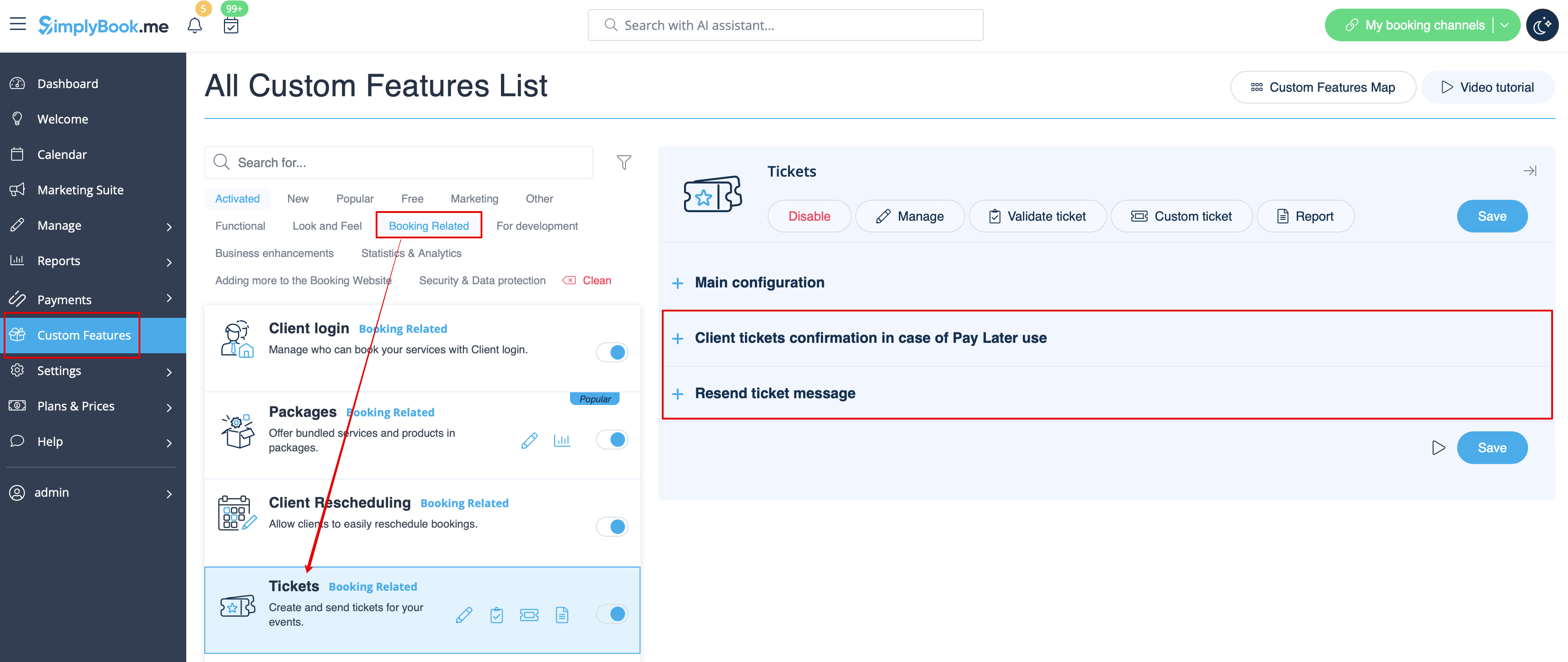
By default the ticket is automatically sent to client email together with the corresponding service confirmation email.
But in case you are using online payments and allow to choose pay later option on the booking website and the client select it,
in this case the ticket will be sent with the separate email.
As well you may wish to re-send the ticket to the client in certain cases(it is possible in Reports -> Tickets report).
Both notification templates case be edited in Custom features -> Tickets -> on the right side or the page. There are Email types available only.
- Read more about his custom feature use.
Custom email
Allows to customize the design of the email notifications to match your branding and taste.
To create your designs please go to Custom features -> Custom email -> Create template.
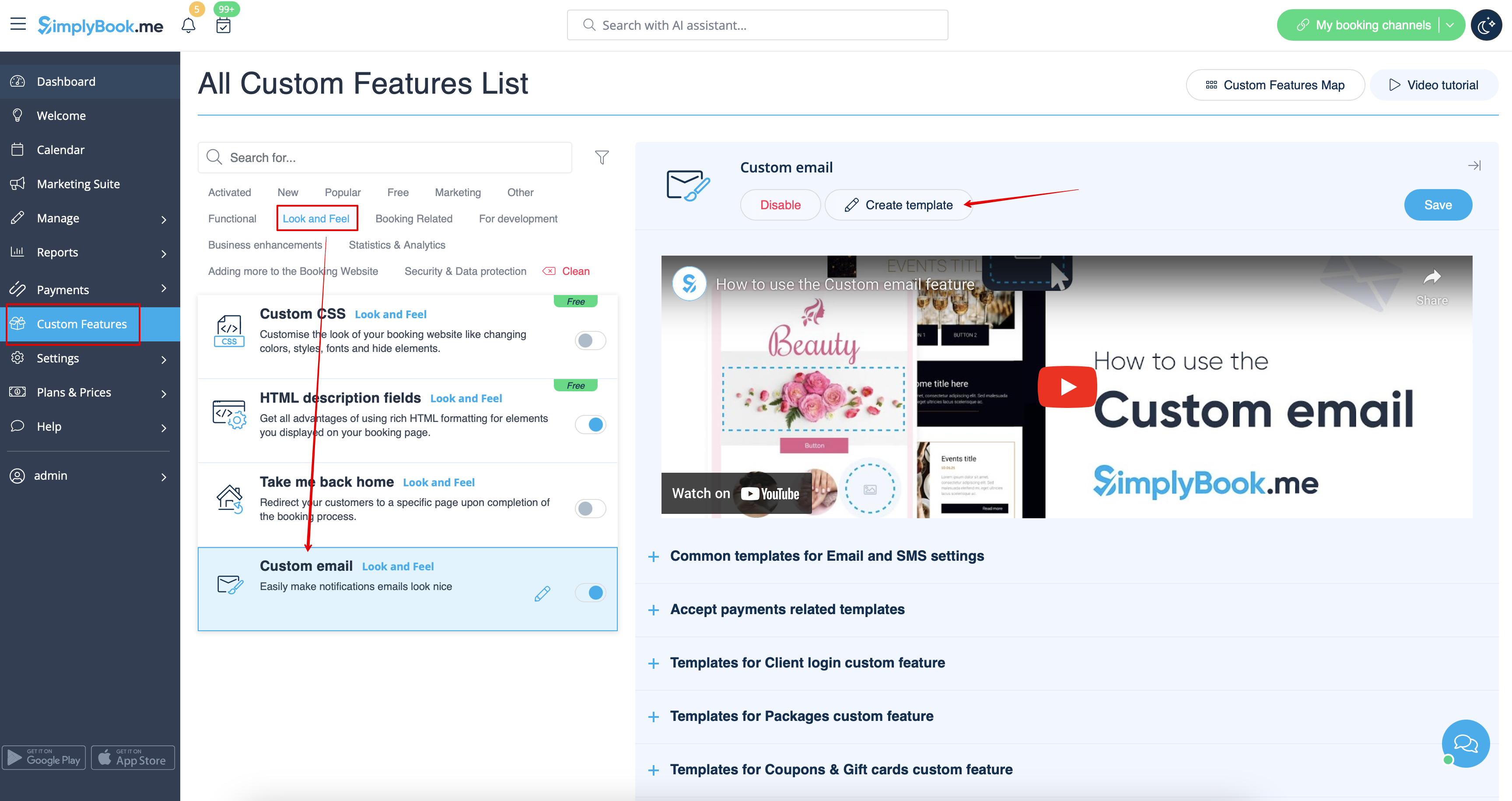
With the help of this custom feature you can influence the look of the following notification types:
- common booking related notifications from Settings -> Email and SMS Settings;
- invoices emails from accept payments custom feature;
- group bookings custom feature notifications;
- multiple bookings custom feature notifications;
- client login custom feature notifications;
- membership custom feature notifications;
- packages custom feature notifications;
- tickets custom feature notifications;
- coupons & gift cards custom feature notifications
- medical test custom feature notifications;
- book soon notification system custom feature notifications.
This feature allows to test each notification type with the pre-created design.
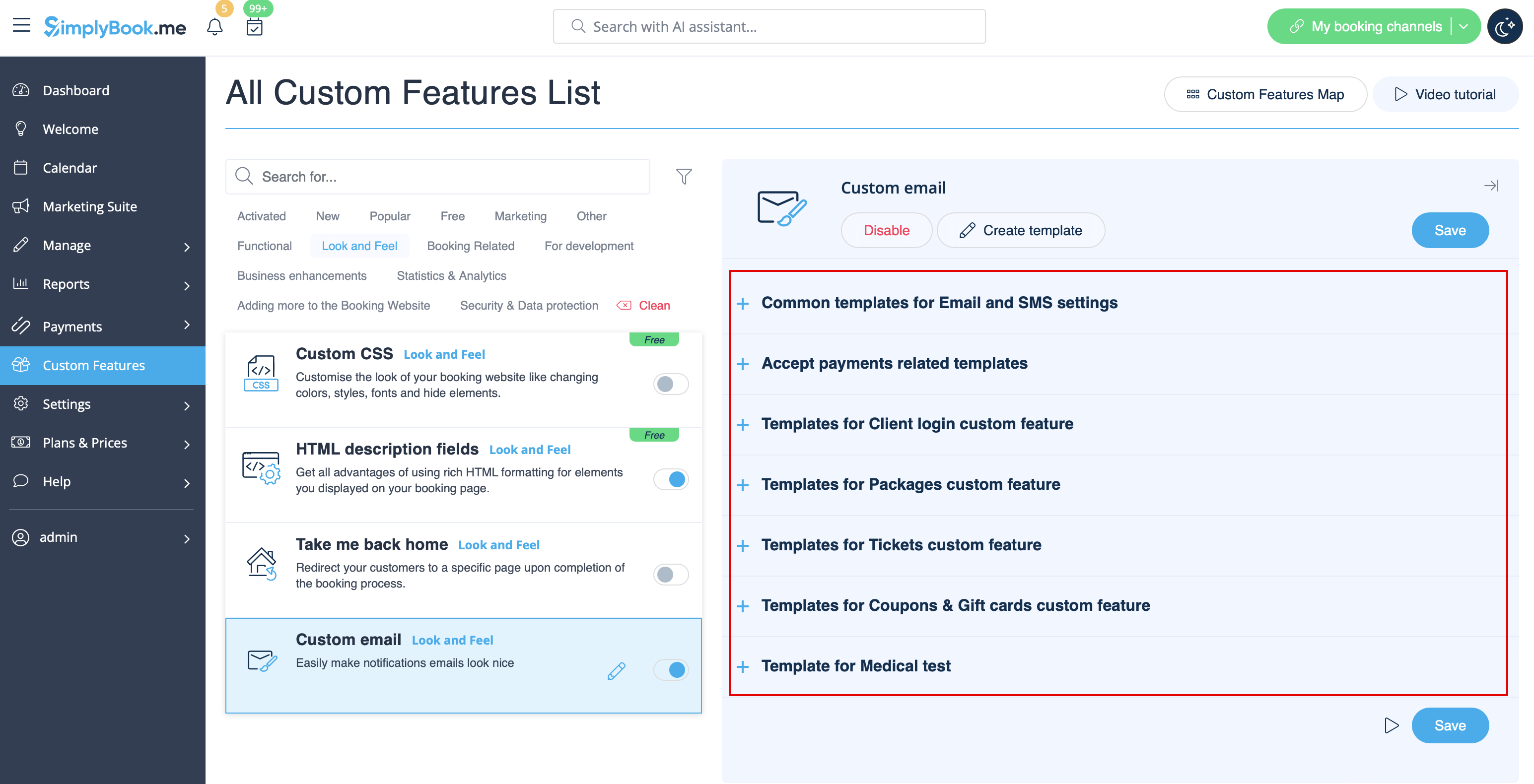
The {{content}} tag that contains the booking/purchase information can be edited in the corresponding feature settings.
- Read more about his custom feature use.
SMTP
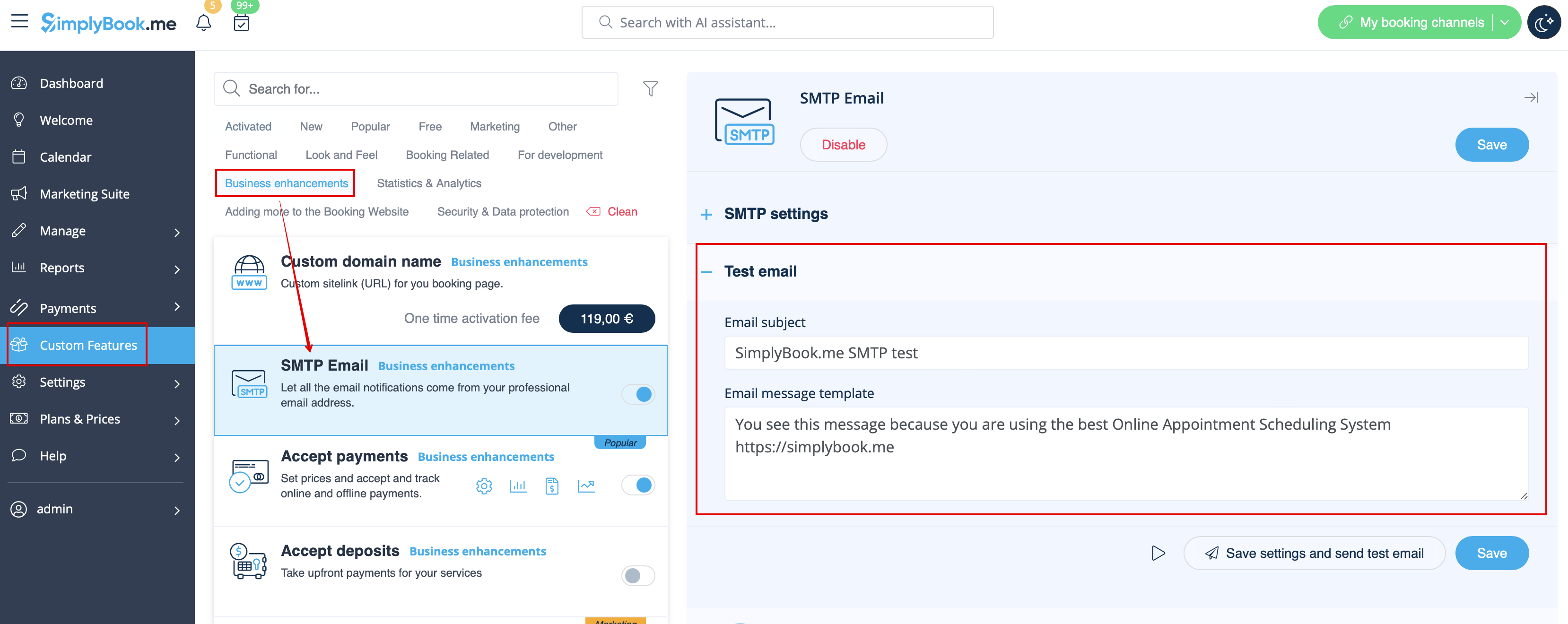
This feature allows you to use your own SMTP server for sending the emails.
It has only one template for testing this feature after you have entered the settings.
You can edit and use the test email template in Custom features -> SMTP -> on the right side of the page.
- Read more about his custom feature use.
Daily report
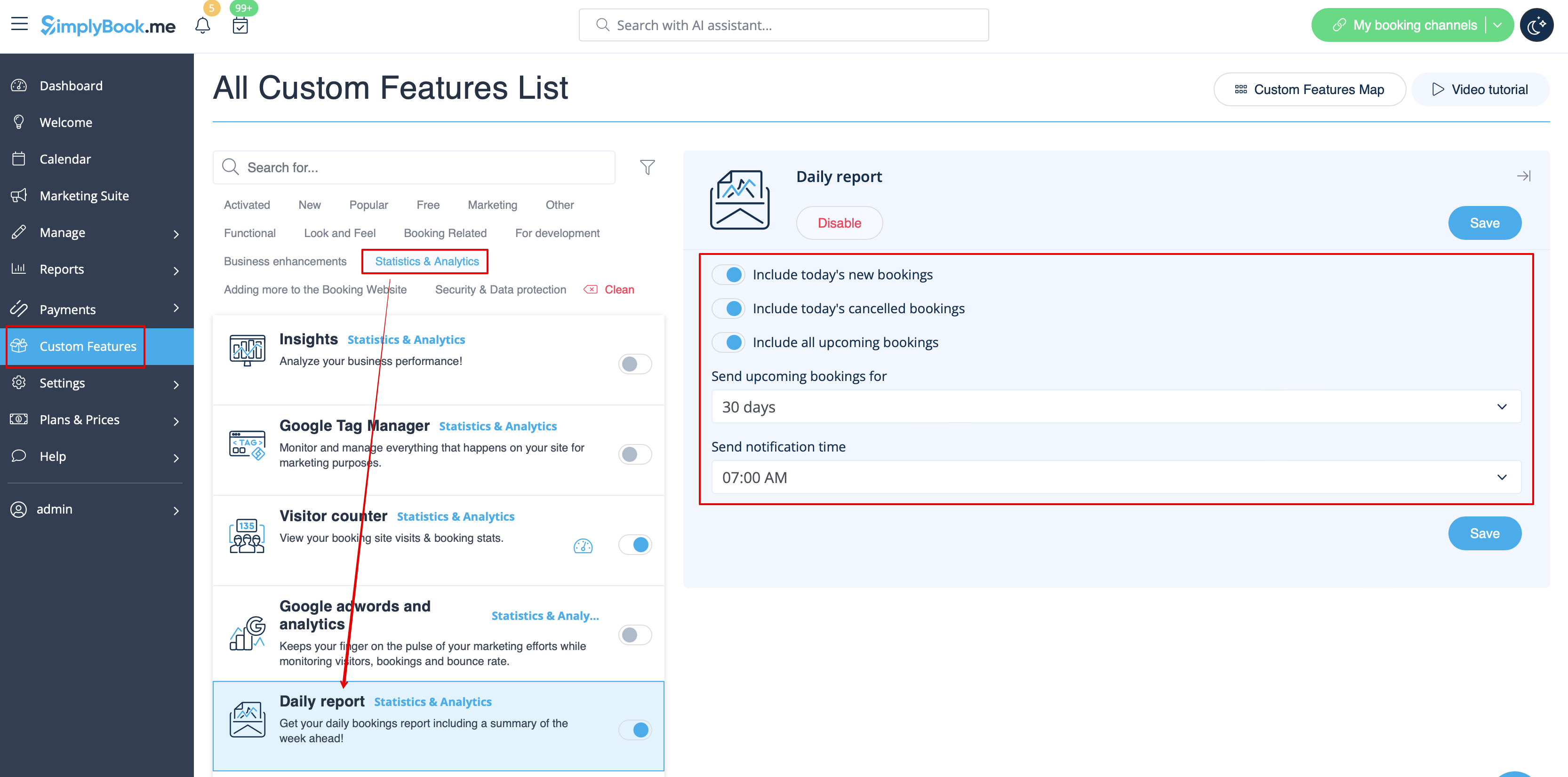
When you enable and set this custom feature it will automatically send the email report about new, upcoming and cancelled appointments to your company email address.
There is not template to edit as such, but you can adjust the items included in Custom features -> Daily report -> on the right side of the page.
- Read more about his custom feature use.
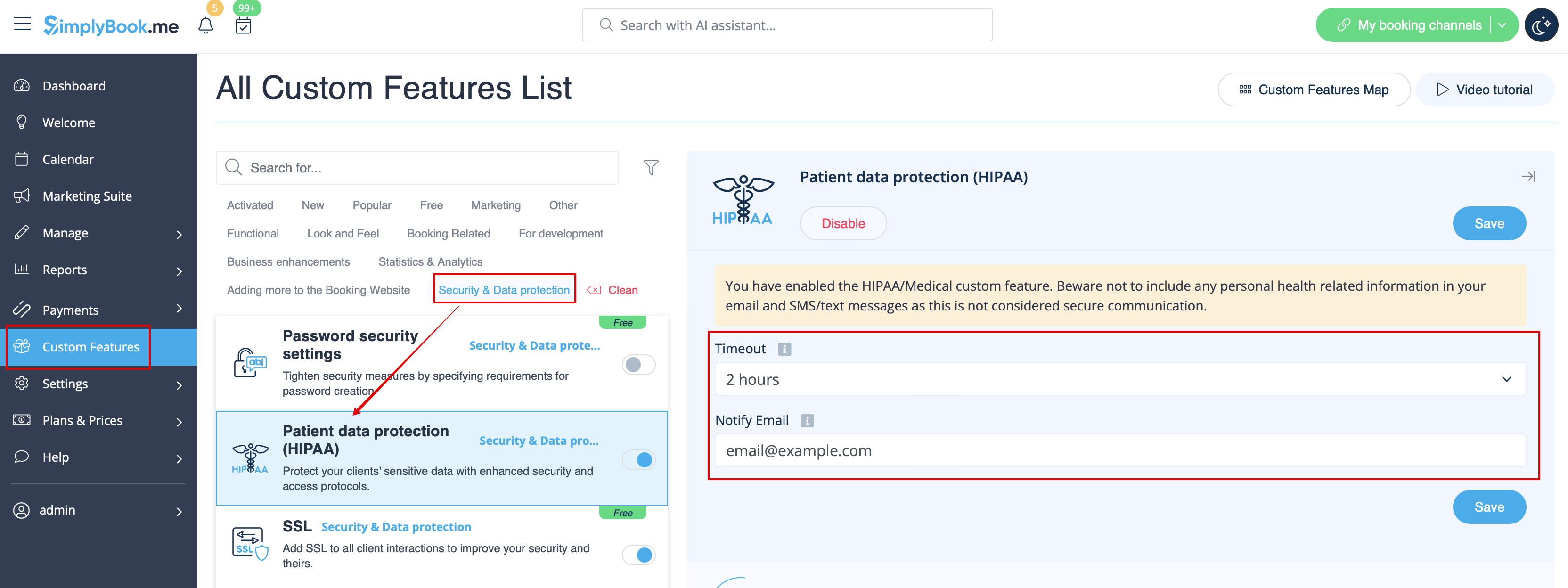
HIPAA
This is security-related custom feature and allows to send email notifications when somebody logs in to your system.
It does not contain any email template to be edited and can be enabled/disabled by adding/removing the email address in Custom features -> HIPAA -> right side of the page -> Notify email.
- Read more about his custom feature use.
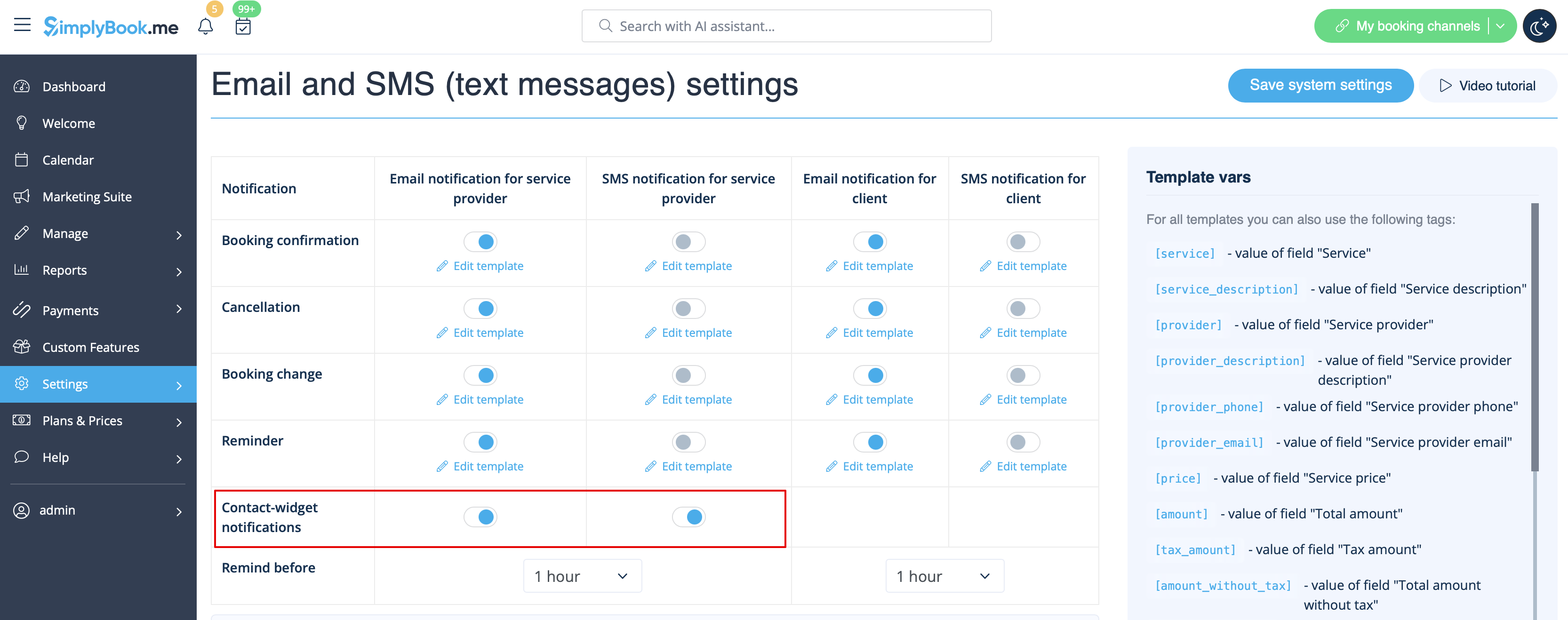
Contact widget
As this custom feature allows to add a contact form to your booking website or create the contact button widget, there is also the email/SMS notification to company that is sent when somebody leaves a message on the booking site or widget so that you will be able to respond right away. There is no template to edit but you can disable such notifications in Settings -> Email and SMS settings -> Contact widget notifications.
- Read more about his custom feature use.
Medical test
When you are using this custom feature you definitely need to send the test results to patients' emails.
In Custom features -> Medical test -> on the right side of the page you can enable/disable or edit the following templates:
- positive results(Email and SMS templates);
- negative results(Email and SMS templates);
- inconclusive results(Email and SMS templates).
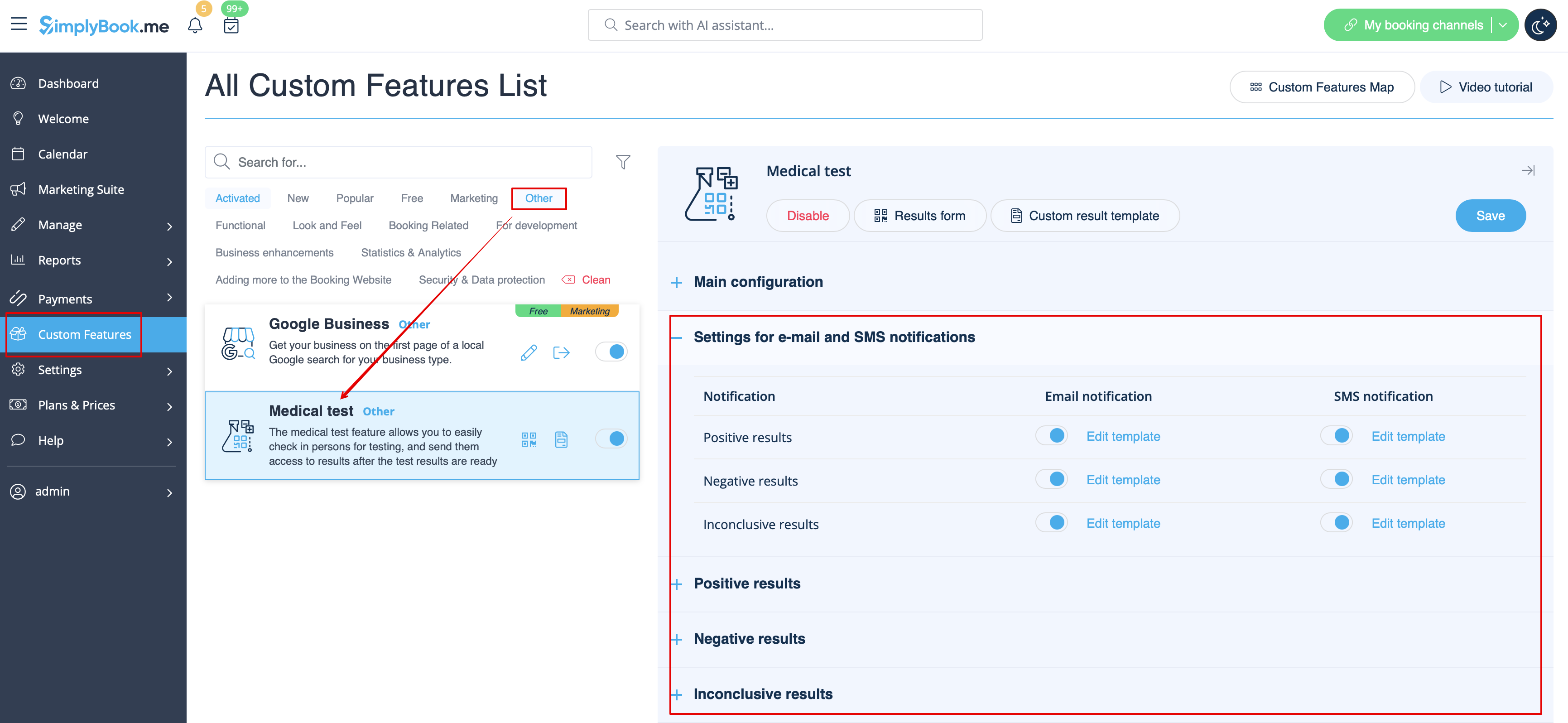
In case you need to adjust the test result template please use Custom result template option above the templates.
- Read more about his custom feature use.
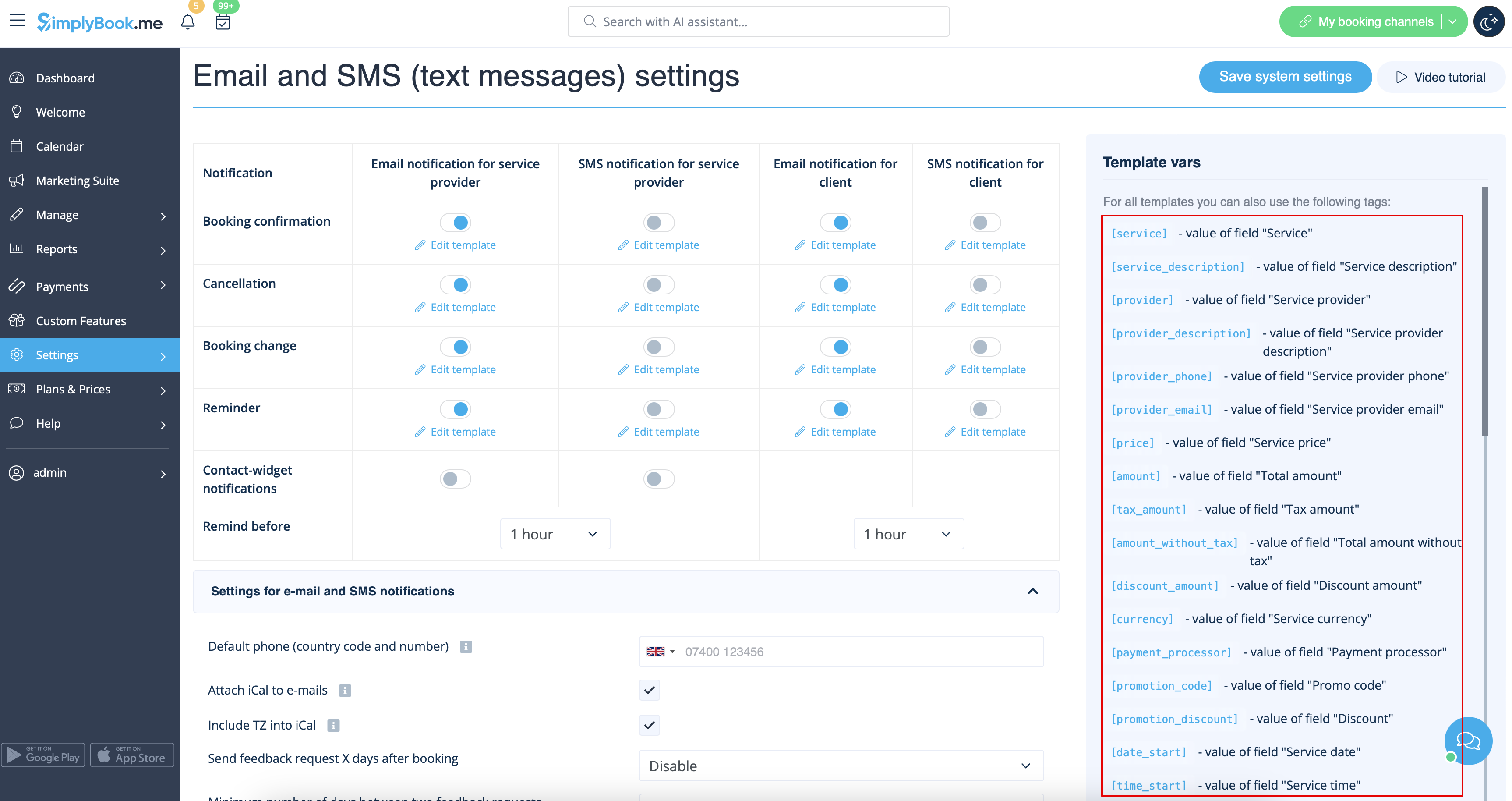
What are variables
Variables are elements that can be inserted in email and sms templates (Settings -> Email and SMS settings). These variables will denote the chosen item after the booking is made. For example you have 2 providers: Mary and John. In email template you insert text "You have booked a service with [provider]". If the client chose on the booking page provider Mary, they would receive the following text "You have booked a service with Mary", if they chose John, they would receive the text "You have booked a service with John."
You can always find the variables that can be used with the certain notification type near the template either on the right side of the page or in the popup that can be access by click on "Variables" button.
iCals and how to use them
In Settings -> Email and SMS settings you can check the box Attach iCal to e-mails and then emails will contain file of .isc format. After clicking that file, it will open in one of your calendars (Google calendar, iCalendar,etc)
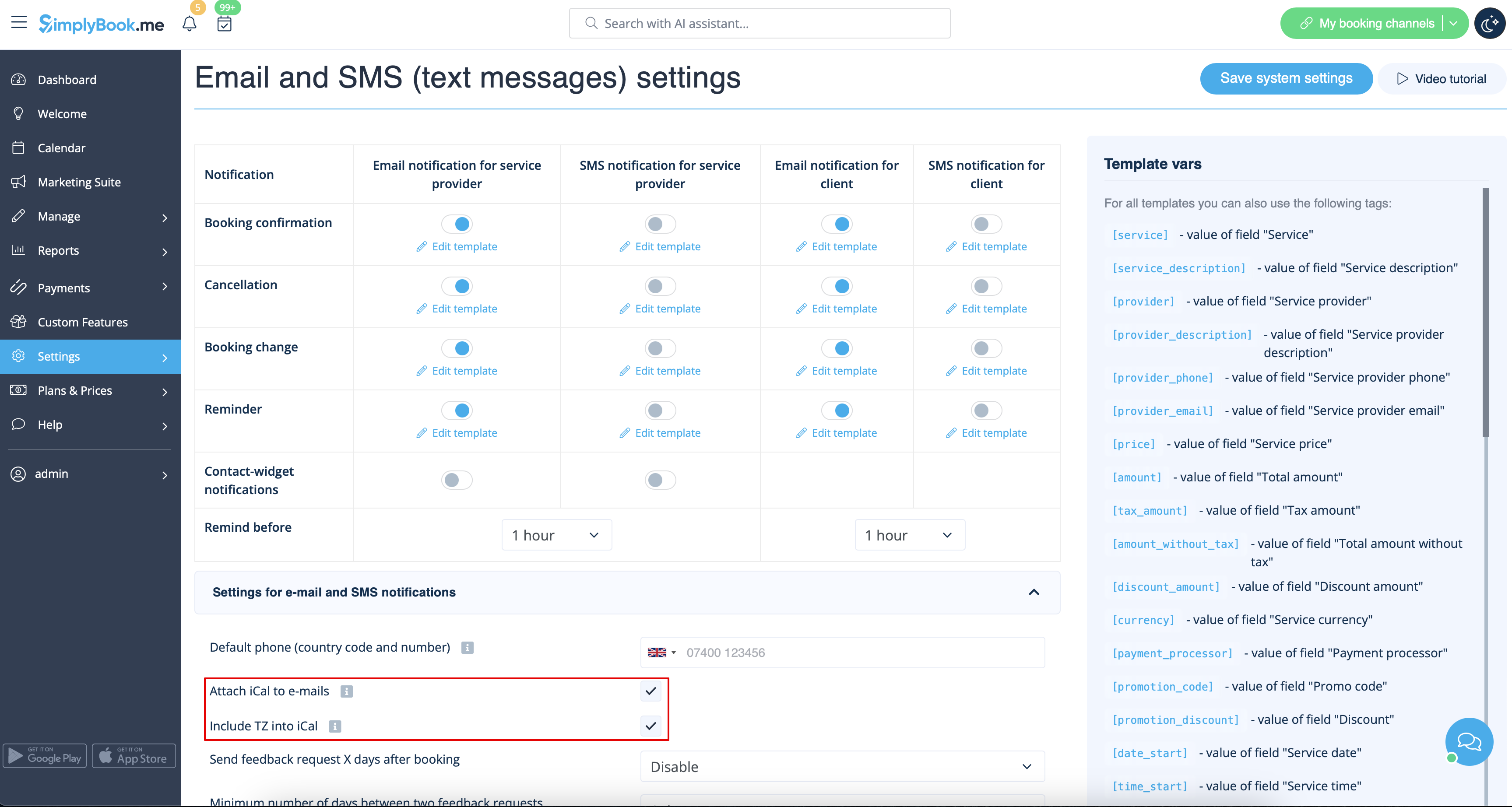
- Please note, that iCal files do not have set timezone so the time in that file will be displayed according to the IP address/device settings.
Clients/Providers do not receive notifications
- Possible reasons
- 1. Corresponding boxes in Settings -> Email and SMS settings are not checked.
- 2. Client/provider entered wrong email or phone.
- 3. Email went to junk (Spam) folder or to Social tab. Please check Whitelisting instructions here.
- 4. SMTP custom feature is not set correctly.
- 5. If sms are not coming, check your sms balance in Plans&Prices -> Subscriptions at the bottom of the page.
Clients/Providers receive wrong notifications
- 1. Please check if you have Multiple Bookings or Group Bookings Custom Feature enabled. These Custom Features have their own templates.
- Multiple bookings template (Custom Features -> Multiple bookings -> on the right side of the page)
- Group bookings template (Custom Features -> Group bookings -> on the right side of the page)
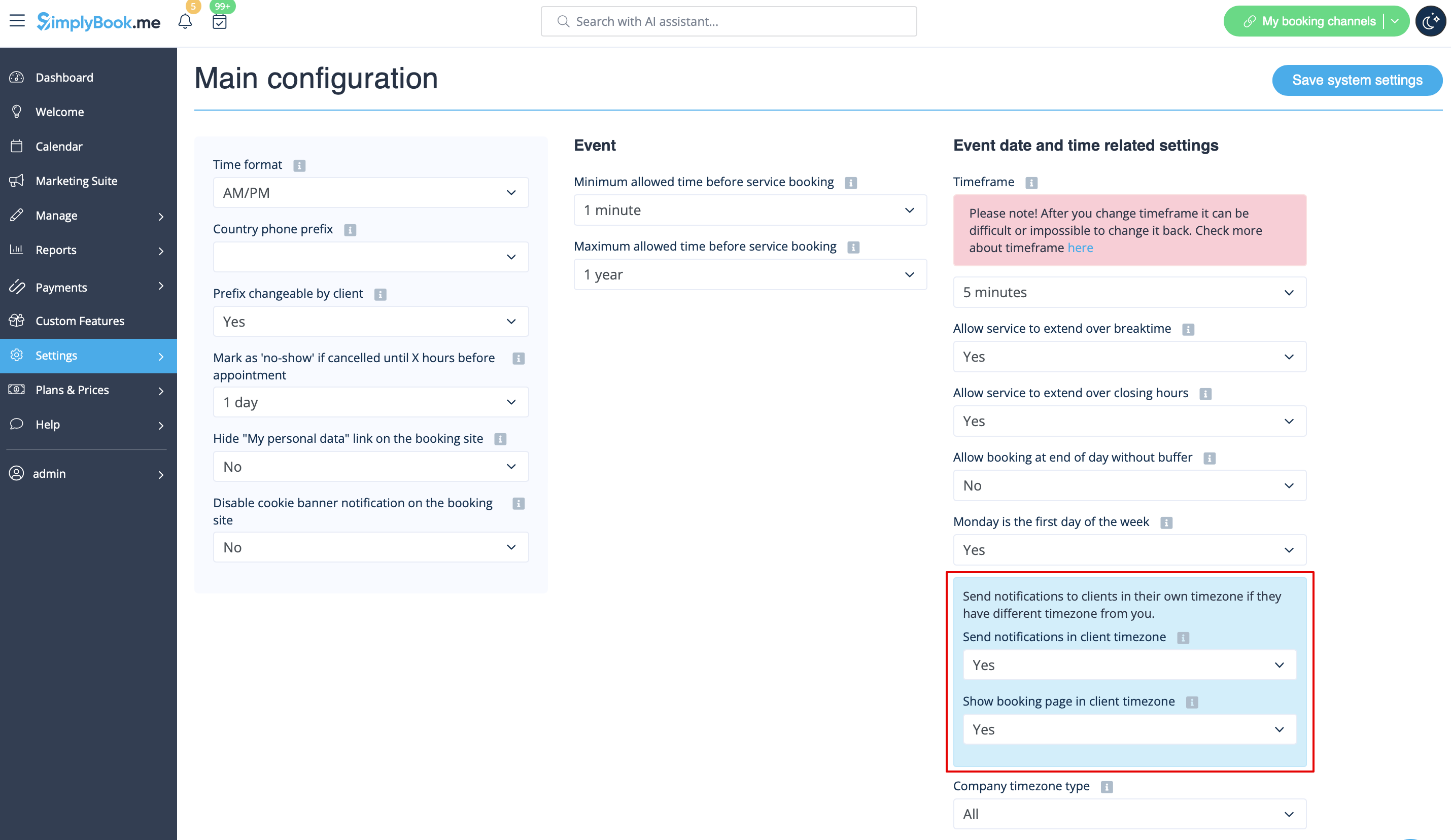
- 2. Check if you have Time Zone settings on in Settings -> Main configuration, in this case client may have selected wrong time zone and received notification in wrong time zone too.
Email whitelisting instructions
So here are a few things that you can do to make sure you get those all important emails from the team here at SimplyBook.me.
You can expect system notifications such as when your subscription is up for renewal, notices about bookings, and helpful information on various things such as how to get the most out of your SimplyBook.me service.
As great as technology is, it isn’t perfect, and sometimes email systems and internet service providers mistake legitimate email for spam. To ensure that you don’t miss important communication from us, please take the following steps:
Please whitelist any emails that come from the @simplybook.me domain.
Why? Because that tells your email service or program that you actually want emails from this domain, so that they can then make sure you get them.
How? Well, this differs between email services and programs but below you can see information about some of the main ones. If you aren’t using one of these, please refer to the help section for yourservice for information.
Using Gmail or Gsuite
Filter messages from @simplybook.me and tell the system to never send it to spam:
- 1. Go to Settings (click the gear icon at the top to the right)

- 2. Select the Filters and Blocked Addresses tab

- 3. Towards the bottom of the tab, click the Create a new filter link

- 4. In the From field write @simplybook.me
- 5. Click Create filter with this search to the bottom right of the window

- 6. Tick the box next to Never send it to Spam
- 7. Click the blue button that says Create filter

Great! Now you won’t miss anything from us!
And to ensure that our emails don’t get lost in that Updates or Promotions tab:
- 1. Find an email from SimplyBook.me in your inbox
- 2. Click and drag it to the Primary tab in your inbox

- 3. You’ll be asked whether you want to do this for future emails, so tell them yes

Using Yahoo! mail
- 1. When you open an email message, hover your mouse on the Sender's name.
- 2. Click the the three dots in the Sender's info window that appears and click Add to contacts.

- 3. When Add Contact form comes up, click Save.

Using Mac Mail
- 1. From the top menu select Mail -> Preferences

- 2. Then select the Rules icon, click Add Rule and type a name for the rule in the description field. Use the following settings:

- 3. “If any of the following conditions are met: From Contains”. In the text field besides Contains type @simplybook.me

- 4. Select Move Message and Inbox from the drop down menus and then click OK to save the rule.
Using Outlook
- 1. Right-click on the message in your inbox.
- 2. Select Junk E-mail from the menu.
- 3. Click Never Block Sender or Never Block Sender's Domain (@example.com).

Great, you’re all set! We look forward to being in touch and seeing your business blossom!
