Created page with ":3. Selecteer <span style="background-color:#d4f8e5; padding:5px; border-radius:5px;">'Herhaling annuleren'</span> en bevestig de actie." Tags: Mobile edit Mobile web edit |
Created page with ":2. Klik in het <span style="background-color:#d4f8e5; padding:5px; border-radius:5px;">blok met planopties</span> op <span style="background-color:#d4f8e5; padding:5px; border-radius:5px;">Downgrade</span> onder het gewenste plan. (Let op! Het is mogelijk om te downgraden als het lagere plan alle geactiveerde items in uw account kan bevatten) File:Downgrade plan path redesigned.png|1200px|center|link=https://help.simplybook.me/images/f/f4/Downgrade_plan_path_redesigne..." |
||
| Line 34: | Line 34: | ||
'''Let op!''' Het is niet mogelijk om terug te gaan naar een gratis abonnement. | '''Let op!''' Het is niet mogelijk om terug te gaan naar een gratis abonnement. | ||
:1. Ga naar de pagina <span style="background-color:#d4f8e5; padding:5px; border-radius:5px;">Plannen en prijzen</span> -> <span style="background-color:#d4f8e5; padding:5px; border-radius:5px;">Abonnementen</span> in uw account. | |||
:1. | |||
:2. Klik in het <span style="background-color:#d4f8e5; padding:5px; border-radius:5px;">blok met planopties</span> op <span style="background-color:#d4f8e5; padding:5px; border-radius:5px;">Downgrade</span> onder het gewenste plan. | |||
:2. | (Let op! Het is mogelijk om te downgraden als het lagere plan alle geactiveerde items in uw account kan bevatten) | ||
( | |||
[[File:Downgrade plan path redesigned.png|1200px|center|link=https://help.simplybook.me/images/f/f4/Downgrade_plan_path_redesigned.png]] | [[File:Downgrade plan path redesigned.png|1200px|center|link=https://help.simplybook.me/images/f/f4/Downgrade_plan_path_redesigned.png]] | ||
<br><br> | <br><br> | ||
:3. | :3. Controleer de bedrijfsgegevens aan de linkerkant van de pagina (deze worden gebruikt voor de factuur) en kies de betaalmethode. | ||
[[File:Confirm subscription update redesigned.png|1200px|center|link=https://help.simplybook.me/images/e/e3/Confirm_subscription_update_redesigned.png]] | [[File:Confirm subscription update redesigned.png|1200px|center|link=https://help.simplybook.me/images/e/e3/Confirm_subscription_update_redesigned.png]] | ||
<br><br> | <br><br> | ||
:4. | :4. Nadat u de betaling heeft uitgevoerd en deze succesvol door het systeem is ontvangen, wordt het nieuwe plan van kracht. | ||
<br><br> | <br><br> | ||
<div lang="en" dir="ltr" class="mw-content-ltr"> | <div lang="en" dir="ltr" class="mw-content-ltr"> | ||
Revision as of 12:21, 16 May 2025
Naarmate uw bedrijf zich ontwikkelt, kan het zijn dat uw abonnement niet meer aan uw behoeften voldoet. Geen zorgen! U hebt de vrijheid om:
- U kunt uw terugkerende betalingsprofiel eenvoudig annuleren.
- Kies een ander abonnement dat beter bij uw behoeften past.
- Zet uw account op pauze totdat u het weer nodig hebt.
- Kies voor een eenvoudigere boekingsoplossing SimplyMeet.me als SimplyBook.me te uitgebreid is voor uw behoeften
Wij staan klaar om u een naadloze en flexibele ervaring te bieden. Als u vragen heeft of hulp nodig heeft, staat ons ondersteuningsteam voor u klaar.
Hoe kan ik het betaalde abonnement opzeggen?
Als u minstens één keer een betaald abonnement hebt aangeschaft, wordt het account niet automatisch verwijderd na het opzeggen van het abonnement, zelfs als u het gedurende een bepaalde periode niet gebruikt.
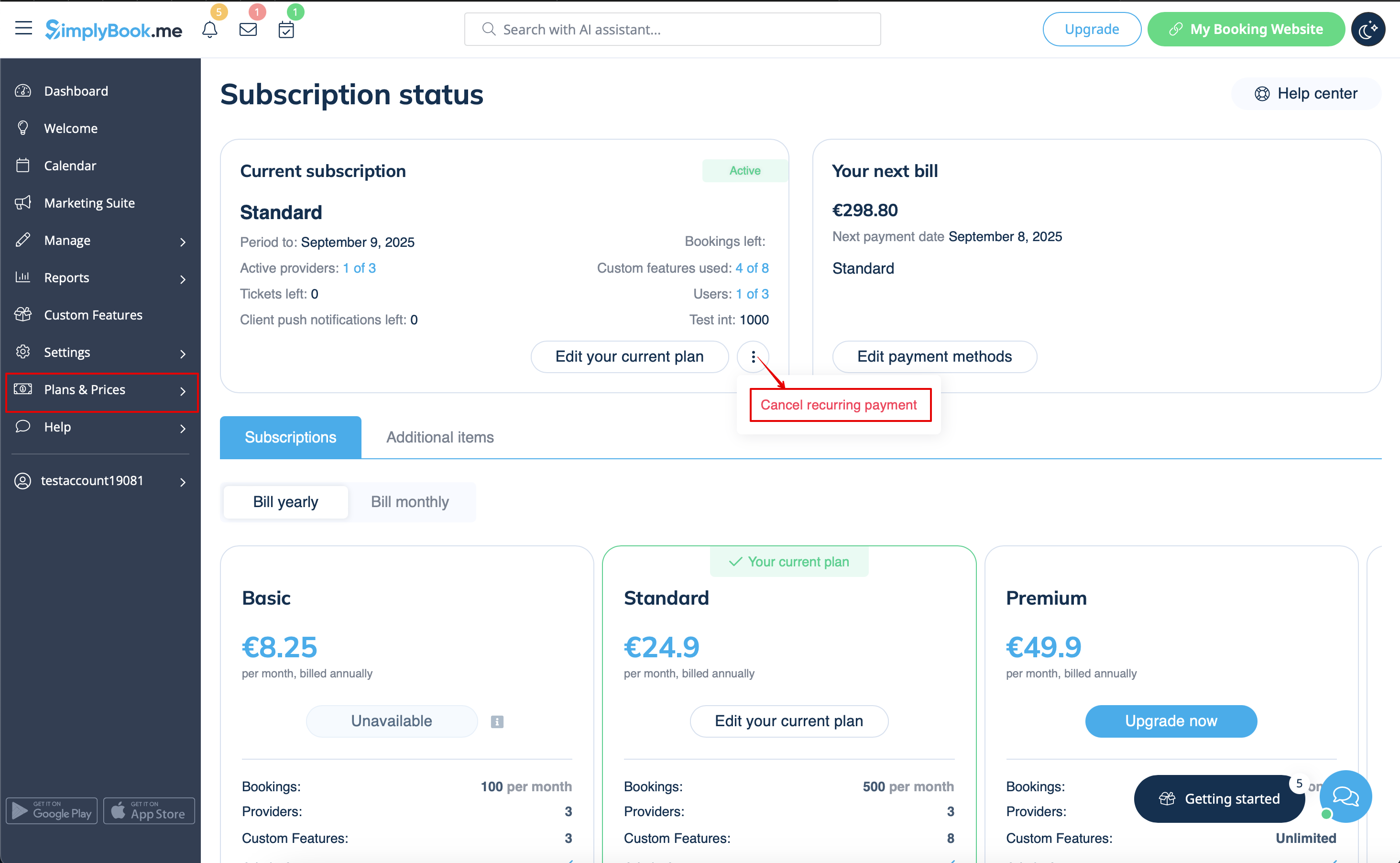
Volg de volgende stappen om uw terugkerende betaling op te zeggen:
- 1. Ga naar de pagina Abonnementen in uw account.
- 2. Klik in het bovenste blok met de abonnementsgegevens op het menu met de drie puntjes.
- 3. Selecteer 'Herhaling annuleren' en bevestig de actie.
- 4. Hierdoor worden er geen extra kosten in rekening gebracht. U kunt alle opties blijven gebruiken totdat de huidige periode afloopt.
- U kunt op elk moment het gewenste abonnement kopen in Abonnementen & prijzen -> Abonnementen en een nieuw terugkerend profiel instellen voor een naadloos gebruik van het systeem.
Hoe het abonnement downgraden
Let op! Het is niet mogelijk om terug te gaan naar een gratis abonnement.
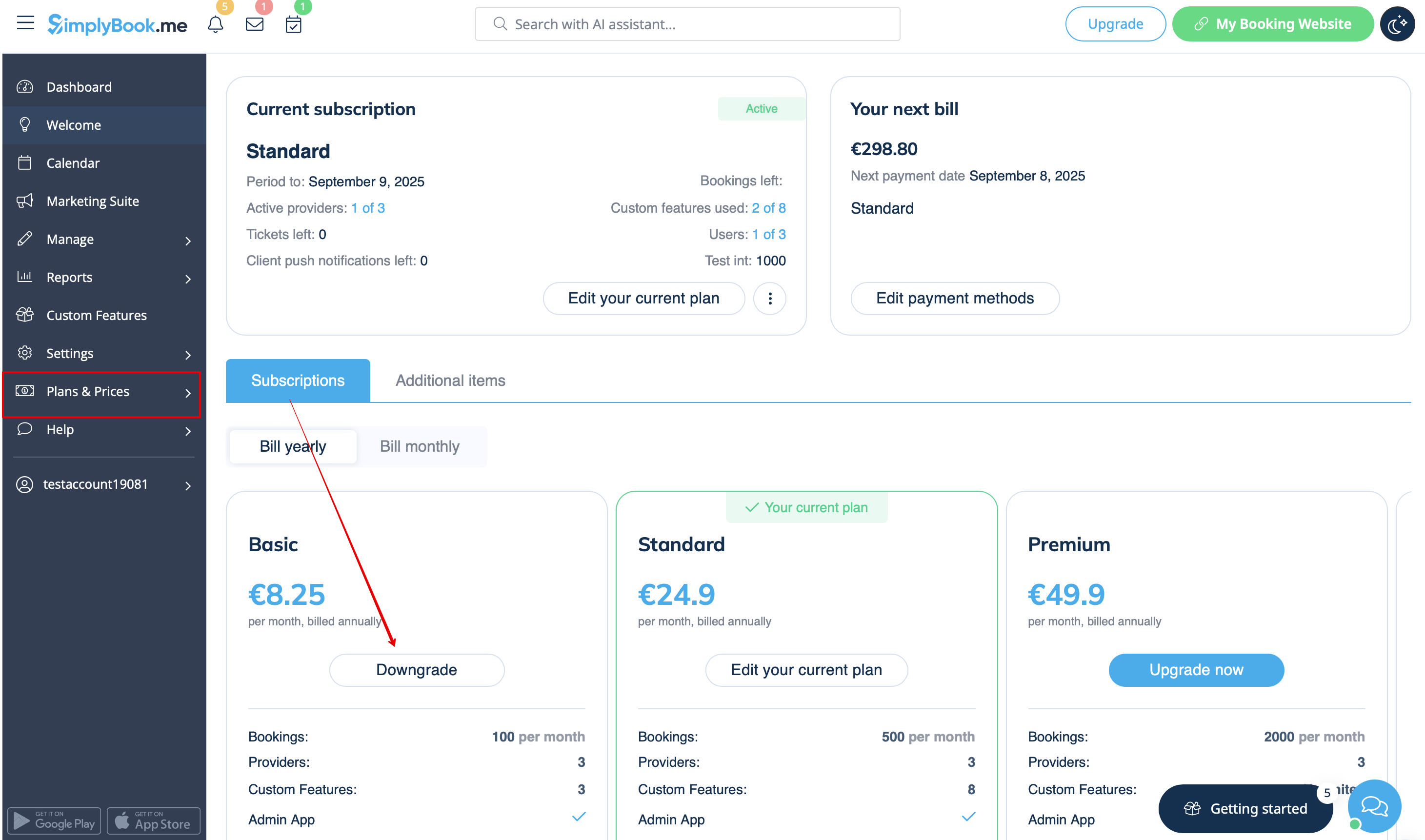
- 1. Ga naar de pagina Plannen en prijzen -> Abonnementen in uw account.
- 2. Klik in het blok met planopties op Downgrade onder het gewenste plan.
(Let op! Het is mogelijk om te downgraden als het lagere plan alle geactiveerde items in uw account kan bevatten)
- 3. Controleer de bedrijfsgegevens aan de linkerkant van de pagina (deze worden gebruikt voor de factuur) en kies de betaalmethode.
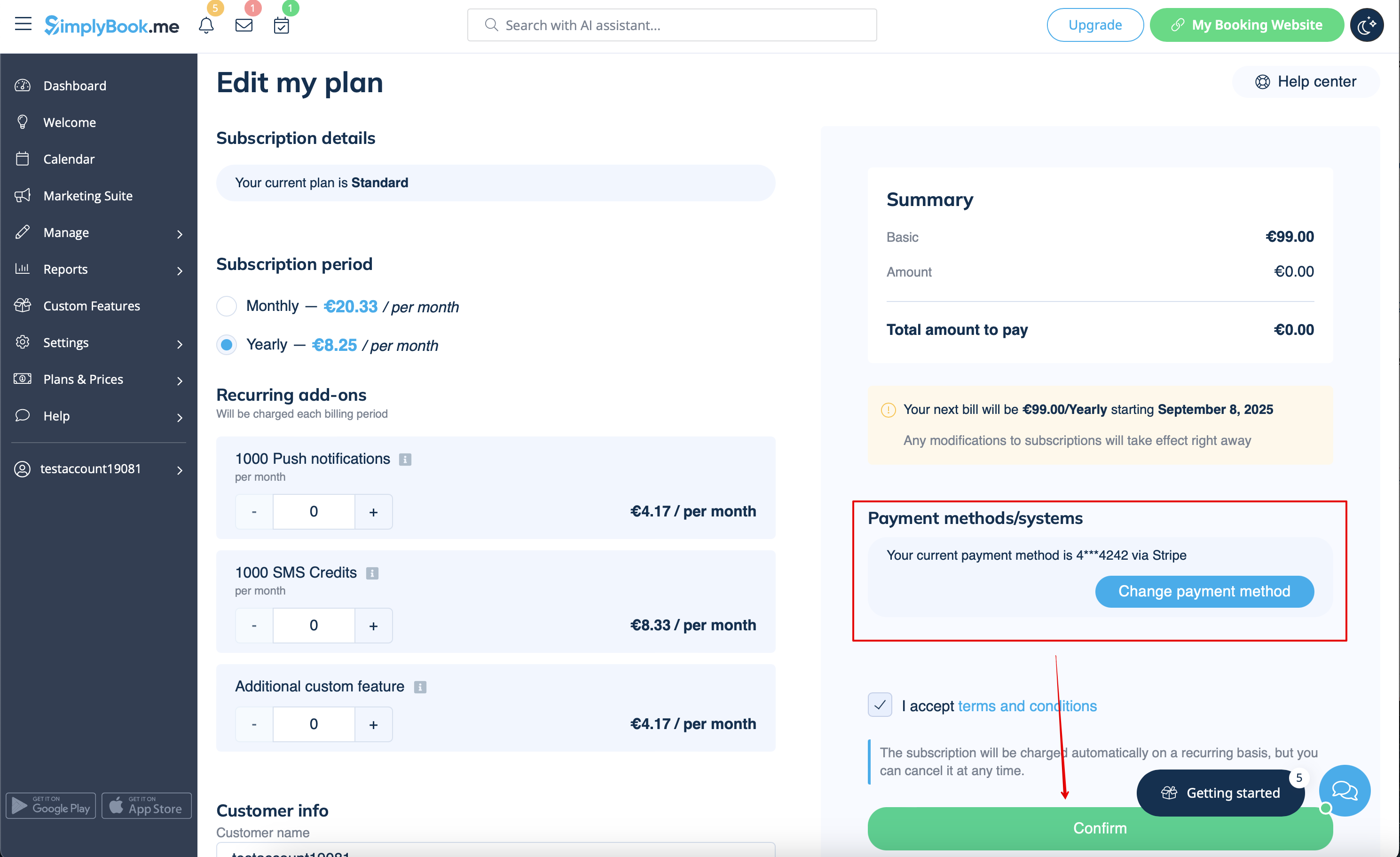
- 4. Nadat u de betaling heeft uitgevoerd en deze succesvol door het systeem is ontvangen, wordt het nieuwe plan van kracht.
Need a simpler solution?
Please contact our support either in LiveChat directly from your account or send an email to support@simplybook.me and we will be happy to help you to choose the best matching plan for your business.
You can also check our SimplyMeet.me solution, a simple meeting scheduling tool with easy setup and a variety of tools at your disposal.
How to delete the account
Before the account removal you may also consider canceling the subscription to not be charged if you have a pause in your business or have a seasonal occupation instead of deleting it.
If that's the case please check the steps for recurring payment cancellation.
Or, if the subscription does not currently fit your needs, you can buy another one according to this.
Of course you can always contact our support for assistance with selecting a new subscription plan to match your current business needs in the best way.
If you are sure that you want to delete the account please follow these simple steps:
- 1. Go to Settings and click on Delete account.
- 2. Select the reason for deletion, confirm your agreement for data deletion, and proceed with the action.
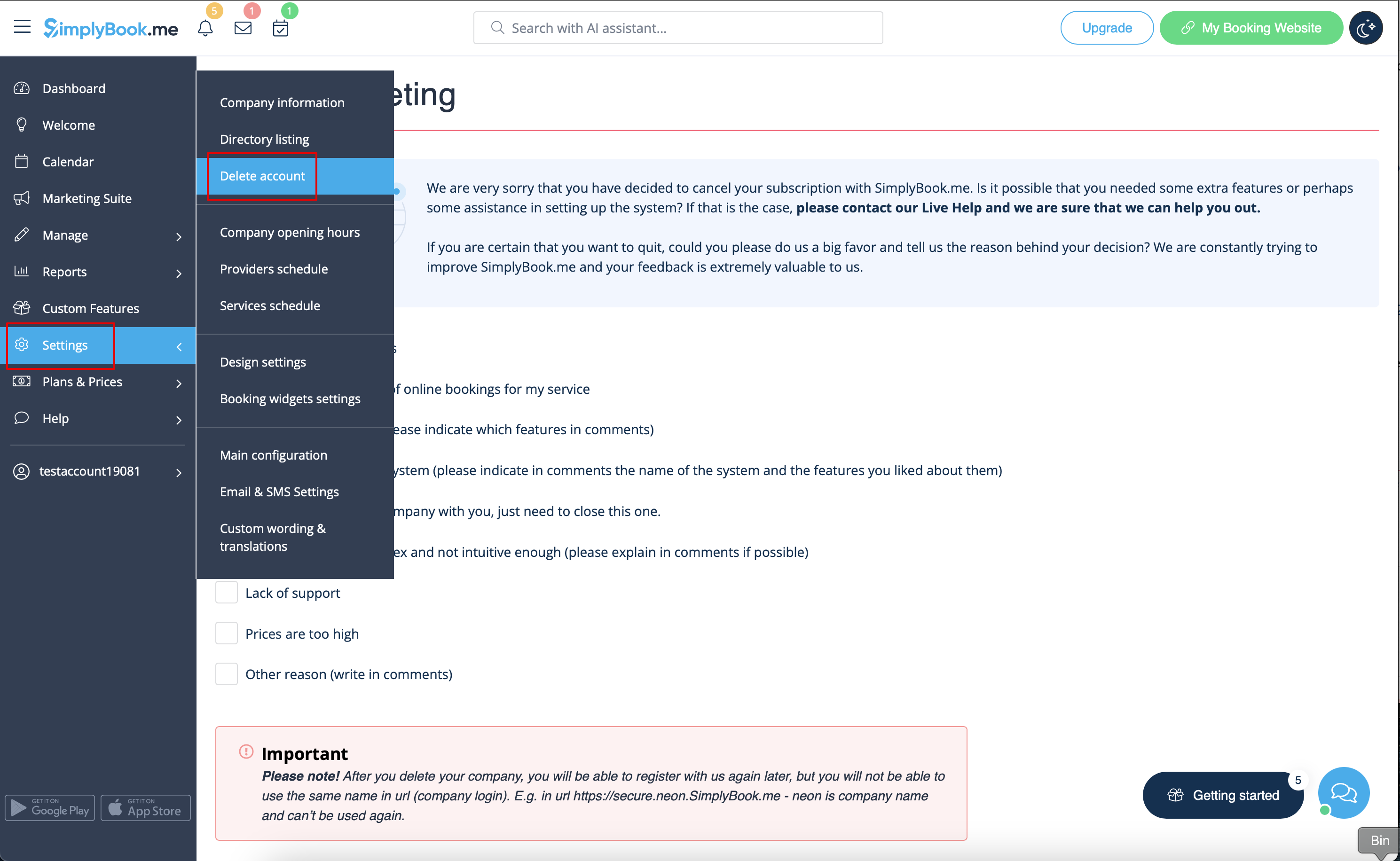
Once completed, your account will be deleted. For a certain period, you'll have the option to restore it. If not, it will be permanently removed from our databases.
