No edit summary |
No edit summary |
||
| Line 1: | Line 1: | ||
<languages/> | |||
<translate> | |||
{{#seo: | {{#seo: | ||
|title=My SimplyBook.me subscription and how to renew | SimplyBook.me | |title=My SimplyBook.me subscription and how to renew | SimplyBook.me | ||
| Line 5: | Line 7: | ||
|keywords=faq, frequently asked questions, booking software, appointment system questions, appointments online, calendar software, booking system, booking calendar, scheduling software, online appointment scheduling, online scheduling, setup, setup help, support, help content | |keywords=faq, frequently asked questions, booking software, appointment system questions, appointments online, calendar software, booking system, booking calendar, scheduling software, online appointment scheduling, online scheduling, setup, setup help, support, help content | ||
}} | }} | ||
</translate> | |||
<translate> | |||
__FORCETOC__ | __FORCETOC__ | ||
| Line 14: | Line 18: | ||
[[File:Subscription info on dashboard redesigned.png|1200px| center|link=https://help.simplybook.me/images/5/5c/Subscription_info_on_dashboard_redesigned.png]] | [[File:Subscription info on dashboard redesigned.png|1200px| center|link=https://help.simplybook.me/images/5/5c/Subscription_info_on_dashboard_redesigned.png]] | ||
<br><br> | <br><br> | ||
</translate> | |||
<translate> | |||
:2. Plans&Prices//Subscriptions above Subscriptions table | :2. Plans&Prices//Subscriptions above Subscriptions table | ||
[[File:Plans and prices page subscription info redesigned2.png|1200px|center|link=https://help.simplybook.me/images/8/81/Plans_and_prices_page_subscription_info_redesigned2.png]] | [[File:Plans and prices page subscription info redesigned2.png|1200px|center|link=https://help.simplybook.me/images/8/81/Plans_and_prices_page_subscription_info_redesigned2.png]] | ||
<br><br> | <br><br> | ||
</translate> | |||
<translate> | |||
:3. On Account info page, on the right side. | :3. On Account info page, on the right side. | ||
[[File:Plan info on my account page redesigned.png|1200px|center|link=https://help.simplybook.me/images/1/18/Plan_info_on_my_account_page_redesigned.png]] | [[File:Plan info on my account page redesigned.png|1200px|center|link=https://help.simplybook.me/images/1/18/Plan_info_on_my_account_page_redesigned.png]] | ||
<br><br> | <br><br> | ||
</translate> | |||
<translate> | |||
==How to renew subscription== | ==How to renew subscription== | ||
<br><br> | <br><br> | ||
| Line 27: | Line 37: | ||
There are several payment gateways to pay for your subscription depending on your region/currency:<br/> | There are several payment gateways to pay for your subscription depending on your region/currency:<br/> | ||
[[File:Payment methods for susbscription redesigned2.png|1200px| center|link=https://help.simplybook.me/images/b/b9/Payment_methods_for_susbscription_redesigned2.png]]<br/> | [[File:Payment methods for susbscription redesigned2.png|1200px| center|link=https://help.simplybook.me/images/b/b9/Payment_methods_for_susbscription_redesigned2.png]]<br/> | ||
</translate> | |||
<translate> | |||
| Line 42: | Line 54: | ||
:REMARK: Minimum transfer is $50/50Eur/40GBP | :REMARK: Minimum transfer is $50/50Eur/40GBP | ||
</translate> | |||
<translate> | |||
| Line 51: | Line 65: | ||
[[File:Saved payment method redesigned2.png|1200px|center|link=https://help.simplybook.me/images/c/ca/Saved_payment_method_redesigned2.png]] | [[File:Saved payment method redesigned2.png|1200px|center|link=https://help.simplybook.me/images/c/ca/Saved_payment_method_redesigned2.png]] | ||
<br><br> | <br><br> | ||
</translate> | |||
<translate> | |||
You can always disable the methods that were previously saved in Plans & Prices -> Subscriptions -> scroll the page down -> Edit payment methods. | You can always disable the methods that were previously saved in Plans & Prices -> Subscriptions -> scroll the page down -> Edit payment methods. | ||
[[File:Edit payment methods path redesigned2.png|1200px|center|link=https://help.simplybook.me/images/4/4c/Edit_payment_methods_path_redesigned2.png]] | [[File:Edit payment methods path redesigned2.png|1200px|center|link=https://help.simplybook.me/images/4/4c/Edit_payment_methods_path_redesigned2.png]] | ||
[[File:Payment methods list redesigned.png|1200px|center|link=https://help.simplybook.me/images/3/3d/Payment_methods_list_redesigned.png]] | [[File:Payment methods list redesigned.png|1200px|center|link=https://help.simplybook.me/images/3/3d/Payment_methods_list_redesigned.png]] | ||
<br><br> | <br><br> | ||
</translate> | |||
<translate> | |||
==How to change payment method== | ==How to change payment method== | ||
| Line 62: | Line 80: | ||
[[File:Buy new subscription path redesigned2.png|1200px| center|link=https://help.simplybook.me/images/3/34/Buy_new_subscription_path_redesigned2.png]] | [[File:Buy new subscription path redesigned2.png|1200px| center|link=https://help.simplybook.me/images/3/34/Buy_new_subscription_path_redesigned2.png]] | ||
<br><br> | <br><br> | ||
</translate> | |||
<translate> | |||
Choose the preferred payment method, provide you details and confirm payment. New payment method will be automatically saved when your payment is confirmed. | Choose the preferred payment method, provide you details and confirm payment. New payment method will be automatically saved when your payment is confirmed. | ||
<br><br> | <br><br> | ||
</translate> | |||
Revision as of 12:41, 16 May 2025
Where to check subscription details
There are several places where you can see your subscription details
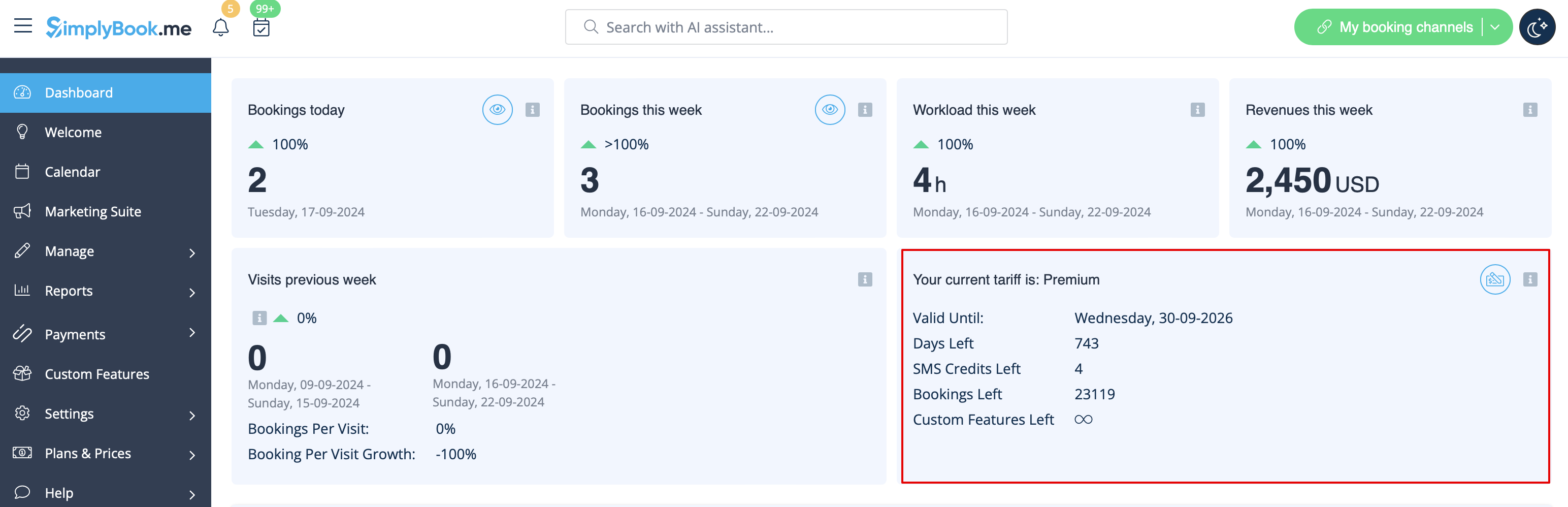
- 1. Dashboard, Your current tariff section
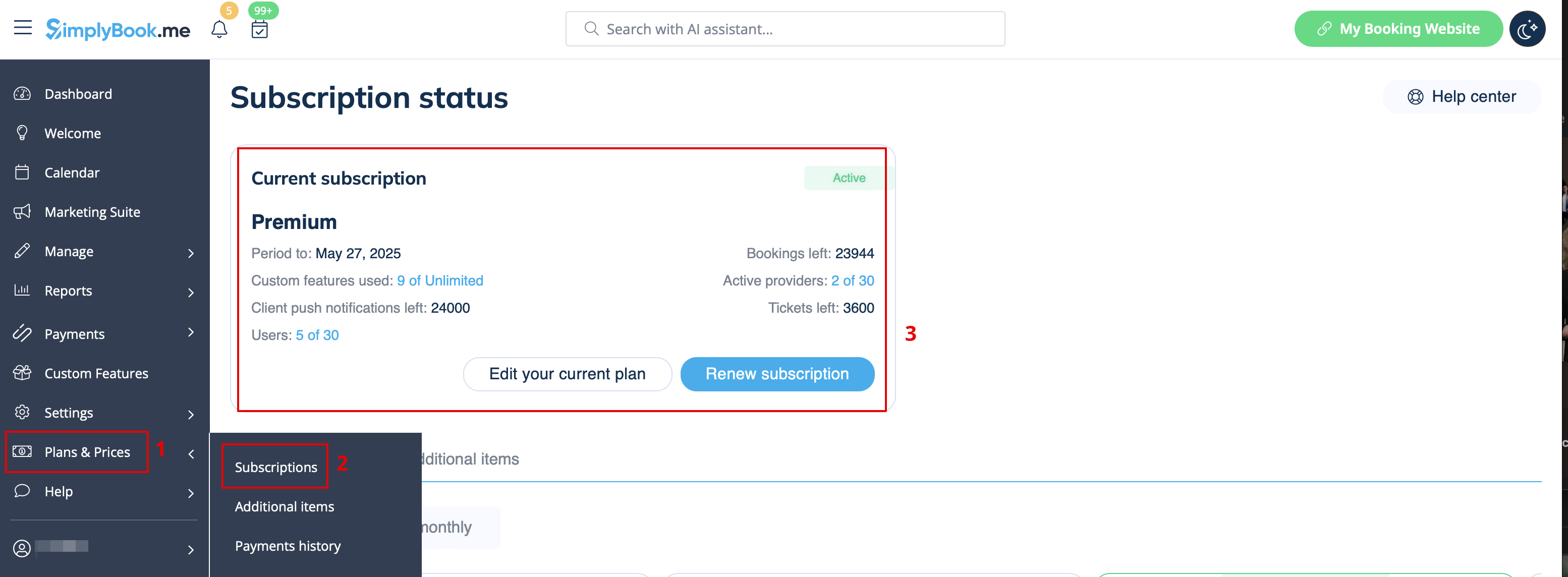
- 2. Plans&Prices//Subscriptions above Subscriptions table
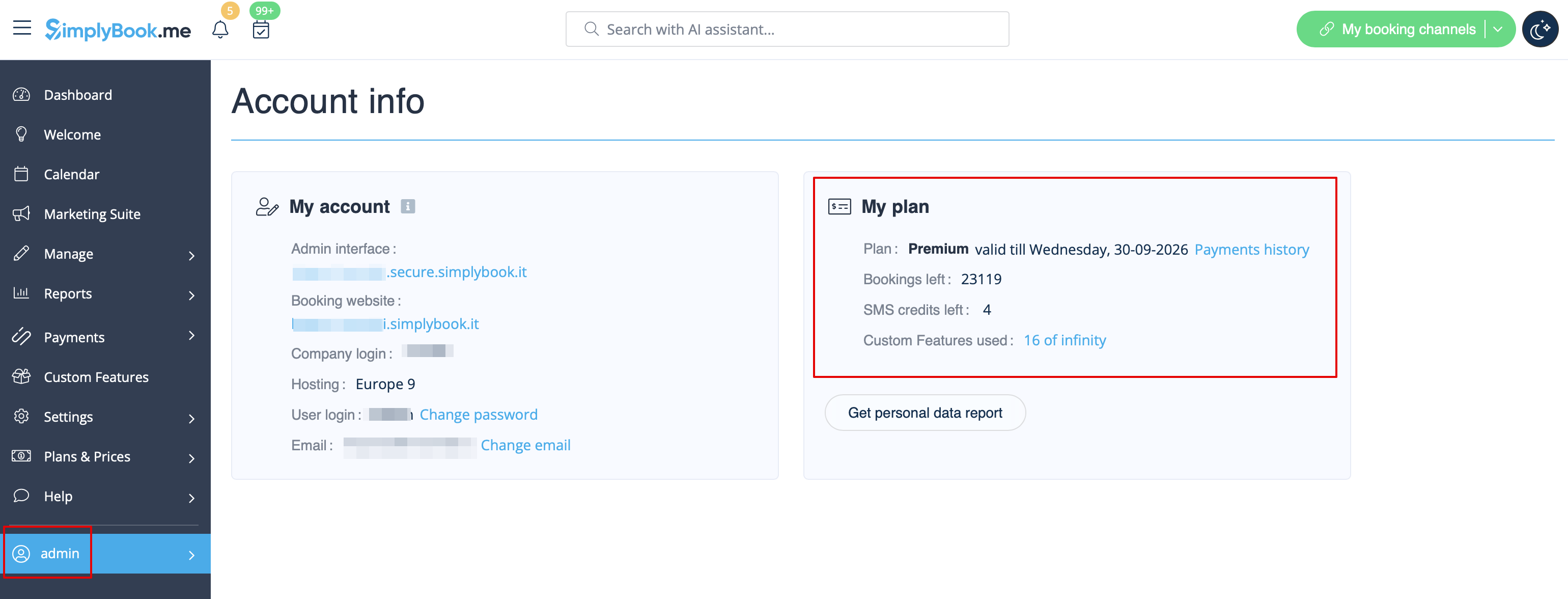
- 3. On Account info page, on the right side.
How to renew subscription
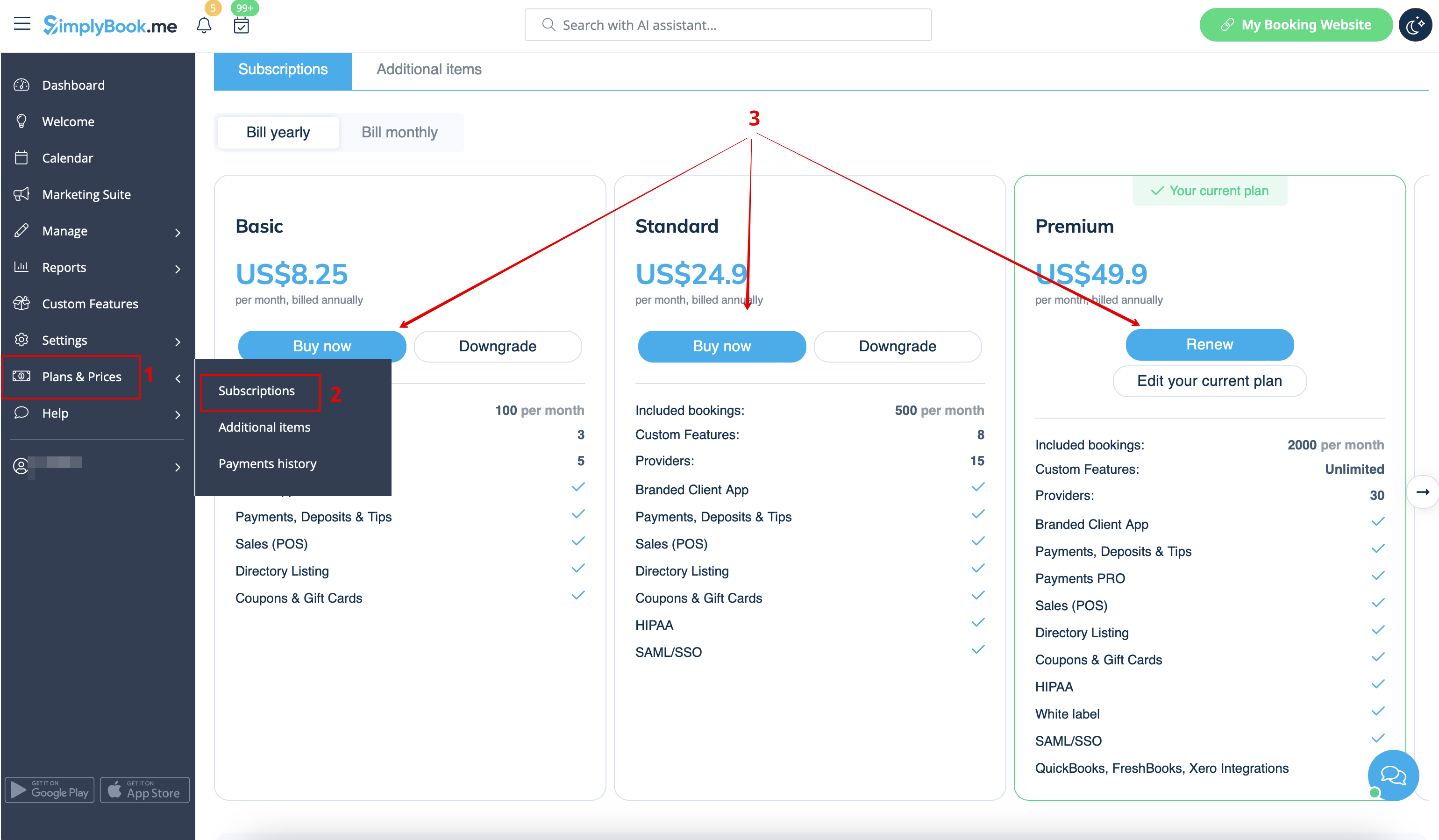
In Plans&Prices // Subscriptions section choose the package you need and press "Buy/Renew" under it.
There are several payment gateways to pay for your subscription depending on your region/currency:
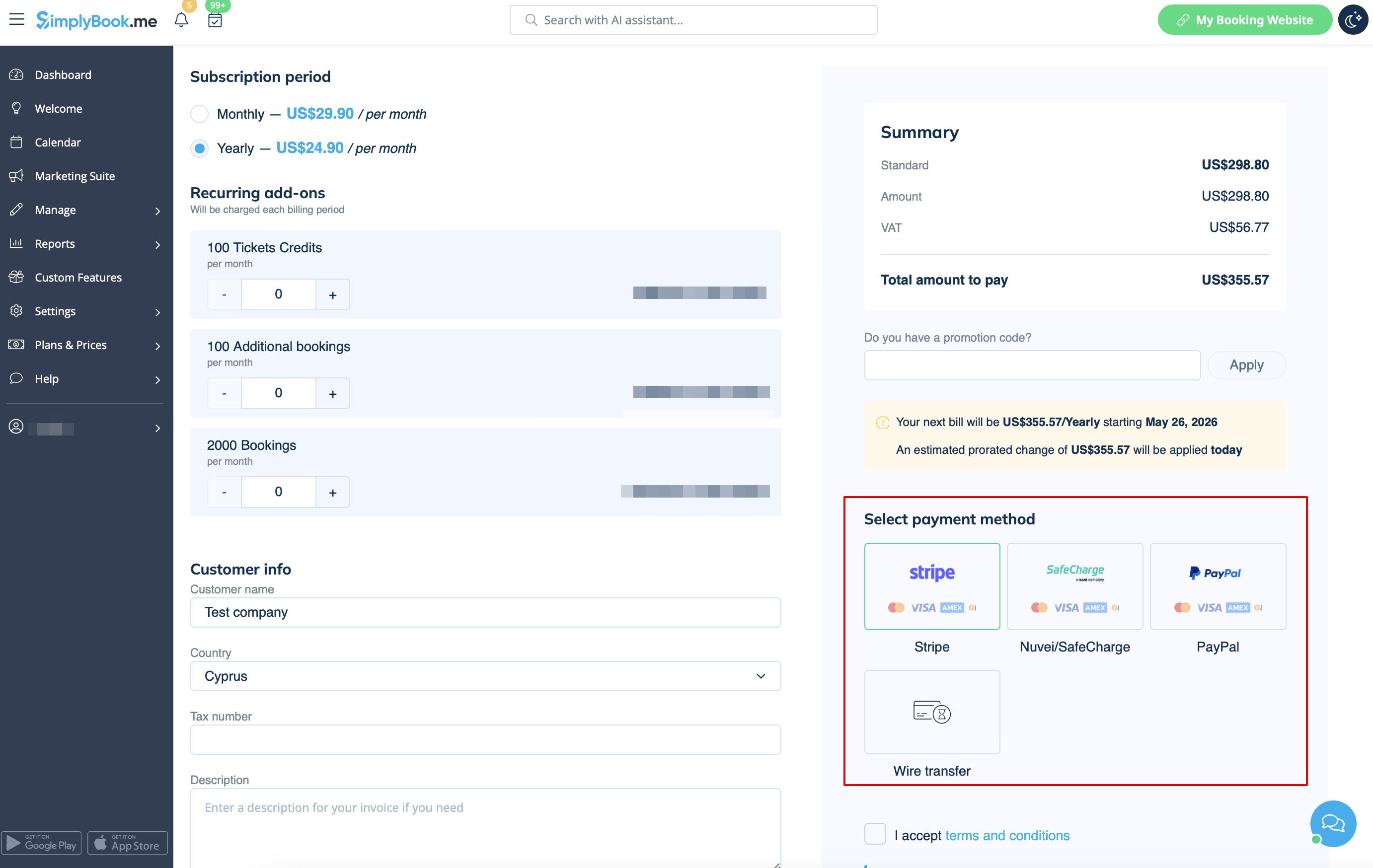
- Credit Card via SafeCharge or Stripe systems
- Wire transfer to account:
- Beneficiary: SimplyBook.me ltd
- Address: 21 Karaiskaki str., Oasis Center, 3032 Limassol, Cyprus
- IBAN EURO: IS800537387113314509189970
- IBAN GBP: IS920537382003884509189970
- IBAN USD: IS280537381011334509189970
- SWIFT: GLITISRE
- REMARK: Minimum transfer is $50/50Eur/40GBP
Please note! Subscription payments made for your SimplyBook.me account via SafeCharge, Stripe (or PayPal if you have difficulties with Safecharge system) are set as recurring and will automatically renew based on the selected subscription period.
You can cancel recurring payment at any time in Plans & Prices -> Payments history -> Recurring payment profiles.
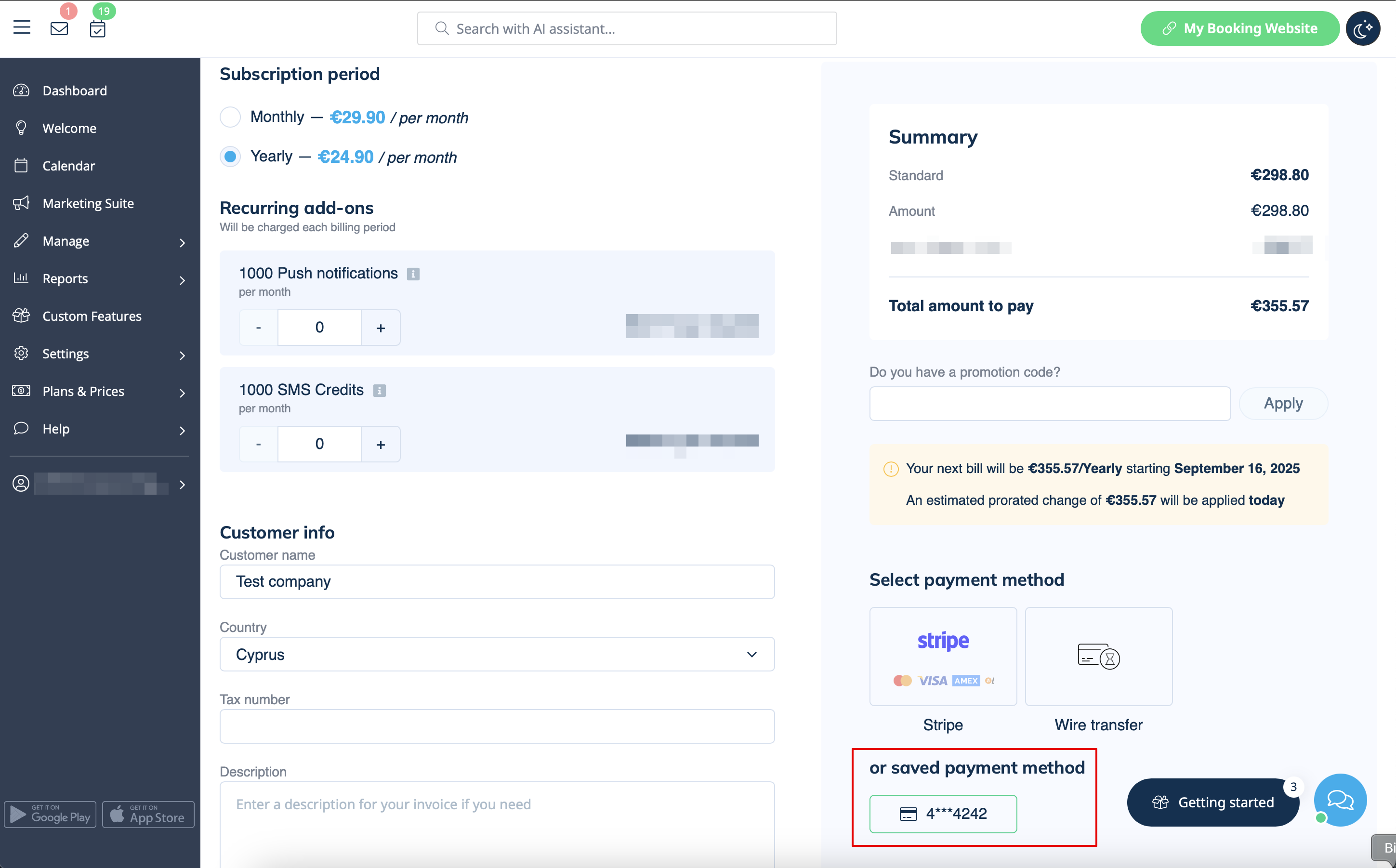
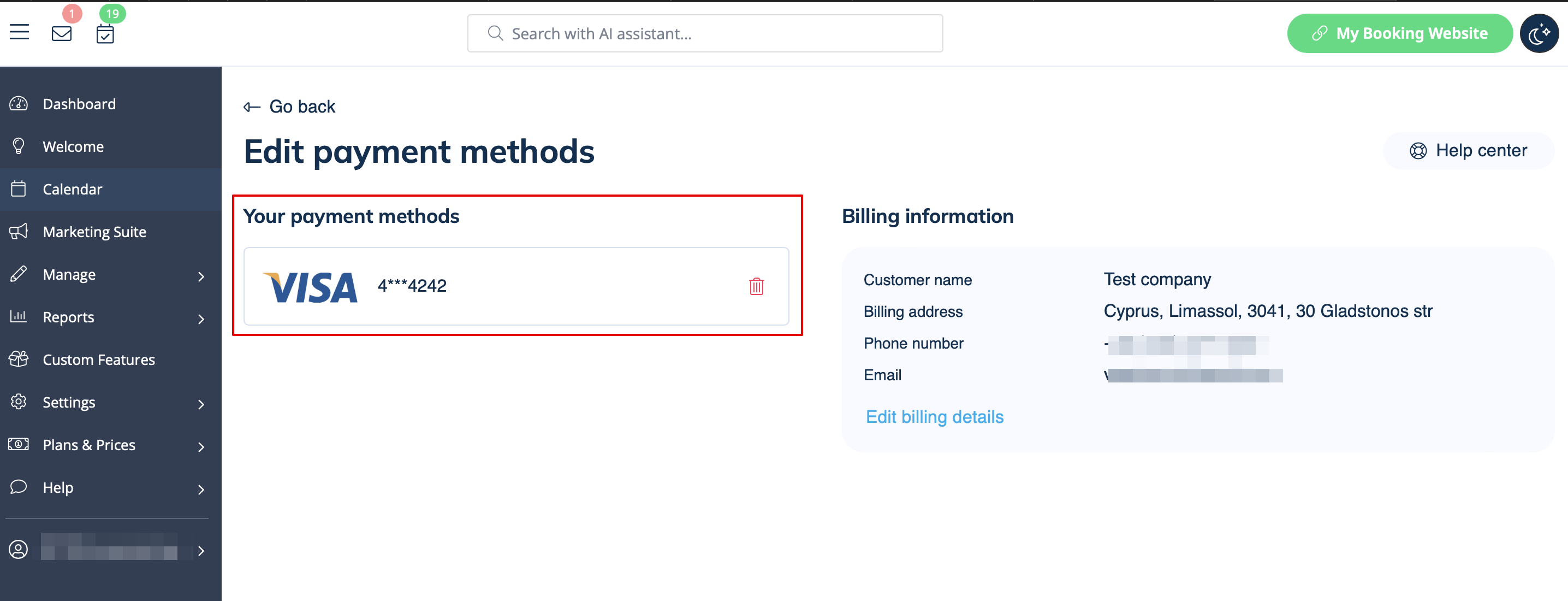
When you select to pay with your bank card (via SafeCharge, Stripe systems or PayPal) your payment method gets saved in Plans & Prices -> Payments history -> Payment methods
and you will be able to use these saved methods for the future purchases of subscriptions and/or additional items so that you will not need to remember the credentials each time you need to add something to your system.
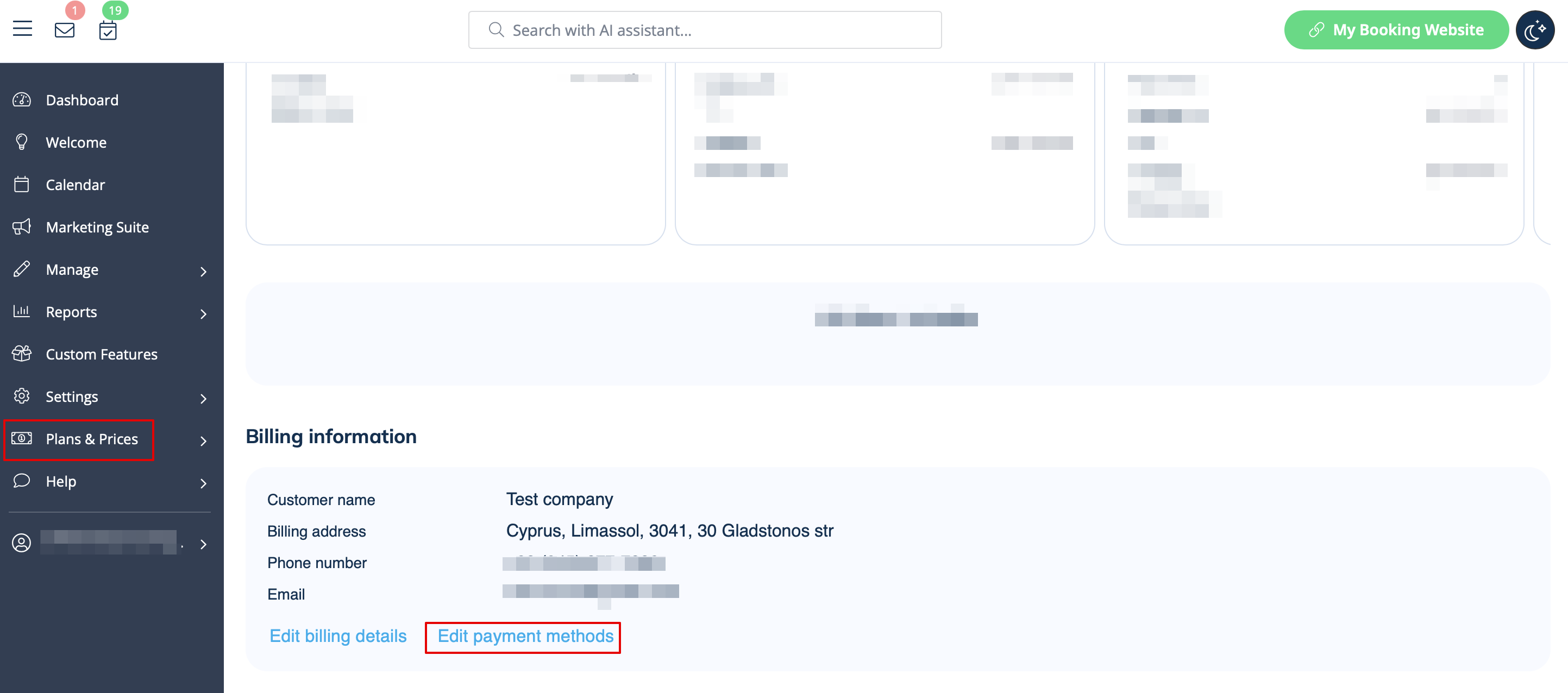
You can always disable the methods that were previously saved in Plans & Prices -> Subscriptions -> scroll the page down -> Edit payment methods.
How to change payment method
It may happen that you need to change either your credit card details or switch between payment options.
You can simply make a new payment for the desired plan by clicking on "Buy"/"Renew"/"Upgrade" under the corresponding option in the "Subscriptions" tab.
Choose the preferred payment method, provide you details and confirm payment. New payment method will be automatically saved when your payment is confirmed.
