From SimplyBook.me
Created page with "<br><br>" |
Created page with "<br><br> :Vous avez désormais la possibilité de gérer vos réunions en ligne via Google Meet.<br> :Trois étapes simples suffisent pour être prêt. <br> ;Comment configurer l' :1. Activez la fonctionnalité personnalisée <span style="background-color:#d4f8e5; padding:5px; border-radius:5px;">« Synchronisation du calendrier</span> » dans la section <span style="background-color:#d4f8e5; padding:5px; border-radius:5px;">« Fonctionna..." |
||
| Line 18: | Line 18: | ||
<br><br> | <br><br> | ||
comment ça marche | |||
:1. En plus de la confirmation habituelle du rendez-vous, le client recevra une invitation à l'événement Google afin de l'accepter et de l'ajouter à son propre calendrier. | |||
:1. | |||
[[File:Client google meet invitation.png|1200px|center]] | [[File:Client google meet invitation.png|1200px|center]] | ||
<br><br> | <br><br> | ||
:2. | :2. Pour le prestataire, l'événement sera ajouté à son calendrier Google, qui est connecté au système à l'aide de la fonction <span style="background-color:#d4f8e5; padding:5px; border-radius:5px;">[[Calendar_Sync_custom_feature|de synchronisation du calendrier]]</span>, et contiendra le lien vers la réunion à suivre lorsque l'heure de la réunion arrivera. | ||
[[File:Provider google meet link.png|1200px|center]] | [[File:Provider google meet link.png|1200px|center]] | ||
<br><br> | <br><br> | ||
:3. | :3. Si vous utilisez la fonction personnalisée <span style="background-color:#cdeffc; padding:5px; border-radius:5px;">[[Group_Bookings_custom_feature|de réservations de groupe]]</span> et que le client réserve plusieurs participants, le lien vers la réunion sera généré pour le premier rendez-vous du lot et une invitation sera envoyée au client.<br> | ||
: | :C'est pourquoi nous vous demandons de faire attention lorsque vous reportez ou annulez des rendez-vous liés à ces lots afin de ne pas affecter ceux qui ont reçu le lien vers la réunion s'ils n'étaient pas prévus. | ||
<div lang="en" dir="ltr" class="mw-content-ltr"> | <div lang="en" dir="ltr" class="mw-content-ltr"> | ||
Revision as of 10:22, 19 May 2025
- Vous avez désormais la possibilité de gérer vos réunions en ligne via Google Meet.
- Trois étapes simples suffisent pour être prêt.
- Comment configurer l'
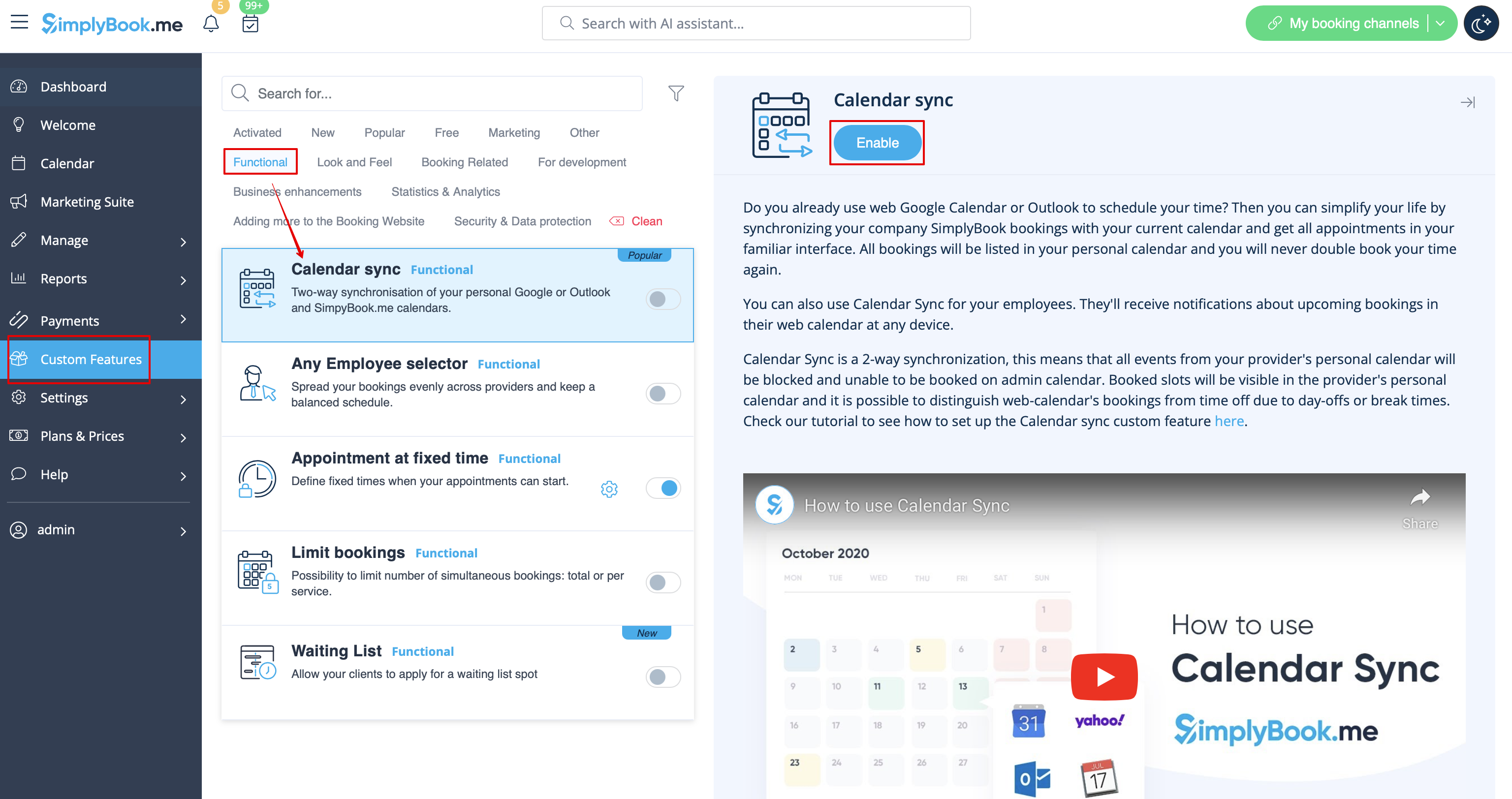
- 1. Activez la fonctionnalité personnalisée « Synchronisation du calendrier » dans la section « Fonctionnalités » de la page « Fonctionnalités personnalisées ».
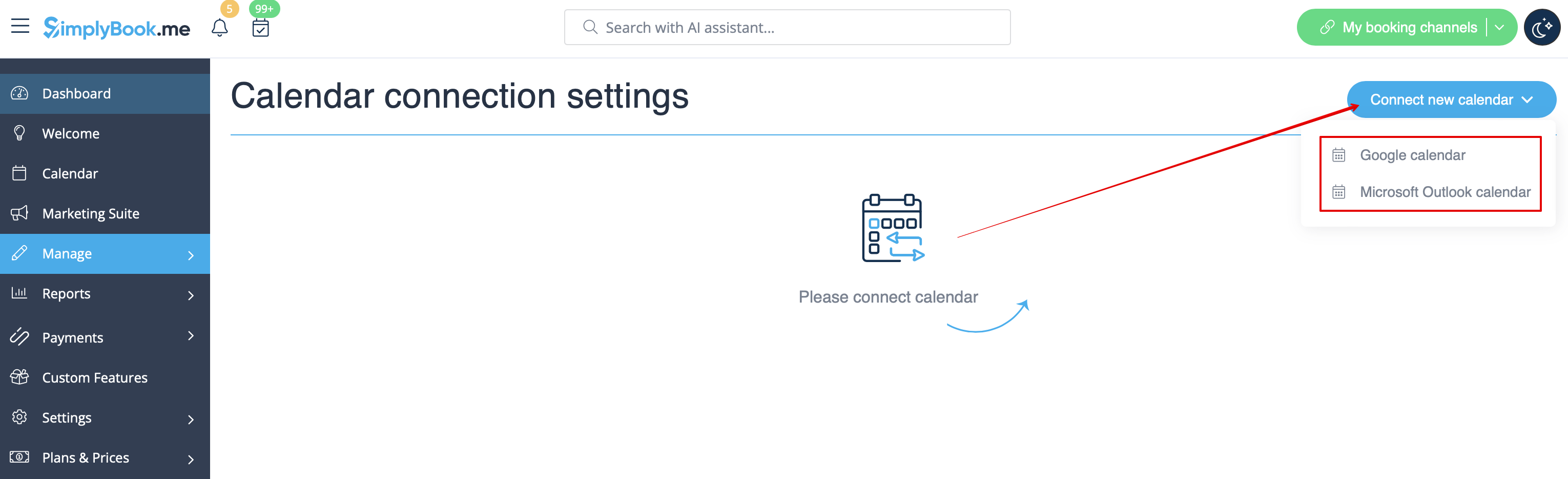
- 2. Connectez le calendrier Google, puis associez-lui le ou les prestataires souhaités dans les paramètres de cette fonctionnalité.
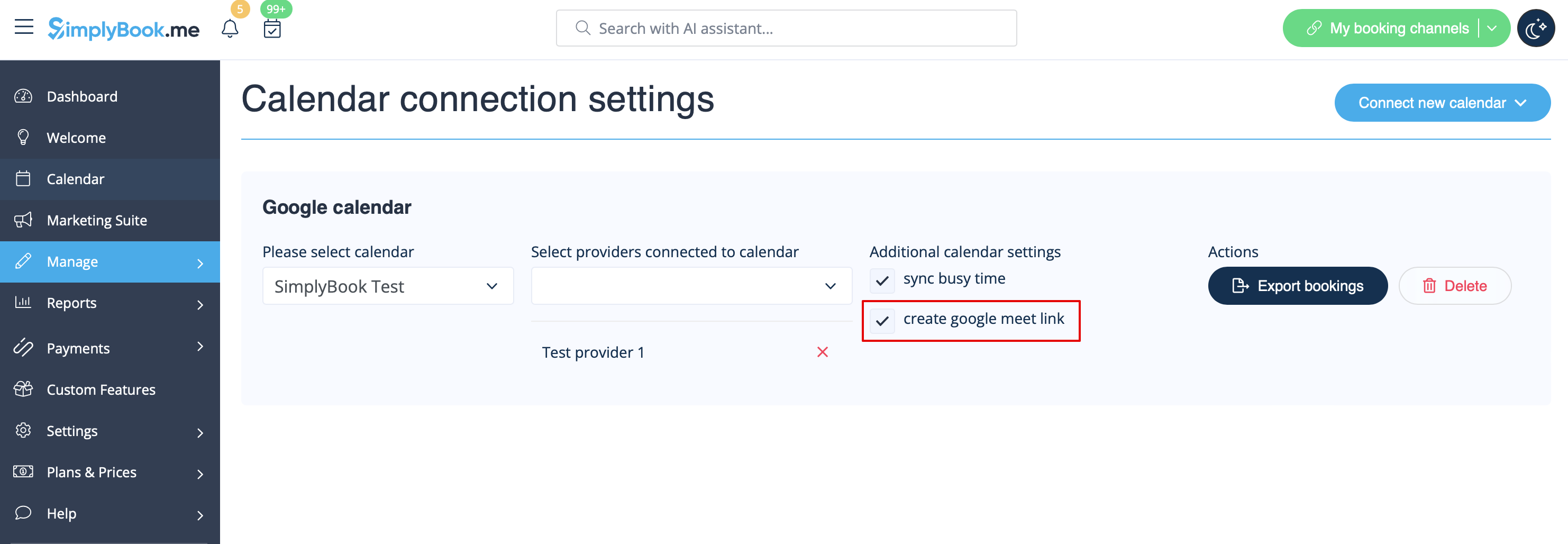
- 3. Cochez la case « Créer un lien Google Meet » et enregistrez les paramètres.
comment ça marche
- 1. En plus de la confirmation habituelle du rendez-vous, le client recevra une invitation à l'événement Google afin de l'accepter et de l'ajouter à son propre calendrier.

- 2. Pour le prestataire, l'événement sera ajouté à son calendrier Google, qui est connecté au système à l'aide de la fonction de synchronisation du calendrier, et contiendra le lien vers la réunion à suivre lorsque l'heure de la réunion arrivera.

- 3. Si vous utilisez la fonction personnalisée de réservations de groupe et que le client réserve plusieurs participants, le lien vers la réunion sera généré pour le premier rendez-vous du lot et une invitation sera envoyée au client.
- C'est pourquoi nous vous demandons de faire attention lorsque vous reportez ou annulez des rendez-vous liés à ces lots afin de ne pas affecter ceux qui ont reçu le lien vers la réunion s'ils n'étaient pas prévus.
- 4. If the booking was created before you checked the box create google meet link, but you have been using Calendar sync as such, you will need to manually add meeting link and send the invite to client on the Google calendar side.
