From SimplyBook.me
Created page with "WordPress-integration" Tags: Mobile edit Mobile web edit |
Created page with ":3. Hvis du allerede har en konto hos SimplyBook.me, skal du vælge <span style="background-color:#d4f8e5; padding:5px; border-radius:5px;">indlogningsmuligheden</span> der.<br> :Hvis du ikke har oprettet en konto endnu, skal du blot klikke på <span style="background-color:#d4f8e5; padding:5px; border-radius:5px;">Opret gratis konto</span> og tilmelde dig ved at følge de foreslåede trin. File:Wordpress new login or register.png|1200px|center|link=https://help.simply..." |
||
| Line 40: | Line 40: | ||
:1. Kopier koden fra <span style="background-color:#d4f8e5; padding:5px; border-radius:5px;">Indstillinger</span> -> <span style="background-color:#d4f8e5; padding:5px; border-radius:5px;">Indstillinger for booking-widgets</span> -> <span style="background-color:#d4f8e5; padding:5px; border-radius:5px;">iFrame-widget</span> -> <span style="background-color:#d4f8e5; padding:5px; border-radius:5px;">Hent widgetkode.</span> | :1. Kopier koden fra <span style="background-color:#d4f8e5; padding:5px; border-radius:5px;">Indstillinger</span> -> <span style="background-color:#d4f8e5; padding:5px; border-radius:5px;">Indstillinger for booking-widgets</span> -> <span style="background-color:#d4f8e5; padding:5px; border-radius:5px;">iFrame-widget</span> -> <span style="background-color:#d4f8e5; padding:5px; border-radius:5px;">Hent widgetkode.</span> | ||
[[File:Booking widget path redesigned.png|1200px | center|link=https://help.simplybook.me/images/6/68/Booking_widget_path_redesigned.png]] | [[File:Booking widget path redesigned.png|1200px | center|link=https://help.simplybook.me/images/6/68/Booking_widget_path_redesigned.png]] | ||
<br><br> | <br><br> | ||
[[File:Booking widget design path redesigned.png|1200px | center|link=https://help.simplybook.me/images/3/37/Booking_widget_design_path_redesigned.png]] | [[File:Booking widget design path redesigned.png|1200px | center|link=https://help.simplybook.me/images/3/37/Booking_widget_design_path_redesigned.png]] | ||
<br><br> | <br><br> | ||
[[File:Copy widget code redesigned.png|1200px | center|link=https://help.simplybook.me/images/b/b4/Copy_widget_code_redesigned.png ]] | [[File:Copy widget code redesigned.png|1200px | center|link=https://help.simplybook.me/images/b/b4/Copy_widget_code_redesigned.png]] | ||
<br><br> | <br><br> | ||
:2. | :2. Gå til din WordPress-administrationsside og opret en ny side, eller naviger til en allerede oprettet side, hvor du vil tilføje widgeten. Klik på <span style="background-color:#d4f8e5; padding:5px; border-radius:5px;">+</span> ikonet. | ||
[[File:Creating new page wp.png | center]] | [[File:Creating new page wp.png|center]] | ||
<br><br> | <br><br> | ||
:3. | :3. Søg efter <span style="background-color:#d4f8e5; padding:5px; border-radius:5px;">HTML-indstillingen</span>. | ||
[[File:Add html editor.png | center]] | [[File:Add html editor.png|center]] | ||
<br><br> | <br><br> | ||
:4. | :4. Indsæt den tidligere kopierede kode. | ||
[[File:Paste the code.png | center]] | [[File:Paste the code.png|center]] | ||
<br><br> | <br><br> | ||
:5. | :5. Offentliggør dine ændringer. | ||
<br><br> | <br><br> | ||
<div lang="en" dir="ltr" class="mw-content-ltr"> | <div lang="en" dir="ltr" class="mw-content-ltr"> | ||
Revision as of 12:30, 19 May 2025
Med hjælp fra WordPress-plugin
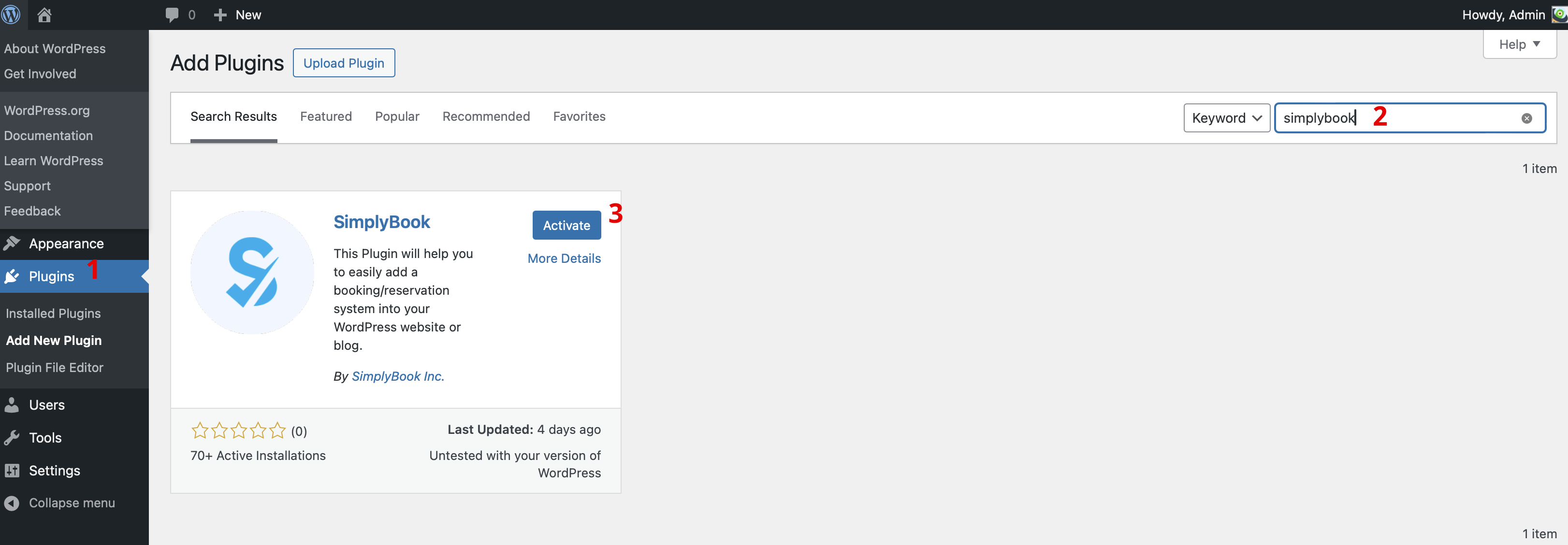
- 1. I din WordPress-administrationsgrænseflade skal du navigere til Plugins -> Tilføj nyt plugin og søge efter Simplybook.
- Installer det og aktiver det.
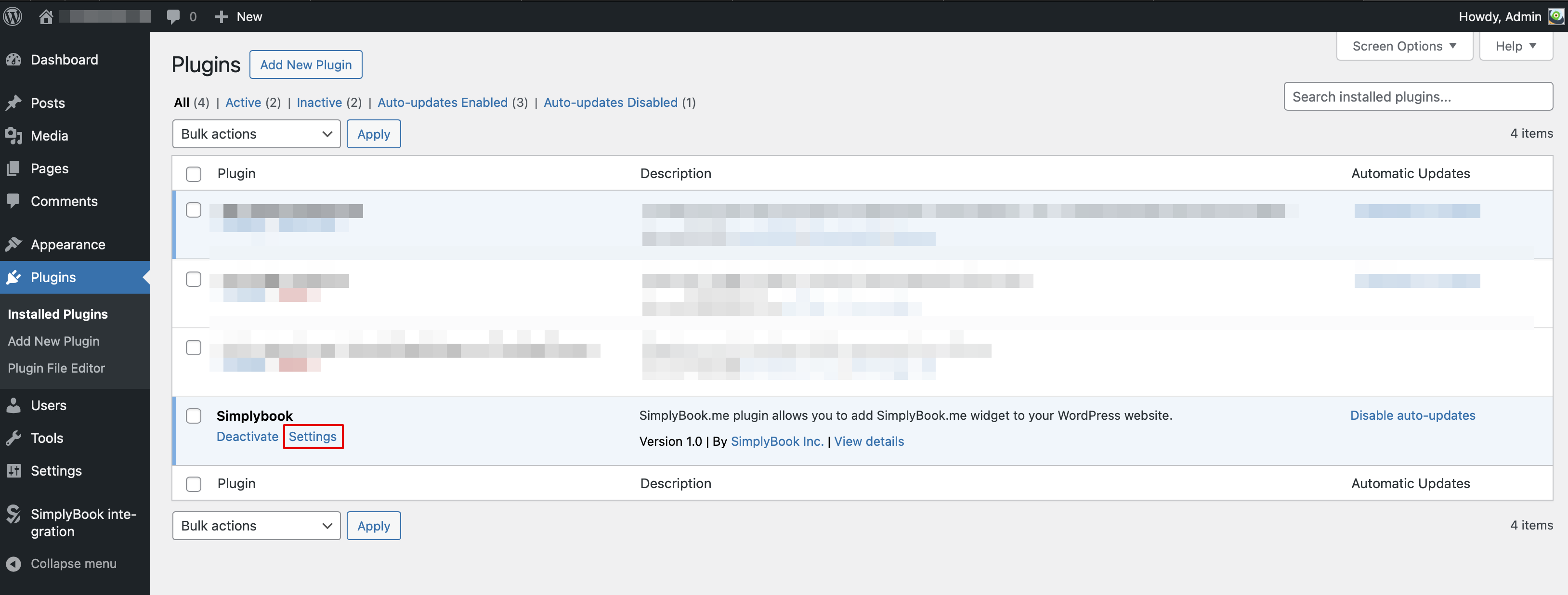
- 2. Gå til plugin-indstillinger.
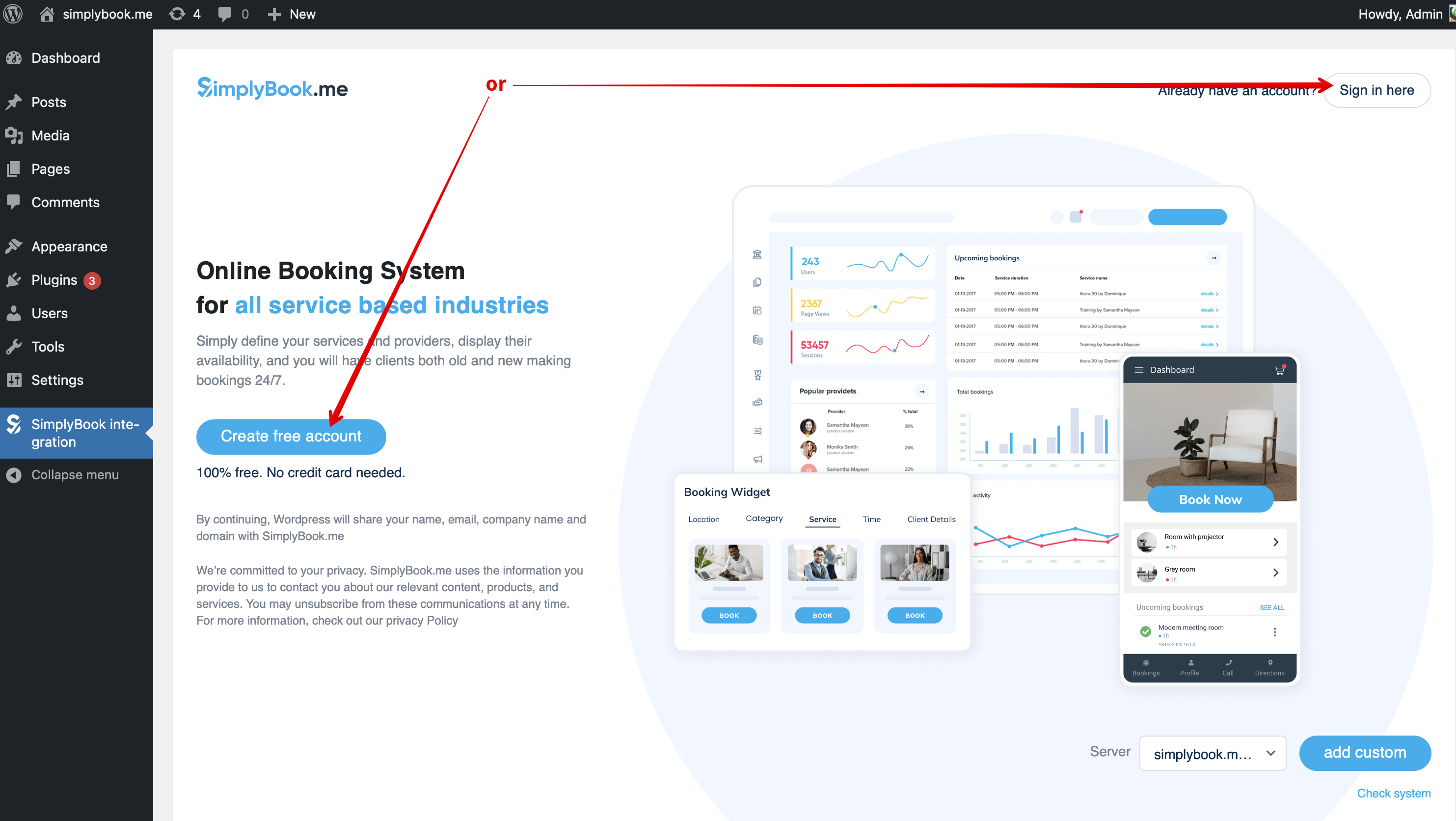
- 3. Hvis du allerede har en konto hos SimplyBook.me, skal du vælge indlogningsmuligheden der.
- Hvis du ikke har oprettet en konto endnu, skal du blot klikke på Opret gratis konto og tilmelde dig ved at følge de foreslåede trin.
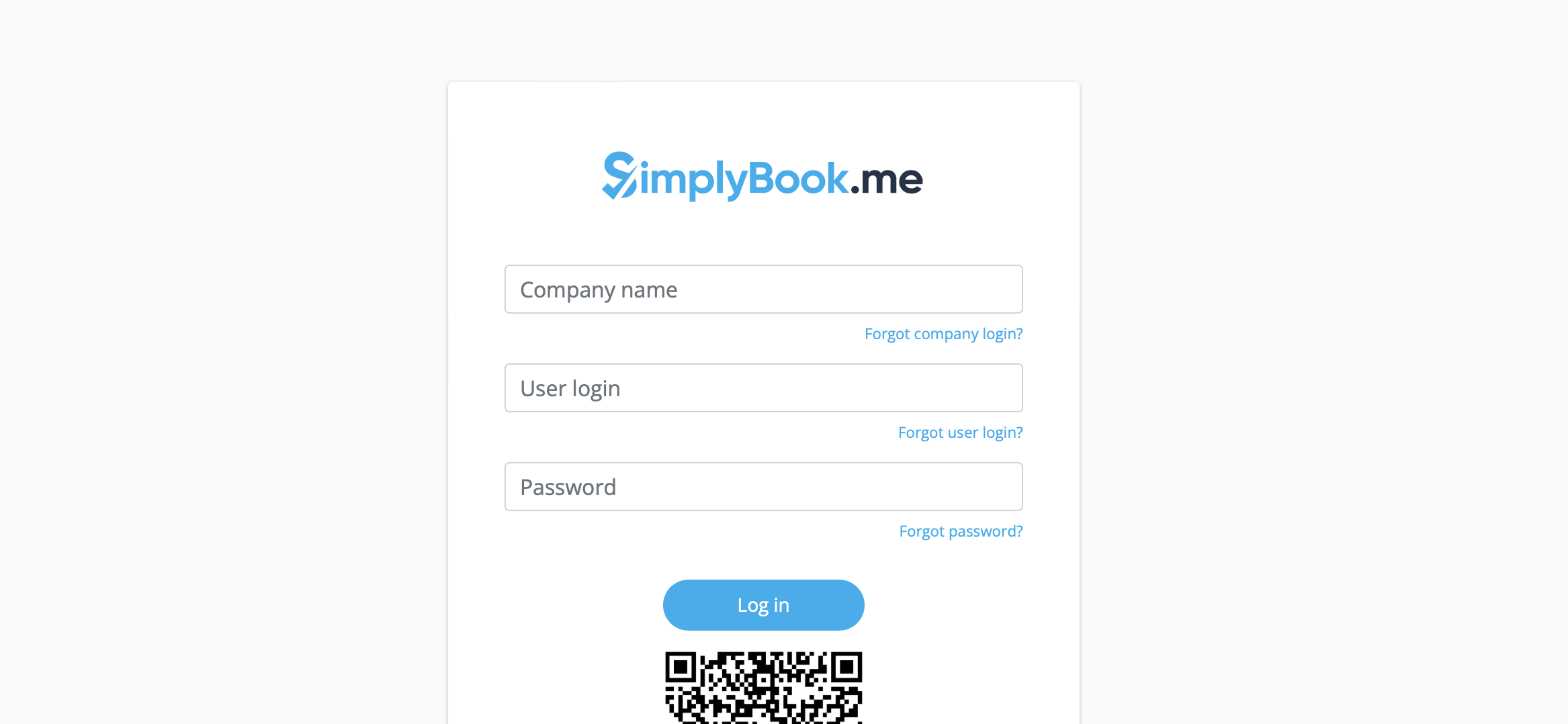
- 4. Log ind med virksomhedens login, brugerlogin og adgangskode.
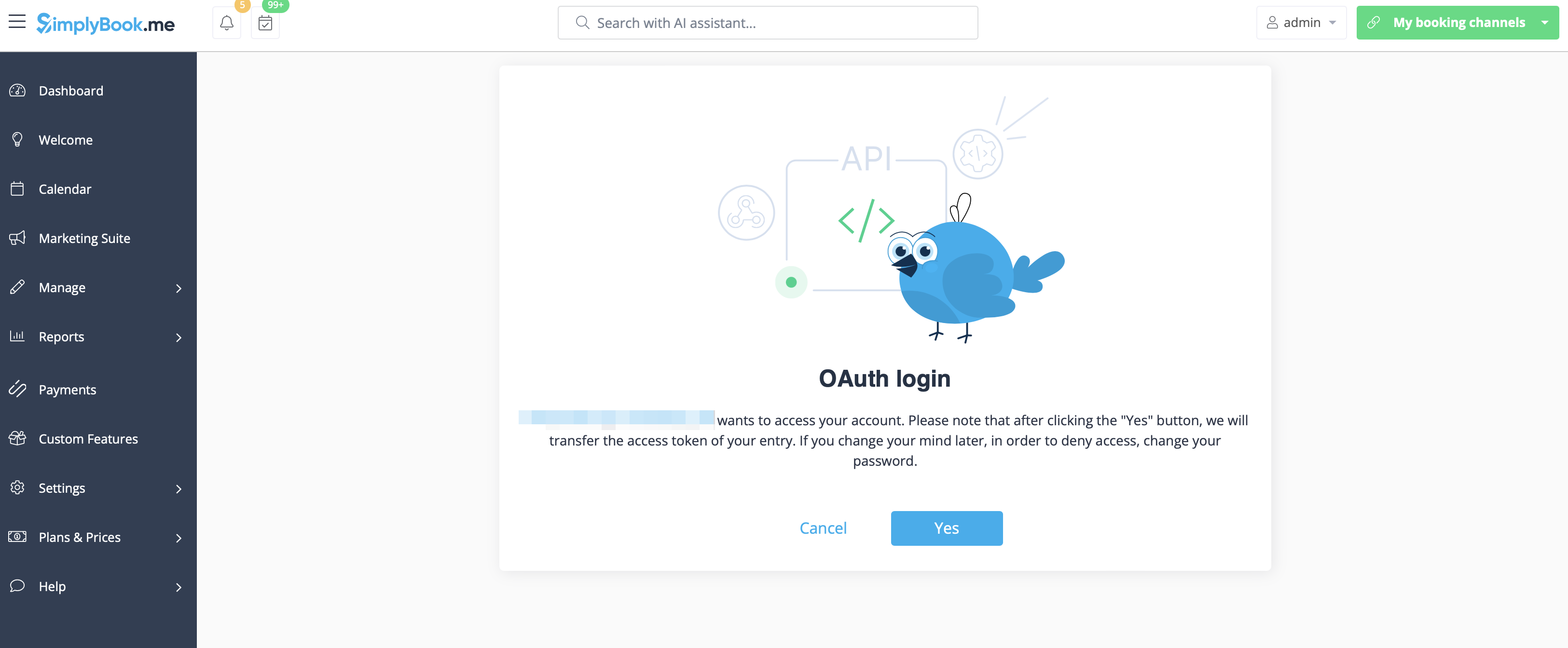
- 5. Bekræft forbindelsen mellem SimplyBook.me-kontoen og dit WordPress-system.
- Du får en engangskode til at færdiggøre forbindelsen.
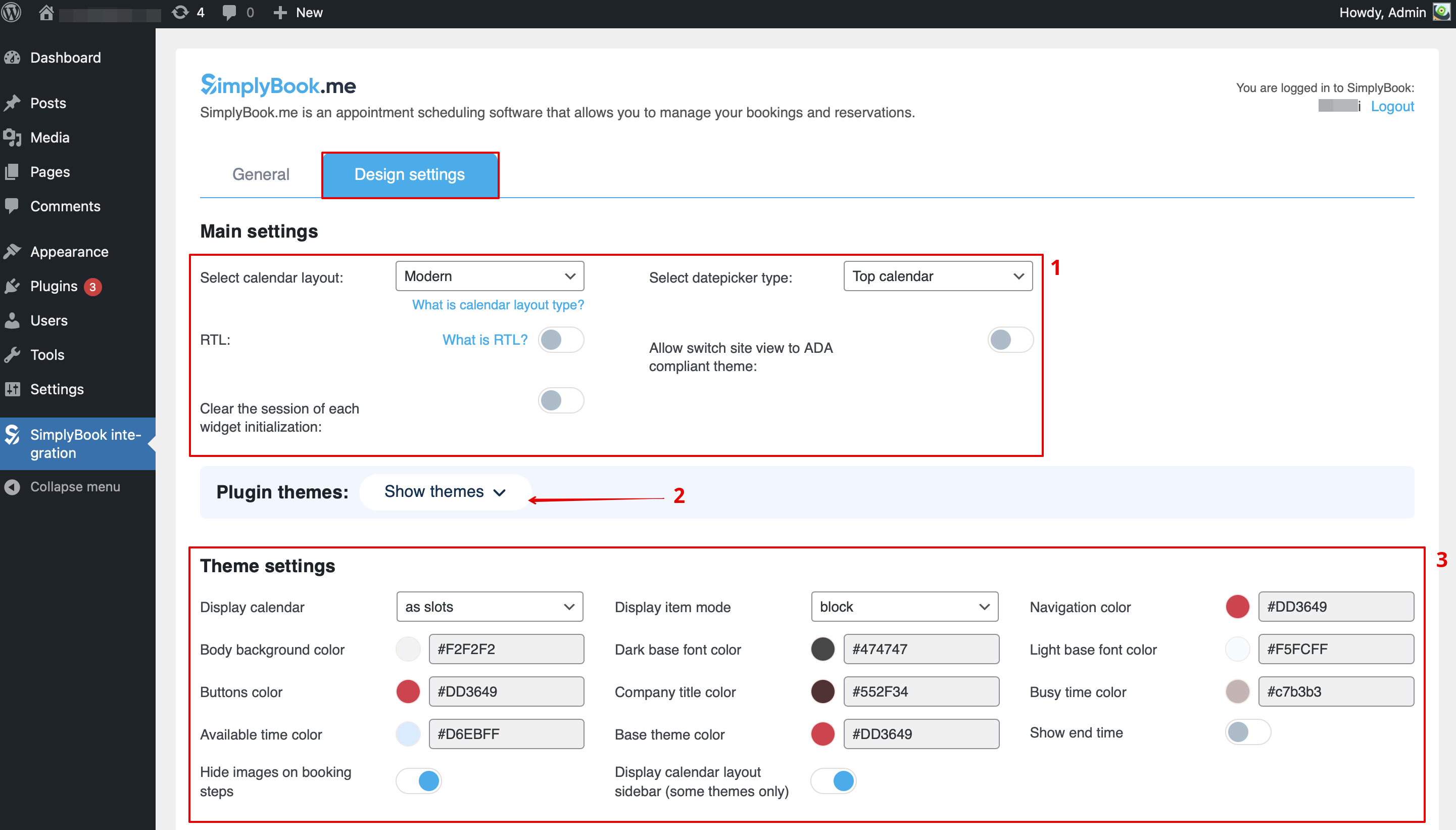
- 6. Skift til fanen Design.
- Juster designindstillingerne for din widget.
- Du kan vælge det foretrukne kalenderlayout, ændre temaet, justere farverne og meget mere.
- Her kan du også vælge nogle foruddefinerede indstillinger for plugin, hvis det er nødvendigt.
- 7. Gem dine indstillinger og naviger til fanen Generelt i plugin-grænsefladen.
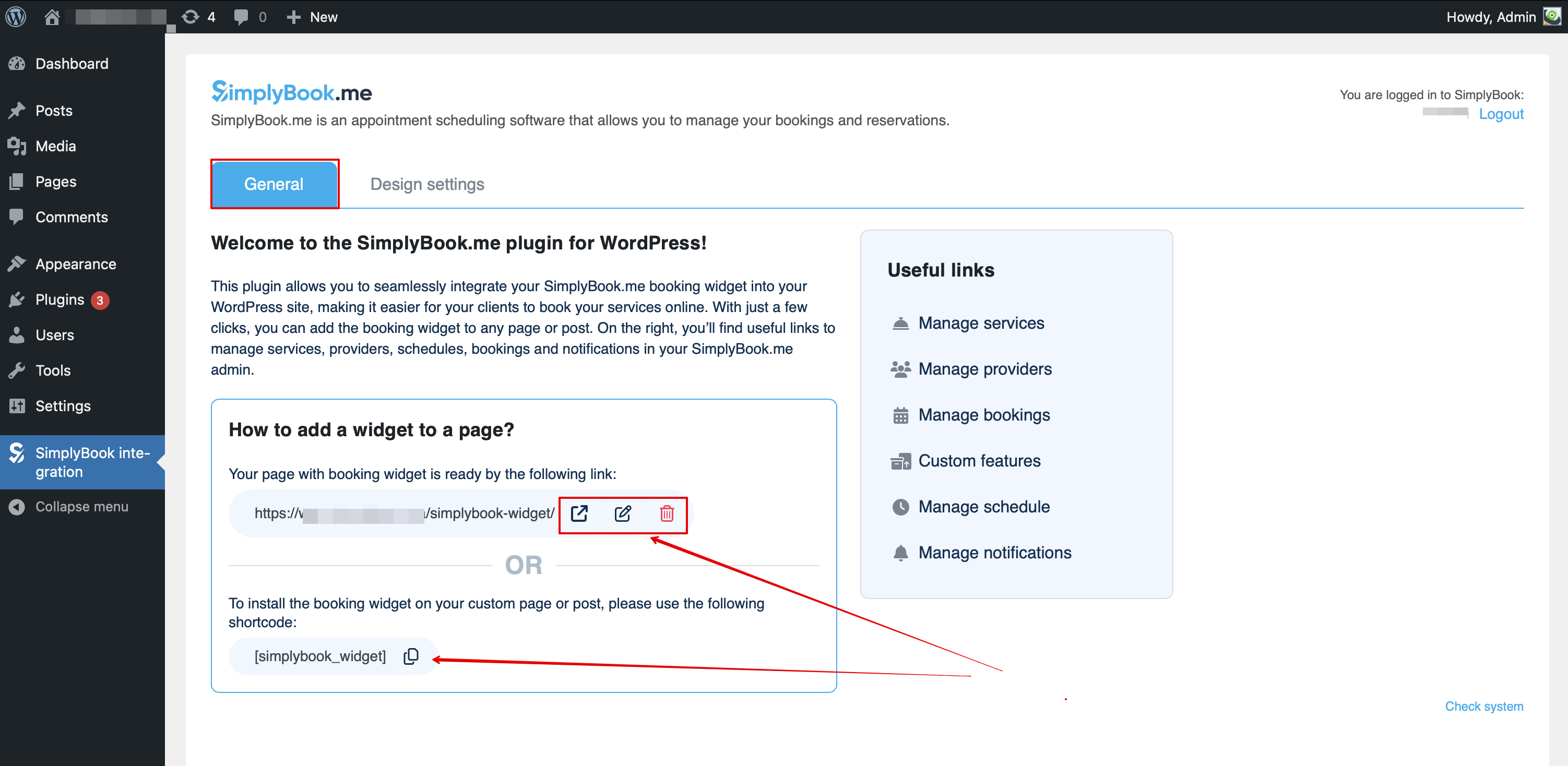
- Siden med booking-widgeten er allerede oprettet for dig – du kan redigere, fjerne eller beholde den, som den er.
- Du kan også oprette en ny side og indsætte [simplybook_widget] -koden i brødteksten og derefter offentliggøre siden.
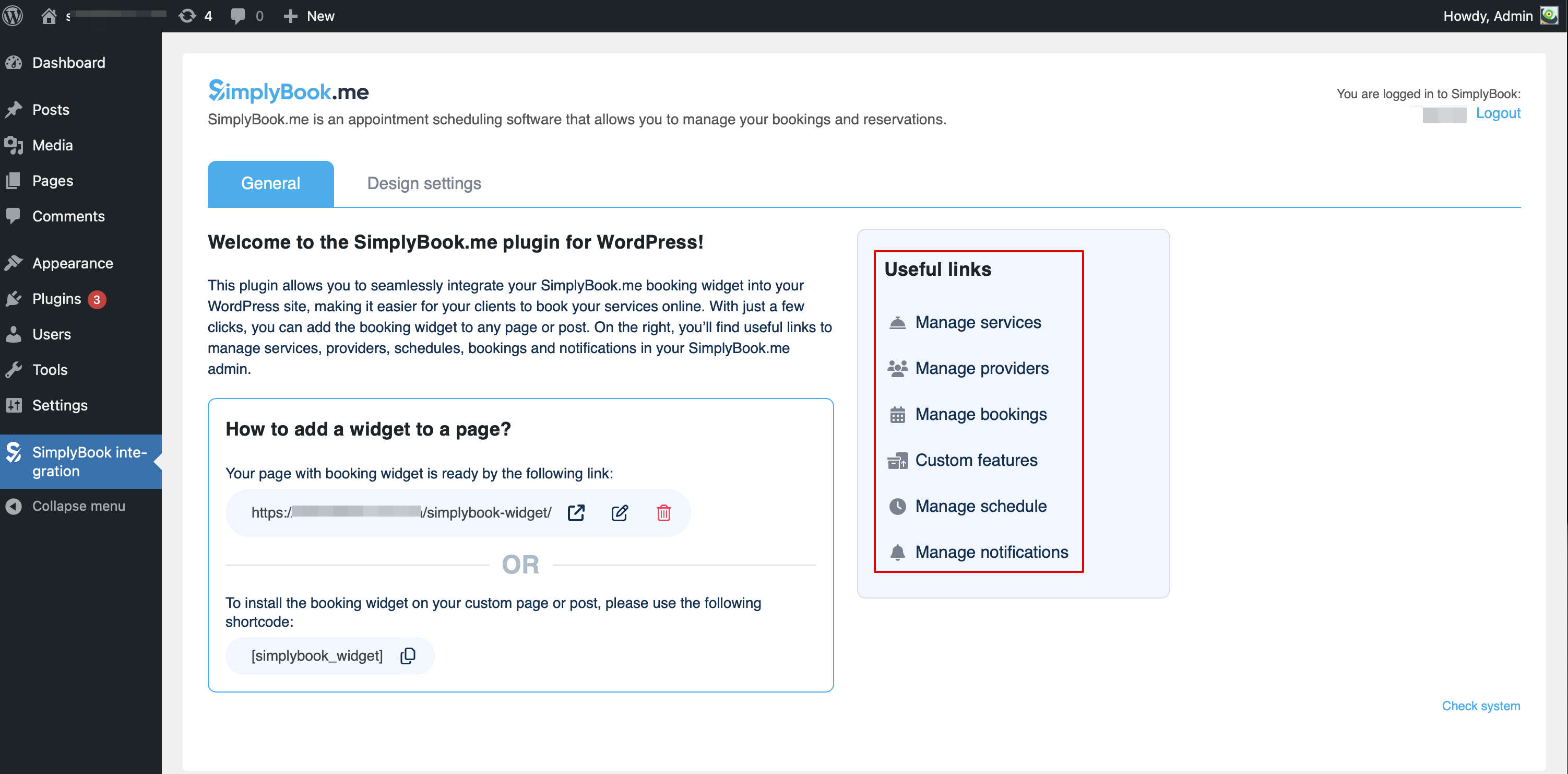
- Herfra kan du også nemt få adgang til forskellige sider på SimplyBook.me for at tilføje eller redigere dine tjenester og udbydere, aktivere nogle ekstra funktioner til bookingprocessen med de tilpassede funktioner.
Som widget
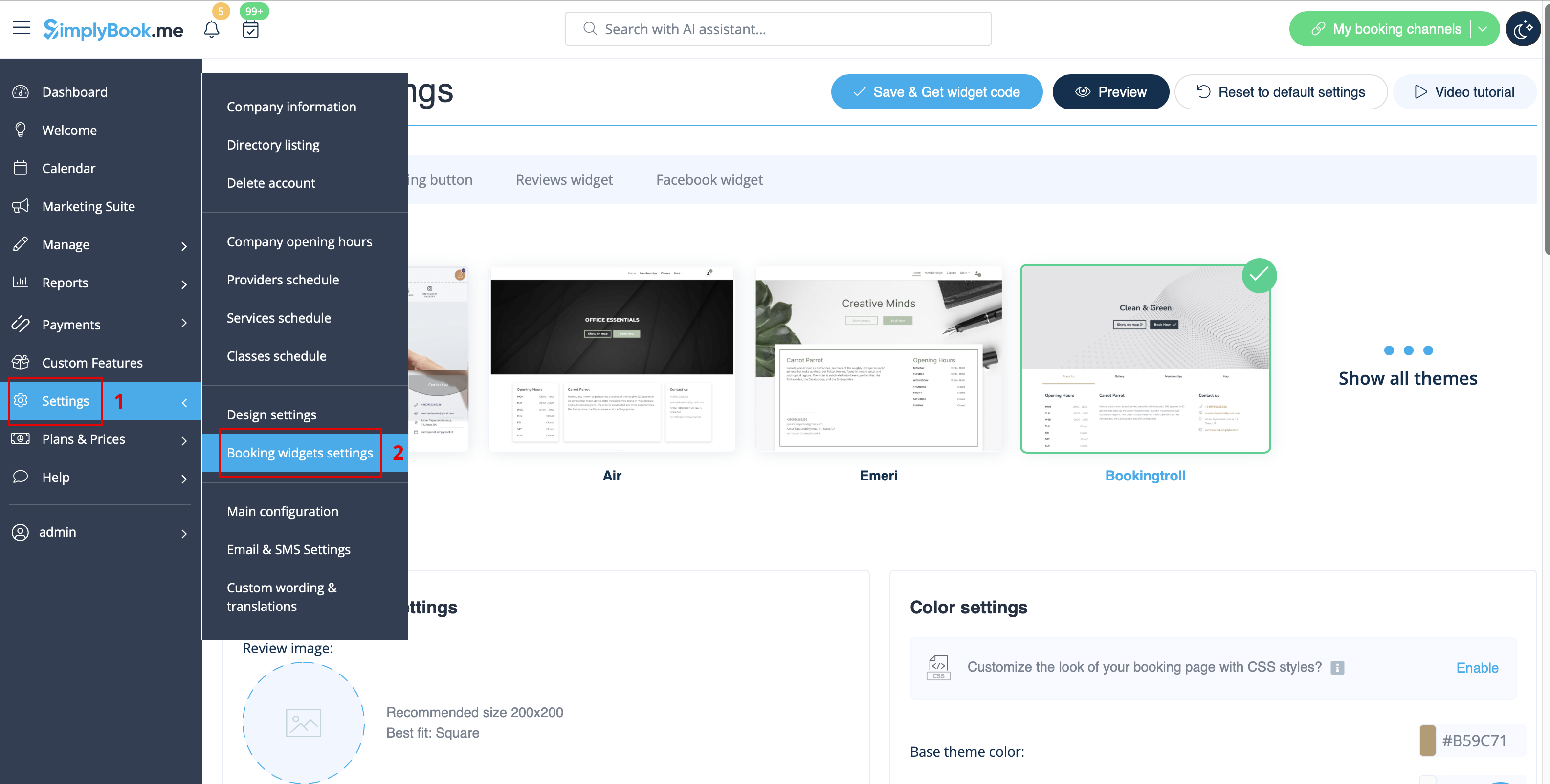
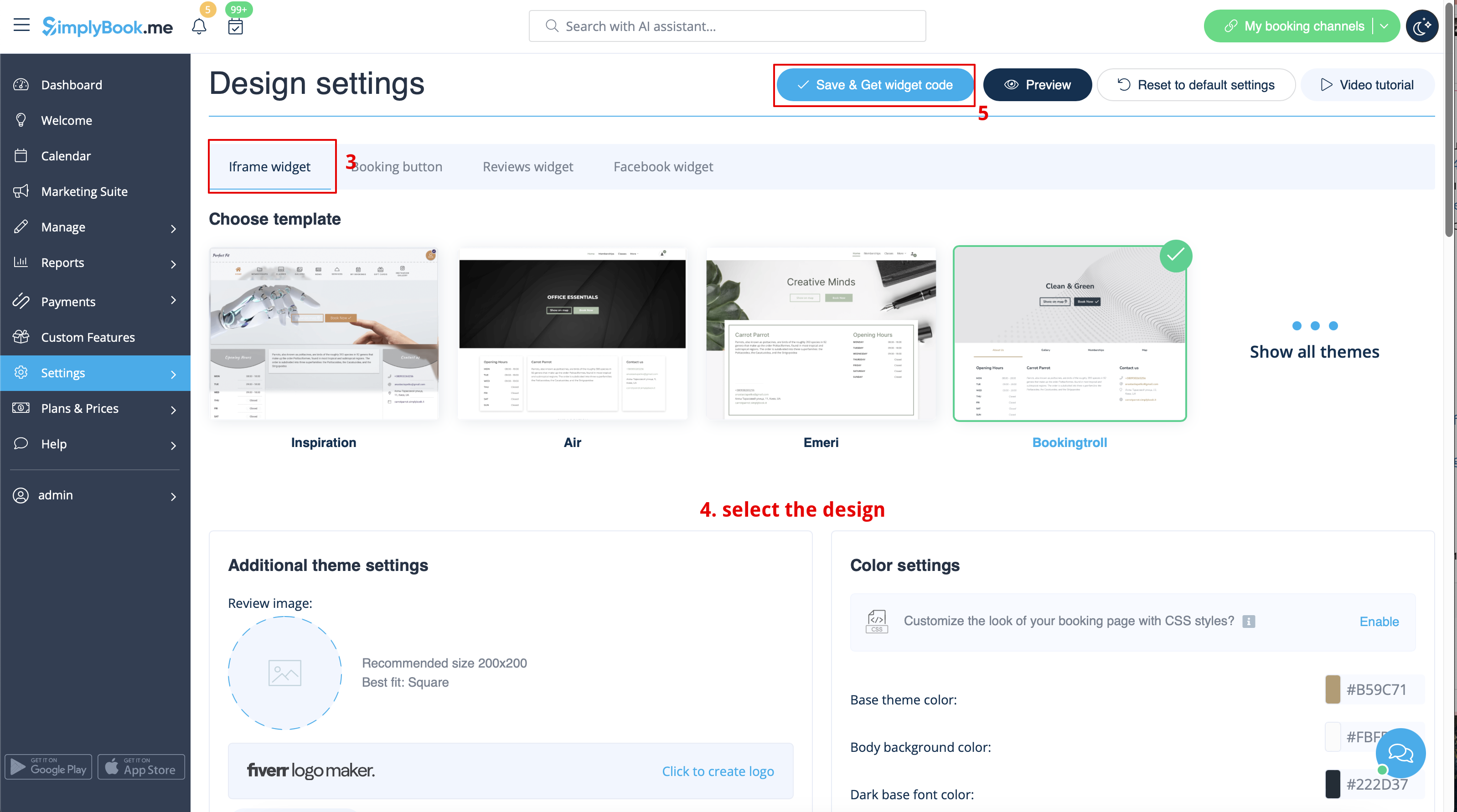
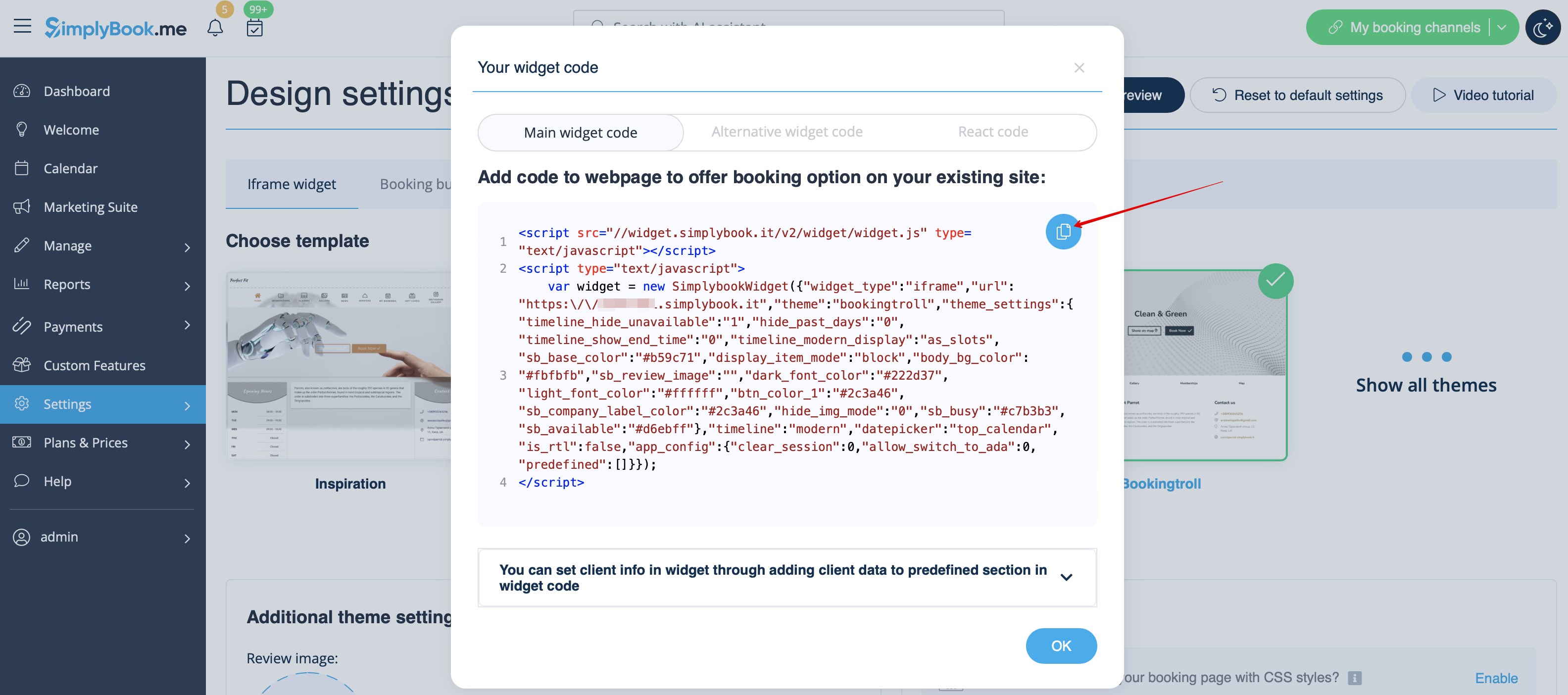
- 1. Kopier koden fra Indstillinger -> Indstillinger for booking-widgets -> iFrame-widget -> Hent widgetkode.
- 2. Gå til din WordPress-administrationsside og opret en ny side, eller naviger til en allerede oprettet side, hvor du vil tilføje widgeten. Klik på + ikonet.

- 3. Søg efter HTML-indstillingen.

- 4. Indsæt den tidligere kopierede kode.

- 5. Offentliggør dine ændringer.
- Example (may look different depending on your WP theme and SimplyBook.me theme and settings).

