Created page with "== Använda funktioner i PRO-versionen ==" |
Created page with "=== Återbetalningar === Det kan hända att du av någon anledning behöver återbetala pengarna till din kund, och nu är det möjligt att enkelt hantera sådana fall med SBPay.me PRO-integration. :1. När du har aktiverat SBPay.me-integrationen i ditt [https://simplybook.me/ SimplyBook.me-konto] kan du helt enkelt navigera till <span style="background-color:#d4f8e5; padding:5px; border-radius:5px;">Rapporter</span> -> <span style="background-color:#d4f8e5; padding:5..." Tags: Mobile edit Mobile web edit |
||
| Line 237: | Line 237: | ||
<br><br> | <br><br> | ||
=== Återbetalningar === | |||
=== | Det kan hända att du av någon anledning behöver återbetala pengarna till din kund, och nu är det möjligt att enkelt hantera sådana fall med SBPay.me PRO-integration. | ||
:1. När du har aktiverat SBPay.me-integrationen i ditt [https://simplybook.me/ SimplyBook.me-konto] kan du helt enkelt navigera till <span style="background-color:#d4f8e5; padding:5px; border-radius:5px;">Rapporter</span> -> <span style="background-color:#d4f8e5; padding:5px; border-radius:5px;">Betalningstransaktioner</span> -> hitta den nödvändiga fakturan -> klicka på <span style="background-color:#d4f8e5; padding:5px; border-radius:5px;">Åtgärder</span> och välj <span style="background-color:#d4f8e5; padding:5px; border-radius:5px;">Återbetalning</span> i rullgardinsmenyn. Bekräfta åtgärden så kommer återbetalningen automatiskt att göras till motsvarande kunds konto. | |||
:1. | |||
[[File:Refund from report path redesigned.png|1200px|center|link=https://help.simplybook.me/images/7/71/Refund_from_report_path_redesigned.png]] | [[File:Refund from report path redesigned.png|1200px|center|link=https://help.simplybook.me/images/7/71/Refund_from_report_path_redesigned.png]] | ||
<br><br> | <br><br> | ||
:2. | :2. Eller så kan du gå direkt till <span style="background-color:#d4f8e5; padding:5px; border-radius:5px;">SBPay.me-gränssnittet</span> -> <span style="background-color:#d4f8e5; padding:5px; border-radius:5px;">Transaktioner</span> -> öppna den nödvändiga posten och välj <span style="background-color:#d4f8e5; padding:5px; border-radius:5px;">Återbetalning</span>. | ||
[[File:Refund on sbpayme side.png|1200px|center|link=https://help.simplybook.me/images/8/86/Refund_on_sbpayme_side.png]] | [[File:Refund on sbpayme side.png|1200px|center|link=https://help.simplybook.me/images/8/86/Refund_on_sbpayme_side.png]] | ||
<br><br> | <br><br> | ||
:3. | :3. I inställningarna för den anpassade funktionen <span style="background-color:#cdeffc; padding:5px; border-radius:5px;">[[Accept payments custom feature|Acceptera betalningar]]</span> kan du också aktivera alternativet <span style="background-color:#d4f8e5; padding:5px; border-radius:5px;">Skicka bekräftelse på återbetalning</span> och justera mallarna så att dina kunder automatiskt får ett e-postmeddelande och/eller sms om återbetalningarna. | ||
[[File:Send refund confirmation redesigned.png|1200px|center|link=https://help.simplybook.me/images/a/a9/Send_refund_confirmation_redesigned.png]] | [[File:Send refund confirmation redesigned.png|1200px|center|link=https://help.simplybook.me/images/a/a9/Send_refund_confirmation_redesigned.png]] | ||
<br><br> | <br><br> | ||
== SBPay.me-fakturor == | |||
==SBPay.me | Du kan nu enkelt anpassa fakturainställningarna efter dina behov och skicka dem till dina kunder efter varje köp. | ||
;Hur man använder | |||
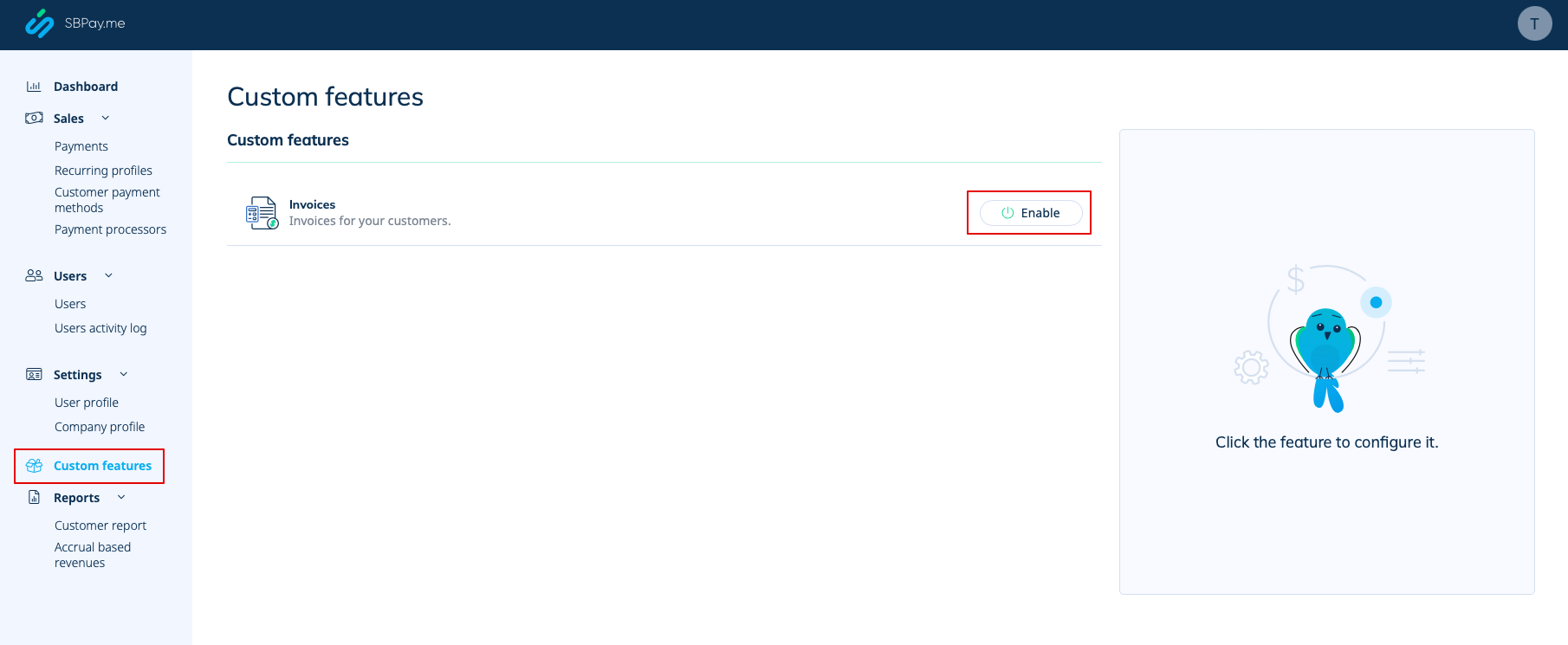
; | :1. Aktivera motsvarande alternativ på sidan "Anpassade funktioner". | ||
:1. | |||
[[File:Sbpay invoices enable path.png|1200px|border|center|link=https://help.simplybook.me/images/3/3c/Sbpay_invoices_enable_path.png]] | [[File:Sbpay invoices enable path.png|1200px|border|center|link=https://help.simplybook.me/images/3/3c/Sbpay_invoices_enable_path.png]] | ||
<br><br> | <br><br> | ||
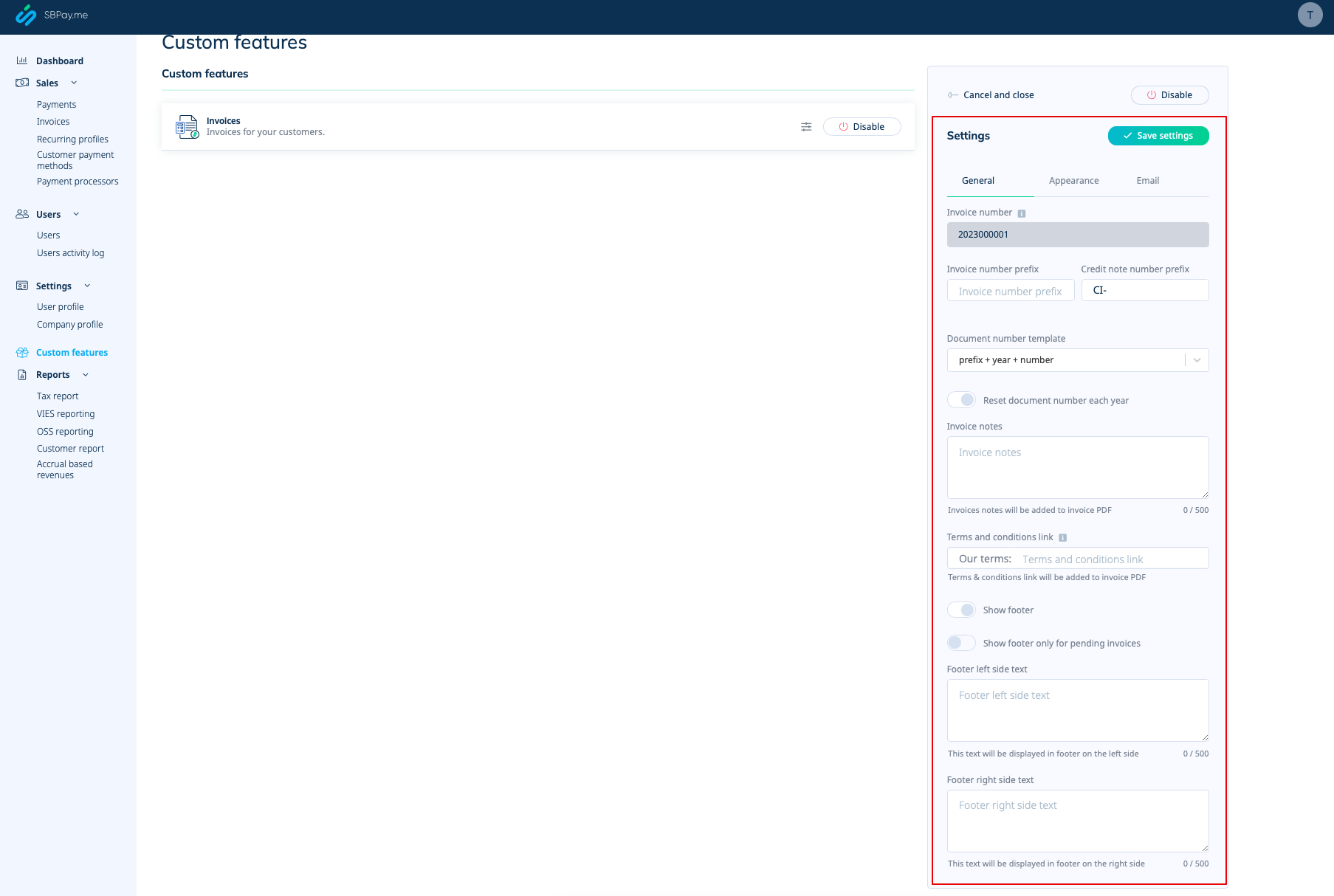
:2. | :2. Anpassa de allmänna inställningarna efter dina behov: numreringsformat för fakturor och kreditnotor, lägg till anteckningar, länka till dina villkor och fotinformation om det behövs. | ||
[[File:Sbpay invoices settings.png|1200px|border|center|link=https://help.simplybook.me/images/5/54/Sbpay_invoices_settings.png]] | [[File:Sbpay invoices settings.png|1200px|border|center|link=https://help.simplybook.me/images/5/54/Sbpay_invoices_settings.png]] | ||
<br><br> | <br><br> | ||
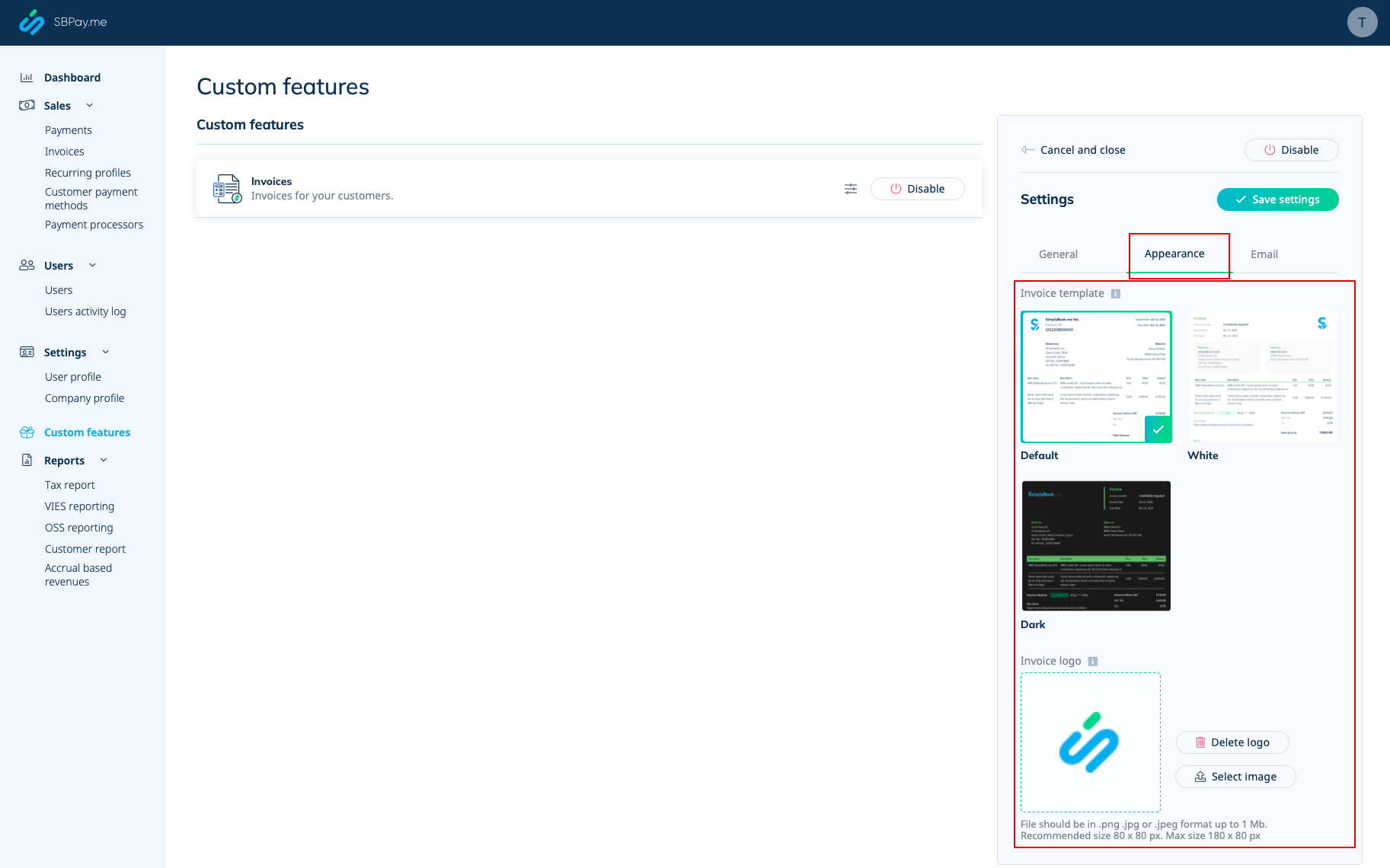
:3. | :3. Ställ in önskat utseende under fliken "Utseende" och ladda upp ditt företagslogotyp. | ||
[[File:Sbpay invoice appearance settings.png|1200px|border|center|link=https://help.simplybook.me/images/f/f3/Sbpay_invoice_appearance_settings.png]] | [[File:Sbpay invoice appearance settings.png|1200px|border|center|link=https://help.simplybook.me/images/f/f3/Sbpay_invoice_appearance_settings.png]] | ||
<br><br> | <br><br> | ||
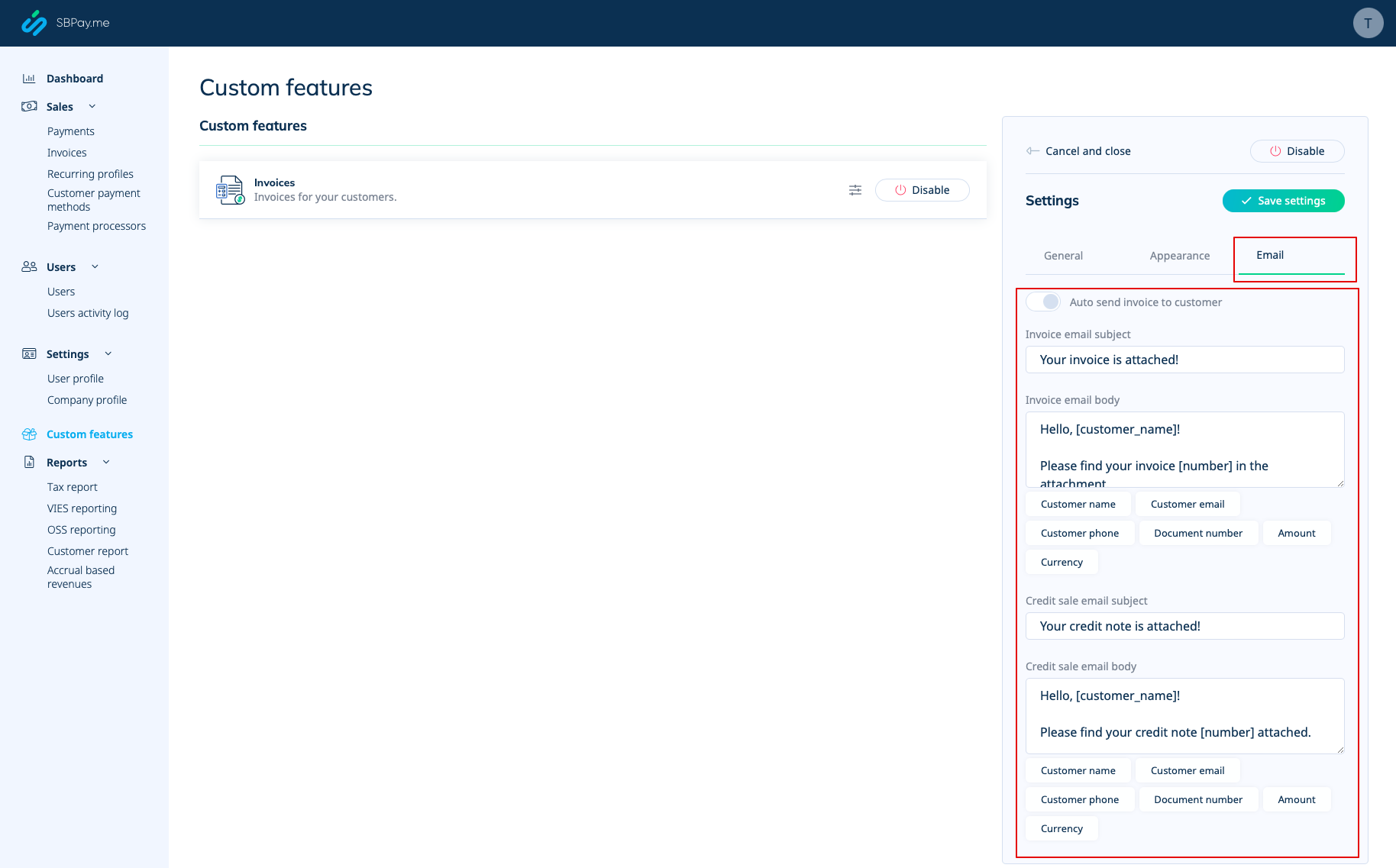
:4. | :4. Växla till den tredje fliken, "E-post", och ställ in mallarna för aviseringar. Du kan använda flera variabler som anges under formuläret. Spara dina inställningar. | ||
[[File:Sbpay invooices emails settings.png|1200px|border|center|link=https://help.simplybook.me/images/9/91/Sbpay_invooices_emails_settings.png]] | [[File:Sbpay invooices emails settings.png|1200px|border|center|link=https://help.simplybook.me/images/9/91/Sbpay_invooices_emails_settings.png]] | ||
<br><br> | <br><br> | ||
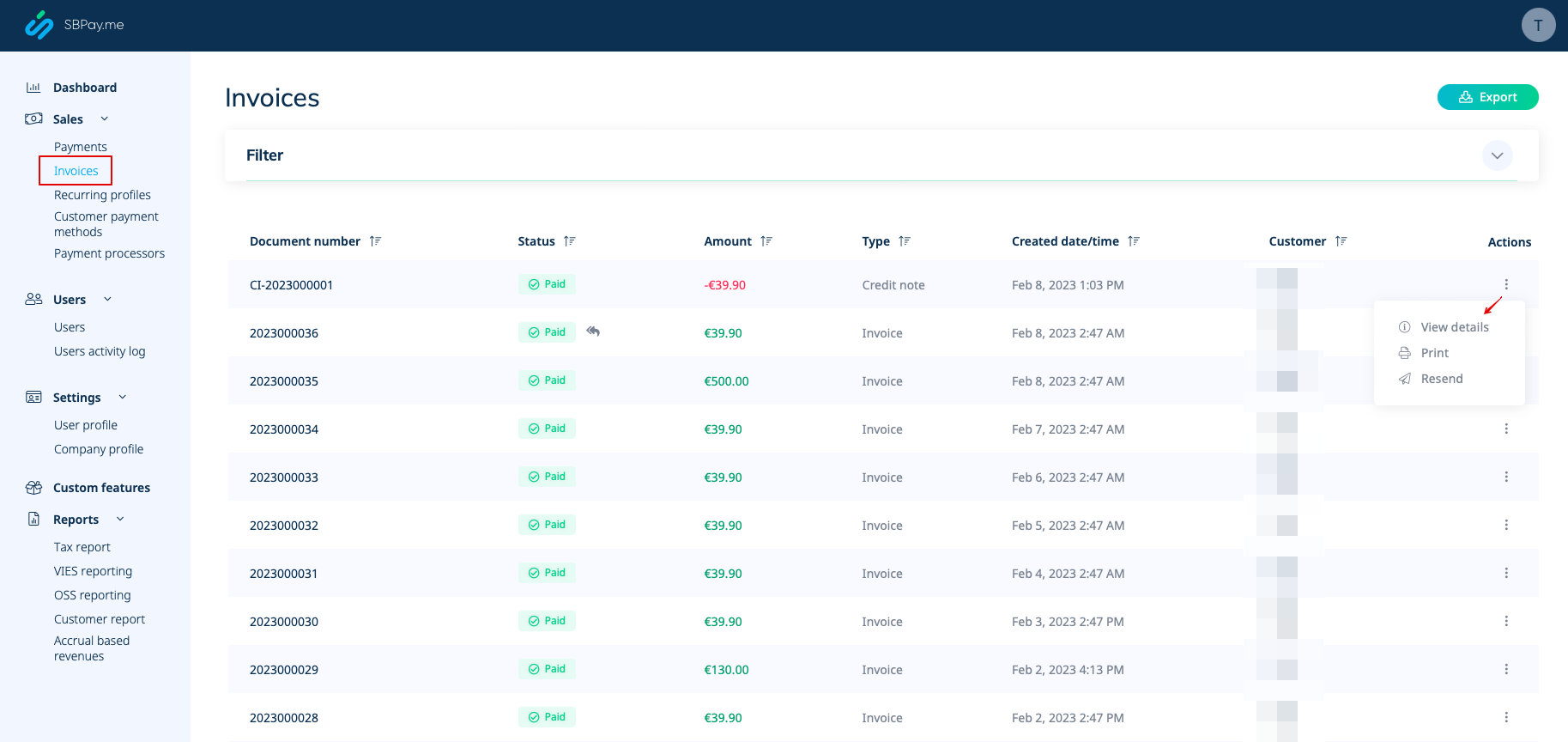
:5. | :5. Under Försäljning -> Fakturor kan du se en lista över skapade fakturor och kreditnotor. Du kan skicka dem igen till kunderna vid behov, utfärda kreditnotor, skriva ut eller helt enkelt visa detaljerna. | ||
[[File:Sbpay invoices report overview.png|1200px|border|center|link=https://help.simplybook.me/images/d/d6/Sbpay_invoices_report_overview.png]] | [[File:Sbpay invoices report overview.png|1200px|border|center|link=https://help.simplybook.me/images/d/d6/Sbpay_invoices_report_overview.png]] | ||
<br><br> | <br><br> | ||
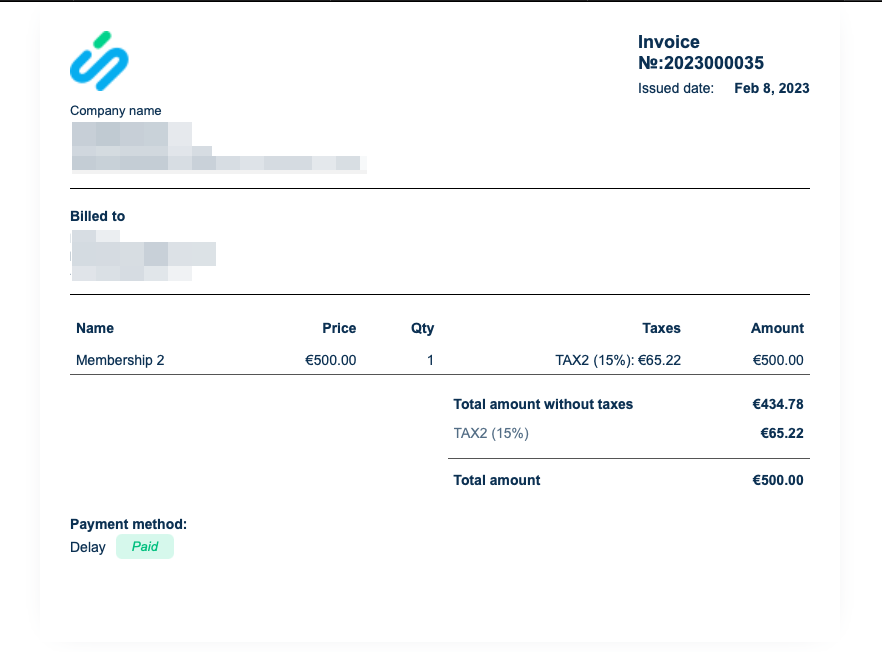
:6. | :6. Här är ett exempel på hur en utskriven faktura kan se ut. | ||
[[File:Sbpay invoice example.png|800px|border|center|link=https://help.simplybook.me/images/7/77/Sbpay_invoice_example.png]] | [[File:Sbpay invoice example.png|800px|border|center|link=https://help.simplybook.me/images/7/77/Sbpay_invoice_example.png]] | ||
<br><br> | <br><br> | ||
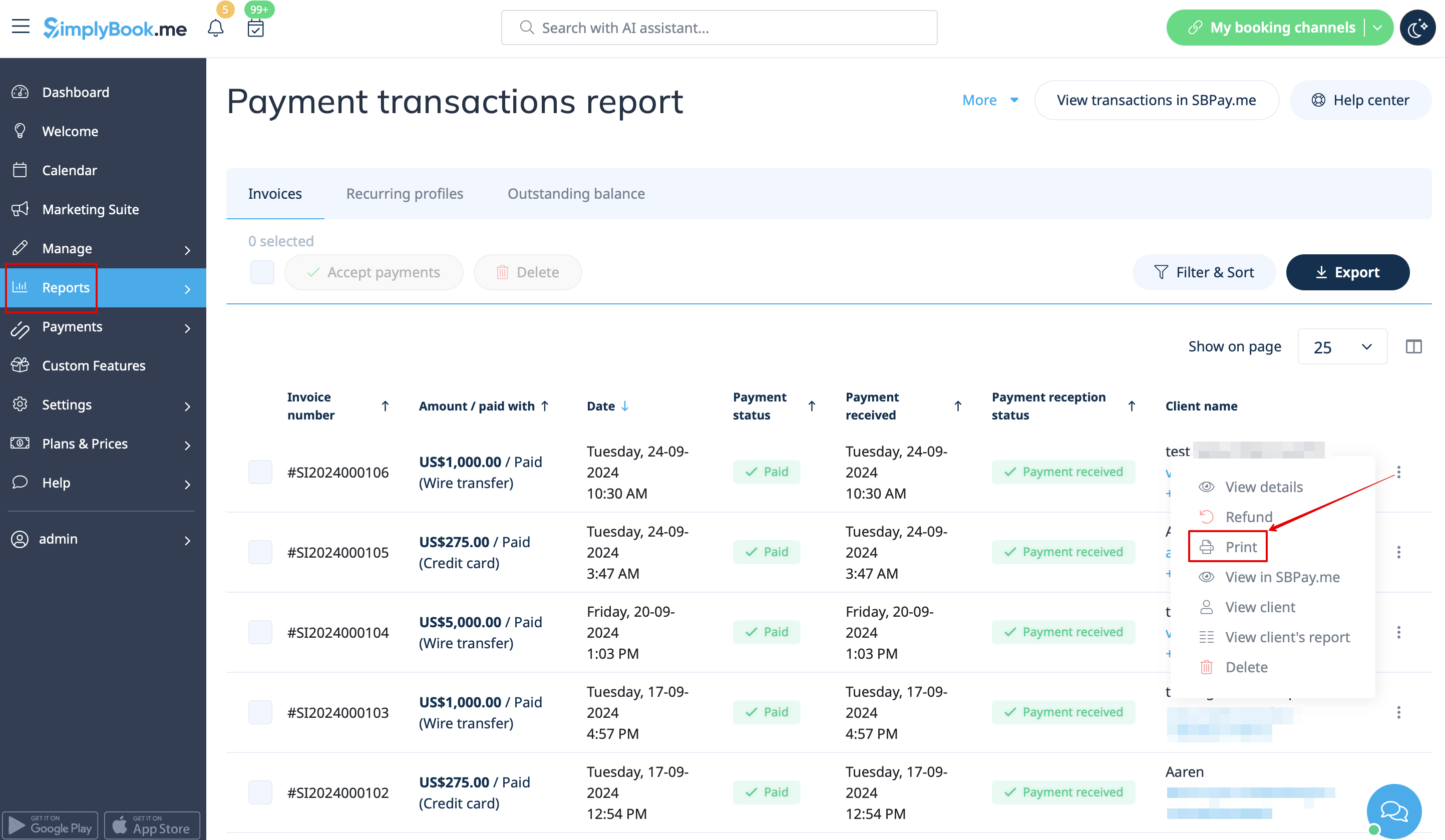
:7. | :7. Du kan också skriva ut fakturorna direkt från SimplyBook.me-systemet, Rapporter -> Betalningstransaktioner, genom att välja motsvarande åtgärd per post. | ||
[[File:Print invoice path redesigned.png|1200px|border|center|link=https://help.simplybook.me/images/5/5a/Print_invoice_path_redesigned.png]] | [[File:Print invoice path redesigned.png|1200px|border|center|link=https://help.simplybook.me/images/5/5a/Print_invoice_path_redesigned.png]] | ||
<br><br> | <br><br> | ||
<span style="background-color:#ffe9e9; padding:5px; border-radius:5px;">''' | <span style="background-color:#ffe9e9; padding:5px; border-radius:5px;">'''Observera!''' Det går inte att importera fakturor från externa plattformar direkt till systemet. SimplyBook.me erbjuder dock integrationsalternativ med olika bokföringsprogram, inklusive [[Xero_integration| Xero,]] [[QuickBooks_integration| QuickBooks]] och [[FreshBooks_integration| FreshBooks.]] Du kan hantera dina fakturor effektivt i ditt bokföringssystem.</span> | ||
<br><br> | <br><br> | ||
<div lang="en" dir="ltr" class="mw-content-ltr"> | <div lang="en" dir="ltr" class="mw-content-ltr"> | ||
Revision as of 12:44, 19 May 2025
SBPay.me är SimplyBook.me:s betalningshanteringsfunktion som låter dig ta emot och hantera betalningar via flera betalningsleverantörer, samtidigt som du förenklar online- och offlinebetalningar, skickar betalningslänkar, debiterar sparade kort och gör återbetalningar.
Se videohandledning 
Lista över betalningsleverantörer som för närvarande stöds:
| Stödda betalningssystem | Återkommande | Återfakturering |
|---|---|---|
| Stripe(SCA) | ✔ |
✔ |
| ECPay | − |
− |
| PayPal | ✔ |
✔ |
| SafeCharge | ✔ |
✔ |
| 2Checkout | − |
− |
| Mollie | ✔ |
✔ |
| Authorize | ✔ |
✔ |
| Squareup (Square) | ✔ |
✔ |
| Worldpay | ✔ |
✔ |
| Adyen | ✔ |
✔ |
| LiqPay | ✔ |
✔ |
| Skrill | ✔ |
✔ |
| Asiapay | ✔ |
✔ |
| Borgun | ✔ |
✔ |
| Paytabs | ✔ |
✔ |
| Rapyd | ✔ |
✔ |
| Payfast | ✔ |
✔ |
| PayULatam | − |
− |
| Paymentasia | − |
− |
| Newebpay | − |
− |
| PinPayments | ✔ |
✔ |
| Swish | − |
− |
| Braintree | ✔ |
✔ |
| TapPay | ✔ |
✔ |
| Line Pay | ✔ |
✔ |
| TwoCheckout [Verifone] | − |
− |
| CCAvenue | − |
− |
| Revolut | ✔ |
✔ |
| Sumup | − |
− |
| Payrexx | − |
− |
| JCC | ✔ |
✔ |
| Pagar.me | − |
− |
| PayPal Checkout | − |
− |
| Monobank | − |
− |
| Moneris | − |
− |
Hur man ställer in specifika betalningsleverantörer
Videohandledning
Hur du ställer in och använder det med SimplyBook.me
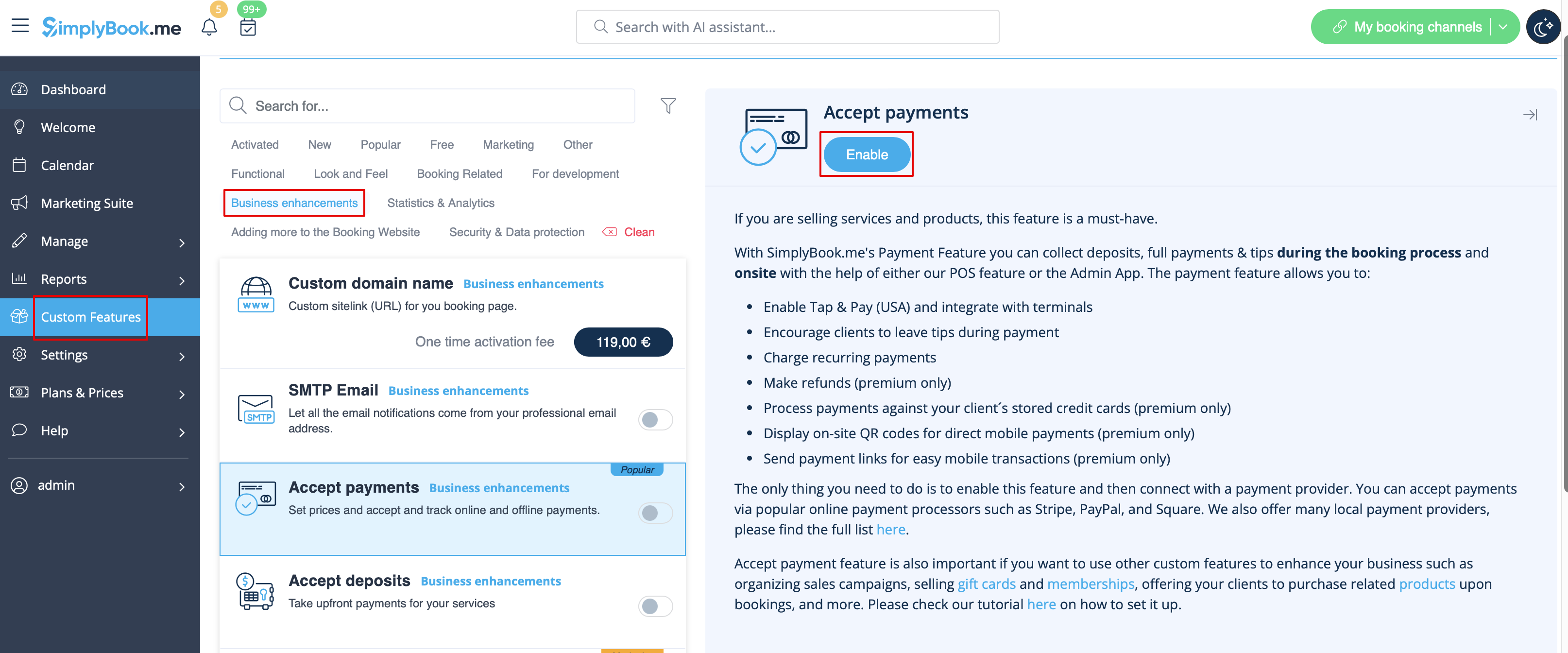
- 1. Först och främst, eftersom du planerar att arbeta med onlinebetalningar, måste du ha den anpassade funktionen Acceptera betalningar aktiverad i ditt SimplyBook.me-konto.
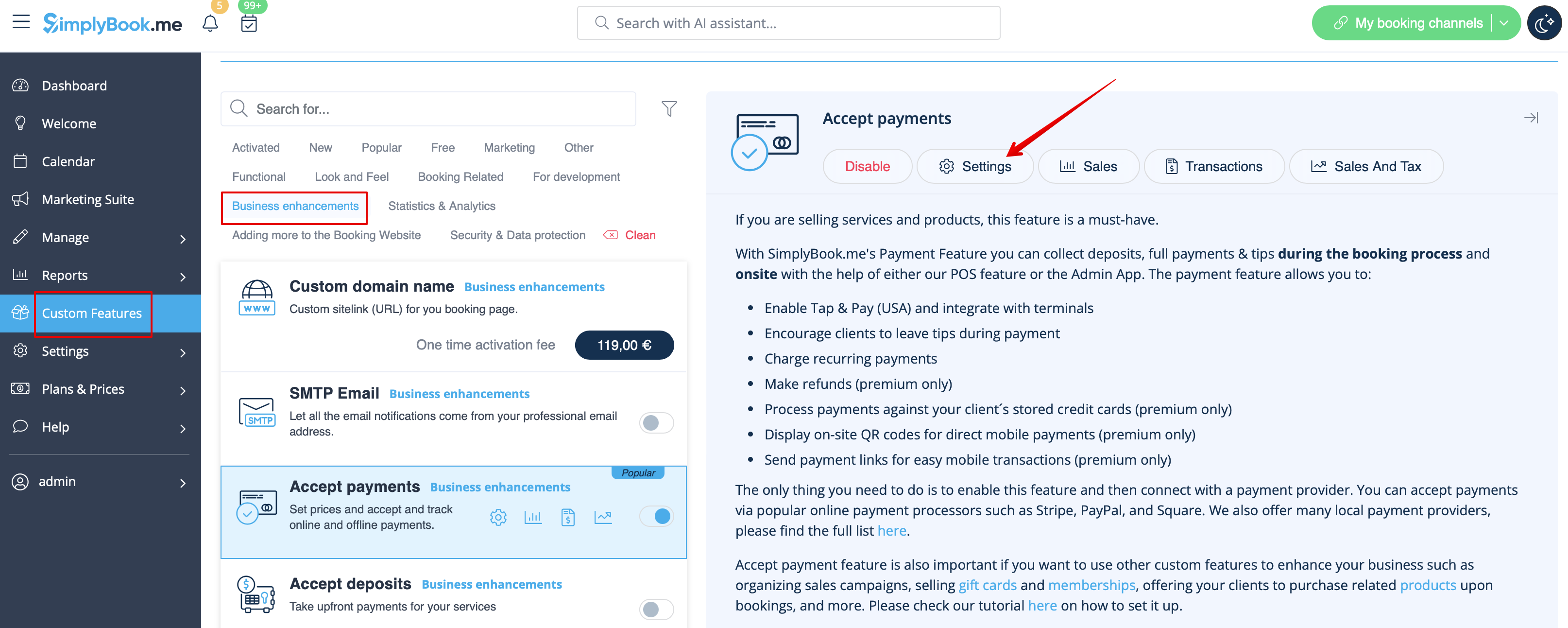
- 2. Klicka på knappen Inställningar på sidan för anpassade funktioner bredvid funktionen Acceptera betalningar.
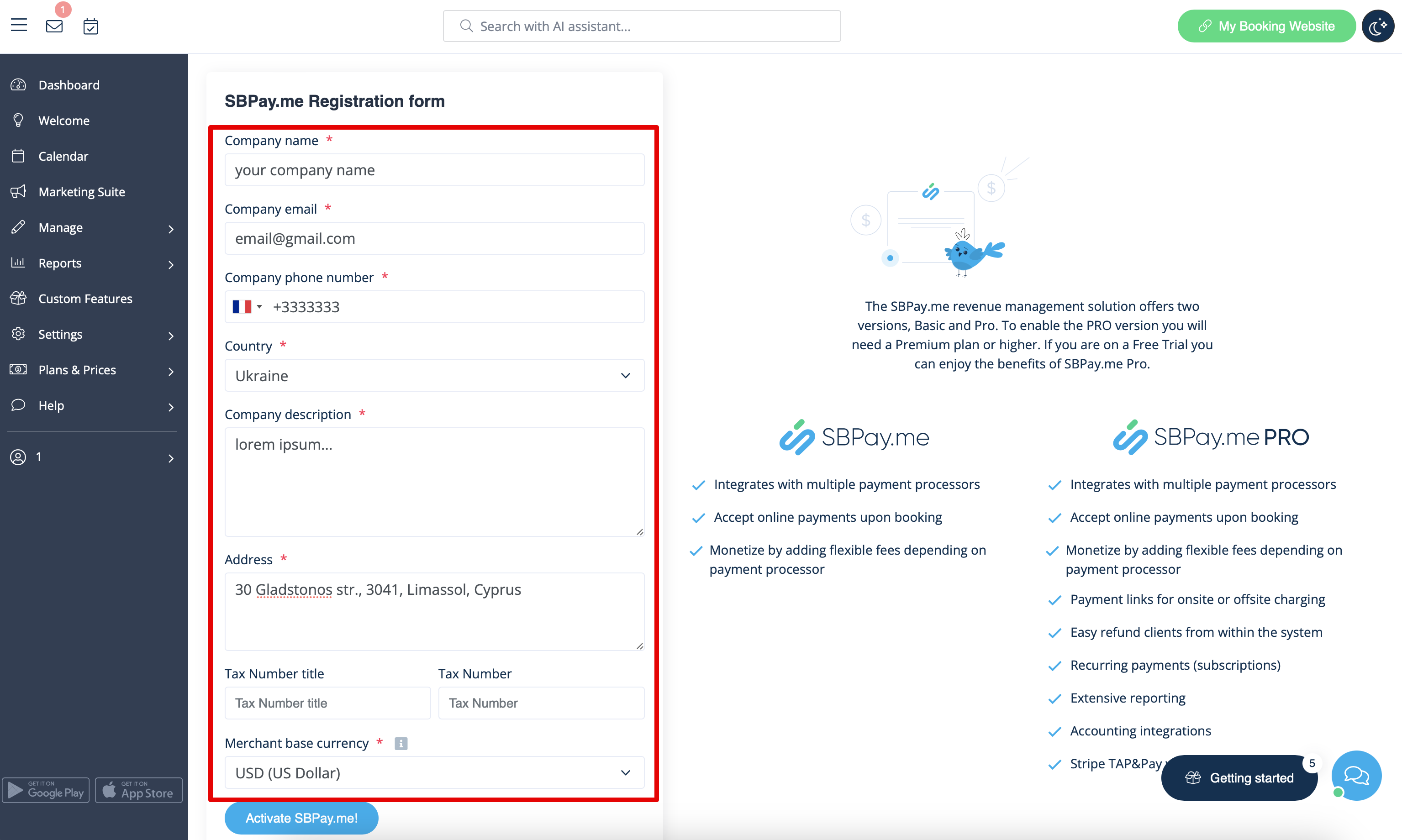
- 3. Justera dina företagsuppgifter i registreringsformuläret om det behövs.
- (De kommer att fyllas i automatiskt med de företagsuppgifter som du redan har i ditt system).
- Klicka på knappen Aktivera SBPay.me nedan.
- Grattis! Ditt SBPay.me-konto är nu skapat!
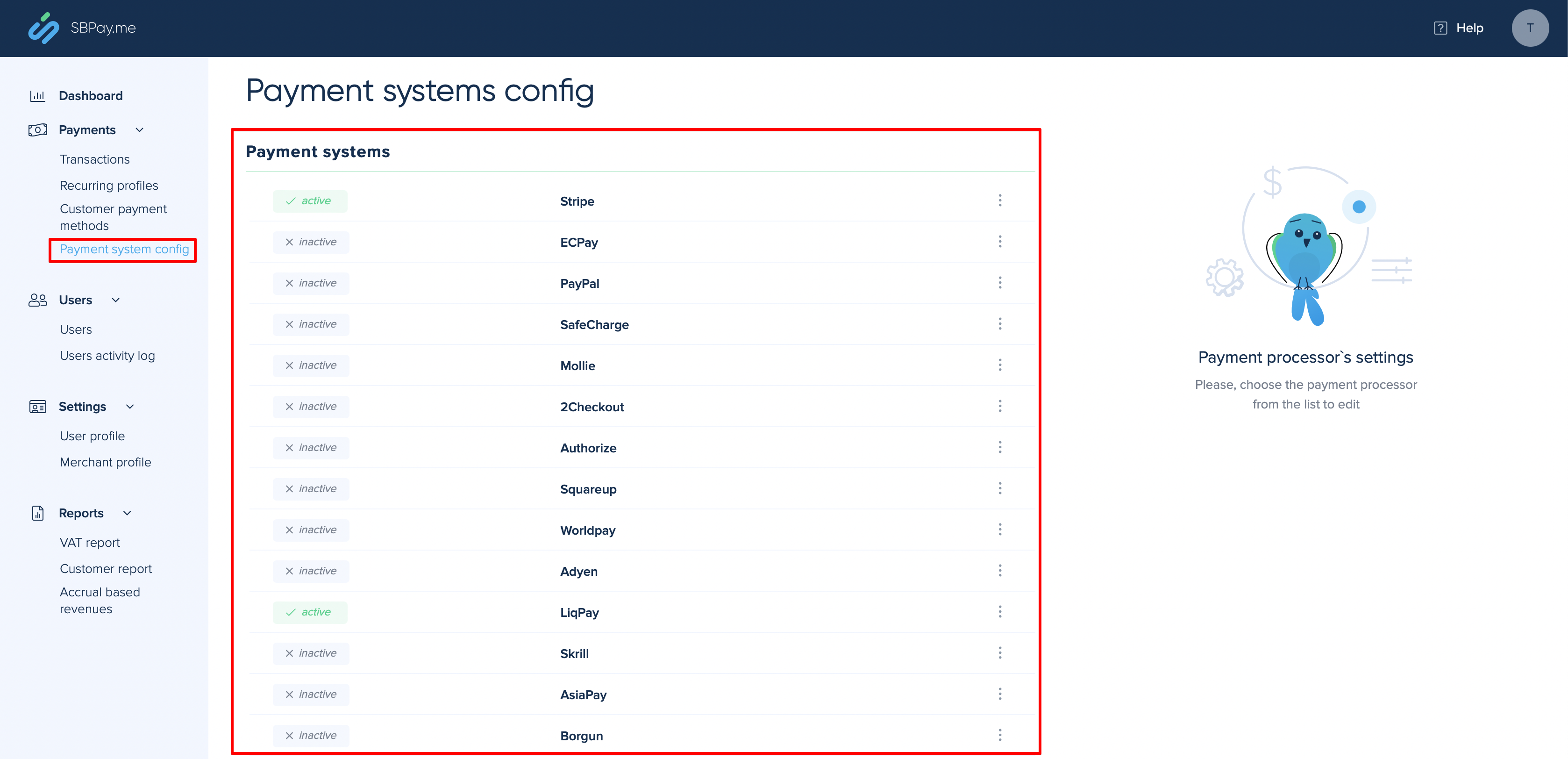
- 4. Navigera till inställningarna för betalningssystemet och lägg till inloggningsuppgifterna för den betalningsgateway som du planerar att använda för onlinebetalningar.
- Om du hade några betalningssystemuppgifter innan du aktiverade SBPay.me-integrationen kan de ha kopierats till SBPay.me, men det kan ha skett några ändringar i betalningsflödet, så du måste kontrollera att alla inställningar har lagts till där för att onlinebetalningarna ska fungera smidigt.
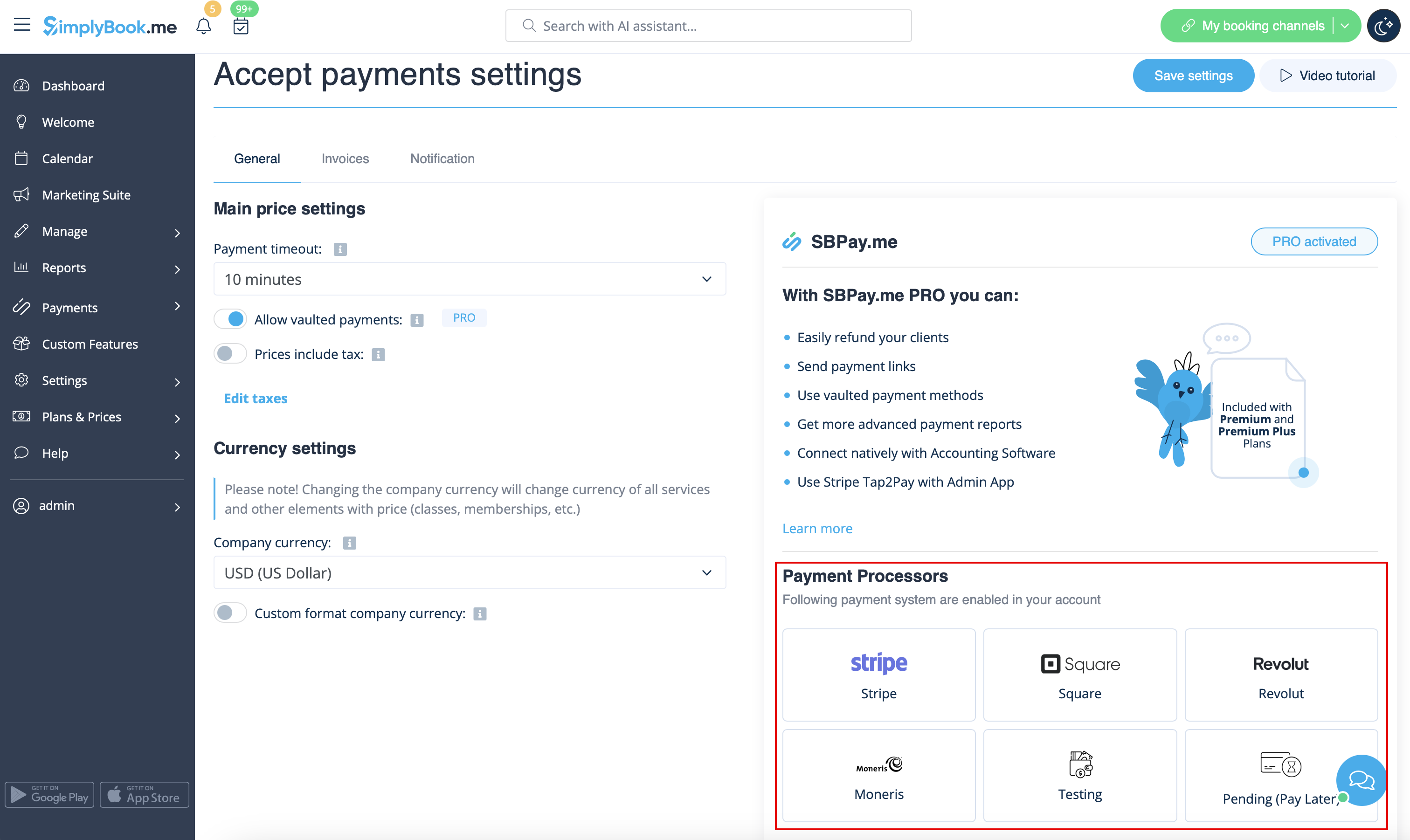
- 5. När du har ställt in betalningsprocessorerna kommer du att kunna se de aktiva på SimplyBook.me-sidan också.
- 6. Ställ in priserna för dina tjänster, klasser, paket, medlemskap, presentkort, produkter eller tilläggstjänster i ditt SimplyBook.me-konto, så är du redo att ta emot betalningar online.
Använda funktioner i PRO-versionen
Om du har en högre prenumeration i ditt SimplyBook.me-konto är PRO-versionen av SBPay.me aktiverad som standard så att du får tillgång till listan med ytterligare alternativ som arkiverade betalningar, återbetalningar och betalningslänkar.
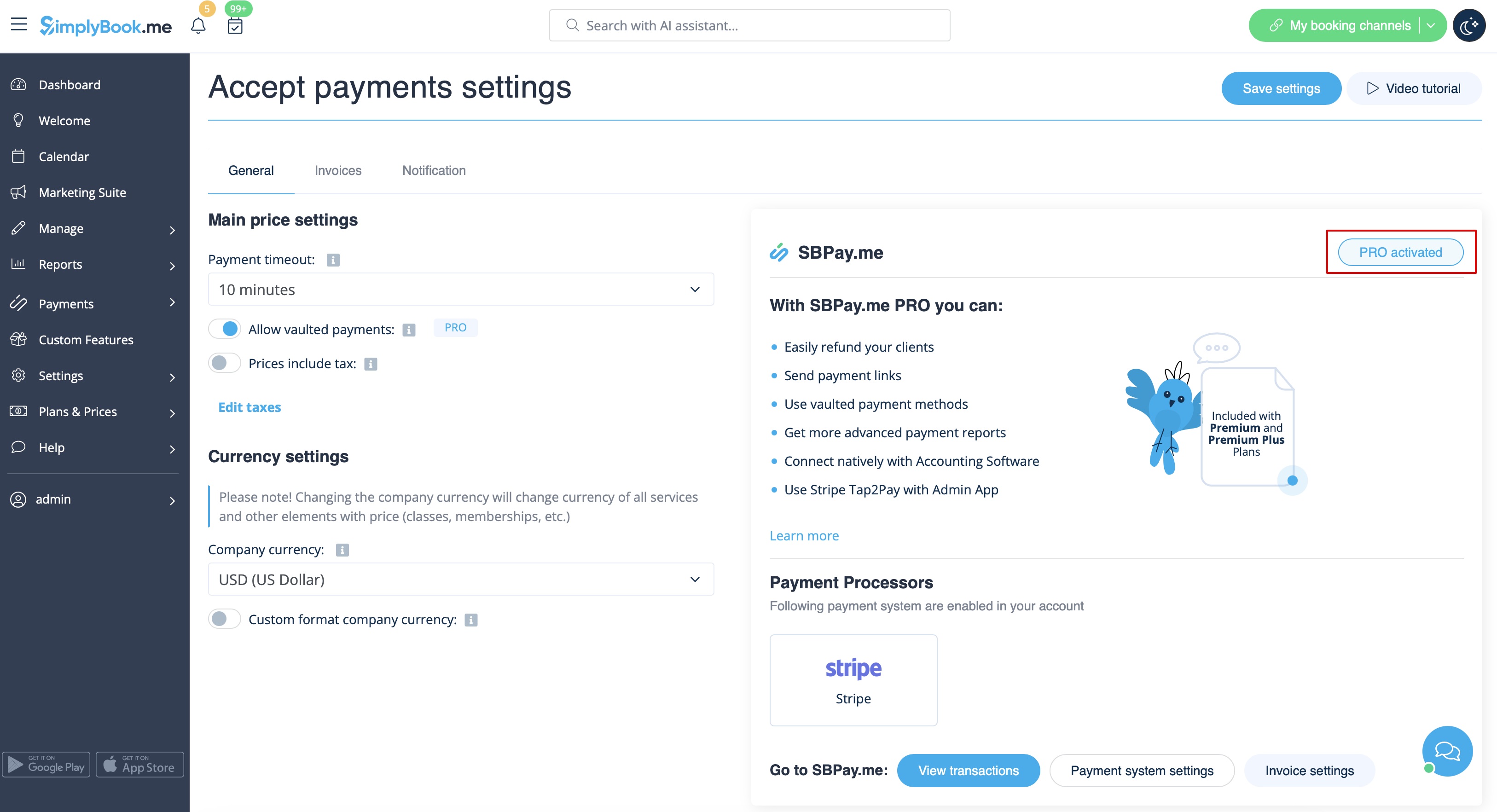
Om du inte planerar att använda de ytterligare alternativ som anges nedan kan du enkelt inaktivera "PRO"-versionen genom att stänga av knappen.
Arkiverade betalningar
Observera!
- För att kunna använda denna funktion måste den anpassade funktionen Klientinloggning vara aktiverad.
- Alla betalningsgateways stöder inte denna funktion. Kontrollera tillgängligheten av denna funktion i tabellen och/eller genom att kontakta supporten för din betalningsgateway, eftersom det kan krävas vissa justeringar från deras sida.
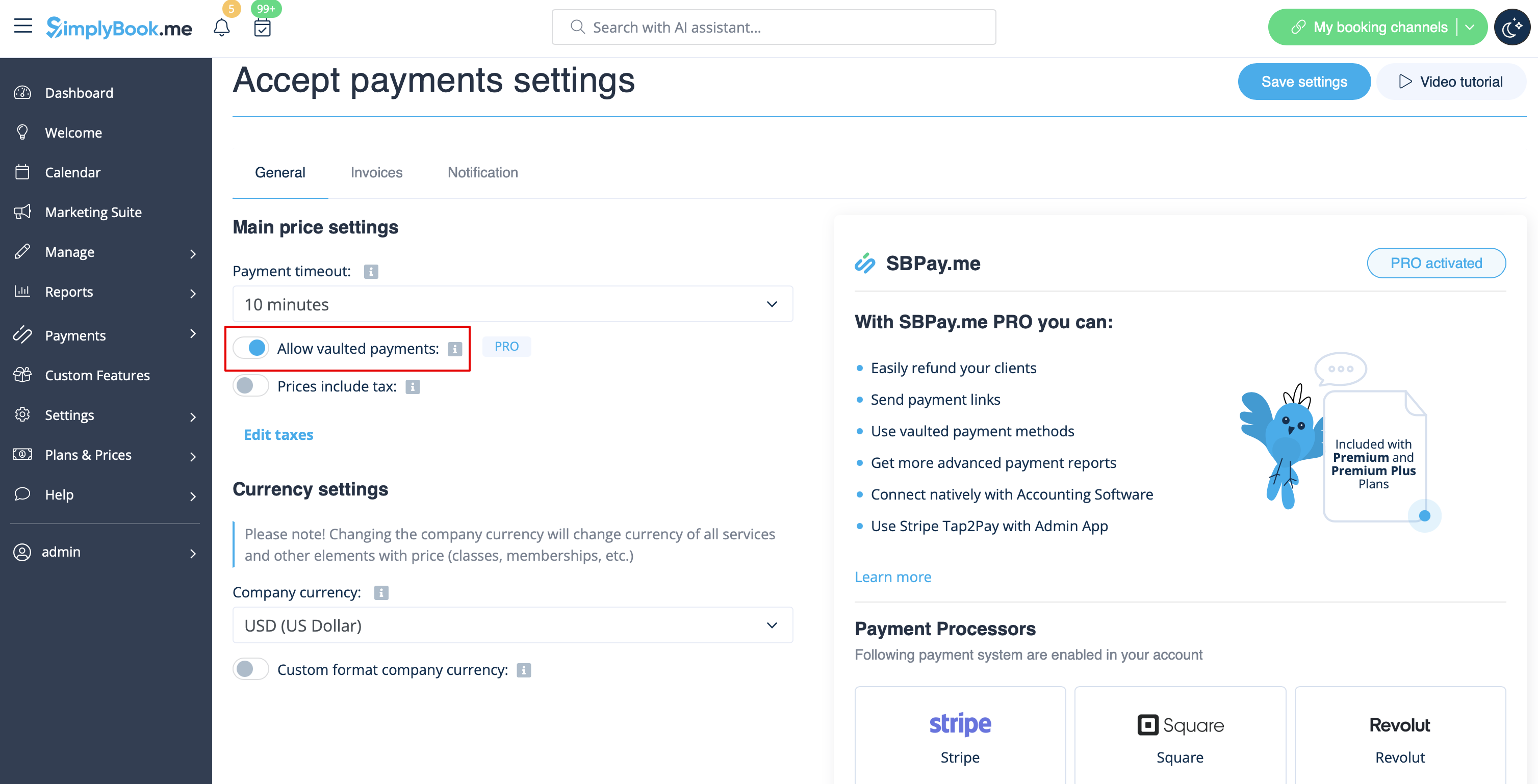
- 1. Aktivera alternativet Tillåt sparade betalningar på sidan Inställningar för betalningar.
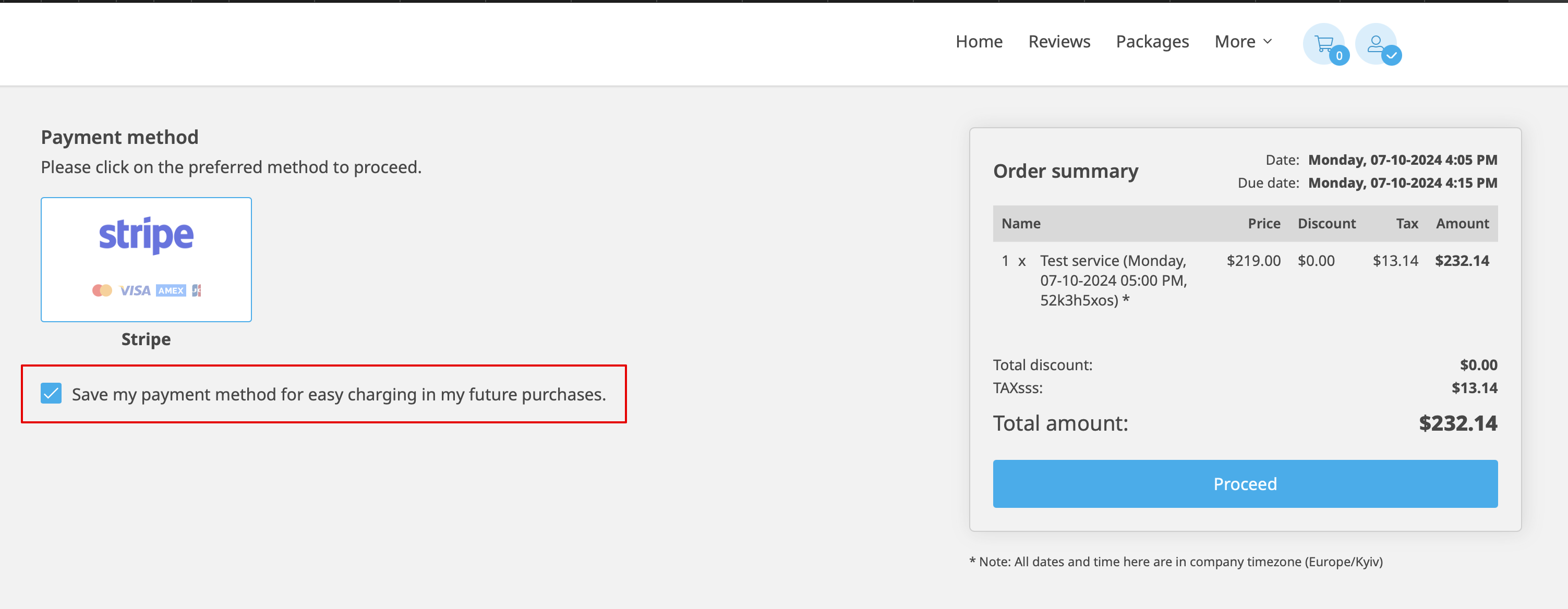
- 2. Som ett resultat kommer kunden att kunna markera kryssrutan Spara min betalningsmetod för enkel debitering vid framtida köp i kassan på bokningswebbplatsen och hans/hennes betalningsuppgifter kommer att bifogas kundprofilen.
- 3. Vid nästa köp eller bokning på kundens sida kan han/hon välja om han/hon vill bekräfta beställningen med den redan sparade betalningsmetoden eller välja det nya alternativet.
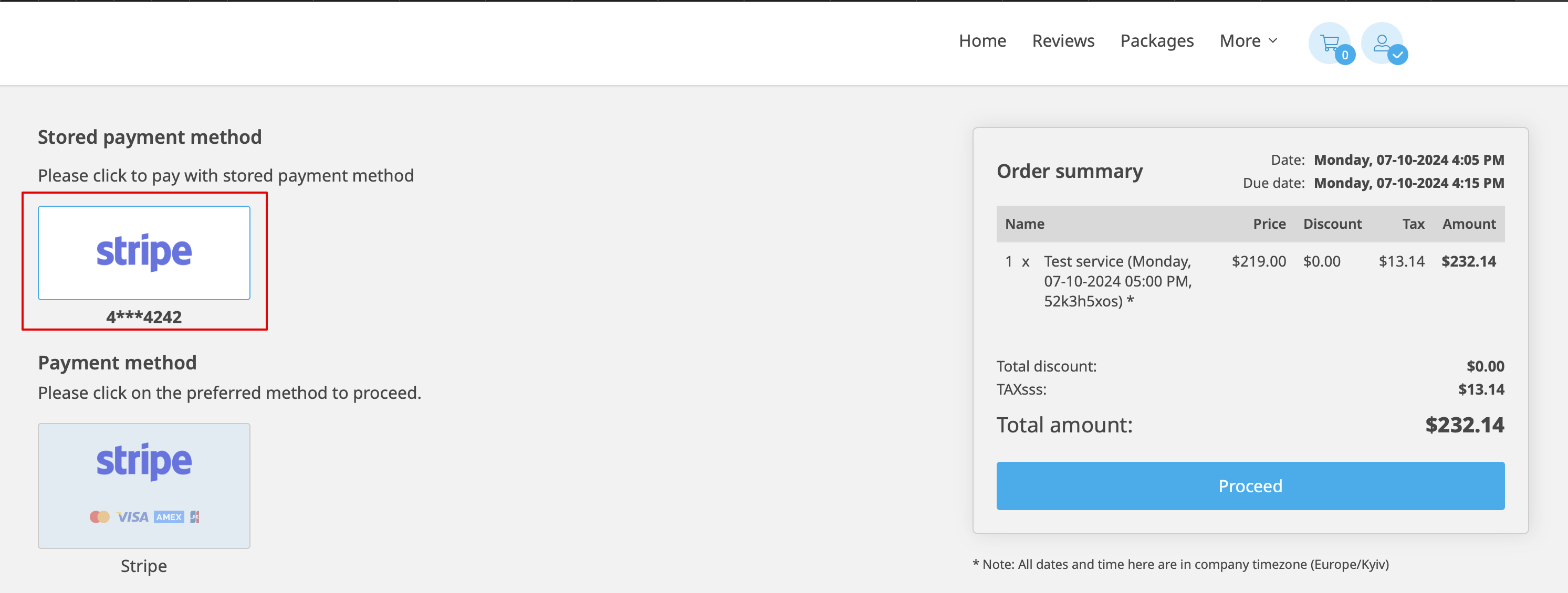
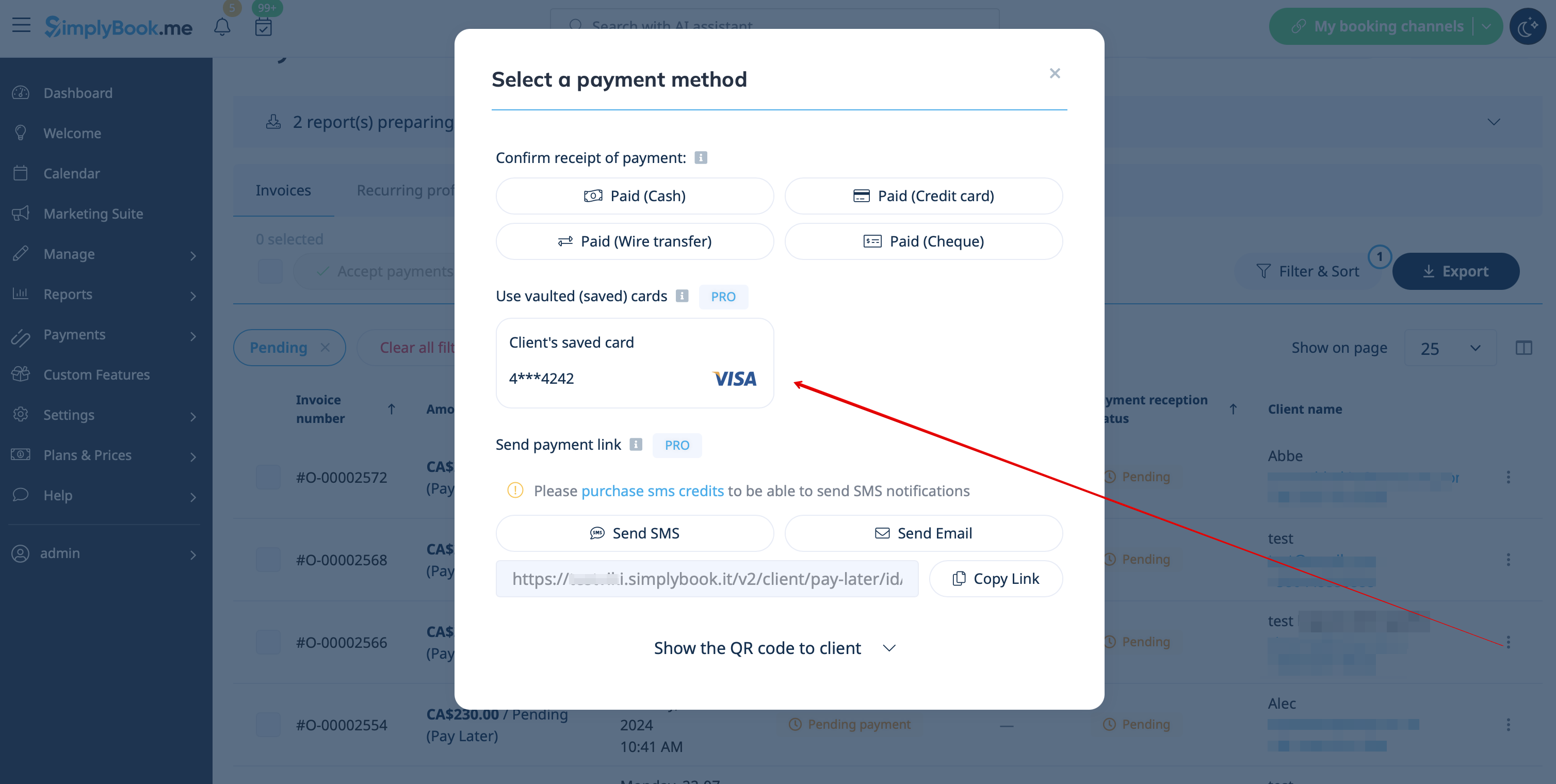
- 4. Under betalningsgodkännandet på administratörssidan, i rapporten över betalningstransaktioner eller försäljningshanteringen i POS-gränssnittet, kan du också använda kundens sparade betalningsmetod.

Betalningslänkar
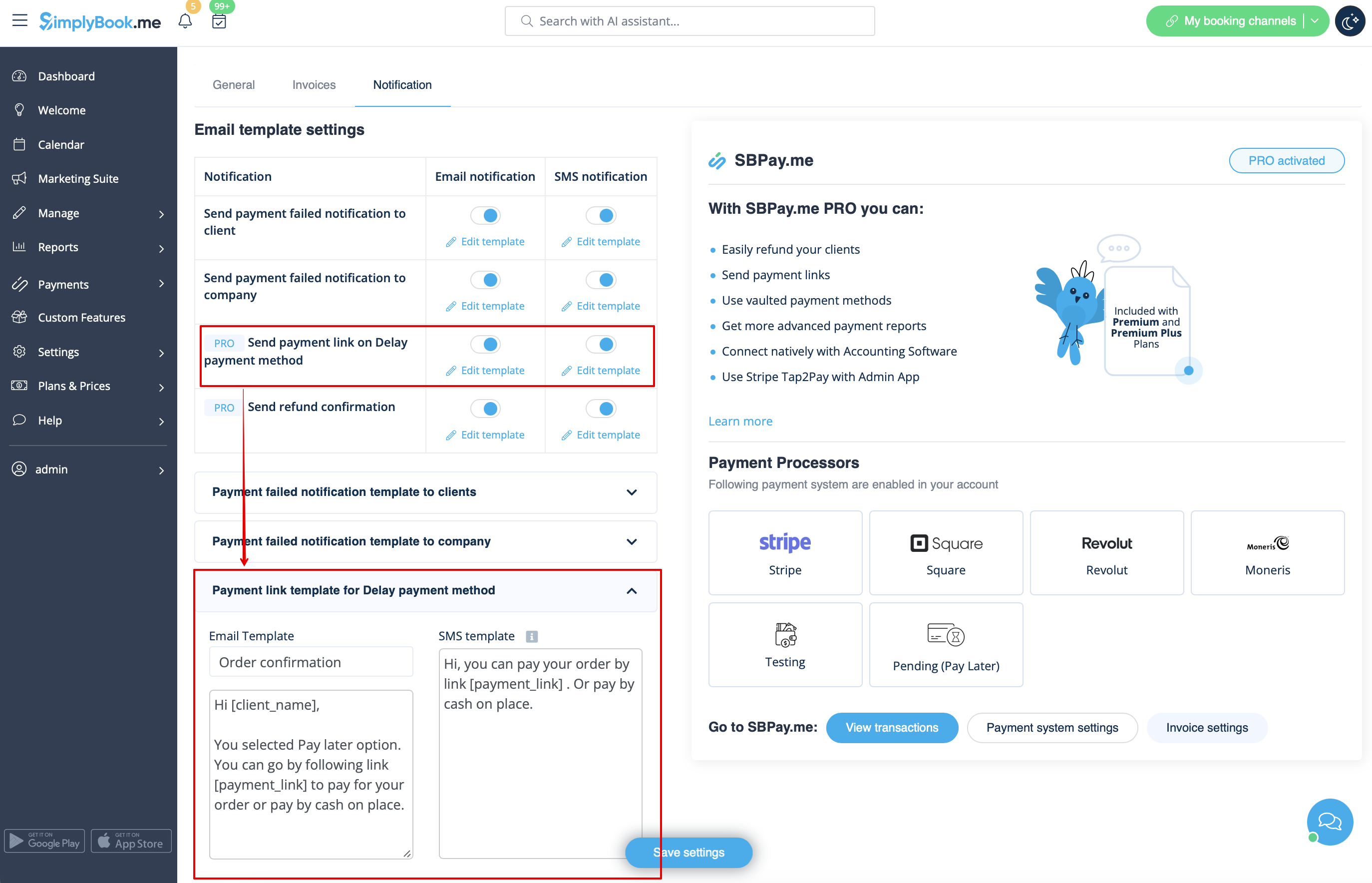
- 1. Aktivera Skicka betalningslänk vid försenad betalning i inställningarna för den anpassade funktionen Acceptera betalningar, i blocket E-postmallinställningar, och anpassa mallen efter dina behov.
- Glöm inte att lägga till variabeln [payment_link] så att kunden enkelt kan navigera till betalningen.
- 2. När du har skapat ordern från administratörssidan eller från POS-gränssnittet med Betala senare valt som betalningsmetod, eller om kunden väljer Betala senare i kassan på bokningswebbplatsen, skickar systemet automatiskt ett e-postmeddelande/SMS med länken för att betala för försäljningen (sparade betalningsmetoder kan också användas i detta fall).
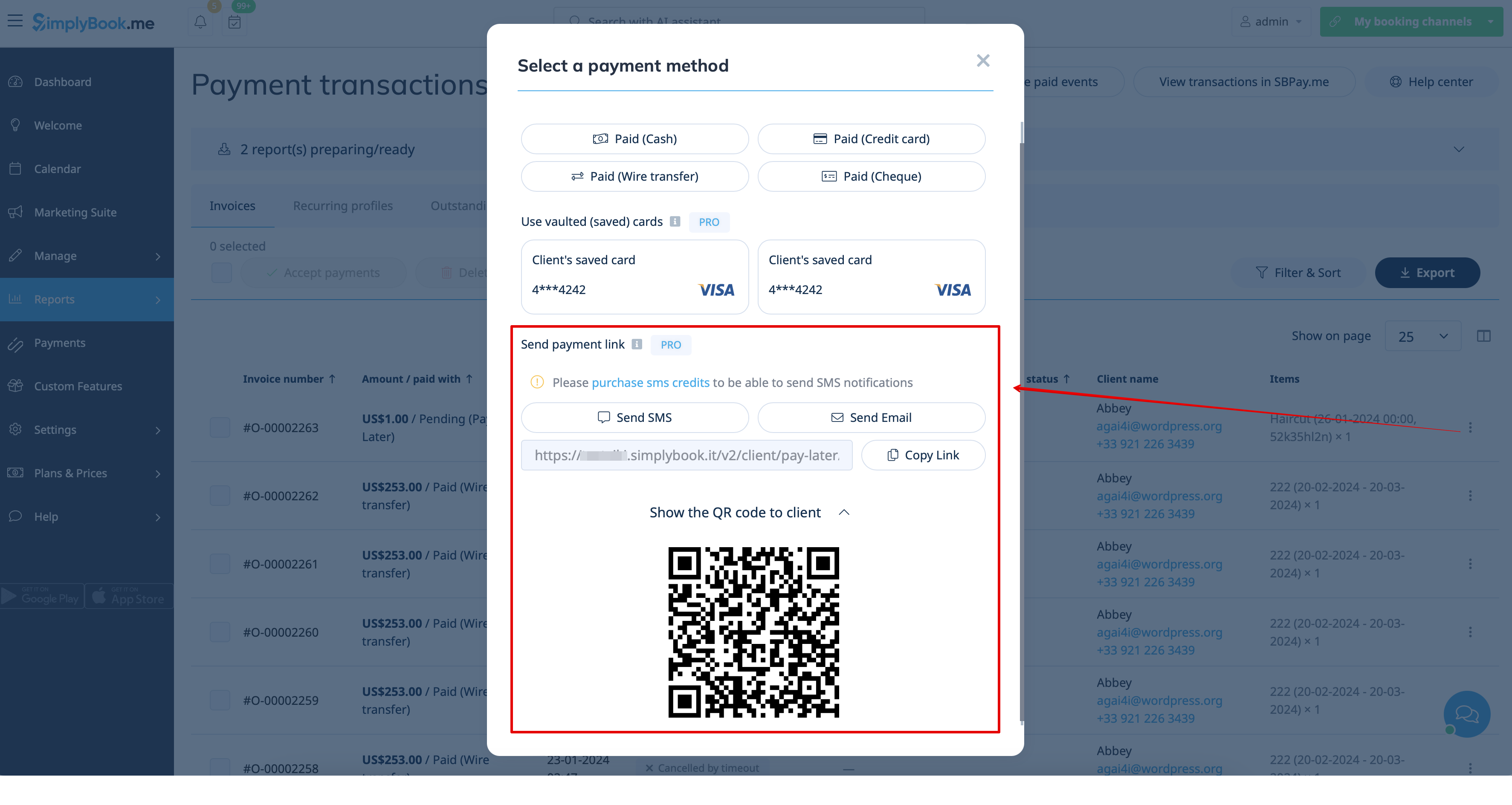
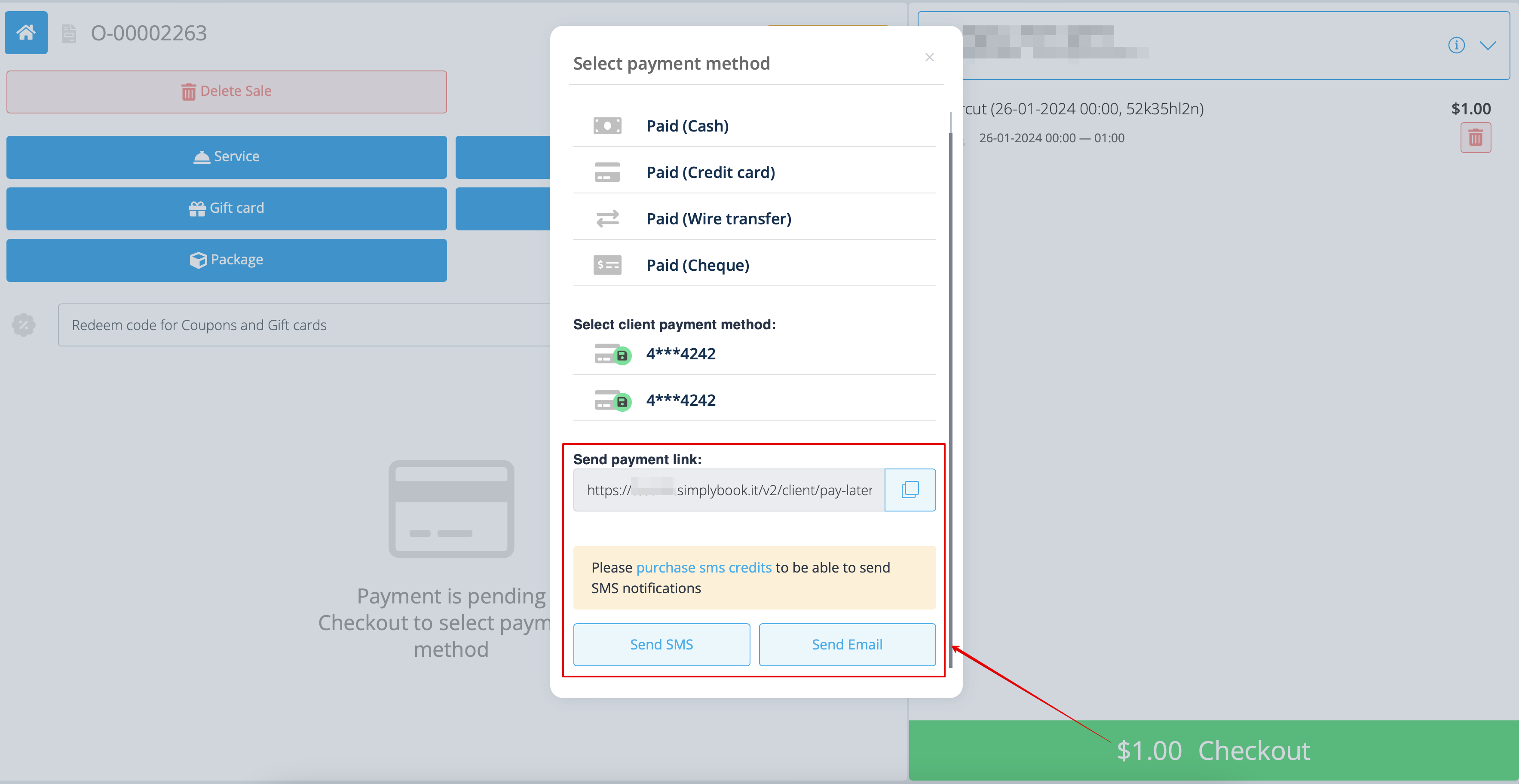
- 3. Du kan också aktivera skickandet av betalningslänken från rapporten Betalningstransaktioner eller POS-gränssnittet eller helt enkelt kopiera betalningslänken för den specifika beställningen där och skicka den till din kund via dina egna kommunikationskanaler.
- Om kunden befinner sig hos dig kan du också visa honom/henne QR-koden som kan skannas med mobilkameran för att omdirigeras till betalningssidan och slutföra beställningen. Den finns i Rapporter -> Betalningstransaktioner -> Ta emot betalning.
Enkla mobilbetalningar från appen: videohandledning
Återbetalningar
Det kan hända att du av någon anledning behöver återbetala pengarna till din kund, och nu är det möjligt att enkelt hantera sådana fall med SBPay.me PRO-integration.
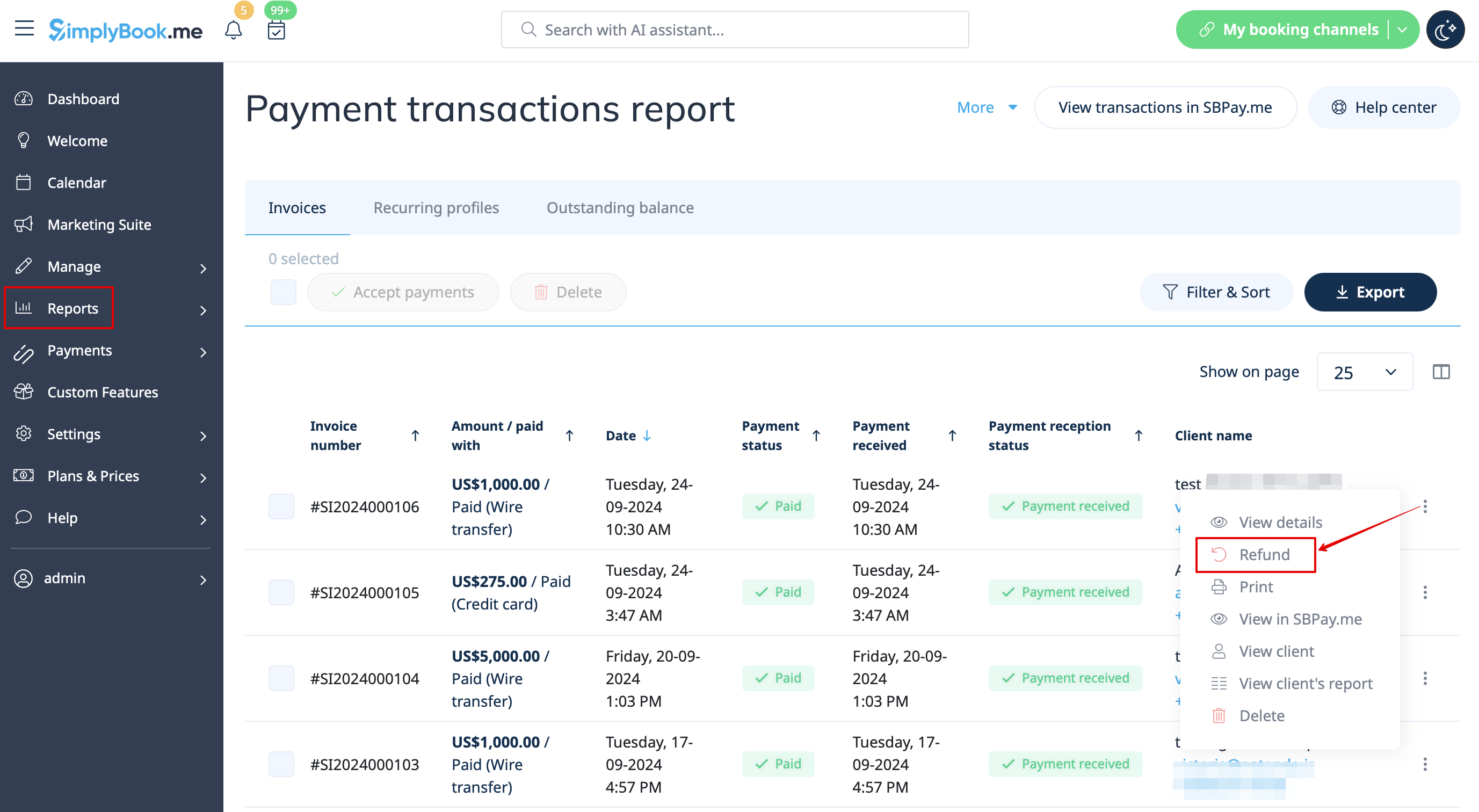
- 1. När du har aktiverat SBPay.me-integrationen i ditt SimplyBook.me-konto kan du helt enkelt navigera till Rapporter -> Betalningstransaktioner -> hitta den nödvändiga fakturan -> klicka på Åtgärder och välj Återbetalning i rullgardinsmenyn. Bekräfta åtgärden så kommer återbetalningen automatiskt att göras till motsvarande kunds konto.
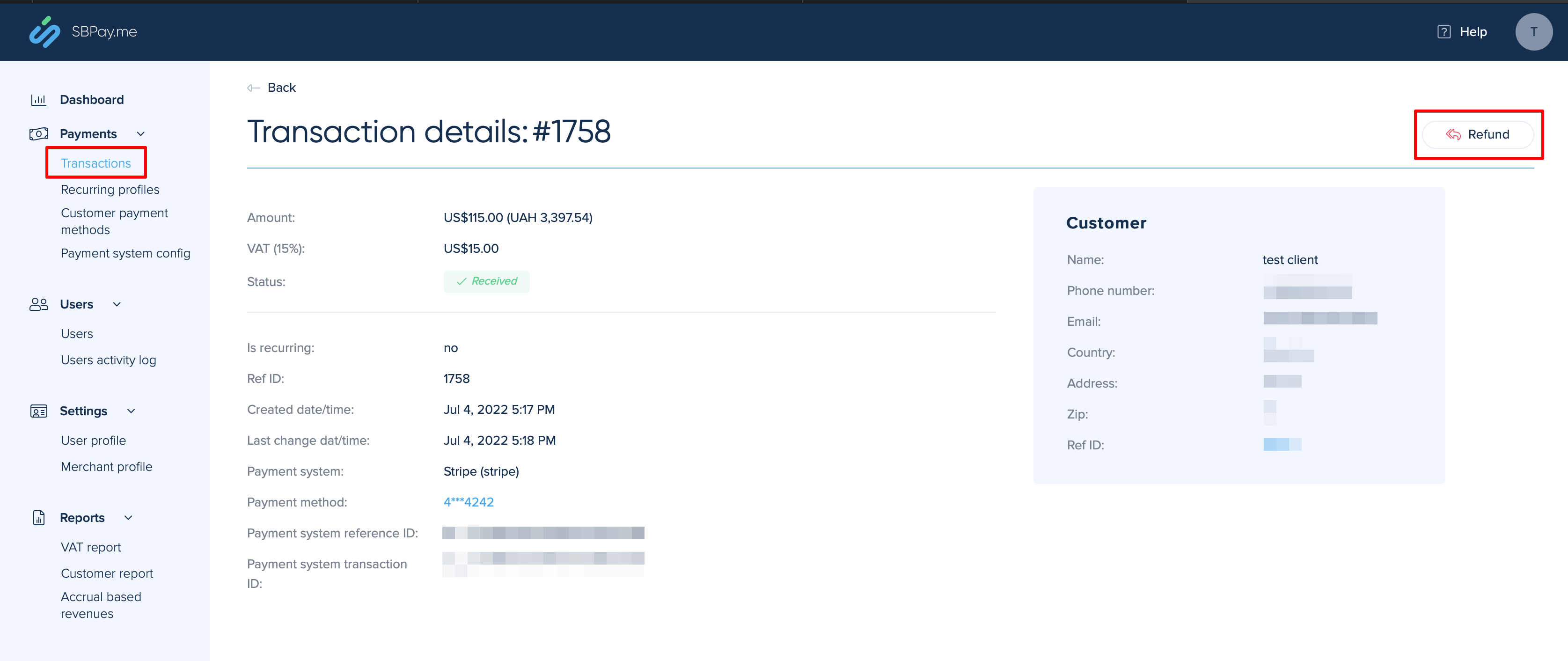
- 2. Eller så kan du gå direkt till SBPay.me-gränssnittet -> Transaktioner -> öppna den nödvändiga posten och välj Återbetalning.
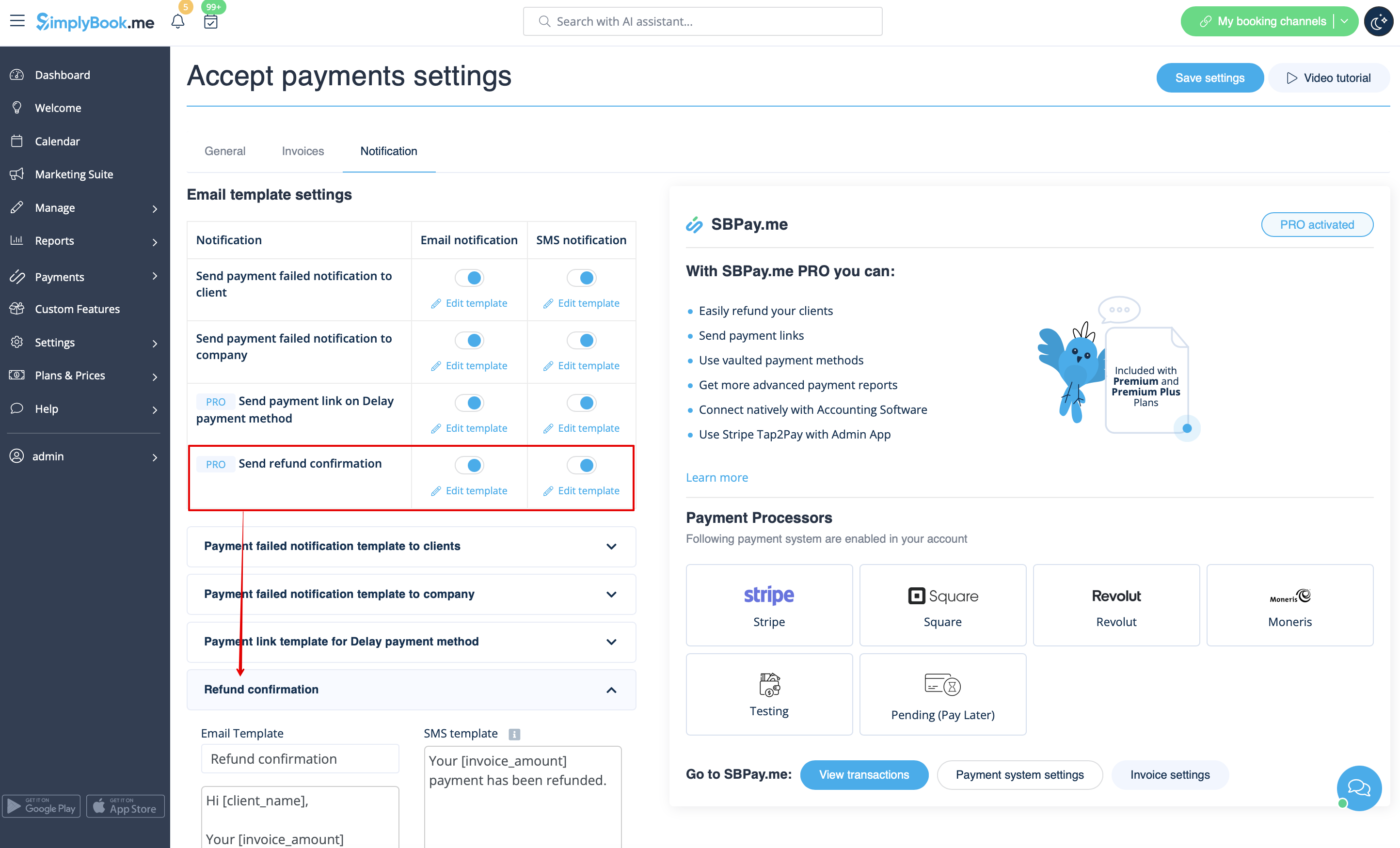
- 3. I inställningarna för den anpassade funktionen Acceptera betalningar kan du också aktivera alternativet Skicka bekräftelse på återbetalning och justera mallarna så att dina kunder automatiskt får ett e-postmeddelande och/eller sms om återbetalningarna.
SBPay.me-fakturor
Du kan nu enkelt anpassa fakturainställningarna efter dina behov och skicka dem till dina kunder efter varje köp.
- Hur man använder
- 1. Aktivera motsvarande alternativ på sidan "Anpassade funktioner".
- 2. Anpassa de allmänna inställningarna efter dina behov: numreringsformat för fakturor och kreditnotor, lägg till anteckningar, länka till dina villkor och fotinformation om det behövs.
- 3. Ställ in önskat utseende under fliken "Utseende" och ladda upp ditt företagslogotyp.
- 4. Växla till den tredje fliken, "E-post", och ställ in mallarna för aviseringar. Du kan använda flera variabler som anges under formuläret. Spara dina inställningar.
- 5. Under Försäljning -> Fakturor kan du se en lista över skapade fakturor och kreditnotor. Du kan skicka dem igen till kunderna vid behov, utfärda kreditnotor, skriva ut eller helt enkelt visa detaljerna.
- 6. Här är ett exempel på hur en utskriven faktura kan se ut.
- 7. Du kan också skriva ut fakturorna direkt från SimplyBook.me-systemet, Rapporter -> Betalningstransaktioner, genom att välja motsvarande åtgärd per post.
Observera! Det går inte att importera fakturor från externa plattformar direkt till systemet. SimplyBook.me erbjuder dock integrationsalternativ med olika bokföringsprogram, inklusive Xero, QuickBooks och FreshBooks. Du kan hantera dina fakturor effektivt i ditt bokföringssystem.
SBPay.me Reports
SBPay.me is just starting but already has several useful reports that you can use to track your payments:
- 1. Dashboard - contains currencies, revenues, payment systems and tags charts.
- 2. Payments - allows to view, confirm or refund orders.
- 3. Invoices - appears when the corresponding custom feature is enabled and allows to view, resend invoices, issue credit notes.
- 4. Recurring profiles - contains the information on memberships recurring profiles. You can easily view, prolong or cancel profiles on that page.
- 5. Customers payment methods - allows you to view the list of saved payment methods of your clients, check the list of related payments and disable the profiles if necessary.
- 6. Tax report - allows to see a list of all your sales within each country (if your sales are in more than one country) and the tax amounts as well as total count of transactions
- 7. VIES report - The purpose of a VIES (VAT Information Exchange System) tax report is to ensure compliance with EU VAT regulations by enabling businesses to report and verify cross-border transactions within the European Union.This report is especially important for businesses engaged in B2B cross-border trade within the EU. This report shows you a list of your customers, including their contact details, their tax numbers, their residence and the amount of sales to each of them.
- 8. OSS report - The purpose of an OSS (One Stop Shop) tax report is to simplify VAT reporting for businesses that sell goods or services to customers in multiple EU countries. It allows businesses to manage their VAT obligations in one place, avoiding the need to register for VAT in every country where they sell. The OSS report is particularly useful for e-commerce businesses and service providers who sell to customers in multiple EU countries. This report shows you the total sales and taxed amount within each of the countries you sell to, the VAT tax rate in each of the countries as well as total transactions counts in each country.
- 9. Customer report - shows you a table including name of each customer, their contact details, when t hey became your clients, count of succesful payments, number of error payments, when they made their last purchase and their last payment status (received, pending, error). The report also allows you to select a specific client and see all the concerning details.
- 10. Accrual based revenue - is related to the revenue earned/recognized by a business for which the invoice is yet to be billed to the customer.
- 11. Subscription Metrics - allows to track the trends of your recurring subscription customers. View graphs showing active customers, monthly sales trends, and a comparison of new customers versus those who have left.
- 12. Snowball MRR Report - is a detailed table showing trends in your recurring revenue. Easily see the number of active customers, new sign-ups, cancellations, and the total active recurring customers at the end of each period.
Create payment requests
Video tutorial
With just a few clicks, users can easily generate payment links that can be shared with their clients via email, sending the direct link or QR code. This feature enables business owners and individuals to easily collect payments for their goods or services, without the need for a website or an online store.
In addition, it allows users to set up recurring payments, so that they can automatically charge their clients on a regular basis. This is a useful feature for businesses that offer subscription-based services or recurring billing.
Users can also choose from a wide selection of payment processors to be used for payments or to choose previously saved payment method, making it easy for returning customers to pay for their purchases quickly and securely.
For businesses that need to keep track of their payments, SBPay.me offers the ability to list detailed descriptions of sale items, including any additional taxes or discounts. This feature ensures that users can easily monitor their sales and keep accurate records.
Finally, SBPay.me allows users to tag payments so that they can group them when creating reports. This feature provides an organized way to manage payment data and generate comprehensive reports. Overall, SBPay.me is a powerful payment system that provides a simple, yet effective way to manage payments and increase revenue.
More features coming!
