Created page with "Zie de videohandleiding link=https://www.youtube.com/watch?v=XPX7Xnsp5aM" |
Created page with "=== Betalingslinks ===" Tags: Mobile edit Mobile web edit |
||
| Line 220: | Line 220: | ||
[[File:Use saved payment method pos.png|1200px|center|link=https://help.simplybook.me/images/e/e8/Use_saved_payment_method_pos.png]] | [[File:Use saved payment method pos.png|1200px|center|link=https://help.simplybook.me/images/e/e8/Use_saved_payment_method_pos.png]] | ||
<br><br> | <br><br> | ||
< | <span id="Payment_links"></span> | ||
=== | === Betalingslinks === | ||
< | :1. Schakel <span style="background-color:#d4f8e5; padding:5px; border-radius:5px;">'Betalingslink verzenden bij uitgestelde betaling' in</span> de instellingen van de aangepaste functie 'Betalingen accepteren' <span style="background-color:#d4f8e5; padding:5px; border-radius:5px;">in</span>, in het blok <span style="background-color:#d4f8e5; padding:5px; border-radius:5px;">'E-mailsjablooninstellingen'</span>, en pas het sjabloon aan uw behoeften aan.<br> | ||
:Vergeet niet <span style="background-color:#d4f8e5; padding:5px; border-radius:5px;"> de variabele [payment_link]</span> toe te voegen, zodat de klant gemakkelijk naar de betaling kan navigeren. | |||
: | |||
[[File:Send payment links redesigned.png|1200px|center|link=https://help.simplybook.me/images/f/fa/Send_payment_links_redesigned.png]] | [[File:Send payment links redesigned.png|1200px|center|link=https://help.simplybook.me/images/f/fa/Send_payment_links_redesigned.png]] | ||
<br><br> | <br><br> | ||
:2. | :2. Nadat u de bestelling hebt aangemaakt vanuit de admin-kant of vanuit <span style="background-color:#d4f8e5; padding:5px; border-radius:5px;">de POS-interface</span> met <span style="background-color:#d4f8e5; padding:5px; border-radius:5px;">Later betalen</span> geselecteerd als betaalmethode, of als de klant <span style="background-color:#d4f8e5; padding:5px; border-radius:5px;">Later betalen</span> selecteert bij het afrekenen op de boekingswebsite, stuurt het systeem automatisch een e-mail/sms met de link om de verkoop te betalen (opgeslagen betaalmethoden kunnen in dit geval ook worden gebruikt). | ||
<br><br> | <br><br> | ||
:3. | :3. U kunt het verzenden van de betalingslink ook activeren vanuit het rapport <span style="background-color:#d4f8e5; padding:5px; border-radius:5px;">Betalingstransacties</span> of <span style="background-color:#d4f8e5; padding:5px; border-radius:5px;">de POS-interface</span>, of u kunt de betalingslink voor de specifieke bestelling daar kopiëren en deze via uw eigen communicatiekanalen naar uw klant sturen.<br> | ||
: | :Als de klant bij u is, kunt u hem/haar ook de QR-code laten zien om met zijn/haar telefooncamera te scannen, waarna hij/zij wordt doorgestuurd naar de betaalpagina om de bestelling af te ronden. Deze vindt u in <span style="background-color:#d4f8e5; padding:5px; border-radius:5px;">Rapporten</span> -> <span style="background-color:#d4f8e5; padding:5px; border-radius:5px;">Betalingstransacties</span> -> <span style="background-color:#d4f8e5; padding:5px; border-radius:5px;">Betaling ontvangen.</span> | ||
[[File:Send payment link options in transactions report.png|1200px|center|link=https://help.simplybook.me/images/3/36/Send_payment_link_options_in_transactions_report.png]] | [[File:Send payment link options in transactions report.png|1200px|center|link=https://help.simplybook.me/images/3/36/Send_payment_link_options_in_transactions_report.png]] | ||
[[File:Send payment link options from pos.png|1200px|center|link=https://help.simplybook.me/images/e/ec/Send_payment_link_options_from_pos.png]] | [[File:Send payment link options from pos.png|1200px|center|link=https://help.simplybook.me/images/e/ec/Send_payment_link_options_from_pos.png]] | ||
<br><br> | <br><br> | ||
''' | '''Eenvoudig mobiel betalen vanuit de app''': videohandleiding [[File:Youtube-Logo.png|link=https://www.youtube.com/watch?v=CSI-gWjKtm8]] | ||
<br><br> | <br><br> | ||
<div lang="en" dir="ltr" class="mw-content-ltr"> | <div lang="en" dir="ltr" class="mw-content-ltr"> | ||
Revision as of 12:44, 19 May 2025
SBPay.me is de betalingsbeheerfunctie van SimplyBook.me waarmee u betalingen via meerdere betalingsproviders kunt accepteren en beheren, terwijl u online en offline betalingen vereenvoudigt, betalingslinks verstuurt, opgeslagen kaarten belast en terugbetalingen uitvoert.
Zie de videohandleiding 
De lijst met momenteel ondersteunde betalingsverwerkers:
| Ondersteunde betalingssystemen | Terugkerende betalingen | Herfacturering |
|---|---|---|
| Stripe(SCA) | ✔ |
✔ |
| ECPay | − |
− |
| PayPal | ✔ |
✔ |
| SafeCharge | ✔ |
✔ |
| 2Checkout | − |
− |
| Mollie | ✔ |
✔ |
| Authorize | ✔ |
✔ |
| Squareup (Square) | ✔ |
✔ |
| Worldpay | ✔ |
✔ |
| Adyen | ✔ |
✔ |
| LiqPay | ✔ |
✔ |
| Skrill | ✔ |
✔ |
| Asiapay | ✔ |
✔ |
| Borgun | ✔ |
✔ |
| Paytabs | ✔ |
✔ |
| Rapyd | ✔ |
✔ |
| Payfast | ✔ |
✔ |
| PayULatam | − |
− |
| Paymentasia | − |
− |
| Newebpay | − |
− |
| PinPayments | ✔ |
✔ |
| Swish | − |
− |
| Braintree | ✔ |
✔ |
| TapPay | ✔ |
✔ |
| Line Pay | ✔ |
✔ |
| TwoCheckout [Verifone] | − |
− |
| CCAvenue | − |
− |
| Revolut | ✔ |
✔ |
| Sumup | − |
− |
| Payrexx | − |
− |
| JCC | ✔ |
✔ |
| Pagar.me | − |
− |
| PayPal Checkout | − |
− |
| Monobank | − |
− |
| Moneris | − |
− |
Hoe specifieke betalingsverwerkers instellen
Video-tutorial
Hoe u dit instelt en gebruikt met SimplyBook.me
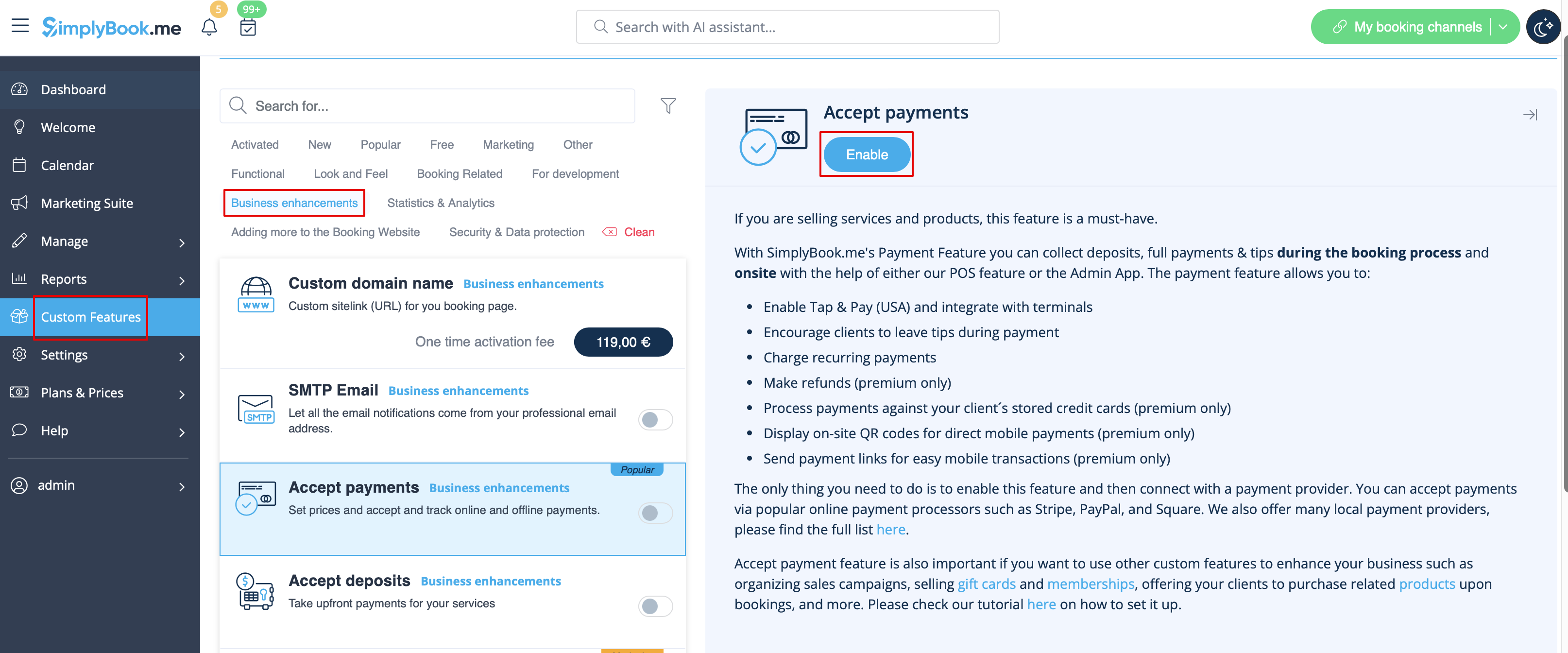
- 1. Aangezien u van plan bent om met online betalingen te werken, moet u eerst de aangepaste functie 'Betalingen accepteren' inschakelen in uw SimplyBook.me-account.
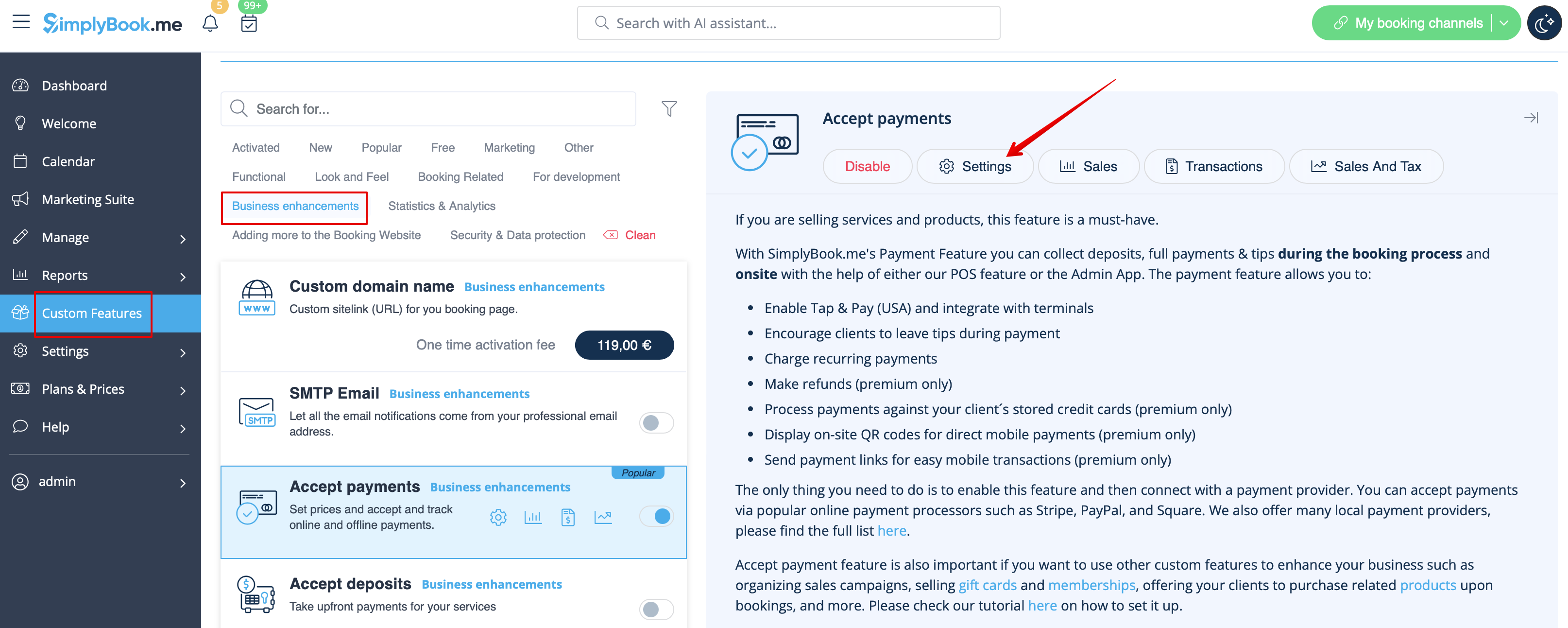
- 2. Klik op de knop Instellingen op de pagina met aangepaste functies naast de functie Betalingen accepteren.
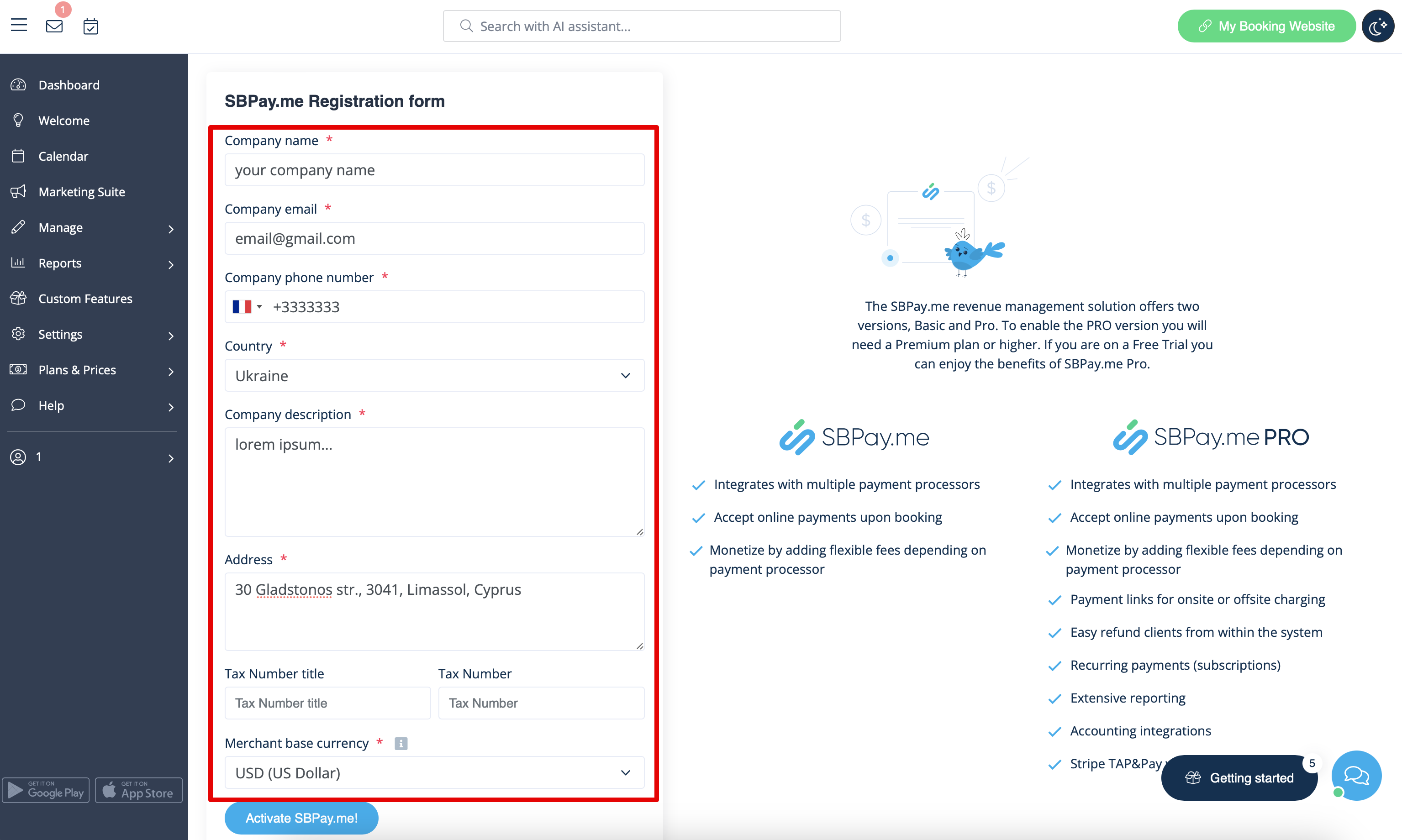
- 3. Pas indien nodig uw bedrijfsgegevens aan in het registratieformulier.
- (Deze worden automatisch ingevuld met de bedrijfsgegevens die u al in uw systeem hebt).
- Klik op de knop SBPay.me activeren hieronder.
- Gefeliciteerd! Uw SBPay.me-account is aangemaakt!
- 4. Ga naar de instellingen voor het betalingssysteem en voeg de inloggegevens toe van de betalingsgateway die u wilt gebruiken voor online betalingen.
- Als u al betalingssysteemgegevens had voordat u de SBPay.me-integratie inschakelde, zijn deze mogelijk gekopieerd naar SBPay.me, maar er kunnen enkele wijzigingen zijn in de betalingsstroom, dus u moet controleren of alle instellingen daar zijn toegevoegd voor een soepele online betalingsverwerking.
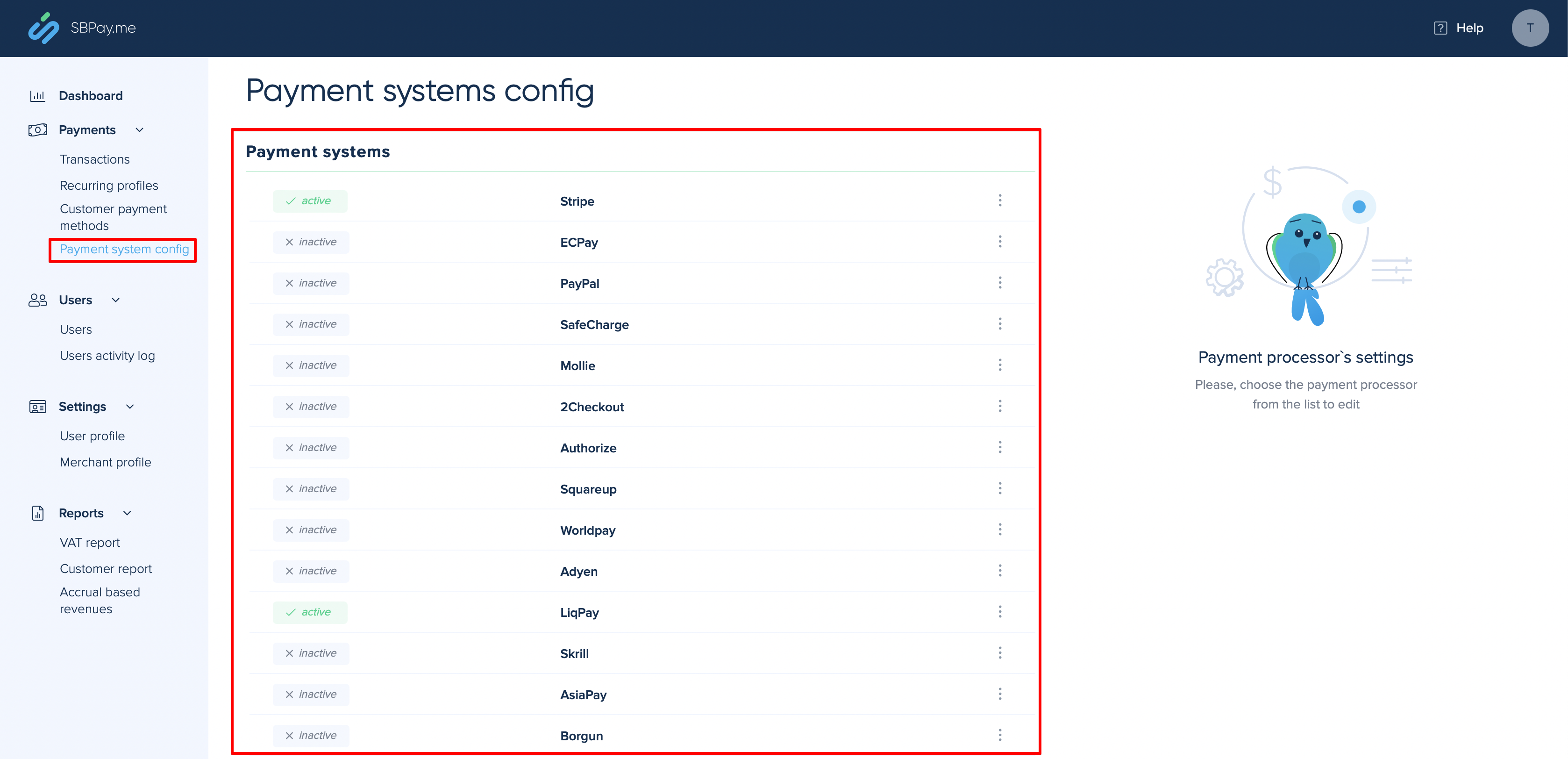
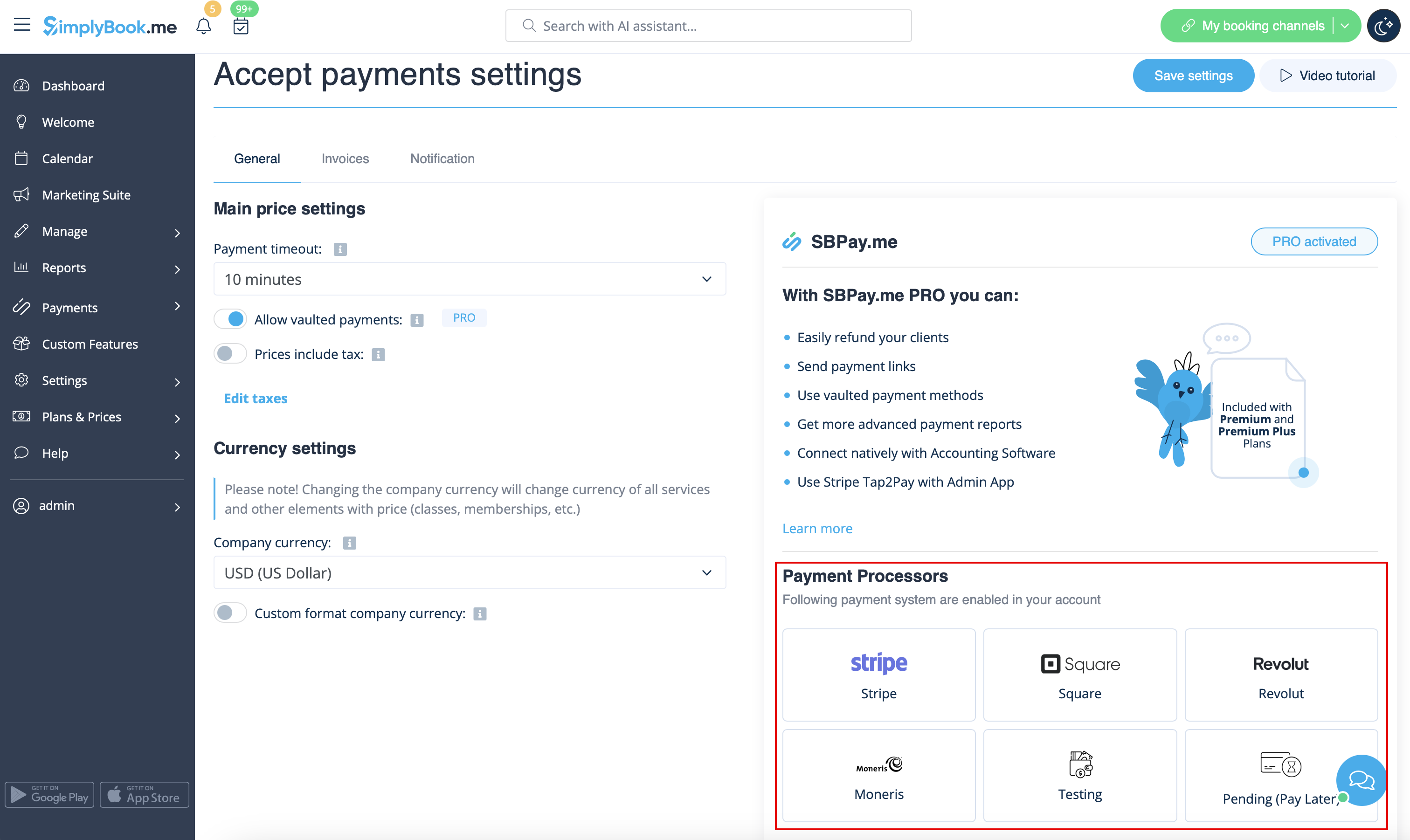
- 5. Zodra u de betalingsverwerkers heeft ingesteld, kunt u de actieve betalingsverwerkers ook zien aan de SimplyBook.me-kant.
- 6. Stel de prijzen voor uw diensten, lessen, pakketten, lidmaatschappen, cadeaubonnen, producten of extra's in uw SimplyBook.me-account in en u bent klaar om online betalingen te ontvangen.
Gebruik van PRO-versiefuncties
Als u een hoger abonnement heeft in uw SimplyBook.me-account, is de PRO-versie van SBPay.me standaard ingeschakeld, zodat u toegang krijgt tot de lijst met extra opties, zoals beveiligde betalingen, terugbetalingen en betalingslinks.
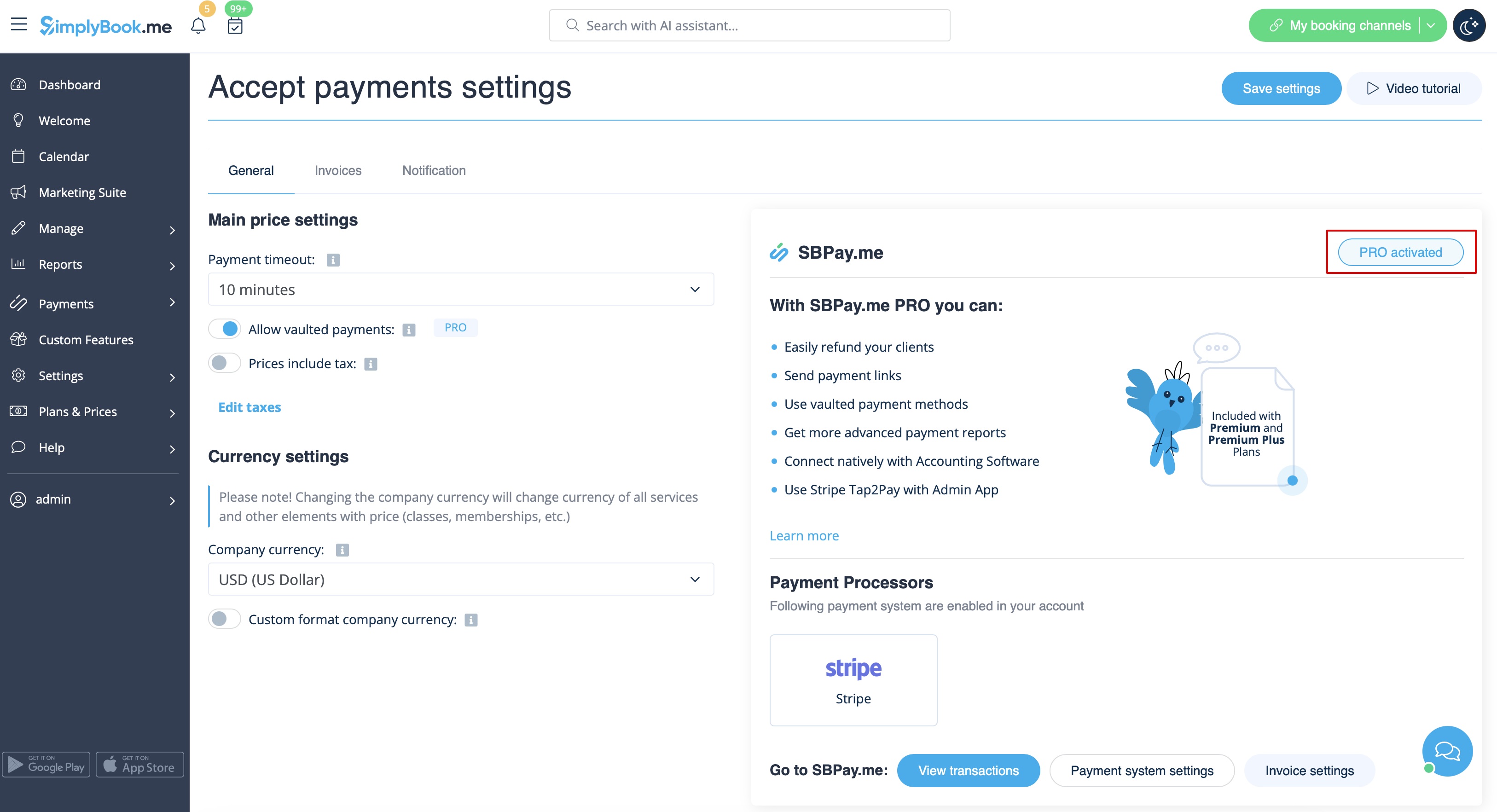
Als u niet van plan bent om de onderstaande extra opties te gebruiken, kunt u de "PRO"-versie eenvoudig uitschakelen door de schakelaar uit te zetten.
Gearchiveerde betalingen
Let op!
- Om deze functionaliteit te kunnen gebruiken, moet de aangepaste functie voor klantlogin zijn ingeschakeld.
- Niet alle betalingsgateways ondersteunen deze functie. Controleer de beschikbaarheid van een dergelijke optie in de tabel en/of neem contact op met de ondersteuning van uw betalingsgateway, aangezien er mogelijk aanpassingen aan hun kant nodig zijn.
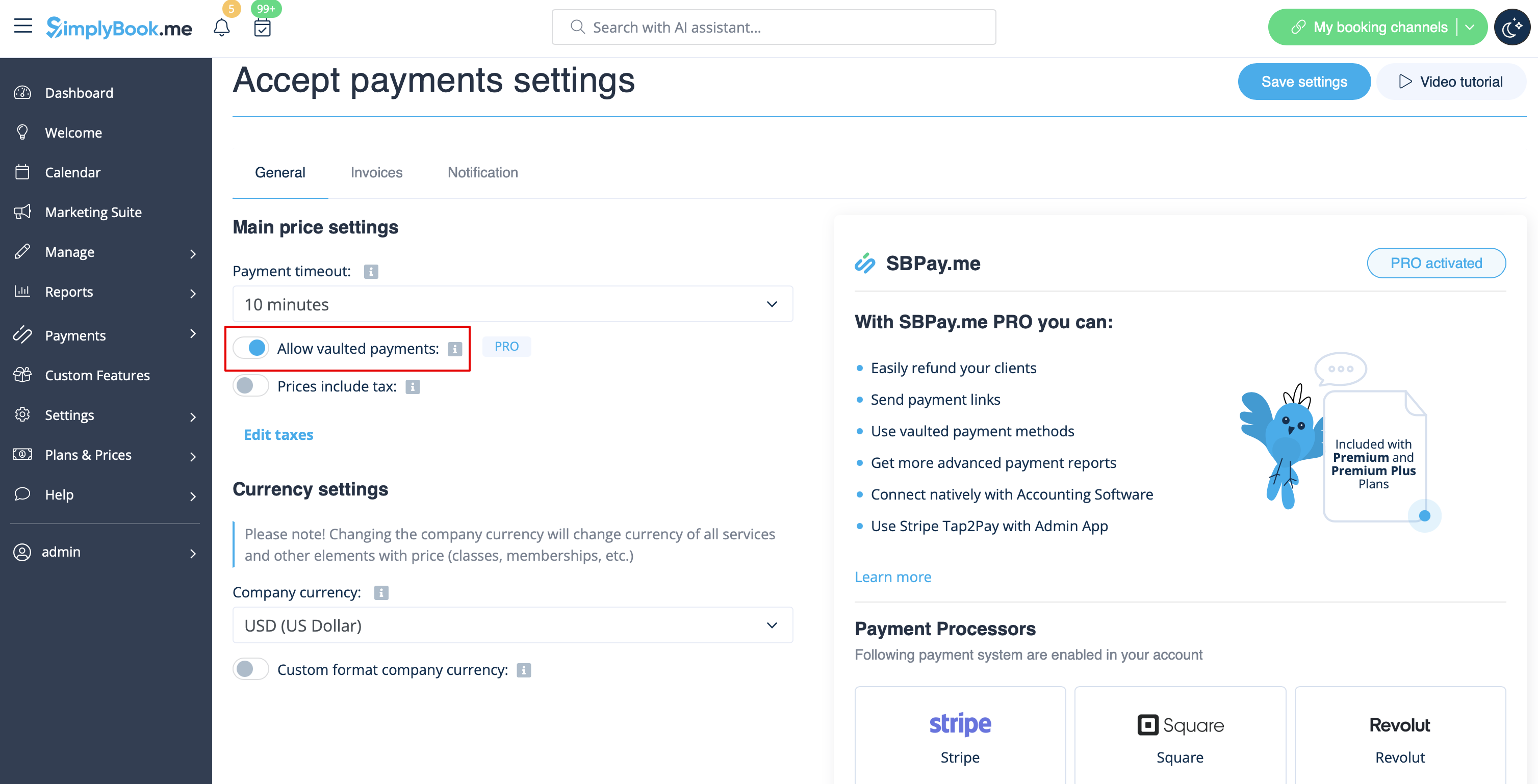
- 1. Schakel de optie 'Betalingen in kluis toestaan' in op de pagina 'Betalingen accepteren '.
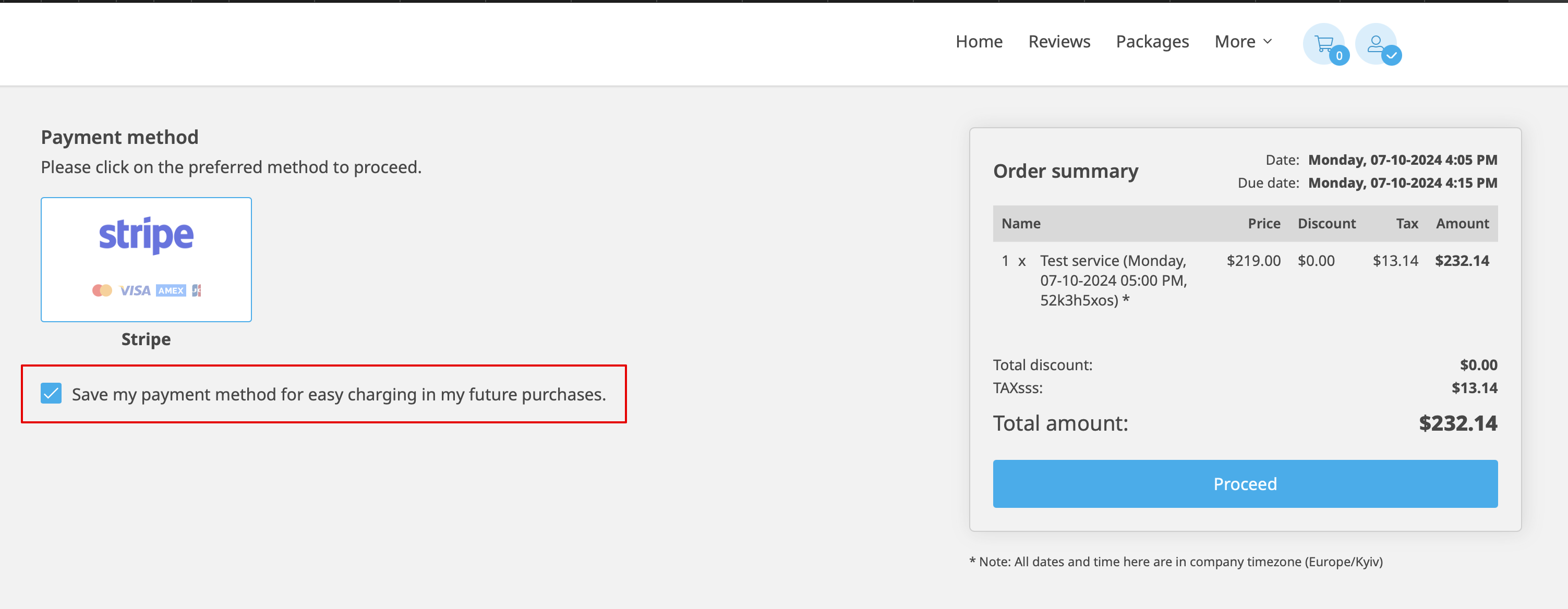
- 2. Als gevolg hiervan kan de klant bij het afrekenen op de boekingswebsite het selectievakje 'Mijn betaalmethode opslaan voor eenvoudige afhandeling bij toekomstige aankopen' aanvinken en worden zijn/haar betalingsgegevens aan het klantprofiel toegevoegd.
- 3. Bij de volgende aankoop of boeking aan de klantzijde kan hij/zij beslissen of hij/zij de bestelling wil bevestigen met de reeds opgeslagen betaalmethode of de nieuwe optie wil kiezen.
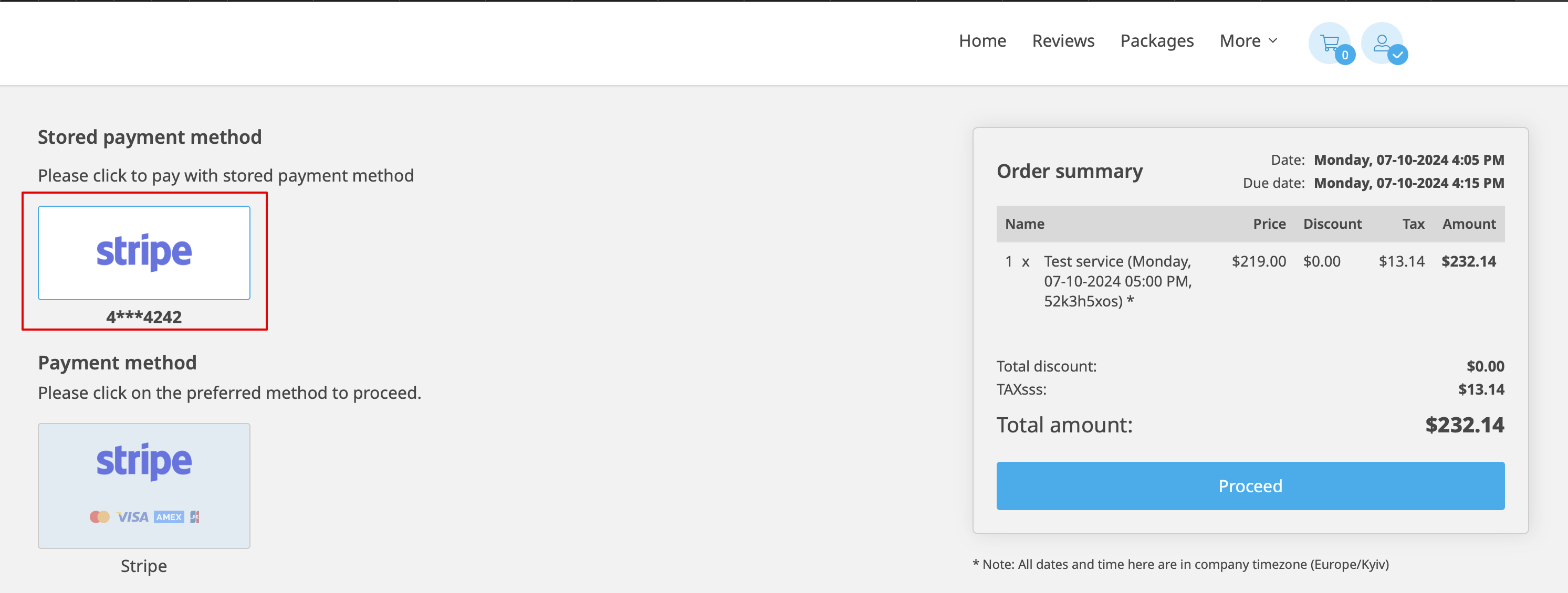
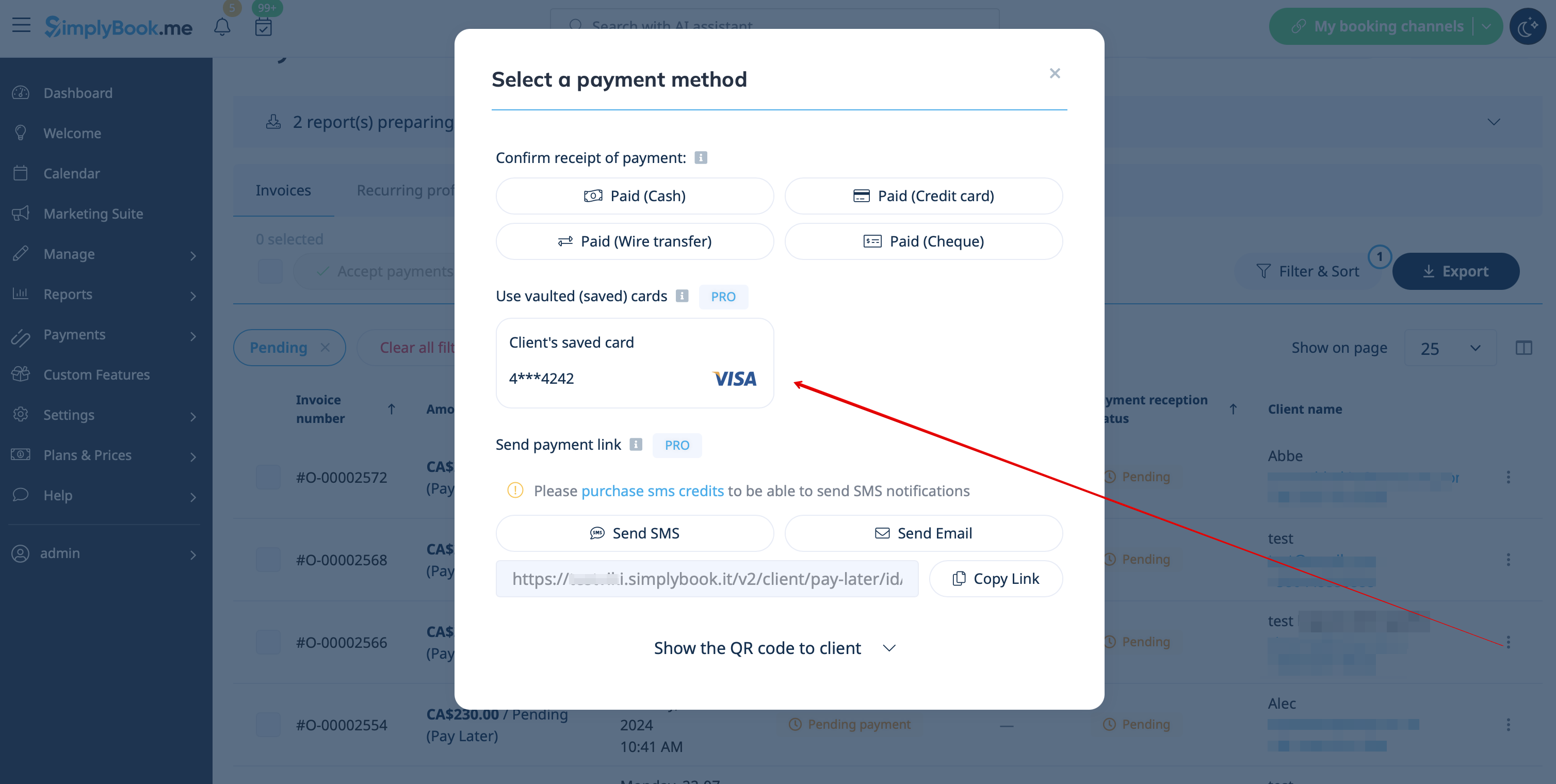
- 4. Tijdens de goedkeuring van de betaling aan de beheerderszijde, in het rapport Betalingstransacties of in het verkoopbeheer binnen de POS-interface, kunt u ook de opgeslagen betaalmethode van de klant gebruiken.

Betalingslinks
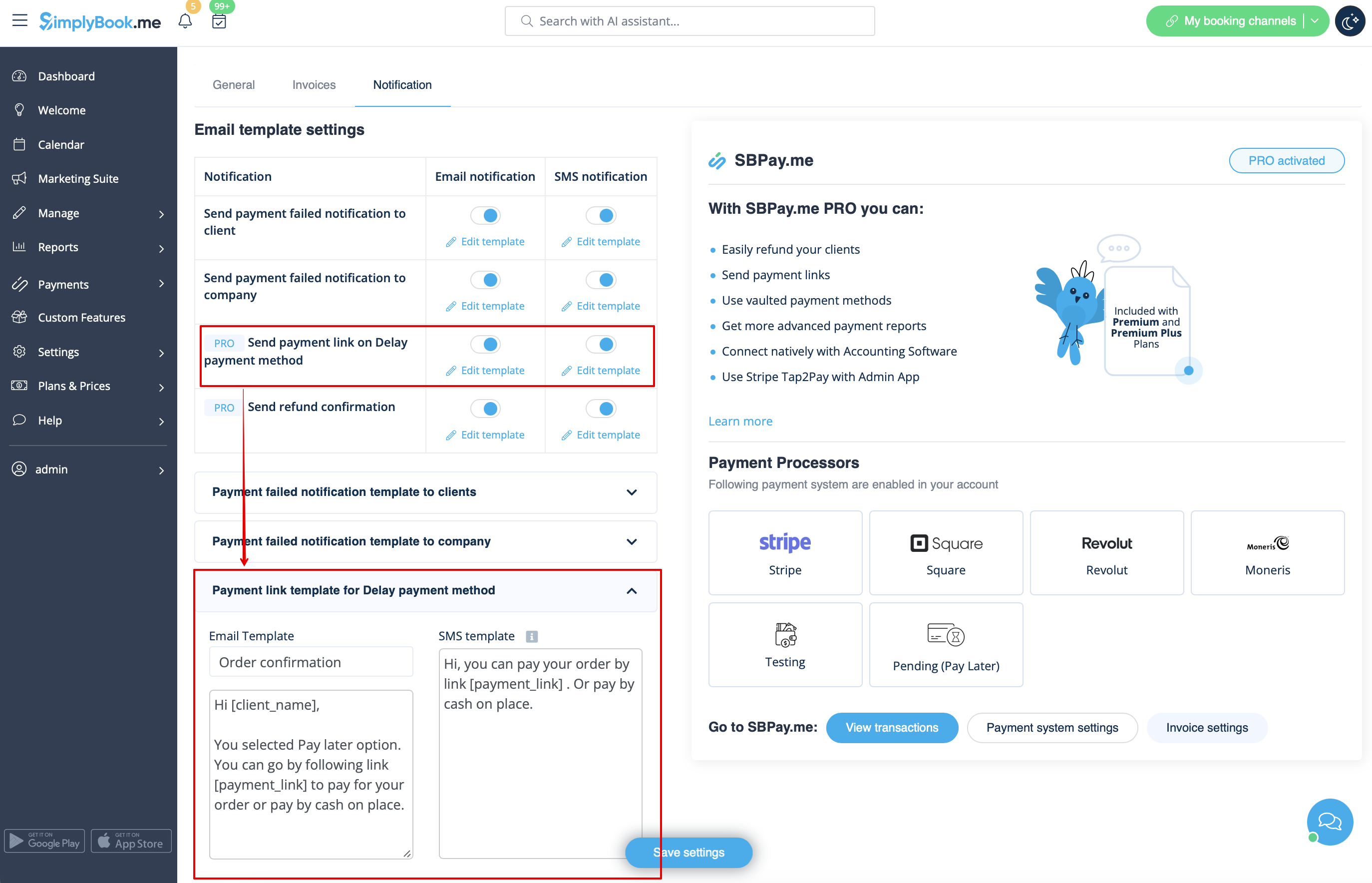
- 1. Schakel 'Betalingslink verzenden bij uitgestelde betaling' in de instellingen van de aangepaste functie 'Betalingen accepteren' in, in het blok 'E-mailsjablooninstellingen', en pas het sjabloon aan uw behoeften aan.
- Vergeet niet de variabele [payment_link] toe te voegen, zodat de klant gemakkelijk naar de betaling kan navigeren.
- 2. Nadat u de bestelling hebt aangemaakt vanuit de admin-kant of vanuit de POS-interface met Later betalen geselecteerd als betaalmethode, of als de klant Later betalen selecteert bij het afrekenen op de boekingswebsite, stuurt het systeem automatisch een e-mail/sms met de link om de verkoop te betalen (opgeslagen betaalmethoden kunnen in dit geval ook worden gebruikt).
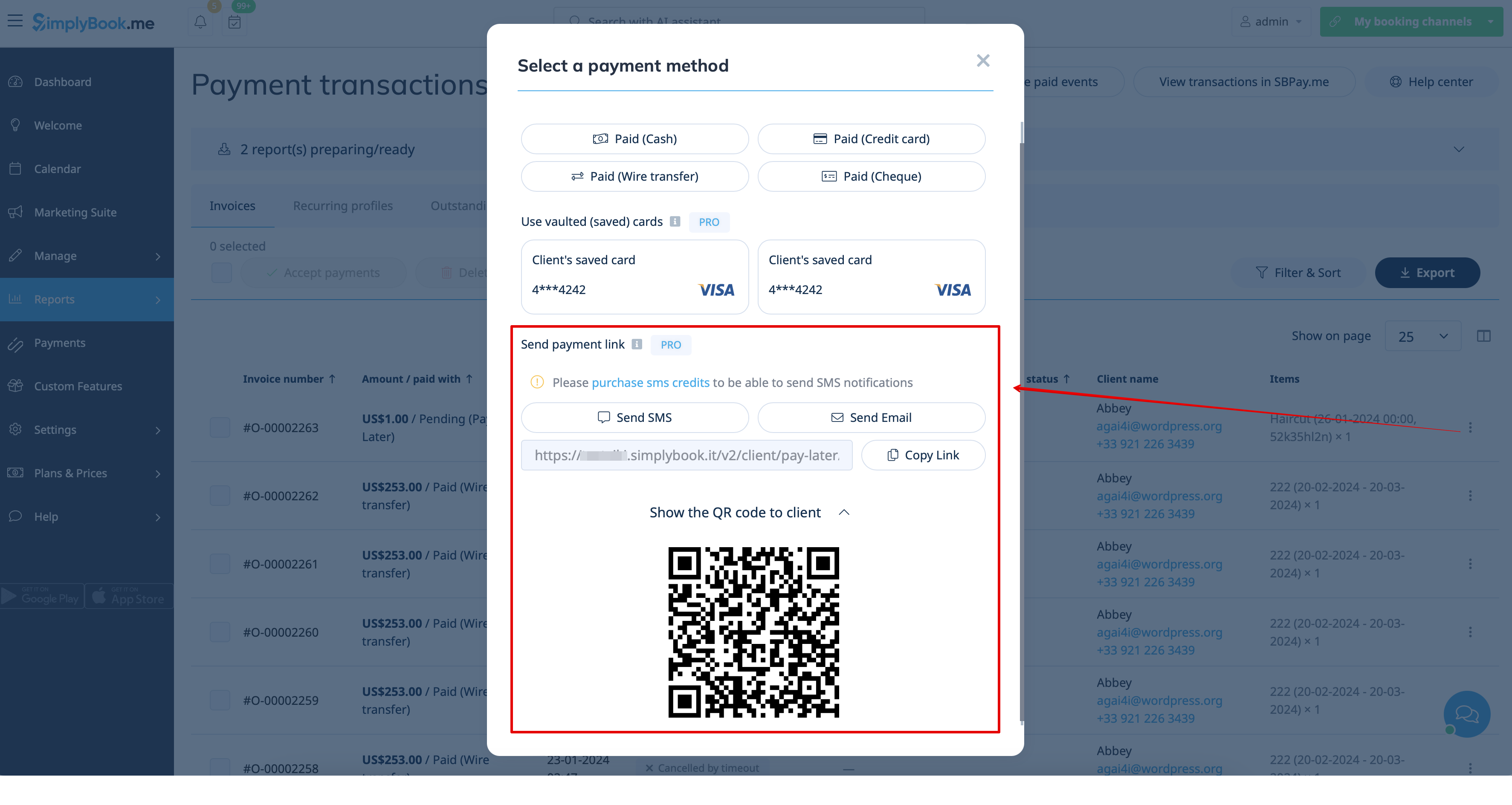
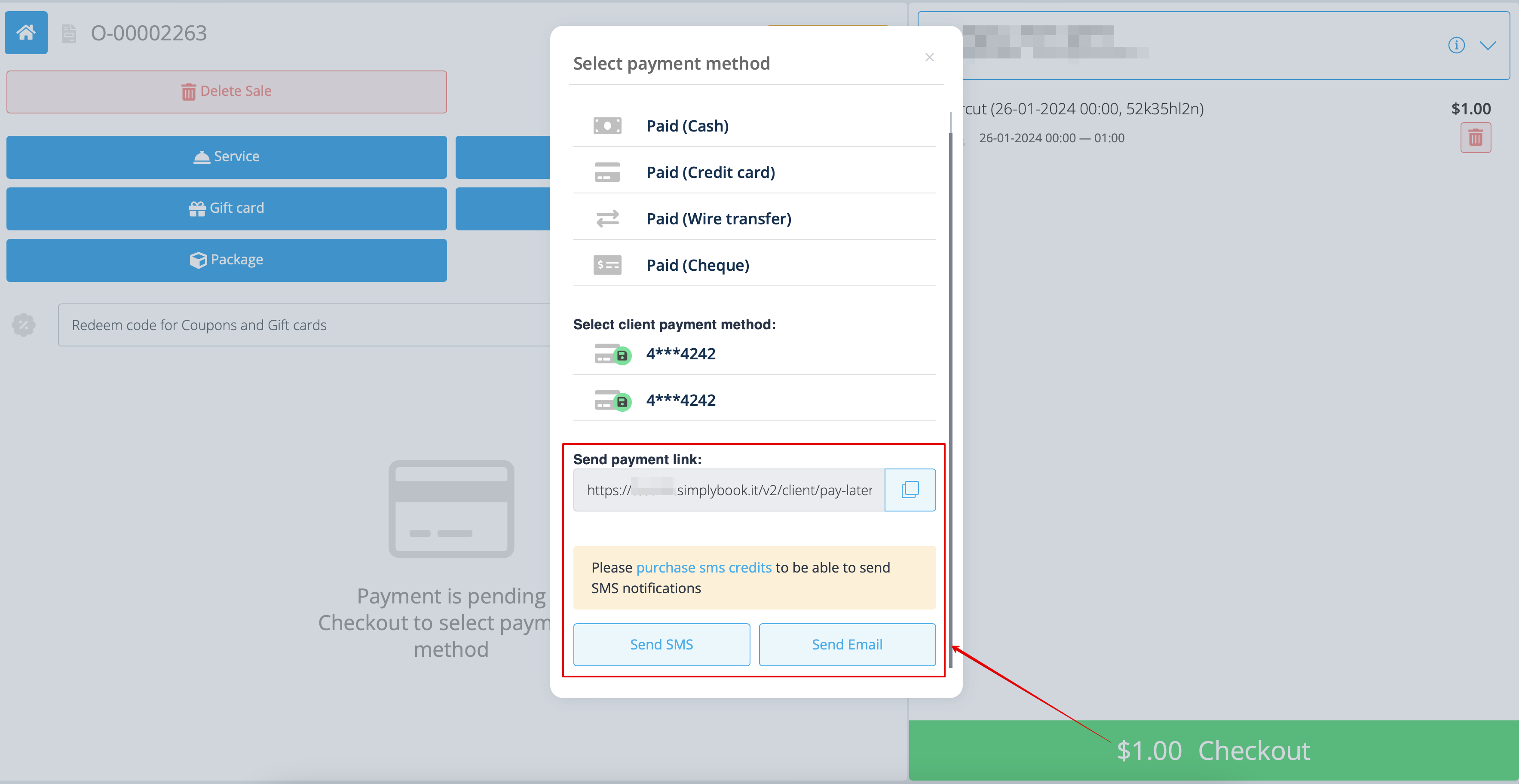
- 3. U kunt het verzenden van de betalingslink ook activeren vanuit het rapport Betalingstransacties of de POS-interface, of u kunt de betalingslink voor de specifieke bestelling daar kopiëren en deze via uw eigen communicatiekanalen naar uw klant sturen.
- Als de klant bij u is, kunt u hem/haar ook de QR-code laten zien om met zijn/haar telefooncamera te scannen, waarna hij/zij wordt doorgestuurd naar de betaalpagina om de bestelling af te ronden. Deze vindt u in Rapporten -> Betalingstransacties -> Betaling ontvangen.
Eenvoudig mobiel betalen vanuit de app: videohandleiding
Refunds
It may happen that you need to return the money back to your customer due to some reason and now it is possible to easily manage such cases with SBPay.me PRO integration.
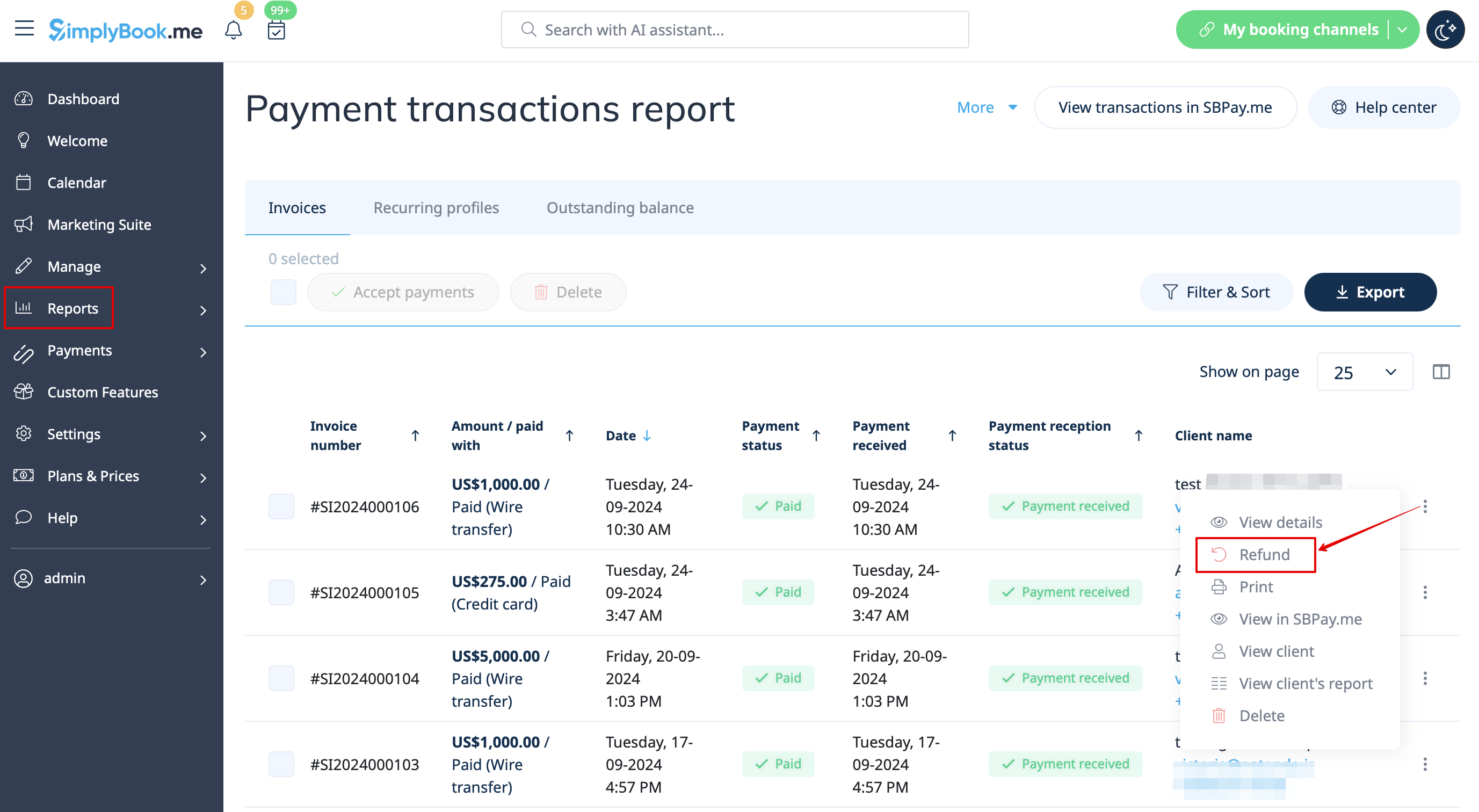
- 1. After you activate SBPay.me integration in your SimplyBook.me account you can simply navigate to Reports -> Payment transactions -> find the necessary invoice -> click on Actions and select Refund from the drop down menu. Confirm the action and the refund will be automatically made to the corresponding client's account.
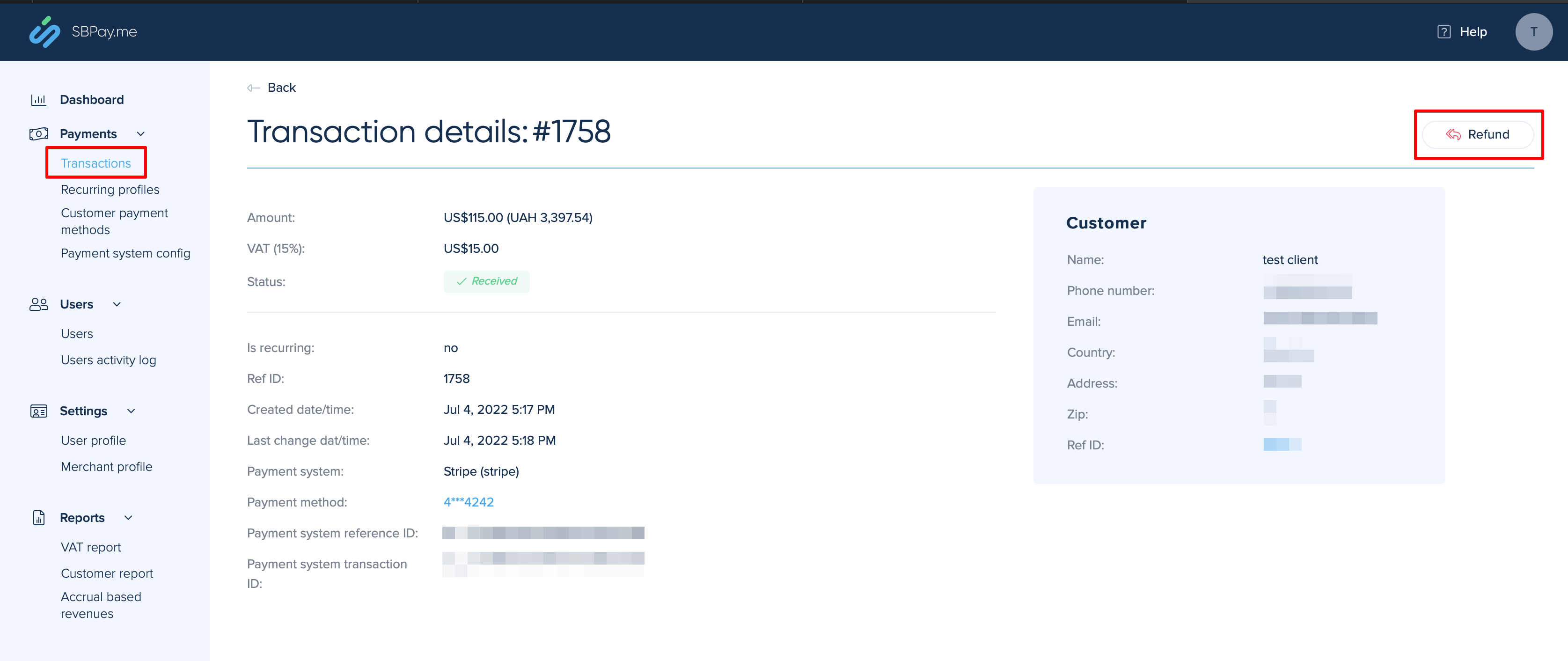
- 2. Or you can go directly to the SBPay.me interface -> Transactions -> open the necessary record and select Refund.
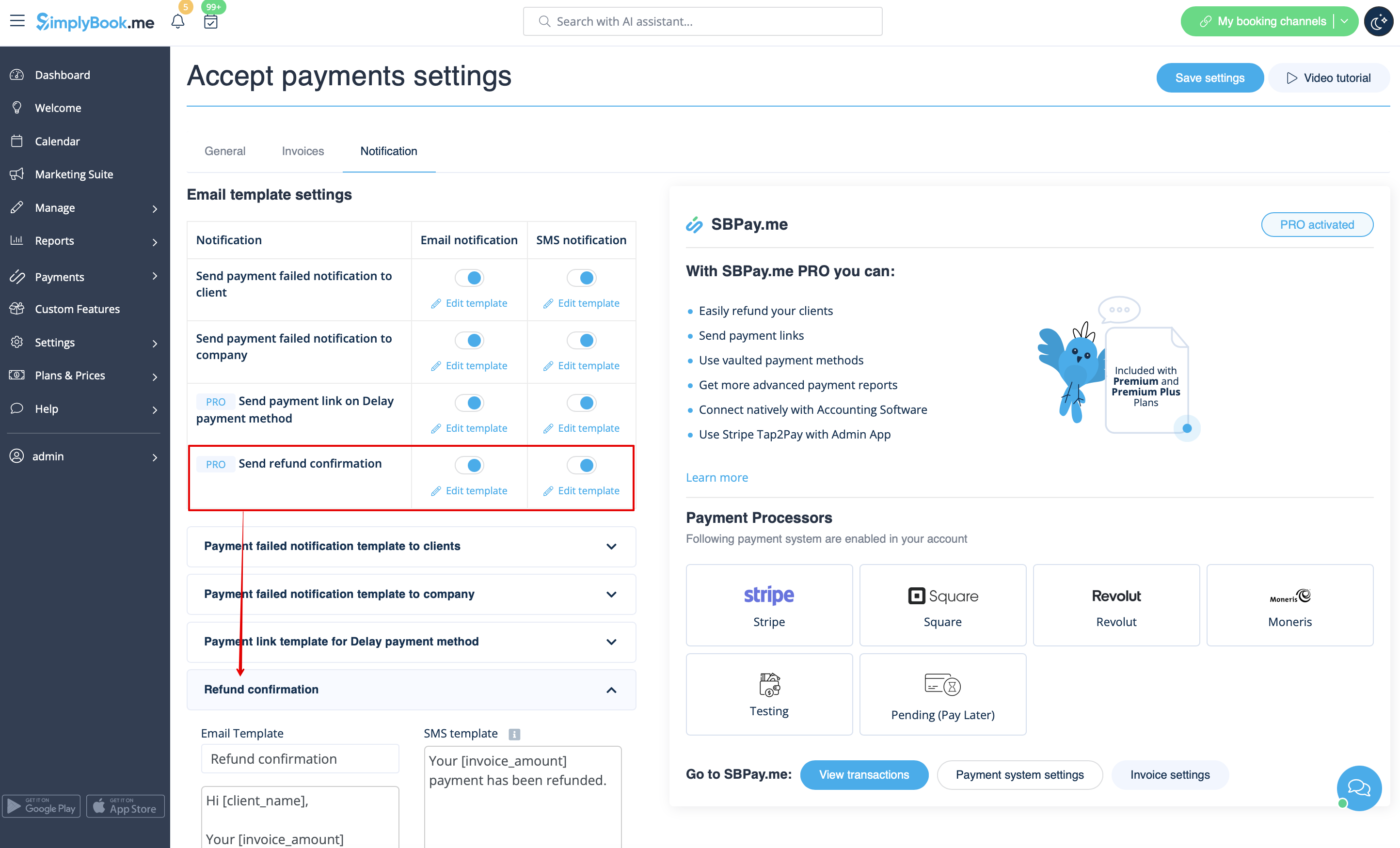
- 3. In the Accept payments custom feature settings you can also enable Send refund confirmation option and adjust the templates to automatically notify your clients via email and/or sms about the refunds.
SBPay.me Invoices
You can now easily adjust the invoices settings to your needs and send them to your customers after any purchase.
- How to use
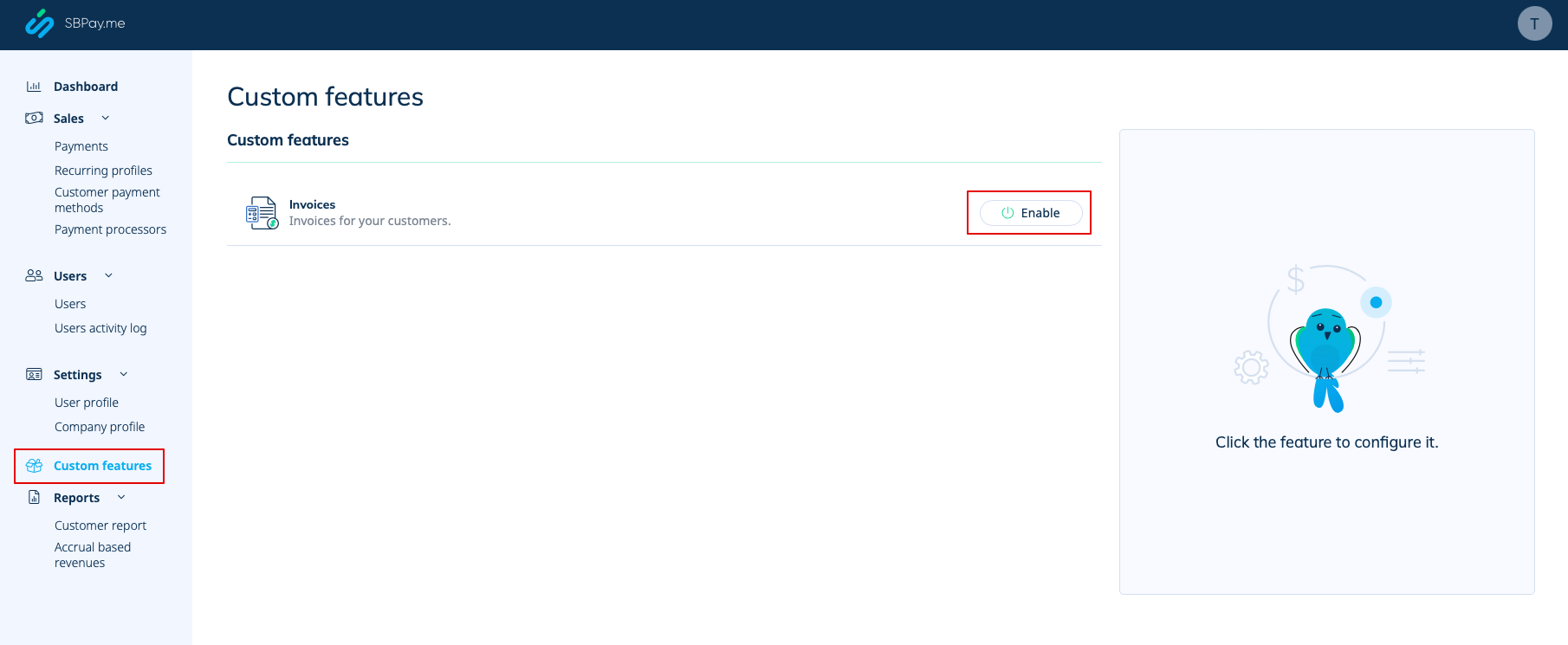
- 1. Enable the corresponding option on your "Custom features" page.
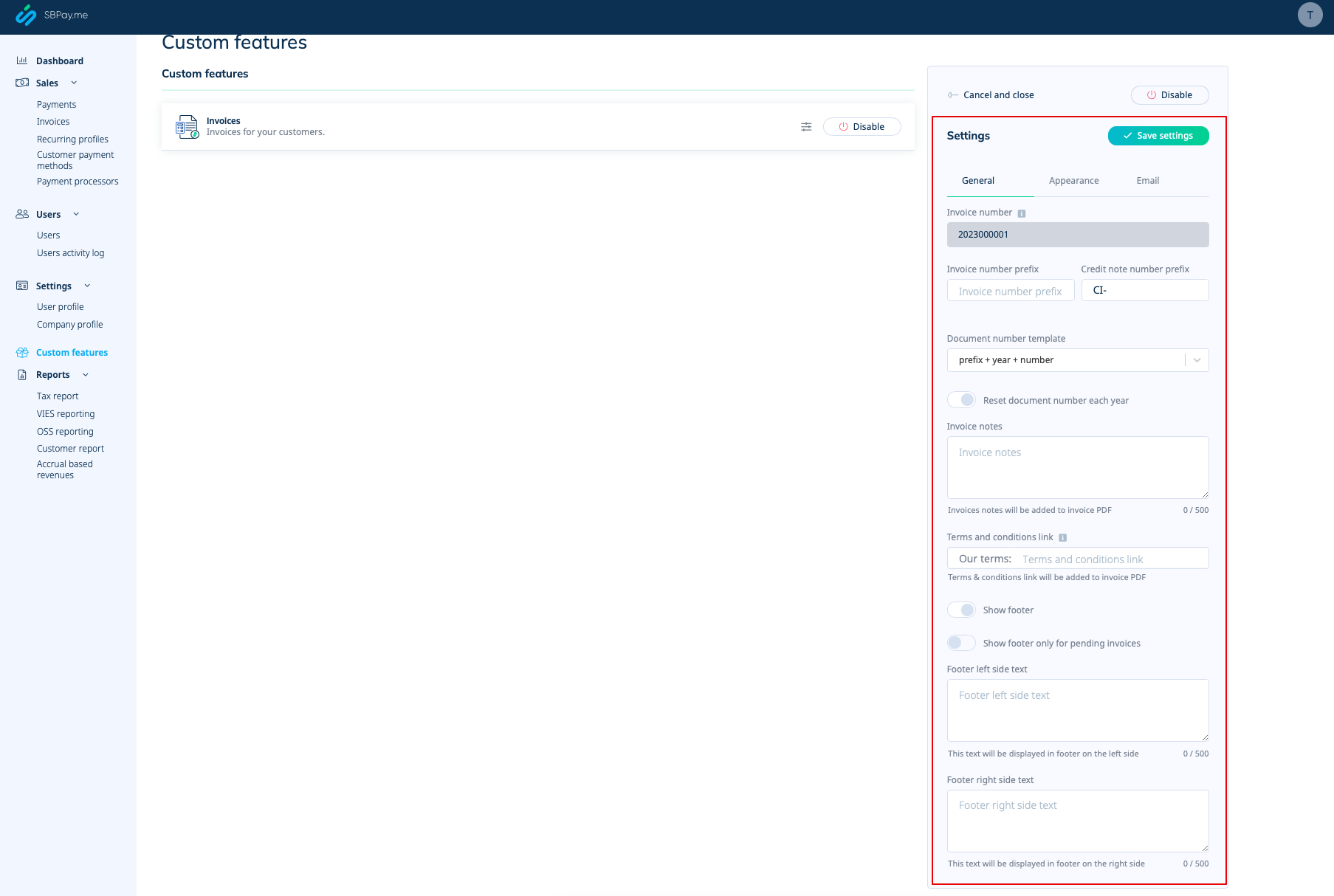
- 2. Adjust the general settings to your needs: the invoice and credit note numbering format, add notes, link to your Terms and Conditions and footer information if necessary.
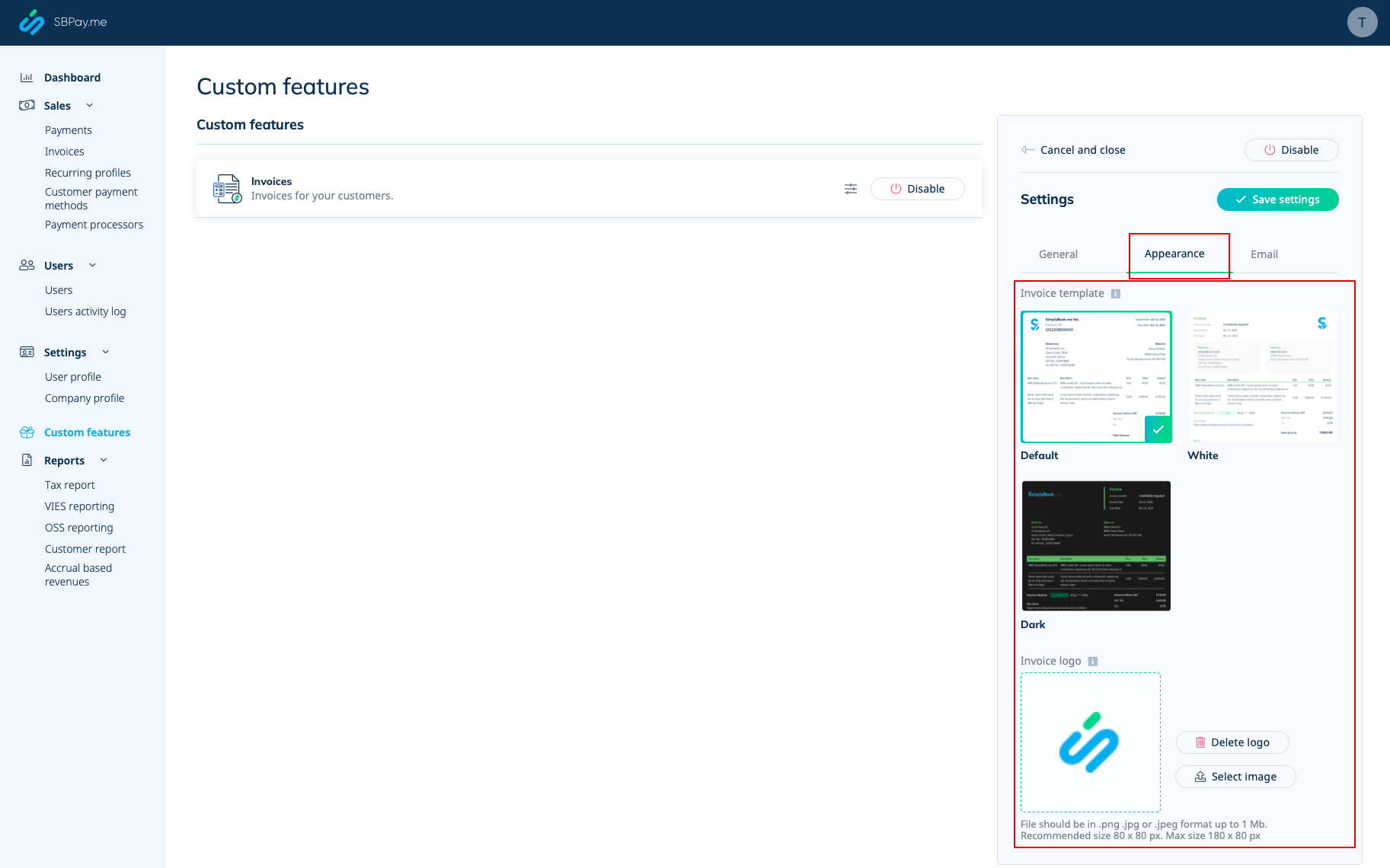
- 3. Set the desired look in "Appearance" tab, upload your company logo.
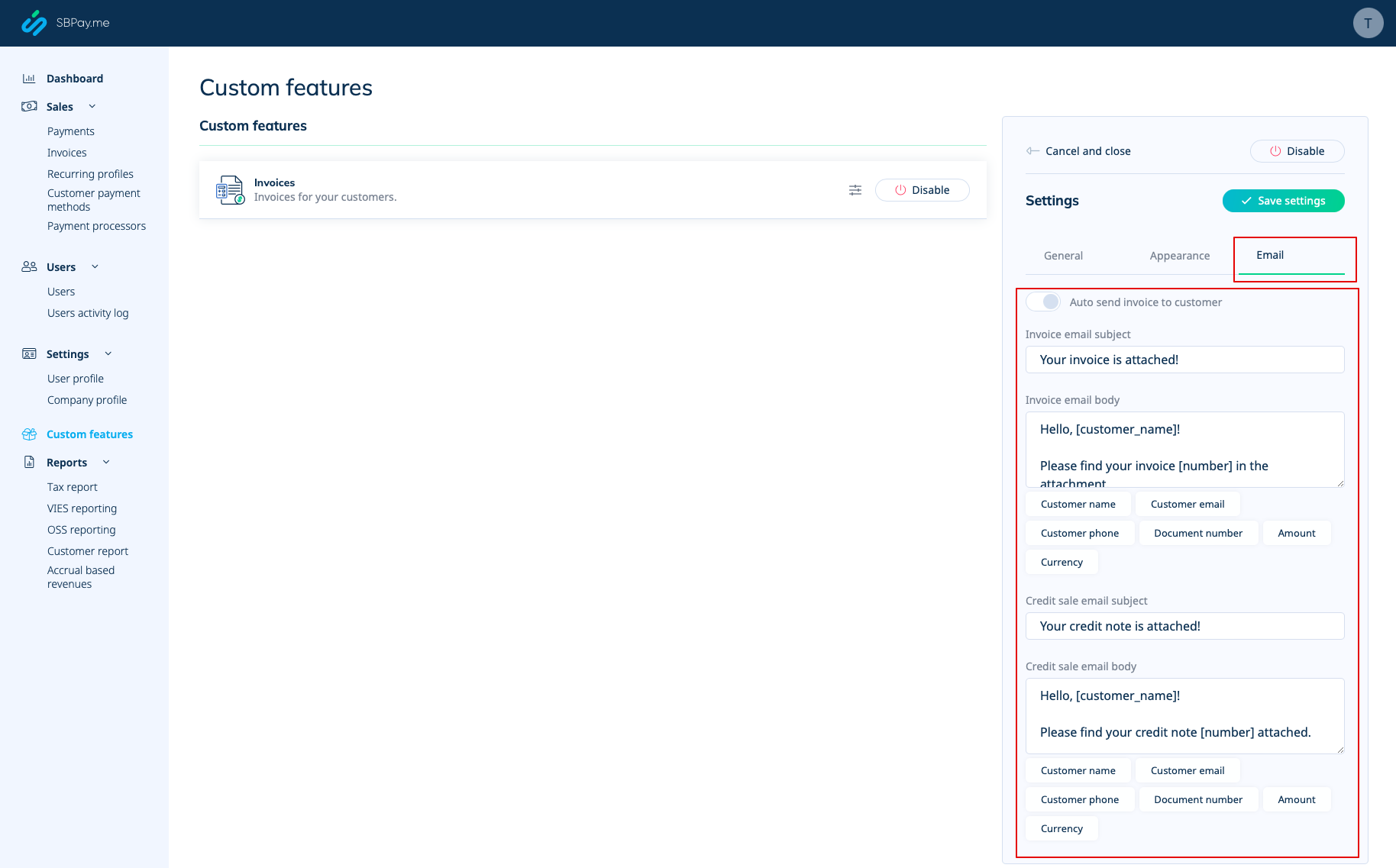
- 4. Switch to the third, "Email", tab and set the notifications templates. You can use several variables mentioned below the form. save your settings.
- 5. In the Sales -> Invoices you can see the list of created invoices and credits notes. You can resend them to the clients when needed, issue credit notes, print or simply view the details.
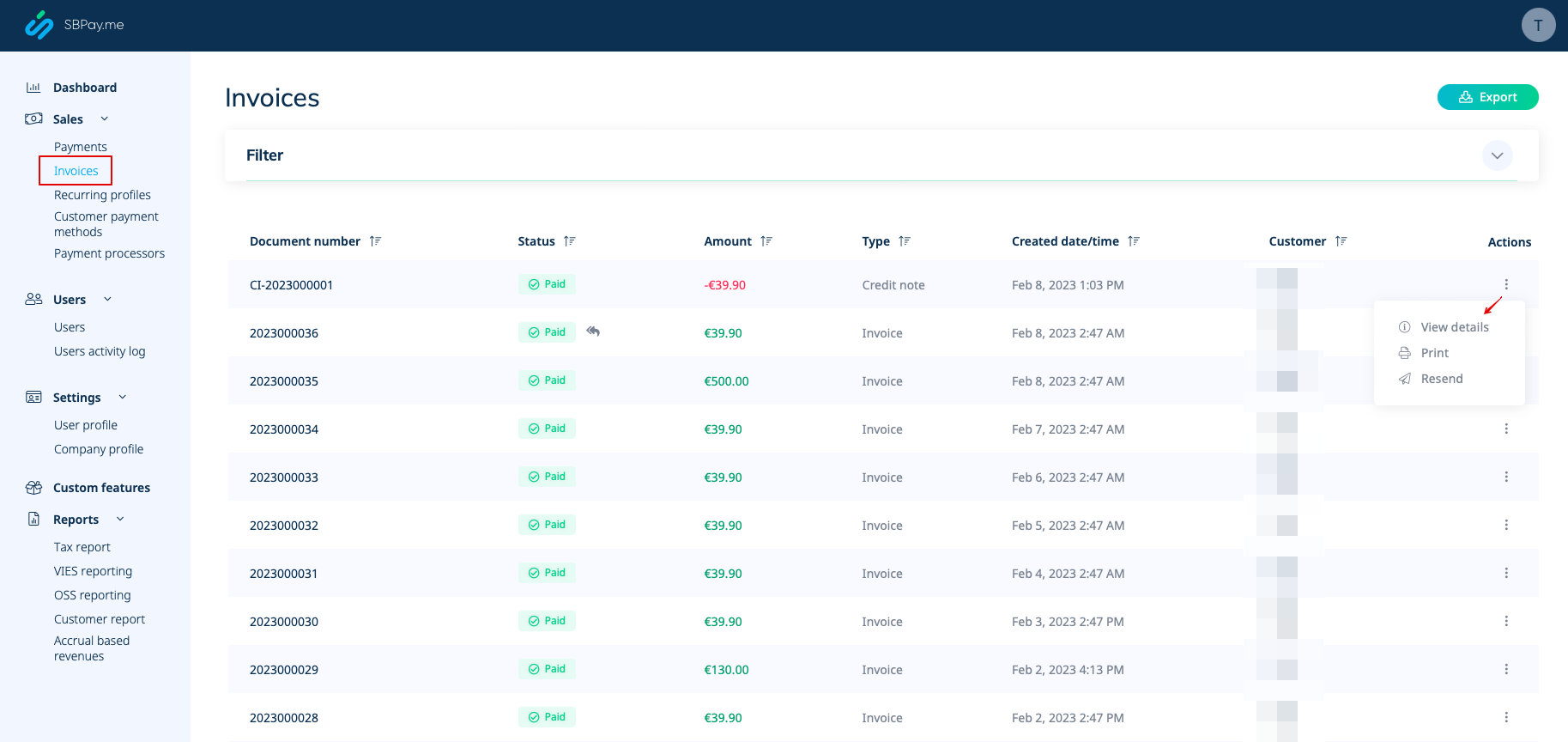
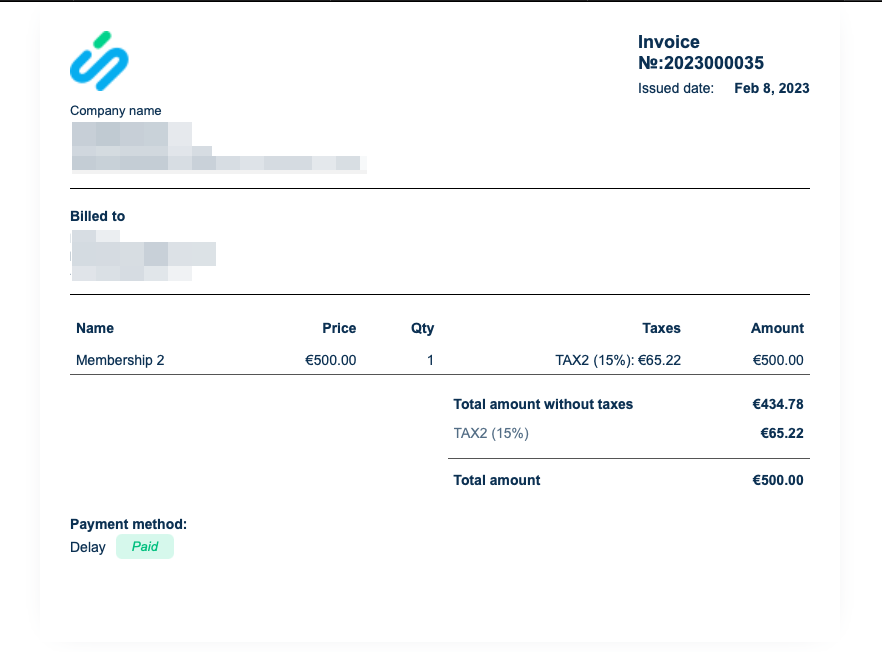
- 6. Here is the example of how print invoice version can look like.
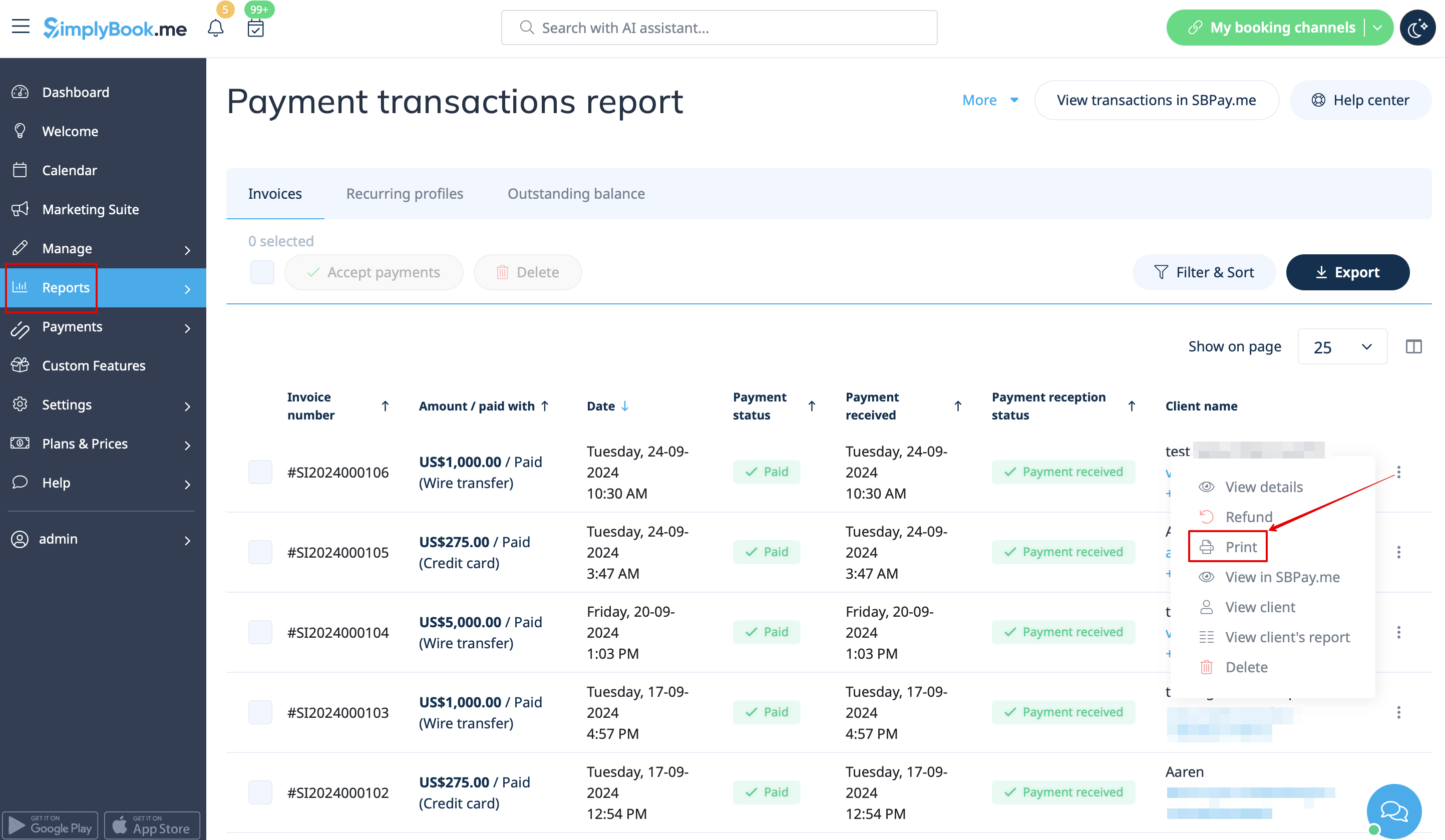
- 7. You can also print the invoices directly from the SimplyBook.me system, Reports -> Payment transactions, by selecting the corresponding action per record.
Please note! Importing invoices from external platforms directly into the system is not supported. However, SimplyBook.me offers integration options with various accounting software, including Xero, QuickBooks, and FreshBooks. You can efficiently manage your invoices within your preferred accounting system.
SBPay.me Reports
SBPay.me is just starting but already has several useful reports that you can use to track your payments:
- 1. Dashboard - contains currencies, revenues, payment systems and tags charts.
- 2. Payments - allows to view, confirm or refund orders.
- 3. Invoices - appears when the corresponding custom feature is enabled and allows to view, resend invoices, issue credit notes.
- 4. Recurring profiles - contains the information on memberships recurring profiles. You can easily view, prolong or cancel profiles on that page.
- 5. Customers payment methods - allows you to view the list of saved payment methods of your clients, check the list of related payments and disable the profiles if necessary.
- 6. Tax report - allows to see a list of all your sales within each country (if your sales are in more than one country) and the tax amounts as well as total count of transactions
- 7. VIES report - The purpose of a VIES (VAT Information Exchange System) tax report is to ensure compliance with EU VAT regulations by enabling businesses to report and verify cross-border transactions within the European Union.This report is especially important for businesses engaged in B2B cross-border trade within the EU. This report shows you a list of your customers, including their contact details, their tax numbers, their residence and the amount of sales to each of them.
- 8. OSS report - The purpose of an OSS (One Stop Shop) tax report is to simplify VAT reporting for businesses that sell goods or services to customers in multiple EU countries. It allows businesses to manage their VAT obligations in one place, avoiding the need to register for VAT in every country where they sell. The OSS report is particularly useful for e-commerce businesses and service providers who sell to customers in multiple EU countries. This report shows you the total sales and taxed amount within each of the countries you sell to, the VAT tax rate in each of the countries as well as total transactions counts in each country.
- 9. Customer report - shows you a table including name of each customer, their contact details, when t hey became your clients, count of succesful payments, number of error payments, when they made their last purchase and their last payment status (received, pending, error). The report also allows you to select a specific client and see all the concerning details.
- 10. Accrual based revenue - is related to the revenue earned/recognized by a business for which the invoice is yet to be billed to the customer.
- 11. Subscription Metrics - allows to track the trends of your recurring subscription customers. View graphs showing active customers, monthly sales trends, and a comparison of new customers versus those who have left.
- 12. Snowball MRR Report - is a detailed table showing trends in your recurring revenue. Easily see the number of active customers, new sign-ups, cancellations, and the total active recurring customers at the end of each period.
Create payment requests
Video tutorial
With just a few clicks, users can easily generate payment links that can be shared with their clients via email, sending the direct link or QR code. This feature enables business owners and individuals to easily collect payments for their goods or services, without the need for a website or an online store.
In addition, it allows users to set up recurring payments, so that they can automatically charge their clients on a regular basis. This is a useful feature for businesses that offer subscription-based services or recurring billing.
Users can also choose from a wide selection of payment processors to be used for payments or to choose previously saved payment method, making it easy for returning customers to pay for their purchases quickly and securely.
For businesses that need to keep track of their payments, SBPay.me offers the ability to list detailed descriptions of sale items, including any additional taxes or discounts. This feature ensures that users can easily monitor their sales and keep accurate records.
Finally, SBPay.me allows users to tag payments so that they can group them when creating reports. This feature provides an organized way to manage payment data and generate comprehensive reports. Overall, SBPay.me is a powerful payment system that provides a simple, yet effective way to manage payments and increase revenue.
More features coming!

