Created page with "<br><br><br><br> left<br>Vil du sende dine kunder og medarbejdere attraktive e-mail-notifikationer med dit eget tilpassede branding, links, knapper og mange andre muligheder? Når du aktiverer denne tilpassede funktion, får du adgang til HTML-editoren, hvor du nemt kan trække og slippe forskellige indholdsblokke, tilføje billeder, tekst, kontaktoplysninger osv. Bemærk, at indhold relateret til booking eller køb samt tilføjelse af de t..." |
Created page with "<span style="background-color:#ffe9e9; padding:5px; border-radius:5px;">'''Bemærk!''' Denne tilpassede funktion er kun tilgængelig med betalte abonnementer.</span>" |
||
| Line 31: | Line 31: | ||
;Sådan bruges | |||
; | :1. Aktivér funktionen <span style="background-color:#d4f8e5; padding:5px; border-radius:5px;">Brugerdefineret e-mail</span> på siden <span style="background-color:#d4f8e5; padding:5px; border-radius:5px;">Brugerdefinerede funktioner</span> i afsnittet <span style="background-color:#d4f8e5; padding:5px; border-radius:5px;">Udseende og følelse</span>. | ||
:1. | |||
[[File:Custom email enable path redesigned.png|1200px|border|center|link=https://help.simplybook.me/images/4/40/Custom_email_enable_path_redesigned.png]] | [[File:Custom email enable path redesigned.png|1200px|border|center|link=https://help.simplybook.me/images/4/40/Custom_email_enable_path_redesigned.png]] | ||
<br><br> | <br><br> | ||
:2. | :2. Klik på linket <span style="background-color:#d4f8e5; padding:5px; border-radius:5px;">Opret skabelon</span> for at komme til editoren og kunne opsætte din første skabelon. | ||
[[File:Custom domain settings path redesigned.png|1200px|border|center|link=https://help.simplybook.me/images/e/ef/Custom_domain_settings_path_redesigned.png]] | [[File:Custom domain settings path redesigned.png|1200px|border|center|link=https://help.simplybook.me/images/e/ef/Custom_domain_settings_path_redesigned.png]] | ||
<br><br> | <br><br> | ||
:3. | :3. Vælg enten <span style="background-color:#d4f8e5; padding:5px; border-radius:5px;">Opret fra skabeloner</span>, hvis du vil vælge en af vores smukke foruddefinerede muligheder, eller <span style="background-color:#d4f8e5; padding:5px; border-radius:5px;">Opret ny tom</span> for at begynde at tilføje alle elementerne fra bunden.<br> | ||
: | :Tilføj skabelonnavn til den tomme skabelontype (foruddefinerede skabeloner kan omdøbes under redigering) og klik på knappen <span style="background-color:#d4f8e5; padding:5px; border-radius:5px;">Opret</span> for at komme til redigeringsfunktionen. | ||
[[File:Create new custom email template path redesigned.png|1200px|border|center|link=https://help.simplybook.me/images/6/62/Create_new_custom_email_template_path_redesigned.png]] | [[File:Create new custom email template path redesigned.png|1200px|border|center|link=https://help.simplybook.me/images/6/62/Create_new_custom_email_template_path_redesigned.png]] | ||
<br><br> | <br><br> | ||
:4. | :4. Tilføj/rediger tekstblokke, tilføj billeder, links, menuer, kolonner, upload dit firmalogo, brug brandfarver og meget mere med den integrerede editor.<br> | ||
: | :Brug værktøjerne i højre side af siden og visualiseringen i midten, træk og slip, juster de ønskede elementer for at få det ønskede udseende. | ||
[[File:Using editor custom email redesigned.png|1200px|border|center|link=https://help.simplybook.me/images/1/15/Using_editor_custom_email_redesigned.png]] | [[File:Using editor custom email redesigned.png|1200px|border|center|link=https://help.simplybook.me/images/1/15/Using_editor_custom_email_redesigned.png]] | ||
[[File:Using editor blocks custom email empty template redesigned.png|1200px|border|center|link=https://help.simplybook.me/images/9/92/Using_editor_blocks_custom_email_empty_template_redesigned.png]] | [[File:Using editor blocks custom email empty template redesigned.png|1200px|border|center|link=https://help.simplybook.me/images/9/92/Using_editor_blocks_custom_email_empty_template_redesigned.png]] | ||
<br><br> | <br><br> | ||
:5. | :5. Du kan også skifte til <span style="background-color:#d4f8e5; padding:5px; border-radius:5px;">mobiltilstand</span> for at justere e-mailens udseende til mobiltelefoner. | ||
[[File:Mobile view custom email redesigned.png|1200px|border|center|link=https://help.simplybook.me/images/8/84/Mobile_view_custom_email_redesigned.png]] | [[File:Mobile view custom email redesigned.png|1200px|border|center|link=https://help.simplybook.me/images/8/84/Mobile_view_custom_email_redesigned.png]] | ||
<br><br> | <br><br> | ||
:6. | :6. Det er vigtigt <span style="background-color:#d4f8e5; padding:5px; border-radius:5px;">at tilføje <nowiki>{{content}}</nowiki> -tagget</span> til det ønskede sted i skabelonen, da det i rigtige e-mails vil blive erstattet med oplysninger om bookingen/købet.<br> | ||
: | :Uden denne tag vil tilpasningen ikke blive anvendt på notifikationen, og den vil blive sendt som almindelig tekst. | ||
:<span style="background-color:#ffe9e9; padding:5px; border-radius:5px;">''' | :<span style="background-color:#ffe9e9; padding:5px; border-radius:5px;">'''Bemærk!''' Alle variabler, der er relateret til aftaler eller købsdata, bør kun bruges i <span style="background-color:#d4f8e5; padding:5px; border-radius:5px;">Indstillinger</span> -> <span style="background-color:#d4f8e5; padding:5px; border-radius:5px;">E-mail- og SMS-indstillinger</span> eller i de tilsvarende <span style="background-color:#d4f8e5; padding:5px; border-radius:5px;">tilpassede funktionsindstillinger</span>.</span> | ||
[[File:Variables overview redesigned.png|1200px|border|center|link=https://help.simplybook.me/images/d/d3/Variables_overview_redesigned.png]] | [[File:Variables overview redesigned.png|1200px|border|center|link=https://help.simplybook.me/images/d/d3/Variables_overview_redesigned.png]] | ||
<br><br> | <br><br> | ||
:( | :(valgfrit) Du kan også bruge <span style="background-color:#d4f8e5; padding:5px; border-radius:5px;"><nowiki>{{name}}</nowiki></span> og <span style="background-color:#d4f8e5; padding:5px; border-radius:5px;"><nowiki>{{email}}</nowiki></span> her, hvis du har brug for at angive modtagerens navn og/eller e-mail separat fra hovedindholdet i meddelelsen. | ||
:<span style="background-color:#ffe9e9; padding:5px; border-radius:5px;">''' | :<span style="background-color:#ffe9e9; padding:5px; border-radius:5px;">'''Bemærk!''' Skabeloner gemmes automatisk med jævne mellemrum, så du ikke behøver at gemme dem manuelt.</span> | ||
[[File:Custom email tags path redesigned.png|1200px|border|center|link=https://help.simplybook.me/images/3/3b/Custom_email_tags_path_redesigned.png]] | [[File:Custom email tags path redesigned.png|1200px|border|center|link=https://help.simplybook.me/images/3/3b/Custom_email_tags_path_redesigned.png]] | ||
<br><br> | <br><br> | ||
:7. | :7. Brug indstillingen <span style="background-color:#d4f8e5; padding:5px; border-radius:5px;">Vis forhåndsvisning</span> nederst for at kontrollere udseendet. | ||
[[File:Preview option custom email redesigned.png|1200px|border|center|link=https://help.simplybook.me/images/f/ff/Preview_option_custom_email_redesigned.png]] | [[File:Preview option custom email redesigned.png|1200px|border|center|link=https://help.simplybook.me/images/f/ff/Preview_option_custom_email_redesigned.png]] | ||
<br><br> | <br><br> | ||
:8. ( | :8. (valgfrit) Hvis du har brug for lignende designs med kun små ændringer eller med andet indhold, skal du bruge <span style="background-color:#d4f8e5; padding:5px; border-radius:5px;">Clone-indstillingen</span> til at lave en kopi af den tidligere gemte skabelon. | ||
[[File:Custom email clone template path redesigned.png|1200px|border|center|link=https://help.simplybook.me/images/e/e1/Custom_email_clone_template_path_redesigned.png]] | [[File:Custom email clone template path redesigned.png|1200px|border|center|link=https://help.simplybook.me/images/e/e1/Custom_email_clone_template_path_redesigned.png]] | ||
<br><br> | <br><br> | ||
:9. | :9. Når alle de nødvendige skabeloner er klar, skal du gå tilbage til <span style="background-color:#d4f8e5; padding:5px; border-radius:5px;">Custom features</span> -> <span style="background-color:#d4f8e5; padding:5px; border-radius:5px;">Look and Feel</span> -> <span style="background-color:#d4f8e5; padding:5px; border-radius:5px;">Custom email.</span> | ||
<br><br> | <br><br> | ||
:10. | :10. <span style="background-color:#d4f8e5; padding:5px; border-radius:5px;">Vælg skabelonen</span> for hver <span style="background-color:#d4f8e5; padding:5px; border-radius:5px;">notifikationstype.</span> | ||
[[File:Select template per notification type custom email redesigned.png|1200px|border|center|link=https://help.simplybook.me/images/9/9a/Select_template_per_notification_type_custom_email_redesigned.png]] | [[File:Select template per notification type custom email redesigned.png|1200px|border|center|link=https://help.simplybook.me/images/9/9a/Select_template_per_notification_type_custom_email_redesigned.png]] | ||
<br><br> | <br><br> | ||
:11. Send <span style="background-color:#d4f8e5; padding:5px; border-radius:5px;">test | :11. Send <span style="background-color:#d4f8e5; padding:5px; border-radius:5px;">test-e-mails</span> for at kontrollere udseendet med eksempelindhold. | ||
[[File:Send test email option for custom email redesigned.png|1200px|border|center|link=https://help.simplybook.me/images/9/92/Send_test_email_option_for_custom_email_redesigned.png]] | [[File:Send test email option for custom email redesigned.png|1200px|border|center|link=https://help.simplybook.me/images/9/92/Send_test_email_option_for_custom_email_redesigned.png]] | ||
<br><br> | <br><br> | ||
:12. | :12. Hvis du vil indstille den samme skabelon for alle notifikationstyper inden for et blok, skal du bruge <span style="background-color:#d4f8e5; padding:5px; border-radius:5px;">indstillingerne i rullemenuen</span> til højre <span style="background-color:#d4f8e5; padding:5px; border-radius:5px;">.</span> | ||
[[File:Set template for all notifications custom email redesigned.png|1200px|border|center|link=https://help.simplybook.me/images/5/56/Set_template_for_all_notifications_custom_email_redesigned.png]] | [[File:Set template for all notifications custom email redesigned.png|1200px|border|center|link=https://help.simplybook.me/images/5/56/Set_template_for_all_notifications_custom_email_redesigned.png]] | ||
<br><br> | <br><br> | ||
:13. | :13. Hvis du har forskellige brugerdefinerede funktioner med egne notifikationstyper aktiveret, kan du se de tilsvarende <span style="background-color:#d4f8e5; padding:5px; border-radius:5px;">blokke</span> i Indstillinger <span style="background-color:#d4f8e5; padding:5px; border-radius:5px;">for brugerdefineret e-mail</span>.<br> | ||
: | :Åbn <span style="background-color:#d4f8e5; padding:5px; border-radius:5px;">hver blok</span> og indstil skabeloner for de meddelelser, du ønsker at tilpasse. | ||
: | :Gem indstillingerne, når du er færdig. | ||
[[File:Custom email cf templates list redesigned.png|1200px|border|center|link=https://help.simplybook.me/images/3/3a/Custom_email_cf_templates_list_redesigned.png]] | [[File:Custom email cf templates list redesigned.png|1200px|border|center|link=https://help.simplybook.me/images/3/3a/Custom_email_cf_templates_list_redesigned.png]] | ||
<br><br> | <br><br> | ||
:14. | :14. Det er også muligt at bruge tilpassede e-mails, når du manuelt skal sende e-mails fra <span style="background-color:#d4f8e5; padding:5px; border-radius:5px;">Rapporter</span> -> <span style="background-color:#d4f8e5; padding:5px; border-radius:5px;">Bookingsdetaljer</span> eller <span style="background-color:#d4f8e5; padding:5px; border-radius:5px;">Rapporter</span> -> <span style="background-color:#d4f8e5; padding:5px; border-radius:5px;">Kunder.</span><br> | ||
: | :Du skal blot markere de ønskede felter der, klikke på knappen <span style="background-color:#d4f8e5; padding:5px; border-radius:5px;">Send e-mail</span> og <span style="background-color:#d4f8e5; padding:5px; border-radius:5px;">vælge den skabelon</span>, der skal anvendes, i den første rullemenu i pop op-vinduet. Tilføj emne og indhold. Send beskeden. | ||
[[File:Apply custom email template from report redesigned.png|1200px|border|center|link=https://help.simplybook.me/images/2/22/Apply_custom_email_template_from_report_redesigned.png]] | [[File:Apply custom email template from report redesigned.png|1200px|border|center|link=https://help.simplybook.me/images/2/22/Apply_custom_email_template_from_report_redesigned.png]] | ||
<br><br><br><br> | <br><br><br><br> | ||
Revision as of 14:45, 19 May 2025

Vil du sende dine kunder og medarbejdere attraktive e-mail-notifikationer med dit eget tilpassede branding, links, knapper og mange andre muligheder? Når du aktiverer denne tilpassede funktion, får du adgang til HTML-editoren, hvor du nemt kan trække og slippe forskellige indholdsblokke, tilføje billeder, tekst, kontaktoplysninger osv. Bemærk, at indhold relateret til booking eller køb samt tilføjelse af de tilhørende variabler skal redigeres enten i Indstillinger -> E-mail- og SMS-indstillinger, hvis du bruger almindelige skabeloner til aftalebekræftelser, eller i de specifikke indstillinger for tilpassede funktioner, hvis du har tilpasset dine meddelelser.
Bemærk! Denne tilpassede funktion er kun tilgængelig med betalte abonnementer.
Videovejledning tilgængelig 
Bemærk!
Der er i øjeblikket tilgængelige tilpasningsmuligheder for følgende e-mail-skabeloner:
- Vigtige bookingrelaterede meddelelser fra Indstillinger -> E-mail- og SMS-indstillinger;
- Gruppebookinger – meddelelser om tilpassede funktioner;
- Flere bookinger – meddelelser om tilpassede funktioner;
- Kundelogin – meddelelser om tilpassede funktioner;
- Medlemskab – meddelelser om tilpassede funktioner;
- Pakker – meddelelser om tilpassede funktioner;
- Billetter – meddelelser om tilpassede funktioner;
- Kuponer og gavekort – meddelelser om tilpassede funktioner (både: kundesiden køb på siden Tilpassede funktioner og administratoren manuel udstedelse i kuponer og gavekortadministration);
- Medicinske tests – meddelelser om tilpassede funktioner;
- Book snart – meddelelserom tilpassede funktioner.
- Sådan bruges
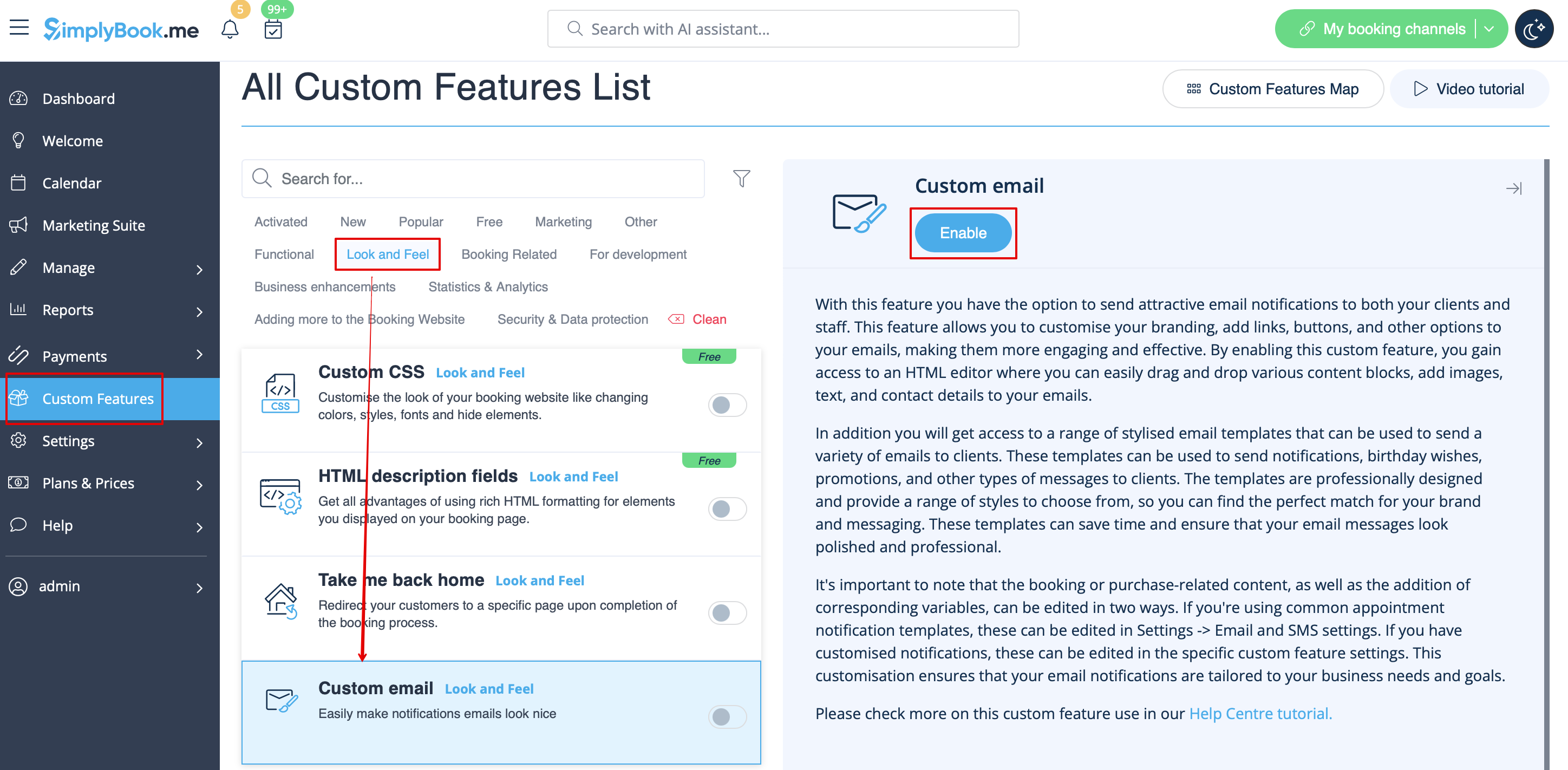
- 1. Aktivér funktionen Brugerdefineret e-mail på siden Brugerdefinerede funktioner i afsnittet Udseende og følelse.
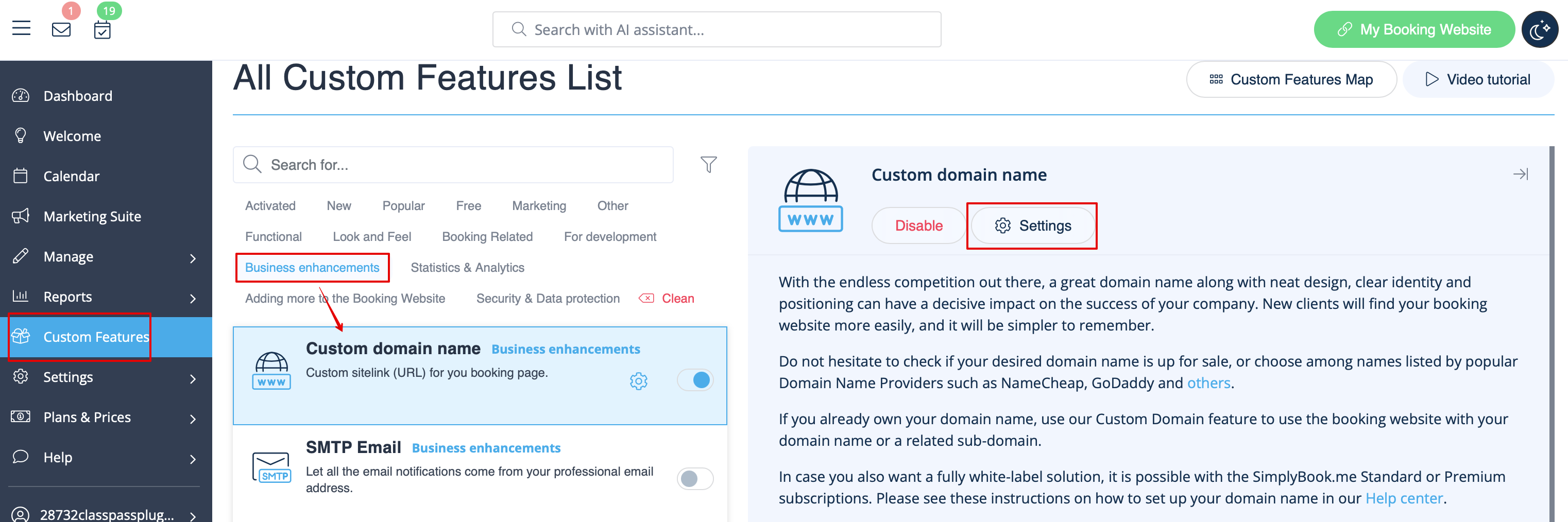
- 2. Klik på linket Opret skabelon for at komme til editoren og kunne opsætte din første skabelon.
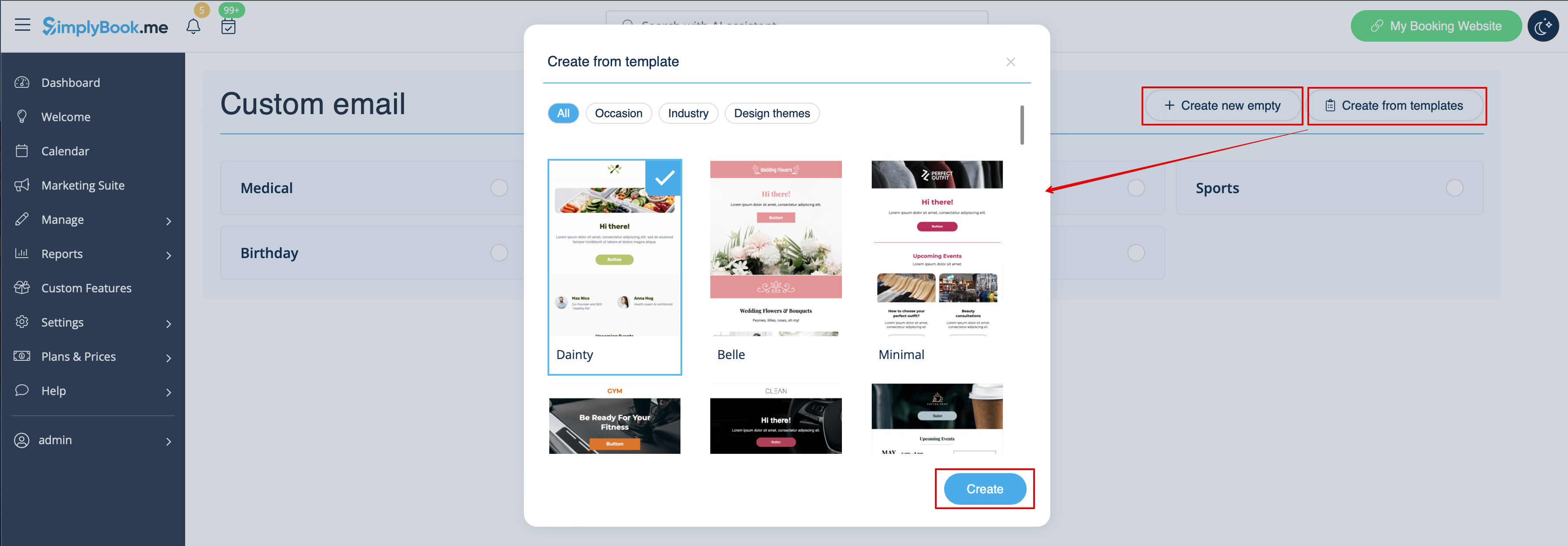
- 3. Vælg enten Opret fra skabeloner, hvis du vil vælge en af vores smukke foruddefinerede muligheder, eller Opret ny tom for at begynde at tilføje alle elementerne fra bunden.
- Tilføj skabelonnavn til den tomme skabelontype (foruddefinerede skabeloner kan omdøbes under redigering) og klik på knappen Opret for at komme til redigeringsfunktionen.
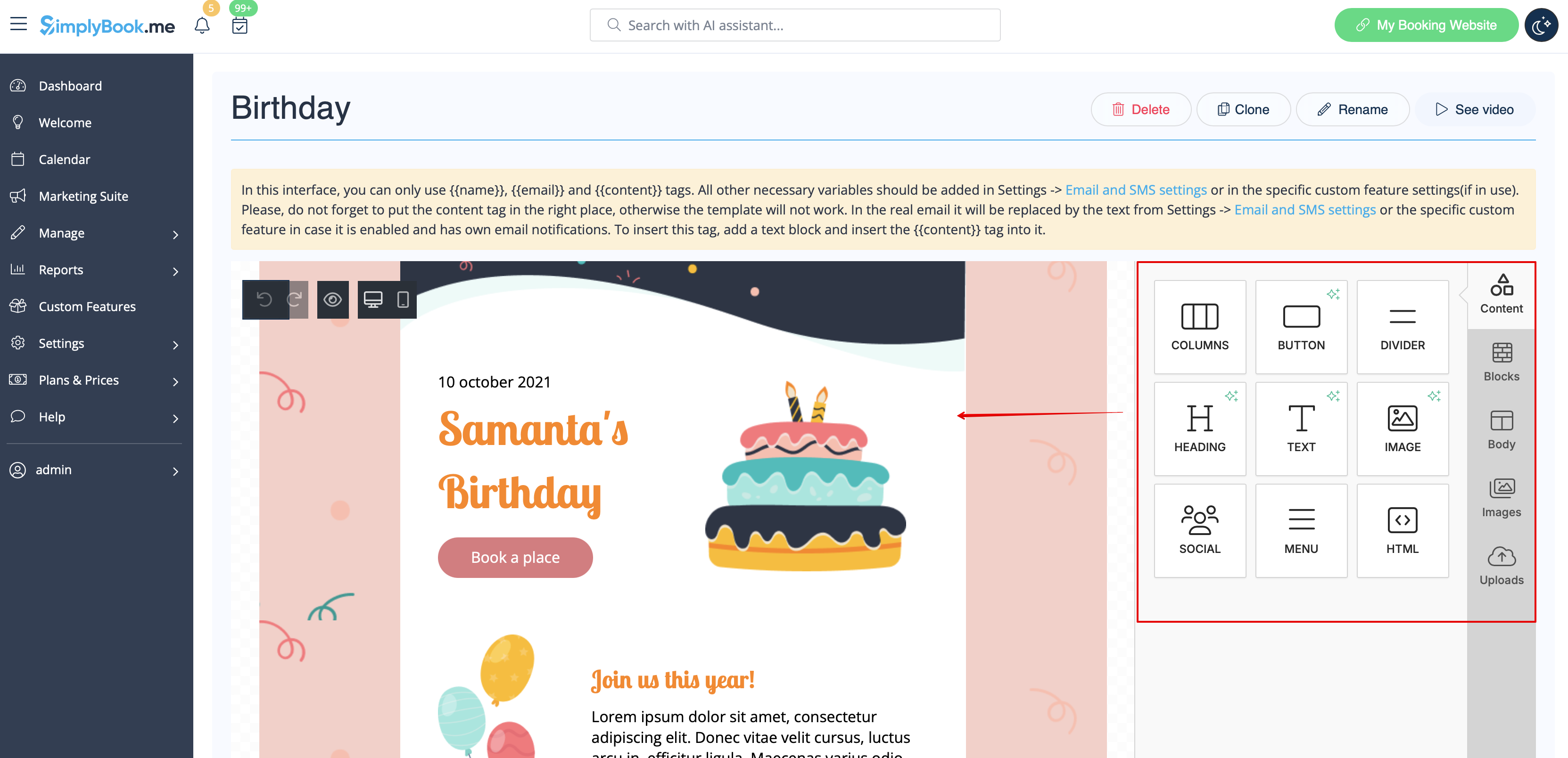
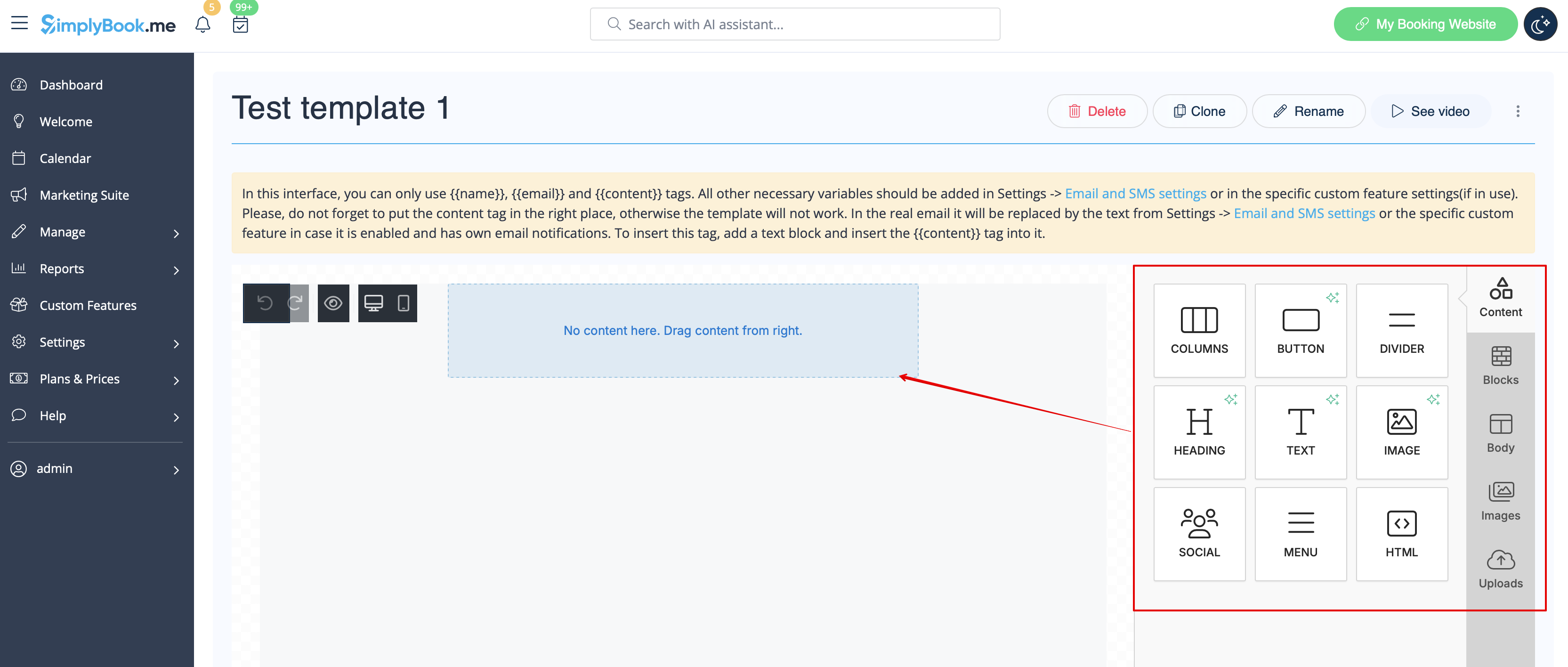
- 4. Tilføj/rediger tekstblokke, tilføj billeder, links, menuer, kolonner, upload dit firmalogo, brug brandfarver og meget mere med den integrerede editor.
- Brug værktøjerne i højre side af siden og visualiseringen i midten, træk og slip, juster de ønskede elementer for at få det ønskede udseende.
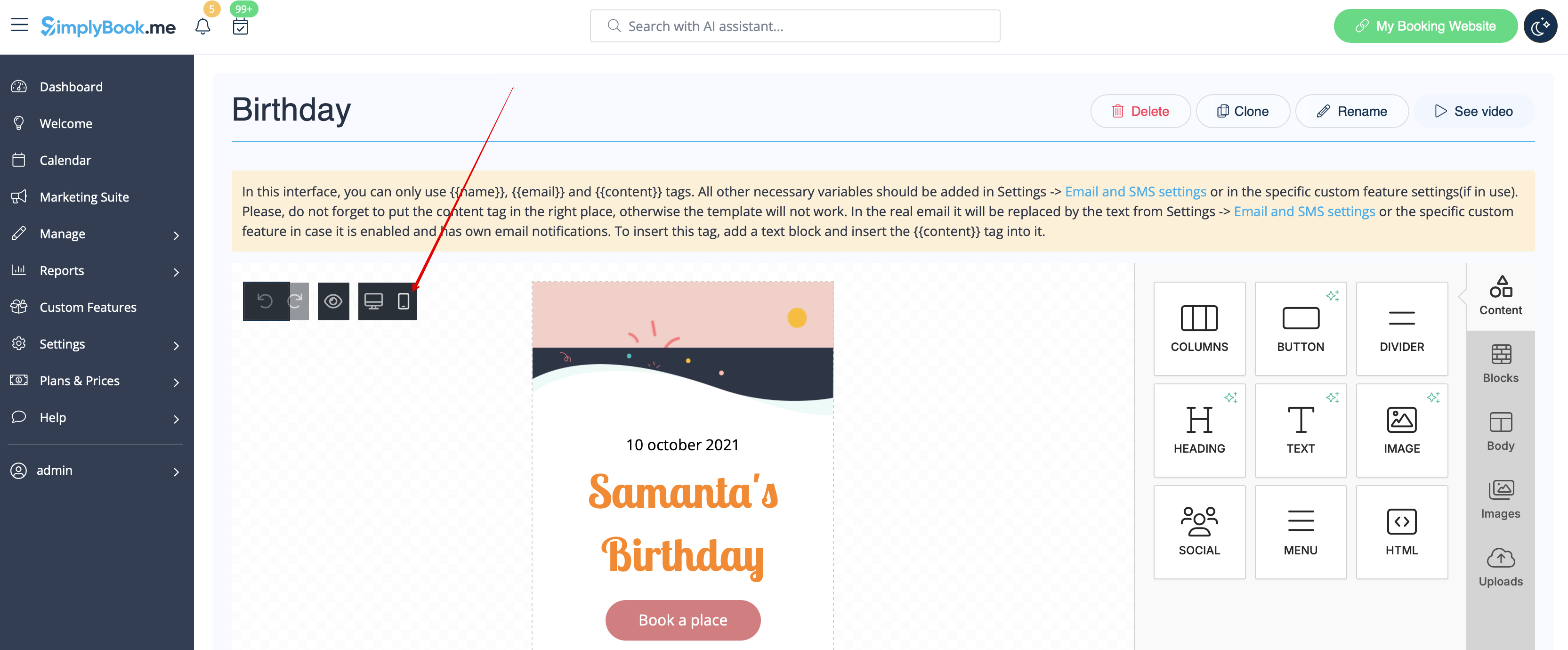
- 5. Du kan også skifte til mobiltilstand for at justere e-mailens udseende til mobiltelefoner.
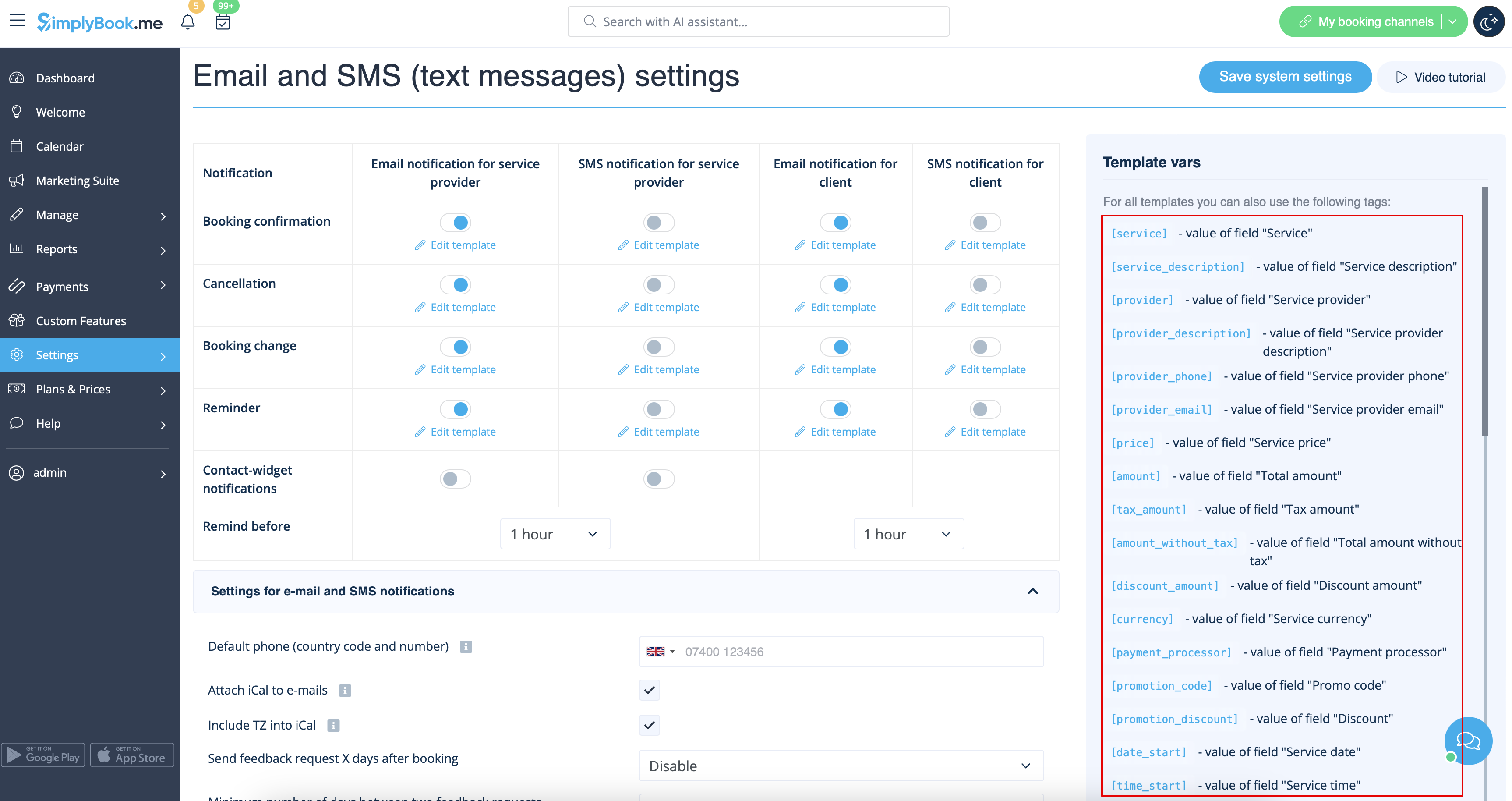
- 6. Det er vigtigt at tilføje {{content}} -tagget til det ønskede sted i skabelonen, da det i rigtige e-mails vil blive erstattet med oplysninger om bookingen/købet.
- Uden denne tag vil tilpasningen ikke blive anvendt på notifikationen, og den vil blive sendt som almindelig tekst.
- Bemærk! Alle variabler, der er relateret til aftaler eller købsdata, bør kun bruges i Indstillinger -> E-mail- og SMS-indstillinger eller i de tilsvarende tilpassede funktionsindstillinger.
- (valgfrit) Du kan også bruge {{name}} og {{email}} her, hvis du har brug for at angive modtagerens navn og/eller e-mail separat fra hovedindholdet i meddelelsen.
- Bemærk! Skabeloner gemmes automatisk med jævne mellemrum, så du ikke behøver at gemme dem manuelt.

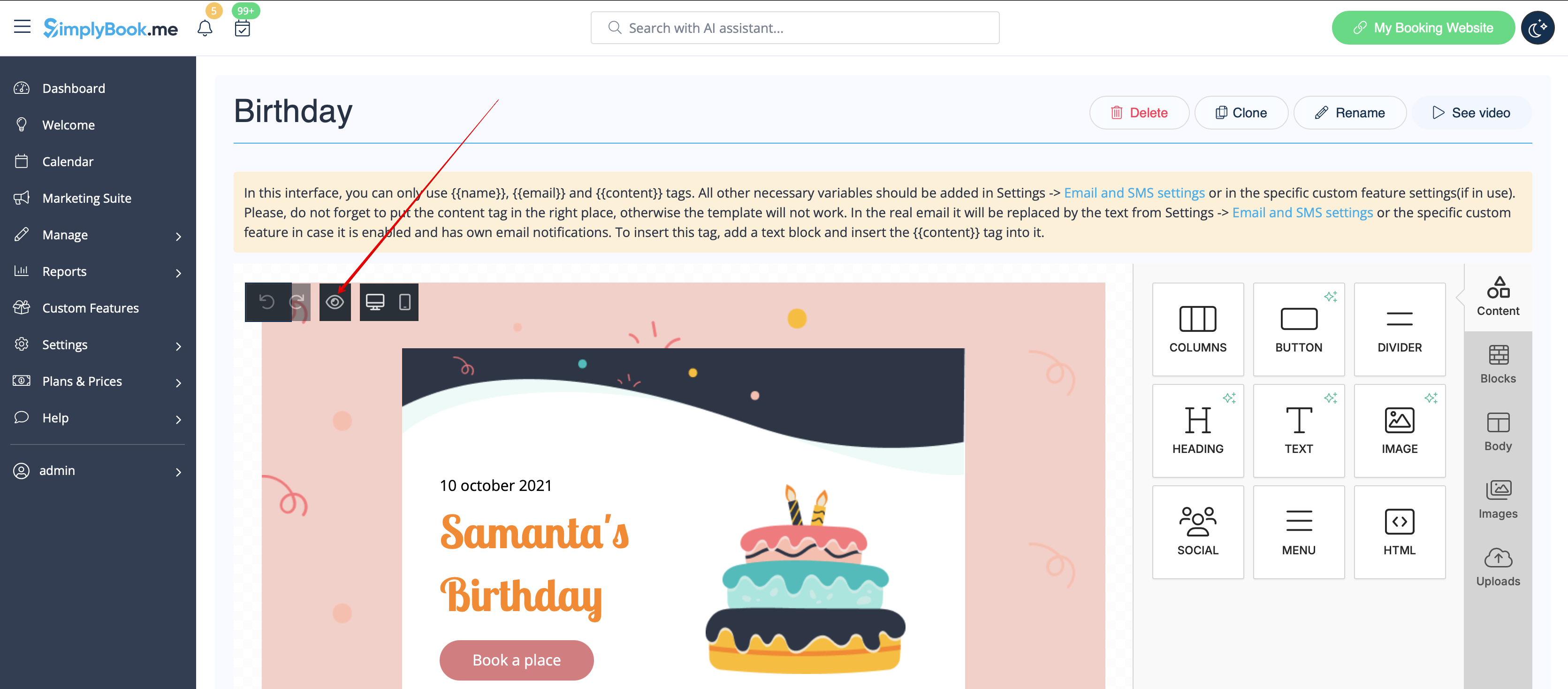
- 7. Brug indstillingen Vis forhåndsvisning nederst for at kontrollere udseendet.
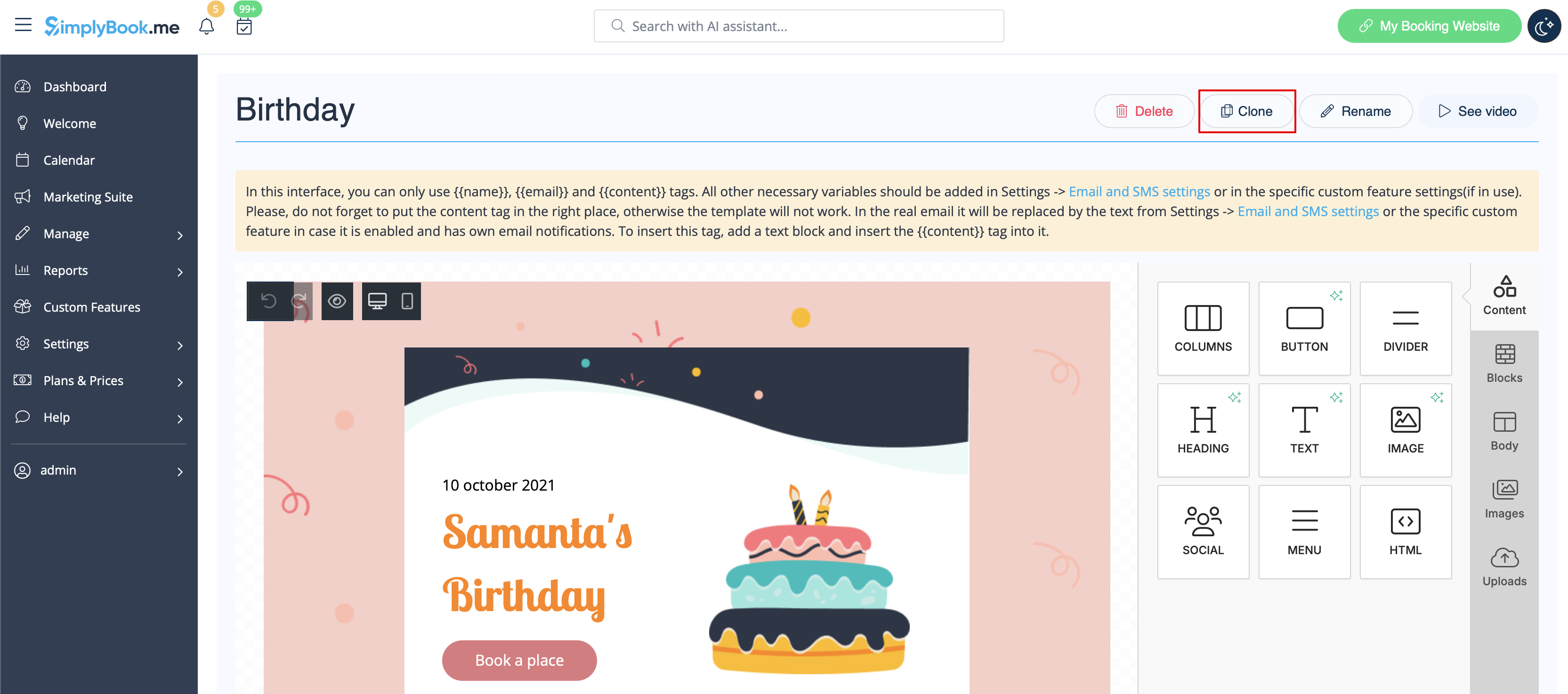
- 8. (valgfrit) Hvis du har brug for lignende designs med kun små ændringer eller med andet indhold, skal du bruge Clone-indstillingen til at lave en kopi af den tidligere gemte skabelon.
- 9. Når alle de nødvendige skabeloner er klar, skal du gå tilbage til Custom features -> Look and Feel -> Custom email.
- 10. Vælg skabelonen for hver notifikationstype.

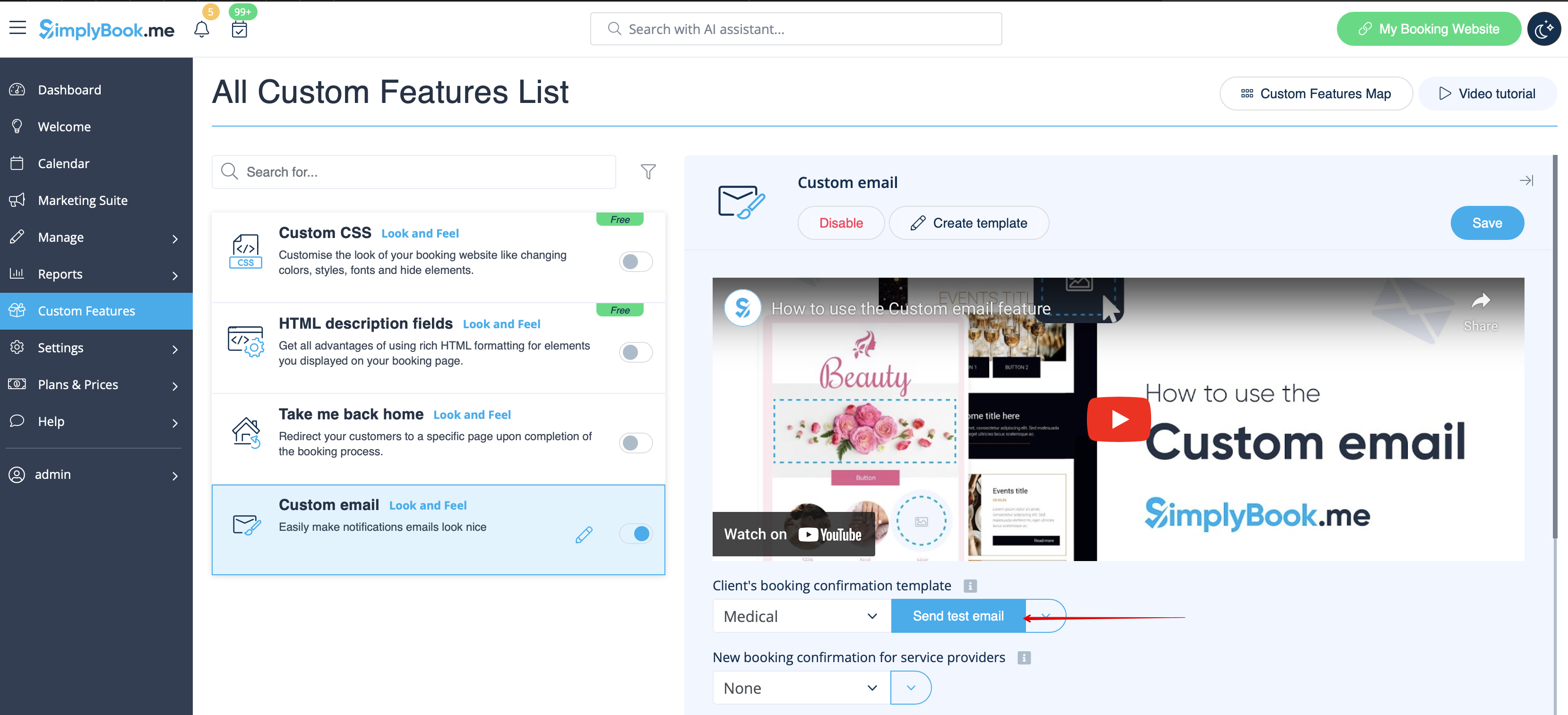
- 11. Send test-e-mails for at kontrollere udseendet med eksempelindhold.
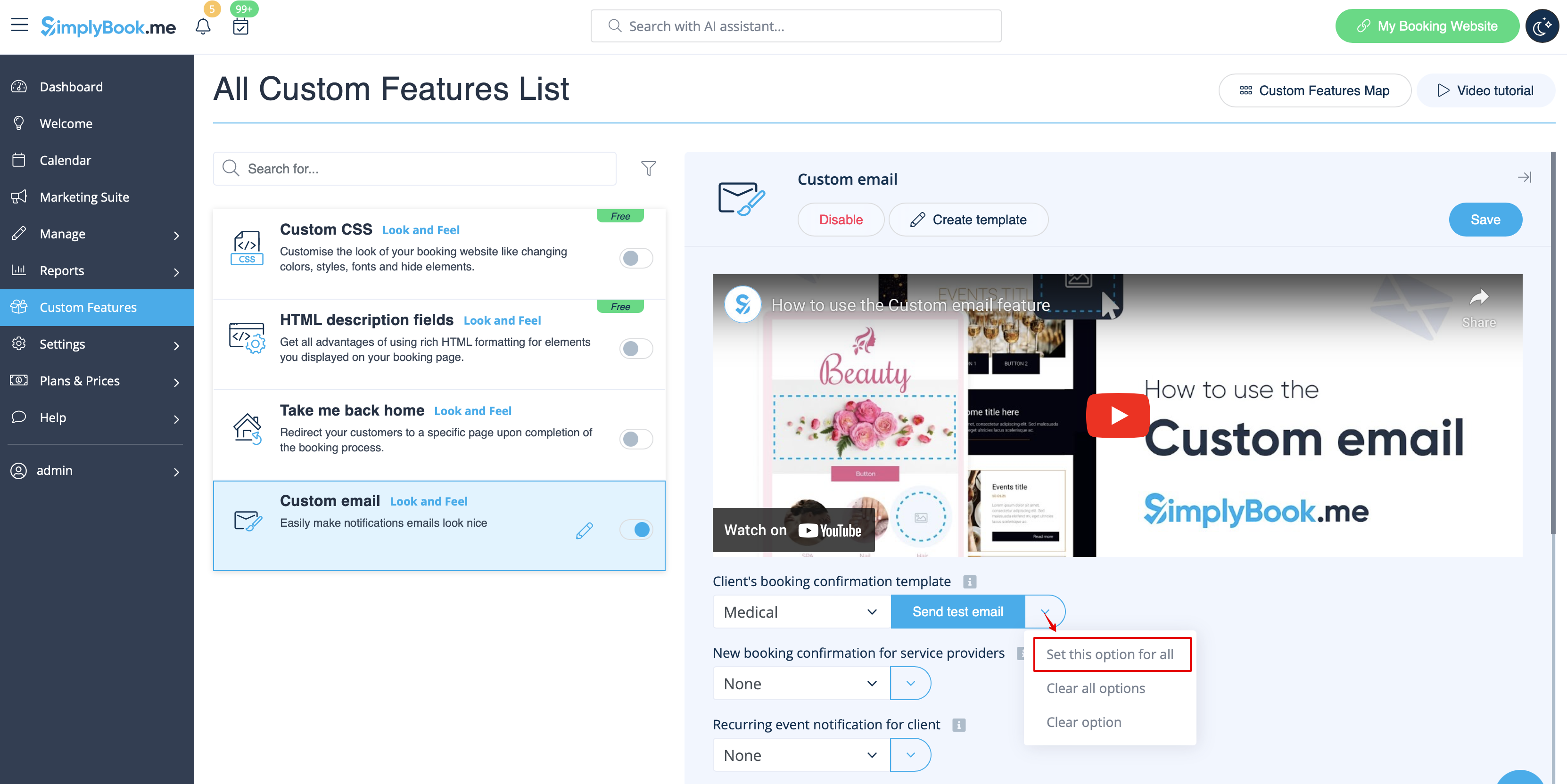
- 12. Hvis du vil indstille den samme skabelon for alle notifikationstyper inden for et blok, skal du bruge indstillingerne i rullemenuen til højre .
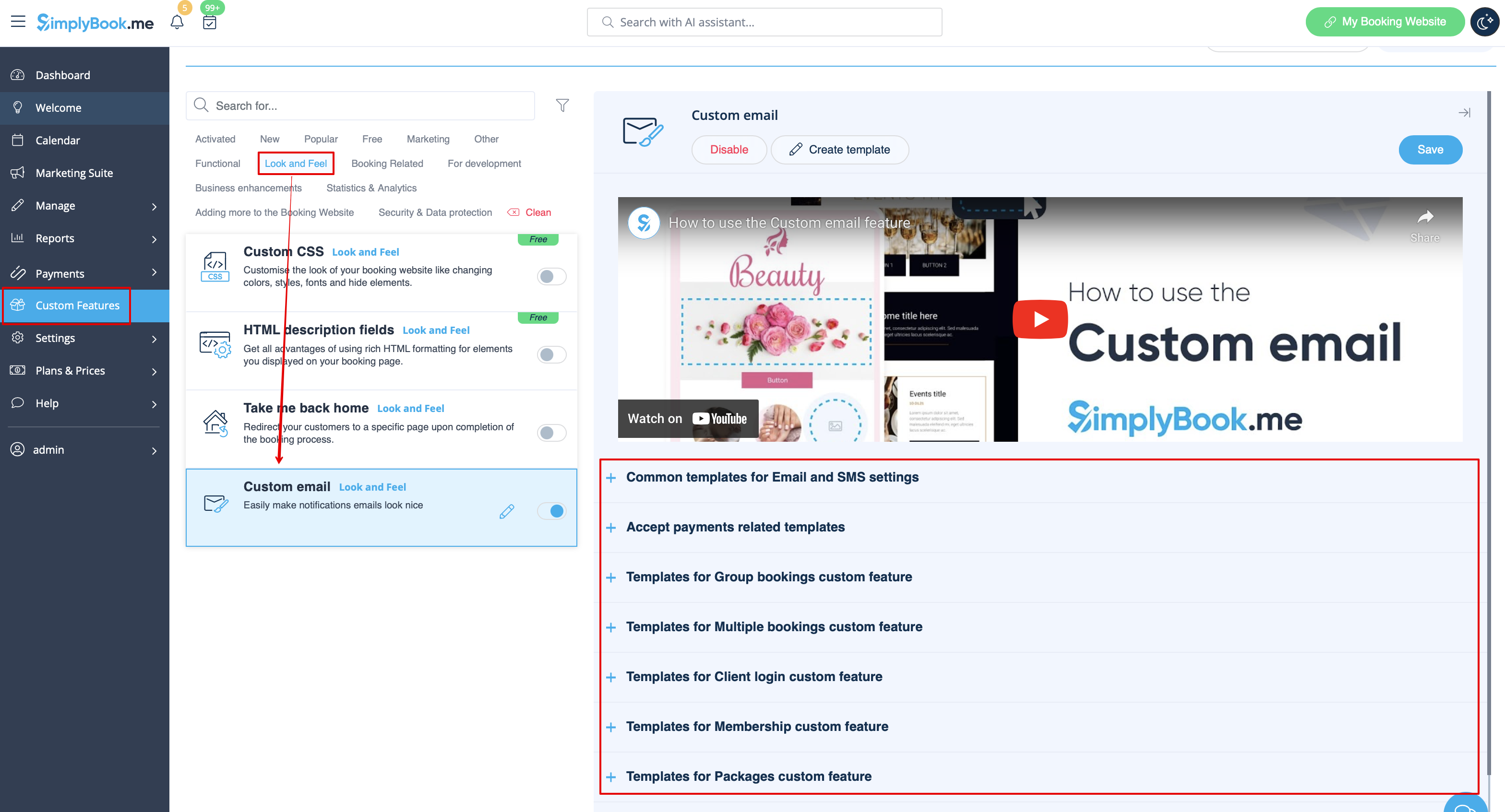
- 13. Hvis du har forskellige brugerdefinerede funktioner med egne notifikationstyper aktiveret, kan du se de tilsvarende blokke i Indstillinger for brugerdefineret e-mail.
- Åbn hver blok og indstil skabeloner for de meddelelser, du ønsker at tilpasse.
- Gem indstillingerne, når du er færdig.
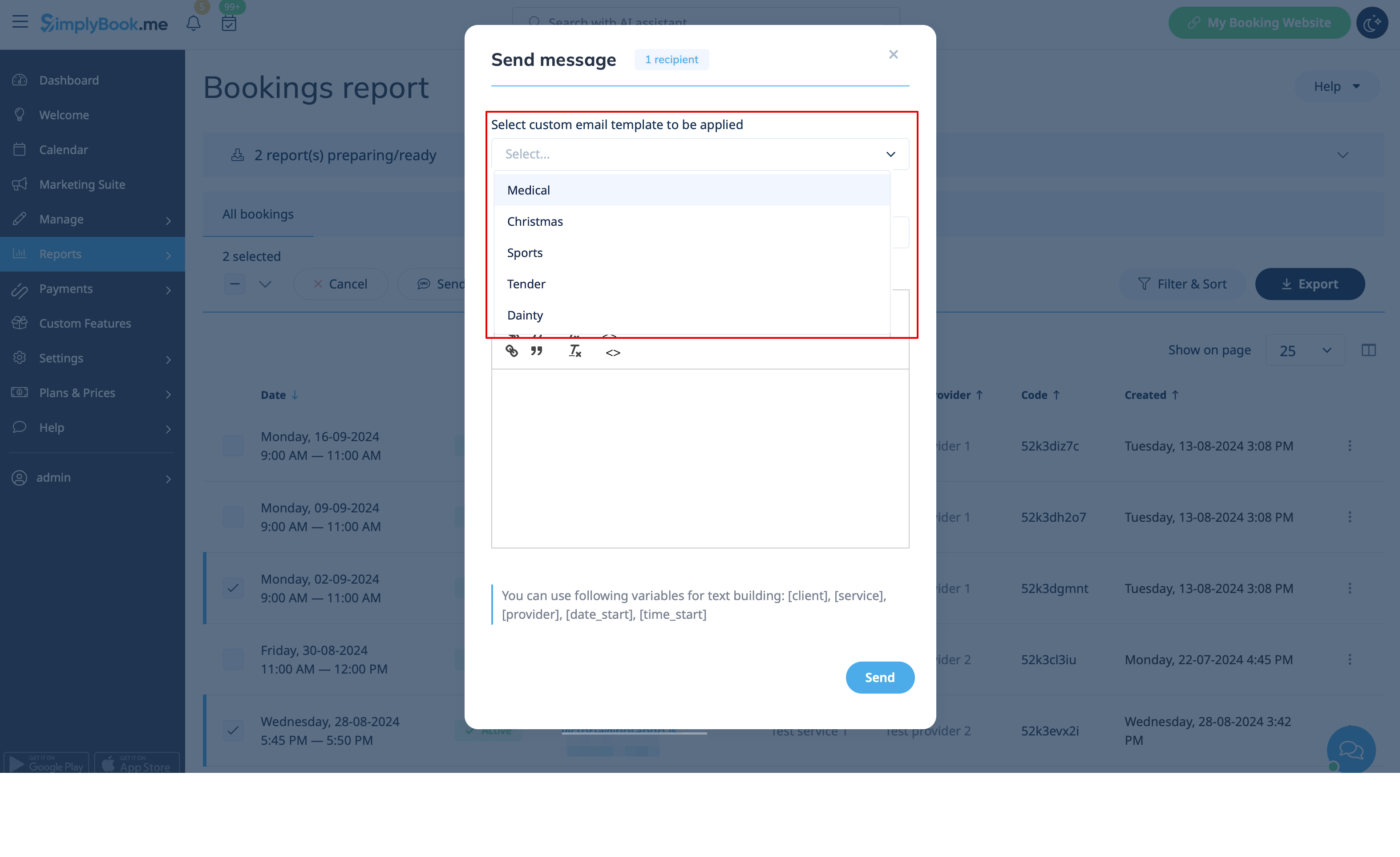
- 14. Det er også muligt at bruge tilpassede e-mails, når du manuelt skal sende e-mails fra Rapporter -> Bookingsdetaljer eller Rapporter -> Kunder.
- Du skal blot markere de ønskede felter der, klikke på knappen Send e-mail og vælge den skabelon, der skal anvendes, i den første rullemenu i pop op-vinduet. Tilføj emne og indhold. Send beskeden.