From SimplyBook.me
No edit summary |
No edit summary |
||
| Line 1: | Line 1: | ||
<languages/> | |||
<translate> | |||
{{#seo: | {{#seo: | ||
|title=Custom Features - SimplyBook.me | |title=Custom Features - SimplyBook.me | ||
| Line 5: | Line 7: | ||
|keywords=faq, frequently asked questions, booking software, appointment system questions, appointments online, calendar software, booking system, booking calendar, scheduling software, online appointment scheduling, online scheduling, plugins, custom features, additional functionality, tickets, qr code, qt codes, custom qr, ticket qr | |keywords=faq, frequently asked questions, booking software, appointment system questions, appointments online, calendar software, booking system, booking calendar, scheduling software, online appointment scheduling, online scheduling, plugins, custom features, additional functionality, tickets, qr code, qt codes, custom qr, ticket qr | ||
}} | }} | ||
</translate> | |||
<translate> | |||
| Line 16: | Line 20: | ||
:*<span style="background-color:#ffe9e9; padding:5px; border-radius:5px;">When you enable this custom feature <span style="background-color:#cdeffc; padding:5px; border-radius:5px;">[[Tickets_custom_feature|Tickets]]</span> will be enabled as well.</span> | :*<span style="background-color:#ffe9e9; padding:5px; border-radius:5px;">When you enable this custom feature <span style="background-color:#cdeffc; padding:5px; border-radius:5px;">[[Tickets_custom_feature|Tickets]]</span> will be enabled as well.</span> | ||
:*<span style="background-color:#ffe9e9; padding:5px; border-radius:5px;">With this feature you will need to edit custom ticket template with is available with premium subscriptions only.</span> | :*<span style="background-color:#ffe9e9; padding:5px; border-radius:5px;">With this feature you will need to edit custom ticket template with is available with premium subscriptions only.</span> | ||
</translate> | |||
<translate> | |||
| Line 29: | Line 35: | ||
[[File:Tickets qr template path redesigned.png|1200px|border|center|link=https://help.simplybook.me/images/4/48/Tickets_qr_template_path_redesigned.png]] | [[File:Tickets qr template path redesigned.png|1200px|border|center|link=https://help.simplybook.me/images/4/48/Tickets_qr_template_path_redesigned.png]] | ||
<br><br> | <br><br> | ||
</translate> | |||
<translate> | |||
:4. Adjust the template to your needs using the <span style="background-color:#d4f8e5; padding:5px; border-radius:5px;">Editor</span> and the available <span style="background-color:#d4f8e5; padding:5px; border-radius:5px;">variables</span> on the right. | :4. Adjust the template to your needs using the <span style="background-color:#d4f8e5; padding:5px; border-radius:5px;">Editor</span> and the available <span style="background-color:#d4f8e5; padding:5px; border-radius:5px;">variables</span> on the right. | ||
[[File:Tickets qr template variables redesigned.png|1200px|border|center|link=https://help.simplybook.me/images/1/18/Tickets_qr_template_variables_redesigned.png]] | [[File:Tickets qr template variables redesigned.png|1200px|border|center|link=https://help.simplybook.me/images/1/18/Tickets_qr_template_variables_redesigned.png]] | ||
| Line 37: | Line 45: | ||
<br><br> | <br><br> | ||
<br><br> | <br><br> | ||
</translate> | |||
Revision as of 15:43, 19 May 2025

Create customized QR codes for your tickets consisting of one or more additional fields variables, with or without a delimiter. This QR code can be added to your tickets to facilitate further information reading into external systems after ticket validation.
Please note!:
- When you enable this custom feature Tickets will be enabled as well.
- With this feature you will need to edit custom ticket template with is available with premium subscriptions only.
- How to use
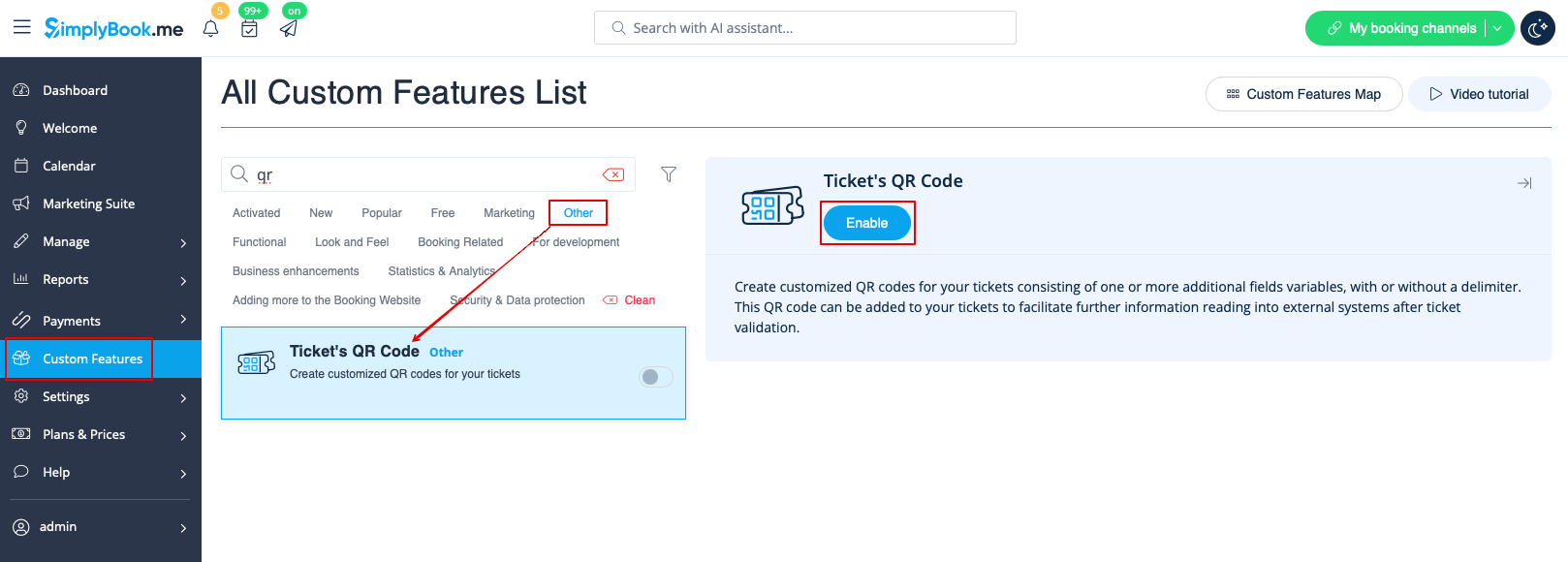
- 1. Enable Ticket's QR Code feature on your Custom features page -> Other section.
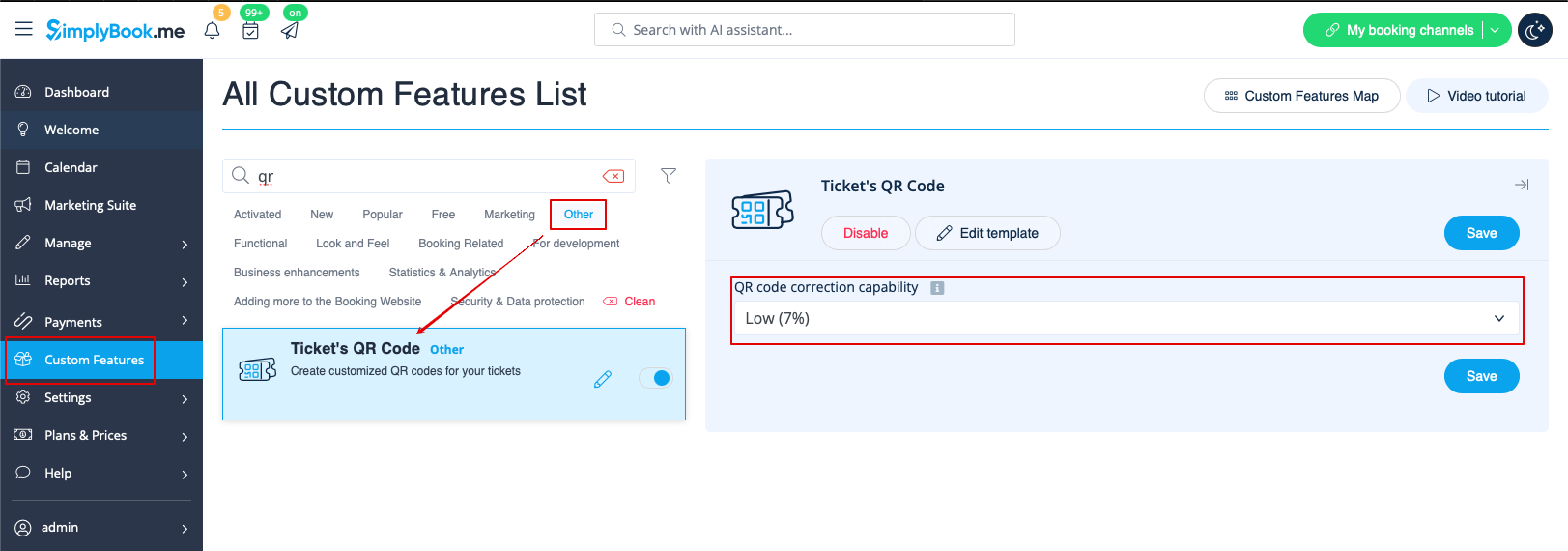
- 2. Select QR code correction capability if necessary.
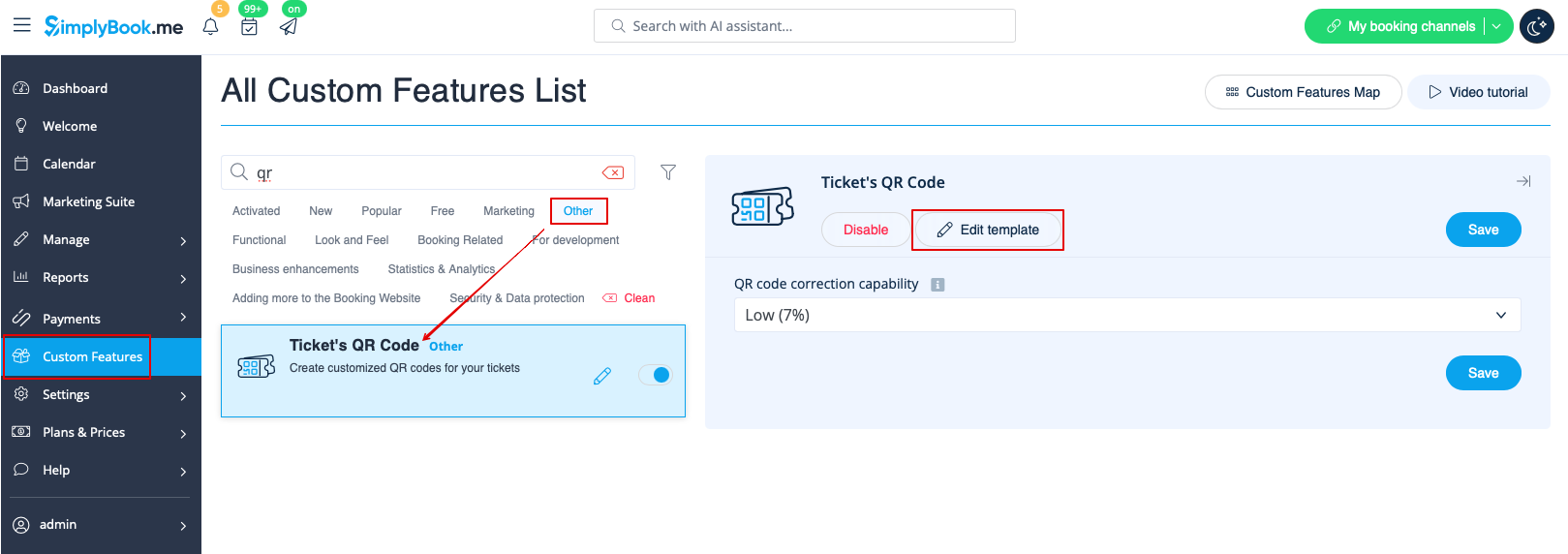
- 3. Navigate to Edit template page.
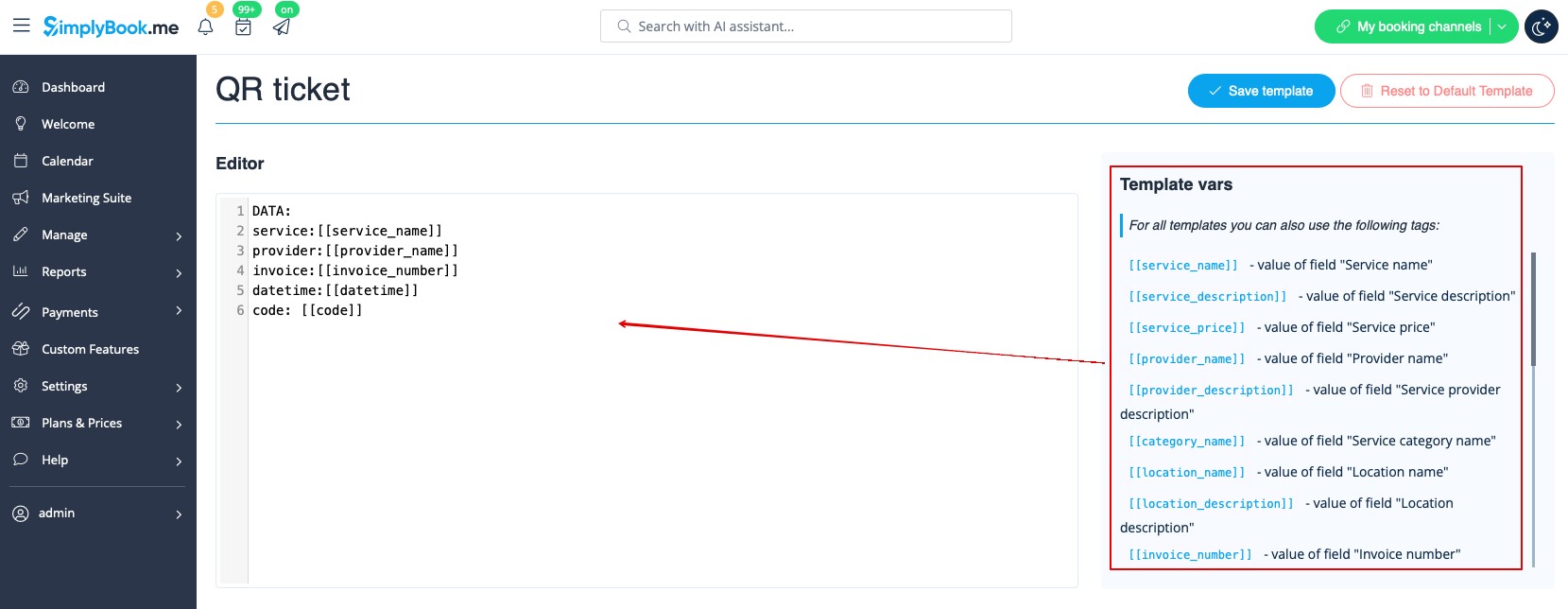
- 4. Adjust the template to your needs using the Editor and the available variables on the right.
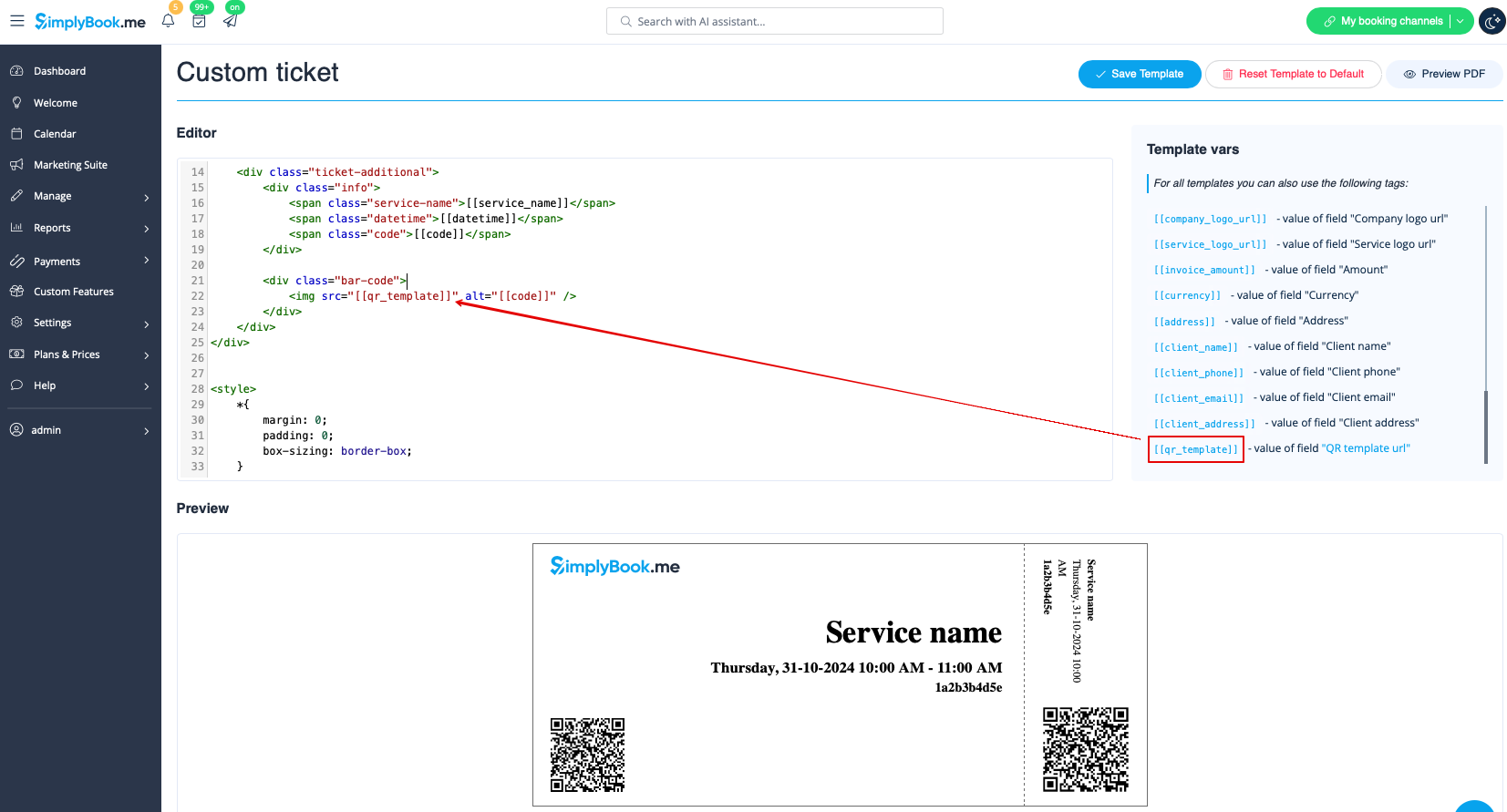
- 5. Add QR template url variable to the ticket template in Custom features -> Tickets -> Custom ticket.
- (please also make sure that you have custom ticket attached to necessary services in Manage -> Services -> select the necessary service -> Tickets)