From SimplyBook.me
No edit summary |
Marked this version for translation |
||
| Line 1: | Line 1: | ||
<languages/> | <languages/> | ||
<translate> | <translate> | ||
<!--T:1--> | |||
{{#seo: | {{#seo: | ||
|title=Visitor Counter custom feature - SimplyBook.me | |title=Visitor Counter custom feature - SimplyBook.me | ||
| Line 11: | Line 12: | ||
<!--T:2--> | |||
<br> | <br> | ||
[[File:Visitor counter new icon.png |left]] | [[File:Visitor counter new icon.png |left]] | ||
<!--T:3--> | |||
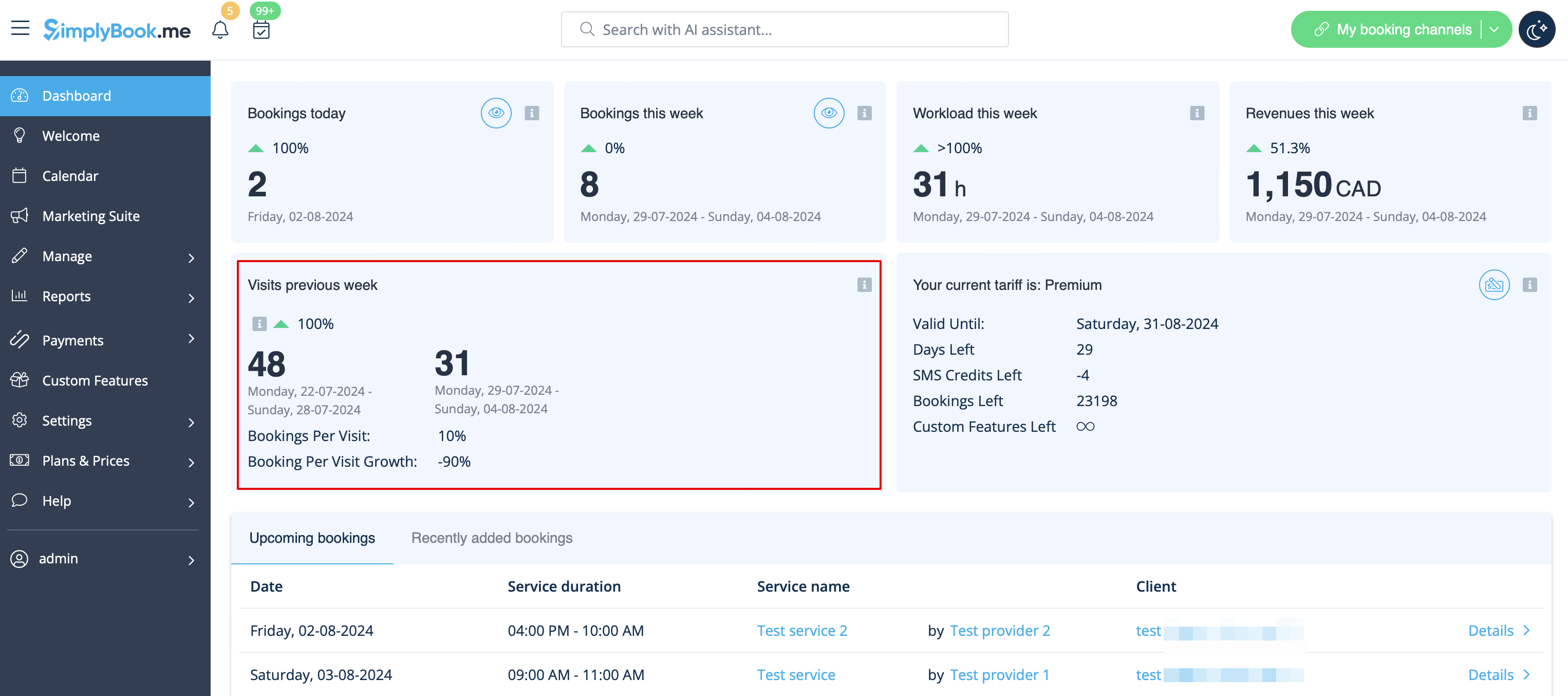
Use Visitor Counter Custom Feature to get up-to-date information about visits to your booking website or to the page with your booking widget. This Custom Feature will help you to evaluate the visits and bookings and can help you to decide if you should do promotions to get more visitors and potential clients. You will see all this information in the main Dashboard of the [https://simplybook.me SImplyBook.me] system. Shows data for the previous calendar week. | Use Visitor Counter Custom Feature to get up-to-date information about visits to your booking website or to the page with your booking widget. This Custom Feature will help you to evaluate the visits and bookings and can help you to decide if you should do promotions to get more visitors and potential clients. You will see all this information in the main Dashboard of the [https://simplybook.me SImplyBook.me] system. Shows data for the previous calendar week. | ||
<br><br> | <br><br> | ||
| Line 20: | Line 23: | ||
<!--T:4--> | |||
;How to use | ;How to use | ||
:1. Enable this option on your custom Features page. | :1. Enable this option on your custom Features page. | ||
Revision as of 15:45, 19 May 2025

Use Visitor Counter Custom Feature to get up-to-date information about visits to your booking website or to the page with your booking widget. This Custom Feature will help you to evaluate the visits and bookings and can help you to decide if you should do promotions to get more visitors and potential clients. You will see all this information in the main Dashboard of the SImplyBook.me system. Shows data for the previous calendar week.
- How to use
- 1. Enable this option on your custom Features page.
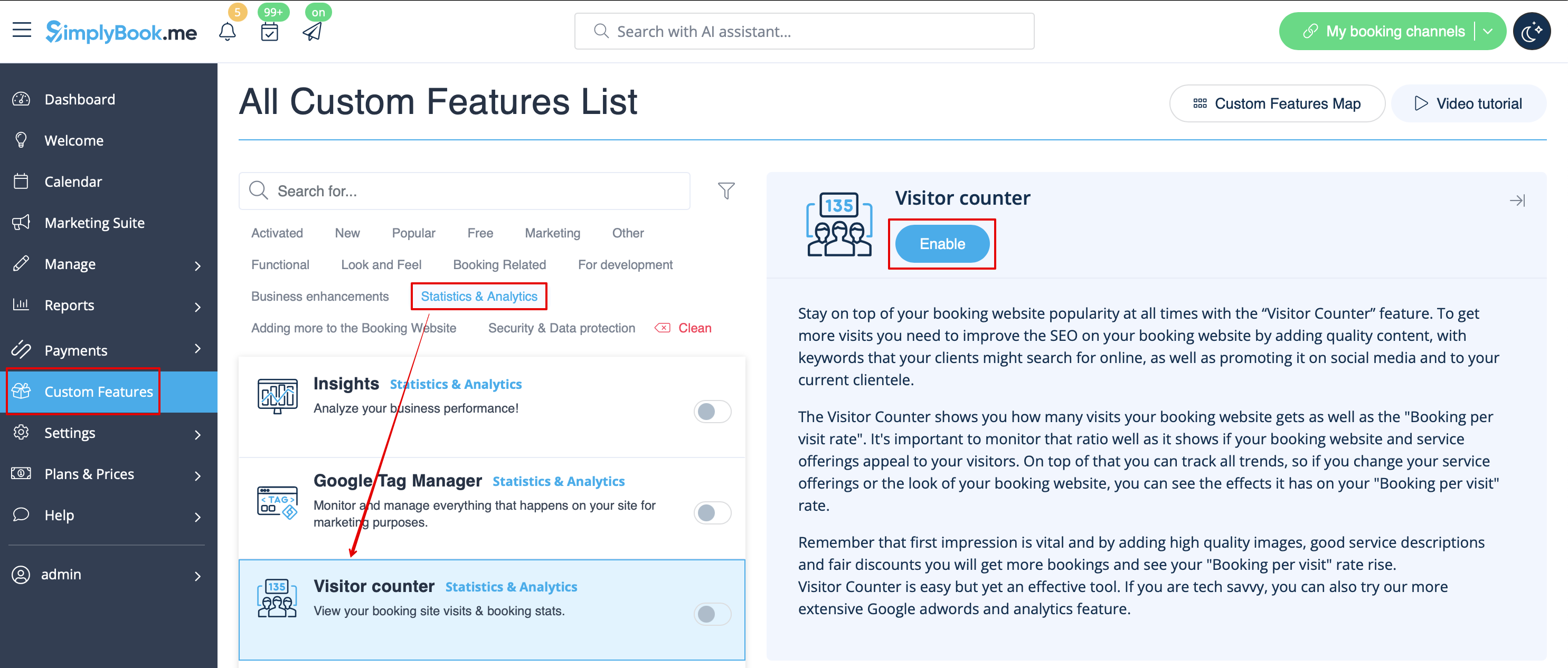
- 2. Check the chart on Dashboard page for updates.