Line 28:
Line 28:
[[File:Start page client app upd.jpg|border|center]]
[[File:Start page client app upd.jpg|border|center]]
<br><br><br><br>
<br><br><br><br>
''';Push notificaties'''
'''Push notificaties'''
*Gebruikers kunnen ook push notificaties over nieuwe boekingen of annuleringen op hun apparaten ontvangen.
:Hiervoor is het alleen nodig om notificaties in de applicatie in te schakelen na het aanmelden/aanmelden en in een standaard systeemdialoog.
Revision as of 11:52, 3 June 2025
Information about message (contribute ) This message has no documentation.
If you know where or how this message is used, you can help other translators by adding documentation to this message.
Message definition (Client mobile app ) :<span style="background-color:#ffe9e9; padding:5px; border-radius:5px;">'''Please note! '''</span> *<span style="background-color:#ffe9e9; padding:5px; border-radius:5px;">When you turn this feature on <span style="background-color:#cdeffc; padding:5px; border-radius:5px;">[[Special:MyLanguage/Client_Login_custom_feature|Client Login]]</span> custom feature will be enabled as well;</span> *<span style="background-color:#ffe9e9; padding:5px; border-radius:5px;">It currently works with weekly classes, modern and flexible <span style="background-color:#cdeffc; padding:5px; border-radius:5px;">[[Special:MyLanguage/How_to_change_the_way_time_slots_are_shown|calendar layouts]]</span> only;</span> *<span style="background-color:#ffe9e9; padding:5px; border-radius:5px;">The following functionality is not currently present in the client application: <span style="background-color:#cdeffc; padding:5px; border-radius:5px;">[[Special:MyLanguage/News_custom_feature |News]],</span> <span style="background-color:#cdeffc; padding:5px; border-radius:5px;">[[Special:MyLanguage/Photo_Gallery_custom_feature|Photo gallery]],</span>, Reviews, <span style="background-color:#cdeffc; padding:5px; border-radius:5px;">[[Special:MyLanguage/Custom_Page_custom_feature|Custom page]],</span> <span style="background-color:#cdeffc; padding:5px; border-radius:5px;">[[Special:MyLanguage/Google_Translate_custom_feature|Google translate]],</span> main page mode change, <span style="background-color:#cdeffc; padding:5px; border-radius:5px;">[[Special:MyLanguage/How_to_change_the_way_time_slots_are_shown#End_Time_Display|end time display]],</span> hiding images on booking steps, RTL orientation, <span style="background-color:#cdeffc; padding:5px; border-radius:5px;">[[Special:MyLanguage/Contact_Widget_custom_feature|Contact widget]],</span> <span style="background-color:#cdeffc; padding:5px; border-radius:5px;">[[Special:MyLanguage/How_to_change_the_way_time_slots_are_shown#Slots_Colors|busy and available slots color adjustments]].</span></span> <br><br><br><br> :'''Video tutorials available ''' :*How to set up the Client mobile app <p><youtube>_3pW171iAjA</youtube></p> :*How to use the Client mobile app <p><youtube>SElfM29hWOo</youtube></p> <br><br> ;'''How to use''' :1. Enable <span style="background-color:#d4f8e5; padding:5px; border-radius:5px;">Client mobile app</span> feature on your <span style="background-color:#d4f8e5; padding:5px; border-radius:5px;">Custom features</span> page in <span style="background-color:#d4f8e5; padding:5px; border-radius:5px;">Business enhancements</span> section. [[File:Client app enable path redesigned.png|1200px|border|center|link=https://help.simplybook.me/images/c/cb/Client_app_enable_path_redesigned.png]] <br><br> :2. And it is ready to use. Some reports options become available to you. [[File:Client app free verion redesigned.png|1200px|border|center|link=https://help.simplybook.me/images/e/ef/Client_app_free_verion_redesigned.png]] <br><br> :3.'''(available for Premium subscriptions only)''' Add own application name, set brand color, select the preferable <span style="background-color:#cdeffc; padding:5px; border-radius:5px;">[[Special:MyLanguage/How_to_change_the_way_time_slots_are_shown|calendar layout]]</span>, upload the logo and banner images. :It is important to use square image for the logo, different dimensions will not be saved. :As well we recommend using brighter and/or darker colors for background for better customer experience. [[File:Client app options paid redesigned.png|1200px|border|center|link=https://help.simplybook.me/images/8/8d/Client_app_options_paid_redesigned.png]] <br><br> :4. Send your booking website URL(banner is not shown on widgets) to your clients so that they will be able to install the application on their phones by clicking on the corresponding <span style="background-color:#d4f8e5; padding:5px; border-radius:5px;">banner.</span> :(Invitation installation banner may not be displayed in built-in mobile browsers, it is recommended to use Chrome instead)<br> :<span style="background-color:#ffe9e9; padding:5px; border-radius:5px;">'''Please note!''' IOS devices users will need to open your booking website in full Safari version to have the installation invitation banner and then simply use <span style="background-color:#d4f8e5; padding:5px; border-radius:5px;">Add to home screen</span> option.</span> [[File:Installation client app upd.jpg|border|center]] <br><br> :5. As the result they will be able to book online, see their appointments(this option is available even in offline mode), <span style="background-color:#cdeffc; padding:5px; border-radius:5px;">[[Special:MyLanguage/Client_Rescheduling_custom_feature|reschedule]]</span> or cancel them, buy <span style="background-color:#cdeffc; padding:5px; border-radius:5px;">[[Special:MyLanguage/Coupons_and_Gift_Cards_custom_feature|gift cards]]</span>, <span style="background-color:#cdeffc; padding:5px; border-radius:5px;">[[Special:MyLanguage/Membership_custom_feature|memberships]]</span> and <span style="background-color:#cdeffc; padding:5px; border-radius:5px;">[[Special:MyLanguage/Packages_custom_feature|packages]],</span> view <span style="background-color:#cdeffc; padding:5px; border-radius:5px;">[[Special:MyLanguage/Accept_payments_custom_feature|invoices]]</span> and update own details if necessary. [[File:Start page client app upd.jpg|border|center]] <br><br><br><br> ;'''Push notifications''' *Users can also get push notifications about new bookings or cancellations on their devices. :For that it will only be necessary to enable notifications in the application after sign up/sign in and in a standard system dialogue. [[File:Notifications client app upd.jpg|border|center]] <br><br> :In case the notifications are turned on, but the push messages do not come it is necessary to check if Chrome system notifications(Android) or Safari(IOS) are enabled inside the <span style="background-color:#d4f8e5; padding:5px; border-radius:5px;">device settings.</span> [[File:Client app notifications system.png|border|center]] <br><br> *From '''admin side''' it is possible to see all push notifications sent to customers in <span style="background-color:#d4f8e5; padding:5px; border-radius:5px;">Reports</span> -> <span style="background-color:#d4f8e5; padding:5px; border-radius:5px;">Push notifications</span> as well as whether they were received and clicked by client. [[File:Client app push notifications report redesigned.png|1200px|border|center|link=https://help.simplybook.me/images/c/cc/Client_app_push_notifications_report_redesigned.png]] <br><br><br><br>
Let op!
Alsje deze functie inschakelt, wordt de aangepaste Client Login-functie ook ingeschakeld;
Hetwerkt momenteel alleen met wekelijkse lessen, moderne en flexibele kalenderlay-outs ;
Devolgende functionaliteit is momenteel niet aanwezig in de clienttoepassing: Nieuws , Fotogalerij , Recensies, Aangepaste pagina , Google vertalen , wijzigen van de modus van de hoofdpagina, weergave eindtijd , verbergen van afbeeldingen bij boekingsstappen, RTL-oriëntatie, Contact-widget , kleuraanpassingen voor bezette en beschikbare plaatsen .
Beschikbare video-tutorials
Hoe de mobiele app voor de klant instellen
Hoe de mobiele app voor de klant gebruiken
;Hoe te gebruiken
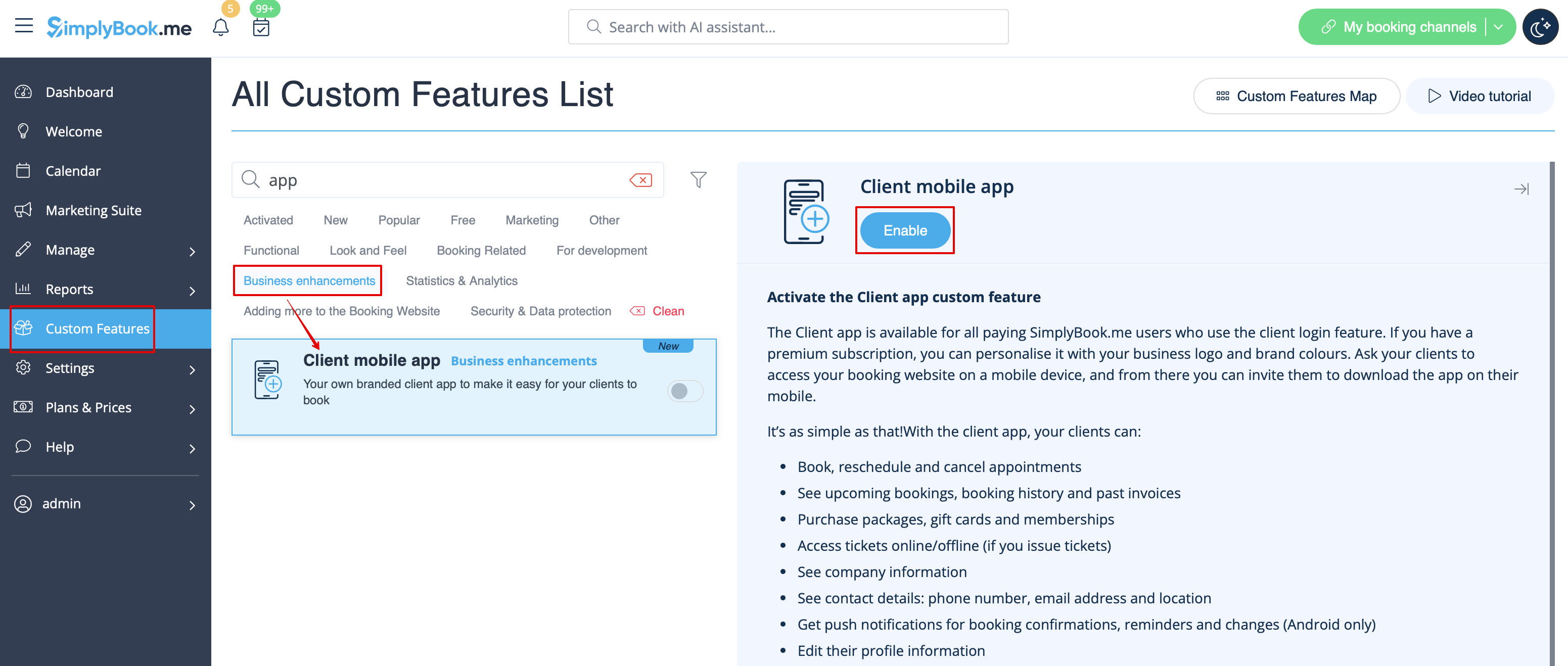
1. Schakel de mobiele app voor de klant in op je mobiele app. Schakel de functie Client mobile app in op je pagina Aangepaste functies in de sectie Bedrijfsuitbreidingen .
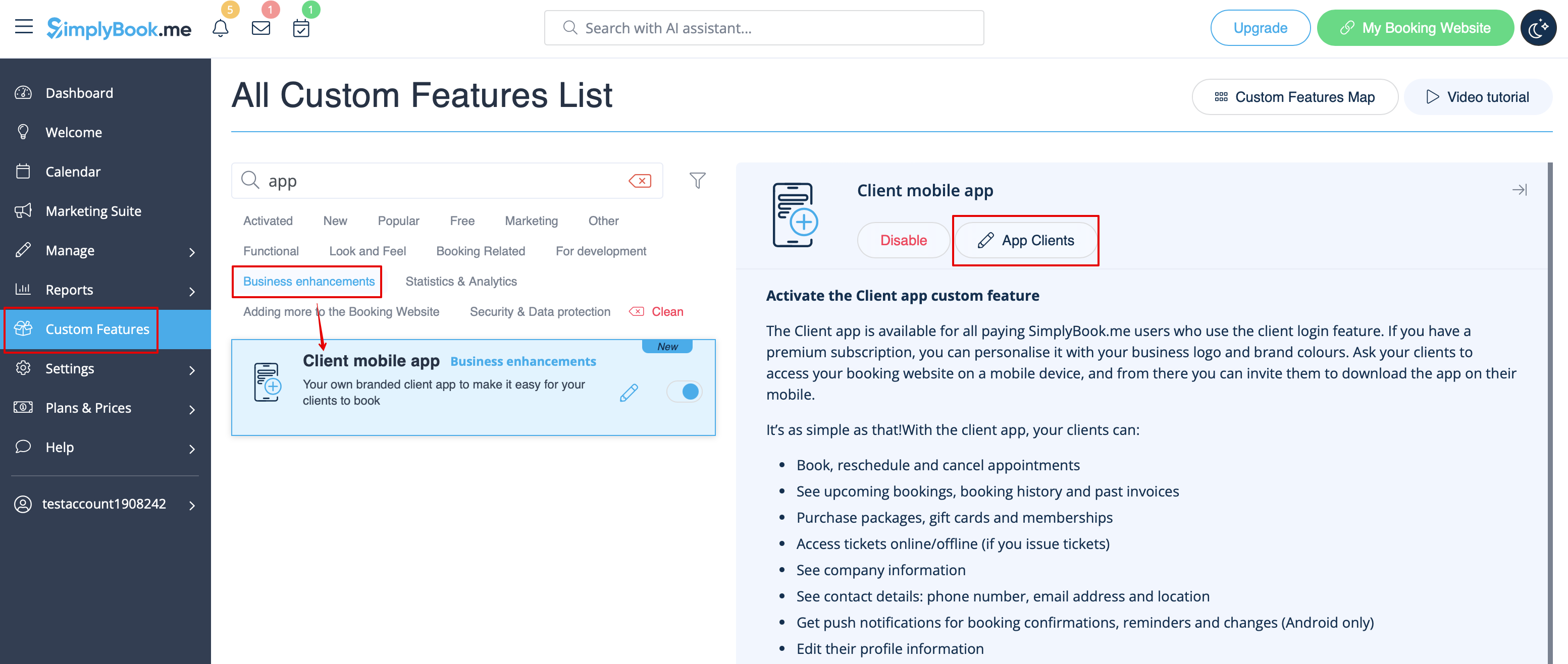
2. En het is klaar voor gebruik. Sommige rapportage-opties worden voor jou beschikbaar.
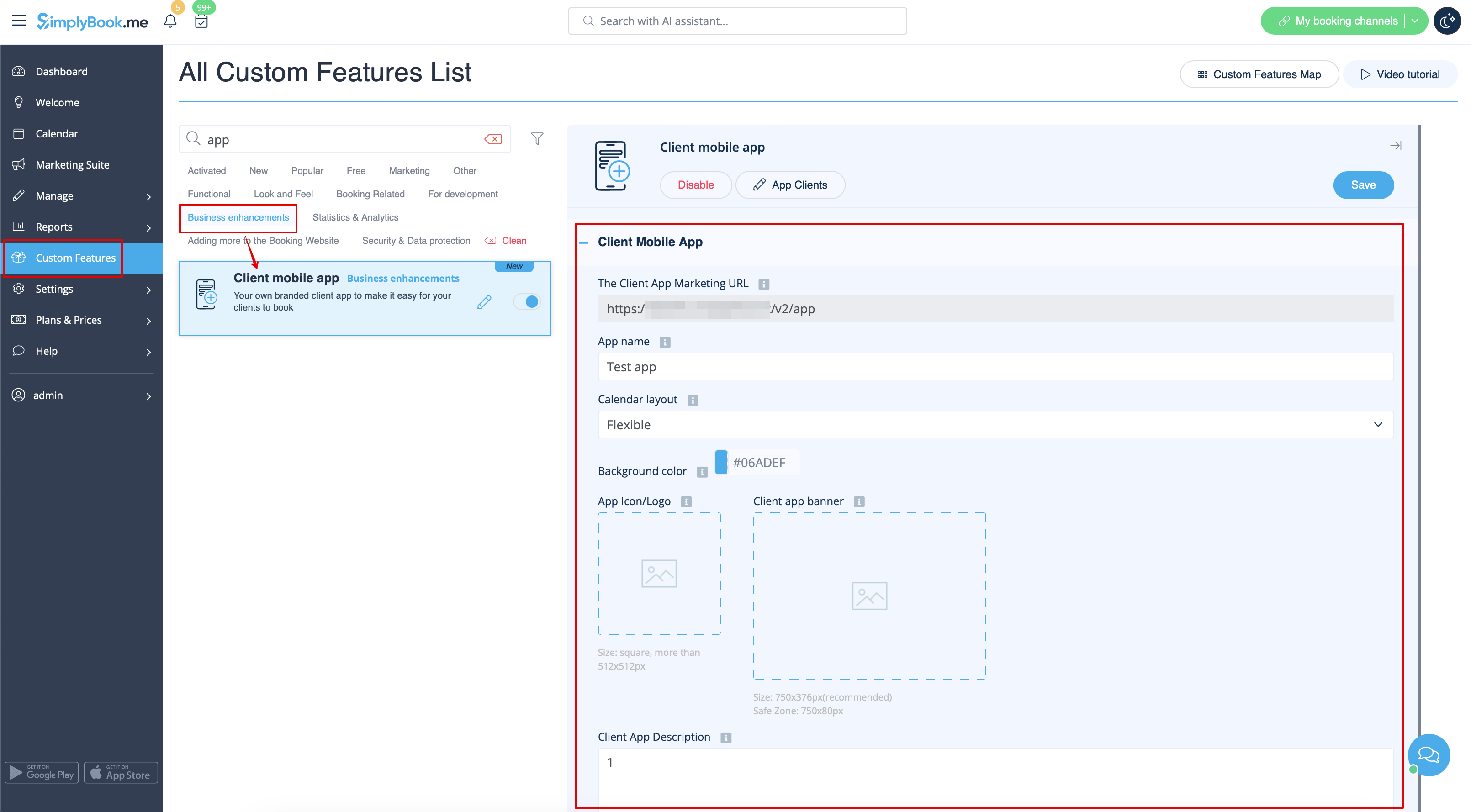
3.(alleen beschikbaar voor Premium abonnementen) Voeg uw eigen applicatienaam toe, stel de merkkleur in, selecteer de gewenste kalenderlay-out , upload het logo en de bannerafbeeldingen.
Het is belangrijk om een vierkante afbeelding te gebruiken voor het logo, afwijkende afmetingen worden niet opgeslagen.
Ook raden we aan om heldere en/of donkere kleuren te gebruiken voor de achtergrond voor een betere klantervaring.
4.(alleen beschikbaar voor Premium abonnementen) Voeg uw eigen applicatienaam toe, stel de merkkleur in, selecteer de gewenste kalenderlay-out , upload het logo en de bannerafbeeldingen. Stuur de URL van je boekingswebsite (banner wordt niet getoond op widgets) naar je klanten zodat ze de applicatie op hun telefoon kunnen installeren door op de bijbehorende banner te klikken .
(Uitnodiging installatie banner wordt mogelijk niet weergegeven in ingebouwde mobiele browsers, het wordt aanbevolen om in plaats daarvan Chrome te gebruiken)
Let op! Gebruikers van IOS-apparaten moeten je boekingswebsite openen in de volledige Safari-versie om de installatie-uitnodigingsbanner te zien en dan gewoon de optie Toevoegen aan beginscherm gebruiken.
5. Klik op de uitnodigingsbanner . Het resultaat is dat ze online kunnen boeken, hun afspraken kunnen bekijken (deze optie is zelfs beschikbaar in offline modus), deze kunnen verzetten of annuleren, cadeaubonnen , lidmaatschappen en pakketten kunnen kopen , facturen kunnen bekijken en indien nodig hun eigen gegevens kunnen bijwerken.
Push notificaties
Gebruikers kunnen ook push notificaties over nieuwe boekingen of annuleringen op hun apparaten ontvangen.
Hiervoor is het alleen nodig om notificaties in de applicatie in te schakelen na het aanmelden/aanmelden en in een standaard systeemdialoog.
In het geval dat de meldingen zijn ingeschakeld, maar de pushberichten niet komen, is het nodig om te controleren of Chrome systeemmeldingen (Android) of Safari (IOS) zijn ingeschakeld in de apparaatinstellingen.
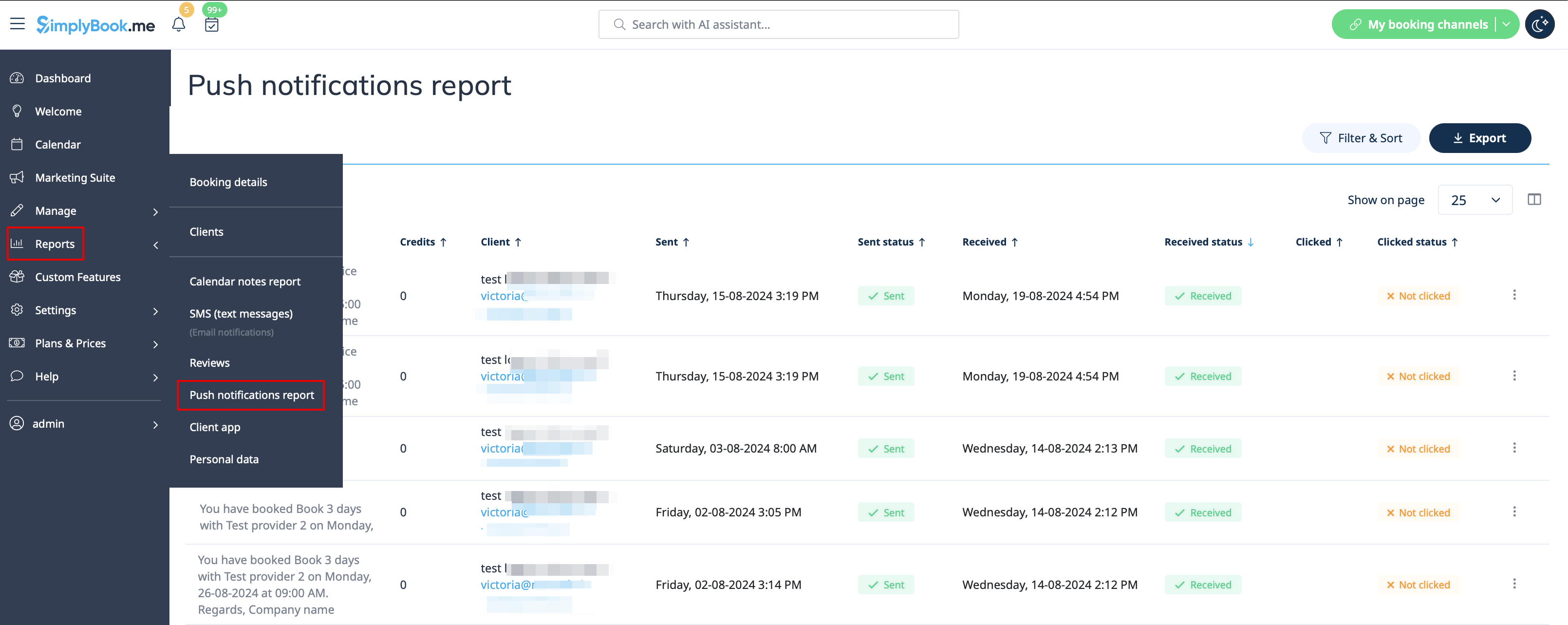
Vanuit de beheerderskant is het mogelijk om alle pushberichten die naar klanten zijn verzonden te zien in Rapporten -> Pushberichten en of ze zijn ontvangen en aangeklikt door de klant.