From SimplyBook.me
Created page with "Інтеграція з Joomla" Tags: Mobile edit Mobile web edit |
Created page with "{{#seo: |title=Поширені запитання про популярну систему бронювання зустрічей SimplyBook.me |description=Інтегруйте SimplyBook.me з вашим веб-сайтом Joomla. Керуйте бронюваннями безпосередньо з вашого сайту. Дотримуйтесь інструкцій, щоб розпочати роботу! |titlemode=додати |keywords=faq, поширені..." |
||
| Line 1: | Line 1: | ||
<languages/> | <languages/> | ||
{{#seo: |title=Поширені запитання про популярну систему бронювання зустрічей SimplyBook.me |description=Інтегруйте SimplyBook.me з вашим веб-сайтом Joomla. Керуйте бронюваннями безпосередньо з вашого сайту. Дотримуйтесь інструкцій, щоб розпочати роботу! |titlemode=додати |keywords=faq, поширені запитання, програмне забезпечення для бронювання, запитання про систему бронювання, онлайн-бронювання, програмне забезпечення для календаря, система бронювання, календар бронювання, програмне забезпечення для планування, онлайн-планування зустрічей, онлайн-планування, віджет, віджети }} | |||
{{#seo: | |||
|title= | |||
|description= | |||
|titlemode= | |||
|keywords=faq, | |||
}} | |||
<div lang="en" dir="ltr" class="mw-content-ltr"> | <div lang="en" dir="ltr" class="mw-content-ltr"> | ||
__FORCETOC__ | __FORCETOC__ | ||
Revision as of 08:53, 18 June 2025
iFrame Widget
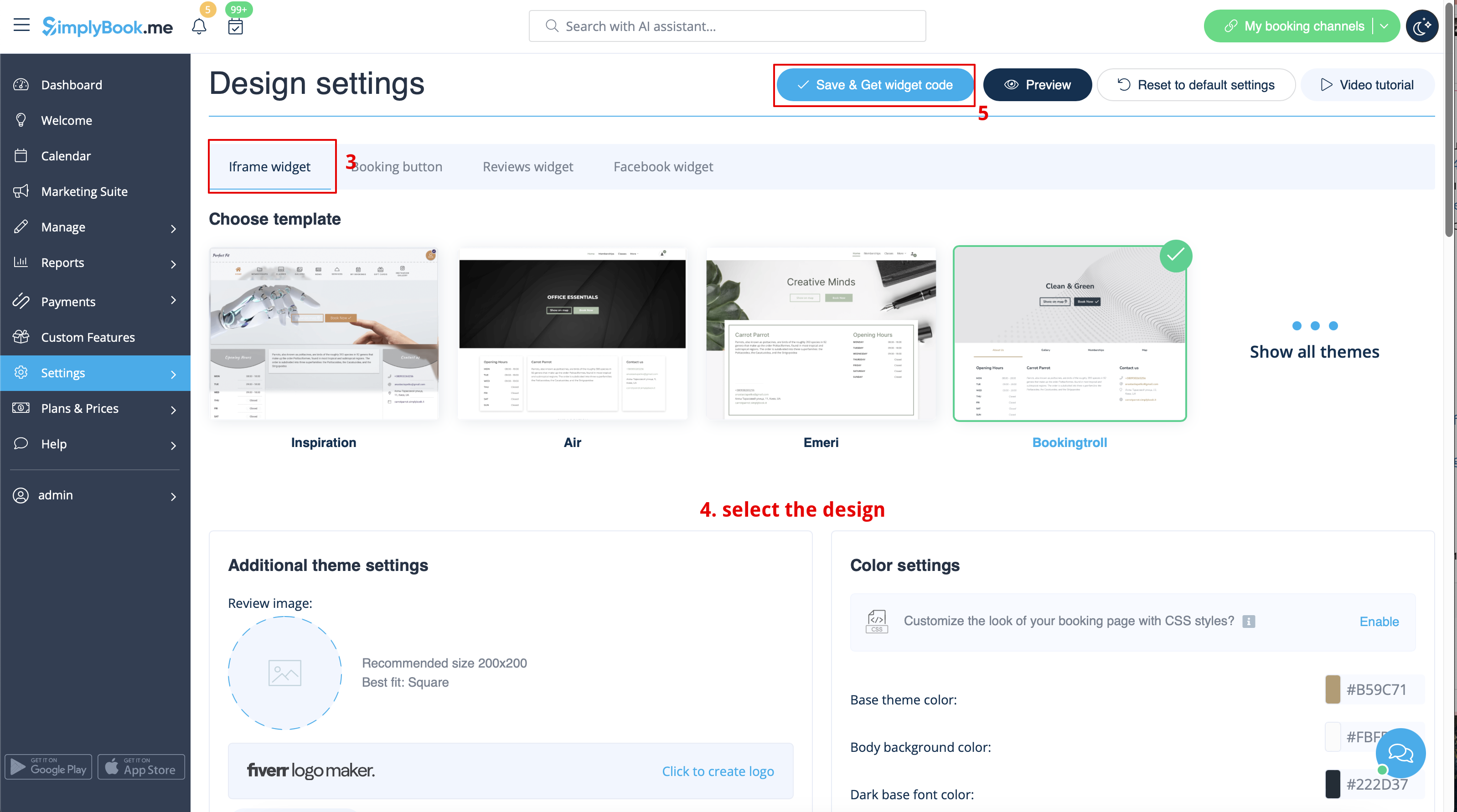
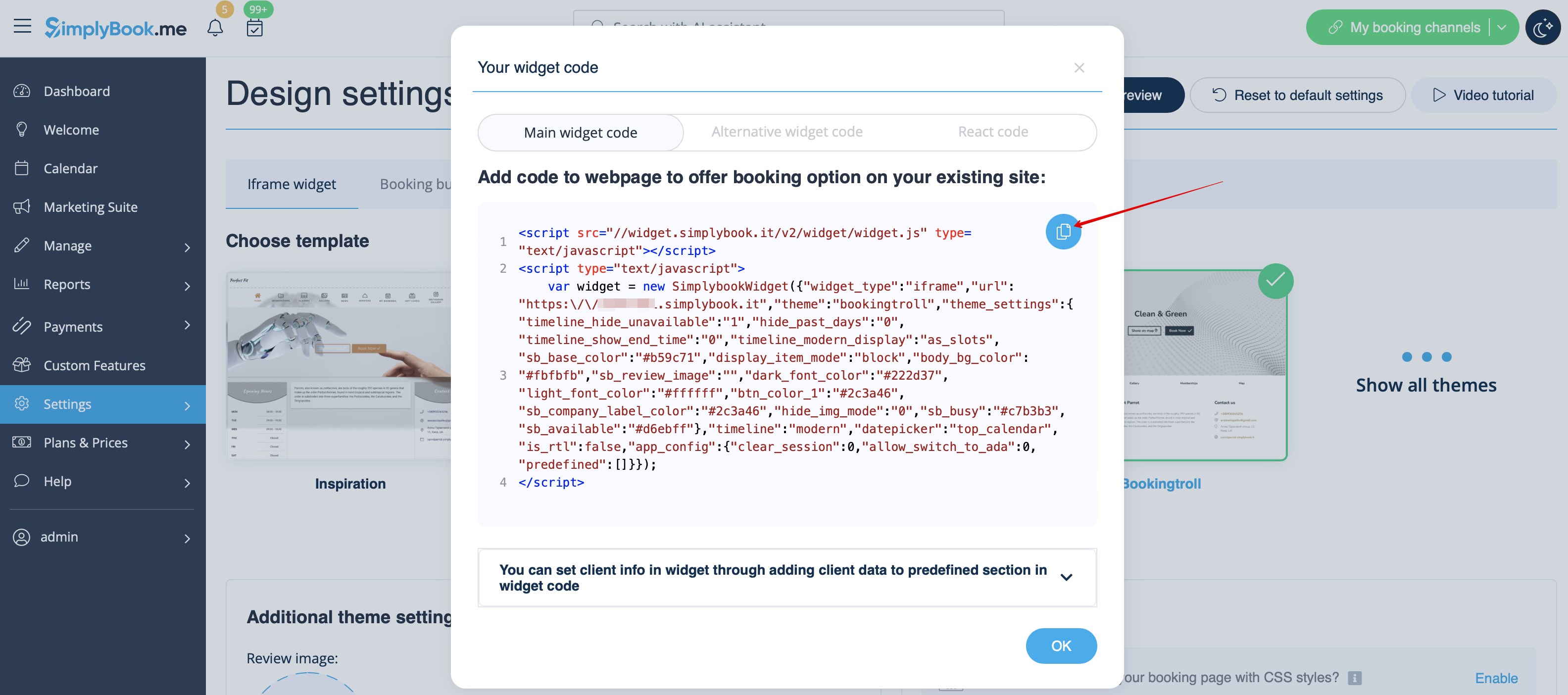
- 1. Take the iFrame code of your booking page in Settings//Booking widgets settings//iFrame widget//Get widget code.
- 2. Now go to Content>Articles check the box of the entry you want to insert the booking functionality into and click 'edit'. Then insert the widget code to the HTML code <body> of your website on the page where you need to display the booking functionality.

- 3. Save settings and publish the page.
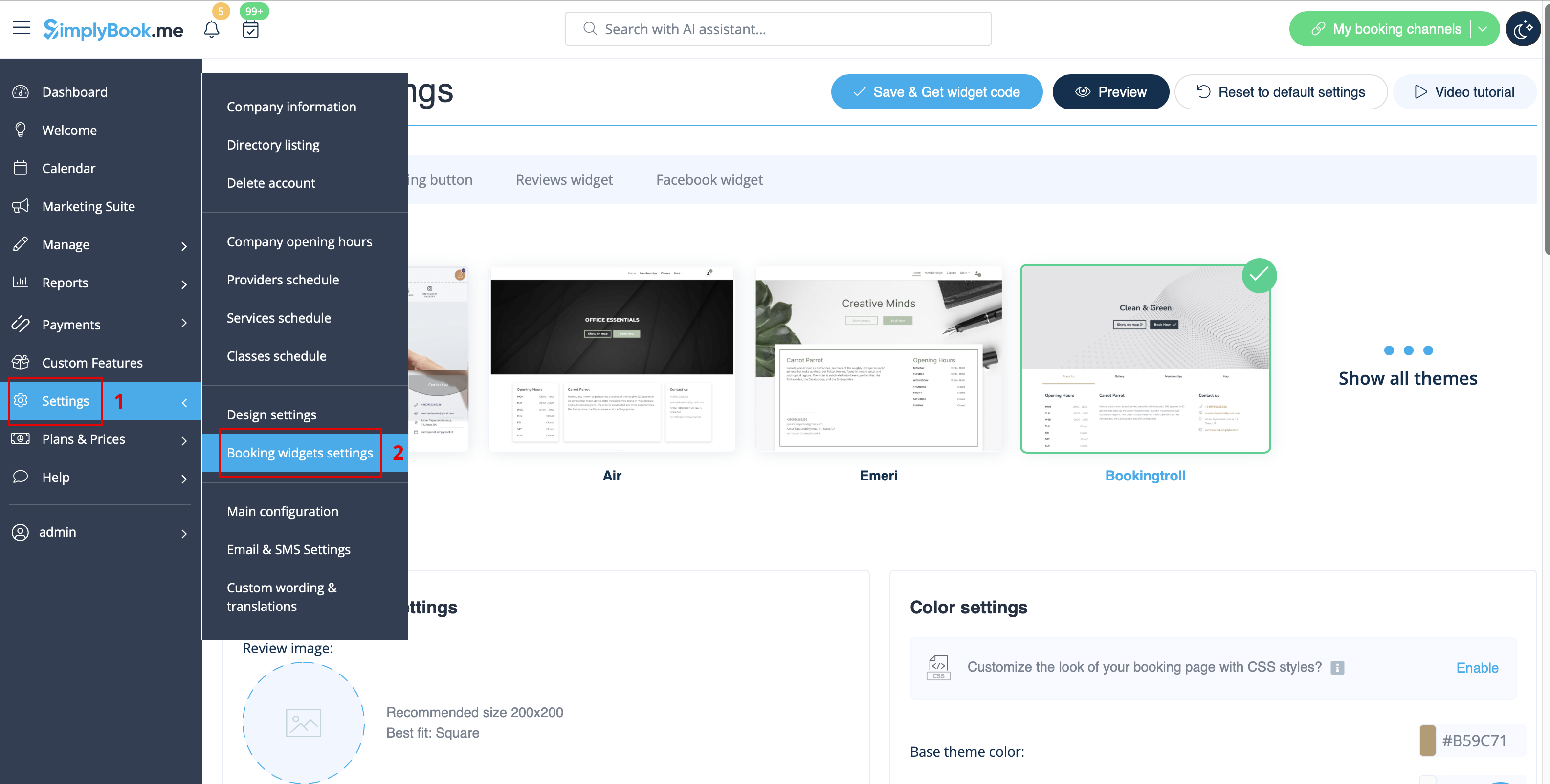
Widget with predefined service, provider, category or location
This option allows you to generate iframe code specifically for service, provider, category or location you have. For example, if you have 2 services A and B and you choose service A as predefined, the widget will open on that service, skipping the step of choosing the service. This feature may be useful if you need to display only certain services on specific page on your website. The steps to generate the code are the same as above, only in the settings of the widget, choose the item you need to predefine.